USER MANUAL FRITZ!Repeater 1200 AX AVM
natural_image
White electronic device labeled 'RDC' with red stripe and ventilation grille (no readable text beyond branding)

Gerätemerkmale

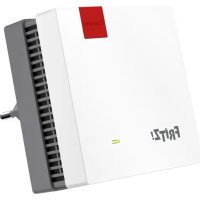
The FRITZ! Repeater 1200 AX extends the Wi-Fi network of a FRITZ!Box or any other wireless router. On its LAN port, network devices can be connected to the FRITZ!Repeater, or it can be connected with a FRITZ!Box or another wireless router by cable.
Manual
This quick guide includes important information for launching operation of your FRITZ!Repeater 1200 AX. All further information can be found in our PDF manual and in the Knowledge Base at en.avm.de/service.
Wireless Routers from Other Manufacturers
You can use the FRITZ!Repeater 1200 AX with routers from other manufacturers. For the sake of simplicity, this quick guide will refer to the FRITZ!Box, unless a given function is only supported by a certain type of device.
Mesh with FRITZ!
The FRITZ!Repeater 1200 AX supports Mesh Ⓜn combination with a FRITZ!-Box with FRITZ!OS 7.0 (or higher).
In the Mesh of a FRITZ!Box, FRITZ! products with Wi-Fi functionality automatically adopt various settings to build an especially powerful Wi-Fi network. The Mesh Overview of the FRITZ!Box user interface presents information on the connections in the Mesh and allows you to update your FRITZ! products.
Safety
Safety instructions for FRITZ!Repeater 1200 AX
| Handling | Do not cover the ventilation slits |
| Never let liquids get inside the housing |
| Do not open the housing; it may only be repaired by a qualified technician |
| Unplug it from the outlet before cleaning |
| Only clean with a slightly damp cloth |
| place of use | Only plug it into outlets that are easy to reach |
| Dry and dust-free environment |
| Do not use outdoors |
Package contents
| Name Illustration | |
| 1 FRITZ!Repeater 1200 AX | 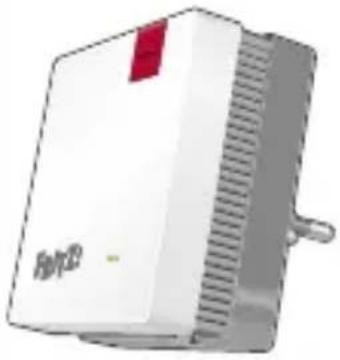 |
| 1 LAN cable | |
| 1 quick guide no illustration | |
Device Features
| Name Illustration Function Action/Meaning |
| Connect button |  | Establish connection Press and hold for 1 second |
| Connect with another access point | Press and hold for 6 seconds |
| Load factory settings Press and hold for 15 seconds |
| LED |  | on | Connection established, good connection |
| flashing | slowly (every 2 seconds): not connected with FRITZ!Box, no Wi-Fi connection set up fast (twice per second): procedure like WPS, restart or update in progress |
 | on Weak connection | |
| flashing Connection interrupted |
 | off | Wi-Fi not enabled; a schedule may be configured |
| LAN port Connect | 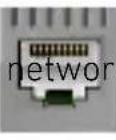 | devices by cable |
Connection Possibilities
You can connect the FRITZ!Repeater 1200 AX with a FRITZ!Box via Wi-Fi or using a LAN cable.
Wi-Fi connection to the FRITZ!Box if LAN connection to the FRITZ!Box if
the FRITZ!Repeater is to be used within the Wi-Fi range of the FRITZ!Box
the FRITZ!Repeater is to be used outside the Wi-Fi range of the FRITZ!Box or another repeater in the home network
a network device without Wi-Fi support is to be integrated into the home network via the LAN port on the repeater
it is possible to establish a LAN connection (for example using the existing cabling in your home)
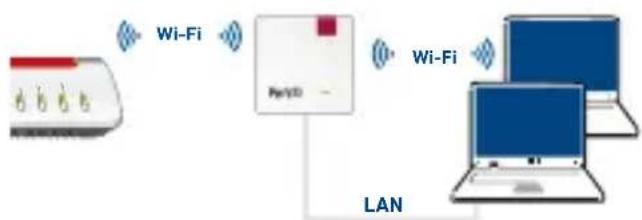
Continue reading at "Setting Up the Wi-Fi Connection" on page 20.
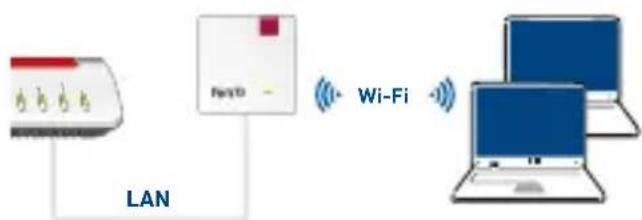
Continue reading at "Configuring a LAN Connection" on page 21.
Setting Up the Wi-Fi Connection
| Action Illustration | |
| 1 | Plug the FRITZ!Repeater into an electrical outlet near the FRITZ!-Box. | |
| 2 | Wait until theLEDstarts flashing slowly. |  |
| 3 | Start the connection on the FRITZ!Repeater: Press theConnectbutton. TheLEDflashes rapidly. |  |
| 4 | Start the connection on your FRITZ!Box:FRITZ!Box withConnect/WPS, Connector WPSbutton: Press button briefly TheWLANorConnectLED flashes.On a FRITZ!Box with theWLAN/WPSorWLANbutton: Press the button for about 6 seconds untilWLANstarts flashing.On another wireless router: press the button that starts WPS. |  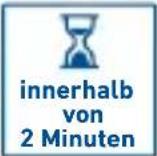 |
| 5 | As soon as theLEDon the FRITZ!Repeater lights up permanently, the connection has been established.If theLEDon the FRITZ!Repeater starts flashing slowly again, repeat steps 3 and 4 of these instructions. |  |
When the connection has been established, move the FRITZ!Repeater to the desired location. Continue reading on page 22.
If the Wi-Fi connection cannot be established at the touch of a button, you will find alternative instructions in the PDF manual at en/avm.de/service.
Configuring a LAN Connection
The table shows how to configure a LAN connection between the FRITZ!Repeater and the FRITZ!Box on a computer. More configuration options can be found in our PDF manual at en.avm.de/service.
| Action |
| 1 | Plug the FRITZ!Repeater into an electrical outlet. |
| 2 | Connect the FRITZ!Repeater to your computer using the LAN cable and wait until the Connect LED starts flashing slowly. |
| 3 | Enter http://fritz.repeater in a web browser. The user interface of the FRITZ!Repeater appears. |
| 4 | Follow the instructions of the wizard in the user interface until configuration is complete, selecting LAN Bridge as the type of connection. |
| 5 | Connect the FRITZ!Repeater to your FRITZ!Box using the LAN cable.As soon as the Connection Quality and Connect LEDs light up permanently, the FRITZ!Repeater is ready for operation. |
On a FRITZ!Box with FRITZ!OS 7.0 or higher, enable Mesh
| 1 | Press the Connect button on the FRITZ!Repeater. The Connect LED flashes. |
| 2 | Within two minutes, confirm on your FRITZ!Box that Mesh has been enabled:FRITZ!Box with Connect/WPS, Connect or WPS button: Press button brieflyFRITZ!Box with WLAN/WPS or WLAN button: Press button for at least 6 seconds. |
Positioning the FRITZ!Repeater
Once you have configured a Wi-Fi connection to the FRITZ!Box for the FRITZ!Repeater, move the repeater to the desired location.
Connect the FRITZ!Repeater to an outlet located about halfway between the FRITZ!Box and the wireless devices for which the Wi-Fi network is to be extended. The FRITZ!Repeater and the FRITZ!Box reestablish the configured connection automatically.
Connection quality Display on the FRITZ!Repeater
| good connection | |
| weak connection | |
| no connection | |
If connection quality is insufficient, select an outlet closer to the FRITZ!Box. You can position the FRITZ!Repeater precisely using the FRITZ!App WLAN.
FRITZ!App WLAN
The FRITZ!App WLAN assists you in finding the ideal position for your FRITZ!Repeater. The FRITZ!App WLAN is available for your smartphone free of charge.
Google Play (Android) App Store (iOS)


Positioning the FRITZ!Repeater precisely with the FRITZ!App WLAN
Wireless access point

FRITZ!Box 7590
Your Wireless Repeaters

FRITZ!Repeater 1200 AX

The repeater has a very good connection to "FRITZ!Box 7590". You can position the
Configuring the FRITZ!Repeater
| FRITZ!Repeater on Settings and Information |
| FRITZ!Box with Mesh(FRITZ!OS 7.0 or higher) | The FRITZ!Repeater in the Mesh automatically adopts all of the settings of the FRITZ!Box.Information on your repeater is available in the user interface of the FRITZ!Box http://fritz.box under Home Network / Mesh. |
| FRITZ!Box(FRITZ!OS 7.0 or earlier) | During WPS, the FRITZ!Repeater adopts the Wi-Fi net-work name and Wi-Fi password of the FRITZ!Box. Further settings can be configured via the user interface of the FRITZ!Repeater: http://fritz.repeater. |
| Wireless routerfrom another manufacturer | During WPS, the FRITZ!Repeater adopts the Wi-Fi network name and Wi-Fi password of the wireless router.Further settings can be configured via the IP address user interface of the FRITZ!Repeater.1. Open the user interface of your wireless router.2. Determine the IP address of the FRITZ!Repeater.3. Enter the IP address of the FRITZ!Repeater in a web browser.The user interface of the FRITZ!Repeater appears. |
Radio Frequencies and Transmitter Power
• Wi-Fi: 2.4 GHz – 2.483 GHz, max. 100 mW
• Wi-Fi: 5.15 GHz – 5.35 GHz, max. 200 mW
• Wi-Fi: 5.47 GHz – 5.725 GHz, max. 1000 mW
- In AT, BE, BG, CY, CZ, DE, DK, EE, EL, ES, FI, FR, HR, HU, IE, IT, LT, LU, LV, MT, NL, PL, PT, RO, SE, SI, SK, UK, Wi-Fi between 5.15 GHz and 5.35 GHz may only be used indoors.
Legal Notice
CE AVM declares herewith that the FRITZ!Repeater is compliant with the basic requirements and the relevant rules in directives 2014/53/EU, 2009/125/EC and 2011/65/EU.
The long version of the declaration of CE conformity is available at en.avm.de/ce.
Diagnostics Data
To improve the product and ensure safe operation on your connection, AVM uses error reports and diagnostic data where needed.
These settings can be changed by clicking on Contents below the menu, and on AVM Services in the footer.
Disposal
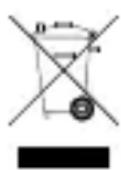
In accordance with European directives, the FRITZ!Repeater and its cables may not be disposed with household waste. Please bring these to your local collection points for disposal.
Legal Notice
Legal information and licensing conditions are presented in the help of the user interface.
Le FRITZ!Repeater 1200 AX

Wireless access point

FRITZ!Box 7590
Your Wireless Repeaters

FRITZ!Repeater 1200 AX

The repeater has a very good connection to "FRITZ!Box 7590". You can position the

Ajustar el FRITZ!Repeater


FRITZ!Repeater instellen
Top 10 knowledge documents
Downloads
Manuals
Support




WLAN-Karte