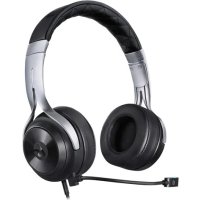
LS20 - Headphones LucidSound - Free user manual and instructions
Find the device manual for free LS20 LucidSound in PDF.


| Product Type | Headset |
| Brand | LucidSound |
| Model | LS20 |
| Main connection mode | Wired (3.5mm jack) and wireless via USB adapter (for chat) |
| Compatibility | PS4, Xbox One, Mobile |
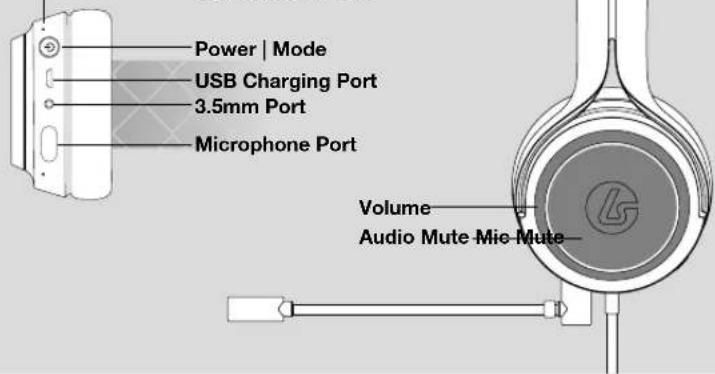
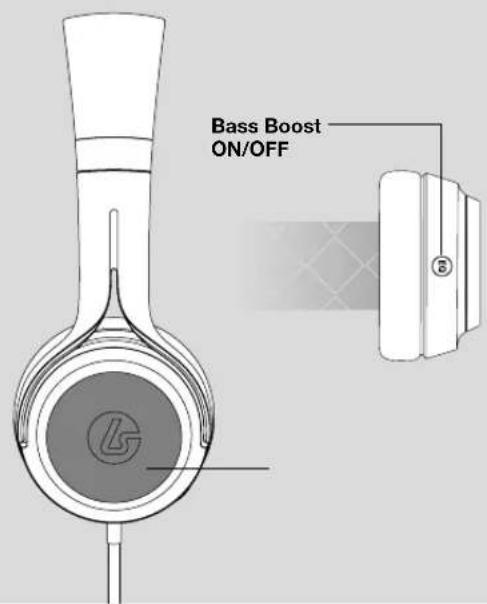
| Main functions | Volume, Mute, Bass Boost, Internal/external microphone, Mobile phone control |
| Power supply | Rechargeable via micro-USB port |
| Battery type | Built-in lithium-ion |
| Charge indicator | LED: slow flashing (charging), solid on (charged), fast flashing (low battery) |
| Microphone | Internal microphone enabled by default; optional external microphone (included) with dedicated port |
| Included accessories | External microphone, USB charging cable, 3.5mm cable (chat), microphone port cover |
| Required peripherals | For Xbox One without 3.5mm port: Xbox One stereo adapter (not included) |
| Warranty | 2 years (Europe) / 1 year (Canada) - limited, non-transferable |
| Care and cleaning | Clean with a soft, dry cloth. Do not use chemicals. |
| Safety | Do not expose to moisture or extreme temperatures. Use only the supplied charger. |
| Spare parts and repairability | Not specified by the manufacturer. Contact LucidSound for warranty service. |
Frequently Asked Questions - LS20 LucidSound
User questions about LS20 LucidSound
0 question about this device. Answer the ones you know or ask your own.
Ask a new question about this device
Download the instructions for your Headphones in PDF format for free! Find your manual LS20 - LucidSound and take your electronic device back in hand. On this page are published all the documents necessary for the use of your device. LS20 by LucidSound.
USER MANUAL LS20 LucidSound
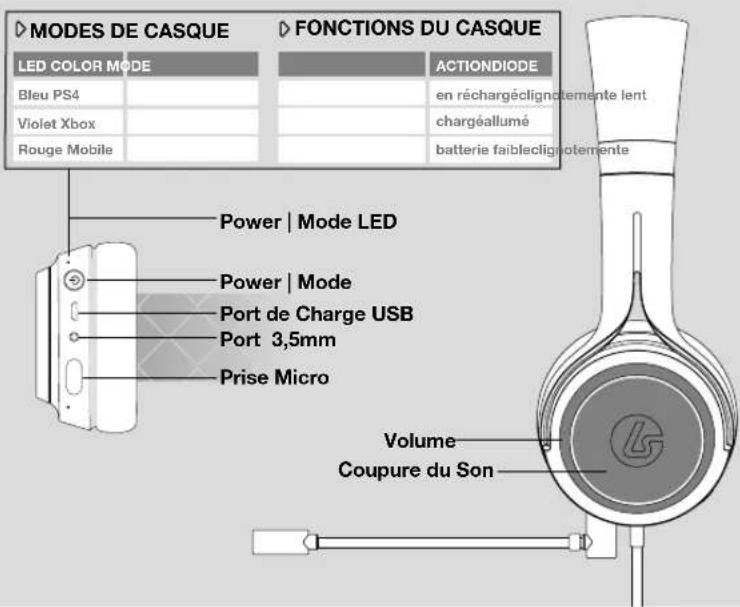
| LED COLOR MODE | ACTIONLED | ||
| Blue PS4 | ChargingPulsing | ||
| Purple Xbox | ChargedSolid | ||
| Red Mobile | Battery LowFlashing | ||
[L][R]
ACCESSORIES


Boom Mic with LED


Mic Port Cover [2]

natural_image
Close-up of a black audio headset with visible earbuds and headband (no text or symbols)
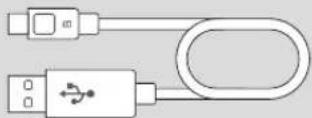
USB Charging Cable

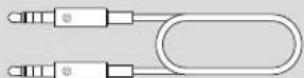
3.5mm Cable
CHARGING

EN
natural_image
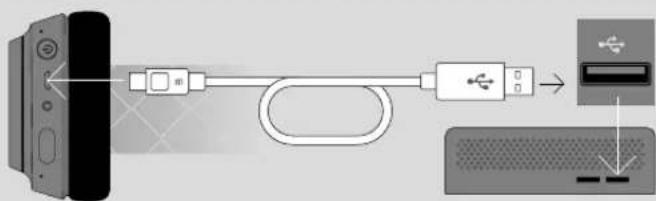
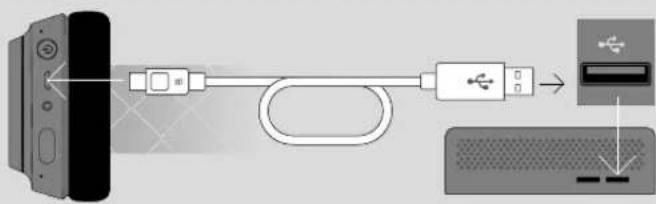
Diagram showing cable connection between a device and a keyboard, with no visible text or symbolsConnect the small end (micro-USB) of the charging cable to the headset. Connect the other end to a USB port. The LED on the headset will pulse while charging and turn solid when charging is complete.
MICROPHONE

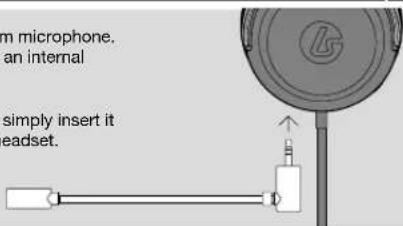
The LS20 includes an optional boom microphone. When this microphone is removed, an internal microphone is activated.
To connect the boom microphone, simply insert it into the port on the bottom of the headset.
EN | XBOX ONE SETUP

natural_image
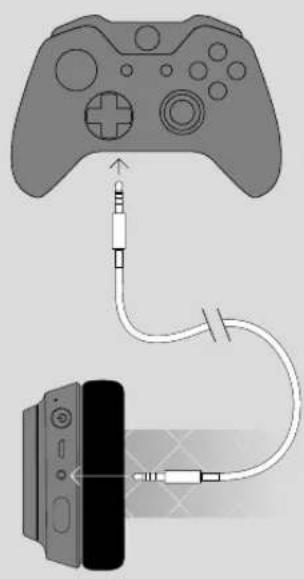
Diagram showing a game controller connecting to an attached device via cable (no text or symbols present)Controllers with 3.5mm port
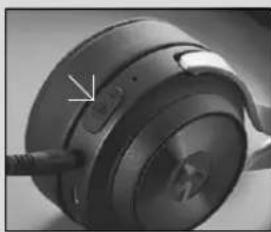
With the headset powered on, press and hold the power/mode button until the LED changes to Purple.
2 Connect one end of the Xbox One chat cable to the 3.5mm port on the headset and the other end to the 3.5mm port on the Controller.
3 On the Xbox One, go into All settings > Kinect & devices > Devices & accessories and choose the Xbox One Wireless Controller in use.
4 Select 'Volume' and set 'Headset volume' to maximum and 'Mic monitoring' to minimum. Make sure that 'Headset mic' is turned to 'On.'
5 Set 'Headset chat mixer' for the desired level of chat and game audio balance (default is 50%). You can now use the controls on the headset to adjust volume and mute.
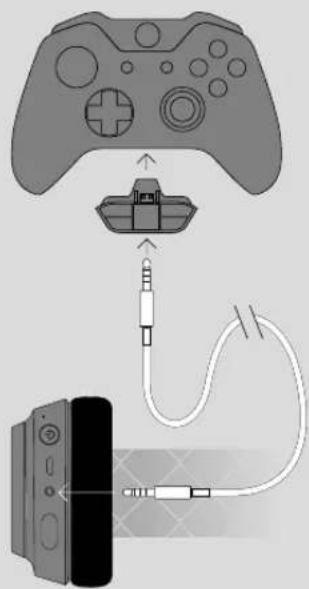
Controllers without 3.5mm port
If the Xbox One Controller does not have a 3.5mm port, an Xbox One Stereo Headset adapter is required (not included).
With the headset powered on, press and hold the power/mode button until the LED changes to Purple.
2 Connect one end of the Xbox One chat cable to the 3.5mm port on the headset and the other end to the 3.5mm port on the Stereo Headset Adapter.
3 Adjust the game/chat balance on the Stereo Headset Adapter for the desired level of chat and game audio balance.
Adjust the volume on the Stereo Headset Adapter to Maximum. You can now use the controls on the headset to adjust volume and mute.
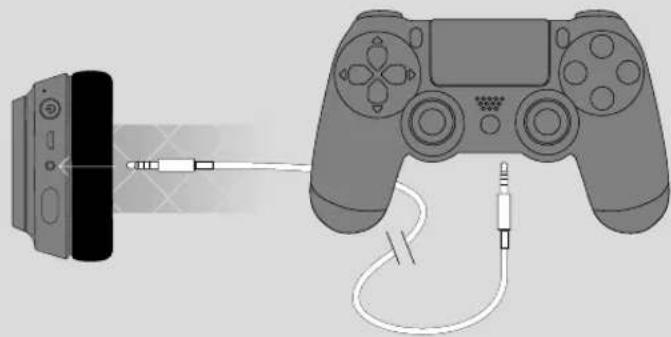
PLAYSTATION 4 SETUP MOBILE

With the headset powered on, press and hold the power/mode button until the LED changes to Blue.
2 Go into Settings > Devices > Audio Devices set the 'Output to Headphone' to 'All Audio'.
Set the 'Volume Control (Headphones)' to maximum. You can now use the controls on the headset to adjust volume and mute.
natural_image
Illustration of a game controller connecting to a handheld device via cable (no text or symbols)PC SETUP

EN
natural_image
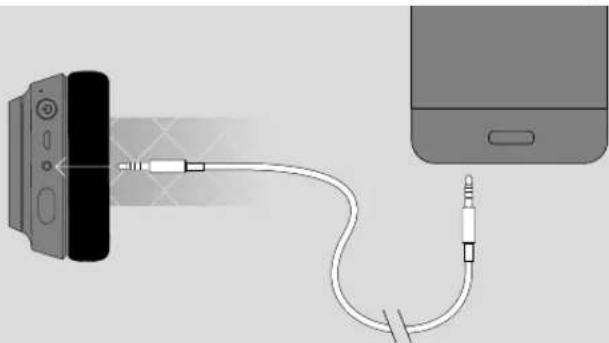
Diagram showing a device emitting a cable to an external resistor, with no visible text or symbols.With the headset powered on, press and hold the power/mode button until the LED changes to Red.
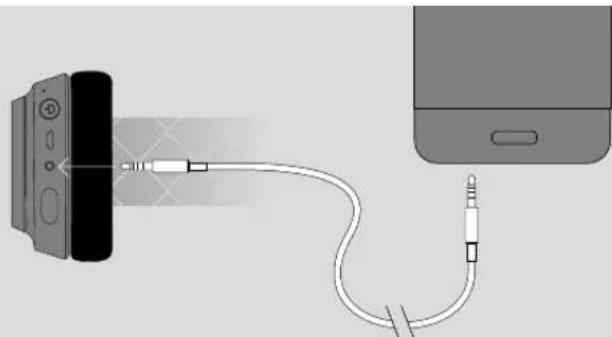
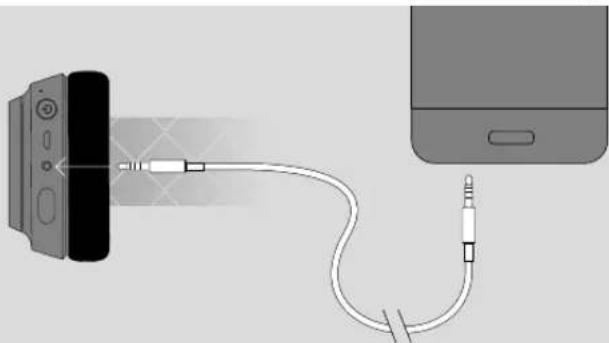
2 Connect one end of the mobile cable to the 3.5mm input on the headset and the other end to the 3.5mm output on the mobile device. The headset will work in both active (ON) and passive (OFF) modes.
Note that the volume, Bass Boost, and mute buttons will not function in passive mode, but the mobile phone control button on the left earcup will still work.
EN
SUPPORT
?#!*
Lucid Sound, Inc. warrants this product to be free from defects in materials and workmanship for the warranty period. This non-transferable, limited warranty is only to you, the first end-user purchaser. If a defect covered by this warranty occurs AND you provide proof of purchase, Lucid Sound, Inc., at its option, will repair or replace the product at no charge (excluding shipping to Lucid Sound).
Lucid Sound, Inc., provides a minimum 1-year limited warranty or the minimum warranty period required by local law. Your sole and exclusive remedy is repair or replacement of your Lucid Sound product. In no event shall Lucid Sound's liability exceed the original purchase price of the product. This warranty does not apply to: (a) normal wear and tear or abusive use; (b) industrial, professional or commercial use; (c) if the product has been tampered with or modified.
Our goods come with guarantees that cannot be excluded under the Australian Consumer Law. You are entitled to a replacement or refund for a major failure and compensation for any other reasonably foreseeable loss or damage. You are also entitled to have the goods repaired or replaced if the goods fail to be of acceptable quality and the failure does not amount to a major failure.
To receive warranty service, please contact us at:
support@lucidsound.com
lucidsound.com

©2016 Lucid Sound, Inc. 2150 Palomar Airport Rd., Suite 201, Carlsbad, CA 92011 U.S.A. Lucid Sound and the Lucid Sound logo are trademarks of Lucid Sound, Inc., its subsidiaries, and affiliates. The shape and design of this product are a trade dress of Lucid Sound, Inc., its subsidiaries and affiliates. All rights reserved. All other product names and images are trademarks or registered trademarks of their respective owners. Made in China. Product features, appearance and specifications may be subject to change without notice. Please retain this information for future reference.

HEADSET

DE
HEADSET-MODI HEADSET-FUNKTIONEN
LED-FARBE MODUS
Blau PS4
Lila Xbox
Rot Mobiltelefon
natural_image
Close-up of a black electronic head with visible microphone and ear (no text or symbols)
3,5mm Kabel

LADEVORGANG

natural_image
Diagram showing a game controller connected to an attached device via cable (no text or symbols present)Mit 3,5mm Anschluß
Ohne 3,5mm Anschluß
natural_image
Illustration of a game controller connected to a cable via a cable connector (no text or symbols present)MOBILE | PC SETUP

natural_image
Diagram showing a device connected to an external cable with a plug, next to a smartphone (no text or symbols present)support@lucidsound.com
lucidsound.com


LucidSound™
FR
CASQUE

natural_image
Close-up of a black hardcover head with visible ear and cable, no text or symbols present
natural_image
Diagram showing a game controller connecting to an attached device via cable (no text or symbols present)Mannettes sans port 3,5mm
natural_image
Illustration of a game controller connecting to a handheld device via cable (no text or symbols)PC

FR
natural_image
Diagram showing a device emitting a cable to an external resistor, with no visible text or symbols.support@lucidsound.com
lucidsound.com


LucidSound™
CUFFIA

IT
MODALITÀ CUFFIA FUNZIONE CUFFIA
LE-FARBE MODUS
Blu PS4
Viola Xbox
Rosso Cellulare
ACTIONLED
RicaricaPulsante
CaricaLuce continua
natural_image
Close-up of a black electronic head with visible microphone and ear (no text or symbols)
natural_image
Diagram showing a game controller connected to an attached smartphone via cable (no text or symbols present)Con porta 3,5mm
Senza porta 3,5mm
natural_image
Illustration of a game controller connected to a cable via a cable connector (no text or symbols present)natural_image
Diagram showing a device connected to an external cable with a plug, next to a smartphone (no text or symbols present)support@lucidsound.com
lucidsound.com

INFORMAZIONE AGLI UTENTI DI APPARECCHIATURE DOMESTICHE
natural_image
Technical line drawing of a mechanical component with no visible text or symbols[I][D]
![LucidSound LS20 - [I][D] - 1](/content/2026/04/588704/images/bde3972fb6e21557f6596fd5f0461b7c86cb0c6d2c584a8bd784797ebd207ba1.jpg)
natural_image
Technical line drawing of a speaker head with logo (no text or symbols)Aumentar sonidos
de baja frecuencia
'Bass Boost'
ON/OFF
![LucidSound LS20 - [I][D] - 2](/content/2026/04/588704/images/6dc32eb22c677007a442abd0e3ce39aa3aa65bf32645e84341766da84152e22b.jpg)
Función Mute
Micrófono
ACCESSORIO


natural_image
Close-up of a black athletic head with visible buttons and ear (no text or symbols)
natural_image
Diagram showing a game controller connecting to an attached device via cable (no text or symbols present)natural_image
Illustration of a game controller connected to a cable via a cable connector (no text or symbols present)natural_image
Diagram showing a device emitting a cable to an external resistor, with a smartphone partially visible (no text or symbols)support@lucidsound.com
lucidsound.com