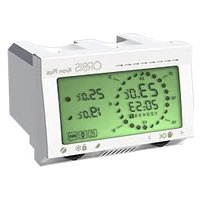
KRON Plus - Thermostat Orbis - Free user manual and instructions
Find the device manual for free KRON Plus Orbis in PDF.
User questions about KRON Plus Orbis
0 question about this device. Answer the ones you know or ask your own.
Ask a new question about this device
Download the instructions for your Thermostat in PDF format for free! Find your manual KRON Plus - Orbis and take your electronic device back in hand. On this page are published all the documents necessary for the use of your device. KRON Plus by Orbis.

USER MANUAL KRON Plus Orbis
OUTALARM 2 OFF DIG2 MAN
User Manual CODITEL 2 ■ During the installation and operation of the device observe the following instructions:
1) The instrument must be installed by a qualified person
2) The instrument must be installed and activated in compliance with current
electric systems standards
3) After installation, inaccessibility to the connection terminals without
appropriate tools must be granted
4) Do not use the instrument for purposes other than indicated
5) The device must be installed in a electric closed panel well protected
6) A two-pole disconnect device shall be provided as part of the building
7) A protection device against over-currents should be installed in the electrical
system, upstream of the device
8) Carefully respect the wiring diagrams to install the instrument
9) Before installation disconnect power
10) Do not power or connect the instrument if any part of it is damaged
11) The use of a GSM device can cause interference with the functioning of
electronic devices non-screened from radiofrequency signals (electromedical devices, pacemakers, hearing aids etc.)
12) In case of fault, do not service the device yourself but contact the after-sales
13) The instrument is aimed for use in place with measurenment category III and
pollution degree 2, as per standards EN 61010-1. SAFETY WARNINGS ■ The communication interface CODITEL 2 is an electronic device in a container 4 DIN modules that perform 1B type actions based on GSM technology that allows remote management of utilities thanks to the two output relays that can be controlled by sending an SMS or ring phone. The two digital inputs, along with analog, also allow monitoring for danger, thus allowing the intervention automatic, with the times and modes. Any alarms or changes in status of inputs can be reported by sending an SMS or a phone ringing one or more numbers selected. The CODITEL 2 also features a battery that allows the instrument to operate for about an hour even in the absence of power to send an alarm Mains electricity. Note: Any programming command must be written in capital letters.English
- Output − n. 1 bistable relay with change-over contact and breaking capacity: 8A / 250V AC − n.1 normally open relay and breaking capacity: 5A / 250V AC
- Auxiliary power output(Vout terminals 12-13) rectified dipending of power supply (Vin terminals 1-2)) Example: Vin= 15V dc
- SMA-F connector for external antenna provided with 3 m long cable
- USB port (mini B type) to connect with Personal Computer (cable not included)
- Possibility to enable 2000 numbers which 10 for sending alarms (STAFF)
- Degree of protection: IP40
- Insulation: class II
- Container: 4 DIN modules
- Backup battery capacity: 1 hour Model Description CODITEL 2 GSM communication interface with backup batteryEnglish
User Manual CODITEL 2 DEVICE STATUS The status of the device is segnalated by the led : OFF
system not fed BLINKING RED
SIM not inserted or pin code in activity FIXED RED
starting system/network research BLINKING GREEN
connected to GSM network
arriving in command (ring or SMS)
programming mode active BLINKING YELLOW
connected to GSM field but low level battery
modem error or failure (if still flashing) Note: blinking = 1 lamp / second quickly blinking = 5 lamps / second INSTALLATION
Getting a SIM card enabled for phone traffic, with the required pin code and the answering machine disabled (to disable the pin code, to use a mobile phone and follow the steps described in the relative user’s guide).
Remove the flip cover of the housing using a screwdriver.
Insert the SIM card into the slot (push-push type). The direction of insertion provides that the bevel of the SIM card goes inside in the left. Note: ensure that the power cables are disconnected before inserting/remove the SIM card.English
Screw the supplied antenna into its connector on the side of the instrument. Note: Ensure that the power cables are disconnected before replace the antenna.
Connect the power and the load as shown in the “wiring diagrams”. Once the instrument has been connected, the led will remain green fix for about 30 seconds; then the led begins to blinking once at second, indicating the correct reception of the GSM network. If this is not the case, see box “Device status” pag. 34.
For the proper functioning of the instrument it is necessary to set the number admin who has full control of the instrument. The first number to make a ring after the first start (or after a reset of the instrument) will be stored as number admin. – hold the “1–SET” button for 5 seconds until the led begins to flash alternately red / green – make a ring with the number you want to set as many admins. The caller will receive an SMS confirmation of activation.
MANAGEMENT ENABLED NUMBERS
- Managing user numbers You can create a phone book containing up to 2000 phone numbers (user numbers) the which may act on the state of relay by sending SMS or phone rings. There are two ways to add a user number: − via phone ring
Hold for 5 seconds the “Set” button until the led begins to flash alternating red / green.
Make a ring with the number concerned. This number will be inserted (removed) from the list of user if not present (present) in the phonebook. An SMS confirmation will be sent to caller with an indication of the phrases employed total available.English
The number admin can add or remove at any time the user numbers by sending the following commands :
USERADD [list of numbers to be added] USERDEL [list of numbers to be removed] Numbers add / remove should be separated from each other by a empty space.
- Edit number admin (for admin only) The admin number can be changed by sending (from the current admin number) the following command: ADMIN [new admin number] The new admin will receive an SMS number to confirm your transaction. Note. If the number admin is lost, you can change only forcing a reset, losing all the numbers previously enabled. For avoid having to reload manually, please refer to “Manage SIM card” pag. 37.
- Set-up for contacts By using the STAFF command it is possible to enter up to 10 telephone numbers with an index from 1 to10 and used for sending alarm signals (see management of the alarms). STAFF without parameters
insertion / cancellation staff numbers (cancellation using “NULL” string) To enter a STAFF number at position 4: STAFF 4 392123445 It is also possible to enter several STAFF numbers using one command only: STAFF 1 392123445 2 043980638 6 12334455 in this case the numbers in positions 1, 2 and 6 are entered. If there is already a STAFF number it will be overwritten. To cancel a STAFF number, write NULL in the place of the number for example STAFF 1 NULL
cancels the STAFF number at position 1 The response to a STAFF command is always the whole STAFF directory in the following format:English
User Manual CODITEL 2 STAFF 1=333800123 2=NULL 3=NULL 4=NULL 5=NULL 6=NULL 7=NULL 8=NULL 9=NULL 10=NULL If the number is NULL the contact is not defined.. NB: the number ADMIN is entered by default as STAFF with index 1. In the case of adding a STAFF number which does not appear among the enabled numbers (user), this will be also be automatically added in the user list.
- Manage SIM card (for admin only) The enabled telephone numbers are saved in the memory of the device. In case of reset, this implies the loss of all the enabled utilities. To avoid having to re-enter all the numbers manually, it is possible to make a backup copy of the SIM card through the following commands, to be given by the administrator only: STORE creates a copy in the SIM card of all the saved user numbers RESTORE only restores the numbers previously saved with STORE Therefore, once all the telephone utilities have been enabled, it is advisable to make a backup of the phone book.
- Display stored user (for admin only) To see all the saved numbers, use the command USERVIEW [start], [start] indicates the first memory location to be displayed The numbers will be displayed in blocks of 8. A possible response on the USERVIEW 3 command is: USERVIEW(3-10)=333123455(1) 392234543 0439879832 (3/64) Number (1) next to the first number indicates that that number is also a staff number and is in the first position.English
- Turn off the instrument:
Hold approximately 10 seconds for either the “1-SET” or “2” until all LEDs off. During the pression of the key, the output led blinks quickly and the led blinks green (or yellow) for the first 5 seconds and green/ red for the other 5 seconds.
- Turn on the instrument without reset
Press “2”. The LED will be green initially fixed and then begin to flashing green (or yellow), indicating the correct reception of the GSM signal.
- Turn on the instrument with reset
Press the “1-SET”. The input and output leds will illuminate for a few seconds; waiting for they go out and press “1-SET” key. The LEDs will flash simultaneously a pair of times indicating that the reset occurred. Note: The reset erases all data, settings and users stored tool and restore factory defaults (see box on).
COMMANDS TO THE INSTRUMENT
The two relay outputs can be piloted in the following ways: − with the keys on the front panel − via ring or text message from an enabled number − following an alarm in one of the inputs present Commands from ring or text message The outputs can be commanded from a distance via a text message or a telephone ring. The structure of a text message is as follows: [password] [separator] [command] [parameter1] [separator]..[parameterN] [password]
comprised of one or more space characters [command]
command recognised by the device [parameter]
series of parameters relative to the commandEnglish
User Manual CODITEL 2 The password field may be omitted if the command is given by qualified number. Several commands may be included in one text message. In this case, the commands executed will only be those whose reply is contained in a standard text message (160 characters). To enter numbers with the decimal separator, you need to use a full stop. The structure of a reply to a command is similar to the command itself, with the addition of the “=” symbol to indicate the current status. For example: OUTKEY BLOCK
- Set operation mode button (for admin only) A quick press of the button allows it to act on the output. To define the mode of behavior output using the command: OUTKEY [functionality] with functionality that can assume the values: − RING
it reacts as it does to a call when the key is pressed − TOGGLE
disables the key functionality (it is not possible to access programming mode when in this mode) If the value is omitted, the current instrument status will be the response. The default setting is RING.
- Caller control activation/deactivation (for admin only) The caller number control can be disabled if you wish to temporarily allow anyone to command the outputs via the command: RINGCONTROL [status] with status that can assume the values: − ON
activates a control of the caller to check it is enabled − OFF
disables the caller control function If the value is omitted, the current instrument status will be the reply.
- Activation/deactivation of a text message of reply to a ring (for admin only) A function can be activated to receive a text message following a ring, containing the response of the instrument upon receiving the call with the command:English
sends a text message to the caller on the response of the outputs to the ring − OFF
no text message will be sent as reply If the value is omitted, the current instrument status will be the reply.
- Defining the response to a ring (for admin only) The response of the outputs to a ring from an enabled telephone number can be defined through the command: OUTRING [output number][output status][status holding time][unit of measurement], − [output number]
indicates the output to which reference is made (1 or 2) − [output status]
can assume the values ON, OFF, TOGGLE, DISABLE − [status holding time]
maximum time setting (2
s seconds, m minutes, h hours (optional parameter) Some examples: OUTRING 1 ON the relay 1 is turned ON OUTRING 1 OFF 10 S the relay 1 is turned OFF for 10 seconds when the ring is received OUTRING 2 DISABLE the relay 2 does not do anything when the ring is received OUTRING 2 TOGGLE the relay 2 changes position when the ring is received
- Setting the output status To send more complex commands to the instrument, text messages must be used. The possible commands are: OUT [output number][output status][status holding time][unit of measurement], − [output number]
indicates the output to which reference is made (1 or 2) − [output status]
maximum time setting (2
s seconds, m minutes, h hours (optional parameter) Some examples: OUT 1 OFF 10 S sets the relay 1 OFF for 10 seconds OUT 2 ON 12 H sets the relay 2 ON for 12 hoursEnglish
- Setting the text message forwarding to the sender (for admin only) The instrument can be set to send the sender a text message of confirmation upon receiving a command via a text message. The command is OUTRISP [status] with status that can assume the values: − ON
disables the sending of a text message of reply to the sender If the status is omitted, the reply will be the current instrument status.
- Setting display The device can be queried to know the relevant configuration, using the command: OUTINFO Here is an example of a possible reply: OUT 1=ON OUTRING= ON 5S OUT 2=OFF OUTRING=ON 2S OUTRISP=ON
RINGRISP=ON OUTKEY=RING
meaning: output 1 on, response to a ring on for 5 seconds, output 2 off, response to a ring on for 2 seconds, reply to text messages enabled, reply to a ring enabled, reaction to pressing a key the same as to a ring
- Modifying output names (for admin only) To assign a name to the output that recalls the device to which it is connected, use the command: OUTTXT [output number] [output label] Some examples: OUTTXT 1 port assigns output 1 the name port OUTTXT 2 valve assigns output 2 the name valve OUTTXT 2 NO restore the original name to output 2 A string of a maximum of 10 characters with no spaces can be assigned as a name. To restore the original name, just write OUTTXT NO. If an alternative number for an output is defined, it is possible to use this name to indicate the output in the transmitted commands. For example: valve ON 10 M activates output 2 (valve) for 10 minutesEnglish
- Enabling the forwarding function (for admin only) The instrument can be set to redirect to a specified number all the text messages it receives and does not recognise as commands. The command is: FORWARD [number] If not modified, the number that receive the unknown SMS is the admin. FORWARD OFF disables the function. The text message that the specified number receives begins with “FW: ”.
- Password management (for admin only) A text message sent from the admin number enables an instrument protection password to be changed, to be used in case you wish to send a command via text message from a number other than the admin number. The command is: PASS [new password] with new password with a maximum of 8 figures For example: PASS 11223344
- Synchronising the clock (for admin only) In the case of an extended blackout - longer than the battery charge – the values of date and hour are lost. These values can be reset either automatically or manually. Manually It is possible to synchronise the date and time of the instrument sending the command: RTCSMS If this command is not carried out, the instrument substitutes date and time with “--.--.-- --:--” It is also possible to link this command to the end of any command text message. For example:
OUTALARM 2 OFF POWERF AUTO RTCSMS
Automatically In this case, the CODITEL 2 sets the date and time when the power supply returns,English
User Manual CODITEL 2 without user intervention. To do this, after installing and configuring the parameters, specify the number of the inserted SIM card with the command: NSIM [number] where [number] is the telephone number of the SIM card inserted in the CODITEL 2
- Assigning system name (for admin only) It is possible to assign a name to the plant where the Tlc-solar is installed. In this way, each alarm text message or reply from the CODITEL 2 will be headed by its given name. The command is: NAME [name system] A name with a maximum string of 20 characters can be assigned. To cancel write: NAME disabled
- Count SMS sent (for admin only) You can check the number of text messages sent by the tool with the command: NSMS The instrument responds to the sender with a text message containing the number of SMS sent (in count includes both SMS alert that the response to commands). NSMS RESET lets you reset the counter.English
CODITEL 2 has two digital inputs whose status is signalled by a green LED (on
input open). The following can be connected to these inputs: − signals from a relay − signals from an open collector − signals with voltage (maximum 40Vdc) − signals from pulse meters or time meters Note. The maximum measurable pulse length is 20ms (max frequency 25Hz). Some alarms can be defined on these inputs: − on the input status − on the count of the pulse meter − on the value of the time meter The following commands allow the digital signals to be managed:
- Setting the operating mode To set the operating mode of a digital input so that it detects an alarm in a special condition, use the command: DIG [input number][func mode][parameters][alarm time setting][unit] − [input number]
OPEN, CLOSE for alarm on the open or closed status of the input respectively, TIMER to set the input as time meter, PULSE to set the input as pulse meter − [parameters]
OPEN, CLOSE indicates the alarm delay time (max 2
time unit s seconds, m minutes, h hours (parameter for OPEN, CLOSE func modes only) Some examples:
alarm if input 1 remains open for at least 10 seconds
alarm if input 1 remains closed for at least 20 minutes
counts the time when input 1 remains open
counts the time when input 2 remains closed
counts the pulses on open
closed variation of input 2English
counts the pulses on closed
- Time meter management The device can be queried to know the value of the time meter or to reset it with the command: TIMER [[input number][function] − [input number]
indicates which digital input (1 or 2) − [function]
READ reads the count, RESET resets the count Some examples: TIMER 2 READ
reads the status of the time meter associated to input 2 TIMER 1 RESET
resets the time meter associated to input 1
- Time meter alarm setting When a time meter threshold value is reached it is possible send a text message or a ring to the contact numbers TIMERALARM [input number][count][time unit of measurement][automatic reset] − [input number]
indicates which digital input (1 or 2) − [count]
indicates the count value that must trigger the alarm (max 2
sends a text message of alarm when the count on input 2 reaches 30 minutes (it does not reset the meter)
- Pulse meter management The device can be queried to know the value of the pulse meter or to reset it with the command: PULSE [input number][function]English
indicates which digital input (1 or 2) − [function]
READ reads the count, RESET resets the count Some examples: PULSE 2 READ
reads the status of the pulse meter associated to input 2 PULSE 1 RESET
resets the pulse meter associated to input 1
- Pulse meter alarm setting When a pulse meter threshold value is reached it is possible send a text message or a ring to the contact numbers PULSEALARM [input number][count][automatic reset] − [input number]
indicates which digital input (1 or 2) − [count]
indicates the count value that must trigger the alarm (max 2
- Setting the alarm text To set the alarm text which will be sent to the contact numbers, use command: DIGTXT [type][alarm text] − [type]
any string of max 60 characters (including spaces) NB: the alarm return text is saved by using the # separator between the 2 messages (the maximum length of each message remains 60 characters) Example: DIGTXT 1 motor alarm # end motor alarmEnglish
- Setting display To know the configuration of the digital inputs and any time and pulse counts, use the command: DIGINFO Here is an example of a possible reply: DIG 1=OPEN ALARM CLOSE 0S DIG 2=OPEN ALARM CLOSE 10S meaning: Digital input 1 open, alarm defined when input 1 is instantly closed Digital input 2 open, alarm defined when input 2 remains closed for 10 consecutive seconds.English
The following signals can be connected to the analogue input of the device: − voltage 0 ÷ 10V − current 0 ÷ 20mA For this input the following alarms can be defined: − maximum level alarms (with settable threshold, delay and hysteresis) − minimum level alarms (with settable threshold, delay and hysteresis) When an alarm occurs it is possible to send an SMS or ring the contract numbers and eventually actuate a relay output. The following commands allow analogue input management
- Set the analogue input operation mode PTo use the analogue input, some parameters need to be set, such as the signal type and the minimum and the maximum value. To do this, use the command. ADC [type][minimum scale][maximum scale][unit of measurement] − [type]
string of max 5 characters Enter the decimal number with the point as decimal separator. Some examples: ADC I -2.5 10.0 BAR sets the analogue input in current and associates a value of -2.5 to the 0mA signal and a value of 10.0 (bar) to the 20m value (for a transducer 4-20mA 0-10Bar); ADC I 20 40 GRADI sets the analogue input with current and associates a value of 20 to the 0mA signal and a value of 40 (degrees) to the 20mA signal; ADC V 10 50 BAR sets the analogue input with voltage and associates a value of 10 bars to the 0V signal and a value of 50 bars to the 10V signal The formula to follow in order to calculate the value at 0mA (minimum scale) in a connection to a 4-20mA transducer is: MIN SCALE = minT-[(maxT-minT)/4] Where minT = 4mA transducer start scale Where minT = 20mA transducer end scale Example: for a 0-10Bar 4-20mA transducer the minimum scale is: 0-[(10-0)/4]= -2.5English
- Maximum/minimum alarm setting A maximum or minimum alarm on the analogue input may occur when the measurement connected to it exceeds a certain threshold. To do this, use the command: ADCALARM [type][threshold][hysteresis][delay][delay unit of measurement] − [type]
s seconds, m minutes, h hours Enter the decimal number with the point as decimal separator. The hysteresis value is entered as an absolute value and is relative to the threshold defined according to alarm type. If the alarm is maximum level the hysteresis is subtracted from the threshold value to determine the alarm return threshold, if minimum level the hysteresis is added to the threshold value to defined the alarm return threshold.
- Setting the alarm text To set the alarm text which will be sent to the contact numbers, use command: ADCTXT [type][alarm text] − [type]
any string of max 60 characters (including spaces) NB: the alarm return text is saved by using the # separator between the 2 messages (the maximum length of each message remains 60 characters) Example: ADCTXT MIN minimum threshold # minimum threshold return
- Activation of outputs in alarm condition The OUTALARM command determines the behaviour of the relay outputs following alarm originating from digital inputs or analogue input. OUTALARM [output number][output status][cause of alarm][reset alarm mode] [output number]
ON, OFF or DISABLE [[cause of alarm]
MAN manual, AUTO at the end of the alarm condition Examples:
in the case of digital alarm 1 output 2 becomes ON and changes status at the end of the alarm condition
OUTALARM 2 OFF DIG2 MAN
in the case of digital alarm 2 output 2 becomes OFF and remains in such status
in the case of minimum alarm for the analogue input, output 1 becomes ON and changes status at the end of the alarm condition
in the case of maximum alarm for the analogue input, output 2 becomes ON and changes status at the end of the alarm condition OUTALARM 2 DISABLE
User Manual CODITEL 2 ALARM MANAGEMENT Using command SENDALARM you define who (of the STAFF numbers) to send the alarms and in which format (SMS or RING)) SENDALARM [type of alarm][recipient[type of signalling]...[recipient][type of signalling] [type of alarm] see table 1, pag. 51 [recipient] STAFF number index [type of signalling] [SMS, RING] Some examples:
when there is an alarm on digital input 1, it sends an SMS to contact 1 and a ring to contacts 2 and 3
when there is a return of the maximum threshold it sends an alarm SMS to contract 2 and a ring to contact 6 SENDALARM with [alarm type] displays the alarm warning parameters for the type of selected alarm Example: by sending the command SENDALARM DIG1 the device responds with DIG1=1M,2R,-,-,-,-,-,-,-,-, which means: send SMS to STAFF 1 and RING to STAFF 2 if there is an alarm on Digital 1 NB: a new SENDALARM setting overwrites the previous, so it is necessary to show all the recipients of the alarms in one sole command. NB: to cancel a SENDALARM setting, enter ‘0’ as the recipient. Example: SENDALARM DIG1 0
- Disabling alarm messages Command MSG manages enablement or not of forwarding messages to the contacts. If MSG is OFF, the forwarding of all the messages or signalling of alarm managed by SENDALARM is disabled MSG ON Enables the transmission of messages and rings MSG OFF Disables the transmission of messages and rings
- Planned message forwarding function The commands for managing the SCHEDTIME scheduler and SCHEDTXT define the periodic forwarding of an SMS with information concerning the meters, hour meters and analogue input. SCHEDTIME [period in hours] [start offset in minutes]
defines the SMS forwarding interval with an eventual offset at the start SCHEDTIME 12 15
send a text message scheduling every 12 hours, the first of which among 15 minutes SCHEDTIME 24 23:00
User Manual CODITEL 2 SCHEDTXT [message text] In the text some special symbols (tags) show the meter, timer or analog input values, these symbols are preceded by the symbol #: Tag Description #PT1 pulse meter total (not zeroable) associated with digital input 1 #T1 time meter associated to digital input 1 (display in seconds) #T2 time meter associated to digital input 2 (display in seconds) #T1R time meter associated to digital input 1 with autoreset after forwarding (display in seconds) #T2R time meter associated to digital input 2 with autoreset after forwarding (display in seconds) #P1 impulse meter associated to digital input 1 #P2 impulse meter associated to digital input 2 #P1R impulse meter associated to digital input 1 with autoreset after forwarding #P2R impulse meter associated to digital input 2 with autoreset after forwarding #D1 digital input 1 status. In the message are the words: OPEN/LO or CLOSE/HI #D2 digital input 2 status. In the message are the words: OPEN/LO or CLOSE/HI #O1 output 1 status. In the message are the words: ON or OFF #O2 output 2 status. In the message are the words: ON or OFF #AIU reading from analogue input complete with unit of measurement #AI reading from analogue input complete without unit of measurement #CKS date and time of the forwarding of the last scheduled event #CK current date and time Timers T1 and T2 are expressed in seconds by default. The format can be changed using the following commands. SCHEDTXT elapsed time #T1 H
in the reply SMS the time is shown in hours and minutes SCHEDTXT elapsed time #T1 D
in the reply SMS the time is shown in days and hours If symbols #P1 or #P2 are followed by a numeric value this is used as a multiplicative factor for displaying the meter. Example: SCHEDTXT Diesel consumed today #P1 1.34 Litres The value of the pulse meter is shown as multiplied by 1.34 and on the forwarded message in the place of #P1 1.34 will be a number obtained by multiplying 1.34 by the value of the pulse meter associated to digital input1. NB: The number of decimal numbers is the same as the multiplier, in the case ofEnglish
User Manual CODITEL 2 previous example 2 NB: Each tag must be separated by at least 1 space inside the text NB: The analogue input will be represented according to the settings defined by command ADC NB: maximum text lenght is 100 characters NOTE: in order to chain several commands of the DIGTXT ADCTXT SCHEDTXT and SENDALARM type in the same message it is necessary to insert the ‘*’ separator between one command and another Example of programming the device to forward a daily SMS to some recipients: - define the complete tag message with the SCHEDTXT command Example: SCHEDTXT today consumed #P1R litres of diesel - define the recipients of the message before entering them into the contacts: Example: STAFF 2 82342 4 08234234 - and then defining them as recipients in SENDALARM:: Example: SENDALARM SCHED 1 SMS 2 SMS - finally, define the scheduling interval with an eventual start offset (in minutes). If the time is 11:45 am and I want a message at about 12 noon every day: Example: SCHEDTIME 24 15
- Set the alarm ringing time (for admin only) If you have chosen to send alarms ringing through phone (see control sendalarm) you can set the length of the ring with the command: MAXRING [number] [number]
duration of the ringing in seconds (values between 0 and 255). By default, the duration of the ring is 15 seconds.English
The USB port (type mini B) under the cover allows the connection between PC and CODITEL 2. Through this, you can send commands from the PC using a terminal program. The connection sequence is as follows:
1. feed the CODITEL 2
2. connect via USB the PC to the CODITEL 2 (with instrument supplied)
3. install any drivers to recognize the device as a COM port
4. use a program like “HyperTerminal” by opening the COM port device
The serial connection parameters are: 9600, 8, N, 1. Each command must be terminated by pressing “Enter “. Once connected, follow these steps:
- send the command: [password]* ADMIN_UART - CODITEL 2 will respond with the UART -> ADMIN
EasyManual