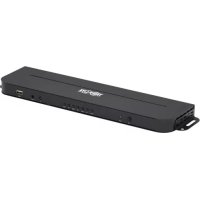
B3107014K - Video switch Tripp Lite - Free user manual and instructions
Find the device manual for free B3107014K Tripp Lite in PDF.


| Product Type | Multi-Format Presentation Switcher |
| Brand | Tripp Lite |
| Model | B310-701-4K |
| Dimensions (H x W x D) | 20.6 x 299.7 x 74.9 mm |
| Weight | 1.12 lb (5 kg) |
| Power | 100-240 V, 50/60 Hz, AC adapter, 5 V DC input |
| Video Inputs | 3x HDMI, 1x DisplayPort, 1x VGA, 1x YPbPr, 1x AV (composite) |
| Audio Input | 1x 3.5 mm jack for analog sources |
| Video Output | 1x HDMI |
| Audio Outputs | 1x Toslink optical, 1x coaxial, 1x RCA stereo (R/L) |
| Supported Resolutions | HDMI up to 4096×2160 @ 60 Hz 4:4:4; DisplayPort up to 3840×2160 @ 60 Hz; VGA up to 1280×768; YPbPr up to 1920×1080; AV up to 1280×720 |
| HDCP | HDCP 2.2 compliant |
| Controls | Front panel push buttons and IR remote control |
| Memory Function | Remembers last selected source after power off |
| Resolution Conversion | Yes, converts analog signals to HDMI |
| Front USB Port | 1x USB-A for playing audio, video, image, and text files (English) |
| On-Screen Display (OSD) | Yes, with Image, Audio and Options menus |
| Operating Temperature Range | 0 to 45 °C |
| Storage Temperature Range | -10 to 80 °C |
| Included Accessories | IR remote, IR receiver cable, power supply with adapters (NA, EU, UK, AU), mounting hardware |
| Warranty | 3-year limited |
| Certifications | WEEE, HDCP 2.2 |
Frequently Asked Questions - B3107014K Tripp Lite
User questions about B3107014K Tripp Lite
0 question about this device. Answer the ones you know or ask your own.
Ask a new question about this device
Download the instructions for your Video switch in PDF format for free! Find your manual B3107014K - Tripp Lite and take your electronic device back in hand. On this page are published all the documents necessary for the use of your device. B3107014K by Tripp Lite.
USER MANUAL B3107014K Tripp Lite
Register your product today and be automatically entered to win an ISOBAR® surge protector in our monthly drawing!
tripplite.com/warranty
text_image
QR code image containing encoded data, no visible human-readable text
text_image
TRIPP·LITE
Manufacturing Excellence.
1111 W. 35th Street, Chicago, IL 60609 USA • tripplite.com/support
Copyright © 2021 Tripp Lite. All rights reserved.
Package Contents
• B310-701-4K Multi-Format Presentation Switch
- IR Remote Control
• IR Receiver Head Cable
- International Power Supply (Input: 100-240V) with North America, Europe, U.K. and Australia Plug Adapters
- Mounting Hardware
Product Features
- Seamlessly switch between multiple video sources to an HDMI-compliant display using the front-panel pushbuttons or the IR remote control.
- Supports HDMI resolutions up to 4096 x 2160 @ 60 Hz 4:4:4; DisplayPort resolutions up to 3840 x 2160 @ 60 Hz; VGA resolutions up to 1280 x 768 @ 60 Hz; YPbPr resolutions up to 1920 x 1080 @ 60 Hz; AV resolutions up to 1280 x 720 @ 60 Hz.
- Both digital, Toslink and coaxial, and analog, R/L, audio outputs work simultaneously.
- Front-panel USB port supports the connection of U-disk for audio (MP3), video (MP4, WMA), picture (JPG, BMP) / text (English Text).
- Sends analog video signals to the HD display using the scaler function.
- Memory function stores the last output source and displays it once the unit is powered on again.
- HDCP 2.2 compliant.
Optional Accessories
• P569-XXX-CERT Series High-Speed HDMI Cables
• P580-Series DisplayPort Cables
• P502-Series VGA Coaxial Cables
• A008-Series Component Video Gold Cables
• P312-Series 3.5mm Audio Cables
• A102-Series Toslink Cables
Panel Description
Front Panel:

text_image
Power Source Us Clean Left Right OK Versu RIF EXT USD In 1 2 3 4 5 61 Power Button: Turns the unit on/off
2 Power LED: Illuminates red to indicate the unit is powered on
3 Manual Pushbuttons: Refer to the Operation section for pushbutton functions
4 IR Receiver: Receives information from the IR remote control
5 IR Port: Connector for the IR Receiver Head Cable (included)
6 USB-A Port: Connector for a USB peripheral device
Rear Panel:

text_image
DisplayPort In ICOM In 1 ICOM In 2 ICOM In 3 VGA In Y Pb Fr AV In Audio In Textink Coaster R L ICOM Out DC VGA In 7 8 9 10 11 12 13 14 15 16Note: Before installation, please make sure all devices you wish to connect are powered off.
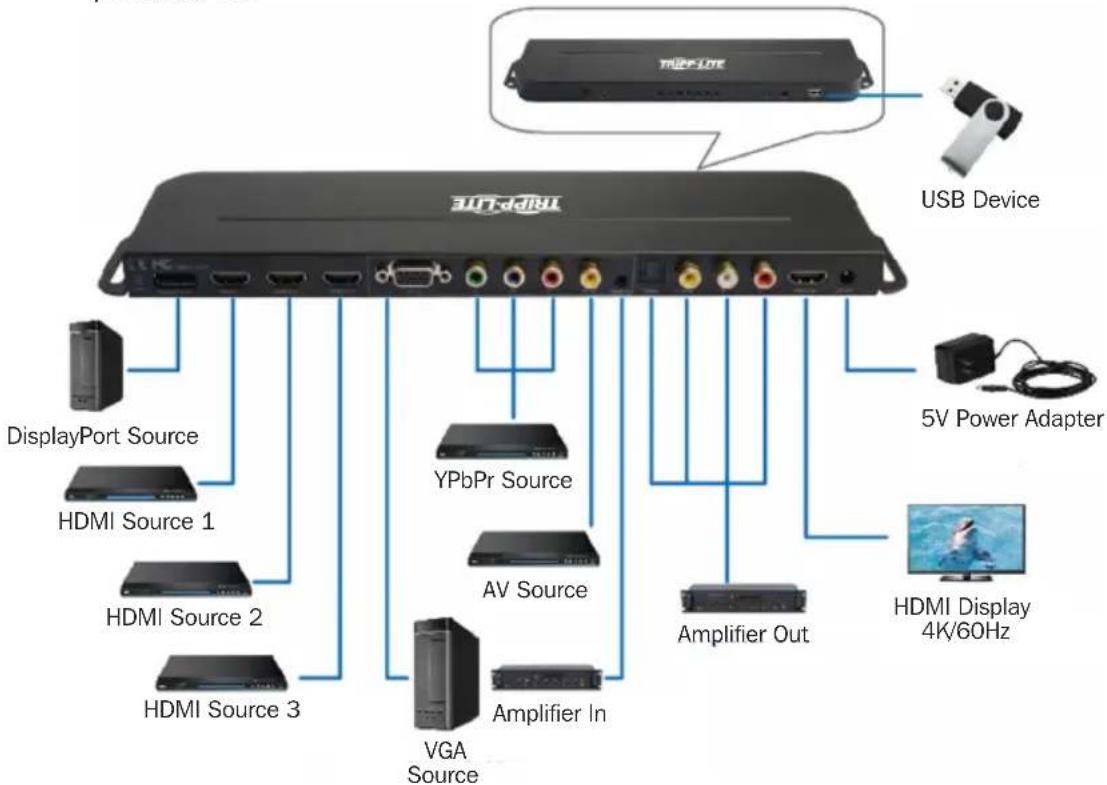
flowchart
graph TD
    A["USB Device"] --> B["DisplayPort Source"]
    A --> C["5V Power Adapter"]
    A --> D["HDMI Display 4K/60Hz"]
    A --> E["Amplifier Out"]
    A --> F["Amplifier In"]
    A --> G["VGA Source"]
    A --> H["AV Source"]
    A --> I["YPbPr Source"]
    A --> J["HDMI Source 1"]
    A --> K["HDMI Source 2"]
    A --> L["HDMI Source 3"]
- Connect all multi-format source devices to their respective ports (cables sold separately).
Note: Make sure to connect the audio input for the analog video source. - Connect an HDMI-compliant display to the unit with user-supplied cables.
- Connect speakers, amplifiers or sound bars to either the Toslink or coaxial digital or R & L analog audio output ports.
- (Optional) If using the remote control at a distance of more than 10 ft. (3 m), attach the included IR Receiver Head Cable for increased range.
- (Optional) Connect a USB peripheral to the available USB-A port on the front of the unit.
- Plug in the power adapter and turn on the unit using the Power button.
Operation
IR Remote Control and Manual Front-Panel Pushbuttons
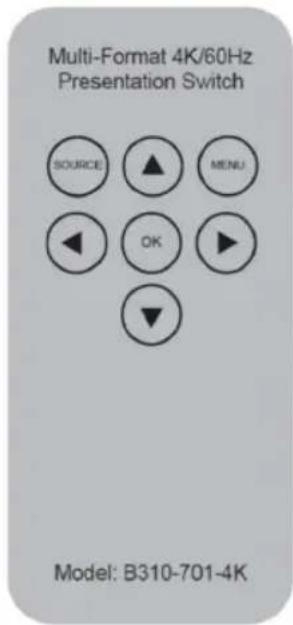
The B310-701-4K has two methods of control:
- IR Remote Control
text_image
Multi-Format 4K/60Hz Presentation Switch SOURCE ▲ MENU ◀ OK ▶ ▼ Model: B310-701-4K- Manual Front-Panel Pushbuttons

Source

Up

Down

Left

Right

OK

Menu
There are seven manual pushbuttons on the unit (excluding the power button).
Source: Input source selection menu/exit from current menu
This menu appears when the Source button is pressed. In this menu, use the "Up" or "Down" arrows to select any input source, then press the "OK" button.
Operation
Input source
USB
DP
HDMI1
HDMI2
HDMI3
VGA
YPbPr
AV
If there is no signal from the selected source, the below message will display:
NO SIGNAL
Up: Move up/Play button (when U-disk is connected)
Down: Move down
Left: Move left (decrease)
Right: Move right (increase)
OK: Confirm current operation
Menu: Main OSD menu/Return to previous menu screen
Introduction of Menus
Press the “Menu” button to bring up the OSD menu. The functions in this menu are used to adjust picture and sound settings.
Under the OSD Menu, there are three first-tier menus:
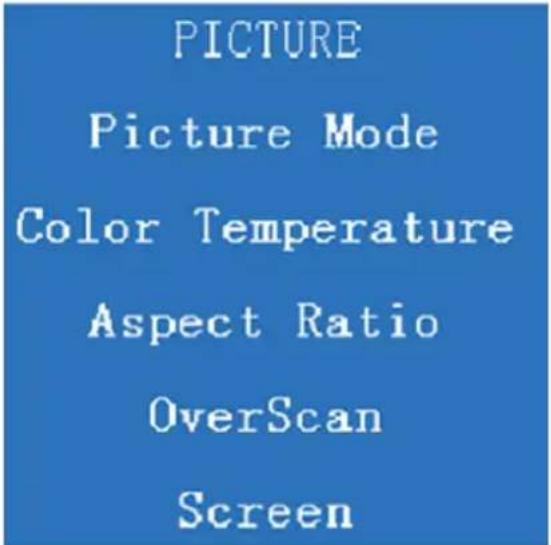
1. Picture
text_image
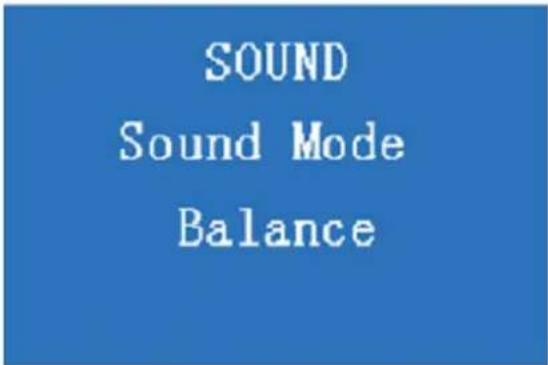
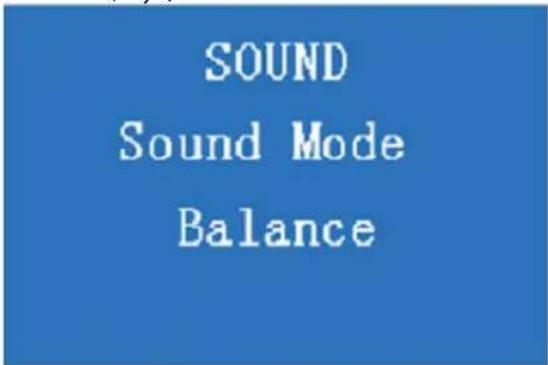
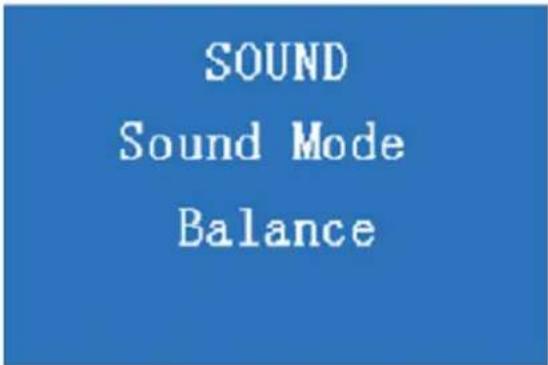
PICTURE Picture Mode Color Temperature Aspect Ratio OverScan Screen2. Sound
text_image
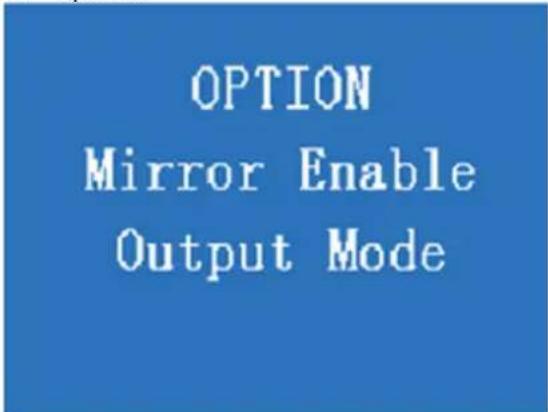
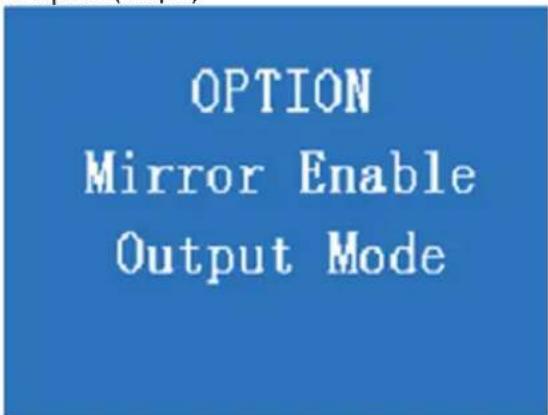
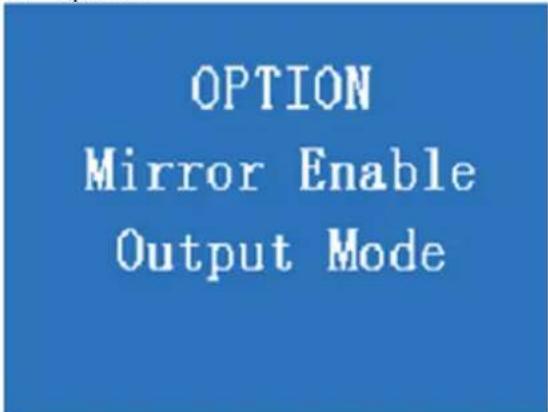
SOUND Sound Mode Balance3. Option
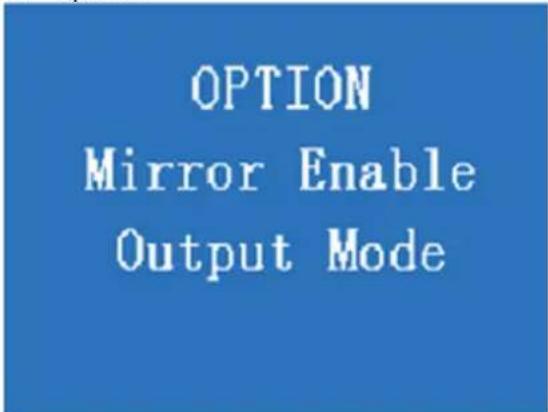
text_image
OPTION Mirror Enable Output ModeIntroduction of Menus
Of the three menus, only the Picture menu will appear. To access the Sound or Option menu, press the “Left” arrow button. Exit the OSD Menu by pressing the “Source” button.
1. Picture Menu:
The Picture Menu has 5 sub-menus:
a. Picture Mode
b. Color Temperature
c. Aspect Ratio
d. OverScan
e. Screen
Select the desired sub-menu by pressing the "Up/Down" arrow buttons. Invalid menu items will appear gray.
Note: The OverScan menu is only available when a VGA source is connected. The Screen menu is not available for the VGA source.
Picture Mode:
The Picture Mode menu includes five options/settings:
i. Contrast
ii. Brightness
iii. Color
iv. Sharpness
v. Tint
The corresponding values can be adjusted by pressing the "Left" or "Right" arrow button.
Note: Tint is only available to NTSC signal under AV.
Picture Mode
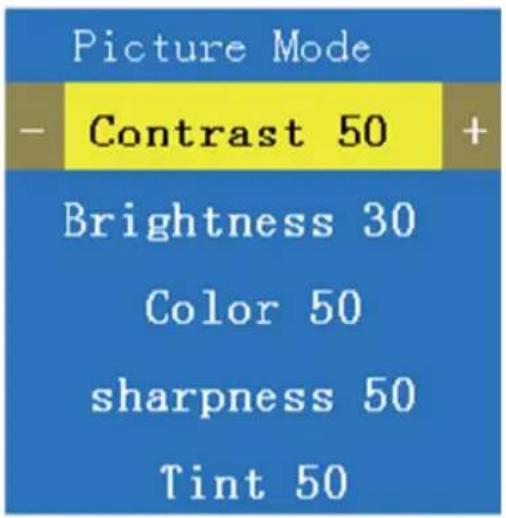
text_image
Picture Mode - Contrast 50 + Brightness 30 Color 50 sharpness 50 Tint 50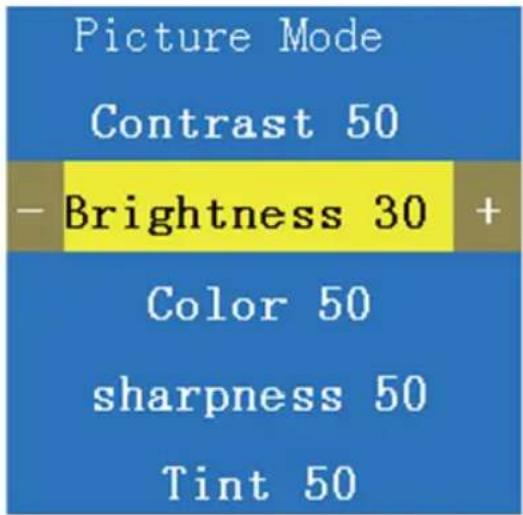
text_image
Picture Mode Contrast 50 -Brightness 30 + Color 50 sharpness 50 Tint 50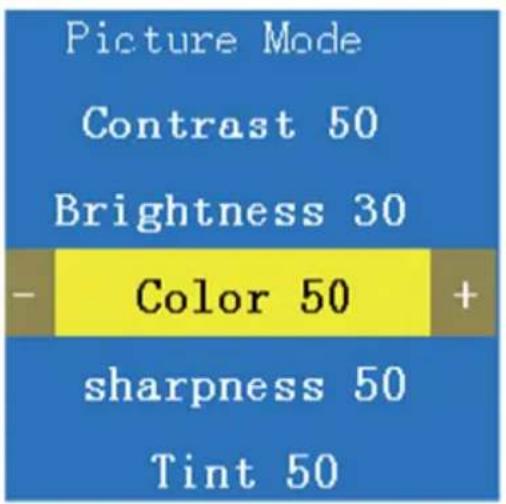
text_image
Picture Mode Contrast 50 Brightness 30 - Color 50 + sharpness 50 Tint 50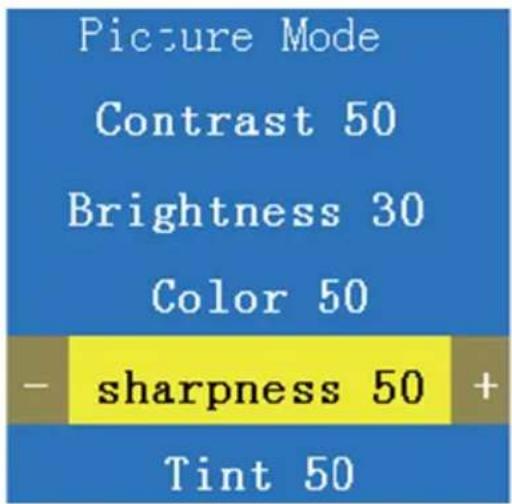
text_image
Picture Mode Contrast 50 Brightness 30 Color 50 - sharpness 50 + Tint 50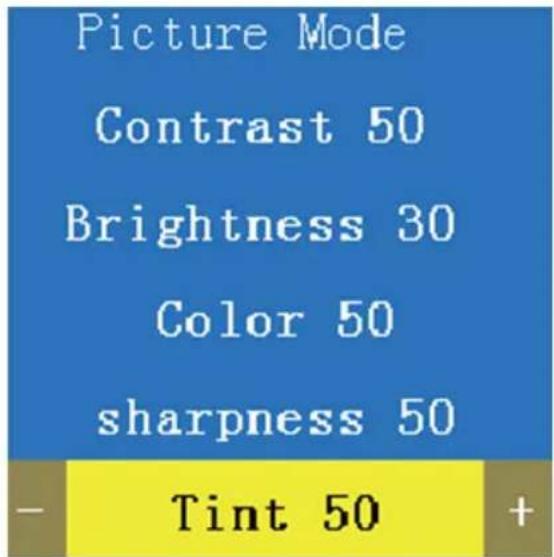
text_image
Picture Mode Contrast 50 Brightness 30 Color 50 sharpness 50 - Tint 50 +Color Temperature
The Color Temperature menu includes three options/settings:
I. Red
II. Green
III. Blue
The corresponding values can be adjusted by pressing the "Left" or "Right" arrow button.
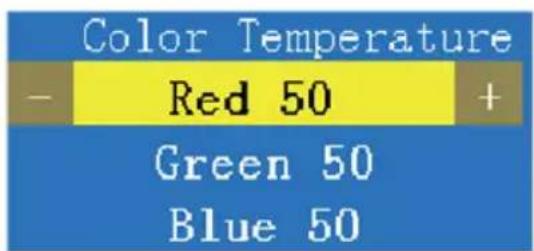
text_image
Color Temperature - Red 50 + Green 50 Blue 50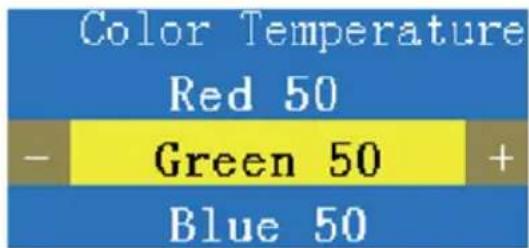
text_image
Color Temperature Red 50 - Green 50 + Blue 50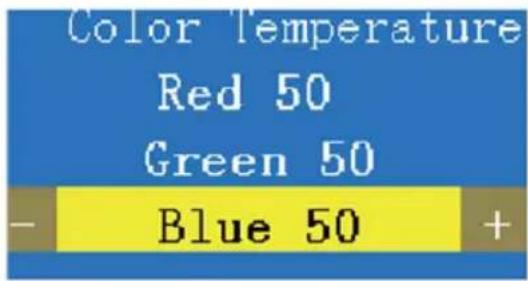
text_image
Color Temperature Red 50 Green 50 Blue 50 +Aspect Ratio
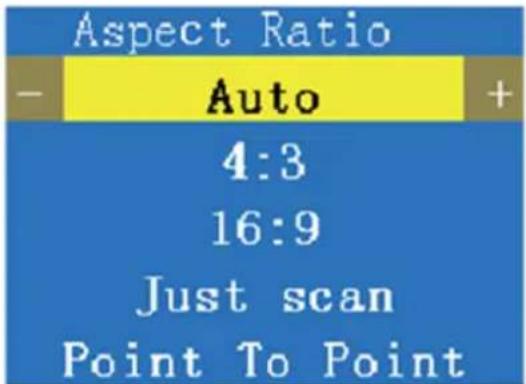
The Aspect Ratio menu includes five options/settings:
I. Auto
II. 4:3
III. 16:9
IV. Just Scan
V. Point To Point
text_image
Aspect Ratio - Auto + 4:3 16:9 Just scan Point To Point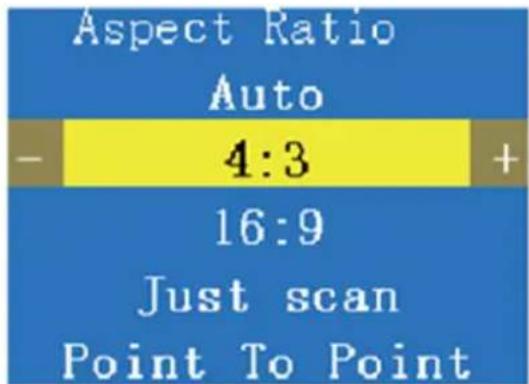
text_image
Aspect Ratio Auto - 4:3 + 16:9 Just scan Point To Point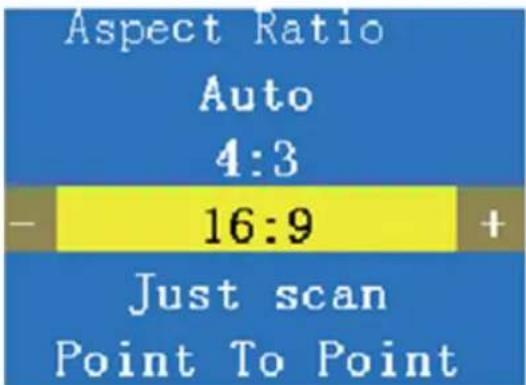
text_image
Aspect Ratio Auto 4:3 - 16:9 + Just scan Point To Point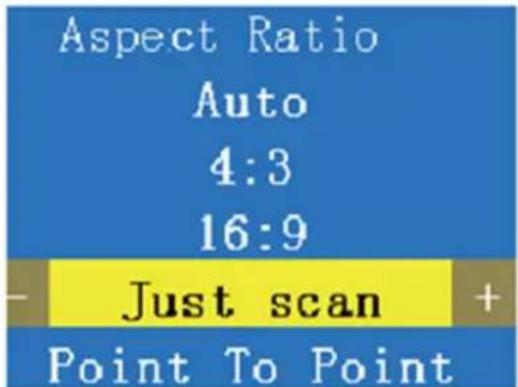
text_image
Aspect Ratio Auto 4:3 16:9 Just scan + Point To Point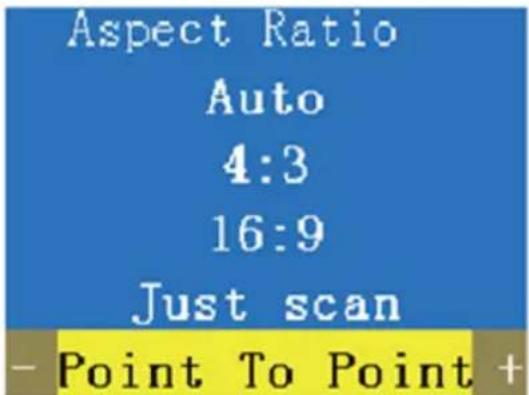
text_image
Aspect Ratio Auto 4:3 16:9 Just scan - Point To Point +The corresponding values can be adjusted by pressing the "Left" or "Right" arrow button.
HDMI and DisplayPort support all five Aspect Ratio modes, while VGA supports all but Auto and AV & YPbPr support only Auto, 4:3 and 16:9 Aspect Ratio modes.
OverScan / Screen
The OverScan menu includes two options/settings:
I. OverScan-Hsize
II. Overscan-VSize
The corresponding values can be adjusted by pressing the "Left" or "Right" arrow button.

text_image
OverScan - OverScan-Hsize 0 + Overscan-Vsize 0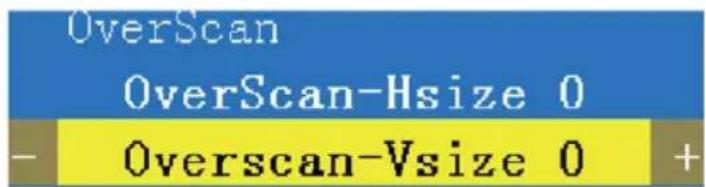
text_image
OverScan OverScan-Hsize 0 - Overscan-Vsize 0 +Screen:
The Screen menu includes five options/settings:
I. Auto-Adjust
II. Horizontal Pos.
III. Vertical Pos.
IV. Size
v. Phase
The corresponding values can be adjusted by pressing the "Left" or "Right" arrow button.
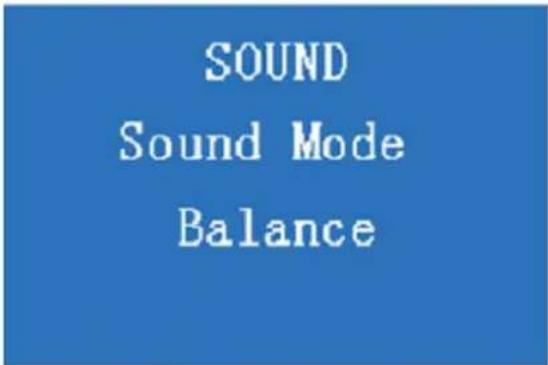
Sound Menu
The Sound Menu has two sub-menus: Sound Mode and Balance. Select the desired menu options by using the "Up" or "Down" arrow button, then press "OK".
Sound Mode:
The Sound Mode menu includes two options/settings:
a. Treble
b. Bass
The corresponding values can be adjusted by pressing the "Left" or "Right" arrow button.
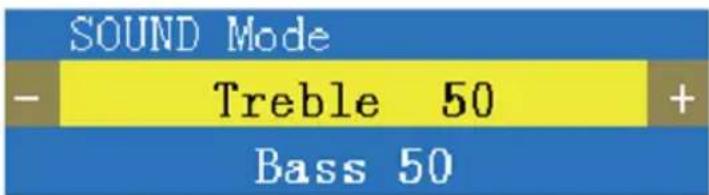
text_image
SOUND Mode - Treble 50 + Bass 50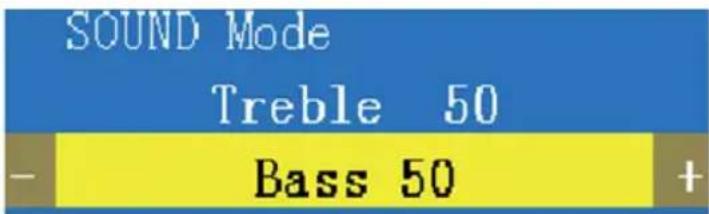
text_image
SOUND Mode Treble 50 - Bass 50 +Balance:
The Balance menu has one option/setting:
a. Balance
The corresponding value can be adjusted by pressing the "Left" or "Right" arrow button.
Options Menu
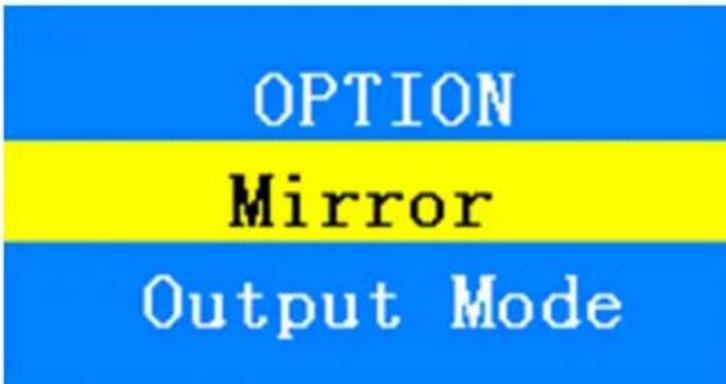
The Options Menu has two sub-menus: Mirror and Output Mode. Select the desired menu options using the "Up" or "Down" arrow button, then press "OK".
Mirror:
Select "Mirror" when you want the display to mirror the input source.
text_image
OPTION Mirror Output ModeOutput Mode:
The Output mode menu includes the following resolutions:
| 3840 x 2160 @ 60 Hz | 1280 x 1024 @ 60 Hz |
| 1920 x 1080 @ 60 Hz (1080p) | 1280 x 720 @ 60 Hz (720p) |
| 1920 x 1080 @ 30 Hz (1080i) | 1280 x 720 @ 50 Hz |
| 1680 x 1050 @ 60 Hz | 1024 x 768 @ 60 Hz |
| 1600 x 1200 @ 60 Hz | 800 x 600 @ 60 Hz |
| 1440 x 900 @ 60 Hz | 852 x 480 @ 60 Hz |
| 1400 x 1050 @ 60 Hz | 720 x 576 @ 60 Hz |
| 1360 x 768 @ 60 Hz |
Select the desired resolution options by using the "Up" or "Down" arrow button, then press "OK".
Note:
- The default mode of the Output mode is the selected resolution. If the connected TV/monitor does not support the default mode (selected resolution), no image/video will appear. Press the Menu button for 3-5 seconds to get an image to appear.
Options Menu
-
This product does not support 3840 x 2160 (4K x 2K) @ 60 Hz 4:2:0.
-
USB Input Signal:
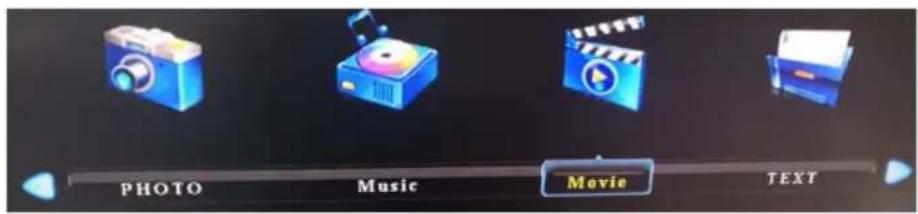
When the input source is a USB signal, there are four available options: Photo, Music, Movie or Text.
text_image
PHOTO Music Movie TEXTScroll through the options using the "Left" and "Right" arrow buttons or exit the menu using the "Source" button.
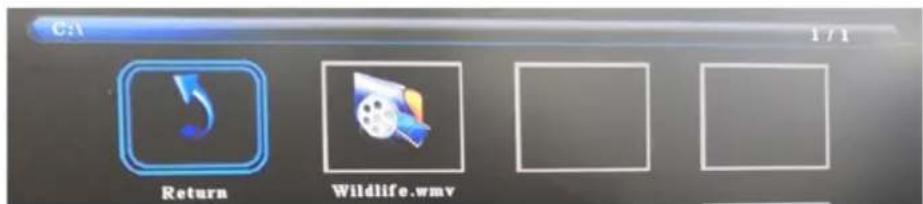
Based on the option chosen (for example, Movie), a corresponding screen will pop up. Press the "Up" arrow button to play the target file.
text_image
C:\1 1 / 1 Return Wildlife.wmvYou can also select the connected U-disk to view the content of the disk.
Specifications
| Model B310-701-4K | |
| Input Connectors (x3) HDMI, DisplayPort, VGA, YPbPr, AV, USB, 3.5 mm (Audio) | |
| Output Connectors HDMI, Toslink, Coaxial, R/L Audio | |
| Operating Temperature Range 32°F to 113°F (0°C to 45°C) | |
| Storage Temperature Range 14°F to 176°F (-10°C to 80°C) | |
| Unit Dimensions (H x W x D) 0.8 x 11.8 x 3 in. (20.6 x 299.7 x 74.9 mm) | |
| Unit Weight 1.12 lb. (5 kg) | |
| Max Supported Resolutions 3840 x 2160 @ 60 Hz | |
| DisplayPort Specification 1.2 | |
| HDCP Specification 2.2 | |
| Chroma Subsampling 4:4:4 | |
| Max Support Color Depth 36-bit Deep Color | |
| Audio Specification DTS Digital, Dolby Digital (including DTS-HD and Dolby True HD) | |
Warranty & Product Registration
3-YEAR LIMITED WARRANTY
TRIPP LITE warrants its products to be free from defects in materials and workmanship for a period of three (3) years from the date of initial purchase. TRIPP LITE's obligation under this warranty is limited to repairing or replacing (at its sole option) any such defective products. To obtain service under this warranty, you must obtain a Returned Material Authorization (RMA) number from TRIPP LITE or an authorized TRIPP LITE service center. Products must be returned to TRIPP LITE or an authorized TRIPP LITE service center with transportation charges prepaid and must be accompanied by a brief description of the problem encountered and proof of date and place of purchase. This warranty does not apply to equipment, which has been damaged by accident, negligence or misapplication or has been altered or modified in any way.
EXCEPT AS PROVIDED HEREIN, TRIPP LITE MAKES NO WARRANTIES, EXPRESS OR IMPLIED, INCLUDING WARRANTIES OF MERCHANTABILITY AND FITNESS FOR A PARTICULAR PURPOSE.
Some states do not permit limitation or exclusion of implied warranties; therefore, the aforesaid limitation(s) or exclusion(s) may not apply to the purchaser.
EXCEPT AS PROVIDED ABOVE, IN NO EVENT WILL TRIPP LITE BE LIABLE FOR DIRECT, INDIRECT, SPECIAL, INCIDENTAL OR CONSEQUENTIAL DAMAGES ARISING OUT OF THE USE OF THIS PRODUCT, EVEN IF ADVISED OF THE POSSIBILITY OF SUCH DAMAGE. Specifically, TRIPP LITE is not liable for any costs, such as lost profits or revenue, loss of equipment, loss of use of equipment, loss of software, loss of data, costs of substitutes, claims by third parties, or otherwise.
PRODUCT REGISTRATION
Visit tripplite.com/warranty today to register your new Tripp Lite product. You'll be automatically entered into a drawing for a chance to win a FREE Tripp Lite product!*
* No purchase necessary. Void where prohibited. Some restrictions apply. See website for details.
FCC NOTICE, CLASS B
This device complies with part 15 of the FCC Rules. Operation is subject to the following two conditions: (1) This device may not cause harmful interference, and (2) this device must accept any interference received, including interference that may cause undesired operation.
Note: This equipment has been tested and found to comply with the limits for a Class B digital device, pursuant to part 15 of the FCC Rules. These limits are designed to provide reasonable protection against harmful interference in a residential installation. This equipment generates, uses and can radiate radio frequency energy and, if not installed and used in accordance with the instructions, may cause harmful interference to radio communications. However, there is no guarantee that interference will not occur in a particular installation. If this equipment does cause harmful interference to radio or television reception, which can be determined by turning the equipment off and on, the user is encouraged to try to correct the interference by one or more of the following measures:
- Reorient or relocate the receiving antenna.
- Increase the separation between the equipment and receiver.
- Connect the equipment into an outlet on a circuit different from that to which the receiver is connected.
- Consult the dealer or an experienced radio/TV technician for help.
Any changes or modifications to this equipment not expressly approved by Tripp Lite could void the user's authority to operate this equipment.
WEEE Compliance Information for Tripp Lite Customers and Recyclers (European Union)

Under the Waste Electrical and Electronic Equipment (WEEE) Directive and implementing regulations, when customers buy new electrical and electronic equipment from Tripp Lite they are entitled to:
- Send old equipment for recycling on a one-on-one, like-for-like basis (this varies depending on the country)
- Send the new equipment back for recycling when this ultimately becomes waste.
WARNING
Use of this equipment in life support applications where failure of this equipment can reasonably be expected to cause the failure of life support equipment or to significantly affect its safety or effectiveness is not recommended.
Tripp Lite has a policy of continuous improvement. Specifications are subject to change without notice. Photos and illustrations may differ slightly from actual products
text_image
TRIPP·LITE
Manufacturing Excellence.
1111 W. 35th Street, Chicago, IL 60609 USA • tripplite.com/support
20-11-195 93-3CBD_RevB
1111 W. 35th Street, Chicago, IL 60609, EE UU • tripplite.com/support
text_image
Display/Port in ICMS in 1 ICMS in 2 ICMS in 3 VGA in Y Pb Fr AV in Audio in Textlink Controller R L ICMS Out DC FL4 7 8 9 10 11 12 13 14 15 16text_image
PICTURE Picture Mode Color Temperature Aspect Ratio OverScan Screen2. Sonido
text_image
SOUND Sound Mode Balance3. Opción
text_image
OPTION Mirror Enable Output Modetext_image
OPTION Mirror Output ModeModo de Salida
1111 W. 35th Street, Chicago, IL 60609, EE UU • tripplite.com/support
20-11-195 93-3CBD_RevB
1111 W. 35th Street, Chicago, IL 60609 USA • tripplite.com/support
text_image
DisplayPort in ICOM In 1 ICOM In 2 ICOM In 3 VGA In Y Pb Fr AV In Audio In Teashink Coaster R L ICOM Out DC VGA In 7 8 9 10 11 12 13 14 15 16text_image
1. Image PICTURE Picture Mode Color Temperature Aspect Ratio OverScan Screen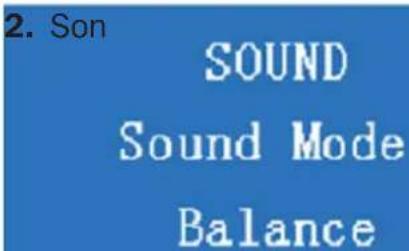
text_image
2. Son SOUND Sound Mode Balance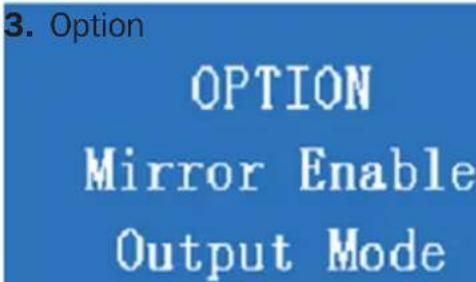
text_image
3. Option OPTION Mirror Enable Output Modetext_image
OPTION Mirror Output ModeMode Sortie :
1111 W. 35th Street, Chicago, IL 60609 USA • tripplite.com/support
20-11-195 93-3CBD_RevB
1111 W. 35th Street, Chicago, IL 60609 USA • tripplite.com/support
text_image
PICTURE Picture Mode Color Temperature Aspect Ratio OverScan Screen2. Sound (Звук)
text_image
SOUND Sound Mode Balance3. Option (Опции)
text_image
OPTION Mirror Enable Output Modetext_image
OPTION Mirror Output Mode1111 W. 35th Street, Chicago, IL 60609 USA • tripplite.com/support
20-11-195 93-3CBD_RevB
Benutzerhandbuch
1111 W. 35th Street, Chicago, IL 60609 USA • tripplite.com/support
text_image
DisplayPort in 7 ICM In 1 8 ICM In 2 9 VGA In Y Pb Fr AV In Audio In 10 11 12 13 Coadie 14 L 15 ICM Out 16text_image
PICTURE Picture Mode Color Temperature Aspect Ratio OverScan Screen2. Ton
text_image
SOUND Sound Mode Balance3. Option
text_image
OPTION Mirror Enable Output ModeMenü-Leitfaden
text_image
OPTION Mirror Output ModeAusgabemodus:
1111 W. 35th Street, Chicago, IL 60609 USA • tripplite.com/support
20-11-195 93-3CBD_RevB