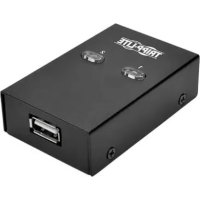
U215002 - USB Switch Tripp Lite - Free user manual and instructions
Find the device manual for free U215002 Tripp Lite in PDF.


| Product Type | USB 2.0/1.1 Switch for Peripheral Sharing |
| Number of Shared Computers | 2 |
| Number of Shared USB Devices | 1 |
| Maximum Transfer Rate | 480 Mbps |
| Switching Methods | Manual button, hotkey (Ctrl+F11 or Alt+F11), taskbar icon |
| Upstream Connectors (to PC) | 2 x USB type B |
| Downstream Connector (to device) | 1 x USB type A |
| Power | USB Bus (no external power required) |
| Supported Operating Systems | Windows (up to 10), Mac OS X (up to 10.11), Linux (button switching only) |
| Included Cables | 2 USB A/B cables, 45.72 cm (1.5 ft) |
| Included Software | USB sharing application CD (also downloadable at tripplite.com/support) |
| User Manual | Included (multilingual) |
| Warranty | 1 year limited |
| Dimensions (approx.) | Approximately 6 x 4 x 2 cm |
| Weight (approx.) | Approximately 0.1 kg |
| Operating Temperature | 0 °C to 40 °C (approx.) |
| Operating Humidity | 10 % to 90 % non-condensing (approx.) |
Frequently Asked Questions - U215002 Tripp Lite
User questions about U215002 Tripp Lite
0 question about this device. Answer the ones you know or ask your own.
Ask a new question about this device
Download the instructions for your USB Switch in PDF format for free! Find your manual U215002 - Tripp Lite and take your electronic device back in hand. On this page are published all the documents necessary for the use of your device. U215002 by Tripp Lite.
USER MANUAL U215002 Tripp Lite
USB Peripheral Sharing
Switch - 2-Port
Model: U215-002
Español 15 • Français 29 • Русский 43
WARRANTY REGISTRATION
Register your product today and be automatically entered to win an ISOBAR ^® surge protector in our monthly drawing!
tripplite.com/warranty


Manufacturing Excellence.
1111 W. 35th Street, Chicago, IL 60609 USA
tripplite.com/support
Copyright © 2021 Tripp Lite. All rights reserved.
Product Features
- Up to 2 computers can share a USB 2.0 or USB 1.1 device, such as a printer or flash drive
- Instant switching delivers one-touch port control via a mouse, hotkey or manual push button
- Idle time-out switching ensures all data is sent from the active printer buffer before switching ports
• Supports data transfer speeds up to 480Mbps
• No power supply required
Package Includes
• U215-002
• (x2) USB A/B Device Cable, 1.5 ft.
- Software CD
- Owner's Manual
System Requirements
• (x2) Computers with available USB ports
- USB Device
- USB Share Software compatible with Windows XP and later, and Mac OS X 10.3 and later
Quick Installation
Software Installation
Installing the USB Sharing Application:
-
Insert the application CD in the computer's CD-ROM drive to start the installation process. If the computer does not have a CD-ROM drive, a software download is available from Tripp Lite's website at triplite.com/support.
-
If the installation does not automatically start, navigate to the CD-ROM drive in the computer window (for Windows systems) or in Finder (for Mac OS X), and double-click the corresponding driver file.
-
The Install page will display. The installation process should only take a few seconds.
Quick Installation
- When the “End of Installation” dialog box displays, click “Finish”.
Note: A PC reboot after installation is highly recommended.
Taskbar Status Indicators
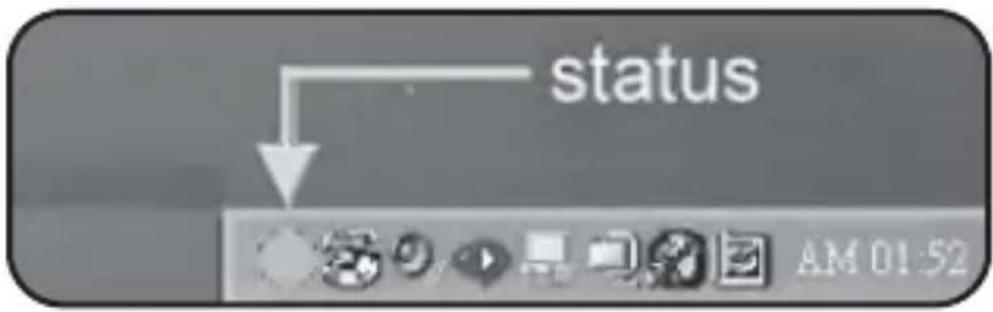
| StatusIndicator Color Indicates | |
| Red Another computer is using the device; switching between PCs during this time (busy status) may not be possible. | |
| Green Device is connected. | |
| Yellow Device is currently connected to another computer. Press Ctrl + F11 to switch, or use a mouse to right-click and select “switch” (for Mac OS X, use Alt + F11). The manual push button on the unit can also be used. |
Quick Installation
Note: The Taskbar's status indicator will be GREEN for ALL computers if the switch is improperly installed. Storage devices such as external hard drives and printers will continue to send signals to and from the computer when they are connected. When this occurs, the indicator icon will blink red. If controlling the USB Peripheral Sharing Switch without busy statuses is preferred, simply press Ctrl + F11 (for Mac OS X, use Alt + F11) and the confirmation message will open. Click "Yes" to confirm the switch.
| Upstream (PC) Connector | Four USB Type-B connect to PCs. |
| Downstream (USB Peripheral) Connector | One USB Type-A connects to device. |
| Port Selection* | Via keyboard (hotkey), push-button switches or mouse (taskbar icon). |
| Power Bus Powered | (no external AC power needed). |
| Operating Systems Supported** | Windows (up to 10); Mac OS X (up to 10.11); Linux |
*Linux OS is not compatible with USB Sharing Application software; port selection is only possible via push-button switches.
**The operating systems listed are supported at the time of the creation of this Owner's Manual. For a listing of the most current operating systems supported, go to tripplite.com.
Quick Installation
Notes:
- This USB Peripheral Sharing Switch enables multiple computers to share one USB device, such as a USB printer, scanner or hard drive. However, it does not apply to a mouse or keyboard. If it is necessary to access multiple computers with one mouse, keyboard or monitor, use a Tripp Lite KVM switch.
- When using the USB Peripheral Sharing Switch to share a USB storage device, the device must first be ejected before switching ports (in order to avoid any data loss).
- When using Mac OS X, use the ALT + F11 hotkey to switch the device.
- It is strongly recommend that the suspend (sleep) function of the OS is disabled while using the USB Peripheral Sharing Switch.
Troubleshooting
Windows and Mac Sleep Mode
Problems may occur in Windows or Mac Sleep Mode. If so, the icon on the Taskbar will be green on multiple PCs. If this type of problem occurs, disconnect and reconnect the USB Peripheral Sharing Switch. To prevent this problem, it is strongly recommended to first check the sleep mode for your Windows/Mac OS. Once checked, follow these steps to modify the default setting.
Troubleshooting – Windows OS
- Open the Start menu, then click on Control Panel
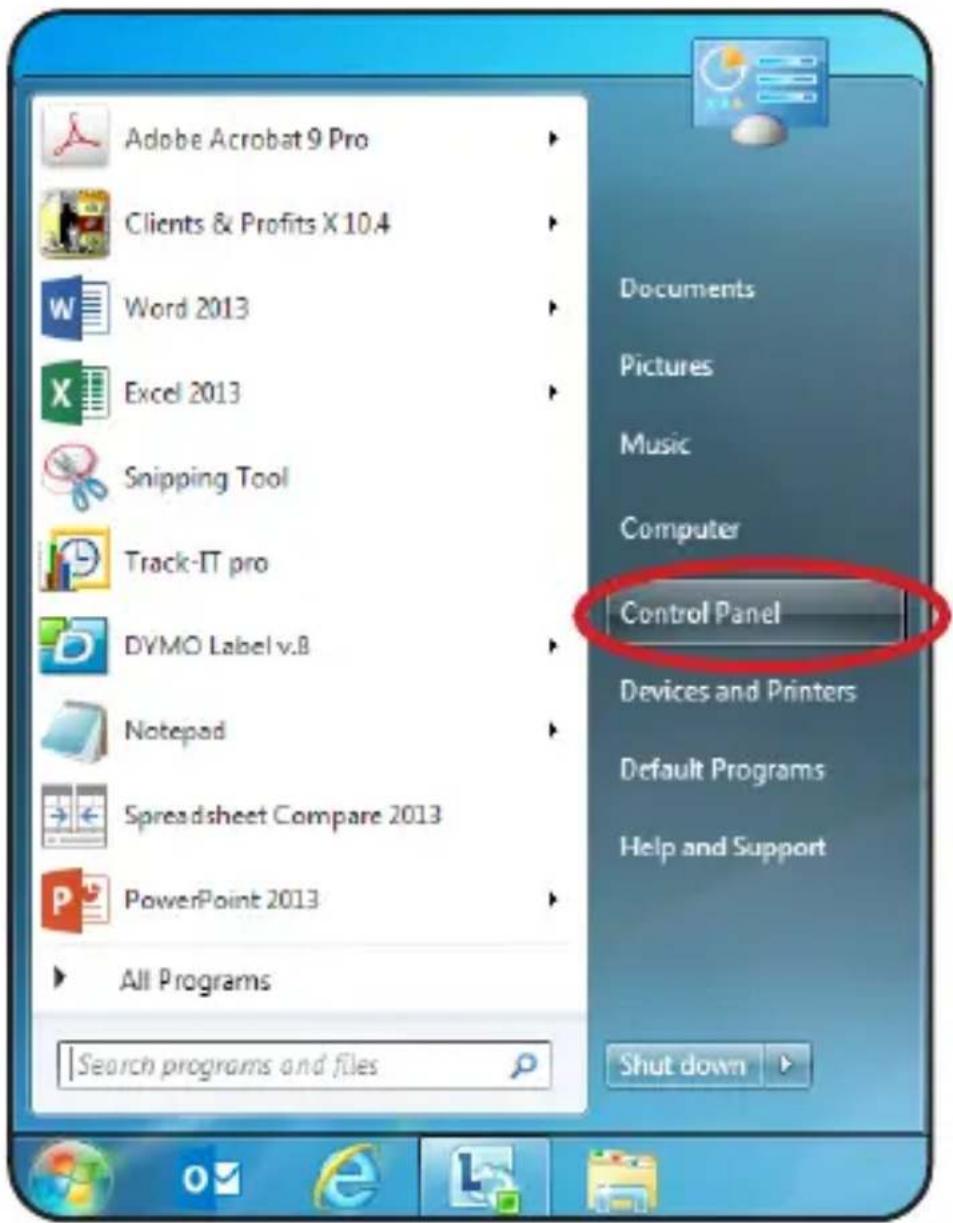
Troubleshooting – Windows OS
- From the Control Panel window, select Power Options.
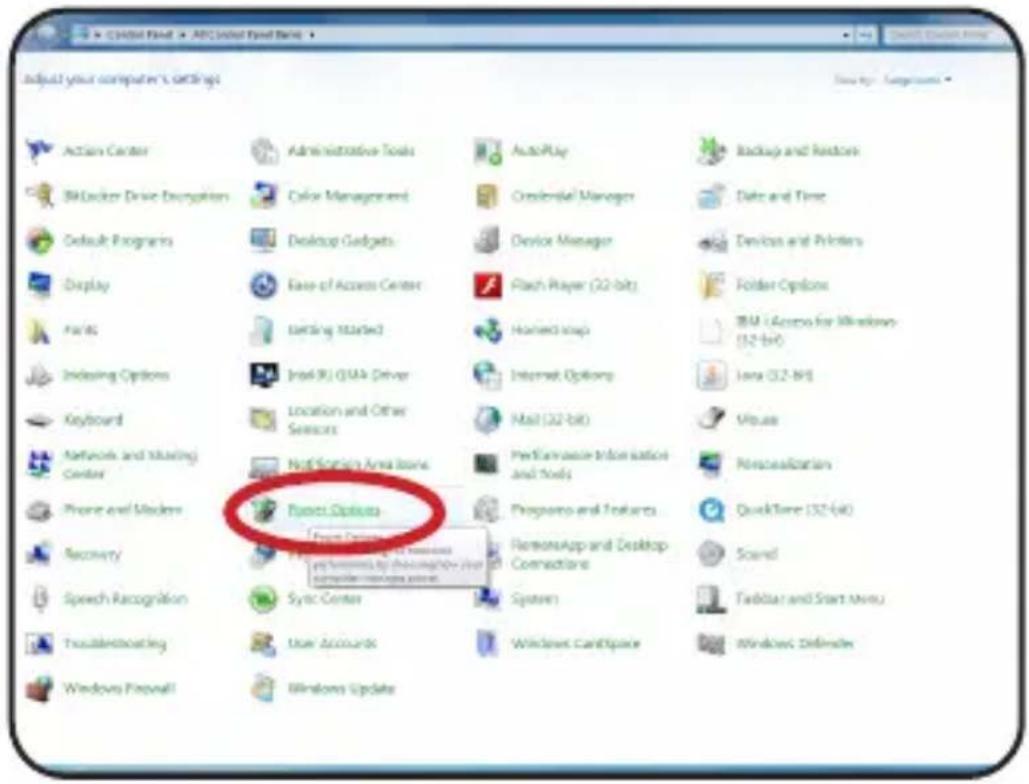
Troubleshooting – Windows OS
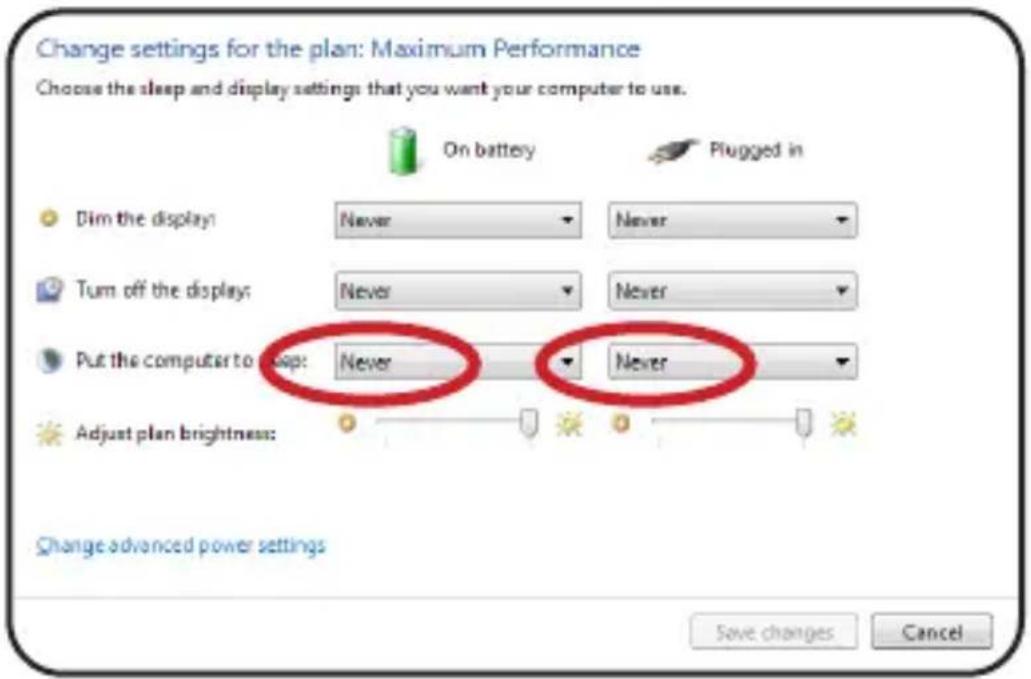
- Once inside the Power Options window, choose “Never” from the “Put the computer to sleep” dropdown.
Troubleshooting – Mac OS
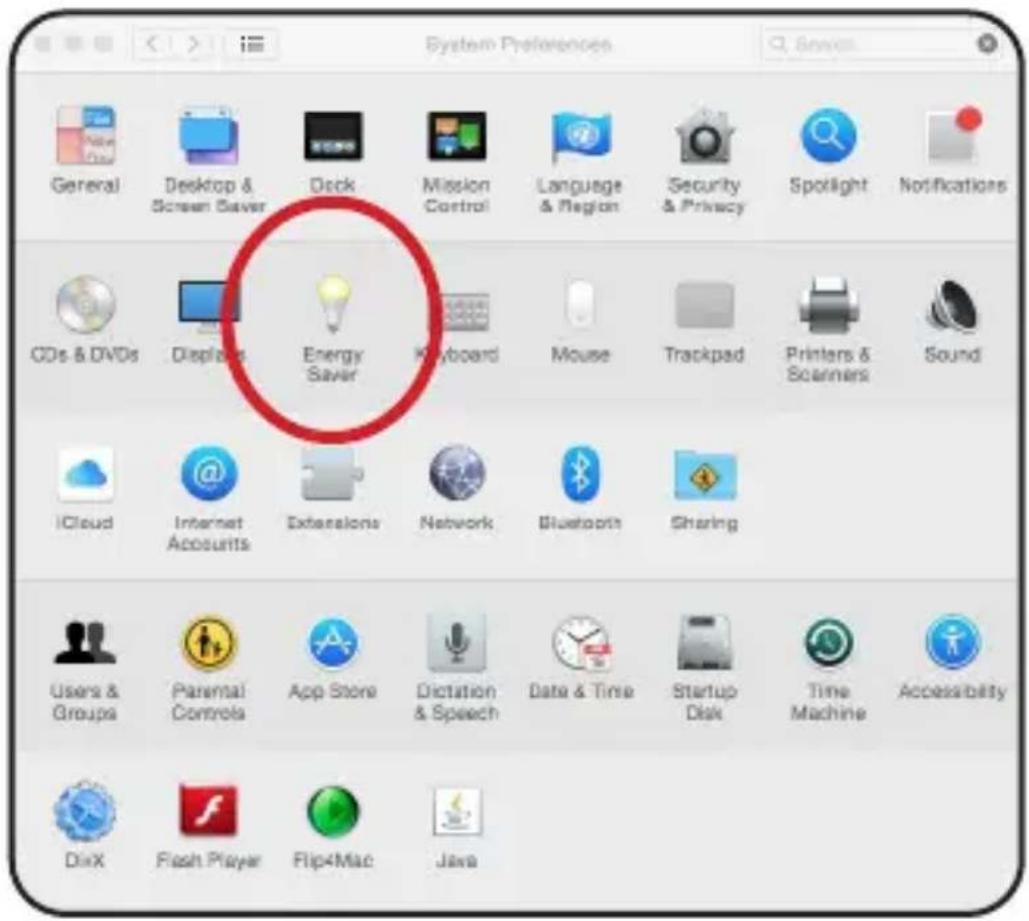
- Select System Preferences, then click on the Energy Saver icon.
Troubleshooting – Mac OS
- Once inside the Energy Saver window, slide the sleep mode bar to “Never”.

Hotkey Control Problems in Mac OS X
When using the ALT + F11 hotkey in Mac OS X, turn on the “Function” keys in the Keyboard window, then turn off the “Sticky” keys in the Accessibility window (both are located in System Preferences).
Warranty and Product Registration
1-Year Limited Warranty
TRIPP LITE warrants its products to be free from defects in materials and workmanship for a period of one (1) year from the date of initial purchase. TRIPP LITE's obligation under this warranty is limited to repairing or replacing (at its sole option) any such defective products. To obtain service under this warranty, you must obtain a Returned Material Authorization (RMA) number from TRIPP LITE or an authorized TRIPP LITE service center. Products must be returned to TRIPP LITE or an authorized TRIPP LITE service center with transportation charges prepaid and must be accompanied by a brief description of the problem encountered and proof of date and place of purchase. This warranty does not apply to equipment, which has been damaged by accident, negligence or misapplication or has been altered or modified in any way.
EXCEPT AS PROVIDED HEREIN, TRIPP LITE MAKES NO WARRANTIES, EXPRESS OR IMPLIED, INCLUDING WARRANTIES OF MERCHANTABILITY AND FITNESS FOR A PARTICULAR PURPOSE.
Some states do not permit limitation or exclusion of implied warranties; therefore, the aforesaid limitation(s) or exclusion(s) may not apply to the purchaser.
EXCEPT AS PROVIDED ABOVE, IN NO EVENT WILL TRIPP LITE BE LIABLE FOR DIRECT, INDIRECT, SPECIAL, INCIDENTAL OR CONSEQUENTIAL DAMAGES ARISING OUT OF THE USE OF THIS
PRODUCT, EVEN IF ADVISED OF THE POSSIBILITY OF SUCH DAMAGE. Specifically, TRIPP LITE is not liable for any costs, such as lost profits or revenue, loss of equipment, loss of use of equipment, loss of software, loss of data, costs of substitutes, claims by third parties, or otherwise.
Use of this equipment in life support applications where failure of this equipment can reasonably be expected to cause the failure of the life support equipment or to significantly affect its safety or effectiveness is not recommended. Do not use this equipment in the presence of a flammable anesthetic mixture with air, oxygen or nitrous oxide.
PRODUCT REGISTRATION
Visit tripplite.com/warranty today to register your new Tripp Lite product. You'll be automatically entered into a drawing for a chance to win a FREE Tripp Lite product!*
* No purchase necessary. Void where prohibited. Some restrictions apply. See website for details.
Warranty and Product Registration
FCC Notice, Class B
This device complies with part 15 of the FCC Rules. Operation is subject to the following two conditions: (1) This device may not cause harmful interference, and (2) this device must accept any interference received, including interference that may cause undesired operation.
Note: This equipment has been tested and found to comply with the limits for a Class B digital device, pursuant to part 15 of the FCC Rules. These limits are designed to provide reasonable protection against harmful interference in a residential installation. This equipment generates, uses and can radiate radio frequency energy and, if not installed and used in accordance with the instructions, may cause harmful interference to radio communications. However, there is no guarantee that interference will not occur in a particular installation.
If this equipment does cause harmful interference to radio or television reception, which can be determined by turning the equipment off and on, the user is encouraged to try to correct the interference by one or more of the following measures:
- Reorient or relocate the receiving antenna.
- Increase the separation between the equipment and receiver.
- Connect the equipment into an outlet on a circuit different from that to which the receiver is connected.
- Consult the dealer or an experienced radio/TV technician for help.
Any changes or modifications to this equipment not expressly approved by Tripp Lite could void the user's authority to operate this equipment.
Tripp Lite has a policy of continuous improvement. Specifications are subject to change without notice.


Manufacturing
Excellence.
1111 W. 35th Street, Chicago, IL 60609 USA tripplite.com/support
21-03-130 93-361A_RevB
1111 W. 35th Street, Chicago, IL 60609 EE UU tripplite.com/support
1111 W. 35th Street, Chicago, IL 60609 EE UU tripplite.com/support
21-03-130 93-361A_RevB
1111 W. 35th Street, Chicago, IL 60609 USA tripplite.com/support
Dépannage – Windows OS
Dépannage – Windows OS
1111 W. 35th Street, Chicago, IL 60609 USA tripplite.com/support
21-03-130 93-361A_RevB
1111 W. 35th Street, Chicago, IL 60609 USA tripplite.com/support
1111 W. 35th Street, Chicago, IL 60609 USA tripplite.com/support
21-03-130 93-361A_RevB

- USB Peripheral Sharing
- Switch - 2-Port
- WARRANTY REGISTRATION
- Product Features
- Package Includes
- System Requirements
- Quick Installation
- Software Installation
- Notes:
- Troubleshooting
- Windows and Mac Sleep Mode
- Troubleshooting – Windows OS
- Troubleshooting – Mac OS
- Hotkey Control Problems in Mac OS X
- Warranty and Product Registration
- 1-Year Limited Warranty
- PRODUCT REGISTRATION
- FCC Notice, Class B
- W. 35th Street, Chicago, IL 60609 USA tripplite.com/support
- Dépannage – Windows OS
Brand : Tripp Lite
Model : U215002
Category : USB Switch