
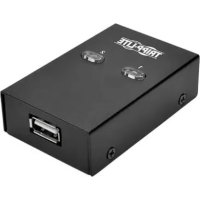
B004-DUA4-K-R - USB Switch Tripp Lite - Free user manual and instructions
Find the device manual for free B004-DUA4-K-R Tripp Lite in PDF.


| Type of Product | DVI USB KVM Switch with Audio |
| Model | B004-DUA4-K-R |
| Number of Computers Supported | 4 |
| Maximum Digital Video Resolution | 1920 x 1200 |
| Maximum Analog Video Resolution | 2048 x 1536 |
| Video Connector Type | DVI-I (supports VGA via adapter) |
| USB Hub Ports | 4 x USB 2.0 (2 for keyboard/mouse, 2 for peripherals; plus 2 additional front ports on B004-DUA4-K-R) |
| Audio Support | Speaker and microphone 3.5 mm jacks |
| Switching Methods | Pushbutton and keyboard hotkey commands |
| Auto Scan Feature | Yes, with programmable interval (1-100 seconds) |
| Hotkey Preceding Sequence | Configurable (default: Scroll Lock) |
| Power Supply | External, Input: 100-240V AC, 50/60 Hz, 0.4A; Output: 5V DC, 2A |
| Included Cables | 4 x 6 ft. DVI + Audio KVM cable kits, 4 x 6 ft. USB A/B cables |
| Operating System Compatibility | All major operating systems |
| Security | FCC Class A, WEEE compliant |
| Warranty | 3-Year Limited Warranty |
| Optional Accessories | DVI to VGA adapters, audio cables, USB cables |
| Product Registration | Available online at tripplite.com/warranty |
Frequently Asked Questions - B004-DUA4-K-R Tripp Lite
User questions about B004-DUA4-K-R Tripp Lite
0 question about this device. Answer the ones you know or ask your own.
Ask a new question about this device
Download the instructions for your USB Switch in PDF format for free! Find your manual B004-DUA4-K-R - Tripp Lite and take your electronic device back in hand. On this page are published all the documents necessary for the use of your device. B004-DUA4-K-R by Tripp Lite.
USER MANUAL B004-DUA4-K-R Tripp Lite
DVI USB KVM Switch with Audio
Models: B004-DUA2-K-R, B004-DUA4-K-R
Package Contents 2
System Requirements 2
Optional Accessories 3
Features 3
Installation 4
Operation 5
Warranty and Product Registration 7
PROTECT YOUR INVESTMENT!
Register your product for quicker service and ultimate peace of mind. You could also win an ISOBAR6ULTRA surge protector—a \$100 value! www.tripplite.com/warranty


1111 W. 35th Street, Chicago, IL 60609 USA • www.tripplite.com/support
Copyright © 2017 Tripp Lite. All rights reserved.
Package Contents
B004-DUA2-K-R:
• (x2) 4ft. DVI + Audio KVM Cable Kits
• (x2) 4ft. USB A/B Cables
• External Power Supply (Input: 100-240V, 50/60 Hz, 0.4A; Output: 5V 2A)
- Owner's Manual
B004-DUA4-K-R:
• (x4) 6 ft. DVI + Audio KVM Cable Kits
• (x4) 6 ft. USB A/B Cables
- External Power Supply (Input: 100-240V, 50/60 Hz, 0.4A; Output: 5V 2A)
- Owner's Manual
System Requirements
• DVI or VGA* monitor
• USB keyboard and mouse
- Speaker and microphones with 3.5 mm connectors (if using these features)
• Computer with available USB port
- Computer with available 3.5 mm speaker and microphone ports (if using these features)
- Compatible with all major operating systems
*Requires a DVI to VGA adapter
Optional Accessories
• P118-000 DVI-D Male to DVI-I Female Adapter
• P126-000 DVI-I Female to VGA Male Adapter
• P312-Series 3.5mm Stereo Audio Cables
• P556-006 DVI-A Male to VGA Male Adapter Cable—6 ft.
• P561-Series DVI-D Single Link Cables
• U022-Series USB 2.0 A/B Device Cables
Features
• Control two computers with a single monitor, keyboard and mouse
- Switch ports via pushbutton or keyboard hotkey commands
- Auto scan feature allows you to automatically switch between connected computers at regular intervals
- Speaker and microphone connections share audio equipment between systems; listen to music from one computer while accessing the other
• USB 2.0 ports share peripherals between connected computers
- Advanced emulation technology ensures compatibility with USB keyboards and mice
• Supports digital video resolutions up to 1920 x 1200 and analog video resolutions up to 2048 x 1536
- DDC emulation assures optimal video quality between the monitor and connected computers
Installation
Notes: Before you begin, power off all devices that you will be connecting to the KVM switch. You must also unplug the power cords of any computers that have the Keyboard Power On feature. There is a 3.5 mm port on the front of the B004-DUA4-K-R for use with an optional wired remote control.
- Connect the external power supply to the KVM, and then plug it into a Tripp Lite Surge Protector, Uninterruptible Power Supply (UPS), or Power Distribution Unit (PDU).
- Connect your USB keyboard and mouse to the two USB ports on the left side of the KVM switch. (The two USB ports on the right are for peripheral devices.)
- Connect a microphone and speakers to the corresponding 3.5 mm stereo ports.
- Connect your DVI monitor to the DVI console port on the KVM.
Note: If you are connecting to a VGA monitor, use Tripp Lite's DVI to VGA adapter cable, model P556-006 - If you are connecting USB peripherals, plug them into the two USB 2.0 ports on the right side. (The two USB ports on the left are for the shared keyboard and mouse.) The B004-DUA4-K-R includes two additional USB 2.0 peripheral ports on the front of the unit.
- Using the included DVI + Audio KVM cable kits and USB A/B cables, connect the computer ports on the KVM to a computer.
Note: If you are connecting to a computer with a DVI-D port, use a Tripp Lite DVI-I to DVI-D adapter, model P118-000. - Power on the connected computers and devices.
Operation
There are two ways to access the computers connected to your KVM switch: Pushbutton or Keyboard Hotkey Commands.
Pushbutton
Press the pushbutton on the KVM to toggle between the connected computers. When toggling between ports, the default is for the computer, audio and USB hub functionality to be switched together. To unbind either audio or USB hub control from port switching, use the keyboard hotkey commands listed in the following section.
Keyboard Hotkey Commands
Another way to switch between connected computers is to use keyboard hotkey commands. Besides allowing you to switch computers, hotkey commands enable you to perform other functions, such as binding/unbinding computer switching with audio and/or the USB hub ports, initiate an auto scan, etc. The following table lists the available keyboard hotkey commands, explains how to initiate them and describes what they do.
| Command Hotkey Description | ||
| Select Computer Port | [Scroll Lock] [Scroll Lock] [x] x = 1, 2, 3 or 4 | Switches the KVM focus to the selected port. |
| Select USB Hub Focus | [Scroll Lock] [Scroll Lock] [Fx] Fx = [F1] for port 1, [F2] for port 2, etc. | Selects which computer port has the focus of the USB hub ports.Note: When computer and hub switching are bound together, switching hub focus will also switch the focus of the KVM. |
| Select Audio Focus | [Scroll Lock] [Scroll Lock] [Fy] Fy = [F5] for port 1, [F6] for port 2, etc. | Selects which computer port has the focus of the audio and mic ports.Note: When computer and audio switching are bound together, switching audio focus will also switch the focus of the KVM. |
| Bind Computer and Hub Switching | [Scroll Lock] [Scroll Lock] [Z] | Binds computer and hub switching together. This is enabled by default. |
Operation
| Command Hotkey Description | ||
| Unbind Computer and Hub Switching | [Scroll Lock] [Scroll Lock] [X] | Unbinds computer and hub switching, allowing you to access one computer while the focus of the hub is on the other. |
| Bind Computer and Audio Switching | [Scroll Lock] [Scroll Lock] [Q] | Binds computer and audio switching together. This is enabled by default. |
| Unbind Computer and Audio Switching | [Scroll Lock] [Scroll Lock] [W] | Unbinds computer and audio switching, allowing you to access one computer while listening to audio from the other. |
| Next Lower Computer Port | [Scroll Lock] [Scroll Lock] [↑] or [Scroll Lock] [Scroll Lock] [Backspace] | Switches the KVM focus to the computer directly prior to the currently selected computer. |
| Next Higher Computer Port | [Scroll Lock] [Scroll Lock] [↓] | Switches the KVM focus to the computer directly after the currently selected computer. |
| Define Hotkey Preceding Sequence | [Scroll Lock] [Scroll Lock] [H] [x]x = [Scroll Lock], [Caps Lock], [Num Lock], [Esc] or [F12] | Selects which key will be used for the hotkey preceding sequence. The default is [Scroll Lock]. |
| Auto Scan | [Scroll Lock] [Scroll Lock] [S] | Initiates an Auto Scan at a scan interval of 5 seconds. |
| Auto Scan with Programmable Scan Interval | [Scroll Lock] [Scroll Lock] [S] [x]x = 0 through 91 = 10, 2 = 20, 3 = 30,4 = 40, 5 = 50, 6 = 60,7 = 70, 8 = 80, 9 = 90,0 = 100 | Initiates an Auto Scan at the chosen scan interval. |
| Exit Auto Scan | Press any key on the keyboard, or the KVM pushbutton | Stops an Auto Scan at the selected computer. |
| Turn Beeper On/Off* | [Scroll Lock] [Scroll Lock] [B] | Turns beeping sound on or off. |
*B004-DUA4-K-R only
Warranty and Product Registration
3-Year Limited Warranty
TRIPP LITE warrants its products to be free from defects in materials and workmanship for a period of three (3) years from the date of initial purchase. TRIPP LITE's obligation under this warranty is limited to repairing or replacing (at its sole option) any such defective products. To obtain service under this warranty, you must obtain a Returned Material Authorization (RMA) number from TRIPP LITE or an authorized TRIPP LITE service center. Products must be returned to TRIPP LITE or an authorized TRIPP LITE service center with transportation charges prepaid and must be accompanied by a brief description of the problem encountered and proof of date and place of purchase. This warranty does not apply to equipment, which has been damaged by accident, negligence or misapplication or has been altered or modified in any way. EXCEPT AS PROVIDED HEREIN, TRIPP LITE MAKES NO WARRANTIES, EXPRESS OR IMPLIED, INCLUDING WARRANTIES OF MERCHANTABILITY AND FITNESS FOR A PARTICULAR PURPOSE.
Some states do not permit limitation or exclusion of implied warranties; therefore, the aforesaid limitation(s) or exclusion(s) may not apply to the purchaser. EXCEPT AS PROVIDED ABOVE, IN NO EVENT WILL TRIPP LITE BE LIABLE FOR DIRECT, INDIRECT, SPECIAL, INCIDENTAL OR CONSEQUENTIAL DAMAGES ARISING OUT OF THE USE OF THIS PRODUCT, EVEN IF ADVISED OF THE POSSIBILITY OF SUCH DAMAGE. Specifically, TRIPP LITE is not liable for any costs, such as lost profits or revenue, loss of equipment, loss of use of equipment, loss of software, loss of data, costs of substitutes, claims by third parties, or otherwise.
Product Registration
Visit www.triplite.com/warranty today to register your new Tripp Lite product. You'll be automatically entered into a drawing for a chance to win a FREE Tripp Lite product!*
* No purchase necessary. Void where prohibited. Some restrictions apply. See website for details.
Warranty and Product Registration
FCC Notice, Class A
This device complies with part 15 of the FCC Rules. Operation is subject to the following two conditions: (1) This device may not cause harmful interference, and (2) this device must accept any interference received, including interference that may cause undesired operation.
Note: This equipment has been tested and found to comply with the limits for a Class A digital device, pursuant to part 15 of the FCC Rules. These limits are designed to provide reasonable protection against harmful interference when the equipment is operated in a commercial environment. This equipment generates, uses, and can radiate radio frequency energy and, if not installed and used in accordance with the instruction manual, may cause harmful interference to radio communications. Operation of this equipment in a residential area is likely to cause harmful interference in which case the user will be required to correct the interference at his own expense. The user must use shielded cables and connectors with this equipment. Any changes or modifications to this equipment not expressly approved by Tripp Lite could void the user's authority to operate this equipment.
WEEE Compliance Information for Tripp Lite Customers and Recyclers (European Union)

Under the Waste Electrical and Electronic Equipment (WEEE) Directive and implementing regulations, when customers buy new electrical and electronic equipment from Tripp Lite they are entitled to:
- Send old equipment for recycling on a one-for-one, like-for-like basis (this varies depending on the country)
- Send the new equipment back for recycling when this ultimately becomes waste
Tripp Lite has a policy of continuous improvement. Specifications are subject to change without notice.


1111 W. 35th Street, Chicago, IL 60609 USA • www.tripplite.com/support
- DVI USB KVM Switch with Audio
- PROTECT YOUR INVESTMENT!
- Package Contents
- B004-DUA2-K-R:
- B004-DUA4-K-R:
- System Requirements
- Optional Accessories
- Features
- Installation
- Operation
- Pushbutton
- Keyboard Hotkey Commands
- Warranty and Product Registration
- 3-Year Limited Warranty
- Product Registration
- FCC Notice, Class A
- WEEE Compliance Information for Tripp Lite Customers and Recyclers (European Union)
Brand : Tripp Lite
Model : B004-DUA4-K-R
Category : USB Switch