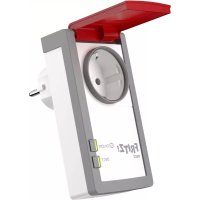
FRITZ!DECT 210 - Wall socket AVM - Free user manual and instructions
Find the device manual for free FRITZ!DECT 210 AVM in PDF.



| Product type | Connected wall socket |
| Brand | AVM |
| Model | FRITZ!DECT 210 |
| Dimensions (without plug) | 65 x 127 x 36 mm |
| Weight | Approx. 204 g |
| Power supply | 230 V, 50 Hz AC |
| Maximum permissible power | 3450 W / 15 A (resistive load) |
| Standby consumption | Approx. 0.4 W |
| Consumption measurement accuracy | ± 100 mW (up to 5 W), ± 2% (from 5 W) |
| Protection rating | IP44 (protected against water splashes) |
| Operating ambient temperature | -20 °C to +40 °C |
| Measurable temperature range | 5 °C to +40 °C |
| Connectivity | DECT (1880-1902 MHz, indoor range up to 40 m, outdoor up to 300 m) |
| Main functions | Automatic on/off via schedule, remote control via FRITZ!App Smart Home, energy consumption measurement, email notification |
| Compatibility | FRITZ!Box (except 7312 and 7412), FRITZ!Fon, FRITZ!DECT 440/400 |
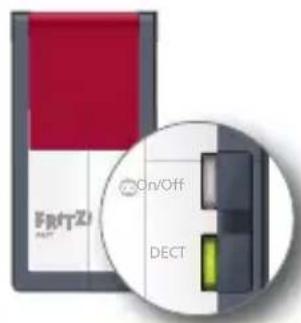
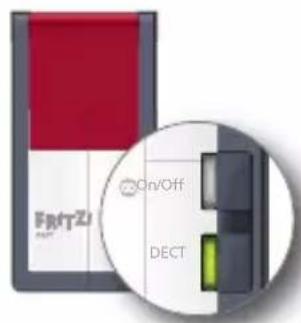
| Display and controls | On/Off button, DECT LED, update LED |
| Maintenance and cleaning | Clean with a dry cloth; do not immerse in water |
| Safety | Do not exceed 3450 W, do not connect multiple sockets in series, do not expose to water (IP44 only if all components are IP44), do not use with fire hazard devices unattended |
| Warranty | 2 years (hardware), from date of purchase |
| Package contents | 1 FRITZ!DECT 210 |
Frequently Asked Questions - FRITZ!DECT 210 AVM
User questions about FRITZ!DECT 210 AVM
0 question about this device. Answer the ones you know or ask your own.
Ask a new question about this device
Download the instructions for your Wall socket in PDF format for free! Find your manual FRITZ!DECT 210 - AVM and take your electronic device back in hand. On this page are published all the documents necessary for the use of your device. FRITZ!DECT 210 by AVM.
USER MANUAL FRITZ!DECT 210 AVM
natural_image
Exterior view of a red and white electronic device with a small cylindrical component (no visible text or symbols)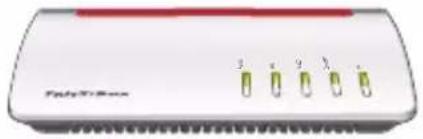
natural_image
Front view of a white electronic device with four green test tubes and a red top (no visible text or symbols)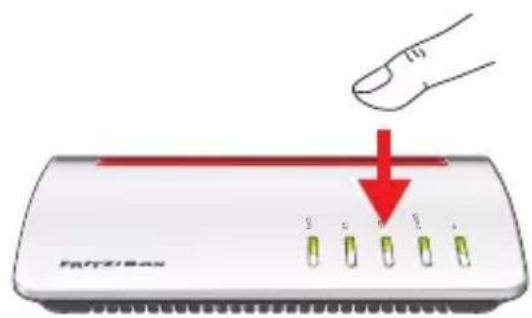
natural_image
Two smartphones with visible branding and a circular icon on the left (no readable text or symbols)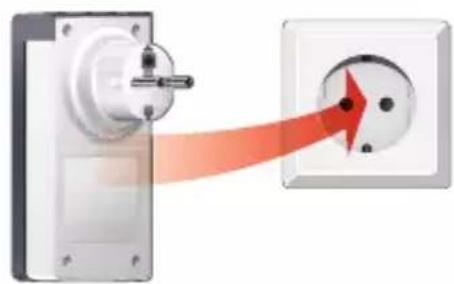
natural_image
Diagram showing a wall-mounted electrical socket connected to a wall-mounted power outlet, with a red arrow indicating the direction of connection (no text or symbols present)FRITZ!DECT 210 is a switchable socket for your FRITZ! Smart Home.
- FRITZ!DECT 210 switches connected devices on and off automatically according to your specifications. You can control the socket using a weekly calendar, for instance, or a Google calendar.
- In combination with a FRITZ!Fon, a FRITZ!DECT 440/400 switch and the FRITZ!App Smart Home, FRITZ!DECT 210 turns into a remote controlled socket.
- FRITZ!DECT 210 measures the power consumption of connected electric devices. You have the option of receiving these measurement values in a regular email message.
- FRITZ!DECT 210 is integrated with a FRITZ!Box (not with FRITZ!Box 7312 or FRITZ!Box 7412) via DECT radio transmission and can then be controlled easily on the computer, notebook, tablet or smartphone, from home or anywhere else with internet access.
- In addition to this quick guide, FRITZ!DECT 210 is described in an online help that can be opened by clicking on the question mark ? in the user interface of the FRITZ!Box.
- FRITZ!DECT 210 can be identified and reached in the FRITZ!Box network via its own unique AIN (Actuator Identification Number). You can find the AIN on the back of the device and in the FRITZ!Box user interface.
https://en.avm.de/products/fritzdect/
Security
- Do not subject FRITZ!DECT 210 to a load higher than its limit of 3450 W/15 A (ohmic load). Overloading can damage FRITZ!DECT 210, or cause malfunctions or an electrical accident.
- Operate FRITZ!DECT 210 only on an easily accessible outlet in a location without direct sunlight that is well ventilated.
- Do not subject FRITZ!DECT 210 to a direct stream of water or direct rain. FRITZ!DECT 210 has splash protection compliant with IP44. IP44-class splash protection applies only when each of the components, plug and socket, have the same protection class.
- Do not connect multiple FRITZ!DECT 210 devices with each other.
- Do not operate any devices that present a risk of fire (for instance, electric irons, radiant heaters, electric grills) unattended on FRITZ!DECT 210.
- Do not modify FRITZ!DECT 210. FRITZ!DECT 210 may not be opened, converted, modified or repaired except by a qualified technician.
- Configure automatic switching for FRITZ!DECT 210 only if the connected devices are designed for such operation. Frequent switching can shorten the service life of electrical devices. No liability will be accepted for attendant damage to corresponding devices.
Package Contents
Name Illustration
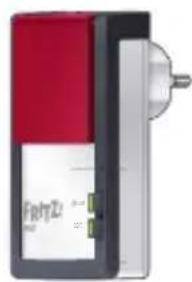
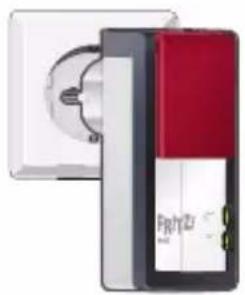
1 FRITZ!DECT 210
natural_image
Exterior view of a red and black FRTZ brand electronic device (no visible text or symbols on body)1 quick guide no illustration
Technical Specifications
- Wireless standard: DECT
- Frequency range: 1880 MHz – 1902 MHz
• Maximum transmitter power: 250 mW - Range: up to 40 m indoors, up to 300 m outdoors
• Maximum active power: ca. 1.5 W
• Active power on standby: ca. 0.4 W - Measurement accuracy: +/- 100 mW (up to 5 W), +/- 2% (5 W or higher)
-
230 V, 50 Hz A/C
-
Dimensions (without plug): 65 mm x 127 mm x 36 mm
• Weight: approx. 204 g - Protection class: IPx44, splash protection
• Maximum load for connected devices up to 3450 W/15 A - Ambient temperature: -20 °C to +40 °C
- Measurable temperature range: -5 °C to +40 °C
Registering with a FRITZ!Box
| Action | |
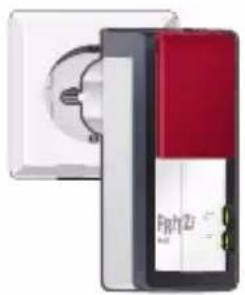
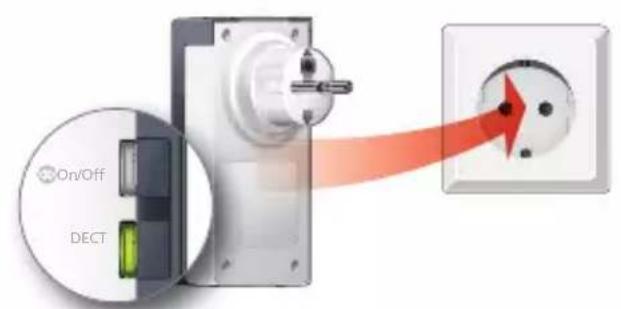
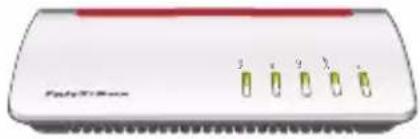
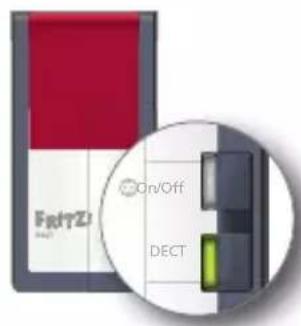
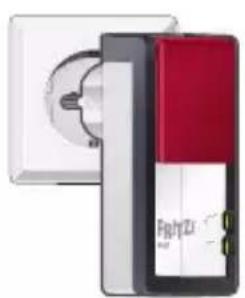
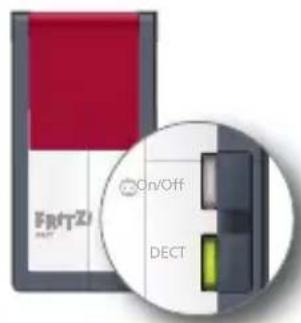
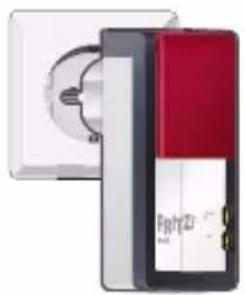
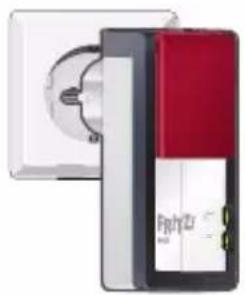
| 1 | Insert FRITZ!DECT 210 into an outlet near your FRITZ!Box. The DECT LED fl ashes steadily. |
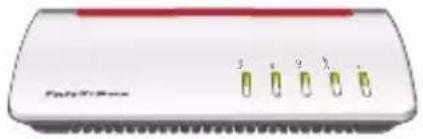
| 2 | Within 2 minutes, press the DECT button on your FRITZ!Box, and hold it down until the Info or DECT LED starts fl ashing.FRITZ!DECT 210 is registered with the FRITZ!Box. The Wi-Fi connection has been established when the DECT LED on FRITZ!DECT 210 lights up. If DECT continues to fl ash, registration was not successful. Remove FRITZ!DECT 210 from the power outlet and repeat the registration process. If DECT continues to fl ash, registration was not successful. Remove FRITZ!DECT 210 from the power outlet and repeat the registration process. |
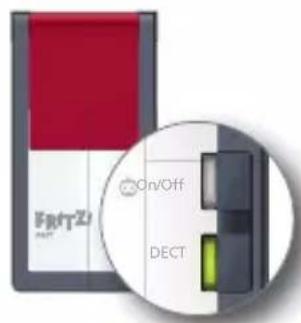
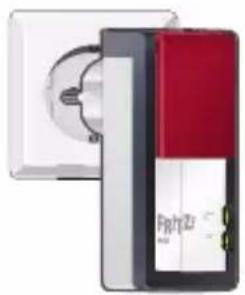
| 3 | Now insert FRITZ!DECT 210 into the socket where you would like to use the device and wait a moment for the DECT LED to light up. If DECT keeps fl ashing, test a different outlet closer to the FRITZ!Box. The outlet must be located within the range of the DECT radio network of the FRITZ!Box. If DECT keeps fl ashing, test a different outlet closer to the FRITZ!Box. The outlet must be located within the range of the DECT radio network of the FRITZ!Box. |
natural_image
Front view of a white electronic device with four green test tubes and a red top bar (no visible text or symbols)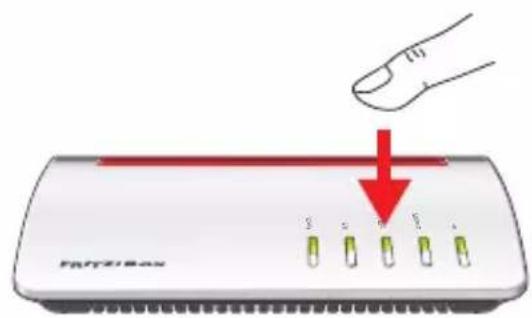
natural_image
Two stacked electronic devices, one white and one red, with no visible text or symbols on the devices themselves.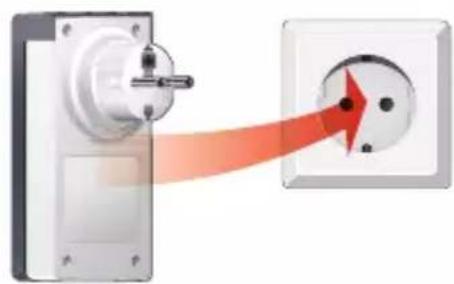
natural_image
Diagram showing a wall-mounted switch connected to a power socket, with a red arrow indicating the direction of connection (no text or symbols present)Configuring a Smart Home Profile
FRITZ!DECT 210 can be configured with a Smart Home profile in the user interface of the FRITZ!Box:
| Action | |
| 1 | Open a web browser. |
| 2 | Enter http://fritz.box in the address field. |
| 3 | Open theSmart Home / Device Managementmenu. |
| 4 | Click on √ behind your FRITZ!DECT 210. |
| 5 | The Smart Home profile of FRITZ!DECT 210 appears. |
Editing a Smart Home Profile
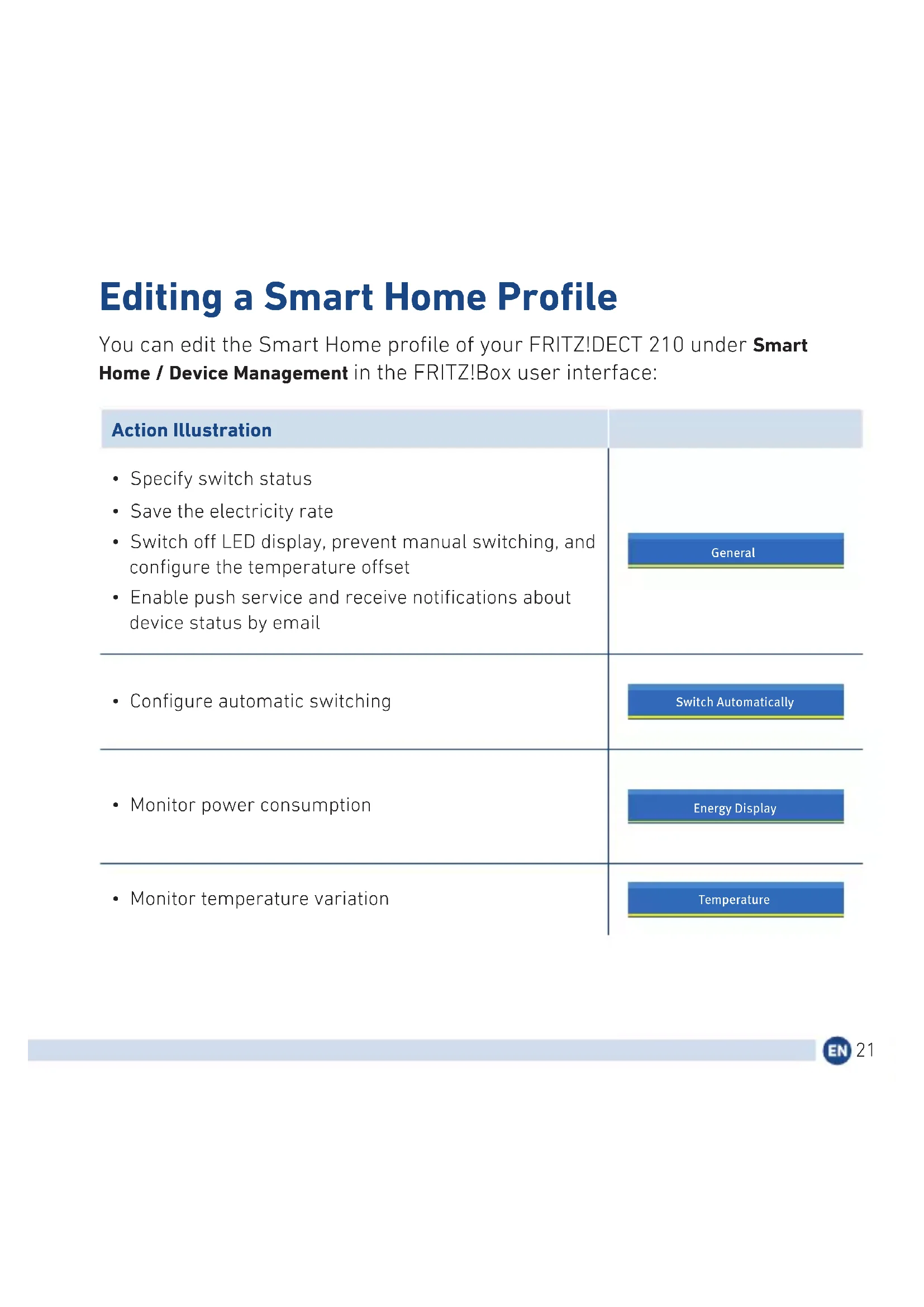
You can edit the Smart Home profile of your FRITZ!DECT 210 under Smart Home / Device Management in the FRITZ!Box user interface:
Action Illustration
- Specify switch status
- Save the electricity rate
- Switch off LED display, prevent manual switching, and configure the temperature offset
- Enable push service and receive notifications about device status by email
- Configure automatic switching
• Monitor power consumption
• Monitor temperature variation
General
Switch Automatically
Energy Display
Temperature
Switching the Socket
The socket on your FRITZ!DECT 210 can be switched on and off in various ways.
Switching On and Off
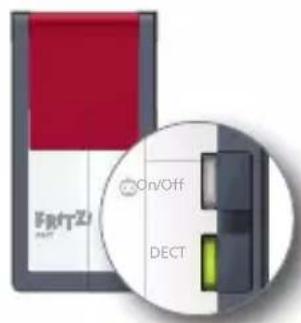
- with the "On/Off" button on FRITZ!DECT 210
- with a FRITZ!Fon - via the navigation of your FRITZ!Fon in the Smart Home menu or - directly from the Home screen for Smart Home applications See the documentation of your wireless device.
- with a FRITZ!DECT 440/400 switch The FRITZ!DECT 440/400 switch must be configured for Smart Home applications. See the documentation of your wireless device.
Switching with FRITZ!App Smart Home
You can switch FRITZ!DECT 210 on and off with FRITZ!App Smart Home.
| Action Illustration | |||
| 1 | Install the FRITZ!App Smart Home on your smartphone and connect it to your FRITZ!Box. |  |  |
| 2 | With the FRITZ! App Smart Phone you can switch FRITZ!DECT 210 with your smartphone, and monitor its switch status, performance, and temperature. | 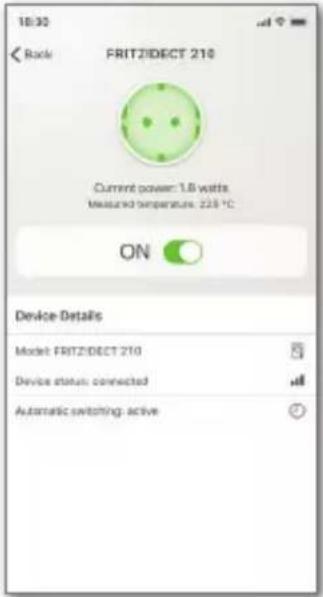 | |
Automatic Switching
| Action | |
| 1 | Open a web browser. |
| 2 | Enter http://fritz.box in the address field. |
| 3 | Open theSmart Home / Device Management menu. |
| 4 | Click on √ behind your FRITZ!DECT 210. |
| 5 | Click on theSwitch Automatically tab. |
| 6 | Enable theAutomatic switching enabledoption and configure a switching schedule. |
| 7 | Click onOKto save the settings. |
LEDs and Buttons
| Action / Display Condition | ||
 | Press the button Switch the socket on and off | |
| off Socket is switched off | ||
| on Socket is switched on | ||
| fl ashing Software update in progress | ||
| fl ashes briefl y | Maximum load exceeded (3450 W/15 A ohmic load) | |
 | Press and hold the button down for at least 6 seconds | FRITZ!DECT 210 is deregistered from your FRITZ!Box. |
| on | FRITZ!DECT 210 is registered with your FRITZ!Box. | |
| fl ashing Software update or registration in progress | ||
| fl ashes briefl y at regular intervals | FRITZ!DECT 210 is not connected with your FRITZ!Box (not registered, or outside the DECT range) |
Legal Notice
Conformity
Declaration of Conformity
AVM hereby declares that the device is compliant with the Directive 2014/53 / EU.
UKCA Declaration of Conformity
AVM hereby declares that the device is compliant with the Radio Equipment Regulations 2017 (S.I. 2017/1206).
The full text of the declarations of conformity is available at https://en.avm.de/service/declarations.

Disposal
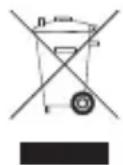
In accordance with European directives, FRITZ!DECT 210 may not be disposed with household waste. Please bring the device to a local collection point for disposal after use.
Manufacturer's Warranty
We offer a manufacturer's warranty of 2 years for this original product. The warranty period begins with the date of purchase by the first end user. Compliance with the warranty period can be proven by submission of the original invoice or comparable documents. This warranty does not restrict your warranty rights based on the contract of sale or other statutory rights. Within the warranty period, we will remove defects to the product which are demonstrably due to faults in materials or manufacturing. Our warranty does not cover defects which occur due to incorrect installation, improper use, non-observance of instructions in the user manual, normal wear and tear or defects in the environment of the system (third-party hardware or software). We may, at our discretion, repair or replace the defective product. Claims other than the right to the removal of defects which is mentioned in these terms of warranty are not constituted. We guarantee that the software conforms with general specifications, not, however, that the software meets your individual requirements. Delivery costs will not be reimbursed. Products which have been replaced revert to our ownership. Claims recognized under warranty entail neither an extension or recommencement of the warranty period. If we reject a warranty claim, this claim lapses no later than six months after being rejected by us. This warranty shall be governed by German substantive law, to the exclusion of the United Nations Convention on Contracts for the International Sale of Goods (CISG).
FRITZ!DECT 210
natural_image
Exterior view of a red and black electronic device with a metallic connector (no visible text or symbols)1 guide rapide sans illustration
Données techniques
natural_image
Front view of a white electronic device with four green test tubes and a red top bar (no visible text or symbols)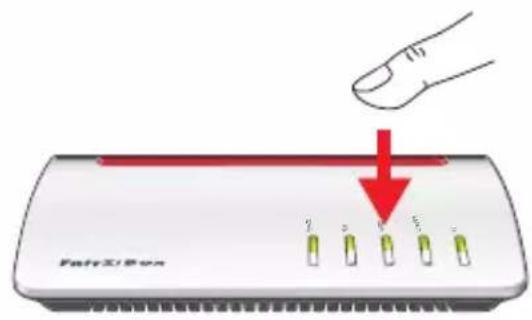
natural_image
Two stacked electronic devices with a red and white casing, one partially open showing a circular button (no visible text or symbols)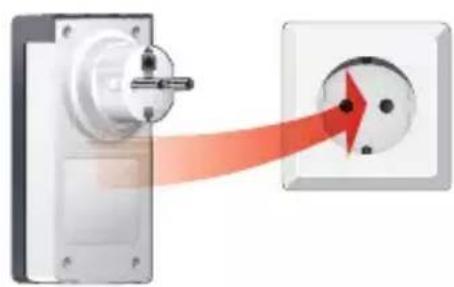
natural_image
Diagram showing a wall-mounted electrical socket connected to a power outlet, with a red arrow indicating the direction of connection (no text or symbols present)natural_image
Exterior view of a red and black electronic device with a metallic connector (no visible text or symbols)
natural_image
Front view of a white electronic device with four green test tubes and a red top bar (no visible text or symbols)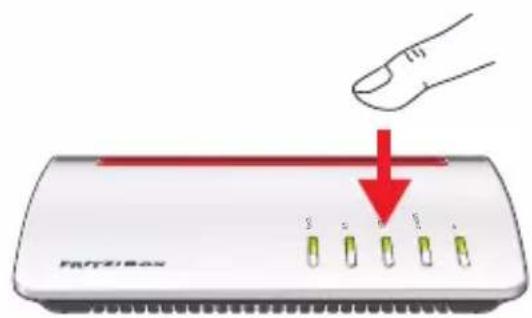
natural_image
Two smartphones with visible branding and a circular icon on the left (no readable text or symbols)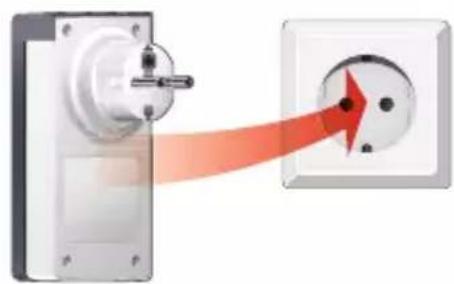
natural_image
Diagram showing a wall-mounted electrical socket connected to a single outlet, with a red arrow indicating direction (no text or symbols present)natural_image
Exterior view of a red and white electronic device labeled 'Fght2' with ports and a power outlet (no readable text beyond branding)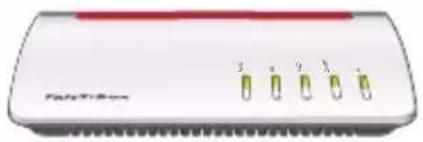
natural_image
Front view of a white electronic device with four green test tubes and a red top (no visible text or symbols)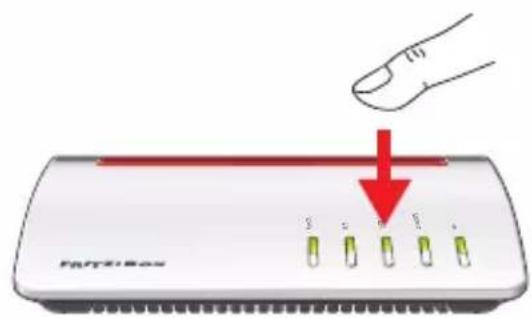
natural_image
Two stacked electronic devices, one white and one red, with no visible text or symbols on the devices themselves.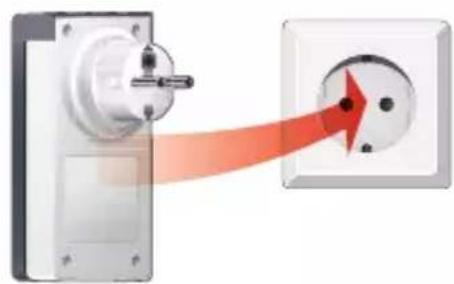
natural_image
Diagram showing a wall-mounted electrical socket connected to a single electrical outlet, with a red arrow indicating direction (no text or symbols present)natural_image
Exterior view of a red and black electronic device with a metallic connector (no visible text or symbols)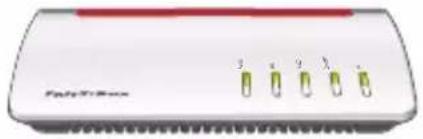
natural_image
Front view of a white electronic device with four green test tubes and a red top bar (no visible text or symbols)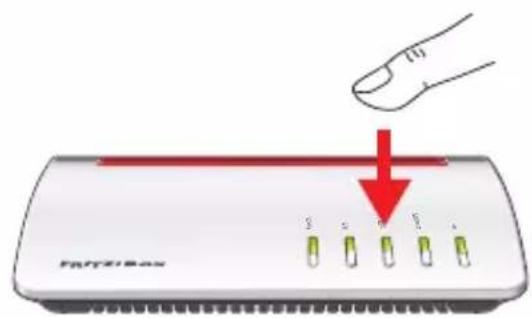
natural_image
Two stacked electronic devices, one white and one red, with no visible text or symbols on the devices themselves.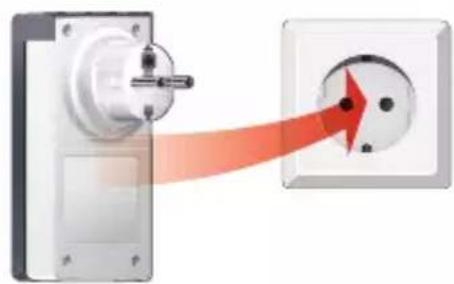
natural_image
Diagram showing a wall-mounted electrical socket connected to a single electrical outlet, with a red arrow indicating the direction of connection (no text or symbols present)Smarthome-profiel instellen
- Security
- Package Contents
- Name Illustration
- Technical Specifications
- Registering with a FRITZ!Box
- Configuring a Smart Home Profile
- Editing a Smart Home Profile
- Action Illustration
- Switching the Socket
- Switching On and Off
- Switching with FRITZ!App Smart Home
- Automatic Switching
- LEDs and Buttons
- Legal Notice
- Conformity
- Disposal
- Manufacturer's Warranty
- FRITZ!DECT 210
- Données techniques
- Smarthome-profiel instellen
Brand : AVM
Model : FRITZ!DECT 210
Category : Wall socket