Q88 MKII - DJ Equipment ALESIS - Free user manual and instructions
Find the device manual for free Q88 MKII ALESIS in PDF.



| Product Type | MIDI Master Keyboard |
| Brand | Alesis |
| Model | Q88 MKII |
| Number of Keys | 88 Velocity-Sensitive Keys |
| Connectivity | USB (power and data), 5-pin MIDI Out |
| Power Supply | USB (5V) or 9V DC 500mA power adapter (sold separately) |
| Pitch Bend Wheel | Yes |
| Modulation Wheel | Yes, assignable |
| Volume Slider | Yes, assignable (CC) |
| Transport Controls | Yes (play, stop, etc.), MIDI, Mackie Control, HUI protocols |
| Advanced Functions | Octave, transpose, program change, LSB/MSB bank, MIDI channel, etc. |
| Sustain Pedal Input | Yes (6.35mm jack) |
| Expression Pedal Input | Yes (6.35mm TRS jack) |
| Kensington Lock | Yes |
| Compatibility | Windows, macOS, iOS (iPad with connection kit) |
| Box Contents | Q88 MKII keyboard, USB cable, software download card, user guide |
| Care and Cleaning | Clean with a soft, dry cloth. Do not use solvents. |
| Security | Use the Kensington lock. Do not expose to moisture. |
| Spare Parts and Repairability | Contact Alesis support for repairs. |
Frequently Asked Questions - Q88 MKII ALESIS
User questions about Q88 MKII ALESIS
0 question about this device. Answer the ones you know or ask your own.
Ask a new question about this device
Download the instructions for your DJ Equipment in PDF format for free! Find your manual Q88 MKII - ALESIS and take your electronic device back in hand. On this page are published all the documents necessary for the use of your device. Q88 MKII by ALESIS.
USER MANUAL Q88 MKII ALESIS
User Guide (English)
Introduction
Box Contents
Q88 MKII
USB Cable
Software Download Card
User Guide
Safety & Warranty Manual
Support
Visit alesis.com to view and download the latest documentation, system requirements, and other information about your product.
For additional product support, visit alesis.com/support.
Quick Start
Connecting Your Keyboard
You can power the keyboard either via a powered USB port or a third-party power supply. The Q88 MKIIs are low-power devices and an external power supply is not necessary unless using the Q88 MKII without being connected to a computer (e.g., controlling external synthesizers). It is recommended that you connect the Q88 MKII to an onboard USB port or to a powered USB hub. Use a USB cable to power Q88 MKII when connecting to a computer to trigger software synths.
You can also use Q88 MKII with your iPad to control supported music creation apps.
Connecting your Q88 MKII to an iPad requires the iPad Camera Connection Kit, which is available from the Apple Store.
Configuration
Once you have finished installation you will need to configure your MIDI software to use the Q88 MKII. Please note that when you press a key on the keyboard, you will not hear any sound. This is because pressing a key causes the keyboard to send out MIDI data. MIDI data gives instructions on how a sound should play, but in order to actually hear that sound you need to configure your music software to read the MIDI data being sent from the Q88 MKII and play the sound back accordingly. This setup will more than likely entail going into an Options or Device Set-Up menu in your music software application and selecting the appropriate device. The Q88 MKII should appear under the name "USB Audio Device" for Windows 7, Windows 8, or as "Q88 MKII" for other operating systems in the MIDI devices section of your music software application. Please consult the manual that came with your software for the proper setup procedure.
Features
Top Panel
- Keyboard: Most of the white keys and black keys on the Q88 MKII are labeled with names. When in the Advanced mode, pressing any of the labeled keys will allow for special operations such as adjusting the MIDI channel, transposing, and sending program change messages.
- Octave Buttons: If you press the octave "+" button once, the LED above the octave "-" button will turn off, indicating the keyboard's octave is now shifted up. If you press the octave "+" key again, you will shift one more octave up, and so on. It is possible to shift the keyboard up 4 octaves or down 4 octaves from 0 octave shift.
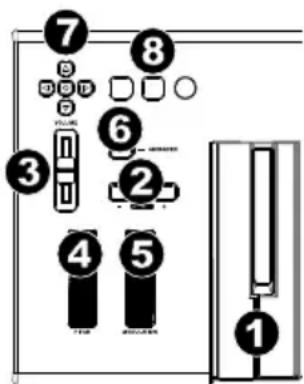
To shift the octave down, press the octave “-” button and notice that the LED above the octave “+” turns off. If only the LED above the octave “-” key is lit, the octave is shifted down and, if only the LED above the octave “+” key is lit, the octave is shifted up. The octave “+” and octave “-” LEDs will change color when moving up or down more than one octave.
To return the octave shift to 0, press both the octave "+" and "-" keys together. Both LEDs will light, indicating that the octave shift has returned to 0.
The Octave "+" and "-" buttons may be assigned to control one of seven possible MIDI functions. (See Advanced Functions for more information.)
- Volume Slider: The Volume Slider sends a MIDI message that controls the volume of the notes you are playing. The Volume Slider can also be assigned to different effects such as pan (balance), attack, reverb, chorus and many more. (See Advanced Functions for more information.)
- Pitch Bend Wheel: As the name indicates, the pitch bend wheel is primarily used to bend the notes played on the keyboard up or down. This allows you to play phrases not normally associated with keyboard playing, such as guitar-style riffs. Your sound source determines how far you can bend the note. The usual setting is two semitones, but it can be up to two octaves up or down.
-
Modulation Wheel: The modulation wheel is typically used for modulation of the sound you are playing. This type of real-time controller was originally introduced on electronic keyboard instruments to give the performer options such as adding vibrato, just like players of acoustic instruments do. The modulation wheel is fully MIDI-assignable.
-
Advanced Button: The Advanced button is used to access all the advanced functions of the keyboard.
When the Advanced button is pressed, the keyboard goes into "Edit Mode." In Edit Mode, the keys on the keyboard are used for selecting functions and entering data.
The LED above the Advanced button indicates whether or not Edit Mode is engaged. In Edit Mode, the black keys on the keyboard are used for selecting functions, while the white keys are used for data entry, channel selection, and DAW selection.
Your keyboard will exit out of Edit Mode as soon as a function is selected, or the Advanced button, CANCEL or ENTER key is pressed (the LED above the Advanced button will turn off). The keyboard can then be used to play notes again.
Note: Refer to the Advanced Functions section for more information.
- Directional Buttons: These buttons can use the MIDI, Mackie Control or HUI protocols to control certain functions in software that support them. Please see the Directional Buttons and Transport Buttons section of the Advanced Functions chapter for more information.
- Transport Buttons: These buttons can use the MIDl, Mackie Control or HUI protocols to control certain functions in software that support them. Please see the Directional Buttons and Transport Buttons section of the Advanced Functions chapter for more information.
Rear Panel
- Kensington® Lock: Use this port to attach a security cable to the unit.
- DC Power Adapter Input: If you do not wish to power Q88 MKII through the USB connection and are using the MIDI connector to trigger an external sound module, connect a DC 9 V, 500 mA power adapter (sold separately) here.
- USB Port: The USB port delivers power to the keyboard and transmits MIDI data when connected to a computer to trigger a software synth or MIDI sequencer.
- MIDI Out: Use a five-pin MIDI cable (sold separately) to connect this jack to the MIDI IN of an external sound module or to the MIDI In of a synthesizer.
- Sustain Pedal Input: This socket accepts a momentary-contact foot pedal (sold separately). When pressed, this pedal will sustain the sound you are playing without having to keep your fingers pressed down on the keys.
Note: for realistic pedal action, check out the ASP-2. The ASP-2 is Alesis's switchable sustain pedal with the ability to connect to the sustain pedal input on Q88 MKII.
Note: the polarity of the sustain pedal is determined by the keyboard upon startup. When Q88 MKII is powering up, the sustain pedal is assumed to be in the "up" (off) position. It is important that the sustain pedal is not pressed during startup, otherwise the pedal will reverse its operation, and notes will sustain when the pedal is not pressed.
Note: a foot pedal can be used for sustaining the sound that you are playing without having to keep your hands on the keyboard (just like the sustain pedal on a piano).
You can plug a foot pedal of any polarity into the foot pedal input on your Alesis keyboard. The keyboard will automatically detect the correct polarity when powering up. If you want to reverse the polarity, simply depress the pedal when you switch on your keyboard.
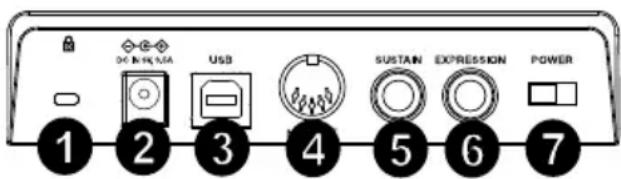
- Expression Pedal Input: Connect a 1/4" TRS expression pedal (sold separately) to this input for adjusting the volume vibrato, or reverb depth of an instrument patch.
- On/Off Switch: Use this switch to power the device on or off.
Advanced Functions
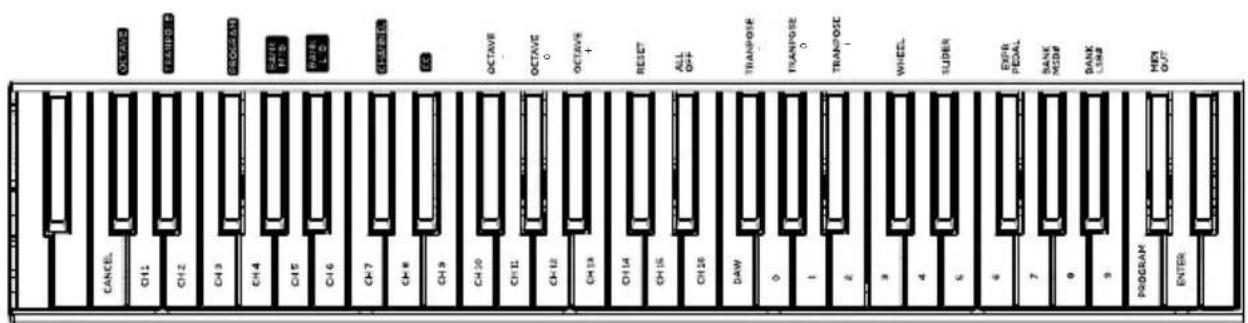
In addition to setting an octave shift, the two OCTAVE "+" and "-" buttons discussed earlier in the manual under the section "Octave Buttons" can also be used to control one of seven MIDI functions.
The first 7 black keys are used to select the function of the octave buttons. Some of the functions that these keys can be used for cannot send out a value less than 0. When used to control these functions, both LEDs above the buttons will remain on, regardless of the current setting of that function.
To select an alternate function:
- Press the Advanced button, putting the keyboard into Edit Mode.
- Press the black key that represents the function you want. With the exception of CC, Edit Mode will finish as soon as you have selected the function and you will be able to play notes again.
Octave Shift
Another method of shifting the Q88 MKII octaves is with the use of the keys labeled "Octave +" and "Octave -". After the Advanced button has been pressed, placing the keyboard in Edit Mode, pressing these keys will shift the keyboard's pitch up or down one or more octaves (one for each time pressed). The default octave shift designation is "0" and will be the octave setting each time you power up the keyboard. The lights above the octave buttons indicate that 0 octave shift is set when both are on.
To assign the "+" and "-" keys to control the octave:
- Press the Advanced button to get the keyboard into Edit Mode.
- Press the black key representing "OCTAVE". Edit Mode will finish as soon as OCTAVE has been pressed.
There is also a method of performing a quick octave change, which can be useful when using the octave buttons to control another MIDI function. This is accomplished as follows:
- Press the Advanced button to put the keyboard in Edit Mode.
- Press the black key representing "OCTAVE +", increasing the octave by 1 (you may press it again to increase the octave by 2, and so on). Press the black key representing "OCTAVE -", decreasing the octave by 1 (you may press it again to decrease the octave by 2, and so on). Press the black key representing "OCTAVE 0" to reset the octave shift to 0.
- When you have chosen your octave shift press "ENTER," to select your Octave and leave Edit Mode. Selecting Cancel or Advanced will cancel the selection, and exit from Advanced mode.
Transposition
In some cases, it may be useful to reduce or increase the pitch by a number of rather than an entire octave. For example, if you are playing a song with a singer that is having difficulty hitting the top notes, you may want to reduce the pitch by one or two semitones. This is achieved using a MIDI function called "Transpose."
Transpose works in the same way as Octave Shift, except the shift can be up to +/- 12 semitones. As with Octave Shift, there are two ways of transposing the keyboard. You can use the Octave "+" and "-" buttons, or the black keys "TRANSPOSE -," "TRANSPOSE 0" and "TRANSPOSE +," respectively.
To assign the Octave "+" and "-" buttons to transpose:
- Press the Advanced button to engage Edit Mode.
- Press the black key labeled "TRANSPOSE" (Eb2). (Edit Mode will disengage as soon as "TRANSPOSE" has been pressed.)
- Press the "+" key and you will hear the pitch of the note you play go up.
- Press the “-” key to transpose the keyboard down a half-step.
- Press both "+" and "-" together to return to no transposition change.
Program Change
Program Changes are used to change the instrument or voice you are using. For the sake of example, we will change the instrument to a bass sound. To do this we need to send a program change of 32. There are two ways to send a program change:
Incremental/Decremental Program Change:
- Press the Advanced button.
- Press the black key labeled "PROGRAM" (F#2).
- Now the Octave "+" and "-" keys can be used to change the program.
- Press "+" and continue to play notes until you find the instrument you want.
This method is useful if you want to cycle through different instruments to see which sounds best in your song.
Quick Select Program Change:
- Press the Advanced button.
- Press the black key labeled "PROGRAM #."
- Press keys "3," "2," "ENTER." Now the keyboard will play a bass sound: Number 32. This method is useful if you want to select a specific number, as is the case here.
If the Octave "+" and "-" keys are selected to vary the Program number (Method 1). Pressing both the "+" and "-" buttons together will recall Program 0, which selects a grand piano sound.
Bank LSB and Bank MSB
Program Changes are most commonly used to change instruments and voices. However, the number of instruments accessible via Program Changes is limited to 128. Some devices have more than 128 voices and require a different method to access these extra voices. Generally, these devices use Bank LSB and Bank MSB messages.
Incremental/Decremental Bank LSB and Bank MSB Changes:
- Press the Advanced button.
- Press the black key labeled "Bank LSB" (G#2) or "Bank MSB" (Bb2), respectively.
- Now the Octave "+" and "-" keys can be used to change the Bank LSB or Bank MSB.
- Press "+" and continue to play notes until you find the instrument you want.
Using the Quick Select Method:
- Press the Advanced button.
- Press the black key labeled "Bank LSB#" or "Bank MSB#" respectively.
- Press keys "3," "2," "ENTER."
As with Program Change, if the Octave "+" and "-" keys are selected to vary the Bank LSB or MSB number (Method 1). Pressing both the "+" and "-" buttons together will recall Bank 0.
MIDI Channel
MIDI data from the keyboard can be sent on any of 16 MIDI Channels. However, certain MIDI devices and MIDI software applications require the keyboard to send data on a specified channel. If this is the case, you can change the channel the data is sent using the following method:
- Press the Advanced button to engage Edit Mode.
- Press one of the 16 Channel keys (D2 to E4), according to the Channel that you need.
For example, if a device specifies that you need to send data on Channel 10, press the Advanced button, and select Channel 10. The Channel can also be assigned to the Octave "+" and "-" buttons. Once assigned, pressing "+" or "-" will increase or decrease the channel incrementally. When Channel 16 is reached and "+" is pressed, Channel 1 will be selected. Pressing both the "+" and "-" buttons together will recall Channel 1.
Control Change
To assign the Octave/Data buttons to send Control Change messages that can be toggled on and off, follow these steps:
- Press the Advanced button to engage Edit Mode.
- Press the black key labeled "CC" (Eb3).
- Use the Numerical Data Entry keys G4-B5 to enter the number of the Control Change to assign to the +/- buttons.
- The unit will transmit the assigned MIDI Control Change messages that toggle on and off (Press once On, Press again Off).
The Octave +/- buttons can also send momentary MIDI Control Change messages. To assign the Octave/Data buttons to Control Change momentary messages, follow these steps:
- Press the Advanced button to engage Edit Mode.
- Press the black key labeled "CC" (Eb3) 2 times.
Note: The Advanced LED will flash/blink when assigning a momentary CC message to the - / + buttons.
- Use the Numerical Data Entry keys G4-B5 to enter the number of the Control Change to assign to the +/- buttons.
- The unit will transmit the assigned MIDI Control Change messages (Press On, Release Off).
Volume Slider Assignment
To assign the Volume Slider to an effect:
- Press the Advanced button to engage Edit Mode.
- Press the black key labeled "FADER."
- Use the Numerical Data Entry keys to enter the CC number you want to assign to the Volume Fader.
If you have made an error while entering the numerical data value, you can press the "CANCEL" key to exit Edit Mode without changing the effect assigned to the Volume Slider.
Modulation Wheel Assignment
It is possible to assign different CC, and MIDI messages to the Modulation Wheel. Some useful messages are: MIDI CC 01 (Modulation), MIDI CC 07 (Volume), MIDI CC 10 (Pan), and MIDI CC 05 (Portamento).
There are 132 messages in total. However, for these messages to have any affect on the sound, the receiving MIDI device must be able to read and respond to these MIDI messages. Most devices will at least respond to volume, modulation, and pan data.
To assign a message to the Modulation Wheel:
- Press the Advanced button to engage Edit Mode.
- Press the black key labeled "WHEEL."
- Use the Numerical Data Entry keys to enter the number of the message you want to assign to the Modulation Wheel.
If you have made an error while entering the numerical data value, you can press the CANCEL key to exit Edit Mode without changing the effect assigned to the Modulation Wheel.
For the sake of example, we will assign CC number 10 (pan, or balance) to the Modulation Wheel.
- Press the Advanced button to engage Edit Mode.
- Press the black key labeled "WHEEL."
- Press "1."
- Press "0" so you have entered "10."
- Press "ENTER."
Expression Pedal Assignment
It is possible to assign MIDI effects to the Expression Pedal. Some useful effects are: MIDI CC 01 (Modulation), MIDI CC 07 (Volume), MIDI CC 10 (Pan), and MIDI CC 05 (Portamento).
There are 132 effects in total. However, for these effects to have any affect on the sound, the receiving MIDI device must be able to read and respond to these MIDI effect messages. Most devices will at least respond to volume, modulation, and pan data.
To assign an effect to the Expression Pedal:
- Press the Advanced Functions button to engage Edit Mode.
- Press the black key representing "EXPR PEDAL."
- Use the Numerical Data Entry keys to enter the number of the effect you want to assign to the Expression Pedal.
Instead of entering in the value number, you can cycle through each effect one at a time using the "+" and "-" buttons. Once the correct value has been selected, press the ENTER key.
If you have made an error while entering the numerical data value, you can press the CANCEL key to exit Edit Mode without changing the effect assigned to the Expression Pedal.
Note that each time the keyboard is turned off, the data assigned to the Expression Pedal will be lost. Each time the keyboard is powered up, the Expression Pedal will be assigned to modulation (effect number 01) by default.
For the sake of example, we will assign effect number 10 (pan, or balance) to the Expression Pedal.
- Press the Advanced button to engage Edit Mode.
- Press the black key labeled "EXPR PEDAL."
- Press "1."
- Press "0" so you have entered "10."
- Press "ENTER."
Directional Buttons and Transport Controls
The directional buttons and transport buttons use the MIDI, Mackie Control, or HUI protocols to control certain functions in software that support them.
To select which protocol these buttons use to communicate with your software:
- Press the Advanced button to get the keyboard into Edit Mode.
- Press the key labeled "DAW".
Note: "+" and "-" LEDs will be lit green when in Mackie Control mode, red when in HUI mode, and orange when in MIDI mode.
- Press Enter.
Note: Your software must also be set to receive commands from an external device (i.e., Q88 MKII) using the MIDI, Mackie Control, or HUI protocol. MIDI, Mackie Control, and HUI controls are sent on Virtual Port 2.
Troubleshooting
General
Here are answers to common questions you may have, using your Q88 MKII keyboard:
Problem 1: My Alesis hardware suddenly stopped working after having performed fine since installation.
Solution 1: Switch off the unit and let it sit for 10 seconds. Then restart your computer and try again.
Problem 2: I have plugged a sustain pedal into my Alesis keyboard, but it works the wrong way around.
Solution 2: The polarity of the sustain pedal is calculated by the keyboard when it is powered up. On power up, the sustain pedal is assumed to be in the OFF position. So if you want the sustain pedal to be off when it is not depressed, make sure the pedal is not depressed when you power up.
Problem 3: When I press a key, there is a delay before I hear any sound.
Solution 3: This delay is known as latency. Latency with MIDI signals is due to the software application you are using. MIDI data is simply control data. The MIDI data is read by your software. The software then completes a large number of complex calculations in order to produce the sound you hear—all this takes time.
We strongly recommend a proper audio interface. Refer to alesis.com for a selection of options. If you already have an adequate audio interface, try reinstalling the latest drivers for the audio interface, or try reducing the buffer sizes of the audio drivers.
MIDI Functionality
The Q88 MKII keyboards have been designed to make working with MIDI on your computer as simple as possible. Nonetheless, you may still experience some difficulties. In many cases, the keyboard is not at fault; the problem lies with the receiving device. To counter this, there is a useful MIDI function: Reset All Controllers.
Reset All Controllers
If you find there is an effect on a voice that you do not want, rather than having to isolate and identify that effect, you can send a "Reset All Controllers" MIDI message by performing the following:
- Press the Advanced button to engage Edit Mode.
- Press the black key representing "RESET."
- Edit Mode will disengage, eliminating all effects.
Factory Reset
- Power off Q88 MKII.
- Hold down the buttons "+" and "-" simultaneously, until step 4.
- Power on Q88 MKII.
- Release the buttons.
The Keyboard is now back to the factory default settings.
MIDI Out
The MIDI Out port is located on the back of the keyboard, and can be used to connect the keyboard to an external sound module or MIDI keyboard.
By default (when you switch the unit on), all controller data is sent out via the MIDI output as well as the USB out. If you want the MIDI output to act like a traditional USB-to-MIDI interface, engage "MIDI Out" mode by carrying out the following:
- Press the Advanced button to engage Edit Mode.
- Press the black key representing "MIDI OUT."
- Edit Mode will disengage.
- The keyboard is now able to send data received from the computer via its MIDI OUT jack to whatever device is connected.
In order to use the MIDI output, select the Q88 MKII USB MIDI Out as the MIDI output device in your sequencer.
Alternatively, you can use the Q88 MKII to control your iPad and its applications. This is a great way of creating multimedia compatible games.
These Methods are not necessarily valid for all instruments. For example, the use of a double bass may be problematic in some instruments.
Direkter Program Change:
+/- Button User Assignments
| 00 Bank Select 39 Channel Volume LSB 73 Attack Time | ||
| 01 Modulation 40 Balance LSB 74 Cut-off Frequency | ||
| 02 Breath Control 41 Controller 41 75 Controller 75 | ||
| 03 Controller 3 42 Pan LSB 76 Controller 76 | ||
| 04 Foot Control 38 Data Entry LSB 77 Controller 77 | ||
| 05 Porta Time 39 Channel Volume LSB 78 Controller 78 | ||
| 06 Data Entry 40 Balance LSB 79 Controller 79 | ||
| 07 Channel Volume 41 Controller 41 80 Gen Purpose 5 | ||
| 08 Balance 42 Pan LSB 112 Controller 112 | ||
| 09 Controller 9 43 Expression LSB 113 Controller 113 | ||
| 10 Pan 44 Controller 44 114 Controller 114 | ||
| 11 Expression | 45 Controller 45 115 Controller 115 | |
| 12 Effects Controller 1 | 46 Controller 46 116 Controller 116 | |
| 13 Effects Controller 2 | 47 Controller 47 117 Controller 117 | |
| 14 Controller 14 | 48 Gen Purpose 1 LSB | 118 Controller 118 |
| 15 Controller 15 | 49 Gen Purpose 2 LSB | 119 Controller 119 |
| 16 Gen Purpose 1 | 50 Gen Purpose 3 LSB | Channel Mode Messages: |
| 17 Gen Purpose 2 | 51 Gen Purpose 4 LSB | 120 All Sound off |
| 18 Gen Purpose 3 | 52 Controller 52 121 Reset all Controllers | |
| 19 Gen Purpose 4 | 53 Controller 53 122 Local Control | |
| 20 Controller 20 | 54 Controller 54 123 All Notes Off | |
| 21 Controller 21 | 55 Controller 55 124 Omni Off | |
| 22 Controller 22 | 56 Controller 56 125 Omni On | |
| 23 Controller 23 | 57 Controller 57 126 Mono On (Poly Off) | |
| 24 Controller 24 | 58 Controller 58 127 Poly On (Mono Off) | |
| 25 Controller 25 | 59 Controller 59 | Extra RPN Messages: |
| 26 Controller 26 | 60 Controller 60 128 Pitch Bend sensitivity | |
| 27 Controller 27 | 61 Controller 61 129 Fine Tune | |
| 28 Controller 28 | 62 Controller 62 130 Coarse Tune | |
| 29 Controller 29 | 63 Controller 63 | 131 Channel Pressure |
| 30 Controller 30 | 64 Sustain Pedal | |
| 31 Controller 31 | 65 Portamento | |
| 32 Bank Select LSB | 66 Sostenuto | |
| 33 Modulation LSB | 67 Soft Pedal | |
| 34 Breath Control LSB | 68 Legato Pedal | |
| 35 Controller 35 | 69 Hold 2 | |
| 36 Foot Control LSB | 70 Sound Variation | |
| 37 Porta Time LSB | 71 Resonance | |
| 38 Data Entry LSB | 72 Release Time | |
Technical Specifications
| Power | via USB or DC 9 V, 500 mA center-positive power supply (sold separately) |
| Dimensions (width x depth x height) | 54.2” x 8.5” x 2.9” 137.8 x 21.6 x 7.3 cm |
| Weight | 14.15 lbs. 6.42 kg |
Specifications are subject to change without notice.
Trademarks & Licenses
Alesis is a trademark of inMusic Brands, Inc., registered in the U.S. and other countries. Kensington and the K & Lock logo are registered trademarks of ACCO Brands. iPad and macOS are trademarks of Apple Inc., registered in the U.S. and other countries. Windows is a registered trademark of Microsoft Corporation in the United States and other countries. All other product names, company names, trademarks, or trade names are those of their respective owners.
alesis.com