CBC70 - Wireless transceiver Aukey - Free user manual and instructions
Find the device manual for free CBC70 Aukey in PDF.



| Product type | 2-in-1 wireless transceiver |
| Brand | Aukey |
| Model | CBC70 (BR-O8) |
| Bluetooth technology | BT 5.0, aptX, aptX-LL |
| Frequency range | 2.402 GHz – 2.480 GHz |
| Operating range | 50 m (line of sight) |
| Power supply | DC 5 V via micro-USB |
| Dimensions | 113 x 110 x 73 mm |
| Weight | 300 g |
| Audio connectivity | 3.5 mm (input/output), Toslink optical, RCA (via included cable) |
| Main functions | Receiver mode (RX), transmitter mode (TX), bypass mode, dual Bluetooth connection |
| Supported audio codecs | SBC, aptX, aptX Low Latency |
| Automatic reconnection | Yes, to the last paired device |
| Care and cleaning | Clean with a dry cloth. Keep away from liquids and extreme heat sources. |
| Safety | Avoid prolonged listening at high volume to prevent hearing damage. |
| Warranty | Manufacturer's warranty (contact Aukey customer service) |
Frequently Asked Questions - CBC70 Aukey
User questions about CBC70 Aukey
0 question about this device. Answer the ones you know or ask your own.
Ask a new question about this device
Download the instructions for your Wireless transceiver in PDF format for free! Find your manual CBC70 - Aukey and take your electronic device back in hand. On this page are published all the documents necessary for the use of your device. CBC70 by Aukey.
USER MANUAL CBC70 Aukey
2-in-1 Wireless Transmitter and Receiver
Contents
English 01 \~ 13
Deutsch 14\~25
Français 26 \~ 37
Español 38 \~ 49
Italiano 50\~61
Thank you for purchasing the AUKEY BR-O8 2-in-1 Wireless Transmitter and Receiver. Please read this user manual carefully and keep it for future reference. If you need any assistance, please contact our support team with your product model number and Amazon order number.
Package Contents
2-in-1 Wireless Transmitter and Receiver
Micro-USB Cable
3.5mm Audio Cable
3.5mm to RCA Audio Cable
Toslink Optical Cable
User Manual
Warranty Card
Specifications
| Model | BR-O8 |
| Technology | BT 5.0, aptX, aptX-LL |
| Frequency Range | 2.402GHz – 2.480GHz |
| Input | DC 5V |
| Operating Range | Up to 50m / 164ft |
| Dimensions | 113 x 110 x 73mm / 4.45" x 4.33" x 2.87" |
| Weight | 300g / 10.58oz |
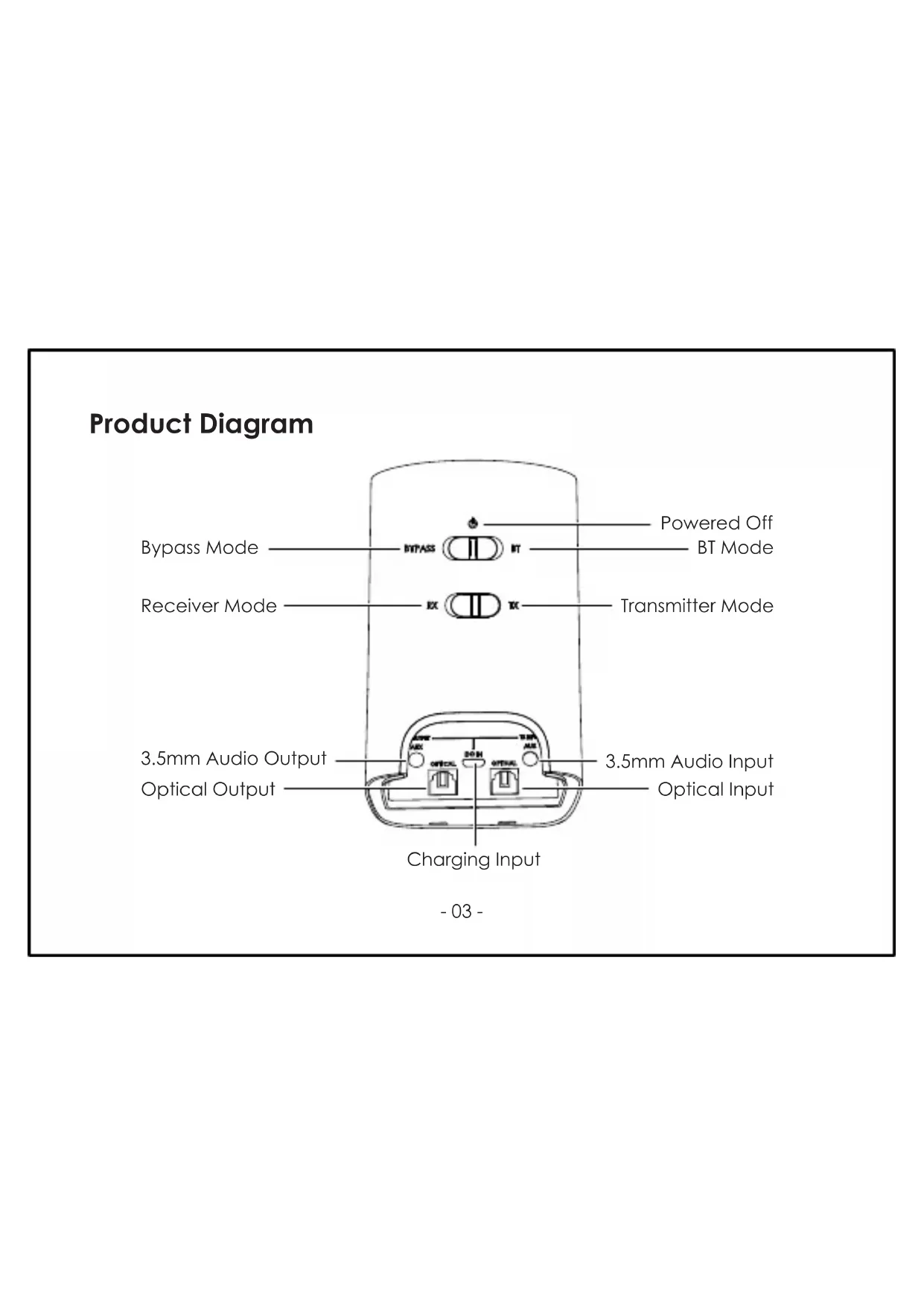
Product Diagram
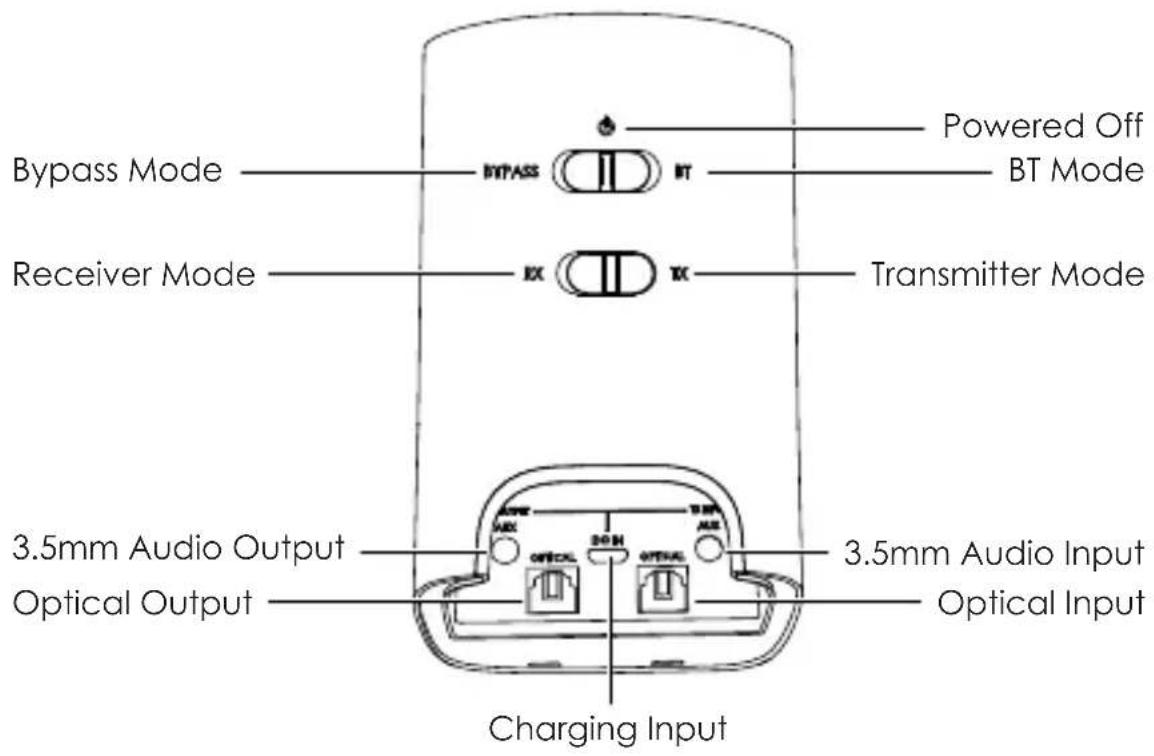
text_image
Bypass Mode BITPASS BT Powered Off BT Mode Receiver Mode RX X Transmitter Mode 3.5mm Audio Output Optical Output 3.5mm Audio Input Optical Input Charging InputGetting Started Receiver Mode (RX Mode)
- Connect one end of the included 3.5mm audio cable or Toslink optical cable to the 3.5mm audio output or optical output of BR-O8. Connect the other end to your wired audio equipment (wired headphones, speaker, or stereo system). You can also plug your audio equipment cable directly into BR-O8 instead
- Connect the BR-O8 to a power source with the micro-USB cable
- Slide the RX/TX switch to "RX" position and slide the Power/Mode switch to "BT" position
- Tap and hold ⓣ for 3 seconds, and the BR-O8 will enter pairing mode with the square connection status indicator flashing white rapidly
- Activate the pairing function of your wireless-compatible audio device (like a smartphone) and select "AUKEY BR-O8"
- Once paired, there will be a solid white "A" indicator on the display
- If you want to pair with a second wireless-compatible audio device for dual device connection, repeat steps 4 & 5 with that device
- Once paired, there will be solid white "A" and "B" indicators on the display
Notes for Receiver Mode
- If your speaker or stereo system has left & right channel RCA inputs (colored white and red respectively), you can use the included RCA cable to connect instead
- When simultaneously connected with two devices, the BR-O8 can only accept audio input from one device at a time
Transmitter Mode (TX Mode)
- Connect one end of the included 3.5mm audio cable or Toslink optical cable to the 3.5mm audio input or optical input of BR-O8. Connect the other end to your audio source device (TV, computer, DVD player, CD player, or MP3 player) that doesn't have wireless function
- Connect the BR-O8 to a power source with the micro-USB cable
- Slide the RX/TX switch to "TX" position. Then slide the Power/Mode switch to "BT" position
- Tap and hold ^✝ for 3 seconds, and the BR-O8 will enter pairing mode with the square connection status indicator flashing green rapidly
-
Activate the pairing function of your wireless-compatible audio device (like wireless headphones or speaker). Keep your device close to the BR-O8 and they will pair automatically
-
Once paired, there will be a solid white "A" indicator on the display
- If you want to pair with a second wireless-compatible audio device for dual device connection, repeat steps 4 & 5 with that device
- Once paired, there will be solid white "A" and "B" indicators on the display
Note for Transmitter Mode
- If your TV, DVD player, or CD player has left & right channel RCA outputs (colored white and red respectively), you can use the included RCA cable to connect instead
Notes for Receiver & Transmitter Modes
- When you turn on the BR-O8, it will automatically reconnect to the last-paired device
• The BR-O8 will exit pairing mode after 1 minute - To clear the pairing list, tap and hold ⏻ for 8 seconds in RX or TX Mode
- The maximum wireless operating range is 50m (164ft). If you exceed this range, the BR-O8 will disconnect from your paired device. The connection will be re-established once you re-enter the wireless range within 5 minutes
Bypass Mode
- Connect an audio source device (TV, computer, DVD player, CD player, or MP3 player) to the BR-O8 3.5mm audio input or optical input with the included 3.5mm audio cable or optical cable
- Connect your wired audio equipment (wired headphones, speaker, or stereo system) to BR-O8 3.5mm audio output or optical output with a 3.5mm audio cable or optical cable
- Connect the BR-O8 to a power source with the micro-USB cable
- Slide the Power/Mode switch to "BYPASS" position
- Tap Ⓞ to select the audio input mode "AUX" or "OPT"
- Once connected, you can enjoy boosted sound from your wired audio equipment
Note
- Only one of each cable type is included, so you will need to use two different cable types to connect your two devices to BR-O8 (or supply a second cable if you want to use two the same). If your connected audio equipment has left & right channel RCA outputs (colored white and red respectively), you can also use the included RCA cable to connect
Status Indicators
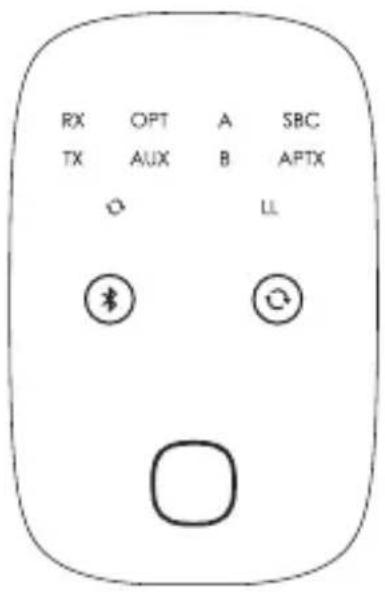
text_image
RX OPT A SBC TX AUX B APTX ○ LL ● ○| Indicator | Status |
| RX | Receiver mode |
| TX | Transmitter mode |
| OPT | Optical audio input mode |
| AUX | 3.5mm audio input mode |
| A | Device A connected |
| B | Device B connected |
| SBC | Connected Bluetooth device supports SBC audio codec |
| APTX | Connected Bluetooth device supports aptX audio codec |
| LL | Connected Bluetooth device supports aptX Low Latency audio codec |
Bluetooth Audio Codecs (for Receiver and Transmitter Modes)
Bluetooth audio codecs encode digital audio data for transmission over Bluetooth connection and decode it at the other end. SBC is a standard codec for Bluetooth audio streaming. aptX offers lower latency (less audio delay when watching videos or playing games) and improved audio quality. aptX Low Latency has the best performance of the three with much lower latency. BR-O8 supports all three codecs, so the codec used will be the best one your connected Bluetooth device supports.
Controls Summary
| Button | Operation | |
 | Tap and hold for 3 seconds to enter pairing mode | |
| Tap to play or pause (receiver mode only) | ||
 | Tap to switch between 3.5mm and optical audio input modes | |
Note
Use your device to adjust volume●
Connections Status Indicators
| Indicator | Mode Status | |
| Green flashing slowly | Transmitter mode | Not connected (standby) |
| Green flashing rapidly | Pairing | |
| Green | Connected | |
| White flashing slowly | Receiver mode | Not connected (standby) |
| White flashing rapidly | Pairing | |
| White | Connected |
Product Care & Use
- Keep away from liquids and extreme heat
- Don't use headphones or speakers at high volume for extended periods, as this may cause permanent hearing damage or loss
Warranty & Customer Support
For questions, support, or warranty claims, contact us at the address below that corresponds with your region. Please include your Amazon order number and product model number.
Amazon US orders: support.us@aukey.com
Amazon EU orders: support.eu@aukey.com
Amazon CA orders: support.ca@aukey.com
*Please note, AUKEY can only provide after sales service for products purchased directly from AUKEY. If you have purchased from a different seller, please contact them directly for service or warranty issues.
Notice for the US
Changes or modifications not expressly approved by the party responsible for compliance could void the user's authority to operate the equipment.
FCC Statement
This device complies with Part 15 of the FCC Rules. Operation is subject to the following two conditions:
- This device may not cause harmful interference.
- This device must accept any interference received, including interference that may cause undesired operation.
NOTE: This equipment has been tested and found to comply with the limits for a Class B digital device, pursuant to Part 15 of the FCC Rules. These limits are designed to provide reasonable protection against harmful interference in a residential installation.
This equipment generates, uses, and can radiate radio frequency energy and, if not installed and used in accordance with the instructions, may cause harmful interference to radio communications. However, there is no guarantee that interference will not occur in a particular installation. If this equipment does cause harmful interference to radio or television reception, which can be determined by turning the equipment off and on, the user is encouraged to try to correct the interference by one or more of the following measures:
• Reorient or relocate the receiving antenna.
- Increase the separation between the equipment and receiver.
- Connect the equipment into an outlet on a circuit different from that to which the receiver is connected.
- Consult the dealer or an experienced radio/TV technician for help.
This equipment complies with FCC RF radiation exposure limits set forth for an uncontrolled environment.
Amazon EU commandes: support.eu@aukey.com
www.aukey.com | support@aukey.com
No.102, Building P09, Electronics Trade Center
Huanan City, Pinghu Town, Longgang District
Shenzhen, Guangdong, 518111, CN

text_image
CE RoHS Made in China
208-170148
FCC ID: 2AFHP BR-08