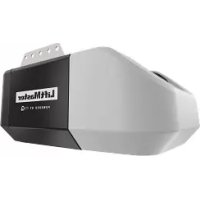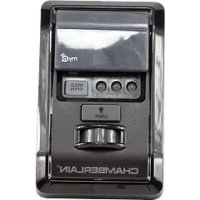
041A79283 - Garage door LIFT-MASTER - Free user manual and instructions
Find the device manual for free 041A79283 LIFT-MASTER in PDF.


| Product type | myQ® Control Panel (Model 41A7928-3) and Chamberlain® CIGBU Internet Gateway |
| Brand | LIFT-MASTER |
| Model | 041A79283 |
| Usage | Control and monitoring of Security+™ garage door openers (1998 to present) and myQ |
| Compatibility | Security+™ openers (not compatible with Security+ 2.0™); sectional or tilt-up doors, non-rigid or swinging doors |
| Panel power supply | 7-28 V low voltage (red/white wires from opener) |
| Gateway power supply | 100-240 V power adapter, Ethernet connection to router |
| Main functions | Open/close, light, motion detector, close timer (1/5/10 min), lock, control via Internet or smartphone (myQ) |
| Number of programmable accessories | Up to 12 remotes, 2 remote releases, 16 myQ accessories |
| Panel dimensions (approx.) | 14 cm × 8 cm × 4 cm |
| Panel weight (approx.) | 200 g |
| Gateway dimensions (approx.) | 10 cm × 6 cm × 3 cm |
| Gateway weight (approx.) | 150 g |
| Indicator lights | Yellow LED (command), red LED (learn), green and blue LEDs (gateway) |
| Operating temperature | -20 °C to 50 °C (estimated) |
| Installation | Wall-mounted, at least 1.5 m high, out of reach of children |
| Maintenance | No specific maintenance; check connections and clean with a dry cloth |
| Safety instructions | Cut power before installation, never let children play, always monitor closing |
| Warranty | 1 year against defects in materials and workmanship |
| Customer service | 1-800-528-9131 (Chamberlain) |
| Website | www.chamberlain.com |
Frequently Asked Questions - 041A79283 LIFT-MASTER
User questions about 041A79283 LIFT-MASTER
0 question about this device. Answer the ones you know or ask your own.
Ask a new question about this device
Download the instructions for your Garage door in PDF format for free! Find your manual 041A79283 - LIFT-MASTER and take your electronic device back in hand. On this page are published all the documents necessary for the use of your device. 041A79283 by LIFT-MASTER.
USER MANUAL 041A79283 LIFT-MASTER
This kit includes the myQ® Control Panel model 41A7928-3 and the Chamberlain® Internet Gateway model CIGBU. The myQ Control Panel is intended to be installed with Security: ^TM Garage Door Openers manufactured between 1998 and present. The myQ Control Panel is NOT compatible with Security: 2.0 ^TM Garage Door Openers. DO NOT install this door control on garage door opener systems controlling one-piece or swing doors.
OVERVIEW
The myQ Control Panel offers a quick and convenient way to add Security+2.0™ and myQ technology to your existing garage door opener. myQ technology uses a 900MHz signal to provide two-way communication between the garage door opener and myQ enabled accessories. When programmed to the Chamberlain® Internet Gateway you can monitor and control your garage door from any internet enabled computer or smartphone. You may program up to 12 Security+2.0™ remote controls, 2 Security+2.0™ keyless entries and a combination of 16 myQ accessories to the myQ control panel. For full compatibility, see page 4.
INSTALL THE myQ CONTROL PANEL
Install the control panel in place of the existing door control. Due to power consumption the control panel cannot be used in conjunction with another wired door control connected to your garage door opener. If an additional door control is needed, the wireless door control model 41A7773-1 can be programmed to the control panel. To program the 41A7773-1 to the control panel, follow the remote control programming steps. When in battery backup mode, any feature using unattended operation such as Timer-to-Close, closure from a garage door and gate monitor or remote operation utilizing the Chamberlain® Internet Gateway will be disabled.
- Disconnect all electrical and battery power (if applicable) to the garage door opener.
- Remove the existing door control from the wall.
- Note the polarity of the wires connected to the existing door control.
- Label the wire connected to the RED terminal.
-
Label the wire connected to the WHITE terminal.
Disconnect the wires from the existing door control. -
Connect the wires to the new myQ Control Panel. Make sure the polarity is correct.
• Red wire to the R terminal.
- White wire to the W terminal.
-
Mount the control panel to the wall.
-
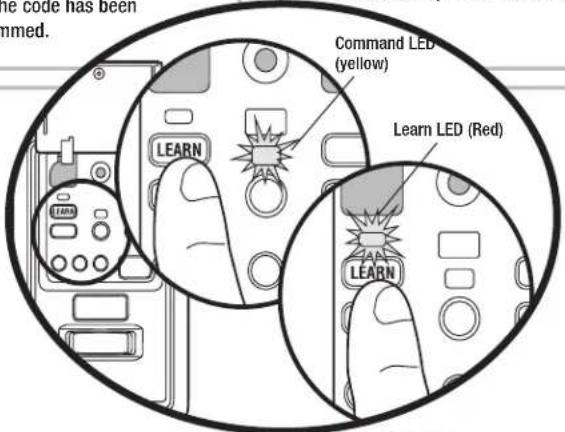
Reconnect power. The yellow command LED and the red learn LED will blink quickly for up to 5 minutes as the control panel recharges. When the control panel is operational, the yellow command LED will glow steadily.
-
To test the control panel, press the push bar to activate the garage door opener.
TROUBLESHOOTING
- If the yellow command LED does not turn on, reverse the wires connected to the R and W terminals of the control panel. Replace wire if necessary.
- If yellow and red LEDs are blinking slowly, the control panel is not compatible with your garage door opener.
- If the yellow and red LEDs are blinking quickly, the control panel is charging, and may take up to 5 minutes to become operational.
⚠️ ⚠️ WARNING
To prevent possible SERIOUS INJURY or DEATH from electrocution:
- Be sure power is NOT connected BEFORE installing door control.
- Connect ONLY to 7-28 VOLT low voltage wires.
To prevent possible SERIOUS INJURY or DEATH from a closing garage door:
- Install door control within sight of garage door, out of reach of children at a minimum height of 5 feet (1.5 m), and away from ALL moving parts of door.
- NEVER permit children to operate or play with door control push buttons or remote control transmitters.
- Activate door ONLY when it can be seen clearly, is properly adjusted, and there are no obstructions to door travel.
- ALWAYS keep garage door in sight until completely closed. NEVER permit anyone to cross path of closing garage door.
- DO NOT install this door control on garage door opener systems controlling one-piece or swing doors.
To provide an adequate visual alert, the garage door opener light bulb(s) MUST be a minimum of 40 Watt (or equivalent).
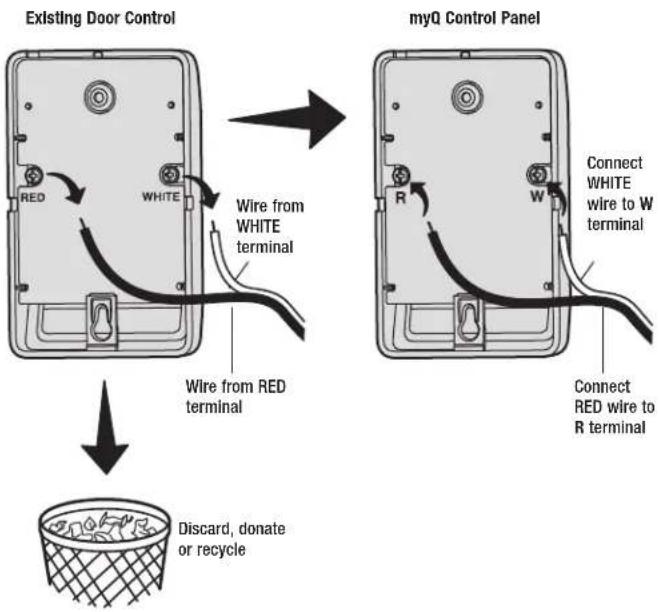
text_image
Existing Door Control myQ Control Panel RED WHITE Wire from WHITE terminal Wire from RED terminal Connect WHITE wire to W terminal Connect RED wire to R terminal Discard, donate or recycleINSTALL THE CHAMBERLAIN® INTERNET GATEWAY
The Chamberlain® Internet Gateway gives you control of your garage door from your internet connected computer or smart phone.
1 CONNECT THE CHAMBERLAIN® INTERNET GATEWAY
1.1 Connect the Chamberlain ^® Internet Gateway to a router with the ethernet cable. If you only have access to a Wi-Fi signal and not a router, you must use a wireless ethernet adapter (not provided) to connect to the internet.
1.2 Connect power to the Chamberlain® Internet Gateway. The blue and green LEDs will blink momentarily and then the green LED will light solid.
2 CREATE AN ACCOUNT
From your computer, go to www.mychamberlain.com and follow the instructions to create an account. Use a computer for this step; you cannot create an account from a mobile device.
3 REGISTER THE CHAMBERLAIN® INTERNET GATEWAY
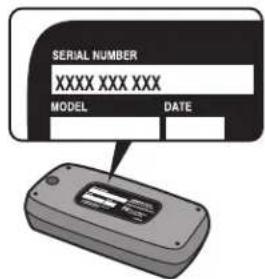
Register the Chamberlain ^® Internet Gateway by entering the serial number from the label on the bottom of the device.
4PROGRAMTHEmyQ CONTROL PANEL TO THE CHAMBERLAIN® INTERNET GATEWAY
4.1 Click on "Manage Places>Add New Device>Garage Door Opener" and follow the directions.
4.2 Once you click ADD you have 3 minutes to press the LEARN button two times on the myQ control panel. The red learn LED will turn on.
4.3 The red learn LED will turn off when programming is complete. The blue LED on the Chamberlain® Internet Gateway will light to indicate that a device has been learned. Once the control panel is learned, it will appear on your screen and you can then name the device (e.g., My Control Panel, etc.).
4.4 Click SAVE.
The control panel has now been programmed to the internet gateway and the garage door can now be controlled from a computer or smartphone. Follow the same steps to add other myQ devices.
Visit the app store for your smartphone to download the myQ app. With the app you can monitor and control your garage door opener and myQ devices. You can also add or remove other myQ accessories.
TROUBLESHOOTING
After power up, the LED lights will show the status of the Chamberlain® Internet Gateway.
- GREEN On Solid – The Chamberlain Internet Gateway has an IP address and is connected to the Internet.
- GREEN flashing steadily On & Off – The Chamberlain Internet Gateway has an IP address, but is not accessing the internet. Check your router settings and internet connections.
- GREEN Off – The router is not providing an IP address to the Chamberlain® Internet Gateway. Check your router settings and internet connections.
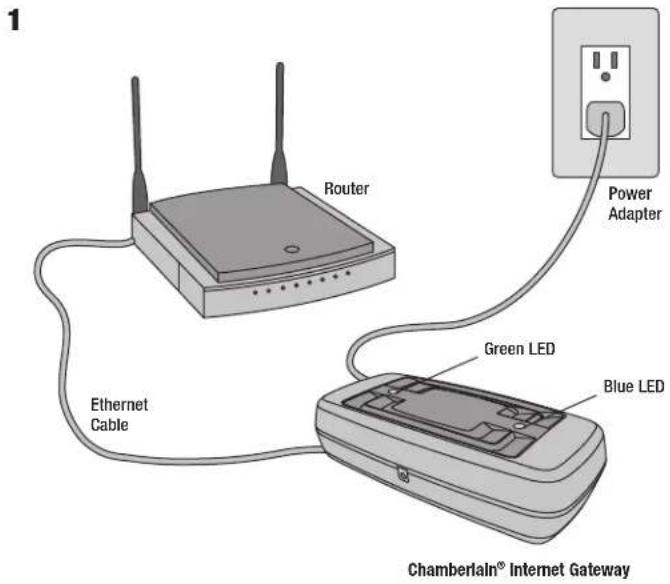
text_image
1 Router Power Adapter Ethernet Cable Green LED Blue LED Chamberlain® Internet Gateway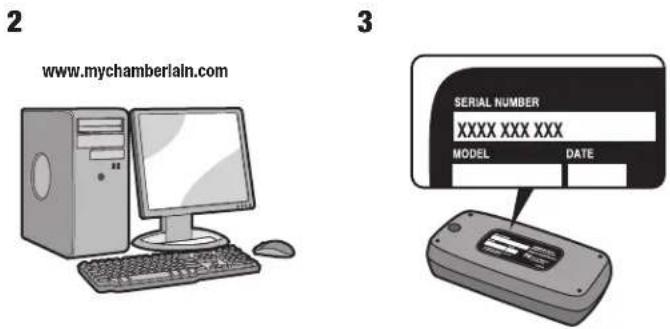
text_image
2 www.mychamberlain.com 3 SERIAL NUMBER XXXX XXX XXX MODEL DATE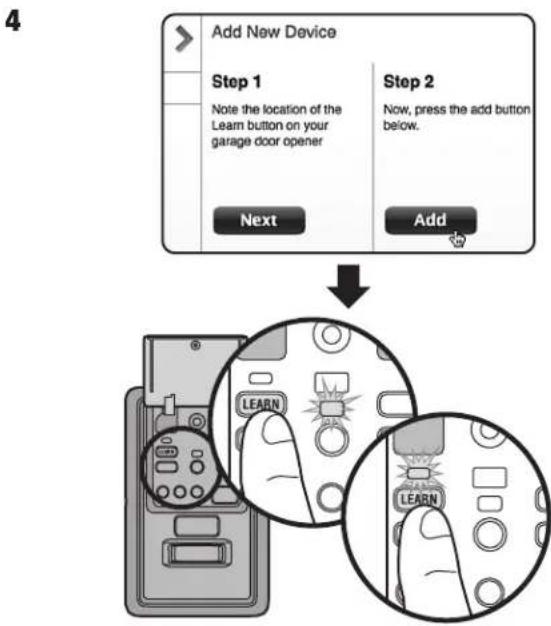
flowchart
graph TD
    A["Add New Device"] --> B["Step 1"]
    B --> C["Note the location of the Learn button on your garage door opener"]
    C --> D["Next"]
    E["Step 2"] --> F["Now, press the add button below."]
    G["Add"] --> H["Next"]
    I["IMAGE"] --> J["Step 3"]
    J --> K["LEARN"]
FUNCTIONS
text_image
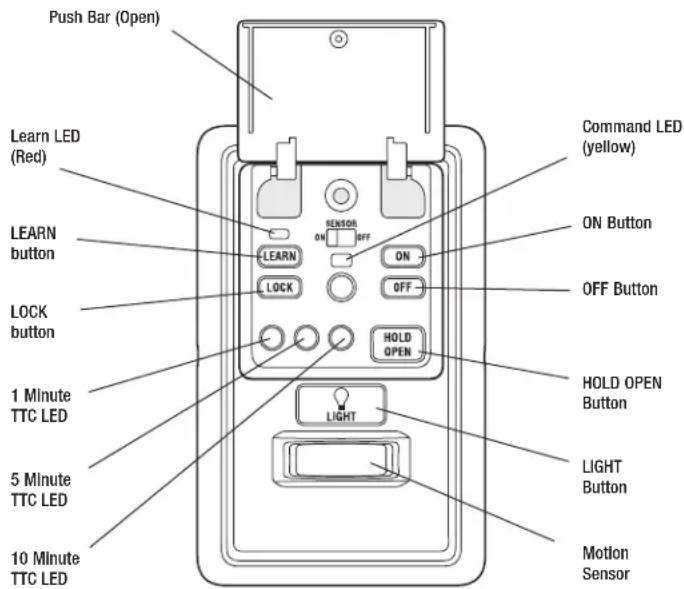
Push Bar (Open) Learn LED (Red) LEARN button LOCK button 1 Minute TTC LED 5 Minute TTC LED 10 Minute TTC LED SENATOR ON OFF ON HOLD OPEN LIGHT Command LED (yellow) ON Button OFF Button HOLD OPEN Button LIGHT Button Motion SensorPUSH BAR
Press the push bar to open/close the door.
LIGHTS
Press the LIGHT button to turn the garage door opener lights on or off. When the lights are turned on they will stay on until the LIGHT button is pressed again, or until the garage door opener is activated. Once the garage door opener is activated the lights will turn off after the specified period of time (the factory setting is 4-1/2 minutes). The LIGHT button will not control the lights when the door is in motion.
To change the amount of time the garage door opener lights will stay on: Press and hold the LOCK button until the garage door opener lights flash. The time interval is indicated by the number of flashes.
| NUMBER OF TIMES GARAGE DOOR OPENER LIGHTS FLASH | 1 2 3 4 | |||
| TIME THE GARAGE DOOR OPENER LIGHT STAYS ON | 1 12 Minutes | 2 12 Minutes | 3 12 Minutes | 4 12 Minutes |
MOTION SENSOR
This feature will automatically turn on the garage door opener lights when motion is sensed. The lights will come on for the set period of time, then shut off.
Activate/Deactivate:
Slide the motion sensor switch ON or OFF.
TIMER-TO-CLOSE (TTC)
NOTE: DO NOT install this door control on garage door opener systems controlling one-piece or swing doors.
The TTC feature automatically closes the door after a specified time period (1, 5, or 10 minutes). Once the TTC has been set and the door is open, the LED for the selected close interval will blink and begin to count down to close the door. The control panel will beep and the garage door opener lights will flash before closing the door.
The TTC feature will deactivate if the garage door encounters an obstruction twice; or the safety reversing sensors are incorrectly installed. The garage door will reverse open and WILL NOT close until the
obstructions are clear or the safety reversing sensors are correctly installed. When the obstruction has been cleared or the safety reversing sensors have been aligned, the door will close when the garage door opener is activated.
Activate:
Press and hold the ON button until one of the TTC LEDs light up. Then press the ON button again to cycle through the time interval options (the corresponding TTC LED will light for each time interval). The garage door opener light bulbs will blink as confirmation.
Deactivate:
Press and hold the OFF button until all TTC LEDs turn off and a beep is heard from the control panel.
Temporarily hold door open (suspend TTC):
Press and release the HOLD OPEN button. The HOLD OPEN button will begin to flash. Press the HOLD OPEN button again to resume normal TTC operation.
LOCK
Activate\*:
Press and hold the LOCK button for 2 seconds. The command LED will flash as long as the lock feature is activated and your handheld remote control will not operate your door at this time.
Deactivate:
Press and hold the LOCK button again for 2 seconds. The command LED will stop flashing and normal operation will resume.
* Your Chamberlain® keypad will continue to work when LOCK has been activated.
ERASE DEVICES FROM MEMORY
Erase all remote controls and keyless entries:
- Press and hold the LEARN button on the control panel until the red learn LED goes out (approximately 6 seconds). All remote control and keyless entry codes are now erased. Reprogram any compatible accessory you wish to use.
NOTE: Erasing remote controls and keyless entries from the control panel does not erase them from the garage door opener, you need to erase the memory of the garage door opener separately.
Erase all devices (including myQ enabled accessories):
-
Press and hold the LEARN button on the control panel until the red learn LED goes out (approximately 6 seconds).
-
Immediately press and hold the LEARN button again until the red learn LED goes out. All codes are now erased. Reprogram any compatible accessory you wish to use.
PROGRAMMING
A variety of accessories (available separately) can be programmed to the myQ Control Panel.
REMOTE CONTROL
natural_image
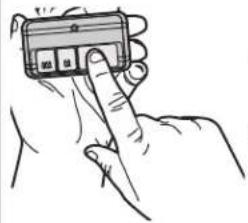
Hand holding a smartphone with a keypad (no visible text or symbols)- Press the control panel LEARN button twice, the red learn LED will turn on.
- Press the button on the remote control that you wish to operate your garage door.
- The garage door opener lights will flash (or two clicks will be heard) when the code has been programmed.
KEYLESS ENTRY
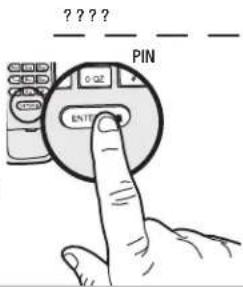
- Press the control panel LEARN button twice, the red learn LED will turn on.
- Enter a 4-digit personal identification number (PIN) of your choice on the keyless entry keypad. Then press the ENTER button.
- The garage door opener lights will flash (or two clicks will be heard) when the code has been programmed.
text_image
????? PIN EN ITmyQ ENABLED ACCESSORIES
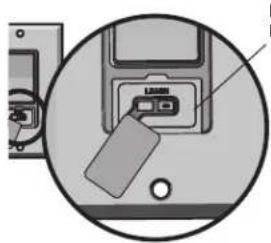
- Press the control panel LEARN button twice, the red learn LED will turn on.
- Press the LEARN button on the myQ device.*
natural_image
Diagram of a computer drive with a tag and cable, showing no text or symbolsLEARN Button
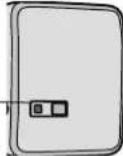
Model WSLCEV/WSLCEVC
Remote Light Switch
Light module can be
synchronized with the garage
door opener light bulbs.
text_image
Command LED (yellow) Learn LED (Red) LEARN LEARNLEARN Button
Model PILCEV/PILCEVC
Remote Light Control
Light module can be
synchronized with the
garage door opener light
bulbs.
* myQ accessories may be programmed to the Chamberlain® Internet Gateway or the myQ control panel. For instructions on programming to the internet gateway refer to the manual.
COMPATIBLE ACCESSORIES
SECURITY+ 2.0™ ACCESSORIES:
Model 950ESTD
1- Button Remote Control
Model 953ETSD
3-Button Remote Control
Model 956EV/956EVC
3-Button Mini Remote Control
Model 953EV/953EVC
3-Button Remote Control
Model 940ESTD
Wireless Keyless Entry
Model 940EV/940EVC
Wireless Keyless Entry
myQ
ACCESSORIES:
Model WSLCEV/WSLCEVC
Remote Light Switch
Model PILCEV/PILCEVC
Remote Light Control
WARRANTY
ONE YEAR LIMITED WARRANTY
The Chamberlain Group, Inc. warrants to the first consumer purchaser of this product that is free from defect in materials and/or workmanship for a period of 1 year from the date of purchase.
FOR SERVICE DIAL OUR TOLL FREE NUMBER:
1-800-528-9131
www.chamberlain.com
NOTICE: To comply with FCC and/or Industry Canada (IC) rules, adjustment or modifications of this transceiver are prohibited. THERE ARE NO USER SERVICEABLE PARTS. Any changes or modifications not expressly approved by the party responsible for compliance could void the user's authority to operate the equipment. This device complies with Part 15 of the FCC rules and IC RSS-210. Operation is subject to the following two conditions: (1) this device may not cause harmful interference, and (2) this device must accept any interference received, including interference that may cause undesired operation. This Class B digital apparatus complies with Canadian ICES-003.
APLICACIÓN
natural_image
Hand holding a handheld electronic device with a keypad (no visible text or symbols)natural_image
Close-up of a computer drive with a labeled component (no readable text or symbols)Modelo WSLCEV/WSLCEVC
natural_image
Illustration of a desktop computer setup with tower, monitor, keyboard, and mouse (no text or symbols)3
Activer/Désactiver :
natural_image
Hand holding a smartphone with a keypad (no visible text or symbols)natural_image
Diagram of a computer floppy disk with a USB flash drive and a separate monitor (no text or symbols visible)Le bouton « LEARN »