secuENTRY easy plus 5651 - Electronic lock Burg Wächter - Free user manual and instructions
Find the device manual for free secuENTRY easy plus 5651 Burg Wächter in PDF.



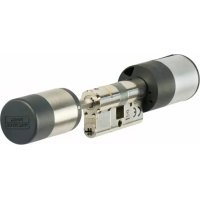
| Product type | Electronic lock with profile cylinder |
| Brand | Burg Wächter |
| Model | secuENTRY easy plus 5651 |
| Cylinder dimensions | Adjustable length up to 119 mm door thickness (measured from center of fixing screw, 61/59 mm) |
| Power supply | Keypad: 2 MIGNON LR6 AA ALKALINE batteries Interior button: 2 MIGNON LR6 AA ALKALINE batteries Exterior button: 1 CR 123A lithium battery |
| User capacity | Up to 50 users (including up to 24 fingerprints) |
| Opening modes | PIN code (6 digits), fingerprint, passive transponder, active transponder (sE Key), KeyApp (Bluetooth) |
| Lockout time | After 3 incorrect entries: 1 minute, then 3 minutes for each further attempt |
| Protection rating | PINCODE keypad: IP65 Fingerprint keypad: IP55 Cylinder: IP65 |
| Ambient conditions | -15 °C to +50 °C, up to 95% relative humidity (non-condensing) |
| Connectivity | Bluetooth Low Energy (2.402 GHz - 2.483 GHz, max power 7.5 dBm) |
| Additional functions | User management, rights assignment, history (via optional PC software) |
| Emergency key | Yes, mechanical, exterior side |
| Maintenance and cleaning | Clean with a damp cloth. Do not use alcohol-based or aggressive detergents. Fingerprint sensor: slightly damp cloth. |
| Battery replacement | Accessible by unscrewing covers (keypad, interior button, exterior button) |
| Package contents (PINCODE model) | Keypad, exterior button, cylinder, wall support plate, protective film, mounting hardware, TX screwdriver, Allen key, screws, QR codes |
| Display languages | 12 adjustable languages |
| Warranty | Valid only with administrator code and valid QR codes, and original condition |
Frequently Asked Questions - secuENTRY easy plus 5651 Burg Wächter
User questions about secuENTRY easy plus 5651 Burg Wächter
0 question about this device. Answer the ones you know or ask your own.
Ask a new question about this device
Download the instructions for your Electronic lock in PDF format for free! Find your manual secuENTRY easy plus 5651 - Burg Wächter and take your electronic device back in hand. On this page are published all the documents necessary for the use of your device. secuENTRY easy plus 5651 by Burg Wächter.
USER MANUAL secuENTRY easy plus 5651 Burg Wächter
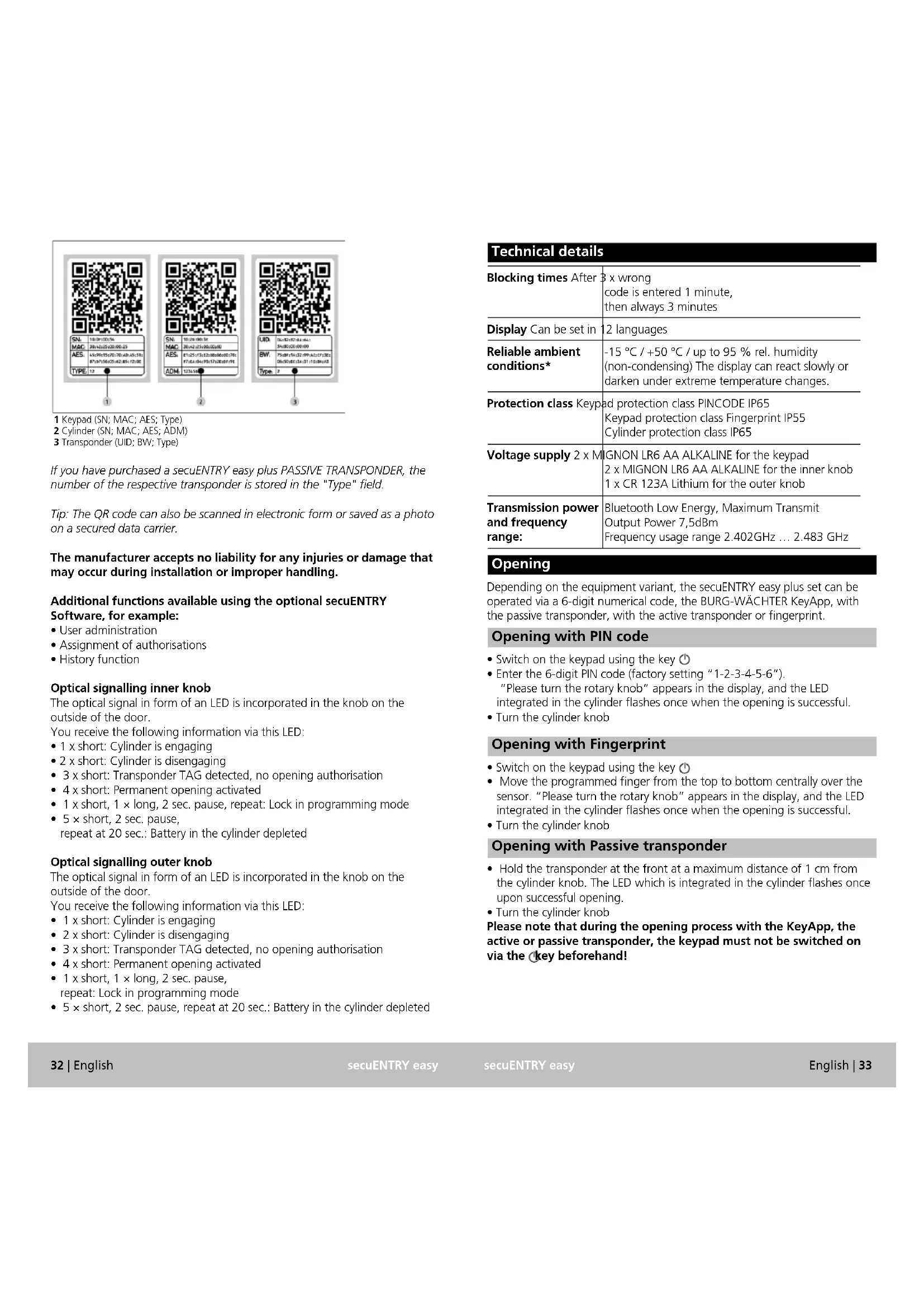
1 Tastatur (SN; MAC; AES; Type)
2 Cylinder (SN; MAC; AES; ADM)
3 Transponder (UID; BW; Type)
Thank you very much for deciding on the secuENTRY easy plus electronic locking system by BURG-WACHTER. This system has been developed and manufactured using the latest technologies and meets high security requirements.
The electronic cylinder can be easily inserted without any drilling into any door prepared for profile cylinder up to a door thickness of 119mm (61/59, measured from the centre of the forend screw) and is ideally suited for both new installations and retrofitting. Besides this, you have diverse additional options, e.g. on which identification medium shall be used. You can find out more on the following pages.
Remove the battery protection strip from the inner knob in order to energise the cylinder.
Important: Please read the entire operating instructions before you start programming. We hope you enjoy your new locking system.
General information on secuENTRY easy plus
The secuENTRY easy plus is available in three equipment configurations:
- secuENTRY easy PINCODE
- secuENTRY easy FINGERPRINT
- secuENTRY easy plus PASSIVE TRANSPONDER
The keypad in the set versions secuENTRY easy plus PINCODE and secuENTRY easy plus FINGERPRINT is already registered in the cylinder.
Administrator code / QR code
Each secuENTRY easy plus set with keypad comes with three QR codes, which are required for setting up the opening option via the BURG-WACHTER KeyApp as well as for logging on and training a keypad or a cylinder and for firmware updates.
Without an associated keypad, opening media (user, active transponder, passive transponder) can only be programmed into the cylinder via the optional secuENTRY Windows PC software.
The administrator code is also on the QR code of the internal knob (main knob). In secuENTRY easy plus PINCODE and secuENTRY easy plus FINGERPRINT, the administrator code is set to 1 - 2 - 3 - 4 - 5 - 6 at the factory. Please change the factory-set administrator code to an individual code!
Attention! If the administrator and/or QR code is lost, reprogramming or use of all administrator functions is no longer possible. Please keep it in a safe place!
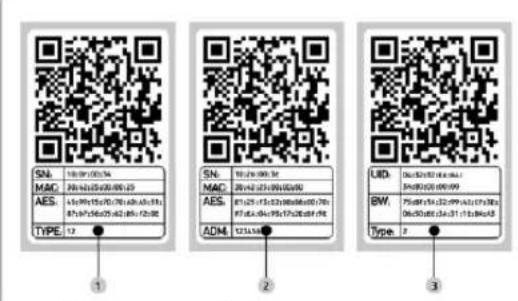
1 Keypad (SN; MAC, AES; Type)
2 Cylinder (SN; MAC, AES; ADM)
3 Transponder (UID; BW; Type)
If you have purchased a secuENTRY easy plus PASSIVE TRANSPONDER, the number of the respective transponder is stored in the "Type" field.
Tip: The QR code can also be scanned in electronic form or saved as a photo on a secured data carrier.
The manufacturer accepts no liability for any injuries or damage that may occur during installation or improper handling.
Additional functions available using the optional secuENTRY Software, for example:
- User administration
- Assignment of authorisations
History function
Optical signalling inner knob
The optical signal in form of an LED is incorporated in the knob on the outside of the door.
You receive the following information via this LED:
- 1 x short: Cylinder is engaging
- 2 x short: Cylinder is disengaging
- 3 x short: Transponder TAG detected, no opening authorisation
- 4 x short: Permanent opening activated
- 1 x short, 1 × long, 2 sec. pause, repeat: Lock in programming mode
- 5 × short, 2 sec. pause,
repeat at 20 sec.: Battery in the cylinder depleted
Optical signalling outer knob
The optical signal in form of an LED is incorporated in the knob on the outside of the door.
You receive the following information via this LED:
- 1 x short: Cylinder is engaging
- 2 x short: Cylinder is disengaging
- 3 x short: Transponder TAG detected, no opening authorisation
- 4 x short: Permanent opening activated
- 1 x short, 1 x long, 2 sec. pause, repeat: Lock in programming mo
- 5 × short, 2 sec. pause, repeat at 20 sec.: Battery in the cylinder depleted
| Technical details | |
| Blocking times After | x wrong code is entered 1 minute, then always 3 minutes |
| Display Can be set in | 12 languages |
| Reliable ambient conditions* | -15 °C / +50 °C / up to 95 % rel. humidity (non-condensing) The display can react slowly or darken under extreme temperature changes. |
| Protection class Keypad | ad protection class PINCODE IP65 Keypad protection class Fingerprint IP55 Cylinder protection class IP65 |
| Voltage supply 2 x MIGNON LR6 AA ALKALINE for the keypad 2 x MIGNON LR6 AA ALKALINE for the inner knob 1 x CR 123A Lithium for the outer knob | |
| Transmission power and frequency range: | Bluetooth Low Energy, Maximum Transmit Output Power 7,5dBm Frequency usage range 2.402GHz ... 2.483 GHz |
Opening
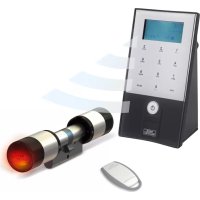
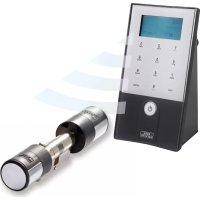
Depending on the equipment variant, the secuENTRY easy plus set can be operated via a 6-digit numerical code, the BURG-WACHTER KeyApp, with the passive transponder, with the active transponder or fingerprint.
Opening with PIN code
- Switch on the keypad using the key ①
- Enter the 6-digit PIN code (factory setting "1-2-3-4-5-6"). "Please turn the rotary knob" appears in the display, and the LED integrated in the cylinder flashes once when the opening is successful.
- Turn the cylinder knob
Opening with Fingerprint
- Switch on the keypad using the key ①
- Move the programmed finger from the top to bottom centrally over the sensor. "Please turn the rotary knob" appears in the display, and the LED integrated in the cylinder flashes once when the opening is successful.
- Turn the cylinder knob
Opening with Passive transponder
- Hold the transponder at the front at a maximum distance of 1 cm from the cylinder knob. The LED which is integrated in the cylinder flashes once upon successful opening.
- Turn the cylinder knob
Please note that during the opening process with the KeyApp, the active or passive transponder, the keypad must not be switched on via the key beforehand!
Opening with Active transponder
- Briefly press the opening button x1 at a distance of max. 4 m from the secuENTRY easy plus cylinder knob. The LED which is integrated in the cylinder flashes once upon successful opening.
- Turn the cylinder knob
Open with the BURG-WÄCHTER KeyApp
- Hold your Smart Device in front of the cylinder knob and press the open button of the KeyApp.
- The LED integrated in the cylinder flashes once when the opening is successful.
- Turn the cylinder knob
BURG-WACHTER KeyApp
You can download the BURG-WACHTER KeyApp from the App Store or Google Play Store. Simply enter the search term "secuENTRY" or "KeyApp". Compatible with Samsung Galaxy S4, S4 mini, S5 and S5 mini, S6, S6-Edge, S7, S7-Edge, S8, S8Plus from Android 4.3 KitKat or 5.0 Lollipop, Apple iPhone 4S, 5, 5S, 6, 6Plus, 6S, 6S-Plus, 7 and 7-Plus from iOS 10.3.2.
Please check at: www.burg.biz/secuentry/description if other smartphones are compatible with the app.
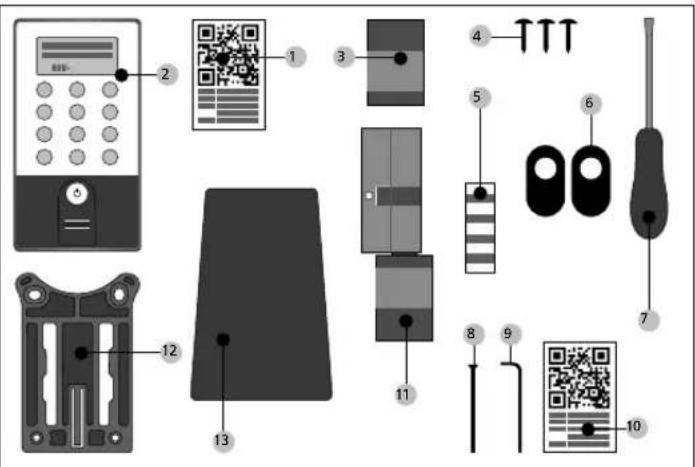
Package contents
secuENTRY easy plus PINCODE
General
The electronic cylinder is operated by entering a pin code. In addition, the lock can be operated via the BURG-WÄCHTER KeyApp, passive and active transponders.
Package contents
1 QR-Code keypad
2 Keypad
3 Outer knob
Fixing material 1 keypad
Fixing material 2 keypads (adhesive pads)
6 Rubber cover
7 Screwdriver Tx (size 8)
Forend screw
Allen key (size 3)
Two QR-Codes per cylinder
11 Cylinder
12 Wall mounting plate
13 Privacy film
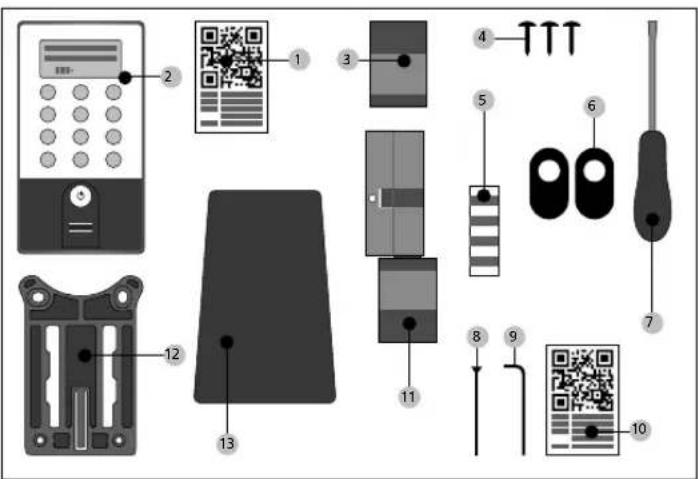
secuENTRY easy plus FINGERPRINT
General
Up to 24 fingers can be programmed with the secuENTRY fingerprint keypad. The users are created separately (USER.xxxx FP). In addition, the lock can be operated via a pin code, the Burg-Wächter Keyapp or transponder.
Package contents
OR-Code keypad
2 Keypad
3 Outer knob
Fixing material 1 keypad
Fixing material 2 keypads (adhesive pads)
6 Rubber cover
7 Screwdriver Tx (size 8)
8 Forend screw
9 Allen key (size 3)
10 QR-Code cylinder
11 Cylinder
12 Wall mounting plate
13 Privacy film
Attention! The fingerprint sensor must not be cleaned with detergents. Please use a slightly moist cloth for this purpose.
Functions
Total number of users: up to 50 of which number of fingerprints: up to 24
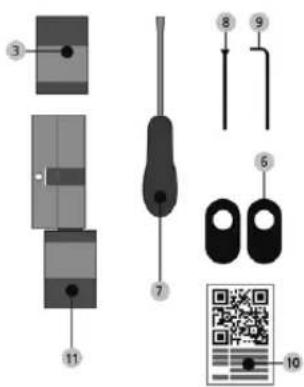
secuENTRY easy plus Passive transponder
General
The electronic cylinder is operated via a passive transponder. Additional transponders can be registered via the secuENTRY software or a keypad.
Package contents
3 Outer knob
6 Rubber cover
7 Screwdriver Tx (size 8)
Forend screw
9 Allen key (size 3)
10 QR-Code cylinder
11 Cylinder
Schematic representation of menu functions
When the "Func:M" symbol is displayed, the menu can be reached by pressing the "Function" key. In the menu, you then have a scroll function using keys 1 and 2 to navigate through the structure. You reach the next menu level using the (Enter) key.
Attention!
The menu structure may vary depending on the software version of the keypad.
Setting up menu structure
Code Change menu
Language menu
Administrator menu
Create User menu
Create:Code
Create: sE key
Create:Transponder 1,2
Create: Fingerprint
Assign User menu
Create:Code
Create: sE key
Create: Transponder 1,2
Create: Fingerprint
Delete menu
Time Functions menu
Setting the time 2,3
Setting the date 2,3
Setup menu
Register
Reorganize
Transmission power
Firmware update
Display contrast
Programming
FP Reset 1,2 menu
Info menu
EE version and serial number info
AE version and serial number info
Running time info
Opening counter info
Start-up date info
Description of the menu structure
The functions for the products ENTRY Pincode and ENTRY Fingerprint are described below.
Change code menu
Changing the administrator code as well as the user code
- Switch on the keypad using the key ①
- Then press FUNC
"Menu/Code Change" appears - Confirm your selection using
- Now you can use the keys 1 or 2 to scroll until the administrator/user is displayed whose code is supposed to be changed
- Confirm with
- Enter the previously valid (old) code and press
- Enter the new code and confirm it with
Repeat your entry and confirm it again with
Note: When a cylinder is first started up, additional information on the current date and time are requested:
- Enter the day (2 digits) and confirm your selection using
- Enter the month (2 digits) and confirm your selection using
- Enter the year (2 digits) and confirm your selection using
- Enter the hour (2 digits) and confirm your selection using
- Enter the minutes (2 digits) and confirm your selection using
"Code change accomplished" is displayed after a correct entry
Language menu
Language setting
- Switch on the keypad using the key
- Then press FUNC; "Menu / Code Change" appears.
- Scroll using the 2 key until the Administrator menu appears
Confirm with - Use keys 1 or 2 to scroll until the desired language is displayed
- Confirm with
Administrator menu
Different submenus are available in the administrator menu.
Create a submenu user with code
- Switch on the keypad using the Key.
- Then press FUNC; "Menu / Code Change" appears.
- Scroll using the 2 key until the Administrator menu appears.
- Confirm with . The "Create User" menu item appears.
- Confirm with
- Scroll using the 2 key until "Create User: Code" appears
Confirm with - Enter the administrator code in order to acquire the authorisation for programming.
The next free memory cell is displayed (e.g. USER.0003) - Enter the 6-digit code and confirm it 2 × using
Data has been saved" appears in the display
Create a submenu user with transponder
- Switch on the keypad using the Key.
- Then press FUNC; "Menu / Code Change" appears.
- Scroll using the 2 key until the Administrator menu appears.
- Confirm with The "Create User" menu item appears.
Confirm with - Scroll using the 2 key until the "Create transponder" appears
- Confirm with
- Enter the administrator code in order to acquire the authorisation for programming.
- Hold the front of the transponder to be registered on the outer knob "USER.xxxx TR successfully created" appears in the display.
Create User with Fingerprint submenu
(Functions only active with ENTRY Fingerprint and ENTRY KP FP keypad)
- Switch on the keypad using the key ①
- Then press FUNC; "Menu / Code Change" appears
- Scroll using the 2 key until the Administrator menu appears.
- Confirm with The "Create User" menu item appears
- Confirm with
- Scroll with the key 2 until you reach the menu item "Create: Fingerprint" appears.
- Enter the administrator code in order to acquire the authorisation for programming.
- "Program Finger" appears in the display.
- Move the finger to be registered several times centrally over the sensor (the number of moves is indicated on the display)
- "User_XXX_LP successfully programmed" appears in the display
Create User with sE key (active transponder) submenu:
- Switch on the keypad using the key.
- Then press FUNC - "Menu/Code Change" appears
- Scroll using the 2 key until the Administrator menu appears
- Confirm your selection using
- The "Create User" menu item appears.
- Confirm your selection using
- Scroll using the 2 key until "Create: "sE key" appears
- Confirm your selection using
- Enter the administrator code in order to acquire the authorisation for programming.
- Move the sE Key in the vicinity of the cylinder
- "USER.xxxx KY successfully created" appears in the display
Assigning a Code submenu
- Using this function, you have the option to subsequently assign a code to an already existing user. For this purpose, proceed as follows:
- Switch on the keypad using the key
- Then press FUNC - "Menu/Code Change" appears
- Scroll using the 2 key until the Administrator menu appears
- Confirm your selection using
- Scroll using the 2 key until "Assign" appears
- Confirm your selection using
- Scroll using the 2 key until "Create User: Code" appears.
- Confirm your selection using
- Enter the administrator code in order to acquire the authorisation for programming.
- Scroll to the user to whom you want to assign a code and confirm using
- Enter a 6-digit code and confirm 2 × using
Data has been saved" appears in the display.
Submenu Time functions (only for Premium)
Time and date are set here
Assigning a transponder submenu
Using this function, you have the option to subsequently assign a transponder to an already existing user. For this purpose, proceed as follows:
- Switch on the keypad using the key (1)
- Then press FUNC - "Menu/Code change" appears.
- Scroll using the 2 key until the Administrator menu appears.
- Confirm your selection using
- Scroll using the 2 key until "Assign" appears
- Confirm your selection using
- Scroll using the 2 key until "Create User: Transponder" appears.
- Confirm your selection using
- Enter the administrator code in order to acquire the authorisation for programming
- Scroll to the user to whom you want to assign a transponder and confirm using
- Hold the face of the transponder directly in front of the outer knob and confirm on the keypad using
- "User.xxxx.TR successfully created" appears in the display.
Assigning a finger submenu
Using this function, you have the option to subsequently assign a finger to an already existing user. For this purpose, proceed as follows:
- Switch on the keypad using the key
- Then press FUNC - "Menu/Code change" appears.
- Scroll using the 2 key until the Administrator menu appears.
- Confirm your selection using
- Scroll using the 2 key until "Assign" appears
- Confirm your selection using
- Scroll using the 2 key until "Create User: Fingerprint" appears.
- Confirm your selection using
- Enter the administrator code in order to acquire the authorisation for programming.
- Scroll to the user to whom you want to assign a finger and confirm using
- Move the finger to be registered several times centrally over the sensor (the number of moves is indicated on the display)
- "User.xxxx.FP successfully created" appears in the display
Delete submenu
You have the option of deleting a user using this menu.
- Switch on the keypad using the key
- Then press FUNC - "Menu/Code change" appears
- Scroll using the 2 key until the Administrator menu appears.
- Confirm your selection using
- Scroll using the 2 key until "Admin." "Set-up" Delete appears
- Confirm your selection using
- Enter the administrator code in order to acquire the authorisation for programming
- Scroll to the identification medium that you want to delete and confirm 2x using
- "Data has been deleted" appears in the display.
Setting the time:
Not available in the standard function.
Setting the date:
Not available in the standard function.
Set-up submenu
General system settings
Register
After a replacement of the cylinder or the keypad, the two units have to be newly aligned, so that they can resume communication.
Registration of a keypad
- Switch on the keypad using the key
- Then press FUNC; "Menu / Code Change" appears.
- Use keys 1 or 2 to scroll until you reach the "Administrator menu"
- Confirm with
- You can now use keys 1 or 2 to scroll until you reach the Admin. menu "Set-up".
- Confirm with
- You can now use keys 1 or 2 to scroll until you reach the Admin. register Set-up menu.
- Confirm with
- Enter the valid admin. code of the unit to be programmed.
- "Data have been saved" is displayed after a successful registration.
Attention! Please make sure that no other powered secuENTRY unit is placed within direct reach of the device during installation of a new keypad or cylinder, as by mistake such unit could be addressed instead of the intended one. When in doubt, disconnect these units (remove batteries).
Reorganize
The use of this function is recommended when several users have been deleted.
- Switch on the keypad using the key ①
- Then press FUNC; "Menu / Code Change" appears
- Scroll using the 2 key until the Administrator menu appears
- Confirm with
- Scroll using the 2 key until the "Set-up" menu item appears
- Confirm with
The menu item "Reorganize" appears. - Confirm with
- Enter the administrator code in order to acquire the authorisation for programming
- "Reorganization is running" appears
FP reset submenu
(Functions only active with ENTRY Fingerprint and ENTRY KP FP keypad)
Transmission power
The system or power consumption is optimised via the transmission power, and the wireless range of the cylinder and the keypad are increased or reduced. As delivered, a low transmission power is set in order to obtain the longest possible battery life. The transmission power should only be increased if repeated transmission problems should occur. The setting normally does not have to be adjusted.
Firmware update
The secuENTRY keypad can be sequentially updated via the Burg-Wächter ConfigApp. Please refer to the instructions for the ConfigApp for the exact procedure.
Display contrast
- Switch on the keypad using the key
- Then press FUNC - "Menu/Code Change" appears
- Scroll using the 2 key until the Administrator menu appears
- Confirm your selection using
- Scroll with the 2 key until "Setup" appears
- Confirm your selection using
- Scroll with the 2 key until "Display contrast" appears
- Confirm your selection using
- Select the desire contrast level using the 1 key (weaker) or the 2 key (stronger)
Programming
You can input into the keypad a data set created with the PC software via Programming. The data set can be programmed using the PC software as well as the secuENTRY ConfigApp.
- Switch on the keypad using the key.
- Then press FUNC - "Menu/Code change" appears.
- Scroll using the 2 key until the Administrator menu appears
- Confirm your selection using
- Scroll with the 2 key until "Set-up" appears
- Confirm your selection using
- Scroll with the 2 key until "Programming" appears
- Confirm your selection using
- Enter the administrator code in order to acquire the authorisation for programming
- The message "Start the file transmission" appears in the display.
The keypad is now in programming mode and can be programmed using the PC software or the ConfigApp.
All stored fingerprints are deleted; however, the corresponding users are retained. Please select this menu and follow the instructions on the display in case of repeated errors related to the use of fingerprints.
Info menu
Using this function, you can have several pieces of information of the system displayed.
- Switch on the keypad using the key
- Then press FUNC; "Menu / Code Change" appears
- Scroll using the 2 key until "Info menu" appears.
Confirm with - Using the 1 or 2 key, you can scroll between the following information:
- Version and serial number of the keypad
- Version and serial number of the cylinder
- Operating time of the cylinder
- Opening procedures of the cylinder
- Start-up date and time of the cylinder
Note: For security reasons, complete information about the cylinder is only displayed after entering a valid administrator code.
secuENTRY easy plus cylinder assembly
The installation of the secuENTRY easy plus cylinder is explained below. Please read these assembly instructions carefully before installation.
Note:
The base size of the cylinder is 30mm per side. The cylinder has a special latching system on the inside and an adaptor set is included for the outer knob, which enables you to use the cylinder for door thicknesses up to 119mm (61/59, measured from the centre of the forend screw). No prior adjustment is necessary. The appropriate screws are included with your set to fit the adaptor lengths.
When delivered, the cylinder inner knob is completely closed (to the smallest door thickness). Before you insert the cylinder into the door, you should adjust it to your door thickness.
The inner knob is loosened and fixed by means of an integrated grab screw in the rotary knob.
Attention! Never pull the inner knob completely off the shaft, as in this case the electronics will be destroyed! The grab screw, which ensures the catch on the shaft, may only be loosened slightly and always remains in the plastic knob. The grab screw serves as a pull-off protection!
Take care during assembly. Avoid impacts or sudden movements. The lock should not be greased or oiled.
When installing the cylinder, proceed as follows:
1 Rough assessment of door thickness (incl. fittings)
2 Pull the outer knob off the shaft, move the inner knob over the locking system (distances 2.85mm ) to the desired dimension.
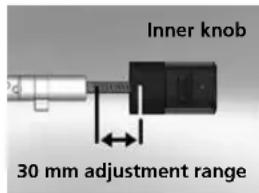
Schematic diagram Internal knob adjustment
3 Depending on the door thickness, you have the option of fitting adaptors on the outside to improve the guidance of the emergency key.
The following combinations are possible:
4 Slide the secuENTRY easy cylinder from inside to outside through the mortise lock in the door and then tighten the forend screw.
| Distance between forend screw / fitting (mm) on the outside | Adaptor 1 Adaptor 2 |
| <43 -- | |
| 44-53X- | |
| 54-60XX |
x:Selection
not planned
Tab. 1: Distance between forend screw / fitting [mm] on the outside and the necessary adaptors.
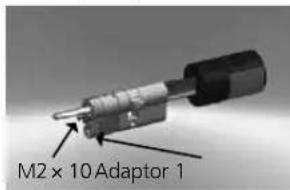
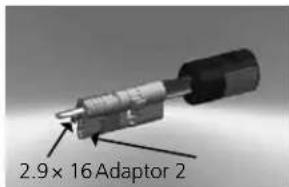
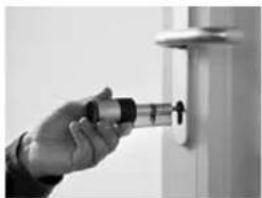
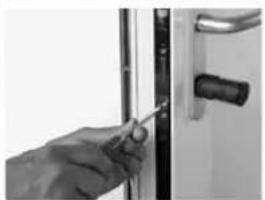
5 Slide the inner knob on the shaft until you have reached the desired dimension. Please make sure that the distance between rotary knob and door fitting is at least 1 mm. Then fix the rotary knob using the grub screw.
6 Before fixing the outer knob, please check whether you want to insert the supplied cover for the profile cylinder cut-out. If so, remove the protective sheet and fix the cover panel onto the lock section.
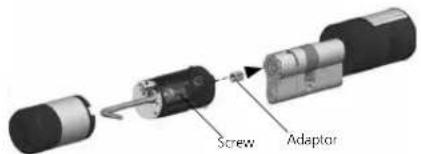
7 Place the outer knob on the cylinder or the corresponding adaptor and tighten with the screw. Please refer to the table for the appropriate assignment and gradation.
Mounting external knob:
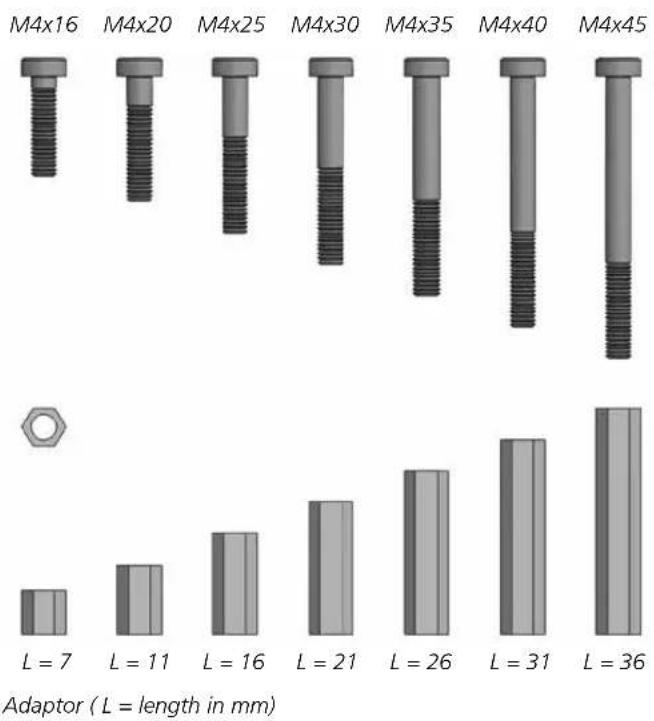
| Screws Adaptor length Dimension A | ||
| M4x16 | 7 mm <= 32 | |
| M4x20 | 11 mm | 32.5 - 36.0 |
| M4x25 | 16 mm | 36.5 - 41.0 |
| M4x30 | 21 mm | 41.5 - 46.0 |
| M4x35 | 26 mm | 46.5 - 51.0 |
| M4x40 | 31 mm | 51.5 - 56.0 |
| M4x45 | 36 mm | 56.5 - 61.0 |
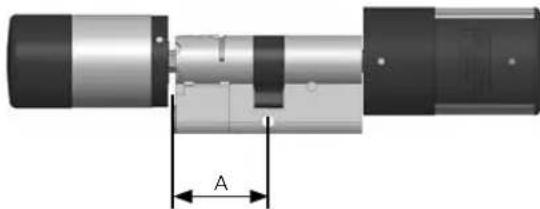
Fig. on a scale of 1:1
8 Insert the CR123A lithium battery with the correct polarity (positive pole forward).
9 Slide the sleeve onto the outer knob and lock it in place.
10 Remove the battery safety strip on the inner knob.
11 The function test must be made with the door open.
Dimensions secuENTRY easy plus Cylinder
and
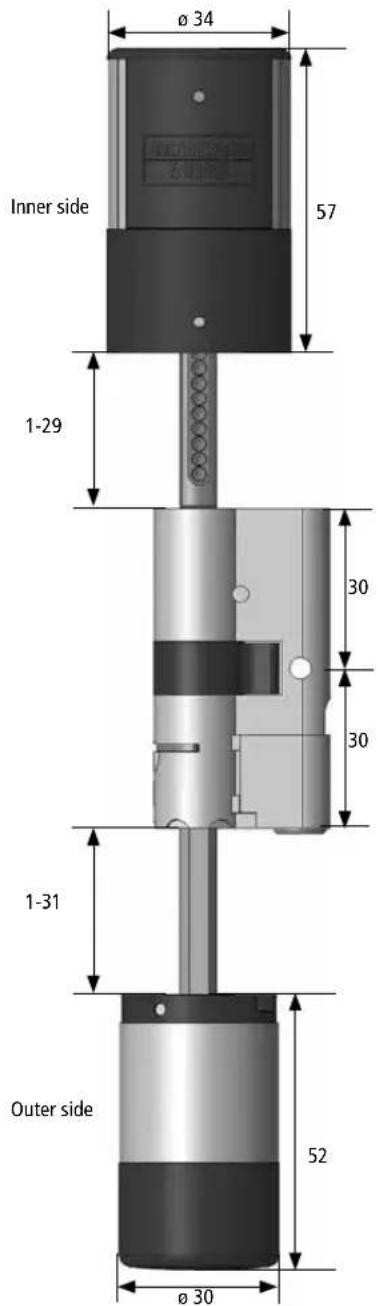
Dimensions in mm
secuENTRY easy plus keypad assembly
The keypad is only included in the secuENTRY easy Pincode and secuENTRY easy Fingerprint set.
Attention! Please note that the keypad should not be attached to the door itself so that no vibrations are transmitted when the door is shut. The membrane affixed to the back of the keypad should not be sealed with glue and/or any other substance under any circumstances! Exchange of air must also be possible after the installation!
- Determine the installation position for the keypad. For this purpose, enter the opening code (e.g. PIN code, fingerprint...) at the desired mounting location and check whether the lock opens.
- Place the keypad accordingly.
If you decide on gluing the wall holder, please be sure to provide clean surfaces free from e.g. grease, oil and silicon films or any other impurities. Completely remove the protective film from the adhesive pads included, attach all the pads on the wall holder and then press firmly onto the desired position. When mounting in colder temperatures, please note that the full adhesive strength is achieved only after 72 hours at 20^ . Heat will accelerate the process (e.g. at 65^ ; full adhesive strength is achieved in one hour).
When gluing the holder plate on the colour sight protection film, the above described conditions relating to cleanliness of surfaces and firmness of the adhesive pad should be observed.
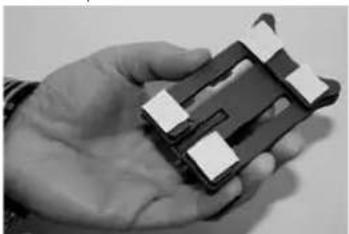
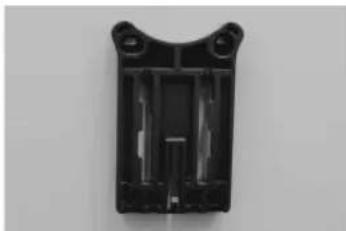
To facilitate a bubble-free application of the colour privacy film, please proceed as follows:
- Pour some water with a couple of drops of dishwashing detergent into a glass, stir it carefully free of foam, and then use it to gently moisten the surface on which the film is to be applied.
- Pull off 1 cm of film at an edge of the white protective sheet and straighten it out. To change the position, lift the film carefully and attach it again.
- Then wipe the adhesive film, e.g. with a plastic spatula, from the contact surface outward in the direction of the protective sheet that is still attached.
Attention! Do not use more liquid than absolutely necessary.
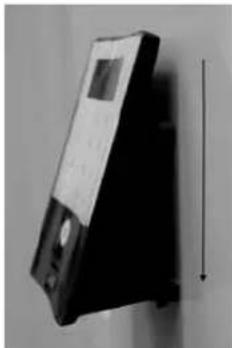
- Slide the keypad in from above until the locking latch of the base plate engages into the keypad housing. In this way, the keypad is protected against undesired removal.
Test the functioning of the unit with the door open. For this purpose, enter a valid opening code (e.g. PIN code, fingerprint,...) several times.
Cleaning instructions secuENTRY easy plus keypad
Dirt can barely adhere to the keypad surface due to the surface finish. Dusty or dirty surfaces are wiped with a damped cloth. No alcohol-based detergents (denatured alcohol, SIDOLIN® etc.) or aggressive detergents (acetone etc.) may be used, as they can damage the surface or the sensor.
secuENTRY easy plus keypad battery change
- Remove the case cover from below by loosening the 2 screws (Tx 8).
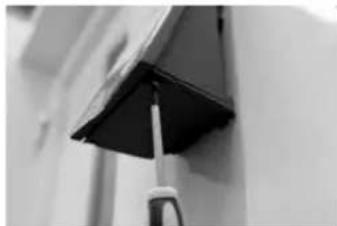
- Pull the battery compartment lid downwards until it disengages and replace the batteries.
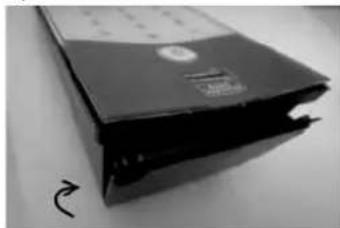
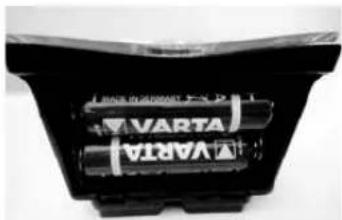
When inserting the new batteries, be careful to observe the correct polarity as indicated on the housing.
- To close the battery compartment, first press the battery compartment lid close to the screw holes to make them slide into the recesses, then snap the bottom side into position by pressing on it.
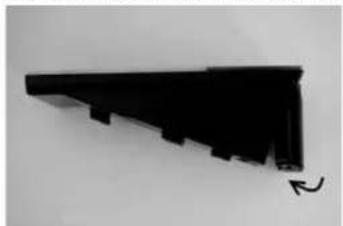
- Fasten the battery compartment lid with screws.
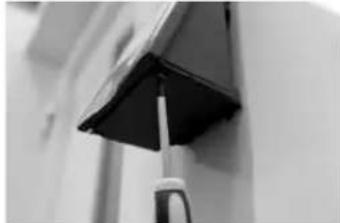
Attention! Make sure that no moisture enters the keypad when replacing the battery.
Battery change knob (inside)
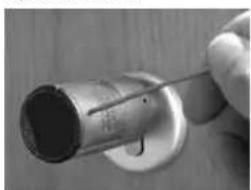
1 Using the grub screw supplied, loosen the top locking screw on the cylinder cover. It can be turned out only up to the opening of the cover and will not fall out.
2 Open the cover
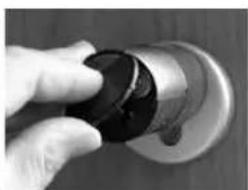
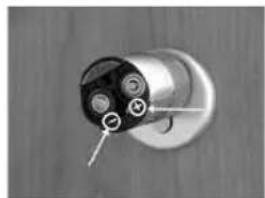
3 Replace the batteries. Make sure the batteries are inserted with the correct polarity, indicated at the marked point on the housing.
4 Replace the cover.
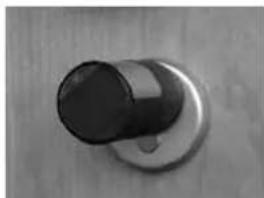
Battery change outside knob
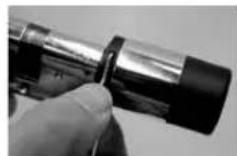
- Press the notches back with the enclosed tool and pull off the knob sleeve.
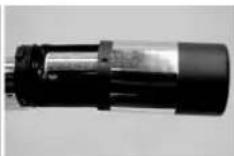
- Replace the battery and make sure the polarity is correct.
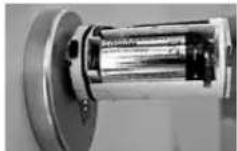
Carefully slide the knob sleeve back on Please note: Locking is only possible in one position!
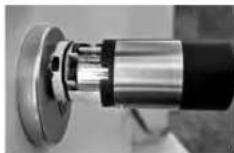
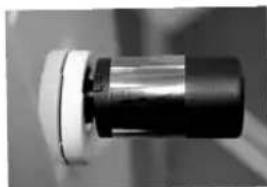
Attention! Be careful not to crush the cable. Make sure the O-ring is seated correctly.
Re-engage the knob sleeve.
Emergency key (outside) function
Using the mechanical emergency key, you can provide access in case of failure of the system.
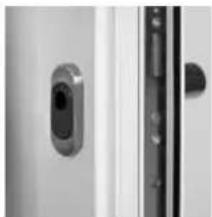
1 Swing the emergency key open and then insert it into the indicted slot in the cover panel.
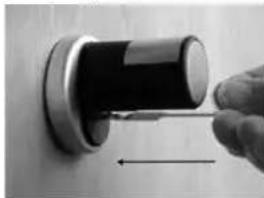
2 Turn the key 90^ clockwise. If required, move the outer knob slightly to the right and left in order to release the mechanism.
3 Turn the outer knob. The lock opens at the latest when fully turned.
Turn the key to its initial position and take it out. To close the emergency lock, turn the knob twice fully in both directions.
Disassembling secuENTRY easy plus keypad from wall bracket
- Remove the case cover from below by loosening the 2 screws (Tx 8).

- Pull the battery compartment lid downwards until it disengages and replace the batteries.
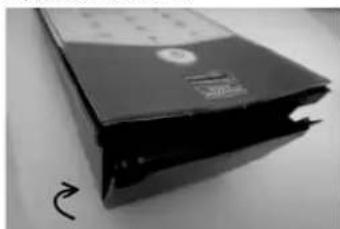
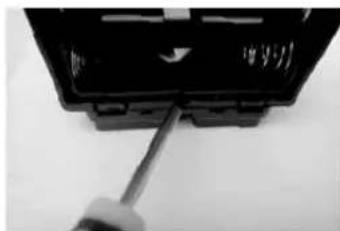
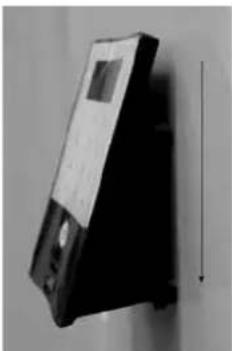
- Press the notch with a narrow tool (e.g. slotted screwdriver) downwards and pull the the keypad up.
Warranty
In order to deliver a flawless and high quality product to you and to better assist you in case of service or repair, it is necessary that faulty or defective devices along with the valid administrator code and the QR code(s) be presented to your dealer together with the original documentation.
In the case of return shipments, due to your right of cancellation, all device parts must furthermore be in their factory settings and the seal on the cylinder and knob must be undamaged. Failure to comply with this will invalidate the warranty.
Important information about our electronic locks
General information: please take care that the codes and the code carrier do not fall into the wrong hands. Therefore, store the codes and code carrier in a safe location so that these can only be accessed by authorised persons. In case you lose a code or code carrier, the lock must be converted to a new code / code carrier, or replaced.
The factory code must be changed as soon as the lock is commissioned.
- Simple codes that are easy to guess (e.g. 1, 2, 3, 4, 5, 6) must not be used.
- Personal data (e.g. birthday) or other data that may be concluded with knowledge of the code owner must not be used as a code.
- After changing the code, the lock must be checked several times with the safety door opened.
Disposal of the device
Dear Customer,
please help us avoid unnecessary waste. Should you intend to dispose of this device at any time, please remember that many components of this device contain valuable materials that can be recycled.
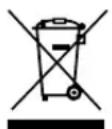

Please be aware that electrical and electronic equipment and batteries marked in this way must not be disposed of with household waste but collected separately. Please obtain information on the collecting points for electrical waste from the responsible authority of your city/municipality.
BURG-WACHTER KG hereby declares that this device complies with Directive 2014/53/EU, (RED) 2014/30/EU, (EMC) and 2011/65/EU (RoHS). The complete text of the EU Declaration of Conformity is available at the following Internet address: www.burg.biz
On interferences with Bluetooth devices
Bluetooth devices use the same frequency bandwidth (2.4 GHz) as WiFi devices. Interferences can therefore arise that cause errors or interrupt communication. If this occurs, unnecessary devices should be switched off.
Printing and typesetting errors as well as technical changes reserved.
Cher client,
1 Toetsenblok (SN; MAC; AES; Type)
2 Cylinder (SN; MAC; AES; ADM)
3 Transponder (UID; BW; Type)