EasyManual
WAP6117 - Smart Home LEVELONE - Free user manual and instructions
Find the device manual for free WAP6117 LEVELONE in PDF.


User questions about WAP6117 LEVELONE
0 question about this device. Answer the ones you know or ask your own.
Ask a new question about this device
Download the instructions for your Smart Home in PDF format for free! Find your manual WAP6117 - LEVELONE and take your electronic device back in hand. On this page are published all the documents necessary for the use of your device. WAP6117 by LEVELONE.
USER MANUAL WAP6117 LEVELONE
Managed Wireless Access Point
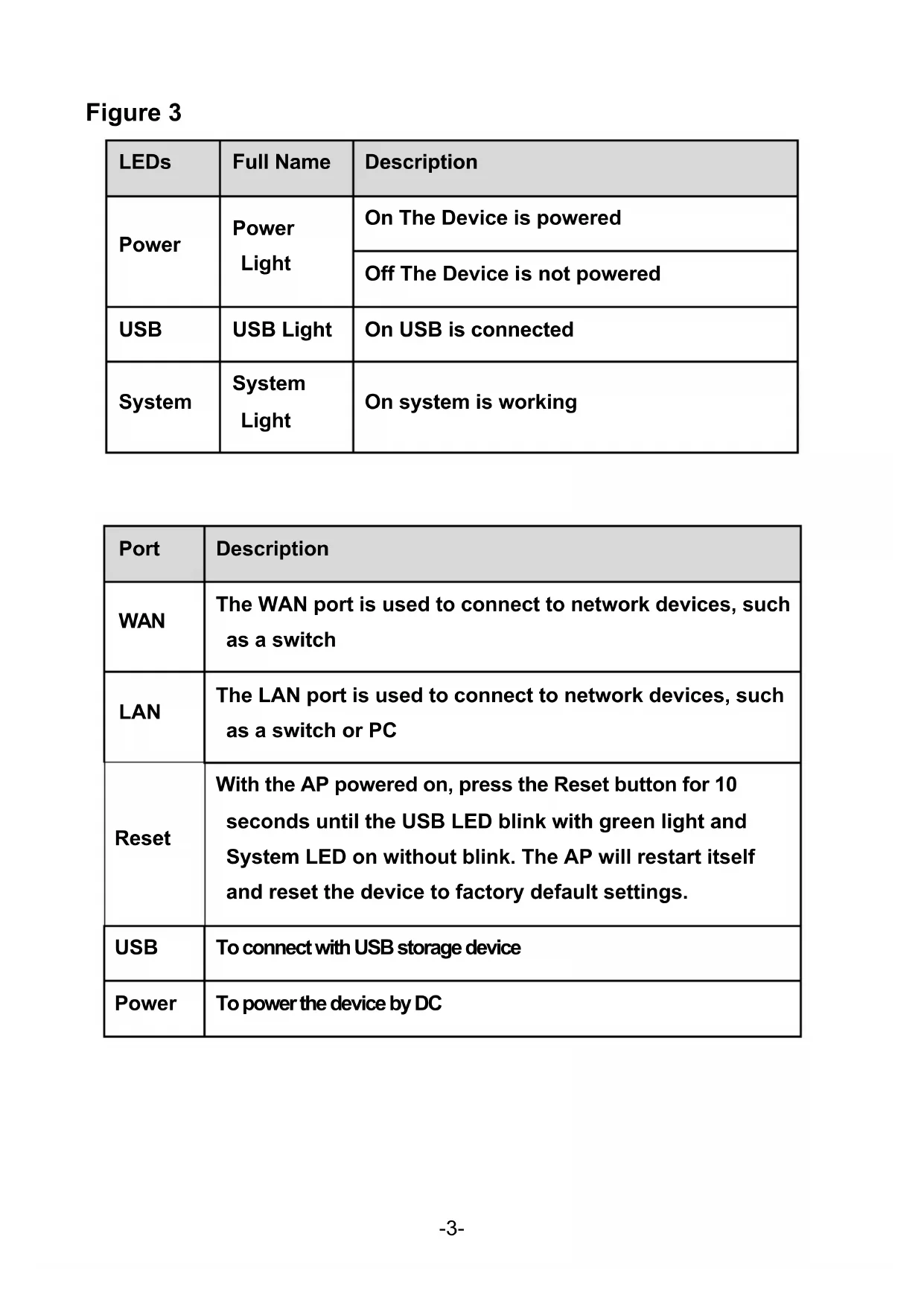
Power System USB-3- Figure 3 LEDs Full Name Description Power Power Light On The Device is powered Off The Device is not powered USB USB Light On USB is connected System System Light On system is working
Port Description WAN The WAN port is used to connect to network devices, such as a switch LAN The LAN port is used to connect to network devices, such as a switch or PC Reset With the AP powered on, press the Reset button for 10 seconds until the USB LED blink with green light and System LED on without blink. The AP will restart itself and reset the device to factory default settings. USB To connect with USB storage device Power To power the device by DC-4- English Hardware Installation Power on the Device. To power on the AP, you can use one of the following methods:
1. Plug one end of your Ethernet cable into the LAN port of the AP, and the other
end into a port on a PoE switch or a 802.3af PoE injector.
2. Connect the power adapter. (optional)
Configuring the Device To set up and manage the AP, you can use one of the following methods:
1. Connect the access point and your computer to the same switch or router.
Manage the access point from the computer. (Figure 4)
2. Connect the access point to a Wireless Controller. Connect your computer to
the same network as that of the Wireless Controller. Manage the access point from the computer via the Wireless Controller. (Figure 5) Software Installation To login to the LevelOne AP, please perform the following steps:
1. Check Your Network Settings to login web UI.
Please make sure your PC can get IP address automatically, so the router can communicate with your PC during configuration. l Select “Control Panel” > “Network Connections”. l Right click the “Local Area Connection” and choose “Properties”. l Select the TCP/IP protocol for your network card. l Click on the Properties button. You should then see the following screen and make sure you have selected “Obtain IP address automatically”. (Figure 6)
2. Launch a Web browser (Microsoft Internet Explorer 8 for example), enter the
AP’s default LAN IP address 192.168.188.253 in the address bar, and then press Enter, as shown in the following picture. (Figure 7)