VP59Zoom - Phone Yealink - Free user manual and instructions
Find the device manual for free VP59Zoom Yealink in PDF.


| Product Type | Desktop IP Video Phone |
| Brand | Yealink |
| Model | VP59 |
| Category | Phone |
| Power Supply | Power adapter 12 V/1 A (Yealink provided) |
| Display | 7-inch color touch screen |
| Camera | Yealink CAM50 USB camera included |
| Wired Connectivity | 2 Ethernet (RJ‑45) ports 10/100/1000 |
| Wireless Connectivity | Wi‑Fi 802.11a/b/g/n/ac |
| Main Features | Voice and video calls, conference up to 5 participants, call forwarding, transfer, hold, directory, history, voicemail |
| Operating Temperature | 0 °C to 40 °C |
| Operating Humidity | 5 % to 90 % non-condensing |
| Warranty | Manufacturer's warranty (standard 2 years) |
| Care and Cleaning | Disconnect the device, clean with a soft dry cloth |
| Safety | Use only supplied or approved accessories; do not expose to water; disconnect during thunderstorms |
| Spare Parts and Repairability | Contact your dealer or an authorized repair service |
| General Information | Manual available for free download at notice‑facile.com |
Frequently Asked Questions - VP59Zoom Yealink
User questions about VP59Zoom Yealink
0 question about this device. Answer the ones you know or ask your own.
Ask a new question about this device
Download the instructions for your Phone in PDF format for free! Find your manual VP59Zoom - Yealink and take your electronic device back in hand. On this page are published all the documents necessary for the use of your device. VP59Zoom by Yealink.
USER MANUAL VP59Zoom Yealink
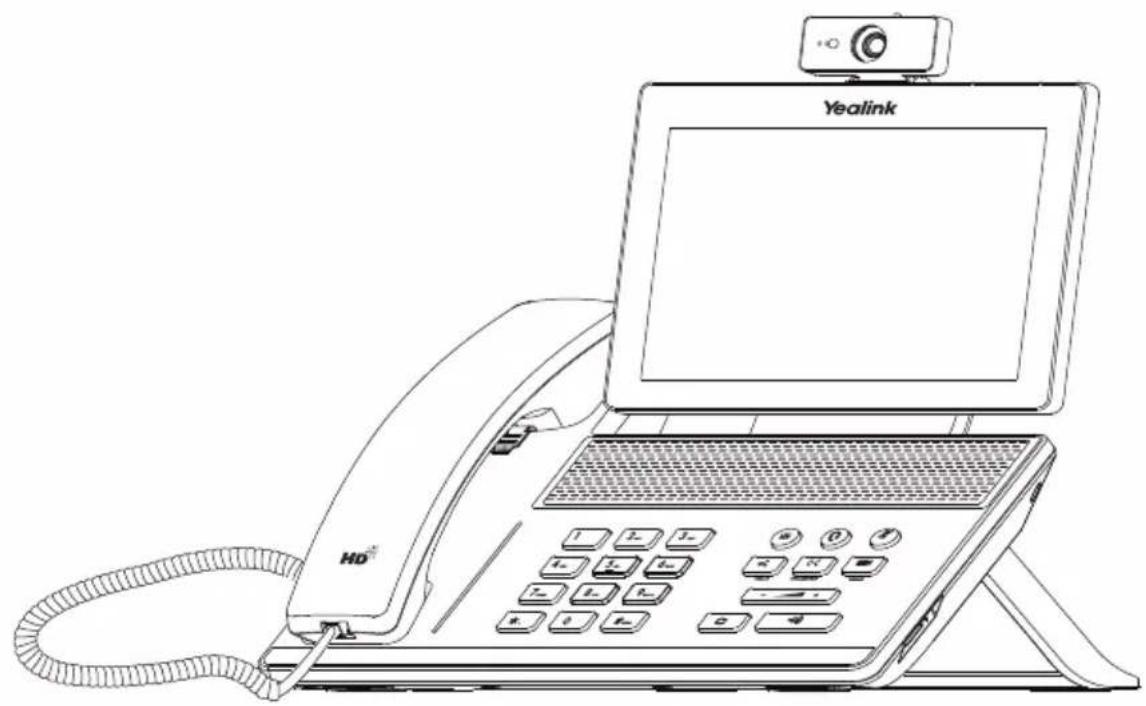
Flagship Smart Video Phone
VP59
English | Deutsch | Espanol | Français
Quick Start Guide (V86.20)
Table of Contents
English 1
Deutsch. 12
Espanol. 23
Francais. 34
Package Contents
The following items are included in your package. If you find anything missing, contact your system administrator.
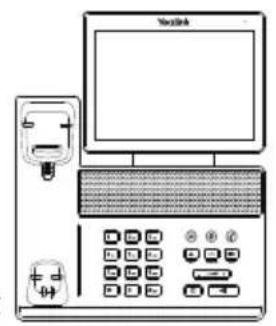
IP Phone
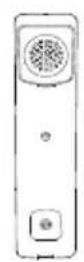
Handset
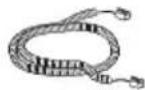
Handset Cord

Quick Start Guide
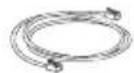
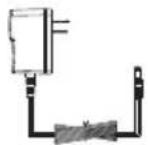
Ethernet Cable (2m CAT5E FTP cable)
Power Adapter (Optional)
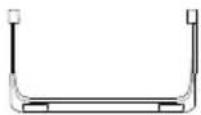
Stand
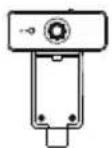
Camera
Note: We recommend that you use the accessories provided or approved by Yealink. The use of unapproved third-party accessories may result in reduced performance.
Assembling the Phone
- Insert the camera, as shown below:
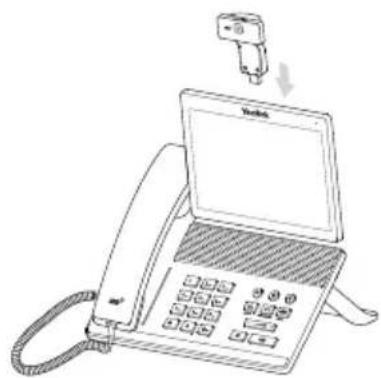
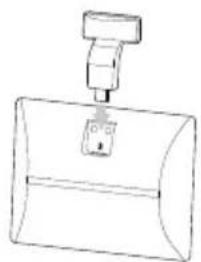

Adjust Shutter Switch

Adjust Camera Angle

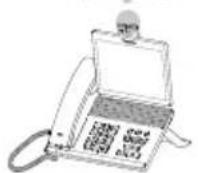

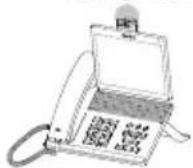
- Attach the stand and adjust the angle of the touch screen, as shown below:
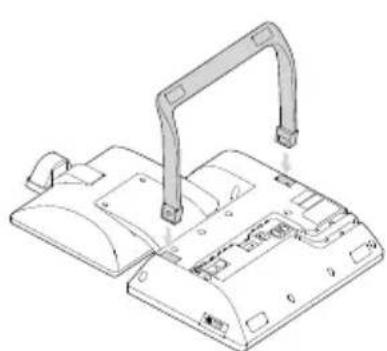

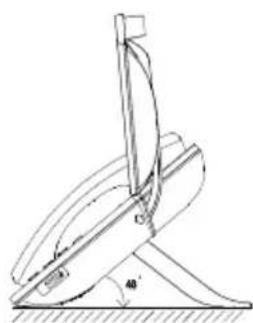

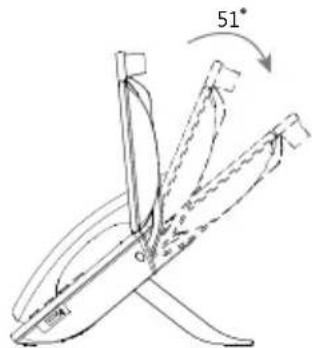
- Connect the handset and optional headset, as shown below:
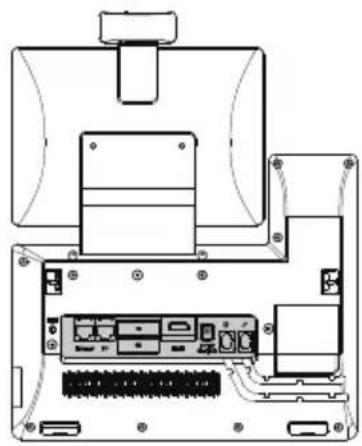
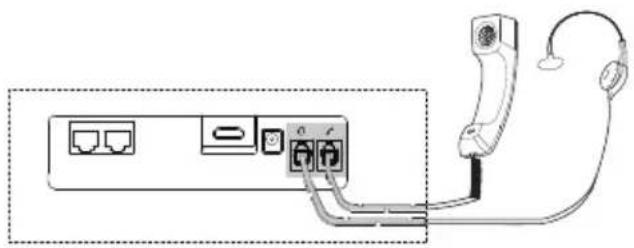
- Connect the optional USB flash drive, as shown below:
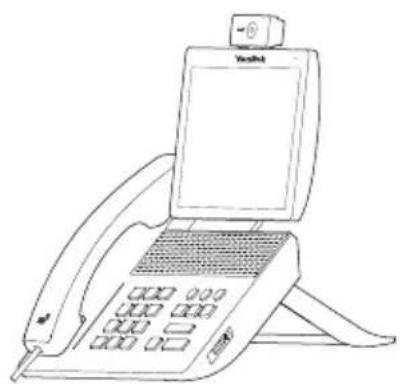
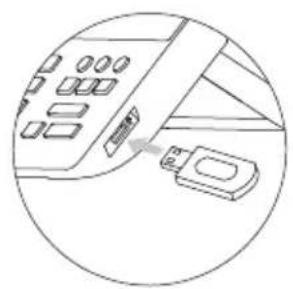
- Connect the AC power, as shown below:
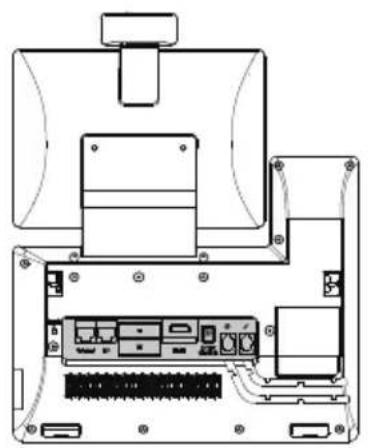

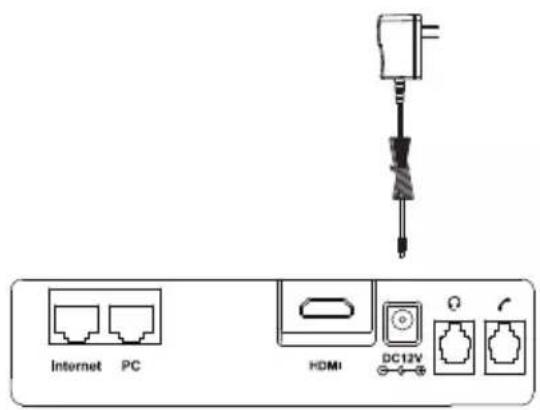
Note: The IP phone should be used with Yealink original power adapter (12V/1A) only. The use of the third-party power adapter may cause the damage to the phone.
6. Connect to the network, as shown below:
You have two options for network connection. You can select one of them according to the current office environment.
a) Connect to the wired network:
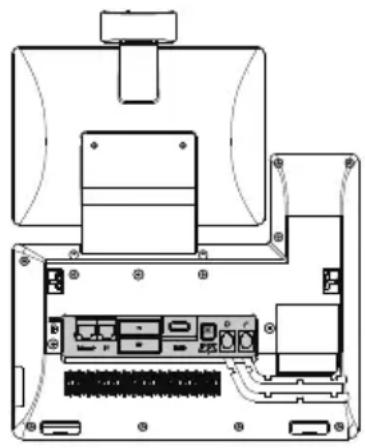
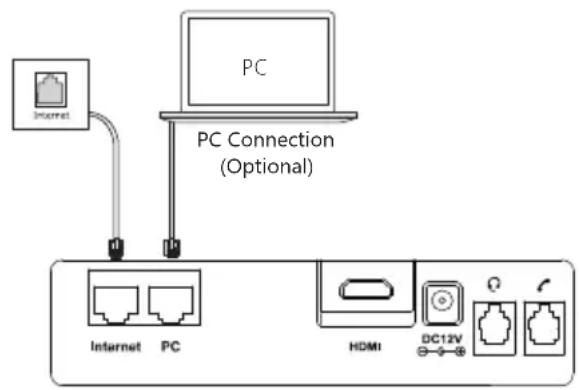
Note: If you are connecting a PC to your phone, we recommend that you use the Ethernet cable provided by Yealink.
b) Connect to the wireless network:
1) Swipe down from the top of the screen to enter the control center.
2) Tap Settings->Basic Settins>Wi-Fi
3) Tap the On radio box in the Wi-Fi field.
The phone will automatically search for available wireless networks in your area.
4) Select an available wireless network from the list of networks.
5) If the network is secure, enter its password in the Password field.
6) TapConnect to connect to the wireless network.
Startup
After the IP phone is connected to the network and supplied with power, it automatically begins the initialization process. After startup, the phone is ready for use. You can configure the phone via web user interface or phone user interface.
Welcome
initializing... Please wait
Configuring Your Phone
Configuring via web user interface
Accessing the web user interface:
- Swipe down from the top of the screen to enter the control center.
- TapSettings->Status->General to obtain the IP address of the phone.
- Open a web browser on your computer, enter the IP address into the address bar (e.g., "http://192.168.0.10" or "192.168.0.10"), and then press Enter.
- Enter the user name (default: admin) and password (default: admin) in the login page and click Login
Network Settings:Click on Network->Basic->IPv4 Config
You can configure the network settings in the following ways:
DHCP: By default, the phone attempts to contact a DHCP server in your network to obtain its valid network settings, e.g., IP address, subnet mask, gateway address and DNS address.
StatioPphone cannot contact a DHCP server for any reason, you need to configure IP address, subnet mask,
Address: gateway address, primary DNS address and secondary DNS address for the phone manually.
Note: The IP phone also supports IPv6, but IPv6 is disabled by default. The wrong network settings may result in inaccessibility of your phone and may have an impact on the network performance. Contact your system administrator for more information.
Account Settings: Click on Account->Register->Account X (X=1, 2, 3...15, 16)
Parameters of the account:
Register Status: It shows the register status of the current account.
Line Active: You can select Enabled/Disabled to enable/disable the account.
Label: It is shown on the touch screen to identify the account.
Display Name: It is shown as Caller ID when placing a call.
Register Name: It is an authenticated ID for authentication provided by ITSP (required).
User Name: It is provided by ITSP for registration (required).
Password: It is provided by ITSP for registration (required).
Server Host: It is provided by ITSP for registration (required).
Register status icons on the touch screen:

(Green)Registered

Gray) Register Failed

(Yellow) Registering
Note: Check with your system administrator if any error appears during the registration process or a specific configuration is required for your registration.
Configuring via phone user interface
Network Settings:
- Swipe down from the top of the screen to enter the control center.
- Tap Settings->Advanced Settings (default password: admin) -> Network->WAN Port/VLAN/Server Type/802.1x/VPN/LLDP/CDP/NAT to configure the network.
Account Settings:
- Swipe down from the top of the screen to enter the control center.
- Tap Settings->Advanced Settings (default password: admin) -> Accounts to configure the account.
Basic Call Features
Placing a Video/Voice Call
Using the handset:
- Pick up the handset.
- Enter the number, and then tap Send.
Using the speakerphone:
- With the handset on-hook, press
- Enter the number, and then tap Send.
Using the headset:
- With the headset connected, press to activate the headset mode.
- Enter the number, and then tap Send.
Answering a Video/Voice Call
Using the handset:
Pick up the handset.
Using the speakerphone:
Press

Using the headset:
Press

Controlling Video During a Call
To change the video view:
- Tap Full Screen to display the video in full screen.
- Tap to return.
To turn on/off near-site video during a call:
Swipe down from the top of the screen to enter the control center, tap Video to turn on/off the near-site video.
Ending a Video/Voice Call
Using the handset:
Hang up the handset or tap the End Call soft key.
Using the speakerphone:
Press or tap the End Call soft key.
Using the headset:
Tap the End Call soft key.
Redial
- Press to enter the Placed Calls list, and then tap the desired entry.
- Press twice when the phone is idle to dial out the last dialed number.
Call Mute and Un-mute
- Press to mute the microphone during a call.
- Press again to un-mute the call.
Call Hold and Resume
To place a call on hold:
Press or tap the Hold soft key during an active call.
To resume the call, do one of the following:
If there is only one call on hold, press or tap the Resume soft key.
If there is more than one call on hold, tap the call you want to resume, and press for tap the Resume soft key.
Call Transfer
You can transfer a call in the following ways:
Blind Transfer
- Press or tap the Transfer soft key during a call. The call is placed on hold.
- Enter the number you want to transfer to.
- Press
Semi-Attended Transfer
- Press or tap the Transfer soft key during a call. The call is placed on hold.
- Enter the number you want to transfer to, and then press | # _ 一 |
- Press or tap the Transfer soft key when you hear the ring-back tone.
Attended Transfer
- Press or tap the Transfer soft key during a call. The call is placed on hold.
- Enter the number you want to transfer to, and then press
- Press or tap the Transfer soft key when the second party answers.
Call Forward
To enable call forward:
- Swipe down from the top of the screen to enter the control center.
- Tap Setting->Features->Call Forward
- Select the desired forward type:
Always Forward---Incoming calls are forwarded unconditionally.
Busy Forward---Incoming calls are forwarded when the phone is busy.
No Answer Forward---Incoming calls are forwarded if not answered after a period of time.
- Enter the number you want to forward to. For No Answer Forward, tap the After Ring Time field, and then tap the desired ring time to wait before forwarding.
- Tap to accept the change.
Call Conference
- Tap the Conference soft key during an active call. The call is placed on hold.
- Enter the number of the second party, and then tap Conference.
- Tap the Conference soft key again when the second party answers. All parties are now joined in the conference.
Note: You can split the conference call into two individual calls by tapping theSplit soft key. You can create 3-way video conferencing or 5-way video/audio mixed conferencing.
Voice Message
Message waiting indicator on the idle screen indicates that one or more voice messages are waiting at the message center. The power indicator LED slowly flashes red.
To listen to voice messages: (Ensure the voice mail code is already configured on the phone.)
- Do one of the following:
Press - Swipe down from the top of the screen to enter the notification center, tap Voice Mail and then select the desired item.
- Follow the voice prompts to listen to your voice messages.
Customizing Your Phone
Call History
- Tap , and then select the desired call list on the left.
- Drag up and down to scroll.
-
Tap ① after the desired entry, and then you can do the following:
-
Tap Send to place a call.
- Tap Add to add the entry to the local directory.
- Tap Edit to edit the phone number of the entry before placing a call.
- Tap Blacklist to add the entry to the blacklist.
- Tap Delete to delete the entry from the list.
Contact Directory
To add a contact:
- Tap , and then select the desired group on the left.
- Tap + to add a contact.
- Enter a unique contact name in the Name field and contact numbers in the corresponding fields.
- Tap to accept the change.
To edit a contact:
- Tap , and then select the desired group on the left.
- Tap after the desired contact.
- Edit the contact information.
- Tap to accept the change.
To delete a contact:
- Tap , and then select the desired group on the left.
- Tap ① after the desired contact and then tap Delete.
- Tap OK when the touch screen prompts "Delete selected item?"
Note: You can add contacts from call history easily. For more information, refer toCall History above.
Volume Adjustment
- Press during a call to adjust the receiver volume of the handset/speakerphone/headset.
- Press when the phone is idle or ringing to adjust the ringer volume.
- Press to adjust the media volume in the corresponding screen.
Safety instructions
Operating Ambient Temperatures
- Operating temperature: +32 to 104^ (0 to 40^ )
Relative humidity: 5% to 90% , noncondensing
Storage temperature: -22 to +160^ (-30 to +70°C)
Warranty
Our product warranty is limited only to the unit itself, when used normally in accordance with the operating instructions and the system environment. We are not liable for damage or loss resulting from the use of this product, or for any claim from a third party. We are not liable for problems with Yealink device arising from the use of this product; we are not liable for financial damages, lost profits, claims from third parties, etc., arising from the use of this product.
DC symbol
= is the DC voltage symbol.
Restriction of Hazardous Substances Directive (RoHS)
This device complies with the requirements of the EU RoHS Directive. Statements of compliance can be obtained by contacting support@yealink.com.
Safety Instructions
Save these instructions. Read these safety instructions before use!
The following basic safety precautions should always be followed to reduce risk of fire, electrical shock, and other personal injury.

General Requirements
- Before you install and use the device, read the safety instructions carefully and observe the situation during operation.
- During the process of storage, transportation, and operation, please always keep the device dry and clean.
- During the process of storage, transportation, and operation, please avoid collision and crash of the device.
- Please attempt not to dismantle the device by yourself. In case of any discrepancy, please contact the appointed maintenance center for repair.
- Without prior written consent, no organization or individual is permitted to make any change to the structure or the safety design of the device. Yealink is under no circumstance liable to consequences or legal issues caused by such changes.
- lease refer to the relevant laws and statutes while using the device. Legal rights of others should be respected as well.

Environmental Requirements
- Place the device at a well-ventilated place. Do not expose the device under direct sunlight.
- Keep the device dry and free of dusts.
- Place the device on a stable and level platform.
- Please place no heavy objects on the device in case of damage and deformation caused by the heavy load.
- Keep at least 10cm between the device and the closest object for heat dissipation.
- Do not place the device on or near any inflammable or fire-vulnerable object, such as rubber-made materials.
- Keep the device away from any heat source or bare fire, such as a candle or an electric heater.
- Keep the device away from any household appliance with strong magnetic field or electromagnetic field, such as a microwave oven or a refrigerator.

Operating Requirements
- Do not let a child operate the device without guidance.
- Do not let a child play with the device or any accessory in case of accidental swallowing.
- Please use the accessories provided or authorized by the manufacturer only.
- The power supply of the device shall meet the requirements of the input voltage of the device. Please use the provided surge protection power socket only.
- Before plugging or unplugging any cable, make sure that your hands are completely dry.
-
Do not spill liquid of any kind on the product or use the equipment near water, for example, near a bathtub, washbowl, kitchen sink, wet basement or near a swimming pool.
-
Do not tread on, pull, or over-bend any cable in case of malfunction of the device.
- During a thunderstorm, stop using the device and disconnect it from the power supply. Unplug the power plug and the Asymmetric Digital Subscriber Line (ADSL) twisted pair (the radio frequency cable) to avoid lightning strike.
- If the device is left unused for a rather long time, disconnect it from the power supply and unplug the power plug.
- When there is smoke emitted from the device, or some abnormal noise or smell, disconnect the device from the power supply, and unplug the power plug immediately. Contact the specified maintenance center for repair.
- Do not insert any object into equipment slots that is not part of the product or auxiliary product.
- Before connecting a cable, connect the grounding cable of the device first. Do not disconnect the grounding cable until you disconnect all other cables.

Cleaning Requirements
- Before cleaning the device, stop using it and disconnect it from the power supply.
- Use a piece of soft, dry and anti-static cloth to clean the device.
- Keep the power plug clean and dry. Using a dirty or wet power plug may lead to electric shock or other perils.

ENVIRONMENTAL RECYCLING
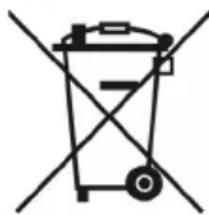
Never dispose of the device with domestic waste
Ask your Town Council about how to dispose of it in an environmentally friendly way. The cardboard box, plastic packaging and player components may be recycled in accordance with prevailing recycling regulations in your country.
Always adhere to prevailing regulations
Those who fail to do so may be fined or prosecuted in accordance with the law. The crossed out garbage can that appears on the device means that when it has reached the end of its useful life, it should be taken to a special waste disposal centre and treated separately to general urban waste.
Troubleshooting
The unit cannot supply power to Yealink device.
There is a bad connection with the plug.
- Clean the plug with a dry cloth.
- Connect it to another wall outlet.
The usage environment is out of operating temperature range.
- Use in the operating temperature range.
The cable between the unit and the Yealink device is connected incorrectly. - Connect the cable correctly.
You cannot connect the cable properly.
- You may have connected a wrong Yealink device.
- Use the correct power supply.
Some dust, etc., may be in the port.
1. Clean the port.
Contact your dealer or authorized service facility for any further questions.
Contact Information
YEALINK NETWORK TECHNOLOGY CO.,LTD.
309, 3rd Floor, No.16, Yun Ding North Road, Huli District, Xiamen City, Fujian, P.R.C
YEALINK (EUROPE) NETWORK TECHNOLOGY B.V.
Strawinskylaan 3127, Atrium Building, 8th floor, 1077ZX Amsterdam, The Netherlands
YEALINK (USA) NETWORK TECHNOLOGY CO., LTD.
999 Peachtree Street Suite 2300, Fulton, Atlanta, GA, 30309, USA
Made in China
C E
Declaration of Conformity
Date of Issue: 20th / July/ 2019
We: YEALINK (XIAMEN) NETWORK TECHNOLOGY CO., LTD,
Address: 309, 3rd Floor, No.16, Yun Ding North Road, Huli District, Xiamen City, Fujian, P.R.C
Declare that the product
Type: Flagship Smart Video Phone
Model:VP59
meets the essential requirements and other relevant provisions according to the following EC directive
Directive: 2014/30/EU, 2014/35/EU, RED 2014/53/EU
Conformity
The product complies with the following standards:
Safety: EN 62368-1:2014
EMC: EN 55032:2015+AC:2016
EN 55035:2017
EN61000-3-2: 2014
EN61000-3-3:2013
Radio: ETSI EN 301 489-1 V2.2.0,
ETSI EN 301489-3 V2.1.1,
ETSI EN 301 489-17 V3.2.0,
ETSI EN 300 328 V2.1.1;
ETSI EN 301 893 V2.1.1
EN300440V2.1.1
Health: EN 62311:2008; EN62479:2010
Directive 2011/65/EU and (EU)2015/863 of the European Parliament and of the Council of 8 June 2011 and 4 June 2015 on the restriction of the use of certain hazardous substances in electrical and electronic equipment(RoHS 2.0)
Directive 2012/19/EU of the European Parliament and of the Council of 4.July.2012 on Waste electrical and electronic equipment (WEEE)
Regulation (EC) No.1907/2006 of the European Parliament and of the Council of 18.December.2006 on Registration, Evaluation, Authorization, and Restriction of Chemicals (REACH)
NAME: Stone Lu
DATE: 20/July/2019
YEALINK (EUROPE) NETWORK TECHNOLOGY B.V.
Address: Strawinskylaan 3127, Atrium Building, 8th floor, 1077ZX Amsterdam, the Netherlands
Telephone: +31 (0) 64 61 11 373
Email: EUROPE@Yealink.com
TITLE: Vice President
Addr: 309, 3rd Floor, No.16, Yun Ding North Road,
Huli District, Xiamen City, Fujian, P.R.C
Tel: +86-592-5702000
Fax: +86-592-5702455
Technical Support
Visit Yealink WIKI (http://support.yealink.com/) for the latest firmware, guides, FAQ, Product documents, and more. For better service, we sincerely recommend you to use Yealink Ticketing system (https://ticket.yealink.com) to submit all your technical issues.
Verpackungsinhalt
Initializing... Please wait
309, 3rd Floor, No. 16, Yun Ding North Road, Huli District, Xiamen City, Fujian, VR China
YEALINK (EUROPE) NETWORK TECHNOLOGY B.V.
Strawinskylaan 3127, Atrium Building, 8th floor, 1077ZX Amsterdam, Niederlande
YEALINK (USA) NETWORK TECHNOLOGY CO., LTD.
999 Peachtree Street Suite 2300, Fulton, Atlanta, GA, 30309, USA
Adresse: 309, 3rd Floor, No.16, Yun Ding North Road, Huli District, Xiamen City, Fujian, P.R.C
TITLE: Vice President
YEALINK (EUROPE) NETWORK TECHNOLOGY B.V.
Adresse: Strawinskylaan 3127, Atrium Building, 8th floor, 1077ZX Amsterdam, the Netherlands
Telefon: +31 (0) 64 61 11 373
E-Mail: EUROPE@Yealink.com
Technischer Support
initializing... Please wait
Configuración del téléphone
309, 3rd Floor, No.16, Yun Ding North Road, Huli District, Xiamen City, Fujian, P.R.C.
YEALINK (EUROPE) NETWORK TECHNOLOGY B.V.
Strawinskylaan 3127, Atrium Building, 8th floor, 1077ZX Amsterdam, The Netherlands
YEALINK (USA) NETWORK TECHNOLOGY CO., LTD.
999 Peachtree Street Suite 2300, Fulton, Atlanta, GA, 30309, USA
Made in China
C E
Fecha de CE: 20th /July/2019
Declarante: YEALINK(XIAMEN) NETWORK TECHNOLOGY CO.,LTD,
Dirección: 309, 3rd Floor, No.16, Yun Ding North Road, Huli District, Xiamen City, Fujian, P.R.C.
TITLE: Vice President
YEALINK (EUROPE) NETWORK TECHNOLOGY B.V.
Dirección: Strawinskylaan 3127, Atrium Building, 8th floor, 1077ZX Amsterdam, the Netherlands
Dirección: 309, 3rd Floor, No.16, Yun Ding North Road, Huli District, Xiamen City, Fujian, P.R.C
Copyright © 2021 YEALINK (XIAMEN) NETWORK
Initializing... Please wait
309, 3rd Floor, No.16, Yun Ding North Road, Huli District, Xiamen City, Fujian, China
YEALINK (EUROPE) NETWORK TECHNOLOGY B.V.
Strawinskylaan 3127, Atrium Building, 8th floor, 1077ZX Amsterdam, Pays-Bas
YEALINK (USA) NETWORK TECHNOLOGY CO., LTD.
999 Peachtree Street Suite 2300, Fulton, Atlanta, GA, 30309, Etats-Unis
Fabrique en Chine
C E
Date d'émission :20th /July/2019
Nous: YEALINK(XIAMEN) NETWORK TECHNOLOGY CO.,LTD,
Adresse: 309, 3rd Floor, No.16, Yun Ding North Road, Huli District, Xiamen City, Fujian, P.R.C
TITLE: Vice President
YEALINK (EUROPE) NETWORK TECHNOLOGY B.V.
Adresse: Strawinskylaan 3127, Atrium Building, 8th floor, 1077ZX Amsterdam, the Netherlands
Telephone: +31 (0) 64 61 11 373
Courriel: EUROPE@Yealink.com