USER MANUAL RE700X TP-LINK
natural_image
Simple line drawing of a smiling face and a blank document with a small symbol inside (no text or labels)
Note:
Note:
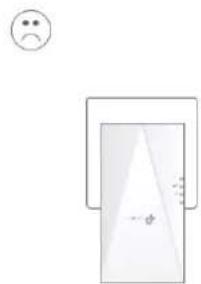
Relocate your extender to optimize Wi-Fi coverage and performance.
- Plug in the extender about halfway between your router and the Wi-Fi dead zone. The location you choose must be within the range of the host network.
- Wait for about 2 minutes until the Signal LED turns solid blue. If it doesn't, relocate the extender doser to the router to achieve better signal quality.
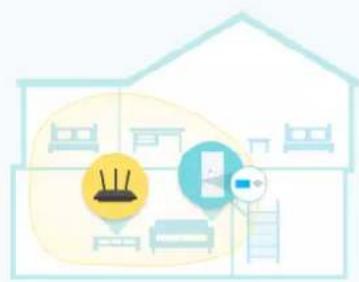
natural_image
Illustration of a home with a router icon and a smart home interface (no text or symbols)
OK
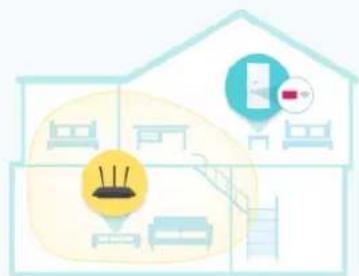
natural_image
Illustration of a house with home appliances and furniture (no text or symbols)
✗ Too far
Dene
Now connect to the extended network, then click Finish.
2.4GHz Extended Network
SSID: TP-Link_0969_EXT
Password:
5GHz Extended Network
SSID: TP-Link_0969_5G_EXT
Password:
√ I have connected to the extended network.
Finish
Chapitre 3
ou visitez https://www.tp-link.com/onemesh/compatibility.
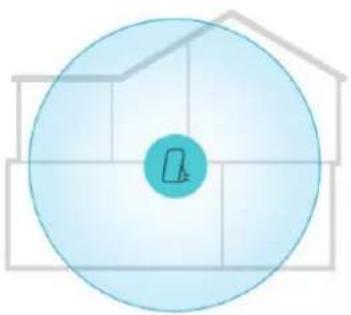
Set the Wi-Fi coverage of your extender as needed.
natural_image
Simple diagram of a house with a circular element and grid lines, no text or symbols present.
Maximum Coverage
The extender will provide a long-range Wi-Fi signal but use up more power.
○ Intermediate Coverage
The extender will provide a medium-range Wi-Fi signal.
○ Minimum Coverage
The extender will provide a short-range Wi-Fi signal and use up less power.
Save
4. Cliquez Save.
Transforms your existing wired network to a wireless network.
○ Repeater
Extends your existing wireless coverage by repeating the wireless signal.
Cancel
Save
- Cliquez sur Save.
- Cliquez sur Save.
| Log Filter: | Type = | ALL | ▼ | Level = | ALL | ▼ |

Refresh

Delete All
| ID | Time | Type | Level | Content |
| 5 | 0 days 00:10:59 | DHCPC | ERROR | DHCP detection failed. |
| 4 | 0 days 00:10:56 | DHCPC | INFO | Sent a detection for DHCP. |
| 3 | 0 days 00:10:53 | DHCPC | INFO | Sent a detection for DHCP. |
| 2 | 0 days 00:10:50 | DHCPC | INFO | Sent a detection for DHCP. |
| 1 | 0 days 00:10:47 | OTHERS | INFO | User cleared up all the logs. |
Save Log
FAQ

Product Name: AX1500/AX1800/AX3000 Wi-Fi 6 Range Extender
Model Number: RE500X/RE600X/RE700X Responsible Party:
TP-Link USA Corporation
Address: 10 Mauchly, Irvine, CA 92618
Website: http://www.tp-link.com/us/
Tel: +1 626 333 0234
This equipment has been tested and found to comply with the limits for a Class B digital device, pursuant to part 15 of the FCC Rules. These limits are designed to provide reasonable protection against harmful interference in a residential installation. This equipment generates, uses and can radiate radio frequency energy and, if not installed and used in accordance with the instructions, may cause harmful interference to radio communications. However, there is no guarantee that interference will not occur in a particular installation. If this equipment does cause harmful interference to radio or television reception, which can be determined by turning the equipment off and on, the user is encouraged to try to correct the interference by one or more of the following measures:
- Reorient or relocate the receiving antenna.
- Increase the separation between the equipment and receiver.
- Connect the equipment into an outlet on a circuit different from that to which the receiver is connected.
- Consult the dealer or an experienced radio/ TV technician for help.
This device complies with part 15 of the FCC Rules. Operation is subject to the following two conditions:
- This device may not cause harmful interference.
- This device must accept any interference received, including interference that may cause undesired operation.
Any changes or modifications not expressly approved by the party responsible for compliance could void the user's authority to operate the equipment.
Note: The manufacturer is not responsible for any radio or TV interference caused by unauthorized modifications to this equipment. Such modifications could void the user's authority to operate the equipment.
FCC RF Radiation Exposure Statement:
This equipment complies with FCC RF radiation exposure limits set forth for an uncontrolled environment. This device and its antenna must not be co-located or operating in conjunction with any other antenna or transmitter.
"To comply with FCC RF exposure compliance requirements, this grant is applicable to only Mobile Configurations. The antennas used for this transmitter must be installed to provide a separation distance of at least 20 cm from all persons and must not be co-located or operating in conjunction with any other antenna or transmitter."
We, TP-Link USA Corporation, has determined that the equipment shown as above has been shown to comply with the applicable technical standards, FCC part 15. There is no unauthorized change is made in the equipment and the equipment is properly maintained and operated.
Issue Date: 2021-09-03
CE Mark Warning
CE
This is a class B product. In a domestic environment, this product may cause radio interference, in which case the user may be required to take adequate measures.
OPERATING FREQUENCY (the maximum transmitted power)
2400 MHz -2483.5 MHz (20dBm)
5150 MHz -5250 MHz (23dBm)
5250 MHz -5350 MHz (23dBm)
5470 MHz -5725 MHz (30dBm)
TP-Link hereby declares that the device is in compliance with the essential requirements and other relevant provisions of directives 2014/53/EU, 2009/125/EC, 2011/65/EU and (EU)2015/863.
The original EU Declaration of Conformity may be found at
https://www.tp-link.com/en/support/ce/
This device meets the EU requirements (2014/53/EU Article 3.1a) on the limitation of exposure of the general public to electromagnetic fields by way of health protection.
The device complies with RF specifications when the device used at 20 cm from your body.
National Restrictions
Attention: This device may only be used indoors in all EU member states, EFTA countries and Northern Ireland.
| AT | BE | BG | CH | CY | CZ | DE | DK |
| EE | EL | ES | FI | FR | HR | HU | IE |
| IS | IT | LI | LT | LU | LV | MT | NL |
| NO | PL | PT | RO | SE | SI | SK | UK(NI) |
UKCA Mark
UK CA
TP-Link hereby declares that the device is in compliance with the essential requirements and other relevant provisions of the Radio Equipment Regulations 2017.
The original UK Declaration of Conformity may be found at
https://www.tp-link.com/support/ukca
National Restrictions
Attention: This device may only be used indoors in Great Britain.
Canadian Compliance Statement
This device contains licence-exempt transmitter(s)/receiver(s) that comply with Innovation, Science and Economic Development Canada's licence-exempt RSS(s).
Operation is subject to the following two conditions:
- This device may not cause interference.
- This device must accept any interference, including interference that may cause undesired operation of the device.
- The device for operation in the band 5150–5250 MHz is only for indoor use to reduce the potential for harmful interference to co-channel mobile satellite systems;
DFS (Dynamic Frequency Selection) products that operate in the bands 5250-5350 MHz, 5470-5600MHz, and 5650-5725MHz.
Avertissement:
Radiation Exposure Statement:
This equipment complies with IC radiation exposure limits set forth for an uncontrolled environment. This equipment should be installed and operated with minimum distance 20cm between the radiator & your body.
Industry Canada Statement
CAN ICES-3 (B)/NMB-3(B)
Korea Warning Statements
- Keep the device away from water, fire, humidity or hot environments.
- Do not attempt to disassemble, repair, or modify the device. If you need service, please contact us.
- Do not use the device where wireless devices are not allowed.
• Make sure the power socket has a good contact with the ground.
- The socket-outlet shall be installed near the equipment and shall be easily accessible.
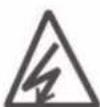

CAUTION:
Double pole, neutral fusing.
Disconnect mains before servicing.
- Operating Temperature: 0^ 40^ (32°F \~ 104°F)
- Storage Temperature: -40^ 60^ (-40°F \~ 140°F)
Please read and follow the above safety information when operating the device. We cannot guarantee that no accidents or damage will occur due to improper use of the device. Please use this product with care and operate at your own risk.
Explanations of the symbols on the product label
| Symbol | Explanation |
| [ZX7] | Class II equipment |
| [OTD7] | Class II equipment with functional earthing |
| [STZ2] | AC voltage |
 | Indoor use only |
 | RECYCLINGThis product bears the selective sorting symbol for Waste electrical and electronic equipment (WEEE). This means that this product must be handled pursuant to European directive 2012/19/EU in order to be recycled or dismantled to minimize its impact on the environment.User has the choice to give his product to a competent recycling organization or to the retailer when he buys a new electrical or electronic equipment. |
 | Protection earth |
 | Warning electric shock |
 N N | Fuse is used in neutral N |