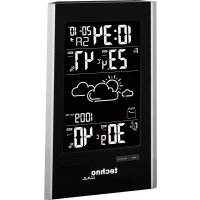
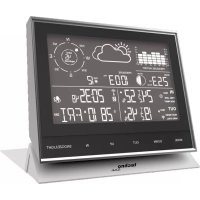
WS 9060 - Weather Station TECHNOLINE - Free user manual and instructions
Find the device manual for free WS 9060 TECHNOLINE in PDF.


| Brand | TECHNOLINE |
| Model | WS 9060 |
| Product type | Weather station |
| Main unit power supply | 2 AA 1.5V batteries + 5V DC 1A power adapter (included) |
| Outdoor sensor power supply | 2 AA 1.5V batteries |
| USB charging port | 5V, 1A for charging portable devices |
| Time reception | Radio-controlled DCF 77.5 kHz, range ~1500 km |
| Calendar | Up to 2099, day of the week in 7 languages (AL, EN, FR, IT, ES, NL, DA) |
| Indoor temperature display | -9.9°C to +50°C (14°F to 122°F) |
| Outdoor temperature display | -40°C to +60°C (-40°F to +140°F) |
| Humidity display | 20% to 95% |
| Atmospheric pressure | 600 to 1100 hPa/mb (17.72 to 32.48 inHg) |
| Weather forecast | 12 hours, symbols: sunny, partly cloudy, cloudy, rainy, snowy |
| Alarm | Daily alarm with snooze (5 to 60 minutes or disable) |
| Backlight | 8 colors + rainbow mode (>70 colors), brightness HI/LO (adapter required for permanent lighting) |
| Wireless sensor | 433 MHz, range up to 60 m in open area, up to 3 sensors (channels CH1, CH2, CH3) |
| Max/min value memory | Yes, for temperature and humidity, resettable |
| Frost alarm | Yes, between -1.0°C and +2.9°C outdoor temperature |
| Trend indicator | Temperature and humidity: stable, rising, falling |
| Maintenance | Clean with a soft cloth, do not expose to water, shocks or extreme temperatures |
| Safety | Do not open, use only alkaline batteries, observe polarities, keep out of reach of children |
| Compliance | Directive 2014/53/EU and ROHS 2011/65/EC |
| User manual | Downloadable in 8 languages at www.technoline.de |
Frequently Asked Questions - WS 9060 TECHNOLINE
User questions about WS 9060 TECHNOLINE
0 question about this device. Answer the ones you know or ask your own.
Ask a new question about this device
Download the instructions for your Weather Station in PDF format for free! Find your manual WS 9060 - TECHNOLINE and take your electronic device back in hand. On this page are published all the documents necessary for the use of your device. WS 9060 by TECHNOLINE.
USER MANUAL WS 9060 TECHNOLINE
- DCF radio controlled time function
Calendar Up to Year 2099 - Day of week in 7 languages user selectable : German, English, French, Spanish, Dutch, Italian, Danish
- Time format.: 12HR & 24HR
- Date format: Month/Day & Day/Month
- Alarm function
- Snooze function ( snooze time: 5m 60m )
- Temperature unit: °C & °F
- Temperature measuring range :
INDOOR: -9.9°C ~ +50°C & +14°F ~ +122°F
OUTDOOR: -40°C +60°C & -40°F +140°F
Humidity measuring range: 20% 95%
433MHz ASK RF wireless sensor (wireless remote OUTDOOR sensor)
INDOOR: -9.9°C ~ +50°C & +14°F ~ +122°F
OUTDOOR: -40°C +60°C & -40°F +140°F
Transmission frequency: 433 MHz
Maximum transmission power: 8 dBm
- Transmission range : up to 60m in an open area
Air pressure measuring range :
600 hPa/mb ~ 1100 hPa/mb & 17.72 inHg ~ 32.48 inHg
Colorful backlight function
8 options of backlight color
2 options of backlight brightness
- Cycle backlight color change function (using power adapter)
- USB socket for mobile device charging(5V1A)
- Main device power supply :
Battery: 2 × AA Mignon, 1.5V
Power adaptor: DC5V 1.2A (Note: the adapter is dedicated to this product and cannot be powered by other adapters which will cause the wave signal receiving issue.)
- Wireless sensor power supply: Battery: 2 × AA Mignon, 1.5V
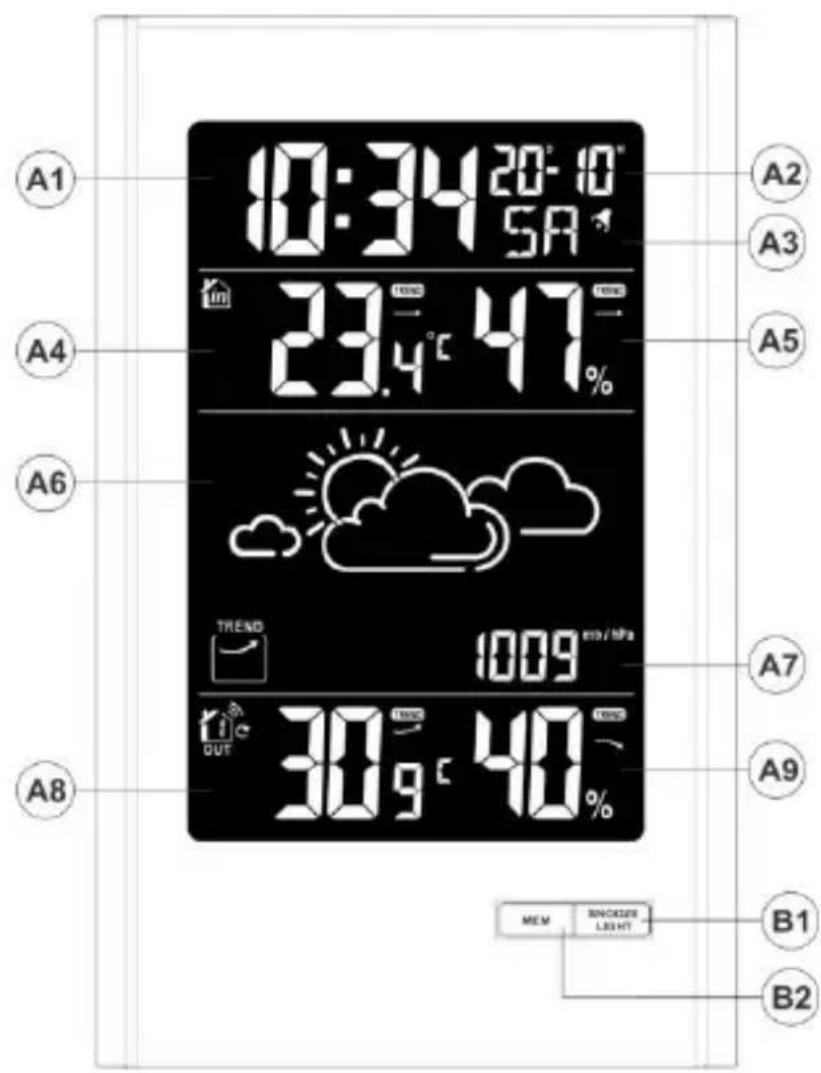
Appearance description: Station
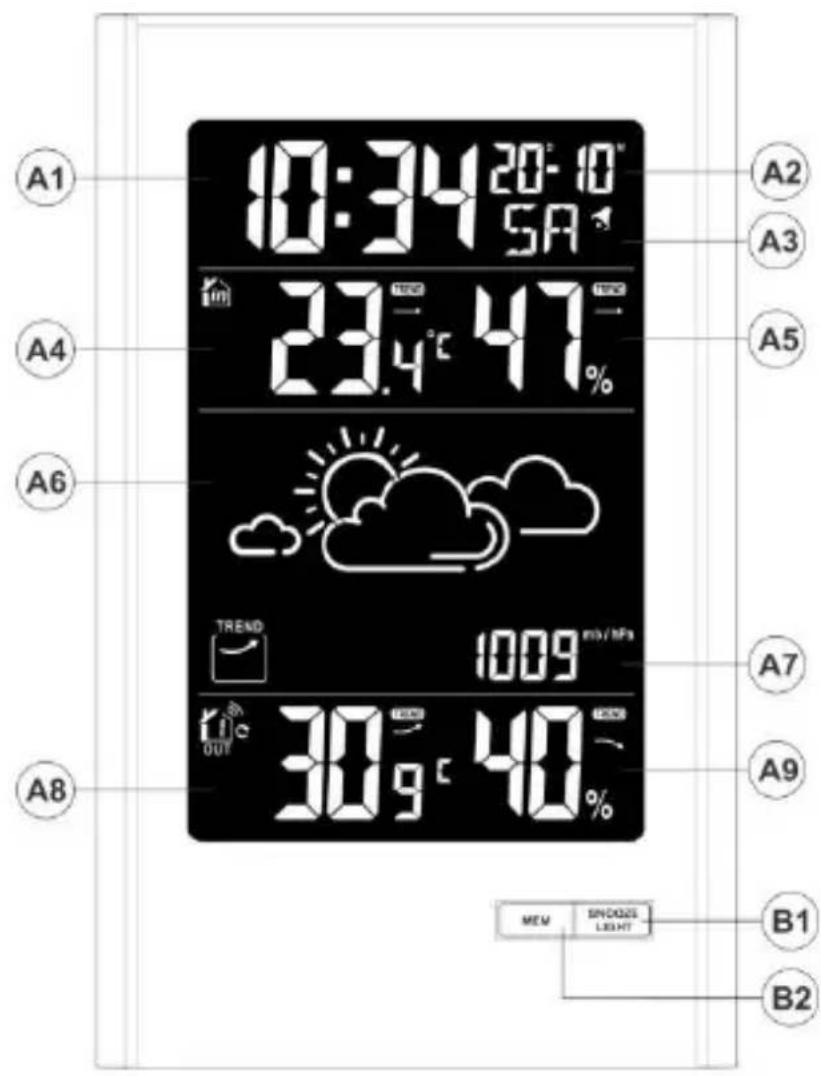
A1:Time
A2: Date (including alarm time)
A3:Week
A4:INDOOR temperature
A5:INDOORhumidity
A6:Weather forecast symbol
A7:Air pressure
A8:OUTDOOR temperature
A9:OUTDOORhumidity
B1:[SNOOZE/LIGHT] button
B2:[MEM] button
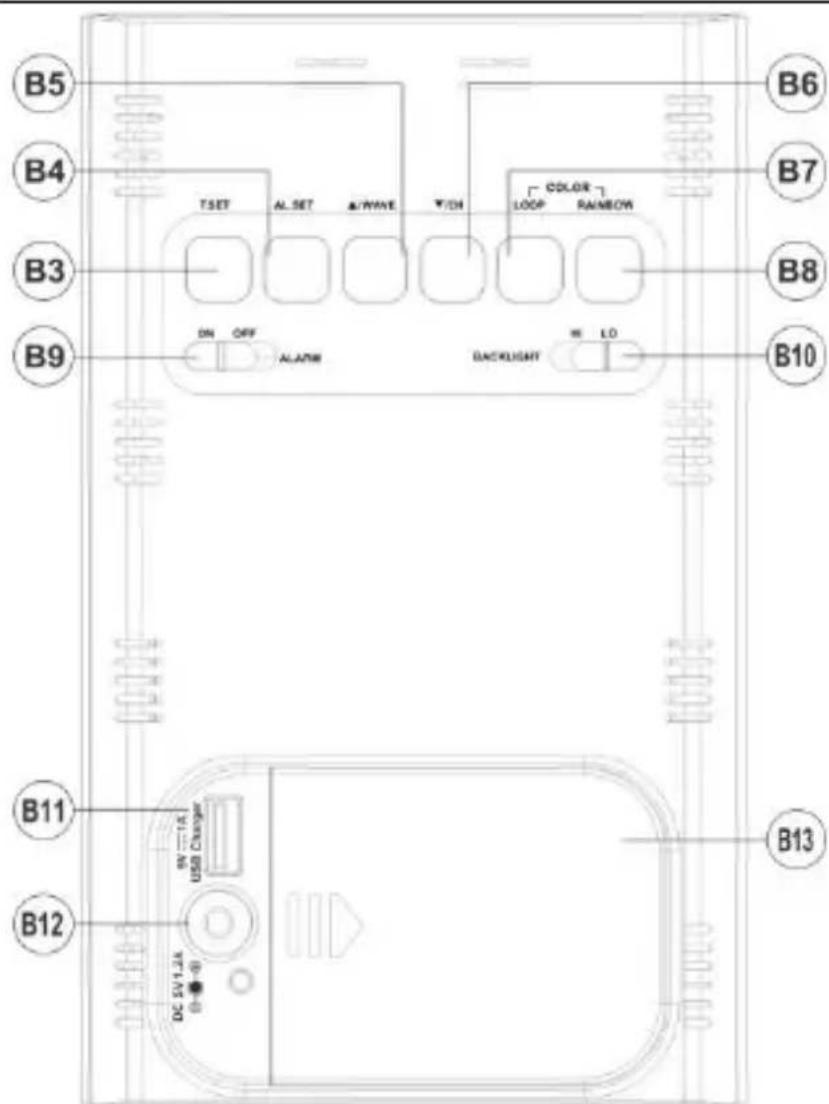
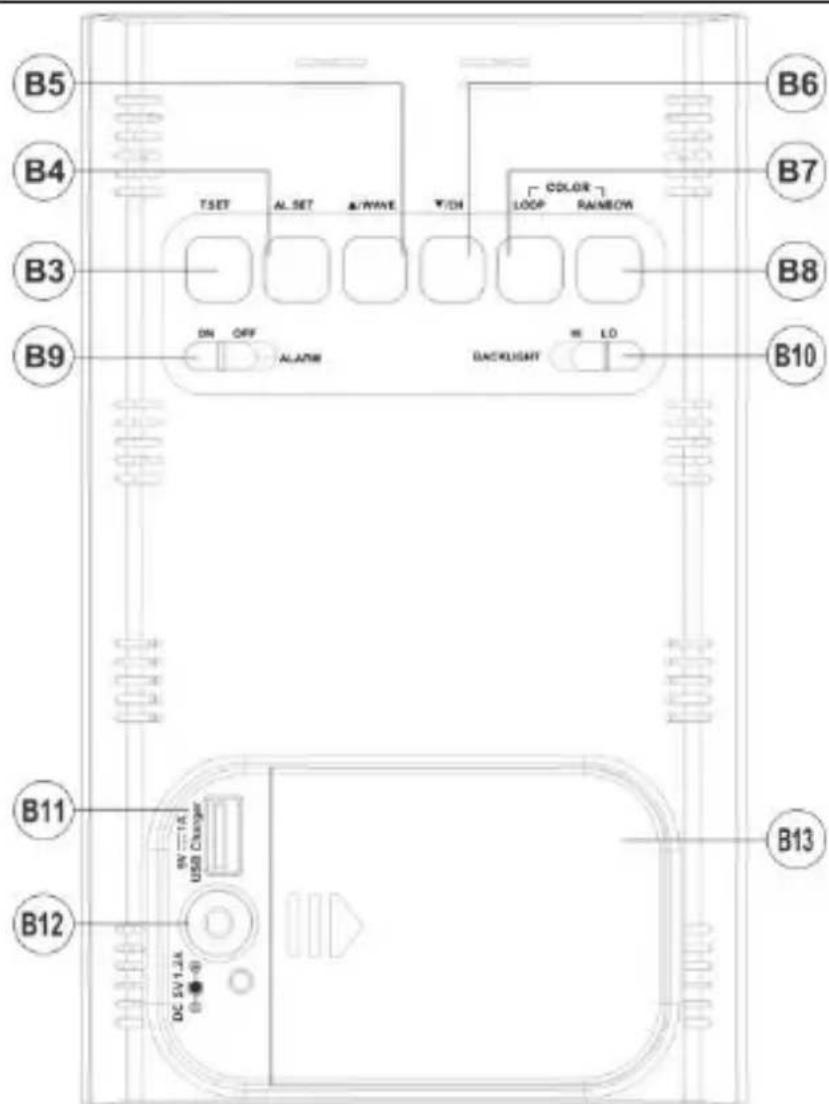
B3:[T. SET] button
B4:[AL. SET] button
B5:[▲/WAVE] button
B6:[▼/CH] button
B7:[COLOR:LOOP] button
B8:[COLOR:RAINBOW] button
B9:[ALARM:ON/OFF] switch
B11:USB power charging socket
B12:Poweradaptersocket
B13: Battery compartment
B10:[BACKLIGHT:HI/LO] switch
T1: Transmission indication lamp
T2: Wall
mounting hole
T3: Channel
switch
T4: Battery
compartment cover
T5: Reset button
Initial Operation :
- Open the weather station battery compartment cover.
- Insert 2 x AA batteries observing polarity [ "+" and "-" marks]. These batteries are intended as back-up for adapter.
- Insert the power adaptor and connect to the power socket
After power on, all icons on the LCD will briefly light up for 3 seconds, and you will hear a beep tone, and indoor temperature, air pressure and humidity will appear. - The weather station will now start to search for the wireless remote sensor. This operation takes about 3 minutes and RF antenna symbol " " will flash.
- Open the outdoor remote sensor battery compartment and insert 2 x AA batteries (observing polarity "+" and "-marks").
After receiver has received the remote sensor, it will then enter into the radio controlled time reception mode and the outdoor temperature and humidity data will be shown on the outdoor section of weather station.
Note:
After the main device powered on, RF will be switched on for 3 minutes. If the wireless remote sensor's signal is not received by the main device within 3 minutes, it will automatically enter the radio signal receiving.
Reception of the radio signal
- DCF: radio signals transmission tower is located in Frankfurt /Germany, radio frequency is 77.5 KHz, under ideal conditions, product can receive the radio signal to calibrate the time within a radius of 1500KM.
- When the product is receiving the radio signal, the radio mast icon " " will flash. The clock automatically starts the DCF signal search for about 7 minutes of any restart or changing of new fresh batteries.
After the DCF signal is received successfully, the radio mast icon " " will always show on the screen, while the product will automatically complete the time calibration.
At 1:00 /2:00 / 3:00 am, the clock automatically carries out the synchronization procedure with the DCF signal to correct any deviations to the exact time. If this synchronization attempt is unsuccessful (the radio controlled icon disappears from the display), the system will automatically attempt synchronization again at the next full one hour. This procedure is repeated automatically up to total 5 times.
- Manual DCF signal reception, you can press and hold down the “▲/WAVE” button for two seconds to manually receive. If no signals received within 7 minutes, then the DCF signal search stops (the radio controlled icon disappears) and starts again at the next full one hour.
- During RC reception, other button will have no operation function instead of "SNOOZE/LIGHT" button, press and hold down the "▲/WAVE" button for two seconds to stop radio signal searching and continue other setting.
Note:
- Display backlight color will change to blue while DCF signal reception is active.
- Radio reception is weaker in rooms with concrete walls (e.g.: in cellars) and in offices. In such extreme circumstances, place the system close to the window.
We recommend a minimum distance of 2.5 meters to all sources of interference, such as televisions or computer monitors
The adapter is located as far as possible from the product is larger than 0.80M, so the receiving effect is better. - During the RC receive mode, you are unable to perform other functions. If you want to carry out other functions of operation, please press "▲WAVE" button to exit the RC receiving mode.
Manual time setting:
- Press the "T. SET" button for more than 2 seconds, enter the setting mode, the first setting item is temperature unit, press "▲/WAVE" or "▼/CH" button to choose temperature unit ° C or ° F , press the "T. SET" button to confirm and convert to the next item.
- Enter air pressure unit setting, "hPA" will flash on the display, press "▲/WAVE" or "▼/CH" to choose air pressure unit "hPA"or"inHg", press the "T. SET" button to confirm and convert to the next item.
- Enter weather setting, weather will flash on the display, press“▲/WAVE” or “▼/CH” button to choose your current weather, press the "T. SET" button to confirm and convert to the next item.
- Enter week language setting, "GE" will flash on the display, press "▲/WAVE" or "▼/CH" button to choose week language, total 7 languages, press the "T. SET" button to confirm and convert to the next item.
Note: GE (German) EN (English) FR (French) IT (Italian) SP (Spain) DU (Dutch) DA (Danish)
- Enter year setting, "2016" will flash on the display, press "▲/WAVE" or "▼/CH" button to choose the current year, press the "T. SET" button to confirm and convert to the next item.
- Enter month setting, number beside "M" will flash on the display, press "▲/WAVE" or "▼/CH" button to choose the correct month, press the "T. SET" button to confirm and convert to the next item.
- Enter day setting, number beside "D" will flash on the display, press "▲/WAVE" or "▼/CH" button to choose the correct day, press the "T. SET" button to confirm and convert to the next item.
- Enter date format setting, "M" and "D" will flash on the display, press "▲WAVE" or "▼/CH" button to choose date format, press the "T. SET" button to confirm and convert to the next item.
Note: time zone 00 means Germany GMT + 1 time zone, if the local time zone is GMT + 2 , select 01. Time zone should be set correctly, or local time will be different.
- Enter time zone setting, "00" will flash on the display, press "▲/WAVE" or "▼/CH" button to choose the correct time zone from -02, -01, 00, 01 to 02, press the "T. SET" button to confirm and convert to the next item.
Note: when selecting the 12Hr time format, the PM logo will be displayed for the afternoon time, if not, it means the morning time.
- Enter time setting, enter the setting mode, "0:00" will show on the display and the first 0 will flash, press "▲/WAVE" or "▼/CH" button to set the hour and press "T. SET" button to confirm and continue minute time setting. Press "▲/WAVE" or "▼/CH" button to set the minute and press "T. SET" button to confirm and exit time setting.
Note:
In time setting mode, when the value is changed, second time will automatically start from 00 seconds.
-
Press and hold the “▲/WAVE” or “▼/CH button to speed up setting, so the operation can be accelerated.
-
No button operation for more than 30 seconds, it will automatically save the settings and exit the time setting mode.
Daily Alarm Setting
-
Press "T. SET" button to display date information or alarm time, when display alarm time, AL will show up.
-
Press and hold the "AL. SET" button for more than 2 seconds, enter the alarm time setting mode, the default alarm time is "6:30", when "6" flashes on the screen, press the "/WAVE" or "/CH" button to set the alarm hour time, press "AL. SET" button to confirm and switch to the next item.
-
Enter alarm minute time setting, when "30" flashes on the screen, press the "/WAVE" or "/CH" button to set the alarm minutes time and press "AL. SET" button to confirm and switch to the next item.
-
Enter alarm snooze time setting, the default snooze time is 5 minutes, symbol "ZZ" will be displayed on the screen, snooze time "05" will be displayed and flashing on the screen, press the "/WAVE" or "/CH" button to set the snooze time, after complete, press AL. SET "button to confirm and exit the alarm time setting.
Note: the snooze time setting range: 05 60MIN OFF, when set to OFF, means no snooze function. Snooze time unit is minutes.
During setup, you can press and hold the "▲/WAVE" or "▼/CH" button to speed up setting, so that the operation can be accelerated.
No button operation for more than 30 seconds, it will automatically save the settings and exit the time setting mode.
Alarm ON :
- Switch alarm "ON/OFF" button to "ON", alarm is activated and alarm icon "▲" shows on the display.
Stop Alarms :
- When alarming, the " → " icon will flash on the display. Press any button despite the "SNOOZE/LIGHT" to stop alarm ringing and the icon " " automatically stops flashing.
Note: alarm ringing time is 2 minutes.
Snoopze Function :
- When the alarm occurs, press "SNOOZE/LIGHT" to stop the alarm, the alarm symbol "..." and snooze symbol "ZZ" will flash on the display. It will alarm again after designated snooze time.
Note: When alarm "OFF", "SNOOZE/LIGHT" button does not have snooze function.
Displaying Temperature Humidity and Temperature Humidity Trend :
- The main device will automatically detect the temperature and humidity of its area every 1
minute and shows the value in the "column.
- When the wireless remote sensor is connected successfully to the main device, the temperature and humidity detected by the wireless sensors will be transmitted to the main device every 1
minutes and value will be shown on "column.
- At the same time, the main device will calculate the trend of temperature and humidity changes according to the INDOOR and OUTDOOR detected value, and display the temperature and humidity trends as below:
The temperature or humidity is rising.
The temperature or humidity is remaining constant.
The temperature or humidity is falling.
Note: if the main device detected or received temperature exceeds the display range, the value of the temperature will display "HH" and "LL", "HH" means the detected or received temperature higher than the display value, "LL" means the detected or received temperature below the display value (for INDOOR and OUTDOOR display range, please see the technical specification)
Wireless sensor transmission :
After the wireless sensor connected to main device successfully, the detected temperature and humidity value of the wireless remote sensor will be sent to the main device and shown in the
column, at the same time, wireless channel number will be displayed as well.
- The weather station can connect up to 3 wireless sensor channels, you can choose different
channel while toggle switches (CH1, CH2&CH3) on the main device. If icon " " shows up, means the wireless sensor had been connected to the main device successfully.
Note: When using multiple wireless sensor, you must choose different channels, if you choose the same channel, the main device can receive only one wireless sensor and other sensors in the same channels will not be received.
If the wireless sensor has no channel selection function, the sensor defaults to CH1.
Press“▼/CH” button to select different channel. When switching, the different values are displayed in the main device accordingly, and total up to 3 channels can be selected. When " " is displayed, the channel is automatically switched every 5 seconds.
If one of the channel temperature and humidity display "--" on the main device, and the symbol " does not show up which means the wireless remote sensor does not connect with the main device
correctly, press the “ /CH ” button for 2 seconds to re-connect the wireless sensor until out and “” show on the screen.
Note: when no wireless sensor is connected on the channel of the main device, "-" will be displayed in the temperature and humidity column while the symbol " " does not appear.
Maximum/Minimum Temperature:
- The main device automatically records the maximum and minimum values of temperature and humidity. You can press the "MEM" button to view the maximum and minimum values.
Press "MEM" button one time to view the maximum value and the symbol "MAX" displays.
Press "MEM" button two times to view the minimum value and the symbol "MIN" displays. - Press "MEM" button three times to return the current value.
- Holding the "MEM" key for 2 seconds, the main device will erase the maximum and minimum records of the temperature and humidity, temperature and humidity value will show "--" for 2 seconds then return to show the current value.
Frost Warning:
The main device receives the OUTDOOR temperature in -1.0 +2.9°C range, frost alarm sign
" " will be displayed and flashing to indicate the frost warning.
Air Pressure and Weather Forecast :
- The main device will detect the air pressure every 1 hour and display it on the screen. At the same time, the main device will calculate air pressure changing trend according to the current and past detected atmospheric pressure values then shown the "TREND" on the screen.
- The main device will predict the weather of the next 12 hours with the collected current and past measurements of air pressure and the temperature in its area then show the forecasts as below.
sunny
slightly cloudy
cloudy
rainy
snowy
Backlight Setting :
- Backlight color: Press the "COLOR: RAINBOW" button to set the color, total 8 colors for choosing.
- Backlight brightness: Push the "BACKLIGHT: toggle switch "HI/LO" to set high(HI) or low (LO) brightness.
- When the main device uses the battery as its power source, the display backlight needs to be lighted up by pressing the "SNOOZE/LIGHT" button, and backlight last for 15 seconds
each time.
- When the main device uses the power adapter as its power source, display backlight will be always lighted up, in this mode, press "COLOR: LOOP" button 1 time, the backlight will automatically change slowly, you can see more than 70 kinds of color change. Turn on and stop the function of color change by pressing the "COLOR: LOOP" button. You can also speed up the color change by holding down the "COLOR: LOOP" button. When the button is released, the backlight color automatically stops changing and lights up in the current color.
Note:
- When the main device uses the power adapter as its power source, it will automatically or manually enter the DCF time signal receiving, and when the radio wave is received, the backlight will be automatically switched off to prevent interference with the reception of the radio wave.
- Backlight color: white, red, orange, yellow, green, cyan, blue, purple. If the main device power is insufficient, the backlight color will have color difference which means you need to change battery or use the power adapter as soon as possible.
USB Charging Function :
- The USB socket on the back of the main device provides DC 5V 1A output power for handheld mobile device charging.
Hereby, Technotrade declares that this product WS 9060 is in compliance with the essential requirements and other relevant provisions of Directive 2014/53/EU and ROHS 2011/65/EC. The original EU declaration of conformity may be found at: www.technoline.de/doc/4029665090603
Environmental reception effects
The station obtains the accurate time with wireless technology. Same as all wireless devices, the reception is maybe affected by the following circumstances:
- long transmitting distance
- nearby mountains and valleys
- near freeway, railway, airports, high voltage cable etc.
- near construction site
among tall buildings - inside concrete buildings
- near electrical appliances (computers, TV's, etc) and metallic structures
- inside moving vehicles
Place the station at a location with optimal signal, i.e. close to a window and away from metal surfaces or electrical appliances.
Precautions
- This main unit is intended to be used only indoors.
- Do not subject the unit to excessive force or shock.
- Do not expose the unit to extreme temperatures, direct sunlight, dust or humidity.
- Do not immerse in water.
- Avoid contact with any corrosive materials.
- Do not dispose this unit in a fire as it may explode.
- Do not open the inner back case or tamper with any components of this unit.
Batteries safety warnings
- Use only alkaline batteries, not rechargeable batteries.
Install batteries correctly by matching the polarities (+ / - )
Always replace a complete set of batteries. - Never mix used and new batteries.
- Remove exhausted batteries immediately.
- Remove batteries when not in use.
- Do not recharge and do not dispose of batteries in fire as the batteries may explode.
- Ensure batteries are stored away from metal objects as contact may cause a short circuit.
- Avoid exposing batteries to extreme temperature or humidity or direct sunlight.
- Keep all batteries out of reach from children. They are a choking hazard.
Use the product only for its intended purpose!
Consideration of duty according to the battery law
Old batteries do not belong to domestic waste because they could cause damages of health and environment. You can return used batteries free of charge to your dealer and collection points. As end-user you are committed by law to bring back needed batteries to distributors and other collecting points!
Consideration of duty according to the law of electrical devices
This symbol
means that you must dispose of electrical devices separated from the General household waste when it reaches the end of its useful life. Take your unit to your local waste collection point or recycling centre. This applies to all countries of the European Union, and to other European countries with a separate waste collection system.
Description: Station
Note: Instruction manual in 8 languages
In addition to this printed user manual, you can download the user manual in 8 languages from the official website www.technoline.de .
- APPEARANCE DESCRIPTION: STATION
- INITIAL OPERATION
- NOTE
- RECEPTION OF THE RADIO SIGNAL
- MANUAL TIME SETTING
- DAILY ALARM SETTING
- ALARM ON
- STOP ALARMS
- SNOOPZE FUNCTION
- DISPLAYING TEMPERATURE HUMIDITY AND TEMPERATURE HUMIDITY TREND
- WIRELESS SENSOR TRANSMISSION
- MAXIMUM/MINIMUM TEMPERATURE
- FROST WARNING
- AIR PRESSURE AND WEATHER FORECAST
- BACKLIGHT SETTING
- USB CHARGING FUNCTION
- ENVIRONMENTAL RECEPTION EFFECTS
- PRECAUTIONS
- BATTERIES SAFETY WARNINGS
- CONSIDERATION OF DUTY ACCORDING TO THE BATTERY LAW
- THIS SYMBOL
Brand : TECHNOLINE
Model : WS 9060
Category : Weather Station