WS 6462 - Weather Station TECHNOLINE - Free user manual and instructions
Find the device manual for free WS 6462 TECHNOLINE in PDF.



| Product type | Wireless weather station with outdoor sensor |
| Brand | TECHNOLINE |
| Model | WS 6462 |
| Station power supply | 5V/600mA mains adapter (included) + backup batteries 2 x LR6 AA |
| Outdoor sensor power supply | 2 LR6 AA batteries |
| Display | LCD screen with backlight (3 brightness levels or can be turned off when on mains power) |
| Time reception | Radio-controlled DCF 77.5 kHz, automatic synchronization (1h, 2h, 3h) and manual |
| Indoor temperature range | -9.9 °C to +50 °C |
| Outdoor temperature range | -40 °C to +70 °C |
| Humidity range | 20% to 95% RH (indoor and outdoor) |
| Barometric pressure | 600 to 1100 hPa (display in hPa or inHg) |
| Weather forecast | Over 12 h: sunny, partly cloudy, cloudy, rainy, heavy rain, snowy |
| Moon phases | Automatic display of 8 phases |
| Alarm function | Daily with adjustable snooze (5 to 60 min or off), crescendo 2 min |
| Number of sensor channels | 3 selectable channels |
| RF range | 60 m in open space |
| Transmission frequency | 433 MHz, max power 10 dBm |
| Display modes | 12/24 h, calendar up to 2099, weekday in 7 languages |
| Weekday languages | German, English, French, Italian, Spanish, Dutch, Danish |
| Special functions | Indoor comfort index, temperature/humidity trend, temperature and frost alerts, min/max values |
| Included accessories | Outdoor sensor (1), mains adapter, user manual |
| Maintenance | Clean with a soft dry cloth; do not use solvents |
| Safety | Do not open, do not expose to water or shocks, observe battery polarity |
| Recycling | Device and batteries must not be disposed of in household waste; comply with local regulations |
Frequently Asked Questions - WS 6462 TECHNOLINE
User questions about WS 6462 TECHNOLINE
0 question about this device. Answer the ones you know or ask your own.
Ask a new question about this device
Download the instructions for your Weather Station in PDF format for free! Find your manual WS 6462 - TECHNOLINE and take your electronic device back in hand. On this page are published all the documents necessary for the use of your device. WS 6462 by TECHNOLINE.
USER MANUAL WS 6462 TECHNOLINE
Teil A- LCD/Anzeige
• Day of week in 7 languages user selectable: English, German, Italian, French, Spanish, Dutch and Danish
- Minimum/maximum display for air humidity and temperature
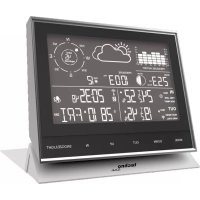
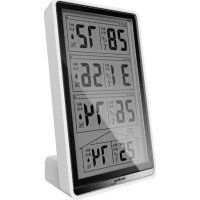
Weather Station Appearance
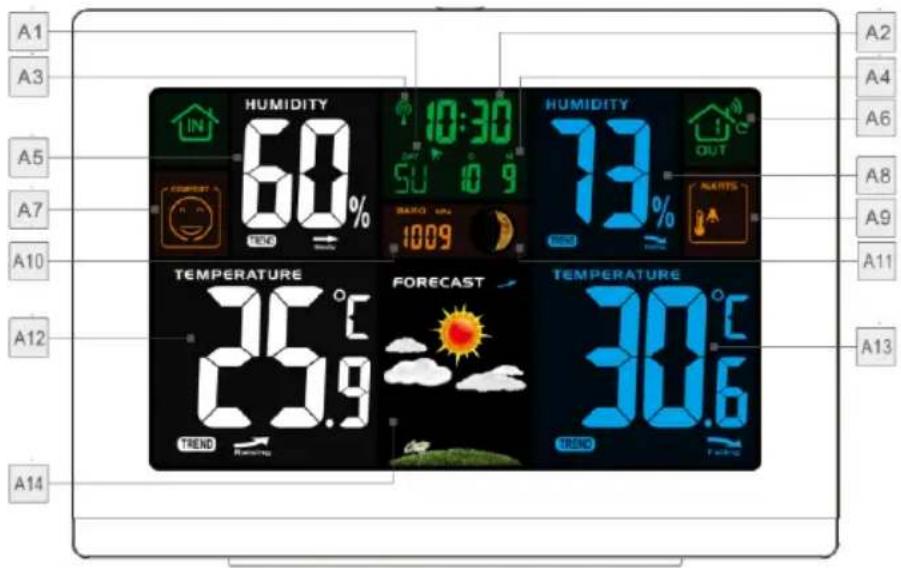
Part A-Positive LCD
A1: Weekday
A2: Time
A3: DCF& DST signal symbol
A4: Calendar or alarm time
A5: Indoor humidity
A6: Number of RF channels
A7: Indoor comfort
A8: Outdoor humidity
A9: Outdoor temperature alert
A10: Barometric pressure
A11: Moon phase
A12: Indoor temperature
A13: Outdoor temperature
A14: Weather forecast symbols
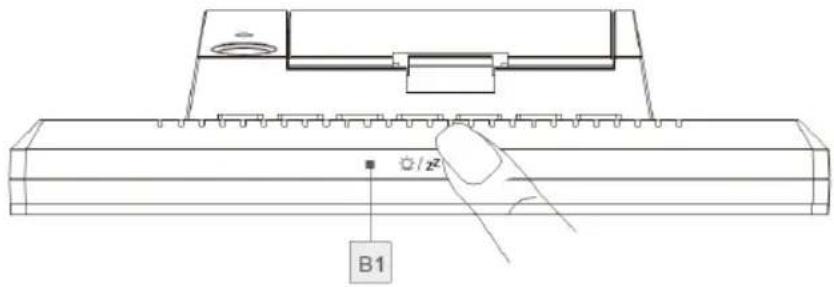
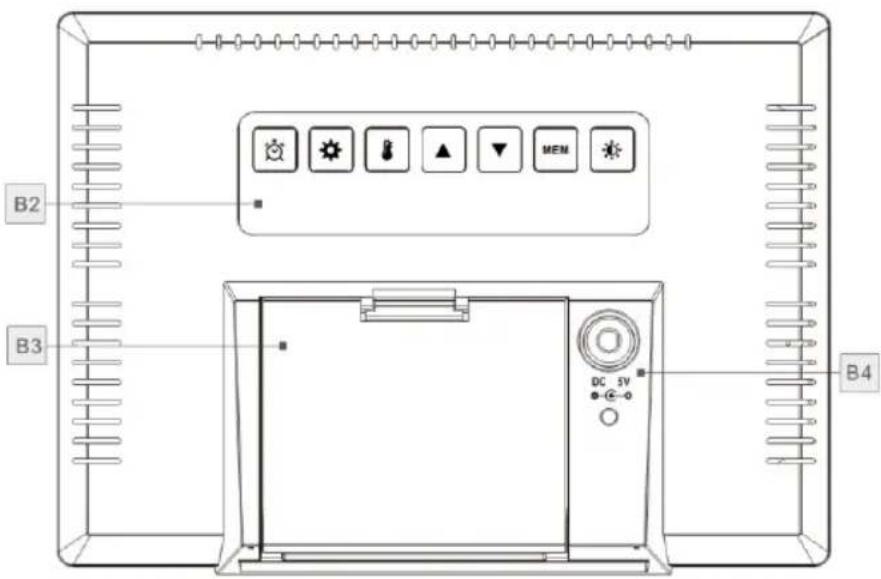
Part B – Back button and power
B1: "SNOOZE/LIGHT" touch field
B2: Keypad
B3: Battery compartment
B4: Power supply socket
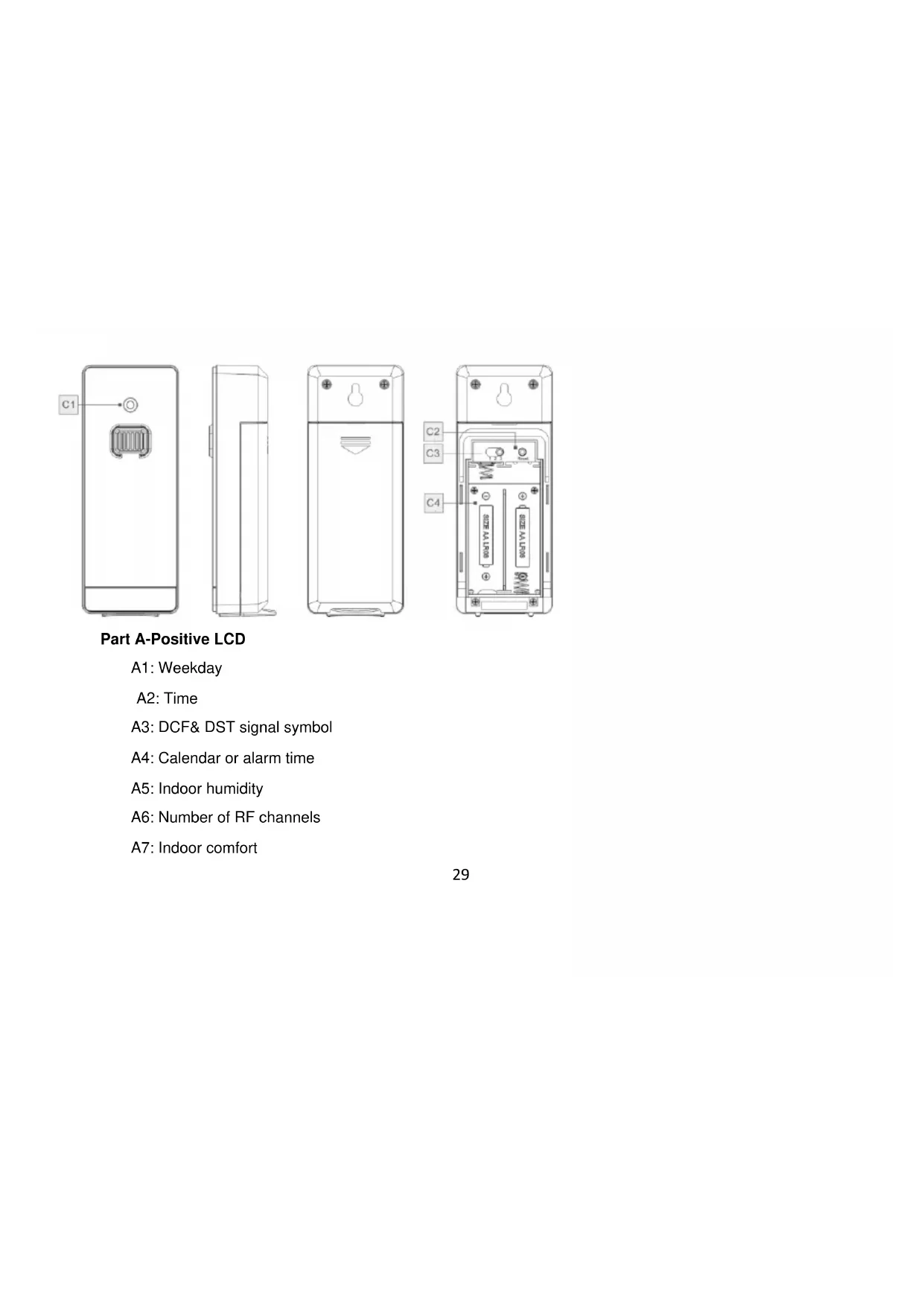
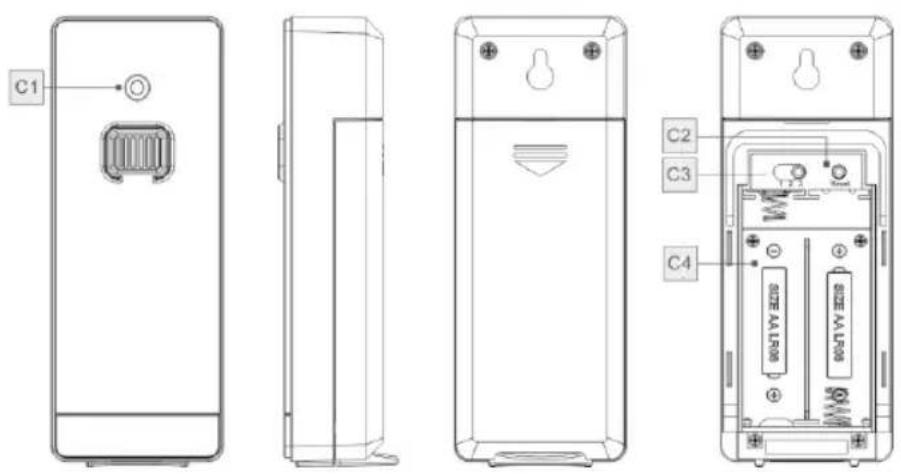
Part C – Wireless Remote Sensor:
C1: Transmit signal LED
C2: "RESET" button
C3: "CHANNEL 1 or 2 or 3" switch
C4: Battery compartment
Initial operation:
- Connect the station with the household socket by using the adapter. Only use the power supply unit included in the scope of delivery.
- When the station is powered, all icons on the LCD display will light up for 3 seconds, and you will hear a beep tone.
- The weather station will now start to make a connection to the outdoor remote sensor. This operation takes about 3 minutes and is displayed by a flashing reception RF antenna symbol in the “OUTDOOR” display area on the receiver.
- Remove the outdoor sensor battery compartment cover and insert 2 x AA batteries observing polarity [“+” and “−” marks]. Then close the battery compartment.
- After station has created a connection to the outdoor remote sensor, it will then enter the radio control time reception mode.
Optional: batteries for back-up
- Open weather station battery compartment cover.
- Insert 2 x AA batteries observing polarity [ “+” and “−” marks].
- Close the battery compartment.
Reception of the Radio signal:
- The clock automatically starts the DCF signal search after 7 minutes of any restart or changing of new fresh batteries. The radio mast icon starts to flash.
- At 1:00 /2:00 / 3:00, the clock automatically starts the synchronization procedure with the DCF signal to correct any deviations to the exact time. If this synchronization attempt is unsuccessful (the radio mast icon disappears from the display), the system will automatically attempt another synchronization at the next full one hour. This procedure is repeated automatically up to total 5 times.
- To start manual DCF signal reception, press and hold down the “▲” button for two seconds. If no signals received within 7 minutes, then the DCF signal search stops (the radio mast icon disappears) and start again at the next full one hour.
- During RC reception, to stop searching radio signal, press the “▲” button once.
Notes:
• A flashing radio mast icon indicates that the DCF signal reception has started
• A continuously displayed radio mast icon indicates that the DCF signal was received successfully
- We recommend a minimum distance of 2.5 meters to all sources of interference, such as televisions or computer monitors
- Radio reception is weaker in rooms with concrete walls (e.g.: in cellars) and in offices. In such circumstances, place the system close to the window.
- During the DCF reception mode, only the “▲” button function, other button operation have no function, If you want to carry out other functions of operation, please press “▲” button to exit the DCF reception mode.
Calendar / seconds display:
Press the “⚙” button once to switch between calendar and second display.
Manual time setting:
- Press and hold down the “⚙” button for 2 seconds, the unit of temperature display starts to flash. Press the “▲” and “▼” button to set the temperature of the unit, the unit of temperature can be set to “°C” or “°F”
- Press “★” to confirm your setting, the unit of pressure display starts to flash. Press the “▲” and the “▼” button to set the pressure of the unit, the unit of t pressure can be set to “hPa” or “inHg”
-
Press “⚙” to confirm your setting, the 12/24 hour mode display starts to flash. Press the “▲” and the “▼” button to set the correct 12/24 hour mode.
-
Press “⚙” to confirm your setting, the DCF icon display starts to flash, Press the “▲” and the “▼” button set the DCF reception function to activate(ON) or deactivate(OFF).
- Press “⚙” to confirm your setting, the time zones start to flash, Now use “▲” and “▼” buttons set a correct time zone (-12 to +12). For example, set time zone in Germany is 0, while the set time zone of -1 is needed in the UK.
- Press “⚙” to confirm your setting, the hour display starts to flash. Press the “▲” and the “▼” button to set the correct hour.
- Press “⚙” to confirm your setting, the minute displays starts to flash. Press the “▲” and the “▼” button to set the correct minute.
- Press “⚙” button to confirm your setting, the month and date icon display starts to flash. Press the “▲” and the “▼” button to set the date display on month/date or date/month.
- Press “⚙” button to confirm your setting, the year display 2014 starts to flash. Press the “▲” and the “▼” button to set the correct year.
- Press “⚙” button to confirm your setting, the month display starts to flash. Press the “▲” and the “▼” button to set the correct month.
- Press “⚙” button to confirm your setting, the date display starts to flash. Press the “▲” and the “▼” button to set the correct date.
- Press “⚙️” button to confirm your setting, the language selection for the weekday displays starts to flash. Press the
“▲” and the “▼” button to select a language.
| Language | Sunday | Monday | Tuesday | Wednesday | Thursday | Friday | Saturday |
| German, GE | SO | MO | DI | MI | DO | FR | SA |
| English, EN | SU | MO | TU | WE | TH | FR | SA |
| French, FR | DI | LU | MA | ME | JE | VE | SA |
| Italian, IT | DO | LU | MA | ME | GI | VE | SA |
| Spanish, SP | DO | LU | MA | MI | JU | VI | SA |
| Dutch, DU | ZO | MA | DI | WO | DO | VR | ZA |
| Danish, DA | SO | MA | TI | ON | TO | FR | LO |
- Press“⚙️” to confirm your setting and end the setting procedure.
Note:
• After 20 seconds without pressing any button, the clock switches automatically from set mode to normal time mode.
- Hold the “▲” or the “▼” button pressed to accelerate the setting procedure.
Setting the daily alarms:
- Press the “💡” button once and the alarm activation mode is displayed. In this mode, press the “💡” button to activate the alarm function, "ON" and the alarm icon “💡” are displayed. Press the “💡” button again to deactivate the alarm “OFF” is displayed and the alarm icon “💡” is no longer displayed.
- Press and hold down “💡” button for 2 seconds until alarm time hour display of the alarm time starts to flash. Use the “▲” and “▼” buttons to set the required hour.
- Press “💡” button to confirm your setting, the minute display of the alarm time starts to flash. Use the “▲” and “▼” buttons to set the required minute.
- Press “💡” button to confirm your setting, the snooze time of the alarm starts to flash. Use the “▲” and “▼” buttons to set the minute of snooze you need.
- Press "💡" button to confirm your setting and to end the setting procedure.
Notes:
- After 20 seconds without pressing any button the clock switches automatically from setting mode to Normal clock mode.
-
The alarm will sound for 2 minutes if you do not deactivate it by pressing any button. In this case the alarm will be repeated automatically after 24 hours.
-
Rising alarm sound (crescendo, duration: 2 minutes) changes the volume 4 times whilst the alarm signal is heard.
- The snooze time setting range: 5 \~ 60MIN, OFF, when set to OFF, means no snooze function. Snooze time unit is minutes.
Switching off the alarm signal
The alarm sound when the trigger, press any button except the “☀️ / z z ” button or hold the “☀️ / z z ” button for 2 seconds to stop the alarm signal.
Snooze function:
- Touch the “☀️ / zZ” field or press the “☀️ / zZ” button the alarm signal sounds to get to SNOOZE mode. After waiting for snooze time, the alarm signal will ring again.
- In snooze mode, press any button except the “☀️/zz” button or press hold the “☀️/zz” button for 2 seconds to exit the snooze mode.
Note:
When the snooze function is set to OFF, pressing " does not start snooze function.
Lunar phases and tide indicator:
The weather station has a display which automatically displays the current lunar phase
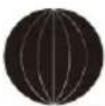 | 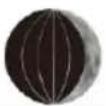 | 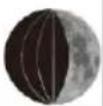 | 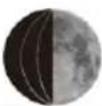 | 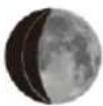 | 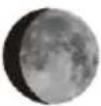 | 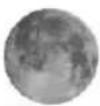 | 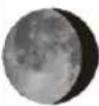 | 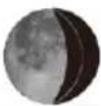 | 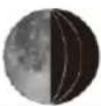 | 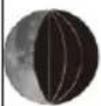 | 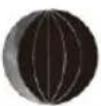 |
| New moon | Waxing half-moon | Half-moon | Waxing full moon | Full moon | Waning full moon | Half-moon | Waning half-moon | ||||
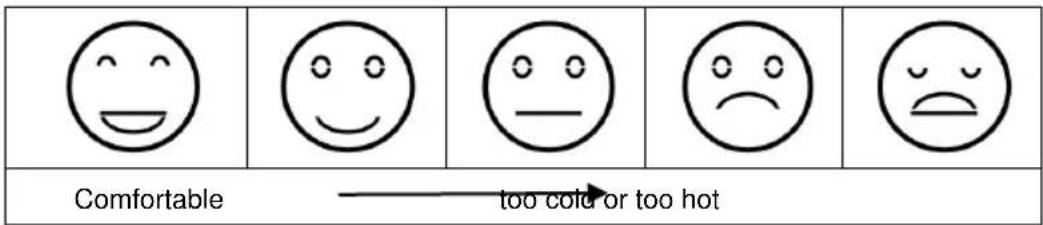
Comfort display
Indoor comfort level is calculated according to the indoor temperature and humidity, a total of 5 levels.
Displaying temperature/humidity/ barometric pressure and temperature/humidity trend
- The current indoor temperature/humidity/barometric pressure and the temperature/humidity trend (indoors) are shown in the LCD display.
- After successfully connecting with the outdoor sensor, the weather station can display the outdoor temperature/humidity and the temperature/humidity trend (outdoor)
- You may see the following displays:
The temperature/humidity is rising.
The temperature/humidity is remaining constant.
The temperature/humidity is falling.
RF Transmission Procedure:
- The weather station automatically starts receiving transmission from outdoor thermo sensor for outdoor temperature & humidity after batteries inserted.
- The outdoor sensor will automatically transmit temperature and humidity signal to the weather station after batteries inserted.
- If the weather station failed to receive transmission from outdoor sensor (“- -”display on the LCD), press and hold “▼” button for 3 seconds to receive transmission manually. RF icon “ ” flashes on the LCD, the weather station starts to receive the outdoor sensor.
Setting the channel
Please select a different channel for the outdoor sensor by pressing the “▼” button on the weather station. The relevant data is shown in the LC display:
- 1: Outdoor sensor channel 1
- 2: Outdoor sensor channel 2
- 3: Outdoor sensor channel 3
- Automatic channel change
Notes:
- The channel switch on the backside of outdoor sensor sets the channel on which the outdoor sensor data are transmitted.
- Hold “▼” button for 3 seconds to receive transmission on the selected outdoor sensor channel manually.
Maximum/Minimum Temperature/Relative Humidity
• To toggle indoor/outdoor maximum, minimum temperature and humidity data, press the "MEM" button:
Once to show the maximum temperature and humidity values.
Twice to sow the minimum temperature and humidity values
Three times to return to the current temperature and humidity levels
- To reset the maximum and minimum temperature and humidity, press and hold down the “MEM” button about 2 seconds. This will reset all minimum and maximum data recorded to the current displayed values.
Note:
If the temperature reading is below ranges, the LL.L will be displayed. If the temperature reading is above ranges, the HH.H will be displayed.
Outdoor Temperature alert setting
- Press and hold down the “⚡” button for 2 seconds until the icon for the temperature alert starts to flash
- The icon of upper limit of the temperature alarm starts to flash. Use the “▲” and “▼” buttons to set the required maximum temperature. Press “⚠️ to confirm your setting.
- The icon of the lower limit of the temperature alarm starts to flash. Use the “▲” and “▼” buttons to set the required minimum temperature. Press “💡” button to confirm your setting and to end the setting procedure
Temperature and frost alert
- Press “💡” button to activate or deactivate the remote temperature alert, When the remote temperature alarm is activated, the temperature alarm icon is displayed in the remote sensor bar
- When the remote channel temperature value exceeds the set temperature range, the temperature alarm will sound, at the same time the temperature alarm icon “♠” flashes, its temperature value and alarm upper limit icon “Hi” or lower limit icon “Lo” also flashes.
- When the temperature of outdoor sensor is -1°C (+30°F) to +3°C (+37°F), the frost alarm will be activated, the frost alert icon "ICE" flashing. The frost alarm acts independently from active or inactive temperature alarm.
Notes:
- When the temperature is higher than the upper limit of the alarm temperature setting, the activation of the upper limit alarm, symbol "Hi" flashing,
- When the temperature is lower than the lower limit of the alarm temperature, the lower limit alarm is activated, and the symbol "Lo" flashes
Low battery:
If the battery icon “☐” appears the batteries in the outdoor sensor should be replaced as soon as possible.
The weather forecast:
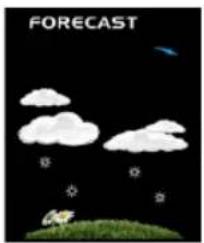
• The weather station calculates a weather forecast for about the next 12 hours based on the barometric pressure
trend.
- The weather station displays the following weather icon:
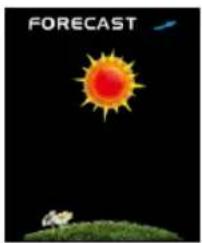 | 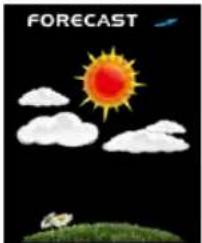 | 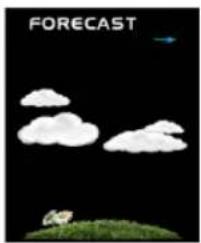 | 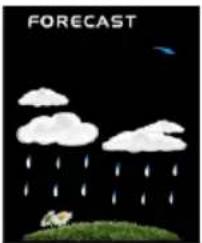 | 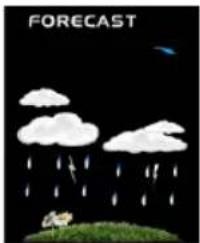 |  |
| sunny | slightly cloudy | cloudy | rainy | Heavy rainy | Snowy |
- The weather station can display the barometric pressure trend.
- You may see the following displays:
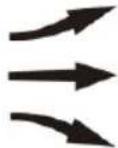
The barometric pressure will rise.
The barometric pressure will remain constant.
The barometric pressure will fall.
Background lighting
- If the product is powered by batteries, touch the “☀️/zZ” field or press the “☀️/zZ” button. Backlight lit 15 seconds.
- When the power supply of the product is inserted into the power supply adapter, the battery will automatically disconnect the power supply, and the backlight will always be on. Press the button to adjust the brightness of the backlight, you can adjust 3 different brightness levels and set the backlight off. When the backlight brightness is not at the maximum brightness, touch the “/zz” field or press the “/zz” button. Backlight turns to maximum brightness of 15 seconds.
Declaration of Conformity
Hereby, Technotrade declares that this product WS 6462 is in compliance with the essential requirements and other relevant provisions of Directive 2014/53/EU and ROHS 2011/65/EC. The original EU declaration of conformity may be found at: www.technoline.de/doc/4029665064628
Technical data
Barometric pressure:
Barometric pressure measurement ranges: 600hPa/mb (17.72inHg) to 1100hPa/mb (32.50inHg)
Pressure alternatively in hPa/mb or inHg
Humidity: indoor & outdoor measurable range: 20%RH \~ 95%RH
Temperature:
Indoor temperature measurement ranges: -9.9°C (15°F) to 50°C (122°F)
Outdoor temperature measurement ranges: -40°C (-40°F) to 70°C (158°F)
Temperature alternatively in °C or °F.
Wireless Outdoor Sensor:
Wall Mount or Table Stand
One Wireless Thermo Sensor Included
60 meters transmission range in an open area
Transmission frequency: 433 MHz
Maximum transmission power: 10 dBm
Power Supply:
Weather Station:
Battery: 2 x LR6 AA
Power Adapter: HX075-0500600-AG-001(included)
Wireless Outdoor Sensor:
Battery: 2 x LR6 AA
Environmental reception effects
The station obtains the accurate time with wireless technology. Same as all wireless devices, the reception is maybe affected by the following circumstances:
- long transmitting distance
• nearby mountains and valleys - near freeway, railway, airports, high voltage cable etc.
- near construction site
- among tall buildings
• inside concrete buildings
• inside moving vehicles
- near electrical appliances (computers, TV's, etc) and metallic structures
Place the station at a location with optimal signal, i.e. close to a window and away from metal surfaces or electrical appliances.
Precautions
- This main unit is intended to be used only indoors. The outdoor sensor is intended to be used outdoors.
- Do not subject the unit to excessive force or shock.
- Do not expose the unit to extreme temperatures, direct sunlight, dust or humidity.
- Do not immerse in water.
- Avoid contact with any corrosive materials.
- Do not dispose this unit in a fire as it may explode.
- Do not open the inner back case or tamper with any components of this unit.
Batteries safety warnings
- Use only alkaline batteries, not rechargeable batteries.
• Install batteries correctly by matching the polarities (+/-).
• Always replace a complete set of batteries. - Never mix used and new batteries.
- Remove exhausted batteries immediately.
- Remove batteries when not in use.
-
Do not recharge and do not dispose of batteries in fire as the batteries may explode.
-
Ensure batteries are stored away from metal objects as contact may cause a short circuit.
- Avoid exposing batteries to extreme temperature or humidity or direct sunlight.
- Keep all batteries out of reach from children. They are a choking hazard.
Use the product only for its intended purpose!
Consideration of duty according to the battery law
Old batteries do not belong to domestic waste because they could cause damages of health and environment. You can return used batteries free of charge to your dealer and collection points. As end-user you are committed by law to bring back needed batteries to distributors and other collecting
points!
Consideration of duty according to the law of electrical devices
This symbol means that you must dispose of electrical devices separated from the General household waste when it reaches the end of its useful life. Take your unit to your local waste collection point or recycling centre. This applies to all countries of the European Union, and to other European countries
with a separate waste collection system.
Note: Instruction manual in 8 languages
In addition to this printed user manual, you can download the user manual in 8 languages from the official website www.technoline.de .
- PART B – BACK BUTTON AND POWER
- PART C – WIRELESS REMOTE SENSOR
- INITIAL OPERATION
- OPTIONAL: BATTERIES FOR BACK-UP
- RECEPTION OF THE RADIO SIGNAL
- NOTES
- CALENDAR / SECONDS DISPLAY
- MANUAL TIME SETTING
- NOTE
- SETTING THE DAILY ALARMS
- SWITCHING OFF THE ALARM SIGNAL
- SNOOZE FUNCTION
- LUNAR PHASES AND TIDE INDICATOR
- COMFORT DISPLAY
- RF TRANSMISSION PROCEDURE
- SETTING THE CHANNEL
- MAXIMUM/MINIMUM TEMPERATURE/RELATIVE HUMIDITY
- OUTDOOR TEMPERATURE ALERT SETTING
- TEMPERATURE AND FROST ALERT
- LOW BATTERY
- THE WEATHER FORECAST
- BACKGROUND LIGHTING
- DECLARATION OF CONFORMITY
- TECHNICAL DATA
- ENVIRONMENTAL RECEPTION EFFECTS
- PRECAUTIONS
- BATTERIES SAFETY WARNINGS
- CONSIDERATION OF DUTY ACCORDING TO THE BATTERY LAW
- CONSIDERATION OF DUTY ACCORDING TO THE LAW OF ELECTRICAL DEVICES
- NOTE: INSTRUCTION MANUAL IN 8 LANGUAGES
Brand : TECHNOLINE
Model : WS 6462
Category : Weather Station