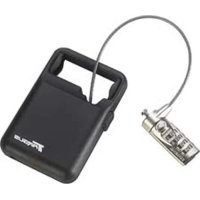
ASP03EU - Lock TARGUS - Free user manual and instructions
Find the device manual for free ASP03EU TARGUS in PDF.



| Product type | Retractable combination security cable lock |
| Brand | Targus |
| Model | ASP03EU |
| Cable dimensions | Approximately 1.8 m long |
| Lock dimensions | Approximately 30 x 20 x 15 mm |
| Weight | Approximately 200 g |
| Lock type | 4-digit adjustable combination |
| Material | Steel and plastic |
| Usage | Laptop with Kensington security slot |
| Package contents | Retractable security cable, lock, 3 spacer washers (1.6 mm, 0.8 mm, 0.4 mm) |
| Key features | Anti-theft protection by wrapping cable around a fixed object and locking to the computer |
| Additional features | Retractable cable, adjustable combination, security spacers for optimal fit |
| Default combination | 0000 |
| Care and cleaning | Clean with a soft, dry cloth |
| Security | Regular combination change recommended, robust locking mechanism |
| Spare parts and repairability | Not applicable, product not user-repairable |
| General information | 2-year warranty, technical support at targus.com/support |
Frequently Asked Questions - ASP03EU TARGUS
User questions about ASP03EU TARGUS
0 question about this device. Answer the ones you know or ask your own.
Ask a new question about this device
Download the instructions for your Lock in PDF format for free! Find your manual ASP03EU - TARGUS and take your electronic device back in hand. On this page are published all the documents necessary for the use of your device. ASP03EU by TARGUS.
USER MANUAL ASP03EU TARGUS
Features and specifications subject to change without notice.
© 2006 Targus Group International, Inc. and Targus Group (UK) Ltd.
A5POSE/4110070-0038
notebook security DEFCON
retractable
combination
cable lock

Targus
USERGUIDE
PMS Black
15%

PMS Black
100%
Table of Contents
English: 3
Deutsch: 12
Espanol: 21
Francais: 30
Italiano: 39
Nederlands: 48
Portugues: 57
TARGUS NOTEBOOK SECURITY DEFCON® RETRACTABLE COMBINATION CABLE LOCK
Thank you for purchasing the Targus Notebook Security DEFCON® Retractable Combination Cable Lock. The Cable Lock helps protect your valuable notebook computer from theft using a resettable four-digit combination lock. The resettable combination lock eliminates the need for keys and enables you to change your combination periodically for increased security.
In addition to this user's guide, this package contains:
-
Retractable Cable Lock
-
DEFCON® SecureSpacers
Setting the Combination
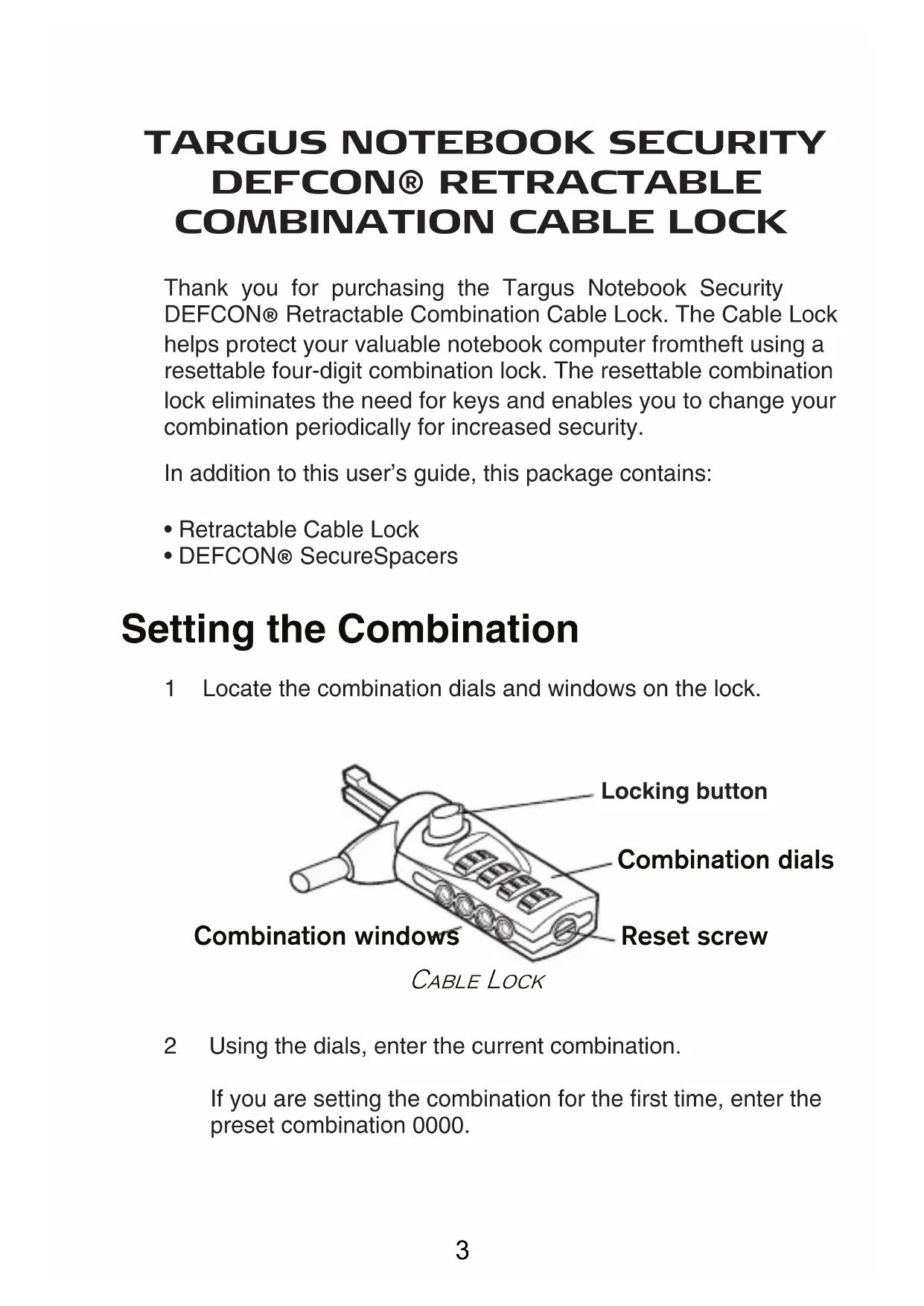
1 Locate the combination dials and windows on the lock.
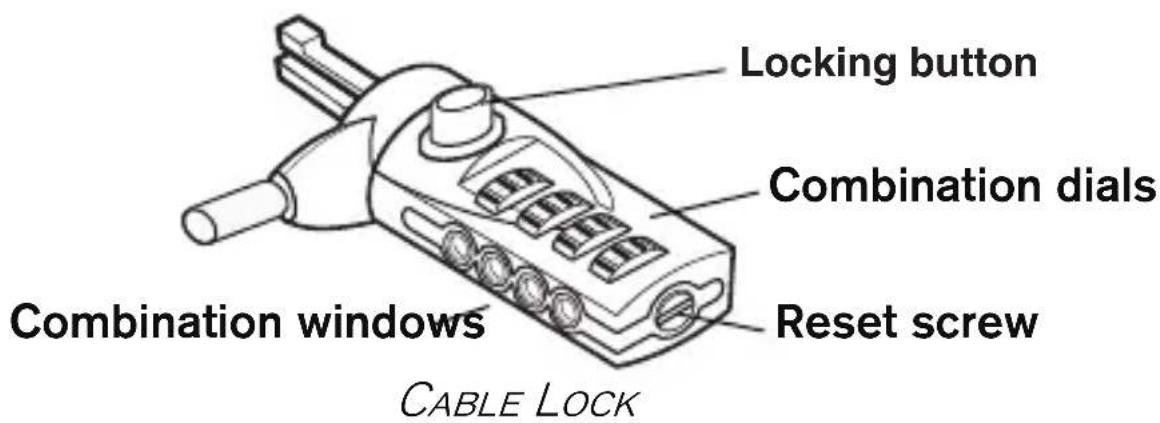
2 Using the dials, enter the current combination.
If you are setting the combination for the first time, enter the preset combination 0000.

WARNING: To use the Cable Lock or reset the combination you must set the lock to the current combination.
The combination appears in the windows.
3 Using a small flat-head screwdriver or similar object, push in and rotate the reset screw 90 degrees clockwise so that the screw's groove appears horizontal.
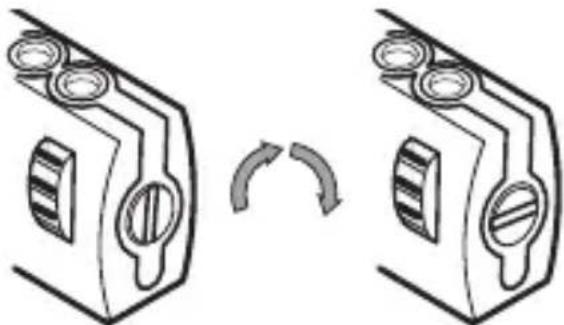
4 Using the dials, enter the new combination.
5 Rotate the reset screw 90 degrees counterclockwise, back to its original vertical position, to save the new combination.
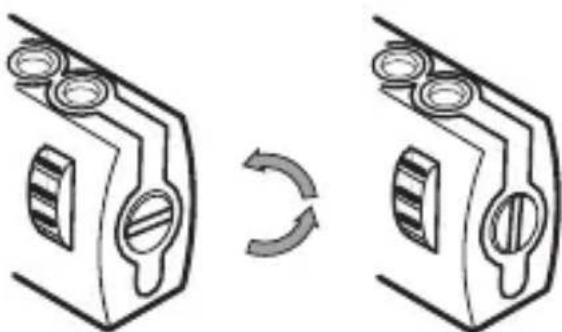
6 Record the combination in either the space provided at the end of this guide or another secure, easy-to-find place.
Testing the Combination
Before attaching the lock to your notebook computer:
1 Turn the dials to disguise the combination.
2 Return to the combination you set.
3 Check that the locking button (to the left of the combination windows) depresses completely.
Securing the Cable Lock
Select an object in the room to which you will secure your notebook computer with the Cable Lock.

NOTE: Choose a large, heavy piece of furniture such as a table or desk, or an immovable fixture such as a closet hanging bar.
1 Press the release button to extend the cable and wrap it around the selected object.
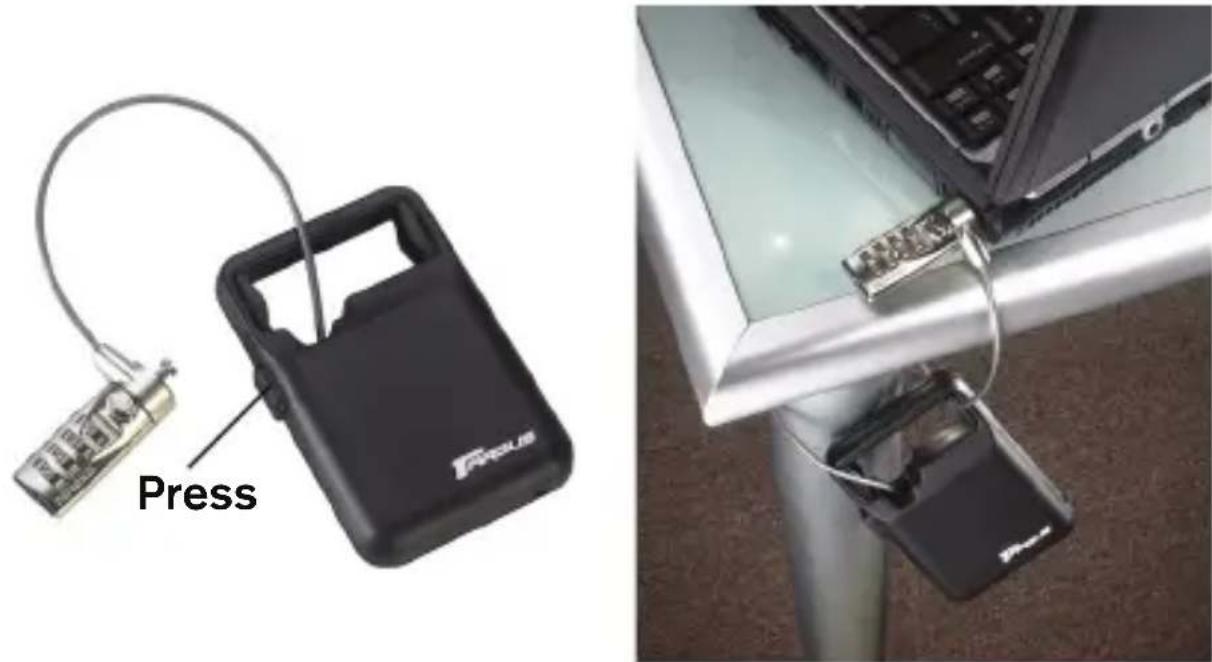

NOTE: Wrap the cable around a part of the object that will deter an intruder from slipping the cable off (for example, a table or desk leg with a cross bar or a drawer handle).
2 Feed the lock through the handle of the cable housing.
Locking the Cable Lock to your Notebook Computer
Using the dials, enter the correct combination. The combination appears in the windows.
2 Press and hold the locking button to align the locking teeth.

NOTE: For the locking button to depress completely you must enter the correct combination.
3 Insert the Cable Lock into your notebook computer's lock slot and release the locking button.

NOTE: Due to the variation in the size of the security slots on various notebook models, you may find that there is some slack between the lock and the computer. The supplied DEFCON SecureSpacer is the best solution for optimal fit and security.
4 Turn the dials to conceal your combination.
Using the DEFCON SecureSpacers
1 Insert your DEFCON locking device into the computer's lock slot.
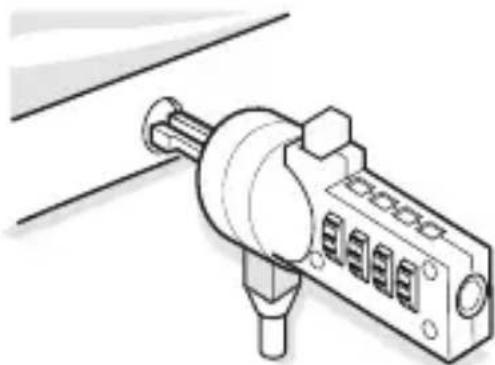
2 Pull the DEFCON locking device away from the computer and check whether the gap is excessive.
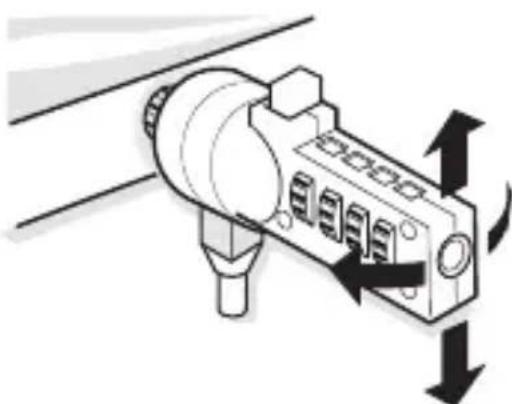
3 If so, try each of the SecureSpacers to determine which one fits the gap. The SecureSpacers come in three sizes: 1.6 ~mm, 0.8 ~mm , and 0.4 ~mm .

NOTE: DO NOT REMOVE THE ADHESIVE STRIP FROM ANY OF THE SECURESPACERS UNTIL YOU DECIDE WHICH ONE TO USE.
4 Once you know which SecureSpacer you are going to use, remove the locking device from the computer. Then remove the adhesive strip from the back of the SecureSpacer and attach the spacer to the DEFCON lock.
Unlocking the Cable Lock

WARNING: Do not attempt to remove the Cable Lock without using the combination. To do so will physically damage your notebook computer.
1 Using the dials, enter the correct combination. The combination appears in the windows.
2 Press and hold the locking button to realign the locking teeth.
3 Remove the Cable Lock from your notebook computer's lock slot.
Technical Support
For technical questions, please visit:
Internet http://www.targus.com/support.asp
English http://www.targus.com/uk/support.asp
German http://www.targus.com/de/support.asp
Spanish http://www.targus.com/sp/support.asp
Italian http://www.targus.com/it/support.asp
Our knowledgeable staff is also available to answer your questions through one of the following telephone numbers.
Austria 01 795 676 42
Belgium 02-717-2451
Denmark 45 35-25-87 51
Finland 922948016
France 01-6453-9151
Germany 0211-6579-1151
Italy 02-4827-1151
Netherlands 02 0504 0671
Norway 022577729
Portugal +351 21 415 4123
Spain 91 745 6221
Sweden 08-751-4058
Switzerland 01-212-0007
United Kingdom 020-7744-0330
Eastern Europe & others +31 0 20 5040671
Product Registration
Targus recommends that you register your Targus accessory shortly after purchasing it. To register your Targus accessory, go to: http://www.targus.com/registration.asp
You will need to provide your full name, email address, phone number, and company information (if applicable).
Warranty
Targus warrants this product to be free from defects in materials and workmanship for two years. If your Targus accessory is found to be defective within that time, we will promptly repair or replace it. This warranty does not cover accidental damage, wear and tear, or consequential or incidental loss. Under no conditions is Targus liable for loss of, or damage to a computer; nor loss of, or damage to, programs, records, or data; nor any consequential or incidental damages, even if Targus has been informed of their possibility. This warranty does not affect your statutory rights.
DEFCON is a trademark of Targus Group International. All other trademarks are the property of their respective owners.
Recording Your Combination
For your convenience, record your combination in the space provided. When recording the combination, read from left to right using the number closest to the locking button as the starting point.
Targus assumes no responsibility for lost, misplaced or forgotten combinations.
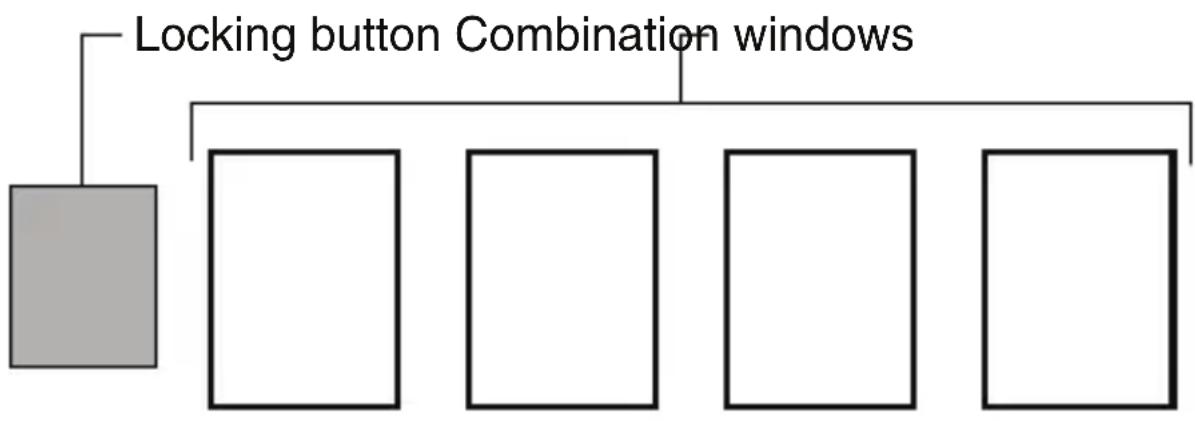
Cable Lock combination
TARGUS DEFCON © NOTEBOOKSCHLOSS, MIT EINZIEHBAREM KABEL
English http://www.targus.com/uk/support.asp
Italian 02 4827-1151
Niederlande 02 0504 0671
Norwegen 022577729
Italian http://www.targus.com/it/support.asp
Inglese http://www.targus.com/uk/support.asp
TARGUS DEFCON® INTREKBARE KABELSLOT
Alemão http://www.targus.com/de/support.asp
Espanhol http://www.targus.com/sp/support.asp
Italiano http://www.targus.com/it/support.asp
- USERGUIDE
- Table of Contents
- TARGUS NOTEBOOK SECURITY DEFCON® RETRACTABLE COMBINATION CABLE LOCK
- Setting the Combination
- Testing the Combination
- Securing the Cable Lock
- Locking the Cable Lock to your Notebook Computer
- Using the DEFCON SecureSpacers
- Unlocking the Cable Lock
- Technical Support
- Product Registration
- Warranty
- Recording Your Combination
- TARGUS DEFCON © NOTEBOOKSCHLOSS, MIT EINZIEHBAREM KABEL
- TARGUS DEFCON® INTREKBARE KABELSLOT
Brand : TARGUS
Model : ASP03EU
Category : Lock