USER MANUAL Pixma TS6540i CANON
Canon TS6500i series
PykoBoDCTBO NO HaayaIy pa60Tbl
Poci6HnK dIy noaTkU pO6OTn
Getting Started
Démarrage
KymbICTbi 6aCTay

B nepByo oupepb npouTnTe DokymeHT HhOpMaun o 6e3onachoctn n BaXhbie CBeHn (npnoJKeHne).
Cnepuy npouHTaTe DOkymeHT Inphiopmaia 6oDo 6e3neKn BaxnBi BiOMOci (doataK).
Read Safety and Important Information (addendum) first.
Connecting to a Computer, Smartphone or Tablet.. page 6
1 OtkpoIte MoIyIb cKaHIpOBaHnIa / KpbIshKy.
A OctopoxHo!
He npikacaiTecb K depkaTeIy cheHnIbHoro KapTpudka do ero nonHOJ octaHOBKn.
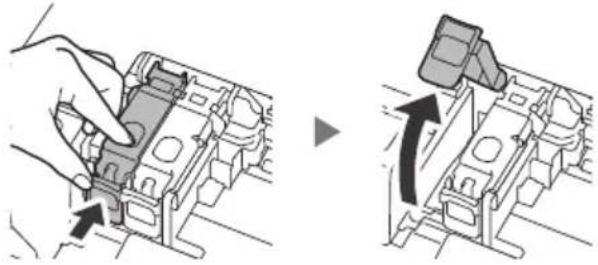
2 PnKMMTe n OTKpoIe fNkCnpyUOkyo KpbIuKy YepHnIbHOrO KapTpua CneBa.
3 N3BLeKeITe UBeTHoYepeHnJIbHbI KapTpIaJxN3 yNaKOBKn IydaJInte opaHKeByIOJeHTy.
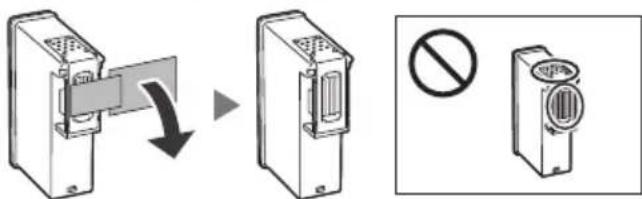
Bhimahne!
He kacaTecb cheHnHa opaXkeBOnJeHTe. OHmOryT 3anaKATb Baun pyKn nn OkpyKaIOuIne npedMetbl.
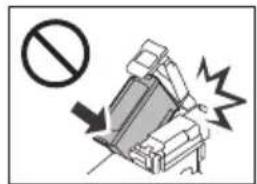
He kacaiTecb 6bacte, noka3aHHbIX Ha pncyHke. B npotNBHom cnyae npHTep moxet pa60TaB He npabnblHO.
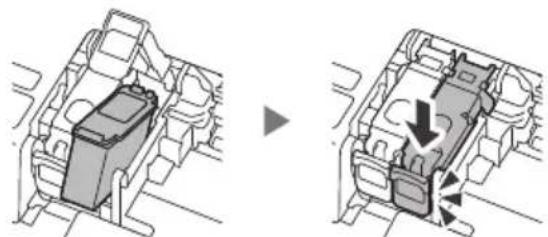
4 BcTaBbTe UBeTHoH YepHnIbHbI KApTpNIX B DePkaTeIb YepHnIbHOKapTpNIXa.
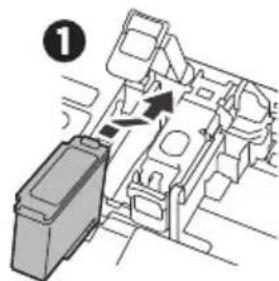
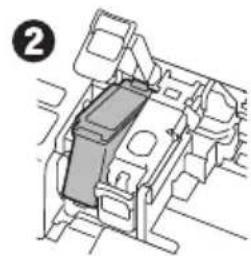
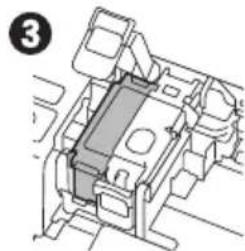
BHMaHne!
He ydapnTe cheHnIbHbI KApTpIaX. 3To MoXeT npBecTn K OwN6kam B pa6Ote.
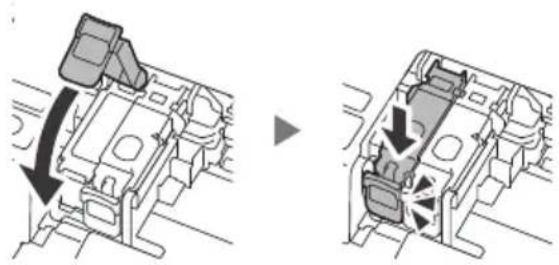
5 IpnKmTe fNkCnpyuOyU KpbIshky cepHnIbHOrO KapTpua Do ynpa, noka OHa He 3aKcnpyeTc Ha MeCTe H He 3aKpoETc NOHOCtBu.
6 IOBTOPTe DeiCTBn 2-5 n yCTaHOBnTe YepHbI YeepHnIbHbI KapTpndx Cnpaba.
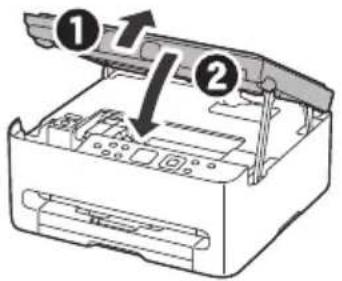
7 3aKpoITe MoIyIb cKaHIpOBaHnI / KpbIiKhY.
Ecnn cnerka npinnoHnTb n OTnyCTnTb MOyIb cKaHnpOBaHn / KpbIuKy, OH(a) 3akpoetc caMOCToTeNbHO.
5. 3a rpy3ka 6ymarn
1 Haxmte KhoNky OK.
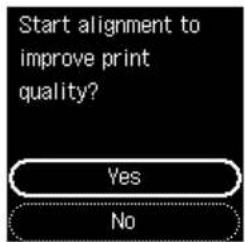
2 13BneKeTe Kaccety n3 npHTepa.
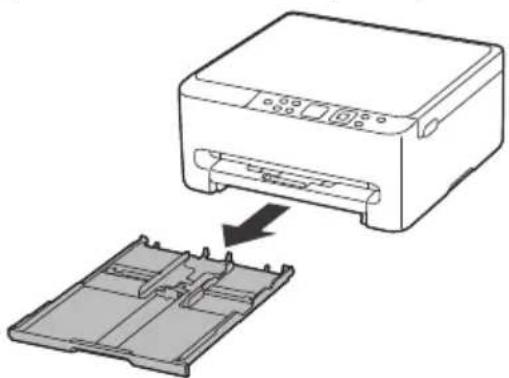
3 Pa3dBnHbTe HappaBnaIooJe 6ymar.
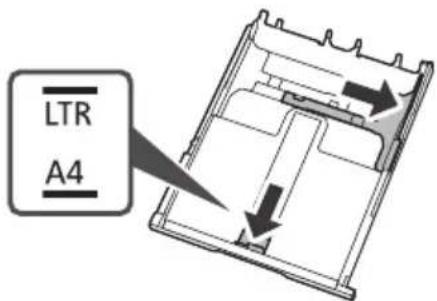
CdbnHbTe npaByIO HaPaBnaIooyIO 6ymarN K npabomy kpaio. CoBmecntte nepeDHO HapBaBnaIooyIO 6ymarN c MeTKoJ Letter nnA4.
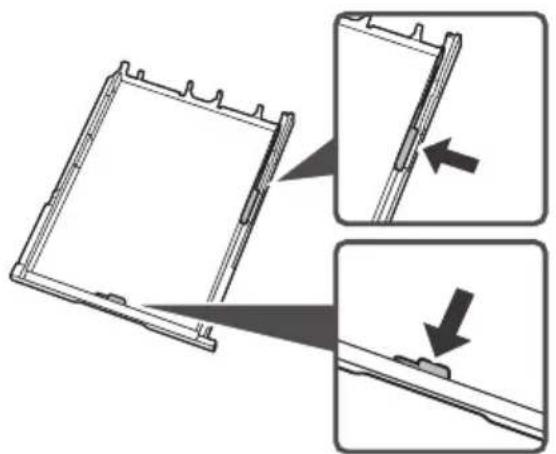
4 3arpy3nte o6bHnyo 6yMa r y fOpMaTa Letter nn A4.
Pa3mecnte 6yumary BnnotHyIO K nepeDneHnHa npabnaIooi e 6ymarN n nepeDbHbTe npabyo Ha npabnaIooIyO 6ymarN B COOTBETCBN C uipnHO6ymarn.
5 YcTaHOBnTe Kaccety Ha MeCTO.
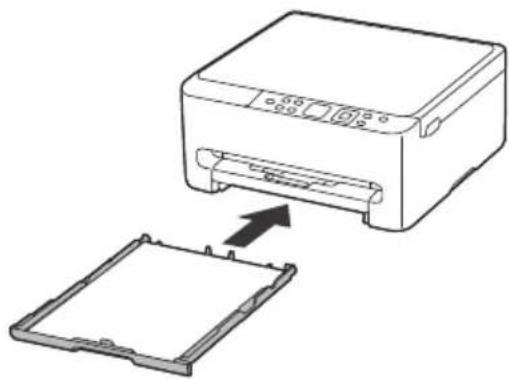
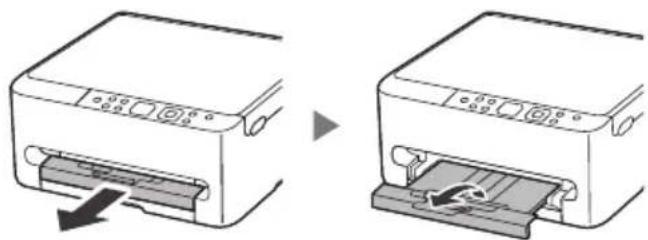
6 BbIDBnHbTe IOTOK npneMa 6ymaru.
Calibrating printer for optimal print quality. Do not remove the paper. About minutes
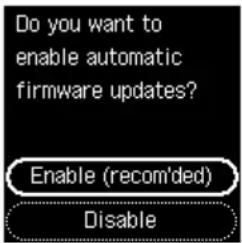
7 BbI6epnTe BKnIOU. (peKoMeHd.) (Enable (recom'ded)), a 3aTeM HaxMMTe KHOJKy OK.
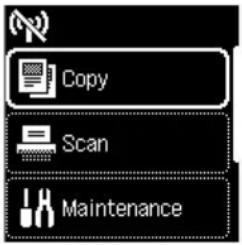
8 y6eHntecb, yTO oTo6paKaetcnaK3aHHbI HnKe 3KpaH.
Bb6epnte MeToI NOKJIIOUeHnI, KOTOpB IyUWe Bcero COOTBeTCTByeT 3aDaUam NcNoJb3OBaHnI npInHTepa.
He TopKaITeCra TpImaHa KaTpPnDJa 3 YOpHInOM, DOKN BIN He nepeCTaHe pyXaTncr.
2 3aTnCHiB DbOMa nalbuaMn N BiKpnIte KpNkU φikcaii KapTpndXIB i3 YOpHnIom IIBOPuy.
3 BntaHitb KoIbOpOBn KaTpnpJx i3 yOpHInOM 3 yNaKOBKn Ta 3HimiTb KOBTOrapAry CtpiKy.
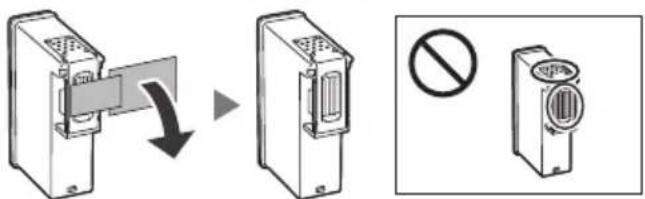
BaxklnBo
He TopkaTecaOpHnHa Ha XOBToRapayi Ctrpu BoHO MoKe 3a6pydHHTBaui pyKn a6o HABKOnuHi npedmetn.
He TopkaItecO6naTei,IO no3HaueHi Ha MaJIIOHKy.IHaKWe npINTeP MoXe dpyKyBaTn HeHaJIexKHM YINOM.
4 BCTaBTe KOJIbOpOBn KApTpIaJx i3 YOpHInOM y TpIMaU KaPtpIaJka 3 YOpHInOM.
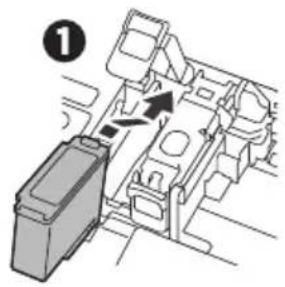
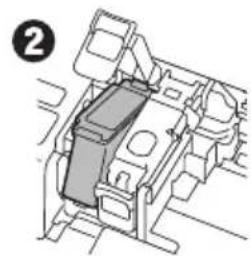
BaxkJIuBO
He BapnTe KapTpIaX i3 OOpHInlOM. Taki II MOKyTb npn3BecTu Do Ioro HeCnpaBHOCTi.
5 IpnTnCHiTB KpnIg Ky fikcaqii KapTpIgKIB i3 YOpHnIOM i3 CnIO, DOKN BOHa He 3aΦIKCyETbCnHa Mlcu, Uo6 3akpITn II NOBHiCTIO.
6 Повторь кроки 2-5 i BCtaHOBiTBЧорни Kaptrudж i3 ChopнлOM npabopyu.
7 3aKpnIte MoDyIb cKaHyBaHHa / KpNShKy.
KIO TPOXNIiHnB ViNcyTNTMOyNbCKaHyBaHH/ KpNsKy,BOH3aKPNOTbCamaI.
5. 3aBaHTaJxHnHa napepy
1 HaTnchItb KhoNky OK.
2 BnIMtB kaceTy 3 npHTepa.
3 Po3cyHbTe HnnpMnKn dIy nanepy.
NocyhTe npaBn HaprMnK dIy napepy Do npaboro kpaIO. BnpiBnaTe nepeHni HaprMnK dIy napepy 3a no3HaKO Io Letter a6o A4.
4 3aBaHTaxTe 3BnuaHn nnip oopMaTy Letter a6o A4.
PozmiTiB nanip BnpiTuJ do nepeHbOro HanpMnka dJa nanepy N BnpiBnTe npaBn HanpMnK dJa nanepy 3a unpHoIO nanepy.
5 BcTaBTe KaceTy Ha Micu.
6 BntaHitb IOTOK BnBeDeHH naepy.
Calibrating printer for optimal print quality. Do not remove the paper. About minutes
7 Bn6epiTb nyHKT YBIMK. (pekomeHdoB.) (Enable (recom'ded)), a NOTIM HaTnCHiTb KHONKy OK.
8 MaOOB'RAKOBO 3'ABNTNcHabeHn HxKye ekpaH.
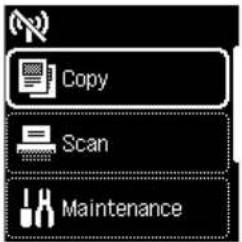
Bn6epitbHaonntmamhhiin cnoci6 niKIOUeHHaJIeXHO BID TORO,AK BNKOpNCTOByBaTMETbcn pInHTep.
BnKOpncTaHn npntepa 6e3 nikNoyeHHn do iHnx npnstpoB
HactpoIOBaHHaBepseHo.
- Κιοδ BικόριστΟγΒατη πρινήτερ i3 πιδύημενιν KOMπ'IoTeροΜ a6o cMapTΦOHOM
→ПерейдьdoHaCTynHoiCTOpiHKn.
6.Пдклоченяdo komп'tepaabo cmaptfoha
Якwo BnKOpNCTOByeTbCk KInbKa KOMn'IOTePIB a6o CMaprfoHIB, BnKOHaIte zu KpOKn Ha KOxHOMy npuctpoi.
BnKoHyTe zi diTakox, 06doatn HOBn KOMn'IOtep a6o cMaprfoH nn 3amHHTn nOTOHN niKJIuOeHn npncpti.
1 Ipeeniditb npraMo Ha caT Canon. Notpe6n B nouky Hemae.
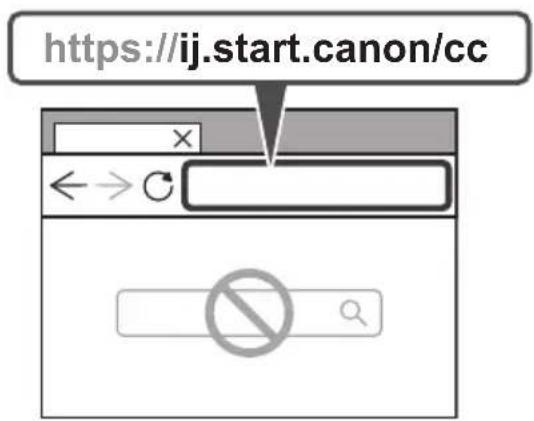

2 DToPmMyTeCnHCTpyKci, kI 3'ABnTmYbCnHa ekpaHi.

PnmuItka
KIO He BdaTbca NiKIOUHTn npHTEp Do KOMNIOTEpa a6o cMapTfoHa (npO6Iema 3 Mepexeio), nB. OhnaHOBn Noci6Hnk.

BnKOpncTaHHaKomnaKT-ndcKa 3 npOprpaMOU BCTaHOBneHHA
1.ДычклauchihbEasySetup.exeHaekpaHl,I03'ABNTbcra
2.Якso 3'яВиТбСЕКран ВИБОу npиHTepa,ВИБерiTb TS6540i. 阿Kso BINO6pa3NTbCЯEkpaH BCTaHOBJIeHHHaTINCHITbДani (Next).
3.ДotpimmyTeca iHCTpyKciu,як 3'ЯВЯТMuYbCraHa ekpaHI.
Setting Up the Printer
1. Box Contents
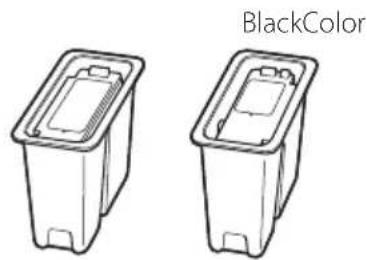
Power Cord
- Setup CD-ROM
- Safety and Important Information
- Getting Started (this manual)
2. Turning on the Printer
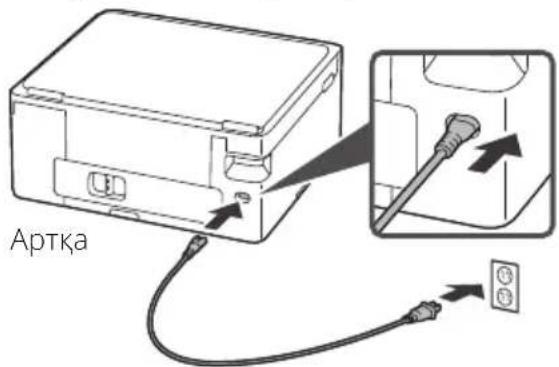
1 Connect the power cord.

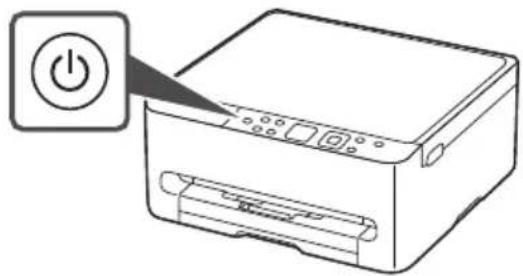
2 Press the ON button.
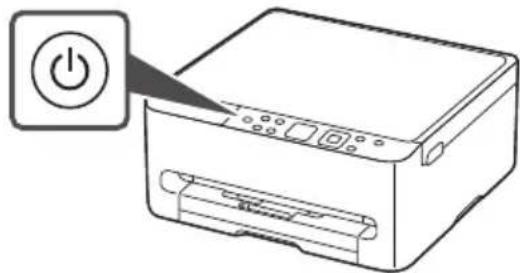
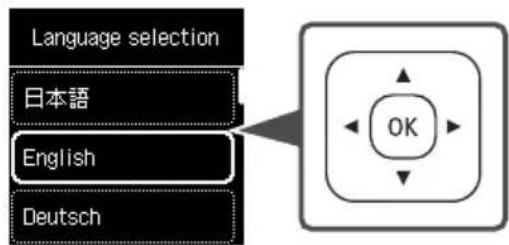
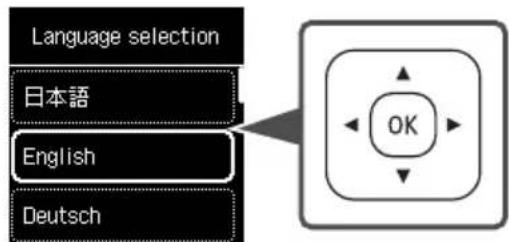
3 Use the and buttons to select a language, and then press the OK button.

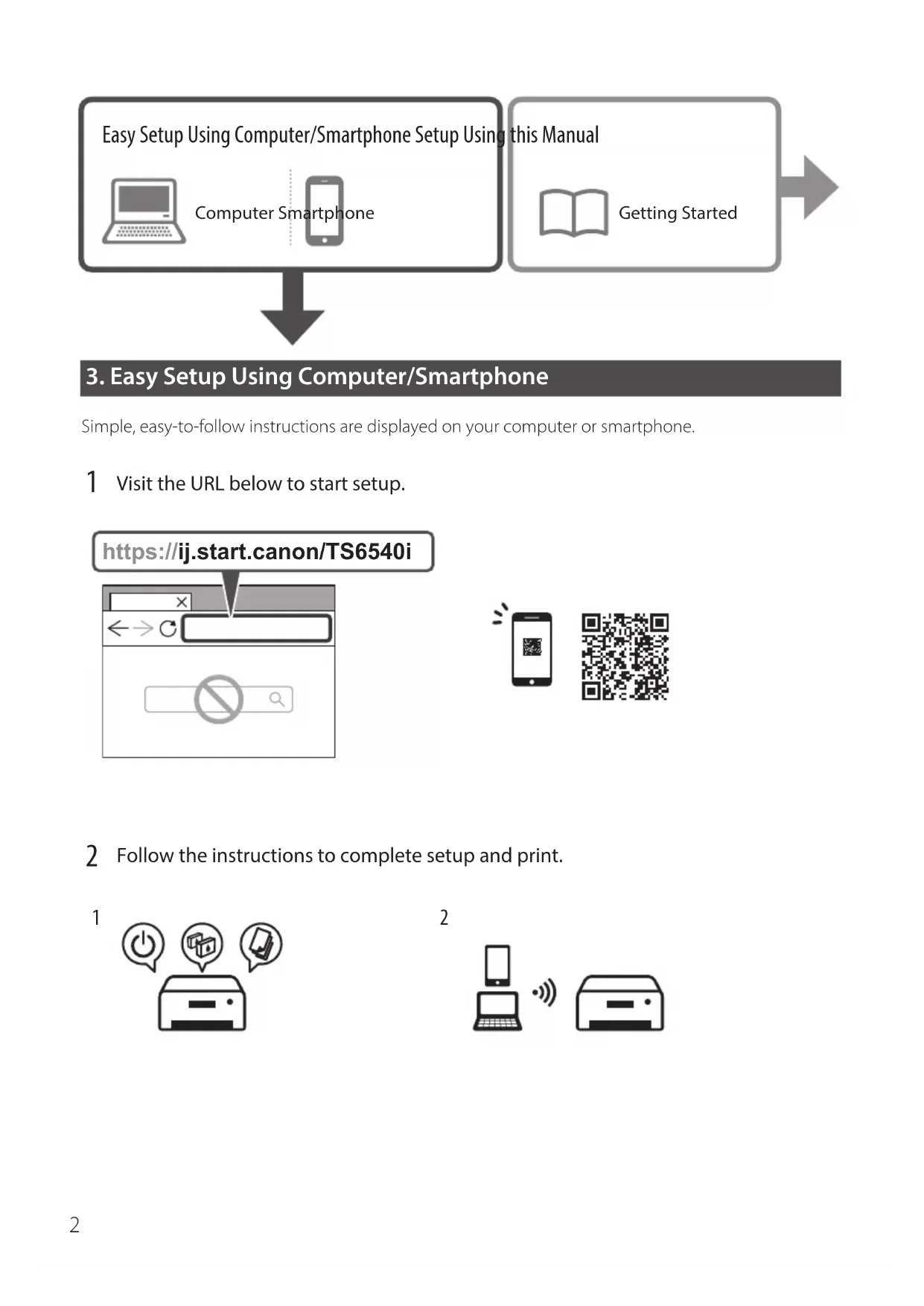
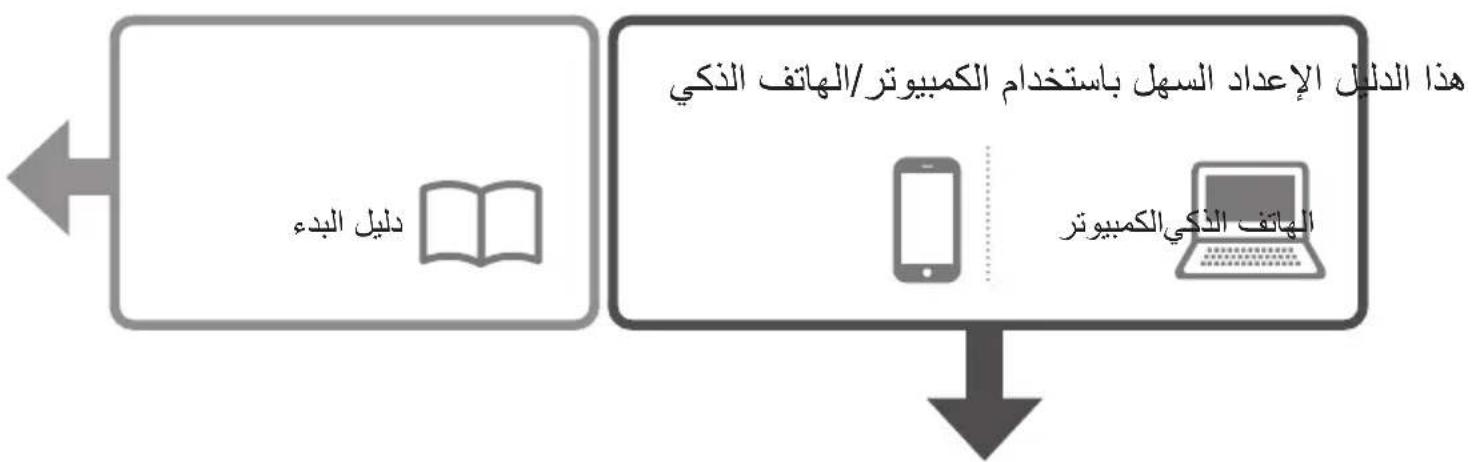
3. Easy Setup Using Computer/Smartphone
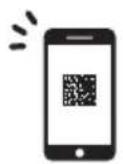
Simple, easy-to-follow instructions are displayed on your computer or smartphone.
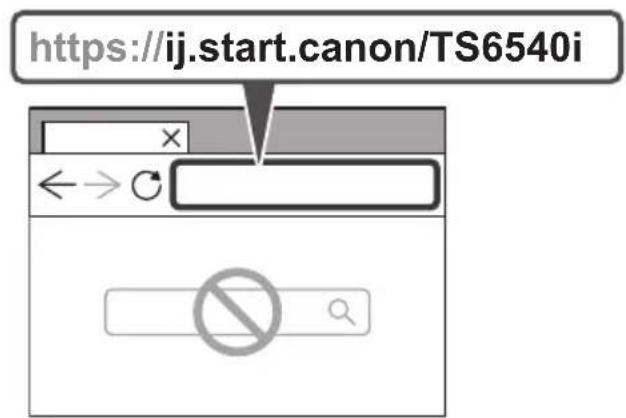
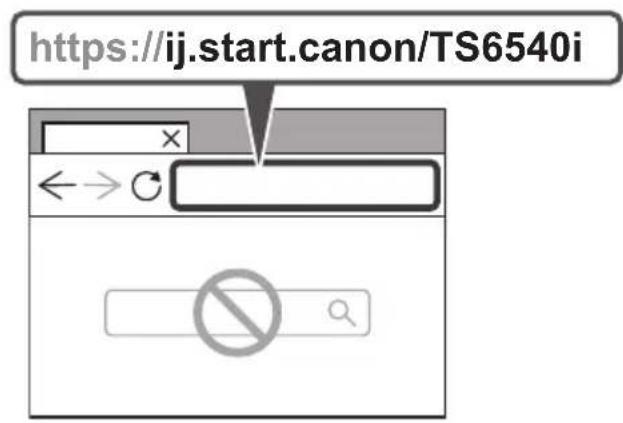
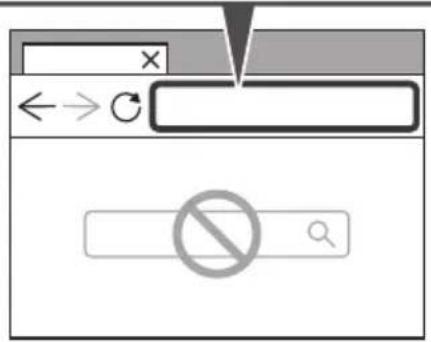
1 Visit the URL below to start setup.

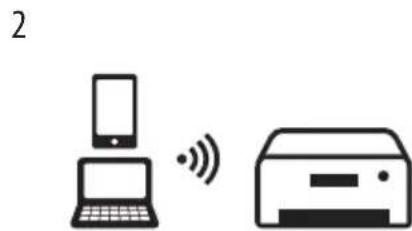
2 Follow the instructions to complete setup and print.

4. Installing the Ink Cartridges
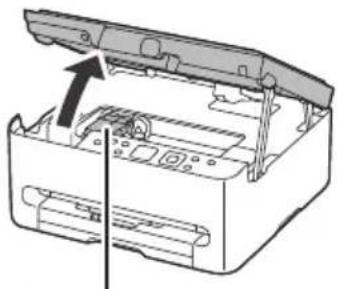
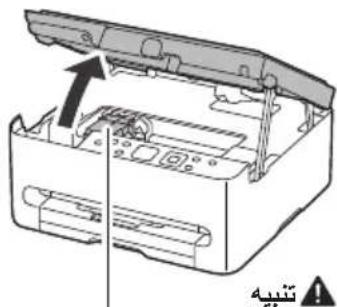
1 Open the scanning unit / cover.
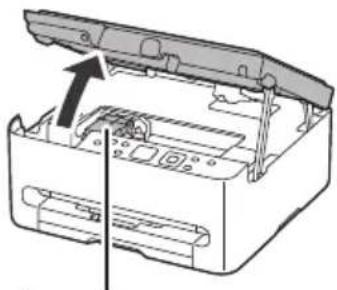

Caution
Do not touch the ink cartridge holder until it stops moving.
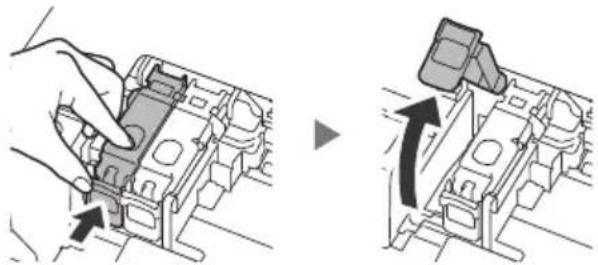
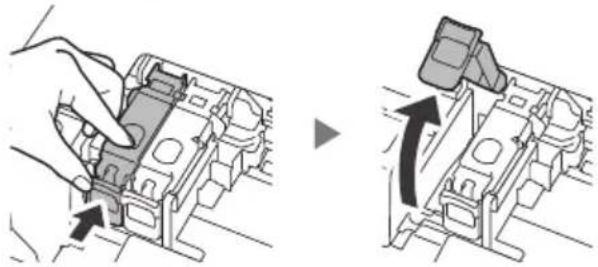
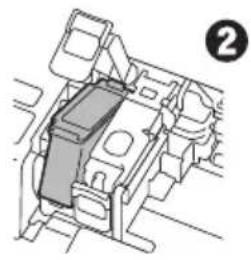
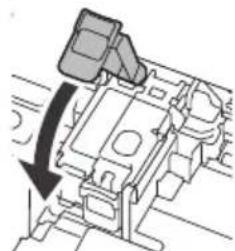
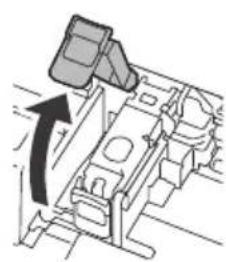
2 Pinch and open the ink cartridge locking cover on the left-hand side.
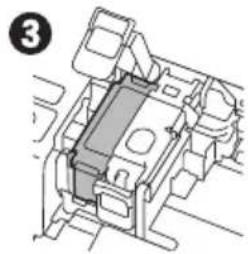
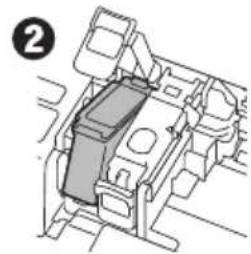
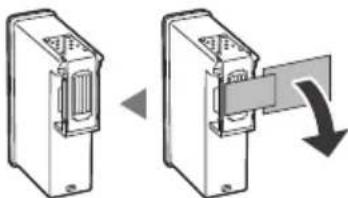
3 Remove the Color ink cartridge from the package and remove the orange tape.
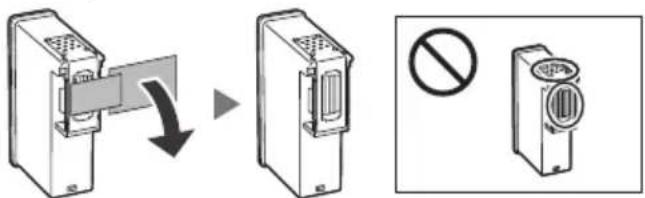

Important
- Do not touch the ink on the orange tape. It could stain your hands or surrounding objects.
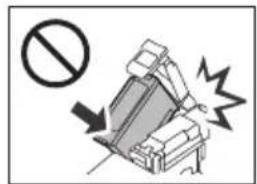
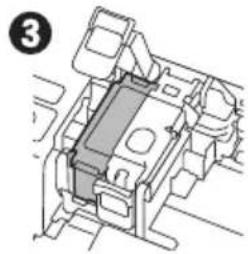
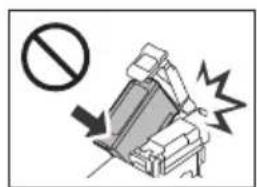
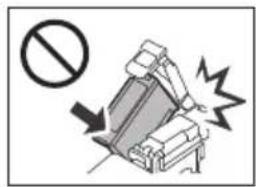
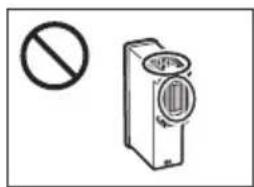
- Do not touch the areas shown in the figure. Otherwise, the printer may not print correctly.
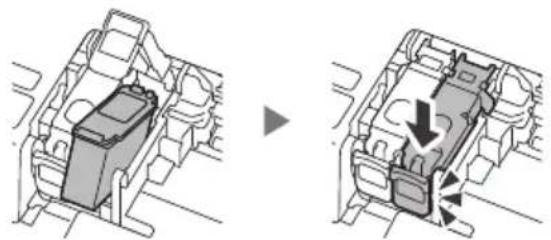
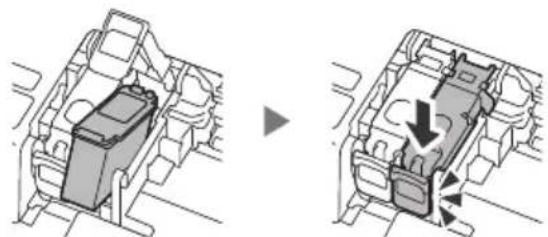
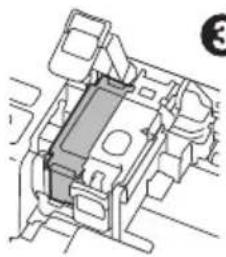
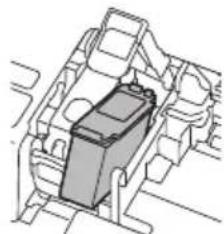
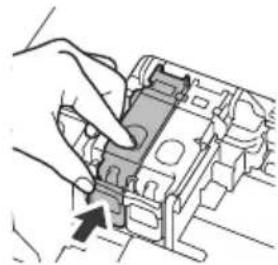
4 Insert the Color ink cartridge in the ink cartridge holder.
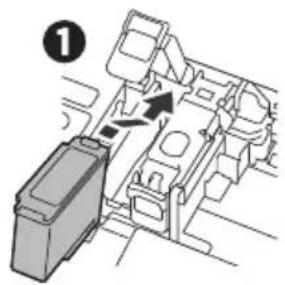

Important
Do not bump the ink cartridge. Doing so may cause a malfunction.
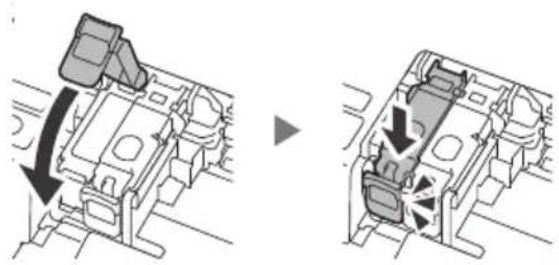
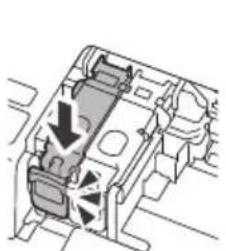
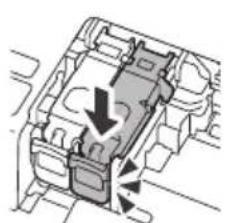
5 Push down the ink cartridge locking cover firmly until it snaps into place to close it completely.
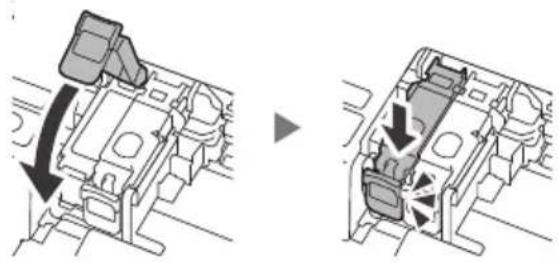
6 Repeat steps 2 to 5 and install the Black ink cartridge on the right-hand side.
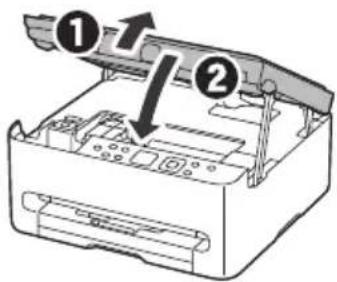
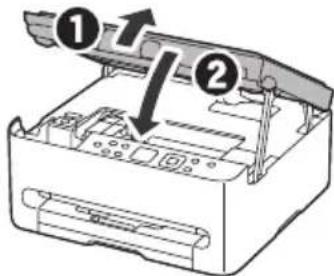
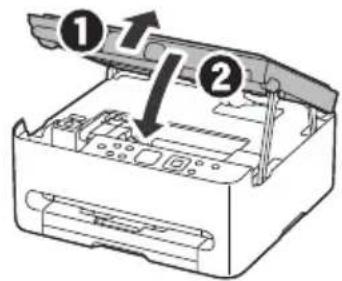
7 Close the scanning unit / cover.
If you lift the scanning unit / cover slightly and release it, it will close by itself.
5. Loading Paper
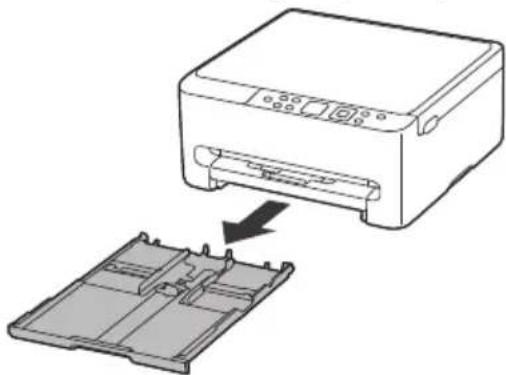
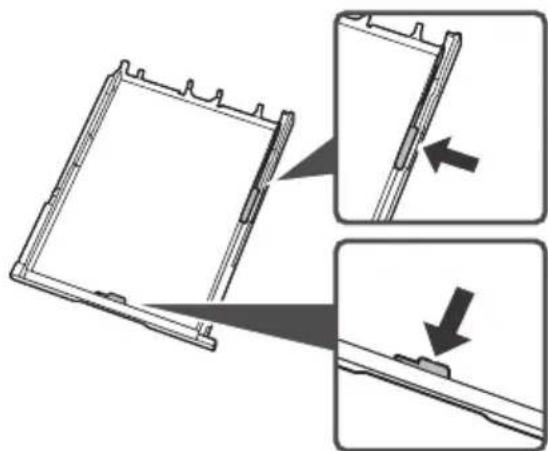
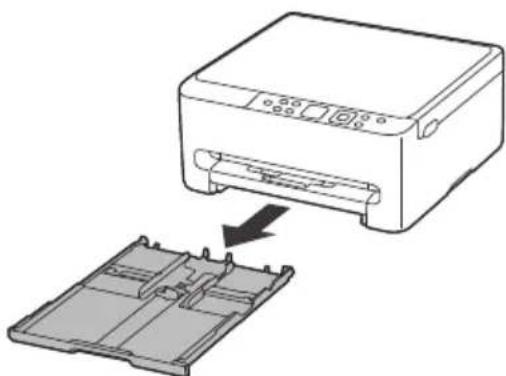
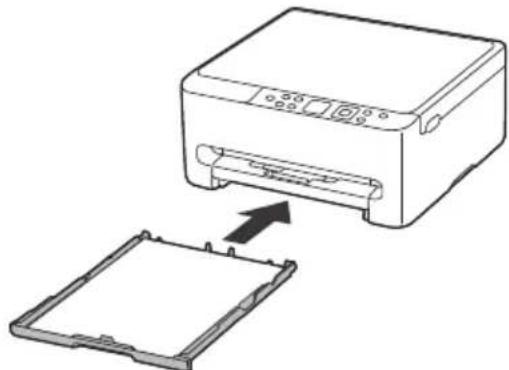
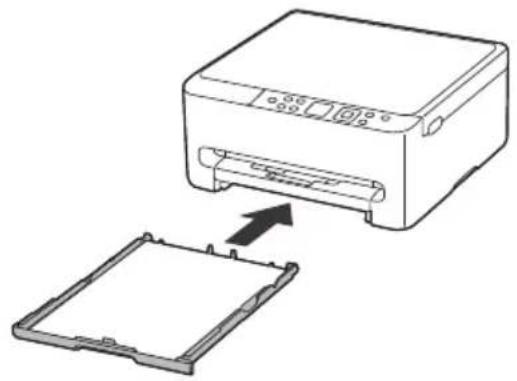
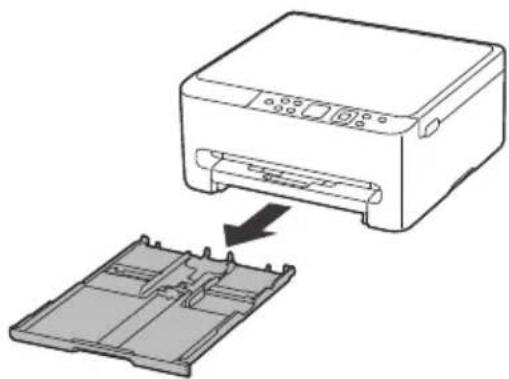
2 Remove the cassette from the printer.
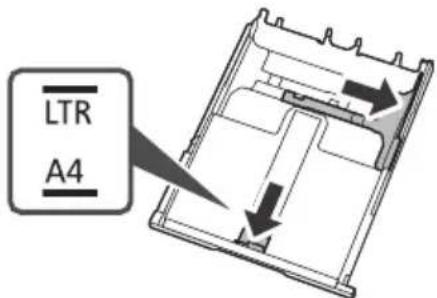
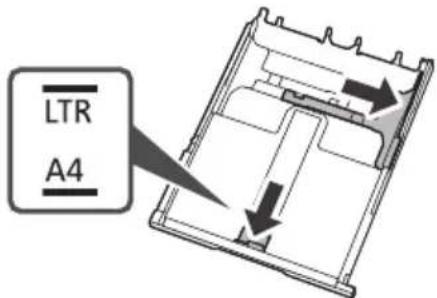
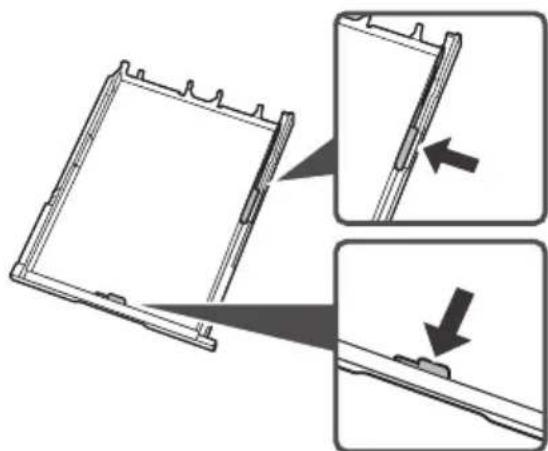
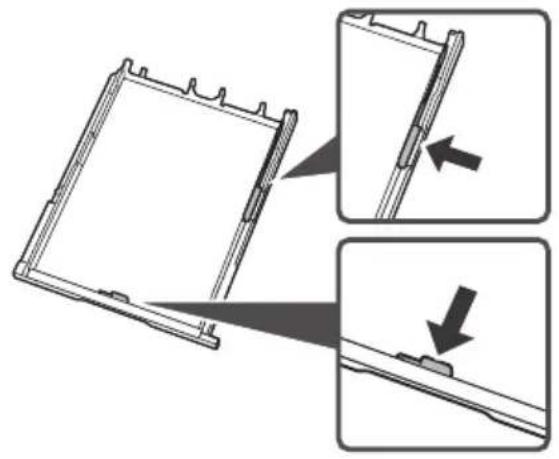
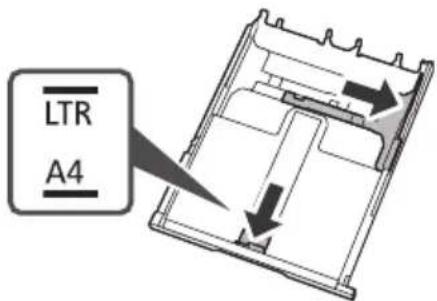
3 Slide apart the paper guides.
Slide the right paper guide to the right edge. Align the front paper guide with the Letter or A4 mark.
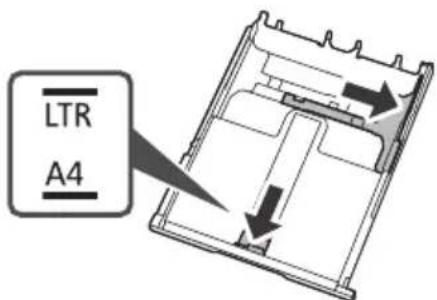
4 Load Letter or A4 sized plain paper.
Place the paper against the front paper guide, and align the right paper guide to the width of the paper.
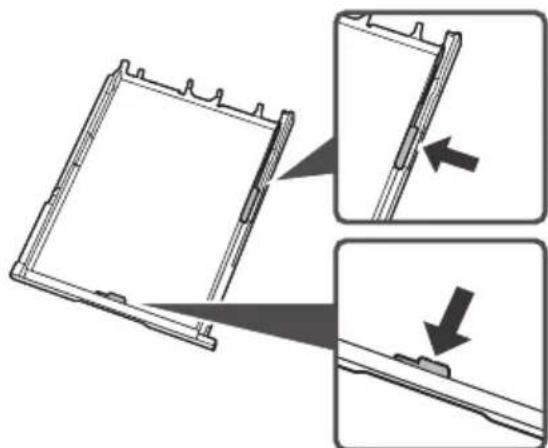
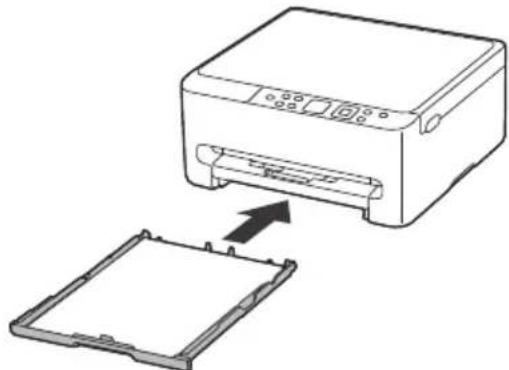
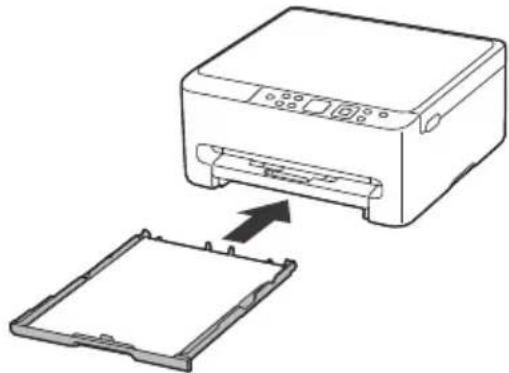
5 Replace the cassette.
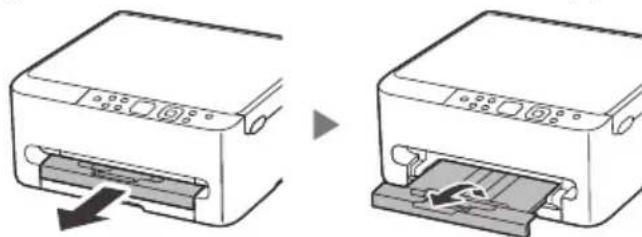
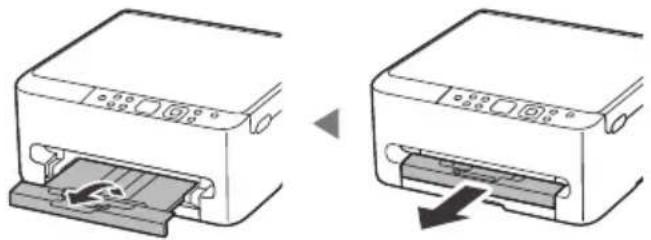
6 Pull out the paper output tray.
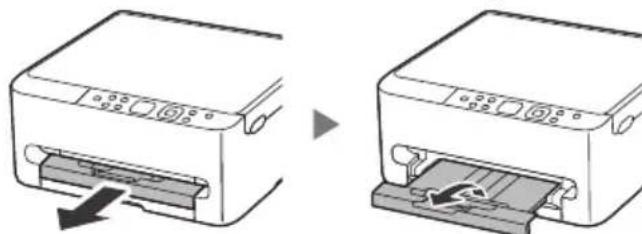
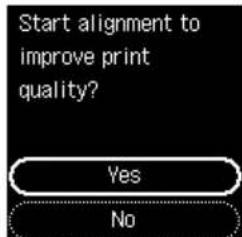
Calibrating printer for optimal print quality. Do not remove the paper. About minutes
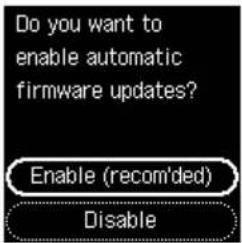
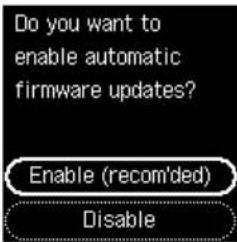
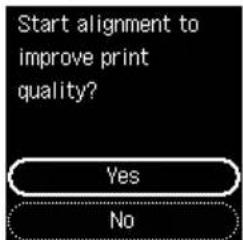
7 Select Enable (recom'ded), and then press the OK button.
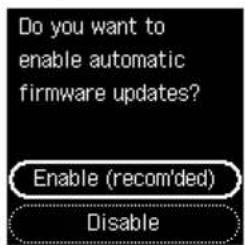
Select the connection method that best matches how you will use the printer.
- To use the printer without connecting to any other devices
Setup is now complete.
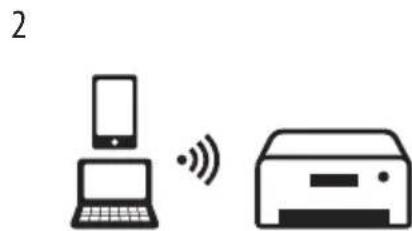
- To use the printer connecting to a computer or smartphone
Proceed to the next page.
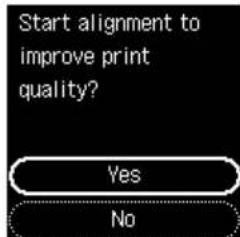
8 Check that the following screen appears.
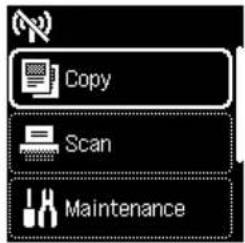
6. Connecting to a Computer or Smartphone
If you are using multiple computers/smartphones, perform these steps on each device.
Also perform these steps to add a new computer/smarphone or replace your current one.
1 Access the Canon website directly. No need to search.

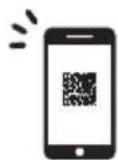

2 Follow the on-screen instructions.
Note
Refer to the Online Manual if you cannot connect the printer to your computer or smartphone (network trouble).

Using the Setup CD-ROM
- Double click EasySetup.exe on the screen that appears.
- If the printer selection screen appears, select TS6540i. If the installation screen appears, click Next.
- Follow the on-screen instructions.
If nothing appears, start Explorer and then run EasySetup.exe in the CD-ROM.
Configuration de l'imprimante
1 KyaT cbIMbIH KOcbIHbI3.
2 ON TYImeciH 6acbHb3.
3 TiДi TaHday yushiA KəHe TymeIepiN naIdaIaNbIHbI3, OaH KeiH OK tyMeciH 6acblbI3.

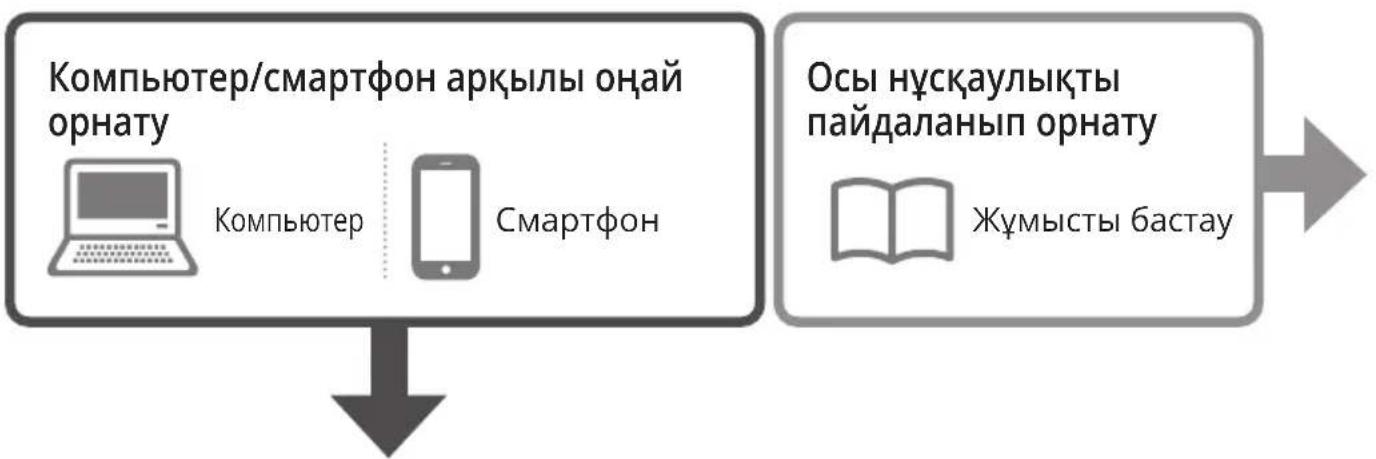
3. KompbHTope/cMapTfoH apKbIbI OHaI opHaTy
Kapanaibm, opbHdayfa Oha Hcaynap KOMnbTepe HeMece cMapTfoHa KaPcetIeDi.
1 OpaTyIbI 6actay ywiH TeMeHderi URL meKeHkaBHa eTiHi3.

2 OpaTydbjXaHe 6acbln WbIFapydbiaayTay ywiH HycKaynapdbiOpbIHdaHbI3.

3 KaFa3 6aFbITTaFbIUtapbIH cbIpFbITbHbl3.
OHXaKaKaFa36aFbITTaFbIWBH OHXaKaXneKKe cbIPfBtBbI3.AndbIHbI KaFa3 6aFbITTaFbIWBH Letter Hemece A4 6enricimeh TypaHaB3.
4 Letter Hemece A4 eJwemdi KaapanaibIM KaFa3dbI caJIbIbI3.
KaFa3aIaIbIHfbl KaFa3 6aFbITTafblHbHa
KapcbI KOybln, OH XaK KaFa3
6aFbITTafblWBH KaFa3 eHIHe TypanaHbI3.
5 Kaccetahbl aybictbipbHbi3.
6 KaFa3 WbIfapy HayacbiH TapTbIn WbIfapbHbI3.
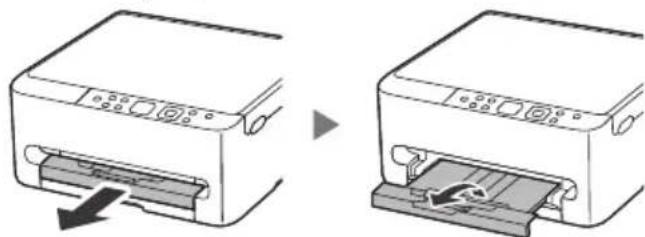
Calibrating printer for optimal print quality. Do not remove the paper. About minutes
7 Enable (recom'ded) onцясьи TaHdaI, OK TvyMeciH 6acbHbI3.
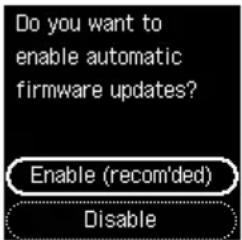
8 Keleci 3KpaHHbIH naHda 6OlybIH TeKcepiHi3.
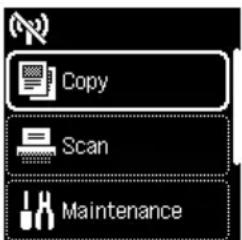
Pnntepi naIdaIaHy aicHe caikec KeIeTIH KocblbIM aiciH TaHaHbI3.
- ПиHTepdi 6aCKa KypbIINfblIapFa KocblMaJ NaJaHaHy yWiH OpHaTy aKaTaNDbI.
- ПиHTepДi KOMNbIOTepRe Hemece cMapTfoHFa Kocy ywiH naJaHaHy KeNeci 6etke etiHi3.
6. Komпьютepre HeMece cMapTфOHFa Kocblny
BipHeWe KOMNbIOTepDi/cmApTfoHdapDbI naIdaIaNbIn XaTcaHbI3, ap6ip KypblfbiDa Ocbi KaamdapDbI opbIHdaHbI3.
XaHa KOMnbIOTepi/cMapTfoHdbI Kocy Hemece aFBIMdaFbI KOMnbIOTepi aybICTbIPy yWiH de OcbI KaadamapDbI opbIHDaHbI3.
1 Canon Be6-caTbHa tikelei KipiHiz. 3deydiKkaxeTI JOK.
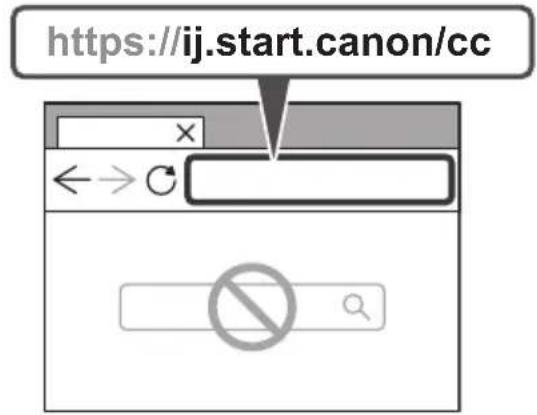

2 3KpaHdaFbI HyckayapdbI opbIHdaHbI3.
EckepTy
Ipnntepdi kOmbltoepre Hemece cMapTfoHfa Koca aImacahb3 (xeni akaybi) OhnaH HyckayltbKapaHb3.

OpHaty CD-ROM AnckiciH naIaIaHy
- Пайда 6олfaxн заразда EasySetup.exe салын eki petбасьи.
2.ПиHTepi TaHday ekpaHbI naJa 6oJca,TS6540iTahDaHbI3. OPhaTy ekpaHbI naJa 6oJca,Next TyMecin 6acblb3.
- 3kpahdafbHyckayapdbOpbIHdaHbI.
EwTeHe 1bKnaca, Explorer 6aFdapIamacbH icKe KocbIn, CD-ROM iwiHderi EasySetup.exe
faiNbH icKe KocbHb3.
Jg Jg Jg Jg Jg Jg Jg Jg Jg Jg Jg Jg Jg Jg Jg Jg Jg Jg Jg Jg Jg Jg Jg Jg Jg Jg Jg Jg Jg Jg Jg Jg Jg Jg Jg Jg Jg Jg Jg Jg Jg Jg Jg Jg Jg Jg
Canon 1
https://ij.start.canon/cc

2
Aa
(aik)sill gj jgbll jgs
EasySetup.exe (Explorer)
aayjge Jai jy wlll jaiy1 aayj 2
J1 12c1y1 a1oc 1
jss jgsg jgsg jgsg
S
ailll aaiol 1
Enable (recom'ded)
.(OK)
ailll aill l 1
A4 Letter 4
4gololololololololololololololololololololololololololololololololololololololololololololololololololololololololololololololol
5
6
Calibrating printer for optimal print quality. Do not remove the paper. About minutes
11/ 7
J.5
.(OK)
2
Lagusg 3
A4 Letter a
4
.
2

0
3
1 1
5 Jolal Jauu jai y aagj 5
6
J.4
1
a
2
3

.
.
Slll/ jssy 1jll 3
Frequently Asked Questions
Foire aux questions
Xni KOnbIaTbIH cypaKtap
auiui 1

https://ij.start.canon

IocTyN KdoKymEnty OhnaH-pyKOBoCTBO
DocTyI Do DOKymeHa OHnaHOBn nOci6HnK
Access Online Manual