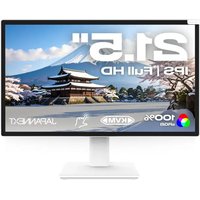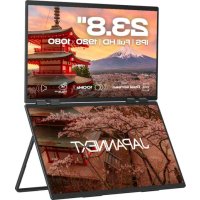
JNDMDIPS238FC4 - Monitor Japannext - Free user manual and instructions
Find the device manual for free JNDMDIPS238FC4 Japannext in PDF.


| Product type | Dual display mobile LED monitor |
| Screen size | 23.8 inches (60.5 cm) |
| Native resolution | FHD 1920 x 1080 |
| Connectivity | HDMI, 2 Type-C ports (including one for power) |
| Power supply | Included 20V/2.25A power adapter; compatible with PD up to 45W (adapter sold separately) |
| Key functions | Dual display (extended/duplicate), OSD menu, brightness adjustment, contrast, image modes (standard, game, movie, text, FPS, RTS, energy-saving), color temperature, blue light reduction |
| Audio | Headphone output (3.5mm jack) |
| Maintenance and cleaning | Use a soft dry cloth specially for LCD; do not use solvents, alcohol or acetone |
| Safety | Do not open the casing (high voltage), do not expose to water, ensure ventilation, unplug during storms |
| Spare parts and repairability | Contact customer service (09 70 70 80 90) or the dealer; do not repair yourself |
| General information | Brand Japannext, model JNDMDIPS238FC4, compatible with Windows and Mac PCs (dual display limited to Windows via Type-C) |
Frequently Asked Questions - JNDMDIPS238FC4 Japannext
User questions about JNDMDIPS238FC4 Japannext
0 question about this device. Answer the ones you know or ask your own.
Ask a new question about this device
Download the instructions for your Monitor in PDF format for free! Find your manual JNDMDIPS238FC4 - Japannext and take your electronic device back in hand. On this page are published all the documents necessary for the use of your device. JNDMDIPS238FC4 by Japannext.
USER MANUAL JNDMDIPS238FC4 Japannext
Cleaning and maintaining the monitor 19
How to maintain the monitor: 19
The symptoms listed below are normal conditions for the monitor 19
Welcome 20
Quick Start Guide 21
Connection with a computer 21
Connection with other devices 22
Accessories 22
Interface / Connectivity 23
Description of the display button 24
OSD Screen Menu 25
About screen display mode 26
About the power function 26
Dysfunction 27
Customer Support 29
text_image
Diagram showing a device with three labeled ports: one connected to a laptop, and two connected to a monitor.natural_image
Simple line drawing of two rectangular frames with no text or symbols
natural_image
Pure vertical line diagram with no text, numbers, or symbolsSortie audio
text_image
QR code image containing encoded data, no visible human-readable textJAPANNEXT Co., Ltd. Département CS
Chiba-Ken Isumi-Shi Namegawa 506-5
23.8-inch FHD LED
dual mobile monitor
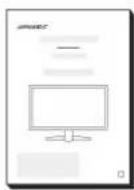
Manual

text_image
ENERG+ 2000 ENERG+ A B C D E F 30 kWh / 1,000x 100.00Important:
Please make sure to read this instruction manual before use.
Please use it correctly for your safety.
Once you have read it, make sure to keep it.
Please read all included instruction manuals carefully before use.
- Place the monitor on a flat, stable surface. To avoid the risk of fire or electric shock, avoid high temperatures, low temperatures, high humidity and accumulation of dust.
Do not use the monitor where it may become wet or exposed to water. - Do not open and never cover the monitor case because it contains high voltage parts inside which could cause serious injury or fire if you come into contact with them.
- If the power supply is damaged, please contact our customer service or your dealer. Never attempt to inspect or repair the product yourself.
- Before use, please ensure that all cables are properly connected and the power cord is not damaged. If you discover any damage or blurred areas, please contact your dealer immediately.
- The slots and openings on the top or back of the monitor are required ventilation holes for this product. Do not cover these holes. Do not place this product near or above a heat source such as a radiator without adequate ventilation.
- Do not insert foreign objects or spill liquids into any openings in the monitor case. This could cause damage or malfunction.
- Always operate the monitor using the type of power source indicated on the product label.
If you are unsure of the type of power supply you have, please contact your local power company. - Do not apply excessive current to sockets or extension cords. Use caution as excessive current can cause electric shock and is very dangerous.
- To protect your monitor from damage caused by power surges, turn off power to the device during long periods of inactivity or during lightning storms.
- To ensure satisfactory operation of the monitor, the computer must be equipped with a properly configured outlet marked in the AC100-240V range.
-
If you experience technical problems or concerns with your monitor, please contact our customer service or authorized reseller.
-
To work safely, make sure to establish the ground connection before connecting the power plug to the power source. Also, when disconnecting the ground connection, make sure to unplug the power plug first.
- This product is not intended for continuous use for 24 hours. Please unplug the power plug when you do not use the product for a long time.
- The included AC adapter and cord are intended for this product only. Do not use it for other equipment.
- Do not use cleaners or detergents containing alcohol or acetone to clean your monitor. Make sure to use a cleaner specifically designed for LCD monitors. Do not spray liquid cleaner directly on the screen. Please note that if the cleaning fluid drips and gets inside the monitor, it is very dangerous as it may cause electric shock or fire. LCD panels are easily damaged, so do not rub it with hard objects.
- Before lifting or moving the monitor, turn off the power switch and unplug all cables and power cords. When installing the monitor, lift it using the appropriate method. When lifting or carrying the monitor, make sure to grip it by the edges. Never lift the monitor by its stand or cord.
Precaution
- Using the monitor in a dark room, or using it continuously for long periods of time, may cause eye fatigue.
• Take a break of 5 to 10 minutes every hour and use the monitor in a reasonably bright room.
Before cleaning the monitor, turn off the power and unplug all cables and cords.
How to maintain the monitor:
- LCD panel area: Do not use tissue paper, etc., instead use a clean, soft cloth specially designed for LCD panels. Please wipe the monitor gently. For difficult-to-remove stains, use a neutral cleaner specifically designed for LCD panels.
- Monitor frame: Wipe with a soft cloth dampened with a mild cleaner.
The symptoms listed below are normal conditions for the monitor
- When first used, the screen may flicker due to the nature of the backlight. If this symptom appears, please turn off the monitor and then turn it on again.
- Depending on your desktop setup, displayed colors, and brightness, brightness may appear uneven.
- Several pixels may or may not always be lit.
- If you display the same image for a long time, an afterimage from the previous image may persist even after switching to a different image.
In this case, the screen will recover slowly. Otherwise, turn off the power for a few hours and the problem will be fixed.
Instead of trying to repair the monitor yourself, contact customer service or the dealer.
Welcome
Thank you for purchasing the 23.8 inch FHD mobile dual display monitor JAPANNEXT.
The installed panel supports FHD (1920 x 1080) resolution. We recommend using FHD resolution for maximum performance. If the resolution is lower than FHD, the original performance cannot be achieved.
Connection with a computer
Note: Make sure to connect the power cable before connecting the Type-C and HDMI cables to ensure signal transmission.
- Make sure the monitor and computer are turned off before connecting the cable.
- Connect the adapter supplied with the monitor or an external power supply of 20V/2.25A or higher and a compatible signal cable (HDMI or Type-C). Also connect the cable (HDMI, Type-C) to the computer.
*For Type-C, please use a cable that supports USB3.1 protocol.
- Turn on the monitor and computer.
- Type-C or HDMI connection
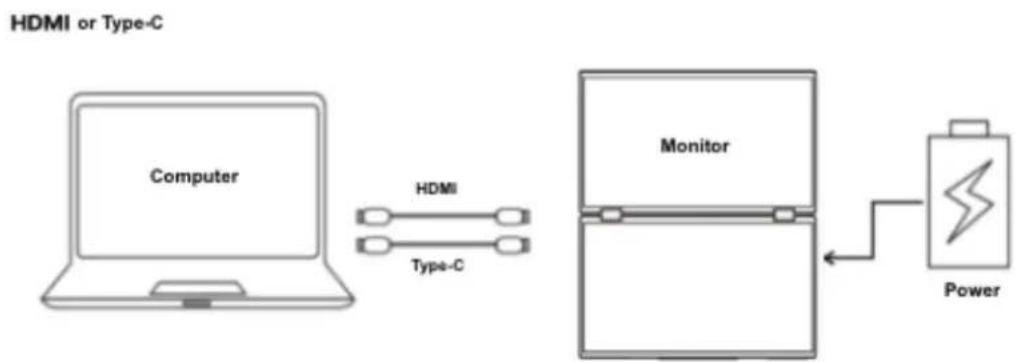
flowchart
graph LR
    A["Computer"] -->|HDMI| B["Monitor"]
    B --> C["Power"]
    style A fill:#f9f,stroke:#333
    style B fill:#ccf,stroke:#333
    style C fill:#fff,stroke:#333
This product is equipped with Type-C and HDMI ports and supports Type-C and HDMI cable connections. Screens can be enlarged or duplicated.
Connect the Type-C port of the device and the Type-C port of the computer, or the HDMI port and the HDMI port of the computer.
Please connect to the included AC adapter or an external power supply of 20V/2.25A or above for power supply.
- Connection with other devices
Note: When connecting the HDMI cable, be sure to connect the power cable before connecting the HDMI cable to ensure that the signal is transmitted reliably.

flowchart
graph TD
    A[" gaming device"] -->|HDMI| B["Display"]
    B --> C["Battery charging"]
    D[" gaming console"] -->|HDMI| E["Display"]
    E --> F["Battery charging"]
Attention: In order to work safely, make sure to connect the ground before connecting the power plug to the power source. Also, when disconnecting the ground connection, be sure to unplug the power plug from the outlet.
Accessories

Manual

Type-C cable

Charging
Type-C cable

HDMI cable

Power
*One of the Type C cables is a dedicated external power cable.
*The included power adapter is intended for use with this product only. Do not use it for other equipment.

text_image
Diagram showing a device with three labeled ports and a connecting line, likely illustrating a cable or connector assembly.- Type-C: Power supply. Powered via Type-C cable or the adapter included.
- Type C: For Type-C only. Power when connected to Type-C (simultaneous power) or with the included adapter.
- Port HDMI: Port compatible HDMI. Used when connecting HDMI swap devices.
*When connecting the Type-C port with a video signal will be automatically recognized.
natural_image
Simple line drawing of two rectangular panels with side connectors (no text or symbols)
natural_image
Pure electrical circuit lines without any symbolsAudio output
Switching screen button
Operation button
Power LED
Power button
| Audio | Please use it by connecting headphones or speakers. |
| Switch screen button | Set switching between extended screen and duplicate screen.When using the OSD menu, a short press will return to the previous level. |
| Operation button | Move the cursor by scrolling the menu up or down.Press the power button to confirm.Short press the switch button to return to the previous level.Press the top to open the brightness adjustment menu.Press down to open the volume adjustment menu. |
| Power button | Long press to turn on/off.Short press to display the OSD menu. |
| Menu | Feature | Setting value | Comment |
| Adjusting image quality | brightness | 0-100 | Brightness Settings |
| contrast | 0-100 | Contrast Settings | |
| mode | standard | Picture mode settings *1 | |
| game | |||
| movie | |||
| text | |||
| FPS | |||
| RTS | |||
| energy saving | |||
| Color Settings | color temperature | cold | Color temperature adjustment |
| warm | |||
| USER | |||
| red 0-100 | Used when configuring USER | ||
| green 0-100 | |||
| Low Blue Light | 0/25/50/75/100 | Blue light reduction settings | |
| Audio settings | mute | on/off | Mute on/off |
| volume | 0-100 | Adjust the volume | |
| Other settings | language | French/English | Language settings |
| reset | Factory Reset Settings | ||
| extended screen | On/Off | Extended screen on/off *2 | |
| Type-C/HDMI | Show when extended screen is enabledSelect input source |
*Please note that product design specifications and appearance are subject to change without notice due to product improvement.
*If the information listed differs from the actual item, priority will be given to the actual item.
*1. If you set it to anything other than standard, you may not be able to change some OSD functions such as brightness.
*2. When connected to Windows with Type-C and turned off, it will be displayed as two screens instead of double.
(It is not possible to display different refresh rates on two displays.)
*2. When receiving Type-C and HDMI signals simultaneously and turning off the OSD expansion screen, the upper screen will be Type-C, The lower screen will display HDMI video.
*The signal sound on the upper screen is output.
By turning the extended screen on/off, you can enlarge or split the screen for display.
- When connecting via HDMI
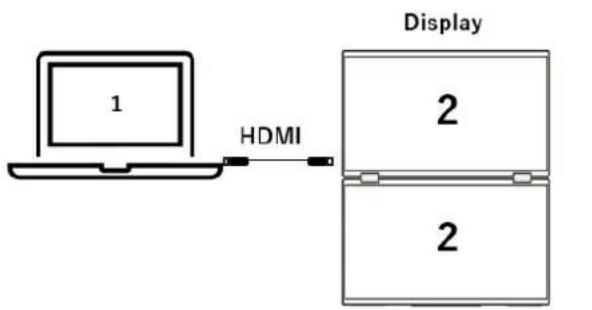
flowchart
graph LR
    A["Laptop 1"] -->|HDMI| B["Display Unit 2"]
    B --> C["2"]
Extended screen disabled
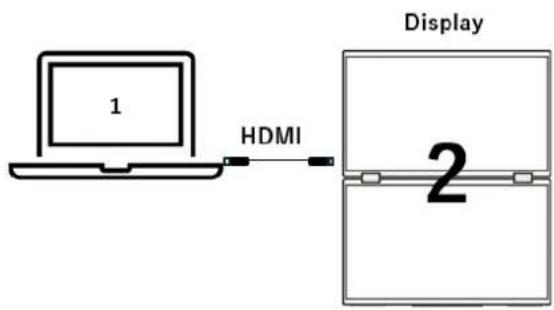
text_image
1 HDMI Display 2Extended screen enabled
- When connected to Type-C
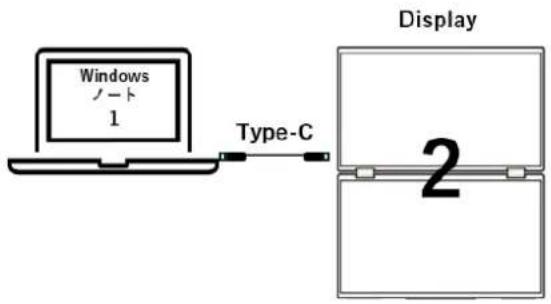
When connected to Type-C, it can be used as 3 displays only when a Windows PC is connected. (A 3-screen display is not possible on Mac.)

flowchart
graph LR
    A["Laptop with Windows 1-ト"] -->|Type-C| B["Display"]
    B --> C["Box 2"]
    B --> D["Box 3"]
Extended screen disabled
flowchart
graph LR
    A["Laptop with Windows 1"] -->|Type-C| B["Display Panel"]
    B --> C["2"]
Extended screen enabled
About the power function
The Type-C port of this product supports power delivery function up to 45W.
Using a compatible power adapter (sold separately), you can deliver up to 45W of power to the connected PC.
*45W power cannot be provided with the included AC adapter.
Dysfunction
| Symptoms | Checkpoint |
| Power LED does not light up | • Is the monitor's power button turned on?• Make sure the power cord is securely connected to the monitor and the outlet. |
| No image appears after displaying the logo | • If you are using a smartphone, try updating the operating system.• For computers, try updating the driver. |
| No image appears even though the power indicator is on. | • Is the blank screen saver running? Move your mouse and keyboard.• Make sure the brightness and contrast are not set to minimum.• Make sure the signal cable is properly connected to the monitor and the computer.• Check the signal cable pins for bent or damaged cable.• Is your computer turned on? If you have another monitor, try connecting it to see if the computer works properly.• Does the computer signal timing match the monitor specifications? |
| The image is distorted or ripples appear in the image. | • Make sure the signal cable is properly connected to the monitor and the computer.• Keep electrical equipment that may cause electrical interference away from the monitor.• Does the computer signal timing match the monitor specifications? |
| Image position is off-centerImage size does not match | • Is your computer resolution correct?• Does the computer signal timing match the monitor specifications? |
| The screen is too bright/too dark | • Adjust brightness and contrast settings from the on-screen menu (OSD). |
| The image is blurry or unclear | • Set the display resolution on your PC to the same as the recommended native screen resolution of the monitor.• Does the computer signal timing match the monitor specifications?• Check the signal cable pins for bent or damaged cable. |
| The color of the image is incorrect | • Check the signal cable pins for bent or damaged cable.• Adjust the red/blue/green color settings in the on-screen menu (OSD) (color temperature).• Please reset the settings from the On-Screen Menu (OSD).• Does the computer signal timing match the monitor specifications? |
| Unable to display FHD(1920 x 1080) | • This product supports resolutions up to 1920 x 1080 (FHD), including HDMI and Type-C.However, some graphics cards may not support 1920 x 1080 resolution. Check with your local distributor or manufacturer for information on your computer's hardware limitations. |
| Unable to display dual screen(1920x2160) | • Some devices, such as game consoles, do not support 1920 x 2160. For supported resolutions, please refer to each device.Please check with the manufacturer. |
Other dysfunctions
| Symptoms | Checkpoint |
| FHD (1920x1080) is displayed, but only up to 30 Hz. | When using HDMI, is it correct that the HDMI to HDMI cable is 2.0?When using Type-C, please check whether it supports USB3.1 protocol.Does your graphics card support FHD@60hz on your ports? (Even though it supports FHD, it can only support up to 24Hz or 30Hz). |
| No sound | Are the computer and audio equipment turned on?Check the audio cable connection.Is the volume set too low?Is the sound set to Mute? |
| There is a strange noise | Are the cables correctly connected? |
| The screen goes black (or flashes).Displayed but unstable | Even Type-C compatible computers may shut down (or flicker) depending on the power capacity of the model. It can become unstable. To prevent symptoms, we recommend connecting to an external power supply of 5V/3A or higher. |
| Brightness setting is not saved | Please use an external power supply that can provide suitable power for your model. |
(Note) Regarding Type-C connection:
*For Mac and some models, the input source may not change when replacing the Type-C port. In this case, restart the monitor and disconnect/connect the cable.
*Switching input source from HDMI to Type-C may not work on Mac and some other models. In this case, unplug the HDMI cable and change the input source.
*It is not possible to connect a computer to two Type-C ports at the same time.
Customer Support

JAPANNEXT
TEL: 09 70 70 80 90
Hours 9:00 a.m. to 5:00 p.m. (Closed Saturdays, Sundays and public holidays)
Contact form
You can easily access the application form by scanning the QR code.

JAPANNEXT Co., Ltd. CS Department
Chiba-Ken Isumi-Shi Namegawa 506-5