EasyManual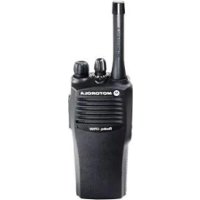
CP200 - Talkie Walkie MOTOROLA - Free user manual and instructions
Find the device manual for free CP200 MOTOROLA in PDF.


User questions about CP200 MOTOROLA
0 question about this device. Answer the ones you know or ask your own.
Ask a new question about this device
Download the instructions for your Talkie Walkie in PDF format for free! Find your manual CP200 - MOTOROLA and take your electronic device back in hand. On this page are published all the documents necessary for the use of your device. CP200 by MOTOROLA.
USER MANUAL CP200 MOTOROLA
PRODUCT SAFETY AND RF
EXPOSURE COMPLIANCE ATTENTION! This radio is restricted to occupational use only to satisfy FCC RF energy exposure requirements. Before using this product, read the RF energy awareness information and operating instructions in the Quick Reference Guide/Safety booklet enclosed with your radio (Motorola Publication part number 68009327001_) to ensure compliance with RF energy exposure limits. For a list of Motorola-approved antennas, batteries, and other accessories, visit the following web site which lists approved accessories: www.motorola.com/business and browse the accessory section. Before using this product, read the operating instructions for safe usage contained in the Product Safety and RF Exposure booklet enclosed with your radio.
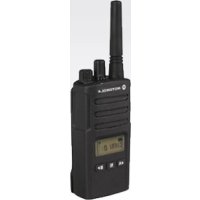
English INTRODUCTION INTRODUCTION Your CP200XLS™ radio can operate on both LTR
trunked and conventional radio systems. This radio combines the very latest in two-way technology while delivering outstanding functionality at the touch of a button.
CONVENTIONAL RADIO SYSTEMS
Conventional typically refers to radio-to-radio communications through a single channel. Conventional systems also allow radio users to extend communication coverage by relaying their messages through a repeater. To ensure coordinated use by multiple users, each radio user must monitor the channel or repeater before transmitting to verify that the system is not currently busy.
TRUNKED RADIO SYSTEMS
A trunked radio system allows a large number of users to share a relatively small number of frequencies or repeaters without interfering with each other. The airtime of all the repeaters in a trunked system is pooled, which maximizes the amount of airtime available to any one radio and minimizes channel/ talkgroup congestion. Some of the benefits of trunked two-way radio systems are:
- No channel/talkgroup monitoring required prior to transmission
- Improved system access
- Automatic channel/talkgroup selection
- Increased privacy among members of the same group LTR Trunked Systems LTR (Logic Trunked Radio) is a transmission- based trunking protocol developed by the E. F. Johnson Company for primarily single-site trunking applications. In transmission trunking, a repeater is used for only the duration of a single transmission. Once a transmission is completed, that repeater becomes available to other users. This means that a conversation comprised of many transmissions may occur over several different channels/talkgroups within the LTR system. This method of trunking provides system efficiency by making repeaters available to all users after every transmission.2 English INTRODUCTION When an LTR trunked radio user wants to communicate with another radio, the user’s radio sends a “channel/talkgroup request” to the home repeater. The system then sends back a “channel/talkgroup grant” to the user’s radio. The channel/talkgroup grant message contains the number of a “go to” repeater to tell the radio which repeater to use. This “go to” repeater can be the same as the radio’s home repeater or another repeater in the system. The radio uses the “go to” repeater for transmission. Once the transmission has ended, this repeater is available for other users.
- 128 Conventional Channels
- Up to 10 Sites and 100 Talkgroups
- User-programmable Phone (Full Keypad Model only), Scan, and TPL/DPL Lists
- Busy Channel Lockout
- High/Low Power Settings
- Transmit Time-Out Timer
- Monitor and Sticky Permanent Monitor
- System Scan with 2 Priority Levels and Revert Scan LTR Trunked Features
- MDC 1200 Signaling Conventional Signaling Features
English RADIO OVERVIEW ACCESSORY INFORMATION Attach the Battery Remove the Battery 1 Align the battery to the battery rails on the back of the radio (approximately 1/2 inch from the top of the radio.) 2 Press the battery firmly to the radio and slide the battery upward until the latch snaps into place. 3 Slide the battery latch, located on radio bottom, into the lock position. 1 Turn OFF the radio if it is turned ON (see page 20). 2 Slide the battery latch into the unlock position. Disengage by pushing downward and holding the latch towards the front of the radio. 3 With the battery latch disengaged, slide the battery down from the top of the radio about 1/2 inch. Once the battery is free from the battery rails, lift it directly away from the radio. Battery Latch Locked Unlocked6 English RADIO OVERVIEW Attach the Antenna Remove the Antenna Turn the antenna clockwise to attach it. Turn the antenna counterclockwise to remove it.7 English RADIO OVERVIEW Attach the Belt Clip Remove the Belt Clip 1 Align the grooves of the belt clip with those of the battery. 2 Press the belt clip downward until you hear a click. 1 Use a key to press the belt clip tab away from the battery to unlock the belt clip. 2 Slide the belt clip upward to remove it. Belt Clip Tab8 English RADIO OVERVIEW BATTERY INFORMATION Charging Your Battery This radio is powered by a nickel-cadmium (NICd), a nickel-metal hydride (NiMH), or a lithium-ion (Li-lon) rechargeable battery. Charge the battery before use to ensure optimum capacity and performance. The battery was designed specifically to be used with a Motorola charger. Charging in non- Motorola equipment may lead to battery damage and void the battery warranty. Note: When charging a battery attached to a radio, turn the radio OFF to ensure a full charge. The battery should be at about 77°F (25°C) (room temperature), whenever possible. Charging a cold battery (below 50° F [10°C]) may result in leakage of electrolyte and ultimately in failure of the battery. Charging a hot battery (above 95°F [35°C]) results in reduced discharge capacity, affecting the performance of the radio. Motorola rapid-rate battery chargers contain a temperature- sensing circuit to ensure that batteries are charged within the temperature limits stated above. If a battery is new, or its charge level is very low, you will need to charge it before you can use it. When the battery level is low and the radio is in transmit mode you will see the LED indicator blink red. Upon release of the PTT button, you will hear an alert tone. Note: Batteries are shipped uncharged from the factory. Always charge a new battery 14 to 16 hours before initial use, regardless of the status indicated by the charger. Note: Do not use the wall charger and desktop charger at the same time when charging.9 English RADIO OVERVIEW WALL CHARGER Note: Do not use the wall charger if using lithium- ion (Li-Ion) or nickel-metal hydride (NiMH) batteries. The wall charger is for a nickel- cadmium (NiCd) battery only. To Charge the Battery: DESKTOP CHARGERS Rapid Charger 1 Turn the radio OFF. 2 Lift the dust cover to expose the audio accessory connector. 3 Insert the charging adapter into the accessory connector. 4 Plug the charging adapter into an electrical outlet.
- The LED on the charging adapter lights red while the charger is plugged into an electrical outlet. Note: Do not leave the charger connected to the radio when it is not connected to the electrical outlet. 5 Unplug the charger from the electrical outlet and radio after 10 hours. Note: After the initial charge of 14 to 16 hours, do not charge the battery more than 10 hours. 1 Turn the radio OFF. 2 Place the battery, with or without the radio, in the charger pocket.
- The charger LED indicates the charging progress. LED color Status No LED Indication Battery inserted incorrectly or battery not detected. Single Green Blink Successful charger power-up. Blinking Red
Battery unchargeable or not making proper contact. Steady Red Battery is in Rapid charge mode.10 English RADIO OVERVIEW A list of Motorola authorized batteries and battery chargers appears on page 56. The listed chargers will charge only Motorola authorized batteries. Other batteries may not charge. Slow Charger Note: Do not use the slow charger if using lithium- ion (Li-Ion) or nickel-metal hydride (NiMH) batteries. The slow charger is for a nickel- cadmium (NiCd) battery only. Blinking Yellow Battery in charger but waiting to be charged. The battery temperature may be too hot or too cold. The voltage may be lower than the predetermined threshold level for charging. Blinking Green
Battery 90% (or more) charged. Trickle charging. Green Battery fully charged. a. Remove the battery from the charger and use a pencil eraser to clean the three metal contacts at the back of the battery. Place the battery back into the charger. If the LED indicator continues to blink red, replace the battery. b. A standard battery may require 90 minutes to charge to 90% capacity. Even though new batteries might prematurely indicate a full charge (steady green LED), charge the battery for 14 to 16 hours prior to initial use for best performance. LED color Status 1 Turn the radio OFF. 2 Place the battery, with or without the radio, in the charger pocket.
- The charger LED indicates the charging progress. LED color Status No LED Indication Battery inserted incorrectly or battery not detected. Steady Red Battery is in over night charge mode. The battery is fully charged after 11 hours.11 English RADIO OVERVIEW
BATTERY CHARGE STATUS
You can check battery charge status if your dealer has preprogrammed one of the programmable buttons. Hold down the preprogrammed Battery Indicator button. The charge status is shown on the display. LED INDICATOR Indicates power-up, transmit, receive, scan monitor status, channel/talkgroup busy, Call Alert™ receive/transmit, Selective Call receive/ transmit, and battery status. Battery Level Display Full Good Fair Low Very Low LED State/Color Indication Radio Call Red Transmitting Blinking Red Receiving Blinking Red Channel/Talkgroup Busy Scan Blinking Green Scanning for activity Call Alert Blinking Yellow Indicates receiving a Call Alert Yellow Indicates sending a Call Alert Selective Call Blinking Yellow Indicates receiving a Selective Call Yellow Indicates sending a Selective Call Monitor/Open Squelch Yellow While monitoring Low Battery Blinking Red when transmitting Low battery level12 EnglishRADIO OVERVIEW DISPLAY The top display row displays menu and radio status information: Symbol Indication Signal StrengthThe more bars, the stronger the signal being received by your radio. Power LevelLow Power “R” or High Power “S” is activated. MonitorThe selected channel is being monitored. PhonePhone mode is selected.
Scan Indicates that the Scan feature has been activated. PERS4
Blinking)Indicates scan has stopped on an active Priority 1 channel/talkgroup. Priority 2 Scan
Steady)Indicates scan has stopped on an active Priority 2 channel/talkgroup. TalkaroundBypass the repeater and talk directly to another radio. Call ReceivedA Selective Call or Call Alert has been received. Not Used. Keypad LockThe keypad has been locked.Symbol Indication13 English RADIO OVERVIEW
- Dialing a phone number.
- Entering information when programming phone lists.
- Accessing a repeater.
- Each key can generate several different characters. For example, to enter the character “C,” press the 2 button three times. (Refer to the following table.)
Entering Characters Using the DTMF Keypad Number of Times Button is Pressed Button 1 2 3 4 5
# #+ - _14 English RADIO OVERVIEW INDICATOR TONES High pitched tone Low pitched tone Some programmable buttons use tones to indicate one of two modes: Self Test Pass Tone Self Test Fail Tone Positive Indicator Tone Negative Indicator Tone Good Key Tone Bad Key Tone ProgrammableButton
Positive Indicator Tone Negative Indicator Tone Scan Start Stop Power Level High Low Squelch Tight Normal Repeater/Talkaround Does not use repeater Uses repeater VOX Enabled Disabled Silent Monitor/Open Squelch — Enabled Revert Memory Channel (1&2) — Enabled Store Memory Channel (1&2) —Stored Home Revert AutoKey (1&2) — Enabled Menu Mode J — Accessed Radio Call — Enabled Scan List Edit — Enabled Speed Dial (Full Keypad Model Only) — Enabled Phone Mode — Enabled Escalert Enabled Disabled15 English RADIO OVERVIEW PROGRAMMABLE BUTTONS Your radio has four programmable buttons. Your dealer can program these buttons as shortcuts to various radio features. Check with your dealer for a complete list of functions your radio supports. Programmable buttons include:
- The two side buttons (S1 and S2)
- The two front buttons (K and J) Some buttons can access up to two features, depending on the type of button press:
- Short Press — quickly pressing and releasing the programmable buttons.
- Long Press — pressing and holding the programmable buttons for a minimum of 2.5 seconds.
- Hold Down — pressing and holding down the programmable buttons while checking status or making adjustments. The table on page 16 summarizes the programmable features available and shows the page number where the feature is explained. In the “Button” column, have your dealer record the name of the programmable button next to the feature that has been programmed to it. The dealer can use the abbreviations (S1, S2, P1, or P2) shown in the radio illustration on page 3. Also, where appropriate, have your dealer indicate whether the button press requires a short press, a long press, or needs to be held down.16 English RADIO OVERVIEW Programmable Features Feature Indicator Short Press Long Press Hold Down Page Button Battery Indicator — — Checks the battery charge status.
Menu Mode — J button enters Menu Mode and selects menu options. Once in Menu Mode, K button is automatically re-assigned to exit Menu Mode.
Monitor C A long press initiates Monitor. A short press cancels Monitor. Monitors the selected channel for any activity.
Repeater/Talkaround J Toggles between using a repeater or transmitting directly to another radio.
—24 Revert Memory Channel (1&2) — Allows instant access to the home channel/ talkgroup.
This function is activated by EITHER a short OR a long press, but not both.17 English RADIO OVERVIEW Store Memory Channel (1&2) — Stores current channel/talkgroup to the home channel/talkgroup. —25 Home Revert AutoKey (1&2) — If a Revert Memory Channel is an LTR talkgroup, the radio keys-up and transmits an MDC PTT ID. If a Revert Memory Channel is a conventional channel, it does not key-up.
—26 Keypad Lock/Unlock L Toggle keypad between locked and unlocked.
— 29,30 Scan/Nuisance Channel/Talkgroup Delete G Starts or stops the Scan operation. Deletes a nuisance channel/talkgroup while scanning. — 32,33 Edit Scan List — Add, delete, or prioritize channels/ talkgroups.
This function is activated by EITHER a short OR a long press, but not both. Programmable Features (Continued) Feature Indicator Short Press Long Press Hold Down Page Button18 English RADIO OVERVIEW Phone D Directly access phone mode.
— 38,39 Speed Dial (Full Keypad Model Only) D Quickly access speed dial phone list.
—47 Squelch — Toggle squelch level between tight and normal squelch.
Toggle transmit power level between High and Low power.
This function is activated by EITHER a short OR a long press, but not both. Programmable Features (Continued) Feature Indicator Short Press Long Press Hold Down Page Button19 English RADIO OVERVIEW MENU BUTTONS Menu Button If preprogrammed by your dealer, the two front buttons ( K and J) can be used, in conjunction with other programmable features, to access and select menu options ( J); and exit menu mode ( K). The J button can be preprogrammed by your dealer to either a short or long press to access the Menu Mode. Menu Scroll Buttons Used to scroll while in Menu Mode. Refer to the menu navigation chart for menu selectable features at the back of this manual. Navigate the Menu L or M to scroll through the menu options. If you scroll past the last option, the selection wraps around and starts again. When you reach the required option, a short press of the J button selects that option and enters the sub-menu. L or M to scroll through the sub-menu options. Select the option with a short press of the J button. Exit the Menu While in Menu Mode, the K button is automatically assigned to completely exit the Menu Mode by a long press, or by a series of short presses to exit from a sub-level of the menu hierarchy. The radio also exits the menu mode if there have been no inputs via the navigation buttons for the default “Inactivity Time” or after a selection has been made. Once you have exited Menu Mode, the K and J buttons return to normal programmable condition.20 English GETTING STARTED GETTING STARTED
TURN THE RADIO ON OR OFF
ON OFF Rotate the ON/OFF/ Volume knob clockwise. If power-up is successful, you will hear the Self-Test Pass Tone ( ) and see the display icons light momentarily and the LED blink green. If the radio fails to power up, you will hear the Self Test Fail Tone ( ). The radio will need to be returned for reprogramming. Rotate the ON/OFF/ Volume knob counterclockwise until you hear a click and both the display and LED indicator turn OFF.21 English GETTING STARTED
Turn the ON/OFF/Volume Control knob clockwise to increase the volume, or counterclockwise to decrease the volume. –or– Note: Your dealer can preprogram one of the programmable buttons to Volume Set.
SELECT AN LTR CHANNEL/
TALKGROUP Your CP200XLS display radio can be programmed with up to 10 LTR sites and a maximum of 100 talkgroups, in total, across one or more sites (up to a total of 10 sites). To select an LTR Channel/Talkgroup: Note: Site/talkgroup settings are programmed by your dealer. 1 Hold down the Volume Set button (see page 16).
- You will hear a continuous tone. 2 Turn the ON/OFF/Volume knob to the desired volume level. 3 Release the Volume Set button.
Turn the Channel Selector knob to select the appropriate LTR channel/talkgroup. –or– L or M to select the appropriate LTR channel/talkgroup. –or– Press any of the programmable buttons to access a preprogrammed talkgroup. Then use either the Channel Selector knob or L and M to select the appropriate LTR channel/talkgroup. Note: The third option is available only if your radio has been programmed with a specified LTR channel/ talkgroup.22 English GETTING STARTED
SELECT A CONVENTIONAL RADIO
CHANNEL Your radio offers 128 conventional channels. To select a channel, turn the Channel Selector knob clockwise or counterclockwise until you reach the desired channel.
RECEIVE A CONVENTIONAL OR
LTR CALL MONITOR It is important to monitor for traffic before transmitting to ensure that you do not “talk over” someone who is already transmitting. 1 Turn your radio on. 2 Adjust the radio’s volume (see page 21). 3 Turn the Channel Selector knob to select the desired conventional channel or LTR talkgroup, –or– L or M to select the desired conventional channel or LTR talkgroup.
- Make sure the PTT button is released. 4 Listen for voice activity.
- The LED indicator blinks red while your radio is receiving. 5 To respond, hold the radio vertically 1 to 2 inches (2.5 to 5cm) from your mouth. Press the PTT button to talk; release it to listen. 1 Press and hold the preprogrammed Monitor button to access channel traffic.
- If no activity is present, you will hear “white noise.” 2 Once channel traffic has cleared, proceed with your call by pressing the PTT button.23 English GETTING STARTED Permanent Monitor
- You hear a good key tone. 2 A short press of the Monitor button cancels Permanent Monitor mode and returns the radio to normal operation.
Turn the Channel Selector knob to select the appropriate LTR channel/talkgroup. –or– L or M to select the appropriate LTR channel/talkgroup.
Hold the microphone in a vertical position at a distance of about 1 to 2 inches (2.5 to 5 cm) from your mouth.
Press and hold the PTT button. –or– Press and release the PTT button and wait 3 seconds.
- If access to the trunked system was successful, the red LED indicator lights steady.
- If access to the trunked system was unsuccessful, the red LED indicator blinks, indicating that the system was busy or out- of-range.
With the PTT button depressed, speak clearly into the microphone.
Release the PTT button to listen.24 English GETTING STARTED
TRANSMIT A CONVENTIONAL
CALL CALL LIGHT (TRUNKED OPERATION ONLY) The Call Light indicator informs you that you have received a call from a specified LTR
talkgroup (as programmed by your dealer). The yellow LED indicator will blink continuously, indicating that a call has been received. To turn the call light OFF:
- turn the radio OFF, then ON again, or
- change the channel/talkgroup, or
MODE Talkaround Mode enables you to communicate with another radio when either:
- The repeater is not operating. –or–
- Your radio is out of the repeater’s range but within communicating distance of another radio. 1 Turn your radio on. 2 Use the Channel Selector knob to select the desired channel. Note: Monitor for traffic before transmitting to ensure that you do not “talk over” someone who is already transmitting 3 Hold the radio vertically 1 to 2 inches (2.5 to 5cm) from your mouth. Press the PTT button to talk.
- The LED indicator lights steady red while the call is being sent. 4 Release the PTT to listen.25 English GETTING STARTED Note: The J symbol appears on the display when Talkaround Mode is selected. To Select either Repeater Mode or Talkaround Mode Press the preprogrammed Repeater/ Talkaround button (see page 16) to toggle between Repeater Mode and Talkaround Mode. – or – REVERT MEMORY CHANNEL (1 & 2) The Revert Memory Channel feature allows you to instantly access up to two of your favorite channels/talkgroups at the touch of a button. Press the preprogrammed Revert Memory Channel 1 button or Revert Memory Channel 2 button (see page 16). STORE MEMORY CHANNEL (1 & 2) The Store Memory Channel (1 & 2) feature allows you to store a channel/talkgroup for the Revert Memory Channel feature. Use the Channel Selector knob to select the desired channel/talkgroup. Press the preprogrammed Store Memory Channel 1 button or Store Memory Channel 2 button to store that channel/talkgroup (see page 16).
J to select the current setting.
L or M until -or- until
J to select the current setting. TALKARND TALKARND REPEATER26 English GETTING STARTED HOME REVERT AUTOKEY (1 & 2) If a Revert Memory Channel is an LTR talkgroup, the Home Revert AutoKey feature automatically keys-up and transmits an MDC PTT ID. If a Revert Memory Channel is programmed as a Conventional channel, the radio will not key-up (see page 17). VOX OPERATION When hands-free operation is desired, your radio can transmit by voice alone using the VOX feature when you speak through an accessory that is connected to your radio. Connecting a VOX Headset Enable or Disable VOX To enable or disable VOX operation, press the preprogrammed VOX button (see page 17). Note: Pressing the PTT button disables VOX. – or – You can select channels/talkgroups to enable or disable VOX as preprogrammed by your dealer/programmer.
ENABLE/DISABLE HEADSET
SIDETONE Your dealer can program your radio so you can hear your voice through a headset while you speak. VOX Headset 1 Turn OFF your radio. 2 Connect the VOX accessory to your radio and turn the radio ON. 1 Select a channel/talkgroup that has been preprogrammed by your dealer to enable VOX. Note: Pressing the PTT button disables VOX. 2 Select a channel/talkgroup that has not been preprogrammed by your dealer to disable VOX. 1 To enable the headset sidetone, turn OFF your radio. 2 Connect the VOX headset accessory to your radio.27 English GETTING STARTED Non-VOX Headset with In-Line PTT
KEYPAD LOCK/UNLOCK L
To lock or unlock the keypad, long press the preprogrammed Keypad Lock/Unlock button (see page 17). Note: The L symbol appears on the display when the keypad is locked.
PROGRAM PL/DPL CODES
Use this feature to edit the Private-Line/Digital Private-Line codes for a selected channel/ talkgroup. 3 Turn the radio ON. During transmit, you will hear your voice through the headset while you speak. 4 To disable the headset sidetone, turn OFF your radio and turn the radio ON again. 1 To enable the headset sidetone, turn OFF your radio. 2 Connect the non-VOX accessory to your radio. 3 Press and hold the In-line PTT on your headset. 4 Turn the radio ON and release the PTT once the radio has completed start-up. During transmit, you will hear your voice through the headset while you speak. 5 To disable the headset sidetone, turn OFF your radio and turn the radio ON again.
L or M until - or - until
J to select the current setting. EDIT PL EDIT PL
L or M to scroll through the standard TPL frequencies or DPL codes. - or - Enter a non-standard or standard 4-digit TPL frequency or the 3-digit octal (numbers 0 –7 only) code for DPL via the DTMF microphone keypad (Full Keypad Model only).
J to confirm selection.
K until you exit menu mode.29 English RADIO CALLS RADIO CALLS
SELECTIVE RADIO INHIBIT
Your radio is equipped with a security feature that can temporarily render the unit inoperative when an inhibit signal is sent from the base station. This feature is commonly used to disable radios:
- For system control reasons When your radio has been rendered inoperative by the base station, all controls will be inoperative except for the ON/OFF button and the display shows INHIBIT.
RECEIVE A SELECTIVE CALL F
(CONVENTIONAL OPERATION ONLY) When you receive a selective call:
- The display shows F and the preprogrammed name or ID (MDC1200) of the calling radio, or you will hear a Call Alert tone (QCII) of the calling radio.
- The LED indicator blinks yellow, if programmed by your dealer/programmer.
- You hear two high-pitched tones.
SEND A SELECTIVE CALL
(CONVENTIONAL OPERATION ONLY) You can send a Selective Call to a particular radio or to a group of radios, as programmed by your dealer. Press the preprogrammed Radio Call button (see page 17), and proceed to step 4.
or – 1 To acknowledge the call, press and release the PTT button. 2 Press and hold the PTT button to talk; release to listen.30 English RADIO CALLS
RECEIVE A CALL ALERT™ PAGE F
(CONVENTIONAL OPERATION ONLY) When you receive a Call Alert page:
- The display shows F and the preprogrammed name or ID of the calling radio.
- The LED indicator blinks yellow, if programmed by your dealer/programmer.
- You hear four high-pitched tones. To acknowledge the page, press and release the PTT button; to cancel the page, press any other key.
SEND A CALL ALERT PAGE
(CONVENTIONAL OPERATION ONLY) You can alert another person by sending a Call Alert page. Press the preprogrammed Radio Call button (see page 17) and proceed to step 4.
or – 1 J to enter menu mode 2 L or M until 3 J to select 4 L or M until 5 J to select 6 L or M to locate the desired ID in the Radio Call List. - or - Enter a valid DTMF digit (0 – 9) to move to that location in the list (Full Keypad Model only). 7 Press the PTT button to send the call. 8 Press and hold the PTT button to talk; release to listen. 9 When the call is completed, K until you exit menu mode. RAD CALL RAD CALL SEL CALL SEL CALL31 English RADIO CALLS
REPEATER ACCESS (FULL
MODEL ONLY) Radio Check allows you to determine if a radio is within the range of the trunked system and turned ON, without disturbing the user of that radio. This feature can also be used when attempts with Selective Call and Call Alert fail. 1 J to enter menu mode 2 L or M until 3 J to select 4 L or M until 5 J to select 6 L or M to locate the desired ID in the Radio Call List. - or - Enter a valid DTMF digit (0 – 9) to move to that location in the list (Full Keypad Model only). 7 Press the PTT button to send the page. 8 When the page is completed, K until you exit menu mode. RAD CALL RAD CALL CALL ALT CALL ALT 1 Press and hold the PTT button and enter your access code using the DTMF keypad. 2 Press and release the required DTMF buttons. 3 Release the PTT button.32 English SCAN SCAN Your radio is equipped with the Scan feature, which allows you to monitor multiple channels/ talkgroups for voice activity. The radio will stop on a channel/talkgroup when it detects activity on it. Scan lists are assigned per channel/talkgroup, by your dealer/programmer. Your radio automatically switches to a channel/talkgroup, within that scan list, when it detects activity. You can edit these lists through your radio’s menu (see page 35).
- The LED indicator blinks green during scan mode; it stops blinking when the radio switches to an active channel/talkgroup.
- The Gsymbol appears on the display while in scan mode. There are two ways that your radio scans:
- System Scan (manual)
- Auto Scan (automatic) TALKBACK The Talkback feature allows you to respond to a transmission while scanning. If transmission is detected on a channel/talkgroup while scanning, the radio will stop on that channel/ talkgroup for a default period of time after activity has ceased. This is referred to as “hangtime”. During this hangtime you may respond by pressing the PTT button. Note: The LED scan indicator stops blinking while the radio is in hangtime. If the PTT button is not pressed after the preprogrammed hangtime, the radio returns to scanning channels/talkgroups.
Press the preprogrammed Scan button to start scanning channels/talkgroups in your scan list (if Auto Scan is not enabled) (see page 17). – or – 1 Select a channel or talkgroup that contains a Scan list.
J to enter menu mode.33 English SCAN
Press the preprogrammed Scan button to stop System Scan (see page 17). – or – Note: Your dealer/programmer can preprogram your radio when exiting System Scan to automatically revert to the last scan channel/ talkgroup that had activity on it or to automatically revert to the channel/talkgroup where scan was initiated.
Auto Scan automatically starts scanning once a channel/talkgroup with Auto Scan enabled is selected. Select a channel/talkgroup that has been preprogrammed for Auto Scan by your dealer/ programmer.
Select a channel/talkgroup that has not been preprogrammed for Auto Scan by your dealer/ programmer.
- The Gsymbol disappears from the display. 3 L or M until 4 J to select The display shows the current scan status. 5 L or M until 6 J to select the current setting. 1 J to enter menu mode.
L or M until 3 J to select The display shows the current scan status. SYS SCAN SYS SCAN SCAN ON SYS SCAN SYS SCAN 4 L or M until 5 J to select the current setting.
- The Gsymbol disappears from the dis- play. SCAN OFF34 English SCAN
DELETE A NUISANCE CHANNEL/
TALKGROUP Note: Your dealer/programmer must preprogram a button to access this feature (see page 17). If a channel or talkgroup continually generates unwanted calls or noise (a “nuisance” channel/ talkgroup), you can temporarily remove it from the scan list: Restore Channels/Talkgroups to the Scan List 1 While the radio is on the nuisance channel/ talkgroup, press the preprogrammed Nuisance Channel Delete button until you hear a tone. 2 Release the Nuisance Channel Delete button. The nuisance channel/talkgroup is deleted. Note: You cannot temporarily delete the channel/talkgroup that has been preprogrammed by your dealer/ programmer as your designated scan channel/talkgroup, a priority channel/ talkgroup, or the last remaining channel/talkgroup in the scan list. 1 Power OFF the radio. Once the radio is powered on again, the deleted nuisance channels/talkgroups are restored to the scan list.
or – Press the preprogrammed Scan button to stop the scan. 2 Press the preprogrammed Scan button again to start scanning again. The deleted nuisance channels/talkgroups are restored to the scan list.
or – Select a channel/talkgroup that has not been preprogrammed for scan by your dealer/ programmer to stop Scan. Once you return to the original channel/talkgroup, the deleted nuisance channels/talkgroups are restored to the scan list.35 English SCAN
Your radio can support up to 16 Scan lists. Each Scan list can contain up to 16 channels/ talkgroups. The same channel/talkgroup can be included in several Scan lists, and the same Scan list can be assigned to several channels/ talkgroups. Scan lists are assigned per channel/talkgroup, by your dealer/programmer. When you edit a Scan list, you can either add, delete, or prioritize channels/talkgroups. Note: Your radio cannot receive calls while you are editing a Scan list.
ADD OR DELETE CHANNELS/
TALKGROUPS IN A SCAN LIST
1 Select a channel/talkgroup that contains a Scan list you want to edit.
J to enter menu mode. 3 L or M until 4 J to select 5 L or M until PROG LST PROG LST SCAN LST Note: One Scan list per channel/talkgroup is available.
J to select 7 L or M until – or – until 8 J to select the current setting. 9 L or M until you see the channel/ talkgroup you want to add or delete.
J to confirm your selection. 11 If you added a channel/talkgroup, you see: – or – If you delete a channel/talkgroup, you see: 12 J to confirm the deletion. you see: SCAN LST ADD ITEM DELETE ADDED DELETE DELETED36 English SCAN
You may want to check the activity on one or two channels/talkgroups more frequently than others. You can do this by prioritizing them: Note: If you are receiving on a non-priority channel/talkgroup and traffic becomes active on a priority channel/talkgroup, your radio will automatically switch to that priority channel/talkgroup and indicate the activity with a short tone. 13 K to return to – or – 14 K until you exit menu mode. ADD ITEM DELETE Priority Channel/ Talkgroup Scanning Sequence None specified Ch1-->Ch2-->Ch3--> Ch4-->...Ch1 Channel/ Talkgroup 2 (Priority 1) Ch2-->Ch1-->Ch2 -->Ch3--> Ch2 -->Ch4-->Ch2-->...Ch1 Channel/ Talkgroup 2 (Priority 1) and Channel/ Talkgroup 8 (Priority 2) Ch2-->Ch1-->Ch8-->Ch3 -->Ch2--->Ch4---> Ch8--->...Ch137 English SCAN Set Priority Channels/Talkgroups Note: You cannot assign the same priority to two different channels/talkgroups. 1 J to enter menu mode.
L or M until 3 J to select 4 L or M until 5 J to select 6 L or M until 7 J to select 8 L or M until – or – until 9 J to select the desired priority level. You see the current priority channel/talkgroup. PROG LST PROG LST SCAN LST SCAN LST EDIT PRI EDIT PRI PRI #1 PRI #2 10 L or M until you see the channel/ talkgroup you want to prioritize. – or – until to select the current channel/talkgroup the radio is ON – or – until to de-prioritize the current channel/ talkgroup the radio is ON. 11 J to prioritize that channel/talkgroup. you see: 12 K to return to 13 K until you exit menu mode. SELECTED DISABLED SAVED EDIT PRI38 English PHONE PHONE Your radio allows you to place and receive telephone calls through a repeater (depending on phone line availability). You can edit the phone list through your radio’s menu (see page 40). The phone feature is available in both conventional and LTR systems.
- D appears on the display when you are in Phone mode.
Your dealer/programmer can preprogram your radio in one of three ways to enter your access/deaccess code to the repeater. Immediate Auto – your radio will transmit the access/deaccess code automatically upon entering phone mode or disconnecting a phone call. You will hear a series of tones, and see your access/deaccess code on the display, indicating that an access/deaccess code is being sent automatically. Delayed Auto – your radio will transmit the access code upon a PTT button press. The deaccess code is sent automatically when you exit phone mode. Manual – Enter your access/deaccess code using the DTMF keypad (Full Keypad Model only).
RECEIVE A PHONE CALL D
When a phone call is received, a ringing tone sounds, alerting you to answer the phone call. Press the preprogrammed Phone button (see page 18), and skip to step 6. – or – 1 Select a channel/talkgroup that has been programmed for telephone.
J to enter menu mode. 3 L or Muntil 4 J to select Note: The D appears on the display. PHONE PHONE39 English PHONE
Note: Only the first 8 digits of the phone number will be displayed on your radio's display. Press the preprogrammed Phone button (see page 14), and skip to step 6. – or – 5 Enter your repeater access code, if necessary (Full Keypad Model only) (see page 38). 6 Press and hold the PTT button to talk. Hold the radio in a vertical position with the microphone 1 to 2 inches (2.5 cm to 5 cm) away from your mouth. Release the PTT button when the other party wants to talk, both parties will need to speak in turn. 7 Disconnect the phone call when the conversation is completed. 1 Select a channel/talkgroup that has been programmed for telephone.
J to enter menu mode. 3 L or M until PHONE 1 To disconnect a phone call, do one of the following: If your radio has Immediate Auto or Delayed Auto programmed, go to step 2. – or – Enter the deaccess code using the DTMF keypad and press the PTT button (Full Keypad Model only)
2 To exit Phone Mode: Press the preprogrammed Phone button (see page 18). – or – Press and hold K to disconnect the call. Note: D disappears from the display.
J to select 5 Enter your repeater access code, if necessary (Full Keypad Model only) (see page 38). PHONE40 English PHONE
EDIT THE PHONE LIST (FULL
KEYPAD MODEL ONLY) Your radio contains a Phone list that holds up to 25 phone numbers. You can edit the Phone list in three ways through your radio’s menu:
- Add an entry 6 When you hear a dial tone: Enter the phone number using the DTMF keypad (Full Keypad Model Only). – or – L or M to select a number from the phone list. – or – a. Press and release the preprogrammed Speed Dial button. b. Press the key (0 to 9) corresponding to the number you want to call (Full Keypad Model Only). Note: To redial the last number dialed (if not using Speed Dial), press and release the PTT button immediately after the access code is sent. The radio sends the last number dialed. XXXXXXX XXXXXXXX 7 – or – If you entered your access code using the DTMF keypad, press
once to access the last number dialed; then press and release the PTT button. 8 Press and release the PTT button, if required for your radio. 9 When your party answers, press and hold the PTT button to talk. Hold the radio in a vertical position with the microphone 1 to 2 inches (2.5 to 5 cm) away from your mouth. Release the PTT button when the other party wants to talk, both parties will need to speak in turn. 10 Disconnect the phone call when the conversation is completed (see page 39).41 English PHONE
- Edit an existing entry Add an Entry Delete an Entry 1 J to enter menu mode. 2 L or M until 3 J to select 4 L or M until 5 J to select 6 L or M until 7 J to select, you see: 8 Use the DTMF keypad to enter the name (see Entering Characters Using the DTMF Keypad on page 13.) 9 J to store the name, you see: PROG LST PROG LST PHN LST PHN LST ADD ITEM ADD ITEM NAME NUMBER 10 Use the DTMF keypad to enter the phone number. You can also add a Pause Indicator by holding # until ‘P’ appears on the display. 11 J to store the phone number. you see: 12 L or M until you see the location in the list where you want to store the phone number. 13 J to store the phone number, you see: 14 K to return to – or – K until you exit menu mode. 1 J to enter menu mode. 2 L or M until 3 J to select LOC XX SAVED ADD ITEM PROG LST PROG LST42 English PHONE Edit an Entry 4 L or M until 5 J to select 6 L or M until 7 J to select 8 L or M until you see the entry you want to delete. 9 J to select the entry, you see: 10 J again to confirm the deletion, you see: 11 K to return to – or – K until you exit menu mode. 1 J to enter menu mode. 2 L or M until PHN LST PHN LST DELETE DELETE DELETE DELETED DELETE PROG LST 3 J to select 4 L or M until 5 J to select 6 L or M until 7 J to select 8 L or M until you see the entry you want to edit. 9 J to select the entry. 10 L or M u n t i l (to edit the name), – or – until (to edit the phone number), – or – until (to edit the location in the phone list). 11 J to confirm your selection. PROG LST PHN LST PHN LST EDIT EDIT NAME NUMBER LOC43 English PHONE Edit Access/Deaccess Codes You can edit the access/deaccess codes that are used to connect or disconnect you from a repeater.
Use the DTMF keypad to edit the entry (see Entering Characters Using the DTMF Keypad on page 13.) – or – L or M until you see the location where you want to store the phone number. 13 J to store the information. 14 you see: 15 K to return to – or – K until you exit menu mode. 1 J to enter menu mode. 2 L or M until 3 J to select SAVED EDIT PROG LST PROG LST 4 L or M until 5 J to select 6 L or M until 7 J to select 8 L or M until – or – until 9 J to select the current setting. 10 Enter the number using the DTMF keypad. 11 J to select the entry. 12 you see: 13 L or M to edit another code. 14 K until you exit menu mode. PHN LST PHN LST EDT CODE EDT CODE ACCESS DEACCESS SAVED44 English TONE PREFERENCES TONE PREFERENCES You can use the radio’s menu to access user- adjustable settings to customize the tones on your radio. 1 J to enter menu mode. 2 L or M until 3 J to select 4 L or M until you see the feature you want to change (see the table on page 45). 5 J to select the feature. You see the feature’s current setting. 6 L or M to see a list of available settings. 7 J to select the desired setting.
OFF TONE TAG Assigns a specific tone when receiving a specific type of radio call. STANDARD ALERT 1 – 6 ESCALERT Increases the volume of the alarm tones when a radio call is not answered.
You can program your radio to enable or disable all alert tones.
(CONVENTIONAL OPERATION ONLY) You can program your radio to sound a particular alert tone when receiving Selective Call or Call Alert (call tone tagging). 1 J to enter Menu mode. 2 L or M until 3 J to select 4 L or M until 5 J to select 6 L or M until – or – until 7 J to select the desired setting. TONES TONES TONE TONE
OFF 1 J to enter Menu mode. 2 L or M until 3 J to select 4 L or M until 5 J to select 6 L or M until – or – until 7 J to select the desired setting. TONES TONES KPD TONE KPD TONE
OFF47 English TONE PREFERENCES Note: Seven alert tones are available to select from in the list. ESCALERT (CONVENTIONAL OPERATION ONLY) You can program your radio to increase the volume of the alarm tones when a radio call is not answered. Press the preprogrammed Escalert button (see page 18) and proceed to step 5. – or – 1 J to enter menu mode. 2 L or M until 3 J to select 4 L or M until 5 J to select 6 L or M until – or – until 7 J to select the desired setting. 8 L or M until you see and hear the tone you want to use for this type of call. 9 J to select the desired setting. 10 you see: 11 K to return to 12 K until you exit the menu mode. TONES TONES TONE TAG TONE TAG CALL ALT SEL CALL TONE SET TONE TAG 1 J to enter menu mode. 2 L or M until 3 J to select 4 L or M until 5 J to select 6 L or M until or until 7 J to select the desired setting. TONES TONES ESCALERT ESCALERT
OFF48 English USER SETTINGS USER SETTINGS You can use the radio’s menu to access user- adjustable settings to customize some of your radio features. 1 J to enter menu mode. 2 L or M until 3 J to select 4 L or M until you see the feature you want to change (see table on page 49). 5 J to select the feature. You see the feature’s current setting. 6 L or M for available settings. 7 J to select the desired setting. UTILITY UTILITY49 English USER SETTINGS Utilities Features Feature What it Does Settings SQUELCH Changes the squelch of the radio to tight or normal. TIGHT NORMAL PWR LVL Changes the power level of the radio to high or low. HIGH LOW OPT BRD Enables or disables an option board.
Use this feature to filter out (unwanted) calls and/or background noise. However, tightening squelch could cause calls from remote locations to be filtered out as well. In this case, normal squelch may be more desirable. Press the preprogrammed Squelch button (see page 18) to toggle between tight and normal squelch. – or –
Each channel/talkgroup in your radio has a predefined transmit power level that can be changed.
- High power (S) allows you to reach a radio that is farther away.
- Low power (R) to conserve the battery. Note: The R or S symbol appears on the display when High/Low Power Level is selected. To set the power level, press the preprogrammed Power Level button (see page 18) to toggle between low and high power. – or – 1 J to enter menu mode. 2 L or M until 3 J to select 4 L or M until 5 J to select 6 L or M until – or – until 7 J to select the current setting. UTILITY UTILITY SQUELCH SQUELCH NORMAL TIGHT 1 J to enter menu mode. 2 L or M until 3 J to select 4 L or M until 5 J to select UTILITY UTILITY PWR LVL PWR LVL51 English USER SETTINGS
Use this feature to enable or disable the radio’s keypad and display backlight.
DISPLAY THE SOFTWARE
VERSION Use this feature to view the current software version of your radio. 6 L or M until – or – until 7 J to select the current setting. 1 J to enter menu mode. 2 L or M until 3 J to select 4 L or M until 5 J to select 6 L or M until – or –until 7 J to select the current setting. HIGH LOW UTILITY UTILITY LIGHT LIGHT
OFF 1 J to enter menu mode. 2 L or M until 3 J to select 4 L or M until 5 J to view the software version.
I. WHAT THIS WARRANTY COVERS AND FOR
HOW LONG: MOTOROLA INC. (“MOTOROLA”) warrants the MOTOROLA manufactured Communication Products listed below (“Product”) against defects in material and workmanship under normal use and service for a period of time from the date of purchase as scheduled below: CP200XLS Portable Units Two (2) Years Product Accessories One (1) Year MOTOROLA, at its option, will at no charge either repair the Product (with new or reconditioned parts), replace it (with a new or reconditioned Product), or refund the purchase price of the Product during the warranty period provided it is returned in accordance with the terms of this warranty. Replaced parts or boards are warranted for the balance of the original applicable warranty period. All replaced parts of Product shall become the property of MOTOROLA. This express limited warranty is extended by MOTOROLA to the original end user purchaser only and is not assignable or transferable to any other party. This is the complete warranty for the Product manufactured by MOTOROLA. MOTOROLA assumes no obligations or liability for additions or modifications to this warranty unless made in writing and signed by an officer of MOTOROLA. Unless made in a separate agreement between MOTOROLA and the original end user purchaser, MOTOROLA does not warrant the installation, maintenance or service of the Product. MOTOROLA cannot be responsible in any way for any ancillary equipment not furnished by MOTOROLA which is attached to or used in connection with the Product, or for operation of the Product with any ancillary equipment, and all such equipment is expressly excluded from this warranty. Because each system which may use the Product is unique, MOTOROLA disclaims liability for range, coverage, or operation of the system as a whole under this warranty.53 English WARRANTY
II. GENERAL PROVISIONS:
This warranty sets forth the full extent of MOTOROLA'S responsibilities regarding the Product. Repair, replacement or refund of the purchase price, at MOTOROLA’s option, is the exclusive remedy. THIS WARRANTY IS GIVEN
IN LIEU OF ALL OTHER EXPRESS
WARRANTIES. IMPLIED WARRANTIES,
INCLUDING WITHOUT LIMITATION, IMPLIED
LIMITATION OR EXCLUSIONS MAY NOT
APPLY. This warranty gives specific legal rights, and there may be other rights which may vary from state to state.
IV. HOW TO GET WARRANTY SERVICE:
You must provide proof of purchase (bearing the date of purchase and Product item serial number) in order to receive warranty service and, also, deliver or send the Product item, transportation and insurance prepaid, to an authorized warranty service location. Warranty service will be provided by MOTOROLA through one of its authorized warranty service locations. If you first contact the company which sold you the Product (e.g., dealer or communication service provider), it can facilitate your obtaining warranty service. You can also call MOTOROLA at 1-800-927-2744 US/ Canada.54 English WARRANTY
V. WHAT THIS WARRANTY DOES NOT COVER:
A) Defects or damage resulting from use of the Product in other than its normal and customary manner. B) Defects or damage from misuse, accident, water, or neglect. C) Defects or damage from improper testing, operation, maintenance, installation, alteration, modification, or adjustment. D) Breakage or damage to antennas unless caused directly by defects in material workmanship. E) A Product subjected to unauthorized Product modifications, disassembles or repairs (including, without limitation, the addition to the Product of non-MOTOROLA supplied equipment) which adversely affect performance of the Product or interfere with MOTOROLA's normal warranty inspection and testing of the Product to verify any warranty claim. F) Product which has had the serial number removed or made illegible. G)Rechargeable batteries if:
1) any of the seals on the battery enclosure of
cells are broken or show evidence of tampering.
2) the damage or defect is caused by charging
or using the battery in equipment or service other than the Product for which it is specified. H) Freight costs to the repair depot.
I) A Product which, due to illegal or unauthorized
alteration of the software/firmware in the Product, does not function in accordance with MOTOROLA’s published specifications or the FCC type acceptance labeling in effect for the Product at the time the Product was initially distributed from MOTOROLA. J) Scratches or other cosmetic damage to Product surfaces that does not affect the operation of the Product. K) Normal and customary wear and tear.
VI. PATENT AND SOFTWARE PROVISIONS:
MOTOROLA will defend, at its own expense, any suit brought against the end user purchaser to the extent that it is based on a claim that the Product or parts infringe a United States patent, and MOTOROLA will pay those costs and damages finally awarded against the end user purchaser in any such suit which are attributable to any such claim, but such defense and payments are conditioned on the following:55 English WARRANTY A) that MOTOROLA will be notified promptly in writing by such purchaser of any notice of such claim; B) that MOTOROLA will have sole control of the defense of such suit and all negotiations for its settlement or compromise; and C) should the Product or parts become, or in MOTOROLA’s opinion be likely to become, the subject of a claim of infringement of a United States patent, that such purchaser will permit MOTOROLA, at its option and expense, either to procure for such purchaser the right to continue using the Product or parts or to replace or modify the same so that it becomes non-infringing or to grant such purchaser a credit for the Product or parts as depreciated and accept its return. The depreciation will be an equal amount per year over the lifetime of the Product or parts as established by MOTOROLA. MOTOROLA will have no liability with respect to any claim of patent infringement which is based upon the combination of the Product or parts furnished hereunder with software, apparatus or devices not furnished by MOTOROLA, nor will MOTOROLA have any liability for the use of ancillary equipment or software not furnished by MOTOROLA which is attached to or used in connection with the Product. The foregoing states the entire liability of MOTOROLA with respect to infringement of patents by the Product or any parts thereof. Laws in the United States and other countries preserve for MOTOROLA certain exclusive rights for copyrighted MOTOROLA software such as the exclusive rights to reproduce in copies and distribute copies of such MOTOROLA software. MOTOROLA software may be used in only the Product in which the software was originally embodied and such software in such Product may not be replaced, copied, distributed, modified in any way, or used to produce any derivative thereof. No other use including, without limitation, alteration, modification, reproduction, distribution, or reverse engineering of such MOTOROLA software or exercise of rights in such MOTOROLA software is permitted. No license is granted by implication, estoppel or otherwise under MOTOROLA patent rights or copyrights. VII.GOVERNING LAW: This Warranty is governed by the laws of the State of Illinois, USA.56 English ACCESSORIES ACCESSORIES Motorola offers a number of accessories to enhance the productivity of your two-way radio. Many of the available accessories are listed below. ANTENNAS BATTERIES CARRY ACCESSORIES CHARGERS NAD6502_R VHF Heliflex Antenna 14cm, 146 –174 MHz HAD9742 VHF Stubby Antenna, 9cm, 146 –162 MHz HAD9743 VHF Stubby Antenna, 9cm, 162 –174 MHz NAE6522_R UHF Heliflex Stubby Antenna 9cm, 438 – 470 MHz NAE6483_R Flexible Whip Antenna, 403 – 520 MHz 8505816K26 UHF Heliflex Stubby, 470 – 520 MHz NNTN4496_R NiCd, 1100 mAH NNTN4497_R Li-lon, 1800 mAH NNTN4851 NiMH, 1400 mAH NNTN4970 Slim Li-Ion, 1600 mAH HLN8255 3 inch Spring Action Belt Clip RLN5644 2 inch Spring Action Belt Clip NTN5243 Shoulder Strap for Hard Leather Cases (attaches to D-Shaped Rings on case) HLN6602 Universal Chest Pack RLN4815 Universal Radio Pak RLN4570 Break-A-Way Chest Pack 1505596Z02 Replacement Strap for HLN6602 Universal Chest Pack 4280384F89 Belt Lengthener for RLN4815 Universal Radio Pak HLN9985 Waterproof Bag EPNN7997_ (2589354G01) Slowrate Power Supply US Plug EPNN9288_ 90 – 134 V, Switch Mode Power Supply with NALA Plug HLN9293_ Wall Mount Bracket for WPLN4161_R WPLN4137_R Desktop Rapid 90 minute Charger Base only WPLN4138_R 90 Min. Rapid Desktop Charger with US NA Plug WPLN4154_R Desktop Slowrate Single Unit Charger Base only WPLN4155_R 10 Hr. Desktop Charger with US NA Plug WPLN4161_R Multi-Unit Rapid Charger with US NA Plug WPLN4172_ Desktop Slowrate Single Unit Charger Base only with North American Manual57 English ACCESSORIES HEADSETS SURVEILLANCE ACCESSORIES RLN5411 Ultra-Lite Behind the Head Headset PMMN4001 Earset with Flexible Boom Microphone HMN9013 Lightweight Headset without In-line PTT RMN4016 Lightweight Headset with In-line PTT RLN5238 Lightweight Headset with In-line PTT, NFL Style HMN9021 Medium Weight Over the Head Dual Muff Headset HMN9022 Medium Weight Behind the Head Dual Muff Headset BDN6647 Medium Weight Single Speaker Headset BDN6648 Heavy Duty Dual Muff Headset with Noise Canceling Microphone RMN5015 Heavy Duty Dual Muff Racing Headset (requires RKN4090 Headset Adapter Cable) RKN4090 Adapter Cable for use with RMN5015 Racing Headset RMN4051 2-Way Hard Hat Mount, Black, Noise Reduction Rating (22db) (requires RKN4094 Adapter Cable) RMN4054 Receive-Only Hard Hat Mount Headset with 3.5 mm Right Angle Plug RMN4055 Receive-Only Headband Style Headset with 3.5 mm Right Angle Plug RKN4094 In-Line PTT Adapter for use with headset RMN4051 only REX4648 Replacement Foam Ear Pad and Windscreen Kit for use with headsets HMN9013 & RMN4016 7580376E34 Replacement Ear Seals for use with headsets HMN9021 & HMN9022 5080371E66 Replacement Ear Pad for use with headset BDN6647 3580371E59 Replacement Windscreen for use with headset BDN6647 HMN9752 Earpiece with Volume Control, 1-Wire (plastic earloop) (Beige) HMN9727 Earpiece without Volume Control, 1-Wire (plastic earloop) (Beige) RLN4894 Earpiece without Volume Control, 1-Wire (plastic earloop) (Black) HMN9754 Earpiece with Microphone & PTT Combined, 2-Wire (Beige) RLN4895 Earpiece with Microphone & PTT Combined, 2-Wire (Black) RLN5198_P Earpiece with Microphone & PTT Combined (Black) including Low Noise Kit, 2-Wire Surveillance Kit with Clear Comfortable Acoustic Tube (includes NTN8371) RLN5317 2-Wire Comfort Earpiece with Microphone & PTT for use with HMN9754 & NTN8371 (Beige)58 English ACCESSORIES
MISCELLANEOUS RLN5318 2-Wire Comfort Earpiece with Microphone & PTT for use with RLN4894 & NTN8371 (Black) BDN6720 Flexible Ear Receiver (receive only) HMN9036 Earbud with Microphone & PTT Combined, 2-Wire (Black) HLN9132 Earbud Single Wire Receive Only (Black) NTN8370 Extreme Noise Kit NTN8371 Low Noise Kit RLN4760 Small Custom Clear Earpiece, Right Ear RLN4761 Medium Custom Clear Earpiece, Right Ear RLN4762 Large Custom Clear Earpiece, Right Ear RLN4763 Small Custom Clear Earpiece, Left Ear RLN4764 Medium Custom Clear Earpiece, Left Ear RLN4765 Large Custom Clear Earpiece, Left Ear 5080384F72 Replacement Noise Attenuating Plug for NTN8370 5080371E73 Replacement Ear Tip for use with low noise kit NTN8371 (Beige) 5080371E75 Replacement Ear Tip for use with low noise kit NTN8371 (Black) 7580372E11 Replacement Ear Cushion for use with earpiece BDN6720 BDN6646 Standard 95 dB Ear Microphone with PTT Interface Module BDN6706 Standard 95 dB Ear Microphone with VOX & PTT Interface Module 0180358B38 Ring Push-to-Talk Switch for Ear Microphone Systems BDN6646 & BDN6706 0180300E83 Body Push-to-Talk Switch for Ear Microphone Systems BDN6646 & BDN6706 0180300E25 Ear Guard with Adjustable Loop 0180358B32 Ear Holder, Small (Black) 0180358B33 Ear Holder, Medium (Black) 0180358B34 Ear Holder, Large (Black) 0180358B35 Ear Holder, Small (Clear) 0180358B36 Ear Holder, Medium (Clear) 0180358B37 Ear Holder, Large (Clear) HMN9030 Remote Speaker Microphone HKN9094 Replacement Cord for HMN9030 RLN5500 Accessory Retainer Kit (for use with any audio accessory that needs to be secured to the radio due to demanding customer environments)priority Menu Navigation
ON/OFFON/OFFstandard/alert #1 - #6Tone TagSquelchnormal/tightPower Levelhigh/lowLights J to enter menu mode L or M to scroll through the list J to select menu item K to return to previous menu level —or— Hold down K to exit menu mode L or M to scroll through sub-list J to select sub-menu item Phone (p. 38) Program Lists System Scan (p. 32) Utility (p. 48) Rptr/ Talkarnd (p. 24) Menu Navigation Chart (Refer to Menu Navigation guidelines— lower, left-hand corner of this page) Software Ver# ON/OFF Radio Call (p. 35) Tones (p. 44) Tx/Rx