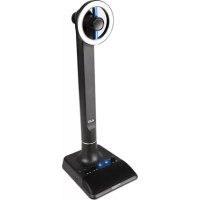
AVS - Video conferencing system MARANTZ - Free user manual and instructions
Find the device manual for free AVS MARANTZ in PDF.



| Product type | All-in-one video conferencing system (streaming, podcasting) |
| Brand | Marantz |
| Model | AVS |
| Dimensions (approximate) | 20 x 20 x 30 cm (base + tower) |
| Weight (approximate) | 2 kg |
| Power supply | 12 V DC, 1 A, AC adapter included |
| Webcam | HD with built-in H.264 compression, on/off via button |
| Microphone | USB condenser, 48 kHz/16 bits, mute via button (red LED) |
| Light ring | Daylight-balanced LED, adjustable brightness, with 3 correction filters (diffuser, cool, warm) |
| Computer connectivity | High-speed USB-C (USB To PC) for audio and video |
| Additional USB ports | 2 USB Type A ports for USB drives (accessible from PC) |
| Headphone output | 3.5 mm stereo with dedicated volume and microphone/PC mixer (Mix) |
| Auxiliary output | 3.5 mm stereo for mixing console or speaker (microphone signal) |
| Main functions | Streaming, podcasting, video conferencing, audio/video recording |
| Maintenance and cleaning | Wipe with a soft, dry cloth. Do not use abrasive products |
| Safety | Use the provided adapter, unplug during storms, do not expose to moisture |
| Spare parts and repairability | Available via Marantz after-sales service. Check marantzpro.com/support |
| General information | Manual downloadable for free at notice-facile.com |
Frequently Asked Questions - AVS MARANTZ
User questions about AVS MARANTZ
0 question about this device. Answer the ones you know or ask your own.
Ask a new question about this device
Download the instructions for your Video conferencing system in PDF format for free! Find your manual AVS - MARANTZ and take your electronic device back in hand. On this page are published all the documents necessary for the use of your device. AVS by MARANTZ.
USER MANUAL AVS MARANTZ
User Guide (English)
Introduction
The AVS answers the need for a high-performance equipment package that includes everything required for streaming and podcasting. This system has a full HD webcam with built-in H.264 video compression, a high-quality 48 kHz/16-bit USB condenser boundary microphone built into the base, and a dimmable LED light ring, daylight-balanced, with cool, warm, and diffused daylight filters. The Marantz AVS is a unique, all-in-one broadcast system that gives any video conferencer, live Internet streamer, or podcaster high-quality components with a multitude of configurations for creating a professional presentation. It's compact and simple, perfect on a desktop, and portable enough to take on location.
To make the system capable of handling any streaming/podcast task without the need for additional equipment, the AVS has a high speed, low latency USB-C computer output, an internal USB hub, and an onboard headphone amplifier that makes audio monitoring a snap. Everything the demanding streaming/broadcasting enthusiast needs is right here in one convenient, high-performance package.
Please see this guide's Setup chapter to learn how to integrate the AVS with your audio system, and then refer to the Operation chapter to start using the AVS.
Box Contents
Tower
Base (with Built-in Microphone)
(3) Lighting Filters (Cool Diffuse, Warm Diffuse, Diffused Daylight)
USB Type-C-to-Type-A Cable
Power Adapter
User Guide
Safety & Warranty Manual
Support
For the latest information about this product (documentation, technical specifications, system requirements, compatibility information, etc.) and product registration, visit marantzpro.com.
For additional product support, visit marantzpro.com/support.
Setup
Connection
Items not listed under Introduction > Box Contents are sold separately.
- Use the included power adapter to connect the Power Input to a power outlet.
- Use the included USB cable to connect the USB Port labeled To PC to your computer.
- Optional: Connect USB flash drives to USB Ports 1 and/or 2. You can to use your computer to access these drives.
- Optional: Use a 1/8" (3.5 mm) stereo audio cable to connect this output to the input of an external mixer, speaker, etc.
- Optional: Attach the desired lighting filter to the LED Ring Light. Use the Brightness knob to adjust the brightness of the light ring around it.
Note: Remove the plastic film from the lighting filter before use.
-
Connect 1/8" (3.5 mm) stereo headphones to the Headphone Output. Use the Headphone Volume knob to adjust the volume.
-
Use the Mix knob to adjust the balance between the microphone signal (Mic) and the signal from your computer (PC) that you hear in the headphones.
-
Open your video or audio recording software, and select Marantz AVS as your computer's default playback and recording devices.
-
You're now ready to start recording.
Audio Setup
To set AVS as your default audio recording and playback device, follow the directions below based on your computer's operating system.
Windows:
- Use the included USB cable to connect the AVS to your computer.
- In the Taskbar, locate the Volume Control "speaker" icon. Right-click the speaker and select Playback Devices.
Alternatively, go to Start Menu > Control Panel (or Settings > Control Panel in Classic View) > Hardware and Sound > Sound. - In the Windows Sound control panel select the Playback tab and select Marantz AVS Audio as the default device.
- Click the Recording tab and select Marantz AVS Audio as the default device.
- Click Properties in the lower right-hand corner.
- In the new window, click the Advanced tab and select 2-channel, 24-bit, 48000 Hz (Studio Quality) as the default format.
Note: Although AVS's audio interface supports up to 24-bit audio, the microphone's output is 16-bit only. - Uncheck both boxes under Exclusive Mode.
- Click OK to close the Properties window.
- Click OK to close the Sound control panel.
macOS:
- Use the included USB cable to connect the AVS to your computer.
- Go to Applications > Utilities > Audio MIDI Setup.
- In the Audio Devices window, select Marantz AVS Audio in the left column.
- Right-click Marantz AVS Audio, and select Use this device for sound input.
- Right-click Marantz AVS Audio, and select Use this device for sound output.
- Quit Audio MIDI Setup.
Video Setup
To set AVS as a video capture device, follow the directions below:
- Use the included USB cable to connect the AVS to your computer.
- Press the Camera On/Off button to turn the camera on.
- Open your software. If you have no other video capture devices connected, AVS should automatically be selected in your software's video settings. Otherwise, select Marantz AVS Video in the list of video capture devices.
Features
Top Panel (Of Base)
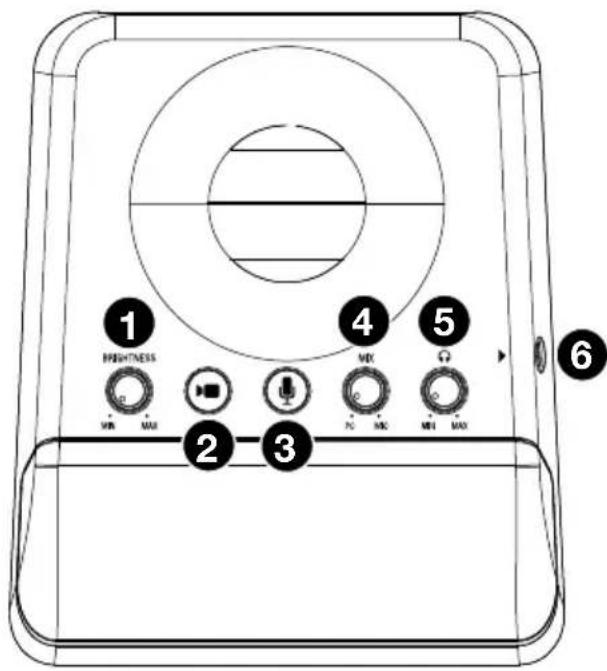
Rear Panel (Of Base)

- Brightness: Turn this knob to adjust the brightness of the light ring around the camera.
- Camera On/Off: Press this button to turn the camera on or off.
- Microphone On/Off: Press this button to turn the microphone on or off.
- Mix: Turn this knob to adjust the balance of audio signals sent to the headphone output. Turning it counter-clockwise toward PC will increase the volume of the audio signal of your computer. Turning it clockwise toward Mic will increase the volume of the audio signal of the microphone.
- Headphone Volume: Turn this knob to adjust the volume of the headphone output.
- Headphone Output (1/8"/3.5 mm, stereo/TRS): Connect your headphones here. Use the headphone volume knob to adjust the volume.
- USB Ports 1 & 2 (USB Type A): Connect USB flash drives to these USB ports. When the USB port labeled To PC is connected to your computer, you can use it to access these USB drives.
- USB Port To PC (USB Type C): Use the included USB cable to connect this USB port to your computer. This connection allows AVS to send/receive audio and video data to/from your computer. It also allows any USB drives connected to USB Ports 1 and 2 on AVS to be accessible on your computer.
- Aux Out (1/8"/3.5 mm, stereo/TRS): Use an audio cable to connect this output to the input of an external mixer, speaker, etc. The Aux Out is for the microphone audio signal only.
- Power Input (12 VDC, 1 A, center-positive): Use the included power adapter to connect this input to a power outlet.
Operation
Camera
Before using the camera, make sure you have selected AVS as a video capture device in your computer and software. See Video Setup for more information.
To turn the camera on or off, press the Camera On/Off button. When the camera is on, the button and camera LEDs will be lit blue. When the camera is off, the button and camera LEDs will not be lit.
LED Ring Light
To turn the LED Ring Light on, turn the Brightness knob to the right from its left-most position until you hear a "click."
To adjust the Brightness of the LED Ring Light, turn the Brightness knob. Turn the knob to the right to increase the brightness, or turn it to the left to decrease the brightness.
To turn the LED Ring Light off, turn the Brightness knob all the way to the left until you hear a "click."
Filters
To attach a filter to the LED Ring Light, align the filter so the tab at the bottom of the filter is aligned with the notch at the bottom of the LED Ring Light, and then snap it into place.
Note: Remove the plastic film from the lighting filter before use.
To remove the filter, use the tab to pop it out from the LED Ring Light.
Microphone
Before using the microphone, make sure you have selected AVS as your audio recording device in your computer and software. See Audio Setup for more information.
Muting/Unmuting
To mute or unmute the microphone, press the Microphone On/Off button. When the microphone is on (unmuted), the mic button LED will be lit blue. When the mic is off (muted), the mic button LED will be lit red.
Headphones (Monitoring)
Before using the headphones, make sure you have selected AVS as your audio playback device in your computer and software. See Audio Setup for more information.
Adjusting the Mix Knob
This knob is useful for dealing with "latency" when you are recording in your software. Latency is a delay in sound that may occur between the incoming sound (from the microphone) and outgoing sound (from your computer).
Latency is often the result of the "buffer size" setting, which is usually located in your software's Preferences, Options, or Device Setup menu. Higher buffer sizes generally result in higher latency. In some cases, lower buffer size settings can consume a lot of your computer's CPU and cause audio glitches. To prevent these audio glitches, you will need to use a higher buffer setting, and this may result in latency.
If you are experiencing latency when recording, adjust the knob towards the Mic position to increase the blend of unprocessed audio from your microphone directly to your Headphone Output. This will let you hear the incoming audio from the microphone without latency while still being able to hear the audio from your computer. When listening to the playback, adjust the knob all the way to the PC position.
If your computer is powerful enough, you may be able to set the buffer size setting in your software low enough such that you may never need to listen to the direct audio signal from the microphone. In this case, set the Mix knob all the way to the PC position to monitor only the audio output of your computer.
Adjusting the Volume Knob
To adjust the headphone output volume, turn the Headphone Volume knob. Turn the knob to the right to increase the volume, or turn the knob to the left to decrease the volume.
Troubleshooting
If you encounter a problem, try doing these things first:
• Make sure all cables and other connected devices are properly and securely connected.
• Make sure you are using AVS as described in this user guide.
• Make sure your other devices or media are working properly.
- If you believe AVS is not working properly, check the following table for your problem and solution.
| Problem: Solution: | |
| Power does not turn on. | Make sure AVS's power input is properly connected to a power outlet using the included power adapter. |
| AVS does not produce any sound, or the sound is distorted. | Make sure all cable and device connections are secure and correct.Make sure none of the cables are damaged.Make sure the settings on your loudspeaker, mixer, etc. are correct.Make sure you have selected AVS as an audio playback device in your computer or software. |
| Sound from the microphone is not heard. | Make sure the Microphone is turned on.Make sure you have set AVS as an audio recording device in your computer or software. |
| Video from the camera does not appear. | Make sure the Camera is turned on.Make sure you have set AVS as your video capture device in your computer software. |
Technical Specifications
| Camera | |
| Camera ON/OFF Button | ON – Blue LED; OFF – No LED |
| Focus Distance | 0.8 m |
| Low Light Correction | Automatic |
| Subject Lighting | 4" Dimmable LED with multiple color filters (Warm/Cool/Diffused Daylight) |
| Diagonal Field of View | 78° |
| Optical Resolution | 2 MP |
| Video | 1080p (1920 x 1080 pixels) @ 30 FPS |
| Compression | H.264 and M-JPEG compatible |
| Sensor Type | CMOS |
| Communication Protocol | UVC |
| Operating Current | ≤ 400mA |
| Operating Voltage | DC 5V, ± 0.25V |
| Power Consumption | Maximum: ≤ 2W; Standby Mode: ≤ 0.25W |
| Operating Systems | Windows 7, 8, 10; macOS 10.6 or later |
| Microphone | |
| Mic Mute ON/OFF Button | ON – Blue LED; OFF – Red LED, Mic is Muted |
| Sensitivity | -34 dB ± 2dB (0 dB = 1 V/Pa @ 1 kHz) |
| Output Impedance | 100 Ω ± 30% (@ 1 kHz) |
| Polar Pattern | Cardioid |
| Sample Rate | 32 kHz / 44.1 kHz / 48 kHz @ 16-bit |
| Frequency Response | 150 Hz – 15 kHz |
| Self Noise | <12 dBA |
| USB | USB 2.0 Class Compliant |
| Operating Systems | Windows 7, 8, 10; macOS 10.6 or later |
| Headphone | |
| Power Output | 130 mW max (Variable Volume Control 0-Max Output) |
| Frequency Response | 20 Hz – 20 kHz |
| Audio Out | 1/8" (3.5 mm) Stereo Output |
| USB | |
| USB 1/2 2 x Type A USB 3.0 | |
| To PC 1 x USB-C connector / USB 3.0 connection |
| General | |
| Dimensions | Base Dimension: ~6.26” (159 mm) Width x 7.36” Length (187 mm) Height: ~19.1” (485 mm) |
| Weight | ~2.28 lbs~1.04 kg |
| Power | AC-DC Power Supply 100 - 240 VAC compatible(12 VDC @ 1 Amp output) |
Specifications are subject to change without notice.
Trademarks & Licenses
Marantz is a trademark of D&M Holdings Inc., registered in the U.S. and other countries. Marantz Professional products are produced by inMusic Brands, Inc., Cumberland, RI 02864, USA.
Apple and macOS are trademarks or service marks of Apple Inc., registered in the U.S. and other countries.
Windows is a registered trademark of Microsoft Corporation in the United States and other countries.
All other product names, company names, trademarks, or trade names are those of their respective owners.
marantzpro.com
- User Guide (English)
- Introduction
- Box Contents
- Support
- Setup
- Connection
- Audio Setup
- Windows:
- macOS:
- Video Setup
- Features
- Operation
- Camera
- LED Ring Light
- Filters
- Microphone
- Muting/Unmuting
- Headphones (Monitoring)
- Adjusting the Mix Knob
- Adjusting the Volume Knob
- Troubleshooting
- Trademarks & Licenses
- marantzpro.com
Brand : MARANTZ
Model : AVS
Category : Video conferencing system