42HE4300 - Television HITACHI - Free user manual and instructions
Find the device manual for free 42HE4300 HITACHI in PDF.



| Product Type | 42-inch LED TV |
| Brand | Hitachi |
| Model | 42HE4300 |
| Screen diagonal | 107 cm (42 inches) |
| Resolution | Ultra HD (4K) - estimated |
| Power supply | 220-240 V AC, 50 Hz |
| Power consumption (max) | Approximately 75 W (estimated) |
| Weight (approx.) | Approximately 9 kg (without stand) |
| Dimensions without stand (W x H x D) | Approximately 95 x 56 x 8 cm (estimated) |
| Integrated tuners | DVB-T/T2, DVB-C, DVB-S/S2 |
| Connectivity | HDMI (3 inputs), USB (2), Ethernet LAN, Wi-Fi 802.11 a/b/g/n |
| Main features | HDR/HLG, Built-in Alexa, USB recording, Time Shift, Smart TV, HbbTV, Wi-Fi Direct |
| Supported file formats | Video: MPEG, H.264, H.265; Audio: MP3, AAC, Dolby; Image: JPEG, PNG |
| Maintenance and cleaning | Clean the screen with a soft dry cloth; avoid solvents and liquids |
| Safety | Child lock, automatic shutdown after 8h, ventilation required (5 cm space) |
| Spare parts and repairability | Repairability index not provided; parts available via Hitachi after-sales service |
| General information | Domestic use; operating temperature 0-40°C; energy class not specified |
Frequently Asked Questions - 42HE4300 HITACHI
User questions about 42HE4300 HITACHI
0 question about this device. Answer the ones you know or ask your own.
Ask a new question about this device
Download the instructions for your Television in PDF format for free! Find your manual 42HE4300 - HITACHI and take your electronic device back in hand. On this page are published all the documents necessary for the use of your device. 42HE4300 by HITACHI.
USER MANUAL 42HE4300 HITACHI
Some features or functions mentioned in this user manual may vary or may not be available depending on the model you purchased.
Contents
Environmental Information.... 3
Standby Picture 4
Standby Notifications....4
TV Control & Operation 5
TV Control Switch & Operation.... 5
TV Control Button & Operation......6
Using Main TV Menu....6
Inserting the Batteries into the Remote 7
Power Connection 7
Antenna Connection....8
Disposal Information......8
Remote Control 10
Connections.... 11
Switching On/Off....12
Switching On/Off....12
Switching On/Off....12
First Time Installation.... 12
Media Playback via USB Input 14
USB Recording....15
Media Browser.... 16
FollowMe TV....16
CEC....16
Using the Channel List 25
Configuring Parental Settings....25
Electronic Programme Guide 25
Teletext Services 26
Software Upgrade.... 26
Troubleshooting & Tips....26
PC Input Typical Display Modes....27
AV and HDMI Signal Compatibility 27
Supported DVI Resolutions 29
Connectivity 30
Apps 33
Internet Browser 34
HBBTV System.... 34
Smart Center 35
Alexa Ready 36
DVD Mode....38
Mobile TV Instructions....43
DVB functionality information 43
Safety Information

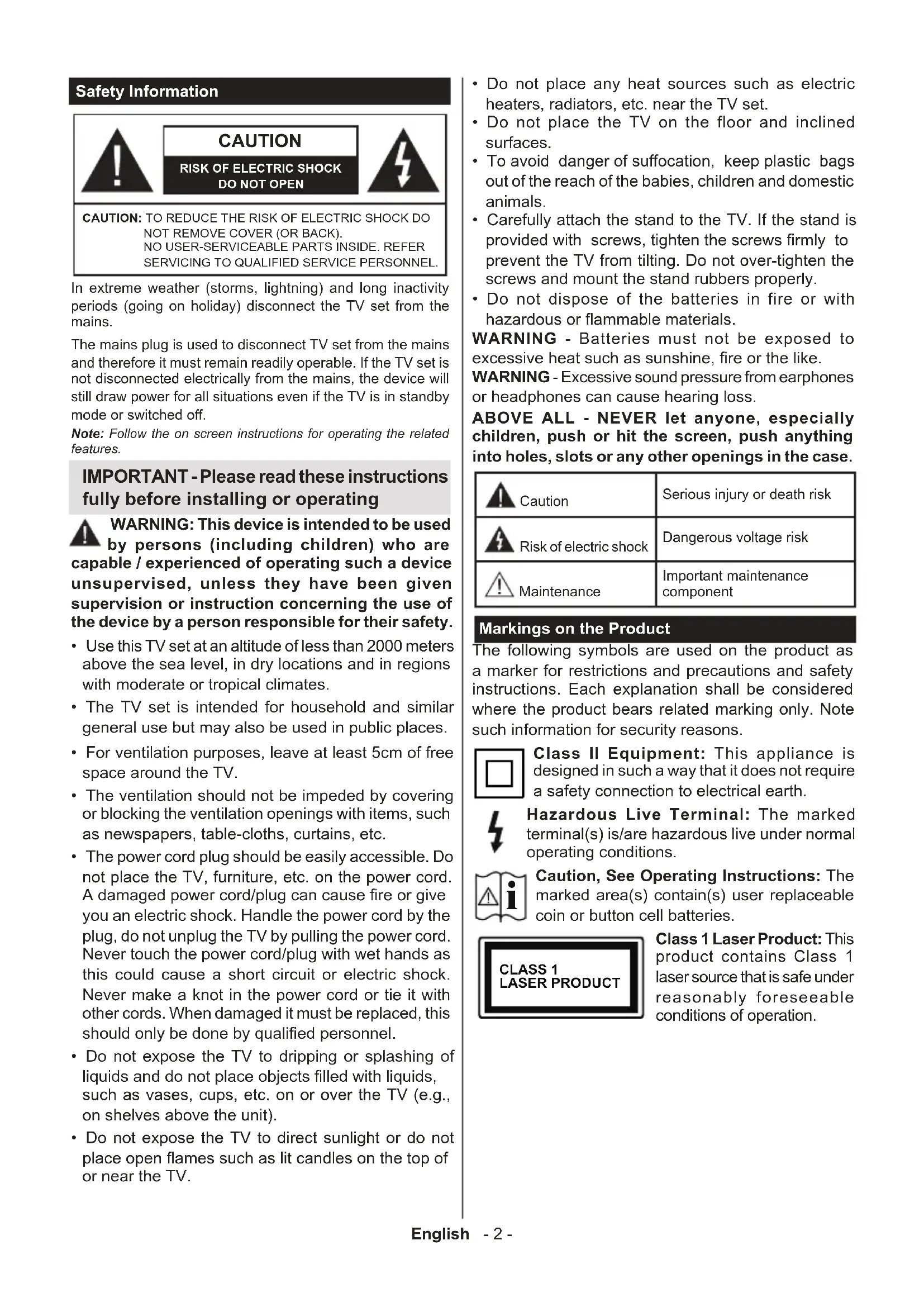
CAUTION
RISK OF ELECTRIC SHOCK DO NOT OPEN

CAUTION: TO REDUCE THE RISK OF ELECTRIC SHOCK DO NOT REMOVE COVER (OR BACK). NO USER-SERVICEABLE PARTS INSIDE. REFER SERVICING TO QUALIFIED SERVICE PERSONNEL
In extreme weather (storms, lightning) and long inactivity periods (going on holiday) disconnect the TV set from the mains.
The mains plug is used to disconnect TV set from the mains and therefore it must remain readily operable. If the TV set is not disconnected electrically from the mains, the device will still draw power for all situations even if the TV is in standby mode or switched off.
Note: Follow the on screen instructions for operating the related features.
IMPORTANT - Please read these instructions fully before installing or operating

WARNING: This device is intended to be used by persons (including children) who are capable / experienced of operating such a device unsupervised, unless they have been given supervision or instruction concerning the use of the device by a person responsible for their safety.
- Use this TV set at an altitude of less than 2000 meters above the sea level, in dry locations and in regions with moderate or tropical climates.
- The TV set is intended for household and similar general use but may also be used in public places.
- For ventilation purposes, leave at least 5cm of free space around the TV.
- The ventilation should not be impeded by covering or blocking the ventilation openings with items, such as newspapers, table-cloths, curtains, etc.
- The power cord plug should be easily accessible. Do not place the TV, furniture, etc. on the power cord. A damaged power cord/plug can cause fire or give you an electric shock. Handle the power cord by the plug, do not unplug the TV by pulling the power cord. Never touch the power cord/plug with wet hands as this could cause a short circuit or electric shock. Never make a knot in the power cord or tie it with other cords. When damaged it must be replaced, this should only be done by qualified personnel.
- Do not expose the TV to dripping or splashing of liquids and do not place objects filled with liquids, such as vases, cups, etc. on or over the TV (e.g., on shelves above the unit).
-
Do not expose the TV to direct sunlight or do not place open flames such as lit candles on the top of or near the TV.
-
Do not place any heat sources such as electric heaters, radiators, etc. near the TV set.
- Do not place the TV on the floor and inclined surfaces.
- To avoid danger of suffocation, keep plastic bags out of the reach of the babies, children and domestic animals.
- Carefully attach the stand to the TV. If the stand is provided with screws, tighten the screws firmly to prevent the TV from tilting. Do not over-tighten the screws and mount the stand rubbers properly.
- Do not dispose of the batteries in fire or with hazardous or flammable materials.
WARNING - Batteries must not be exposed to excessive heat such as sunshine, fire or the like.
WARNING - Excessive sound pressure from earphones or headphones can cause hearing loss.
ABOVE ALL - NEVER let anyone, especially children, push or hit the screen, push anything into holes, slots or any other openings in the case.
 | Caution | Serious injury or death risk |
 | Risk of electric shock | Dangerous voltage risk |
 | Maintenance | Important maintenance component |
Markings on the Product
The following symbols are used on the product as a marker for restrictions and precautions and safety instructions. Each explanation shall be considered where the product bears related marking only. Note such information for security reasons.

Class II Equipment: This appliance is designed in such a way that it does not require a safety connection to electrical earth.

Hazardous Live Terminal: The marked terminal(s) is/are hazardous live under normal operating conditions.

Caution, See Operating Instructions: The marked area(s) contain(s) user replaceable coin or button cell batteries.

Class 1 Laser Product: This product contains Class 1 laser source that is safe under reasonably foreseeable conditions of operation.
WARNING
Do not ingest the battery, Chemical Burn Hazard This product or the accessories supplied with the product may contain a coin/button cell battery. If the coin/button cell battery is swallowed, it can cause severe internal burns in just 2 hours and can lead to death.
Keep new and used batteries away from children. If the battery compartment does not close securely, stop using the product and keep it away from children.
If you think batteries might have been swallowed or placed inside any part of the body, seek immediate medical attention.
A television may fall, causing serious personal injury or death. Many injuries, particularly to children, can be avoided by taking simple precautions such as:
- ALWAYS use cabinets or stands or mounting methods recommended by the manufacturer of the television set.
- ALWAYS use furniture that can safely support the television set.
- ALWAYS ensure the television set is not overhanging the edge of the supporting furniture.
- ALWAYS educate children about the dangers of climbing on furniture to reach the television set or its controls.
- ALWAYS route cords and cables connected to your television so they cannot be tripped over, pulled or grabbed.
- NEVER place a television set in an unstable location.
- NEVER place the television set on tall furniture (for example, cupboards or bookcases) without anchoring both the furniture and the television set to a suitable support.
- NEVER place the television set on cloth or other materials that may be located between the television set and supporting furniture.
- NEVER place items that might tempt children to climb, such as toys and remote controls, on the top of the television or furniture on which the television is placed.
If the existing television set is going to be retained and relocated, the same considerations as above should be applied.
Apparatus connected to the protective earthing of the building installation through the MAINS connection or through other apparatus with a connection to protective earthing – and to a television distribution system using coaxial cable, may in some circumstances create a fire hazard. Connection to a television distribution system has therefore to be provided through a device providing electrical isolation below a certain frequency range (galvanic isolator)
WALL MOUNTING WARNINGS
- Read the instructions before mounting your TV on the wall.
- The wall mount kit is optional. You can obtain from your local dealer, if not supplied with your TV.
- Do not install the TV on a ceiling or on an inclined wall.
- Use the specified wall mounting screws and other accessories.
- Tighten the wall mounting screws firmly to prevent the TV from fall. Do not over-tighten the screws.
Figures and illustrations in this user manual are provided for reference only and may differ from the actual product appearance. Product design and specifications may be changed without notice.
Environmental Information
This television is designed to be environment friendly. To reduce energy consumption, you can follow these steps:
If you set the Energy Saving to Minimum, Medium, Maximum or Auto the TV will reduce the energy consumption accordingly. If you like to set the Backlight to a fixed value set as Custom and adjust the Backlight (located under the Energy Saving setting) manually using Left or Right buttons on the remote. Set as Off to turn this setting off.
Note: Available Energy Saving options may differ depending on the selected Mode in the Settings>Picture menu.
The Energy Saving settings can be found in the Settings>Picture menu. Note that some picture settings will be unavailable to be changed.
If pressed Right button or Left button consecutively, "Screen will be off in 15 seconds." message will be displayed on the screen. Select Proceed and press OK to turn the screen off immediately. If you don't press any button, the screen will be off in 15 seconds. Press any button on the remote or on the TV to turn the screen on again.
Note: Screen Off option is not available if the Mode is set to Game.
When the TV is not in use, please switch off or disconnect the TV from the mains plug. This will also reduce energy consumption.
Features
- Remote controlled colour TV
- Fully integrated digital terrestrial/cable/satellite TV (DVB-T-T2/C/S-S2)
- Fransat Installation Option
- HDMI inputs to connect other devices with HDMI sockets
- USB input
- OSD menu system
- Back AV inputs for external devices (such as DVD Players, PVR, video games, etc.)
- Stereo sound system
- Teletext
• Headphone connection
• Automatic programming system - Manual tuning
• Automatic power down after up to eight hours - Sleep timer
- Child lock
• Automatic sound mute when no transmission - NTSC playback
• AVL (Automatic Volume Limiting) - PLL (Frequency Search)
- PC input
- Game Mode (Optional)
- Picture off function
- Programme recording
- Programme timeshifting
- Pixellence
- Ethernet (LAN) for Internet connectivity and service
• 802.11 a/b/g/n built in WLAN Support
• Audio Video Sharing
• HbbTV
High Dynamic Range (HDR) / Hybrid Log-Gamma (HLG)
Using this feature the TV can reproduce greater dynamic range of luminosity by capturing and then combining several different exposures. HDR/HLG promises better picture quality thanks to brighter, more realistic highlights, more realistic colour and other improvements. It delivers the look that filmmakers intended to achieve, showing the hidden areas of dark shadows and sunlight with full clarity, colour and detail. HDR/HLG contents are supported via native and market applications, HDMI, USB inputs and over DVB-S broadcasts.
Standby Picture
You can use your TV as a digital picture frame using the Standby Picture feature. In order to do this follow the steps below.
- Set the Standby Picture option in the Settings>System>More menu as On. This option is set as Off by default.
- Create a separate folder named as standby_picture in the USB storage device's root directory and copy the files you want to use into that folder and then connect the USB storage device to your TV.
- Press the Standby button on the remote briefly to switch your TV into standby picture mode.
Note that once the Standby Picture option is set as On, the function of the Standby button on the remote will change. After this you will need to press and hold the button to switch the TV into standby mode while the TV is in normal operating mode.
If there are more than 1 picture file available in the folder all picture files will be displayed as a slide show in succession. If the necessary folder is not created or there isn't any picture file in the folder, a warning message will be displayed on the screen for a few seconds and then disappear.
In standby picture mode the backlight level of the screen will be decreased by 50 % and Smart Center features will not be usable, if Smart Center is available for your TV model.
To switch your TV from standby picture mode back to normal operating mode press the Standby button on the remote briefly.
Beside the remote control you can also use the control unit on the TV to switch into standby picture mode and back to normal operating mode. In order to do that follow the same instructions as described in the TV Control & Operation section for switching the TV into the standby mode. Note that you will not be able to switch the TV into standby mode using the control unit on the TV while the TV is in standby picture mode.
Note: The availability of this feature depends on the TV model and its features.
Refer to the Supported File Formats for USB Mode section for the supported media file formats.
Standby Notifications
If the TV does not receive any input signal (e.g. from an aerial or HDMI source) for 3 minutes, it will go into standby. When you next switch-on, the following message will be displayed: "TV switched to stand-by mode automatically because there was no signal for a long time."
The Auto Power Down option(in the Settings>System >More menu) could have been set to a value between 1 and 8 hours by default. If this setting is not set as Off and the TV has been left on and not been operated
during the set time, it will switch into standby mode after the set time has expired. When you next switch-on the TV, the following message will be displayed. "TV switched to stand-by mode automatically because no operation was made for a long time." Before the TV switches into standby mode a dialogue window will be displayed. If you do not press any button the TV will switch into the standby mode after a waiting period of about 5 minutes. You can highlight Yes and press OK to switch the TV into standby mode immediately. If you highlight No and press OK, the TV will remain on. You can also choose to cancel the Auto Power Down function from this dialogue. Highlight Disable and press OK, the TV will remain on and the function will be cancelled. You can enable this function again by changing the setting of the Auto Power Down option from the Settings>System>More menu.
TV Control & Operation
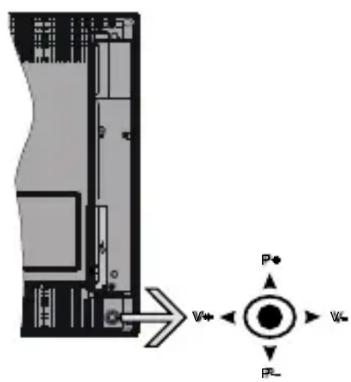
The joystick allows you to control the Volume / Programme / Source and Standby-On functions of the TV.
Note: The position of the joystick may differ depending on the model.
To change volume: Increase the volume by pushing the joystick right. Decrease the volume by pushing the joystick left.
To change channel: Scroll through the stored channels by pushing the joystick up or down.
To change source: Press the centre of the joystick in, the sources list will appear on the screen. Scroll through the available sources by pushing the joystick up or down.
To turn the TV off: Press the centre of the joystick in and hold it down for a few seconds, the TV will turn into standby mode.
To turn on the TV: Press the centre of the joystick in, the TV will turn on.
Note: Main menu OSD cannot be displayed via control button.
Operation with the Remote Control
Press the Menu button on your remote control to display main menu. Use the directional buttons and OK button to navigate and set. Press Return/Back or Menu button to quit a menu screen.
Input Selection
Once you have connected external systems to your TV, you can switch to different input sources. Press the Source button on your remote control consecutively to select the different sources.
Changing Channels and Volume
You can change the channel and adjust the volume by using the Programme +/- and Volume +/- buttons on the remote.
TV Control Switch & Operation

- Up direction
- Down direction
- Volume / Info / Sources List selection and Standby-On switch
The Control button allows you to control the Volume / Programme / Source and Standby-On functions of the TV.
To change volume: Increase the volume by pushing the button up. Decrease the volume by pushing the button down.
To change channel: Press the middle of the button in, the information banner will appear on the screen. Scroll through the stored channels by pushing the button up or down.
To change source: Press the middle of the button in twice(for the second time in total), the source list will appear on the screen. Scroll through the available sources by pushing the button up or down.
To turn the TV off: Press the middle of the button in and hold it down for a few seconds, the TV will turn into standby mode.
To turn on the TV: Press the middle of the button in, the TV will turn on.
Notes:
If you turn the TV off, this cycle starts again beginning with the volume setting.
Main menu OSD cannot be displayed via control button.
Operation with the Remote Control
Press the Menu button on your remote control to display main menu. Use the directional buttons and
OK button to navigate and set. Press Return/Back or Menu button to quit a menu screen.
Input Selection
Once you have connected external systems to your TV, you can switch to different input sources. Press the
Source button on your remote control consecutively to select the different sources.
Changing Channels and Volume
You can change the channel and adjust the volume by using the Programme +/- and Volume +/- buttons on the remote.
TV Control Button & Operation
natural_image
Simple diagram showing a circular object and a rectangular shape with curved lines, no text or symbols present.Note: The position of the control button may differ depending on the model.
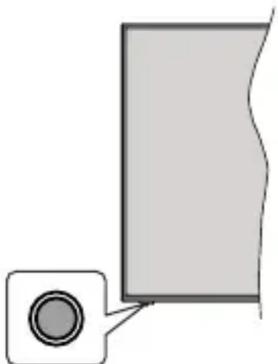
Your TV has a single control button. This button allows you to control the Standby-On / Source / Programme and Volume functions of the TV.
Operating with the Control Button
- Press the control button to display the function options menu.
- Then press the button consecutively to move the focus to the desired option if needed.
- Press and hold the button for about 2 seconds to activate the selected option. The icon colour of the option changes when activated.
- Press the button once again to use the function or enter the sub menu.
- To select another function option, you will need to deactivate the last activated option first. Press and hold the button to deactivate it. The icon colour of the option changes when deactivated.
- To close the function options menu do not press the button for a period of about 5 seconds. The function options menu will disappear.
To turn the TV off: Press the control button to display the function options menu, the focus will be on the Standby option. Press and hold the button for about 2 seconds to activate this option. The icon colour of the option changes when activated. Then press the button once again to turn the TV off.
To turn on the TV: Press the control button, the TV will turn on.
To change volume: Press the control button to display the function options menu and then press the button consecutively to move the focus to Volume + or Volume - option. Press and hold the button for about 2 seconds to activate the selected option. The icon colour of the option changes when activated. Then press the button to increase or decrease the volume.
To change channel: Press the control button to display the function options menu and then press the button consecutively to move the focus to Programme + or Programme - option. Press and hold the button for about 2 seconds to activate the selected option. The icon colour of the option changes when activated. Then press the button to switch to the next or previous channel in the channel list.
To change source: Press the control button to display the function options menu and then press the button consecutively to move the focus to Source option. Press and hold the button for about 2 seconds to activate this option. The icon colour of the option changes when activated. Then press the button once again to display the sources list. Scroll through the available sources by pressing the button. TV will automatically switch to the highlighted source.
Note: Main menu OSD cannot be displayed via the control button.
Operation with the Remote Control
Press the Menu button on your remote control to display main menu. Use the directional buttons and OK button to navigate and set. Press Return/Back or Menu button to quit a menu screen.
Input Selection
Once you have connected external systems to your TV, you can switch to different input sources. Press the Source button on your remote control consecutively to select the different sources.
Changing Channels and Volume
You can change the channel and adjust the volume by using the Programme +/- and Volume +/- buttons on the remote.
Using Main TV Menu
When the Menu button is pressed, the main TV menu will appear on the screen. You can navigate through the menu items using the directional buttons on the remote. To select an item or see the sub-menu options of the highlighted menu press OK button. When you highlight a menu option some of the sub-menu items of this menu may appear on the upper side of the menu bar for quick access. To use a quick access item highlight it, press OK and set as desired using the Left/Right directional buttons. When finished press OK or Back/Return button to exit.
Press Exit button to close the main menu.
1. Home
When main menu is opened Home menu bar will be highlighted. The content of the Home menu can be customised by adding options from other menus. Just highlight an option and press the Down direction button on the remote. If you see Add to Home option you can add it to the Home menu. Same way you can delete or change the position of any item in the Home menu. Press the Down direction button and select Delete or Move option and press OK. In order to move a menu item use the Right and Left direction buttons to select the position that you want the item to move to and press OK.
2. Search
You can search for Channels, Guide, TV menus, Apps, Web, YouTube and Videos using this option. Press OK and enter a key word using the virtual keyboard. Then highlight OK and press OK to start the search. Results will be displayed on the screen. Highlight the desired result using the directional buttons and press OK to open.
3. TV
3.1. Guide
You can access the electronic programme guide menu using this option. Refer to Electronic Programme Guide section for more information.
3.2. Channels
You can access the Channels menu using this option. Refer to Using the Channel List section for more information.
3.3. Timers
You can set timers for future events using the options of this menu. You can also review the previously created timers under this menu.
To add a new timer select the Add Timer tab using the Left/Right buttons and press OK. Set the sub-menu options as desired and when finished press OK. A new timer will be created.
To edit a previously created timer, highlight that timer, select the Edit Selected Timer tab and press OK. Change the sub-menu options as desired and press OK to save your settings.
To cancel an already set timer, highlight that timer, select Delete Selected Timer tab and press OK. A confirmation message will be displayed. Highlight Yes and press OK to proceed. The timer will be cancelled.
It is not possible to set timers for two or more events that will broadcast in different channels at the same time interval. In this case you will be asked to choose one of these timers and cancel others. Highlight the timer you want to cancel and press OK, Options menu will be displayed. Then highlight Set/Cancel and press OK to cancel that timer. You will have to save changes after that. In order to do that press OK, highlight Save Changes and press OK again.
3.4. Recordings
You can manage your recordings using the options of this menu. You can playback, edit, delete or sort previously recorded events. Highlight a tab by using the Left or Right direction button and press OK to see available options.
4. Settings
You can manage the settings of your TV using the options of this menu. Refer to Settings Menu Content section for more information.
5. Apps
When your TV is connected to the Internet related content will also be available, including Apps related content. Using the Apps menu you can access and manage your applications. You can add new apps from the market or delete the existing ones. Refer to Apps section for more information.
6. Sources
You can manage your input source preferences using the options of this menu. To change the current source highlight one of the options and press OK.
6.1. Source Settings
Edit the names, enable or disable selected source options.
You can reset your customisations on the Home and Apps menus to defaults using the Reset Menu option in the Apps menu (availability depends on TV model and its features). Highlight this option and press OK. A confirmation message will be displayed. Highlight Yes and press OK to proceed. Note that you will not be able to perform this operation again within the next 2 minutes.
Inserting the Batteries into the Remote
Remove the back cover to reveal the battery compartment. Insert two size AAA batteries. Make sure the (+) and (-) signs match (observe correct polarity). Do not mix old and new batteries. Replace only with same or equivalent type. Place the cover back on.
A message will be displayed on the screen when the batteries are low and must be replaced. Note that when the batteries are low, the performance of the remote control may be impaired.
Batteries should not be exposed to excessive heat such as sunshine, fire or the like.
Power Connection
IMPORTANT: The TV set is designed to operate on a 220-240V AC, 50 Hz supply. After unpacking, allow the TV set to reach the ambient room temperature before you connect the set to the mains. Plug the power cable to the mains socket outlet.
Antenna Connection
Connect the aerial or cable TV plug to the aerial input (ANT) socket or satellite plug to the satellite input (LNB) socket located on the rear side of the TV.
Rear side of the TV
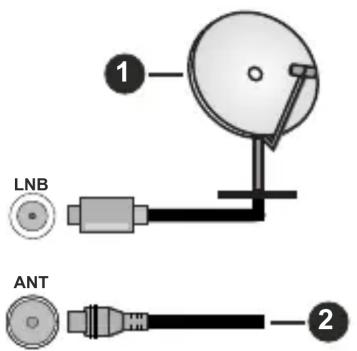
- Satellite
- Aerial or cable

If you want to connect a device to the TV, make sure that both the TV and the device are turned off before making any connection. After the connection is done, you can turn on the units and use them.
License Notification
The terms HDMI, HDMI High-Definition Multimedia Interface, and the HDMI Logo are trademarks or registered trademarks of HDMI Licensing Administrator, Inc.

Manufactured under license from Dolby Laboratories. Dolby, Dolby Audio and the double-D symbol are trademarks of Dolby Laboratories. Confidential unpublished works. Copyright ©1992-2019 Dolby Laboratories. All rights reserved.
YouTube and the YouTube logo are trademarks of Google Inc.
For DTS patents, see http://patents.dts.com. Manufactured under license from DTS Licensing Limited. DTS, the Symbol, DTS and the Symbol together, DTS-HD, and the DTS-HD logo are registered trademarks or trademarks of DTS, Inc. in the United States and/or other countries. © DTS, Inc. All Rights Reserved.


For DTS patents, see http://patents.dts.com. Manufactured under license from DTS Licensing Limited. DTS, the Symbol, DTS and the Symbol together, Virtual:X, and the DTS Virtual:X logo are registered trademarks or trademarks of DTS, Inc. in the United States and/or other countries. © DTS, Inc. All Rights Reserved.

This product contains technology subject to certain intellectual property rights of Microsoft. Use or distribution of this technology outside of this product is prohibited without the appropriate license(s) from Microsoft.
Content owners use Microsoft PlayReady™ content access technology to protect their intellectual property, including copyrighted content. This device uses PlayReady technology to access PlayReady-protected content and/or WMDRM-protected content. If the device fails to properly enforce restrictions on content usage, content owners may require Microsoft to revoke the device's ability to consume PlayReady-protected content. Revocation should not affect unprotected content or content protected by other content access technologies. Content owners may require you to upgrade PlayReady to access their content. If you decline an upgrade, you will not be able to access content that requires the upgrade.
The “CI Plus” Logo is a trademark of CI Plus LLP.
This product is protected by certain intellectual property rights of Microsoft Corporation. Use or distribution of such technology outside of this product is prohibited without a license from Microsoft or an authorized Microsoft subsidiary.
Disposal Information
[European Union]
These symbols indicate that the electrical and electronic equipment and the battery with this symbol should not be disposed of as general household waste at its end-of-life. Instead, the products should be handed over to the applicable collection points for the recycling of electrical and electronic equipment as well as batteries for proper treatment, recovery and recycling in accordance with your national legislation and the Directive 2012/19/EU and 2013/56/EU.
By disposing of these products correctly, you will help to conserve natural resources and will help to prevent potential negative effects on the environment and human health which could otherwise be caused by inappropriate waste handling of these products.
For more information about collection points and recycling of these products, please contact your local municipal office, your household waste disposal service or the shop where you purchased the product.
Penalties may be applicable for incorrect disposal of this waste, in accordance with national legislation.
[Business users]
If you wish to dispose of this product, please contact your supplier and check the terms and conditions of the purchase contract.
[Other Countries outside the European Union]
These symbols are only valid in the European Union.
Contact your local authority to learn about disposal and recycling.
The product and packaging should be taken to your local collection point for recycling.
Some collection points accept products free of charge.
Note: The sign Pb below the symbol for batteries indicates that this battery contains lead.

- Products
- Battery
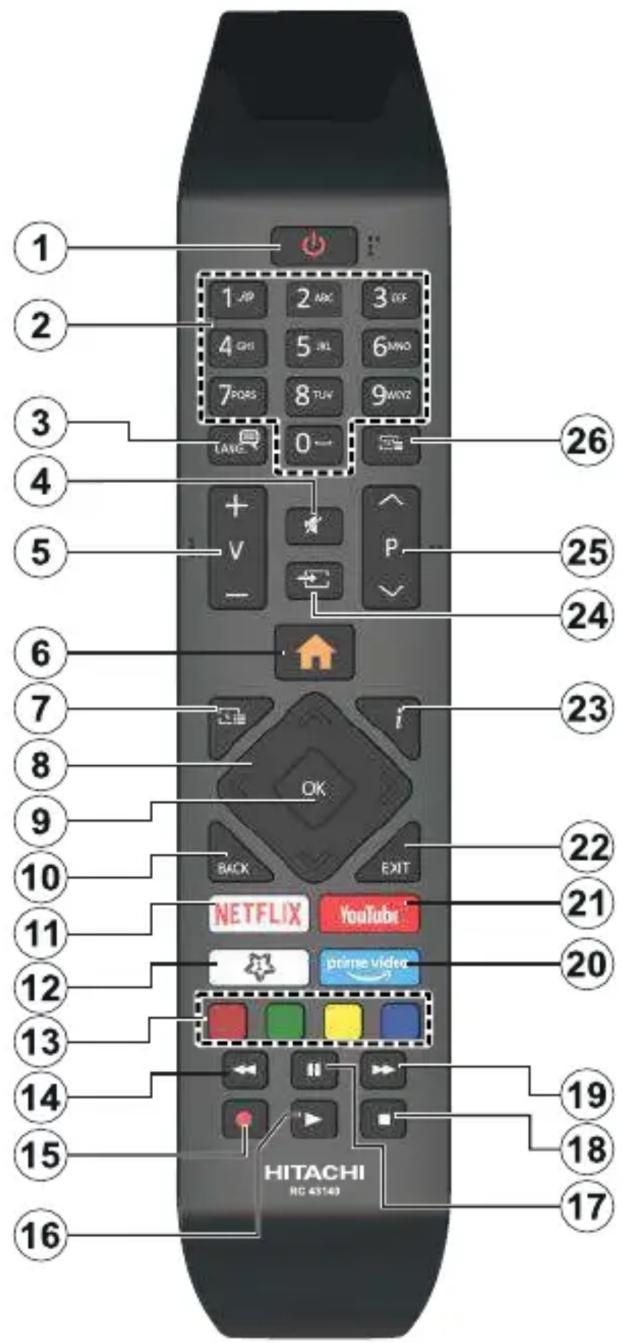
(\*) MY BUTTON 1:
This button may have default function depending on the model. However you can set a special function to this button by pressing on it for more than three seconds when on a desired source, channel or application. A confirmation message will be displayed on the screen. Now the My Button 1 is associated with the selected function.
Note that if you perform First Time Installation, My Button 1 will return to its default function.
- Standby: Switches On / Off the TV
- Numeric buttons: Switches the channel, enters a number or a letter in the text box on the screen
- Language: Switches among sound modes (analogue TV), displays and changes audio/subtitle language and turns subtitles on or off (digital TV, where available)
-
Mute: Completely turns off the volume of the TV
-
Volume +/-
-
Menu: Displays TV menu
-
Guide: Displays the electronic programme guide
-
Directional buttons: Helps navigate menus, content etc. and displays the subpages in TXT mode when pressed Right or Left
-
OK: Confirms user selections, holds the page (in TXT mode), views Channels menu (DTV mode)
-
Back/Return: Returns to previous screen, previous menu, opens index page (in TXT mode). Quickly cycles between previous and current channels or sources
-
Netflix: Launches the Netflix application
-
My Button 1 (*)
-
Coloured Buttons: Follow the on-screen instructions for coloured button functions
-
Rewind: Moves frames backwards in media such as movies
-
Record: Records programmes
-
Play: Starts to play selected media
-
Pause: Pauses the media being played, starts timeshift recording
-
Stop: Stops the media being played
-
Fast Forward: Moves frames forward in media such as movies
-
Prime Video: Launches the Amazon Prime Video application
-
YouTube: Launches the YouTube application
-
Exit: Closes and exits from displayed menus or returns to previous screen
-
Info: Displays information about on-screen content, shows hidden information (reveal - in TXT mode)
-
Source: Shows available broadcast and content sources
-
Programme +/-
-
Text: Displays teletext (where available), press again to superimpose the teletext over a normal broadcast picture (mix)
Connections
| Connector Type Cables Device | |||
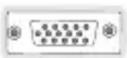 | VGA Connection (back) |  |  |
AUDIO IN  | PC/YPbPr Audio Connection (back) |  YPbPr/PC Audio Cable YPbPr/PC Audio Cable |  |
| [2272] | HDMI Connection (side&back) | 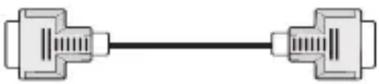 |  |
SPDIF  | SPDIF (Coaxial Out) Connection (back) |  |  |
SPDIF  | SPDIF (Optical Out) Connection (back) |  |  |
BACK AV  | Back AV (Audio/Video) Connection (back) | 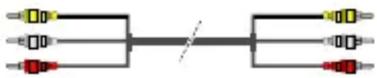 Audio Video Cable Audio Video Cable |  |
HEADPHONE  | Headphone Connection (side) |  | |
YPBPR  | YPbPr Video Connection (back) |  PC to YPbPr Connection Cable PC to YPbPr Connection Cable |  |
 | USB Connection (side) |  |  |
 | CI Connection (side) |  | [XGWS] |
LAN  | Ethernet Connection (back) |  LAN / Ethernet Cable LAN / Ethernet Cable |  |

If you want to connect a device to the TV, make sure that both the TV and the device are turned off before making any connection. After the connection is done, you can turn on the units and use them.
Switching On/Off
To Switch the TV On
Connect the power cord to a power source such as a wall socket (220-240V AC, 50 Hz).
To switch on the TV from standby mode either:
- Press the Standby button, Programme +/- or a numeric button on the remote control.
- Press the centre of the joystick on the TV in or push it up/down.
To Switch the TV Off
Press the Standby button on the remote control or press the centre of the joystick on the TV in and hold it down for a few seconds, the TV will switch into standby mode.
To power down the TV completely, unplug the power cord from the mains socket.
Note: When the TV is switched into standby mode, the standby LED can blink to indicate that features such as Standby Search, Over Air Download or Timer is active. The LED can also blink when you switch on the TV from standby mode.
Switching On/Off
To Switch the TV On
Connect the power cord to a power source such as a wall socket (220-240V AC, 50 Hz).
To switch on the TV from standby mode either:
- Press the Standby button, Programme +/- or a numeric button on the remote control.
- Press the middle of the side function switch on the TV in.
To Switch the TV Off
Press the Standby button on the remote control or press the middle of the side function switch on the TV in and hold it down for a few seconds, the TV will switch into standby mode.
To power down the TV completely, unplug the power cord from the mains socket.
Note: When the TV is switched into standby mode, the standby LED can blink to indicate that features such as Standby Search, Over Air Download or Timer is active. The LED can also blink when you switch on the TV from standby mode.
Switching On/Off
To Switch the TV On
Connect the power cord to a power source such as a wall socket (220-240V AC, 50 Hz).
To switch on the TV from standby mode either:
- Press the Standby button, Programme +/- or a numeric button on the remote control.
- Press the control button on the TV.
To Switch the TV Off
- Press the Standby button on the remote control.
- Press the control button on the TV, the function options menu will be displayed. The focus will be on the Standby option. Press and hold the button for about 2 seconds to activate this option. The icon colour of the option will change. Then press the button once again, the TV will switch into standby mode.
To power down the TV completely, unplug the power cord from the mains socket.
Note: When the TV is switched into standby mode, the standby LED can blink to indicate that features such as Standby Search, Over Air Download or Timer is active. The LED can also blink when you switch on the TV from standby mode.
First Time Installation
Note: If you are going to perform FRANSAT installation, insert the FRANSAT card (optional) into the Conditional Access terminal of your TV before switching on your TV.
When turned on for the first time, the language selection screen is displayed. Select the desired language and press OK. In the following steps of the installation guide, set your preferences using the directional buttons and OK button.
After the language selection, you will be asked whether you want to change accessibility settings. Highlight Yes and press OK to change. Refer to System Menu Content section for detailed information on available options.
Set your country preference on the next screen. Depending on the Country selection you may be asked to set and confirm a PIN at this point. The selected PIN cannot be 0000. You have to enter it if you are asked to enter a PIN for any menu operation later.
Note: M7(*) operator type will be defined according to the Language and Country selections that you made in the First Time Installation.
(*) M7 is a digital satellite service provider.
You can activate Store Mode option in the next step. This option will configure your TV's settings for store environment and depending on the TV model being used, the supported features of it may be displayed on the side of the screen as an info banner. This option is intended only for store use. It is recommended to select Home Mode for home use. This option will be available in Settings>System>More menu and can be turned off/on later. Make your selection and press OK to continue.
The picture mode selection screen will then be displayed. In order for your TV to consume less energy and be more environmentally friendly select Natural and press OK to continue. You can change your selection later using the Mode option in the Settings>Picture menu.
Depending on the model of your TV and the country selection Privacy Settings menu may appear at this point. Using this menu you can set your privacy
privileges. Highlight a feature and use Left and Right directional buttons to enable or disable. Read the related explanations displayed on the screen for each highlighted feature before making any changes. You can use Programme +/- buttons to scroll up and down to read the entire text. You will be able to change your preferences at any time later from the Settings>System>Privacy Settings menu. If the Internet Connection option is disabled Network/Internet Settings screen will be skipped and not displayed. If you have any questions, complaints or comments regarding this privacy policy or its enforcement, please contact by email at smarttvsecurity@vosshub.com.
Highlight Next and press OK button on the remote control to continue and the Network/Internet Settings menu will be displayed. Please refer to Connectivity section to configure a wired or a wireless connection. If you want your TV to consume less power in standby mode, you can disable the Wake On option by setting it as Off. After the settings are completed highlight Next and press OK button to continue.
On next screen you can set broadcast types to be searched, set your encrypted channel searching and time zone (depending on the country selection) preferences. Additionally you can set a broadcast type as your favourite one. Priority will be given to the selected broadcast type during the search process and the channels of it will be listed on the top of the channel list. When finished, highlight Next and press OK to continue.
About Selecting Broadcast Type
To turn a search option for a broadcast type highlight it and press OK. The checkbox next to the selected option will be checked. To turn the search option off clear the checkbox by pressing OK after moving the focus on the desired broadcast type option.
Digital Aerial: If D. Aerial broadcast search option is turned on, the TV will search for digital terrestrial broadcasts after other initial settings are completed.
Digital Cable: If D. Cable broadcast search option is turned on, the TV will search for digital cable broadcasts after other initial settings are completed. A message will be displayed before starting to search asking if you want to perform cable network search. If you select Yes and press OK you can select Network or set values such as Frequency, Network ID and Search Step on the next screen. If you select No and press OK you can set Start Frequency, Stop Frequency and Search Step on the next screen. When finished, highlight Next and press OK button to continue.
Note: Searching duration will change depending on the selected Search Step.
Satellite: If Satellite broadcast search option is turned on, the TV will search for digital satellite broadcasts after other initial settings are completed. Before satellite search is performed some settings should be made. A menu will be displayed where you can select to start M7 or Fransat operator installation or a standard installation.
To start an M7 operator installation set the Install Type as Operator and the Satellite Operator as the related M7 operator. Then highlight Preferred Scan option and set as Automatic channel scan and press OK to start the automatic search. These options can be preselected depending on the Language and Country selections that you made in the earlier steps of the first time installation process. You may be asked to select HD/SD or country specific channel list according to your M7 operator type. Select one and press OK to proceed.
Wait till the scan is finished. Now the list has been installed.
While performing an M7 operator installation, if you want to use the satellite installation parameters that differ from the default settings select the Preferred Scan option as Manual channel scan and press the OK button to proceed. Antenna Type menu will be displayed next. After selecting the antenna type and the desired satellite in the following steps press OK in order to change the satellite installation parameters in the sub-menu.
To start a Fransat installation set the Install Type as Operator and then set the Satellite Operator as the related Fransat operator. Then press the OK button to start Fransat installation. You can select to start an automatic or manual installation.
Press OK to proceed. Fransat Installation will be performed and broadcasts will be stored (if available).
If you set the Install Type as Standard, you can continue with regular satellite installation and watch satellite channels.
You can start a Fransat installation at any time later from the Settings>Installation>Automatic channel scan>Satellite menu.
In order to search for satellite channels other than M7 or Fransat channels you should start a standard installation. Select the Install Type as Standard and press the OK button to proceed.
Tivusat Option
You can search and store Tivusat channels if the Satellite broadcast search option is turned on. Before the channel search starts, a menu will be displayed where you can select to install Tivusat channels. Set the Install Type as Operator and then set the Satellite Operator accordingly. Press OK to proceed. The TV will start to search for available broadcasts.
Note: If you want the channels to be sorted in the preset order of Tivusat set the satellite as Hotbird at 13.0° East (13.0E) after selecting your antenna type.
If you select Standard as Install Type and press OK, Antenna Type menu will be displayed next. There are three options for antenna selection. You can select Antenna Type as Direct, Single Satellite Cable or DiSEqC switch by using Left or Right buttons. After selecting your antenna type press OK to see the options to proceed. Continue, Transponder list and Configure LNB options will be available. You can change the transponder and LNB settings using the related menu options.
- Direct: If you have a single receiver and a direct satellite dish, select this antenna type. Press OK to continue. Select an available satellite on the next screen and press OK to scan for services.
- Single Satellite Cable: If you have multiple receivers and a single satellite cable system, select this antenna type. Press OK to continue. Configure settings by following instructions on the next screen. Press OK to scan for services.
- DiSEqC switch: If you have multiple satellite dishes and a DiSEqC switch, select this antenna type. Then set the DiSEqC version and press OK to continue. You can set up to four satellites (if available) for version v1.0 and sixteen satellites for version v1.1 on the next screen. Press OK button to scan the first satellite in the list.
Analogue: If Analogue broadcast search option is turned on, the TV will search for analogue broadcasts after other initial settings are completed.
A dialogue screen asking to activate parental control will be displayed. If you select Yes, parental restriction options will be displayed. Configure as desired and press OK when finished. Select No and press OK to advance, if you don't want to activate parental restrictions.
After the initial settings are completed TV will start to search for available broadcasts of the selected broadcast types.
While the search continues current scan results will be displayed at the bottom of the screen. After all the available stations are stored, Channels menu will be displayed. You can edit the channel list according to your preferences using the Edit tab options or press the Menu button to quit and watch TV.
While the search continues a message may appear, asking whether you want to sort channels according to the LCN(*). Select Yes and press OK to confirm.
(*) LCN is the Logical Channel Number system that organizes available broadcasts in accordance with a recognizable channel number sequence (if available).
Notes:
To search for M7 channels after the First Time Installation, you should perform the first time installation again. Or press the Menu button and enter the Settings>Installation>Automatic channel scan>Satellite menu. Then follow the same steps mentioned above in the satellite section.
Do not turn off the TV while initializing first time installation. Note that, some options may not be available depending on the country selection.
Using Satellite Channel Table Feature
You can perform these operations using the Settings>Installation>Satellite Settings>Satellite Channel Table menu. There are two options regarding to this feature.
You can download or upload satellite channel table data. In order to perform these functions a USB device must be connected to the TV.
You can upload current services and related satellites & transponders in TV, to a USB device.
Additionally you can download one of the satellite channel table files stored in USB device, to the TV.
When you select one of these files, all services and related satellites and transponders in the selected file will be stored in the TV. If there are any installed terrestrial, cable and/or analogue services, they will be kept and only satellite services will be removed.
Afterwards, check your antenna settings and make changes if necessary. An error message stating "No Signal" may be displayed if the antenna settings are not configured properly.
Media Playback via USB Input
You can connect 2.5" and 3.5" inch (HDD with external power supply) external hard disk drives or USB memory stick to your TV by using the USB inputs of the TV.
IMPORTANT! Back up the files on your storage devices before connecting them to the TV. Manufacturer will not be responsible for any file damage or data loss. Certain types of USB devices (e.g. MP3 Players) or USB hard disk drives/memory sticks may not be compatible with this TV. The TV supports FAT32 and NTFS disk formatting but recording will not be available with NTFS formatted disks.
While formatting USB hard drives which have more than 1TB (Tera Byte) storage space you may experience some problems in the formatting process. Wait a little while before each plugging and unplugging as the player may still be reading files. Failure to do so may cause physical damage to the USB player and the USB device itself. Do not pull out your drive while playing a file.
You can use USB hubs with your TV's USB inputs. External power supplied USB hubs are recommended in such a case.
It is recommended to use the TV's USB input(s) directly, if you are going to connect a USB hard disk.
Note: When viewing image files the Media Browser menu can only display 1000 image files stored on the connected USB device.
USB Recording
Recording a Programme
IMPORTANT: When using a new USB hard disk drive, it is recommended that you first format the disk using your TV's Format Disk option in the TV>Recordings>Settings menu.
To record a programme, you should first connect a USB disk to your TV while the TV is switched off. You should then switch on the TV to enable the recording feature. To use recording your USB drive should have 2 GB free space and be USB 2.0 compatible. If the USB drive is not compatible an error message will be displayed. To record long duration programmes such as movies, it is recommended to use USB Hard disk drives (HDD's). Recorded programmes are saved into the connected USB disk. If desired, you can store/copy recordings onto a computer; however, these files will not be available to be played on a computer. You can play the recordings only via your TV.
Lip Sync delay may occur during the timeshifting. Radio record is supported. The TV can record programmes up to ten hours.
Recorded programmes are split into 4GB partitions. If the writing speed of the connected USB disk is not sufficient, the recording may fail and the timeshifting feature may not be available.
It is recommended to use USB hard disk drives for recording HD programmes.
Do not pull out the USB/HDD during a recording. This may harm the connected USB/HDD.
If the AC cord is unplugged while there is an active USB-recording timer setting, it will be cancelled.
Multipartition support is available. A maximum of two different partitions are supported. The first partition of the USB disk is used for USB Recording ready features. It also must be formatted as the primary partition to be used for the USB Recording ready features.
Some stream packets may not be recorded because of signal problems, as a result sometimes videos may freeze during playback.
Record, Play, Pause, Display (for playlist dialogue) keys can not be used when teletext is on. If a recording starts from timer when teletext is on, teletext is automatically turned off. Also teletext usage is disabled when there is an ongoing recording or playback.
While recording a programme in the background you can use menu options, switch to another source or use
Media Browser functions, such as viewing pictures, playing video and music files, and even play back the ongoing recording.
Timeshift Recording
Press Pause button while watching a broadcast to activate timeshifting mode. In timeshifting mode, the programme is paused and simultaneously recorded to the connected USB disk.
Press Play button again to resume the paused programme from where you stopped. Press the Stop button to stop timeshift recording and return to the live broadcast.
Timeshift cannot be used while in radio mode.
You can use the timeshift rewind feature after resuming normal playback or fast forward option.
Instant Recording
Press Record button to start recording an event instantly while watching a programme. Press Stop button to cancel instant recording.
You can not switch broadcasts during the recording mode. While recording a programme or during the timeshifting, a warning message appears on the screen if your USB device speed is not sufficient.
Watching Recorded Programmes
Select Recordings from the TV menu. Select a recorded item from the list (if previously recorded). Press the OK button to view the Options menu. Select an option then press OK button.
Note: Viewing main menu and menu items will not be available during the playback.
Press the Stop button to stop a playback and return to the Recordings.
Slow Forward
If you press Pause button while watching recorded programmes, the slow forward feature will be available. You can use Fast Forward button to slow forward. Pressing Fast Forward button consecutively will change slow forwarding speed.
Recording Settings
You can configure your recording preferences using the Settings tab in the TV>Recordings menu. Highlight Settings tab by using Left or Right button and press OK. Then select the desired item in the sub-menu and set by using Left or Right button.
Start early: You can set recording timer's starting time to start earlier by using this setting.
End late: You can set recording timer's end time to end later by using this setting.
Max Timeshift: This setting allows you to set the maximum duration for the timeshift recording. Available options are approximate and the actual recording time may change in practice depending on the broadcast. The reserved and free storage space values will change according to this setting. Make sure that you have enough free space otherwise instant recording may not be possible.
Auto discard: You can set the Discard type as None, Oldest, Longest or Shortest. If it is not set to None, you can set the Unplayed option as Included or Excluded. These options determine the preferences for deleting the recordings in order to obtain more storage space for ongoing records.
Hard disk information: You can view detailed information about the USB storage device connected to your TV. Highlight and press OK to see and press Back/Return to close.
Format Disk: If you want to delete all files on the connected USB storage device and convert the disk format to FAT32, you can use this option. Press OK button while the Format Disk option is highlighted. A menu will appear on the screen, requiring you to enter the PIN(*). After you enter the PIN, a confirmation message will be displayed. Select Yes and press OK to start formatting the USB storage device. Select No and press OK to cancel.
(*) Default PIN could have been set to 0000 or 1234. If you have defined the PIN(is requested depending on the country selection) during the First Time Installation use the PIN that you have defined.
IMPORTANT: Formatting your USB drive will erase ALL the data on it and it's file system will be converted to FAT32. In most cases operation errors will be fixed after a format but you will lose ALL your data.
If “USB disk writing speed too slow to record” message is displayed on the screen while starting a recording, try restarting the recording. If you still get the same error, it is possible that your USB disk does not meet the speed requirements. Try connecting another USB disk.
Media Browser
You can play back music and movie files and display photo files stored on a USB storage device by connecting it to your TV. Connect a USB storage device to one of the USB inputs located on the side of the TV.
After connecting a USB storage device to your TV Media Browser menu will be displayed on the screen. You can access the content of the connected USB device any time later from the Sources menu. Select the related USB input option from this menu and press OK. You can also press the Source button on the remote and then select your USB storage device from the list of sources. Then select the file of your choice and press OK to display or play it back.
You can set your Media Browser preferences by using the Settings menu. Settings menu can be accessed via the information bar which is displayed on the bottom of the screen while playing back a video file or displaying a picture file. Press the Info button if the information bar has disappeared, highlight the gear wheel symbol positioned on the right side of the information bar and press OK. Picture Settings, Sound Settings, Media Browser Settings and
Options menus will be available. The content of the Settings menu may change according to the type of the currently open media file. Only Sound Settings menu will be available while playing back audio files.
| Loop/Shuffle Mode Operation | |
Start playback and activate  | All files in the list will be continuously played in original order |
Start playback and activate  | The same file will be played continuously (repeat) |
| Start playback and activate [GD20] | All files in the list will be played once in random order |
Start playback and activate  | All files in the list will be continuously played in the same random order |
To use the functions on the information bar highlight the symbol of the function and press OK. To change the status of a function highlight the symbol of the function and press OK as much as needed. If the symbol is marked with a red cross, that means it is deactivated.
FollowMe TV
With your mobile device you can stream the current broadcast from your smart TV using the FollowMe TV feature. Install the appropriate Smart Center application to your mobile device. Start the application. For further information on using this feature refer to the instructions of the application you use.
Note: Depending on model, your TV may not support this function. The application may not be compatible with all mobile devices. UHD (4K, Ultra HD) channels are not supported and both of the devices must be connected to the same network.
CEC
This function allows to control the CEC-enabled devices, that are connected through HDMI ports by using the remote control of the TV.
The CEC option in the Settings>System>Device Settings menu should be set as Enabled at first. Press the Source button and select the HDMI input of the connected CEC device from the Sources List menu. When new CEC source device is connected, it will be listed in source menu with its own name instead of the connected HDMI ports name(such as DVD Player, Recorder 1 etc.).
The TV remote is automatically able to perform the main functions after the connected HDMI source has been selected. To terminate this operation and control the TV via the remote again, press and hold the "0-Zero" button on the remote control for 3 seconds.
You can disable the CEC functionality by setting the related option under the Settings>System>Device Settings menu accordingly.
The TV supports ARC (Audio Return Channel). This feature is an audio link meant to replace other cables between the TV and an audio system (A/V receiver or speaker system).
When ARC is active, the TV will mute its other audio outputs, except the headphone jack, automatically and volume control buttons are directed to connected audio device. To activate ARC set the Sound Output option in the Settings>Sound menu as HDMI ARC.
Note: ARC is supported only via the HDMI2 input.
System Audio Control
Allows an Audio Amplifier/Receiver to be used with the TV. The volume can be controlled using the remote control of the TV. To activate this feature set the Sound Output option in the Settings>Sound menu as HDMI ARC. When HDMI ARC option is selected, CEC option will be set as Enabled automatically, if it is not already set. The TV speakers will be muted and the sound of the watched source will be provided from the connected sound system.
Note: The audio device should support System Audio Control feature.
E-Manual
You can find instructions for your TV's features in the E-Manual.
To access the E-Manual, enter Settings menu, select Manuals and press OK. For quick access press Menu button and then Info button.
By using the directional buttons select a desired category. Every category includes different topics. Select a topic and press OK to read instructions.
To close the E-Manual screen press the Exit or Menu button.
Note: Depending on model, your TV may not support this function. The contents of the E-Manual may vary according to the model.
Settings Menu Content
| Picture Menu Content | ||
| Mode | You can change the picture mode to suit your preference or requirements. Picture mode can be set to one of these options: Cinema, Game(optional), Sports, Dynamic and Natural. | |
| Contrast | Adjusts the light and dark values on the screen. | |
| Brightness | Adjusts the brightness values on the screen. | |
| Sharpness | Sets the sharpness value for the objects displayed on the screen. | |
| Colour | Sets the colour value, adjusting the colours. | |
| Energy Saving | For setting the Energy Saving to Custom, Minimum, Medium, Maximum, Auto, Screen Off or Off.Note: Available options may differ depending on the selected Mode. | |
| Backlight | This setting controls the backlight level. The backlight function will be inactive if the Energy Saving is set to an option other than Custom. | |
| Picture Zoom | Sets the desired image size format. | |
| Picture Shift | This option may be available depending on the Picture Zoom setting. Highlight and press OK, then use directional buttons to shift the picture upwards or downwards. | |
| PC Position | Appears only when the input source is set to VGA/PC. | |
| Autoposition | If the image is not centered in VGA mode use this option to automatically adjust the position of the image. Press OK to start the auto adjustment. | |
| H Position | This item shifts the image horizontally to the right hand side or left hand side of the screen. | |
| V Position | This item shifts the image vertically towards the top or bottom of the screen. | |
| Dot Clock | Dot Clock adjustments correct the interference that appear as vertical banding in dot intensive presentations like spreadsheets or paragraphs or text in smaller fonts. | |
| Phase | Depending on the input source(computer etc.) you may see a hazy or noisy picture on the screen. You can use phase to get a clearer picture by trial and error. | |
| Advanced Settings | ||
| Dynamic Contrast | You can change the dynamic contrast ratio to desired value. | |
| Colour Temp | Sets the desired colour temperature value. Cool, Normal, Warm and Custom options are available. | |
| White Point | If the Colour Temp option is set as Custom, this setting will be available. Increase the ‘warmth’ or ‘coolness’ of the picture by pressing Left or Right buttons. | |
| Blue Stretch | White colour enhancement function that makes white colour more cooler in order to make more bright picture. Set as On to enable. | |
| Micro Dimming | Low, Medium, High and Off options are available. While Micro Dimming is active, it will enhance contrast locally for each defined zone. | |
| Noise Reduction | Low, Medium, High and Off options are available. If the signal is weak and the picture is noisy, use the Noise Reduction setting to reduce the amount of noise. | |
| Film Mode | Films are recorded at a different number of frames per second to normal television programmes. Turn this feature on when you are watching films to see the fast motion scenes clearly. | |
| Skin Tone | Skin tone can be changed between -5 and 5. | |
| Colour Shift | Adjust the desired colour tone. | |
| Colour Tuner | Opens colour tuner settings. Set the Colour Tuner as enabled to adjust the Hue, Colour and Brightness values manually. | |
| Gamut Mapping | You can use this option to set the range of colours displayed on your TV screen. When set as On, colours are set according to the source signal. When set as Off, the TV's maximum colour capacity is used by default (recommended option).Note: This option may not be available depending on the TV model and its features. | |
| HDMI Full Range | While watching from a HDMI source, this feature will be visible. You can use this feature to enhance blackness in the picture. | |
| Reset | Resets the picture settings to factory default settings (except Game mode). | |
| While in VGA (PC) mode, some items in Picture menu will be unavailable. Instead, VGA mode settings will be added to the Picture menu while in PC mode. | ||
| Sound Menu Content | ||
| Dolby Audio | Smart, Movie, Music, News and Off options will be available. Set as Off to disable.Note: Some items in Sound menu will be grayed out and unavailable if set to an option other than Off. Settings of some other options may also change depending on the current settings. | |
| DTS Virtual:X | This feature will enhance your sound experience by providing a virtualisation of surround speakers through your TV's speakers. You can select one of the predefined sound modes. Music, Sports,Cinema and Off options will be available. Set as Off to disable.Note: Some items in Sound menu will be grayed out and unavailable if set to an option other than Off. Settings of some other options may also change depending on the current settings. | |
| Surround Sound | Surround Sound mode can be changed as On or Off. | |
| Audio Link | Press OK to open the Audio Link menu screen. Using this screen you can discover and connect the sound devices to your TV wirelessly. | |
| Sound Output | Sets the sound output preference. TV, S/PDIF, HDMI ARC, Headphone Only and Lineout options will be available. There will be no sound output except through the selected option and the headphone jack.When you connect an external amplifier to your TV using the headphone jack, you can select this option as Lineout. If you have connected headphones to the TV, set this option as Headphone Only. Please ensure before using headphones that this menu item is set to Headphone Only. If it is set to Lineout, the output from the headphone socket will be set to maximum which could damage your hearing.If HDMI ARC option is selected, CEC feature will be enabled.Note: Depending on the selected option some items in Sound menu will appear as grayed out and will be unavailable. | |
| AVL (Automatic Volume Limiting) | Sets the sound to obtain fixed output level between programmes.If the Dolby Audio menu item is set to an option other than Off the AVL setting options will change. Auto, Night, Normal and Off options will be available. In Auto mode the TV will switch to Normal or Night mode automatically according to the current time information. If no time information is available this option will always function as Normal. When the TV switches to Night mode for the first time after setting this option as Auto, an information bar will pop up on the screen.Please note that compared to Normal mode Night mode provides more aggressive dynamic compression control which is suitable for silent environments. | |
| Advanced Settings | ||
| Equalizer | Selects the equalizer mode. Custom settings can be made only when in User mode. | |
| Bass Gain | Controls the bass gain level. Use Left or Right button to set. | |
| DTS DRC | Dynamic Range Control provides gain adjustment of the source to maintain suitable audible range at both low and high playback levels. Enable or disable the DTS DRC by setting as On or Off. | |
| Sound Mode | You can select a sound mode (If the viewed channel supports). | |
| Digital Out | Sets digital out audio type. | |
| Headphone | Sets headphone volume. This option will not be available if the Sound Output option is set as Lineout.Please ensure before using headphones that the headphone volume is set to a low level, to prevent damage to your hearing. | |
| Reset | Resets some of the sound settings to factory defaults. | |
| Network Menu Content | ||
| Network Type | Disable the network connection or change the connection type. | |
| Scan Wireless Networks | Start a search for wireless networks. This option will be available if the Network Type is set as Wireless Device. | |
| Press WPS on your wifi router | If your modem/router device has WPS, you can directly connect to it using this option. Highlight this option and press OK. Go to your modem/router device and press the WPS button on it to make the connection. This option will be available if the Network Type is set as Wireless Device. | |
| Internet Speed Test | Start a speed test to check your connection bandwidth. The result will be displayed on the screen when finished. | |
| Advanced Settings | Change the IP and DNS configurations of your TV. | |
| Wake On | Enable or disable this feature by setting it as On or Off. | |
| Note: A wireless LAN adaptor (WLAN USB dongle) is required to use wireless network features. The wireless adaptor is not supplied with the unit, it can be purchased separately. For more information contact your local dealer or retail outlet where you bought your TV. For detailed information on the options of this menu refer to the Connectivity section. | ||
| Installation Menu Content | ||
| Fransat | Displays Fransat options. | |
| Parental Control | Displays parental control options. Enter the PIN number you have defined in the initial installation to view current settings. | |
| System Information | Displays system information. | |
| Reception Information | Displays current satellite reception information. | |
| CAS-Module | Displays current CAS module information. | |
| Upgrade | Displays software upgrade options. | |
| Automatic channel scan (Retune) | Displays automatic tuning options.D.Aerial: Searches and stores aerial DVB stations.D.Cable: Searches and stores cable DVB stations.Analogue: Searches and stores analogue stations.Satellite: Searches and stores satellite stations. | |
| Manual channel scan | This feature can be used for direct broadcast entry. | |
| Network channel scan | Searches for the linked channels in the broadcast system.D.Aerial: Searches for aerial network channels.D.Cable: Searches for cable network channels.Satellite: Searches for satellite network channels. | |
| Analogue fine tune | You can use this setting for fine tuning analogue channels. This feature is not available if no analogue channels are stored and if currently watched channel is not an analogue channel. | |
| Satellite Settings | Displays satellite settings.Satellite list: Displays available satellites. You can Add, Delete satellites or Edit satellite settings on the list.Antenna installation: You can change satellite antenna settings and/or start a satellite scan.Satellite Channel Table: You can upload or download satellite channel table data using the related options. | |
| Installation Settings (optional) | Displays installation settings menu.Standby Search (*): Your TV will search for new or missing channels while in standby. Any new found broadcasts will be shown.Dynamic Channel Update(*): If this option is set as Enabled, the changes on the broadcasts such as frequency, channel name, subtitle language etc., will be applied automatically while watching.(*) Availability depends on model. | |
| Setup Home Transponder (*) | Using this menu, you can edit the main and backup home transponder parameters, including the of the related M7 operator, which are used to download the channel list. Set your preferences and press the button to save the settings. Then start an M7 operator installation using the channel scan>Satellite menu. (*) This menu option will only be available if an M7 operator installation is performed. | |
| Clear Service List | Use this setting to clear channels stored. This setting is visible only when the Country option is set to Denmark, Sweden, Norway or Finland. | |
| Select Active Network | This setting allows you to select only the broadcasts within the selected network to be listed in the channel list. This feature is available only for the country option of Norway. | |
| Signal Information | You can use this menu item to monitor signal related information such as signal level/quality, network name etc for available frequencies. | |
| First time installation | Deletes all stored channels and settings, resets TV to factory settings. | |
| System Menu Content | ||
| Conditional Access | Controls conditional access modules when available. | |
| Language | You may set a different language depending on the broadcaster and the country. | |
| Privacy Settings | Manage your privacy privileges for smart TV related applications. Press OK to enter the menu and set according to your preferences. | |
| Parental | Enter correct password to change parental settings. You can easily adjust Menu Lock, Maturity Lock, Child Lock or Guidance in this menu. You can also set a new PIN or change the Default CICAM PIN using the related options.Note: Some menu options may not be available depending on the country selection in the First Time Installation. Default PIN could have been set to 0000 or 1234. If you have defined the PIN(is requested depending on the country selection) during the First Time Installation use the PIN that you have defined. | |
| Date/Time | Sets date and time. | |
| Sources | Edit the names, enable or disable selected source options. | |
| Accessibility | Displays accessibility options of the TV. | |
| High Contrast | Increase the contrast of the menu options and texts to make them easier to read. White Text, Yellow Text and Off options will be available. | |
| Hard of Hearing | Enables any special feature sent from the broadcaster. | |
| Audio Description | A narration track will be played for the blind or visually impaired audience. Press OK to see all available Audio Description menu options. This feature is available only if the broadcaster supports it.Note: Audio description sound feature is not available in recording or time shifting mode. | |
| Dialogue Enhancement | This feature provides sound post-processing options for speech-gated dialogue enhancement. Off, Low, Medium and High options will be available. Set according your preference.Note: This feature has an effect only if input audio format is AC-4 and this effect only applies to TV loudspeaker output. | |
| Spoken Subtitles | Default preference of spoken subtitles is selected with this setting option. To make spoken subtitles priority higher than normal ones, this option should be set to On.This option may not be available depending on the model of your TV and is only visible when the source is set to TV. | |
| Magnification | Enables the use of button combinations to magnify the screen. On and Off options will be available. Set as On to enable.Magnification support will be enabled or disabled with long-press of the numeric button 5. First top-left quadrant of the screen will be zoomed. After the magnification support is enabled, long-press of the numeric buttons 2, 4, 6, 8 will move the zoomed area to up, left, right and down. | |
| Minimap | Minimap is enabled and deactivated by default. It will be activated when Magnification feature is enabled. With this option, you can prevent magnification feature from displaying the minimap. | |
| Click Sound | This option enables the key click sound on TV menu. Set to On to enable. | |
| Highlight programmes with | ||
| [S] Subtitle | If this option is enabled and if any electronic programme guide event has "Subtitle" access service, this events will be highlighted with another colour. | |
| [SL] Sign Language | If this option is enabled and if any electronic programme guide event has "Sign Language" access service, this events will be highlighted with another colour. | |
| [AD] Audio Description | If this option is enabled and if any electronic programme guide event has "Audio Description" access service, this events will be highlighted with another colour. | |
| Netflix | If this feature is supported by your TV, you can view your ESN(*) number and deactivate Netflix. (*) ESN number is an unique ID number for Netflix, created especially to identify your TV. | |
| Device Settings | ||
| CEC | With this setting you can enable and disable CEC functionality completely. Press Left or Right button to enable or disable the feature. | |
| CEC Auto Power On | This function allows the connected HDMI-CEC compatible device to turn on the TV and switch to its input source automatically. Press Left or Right button to enable or disable the feature. | |
| Smart Remote | Press OK to open the Smart Remote menu screen. Using this screen you can discover and connect the remote controller devices to your TV wirelessly. | |
| Voice Assistant | ||
| Alexa Built-in | Starts the setup process for this feature manually. If the setup is priorly completed Alexa Language, Alexa On Standby, Alexa Alarm Volume and Sign Out options will be available. Refer to Alexa Ready section for more information. | |
| Alexa On Standby | Enables or disables Alexa On Standby feature. If enabled Alexa will be available while the TV is in standby mode. Note: This feature may affect your TV's power consumption. | |
| Alexa Alarm Volume | Sets the volume level for Alexa alarms. | |
| Sign Out | You can use this option to sign out. If you sign out Alexa Built-in feature will be disabled.. | |
| Works With Alexa | Starts the setup process for this feature manually. If the setup is priorly completed Sign Out option will be available. Refer to Alexa Ready section for more information. | |
| Sign Out | You can use this option to sign out. If you sign out Works With Alexa feature will be disabled. | |
| More | Displays other setting options of the TV. | |
| Menu Timeout | Changes timeout duration for menu screens. | |
| Standby LED | If set as Off the standby LED will not light up when the TV is in standby mode. | |
| Software Upgrade | Ensures that your TV has the latest firmware. Press OK to see the menu options. | |
| Application Version | Displays current software version. | |
| Auto Power Down | Sets the desired time for the TV to automatically go into standby mode when not being operated. This option can be set from 1 to 8 hours in steps of 1 hour. You can also disable this option by setting as Off. | |
General TV Operation
Using the Channel List
The TV sorts all stored stations in the channel list. You can edit this channel list, set favourites or set active stations to be listed by using the Channels menu options. Press the OK button to open the channel list. You can filter the listed channels or make advanced changes in the current list using the Filter and Edit tab options. Highlight the tab you want and press OK to see available options.
Note: The commands Move, Delete and Edit name in the TV>Channels>Edit menu are not available for channels that are being broadcasted from an M7 operator.
Managing the Favourite Lists
You can create four different lists of your favourite channels. Enter the TV>Channels menu or press the OK button in order to open the Channels menu. Highlight the Edit tab and press OK to see the editing options and select the Tag/Untag channel option. Select the desired channel on the list by pressing the OK button while the channel is highlighted. You can make multiple choices. You can also use the Tag/Untag all option to select all channels on the list. Then press Back/Return button to return to the Edit menu options. Select Add/Remove Favourites option and press the OK button again. Favourite channel list options will be displayed. Set the desired list option to On. The selected channel/s will be added to the list. In order to remove a channel or channels from a favourite list follow the same steps and set the desired list option to Off.
You can use the filtering function in the Channels menu to filter the channels in the channel list permanently according to your preferences. For instance, using the options of the Filter tab, you can set one of your four favourite lists to be displayed every time the channel list is opened.
Configuring Parental Settings
The Parental menu options can be used to prohibit users from viewing of certain programmes, channels and using of menus. These settings are located in the Settings> System>Parental menu.
To display parental lock menu options, a PIN should be entered. After coding the correct PIN, Parental menu will be displayed.
Menu Lock: This setting enables or disables access to all menus or installation menus of the TV.
Maturity Lock: If this option is set, TV gets the maturity information from the broadcast and if this maturity level is disabled, prohibits access to the broadcast.
Note: If the country option in the First Time Installation is set as France, Italy or Austria, Maturity Lock's value will be set to 18 as default.
Child Lock: If this option is set to On, the TV can only be controlled by the remote control. In this case the control buttons on the TV will not work.
Internet Lock: If this option is set to ON, the internet using applications will be disabled. Set to OFF to release these applications again.
Set PIN: Defines a new PIN number.
Default CICAM PIN: This option will appear as greyed out if no CI module is inserted into the CI slot of the TV. You can change the default PIN of the CI CAM using this option.
TV PIN(*): By enabling or disabling this option you can allow or restrict some M7 operator channels to send PIN queries. These PIN queries provide an access control mechanism for related channels. If this option is set as On, the channels which send PIN queries cannot be accessed without entering the right PIN first.
(*) This menu option will only be available if an M7 operator installation is performed.
Note: Default PIN could have been set to 0000 or 1234. If you have defined the PIN(is requested depending on the country selection) during the First Time Installation use the PIN that you have defined.
Some options may not be available depending on the model and/or on the country selection in the First Time Installation.
Electronic Programme Guide
By means of electronic programme guide function of your TV you can browse the event schedule of the currently installed channels on your channel list. It depends on the related broadcast whether this feature is supported or not.
To access the programme guide, press the Guide button on your remote. You can also use the Guide option under TV menu.
There are 2 different types of schedule layouts available, Timeline Schedule and Now/Next. To switch between these layouts highlight the tab with the name of the alternative layout on the upper side of the screen and press OK.
Use the directional buttons to navigate through the programme guide. Use the Back/Return button to use the tab options on the upper side of the screen.
Timeline Schedule
In this layout option, all events of the listed channels will be displayed by timeline. You can use the directional buttons to scroll through the list of the events. Highlight an event and press OK to display event options menu.
Press Back/Return button to use available tab options. Highlight Filter tab and press OK to see the filtering options. To change the layout highlight Now/Next and press OK. You can use the Previous Day and Next Day options to display the events of the previous and next day.
Highlight Extras tab and press OK to access below options.
Highlight Genre: Displays Highlight Genre menu.
Select a genre and press OK. The events in the programme guide matching the selected genre will be highlighted.
Guide Search: Displays searching options. Using these options, you can search the programme guide database in accordance with the selected criteria. Matching results will be listed.
Now: Displays current event of the highlighted channel.
Zoom: Highlight and press OK to see events in a wider time interval.
Now/Next Schedule
In this layout option, only the current and next events of the listed channels will be displayed. You can use the directional buttons to scroll through the list of the events.
Press Back/Return button to use available tab options. Highlight Filter tab and press OK to see the filtering options. To change the layout highlight Timeline Schedule and press OK.
Event Options
Use the directional buttons to highlight an event and press OK button to display Options menu. The following options are available.
Select Channel: Using this option, you can switch to the selected channel in order to watch it. The programme guide will be closed.
More Info: Display detailed information on the selected event. Use up and down directional buttons to scroll through the text.
Set Timer on Event / Delete Timer on Event: Select Set Timer on Event option and press OK. You can set timers for future events. To cancel an already set timer, highlight that event and press the OK button. Then select Delete Timer on Event option. The timer will be cancelled.
Record / Delete Rec. Timer: Select the Record option and press the OK button. If the event is going to be broadcasted at a future time, it will be added to Timers list to be recorded. If the selected event is being broadcasted at the moment, recording will start immediately.
To cancel an already set record timer, highlight that event and press the OK button and select the option
Delete Rec. Timer. The record timer will be cancelled. IMPORTANT: Connect a USB disk to your TV while the TV is switched off. You should then switch on the TV to enable the recording feature.
Notes: You cannot switch to any other channel while there is an active recording or timer on the current channel.
It is not possible to set timer or record timer for two or more individual events at the same time interval.
Teletext Services
Press the Text button to enter. Press again to activate mix mode, which allows you to see the teletext page and the TV broadcast at the same time. Press once more to exit. If available, sections in the teletext pages will become colour-coded and can be selected by pressing the coloured buttons. Follow the instructions displayed on the screen.
Digital Teletext
Press the Text button to view digital teletext information. Operate it with the coloured buttons, cursor buttons and the OK button. The operation method may differ depending on the contents of the digital teletext. Follow the instructions displayed on the digital teletext screen.
When the Text button is pressed again, the TV returns to television broadcast.
Software Upgrade
Your TV is capable of finding and updating the firmware automatically via the broadcast signal or via Internet.
Software upgrade search via user interface
On the main menu select Settings>System and then More. Navigate to Software upgrade and press the OK button. Then select Scan for upgrade and press OK button to check for a new software upgrade.
If a new upgrade is found, it starts to download the upgrade. After the download is completed, a warning will be displayed, press OK button to complete software upgrade process and restart TV.
3 AM search and upgrade mode
Your TV will search for new upgrades at 3:00 o'clock if Automatic scanning option is set to Enabled and if the TV is connected to an aerial signal or to Internet. If a new software is found and downloaded successfully, it will be installed at the next power on.
Note: Do not unplug the power cord while led is blinking during the reboot process. If the TV fails to come on after the upgrade, unplug, wait for two minutes then plug it back in.
All updates are automatically controlled. If a manual search is carried out and no software is found then this is the current version.
Troubleshooting & Tips
TV will not turn on
Make sure the power cord is plugged in securely to a wall outlet. Press the Power button on the TV.
Poor picture
- Check if you have correctly tuned the TV.
- Low signal level can cause picture distortion. Please check antenna connections.
- Check if you have entered the correct channel frequency if you have performed manual tuning.
No picture
- TV is not receiving any signal. Make sure the correct source has been selected.
• Is the antenna connected properly?
• Is the antenna cable damaged? - Are suitable plugs used to connect the antenna?
- If you are in doubt, consult your dealer.
No sound
- Check if the TV sound is muted. Press the Mute button or increase the volume to check.
- Sound may be coming from only one speaker. Check the balance settings from Sound menu.
Remote control - no operation
- The batteries may be exhausted. Replace the batteries.
- The batteries maybe inserted incorrectly. Refer to the section "Inserting the Batteries into the Remote".
No signal on an input source
- It is possible that no device is connected.
- Check the AV cables and connections from your device.
- Check the device is switched on.
The Image is not centered in VGA source
To have your TV automatically center the image, enter the PC Position menu in Picture menu, highlight Autoposition and press OK. Wait for it to finish. In order to set the position of the image manually you can use H Position and V Position options. Select the desired option and use Left and Right directional buttons on the remote to set.
Recording unavailable
To record a programme, you should first correctly connect a USB storage device to your TV, while the TV is switched off. You should then switch on the TV to enable recording feature. If you cannot record, check the storage device is correctly formatted and there is sufficient space.
USB is too slow
If a “USB disk writing speed too slow to record” message is displayed on the screen while starting a recording, try restarting the recording. If you still get the same error, it is possible that your USB storage device does not meet the speed requirements. Try using a different USB storage device.
PC Input Typical Display Modes
The following table is an illustration of some of the typical video display modes. Your TV may not support all resolutions.
| Index | Resolution | Frequency |
| 1 | x480 60Hz | |
| 2 | x480 75Hz | |
| 3 | x600 56Hz | |
| 4 | x600 60Hz | |
| 5 | 00x600 72Hz | |
| 6 | x600 75Hz | |
| 7 | 4x768 60Hz | |
| 8 | 4x768 70Hz | |
| 9 | 4x768 75Hz | |
| 10 | 52x864 75Hz | |
| 11 | 80x768 60Hz | |
| 12 | 60x768 60Hz | |
| 13 | 80x960 60Hz | |
| 14 | 80x1024 60Hz | |
| 15 | 280x1024 75Hz | |
| 16 | 00x1050 60Hz | |
| 17 | 40x900 60Hz | |
| 18 | 40x900 75Hz | |
| 19 | 20x1080 60Hz |
AV and HDMI Signal Compatibility
| Source Supported Signals Available | |||
| Back AV | PAL O | ||
| SECAM | O | ||
| NTSC4.43 | O | ||
| NTSC3.58 | O | ||
| YPbPr | 480i, 480p | 60Hz | O |
| 576i, 576p | 50Hz | O | |
| 720p | 50Hz,60Hz | O | |
| 1080i | 50Hz,60Hz | O | |
| HDMI | 480i, 480p | 60Hz | O |
| 576i, 576p | 50Hz | O | |
| 720p | 50Hz,60Hz | O | |
| 1080i | 50Hz,60Hz | O | |
| 1080p | 24Hz, 25Hz, 30Hz, 50Hz, 60Hz | O | |
(X: Not Available, O: Available)
In some cases a signal on the TV may not be displayed properly. The problem may be an inconsistency with standards from the source equipment (DVD, Set-top box, etc.). If you do experience such a problem please contact your dealer and also the manufacturer of the source equipment.
Supported File Formats for USB Mode
Video File Formats
Extension Video Codec Max. Resolution & Frame Rate & Bit Rate
| .mpg, .mpeg, .dat, .vob | MPEG1/2, H.264, VC1 | H.264: 1080Px2@30fps - 50Mbps, 1080P@60fps - 50MbpsOther: 1080P@60fps - 50Mbps |
| .ts, .trp, .m2ts | ||
| .avi MPEG1/2, MPEG4, H.264, MJPEG | ||
| .mp4, .m4a, .m4v, .mov, .qt, .3gp, .3g2, .3gpp | MPEG1/2, H.263, MPEG4, H.264 | |
| .mkv MPEG 1/2, MPEG4, H.264 | ||
| .flv Sorenson Sp, MPEG4, H.264 | ||
| .ogm, .ogg MPEG1/2, MPEG4 | ||
| .asf, .wmv MPEG4, WMV3, VC1 | ||
| .rm, .rmvb RV30, RV40 | ||
| .webm VP9, VP8 | ||
| .mp4, .mov, .3gpp, .3gp, MPEG transport stream, .ts,.trp, .tp, .mkv | HEVC/H.265 |
Picture File Formats
| Extension Specification | Resolution (width x height) | |
| .jpg, .jpeg | Baseline 8192 x 8192 | |
| Progressive 3000 x 3000 | ||
| .bmp | RGB 1/4/8/16/24/32 bit | 8192 x 8192 |
| RLE 4/8 bit | ||
| .gif | 87a | |
| 89a (Only 1 picture at animation format) | ||
| .png | Grayscale, 24/32 bit per pixel | |
| Interlace format | ||
| Progressive | ||
| .tiff, .tif Tagged image file format | ||
| .webp | Lossy compression VP8 key frame version number support 0~3 | |
| Lossless compression | ||
Audio File Formats
| Extension Format | |
| .mp3 .mp3 | |
| .ac3 | .ac3 |
| .aac | .AAC |
| .wma | .WMA |
| .amr | .AMR-NB, .AMR-WB |
| .wav | . MPEG La, .AAC, .PCM |
| .flac | . FLAC |
Subtitle File Formats
| External Subtitles | |
| Extension Specification | |
| .ssa SubStation Alpha | |
| .ass Advanced SubStation Alpha | |
| .srt Subripper | |
| .sub Micro DVD / SubViewer | |
| .sub + .idx VOBSub | |
| .txt Micro DVD / TMPlayer / MPL2 | |
| .mpl MPL2 | |
| .smi Sami | |
| .jss JACOSUB | |
| .ttml TTML | |
| .txt / .sub DVDSUBTITLE | |
| .lrc - | |
| Internal Subtitles | |
| Extension | Specification |
| .mkv VOBSub | |
| .mkv ASS / SSA / TEXT | |
| .dat, .mpg, .mpeg, .vob DVD | $subtitle |
| .mp4 DVD Subtitle, TEXT | |
Supported DVI Resolutions
When connecting devices to your TV's connectors by using DVI converter cable(DVI to HDMI cable - not supplied), you can refer to the following resolution information.
| 56Hz 60Hz 66Hz 70Hz 72Hz 75Hz | ||||||
| 640x400 | X | |||||
| 640x480 | X | X | X | X | ||
| 800x600 | X | X | X | X | X | |
| 832x624 | X | |||||
| 1024x768 | X | X | X | X | X | |
| 1152x864 | X | X | X | |||
| 1152x870 | X | |||||
| 1280x768 | X | X | ||||
| 1360x768 | X | |||||
| 1280x960 | X | X | ||||
| 1280x1024 | X | X | ||||
| 1400x1050 | X | X | ||||
| 1440x900 | X | X | ||||
| 1600x1200 | X | |||||
| 1680x1050 | X | |||||
| 1920x1080 | X | |||||
Connectivity
Wired Connectivity
To Connect to a Wired Network
- You must have a modem/router connected to an active broadband connection.
- Connect your TV to your modem/router via an Ethernet cable. There is a LAN port at the rear (back) of your TV.
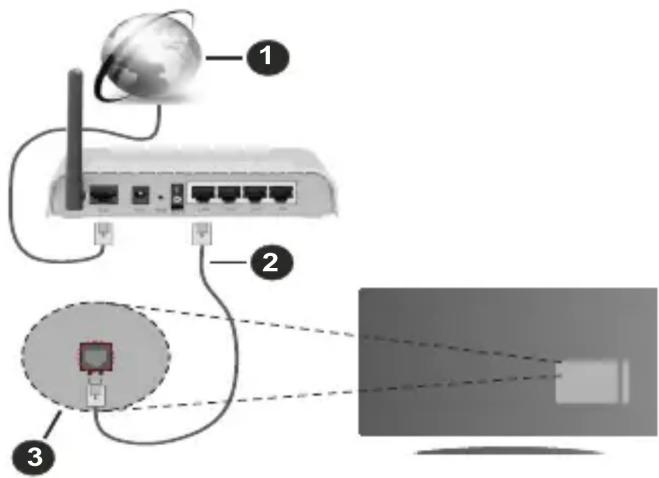
- Broadband ISP connection
- LAN (Ethernet) cable
- LAN input on the rear side of the TV
To configure wired settings refer to the Network section in the Settings menu.
- You might be able to connect your TV to your LAN depending on your network's configuration. In such a case, use an Ethernet cable to connect your TV directly to the network wall outlet.
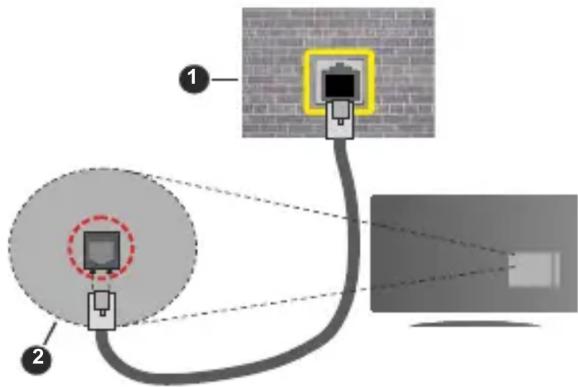
- Network wall socket
- LAN input on the rear side of the TV
Configuring Wired Device Settings
Network Type
The Network Type can be selected as Wired Device, Wireless Device or Disabled, in accordance with the active connection to the TV set. Select this as Wired Device if you are connecting via an Ethernet cable.
Internet Speed Test
Highlight Internet Speed Test and press the OK button. TV will check the internet connection bandwidth and display the result when complete.
Advanced Settings
Highlight Advanced Settings and press the OK button. On the next screen you can change the IP and DNS settings of the TV. Highlight the desired one and press Left or Right button to change the setting from Automatic to Manual. Now you can enter the IP and / or DNS values manually. Select the related item in the drop down menu and enter the new values using the numeric buttons of the remote. Highlight Save and press the OK button to save settings when complete.
Wireless Connectivity
To Connect to a Wireless Network
The TV cannot connect to the networks with a hidden SSID. To make your modem's SSID visible, you should change your SSID settings via the modem's software.

natural_image
Illustration of a router connected to a monitor via wireless signals, with a globe icon and label 1 (no text or symbols on the diagram itself)1. Broadband ISP connection
A Wireless-N router (IEEE 802.11a/b/g/n) with simultaneous 2.4 and 5 GHz bands is designed to increase bandwidth. These are optimized for smoother and faster HD video streaming, file transfers and wireless gaming.
- The frequency and channel differ depending on the area.
-
The transmission speed differs depending on the distance and number of obstructions between the transmission products, the configuration of these products, the radio wave conditions, the line traffic and the products that you use. The transmission may also be cut off or may get disconnected depending on the radio wave conditions, DECT phones or any other WLAN 11b appliances. The standard values of the transmission speed are the theoretical maximum values for the wireless standards. They are not the actual speeds of data transmission.
-
The location where the transmission is most effective differs depending on the usage environment.
- The Wireless feature of the TV supports 802.11 a,b,g & n type modems. It is highly recommended that you should use the IEEE 802.11n communication protocol in order to avoid any possible problems while watching videos.
- You must change your modem's SSID when there are any other modems around with the same SSID. You can encounter connection problems otherwise. Use a wired connection if you experience problems with a wireless connection.
Configuring Wireless Device Settings
Open the Network menu and select Network Type as Wireless Device to start connection process.
Highlight Scan Wireless Networks option and press OK to start a search for available wireless networks. All found networks will be listed. Highlight your desired network from the list and press OK to connect. A network with hidden SSID can not be detected by other devices. If you want to connect to a network with hidden SSID, scroll down the list of detected wireless networks, highlight the Add New Network option and press OK. Enter the name of the network and select the security type using the related options to connect.
Note: If the modem supports N mode, you should set N mode settings.
If the selected network is password-protected, enter the correct key by using the virtual keyboard. You can use this keyboard via the directional buttons and the OK button on the remote control.
Wait until the IP address is shown on the screen.
This means that the connection is now established. To disconnect from a wireless network, highlight Network Type and press Left or Right buttons to set as Disabled.
If your router has WPS, you can directly connect to the modem/router without entering a password or adding the network first. Highlight Press WPS on your wifi router option and press OK. Go to your modem/router device and press the WPS button on it to make the connection. You will see a connection confirmation on your TV once the devices have paired. Select OK to proceed. No further configuration is required.
Highlight Internet Speed Test and press the OK button to check your internet connection speed. Highlight Advanced Settings and press the OK button to open the advanced setting menu. Use directional and numeric buttons to set. Highlight Save and press the OK button to save settings when complete.
Other Information
The status of the connection will be displayed as Connected or Not Connected and the current IP address, if a connection is established.
Connecting to your mobile device via WLAN
- If your mobile device has WLAN feature, you can connect it to your TV via a router, in order to access the content in your device. For this, your mobile device must have an appropriate sharing software.
Connect your TV to your router following the steps mentioned in the sections above.
Afterwards, connect your mobile device to the router and then activate the sharing software on your mobile device. Then, select files that you want to share with your TV.
If the connection is established correctly, you will be able to access the shared files installed on your mobile device via the Audio Video Sharing feature of your TV.
Highlight the Audio Video Sharing option in the Sources menu and press OK, available media server devices in the network will be displayed. Select your mobile device and press the OK button to continue.
- If available, you can download a virtual remote controller application from the server of your mobile device application provider.
Note: This feature may not be supported on all mobile devices.
Wake ON
Wake-on-LAN (WoL) and Wake-on-Wireless LAN (WoWLAN) are standards that allow a device to be turned on or woken up by a network message. The message is sent to the device by a program executed on a remote device connected to the same local area network, such as a smartphone.
Your TV is WoL and WoWLAN compatible. This feature might be disabled during the First Time Installation process. To enable this feature set the Wake On option in the Network menu as On. It is necessary that both the device, from which the network message will be sent to the TV, and the TV are connected to the same network. Wake On feature is only supported for Android OS devices and can only be used via YouTube and Netflix applications.
In order to use this feature the TV and the remote device should be connected at least once while the TV is on. If the TV is powered off, the connection should be re-established, the next time it is switched on. Otherwise this feature will be unavailable. This does not apply, when the TV is switched into the standby mode.
The performance of some devices in the market, may vary due to the software architecture. In order to use Wake On feature with a better performance, please make sure that your device has latest firmware version.
If you want your TV to consume less power in standby mode, you can disable this feature by setting the Wake On option as Off.
Wireless Display
Wireless Display is a standard for streaming video and sound content. This feature provides the ability to use your TV as wireless display device.
Using with mobile devices
There are different standards which enable sharing of screens including graphical, video and audio content between your mobile device and TV.
Plug the wireless USB dongle to TV first, if the TV doesn't have internal WLAN feature.
Then press the Source button on the remote and switch to Wireless Display source.
A screen appears stating that the TV is ready for connection.
Open the sharing application on your mobile device. These applications are named differently for each brand, refer to the instruction manual of your mobile device for detailed information.
Scan for devices. After you select your TV and connect, the screen of your device will be displayed on your TV.
Note: This feature can be used only if the mobile device supports this feature. If you experience problems with the connection check if the operating system version you use supports this feature. There may be incompatibility problems with the operating system versions which are released after the production of this TV. Scanning and connecting processes differ according to the programme you use.
Connecting Other Wireless Devices
Your TV supports another short range wireless connection technology too. A pairing is required before using these kind of wireless devices with the TV set. You should do the following to pair your device with the TV:
- Set the device to pairing mode
- Start device discovery on the TV
Note: Refer to the user manual of the wireless device to learn how to set the device to pairing mode.
You can connect audio devices or remote controllers wirelessly to your TV. Unplug or switch off any other connected audio device in order for wireless connection feature to work correctly. For audio devices you should use the Audio Link option in the Settings>Sound menu, for remote controllers the Smart Remote option in the Settings>System>Device Settings menu. Select the menu option and press the OK button to open the related menu. Using this menu you can discover and connect the devices that use the same wireless technology and start to use them. Follow the on-screen instructions. Start the device discovery. A list of available wireless devices will be displayed. Select the device you want to connect from the list and press the OK button to connect. If "Device connected" message is displayed, the connection is successfully established. If the connection fails try it again.
Image transfer and audio streaming
You can also use this type of connection to transfer images or stream audio from your mobile device to your TV.
Pair the mobile device and the TV as described before. Start a device search in your hand-held device. Select your TV from listed devices. Confirm the request for connection on your TV screen and do the same on your hand held device screen. If no pairing is done, image transfer or audio streaming to the TV will not be possible.
The images sent by mobile device will be displayed on the TV without confirmation request, if the image file is suitable. You can also save the image file to a connected USB memory drive or set as boot logo, if this feature is supported and the file is suitable. Press the Exit button to terminate displaying the image.
The audio will be routed through the speakers of the TV, after confirmation is given. To start audio streaming unpair the device from your TV if it is paired with your TV previously. After pairing is completed, a confirmation message will be displayed asking whether you want to start audio streaming from your mobile device. Select Yes and press the OK button on the remote of the TV. If the connection is succeeded, all audio will be routed through the speakers of the TV. A symbol will appear on the upper side of the TV screen as long as the audio streaming connection is active. To terminate the audio streaming, you should turn off the wireless connection of your mobile device.
Close all running applications and all the menus on the TV for a trouble-free transfer. Only image files with sizes smaller than 5 MB and in the following file formats are suitable; .jpg, .jpeg, .png, bmp. If a file sent by the mobile device does not suit these requirements, it will not be displayed on the TV.
If the Audio Video Sharing option in the Settings>System>More menu is disabled, the TV will ignore pairing requests and no information message will be displayed on the screen. If a device is already paired prior to disabling the Audio Video Sharing with the TV even if the Audio Video Sharing option is disabled.
Note: Wireless devices may operate within the same radio frequency range and may interfere with one another. To improve the performance of your wireless device place it at least 1 meter away from any other wireless devices.
Connectivity Troubleshooting
Wireless Network Not Available
- Ensure that any firewalls of your network allow the TV wireless connection.
- Try searching for wireless networks again, using the Network menu screen.
If the wireless network does not function properly, try using the wired network in your home. Refer to the
Wired Connectivity section for more information on the process.
If the TV does not function using the wired connection, check the modem (router). If the router does not have a problem, check the internet connection of your modem.
Connection is Slow
See the instruction book of your wireless modem to get information on the internal service area, connection speed, signal quality and other settings. You need to have a high speed connection for your modem.
Disruption during playback or slow reactions
You could try the following in such a case:
Keep at least three meters distance from microwave ovens, mobile telephones, bluetooth devices or any other WLAN compatible devices. Try changing the active channel on the WLAN router.
Internet Connection Not Available / Audio Video Sharing Not Working
If the MAC address (a unique identifier number) of your PC or modem has been permanently registered, it is possible that your TV might not connect to the internet. In such a case, the MAC address is authenticated each time when you connect to the internet. This is a precaution against unauthorized access. Since your TV has its own MAC address, your internet service provider cannot validate the MAC address of your TV. For this reason, your TV cannot connect to the internet. Contact your internet service provider and request information on how to connect a different device, such as your TV, to the internet.
It is also possible that the connection may not be available due to a firewall problem. If you think this causes your problem, contact your internet service provider. A firewall might be the reason of a connectivity and discovery problem while using the TV in Audio Video Sharing mode or while browsing via Audio Video Sharing feature.
Invalid Domain
Ensure that you have already logged on to your PC with an authorized username/password and also ensure that your domain is active, prior to sharing any files in your media server program on your PC. If the domain is invalid, this might cause problems while browsing files in Audio Video Sharing mode.
Using Audio Video Sharing Network Service
Audio Video Sharing feature uses a standard that eases the viewing process of digital electronics and makes them more convenient to use on a home network.
This standard allows you to view and play photos, music and videos stored in the media server connected to your home network.
1. Server Software Installation
The Audio Video Sharing feature cannot be used if the server programme is not installed onto your PC or if the required media server software is not installed onto the companion device. Prepare your PC with a proper server programme.
2. Connect to a Wired or Wireless Network
See the Wired/Wireless Connectivity chapters for detailed configuration information.
3. Enable Audio Video Sharing
Enter the Settings>System>More menu and enable the Audio Video Sharing option.
4. Play Shared Files via Media Browser
Highlight the Audio Video Sharing option in the Sources menu by using the directional buttons and press OK. Available media server devices in the network will be listed. Select one and press OK to continue. The media browser will then be displayed.
Refer to the Media Browser menu section for further information on file playback.
If a problem occurs with the network, switch your television off at the wall socket and back on again. Trick mode and jump are not supported with the Audio Video Sharing feature.
PC/HDD/Media Player or any other devices that are compatible should be used with a wired connection for higher playback quality.
Use a LAN connection for quicker file sharing between other devices like computers.
Note: There may be some PC's which may not be able to utilize the Audio Video Sharing feature due to administrator and security settings (such as business PC's).
Apps
You can access the applications installed on your TV from Apps menu. Highlight an app and press OK to launch.
In order to manage the apps installed on your TV, add new apps from the market or to see all available apps in full screen mode highlight the More Apps option and press OK. Using this menu option you can add an installed app to Home menu, launch or remove it. Removed apps will no longer be accessible from Apps menu. In order to enter the market highlight Market and press OK. You can also access the market from within the More Apps menu. In the More Apps menu highlight the shopping basket logo located on the upper left side of the screen and press OK. Available apps in the market will be displayed. Use directional buttons to highlight an app and press OK. Highlight Add to Apps option and press OK again to add the selected app to Apps menu.
You can use the Reset Menu option to reset Apps and Home menu to factory default setting.
Notes:
Possible application dependent problems may be caused by the content service provider.
Third party internet services may change, be discontinued or restricted at any time.
Internet Browser
To use the internet browser, enter the Apps menu first. Then launch the internet browser application which has an orange coloured logo with earth symbol on it.
In the initial screen of the browser, the thumbnails of the predefined (if any) links to web sites available will be displayed as Speed Dial options along with the Edit Speed Dial and the Add to Speed Dial options.
To navigate the web browser, use the directional buttons on the remote or a connected mouse. To see the browser options bar, move the cursor to the top of the page. History, Tabs and Bookmarks options and the browser bar which contains previous/next buttons, the refresh button, the address/search bar, the Speed Dial and the Vewd buttons are available.
To add a desired website to the Speed Dial list for quick access, move the cursor to the top of the page or press.
The browser bar will appear. Highlight the Speed Dial button and press the OK button. Then select Add to Speed Dial option and press the OK button. Fill in the blanks for Name and Address, highlight OK and press the OK button to add. Whilst you are on the site you wish to add to the Speed Dial list, highlight the Vewd button and press the OK button. Then highlight Add to Speed Dial option in the submenu and press the OK button again. Name and Address will be filled automatically according to the site you are visiting. Highlight OK and press the OK button to add.
You can also use the Vewd menu options to manage the browser. Highlight the Vewd button and press the OK button to see available page specific and general options.
There are various ways to search or visit websites using the web browser.
Enter the address of a website(URL) into the search/address bar and highlight the Enter button on the virtual keyboard and press the OK button to visit the site.
Enter keyword/s into the search/address bar and highlight the Enter button on the virtual keyboard and press the OK button to start a search for the related websites.
Highlight a Speed Dial thumbnail and press the OK button to visit the related website.
Your TV is compatible with USB mice. Plug your mouse or wireless mouse adaptor into the USB input of your TV for easier and quicker navigation.
Some web pages include flash content. These are not supported by the browser.
Your TV does not support any download processes from the internet via the browser.
All sites on the internet might not be supported. According to the site; content problems may occur. In some circumstances video contents might not be able to be played.
HBBTV System
HbbTV (Hybrid Broadcast Broadband TV) is a new industry standard that seamlessly combines TV services delivered via broadcast with services delivered via broadband and also enables access to Internet only services for consumers using connected TVs and set-top boxes. Services delivered through HbbTV include traditional broadcast TV channels, catch-up services, video-on-demand, electronic programme guide, interactive advertising, personalisation, voting, games, social networking and other multimedia applications.
HbbTV applications are available on channels where they are signalled by the broadcaster. The broadcaster marks one application as “autostart” and this one is started by the platform automatically. The autostart applications are generally launched with a small red button icon to notify the user that there is an HbbTV application on that channel. Press the red button to open the application page. After the page is displayed you can go back to the initial red button icon state by pressing the red button again. You can toggle between the red button icon mode and full UI mode of the application via pressing red button. It should be noted that the red button switching capability is provided by the application and some application may behave differently (other colour buttons such as green, yellow, blue, may be defined for some other functions, e.g. shortcuts).
If you switch to another channel while an HbbTV application is active (either in red button icon mode or full UI mode), the following scenarios can occur.
- The application can continue running.
- The application can be terminated.
- The application can be terminated and another autostart red button application can be launched.
HbbTV allows the applications to be retrieved both from broadband or broadcast. The broadcaster may enable both ways or one of them. If the platform does not have an operational broadband connection, the platform can still launch applications transmitted on broadcast.
The autostart red button applications generally provide links to other applications. The user then can switch to other applications by using the links provided. The applications should provide a way to terminate themselves, usually Exit button is used for this.
HbbTV applications use keys on the remote control to interact with the user. When an HbbTV application is launched, the control of some keys are owned by the application. For example, numeric channel selection
may not work on a teletext application where the numbers indicate teletext pages.
HbbTV requires AV streaming capability for the platform. There are numerous applications providing VOD (video on demand) and catch-up TV services. The user can use play, pause, stop, forward, and rewind keys on the remote control to interact with the AV content.
Note: You can enable or disable this feature from the Privacy Settings menu in Settings>System menu.
Smart Center
Smart Center is a mobile application running on iOS and Android platforms. With your tablet or phone, you can easily stream your favourite live shows and programmes from your smart TV. Also; you can launch your applications, use your tablet as a remote control for your TV and share media files.
Note: Being able to use all functions of this application depends on the features of your TV.
Getting Started
To be able to use internet based features, your modem/router must be connected to the internet.
IMPORTANT: Make sure the TV and mobile device are connected to the same network.
For media sharing feature Audio Video Sharing option should be enabled(if available). Press the Menu button on the remote, select Settings>System>More menu and press OK. Highlight Audio Video Sharing and change as Enabled. Your TV is ready to connect to your mobile device now.
Install the Smart Center application onto your mobile device.
Start the Smart Center application. If all connections are configured properly, you will see your TV's name on your mobile device. If your TV's name doesn't appear on the list, wait a while and tap on the Refresh widget. Select your TV from the list.
Mobile Device screen
On the main screen you can find tabs to access various features.
The application retrieves actual channel list from TV first when it starts.
MY CHANNELS: The programmes of first four channels from the channel list retrieved from the TV are shown. You can change the listed channels. Press on the channel thumbnail and hold. A list of channels will be displayed and you can choose your desired channel to be replaced.
TV: You can watch content through the TV tab. In this mode you can navigate through the channel list retrieved from your TV and click on thumbnails to view the detail pages.
RECORDINGS: You can view your active recordings(if available) and reminders through this tab. To delete any item, simply press on the delete icon found on each row.
EPG(Electronic programme guide): You can view the broadcast schedules of selected channel lists through this tab. You can also navigate through channels by pressing on the selected channel on the EPG grid. Please note that updating / refreshing the EPG information may take a while depending on your network and web service quality.
Note: Internet connection is required for WEB based EPG information.
SETTINGS: Configure the application to your liking. You can change;
Auto-lock (Only in IOS): The screen of the device automatically turns off after a certain amount of time. Default is off, which means the screen will always stay on.
Auto-enable FollowMeTV: FollowMeTV function (if available) will start automatically when this setting is enabled. Default is disabled.
Auto-connection to TV: When enabled, your mobile device will automatically connect to last connected TV and skips the TV search screen.
Change TV (Only in IOS): Shows the currently connected TV. You can press on this setting to go to the “TV search” screen and change to a different TV.
Edit custom channel list: You can edit your custom channel list using this setting.
Choose channel list source: You can choose the channel list source to be used in the application. The options are "TV List" and "Custom List". Additionally you can activate "Remember my choice" option to set the selected channel list source as a constant choice. In this case if the selected source is available it will be used in the application.
Version No: Displays the current version of the application.
Detail Page
To open detail page tap on a programme. On the detail page screen you can get detailed information of the programmes you select. There are “Details”, “Cast&Crew” and “Videos” tabs to find on this page.
DETAILS: This tab provides summary and information about the selected programme. Also there are links to Facebook and Twitter pages of the programme selected.
CAST&CREW: Shows all the people contributed to the current programme.
VIDEOS: Provides videos on YouTube related to the selected programme.
Note: For some functions an internet connection may be required.
FollowMe TV Feature (if available)
Tap on the FOLLOW ME TV widget located at the bottom left of the screen of your mobile device to change the layout for FollowMe TV feature.
Tap the play icon to start streaming of the content from the TV to your mobile device. Available if your device is in your routers operation range.
Mirror Mode
This mode of FollowMe TV feature is enabled by default and allows streaming the content from any other selected TV sources and Media Browser.
Notes:
Note that only digital(DVB-T/C/S) SD and HD channels are supported.
Multilanguage audio support and subtitle on/off features are not functional.
The streaming performance may change depending on the quality of your connection.
Media Share Page
To access the Media Share widget tap on the Up-arrow on the bottom left side of the screen.
If the Media Share widget is pressed, a screen is displayed where you can select the media file type to share with your TV.
Note: Not all image file formats are supported. This function will not work if Audio Video Sharing feature is not supported.
Smart Remote Feature
You can use your mobile device as a remote control for your TV once it has connected to the TV. To use smart remote's full features tap on the Up-arrow on the bottom left side of the screen.
Voice Recognition
You can tap on the Microphone() widget and manage your application, giving voice commands such as "Volume Up/Down!", "Programme Up/Down!".
Note: This feature is only for android based devices available.
Keyboard Page
The keyboard page can be opened in two ways; by pressing the Keyboard() widget on the application screen or automatically by receiving a command from the TV.
Requirements
-
Smart TV
-
Network connection
-
Mobile Device based on Android or iOS platform (Android OS 4.0 or higher; IOS 6 or higher version)
-
Smart Center app.(to be found on online application stores based on Android and iOS platforms)
-
Router modem
-
USB storage device in FAT32 format (required for USB Recording feature, if available)
Notes:
For Android devices, Normal(mdpi), Large(hdpi) and Extra Large(xhdpi) screen sizes are supported. Devices with 3" or smaller screen sizes are not supported.
For iOS devices, all screen sizes are supported.
User interface of the Smart Center application is subject to change according to version installed on your device.
Alexa Ready
Alexa is Amazon's cloud-based voice service available on many voice controlled assistant devices. By means of the Alexa built-in and Works With Alexa features you can use your TV as an Alexa device and control the functions of your TV with Alexa.
Alexa Built-in
You can use your TV as an Alexa device. In order to do this, a Microphone Box(*) will be required. After connecting your Microphone Box to your TV the setup process should be completed. The setup can be carried out in the ways described below.
(*) The Microphone Box can be purchased separately if not supplied with the unit. For more information contact your local dealer or retail outlet where you bought your TV.
- Connect your Microphone Box to your TV
- Use the Alexa Built-in option in the Settings>Sys-tem>Voice Assistant menu
- Carry out first time installation on your TV. The setup wizard will be displayed after the installation process is completed
The wizard will guide you through the setup process. Refer to the user manual of the Microphone Box for detailed information.
Works With Alexa
You can control the functions of your TV with Alexa. In order to do this, the setup process should be completed. The setup can be carried out in the ways described below.
- Use the Works With Alexa option in the Settings>System>Voice Assistant menu
- Carry out first time installation on your TV. The setup wizard will be displayed after the installation process is completed
Setup process
The wizard will guide you through the setup process.
- If you carry out first time installation on your TV, the Alexa setup wizard will be displayed after the installation process is completed. On the first screen highlight Learn More option and press OK. On the next screen you will be informed about the feature. Highlight Start and press OK to proceed.
If you skip the setup wizard after the first time installation you can use the Works With Alexa option in the Settings>System>Voice Assistant menu to carry out the setup later manually. On the first screen you will be informed about the feature. Highlight Start and press OK to proceed.
- An authentication code will be created and displayed on the screen. Use your computer or any other device with internet access to go to the internet address (URL) shown on the screen. You will be directed to a page where you can sign in to your Amazon account first, if you are not already signed in. Then you will be directed to a page where you can enter the authentication code you see on the TV and link your TV to your Amazon account.
- If the linking process was successful you will be asked to determine a name for your TV, called 'Friendly Name'(FN). A 'Friendly Name' is a name that reminds you of your TV, such as 'Living Room TV', 'Kitchen TV', 'Dining Room TV', etc. Choose an easy-to-say name. You will say this name to tell Alexa which TV to control. When you are done, highlight OK and press OK.
- Examples about the use of the feature will be displayed on the next screen. Press OK to finish the setup.
If you carried out the setup after the first time installation you will return to the first screen of the setup wizard when you press OK. In that case press Exit or highlight Setup Later and press OK in order to exit the setup.
Once the setup is complete, you will be able to control the functions of your TV with Alexa.
Note: Make sure that the devices are connected to the internet.
Example Commands
Here are some voice commands that you can use:
| Command Function | |
| Alexa, turn on ‘FN’ Powers on the TV | |
| Alexa, turn off ‘FN’ Powers off the TV | |
| Alexa, play ‘FN’ Starts media playback | |
| Alexa, pause ‘FN’ Pauses media playback | |
| Alexa, resume ‘FN’ Resumes media playback | |
| Alexa, stop ‘FN’ Stops media playback | |
| Alexa, fast forward on ‘FN’ | Advances media in fast forward mode |
| Alexa, rewind on ‘FN’ Rewinds media | |
| Alexa, set the volume of ‘FN’ to 50 | Sets the volume to the specified level |
| Alexa, turn the volume up on ‘FN’ | Increases volume by 10 units |
| Command Function | |
| Alexa, turn the volume down on ‘FN’ | Decreases volume by 10 units |
| Alexa, mute ‘FN’ Mutes sound | |
| Alexa, unmute ‘FN’ Unmutes | sound |
| Alexa, change the input to “input_name” on ‘FN’ | The TV switches to the input source with the spec-ified name (e.g., HDMI 1) |
| Alexa, change channel to "channel_number" on ‘FN’ | The TV switches to the channel with the specified number (e.g., channel 200) |
| Command Function | |
| Alexa, change channel to “channel_name” on ‘FN’ | The TV switches to the channel with the specified name |
| Alexa, channel up on ‘FN’ | The TV switches to the next higher channel, if any available |
| Alexa, channel down on ‘FN’ | The TV switches to the next lower channel, if any available |
| Alexa, next channel on ‘FN’ | The TV switches to the next channel on the channel list |
FN is the abbreviation for 'Friendly Name'.
DVD Mode
Safety Information
CAUTION
DVD Player is a class 1 laser product. However this product uses a visible laser beam which could cause hazardous radiation exposure. Be sure to operate the player correctly as instructed.
CLASS 1 LASER PRODUCT
RISK OF ELECTRIC SHOCK
The lightning flash with arrowhead symbol, within an equilateral triangle, is intended to alert the user to the presence of uninsulated “dangerous voltage” within the product’s enclosure that may be of sufficient magnitude to constitute a risk of electric shock of persons.
The exclamation point within an equilateral triangle is intended to alert the user to the presence of important operating and maintenance (servicing) instructions in the literature accompanying the appliance.
Notes on Discs
On handling discs
- To keep the disc clean, handle the disc by its edge. Do not touch the surface.
- Do not stick paper or tape on the disc.
- If the disc is contaminated with any substance like glue remove before using it.
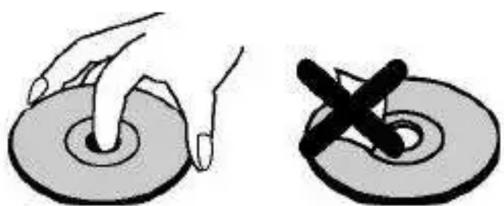
natural_image
Illustration of two hand positions on a circular object, one with a cross mark, the other without (no text or symbols)- Do not expose the disc to direct sunlight or heat sources such as hot air ducts, or leave it in a car parked in direct sunlight as the temperature can rise quickly and damage the disc.
• After playing, store the disc in its case.
On cleaning
- Before playing, clean the disc with a cleaning cloth. Wipe the disc from the centre out.
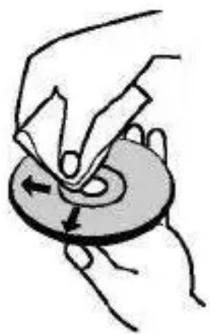
natural_image
Illustration of hands performing a circular motion or maneuver on a ring, with arrows indicating direction (no text or symbols)
natural_image
Illustration of a hand holding a small object with a cross mark, no text or symbols present- Do not use solvents such as benzine, thinner, commercially available cleaners or anti-static spray intended for vinyl LPs.
Licence Notification
This product incorporates copyright protection technology that is protected by U.S. patents and other intellectual property rights. Use of this copyright protection technology must be authorized by Rovi Corporation, and is intended for home and other limited viewing uses only unless otherwise authorized by Rovi Corporation. Reverse engineering and disassembly are prohibited.
How to Watch a DVD
When placing a disc into the loader, labelled side of the disc should be on the front.
When TV set is turned on, first switch to DVD source by using the Source button on the remote control. Press play on the remote control, or directly press play button on the side panel. If there is no disc inside the loader, place a DVD first and press play.
Note: If you switch to another source by pressing Source or Programme +/- buttons on the remote control, DVD playback will be paused automatically. You should press Play button and resume the playback manually when you switch to DVD mode.
DVD Control Panel Buttons
▶ / (Play / Pause)
Plays/pauses the disc. When DVD menu (root menu) is active, this button functions as “button select” (selects the highlighted item in menu) if this is not prohibited by the disc.
/ (Stop / Eject)
Stop playing disc / Eject or Load the disc.
Note:
You cannot eject the disc via the remote control.
While playing a file, you should press Stop button three times to eject.
General Playback
Basic Play
- Press the Standby button
- Insert a disc into the loader.
The disc will be automatically loaded and play will commence if the disc does not have any menus recorded on it.
A menu may appear on the TV screen after a few moments or the film may start immediately. This behaviour depends on the disc content and may change.
Note: Step 3 and 4 are available only when a menu is recorded on the disc.
- Press Down / Up / Left / Right or the numeric button (s) to select the preferred title.
- Press OK to confirm the selected item.
The played item may be a motion picture, a still picture or another submenu depending on the disc content.
For your reference
If an action corresponding to a button is prohibited the

mbol appears.
Notes on Playback
- No sound will be heard during fast forward or rewind.
- No sound will be heard during slow motion play.
- Reverse slow motion play may not be available depending on the DVD content.
- In some cases, the subtitle language is not changed immediately to the selected one.
- When the preferred language is not selected even after pressing the button several times, it means that the language is not available on the disc.
- When the player is restarted or the disc is changed, the subtitle selection is automatically changed back to the initial settings.
- If a language is selected, not supported by the disc, the subtitle language will automatically be set to the disc's priority language.
- Usually a circulation will happen while switching to another language, that is you can cancel the subtitle by pressing the Language button a number of times until "Subtitles Off" appears on the screen.
- When the power is turned on or the disc is removed, the language heard is the one selected at the initial settings. If this language is not recorded on the disc, only the available language on the disc will be heard.
- Some DVDs may not contain root and/or title menus.
- Reverse stepping is not available.
- For your convenience: If you attempt to enter a number greater than the total time of the current title, the time search box disappears and "Input Invalid" message
appears on upper-left corner of screen.
- Slide Show is disabled when the ZOOM mode is on.
DVD Troubleshooting
Poor picture quality (DVD)
- Make sure the DVD disc surface is not damaged. (Scratch, fingerprint etc.)
- Clean the DVD disc and try again.
See instructions described in "Notes on Discs" to clean your disc properly.
- Ensure that the DVD disc is in the tray with the label facing forward.
- A damp DVD disc or condensation may affect the equipment. Wait for 1 to 2 hours in Stand-by to dry the equipment.
Disc does not play
- No disc in the machine. Place a disc into the loader.
• Disc incorrectly loaded.
Note: Ensure that the DVD disc is in the tray with the label facing forward.
- Wrong type of disc. The machine cannot play CD-ROMS etc. The region code of the DVD must match the player.
Wrong OSD language
- Select the language in the set-up menu.
- The language for the sound or subtitles on a DVD cannot be changed.
- Multilingual sound and/or subtitles not recorded on the DVD.
- Try to change the sound or subtitles using DVD's title menu. Some DVD's do not allow the user to change these settings without using the disc's menu
• These functions are not available on the DVD.
No picture
- Make sure you have pressed the correct buttons on the remote control. Try once more.
No sound
- Check if volume is set to an audible level.
- Make sure the sound isn’t turned off by mistake.
Distorted sound
- Check that the appropriate listening mode setting is correct.
If nothing works
If you have tried the above solutions and none seem to work, try switching your TV-DVD off and on again. If this does not work, contact your supplier or TV-DVD repair technician. Never attempt to repair a defective TV-DVD yourself.
Disc Types Compatible with This Unit
| Disc Types (Logos) | Recording Types | Disc Size | Max. Playing Time | Characteristics |
DVD VIDEO VIDEO | Audio+Video | 12 cm | Single-sided; 240 min.Double-sided; 480 min. | · DVD contains excellent sound and video due to Dolby Digital and MPEG-2 System.· Various screen and audio functions can be easily selected through the on screen menu. |
AUDIO-CD DIGITAL AUDIO DIGITAL AUDIO | Audio 12 cm | 74 min. | · An LP is recorded as an analog signal with more distortion. CD is recorded as a digital signal with better audio quality, less distortion and less deterioration of audio quality over time. | |
MP3-CD | Audio(xxxx.mp3) | 12 cm | It depends on MP3 quality. | · MP3 is recorded as a digital signal with better audio quality, less distortion and less deterioration of audio quality over time. |
| PICTURE-CDJPEGREADABLE | Video(still picture) | 12 cm | It depends on JPEG quality. | · JPEG is recorded as a digital signal with better picture quality over time. |
For proper operation, only 12 cm discs must be used.
DVD is a trademark of DVD Format/Logo Licensing Corporation registered in the U.S., Japan and other countries.
Specifications
| Types of Discs Supported | DVD: SS/SL 4.7" (DVD-5)SS/DL 4.7" (DVD-9)DS/SL 4.7" (DVD-10)DS/DL 4.7" (DVD-18) | CD-DACD-RCD-RWMP-3/JPEG |
| Video Type | MPEG-2 Video Standard Decoding (MPEG-1 supported)Full-Screen Video Display of 720 x 576 (PAL) & 720 x 480 (NTSC) pixels50 and 60 Hz frame refresh rates (PAL & NTSC)Digital bit-stream processing rate up to 108Mbits/secLine resolution more than 500 lines | |
| Audio Type | MPEG Multichannel DecodingLPCM | |
| Audio Output | Analog Outputs:24 bit /48, 44.1kHz down-sampling DAC | |
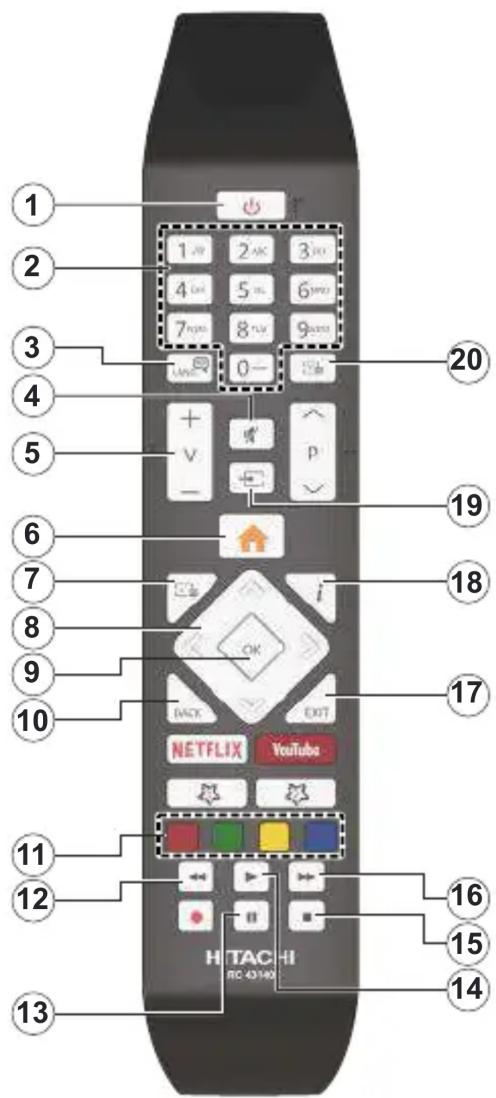
- Standby
- Numeric buttons
- Audio language selection
- Mute
- Volume Up / Down
- TV Menu
- DVD Menu
- Navigation buttons
- OK / Select
- Back / Previous menu
- Coloured buttons; Red button - Zoom Green button - Repeat Yellow button - Root Blue button - Title
- Rewind
- Pause
- Play
- Stop
- Fast forward
- Exit
- Time
- Source selection
- Subtitle language selection
General DVD Operation
You can operate DVD, movie CD, music or picture CD's content by using the proper buttons on your remote control. Below are main functions of commonly used remote control buttons.
| Buttons | DVD Playback | Movie Playback | Picture Playback | Music Playback |
| ▶ | Play Play Play Play | |||
| || | Pause Pause | Pause Pause | ||
| ■ | Stop Stop Stop Stop | |||
| ◀/▶ | Skip backward/forward | Skip backward/forward | Rotate Skip backward/forward | |
| ▼/▲ | Highlights a menu item / Shifts the zoomed picture up or down (if available). | |||
| ◀◀/▶▶ | Rapid advance / Rapid reverse | |||
| GUIDE Displays time / Views main setup menu | ||||
| INFO | Time counter mode selection (during playback). Press repeatedly to switch between modes. | |||
| LANGUAGE | PressLanguagebutton to change the audio language. | X | X | |
| MENU | Displays TV menu. | |||
| OK | Enter / View / Play | |||
| GREEN BUTTON | Displays repeat options. | |||
| RETURN/BACK | Returns back to the previous menu (if available). | |||
| YELLOW BUTTON | Goes back to the root folder (if available). | |||
| TEXT | PressTextbutton to change the subtitle language or turn off the subtitles. | X | X | |
| BLUE BUTTON | Displays disc menu (if available). | Displays disc menu (if available). | X | X |
| RED BUTTON Zooms picture. Press repeatedly to switch between zoom options. | ||||
| Other Functions – Button Combinations (During playback) | |
| || + ▶▶ | Slow forward |
| (|| + ▶▶) + ◀◀ ▶▶ | Sets slow forward speed |
| ▶▶ + ▶▶ | Sets rapid advance speed |
| ◀◀ + ◀◀ | Sets rapid reverse speed |
| ■ + ■ | Confirms stop command |
(*) You can switch to title by pressing numeric keys directly. You need to press 0 and then digit key to switch one digit titles (example: to select 5, press 0 and 5).
Mobile TV Instructions
Switching the TV On Using 12 Volt
- Connect the cigarette lighter plug cable into the cigarette lighter socket of your car.
- Plug the other side of 12 volt cable into DC 12 socket on the back side of the TV. Then the standby LED will light up.
- Press the Standby button, Programme +/- buttons or a numeric button on the remote control or press the middle of the side function switch on the TV in. The TV will then switch on.
- Adjust the antenna position for better reception or reinstall TV channels if necessary.
Switching the TV Off
- Press the Standby button on the remote control or press the middle of the side function switch on the TV in and hold it down for a few seconds, so the TV will switch into standby mode.
- Unplug cable connectors and power plugs.
ATTENTION: 12 V Input

DVB functionality information
This DVB receiver is only suitable for use in the country which it was designed to be used in.
Although this DVB receiver conforms to the latest DVB specifications at the time of manufacture, we cannot guarantee compatibility with future DVB transmissions due to changes that may be implemented in broadcast signals and technologies.
Some digital television functions may not be available in all countries.
We continually strive to improve our products; therefore, specifications may change without prior notice.
For advice on where to purchase accessories, please contact the store where you purchased your equipment.
HITACHI
NAVODILA ZA UPORABO
natural_image
Simple diagram showing a circular object and a rectangular shape with curved lines, no text or symbols present.natural_image
Illustration of a router connected to a monitor via wireless signals, with a globe icon and label 1 (no text or symbols on the diagram itself)PRODUIT LASER DE CLASSE 1
RISQUE DE CHOC ÉLECTRIQUE
natural_image
Illustration of two hand positions on a circular object, one with a black X mark and the other with a circle (no text or symbols)natural_image
Illustration of two hands performing a circular motion or maneuvering operation, one with directional arrows and the other with a cross (no text or symbols)▶ / (Lecture / Pause)
natural_image
Simple diagram showing a circular object and a rectangular shape with curved lines, no text or symbols present.natural_image
Illustration of a router connected to a monitor via wireless signals, with a globe icon and label 1 (no text or symbols on the diagram itself)natural_image
Illustration of a hand holding a circular object with a cross mark, next to a donut-shaped object (no text or symbols)natural_image
Illustration of a hand holding a small object with arrows indicating movement or force (no text or symbols)
natural_image
Illustration of a hand placing a circular object into a cross-shaped component (no text or symbols)UPUTSTVO ZA UPUTSTVO
Neke osobine ili funkcije pomenute u ovom korisničkom priručniku se mogu razlikovati ili možda neće biti dostupne u zavisnosti od modela koji ste kupili.
Sadržaj
Laserski proizvod klase 1: Ovaj proizvod sadrži laserski izvor Klase 1 koji je siguran u razumno predvidljivim uvjetima funkcioniranja.
UPOZORENJE
Nemojte gutati bateriju, opasnot od hemijskih opekotina
Ovaj proizvod ili dodatna oprema isporučena uz ovaj proizvod mogu da sadrže dugmastu bateriju.
Ukoliko se baterija proguta, može dovesti do teške unutrašnje opekotine u samo 2 sata i može dovesti do smrti.
Komandna palica vam omogućuje da kontrolišete funkcije Jačina zvuka / Program / Uključivanje režima pripravnosti na televizoru.
Napomena: Položaj komandne palice se može razlikovati u zavisnosti od modela.
natural_image
Simple diagram showing a circular object and a rectangular shape with curved lines, no text or symbols present.Napomena: Položaj kontrolnih tastera može varirati ovisno o modelu.
Vaš televizor ima jedan kontrolni taster. Ovaj taster vam omogućuje da kontrolirate funkcije Pripravnost -uklj. / Izvor / Program i Jačinu zvuka vašeg televizora.
Rukovanje kontrolnim tasterom
- Pritisnite kontrolni taster za prikaz izbornika s opcijama funkcija.
- Zatim po potrebi uzastopno pritiskajte taster kako biste pomijerili fokus na željenu opciju.
- Pritisnite i zadržite taster oko 2 sekunde kako biste aktivirali odabranu opciju. Boja ikone opcije se mijenja kada se aktivira.
- Pritisnite taster još jednom kako biste primijenil funkciju ili ušli u podizbornik.
- Da izaberete još jednu opciju funkcije, potrebno je prvo deaktivirati poslijednju aktiviranu opciju. Pritisnite i zadržite taster za deaktiviranje. Boja ikone opcije se mijenja kada se deaktivira.
- Da zatvorite izbornik opcija funkcije, nemojte pritiskati taster u roku od oko 5 sekundi. Izbornik opcija funkcije će nestati.
Da isključite televizor: Pritisnite kontrolni taster za prikaz izbornika opcija funkcije, fokus će biti na opciji Pripravnost. Pritisnite i zadržite taster oko 2 sekunde da biste aktivirali ovu opciju. Boja ikone opcije se mijenja kada se aktivira. Zatim još jednom pritisnite taster da biste isključili televizor.
Za uključivanje televizora: Pritisnite kontrolni taster, televizor će se uključiti.
| 56Hz 60Hz 66Hz 70Hz 72Hz 75Hz | ||||||
| 640x400 | ||||||
| 640x480 | X | X | X | X | ||
| 800x600 | X | X | X | X | X | |
| 832x624 | X | |||||
| 1024x768 | X | X | X | X | X | |
| 1152x864 | X | X | X | |||
| 1152x870 | X | |||||
| 1280x768 | X | X | ||||
| 1360x768 | X | |||||
| 1280x960 | X | X | ||||
| 1280x1024 | X | X | ||||
| 1400x1050 | X | X | ||||
| 1440x900 | X | X | ||||
| 1600x1200 | X | |||||
| 1680x1050 | X | |||||
| 1920x1080 | X | |||||
Povezivanje
Žičana veza
- Širokopojasna ISP konekcija
- LAN (Ethernet) kabl
- LAN ulaz sa stražnje strane TV aparata
Kako biste konfigurirali žičane postavke, pogledajte odjeljak Mreža u meniju podešavanja.
- Možda biste mogli povjezati vaš TV na LAN ovisno o konfiguraciju vaše mreže. U tom slučaju, koristite ethernet kabel da biste povezali vaš TV na zidnu utičnicu mreže.
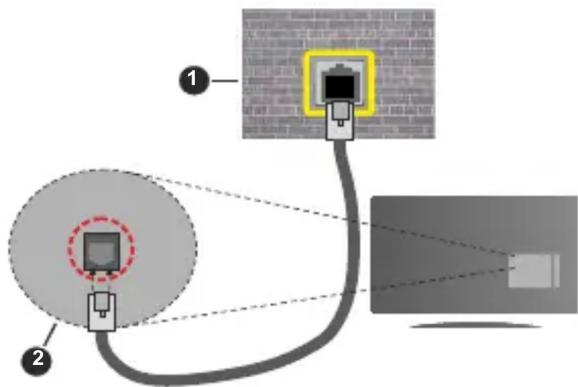
- Mrežna zidna utičnica
- LAN ulaz sa stražnje strane TV-a
Konfiguracija postavke Žičanog uređaja.
Tip mreže
Kao tip mreže može se izabrati žičani uređaj, bežični uređaj ili onemogućeno, u zavisnosti od aktivne konekcije TV seta. Ukoliko se povezujete putem Ethernet kabla, izaberite Žičani uređaj.
Test brzine interneta
natural_image
Illustration of a router connected to a monitor via wireless signals, with a globe icon and label 1 (no text or symbols on the diagram itself)1. Širokopojasna ISP konekcija
Bežični-N ruter (Wireless-N) (IEEE 802.11a/b/g/n) sa istovrijemenim 2,4 i 5 GHz pojasima, da bi se povećala širina pojasa. Optimizirano za glatko i brzije HD video strimovanje, transfer datoteka i bežičnog igranja.
- Frekvencija i kanal su različite ovisno o oblasti.
- Brzina prenosa oviso o rastojanja i broja preprijeka među prenosnih uređaja, konfiguracija ovih uređaja, stanje radio talasa, saobraćaj linije kao i od proizvoda kojih koristite. Prijenos se takođe može prekinuti ili isključiti ovisno o stanju radio talasa, DECT telefona, ili ostalih WLAN 11b uređaja. Standardne vrijednosti brzine prenosa su teoretski maksimumi za bežične standarde. To nisu stvarne brzine prenosa podataka.
-
Mijesto gde prenos je najefektivniji ovisi od okoline korišćenja.
-
Bežična osobina TV-a podržava 802.11 a,b,g i n tip modema. Veoma je preporučljivo da koristite IEEE 802.11n protokol komunikacije da biste izbjegli moguće probleme tokom gledanja videja.
- Morate promeniti SSID vašeg modema kada u blizini ima drugih modela sa istim SSID-om. U suprotnom, moglo bi doći do problema povezivanja. Ukoliko imate problema sa bežičnim povezivanjem, koristite vezu preko kabela.
Konfiguracija postavki bežičnog uređaja
Otvorite meni Mreža i za Tip mreže izaberite Bežični uređaj da biste započeli proces povezivanja.
Označite opciju Pretraži bežične mreže i pritisnite taster OK da biste započeli pretragu dostupnih bežičnih mreža. Biće navedene sve pronađene mreže. Označite željenu mrežu sa liste i pritisnite OK za povezivanje. Mrežu sa skrivenim SSID-om drugi uređaji ne mogu otkriti. Ako se želite povezati s mrežom sa skrivenim SSID-om, pomičite se prema popisu otkrivenih bežičnih mreža, označite opciju Dodaj novu mrežu i pritisnite OK. Unesite naziv mreže i odaberite vrstu zaštite pomoću povezanih opcija za povezivanje.
Napomena: Ako modem podržava N režim, postavite postavke N režima.
Ako je izabrana mreža zaštićena lozinkom, unesite tačnu lozinku pomoću virtuelne tastature. Možete koristiti ovu tastaturu preko tipke za navigaciju i OK na daljinskom upravljaču.
natural_image
Illustration of two hand positions on a circular object, one with a black X mark indicating a dislocation or collision (no text or symbols present)- Ne ostavljati disk na direktnoj sunčevoj svjetlini ili izvorima toplote kao rupe za vruć zrak, ili ostavljati u kolima parkiranim na direktnoj sunčanoj svjetlini jer temperatura može se povećati veoma brzo oštetiti disk.
- Nakon sviranja, vratite disk u njegovoj futroli.
Oko čišćenja
- Pre pustanja, počistie disk krpom za čišćenje. Obrišite disk iz centra ka vani.
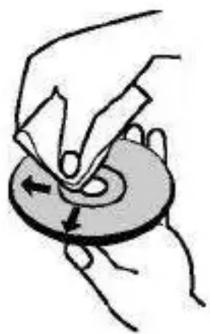
natural_image
Illustration of hands performing a circular motion or maneuver on a ring, with arrows indicating direction (no text or symbols)
natural_image
Illustration of a hand holding a small object with a curved arrow indicating rotation (no text or symbols)- Ne koristiti otapala kao benzin, razređivać, komrecijalno dostupne čistače ili anti-statičke sprejove namjenjene za vinil ploče.
provozu.
natural_image
Simple diagram showing a circular object and a rectangular shape with curved lines, no text or symbols present.| 56Hz 60Hz 66Hz 70Hz 72Hz 75Hz | ||||||
| 640x400 | ||||||
| 640x480 | X | |||||
| 800x600 | X X | |||||
| 832x624 | ||||||
| 1024x768 | X X X | |||||
| 1152x864 | X | |||||
| 1152x870 | ||||||
| 1280x768 | X | |||||
| 1360x768 | ||||||
| 1280x960 | X | |||||
| 1280x1024 | X | X | ||||
| 1400x1050 | X | X | ||||
| 1440x900 | X | |||||
| 1600x1200 | X | |||||
| 1680x1050 | X | |||||
| 1920x1080 | X | |||||
Připojení
Kabelové zapojení
natural_image
Illustration of a network device with wireless signal waves and a globe icon, connected to a monitor (no text or symbols)natural_image
Illustration of two hand positions on a circular object, one with a finger and the other with a cross (no text or symbols)natural_image
Illustration of hands performing a circular motion or maneuver on a ring, with arrows indicating direction (no text or symbols)
natural_image
Illustration of a hand holding a paper with a circular object and a cross mark, no text or symbols presentnatural_image
Simple diagram showing a circular object and a rectangular shape with curved lines, no text or symbols present.| 56Hz 60Hz 66Hz 70Hz 72Hz 75Hz | ||||||
| <640x400 | X | |||||
| <640x480 | X | X | X | X | ||
| <800x600 | X | X | X | X | X | |
| <832x624 | X | |||||
| <1024x768 | X | X | X | X | X | |
| <1152x864 | X | X | X | |||
| <1152x870 | X | |||||
| <1280x768 | X | X | ||||
| <1360x768 | X | |||||
| <1280x960 | X | X | ||||
| <1280x1024 | X | X | ||||
| <1400x1050 | X | X | ||||
| <1440x900 | X | X | ||||
| <1600x1200 | X | |||||
| <1680x1050 | X | |||||
| <1920x1080 | X | |||||
Konnektivität
natural_image
Illustration of a router connected to a monitor via wireless signals, with a globe and network icon nearby (no text or symbols)KLASSE 1 LASER-PRODUKT
STROMSCHLAGGEFAHR
natural_image
Illustration of two hand positions on a circular object, one with a black X mark, the other without (no text or symbols)natural_image
Illustration of hands holding a circular object with arrows indicating movement or force (no text or symbols)
natural_image
Illustration of a hand holding a small object with a cross mark, no text or symbols presentnatural_image
Simple diagram showing a circular object and a rectangular shape with curved lines, no text or symbols present.| 56Hz 60Hz 66Hz 70Hz | 72Hz 75Hz | |||||
| 640x400 | X | |||||
| 640x480 | X | X | X | X | ||
| 800x600 | X | X | X | X | X | |
| 832x624 | X | |||||
| 1024x768 | X | X | X | X | X | |
| 1152x864 | X | X | X | |||
| 1152x870 | X | |||||
| 1280x768 | X | X | ||||
| 1360x768 | X | |||||
| 1280x960 | X | X | ||||
| 1280x1024 | X | X | ||||
| 1400x1050 | X | X | ||||
| 1440x900 | X | X | ||||
| 1600x1200 | X | |||||
| 1680x1050 | X | |||||
| 1920x1080 | X | |||||
Ühenduvus
Juhtmega ühendus
natural_image
Illustration of a router connected to a monitor via wireless signals, with a globe and network icon labeled (no text or symbols beyond basic labels)natural_image
Illustration of two hand gestures on a circular object, one with a cross mark, the other without (no text or symbols)natural_image
Illustration of two hands performing a circular motion or maneuvering operation, one with directional arrows and the other with a cross (no text or symbols)de funcionamiento.
natural_image
Simple diagram showing a circular object and a rectangular shape with curved lines, no text or symbols present.natural_image
Illustration of a router connected to a monitor via wireless signals, with a globe icon and label 1 (no text or symbols on the diagram itself)natural_image
Illustration of two hand positions on a circular object, one with a finger and the other with a cross (no text or symbols)natural_image
Illustration of hands performing a circular motion or maneuver on a ring, with arrows indicating direction (no text or symbols)
natural_image
Illustration of a hand holding a circular object with a cross mark, no text or symbols presentolosuhteissa
natural_image
Simple diagram showing a circular object and a rectangular shape with curved lines, no text or symbols present.| 56Hz 60Hz 66Hz 70Hz 72Hz 75Hz | ||||||
| 640x400 | X | |||||
| 640x480 | X | X | X | X | ||
| 800x600 | X | X | X | X | X | |
| 832x624 | X | |||||
| 1024x768 | X | X | X | X | X | |
| 1152x864 | X | X | X | |||
| 1152x870 | X | |||||
| 1280x768 | X | X | ||||
| 1360x768 | X | |||||
| 1280x960 | X | X | ||||
| 1280x1024 | X | X | ||||
| 1400x1050 | X | X | ||||
| 1440x900 | X | X | ||||
| 1600x1200 | X | |||||
| 1680x1050 | X | |||||
| 1920x1080 | X | |||||
Liitettävyys
Lankaverkko
natural_image
Illustration of a network device with wireless signal waves and a globe icon, connected to a monitor (no text or symbols)natural_image
Illustration of two hand positions on a circular object, one with a black X mark, the other without (no text or symbols)natural_image
Illustration of hands performing a circular motion or maneuver on a ring, with arrows indicating direction (no text or symbols)
natural_image
Illustration of a hand holding a piece of paper over a circular object with a cross mark, no text or symbols present.natural_image
Simple diagram showing a circular object and a rectangular shape with curved lines, no text or symbols present.- Termékek
- Elem
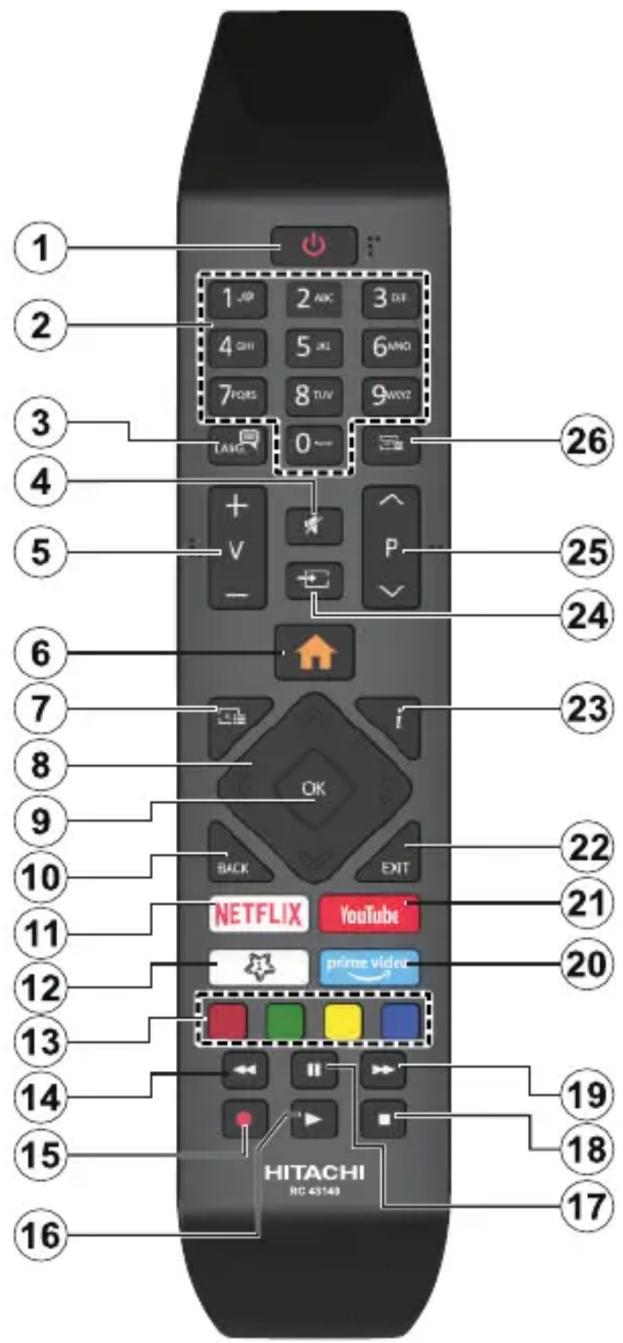
(\*) SAJÁT GOMB 1:
| 56Hz 60Hz 66Hz 70Hz 72Hz 75Hz | ||||||
| 640x400 | X | |||||
| 640x480 | X | X | X | X | ||
| 800x600 | X | X | X | X | X | |
| 832x624 | X | |||||
| 1024x768 | X | X | X | X | X | |
| 1152x864 | X | X | X | |||
| 1152x870 | X | |||||
| 1280x768 | X | X | ||||
| 1360x768 | X | |||||
| 1280x960 | X | X | ||||
| 1280x1024 | X | X | ||||
| 1400x1050 | X | X | ||||
| 1440x900 | X | X | ||||
| 1600x1200 | X | |||||
| 1680x1050 | X | |||||
| 1920x1080 | X | |||||
natural_image
Illustration of a router connected to a monitor via wireless signals, with a globe icon and number 1 nearby (no text or symbols on the diagram itself)natural_image
Illustration of two hand positions on a circular object, one with a black X mark, the other without (no text or symbols)natural_image
Illustration of hands performing a circular motion or maneuver on a ring, with arrows indicating direction (no text or symbols)
natural_image
Illustration of a hand holding a circular object with a cross mark, no text or symbols presentDisplay Wireless....36
natural_image
Simple diagram showing a circular object and a rectangular shape with curved lines, no text or symbols present.natural_image
Illustration of a router connected to a monitor via wireless signals, with a globe icon and label 1 (no text or symbols on the diagram itself)natural_image
Illustration of two hand positions on a circular object, one with a finger and the other with a black X mark (no text or symbols)natural_image
Illustration of two hands performing a circular motion or maneuvering operation, one with directional arrows and the other with a cross (no text or symbols)natural_image
Simple diagram showing a circular object and a rectangular shape with curved lines, no text or symbols present.natural_image
Illustration of a router connected to a monitor via wireless signals, with a globe icon and numbered label (1) above the device.natural_image
Illustration of two hand positions on a circular object, one with a finger and the other with a cross (no text or symbols)natural_image
Illustration of hands performing a circular motion or maneuver on a ring, with one hand moving clockwise (no text or symbols)
natural_image
Illustration of a hand holding a paper over a circular object with a cross mark, no text or symbols presentapstāklos.
natural_image
Simple diagram showing a circular object and a rectangular shape with curved lines, no text or symbols present.- Platjoslas ISP savienojums
- LAN (Ethernet) kabelis
- LAN ievade TV aizmugurē
- Tīkla sienas kontaktligzda
- LAN ievade TV aizmugurē
natural_image
Illustration of a network device with wireless signal waves and a globe icon, next to a monitor (no text or symbols)1. Platjoslas ISP savienojums
natural_image
Illustration of two hands holding a circular object with a cross mark, no text or symbols presentnatural_image
Illustration of two hands performing a circular motion or maneuvering operation, one with directional arrows and the other with a cross (no text or symbols)- Насока нагоре
- Насока надолу
- Прекинувач Јачина на звук/избор на извор/приправност-включено
natural_image
Simple diagram showing a circular object and a rectangular shape with curved lines, no text or symbols present.| 56Hz 60Hz 66Hz 70Hz 72Hz 75Hz | ||||||
| 640x400 | ||||||
| 640x480 | X | |||||
| 800x600 | X X | |||||
| 832x624 | ||||||
| 1024x768 | X X X | |||||
| 1152x864 | X | |||||
| 1152x870 | ||||||
| 1280x768 | X | |||||
| 1360x768 | ||||||
| 1280x960 | X | |||||
| 1280x1024 | X | X | ||||
| 1400x1050 | X | X | ||||
| 1440x900 | X | |||||
| 1600x1200 | X | |||||
| 1680x1050 | X | |||||
| 1920x1080 | X | |||||
Поврзување
Поврзување со жица
- Широкопојасна ИСП-врска
- LAN-(етернет) кабел
- ЛАН-влез одзади на ТВ-уредот
natural_image
Illustration of a router connected to a monitor via wireless signals, with a globe icon and label 1 (no text or symbols on the diagram itself)natural_image
Illustration of two hand positions on a circular object, one with a finger and the other with a cross (no text or symbols)natural_image
Illustration of two hands performing a circular motion or maneuvering operation, one with directional arrows and the other with a cross (no text or symbols)TV-bediening & Operation 5
TV-bediening & Operation

natural_image
Simple diagram showing a circular object and a rectangular shape with curved lines, no text or symbols present.| 56Hz 60Hz 66Hz 70Hz 72Hz 75Hz | ||||||
| 640x400 | ||||||
| 640x480 | X | X | X | X | ||
| 800x600 | X | X | X | X | X | |
| 832x624 | X | |||||
| 1024x768 | X | X | X | X | X | |
| 1152x864 | X | X | X | |||
| 1152x870 | X | |||||
| 1280x768 | X | X | ||||
| 1360x768 | X | |||||
| 1280x960 | X | X | ||||
| 1280x1024 | X | X | ||||
| 1400x1050 | X | X | ||||
| 1440x900 | X | X | ||||
| 1600x1200 | X | |||||
| 1680x1050 | X | |||||
| 1920x1080 | X | |||||
Verbindingen
natural_image
Illustration of a router connected to a monitor via wireless signals, with a globe icon and numbered label (no text or symbols on the diagram itself)1. Breedband ISP-verbinding
KLASSE 1 LASER PRODUCT
natural_image
Illustration of two hand positions on a circular object, one with a finger and the other with a cross (no text or symbols)natural_image
Illustration of a hand holding a circular object with arrows indicating movement or force (no text or symbols)
natural_image
Illustration of a hand holding a circular object with a cross mark, no text or symbols presentnatural_image
Simple diagram showing a circular object and a rectangular shape with curved lines, no text or symbols present.natural_image
Illustration of a router connected to a monitor via wireless signals, with a globe icon and numbered label (no text or symbols on the diagram itself)til
KLASSE 1 LASERPRODUKT
FARE FOR ELEKTRISK ST∅T
natural_image
Illustration of two hand positions on a circular object, one with a finger and the other with a cross (no text or symbols)natural_image
Illustration of two hands performing a circular motion or maneuvering operation, one with directional arrows and the other with a cross (no text or symbols)natural_image
Simple diagram showing a circular object and a rectangular shape with curved edges, no text or symbols present.natural_image
Illustration of a router connected to a monitor via wireless signals, with a globe icon and numbered label (no text or symbols on the diagram itself)natural_image
Illustration of two hand positions on a circular object, one with a black X mark, the other without (no text or symbols)natural_image
Illustration of a hand holding a circular object with arrows indicating movement or force (no text or symbols)
natural_image
Illustration of a hand holding a small object with a cross mark, no text or symbols presentMANUAL DE INSTRUÇÕES
natural_image
Simple diagram showing a gray rectangle with a small circle inside, no text or symbols present- Tomada de parede de rede
- Entrada LAN no lado de trás da TV
natural_image
Illustration of a network device with wireless signal waves and a globe icon, next to a monitor (no text or symbols)natural_image
Illustration of a hand holding a circular object with a cross mark, next to a circular ring (no text or symbols)natural_image
Illustration of a hand holding a paper with a circular object, showing a curved arrow indicating direction (no text or symbols)
natural_image
Illustration of a hand holding a piece of paper over a circular object with an arrow indicating rotation (no text or symbols)Manual electronic 17
Servicii Teletext 27
Actualizare software 27
Depanare & Sfaturi 28
Moduri tipice de afişare la intrarea PC ...... 29
natural_image
Simple diagram showing a circular object and a rectangular shape with curved lines, no text or symbols present.Conectivitate wireless
natural_image
Illustration of a network device with wireless signal waves and a globe icon, connected to a monitor (no text or symbols)natural_image
Illustration of two hand positions on a circular object, one with a cross mark and the other without (no text or symbols)natural_image
Illustration of a hand holding a circular object with arrows indicating direction (no text or symbols)
natural_image
Illustration of a hand using a tool to press down a circular object with a cross mark, no text or symbols present.INSTRUCTIUNI PENTRU MOBIL TV
natural_image
Simple diagram showing a circular object and a rectangular shape with curved lines, no text or symbols present.natural_image
Illustration of a network device with wireless signal waves and a globe icon, connected to a monitor (no text or symbols)natural_image
Illustration of two hand positions on a circular object, one with a black X mark, the other without (no text or symbols)natural_image
Illustration of two hands performing a circular motion or maneuvering operation, one with directional arrows and the other with a cross (no text or symbols)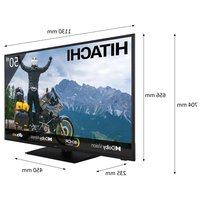


- Contents
- Safety Information
- CAUTION
- IMPORTANT - Please read these instructions fully before installing or operating
- Markings on the Product
- WARNING
- WALL MOUNTING WARNINGS
- Environmental Information
- Features
- High Dynamic Range (HDR) / Hybrid Log-Gamma (HLG)
- Standby Picture
- Standby Notifications
- TV Control & Operation
- Operation with the Remote Control
- Input Selection
- Changing Channels and Volume
- TV Control Switch & Operation
- Notes:
- Operating with the Control Button
- Using Main TV Menu
- Home
- Search
- TV
- Guide
- Channels
- Timers
- Recordings
- Settings
- Apps
- Sources
- Source Settings
- Inserting the Batteries into the Remote
- Power Connection
- Antenna Connection
- Rear side of the TV
- License Notification
- Disposal Information
- [European Union]
- [Business users]
- [Other Countries outside the European Union]
- (\*) MY BUTTON 1:
- Switching On/Off
- To Switch the TV On
- To Switch the TV Off
- To power down the TV completely, unplug the power cord from the mains socket.
- First Time Installation
- About Selecting Broadcast Type
- Tivusat Option
- Using Satellite Channel Table Feature
- Media Playback via USB Input
- USB Recording
- Recording a Programme
- Timeshift Recording
- Instant Recording
- Watching Recorded Programmes
- Slow Forward
- Recording Settings
- Media Browser
- FollowMe TV
- CEC
- System Audio Control
- E-Manual
- General TV Operation
- Using the Channel List
- Managing the Favourite Lists
- Configuring Parental Settings
- Electronic Programme Guide
- Timeline Schedule
- Now/Next Schedule
- Event Options
- Teletext Services
- Digital Teletext
- Software Upgrade
- Software upgrade search via user interface
- AM search and upgrade mode
- Troubleshooting & Tips
- TV will not turn on
- Poor picture
- No picture
- No sound
- Remote control - no operation
- No signal on an input source
- The Image is not centered in VGA source
- Recording unavailable
- USB is too slow
- PC Input Typical Display Modes
- (X: Not Available, O: Available)
- Supported File Formats for USB Mode
- Video File Formats
- Picture File Formats
- Audio File Formats
- Subtitle File Formats
- Supported DVI Resolutions
- Connectivity
- Wired Connectivity
- To Connect to a Wired Network
- To configure wired settings refer to the Network section in the Settings menu.
- Configuring Wired Device Settings
- Network Type
- Internet Speed Test
- Advanced Settings
- Wireless Connectivity
- To Connect to a Wireless Network
- Broadband ISP connection
- Configuring Wireless Device Settings
- Other Information
- Connecting to your mobile device via WLAN
- Wake ON
- Wireless Display
- Using with mobile devices
- Connecting Other Wireless Devices
- Image transfer and audio streaming
- Connectivity Troubleshooting
- Wireless Network Not Available
- Connection is Slow
- Disruption during playback or slow reactions
- Internet Connection Not Available / Audio Video Sharing Not Working
- Invalid Domain
- Using Audio Video Sharing Network Service
- Server Software Installation
- Connect to a Wired or Wireless Network
- Enable Audio Video Sharing
- Play Shared Files via Media Browser
- Apps
- Internet Browser
- HBBTV System
- Smart Center
- Getting Started
- Mobile Device screen
- Detail Page
- FollowMe TV Feature (if available)
- Mirror Mode
- Media Share Page
- Smart Remote Feature
- Voice Recognition
- Keyboard Page
- Requirements
- Alexa Ready
- Alexa Built-in
- Works With Alexa
- Setup process
- Example Commands
- DVD Mode
- CLASS 1 LASER PRODUCT
- RISK OF ELECTRIC SHOCK
- Notes on Discs
- On handling discs
- On cleaning
- Licence Notification
- How to Watch a DVD
- DVD Control Panel Buttons
- ▶ / (Play / Pause)
- / (Stop / Eject)
- Note:
- General Playback
- Basic Play
- For your reference
- Notes on Playback
- DVD Troubleshooting
- Poor picture quality (DVD)
- Disc does not play
- Wrong OSD language
- Distorted sound
- If nothing works
- General DVD Operation
- Mobile TV Instructions
- Switching the TV On Using 12 Volt
- Switching the TV Off
- DVB functionality information
- HITACHI
- NAVODILA ZA UPORABO
- PRODUIT LASER DE CLASSE 1
- RISQUE DE CHOC ÉLECTRIQUE
- ▶ / (Lecture / Pause)
- UPUTSTVO ZA UPUTSTVO
- Sadržaj
- UPOZORENJE
- Rukovanje kontrolnim tasterom
- Povezivanje
- Žičana veza
- Kako biste konfigurirali žičane postavke, pogledajte odjeljak Mreža u meniju podešavanja.
- Konfiguracija postavke Žičanog uređaja.
- Tip mreže
- Test brzine interneta
- Širokopojasna ISP konekcija
- Konfiguracija postavki bežičnog uređaja
- Oko čišćenja
- Připojení
- Kabelové zapojení
- Konnektivität
- KLASSE 1 LASER-PRODUKT
- STROMSCHLAGGEFAHR
- Ühenduvus
- Juhtmega ühendus
- Liitettävyys
- Lankaverkko
- (\*) SAJÁT GOMB 1:
- Platjoslas ISP savienojums
- Поврзување
- Поврзување со жица
- Verbindingen
- Breedband ISP-verbinding
- KLASSE 1 LASER PRODUCT
- KLASSE 1 LASERPRODUKT
- FARE FOR ELEKTRISK ST∅T
- MANUAL DE INSTRUÇÕES
- Conectivitate wireless
- INSTRUCTIUNI PENTRU MOBIL TV
Brand : HITACHI
Model : 42HE4300
Category : Television