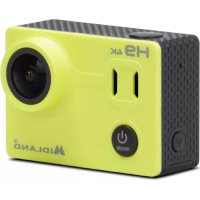
H9 - Sports camera MIDLAND - Free user manual and instructions
Find the device manual for free H9 MIDLAND in PDF.



| Product type | Sports camera (sportscam) |
| Brand | Midland |
| Model | H9 |
| Dimensions | 58 × 29 × 40 mm |
| Weight | 65 g (without battery) |
| Power supply | Li-Ion battery 1050 mAh, recharge via USB (3-5 h) |
| Battery life | Up to 90 min in 1080p (Wi-Fi off) |
| Max video resolution | 4K at 30 fps (MOV format) |
| Photo resolution | 14 MP (JPEG format) |
| Viewing angle | Wide angle |
| Display | 2-inch color LCD |
| Water resistance | Up to 30 m with waterproof housing |
| Connectivity | Wi-Fi, USB 2.0, micro HDMI |
| Memory cards | microSD/SDHC/SDXC up to 64 GB (class 10 U3) |
| Shooting modes | Video, Photo, Burst, Time Lapse Video, Time Lapse Photo, Playback |
| Additional functions | Timestamp, exposure adjustment, loop video, remote control via app |
| Menu languages | Multilingual (French available) |
| Mobile app | Midland H9 (iOS and Android) |
| Care and cleaning | Wash and dry the housing after use in water. Do not use harsh cleaners. |
| Safety | Use only recommended accessories. Do not expose to extreme temperatures. |
| Warranty | More info at www.alan-midland.fr |
Frequently Asked Questions - H9 MIDLAND
User questions about H9 MIDLAND
0 question about this device. Answer the ones you know or ask your own.
Ask a new question about this device
Download the instructions for your Sports camera in PDF format for free! Find your manual H9 - MIDLAND and take your electronic device back in hand. On this page are published all the documents necessary for the use of your device. H9 by MIDLAND.
USER MANUAL H9 MIDLAND
4K@30fps2-inch LCD Wide angle lens Waterproof up to 30m
ITALIANO
ENGLISH
DEUTSCH
FRANÇAIS
ESPAÑOL
POLSKI
EAAHNIKA
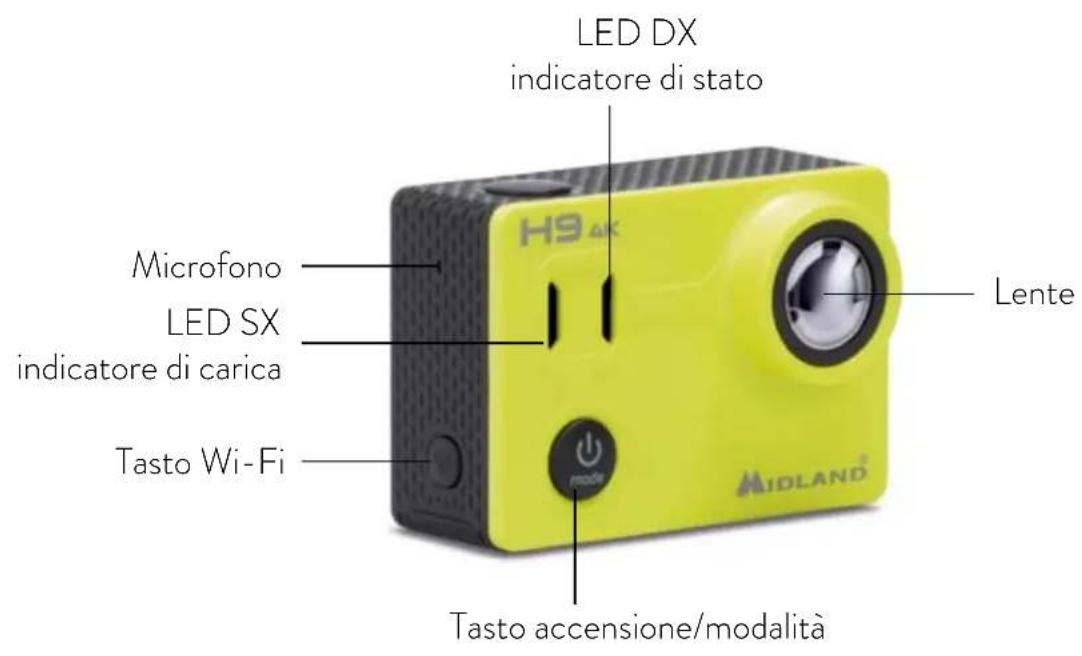
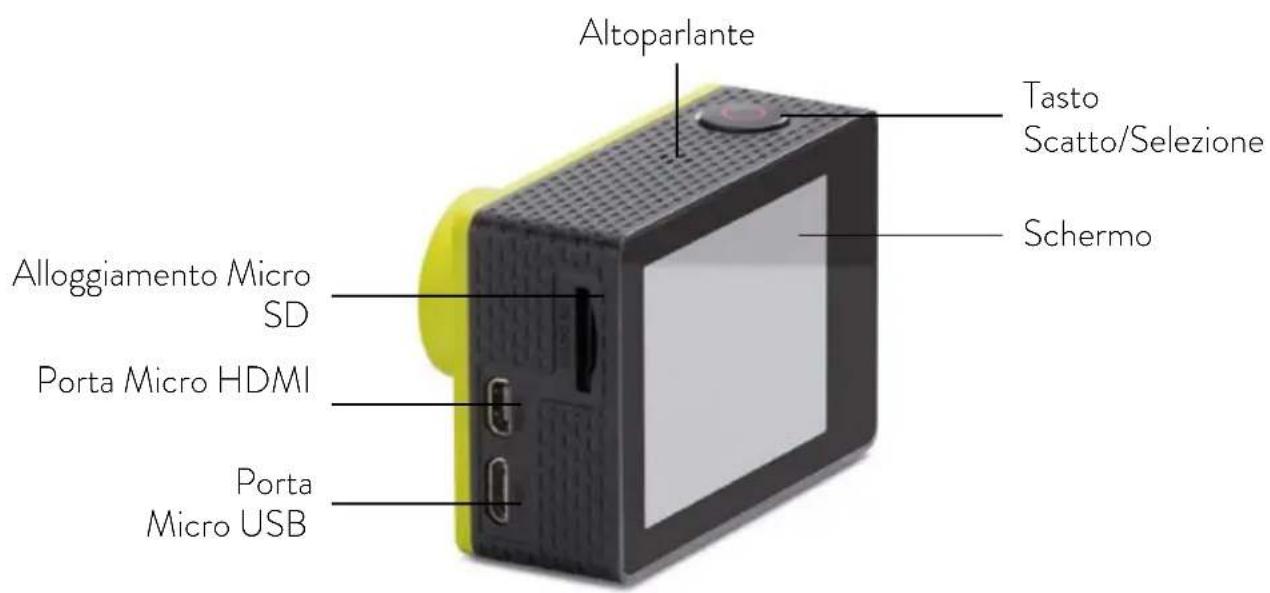
DESCRIZIONETASTI
ACCESSORINCLUSI
Intervallo Time Lapse Foto (photo ad intervalli di tempo): 3s/5s/10s/30s/60s
Time Lapse Foto: on/off
Time Lapse Video - risoluzione: 4K@30fps/2.7K@30fps
Time Lapse Video - intervallo: 0.5s/1s/2s/3s/4s/5s/10s/15s/20s/30s/60s
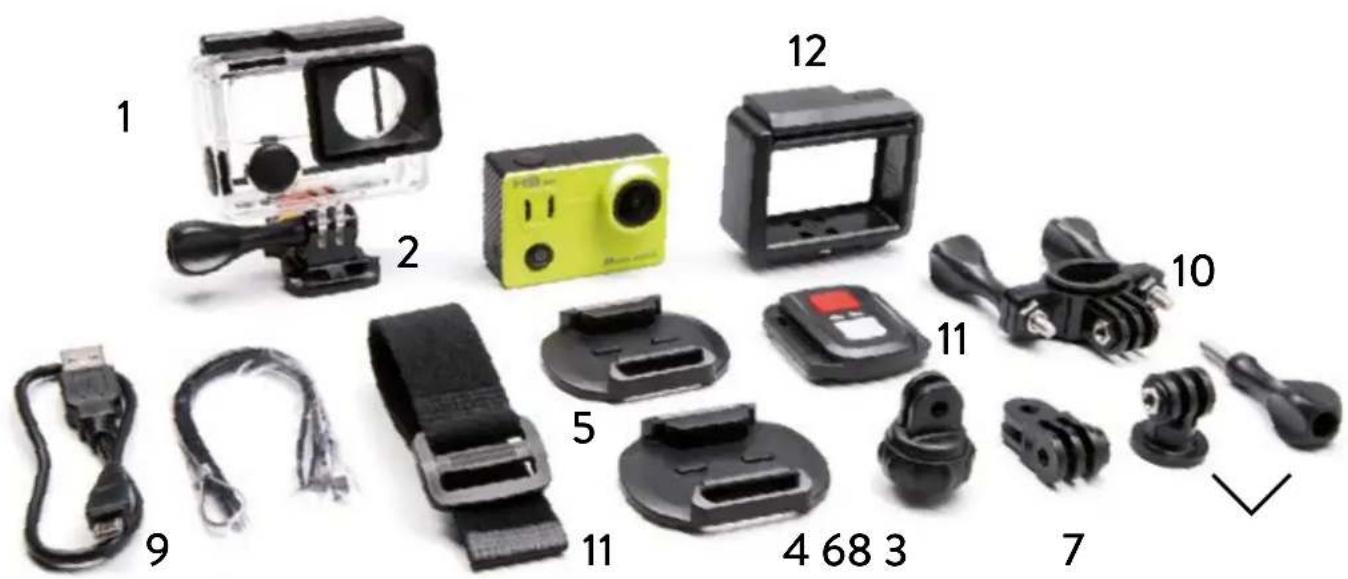
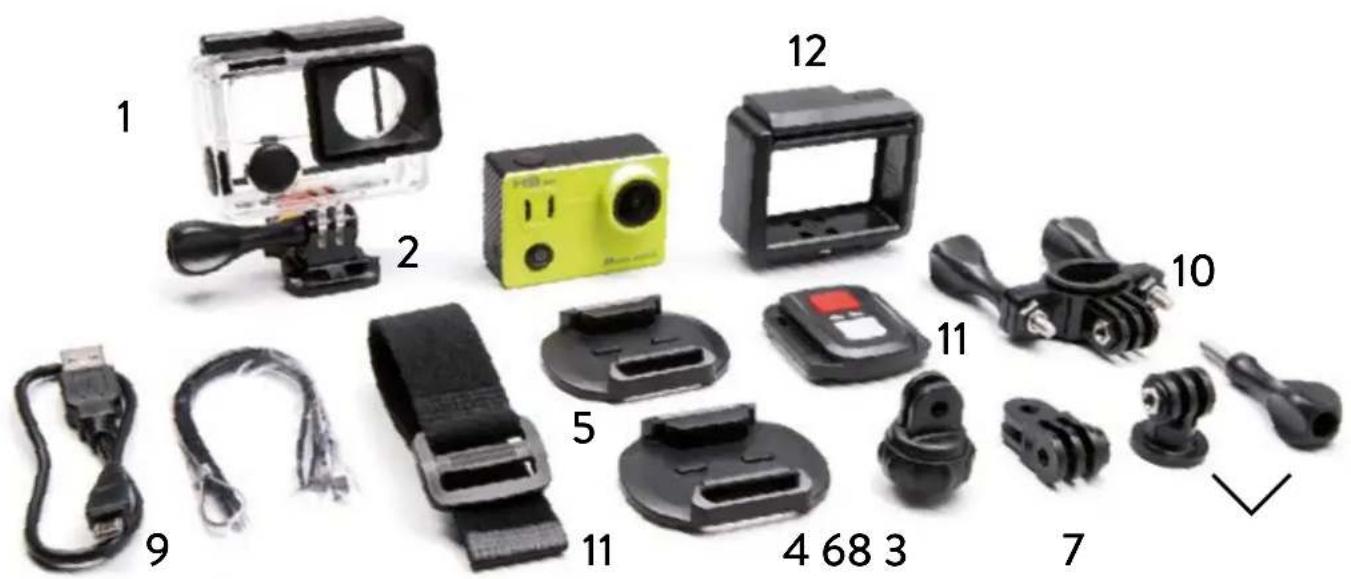
INCLUDED ACCESSORIES
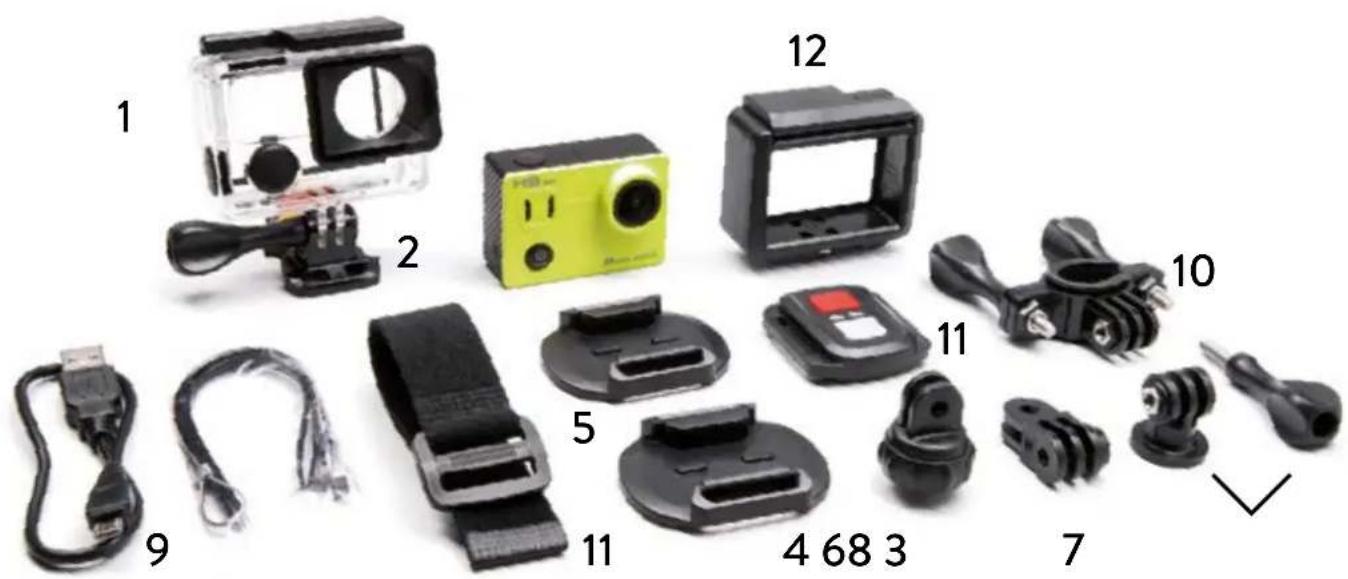
- Waterproof case 30m
- Quick release mount (x2)
- Standard photo mount
- Curved mount
- Flat mount
- Tripod mount
- 90^ mount
- Tethers
- USB Cable
- Handlebar mount
- Wireless remote control
- Frame
Attention: If you use the case in the water, wash it well and dry it after use. Do not use any type of cleaning product.
GETTING STARTED
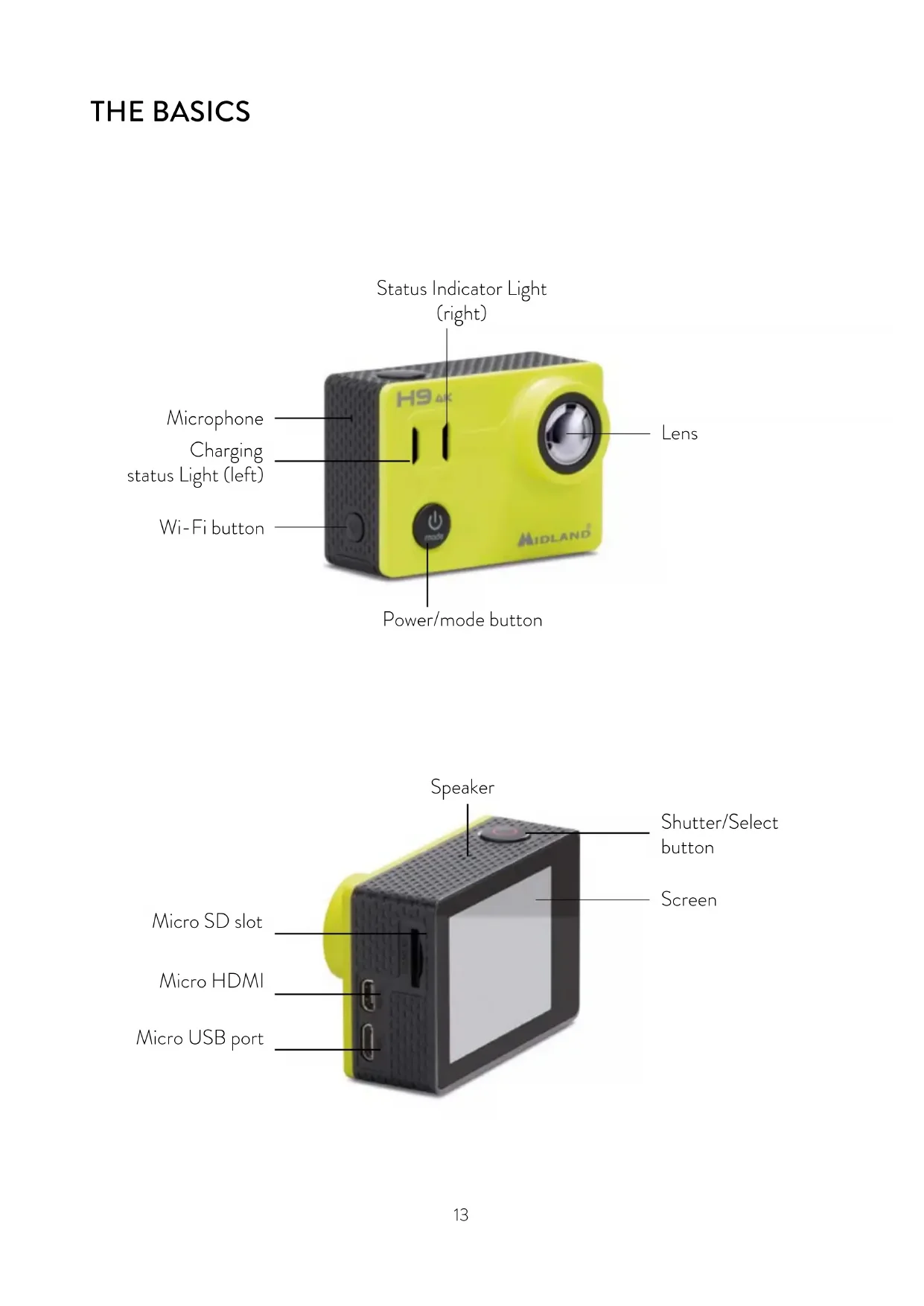
To power ON: Press the Power/mode button.
To power OFF: Press and hold the Power/mode button.
OVERVIEW
Turn camera ON and repeatedly press the Power/mode button to cycle through camera modes and settings. The modes will appear in following order:
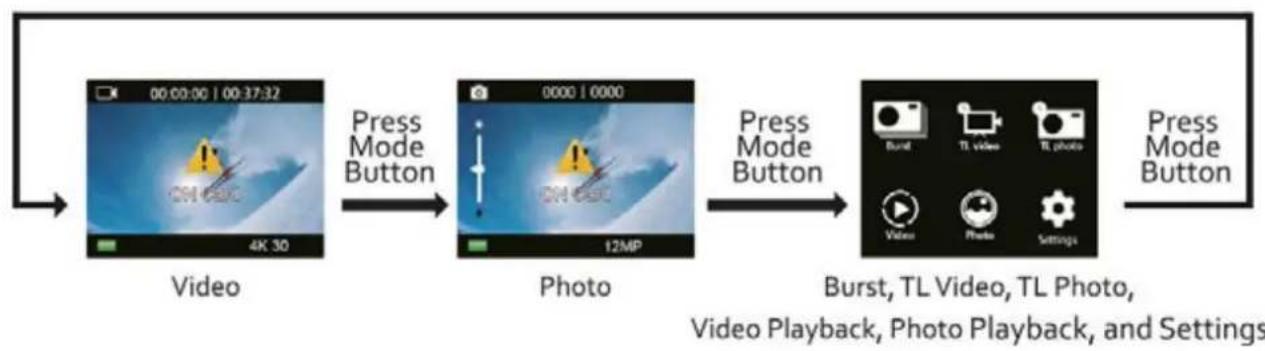
| Video Record video | |
| Photo Capture a single photo | |
| Burst Photo Capture photo bursts | |
| Time Lapse Video Record Time Lapse video | |
| Shoot a series of photos at set time inter-vals | |
| Video playback Video playback | |
| Photo playback Photo playback | |
| Settings | Adjust camera settings, resolution and more |
SETTINGS

Repeatedly press the Power/Mode button to cycle through options and press the Shutter/Select button to select the desired option.
VIDEO RESOLUTION
4K@30fps, 2.7K@30fps, 1080p@30/60fps, 720@120fps
Micro SD card 4K 30 2.7K 30 1080p 60 1080p 30
32GB 80 min 120 min 60 min 120 min
64GB 160 min 240 min 120 min 240 min
Photo resolution: 14M
Video: 1min/5min
Looping video: off/on.
Time stamp: Off/Date/Date and time
Exposure: +2.0/+ -1.7/+ -1.3/+ -1.0/+ -0.7/+ -0.3/0Burst photo: 3 photos in 1 second/7 photos in 2 seconds/15 photos in 4 seconds
Time Lapse Photo - interval: 3s/5s/10s/30s/60s
Time Lapse Photo: on/off
Time Lapse Video - resolution: 4K@30fps/2.7K@30fps
Time Lapse Video - interval: 0.5s/1s/2s/3s/4s/5s/10s/15s/20s/30s/60s
Power frequency: 50Hz/60Hz/Auto
Language: English/Italian/Spanish/Portuguese/German/Dutch/French/Czech/Polish/Turkish/Russian/Japanese/Finnish/Danish/Swedish/Norwegian/Hungarian/Slovak/Greek
Remote control: on/off
Date & Time (setting): MM/DD/YY, DD/MM/YY or YY/MM/DD
Sound indicator:Shutter on/off,Start up on/off,Beep on/off,volume 0/1/2/3)Auto LCD OFF: off/1 min/3min/5min
Power saver: off/1 min/3min/5min
Format: Yes/No
Reset:Yes/No
Version
DATE AND TIME SETTING
Date and time are automatically set when H9 is connected to the APP MIDLAND H9 or it is possible to set them manually through the Settings menu.
Should the battery be removed from the camera, date and time have to be set again.
VIDEO MODE

Video
To record video verify the camera is in Video mode. If the Video icon is not displayed on your camera's LCD screen, press the Power/mode button repeatedly until it appears.
To start recording:
Press the Shutter/Select button. The camera will emit one beep and its Status Light (Blue Led) will flash while recording.
To stop recording:
Press the Shutter/Select button. The Camera Status Light will stop flashing and H9 will emit one beep to indicate recording has stopped.
This camera automatically stops recording when the battery is out of power. Your videos will be saved before the camera powers OFF.
PHOTO MODE

Photo
To capture a photo, verify the camera is in Photo mode. If the Photo icon is displayed on the LCD screen, press the Power/mode button repeatedly until it appears.
To take a photo press the Shutter/Select button.
H9 will emit the shutter sound.
BURST PHOTO MODE

Burst
To capture a Burst Photo series, verify the camera is in Burst Photo mode. If the Burst Photo icon is not shown on the camera LCD screen, press the Power/mode button repeatedly until it appears.
To take a Burst Photo series:
press the Shutter/Select button. The camera will emit the camera shutter sound.
TIME LAPSE PHOTO

TL (Time Lapse) Photo
To capture a Time Lapse photo series, verify the Time Lapse is ON and the camera is in Time Lapse mode.
If the Time Lapse icon is not displayed on your camera's LCD screen, press the Power/mode button repeatedly until it appears.
In Time Lapse mode, H9 captures a series of photos at 3, 5, 10, 30 or 60 second intervals.
To take Time Lapse photos:
press the Shutter/Select control. The camera initiates countdown and emits the shutter sound each time a Photo is taken.
TIME LAPSEVIDEO

TL (Time Lapse) Video
To record Time Lapse videos, verify that the camera is in TL Video mode.
If the TL Video icon does not appear on the camera's LCD screen, press the Power/mode button repeatedly until it is shown.
H9 will issue videos with photos captured at 0.5/1/2/3/4/5/10/15/20/30/60 seconds.
To record a video press the Shutter/Select button. H9 will emit a beep and start recording.
PLAYBACK

Video

noto
- Press the Power/Mode button to select Video or Photo.
- Press the Shutter/Select button to enter the Playback menu.
- Use the Power/Mode button to select the file you want to play.
- Press the Shutter/Select button to playback or pause.
- To return to the Playback menu, press Wi-Fi.
MICRO SD CARD
This camera is compatible with microSDHC and microSDXC memory cards with a capacity up to 64GB.
You must use a microSD card with a Class 10 U3 speed rating.
We recommend using brand name memory cards for maximum reliability in high-vibration activities.
BATTERY
To charge the battery:
- Connect the camera to a computer or USB power supply.
- The Charging Status Light (Red Led) remains ON while the battery is charging and will turn OFF when the charge is full.
- A complete charge takes 3-5 hours.
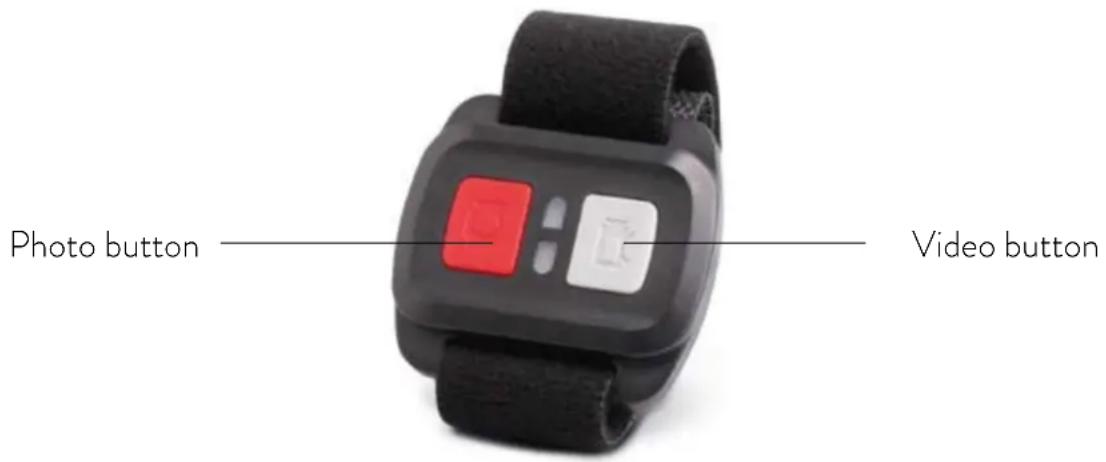
2.4GHz WIRELESS REMOTE CONTROL
VIDEO MODE

Video
Verify that H9 is in Video mode.
To start recording press the grey (Video) button. H9 will emit 1 beep and the blue led of the camera will flash while recording.
To stop recording press the grey button again. The led will stop blinking.
PHOTO MODE

Photo
To capture a photo, verify the camera is in Photo mode.
To take a photo press the red (Photo) button. H9 will emit a shutter sound.
BURST

Burst
To capture a Burst series, verify the camera is in Burst Photo mode.
To take a burst series, press the red button. H9 will emit shutter sounds.
TIME LAPSEVIDEO

TL (Time Lapse) Video
To record a Time Lapse video, the camera must be set in TL Video mode.
To start recording press the grey button. H9 will emit 1 beep and the blue led of the camera will blink while recording.
To stop recording press the grey button again; the led will stop flashing.
TIME LAPSE PHOTO

TL (Time Lapse) Photo
Make sure the camera is set in Time Lapse Photo mode.
To take Time Lapse photos press the red button.
CAMERA OFF
To turn off the camera by means of the remote control keep pressed both controls for 3 seconds.
CAMERA APP
"Midland H9" APP
The Midland H9 APP allows to control the camera remotely using a smartphone or tablet.
Features include the camera control, live preview, photo playback and sharing of photos and contents.
- Download the APP Midland H9 on your smartphone or tablet from Apple Store or Google Play.
- Press the Power/Mode button to turn on the camera.
- Press the Wi-Fi button to turn on Wi-Fi. *
- In your smartphone or tablet's Wi-Fi settings, connect to the network "iCam-Midland H9" followed by a series of numbers.
-
Open the Midland H9 APP on your smartphone or tablet.
-
Keep it pressed to turn off the Wi-Fi.
The Midland H9 APP is compatible with the following smartphones and tablets.
Apple IOS:
iPhone 6,6S,7(Plus) (iOS 10)
iPad Air & Mini (iOS 10)
Android:
Android 4X Quad-Core devices (Android 4.4 and higher).
COMPATIBILITY
Compatibility may vary by device.
Playback, sharing and access to the camera's memory card might not be available on some devices.
WARRANTY
For information about the warranty, please visit www.midlandeurope.com
SPECIFICATIONS
Video: 4K@30fps, 2.7K@30fps, 1080p@30/60fps, 720@120fps MOV format
Photo: 14 MP.jpg format
Wide angle lens 170^
Wi-Fi connection
Water resistance: up to 30m of depth with waterproof case
Display LCD: color 2"
Built-in speaker and microphone
Operational modes: Video/Photo/Time Lapse/Playback
Multi-language menu: EN/IT/ES/PT/DE/DU/FR/RU/PL/TR/CZ/JP/FIN/DK/SW/NW/HU/SL/GR
Connections: USB 2.0 & micro HDMI
Battery life up to 90min in 1080P with Wi-Fi OFF
Memory: supports Micro SD card class 10 up to 64GB
Battery: Li-Ion 1050mAh
Dimensions: 58× 29× 40mm
Weight: 65gr (w/out battery)
Specifications are subject to change without notice.
BEDIENELEMENTE
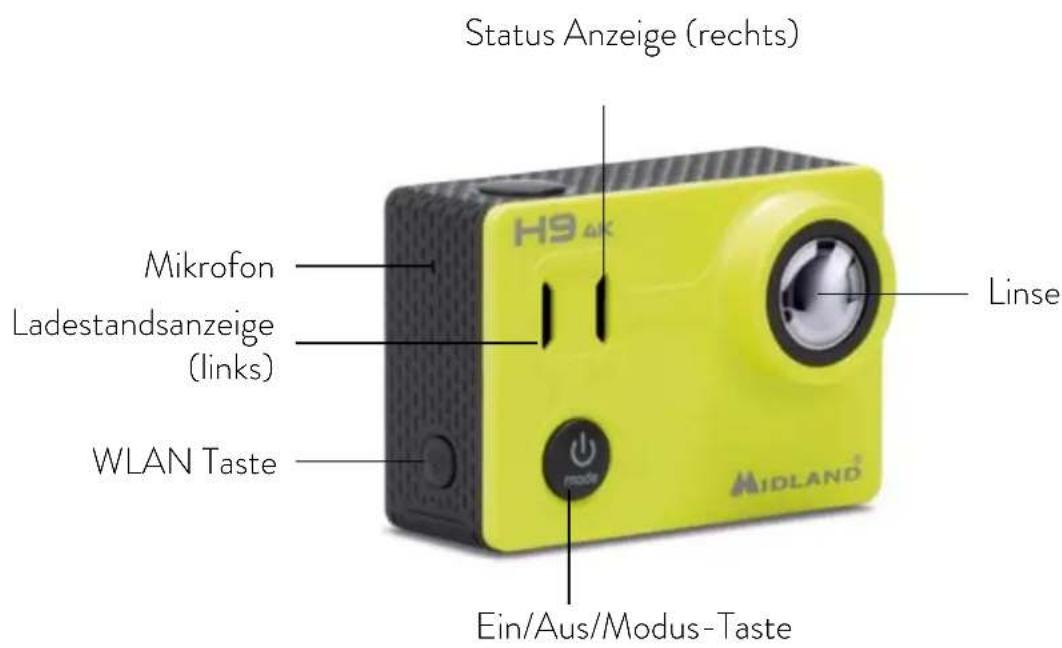
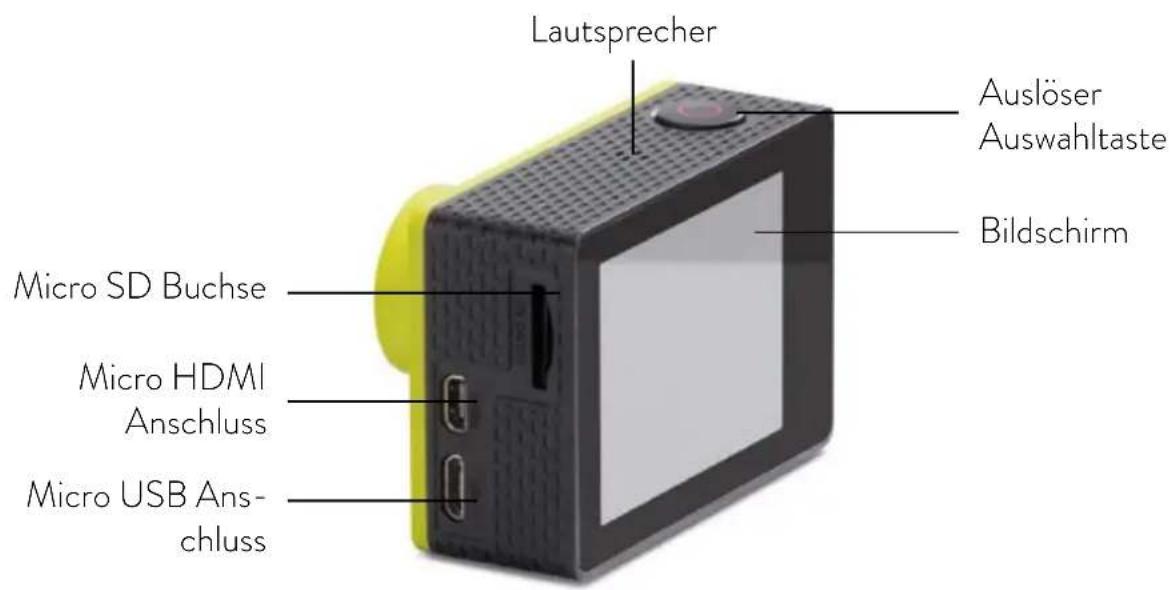
ZUBEHÖR
Sprache: English/Italian/Spanish/Portuguese/German/Dutch/French/Czech/Polish/Turkish /Russian/Japanese/Finnish/Danish/Swedish/Norwegian/Hungarian/Slovak/Greek
Fernbedienung: An/Aus
Android 4X Quad-Core devices (Android 4.4 and higher).
KOMPATIBILITÄT
*PntnoTe to npopetaeva yia vao nEvepyoonoe to Wi-Fi.
iPhone 6, 6S, 7 (Plus) (iOS 10)
Hereby Cte International Srl declares that this product is in compliance with the essential requirements and other relevant provisions of Directive 2014/53/UE. The declaration of conformity is available on the web site http://www.midlandeurope.com/it/pagina/10090-certifications
AT/DE/CH/LI
Produced or imported by:
CTE INTERNATIONAL srl
Via. R.Sevardi 7 42124 Mancasale, Reggio Emilia - Italy
www.midlandeurope.com
Read the instructions carefully before installation and use.
Importado por:
MIDLAND IBERIA, SA
- DESCRIZIONETASTI
- ACCESSORINCLUSI
- INCLUDED ACCESSORIES
- GETTING STARTED
- OVERVIEW
- SETTINGS
- VIDEO RESOLUTION
- Micro SD card 4K 30 2.7K 30 1080p 60 1080p 30
- DATE AND TIME SETTING
- VIDEO MODE
- Video
- To start recording:
- To stop recording:
- PHOTO MODE
- Photo
- BURST PHOTO MODE
- Burst
- To take a Burst Photo series:
- TIME LAPSE PHOTO
- TL (Time Lapse) Photo
- TIME LAPSEVIDEO
- TL (Time Lapse) Video
- PLAYBACK
- noto
- MICRO SD CARD
- BATTERY
- 2.4GHz WIRELESS REMOTE CONTROL
- CAMERA OFF
- CAMERA APP
- "Midland H9" APP
- Apple IOS:
- Android:
- COMPATIBILITY
- WARRANTY
- SPECIFICATIONS
- BEDIENELEMENTE
- ZUBEHÖR
- KOMPATIBILITÄT
- AT/DE/CH/LI
- CTE INTERNATIONAL srl
- MIDLAND IBERIA, SA
Brand : MIDLAND
Model : H9
Category : Sports camera