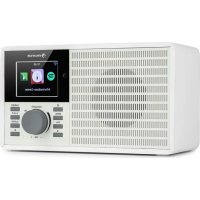
IR160 SE - Radio Auna - Free user manual and instructions
Find the device manual for free IR160 SE Auna in PDF.



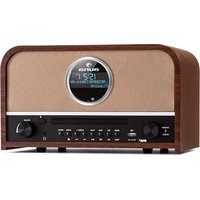
| Product Type | Internet Radio |
| Brand | Auna |
| Model | IR160 SE |
| Category | Radio |
| Power Supply | 100-240 V ~ 50/60 Hz, 0.2 A max, output 5 V/1 A |
| Power Consumption | 5 W (standby < 1 W) |
| Network Connectivity | Wi-Fi 802.11 b/g/n (WEP, WPA, WPA2, WPS) |
| Bluetooth | Yes, version unspecified |
| Audio Formats | MP3, WMA, AAC, AAC+, FLAC, WAV |
| Inputs/Outputs | USB, 3.5 mm Line Out socket |
| Main Functions | Internet Radio, UPnP/DLNA streaming, Spotify Connect, USB playback, alarms, timer, clock, weather |
| Equalizer | Presets: Normal, Flat, Jazz, Rock, Classic, Pop, News, MY EQ |
| Alarm | 3 independent alarms (2 absolute time + 1 nap alarm) |
| Display | Color or monochrome, adjustable backlight |
| Languages | French, German, English, Spanish, etc. |
| Operating Temperature | 0 °C to 35 °C |
| Remote Control | Included |
| Care and Cleaning | Clean with a dry cloth, do not use liquids |
| Safety | Unplug during storms, do not open, avoid overvoltage |
| Spare Parts and Repairability | Use only approved parts, repair by professional |
| General Information | Compliant with directive 2014/53/EU, manufacturer: Chal-Tec GmbH |
Frequently Asked Questions - IR160 SE Auna
User questions about IR160 SE Auna
0 question about this device. Answer the ones you know or ask your own.
Ask a new question about this device
Download the instructions for your Radio in PDF format for free! Find your manual IR160 SE - Auna and take your electronic device back in hand. On this page are published all the documents necessary for the use of your device. IR160 SE by Auna.
USER MANUAL IR160 SE Auna
https://www.spotify.com/connect/third-party-licenses
Member of Berlin Brands Group
Handwerkerstr. 11
15366 Dahlwitz-Hoppegarten
Deutschland
Berlin Brands Group UK Limited PO Box 42
272 Kensington High Street
London, W8 6ND
United Kingdom
Congratulations on purchasing this device. Please read the following instructions carefully and follow them to prevent possible damages. We assume no liability for damage caused by disregard of the instructions and improper use. Scan the QR code to get access to the latest user manual and more product information.
CONTENTS
Technical Data 28
Safety Instructions 29
Product Overview 30
Remote Control 32
Installation 34
Start-up and Operation 34
Network Setting 35
Internet Radio 36
USBPlayback38
My media U 38
Information Center 39
Settings 40
DLNA/UPnP44
Control via Air Music Control 45
Spotify Connect 46
BT Connection 46
Line-Out Connection 46
Disposal Considerations 47
Declaration of Conformity 47
TECHNICAL DATA
| Item number 10034906, 10034907 | |
| Network 802.11 b/g/n (WLAN) : WEP, | WPA, |
| Encryption WPA 2(PSK), WPS | |
| Max. transmission power 17 dBm (EIRP) | |
| Streaming UPnP,DLNA | |
| Supported file types WMA,MP3, | |
| Connections DC, 3,5 mm Line-out con | |
| Input 100 – 240 V ~ 50/60 Hz, 0,2 A max | |
| Output 5 V/ 1 A | |
| Power consumption 5 W | |
| Power consumption (standby mode) | <1 W |
| Operating temperature 0 °C – 35 °C | |
| Operating position Horizontal | |
SAFETY INSTRUCTIONS
General information
- Lightning - If you are not going to use the device for a long time or if there is a storm, disconnect the plug from the electrical outlet and disconnect the device from the antenna connector. This will avoid damage to the product that may be caused by lightning or overvoltage.
- Overload - Do not overload power outlets, extension cords, or built-in power outlets, as this may result in a fire or electric shock.
- Foreign objects and liquid - Never push objects of any kind through openings in the device as they may touch dangerous voltage points or short out parts, which could result in a fire or electric shock. Never spill liquids of any kind on the device.
- Repairs and maintenance - Do not attempt to service this product yourself, as opening or removing covers will expose you to dangerous voltages or other hazards. Leave all maintenance to qualified service personnel.
- Damage requiring service - Disconnect the power plug from the outlet and consult a qualified specialist if any of the following conditions occur:
a) If the power cord or plug is damaged.
b) If liquid has been spilled or objects have fallen onto the product.
c) If the product has been exposed to rain or water.
d) If the product has been dropped or damaged.
e) If the product has a markedly reduced performance.
-
Replacement parts - When replacement parts are required, make sure that the service professional who replaces the parts only uses replacement parts that have been approved by the manufacturer or that have the same characteristics as the original part. Unauthorized replacement may result in fire, electric shock or other hazards.
-
Heat - Do not place the unit near heat sources such as radiators, heaters, stoves or other products (including amplifiers).
Special Instructions
- This device may be only used by children 8 years old or older and persons with limited physical, sensory and mental capabilities and / or lack of experience and knowledge, provided that they have been instructed in use of the device by a responsible person who understands the associated risks.
Children should be supervised to ensure that they do not play with the appliance. - Ensure children and babies do not play with plastic bags or any packaging materials.
- Mains plug/Power adaptor is used as disconnect device and it should remain readily operable during intended use.
- In order to disconnect the apparatus from the mains completely, the main plug/power adaptor should be disconnected from the mains socket outlet completely.
PRODUCT OVERVIEW
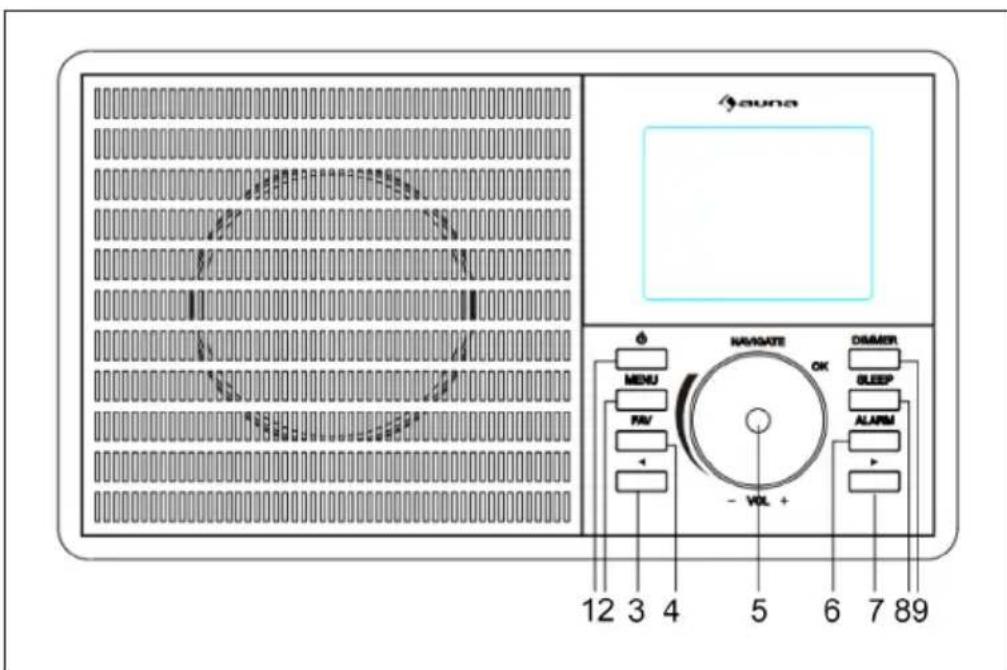
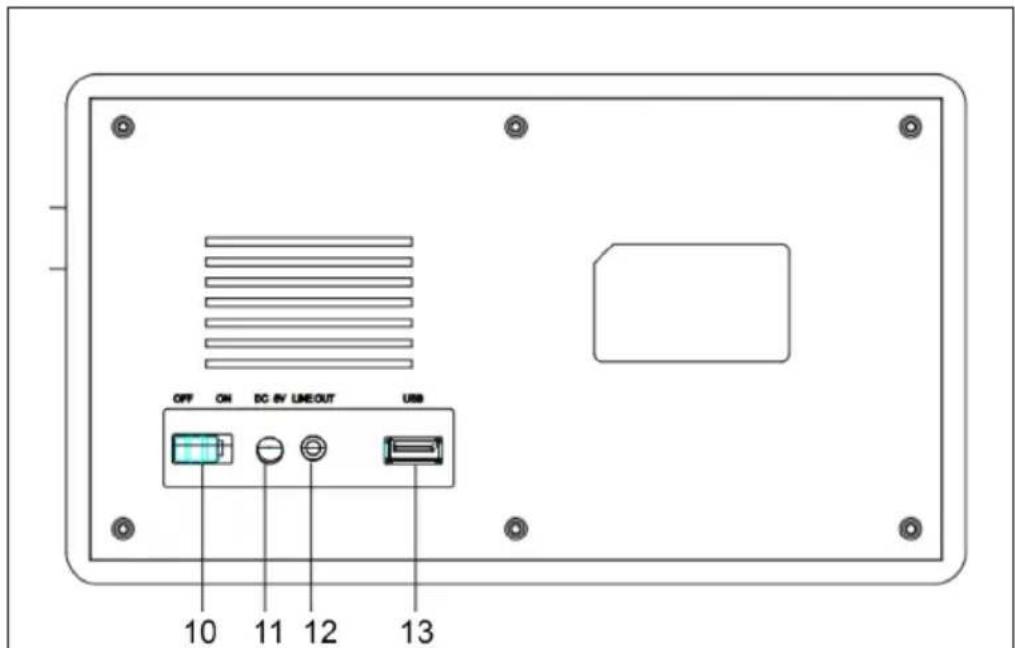
| 1 POWER button 8 Sleep button | ||
| 2 Menu button 9 Backlighting | ||
| 3 To the left 10 Power switch (On/Off) | ||
| 4 Favourites 11 Mains connection | ||
| 5 Navigating/Volume (press to select) | 12 Line-Out connection | |
| 6 Alarm 13 USB connection | ||
| 7 To the right | ||
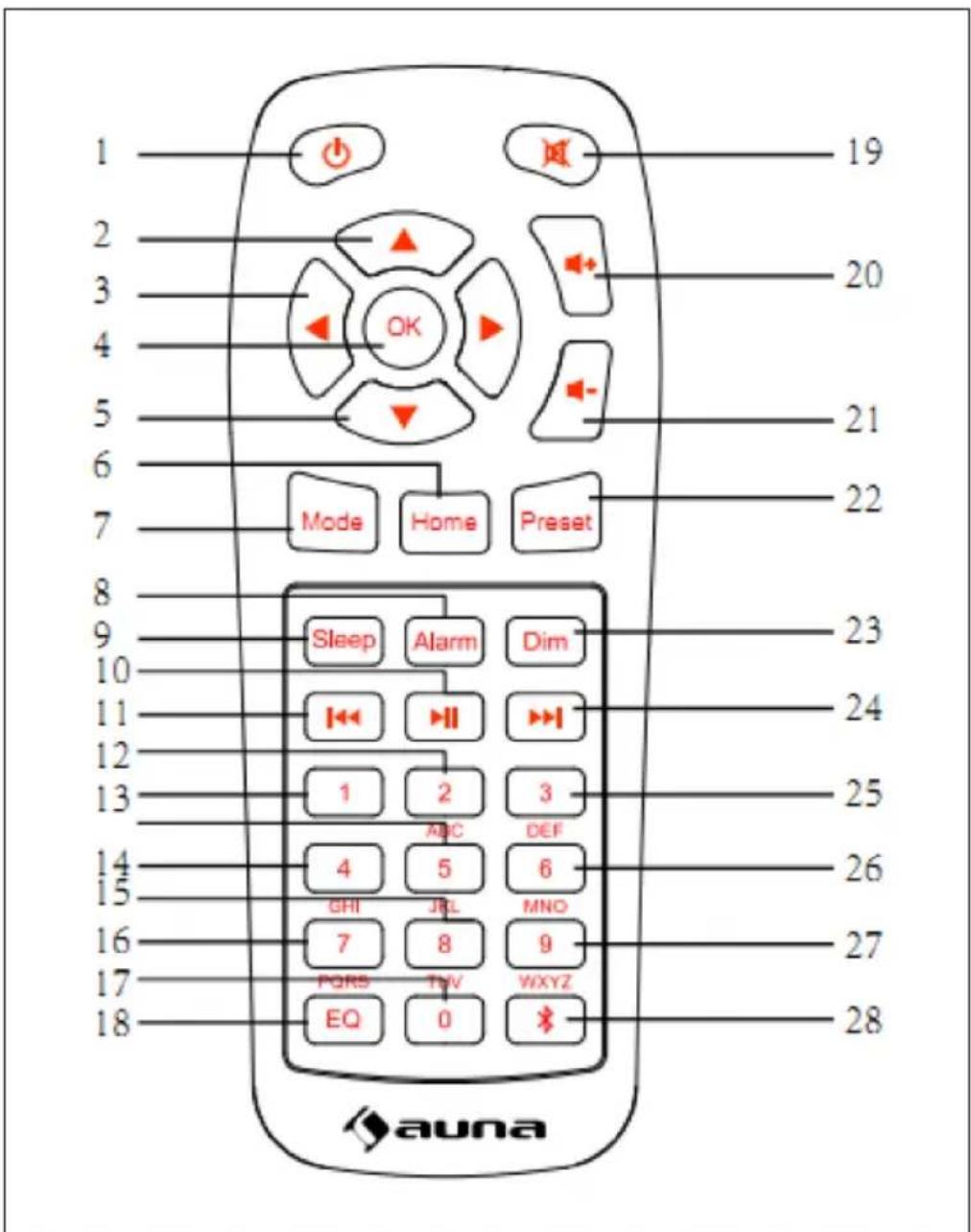
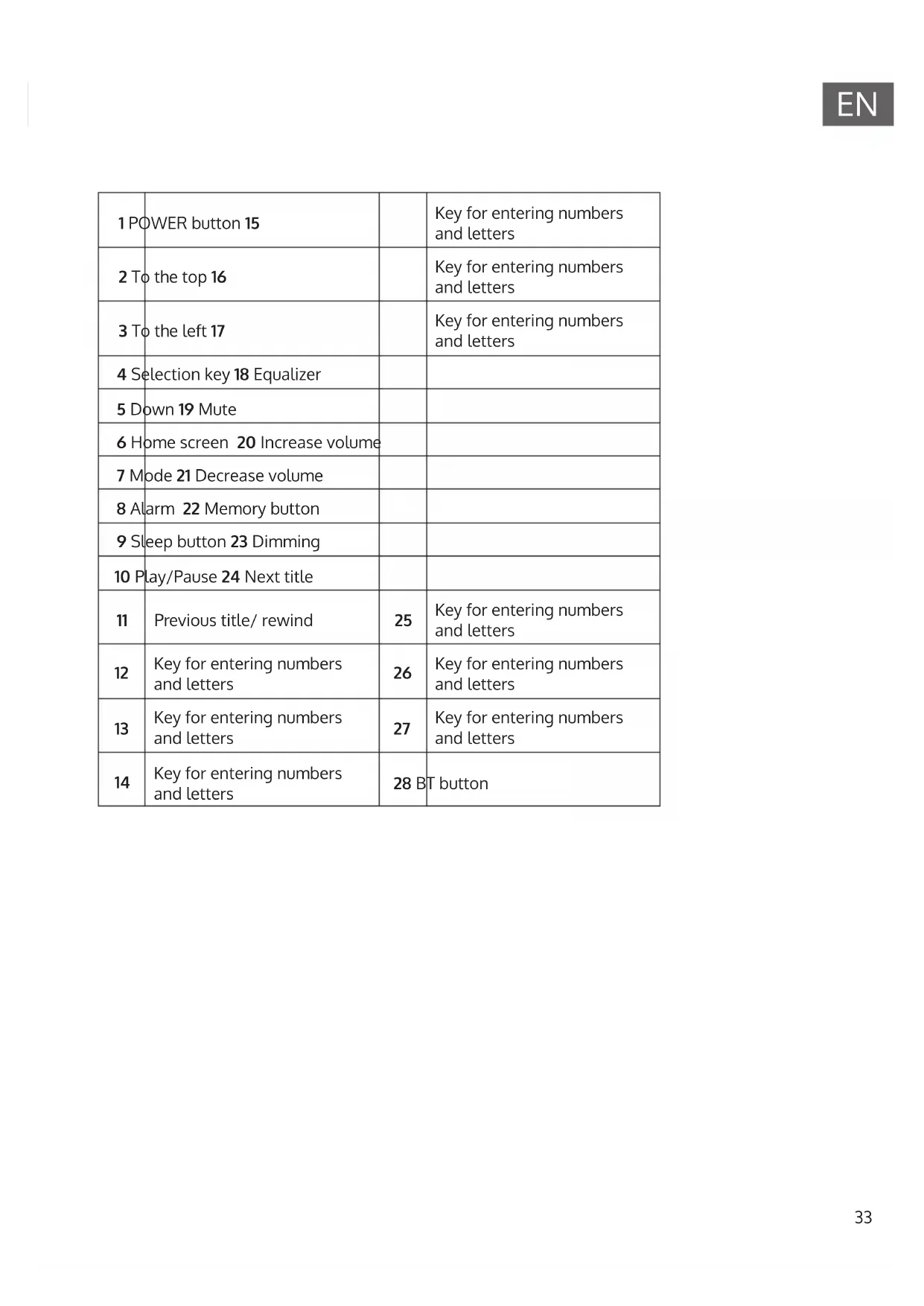
| 1 POWER button 15 | Key for entering numbers and letters | |
| 2 To the top 16 | Key for entering numbers and letters | |
| 3 To the left 17 | Key for entering numbers and letters | |
| 4 Selection key 18 Equalizer | ||
| 5 Down 19 Mute | ||
| 6 Home screen 20 Increase volume | ||
| 7 Mode 21 Decrease volume | ||
| 8 Alarm 22 Memory button | ||
| 9 Sleep button 23 Dimming | ||
| 10 Play/Pause 24 Next title | ||
| 11 Previous title/ rewind | 25 | Key for entering numbers and letters |
| 12 Key for entering numbers and letters | 26 | Key for entering numbers and letters |
| 13 Key for entering numbers and letters | 27 | Key for entering numbers and letters |
| 14 Key for entering numbers and letters | 28 BT button |
INSTALLATION
- Unpack all parts of the device and remove all packing material.
- Do not insert the power plug of the appliance into the power outlet until you have checked the voltage of the outlet and all connections have been made.
START-UP AND OPERATION
First use
Before use, make sure that the voltage indicated on the nameplate of the device corresponds to the voltage of the power outlet. Insert the supplied power plug into the power outlet. Turn on the power using the power switch on the back of the machine. When you use the machine for the first time, it is necessary to set the language and network settings on the machine.
You can connect to the network either immediately or at a later time. Use the NAVIGATE/OK/VOL knob to select the desired options. Press the NAVIGATE/OK/VOL knob to confirm.
If you press the POWER button while the power is on, the unit will go into standby mode. If you press the button again, the unit will be turned on again.
NETWORK SETTING
Normal network setting
Select "Yes" for the normal network setting: Select the AP you need with the NAVIGATE/OK/VOL knob and confirm your selection by pressing the knob. Enter the WEP or WPA password required for the desired wireless network using the NAVIGATE/VOL knob. Press the [>] button to select the next letter/number.
Pressing the [<] button can delete incorrect entries. When the password has been entered completely, press the NAVIGATE/VOL. button to confirm.
Note: The following characters can be entered on the unit:
Numbers: from 0 - 9
- Letters: from A (a) to Z (z)
• Special characters: DEL, @, space,!, ..., #, $, %, &, , + and ,
WPS PBC network configuration
Select "Yes WPS" if you want to connect to a wireless network (WPS PBC):
If you are using a router with a WPS button, you can easily connect to the network using the WPS function. Open the WPS function and press the WPS button on your router within 120 seconds. Select "No" if you do not want to connect to the network at this time.
No network setting
Select "No" if you do not wish to establish a network connection at this time. Press the POWER button to put the unit into standby mode. When the current date and time is displayed, the network connection has been successfully established. The date, time and any alarms you set are also displayed on the screen in sleep mode.
INTERNET RADIO
Put the unit in standby mode and use the NAVIGATE/OK/VOL knob in the main menu to display the various options. Press the control dial to enter the submenus or to confirm a setting. Press the [<] button to return to the previous menu. If the connection to any station is successful, the station information will be displayed on the screen. You can change the displayed information by pressing the [<] or [>] button.
My Favorites
You can save your favourite channels in a list. Up to 250 favourites, including channels and folders, can be saved. To store a station in the Favorites list, press the FAV button during station playback. If you wish, a previously saved station can be replaced with the current station. If the currently listened station has already been saved in the Favorites list, it cannot be saved again. The previously saved stations can be displayed in this menu. You can also press the FAV button to display the Favorites list. In the FAV list, select the station you want to listen to and press the NAVIGATE/OK/VOL. button to confirm your selection.
Radio station/music
Radio stations are categorized into Global Top 20, Genre and Country/ Location (Africa, Asia, Europe, Middle East, North America, Atlantic/Pacific and South America). Enter the desired location, continue with the submenu and select the station you want to listen to. You can press the NAVIGATE/ OK/VOL knob for any station on the unit to play the station directly.
Local radio stations
The transmitters are categorized according to the country/location where the device is used.
Alarm tone
You can choose between Birds, Lullaby, Piano, Rain, Spa, Space, Wave and White Noise.
History
The 10 most recently listened to stations are displayed.
Search
Enter the name of the radio station you want to listen to in the Favourites list if it is already stored there. Enter the IP of a new station to save it in the Favourites list. A maximum of 250 stations can be stored in the Favourites list.
Media Center
Turn the NAVIGATE/OK/VOL knob to select USP/UPnP mode or playback mode.
UPnP
If you have set shared media, you can display the media shared via UPnP. If you have more than one computer over which data is shared, the alternatives are displayed. Select the shared media that you want to play.
Note: The radio can only read file names with less than 40 characters. The file names should be in European language. If your files cannot be read in UPnP mode, you should try changing the file name. If the file still cannot be played, you should try changing the file format.
USB PLAYBACK
Manus are generated from the folders on the USB device. WMA/ MP3/ AAC/ AAC+/ FLAC and WAV formats are supported. FLAC supports 16 bit/ 8K 48K sampling rate, 64 Kbps. Browse the folders using the NAVIGATE/ OK/VOL. knob. The name of the folder and the names of the files will be displayed on the screen (not necessarily the names of the tracks). Once you have found the track you want to play back, press the NAVIGATE/OK/VOL. knob.
Note: Data transfer with a PC is not possible via the USB port of the unit.
My Playlist
You can create a list of your favorite music in UPnP mode. During music playback, press the rotary control on the unit or the OK button on the remote control.
Delete Playlist
First select "Clear my Playlist" and confirm the deletion of the playback by selecting "Yes".
MY MEDIA U
You can display and play your own mediaU channel list on the mediaU server. First create your account. Follow the steps below to activate your own channel list:
Open the website https://www.mediayou.net/. Become a my mediaU member. Log on to the website.
Enter the MAC address of the radio on the mediaU website. You can access this information here: information Center > System information > Wireless info.
When you have successfully completed all settings, you can save and display your own mediaU channel list.
If there are additional accounts stored in the radio, you can call up the account you are currently using in the settings menu. On the website you can save your favourite stations, set your preferred location/ genre/ city. The stations can be viewed in My Media mode of the radio
INFORMATION CENTER
Weather
Weather information for over 2000 cities is available. Select the country and city for weather details. Turn the Rotary encoder to display the weather forecast for the next few days. This device can display weather information in standby mode. On the weather information page, press OK to select the weather you want to display in the idle mode, and press OK again to confirm.
Financial information
You can display the stock index.
System information
You can view the device and network details. The information includes the MAC address you need to register with my mediaU.
SETTINGS
| Time display Analogue/digital | |
| My mediaU Once activated, My mediaU is displayed in the main menu. If there are several mediaU accounts on the radio, select the desired account to login. | |
| Network Wireless network setting: Enable/disable wireless network. When you enable the wireless network, the unit automatically selects the AP you need. A WEP or WPA password is required to connect the device to the wireless network. | |
| Wireless network setting (WPS PBC): If you use a router with a WPS button, you can easily connect to the network using the WPS function. Open the WPS function and press the WPS button on your router within 120 seconds. The connection between the router and your device is established automatically. | |
| Manual setting: You can select DHPC (with automatic IP selection) or enter the IP address manually to establish the wireless connection. If you select manual setting, the following entries must be made: SSID (name of access point), IP address, subnet mask, default gateway, preferred DNS server, alternate DNS server. | |
| Network Check (Power On): Enables/disables the wireless network. When you enable the wireless network, the device automatically searches for available AP. Select the required AP. | |
| Date and time You can set both 12-hour format and 24-hour format. You can select from YYYY/MM/DD, DD/MM/YYYY and MM/DD/YYYY. | |
| Alarm The device | has three independent alarms. Two alarms for setting the absolute time (Alarm 1 and Alarm 2) and one alarm for setting the relative time (NAP). |
| The factory default alarm source is Internet radio. Only the same Internet radio station can be selected for Alarm 1 and Alarm 2. When the set alarm time is reached, the unit connects to the Internet if the set network is available. Depending on the availability of the network, there may therefore be a short delay of the alarm. If no network connection can be established within one minute, the alarm tone will automatically change to "Melody". | |
| The NAP alarm can be set to 5/10/20/30/60/90/120 minutes. After the set time has elapsed, the alarm tone you set will sound. | |
| Select the alarm volume to adjust the volume of the alarm. | |
| Timer You can set | the time until the alarm is automatically turned off (maximum 100 minutes). If you select "on", you can set the time until automatic switch-off and the frequency. While the timer is active, the station cannot be changed, otherwise the timer setting will be disabled. |
| Language English | German/ Espanol/ Français/ Portugese/Netherlands/ Italiano/ Pyccknn/ Svenska/ Norske/Dansk/ Magyar/ Cesky/ Slovensky/ Polski/ Turkce/Suomi |
| Dimmer Saving | power / Switched on |
| Display Colour / | monochrome |
| Energy-saving mode | Set the unit to automatically enter standby mode after a certain time in the menu/no network connection. Set the time (5/15 30 minutes) after which the unit automatically enters standby mode when not in use. It is also possible to disable this function. |
| Sleep timer You can use the Sleep Timer to set the time until the unit switches off automatically. You can select from 15, 30, 60, 90, 120, 150 and 180 minutes. Once the sleep timer is activated, the corresponding icon and the remaining minutes are displayed in the real top corner of the screen. When the time is up, the unit will automatically go into sleep mode. | |
| Buffer You can set the music playback buffer time to 2/4/8 seconds. | |
| Weather You can enable or disable the weather forecast for the standby screen. To do this, first select the temperature unit (°F or °C) and then proceed to set your location. When you have activated this setting, the standby screen alternately displays the time and the weather forecast (the display changes every 10 seconds). | |
| Local radio settings | In Internet radio mode, it is possible to access the list of local stations directly. You can set your location manually or activate automatic location detection. The device then determines your location based on the IP address of your network. Press Local Station to go directly to this station list. |
| Playback setting | Select the playback mode in the Media Center. You can choose from Off (no repeat or shuffle), Repeat all, Repeat one, or Shuffle. |
| Device The factory | default name of the unit is "AirMusic". You can rename the unit in the DLNA setting on a PC or mobile device. Scan the QR code to access the AirMusic app download. |
| Menu You can display Local Radio, my mediaU, Internet Radio, Sleep Radio, USB, UPNP, Media Center, Spotify Connect, Information Center, BT, Timer and Alarm on the screen. | |
| Equalizer The factory default equalizer setting is "Normal". You can change the setting to Flat, Jazz, Rock, Soundtrack, Classical, Pop or News MY EQ. | |
| Restore on power up | The unit is set at the factory to play the radio station that was previously listened to when the power is turned on again. This setting can be turned off so that the main menu is displayed when the unit is turned on again. |
| Software update | If a new software version is available, your device will alert you. Before updating the software, make sure you have a stable power connection. Unplugging the power plug from the wall outlet during the software update may damage the device. |
| Reset to factory settings | When the unit is reset to factory defaults, all settings you have made will be erased and the unit will return to the language selection. |
DLNA/UPNP
You can change the device name as required. The following information is an introduction to how to stream media from a PC or other media server. If necessary, check the information of the software/apps you are using to stream music. Make sure that the music files to stream to the radio are in MP3, WHA, WAV or AAC format.
UPnP
Connect the PC to the network. Make sure that the radio is turned on and connected to the same network as the PC. Open the UPnP platform Windows Media Player (11 or later). It is also possible to use platforms other than Windows Media Player. Set your PC/mobile device to share media with your radio. Add the audio files and folders that you want to share with the radio to the media library. You can also stream music from mobile devices (Android). Connect the mobile device to the same network as the radio. Find and install apps for sharing media on Google Play. Add audio files you want to share from your mobile device. After setting up the shared server, you can select the music you want to play on the radio.
DLNA
Apart from UPnP, the radio supports the DLNA function, which allows you to share music files from PCs or Android devices and control the music playback of the radio from your PC, Android device or iPhone/iPad (it is not necessary to control the music playback from the radio). The PC requirement for DLNA is Windows 7 and Windows Media Player 12.
Share the media on your PC with the radio first:
Control Panel > Network and Internet > Network and Sharing Center > Change Advanced Sharing > Media streaming options.
Open Windows Media Player to allow remote control. Right-click the music in the library and select the radio. A control window for the radio will open.
If you are using an Android device or iPhone/iPad, you can search for and install a DLNA app in the respective App Store. For Android devices the apps "bubble UPnP" and "Twonky Beam" are recommended and for iPads and iPhones the app "Twonky Beam". It may happen that some apps do not support streaming from iPhones/iPods. In this case you have to use another server.
To play shared music in the app, follow these steps:
Select the music server and choose the music. Some apps automatically create a playlist when you select multiple music tracks.
Note: If you use the Internet radio's DLNA music streaming feature, the volume and sleep mode can only be controlled from the device. The other functions are limited. Stop DLNA on the PC or mobile device before resuming control of the radio.
CONTROL VIA AIR MUSIC CONTROL
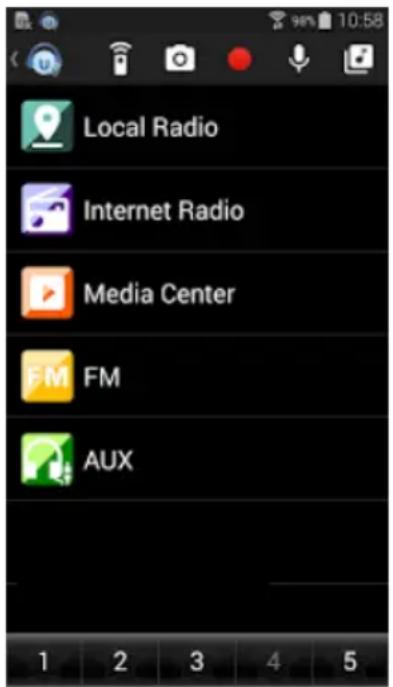
You can operate the internet radio via your smartphone or tablet.
Download "Air Music Control" from the "Google Play Store" or "Apple AppStore".
The devices must be connected to the same network.
SPOTIFY CONNECT
Your new device has Spotify Connect built in
Use your phone, tablet or computer as a remote control for Spotify. Go to Spotify.com/connect to learn how.
Licenses
The Spotify Software is subject to third party licenses found here:
https://www.spotify.com/connect/third-party-licenses
All listed brands are trademarks of their companies. Errors and omissions excepted, and subject to technical change. Our general terms of delivery and payment are applied.
BT CONNECTION
Note: The pairing name of the device is IR-160SE.
Either press the MODE button until the screen displays "BT" or select BT from the main menu. Select the radio in the device list of your mobile device and click on it to pair. After successful pairing, a tone is heard. You can now play the music via BT. You can adjust the volume on both the radio and your phone
LINE-OUT CONNECTION
You can connect the unit to external speakers via the line-out connector.
Note: The volume can then also be adjusted via the speakers.
DISPOSAL CONSIDERATIONS
If there is a legal regulation for the disposal of electrical and electronic devices in your country, this symbol on the product or on the packaging indicates that this product must not be disposed of with household waste. Instead, it must be taken to a collection point for the recycling of electrical and electronic equipment. By disposing of it in accordance with the rules, you are protecting the environment and the health of your fellow human beings from negative consequences. For information about the recycling and disposal of this product, please contact your local authority or your household waste disposal service.
This product contains batteries. If there is a legal regulation for the disposal of batteries in your country, the batteries must not be disposed of with household waste. Find out about local regulations for disposing of batteries. By disposing of them in accordance with the rules, you are protecting the environment and the health of your fellow human beings from negative consequences.
DECLARATION OF CONFORMITY
CE UK CA
Manufacturer:
Chal-Tec GmbH, Wallstrasse 16, 10179 Berlin, Germany.
Importer for Great Britain:
Berlin Brands Group UK Limited
PO Box 42
272 Kensington High Street
London, W8 6ND
United Kingdom
Hereby, Chal-Tec GmbH declares that the radio equipment type IR-160 SE is in compliance with Directive 2014/53/EU. The full text of the EU declaration of conformity is available at the following internet address: use.berlin/10034906
For Great Britain: Hereby, Chal-Tec GmbH declares that the radio equipment type IR-160 SE is in compliance with the relevant statutory requirements. The full text of the declaration of conformity is available at the following internet address: use.berlin/10034906
Estimado cliente:
https://www.spotify.com/connect/third-party-licenses
Berlin Brands Group UK Limited
PO Box 42
272 Kensington High Street
London, W8 6ND
United Kingdom
https://www.spotify.com/connect/third-party-licenses
Berlin Brands Group UK Limited PO Box 42
272 Kensington High Street
London, W8 6ND
United Kingdom
air music control 111
Spotify connect 112
Collegamento bt 112
https://www.spotify.com/connect/third-party-licenses
Berlin Brands Group UK Limited
PO Box 42
272 Kensington High Street
London, W8 6ND
United Kingdom
WPS PBC networkconfiguration
Control Panel > Network and Internet > Network and Sharing Center > Change Advanced Sharing > Media Streaming Options
https://www.spotify.com/connect/third-party-licenses
INSTRUCTIES VOOR AFVOER
Berlin Brands Group UK Limited PO Box 42
272 Kensington High Street London, W8 6ND United Kingdom


- Member of Berlin Brands Group
- Dahlwitz-Hoppegarten
- CONTENTS
- SAFETY INSTRUCTIONS
- General information
- Special Instructions
- PRODUCT OVERVIEW
- INSTALLATION
- START-UP AND OPERATION
- First use
- NETWORK SETTING
- Normal network setting
- WPS PBC network configuration
- No network setting
- INTERNET RADIO
- My Favorites
- Radio station/music
- Local radio stations
- Alarm tone
- History
- Search
- Media Center
- UPnP
- USB PLAYBACK
- My Playlist
- Delete Playlist
- MY MEDIA U
- INFORMATION CENTER
- Weather
- Financial information
- System information
- SETTINGS
- DLNA/UPNP
- DLNA
- CONTROL VIA AIR MUSIC CONTROL
- SPOTIFY CONNECT
- Licenses
- BT CONNECTION
- LINE-OUT CONNECTION
- DISPOSAL CONSIDERATIONS
- DECLARATION OF CONFORMITY
- Manufacturer:
- Estimado cliente:
- WPS PBC networkconfiguration
- INSTRUCTIES VOOR AFVOER
Brand : Auna
Model : IR160 SE
Category : Radio