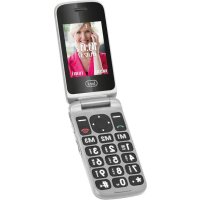
Flex Plus 55 - Smartphone Trevi - Free user manual and instructions
Find the device manual for free Flex Plus 55 Trevi in PDF.



| Product type | Smartphone |
| Brand | Trevi |
| Model | Flex Plus 55 |
| Power supply | Rechargeable lithium battery; charges via micro USB cable or charging base; 220 V AC power adapter |
| Main functions | Calls, SMS, camera, MP3 player, video player, FM radio, Bluetooth, alarm, calculator, calendar, SOS function, voice recorder |
| Display | Main display + external secondary display |
| SIM card | 1 standard SIM card slot; do not use a nano-SIM adapter |
| External memory | Micro SD card (FAT format) |
| Camera | Built-in camera with LED flash; digital zoom |
| Connectivity | Bluetooth, 3.5 mm headphone jack, micro USB |
| Phonebook | Up to 250 contacts |
| Language | Multilingual (menu with language selection option) |
| Security | Phone lock code (0000 by default), PIN code (4-8 digits), PUK code |
| SOS function | Sends SMS and calls sequentially to up to 5 predefined numbers |
| Maintenance and cleaning | Use a soft, dry cloth; do not use alcohol, thinner, or solvent |
| Spare parts and repairability | Use only Trevi-specific battery and charger; do not disassemble the phone; contact the retailer for any replacement |
| General information | Manual available in multiple languages; PIN/PUK code support; automatic lock function; compatible with FAT memory cards |
Frequently Asked Questions - Flex Plus 55 Trevi
User questions about Flex Plus 55 Trevi
0 question about this device. Answer the ones you know or ask your own.
Ask a new question about this device
Download the instructions for your Smartphone in PDF format for free! Find your manual Flex Plus 55 - Trevi and take your electronic device back in hand. On this page are published all the documents necessary for the use of your device. Flex Plus 55 by Trevi.
USER MANUAL Flex Plus 55 Trevi
TO SET YOUR LANGUAGE DEVICE
- Select "MENU"
- Select the "IMPOSTAZIONI" icon
- Select the number 1 function "TELEFONO"
-
Select the number 2 "LINGUA" and find their own language from those available.
-
For information and updates of this product: www.trevi.it
POUR CONFIGURER LANGUAGE DE VOTRE APPAREIL:
To make the best use of your phone, please read this manual carefully. Powerful file management functions (support T-Flash card). The stylish camera functions, MP3 Player, Video Player, Handsfree, More convenient to your work and to bring your amateur fun.
1.2 Safety guide
- If your mobile phone is lost or stolen, please contact the telecommunications authorities or a sales agent immediately to have a hold on the phone and the SIM card. This will prevent economic loss caused by unauthorized calls made from your mobile phone.
- When you contact the telecommunications authorities or a sales agent, they will need to know the IMEI number of our mobile phone (remove battery to expose number located on the label on back of phone). Please copy this number and keep in a safe place for future use.
-
In order to avoid the misuse of your mobile phone take the following preventative measures:
-
Set the PIN number of your mobile phone's SIM card and change this number immediately if it becomes known to a third party.
-
Please keep the phone out of sight when leaving it in a vehicle. It is better to carry the phone with you, or lock it in the trunk.
- Set call barring.
1.3 Safety warnings and notices
Before using your mobile phone, read and understand the following notices carefully to ensure you will use it safely and properly.
1.4 General attention
- Only the battery and battery charger specified by our company should be used in your mobile phone. Other product might result in battery leakage, overheating, explosion or fire.
- To avoid your phone malfunctioning or catching fire, please do not violently impact, jolt or throw your phone.
- Please do not place the battery, phone or charger in a microwave oven or high-pressure equipment. Otherwise it could lead to unexpected accidents such as damage to circuit or fire hazard.
- Please do not use your phone near flammable or explosive gases, otherwise it could cause malfunction of your phone or fire hazard.
- Please do not subject your phone to high temperatures, high humidity or dusty places; otherwise this may lead to the malfunction of your phone.
- Keep your phone out of the reach of small children. Your phone is not a toy. Children
could hurt themselves.
- To avoid your phone falling and malfunctioning or being damaged, please do not place it on uneven or unstable surfaces.
1.5 Notices when using your phone
- Turn off your mobile phone where the phone is not allowed, such as on the airport or in hospitals. Using the mobile phone in those places may impact the normal operation of electronic devices and medical instruments. Follow relevant regulations when using your mobile phone in those places. Your mobile phone has the auto turn-on feature. Check your alarm clock settings to confirm that your mobile phone will not be turned on automatically during flight.
- Please do not use your mobile phone near the weak signal or high precision electronic devices. RF interference might cause malfunctioning of such electronic devices and other problems. Special tips must be paid near the following equipment: hearing aids, pace makers and other medical electronic devices, fire detectors, automatic doors and other automatic control installations. To find out the effect of mobile phones on a pacemaker or other pieces of electronic medical equipment please contact the manufactures or local sales agents of the equipment.
- Please do not subject the LCD to impact or use the screen to strike things, as this will damage the LCD board and cause leakage of the liquid crystal. There is a risk of blindness if the liquid crystal substance gets into the eyes. If this occurs rinse eyes immediately with clear water (under no circumstances rub your eyes) and go immediately to a hospital for treatment.
- Do not disassemble or modify your mobile phone, as it will lead to damage to the phone such as battery leakage or circuitry failure.
- Under very rare circumstances using the mobile phone in certain model cars may negatively affect the internal electronic equipment. In order to assure your safety under such circumstances please do not use the mobile phone.
- In the event of antenna malfunction, do not use your phone as it could be harmful to human body.
- Avoid letting the phone come into close contact with magnetic objects such as magnetic cards as the radiation waves of the mobile phone may erase the information stored on floppy disks, pay cards and credit cards.
- Please keep small metal objects, such as thumbtacks far away from the receiver. When the receiver is in use it becomes magnetic and may attract these small metal objects and thus these may cause injury or damage the mobile phone.
- Avoid having the mobile phone come into contact with water or other liquids. If liquids enter the phone, this could cause a short circuit, battery leakage or other malfunction.
- Keep the manual
With earphone or headphones use:
To prevent possible hearing damage, limit the amount of time listening at high volumes.
1.6 Notices when using battery
- The battery has a limited service life. The remaining life gets shorter as the times of charging increase. If the battery becomes feeble even after the charging, this indicates the service life is over and you have to use a new specified battery.
- Do not dispose of old batteries with everything domestic garbage. Please dispose of old batteries at the directed places with specific rules for their disposal.
- Please do not throw batteries into a fire, as this will cause the battery to catch fire and explode.
- When installing the battery, do not use force or pressure, as this will cause the battery to leak, overheat, crack and catch fire.
- Please do not use wires, needles or other metal objects to short-circuit the battery. Also, do not put the battery near necklaces or other metal objects as this will cause the battery to leak, overheat, crack and catch fire.
- Please do not solder the contact points of the battery, as this will cause the battery to leak, overheat, crack and catch fire.
- If the liquid in the batteries goes into the eyes, there is a risk of blindness. It this occurs do not rub the eyes, but immediately rinse eyes with clear water and go to the hospital for treatment.
- Please do not disassemble or modify the battery, as this will cause the battery to leak, overheat, crack and catch fire.
- Please do not use or place the batteries near high temperature places such as near a fire or heating vessel as this will cause the battery to leak, overheat, crack and catch fire.
- If the battery overheats, changes color or becomes distorted during use, charging or storage, please stop using and replace it with a new battery.
- If the liquid from the battery comes in contact with skin or clothing this could cause burning of the skin. Immediately use clear water to rinse and seek medical tips if necessary.
- If the battery leaks or gives off a strange odor, please remove the battery from the vicinity of the open fire to avoid a fire or explosion.
- Please do not let the battery become wet as this will cause the battery to overheat, smoke and corrode.
- Please do not use or place batteries in places of high temperature such as in direct sunlight, as this will cause the battery to leak and overheat, lower performance and shorten the battery's life.
- Please do not continuously charge for more than 24 hours.
1.7 Cleaning and maintenance
- The mobile phone, battery and charger are not water resistant. Please do not use them in the bedroom or other excessively moist areas and likewise avoid allowing them to get wet in the rain.
- Use a soft, dry cloth to clean the mobile phone, battery and charger.
- Please do not use alcohol, thinner, benzene or other solvents to wipe the mobile phone.
- A dirty outlet will cause poor electrical contact, lose of power and even inability to recharge. Please clean regularly.
2. Installing the SIM card and battery
An SIM card carries useful information, including your mobile phone number, PIN (Personal Identification Number), PUK (PIN Unlocking Key), IMSI (International Mobile Subscriber Identity), network information, contacts data, and short messages data.
Note: After powering off your mobile phone, wait for a few seconds before removing or inserting an SIM card.
Exercise caution when operating an SIM card, as friction or bending will damage the SIM card. Properly keep the mobile phone and its fittings such as the SIM cards beyond children's reach.
Installation
- Hold the End key for a while to power off the mobile phone
- Push the back cover above the battery and remove it.
- Pull the left battery buckle outward and then lift the battery away.
- Insert the SIM card into the SIM card slot lightly with the corner cutting of the card aligning to the notch of the slot and the gold plate of the card facing download, till the SIM card cannot be further pushed in.
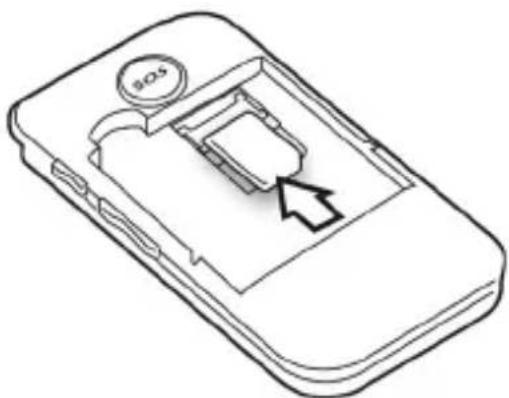
- With the metallic contacts of the battery facing the metallic contacts in the battery slot, press the battery down until it locks into place.
- Using code
The mobile phone and the SIM cards support sorts of passwords, in order to prevent the phone and the SIM cards from being misused. When you are prompted to input any
of the codes mentioned below, just input the correct code and then press the ok key. If you input a wrong code, press the Right soft key to clear it and then input the correct code.
- Phone lock code
The phone lock code may be set to prevent your mobile phone from being misused. In general, this code is provided along with the mobile phone by the manufacturer. The initial phone lock code is set to 0000 by the manufacturer. If the phone lock code is set, you need to input the phone lock code when powering on the mobile phone.
- PIN
The PIN (Personal identification number, 4 to 8 digits) code prevents your SIM card from being used by unauthorized people. In general, the PIN is supplied with SIM card by the network operator. If PIN check is enabled, you need to input the PIN each time when you power on your mobile phone. The SIM card will be locked if you input wrong PIN code for three times.
Unlocking methods as follows:
- Input the correct PUK according to the screen tips to unlock the SIM card.
- Then input the new PIN and press the ok key.
- Input the new PIN again and then press the ok key.
- If the input PUK is correct, the SIM card will be unlocked and the PIN will be reset.
Note: The SIM card will be locked if you input wrong PIN code for three times. To unlock the SIM card, you need to input the PUK. In general, the PUK can be obtained from the network operator.
- PUK
The PUK code (Personal Unlocking Key) is required to change a blocked PIN. It is supplied with SIM card. If not, contact your network operator. If you input wrong PUK code for 10 times, SIM card will be invalid. Please contact the network operator to replace the SIM card.
Note regard the use of micro-SIM adapter on TREVI products
The slots for SIM cards are designed to accommodate only the consideration SIM format. The use of SIM (micro or nano) with its adapter and 'not recommended as it can cause damage to the device and the micro/nano SIM itself.
Warning:
- Trevi not liable for damages caused by the use of adapters for micro/nano-SIM.
- TREVI reserves the right to refuse free assistance in warranty on defective products that have 'caused by the use of the SIM adapters for micro/nano-SIM.
- Do not insert memory card into the SIM card slot.
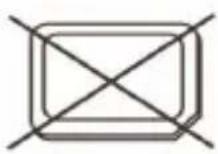
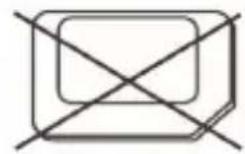
Nano SIM card with adapter
3. Inserting the micro SD card
To store photos, videos, and music should insert a micro SD external memory.
- Carefully remove the back cover.
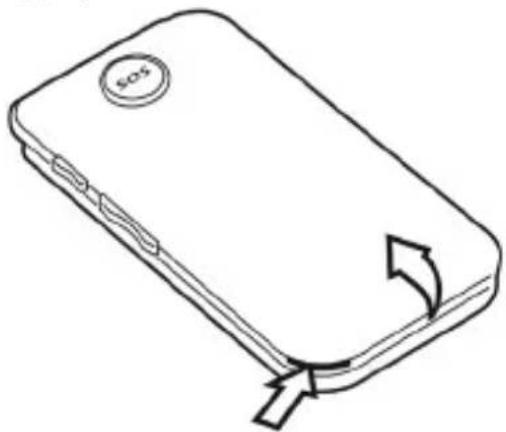
- Insert the microSD card keeping the surface with the electrical contacts facing down (display side).
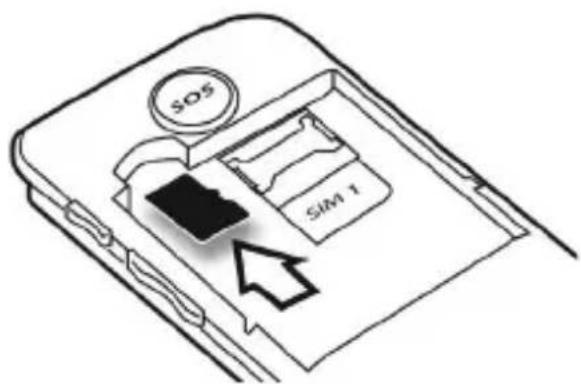
- Replace the back cover.
Notes:
- Some card brands may not be compatible with the phone. The use an incompatible memory may be damaged or the card memory itself.
- The appliance only supports memory formatted in FAT. If you enter formatted cards differently the phone will ask you to reformat the memory card.
4. Charging battery
CHARGING THROUGH POWER SUPPLY:
-
A device turned off, connect the Micro USB plug of the supplied cable to the Micro USB phone (to use the supplied cable only).
-
Connect the USB outlet on the same power supply cable and plug the latter to a standard wall outlet.
- The device will turn on for a few seconds to show the battery icon with it is charging.
- When the battery is fully charged (the icon is no longer moving), disconnect the power supply from the wall outlet and then disconnect the plug from the Micro USB phone.
CHARGING THROUGH COMPUTER:
You can also charge your phone by plugging it into a USB port of a computer using, simply, the supplied USB cable.
Notes:
- Use only the Micro USB cable supplied.
- Use only the mains adapter supplied, different power supplies may damage the battery.
- You can use the device even when it is charging, but, for longer life battery, not recommended for use; Furthermore, using the apparatus, the timing of Charging may take longer.
- While charging the device can increase in temperature, this does not affect performance and machine life.
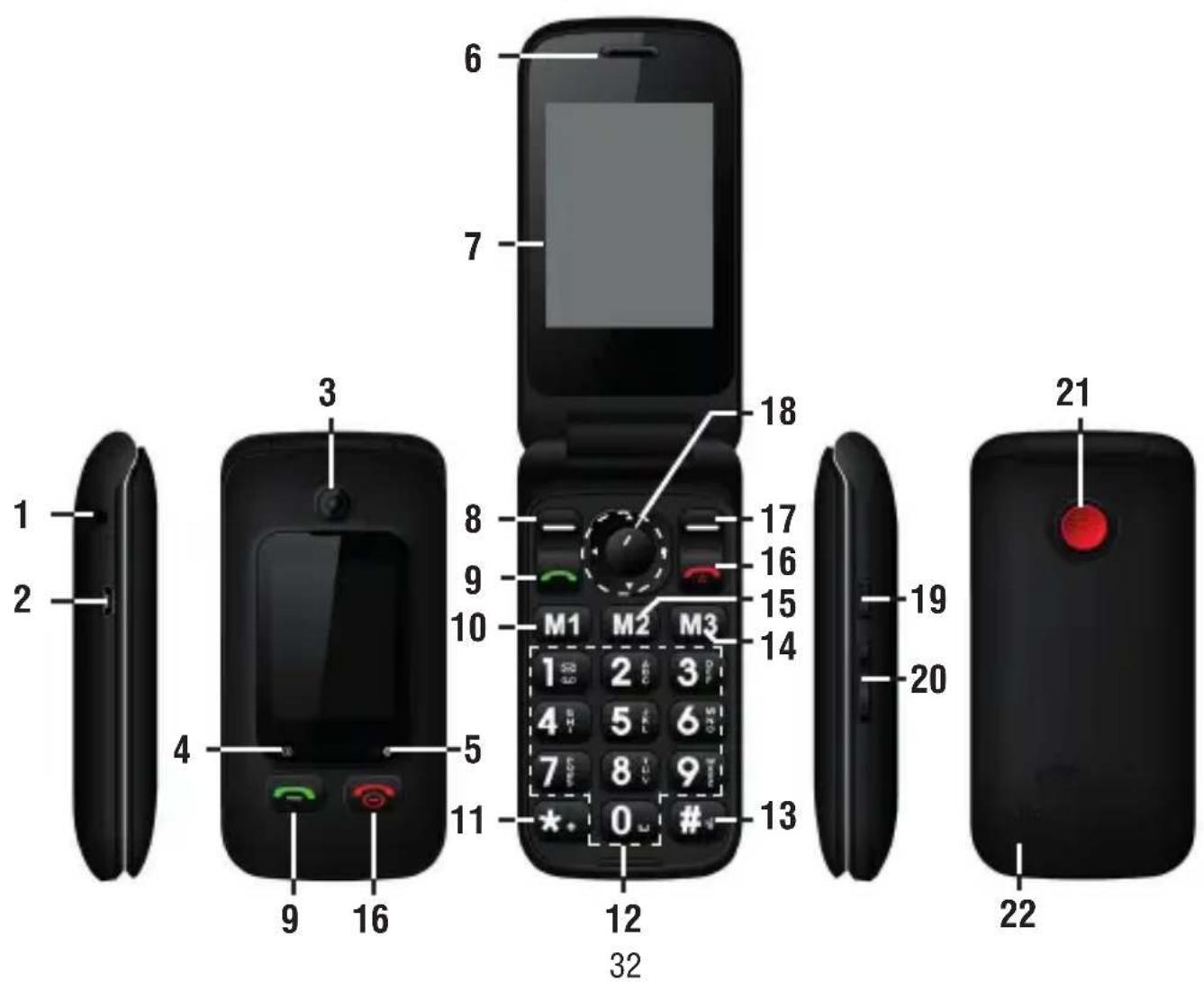
5. Keys Functions
- Earphone jack (3.5mm)
- Micro USB socket.
- Camera.
- Led indicator missed calls ^+ SMS ^+ Battery charge/Low battery.
- Led indicator battery full + Touch + LED Flash camera.
- Speaker Phone.
- Display.
- Multifunction button, the display shows each time its function.
- Answer a calls.
- Quick Start camera function.
- Key * (asterisk).
- Numeric/letters keys.
13.Key#. -
Quick start Audio player.
-
Quick start SMS function.
- End call and power on/off function (when long press).
- Multifunction button, the display shows each time its function.
- Left, Right, Up, Down navigation keys + confirms button.
- On/off extra Volume, On/off touch function (when long press).
- Volume control.
- SOS dialing.
- Speaker.
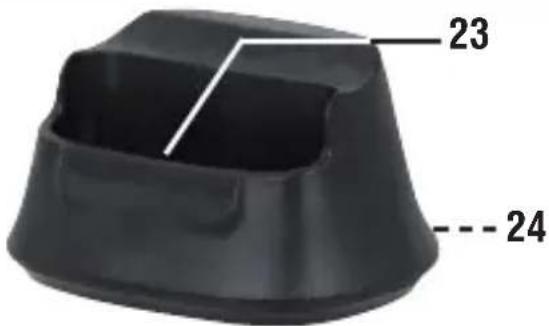
- Metal pins for phone connection.
- Micro USB socket for AC/DC adaptor.
6. Icons/Use
The icons displayed at the top of the screen provide information about the status of the device. The icons listed in the table below are most common.
| Icon Description Icon Description | |||
| lcon strength of the network signal | The phone sta playing a piece of music | ||
| General/Outdoor user profile Receiving a new message | |||
| Silent user profile active USB | |||
| Meeting user Profile Icon missed calls | ||
| The alarm clock is set and activated | No SIM is inserted into the phone | |
Powering On/Off the Mobile Phone
Hold the End key for a while to power on the mobile phone. A power-on animation appears on the display screen.
Input the phone lock code and press the ok key if the mobile phone prompts you to input the phone lock code. The original code is 0000.
Input the PIN and press the ok key if the mobile phone prompts you to input the PIN. The PIN is provided by the network operator for new opening SIM card. Enter the standby interface. To power off the mobile phone, hold the End key for a while.
Dialing Calls
In the standby interface, press number keys to input the area code and the telephone number, and then press the Dial key to dial a call. To end the call, press the End key.
- Dialog an international call
Press the * key twice can input "+" . Then input the country code, the area code and the telephone number. Finally, press the Dial key.
- Dialog a call to a number in the phonebook
Enter the phonebook and use the up or down direction keys to find the telephone number you want to call.
Press the Dial key. The mobile phone automatically dials the chosen telephone number.
- Redialing the last number
In the standby interface, press the dial key to show the dialed calls.
Press the up or down direction keys to select a number you want to dial and then press the Dial key.
- Answering incoming calls
Press the Dial key or the Ok key to answer an incoming call.
Press the End key to end the current conversation.
To reject an incoming call, press the End key or the Right soft key.
Note: If the caller can be identified, the mobile phone will present the calling number. If the calling number exists in the phonebook, the mobile phone will present both the name and the phone number of the caller. If the caller cannot be identified, the mobile phone will present the calling number only. You can answer an incoming call when using a function list or browsing the phonebook.
Using options during a conversation
Select Options during a conversation to pause, end the ongoing call, originate a new call, browse the phonebook, view information, set the mute, set the DTMF, or perform other operations. For details, refer to the menu guide.
7. Menu Features
7.1 Phonebook
The phone number can be stored for 250 phonebook entries.
7.2 Messages
Message Services is a network feature that allows you to send, receive and edit information. For more details, please contact your network operator companies.
7.3 Call center
In the call history screen, you can view detail records of missed calls, received calls, dialed call. Press Options to view, call, send a message, delete, and save it to the phone book, you can also make a call setup.
7.4 Multimedia
7.4.1 Camera
The phone is provided with a camera, which supports the photographing functions. Roll the phone to align the camera to the picture and then press OK key to capture photos. Pictures will be saved in the file system of the phone or the memory card. In the capture interface, you can press up or down direction key to zoom in and zoom out; left or right direction key to make EV(-2.0 to +2.0).
7.4.2 Image viewer
You can view the pictures or images through this function.
7.4.3 Video Recorder
This function enables you to record dynamic pictures. In the capture interface, press the left key to switch to video recorder, OK key to capture videos clip
7.4.4 Video player
Use this function to play video files. By pressing the direction key you can control the playing process of video player: play/pause(OK key), fast forward (press and hold right direction key) and rewind (press and hold left direction key). In video player interface, you can press *# key or side button to adjust volume.
7.4.5 Audio player
Use this function to play audio files. By pressing the direction key can you control the playing process of audio player: play/stop (OK key), switch to last song/next song (press
left or right direction key). In audio player interface, you can press *# key or side button to adjust volume; press up key to change playing sequence.
7.4.6 Sound recorder
After accessing the sound recorder, you can press left soft key to perform the following operations:
- New: select this function to record a new file.
- List: recorded files are listed in this menu.
- Settings: Through this function, you can set storage position and format for record files
7.4.7 FM Radio
HS175U3
You can use the application as a traditional FM radio with automatic tuning and saved channels. In FM radio interface, you can press OK key to play or stop; press left or right key to auto search; press *# key or side button to adjust volume; press up or down key to search channels.
7.5 Settings
-7.5.1 Phone settings
- Time and date: set the date format, the time format, and detail time of the location.
Note: If you remove the battery from the mobile phone or if the battery energy was exhausted a long time ago, you may need to reset the date and time when re-inserting the battery or powering on the mobile phone after recharging.
- Languages: Select the display language for the mobile phone.
- Pref. input method: Select preferred input method as needed.
- Display: Users can access this item to set wallpaper, screen saver, power on off display, etc.
- Flight mode: when this function is engaged, it will suspend many of the device's signal transmitting functions – thereby disabling the device's capacity to place or receive calls or text messages – while still permitting use of other functions that do not require signal transmission (e.g. games, built-in camera, MP3 player.)
- External display clock style: Select the display style from Analog or Digital.
7.5.2 Call settings
- Callwaiting.
- Call divert.
- Call barring.
-
Advanced settings.
-
Auto redial: After open this function, the phone will dial the number again, typically every time when the out call fails or be rejected.
- Call time reminder: You can set the call time reminder mode as Single or
periodic; select Off to cancel this function.
- Answer mode: Set the answer mode, Any key or Auto answer when headset mode, as On or Off.
Attention: Parts of the functions need network operator's support.
7.5.3 Profiles
The mobile phone provides multiple user profiles, so that you can customize some settings to adapt to the specific events and environments.
Customize the user profiles according to your preference and then activate the user profiles. The user profiles fall into four scenarios: General, Silent, Meeting, Outdoor. When you insert an earpiece to the mobile phone, the mobile phone automatically enters the Headset mode.
7.5.4 Speed Dial
From this menu, you are encouraged to select nine numbers from your phone book. After this, you can make call to these numbers simply by press number keys correspondingly in the idle screen.
7.5.5 Navigation keys
Customize the shortcut functions of the Up, Down, Left, and Right direction keys. In the standby interface, you can press a direction key to directly enter the function menu corresponding to that direction key.
7.5.6 Network Settings
Network selection by Automatic or Manual
7.5.7 Security Settings
This function provides you with related settings about safety use.
1 PIN lock: To activate PIN lock, you need to input the correct PIN code. If you set PIN lock to On, you need to input the PIN each time you power on the mobile phone. In the case you input a wrong PIN for three consecutive times, you need to input the PIN Unblocking Key (PUK). The PUK is used to unlock and change the locked PIN. To obtain the PUK, contact the network operator.
2 Change PIN: To change PIN code of SIM card.
7.5.8 Phone security:
1 Phone lock: The function enables you to lock/unlock the phone. Entering password to switch on or off the phone. Password is required when the phone is locked. The password is 4 to 8 digits.
2 Change password: to change phone password.
7.5.9 Restore factory Settings
Use this function to restore factory settings. The preset password is 1122.
7.6 File Manager
The phone provides a certain space for users to manage files and supports the Memory card. The capacity of the Memory card is selectable. You can use the file manager to conveniently manage various directories and files on the phone and the Memory card.
- Choose File manager to enter the root directory of the memory. The root directory will list the default folders, new folders and user files. When the mobile phone is powered on for the first time or when you have not changed the directory, the root directory contains the default folders only.
7.7 Organizer
7.7.1 Calendar
Once you enter this menu, there is a monthly-view calendar for you to keep track of important appointments, etc. Days with events entered will be marked.
7.7.2 Calculator
The calculator can add, subtract, multiply and divide. To use the calculator.
-7.7.3 Alarm
Five alarm clocks are set but deactivated by default. You can activate one, multiple or all of them as needed. For each alarm clock, the ringing date and the ringing time can be set.
7.7.4 Connectivity
Power: Open or close the function of Bluetooth.
Visibility: Open or close the function of visibility.
My device: Following this, you can search new Bluetooth devices. The difference between My device and Inquiry audio device is: the hands-free of Bluetooth devices can only receive data, such as Bluetooth earphone; My device can receive and send data, such as Bluetooth cell phone.
Search audio device: when it is on, it will search audio device.
My name: View the name of the Bluetooth in this phone.
7.7.5 Voice settings
Use this function to set Human voice incoming call and Human voice phone book.
8. Special features
SOS Setting:
This function allows you to ask for help in certain circumstances by calling an emergency number or the number of a family member.
Once enabled, it will send a message (SMS) to all 5 of the phone numbers on the list and begin to call the first number on the list; where it fails to respond or refuses the call the device will call the second number of the list and so on until you have an answer.
- Status: Select On/Off then the SOS function will be able or disable.
- SOS numbers: you can set up to 5 numbers for SOS calls. The telephone will automatically call these 5 numbers when SOS function activated.
- SOS SMS ON/OFF: to set this function on or off.
- SOS SMS: you can edit the massage by default for SOS to sent to some one.
- Warning tone status: Select On/Off then the SOS alarm sound will be able or disable.
Caution:
- The SOS function can only be activated when the phone is open.
- If the answering machine is activated during an emergency call at the called number telephone, the device will detect it as an answer so it will not call the next one numbers and will not send SMS help.
- Help texts will only be received from devices compatible with the reception of SMS messages.
9. Information on disposal of battery
Whatever type of battery used up, it should never be placed in household waste, fire or water. Each type of battery should be collected, recycled or disposed of at an appropriate dedicated collection points.
USERS INFORMATION
pursuant to Legislative Decree No. 49 of March 14, 2014
"Implementation of Directive 2012/19/EU on Waste Electrical and Electronic Equipment (RAEE)".
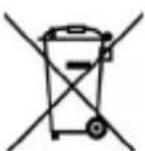
This wheeled bin symbol on the product indicates that at the end of its life must be collected separately from other waste. The user must, therefore, take the remote control integrates the essential components that got to its life to the appropriate differentiated collection centers for electronic and electro-technical waste, or return it to the dealer when purchasing a new appliance of equivalent type, in terms of one to one, or one to zero for equipment having longer side of less than 25~cm . Appropriate separate collection for the decommissioned equipment for recycling, processing and environmentally compatible disposal helps prevent negative impact on the environment and human health and promotes recycling of the materials making up the product. Illegal dumping of the product by the user entails the application of administrative sanctions stated in Legislative Decree n. Legislative Decree No. 49 of March 14, 2014.
TREVI pursues a policy of continuous research and development, the products may have different features from those described.
If you have any questions about the phone, please find the solutions from the table below.
10 FAQs and solutions
| FAQs Causes Solutions | ||
| Poor reception | When you use your phone at poor reception areas, like near high rise buildings or base rooms, the radio wave cannot be transmitted. | Avoid this as far as you can. |
| Poor reception | When you use your phone at network traffic congestion, such as working time and off-duty time, the congestion can result in poor reception. | Avoid this as far as you can. |
| This is related to the distance to base station in question. | You may to provide service coverage map. | |
| Echoes or noises The trunk line of network is in bad condition. It is a regional problem. | Network is in bad condition. It is a regional problem. | Hang off the call and dial again. Choose another better line. |
| In some areas, the call lines are in bad condition. | ||
| Shorter standby time The standby time is relevant to network settings. | In poor reception areas, turn off your phone temporarily. | |
| Replace the batteries Change with a new battery. | ||
| When no signals are received, your phone will continue searching for base stations, thus consuming a large amount of battery power and reducing standby time. | Use your phone at strong signal areas or Turn off the phone temporarily. | |
| Failed to turn on your phone The battery power is used up. Check the battery power level or charge the battery. | ||
| SIM card error The SIM card is damaged. Contact your network service provider. | ||
| The SIM card is not properly installed. | Ensure the SIM card is properly installed. | |
| Failed to connect to the network The SIM card is invalid. Contact your network service provider. | ||
| Beyond the GSM coverage. Consult the network service provider for service areas. | ||
| The signal is feeble. Retry at a stronger signal area. | ||
| Failed to make a call The call barring feature is used. Cancel the call barring settings. | ||
| The fixed dialing number feature is used. | Cancel the fixed dialing number settings. | |
| PIN code error Enter incorrect PIN codes for three times in succession. | Contact your network service provider. | |
| Failed to charge the battery The battery or the charger is damaged. | Change a new battery or charger. | |
| Change the battery when ambient temperature is lower than -10°C or above 55°C. | ||
| Poor connection. Check whether the plug is properly connected. | ||
| Failed to add contacts to phonebook | The storage space of phonebook is used up. | Delete some contacts from the phonebook. |
| Failed to set up some features Your network not provider the services. | Contact your network service provider. | |
1 Les Bases
Vued'ensemble
https://www.trevi.it/dms/zidi/TREVI/DOCFLEXPLUS55.pdf
SIMPLIFIED EU DECLARATION OF CONFORMITY
Hereby TREVI S.p.a. declares that phone FLEX PLUS 55 is in compliance with directive 2014/53/EU.
The full text of the EU declaration of conformity is available at the following internet address
https://www.trevi.it/dms/zidi/TREVI/DOCFLEXPLUS55.pdf
CORRECT DISPOSAL WARNING

Precautions for correct disposal of the product.
The symbol shown on the equipment indicates that waste must be disposed of in "separate collection" and so the product must not be disposed of together with urban waste.
The user must take the product to special "separate waste collection centres" provided by local government, or deliver it to the retailer against the purchase of a new product.
Separate collection of waste and subsequent treatment, recycling and disposal operations promotes the production of equipment with recycled materials and limits negative effects on the environment and on health caused by improper handling of waste.
Illegal disposal of the product leads to the enforcement of administrative penalties.


- TO SET YOUR LANGUAGE DEVICE
- POUR CONFIGURER LANGUAGE DE VOTRE APPAREIL:
- Safety guide
- Safety warnings and notices
- General attention
- Notices when using your phone
- Notices when using battery
- Cleaning and maintenance
- Installing the SIM card and battery
- Installation
- - Using code
- - Phone lock code
- - PIN
- - PUK
- Note regard the use of micro-SIM adapter on TREVI products
- Warning:
- Inserting the micro SD card
- Notes:
- Charging battery
- CHARGING THROUGH POWER SUPPLY:
- CHARGING THROUGH COMPUTER:
- Icons/Use
- Powering On/Off the Mobile Phone
- Dialing Calls
- Menu Features
- Phonebook
- Messages
- Call center
- Multimedia
- Camera
- Image viewer
- Video Recorder
- Video player
- Audio player
- Sound recorder
- FM Radio
- HS175U3
- Settings
- -7.5.1 Phone settings
- Call settings
- Profiles
- Speed Dial
- Navigation keys
- Network Settings
- Security Settings
- Phone security:
- Restore factory Settings
- File Manager
- Organizer
- Calendar
- Calculator
- -7.7.3 Alarm
- Connectivity
- Voice settings
- Special features
- SOS Setting:
- Caution:
- Information on disposal of battery
- USERS INFORMATION
- Les Bases
- Vued'ensemble
- SIMPLIFIED EU DECLARATION OF CONFORMITY
- CORRECT DISPOSAL WARNING
Brand : Trevi
Model : Flex Plus 55
Category : Smartphone