
Phablet 5 Q4 - Smartphone Trevi - Free user manual and instructions
Find the device manual for free Phablet 5 Q4 Trevi in PDF.


| Product type | Smartphone phablet |
| Brand | Trevi |
| Model | Phablet 5 Q4 |
| Dimensions (approx.) | 143 x 72 x 8.5 mm |
| Weight (approx.) | 155 g |
| Display | 5 inches, resolution 720 x 1280 pixels |
| Processor | Quad-core 1.3 GHz |
| Operating system | Android 6.0 (Marshmallow) |
| RAM memory | 1 GB |
| Internal storage | 8 GB (expandable via microSD) |
| Main camera | 5 megapixels with LED flash |
| Front camera | 2 megapixels |
| Battery | Li-Ion 2000 mAh removable |
| Power supply | Wall charger 5V/1A, micro-USB port |
| Connectivity | Wi-Fi 802.11 b/g/n, Bluetooth 4.0, GPS, 3G/4G |
| Sensors | Accelerometer, proximity, ambient light |
| Maintenance and cleaning | Clean with a soft, dry cloth; avoid liquids |
| Security | Lock by PIN code, pattern or fingerprint (not available) |
| Spare parts and repairability | Battery and SIM card accessible; repair possible by a professional |
| General information | User manual available as PDF on the manufacturer's website |
Frequently Asked Questions - Phablet 5 Q4 Trevi
User questions about Phablet 5 Q4 Trevi
0 question about this device. Answer the ones you know or ask your own.
Ask a new question about this device
Download the instructions for your Smartphone in PDF format for free! Find your manual Phablet 5 Q4 - Trevi and take your electronic device back in hand. On this page are published all the documents necessary for the use of your device. Phablet 5 Q4 by Trevi.
USER MANUAL Phablet 5 Q4 Trevi
TO SET YOUR LANGUAGE DEVICE
- Swicth on the appliance
- Go to the page with all applications
- Select the "IMPOSTAZIONI" icon
- Scroll through the list and select the icon A - LINGUA E IMMISSIONE
- Select "LINGUA" and find their own language from those available.
* For information and updates of this product: www.trevi.it
POUR CONFIGURER LANGUE DE VOTRE APPAREIL:
natural_image
Line drawing of a smartphone with a button and arrow indicating left side (no text or symbols)natural_image
Line drawings of two electronic device rear panels with labeled ports (no text or symbols)
natural_image
Line drawing of two hands holding a smartphone with an arrow indicating rotation (no text or symbols)Nota:
1 The Basics
Overview
Thank you for choosing the GSM/LTE(4G)/WCDMA digital mobile phone. After reading this guide you will be able to fully master the use of your phone and appreciate all its functions and ease of use.
Not only does the smartphone provide you with basic call functions such as call Register, but also with many practical functions and services, to improve the time you spend working and playing.
The color screen mobile phone complies with the GSM/GPRS technology and has been approved by certification authorities both domestically and abroad.
The availability of some services and features described in this manual depends on the network and your subscription. Therefore, some menu items may not be available in your phone. The shortcuts to menus and features may also vary from phone to phone.
Our company reserves the right to revise this manual content without prior notice.
Safety guide
- If your mobile phone is lost or stolen, please contact the telecommunications authorities or a sales agent immediately to have a hold on the phone and the SIM card. This will prevent economic loss caused by unauthorized calls made from your mobile phone.
- When you contact the telecommunications authorities or a sales agent, they will need to know the IMEI number of our mobile phone (remove battery to expose number located on the label on back of phone). Please copy this number and keep in a safe place for future use.
- In order to avoid the misuse of your mobile phone take the following preventative measures:
- Set the PIN number of your mobile phone's SIM card and change this number immediately if it becomes known to a third party.
- Please keep the phone out of sight when leaving it in a vehicle. It is better to carry the phone with you, or lock it in the trunk.
- Set call barring.
Safety warnings and notices
Before using your mobile phone, read and understand the following notices carefully to ensure you will use it safely and properly.
General attention
- Only the battery and battery charger specified by our company should be used in your mobile phone. Other product might result in battery leakage, overheating, explosion or fire.
• To avoid your phone malfunctioning or catching fire, please do not violently impact, jolt
or throw your phone.
- Please do not place the battery, phone or charger in a microwave oven or high-pressure equipment. Otherwise it could lead to unexpected accidents such as damage to circuit or fire hazard.
- Please do not use your phone near flammable or explosive gases, otherwise it could cause malfunction of your phone or fire hazard.
- Please do not subject your phone to high temperatures, high humidity or dusty places; otherwise this may lead to the malfunction of your phone.
- Keep your phone out of the reach of small children. Your phone is not a toy. Children could hurt themselves.
- To avoid your phone falling and malfunctioning or being damaged, please do not place it on uneven or unstable surfaces.
Notices when using your phone
- Turn off your mobile phone where the phone is not allowed, such as on the airport or in hospitals. Using the mobile phone in those places may impact the normal operation of electronic devices and medical instruments. Follow relevant regulations when using your mobile phone in those places. Your mobile phone has the auto turn-on feature. Check your alarm clock settings to confirm that your mobile phone will not be turned on automatically during flight.
- Please do not use your mobile phone near the weak signal or high precision electronic devices. RF interference might cause malfunctioning of such electronic devices and other problems. Special tips must be paid near the following equipment: hearing aids, pace makers and other medical electronic devices, fire detectors, automatic doors and other automatic control installations. To find out the effect of mobile phones on a pacemaker or other pieces of electronic medical equipment please contact the manufactures or local sales agents of the equipment.
- Please do not subject the LCD to impact or use the screen to strike things, as this will damage the LCD board and cause leakage of the liquid crystal. There is a risk of blindness if the liquid crystal substance gets into the eyes. If this occurs rinse eyes immediately with clear water (under no circumstances rub your eyes) and go immediately to a hospital for treatment.
- Do not dissemble or modify your mobile phone, as it will lead to damage to the phone such as battery leakage or circuitry failure.
- Under very rare circumstances using the mobile phone in certain model cars may negatively affect the internal electronic equipment. In order to assure your safety under such circumstances please do not use the mobile phone.
- Please do not use needles, pen tips or other sharp objects on the keypad as this may damage the mobile phone or cause it to malfunction.
- In the event of antenna malfunction, do not use your phone as it could be harmful to
human body.
- Avoid letting the phone come into close contact with magnetic objects such as magnetic cards as the radiation waves of the mobile phone may erase the information stored on floppy disks, pay cards and credit cards.
- Please keep small metal objects, such as thumbtacks far away from the receiver. When the receiver is in use it becomes magnetic and may attract these small metal objects and thus these may cause injury or damage the mobile phone.
- Avoid having the mobile phone come into contact with water or other liquids. If liquids enter the phone, this could cause a short circuit, battery leakage or other malfunction.
Notices when using battery
- The battery has a limited service life. The remaining life gets shorter as the times of charging increase. If the battery becomes feeble even after the charging, this indicates the service life is over and you have to use a new specified battery.
- Do not dispose of old batteries with everything domestic garbage. Please dispose of old batteries at the directed places with specific rules for their disposal.
- Please do not throw batteries into a fire, as this will cause the battery to catch fire and explode.
- When installing the battery, do not use force or pressure, as this will cause the battery to leak, overheat, crack and catch fire.
- Please do not use wires, needles or other metal objects to short-circuit the battery. Also, do not put the battery near necklaces or other metal objects as this will cause the battery to leak, overheat, crack and catch fire.
- Please do not solder the contact points of the battery, as this will cause the battery to leak, overheat, crack and catch fire.
- If the liquid in the batteries goes into the eyes, there is a risk of blindness. It this occurs do not rub the eyes, but immediately rinse eyes with clear water and go to the hospital for treatment.
- Please do not disassemble or modify the battery, as this will cause the battery to leak, overheat, crack and catch fire.
- Please do not use or place the batteries near high temperature places such as near a fire or heating vessel as this will cause the battery to leak, overheat, crack and catch fire.
- If the battery overheats, changes color or becomes distorted during use, charging or storage, please stop using and replace it with a new battery.
- If the liquid from the battery comes in contact with skin or clothing this could cause burning of the skin. Immediately use clear water to rinse and seek medical tips if necessary.
- If the battery leaks or gives off a strange odor, please remove the battery from the vicinity of the open fire to avoid a fire or explosion.
- Please do not let the battery become wet as this will cause the battery to overheat,
smoke and corrode.
- Please do not use or place batteries in places of high temperature such as in direct sunlight, as this will cause the battery to leak and overheat, lower performance and shorten the battery's life.
- Please do not continuously charge for more than 24 hours.
Charging your phone
- Connect the connector of charge to the mobile phone. The battery level indicator flashes on the screen. Even if the phone has been turned off, the charging image still appears, indicating that the battery is being charged. If the phone is overused when the current is insufficient, it may take longer time for the charging indicator to appear on the screen after the charging begins.
- When the battery level indicator does not flash and indicates the battery is full, this indicates the charging has been completed. If the phone is off during charging, the charging being completed image also appears on the screen. The charging process often takes 3 to 4 hours. During the charging, the battery, phone and charger gets warm, this is a normal phenomenon.
- Upon the completion of charging, disconnect the charger from AC power socket, and from the mobile phone.
Notes:
- During charging, the phone must be places in well-ventilated environment of +5^ +40^ . Always use the charger supplied by your phone manufacturer. Using an unauthorized charger might cause danger and invalidate the authorization and warranty clauses for your phone.
- The standby time and call duration provided by the manufacturer are based on ideal operating environment. In practice, the battery's operating time varies depending on network conditions, operating environment and usage methods.
- Make sure the battery has been installed before charging. It is best not to remove the battery while charging.
- Upon completion of charging, disconnect the charger from your phone and the power supply.
If you have not disconnected the charger from your phone and the power supply, the charger will continue to charge the battery after 5 to 8 hours when the batter level decreases substantially. We advise you not to do like this, as it lowers your phone performance and shortens your phone life.
Notices when using your charger
- Please use AC 220 volts. The use of any other voltage will cause battery leakage, fire
and cause damage to the mobile phone and charger.
- It is forbidden to short circuit the charger, as this will cause electrical shock, smoking and damage the charger.
- Please do not use the charger if the power cord is damaged, as this will cause fire or electrical shock.
- Please immediately clean any dust gathered on the electrical outlet.
- Please do not place vessels with water near the charger in order to avoid water splashing onto the charger and causing an electrical shortage, leakage or other malfunction.
- If the charger comes in contact with water or other liquid the power must immediately be switched off to avoid an electrical short or shock, fire or malfunction of the charger.
- Please do not disassemble or modify the charger, as it will lead to bodily harm, electrical shock, fire or damage to the charger.
- Please do not use the charger in the bathroom or other excessively moist areas, as this will cause electrical chock, fire or damage to the charger.
- Please do not touch the charger, power cord or power socket with wet hands, as this will cause electrical shock.
- Do not modify or place heavy objects on the power cord, as this will cause electrical shock or fire.
- Before cleaning or carrying out maintenance please unplug the charger from the electrical outlet.
- When unplugging charger, do not pull on the cord, but rather hold on to the body of the charger, as pulling on the cord will damage the cord and lead to electrical shock or fire.
Cleaning and maintenance
- The mobile phone, battery and charger are not water resistant. Please do not use them in the bedroom or other excessively moist areas and likewise avoid allowing them to get wet in the rain.
- Use a soft, dry cloth to clean the mobile phone, battery and charger.
- Please do not use alcohol, thinner, benzene or other solvents to wipe the mobile phone.
- A dirty outlet will cause poor electrical contact, lose of power and even inability to recharge. Please clean regularly.
2 Getting to know your phone
Key definitions

- Front Camera
- Speaker Phone
- Light sensor
- LCD
- Return Key
- Home Key
- Menu Key
-
MIC
-
Micro USB Jack
- Earphone Jack
- Volume + Key
- Volume - Key
- Power Key
- Flash Light
- Back Camera
- Speaker
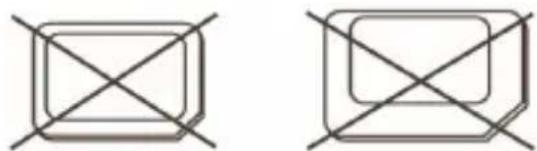
Note regard the use of micro-SIM adapter on TREVI products
The slots for SIM cards are designed to accommodate only the consideration SIM format. The use of SIM (micro or nano) with its adapter and ‘not recommended as it can cause damage to the device and the micro/nano SIM itself.
Warning:
- Trevi not liable for damages caused by the use of adapters for micro/nano-SIM.
- TREVI reserves the right to refuse free assistance in warranty on defective products that have ‘caused by the use of the SIM adapters for micro/nano-SIM.
- Do not insert memory card into the SIM card slot.
natural_image
Two identical geometric shapes with intersecting diagonal lines, no text or symbols presentNano SIM card with adapter
Finger gestures Tapping
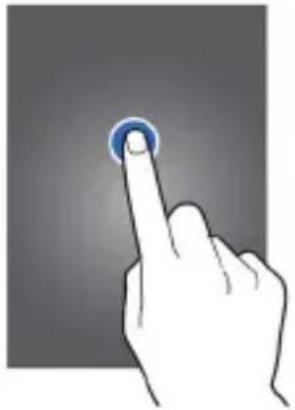
To open an application, to select a menu item, to press an on-screen button, or to enter a character using the on-screen keyboard, tap it with a finger.
natural_image
Hand cursor clicking a blue circular button on a dark background (no text or symbols)Tapping and holding
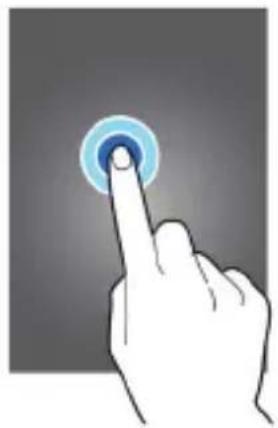
Tap and hold an item for more than 2 seconds to access available options.
natural_image
Hand icon pointing at a circular button with concentric rings (no text or symbols)Double-tapping
Double-tap on a webpage, map, or image to zoom in a part. Double-tap again to return.

natural_image
Illustration of a hand pressing a button with a blue circular icon (no text or symbols)Flicking
Flick left or right on the Home screen or the Applications screen to see another panel. Flick up or down to scroll through a webpage or a list, such as contacts.

natural_image
Hand icon pointing at a button with a blue curved arrow, no text or symbols presentDragging
To move an icon, thumbnail, or preview to a new location, tap and hold it and drag it to the target position.

natural_image
Illustration of two hands pointing at a button with a blue arrow (no text or symbols)Pinching
Spread two fingers apart on a webpage, map, or image to zoom in a part. Pinch to zoom out.

natural_image
Illustration of a hand interacting with two blue arrows on a screen (no text or symbols)3 Indicator Icons
The icons displayed at the top of the screen provide information about the status of the device. The icons listed in the table below are most common.
| Icon Description | |||
 | Indicate the intensity of network signals |  | The phone is playing a song |
 | Show missed calls The phone is charged |  | harged |
 | Location by satellite Enable USB |  | |
 | Receive a new message The access blocked |  | |
 | An application is being down-loaded |  | Get connected to the wireless network |
 | The downloading is over Turn on tl etooth |  | |
 | The alarm clock has been set and activated |  | No SIM card is installed in the phone |
 | A call is in progress GPRS data co |  | on is on |
4 Status and notification
The icons in the status bar inform you of new messages, calendar notifications, signal strength, battery status, and activities in progress such as file downloads. You can drag down the status bar to open the Notification panel and handle your notifications.
To open the Notification panel:
Swipe from the top in home screen
To take action on a Notification
Tap the notification

To dismiss a notification from the Notification panel
Place your finger on a notification and flick left or right
To clear all notification from the Notification panel
Tap Clear (on the top right corner of the panel)
5 Quick setting Panel
From the quick setting panel, you can view your device's current settings. Drag down from the status bar, tap to open the quick setting panel, and then use the following options:
- Settings
- Brightness setting
- Turn On/Off Wi-Fi, Wi-Fi setting
- Turn On/Off Bluetooth, Bluetooth setting
• Information about the network data used (SIM) - Flight Mode
- Auto Rotate
- Torch function
- Location function
- Data connection
• Audio Profile Manager

6 Customize Home Screen
Tap and hold an item, and then drag it to a new location.
You can customize the quick access panel at the bottom of the Home screen by adding or removing application shortcuts.
- To remove an application icon, tap and hold the icon, and then drag it to the rubbish bin.
- To add an application shortcut, tap and hold a new application shortcut on the Home screen, and then drag it to the empty location.
Remove an item from the Home screen
Tap and hold an item, and then drag it to the rubbish bin.

natural_image
Illustration of a hand pressing a button with a red arrow (no text or symbols)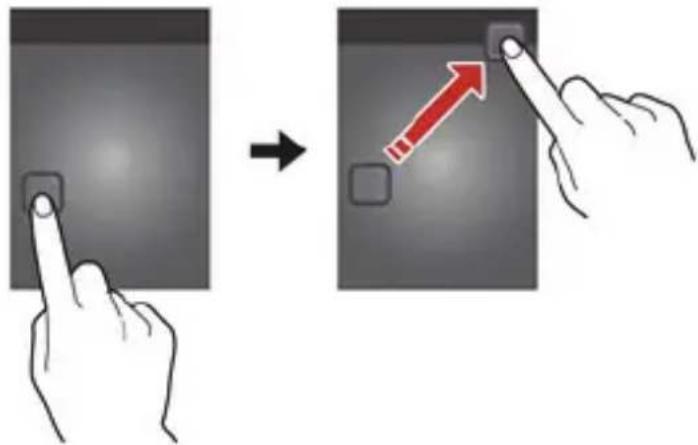
Use widgets
Widgets are small applications that provide convenient functions and information on your Home screen.
- Some widgets connect to web services. Using a web- based widget may result in
additional charges. - The widgets available may vary depending on your region or service provider.
Add a widget to the Home screen
1 In the application list, select Widgets to open the widget panel.
2 Scroll left or right on the widget panel to find a widget.
3 Tap and hold a widget to add it to the Home screen.

natural_image
Illustration of a hand interacting with a digital icon showing an 'i' and a circle, no text or symbols present.7 Using the Android Keyboard
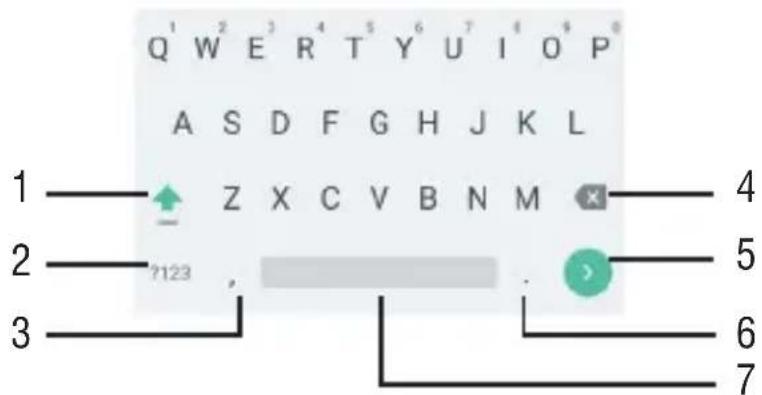
- Touch to capitalize the next character you will enter. Touch and hold to capitalize all characters you will enter.
- Touch to switch to the number and symbol keyboard.
- To enter the symbol of the bar, or a long press to access various settings “Options insertion” (Language setting and keyboard setting).
- Touch to delete the character to the left of the cursor. Touch and hold to delete all the characters to the left of the cursor.
-
"Enter" function.
-
To insert a dot or a long press, displays a table of symbols.
- Touch to enter a space.
Editing Text
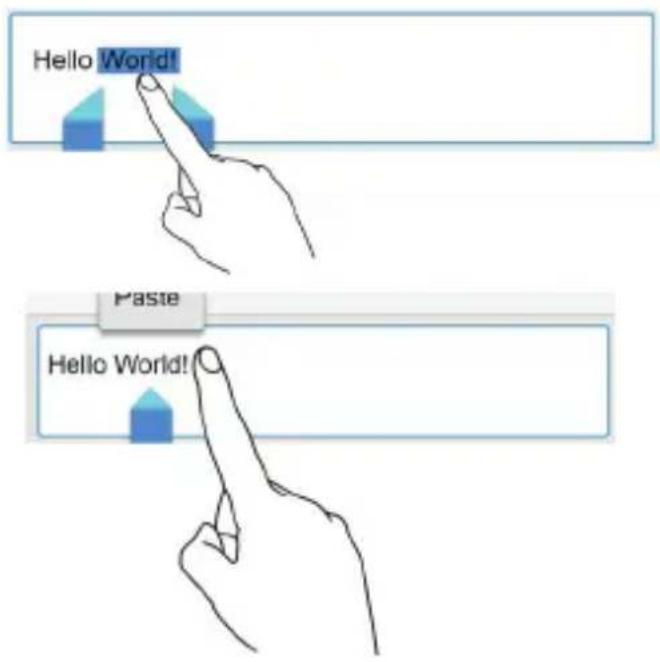
Select text: Touch and hold the text to bring up □. Then drag □ and □ to select more or less text, or touch Select all to select all text in a text box
Cut text: Select text and touch Cut button is cut Text.
Copy text: Select text and touch Copy.
Can also use this button to copy.
Paste text: Touch where you want to insert the text, drag ▲ to move the insertion point, and touch Paste to paste the text you copied of cut. Press to paste text.
8 Using the Camera

- Automatic capture image through gesture
- Automatic capture image through smile
- Change the flashlight setting
- Switch to the front camera
- Preview pane
-
Take a photo
-
Switch to the camcorder.
- Change the camera settings.
- Change the shooting mode
Shooting mode
Your phone provides the camera and video recorder features. Wherever you go, you can take high-resolution photos and videos. It also supports advanced camera features such as image stabilization, face embellishment, panorama shooting, high dynamic range and zero delay shutters, which can also be customized.
Several photo effects are available.
Live photo mode: To create a moving picture
± Rich tone (HDR): Use this to take a photo with an improved contrast ratio.
Face beauty mode: Take a photo with lightened faces for gentler images.
Panorama: Take a photo composed of many photos strung together.
Multi angle view: Use this to take multiple group shots at the same time and combine them to create the best possible image.
Tips
To zoom in, place two fingers on the screen and slowly spread them apart. To zoom out, pinch them together.
9 Setting up accounts
Google applications, such as Play Store, require a Google account. Create Google accounts to have the best experience with the device.
Adding accounts
Follow the instructions that appear when opening a Google application without signing in to set up a Google account.
To sign in with or sign up for a Google account, on the Applications screen, tap Settings - Accounts - Add account - Google. After that, tap New to sign up, or tap Existing, and then follow on-screen instructions to complete the account setup. More than one Google account can be used on the device.
Removing accounts
On the Applications screen, tap Settings - Accounts, select an account name under My accounts, select the account to remove, and then tap Remove account.
10 Setting up accounts
Setting a screen lock
There are several ways to lock the screen on your device. You can also set a screen unlock
pattern, a number-based PIN lock, or a text-based password.
It is very important that you remember your screen unlock pattern, PIN or password. If you forget this information, it may not be possible to restore important data such as contacts and messages.
To set up the Face Unlock feature
- Tap Settings > Security > Screen lock.
- Select a backup lock method and follow the instructions in the device to complete the setup.
11 Setting up accounts
Location services and sources
Use your device to find out where you are. There are two methods, or sources: GPS satellites and wireless networks. Enable the wireless networks option (Wi-Fi and mobile networks) if you only need your approximate location, and want it fast. If you want a more exact position, and have a clear view of the sky, enable the GPS satellites option. In situations where the wireless network connection is weak, you should enable both options to ensure that your location is found. Both options are activated by default when you enable location services.
To enable location services
- Open Settings, Tap Location.
- Drag the slider beside OFF/ON to the right.
- Select the location mode that you want to be using: High accuracy, Battery saving or Device only.
12 Connectivity
Wi-Fi
Activate the Wi-Fi feature to connect to a Wi-Fi network and access the Internet or other network devices.
To use options, tap
Bluetooth
Activate the Bluetooth feature to exchange information over short distances
To use more options, tap
Rename this device: Customized the name of the phone when somebody
Show files received: View received files via the Bluetooth feature.
Tethering & portable hotspot
Wi-Fi hotspot: Use the portable Wi-Fi hotspot to share the device's mobile network connection with computers or other devices through the Wi-Fi network.
Bluetooth tethering: Use the Bluetooth tethering to share the device's mobile network connection with computers via Bluetooth.
Hotspot & tethering settings: Setup for IPv4 or IPv6.
13 Flyght mode
This disables all wireless functions on your device. You can use only non-network services.
14 FAQs and solutions
If you have any questions about the phone, please find the solutions from the table below.
| FAQs Causes Solutions | ||
| Poor reception | When you use your phone at poor reception areas, for example, near high rise buildings or base rooms, the radio wave cannot be transmitted effectively. | Avoid this as far as you can. |
| When you use your phone at network traffic congestion, such as working time and off-duty time, the congestion can result in poor reception. | Avoid this as far as you can. | |
| This is related to the distance to base station in question. | You may ask the network service provider to provide service coverage map. | |
| Echoes or noises The trunk line of net | network is in bad condition. It is a regional problem. | Hang off the call and dial again.Choose another better line. |
| In some areas, the call lines are in bad condition. | ||
| Shorter standby time The standby time | time is relevant to network settings. | In poor reception areas, turn off your phone temporarily. |
| Replace the batteries Change with a new battery. | ||
| When no signals are received, your phone will continue searching for base stations, thus consuming a large amount of battery power and reducing standby time. | Use your phone at strong signal areas or Turn off the phone temporarily. | |
| Failed to turn on your phone The battery power is used up. Check the battery power level or charge the battery. | ||
| SIM card error The SIM card is damaged. Contact your network service provider. | ||
| Failed to connect to the network The SIM card is invalid. Contact your network service provider. | ||
| Failed to make a call The call barring feature is used. Cancel the call barring settings. | ||
| PIN code error Enter incorrect PIN codes for three times in succession. | Contact your network service provider. | |
| Failed to charge the battery The battery or the charger is damaged. | Change a new battery or charger. | |
| Change the environment. | ||
| Plug is properly connected. | ||
| Failed to add contacts to phonebook | Delete some contacts from the phonebook. | |
| Failed to set up some features Your network service provider does not provide the services, or you haven't subscribed them. | Contact your network service provider. | |

Precautions for correct disposal of the product.
The symbol shown on the equipment indicates that waste must be disposed of in “separate collection” and so the product must not be disposed of together with urban waste.
The user must take the product to special “separate waste collection centres” provided by local government, or deliver it to the retailer against the purchase of a new product.
Separate collection of waste and subsequent treatment, recycling and disposal operations promotes the production of equipment with recycled materials and limits negative effects on the environment and on health caused by improper handling of waste.
Illegal disposal of the product leads to the enforcement of administrative penalties.
TREVI pursues a policy of continuous research and development, the products may have different features from those described.
DECLARATION OF CONFORMITY
The undersigned TREVI S.p.A.
with registered office in Rimini (RN), Strada Consolare Rimini-San Marino, 62 as a distributor within the Community
Declares that the product:
Description: LTE-FDD (4G), WCDMA Mobile Phone, GSM
Brand: TREVI
Model: PHABLET 5 Q4
It conforms to: Directive 1999/5/EC (R & TTE) Directive of the European Parliament and of the Council of 9 March 1999 on radio equipment and telecommunications terminal equipment and the mutual recognition of their conformity.
a. Electrical Safety - LVD (directive CEE 72/23) EN 60950-1: 2006+A11:2009+ A1:2010+A12: 2011
b.electromagnetic compatibility- EN 301 489-1 V1.9.2
EMC (directive CEE 89/336) EN 301 489-7 V1.3.1
EN 301 489-17 V2.2.1
EN 301 489-3 V1.4.1
EN 301 489-24 V1.5.1
c.Frequency spectrum- EN 300 328 V1.7.1
Allegato IV (directive 1999/5/EC) EN 301 511 V9.0.2
EN 300 440-1 V1.6.1
EN 300 440-2 V1.4.1
EN 300 330-1 V1.7.1
EN 300 330-2 V1.5.1
EN 301 908-1 V6.2.1
EN 301 908-2 V6.2.1
d.SAR EN 50566:2013
EN 62479:2010
EN 50360:2001
EN 62209-1:2006
EN 62209-2:2010
e.RoHS – (directive 2011/65/EU) Regarding the restriction of the use of hazardous chemicals in electrical and electronic equipment
Therefore, the product is labeled with the European conformity mark:

Trevi S.p.A. President

1 Les Bases
Vue d'ensemble
natural_image
Illustration of a hand pointing at a blue circular icon with a butterfly, no text or symbols presentTaper deux fois
natural_image
Hand icon pointing at a curved arrow symbol (no text or labels)Effleurer
natural_image
Illustration of two fingers pointing at a circular button with an arrow, no text or symbols presentTrâner
natural_image
Illustration of a hand pressing down with two blue arrows indicating motion (no text or symbols)Pincer
natural_image
Illustration of two hands pointing at a button with a red arrow (no text or symbols)natural_image
Hand interacting with a touchscreen device displaying a blue circular icon with an arrow (no text or symbols)DÉCLARATION DE CONFORMITÉ
Allegato IV (directive 1999/5/EC)
EN 300 328 V1.7.1
EN 301 511 V9.0.2
EN 300 440-1 V1.6.1
EN 300 440-2 V1.4.1
EN 300 330-1 V1.7.1
EN 300 330-2 V1.5.1
EN 301 908-1 V6.2.1
EN 301 908-2 V6.2.1
d. SAR EN 50566:2013
EN 62479:2010
EN 50360:2001
EN 62209-1:2006
EN 62209-2:2010
e. RoHS-(directive 2011/65/EU)
natural_image
Two identical geometric diagrams with intersecting lines, no text or symbols presentNano-SIM-Adapter
Finger-Gesten
Tapping
natural_image
Hand pointing at a blue circular button on a dark background (no text or symbols)Tippen und Halten
natural_image
Hand icon pointing at a blue circular button on a gray background (no text or symbols)Doppeltippen
natural_image
Illustration of a hand pressing a button with a blue circular icon (no text or symbols)Flicking
natural_image
Hand icon pointing at a button with a blue curved arrow, no text or symbols presentSchleppen
natural_image
Illustration of two hands pointing at a button with an arrow, no text or symbols presentKneifen
natural_image
Hand holding a finger with two blue arrows pointing upward (no text or symbols)3 Anzeigesymbole
natural_image
Illustration of two hands pointing at a button with a red arrow (no text or symbols)Widgets verwenden
natural_image
Illustration of a hand pointing at a digital icon with a blue arrow and 'i' symbol (no text or labels)DECLARATION OF CONFORMITY
The undersigned TREVI S.p.A.
with registered office in Rimini (RN), Strada Consolare Rimini-San Marino, 62 as a distributor within the Community
Declares that the product:
Description: LTE-FDD (4G), WCDMA Mobile Phone, GSM
Brand: TREVI
Model: PHABLET 5 Q4
It conforms to: Directive 1999/5/EC (R & TTE) Directive of the European Parliament and of the Council of 9 March 1999 on radio equipment and telecommunications terminal equipment and the mutual recognition of their conformity.
a. Electrical Safety - LVD (directive CEE 72/23) EN 60950-1: 2006+A11:2009+ A1:2010+A12: 2011
b.electromagnetic compatibility- EN 301 489-1 V1.9.2 EMC (directive CEE 89/336) EN 301 489-7 V1.3.1
EN 301 489-17 V2.2.1
EN 301 489-3 V1.4.1
EN 301 489-24 V1.5.1
c.Frequency spectrum- EN 300 328 V1.7.1 Allegato IV (directive 1999/5/EC) EN 301 511 V9.0.2
EN 300 440-1 V1.6.1
EN 300 440-2 V1.4.1
EN 301 330-1 V1.7.1
EN 301 330-2 V1.5.1
EN 301 908-1 V6.2.1
EN 301 908-2 V6.2.1
d.SAR EN 50566:2013
EN 62479:2010
EN 50360:2001
EN 62209-1:2006
EN 62209-2:2010
e.RoHS – (directive 2011/65/EU) Regarding the restriction of the use of hazardous chemicals in electrical and electronic equipment
Therefore, the product is labeled with the European conformity mark:
CE0700 !
Trevi S.p.A. President

1 Los fundamentos
Visión de conjunto
natural_image
Hand pointing at a blue circular button on a gray background (no text or symbols)natural_image
Hand icon pointing at a circular button with blue intensity, no text or symbols presentHaga doble tapping
natural_image
Illustration of a hand pressing a finger with a blue circular icon (no text or symbols)Sacudiendo
natural_image
Hand icon showing a finger pressing a button with a curved arrow indicating rotation (no text or symbols)Arrastrando
natural_image
Illustration of two hands pointing at a circular icon with an arrow, no text or symbols presentPellizcos
natural_image
Hand holding a finger with two blue arrows pointing upward (no text or symbols)natural_image
Illustration of two hands interacting with a touchscreen device, one pointing at a button (no text or symbols present)
Use los widgets
natural_image
Hand interacting with a touchscreen device displaying a blue circular icon with an arrow pointing to it (no text or symbols present)CORRECT DISPOSAL WARNING

Precautions for correct disposal of the product.
The symbol shown on the equipment indicates that waste must be disposed of in “separate collection” and so the product must not be disposed of together with urban waste.
The user must take the product to special “separate waste collection centres” provided by local government, or deliver it to the retailer against the purchase of a new product.
Separate collection of waste and subsequent treatment, recycling and disposal operations promotes the production of equipment with recycled materials and limits negative effects on the environment and on health caused by improper handling of waste.
Illegal disposal of the product leads to the enforcement of administrative penalties.


- TO SET YOUR LANGUAGE DEVICE
- POUR CONFIGURER LANGUE DE VOTRE APPAREIL:
- Nota:
- The Basics
- Overview
- Safety guide
- Safety warnings and notices
- General attention
- Notices when using your phone
- Notices when using battery
- Charging your phone
- Notes:
- Notices when using your charger
- Cleaning and maintenance
- Getting to know your phone
- Key definitions
- Note regard the use of micro-SIM adapter on TREVI products
- Warning:
- Finger gestures Tapping
- Tapping and holding
- Double-tapping
- Flicking
- Dragging
- Pinching
- Indicator Icons
- Status and notification
- To open the Notification panel:
- To take action on a Notification
- To dismiss a notification from the Notification panel
- To clear all notification from the Notification panel
- Quick setting Panel
- Customize Home Screen
- Tap and hold an item, and then drag it to a new location.
- Remove an item from the Home screen
- Use widgets
- Add a widget to the Home screen
- Using the Android Keyboard
- Editing Text
- Shooting mode
- Tips
- Setting up accounts
- Adding accounts
- Removing accounts
- Setting up accounts
- Setting a screen lock
- To set up the Face Unlock feature
- Setting up accounts
- Location services and sources
- To enable location services
- Connectivity
- Wi-Fi
- Bluetooth
- Tethering & portable hotspot
- Flyght mode
- FAQs and solutions
- Precautions for correct disposal of the product.
- DECLARATION OF CONFORMITY
- Les Bases
- Vue d'ensemble
- Taper deux fois
- Effleurer
- Trâner
- Pincer
- DÉCLARATION DE CONFORMITÉ
- Finger-Gesten
- Tapping
- Tippen und Halten
- Doppeltippen
- Schleppen
- Kneifen
- Anzeigesymbole
- Widgets verwenden
- Los fundamentos
- Visión de conjunto
- Haga doble tapping
- Sacudiendo
- Arrastrando
- Pellizcos
- Use los widgets
- CORRECT DISPOSAL WARNING
Brand : Trevi
Model : Phablet 5 Q4
Category : Smartphone