AirCard 307U - Router NETGEAR - Free user manual and instructions
Find the device manual for free AirCard 307U NETGEAR in PDF.



User questions about AirCard 307U NETGEAR
0 question about this device. Answer the ones you know or ask your own.
Ask a new question about this device
Download the instructions for your Router in PDF format for free! Find your manual AirCard 307U - NETGEAR and take your electronic device back in hand. On this page are published all the documents necessary for the use of your device. AirCard 307U by NETGEAR.
USER MANUAL AirCard 307U NETGEAR
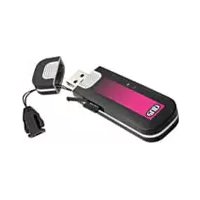
AirCard® USB 306/307 MODEM
AirCard® USB 308/309 MODEM
AirCard® 310U MODEM
QUICK START GUIDE
GUIDE DE DÉMARRAGE RAPIDE
natural_image
An adult and a young child smiling while using a laptop outdoors, with a mug and tree in the background (no text visible)Welcome to the AirCard® HSPA+ USB modem
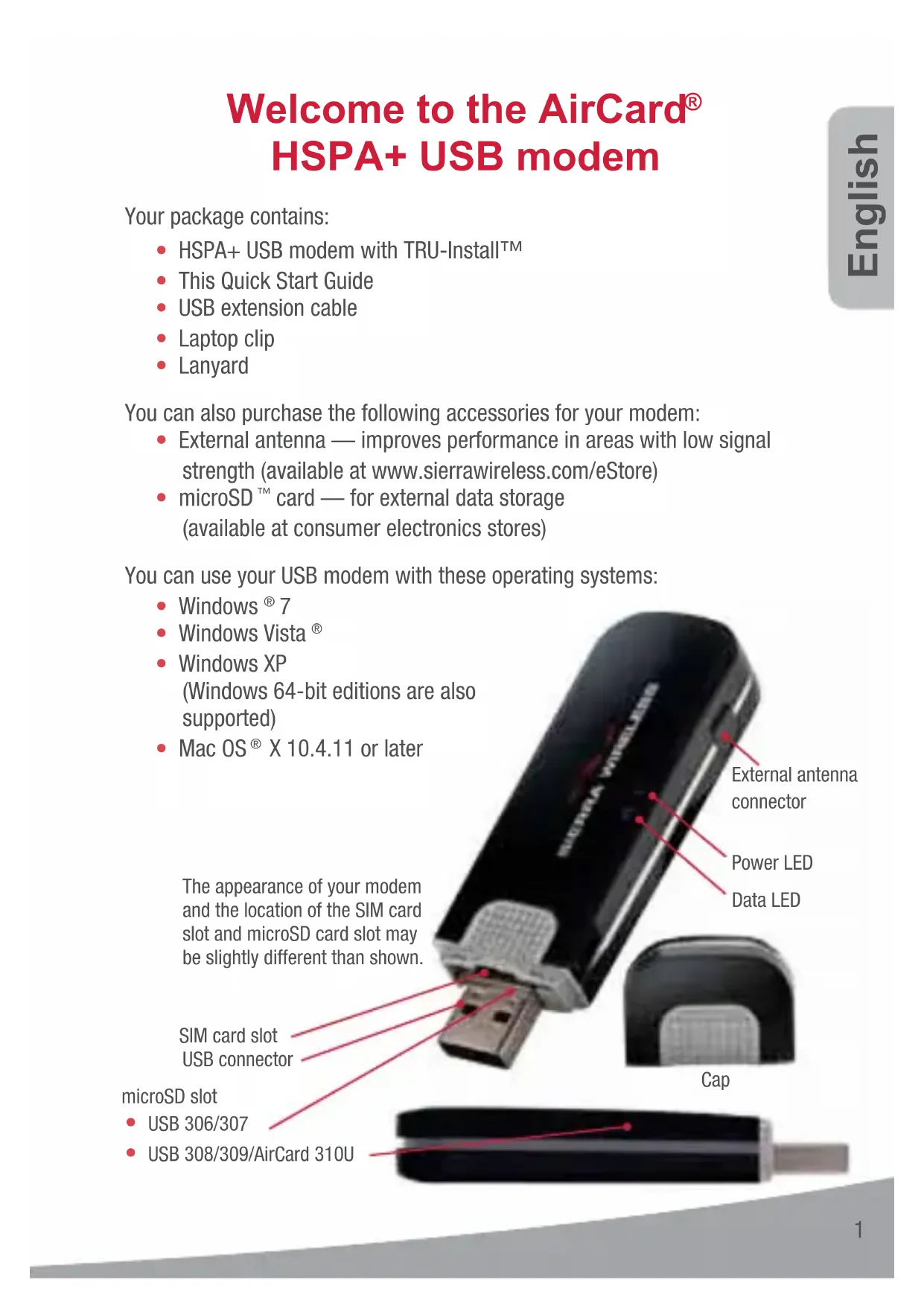
Your package contains:
• HSPA+ USB modem with TRU-Install™
• This Quick Start Guide
• USB extension cable
- Laptop clip
• Lanyard
You can also purchase the following accessories for your modem:
- External antenna — improves performance in areas with low signal strength (available at www.sierrawireless.com/eStore)
- microSD™ card — for external data storage (available at consumer electronics stores)
You can use your USB modem with these operating systems:
- Windows® 7
- Windows Vista®
- Windows XP
(Windows 64-bit editions are also supported)
• Mac OS ^® X 10.4.11 or later
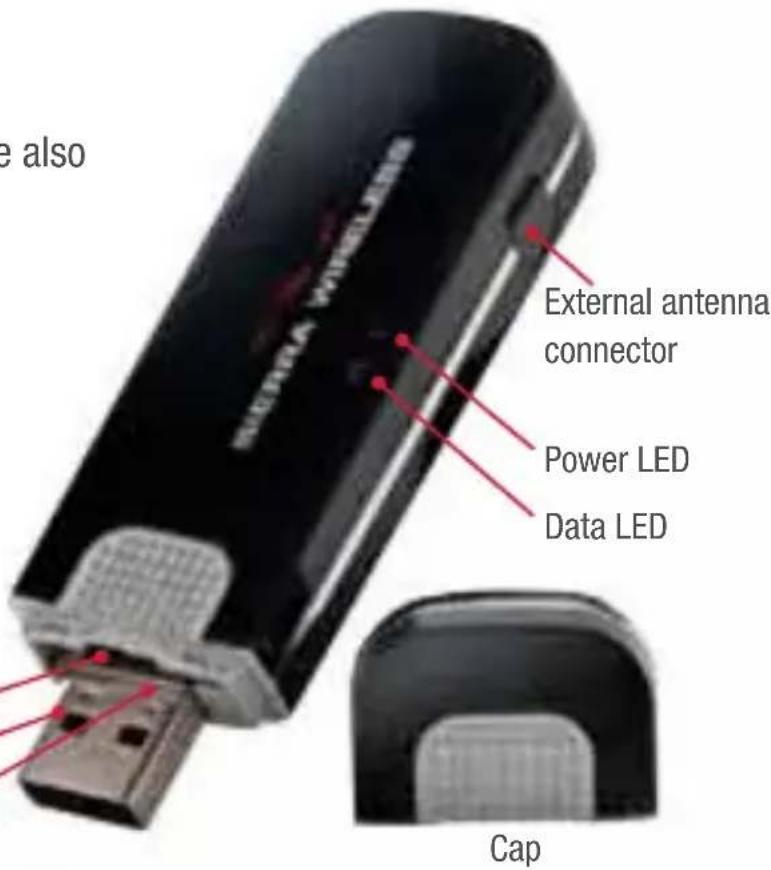
The appearance of your modem and the location of the SIM card slot and microSD card slot may be slightly different than shown.
SIM card slot USB connector microSD slot
USB 306/307
• USB 308/309/AirCard 310U
text_image
e also External antenna connector Power LED Data LED Cap
natural_image
Close-up of a black cylindrical object with a red line and dot on its surface (no text or symbols visible)Installation
This modem is TRU-Installenabled and does not require a CD for installation.
1 Remove the cap from the end of the modem and insert the SIM card as shown in the illustration.

natural_image
Three-step diagram showing a device being inserted into a port, with no visible text or symbols.Depending on the model, your modem may not have a SIM tray.
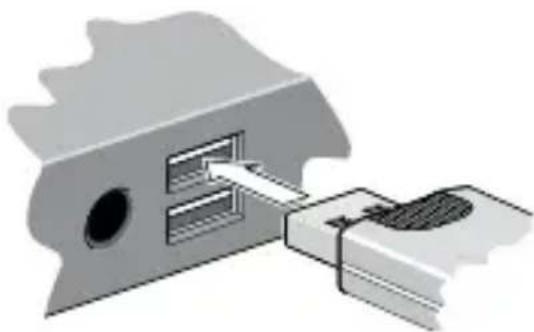
2 Insert the USB modem into the USB slot.
Windows
The software installation process starts automatically. Follow the on-screen prompts to install the Watcher software.
Mac OS X
When the 3G Watcher window appears, double-click the installer package.
natural_image
Diagram of a mechanical component with a clamping tool inserted into a slot (no text or symbols visible)3 Once the software is installed, the modem searches for a network. When the modem finds a network, the Connect button in Watcher becomes available. Click Connect to connect to your network.
Windows 7 Mobile Broadband\*
To connect to the network using Windows 7 Mobile Broadband:
- Click the signal strength icon in the system tray.
The Mobile Broadband connection window opens.
- Select your network and click Connect.
Note: Features such as SMS are only available by using Watcher.
*This product has passed Microsoft-designed tests for a high standard of performance, reliability, and compatibility with Windows 7.
text_image
Compatible with Windows®7The first time you run 3G Watcher:
Mac OS X 10.4.11
- After clicking Connect, open System Preferences and select Network.
- When the "New Port Detected" message appears, click OK.
- Click Apply Now. Your modem connects to the network.
Mac OS X 10.5, 10.6
- After clicking Connect, the message “A new network interface has been detected” appears. Click the Network Preferences... button.
- In the Network window, click Apply. Your modem connects to the network.
4 If you are prompted to configure a profile, click Yes. The Profiles window opens. From the list of default profiles, select your service provider. If your service provider is not on the list, contact them.
Click OK. The modem is ready to use.
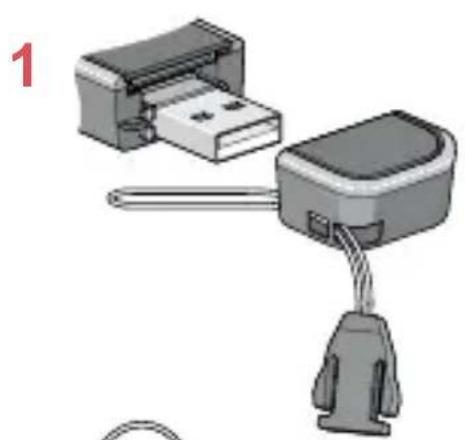
Attach the lanyard
To keep everything together, it's a good idea to thread the lanyard through the cap and the modem, as shown in the illustrations.
natural_image
Illustration of a USB connector with cable and socket, no text or symbols present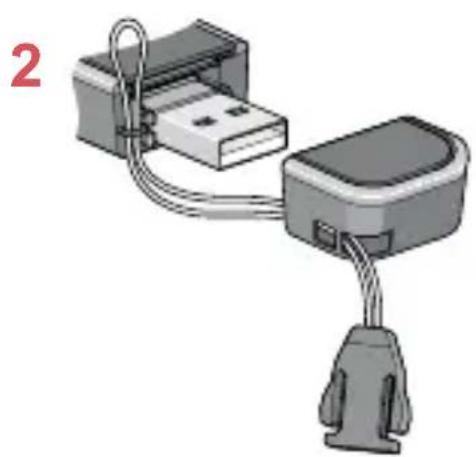
natural_image
Illustration of a USB connector with cable and socket, no text or symbols present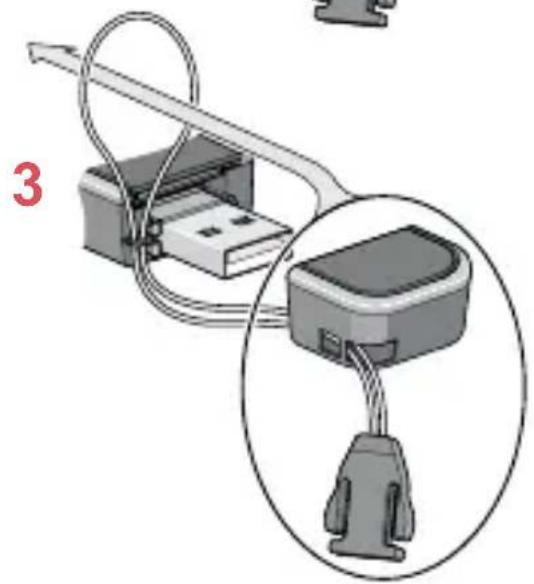
natural_image
Diagram showing a USB connector inserted into a device, with a magnified inset highlighting the internal structure (no text or symbols present)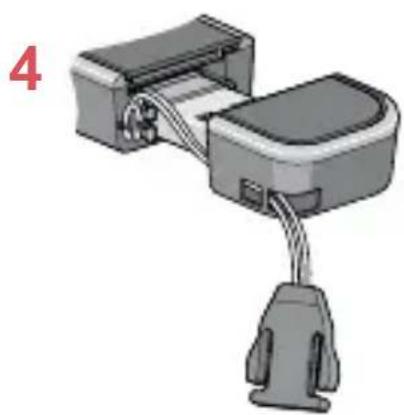
natural_image
3D diagram of a mechanical device with attached cable and connector (no text or symbols)LED Operation
The two LEDs show the current status of the modem.
| LEDStateIndicates | |
Power Off  | One of the following states:The modem is not inserted in the computer.The computer is off or in “suspend and resume” mode.The modem radio has been turned off using Watcher or another connection client. |
| Solid blue The power is on, the modem is working normally. | |
| Blinking blue The firmware is being updated. Do not remove the modem from the computer. | |
| Blinking amber The modem is searching for service (initializing). | |
| Solid amber Modem error — either the modem is having a problem initializing (searching for service) or is offline because of a failure.Contact your service provider. | |
Data Off  | The modem is unable to detect 2G or 3G service. |
| Blinking amber The modem has detected a 2G network (EDGE, GPRS, GSM) and is ready to connect. | |
| Solid amber The modem is connected to a 2G network and is able to send and receive data. | |
| Blinking blue The modem has detected a 3G network (UMTS, HSPA) and is ready to connect. | |
| Solid blue The modem is connected to a 3G network and can send and receive data. | |
Frequently asked questions
What do I do if the software installation does not start automatically?
If TRU-Install does not start automatically, you can start the installation process manually.
Windows
- Double-click My Computer (Windows XP) or Computer (Windows Vista, Windows 7) on your desktop.
- Click the TRU-Install drive.
- Under the TRU-Install drive, open the Win folder and double-click the Setup.exe file. Follow the on-screen prompts to install the software.
For additional information about your modem and troubleshooting suggestions if the software installation fails, refer to the User Guide. If the software failed to install successfully, you'll find the User Guide in the following location, depending on your operating system:
For Windows XP: My Computer > TRU-Install > Win.
For Windows Vista or Windows 7: Computer > TRU-Install > Win.
Note: Once the software is successfully installed, the User Guide is available from the Start menu:
For Windows XP: Start > Programs > Sierra Wireless.
For Windows Vista or Windows 7: Start > All Programs > Sierra Wireless.
Mac OS X
If you do not see the 3G Watcher window:
- Open Finder.
- Under Devices, click 3G Watcher.
- Double-click the installer package.
For additional information about your modem, refer to the User Guide. You'll find it in Finder > Applications > 3G Watcher.
Does the latest version of Watcher work with my other Sierra Wireless modems?
Yes, Watcher is backwards compatible with all Sierra Wireless USB and Express-Card modems. It is not compatible with non-Sierra Wireless products. You can set Watcher to automatically check for updates. For more information, see the Watcher Help (select Help > Help topics).
When do I use the extension cable?
If the orientation of your computer's USB slot or the thickness of your computer are such that pressure is applied to the end or side of the modem, you may damage the modem or your computer. In such cases, do not insert the modem directly into your computer's USB slot. Use the USB extension cable instead.
natural_image
Close-up of a black cylindrical object with a red line and dot on top (no text or symbols visible)Installation
natural_image
Three-step diagram showing a device being inserted into a port, with no visible text or symbols.natural_image
Diagram of a mechanical component with internal slots and a connecting rod (no text or symbols)Mac OS X
text_image
Compatible with Windows®7Finder > Applications > 3G Watcher.
natural_image
Three-step diagram showing a device being inserted into a port, with no visible text or symbols.natural_image
Mechanical component with two slots and a connecting rod (no text or symbols visible)Mac OS X
text_image
Compatible with Windows®7text_image
Diagram showing three connected devices with labeled parts, including USB connectors and cable routing.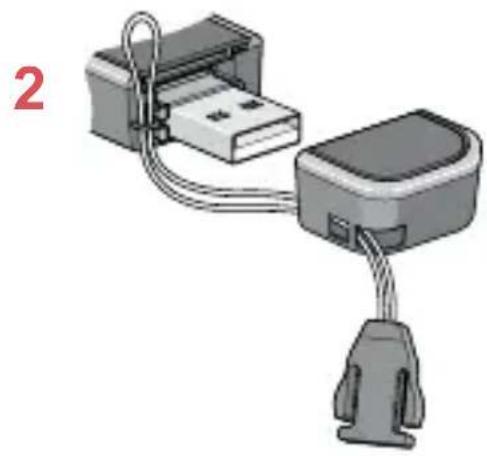
natural_image
Diagram of a USB connector with cable routing (no text or symbols)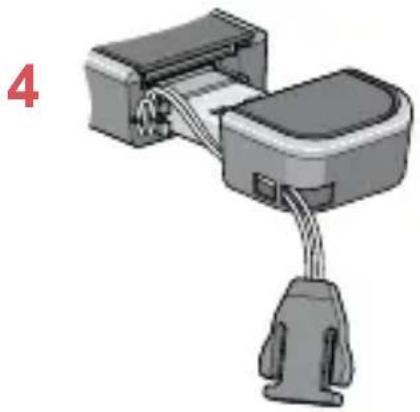
natural_image
3D diagram of a connector with cable and socket, no text or symbols presentIndicadores LED
natural_image
Two business professionals sitting outdoors, one using a laptop while the other looks on; modern buildings and greenery in background (no visible text or symbols)SIERRA WIRELESS
2131317 Rev. 1.1 (November 2009)
© 2009 Sierra Wireless. All rights reserved.
Heart of the Wireless Machine® is a registered trademark of Sierra Wireless. Watcher® and AirCard® are trademarks of Sierra Wireless, registered in the European Community. Sierra Wireless, the Sierra Wireless logo, the red wave design, TRU-Install™, and Compass™ are trademarks of Sierra Wireless. Windows® and Vista® are registered trademarks of Microsoft Corporation. Mac OS® is a trademark of Apple Inc., registered in the US and other countries. Other trademarks are the property of the respective owners.
This product includes technology licensed from:
QUALCOMM* 3G
Manufactured or sold by Sierra Wireless Inc. or its Licensees under one or more patents licensed from InterDigital Group.