
E4 - Robot vacuum ROBOROCK - Free user manual and instructions
Find the device manual for free E4 ROBOROCK in PDF.



| Product Type | Robot vacuum with mopping function |
| Brand | Roborock |
| Model | E4 |
| Dimensions | 350 × 350 × 90.5 mm |
| Weight | Approximately 3.0 kg |
| Battery | Lithium-ion 14.4 V / 5200 mAh |
| Rated power | 58 W |
| Charging time | Less than 6 hours |
| Battery life | Up to 150 minutes (estimated) |
| Connectivity | WiFi 2.4 GHz, Xiaomi Home app |
| Cleaning modes | Silent, Balanced, Strong, MAX |
| Mopping function | Yes, with adjustable water tank |
| Sensors | Cliff detectors, obstacle sensor, motion tracking |
| Navigation | Zigzag and spiral cleaning (localized) |
| Automatic return to dock | Yes, after cleaning or low battery |
| Charging dock | Models CDZ14RR or CDZ15RR, 100-240 V, 20 V DC 1.2 A |
| Scheduled cleaning | Yes, via app |
| Do Not Disturb mode | Yes, enabled by default from 10 PM to 8 AM |
| Maintenance | Dustbin, washable filter, brushes, mop cloth |
| Noise level | Varies by mode (not specified) |
| Safety | Class 1 laser sensors, automatic stop on obstacles |
| Warranty | According to local legislation, provided by the seller |
Frequently Asked Questions - E4 ROBOROCK
User questions about E4 ROBOROCK
0 question about this device. Answer the ones you know or ask your own.
Ask a new question about this device
Download the instructions for your Robot vacuum in PDF format for free! Find your manual E4 - ROBOROCK and take your electronic device back in hand. On this page are published all the documents necessary for the use of your device. E4 by ROBOROCK.
USER MANUAL E4 ROBOROCK
Roborock E4 Robot Vacuum Cleaner User Manual
Read this user manual carefully before using this product and store it properly for future reference.
• Safety Information 01
• Product introduction 05
- Installation 09
• Instructions for use 14
• Routine Maintenance 16
• Basic Parameters 20
- Troubleshooting 21
• FAQs 23
• EU Declaration of Conformity 25
• WEEE Information 28
• Warranty Information 29
Safety Information
Restrictions
- This product is designed for indoor floor cleaning only, do not use it outdoors (such as on an open-ended terrace), on any surface other than the ground (such as a sofa), or in any commercial or industrial environment.
- Do not use this product on elevated surfaces without barriers such as the floor of a loft, an open-ended terrace, or on top of furniture.
- Do not use the product when the ambient temperature is higher than 104^ (40°C), lower than 39^ (4°C), or if there are liquids or tacky substances on the floor.
- Before using the product, move wires off the ground or place them to the side to prevent them being pulled on by the cleaner.
- To prevent blocking the product and to avoid damage to valuables, remove light-weight items (such as plastic bags) and fragile objects (such as vases) from the floor before cleaning.
- Children should be supervised to ensure that they do not play with the appliance.
- This product is not intended for use by persons (including children) with reduced physical, sensory or mental capabilities, or lack of experience and knowledge, unless they have been given supervision or instruction concerning use of the product by a person responsible for their safety (CB).
• This product can be used by children aged from 8 years and above and persons
Safety Information
with reduced physical, sensory or mental capabilities or lack of experience and knowledge if they have been given supervision or instruction concerning use of the product in a safe way and understand the hazards involved. Children shall not play with the product. Cleaning and user maintenance shall not be made by children without supervision (EU).
- Keep the main brush cleaning tools out of reach of children.
- Do not place any object (including children and pets) on the product, whether it is in operation or not.
- Keep hair, loose clothing, fingers, and all parts of the body away from openings and moving parts.
- Do not use the product on burning objects (such as cigarette butts).
- Do not use the product on high pile carpets (product effectiveness may also be reduced on dark carpets).
- Do not use the product to clean hard or sharp objects (such as decoration wastes, glass and nails).
- Do not carry the product using the laser scanner cap, main unit cover, or collision buffer.
- The product must be switched off and the plug must be removed from socket-outlet before cleaning or maintaining the product.
- Do not use wet cloth or liquids for cleaning the product.
- Do not use the mopping module on carpets.
Safety Information
- Use the product according to the manual. Any loss or damage caused from improper use will be borne by the user.
- This product contains batteries that are only replaceable by skilled persons.
Battery and Charging WARNING
- Do not charge non-rechargeable batteries.
- For the purposes of recharging the battery, only use the detachable supply unit roborock CDZ14RR or CDZ15RR provided with this product.
- Do not dismantle, repair or modify the battery or charging dock.
- Keep the charging dock away from heat (such as heating vents).
- Do not wipe or clean the charger prongs with wet cloth or wet hands.
- If the power cord is damaged, stop using it immediately. It must be replaced by the manufacturer, its service agent, or similarly qualified persons to avoid a hazard.
- Make sure the product is powered off before shipment.
- Use of the original packaging is advised.
- If to be left unused for a long period of time, fully charge the product and switch it
Safety Information
off before storing it in a cool, dry place.
- Charge it at least every three months to avoid over discharging the battery.
- To satisfy RF exposure requirements, a separation distance of 20 cm or more should be maintained between this device and persons during device operation.
- To ensure compliance, operations at closer than this distance is not recommended. The antenna used for this transmitter must not be co-located in conjunction with any other antenna or transmitter.
Roborock robot vacuum cleaner troubleshooting
| Roborock robot vacuum cleaner troubleshooting | |
| Name | Troubleshooting |
| Robot | Problem listed in the User Manual |
| The product cannot be powered on | |
| The main brush, side brush, fan, or main wheels do not work | |
| Charging dock The robot does not receive power | |
| Power cable The charging dock cannot be supplied with power | |
Product introduction
Robot

natural_image
Technical line drawing of a circular mechanical component with internal components and mounting holes (no text or symbols)Clean/Power
- Press to start cleaning
- Press and hold to power on or off
Power Indicator
• White: Battery level ≥ 20%
• Red: Battery level<20%
- Flashing slowly: Charging or starting up
- Flashing red: Error
Dock/Spot Cleaning
- Press to return to the dock
- Press and hold to spot clean
Note:
Press any button to pause cleaning, returning to dock, or spot cleaning.
Reset WiFi
- Press and hold both the ⏻ button and the ⏱ button for 3 seconds.
Product introduction
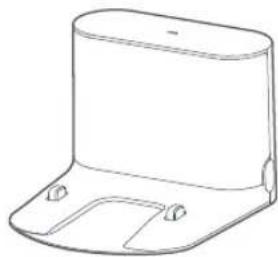
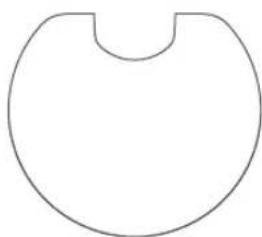
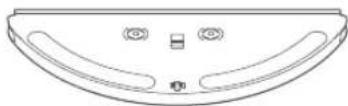
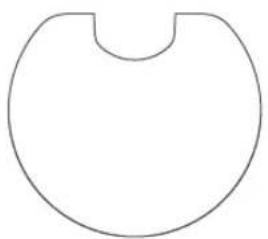
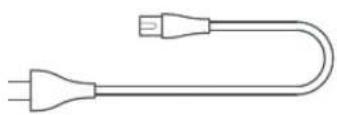
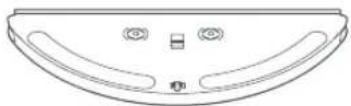
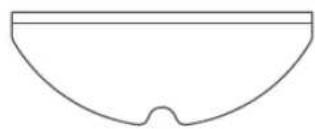
Parts List
natural_image
Line drawing of a 3D mechanical part with mounting holes and a flat base (no text or symbols)Charging Dock
natural_image
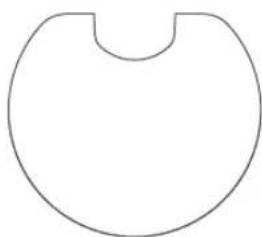
Simple line drawing of a symmetrical rounded shape with a small notch at the top (no text or symbols)Moisture-proof mat

natural_image
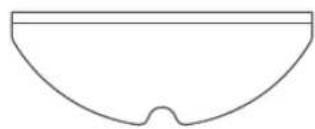
Simple line drawing of a symmetrical shape with a central notch (no text or symbols)Power Cable Adjustable water tank Mop cloth
Product introduction
Robot
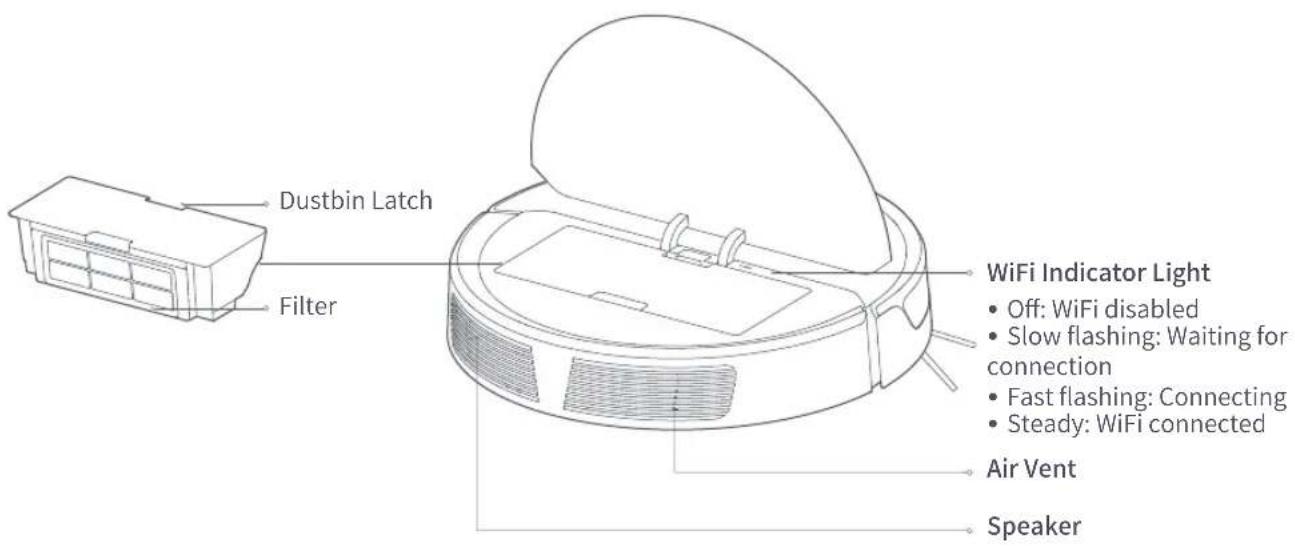
Product introduction
Robot and Sensors
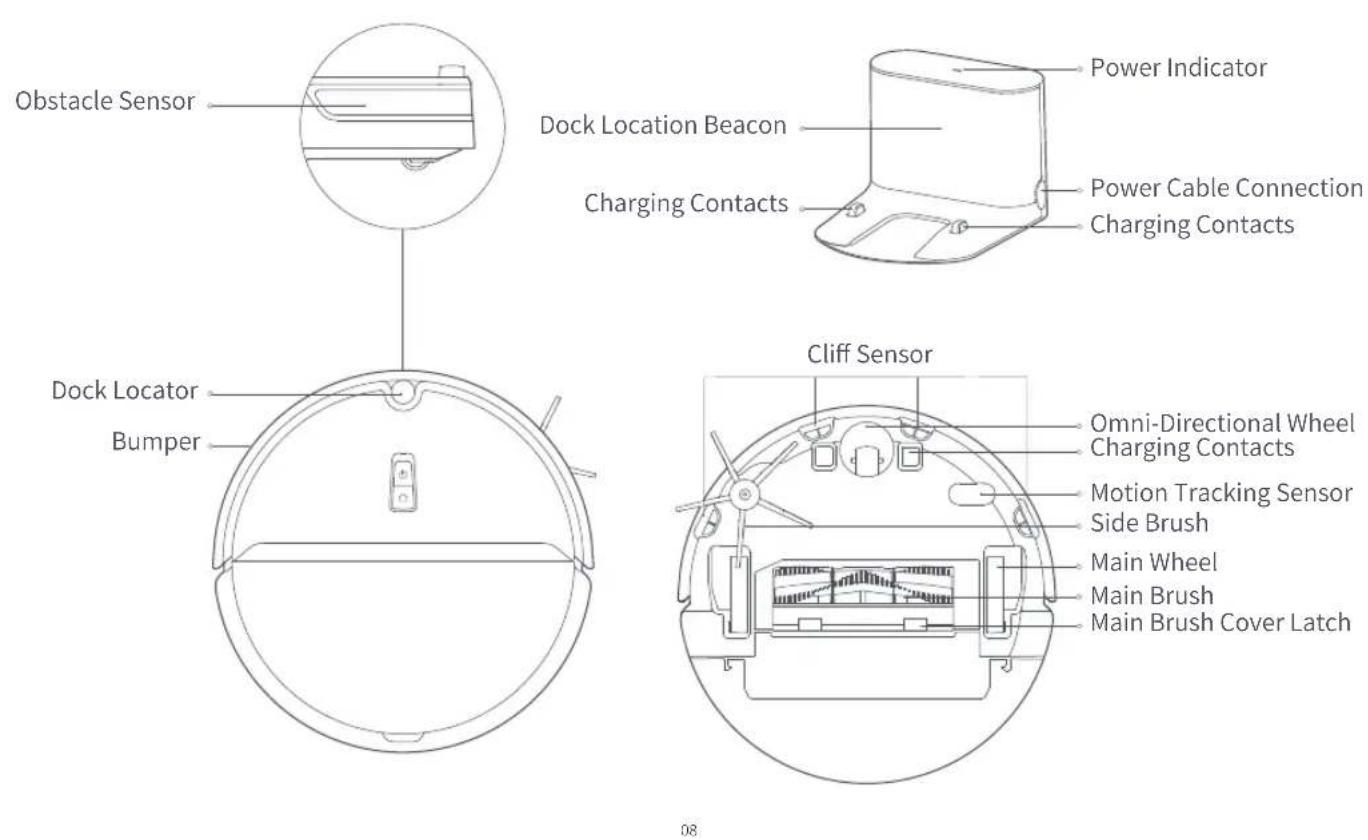
Charging Dock
Installation
Using the robot
- Place the Charging Dock against the wall on a flat surface and plug it into mains power.
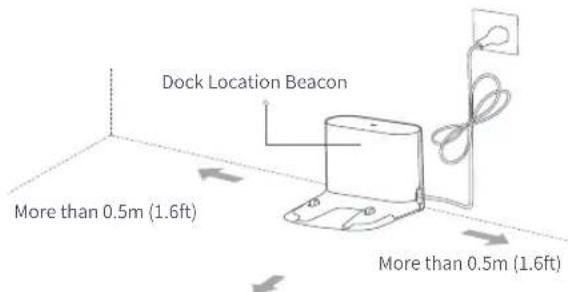
More than 1.5m (4.9ft)
Notes:
- Ensure that a distance of at least 0.5m on both sides and 1.5m in front is retained around the Charging Dock.
- The Power Cable, when vertical to the floor, may get caught by the robot, disconnecting the Charging Dock.
- The Power Indicator is on when the Charging Dock is connected to mains power, and off when the robot is charging.
- For a better app user experience, place the Charging Dock in an area with a strong WiFi signal.
- To avoid problems returning to the dock, do not place the Charging Dock in direct sunlight or block the Dock Location Beacon
- Do not place the Charging Dock in passageways or doorways. This may prevent access due to the safe zone around the dock.
Using the robot
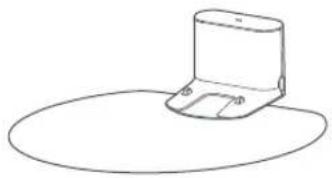
- Secure the moisture-proof mat.
After securing the charging dock, wipe the area where the moisture-proof mat will be placed with a dry cloth as shown. Stick the double-sided tape first to the moisture-proof mat then in position on the floor.
natural_image
Simple line drawing of a cylindrical object with a flat top and circular base (no text or symbols)Note:
Always use the moisture-proof when placing the charging dock on a wooden floor.
Installation
3. Power on and charge.
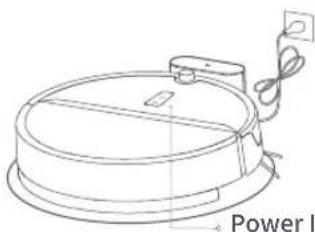
Press and hold the ⏻ button to power on. When the Power Indicator is on, place the robot on the Charging Dock to charge.
This robot is equipped with a high-performance lithium-ion rechargeable battery pack. To maintain battery performance, keep the battery charged.
natural_image
Line drawing of a circular device with a power indicator and cable, labeled 'Power I' (no other text or symbols)Power Indicator color indicates battery level.
• White: Battery level ≥ 20%
• Red: Battery < 20%
Note:
The robot cannot be powered on when the battery is low. Place the robot on the Charging Dock to recharge.
Installation
4. Connect to the mobile app. (recommended)
This robot uses the Xiaomi Home app. Through the MIUI system, it can be connected to other compatible smart home products.
① Download app
Search for "Xiaomi Home" in the App Store or Google Play or scan the QR code below, then download and install the app.

② Reset WiFi
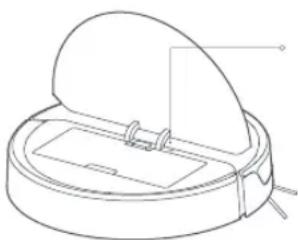
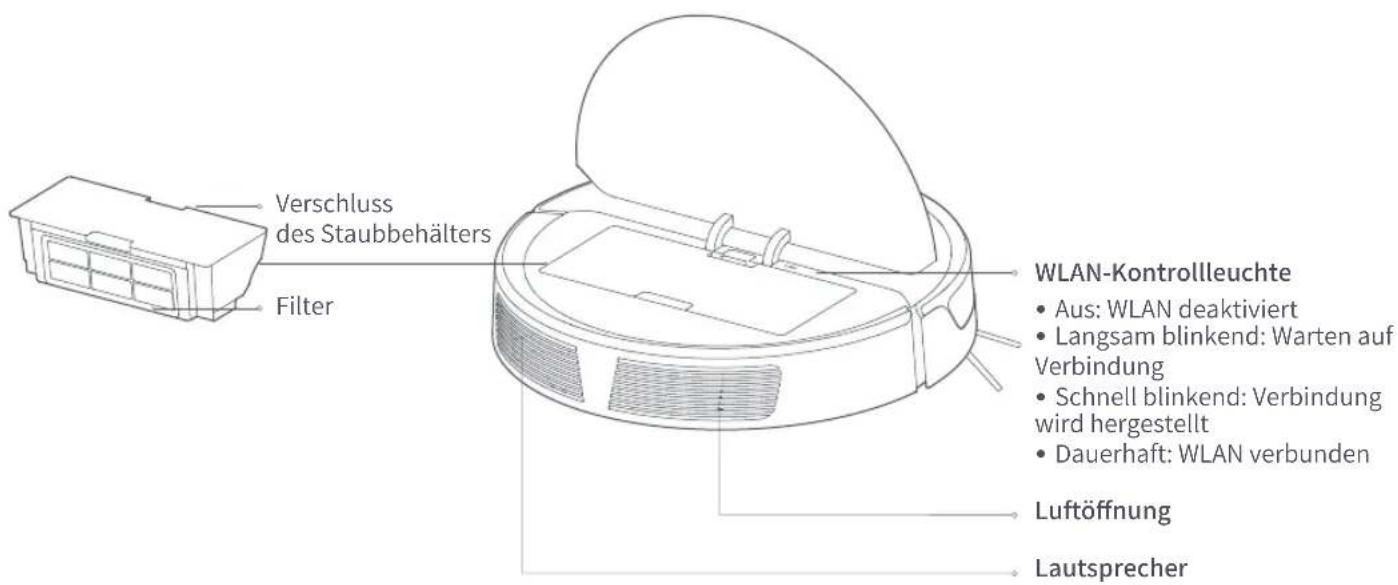
a.Open the top cover of the robot to reveal the WiFi indicator light.
b. Press and hold the ⏻ button and the ⏱ button until you hear the "Reset WiFi" voice alert. When the WiFi Indicator Light flashes slowly, the robot has entered network configuration mode.
Note:
If you cannot connect your phone to the robot, reset the WiFi, and add your robot as a new device.
natural_image
Line drawing of a mechanical device with a dome-shaped lid and internal components (no text or symbols)WiFi Indicator Light
- Off: WiFi disabled
- Slow flashing: Waiting for connection
- Fast flashing: Connecting
- Steady: WiFi connected
③ Add device
Open the Xiaomi Home app and tap the "+" in the top right corner. Add the robot by following the in-app prompts. After adding, the robot can be found on the home page.
Note:
- Due to ongoing Xiaomi Home development, the actual process may differ slightly from the above description. Always follow the instructions given in the app.
- Only 2.4GHz WiFi is supported.
Installation
Using the robot
5. Mopping
Note:
- It is recommended that all floors are vacuumed at least three times before the first mopping session to reduce excessive dirt buildup on the mop.
- Use barrier tape to prevent mopping carpeted areas, or remove carpets prior to mopping.
- To prevent corrosion or damage, do not use cleaning fluid or disinfectant in the water tank.
- Cleaning the mop cloth every 60 minutes is recommended to ensure the water flow rate and cleaning effect.
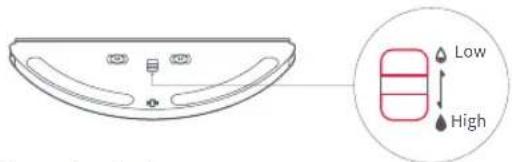
① Adjust flow rate
Toggle the switch to adjust the flow rate according to your needs.
② Fill the water tank
Open the water tank, fill it with water, and close it tightly
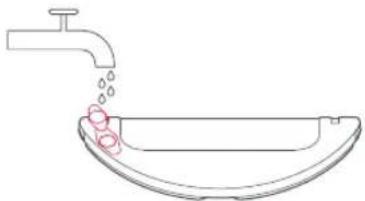
natural_image
Simple line drawing of a faucet with liquid dripping into a sink (no text or symbols)③ Install the mop cloth
Dampen the mop cloth and squeeze it until it stops dripping. Insert it into the mounting slot in the water tank.
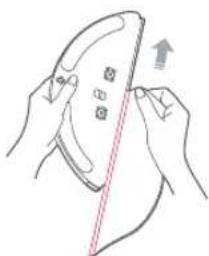
natural_image
Illustration of hands using a tool to cut a device with an arrow indicating motion (no text or symbols)④ Install the module
Slide the mop module in line with the alignment marks on the rear of the machine until you hear a "click".
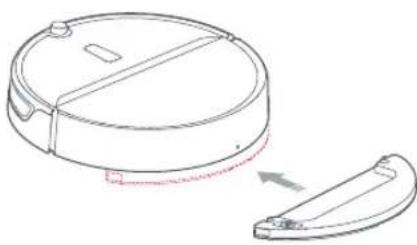
natural_image
Line drawing of a circular device with a lid and a separate curved component, no text or symbols presentInstallation
Using the robot
6. Start cleaning.
When the battery is fully charged, the Power Indicator will remain lit. Press the ⏻ button or use the app to start a cleanup.
7. Remove the mopping module.
After the machine completes cleaning and returns to the charging dock, press the two side latches inwards and pull to remove the mopping module.
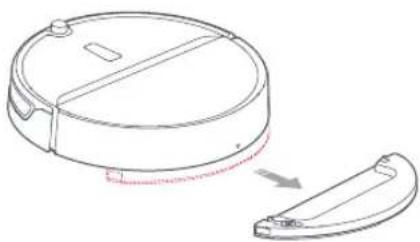
natural_image
Line drawing of a circular device with a lid and a separate curved component, no text or symbols presentNote:
- When the charging dock is placed on a wooden floor, always use it with the moisture-proof mat to prevent moisture damage.
- Remove the mopping module after mopping, empty residual water and clean the mop cloth to prevent mildew or unpleasant odors.
- Remove the mopping module if not mopping.
Instructions for use
On/off
Press and hold the ⏻ button to power on the robot. The Power Indicator will turn on, and the robot will enter standby mode. If the robot is idle, press and hold the ⏻ button to power it off and end the current cleaning cycle. Note:
The robot cannot be turned off when it is charging.
Clean
Press the ⏻ button to start cleaning. Press any button to pause the current cleaning cycle.
Note:
- Cleaning cannot start if the battery level is too low. Allow the robot to charge before restarting cleanup.
- Tidy away any cables on the ground (including the Charging Dock Power Cable) before cleaning to avoid losing power or damaging either the robot or the cables.
- If a cleanup finishes within 10 minutes, cleaning repeats by default.
- If the battery runs low before cleanup is complete, the robot will return to the dock for a top-up charge before resuming cleanup from where it left off.
Charging
Auto mode: After cleaning, the robot will automatically return to the Charging Dock.
Manual: If Paused, press the ⏻ button to send the robot back to the Charging Dock.
The Power Indicator breathes when the robot is charging. Note:
If the robot cannot find the Charging Dock, it will return to the most recent starting location. Place the robot on the Charging Dock manually to recharge.
Pause
When the robot is cleaning, press any button to pause it. Press the ⏻ button to continue cleaning or the ⏱ button to stop cleaning and send it back to the Charging Dock.
Notes:
- Manually docking the robot in Pause mode will stop the current cleaning cycle.
- If continuing to clean after moving the robot, place it close to its original position before starting.
Cleaning method
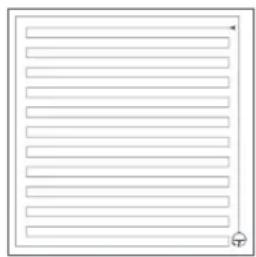
Once started, the robot will clean in a Z pattern. Once all areas have been covered, it will clean along the wall to effectively cover the entire floor. It will then automatically return to the Charging Dock.
natural_image
Blank document page with horizontal lines and a small letter 'D' at the bottom right corner (no text or symbols on the lines themselves)Instructions for use
Spot cleaning
In Standby or Pause mode, press and hold the ⏻ button to start Spot Cleaning. The robot will clean a 1.2m (3.9ft) in diameter circle spiraling out from its starting point. After cleaning, the robot will return to the start point.
Note:
Starting Spot Cleaning in pause mode will stop the current cleaning cycle.
Errors
If a runtime error occurs, the Power Indicator will flash red quickly, and a voice prompt will sound. Refer to “Troubleshooting” for details.
Notes:
- The robot will automatically enter Sleep mode after 10 minutes of inactivity in an Error state.
- Docking the robot in an Error state will stop the current cleaning cycle.
Sleep
If inactive for more than 10 minutes, the robot will automatically enter Sleep mode. The Power Indicator will flash every few seconds. Press any button to wake the robot.
Scheduled Cleaning
Use the mobile app to set scheduled cleanups. The robot will automatically clean at the specified times and return to the Charging Dock after each clean.
Reset WiFi
If a mobile phone cannot connect to the robot due to router configuration changes, forgotten password, or any other reason, reset the WiFi. Open the top cover to reveal the WiFi Indicator, then press and hold the ⏻ and ⏱ buttons until the "Resetting WiFi" voice alert sounds. The reset is complete when the WiFi indicator flashes slowly.
Note:
WiFi will be automatically disabled if the time taken to connect exceeds one hour. If you need to reconnect, reset the WiFi, and try again.
Suction Power
Use the Mi Home app to choose from Quiet, Balanced, Strong, or MAX modes. The Balanced mode is the default.
Do Not Disturb (DND) mode
When DND mode is activated, an active cleaning cycle will finish, no voice alerts will sound, and the Power Indicator Light will dim. DND mode is enabled by default from 22:00 to 08:00. You can use the mobile app to disable Do Not Disturb mode or change its effective time.
Routine Maintenance
Dustbin and Filter
* Clean weekly
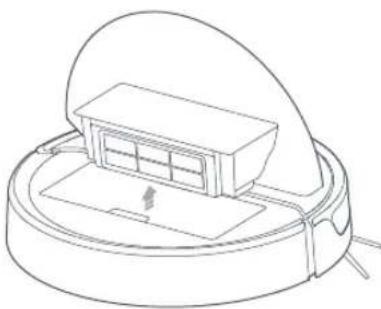
- Open the top cover of the robot, press the Dustbin Latch, then lift and remove the Dustbin.
natural_image
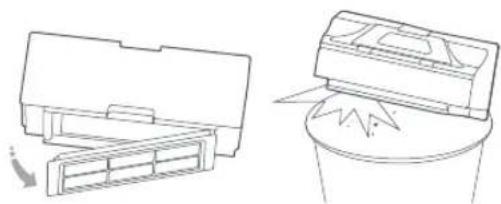
Line drawing of a robotic vacuum cleaner with a mounted device (no text or symbols)- Remove the Filter and empty the Dustbin.
natural_image
Technical line drawings of two air purifiers with a recycling bin (no text or symbols)Main Brush
* Clean weekly
-
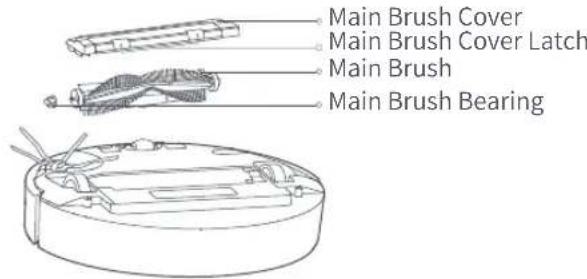
Flip the robot over and press the Main Brush Cover Latch to remove the Main Brush Cover.
-
Remove the Main Brush and clean its bearings.
-
Remove any entangled hair.
-
Reinstall the Main Brush and replace the Main Brush Cover.
Note:
Replacing the Main Brush every 6-12 months is recommended for proper cleaning.
Routine Maintenance
Clean the washable Filter
* Clean every two weeks
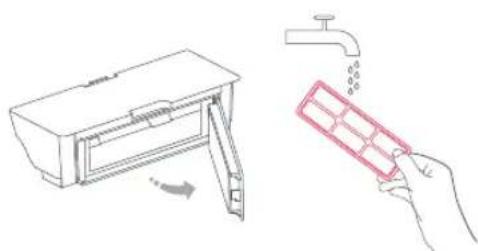
- Fill the Dustbin with clean water. Gently shake it, then pour out the dirty water.

natural_image
Line drawing of a faucet above a rectangular basin with a red mark on the surface (no text or symbols)Note:
To prevent Filter blockages, only use fresh water. Do not use cleaning liquids.
- Remove the Filter and rinse it with water.
natural_image
Line drawing of a device with a handle and a hand holding a grid, both without any text or symbols.Note:
To avoid damage, do not touch the surface of the Filter with hands, brushes, or sharp objects.
- If necessary, rinse the filter and tap the Filter frame repeatedly to remove as much dirt as possible.
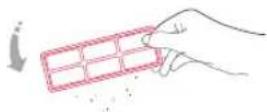
- Leave the Filter to dry before reinstalling it.
Note:
Dry the Filter thoroughly before use. (At least 24 hours)
Battery
The robot is equipped with a high-performance lithium-ion rechargeable battery pack. To maintain battery performance, keep the robot charged.
Note:
If the robot is to be left unused for an extended period, turn it off before storage and charge it at least once every three months to avoid battery damage resulting from over-discharging.
Charging Dock
* Clean monthly
Use a soft dry cloth to clean the charging contacts.
Routine Maintenance
Side Brush
* Clean monthly
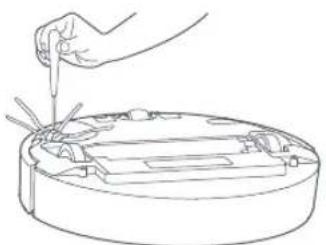
- Turn the robot over and remove the screw holding the Side Brush.
- Remove and clean the Side Brush.
- Reinstall the Side Brush and tighten the screw.
natural_image
Line drawing of a hand using a tool to press or install electronic components into a circular device (no text or symbols)Note:
It is recommended to replace the Side Brush every 3-6 months to maintain the cleaning quality.
Mop cloth
* Clean after use
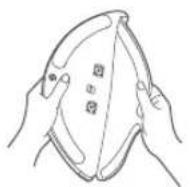
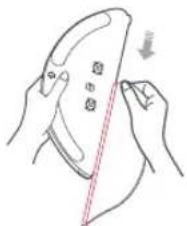
- Remove the mop cloth from the mopping module.
natural_image
Illustration of hands using a tool to cut a surface with a red dashed line indicating the cutting edge (no text or symbols present)- Clean and dry the mop cloth.
Note:
• Always remove the mop cloth after cleaning to filter blockage.
- If the mop cloth gets excessively dirty, the cleaning quality will be affected. Always use a clean cloth.
- Replacing the mop cloth every 3-6 months is recommended to maintain cleaning quality.
Filter assembly
* Replacement every 1-3 months is recommended
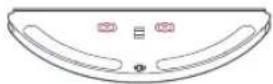
- Move your finger along the notch to remove both filters.
- Install the new filters.
Note:
Changing filters every 1-3 months is recommended, depending on the quality of water and frequency of use, to ensure cleaning quality.
Routine Maintenance
Omni-Directional Wheel
* Clean as required
- Turn the robot over.
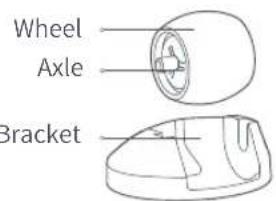
- Use a small screwdriver to pry out the axle and remove the wheel.
- Rinse the axle and the wheel with water to remove hair and dirt.
- Dry and press the wheel back in place.
Note:
The Omni-Directional Wheel bracket cannot be removed.
Robot Sensors
* Clean as required
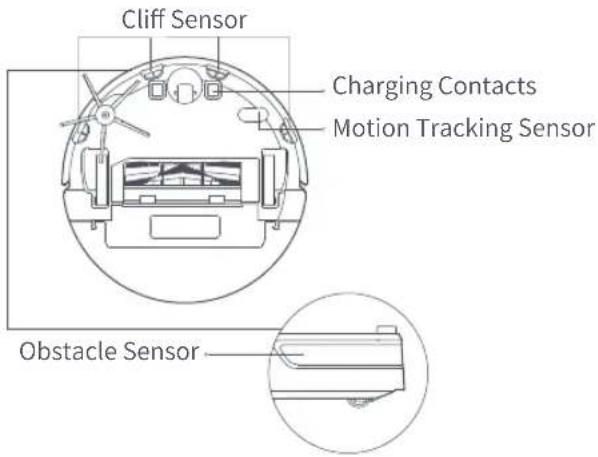
Use a soft dry cloth to wipe and clean all sensors, including:
- Four Cliff Sensors on the bottom of the robot.
- Obstacle Sensor at the front of the robot.
- Charging contacts on the bottom of the robot.
- Motion Tracking Sensors on the bottom of the robot.
Routine Maintenance
System Reset
If the robot does not respond when you press a button or the robot cannot be shut down, reset the system by pressing and holding the ⏻ button. The robot will restart automatically after resetting.
Firmware Update
Update the robot using the Mi Home app. Place the robot on the Charging Dock and ensure that the battery level is higher than 20% before updating. The Power Indicator will flash white quickly during a firmware update.
If the robot is not functioning after a system reset, press and hold the ⏻ button and the ⏱ button together until the "Restoring factory settings" voice alert sounds. The robot will then be restored to factory settings. Ignore the "Reset WiFi" voice alert.
Basic Parameters
Robot
| Name | Parameters |
| roborock E4model | |
| Dimensions | 350×350×90.5mm |
| Battery | 14.4V/5200mAh lithium battery |
| Weightt | Approx. 3.0kg |
| Wireless Connection | WiFi Smart Connect |
| Rated voltage | 14.4VDC |
| Rated Power | 58W |
| Charging Time | <6h |
Charging Dock
| Name | Parameters |
| Model | CDZ14RR or CDZ15RR |
| Dimensions | 151×130×98mm |
| Rated Power | 28W |
| Rated Input | 100-240 VAC |
| Rated Output | 20VDC 1.2A |
| Rated Frequency | 50-60Hz |
| Charging Battery | 14.4V/5200mAh lithium battery |
Troubleshooting
If an error occurs during the cleanup, the Power Indicator will flash red quickly, and a voice alert will play. Refer to the table below for resolution options.
| Error | Solution |
| Error 2: Clean and lightly tap the Bumper. | The Bumper is stuck. Lightly and repeatedly tap the Bumper to remove any foreign matter. If no foreign matter is found, move the machine to a new location and restart. |
| Error 3: Move the robot closer to its starting location and restart. | The wheels are suspended. Move the robot closer to its starting location and try again. |
| Error 4: Wipe the Cliff Sensors and move the robot closer and try again. | The wheels are suspended. Move the robot closer and try again. This error may also be caused by dirty Cliff Sensors. Wipe the Cliff Sensors and retry. |
| Error 5: Remove the Main Brush and clean the brush and bearings. | The Main Brush may have become entangled with debris. Remove and clean the Main Brush and its bearing. |
| The Side Brush may be entangled with debris. Remove and clean it.Error 6: Remove and clean it | |
| Error 7: Remove any debris entangled in the main brush. Move the robot closer and restart. | The Main Wheels may be jammed. Remove and clean them. |
| Error 8: Clear away any obstacles around the robot. | The robot may be stuck. Clear any obstacles around it. |
| Error 9: Install the Dustbin and Filter. | Reinstall the Dustbin and Filter. Check that they are installed properly. If the problem persists, try replacing the Filter. |
| Error 10: Make sure that the Filter is dry or clean the Filter. | The Filter is not completely dry. Dry the Filter for at least 24 hours. The Filter may also be blocked and require cleaning. If the problem persists, replace the Filter. |
Troubleshooting
| Error 12: The battery is too low. Recharge before use. Low battery. | Recharge before use. |
| Error 13: Charging error. Clean the charging contacts. | Use a dry cloth to clean the Charging Contacts on the robot and on the Charging Dock. |
| Error 14: Battery error. | The battery temperature is either too high or too low. Wait until it returns to normal. |
| Error 17: Side Brush module error. Reset the system. The Side Brush is experiencing a fault. Reset the system. | |
| Error 18: Vacuum fan error. Reset the system. The vacuum fan is experiencing a fault. Reset the system. | |
| Error 20: Clean the Motion Tracking Sensor and place the back where it stopped. | The Motion Tracking Sensor may be dirty. Use a dry cloth to wipe the Sensor then place the robot back where it stopped before restarting. |
| Error 23: Clean the Dock Location Beacon. The Dock Location Beacon is dirty. Wipe it clean. | |
| Internal error. Reset the system. Malfunction due to an internal error. Reset the system. | |
WIFI Specification
| Service | Protocol | Frequency Range | Max. Output Power |
| WIFI | 802.11b/g/n | 2400-2483.5 MHz | ≤slant 20dBm |
FAQs
| Problem | Solution |
| Unable to power on | The battery level is low. Put the robot on the Charging Dock to charge it before use.The battery temperature is too low or too high. Only use the robot within the range of 4-40°C (39-104°F). |
| Unable to charge | If the Charging Dock is not receiving power, check that both ends of the Power Cable are properly connected.If contact is poor, clean the contact areas of the Charging Dock and the robot.Power is restored when the Power Indicator light turns on. |
| Slow charging | When used at high or low temperatures, the robot will automatically reduce the charging speed to extend battery life.The charging contact areas may be dirty. Use a dry cloth to clean them. |
| Unable to reach the dock | There are too many obstacles near the Charging Dock. Clear the area or move the dock.The robot is too far from the Charging Dock. Place it closer and retry. |
| Abnormal behavior?Restart the robot. | |
| Noise during cleaning | The Main Brush, Side Brush, or Main Wheels may be jammed. Turn off the robot and clean them.If the Omni- Directional Wheel is jammed, remove it for cleaning. |
| Poor cleaning ability or dust falling out | The Dustbin is full and needs emptying.The Filter is blocked and needs cleaning.The Main Brush is jammed and needs cleaning. |
| Unable to connect to WiFi | WiFi is disabled. Reset the WiFi and try again.The WiFi signal is poor. Make sure that the robot is in an area with good WiFi signal reception.Abnormal WiFi connection. Reset the WiFi then download the latest mobile app and retry.Unable to connect to WiFi. There may be an error with your router settings. Contact Roborock customer service for troubleshooting. |
| Scheduled cleaning is not working | The battery level is too low. Scheduled cleaning can only begin when the battery level is above 20%. |
| Is power always being drawn when the robot is on the Charging Dock? | The robot will draw power while it is docked to maintain battery performance, but power consumption is extremely low. |
| Does the robot need to be charged for at least 16 hours the first three times it is used? | No. The robot can be used any time after it has been fully charged once. |
FAQs
| Problem Solution | |
| Cleaning does not resume after recharging | Make sure that the robot is not in DND mode. DND mode will prevent cleanup. When cleaning a space requiring a top-up charge, if the robot was placed manually on the Charging Dock before it recharged automatically, it will not be able to continue cleanup. |
| The robot cannot return to the Charging Dock after spot cleaning or when it has been moved manually. | After spot cleaning or a significant position change, the robot will re-generate the map. If the Charging Dock is too far away, it may not be able to return for recharging and must be placed on the charger manually. |
| The robot has started missing certain spots The Obstacle Sensor may be dirty. Clean it with a soft dry cloth. | |
| No or little water during mopping | Please check whether there is water in the water tank, rinse the mopping cloth, replace the filter or follow the instructions in the user manual to correctly install the mopping cloth. |
| Too much water during mopping Please make sure that the water tank cover and the filter are properly installed in place. |
EU Declaration of Conformity
Hereby we:
| Name of manufacturer | Beijing Roborock Technology Co.,Ltd. |
| Address | Floor6, Suite6016, 6017, 6018, BuildingC, Kangjian Baosheng Plaza,No.8 Heiquan Road, Haidian District, Beijing, P.R.CHINA |
declare that this DoC is issued under our sole responsibility and that the products:
| Product description | Robotic Vacuum Cleaner and Accessories |
| Type(model) designation(s) | roborock E4 |
are in conformity and verified through testing with the provision of the following EU directives:
| RED Directive 2014/53/EUArticle 3.1 a): Safety&HealthEN 60335-1: 2012+AC:2014+A11:2014+A13:2017+A1:2019+A14:2019+A2:2019EN 60335-2-2:2010 + A11:2012 + A1:2013EN 62311:2008EN 62233:2008 | 1.Household and similar electrical appliances-Safety-Part 1: General requirements2.Household and similar electrical appliances-Safety-Part 2-2: Particular requirements for vacuum cleaners and water suction cleaning appliance3.Assessment of electronic and electrical equipment related to human exposure restrictions for electromagnetic fields (0 Hz - 300 GHz)4.Measurement methods for electromagnetic fields of household appliance and similar apparatus with regard to human exposure |
EU Declaration of Conformity
| RED Directive 2014/53/EU Article 3.1 b): EMC1. ETSI EN 301 489-1 V2.2.32. Draft ETSI EN 301 489-17 V3.2.23. EN 55014-1:20174. EN 55014-2: 20155. EN 61000-3-2: 20146. EN 61000-3-3: 2013 | 1.ElectroMagnetic Compatibility (EMC) standard for radio equipment and services; Part 1: Common technical requirements; Harmonised Standard for ElectroMagnetic Compatibility2.ElectroMagnetic Compatibility (EMC) standard for radio equipment and services; Part 17: Specific conditions for Broadband Data Transmission Systems; Harmonised Standard for ElectroMagnetic Compatibility3.Electromagnetic Compatibility-Requirements for household appliances, electric tools and similar apparatus Part 1: Emission4.Electromagnetic compatibility – Requirements for household appliances, electric tools and similar apparatus Part 2: Immunity – Product family standard5.Electromagnetic compatibility (EMC) - Part 3-2: Limits - Limits for harmonic current emissions (equipment input current ≤ 16 A per phase).6.Electromagnetic compatibility (EMC) - Part 3-3: Limits - Limitation of voltage changes, voltage fluctuations and flicker in public low-voltage supply systems, for equipment with rated current ≤ 16 A per phase and not subject to conditional connection. |
| RED Directive 2014/53/EU Article 3.2: Radio Spectrum EN 300 328 V2.1.1 | Wideband transmission systems; Data transmission equipment operating in the 2,4 GHz ISM band and using wide band modulation techniques; Harmonized Standard covering the essential requirements of article 3.2 of Directive 2014/53/EU |
| RoHS Directive 2011/65/EU EN50581:2012 | Technical documentation for the assessment of electrical and electronic products with respect to the restriction of hazardous substances |
| Product description | Charging Dock and Accessories |
| Type(model) designation(s) | Charging Dock , model: CDZ14RR or CDZ15RR |
are in conformity and verified through testing with the provision of the following EU directives:
EU Declaration of Conformity
| Low Voltage Directive 2014/35/EU1. EN 60335-1:2012 + A11:2014 + AC:2014 + A13:20172. EN 60335-2-29:2004 + A2:2010+A11: 20183. EN 62233:2008 | 1.Household and similar electrical appliances-Safety-Part 1: General requirements2.Household and similar electrical appliances-Safety-Part 2-29: Particular requirements for battery chargers3.Measurement methods for electromagnetic fields of household appliance and similar apparatus with regard to human exposure |
| EMC Directive 2014/30/EU1. EN 55014-1:2006+A1+A2EN 55014-1:20172. EN 55014-2: 20153. EN 61000-3-2: 20144. EN 61000-3-3: 2013 | 1.Electromagnetic Compatibility-Requirements for household appliances, electric tools and similar apparatus Part 1: Emission2.Electromagnetic compatibility – Requirements for household appliances, electric tools and similar apparatus Part 2: Immunity – Product family standard3.Electromagnetic compatibility (EMC) - Part 3-2: Limits - Limits for harmonic current emissions (equipment input current ≤ 16 A per phase).4.Electromagnetic compatibility (EMC) - Part 3-3: Limits - Limitation of voltage changes, voltage fluctuations and flicker in public low-voltage supply systems, for equipment with rated current ≤ 16 A per phase |
| RoHS Directive 2011/65/EUEN50581:2012 | Technical documentation for the assessment of electrical and electronic products with respect to the restriction of hazardous substances |
Person responsible for making this declaration:
Printed name: Rui.Shen
Position/Title: Quality Director
Signature: Rui.Shen.
Date of issue: March 9, 2020
Place of issue: Floor 6, Suite 6016, 6017, 6018, Building C, Kangjian Baosheng Plaza,
No. 8 Heiquan Road, Haidian District, Beijing, P.R. CHINA
WEEE Information
Correct Disposal of this product. This marking indicates that this product should not be disposed with other household wastes throughout the EU. To prevent possible harm to the environment or human health from uncontrolled waste disposal, recycle it responsibly to promote the sustainable reuse of material resources. To return your used device, please use the return and collection systems or contact the retailer where the product was purchased. They can take this product for environmental safe recycling.
Warranty Information
Warranty Information
The warranty period depends on the laws of the country in which the product is sold, and the warranty is the responsibility of the seller.
The warranty only covers defects in material or workmanship.
The repairs under warranty may only be carried out by an authorized service centre. When making a claim under the warranty, the original bill of purchase (with purchase date) must be submitted.
The warranty will not apply in cases of:
Normal wear and tear
Incorrect use, e.g. overloading of the appliance, use of non-approved accessories Use of force, damage caused by external influences Damage caused by non-observance of the user manual,
e.g. connection to an unsuitable mains supply or non-compliance with the installation instructions
Partially or completely dismantled appliances.
Laser Safety
The laser distance sensor of this product meets the standards for Class I Laser Products in IEC 60825-1:2014 and will not generate hazardous laser radiation.
natural_image
Technical line drawing of a circular mechanical component with internal components and mounting features (no text or symbols)Nettoyage/alimentation
natural_image
Line drawing of a 3D mechanical part with mounting holes and a flat base (no text or symbols)Station de rechargement
natural_image
Simple line drawing of a symmetrical rounded shape with a small notch at the top (no text or symbols)Tapis imperméable
natural_image
Simple line drawing of a symmetrical shape with a central notch (no text or symbols)natural_image
Simple line drawing of a cylindrical object with a base, resting on a circular surface (no text or symbols)Remarque :
natural_image
Line drawing of a circular device with a cable and attached plug, labeled 'La coule' (no text or symbols on the diagram itself)natural_image
Line drawing of a closed mechanical device with a lid and internal components (no text or symbols)Voyant WiFi
natural_image
Simple line drawing of a faucet pouring liquid into a sink with bubbles (no text or symbols)③ Installer la serpillière
natural_image
Illustration of hands using a power tool to cut a device with an upward arrow (no text or symbols)natural_image
Technical line drawing of a circular device with a lid and a separate curved component (no text or symbols)Installation
Utiliser le robot
6. Lancer le nettoyage.
natural_image
Line drawing of a circular device with a lid and a separate curved component, no text or symbols presentRemarque :
natural_image
Blank document page with horizontal lines and a small icon at the bottom right corner (no text or symbols)Mode d'emploi
Nettoyage localisé
natural_image
Line drawing of a robotic vacuum cleaner with a mounted device (no text or symbols)natural_image
Line drawings of two household appliances: a front-mounted air conditioner unit and a cylindrical appliance with a warning symbol (no text or labels)Brosse principale
natural_image
Line drawing of a mechanical component with a faucet and a central component (no text or symbols)Remarque :
natural_image
Illustration of a washing machine and a hand holding a cleaning board (no text or symbols)Remarque :
natural_image
Line drawing of a hand using a tool to press or install electronic components on a circular device (no text or symbols)natural_image
Illustration of hands using a tool to cut a shoe with a red arrow indicating the motion (no text or symbols)Remarque :
| Nom du fabricant | Beijing Roborock Technology Co., Ltd. |
| Adresse | Floor 6, Suite 6016, 6017, 6018, Building C, Kangjian Baosheng Plaza, No.8 Heiquan Road, Haidian District, Beijing, R.P. DE CHINE |
No.8 Heiquan Road, Haidian District, Beijing, R.P. DE CHINE
Informations WEEE
natural_image
Technical line drawing of a circular mechanical component with internal components and mounting features (no text or symbols)Reinigen/Ein
natural_image
Line drawing of a 3D mechanical part with mounting holes and a flat base (no text or symbols)Ladedock
natural_image
Simple line drawing of a symmetrical rounded shape with a small notch at the top (no text or symbols)natural_image
Simple line drawing of a symmetrical shape with a central notch (no text or symbols)Stromkabel Einstellbarer Wassertank Wischtuch
Produktvorstellung
Roboter
natural_image
Simple line drawing of a cylindrical object with a base, resting on an oval surface (no text or symbols)Hinweis:
natural_image
Line drawing of a circular device with a lid and attached cable, labeled 'Die Farf' (no other text or symbols)natural_image
Line drawing of a mechanical device with a dome-shaped lid and internal components (no text or symbols)natural_image
Simple line drawing of a faucet pouring liquid into a sink with bubbles rising (no text or symbols)natural_image
Illustration of hands using a tool to cut a device with an arrow indicating motion (no text or symbols)natural_image
Technical line drawing of a circular device with a side view showing a separate curved component (no text or symbols)Installation
natural_image
Technical line drawing of a circular device with a separate curved component, showing internal structure and assembly (no text or symbols)Hinweis:
natural_image
Blank document page with horizontal lines and a small icon at the bottom right corner (no text or symbols)Gebrauchsanweisung
Fleckenentfernung
natural_image
Line drawing of a robotic vacuum cleaner with a mounted sensor or sensor module (no text or symbols)natural_image
Technical line drawing showing two views of a printer or printer with a magnified view of its cover (no text or symbols present)Hauptbürste
natural_image
Line drawing of a faucet with a red angle marker on the handle (no text or symbols)Hinweis:
natural_image
Illustration of a device with a handle and a hand holding a pink plastic tray (no text or symbols)Hinweis:
natural_image
Line drawing of a hand using a tool to press or install electronic components into a circular device (no text or symbols)Hinweis:
No. 8 Heiquan Road, Haidian District, Beijing, P.R. China
WEEE-Informationen
natural_image
Technical line drawing of a circular mechanical component with internal features and mounting points (no text or symbols)natural_image
Line drawing of a 3D mechanical part with mounting holes and a flat base (no text or symbols)Base di ricarica
natural_image
Simple line drawing of a symmetrical rounded shape with a small notch at the top (no text or symbols)natural_image
Simple line drawing of a symmetrical mechanical or architectural component with three circular features at the top (no text or symbols)
natural_image
Simple line drawing of a symmetrical shape with a central notch (no text or symbols)natural_image
Simple line drawing of a laptop with a curved base and circular base (no text or symbols)Nota:
natural_image
Line drawing of a circular container with a lid and attached cable, no text or symbols presentnatural_image
Line drawing of a closed mechanical device with a lid and internal components (no text or symbols)Spia del WiFi
natural_image
Line drawing of a faucet with liquid and bubbles rising from a sink (no text or symbols)natural_image
Illustration of hands using a tool to cut a device with an arrow indicating motion (no text or symbols)natural_image
Technical line drawing of a circular device with a lid and a separate curved component (no text or symbols)Installazione
Utilizzo del robot
natural_image
Diagram of a circular device with a lid and a separate curved component, showing no text or symbols.Nota:
natural_image
Blank rectangular frame with horizontal lines and a small symbol at the bottom right corner (no text or symbols inside)natural_image
Line drawing of a robotic vacuum cleaner with a mounted device (no text or symbols)natural_image
Technical line drawings of two mechanical components, one showing a cutaway view and the other with a base mount (no text or symbols)Spazzola principale
natural_image
Line drawing of a faucet dispensing liquid into a washing machine (no text or symbols)natural_image
Line drawing of a device with a handle and a hand holding a tray (no text or symbols)natural_image
Line drawing of a hand using a tool to clean or adjust a circular device (no text or symbols)Nota:
natural_image
Illustration of hands using a tool to cut a device with a red dashed line indicating motion (no text or symbols)N. 8 Heiquan Road, Haidian District, Beijing, Repubblica Popolare Cinese
Informazioni RAEE
natural_image
Technical line drawing of a circular mechanical component with internal components and mounting holes (no text or symbols)Limpieza/Encendido
natural_image
Line drawing of a 3D mechanical part with mounting holes and a flat base (no text or symbols)Estación de carga
natural_image
Simple line drawing of a symmetrical rounded shape with a small notch at the top (no text or symbols)natural_image
Simple line drawing of a symmetrical shape with a central notch (no text or symbols)natural_image
Simple line drawing of a cylindrical object with a flat base and circular base, no text or symbols present.Nota:
natural_image
Line drawing of a circular device with a lid and attached cable, labeled 'El color' (no other text or symbols)natural_image
Line drawing of a closed mechanical device with a lid and internal components (no text or symbols)Testigo luminoso de WiFi
natural_image
Simple line drawing of a faucet pouring liquid into a sink with bubbles (no text or symbols)natural_image
Illustration of hands using a power tool to cut a device with an upward arrow (no text or symbols)④ Instale el módulo
natural_image
Line drawing of a circular device with a lid and a separate curved component, no text or symbols presentInstalación
Uso del robot
natural_image
Line drawing of a circular device with a side panel and a separate curved component (no text or symbols)Nota:
natural_image
Blank document page with horizontal lines and a small icon at the bottom right corner (no text or symbols)natural_image
Line drawing of a robotic vacuum cleaner with a mounted device (no text or symbols)natural_image
Technical line drawings of two mechanical components: a front view and a cylindrical component with a zigzag handle (no text or symbols)Cepillo principal
natural_image
Line drawing of a faucet above a water dispenser with a red mark on the surface (no text or symbols)Nota:
natural_image
Illustration of a device with a handle and a hand holding a tray (no text or symbols)Nota:
natural_image
Line drawing of a hand using a tool to clean or store items around a circular tray (no text or symbols)Nota:
No. 8 Heiquan Road, Haidian District, Beijing, P.R. CHINA
Robot Vacuum Cleaner
Manufacturer: Beijing Roborock Technology Co., Ltd.
Product Model: roborock E4
Address of Manufacturer: Floor 6, Suite 6016, 6017, 6018, Building C, Kangjian Baosheng Plaza,
No.8 Heiquan Road, Haidian District, Beijing, P.R.CHINA
For more product information, visit our website: www.roborock.com
For after-sales support, email our after-sales service team:
US/Non-Europe Support: support@roborock.com
Europe Support: support@roborock-eu.com

- Roborock E4 Robot Vacuum Cleaner User Manual
- Safety Information
- Restrictions
- Battery and Charging WARNING
- Product introduction
- Robot
- Clean/Power
- Power Indicator
- Dock/Spot Cleaning
- Note:
- Reset WiFi
- Parts List
- Installation
- Using the robot
- Power on and charge.
- Connect to the mobile app. (recommended)
- ① Download app
- ② Reset WiFi
- WiFi Indicator Light
- ③ Add device
- Mopping
- Start cleaning.
- Remove the mopping module.
- Instructions for use
- On/off
- Clean
- Charging
- Pause
- Cleaning method
- Spot cleaning
- Errors
- Sleep
- Scheduled Cleaning
- Suction Power
- Do Not Disturb (DND) mode
- Routine Maintenance
- Dustbin and Filter
- Main Brush
- Clean the washable Filter
- Battery
- Charging Dock
- Side Brush
- Mop cloth
- Filter assembly
- Omni-Directional Wheel
- Robot Sensors
- System Reset
- Firmware Update
- Basic Parameters
- Troubleshooting
- EU Declaration of Conformity
- WEEE Information
- Warranty Information
- Laser Safety
- Utiliser le robot
- Lancer le nettoyage.
- Remarque :
- Mode d'emploi
- Nettoyage localisé
- Brosse principale
- Informations WEEE
- Reinigen/Ein
- Produktvorstellung
- Roboter
- Hinweis:
- Gebrauchsanweisung
- Fleckenentfernung
- Hauptbürste
- WEEE-Informationen
- Nota:
- Installazione
- Utilizzo del robot
- Spazzola principale
- Informazioni RAEE
- Limpieza/Encendido
- Testigo luminoso de WiFi
- Instalación
- Uso del robot
- Cepillo principal
- Robot Vacuum Cleaner
Brand : ROBOROCK
Model : E4
Category : Robot vacuum