Essential 8 URC 3680 - Remote control ONE FOR ALL - Free user manual and instructions
Find the device manual for free Essential 8 URC 3680 ONE FOR ALL in PDF.


| Product Type | Universal Remote Control |
| Brand | One for All |
| Model | Essential 8 URC 3680 |
| Number of Controllable Devices | Up to 8 |
| Dimensions (approx.) | 200 x 50 x 25 mm |
| Weight (with batteries) | Approximately 150 g |
| Power Supply | 2 AA / LR6 batteries (alkaline recommended) |
| Backlighting | Yes, manual on/off, 10-second duration |
| Configuration Methods | SimpleSet, code search, learning (infrared) |
| Main Functions | Volume control, channels, playback, guide, menu, activities (Watch TV, Listen to Music, Watch Movie) |
| Shortcut Keys | 3 keys for apps (Netflix, etc.), RGYB keys for favorite channels |
| Volume Lock | Yes, can fix volume on a specific device |
| Activities | 3 modes with predefined or customizable device combinations |
| Power Macro On/Off | Yes, by holding the Power key for 2 seconds in activity mode |
| Infrared Range | Approximately 10 meters (standard estimate) |
| Care and Cleaning | Clean with a soft, dry cloth. Do not use liquids or abrasive products. |
| Safety | Keep out of reach of children. Do not expose to moisture or excessive heat. |
| Spare Parts | Batteries (AA) |
| Repairability | Not user-serviceable. Contact customer service. |
| Warranty | 1 year against defects in materials and workmanship (see conditions at oneforall.com) |
| General Information | Universal remote compatible with TV, STB, streamer, audio, Blu-ray, DVD. Brand: One for All. Made in Canada. |
Frequently Asked Questions - Essential 8 URC 3680 ONE FOR ALL
User questions about Essential 8 URC 3680 ONE FOR ALL
0 question about this device. Answer the ones you know or ask your own.
Ask a new question about this device
Download the instructions for your Remote control in PDF format for free! Find your manual Essential 8 URC 3680 - ONE FOR ALL and take your electronic device back in hand. On this page are published all the documents necessary for the use of your device. Essential 8 URC 3680 by ONE FOR ALL.
USER MANUAL Essential 8 URC 3680 ONE FOR ALL
Essential 6 Device Universal Remote Control URC3660
ENGLISH 2
FRANÇAIS 15
CODELIST 28



INTRODUCTION
Thank you for purchasing the One For All Essential 6 Universal Remote Control. The remote can be used to control up to 6 Audio Video Devices such as a TV, Set Top Box, Streaming device, Blu-ray player, DVD player/ recorder, audio system, soundbar and boasts multiple extra features to make the most of your living room experience.
The remote also features a backlight for easy control in a darkened room.
This manual will help you to set up the Essential 6 to control all of your devices and take advantage of its features.
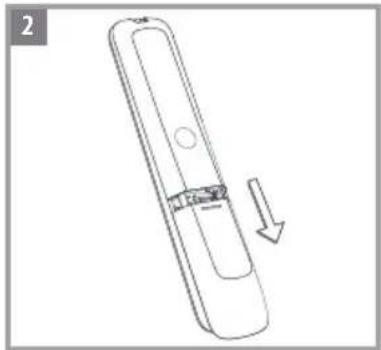
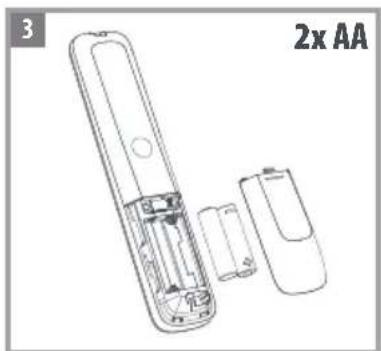
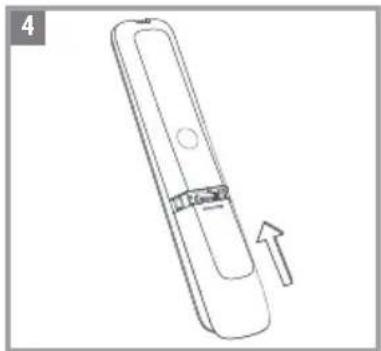
BATTERIES
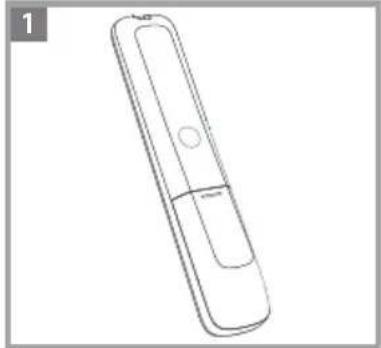
Your remote requires 2 × AA / LR6 batteries (not Included). Please insert them as shown below. Alkaline batteries are recommended.
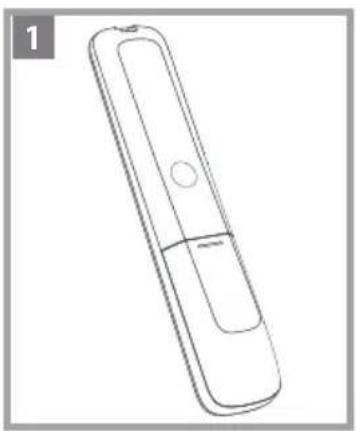
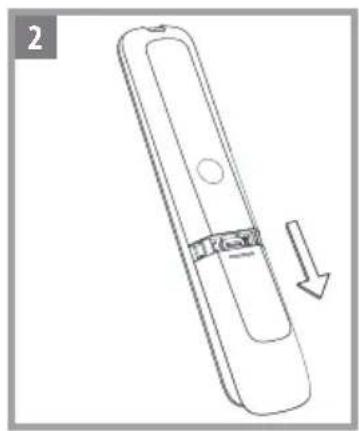

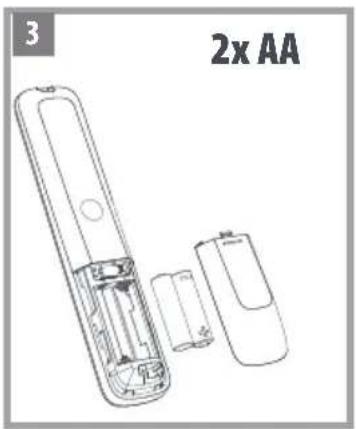
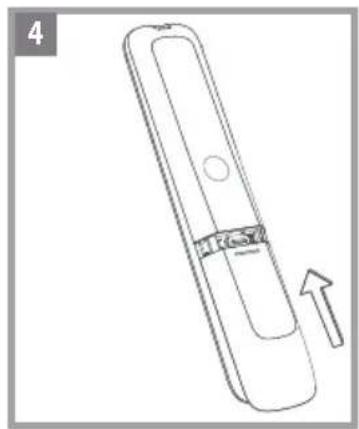

KEY DESCRIPTIONS

3

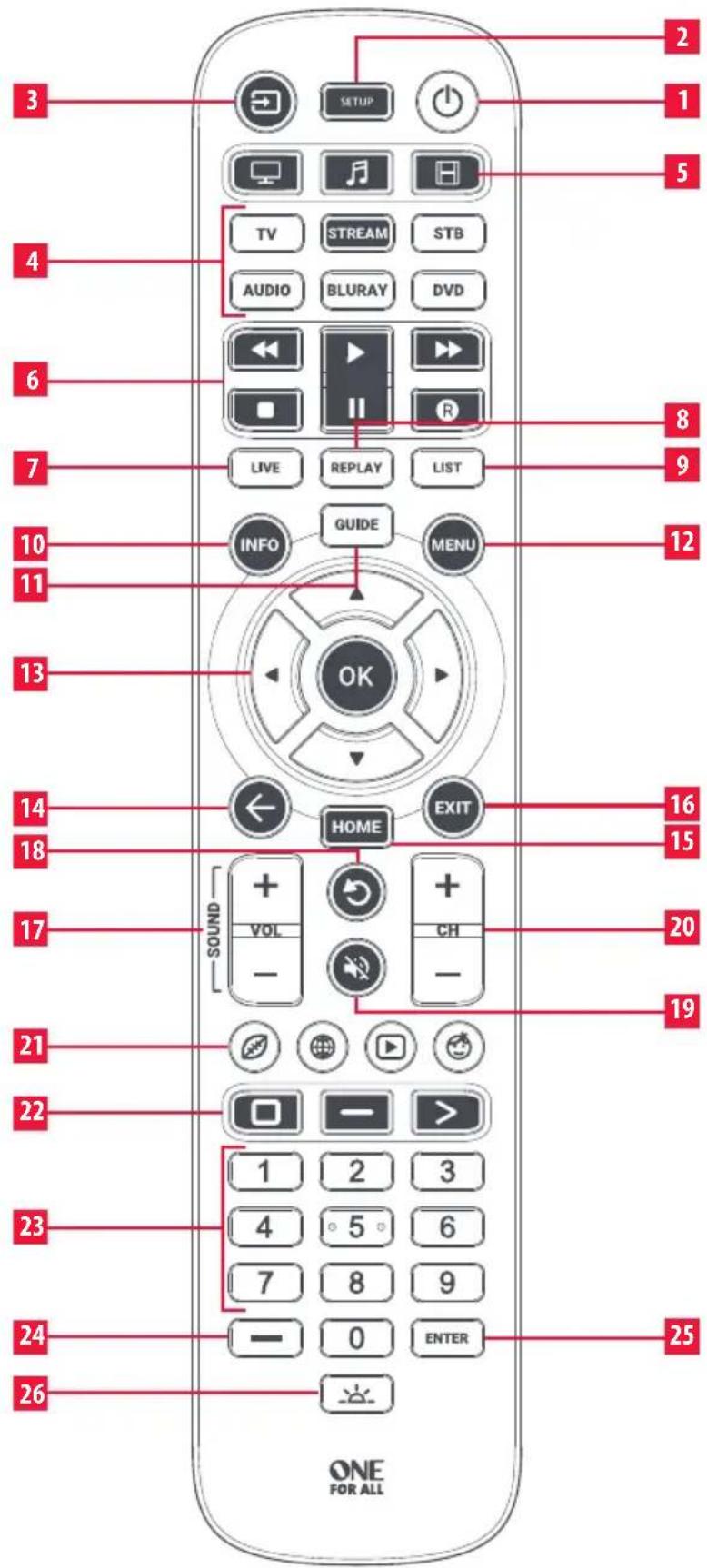
KEY DESCRIPTIONS
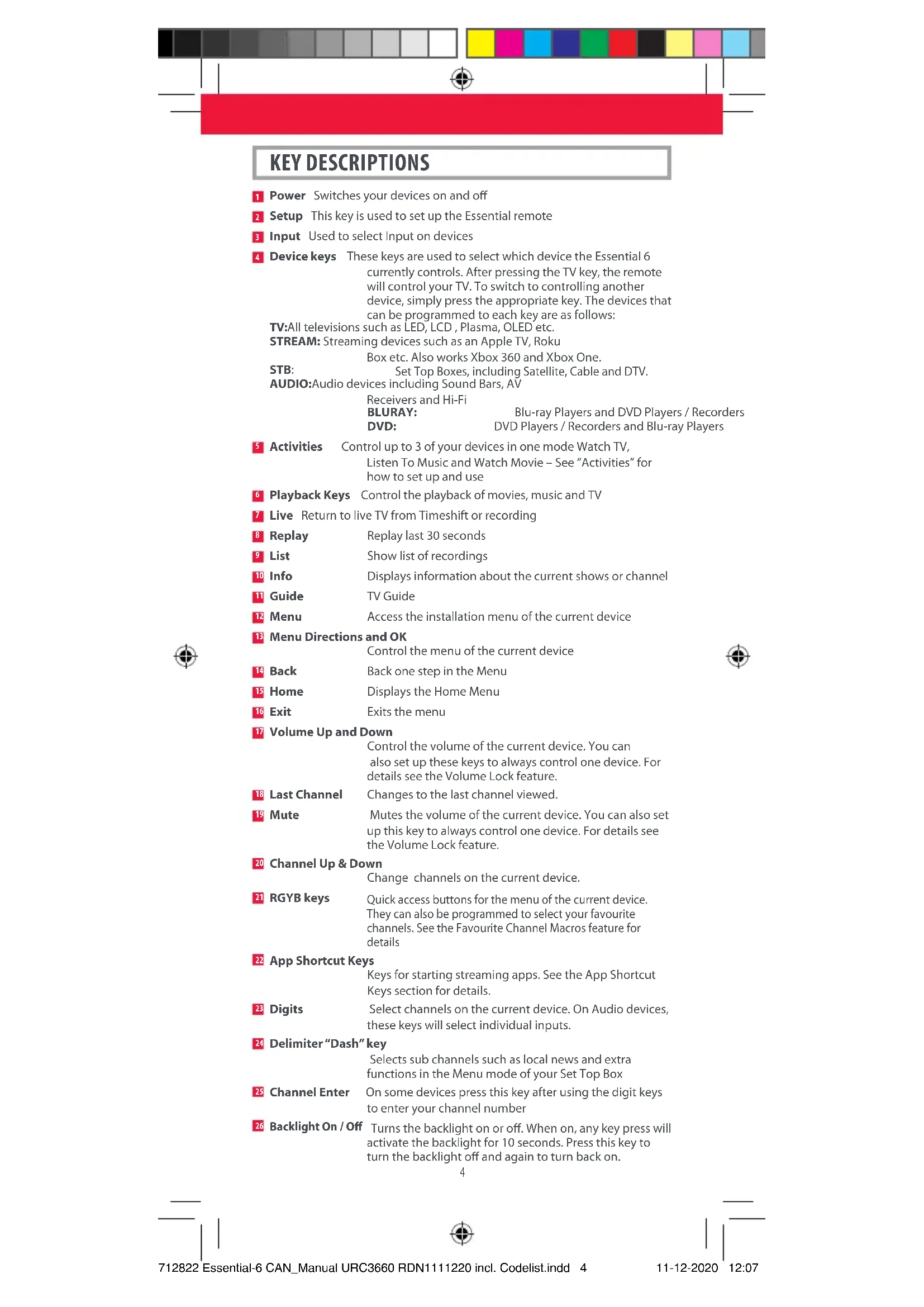
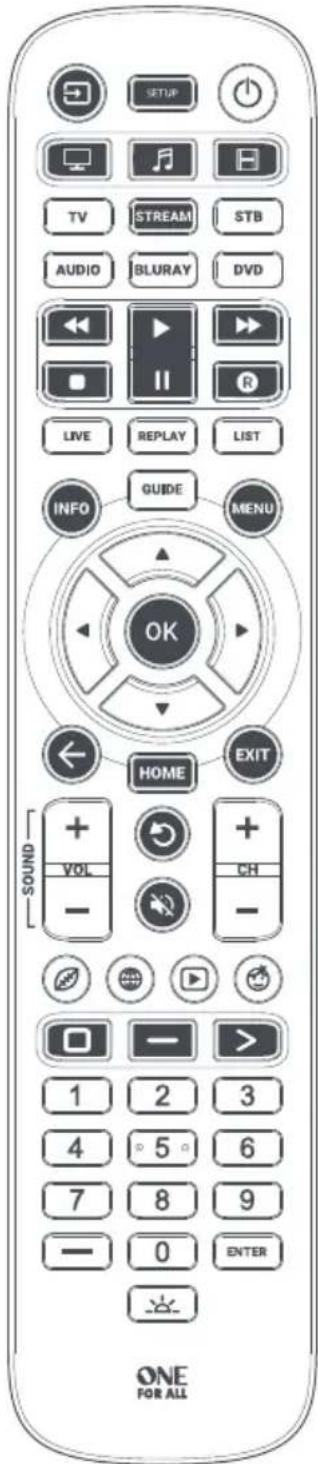
Power Switches your devices on and off
Setup This key is used to set up the Essential remote
Input Used to select Input on devices
Device keys These keys are used to select which device the Essential 6 currently controls. After pressing the TV key, the remote will control your TV. To switch to controlling another device, simply press the appropriate key. The devices that can be programmed to each key are as follows:
TV:All televisions such as LED, LCD, Plasma, OLED etc.
STREAM: Streaming devices such as an Apple TV, Roku
Box etc. Also works Xbox 360 and Xbox One.
STB: Set Top Boxes, including Satellite, Cable and DTV.
AUDIO:Audio devices including Sound Bars, AV
Receivers and Hi-Fi
BLURAY: Blu-ray Players and DVD Players / RecordDVD: DVD Players / Recorders and Blu-ray Players
5 Activities Control up to 3 of your devices in one mode Watch TV,
Listen To Music and Watch Movie - See "Activities" for
how to set up and use
6Playback Keys Control the playback of movies, music and TV
Live Return to live TV from Timeshift or recording
Replay Replay last 30 seconds
9 List Show list of recordings
10 Info Displays information about the current shows or channel
Guide TV Guide
12 Menu Access the installation menu of the current device
13 Menu Directions and OK
Control the menu of the current device
Back Back one step in the Menu
Home Displays the Home Menu
16 Exit Exits the menu
Volume Up and Down
Control the volume of the current device. You can
also set up these keys to always control one device. For
details see the Volume Lock feature.
18 Last Channel Changes to the last channel viewed.
Mute Mutes the volume of the current device. You can also set
up this key to always control one device. For details see
the Volume Lock feature.
20 Channel Up & Down
Change channels on the current device.
21 RGYB keys
Quick access buttons for the menu of the current device.
They can also be programmed to select your favourite
channels. See the Favourite Channel Macros feature for
details
22 App Shortcut Keys
Keys for starting streaming apps. See the App Shortcut
Keys section for details.
23 Digits
Select channels on the current device. On Audio devices,
these keys will select individual inputs.
24 Delimiter“Dash”key
Selects sub channels such as local news and extra
functions in the Menu mode of your Set Top Box
25 Channel Enter
On some devices press this key after using the digit keys
to enter your channel number
Backlight On/Off
Turns the backlight on or off. When on, any key press will
activate the backlight for 10 seconds. Press this key to
turn the backlight off and again to turn back on.



SETUP
The Essential 6 remote is pre-programmed to control some of the most popular devices out of the box. If you have one of the following devices try the putting the batteries in and pressing the device key, and then press a few keys to see if the remote works your device:
Device Key To Press Device controlled

TV Samsung TV
STREAM Roku Streaming Box
STB Bell Set top box
AUDIO Yamaha Receiver
BLURAY Samsung Blu-ray Player
DVD Sony DVD Player
If your device is not one of those listed above, or you have extra devices to set up, there are 3 ways to do this. The easiest is SimpleSet which is used for the common brands and devices.
SIMPLESET
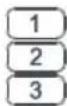
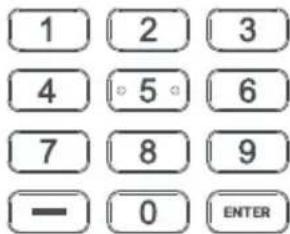
If the brand of your device is shown in the SimpleSet list next to a digit key, you can use the SimpleSet system described in this section, please locate the brand of your device and note the key associated with it.

TV
Element
Insignia
LG
Philips, Magnavox
Samsung, Panasonic, Sceptre
Sharp, Hisense
Sny, Sanyo
TELRCA
Toshiba, Westinghouse
0 VIZIO
STREAM

Sling TV
Apple
Microsoft
Netgear
NVIDIA
Papcorn Hour

Roku
Sony
n Digital
Xiaomi
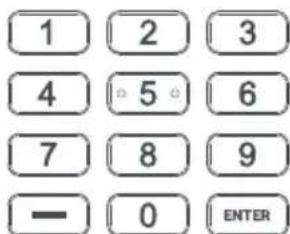

SETUP
SIMPLESET
STB
1
Bell
7
Rogers
8
Shaw
1 2 3
4 5 6
7 8 9
0 ENTER
AUDIO
1
Bose
2
Denon
3
Harman/Kardon
JBL, Polk Audio
5
LG
6
Onkyo
7
Samsung
58n
VIZIO
9
Sony
0
Yamaha
1 2 3
4 5 6
7 8 9
0 ENTER


DVD and BLURAY
1
Insignia
LG,
arp
3
Panasonic
Phil
, Magnavox
5
Pioneer
6
Samsung
7
Sony
8
Toshiba
VZI
RCA
0
Yamaha
1 2 3
4 5 6
7 8 9
0 ENTER
To set up your device:
- Turn on your device (not on standby) and point the Essential remote towards it. If you are setting up a Streaming device, make sure a movie or TV show is playing.
- Press the Device key you wish to set up (for example TV).
- Hold down the SETUP key until the LED under the Device key blinks twice
SETUP
SIMPLESET
- Hold down the digit key for your brand and device as listed in the tables above - e.g. 3 for an LG TV.
- The remote will send a Power command every 3 seconds, but if your device does not have a Power function (for example a streaming box like Apple TV) the remote will send the Play/ Pause function.
- As soon as your device reacts by turning off or Pausing (Streaming box only) release the digit.
-
The LED will blink twice and the remote should now operate your device.
-
If you find one or more keys do not work as you expect, start again at step 2 – the remote will start with the next code in the memory.
SETUP BY CODE
If the brand of your device is not listed in the SimpleSet feature, you can set up by trying codes individually. To do this, firstly locate your brand in the Code List. Codes are listed by brand and device, and in order of popularity.

- Turn on your device (not on standby) and point the Essential remote towards it.
- Press the Device key you wish to set up (for example TV)
- Ho the SETUP key until the LED under the Device key blinks twice
- Enter the first digit code listed for your brand (e.g. 1840 for LG).
- The LED will blink twice on the last digit of the code.
- Now aim the remote towards your device and press the Power key.*
-
If the device turns off your remote is ready to use. If not, repeat steps 2-6 with the next code in the list.
-
Note: If your original remote did not have a Power key, try testing with a different key at step 6. For example try pressing Play or Pause when setting up a streaming box and see if the box responds.
SETUP
LEARNING
Your Essential remote control can learn any function from any other working remote control. This is a quick and easy one-time setup that allows you to control any infrared controlled device you have in your living room. It also allows you to add a key or keys that may be missing to a spare key on the Essential.
To do this, firstly make sure you have all your original remote controls to hand, and that they have working batteries in.
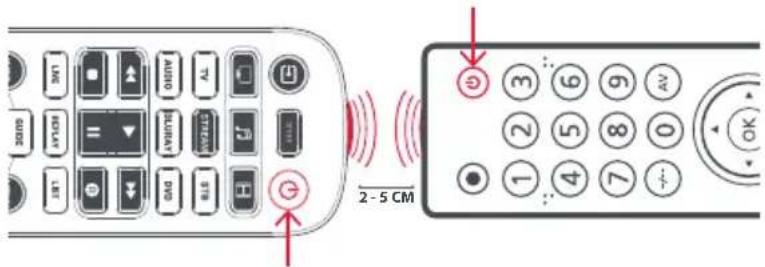
To learn functions, the original remote should be approximately 2-5 cm from the Essential remote, pointing towards it:
-
Press the Device key for the device you want to learn functions onto (e.g. TV).
-
Hold down the SETUP key until the LED under the Device key blinks twice.
-
Pres975 the LED should blink twice.
-
Press and release the key you want to learn a function onto (for example the Power key) - the LED will begin to flash rapidly.
-
Press and release* the corresponding key on the original remote, for example Power.
-
The LED will blink twice to indicate the key has been learned correctly.
-
Repeat steps 4 and 5 for each key you want to learn - remember you can learn from multiple remotes, but only one function per key.
-
Wh have learned all the functions you require, press and hold the SETUP key until the LED blinks twice.
-
Some remotes send commands differently. If you find a function cannot be learned, try holding down the key on the original remote instead of pressing and releasing.
Hints:
- If the LED shows one long blink at step 5, the function was not learned correctly, please try again from step 4.
- If you find one or more keys don't work properly after set up, you can re-enter the learning mode at any time by repeating the procedure from step 1.
- If one or more of your original remotes aren't working, you can still set up the Essential remote by SimpleSet or Code Set Up.
SETUP
Deleting a learned function
If you want to delete a learned function and return that key to its original state, you can use the following procedure:
- Press the Device key for the device your learned function operates
- Ho the SETUP key until the LED under the Device key blinks twice
- Press 976 -5the LED should blink twice
- Press the key you want to reset twice - the LED should blink twice and the learned function has been deleted.
VOLUME LOCK
If you primarily use one device for controlling sound, for example a Sound Bar or Audio Video Receiver, it's possible to program your Essential remote to only control that device when you use the Volume Up, Down and Mute keys. To do this:
- Hap in the SETUP key until the LED under the Device key blinks twice.
- Pres993 the LED should blink twice.
- Press the device key for the device to always control volume - for example Audio.
- The LED will blink twice.
From now on, pressing the Volume Up, Down or Mute keys will always control the above programmed device, no matter what device you are controlling.
To unlock the volume, and return the remote to controlling each device's sound individually, the procedure is:
- Hold the SETUP key until the LED under the Device key blinks twice
- Press 993 -the LED should blink twice
- Press VOLUME DOWN - the LED will blink four times and Volume is now unlocked.
CHANNEL SHORTCUT MACROS


As well as their normal functionality, the Red, Green, Yellow and Blue keys can be reprogrammed to select your favourite channels by genre. If you press and release each of these keys, they will perform exactly the same function as your original remote.
However they can be reprogrammed so that when they are held down for 3 seconds they will send a channel number, then when held down again for 3 seconds, they will send a different channel number. You can group these channels by genre such as Sports, News, Movies and Kids.

The procedure to program is as follows: Say for example, the first 3 Sports channels are on channels 200, 201 and 239, you can assign shortcuts to these channels on the Red (Sports) key. To do this:
Firstly select the device you use to watch live TV. For example if you are a Bell subscriber and you have set up your Set Top Box on the STB key, press STB. Now you can program the channel shortcuts.
- How the SETUP key and the Red key until the LED blinks twice
- Enter the first channel number (200)
- Preand release the Red key
- 201 Enter the next channel number (in this example 201)
- Repeat Steps 3 and 4 for each channel shortcut you want to add
- After setting the last channel number you want, press and hold the SETUP key.
The LED will blink twice and the shortcuts are now programmed. When watching live TV, simply hold down the Red key for 3 seconds, and the first Channel Shortcut will be sent (in this example channel 200). The next time you hold down the Red Key, the shortcut for the next Channel Shortcut will be sent (in this case channel 201).
You can reprogram each of the different colour keys with different lists of channel numbers, by holding down the Setup and a different coloured key at step 1, and pressing and releasing the same key at step 3. Each coloured key has a different icon to help you remember the channels that you have stored there. You can program up to 10 different channel numbers per key.
If you wish to reset the key to default, the procedure is as follows:
- Press the device key you have programmed the shortcuts on (for example STB).
- H in the SETUP key and the key you wish to reset (for example the Green key) until the LED blinks twice.
- Press and release the key to reset (for example the Green key).
- H on the SETUP key until the LED blinks twice.
The key is now reset.
APP SHORTCUT KEYS
The Essential remote features three App Shortcut Keys which can be used to open apps on your Smart Devices. If your original remote control has a Netflix, Amazon Prime Video or YouTube key, these keys will perform the same function.
However if you did not have a key like this, but still had the ability to watch a streaming service, you can use this key as a shortcut by programming a macro on it. Most AV devices which are connected to the internet, such as Smart TVs or streaming Set Top Boxes have one or more applications they can run to access TV viewing via the internet. Examples of these would be Netflix, YouTube, Amazon Prime or similar.
To program the macro, you first need to know the device you use to access the service, and then the sequence of keys you need to press to always bring up the service you prefer. For example, some Panasonic TVs will start Netflix by pressing the Apps key, then Menu Down Twice, and finally the OK key. Or on an Apple TV, the sequence is Menu, Menu Down and OK.
Once you have determined the sequence for your device, follow these steps:
- Sit in front of your device with it switched on (not on standby)
- Hold the App Shortcut key until the LED blinks twice.
- Pres device key for the device you want to use for the macro (e.g. Stream)
- Now perform the sequence of keys exactly as you would normally to start your streaming service The remote will operate your device and the macro is recorded in real time - so if it normally takes a few seconds for your device to react don't worry.
- Once you have finished the sequence - and the Streaming Service has started on your device - hold down the App Shortcut key until the LED blinks twice and goes out. The macro is now stored.
Tips
- Make sure the Essential remote is operating the device in question before programming
- If you find the Macro doesn't work as expected, you can just repeat the same sequence to reprogram
- When programming, wait for your device to respond first, the remote will remember the timing
- The App Shortcut macro is tied to one device, remember to make sure you are watching the correct device
ACTIVITIES
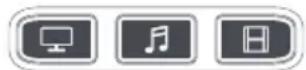
An Activity is a combination of devices.
On a standard universal remote control if you want to control different devices you need to swap between them using the device keys. So, if you wanted to control the input of your TV, the channels and guide of your Bell Set Top Box and the volume of your sound bar, you would need to swap between these by pressing the TV, STB and Audio keys. On the Essential remotes these devices can be grouped into one Activity mode, so after pressing watch TV, the Input key will control the TV, the Volume Up, Down and Mute will control the Sound Bar and the other keys will control the Bell Set Top Box.

The Essential remote has 3 Activity modes, specifically Watch TV, Listen To Music and Watch Movie.
Each of these modes has a choice of devices to combine.
These are:

Watch TV
Combination 1 - TV + STB + AUDIO (default)
Combination 2 - TV + STB
3 Combination 3 - TV + AUDIO

Listen To Music
Combination 1 - TV + BLU + AUDIO (default)
3 Combination 3 - TV + STREAM + AUDIO
Combination 5 - AUDIO only
Watch Movie
1 Combination 1 - TV + STREAM + AUDIO (default)
Combination 2 - TV + STREAM
Combination 3 - TV + BLU
4 Combination 4 - TV + BLU + AUDIO

If you set up the default devices for any Activity on the remote (for example a TV, STB and Audio for Watch TV) that Activity will be set up automatically on the remote.
If you would like to change to a different combination, the procedure is as follows:

- Hold SETUP key until the LED under the device blinks twice. The LED under the current device will stay lit.
- Presivity key you want to set up (e.g. Watch TV).
- Press the number of the combination you want to set - e.g 3 For TV + AUD in Watch TV.
- The LED will blink twice and go out.
To access the Activities, simply press the ACTIVITY key. You can return to controlling by device by using any Device key.

AV SHIFT
As the AV key is intended to select the input on your TV and most TVs use a menu to select from a list of inputs, when the AV key is pressed in an Activity, the Menu Up, Down, Left, Right and OK keys temporarily control the TV. If the OK key is pressed, or no key is pressed for ten seconds, these keys will revert to controlling the relevant device for the Activity (e.g. STB in Watch TV Mode).
POWER MACRO
If you hold down the Power key for 2 seconds in any Activity, the remote will send the Power function for each device contained within that Activity. So for example, holding Power in the default setting for Watch TV will turn both the TV and Set Top Box on or off.





Connect with us on Facebook. Rejignez-nous sur facebook. facebook.com/oneforalworldwide

Connect with us on LinkedIn. Rejoignez-nous sur LinkedIn. linked.com/company/one-for-all-worldwide

Connect with us on Instagram. Rejoignez-mous sur Instagram. soneforall worldwide

Visit our YouTube channel. Visitez notre chaine youtube. youtube.com/user/onetofallproducts

INTRODUCTION
Connect with us on Facebook. Reajgnzous surfFacebook. facebook.com/oneforallworldwide

Connect with us on Instagram. Rejoinneous sur Instagram. @oneforallworldwide

Connect with us on LinkedIn,
Rejoignez-neous sur LinkedIn,
LinkedIn.com/company/one-for-all-worldwide

Visit our YouTube channel. Visitez notre chaite youtube. youtube.com/user/onefallproducts

CODE LIST
TV
Acer 4143
Admiral 3879
Affinity 3717, 3870, 3577, 3716
Aiwa 1362
Akai 1675
Akura 1687
AOC 3720, 2691, 1365, 2014, 2087
Apex Digital 2397,4347,4350
Ario 2397
3340
Asustek 3340
Atvio 3638,3636,3879
Atyme 2746
Audiosonic 1675
Audiovox 1564, 1276, 1769, 2121
Auria 4748, 2087, 2014, 2277
Avera 2397,2049
Ayol 2735,4367,3382,3118
1709
Axen 1709
Axess 3593
BenQ 1756
Blusens 2735
Bolva 2397
Broksonic 1892
Calypso 4748
Champion 1362
Changhong 4629
Coby 3627
Commercial Solutions 1447
Conia 1687
Contex 4053,4280
Craig 3423
Crosley 3115
Curtis 3577,2855,2466,3895
2352,2397,3939,4035
3636,3382,3717
Curtis Mathes 1661
Daewoo 1661,3115,3879
Diqitrex 4207
Disney 1892
DNS 3879
Durabrand 1463, 1595, 3879
Dynex 2049, 2184, 1780, 1463
Electrograph 1755
Electrohome 1670
Electron 2466, 2855
Element 3559,1687,2183,2964
4635.5173.4910.4398
1886.4217.4740
Elite
Emerson 1864, 1963, 1394, 1886
1595,3623,1661,2183
3559
Envision 1365,2087,2014
Epworth 1362
EQD 2014,2087,2277
EQD Auria 2014, 2087, 2277
ESA 1595,1963
eTec 2397
Exorvision 3953
Favi 3382
Fisher 1362
Fluid 2964
Fujimaro 1687
Funai 1595, 1864, 1394, 1963
Furrion 3332,4093
Gateway 1755,1756
GE 1447
General Electric
GFM 1886,1963,1864
GPX 3980, 3977
Haier 2309,1749,1748,3382
1753,3429,2293,4398
2214
Hitachi 1643,4398,5102,4455
3382.0679
Hiteker 3118
HKPro 3879,2434
Hyundai 4618
iLo 1463
Insignia 2049,1780,4487,3227
1564,1641,2184,1892
1423.1660.1963.1463
Symphony 3382,3429,3118,3094
JVC 1774.1601.3393.2321
2271.4107,4398.5182
4105.4053.1670.1892
4280,4367
KC 4182
KDS 1687
LeEco 4007
Legend 2397, 2352, 1749, 2309
Lexus 3638
LG 1840,2731,1423,1860
2358,4397,3401,4398
0017
Liberton 3183
Lloyd's 3382
LXI 0017
MAG 1687
Magnavox 3623,1866,2372,1454
1455, 1963, 1365, 1755
1867,4740,1394,4398
Marantz 1454
Maxent 1755
Memorex 4686,1892,1670,1687
Mitsubishi 1250.1797
Mitsubishi Electric 1250,1797
Mitsui 1123,3638,3673
Mx Onda 1687
Mystery 3879
Naxa 4093,2104,2735,3382
3423
NEC 3257,1797,3000,2293
NetTV 1755
Nexus 1564,3519,2183
Nexus Electronics 2183
Nikko 0017
Nimbro 2104
Norcent 1365
NuVision 2158,1657,4347
ocosmo 3899,4139
Ölevja 1610
Onn 4398.1709,3024,3078
5118
Optimus 0679
Orion 1463.1892.3540
Otic 1687
Panasonic 1291.1480
PARK 2104
Philco 1963, 1394
Philips 1867, 1455, 2372, 1454
3069,3623,1866,3396.
1744.0017.2800.4398
1755,1963,1365,1394.
4740
Philips Magnavox 3396,1866,3623
Pioneer 0679,1260,1457
Planar 0679
Polaroid 1523, 1769, 4035, 1687.
1276, 1767, 3942, 2121
3382,2434,3118
Portland 1661
Prima 1753,1749
Proscan 1447,3577,3382,2183
3717,3332,3636,4494
3895, 3953, 4495, 4035.
4053.4491.3939.4483
4375.4500.2746.3429
4093



TV
Proview 1687
Pulsar 0017
Pyle 2196
Pyle Home 2196
QFX 3593
QuantumFX 3593
Quasar 1291,4207,3899,4367
3382
RCA 1447,2434,2247,2746
4214,3577,1781,3382
4740,3332,3717,2932
3895.2187.2183.4494
3636.3939.4488.3953
4053285544914627
0679403544834495
4673 4625 1661 3519
4629,3938,4094,1670
Boku 4398
Bunco 0017
Sampo 1755
Samsung 2051, 1632
Sansui 1892,3540,1670,1463
4053,3564,4280,3559
Sanyo 1142, 1362, 4168, 4740
4667,3488,2049,1480
1564
Sceptre 3899,2528,4886,4139
Seiki 3953,4635,2964,3559.
3560.4794.3382.4217
Sens 1749
Seura 4751
Sharp 2360, 3519, 3394, 4618.
4740,1659,4507,4398
Sigmac 3477, 3423
Silo 3899, 3477, 4182
Silo Digital 3899,3477,4182
SkyVue 4135,2360
4549
Sony 0810,4448,4189
Spectroniq 1687
Speler 4105,4041,2434
SunBriteTV 2528,1610
Sunpo 2360,3519,3394,4618
4740,1659,4507,4398
Supersonic 3593,2104,1753
SVA 1963
Sylvania 1864, 1963, 1886, 1394
1595,3332,4053
Symphonic 1595,1963,1394
Syntax 1610
Tatung 1756
TCL 4398,2434,3183,3879
Technics 0017
TNCi 0017
Toshiba 2724,3945,4885
U-max 4629
Upstar 4182,4405,3899
Vidao 2397
Viewsonic 2014,3706,2087,2277
1755,2049,1564,1365
Viore 3382,2352,3118,2104.
3429,3094
VisionQuest 1687
VIZIO 1758,3758,4905,2707
4723.2757.1756.3415.
2512
WBox4686
W Box Technologies 4686
Wards 0017
Westinghouse 1712,4797,3382,4910
5173,2293,3559,2397
3908
White Westinghouse
Wyse 1365
Xiahua 1753, 1749
Xoceco 1753,1749
Zenith 0017, 1423, 1661, 2731
1365,2358,3401,1463
STREAM
STREAM
| ABS | 1272 |
| AirTV | 5295 |
| Alienware | 1272 |
| Amlogic | 4899 |
| Apple | 2615 |
| Armada | 4899 |
| Beelink | 5123 |
| Boxee | 3693 |
| Ceton | 1272 |
| Cloud Media | 2260 |
| CyberPower | 1272 |
| Dell | 1272 |
| DishTV | 5295 |
| D-Link 3671, 3693 | |
| Echostar | 5295 |
| Funai | 3339 |
| Gateway | 1272 |
| G-Box Midnight | 4440 |
| Geniatech | 4339 |
| Hewlett Packard | 1272 |
| Howard Computers | 1272 |
| HP | 1272 |
| Hush | 1272 |
| iBUYPOWER | 1272 |
| Iomega | 2558 |
| Kollins | 4339 |
| LG | 3373 |
| Linksys | 1272 |
| Logitech | 3272 |
| Magnavox | 3339 |
| Matricom | 4440, 4899 |
| Media Center PC | 1272 |
| Mi | 3982 |
| Micca | 3850 |
| Microsoft 4000, 1272, 2049 | |
| Millet | 3982 |
| Mind | 1272 |
| Minix | 4413, 3884 |
| MyGica | 4339 |
| Netgear | 3324, 2036, 4401, 3292 |
| NiveusMedia | 1272 |
| Northgate | 1272 |
| NVIDIA | 4918 |
| Ortek | 3122 |
| Panasonic | 3760 |
| PDP | 5724 |
| Pivos | 4339 |
| Popcorn Hour | 2260 |
| R-Box | 5540 |
| RCA | 3335 |
| Ricavision | 1272 |
| Roku | 3061 |
| Seagate | 2698 |
| Sling Media | 5295, 3778 |
| Sony 5724, 2713, 1272 | |
| Stack 9 | 1272 |
| Systemax | 1272 |
| Tagar Systems | 1272 |
| Technicolor | 5295 |
| Tibo | 4339 |
| Toshiba | 1272 |
| Touch | 1272 |
| Vensmile | 4899 |
| Viewsonic | 1272 |
| VIZIO | 3670 |
| Voodoo | 1272 |
| Western Digital | 2558 |
| Xbox 4000, 2049, 1272 | |
| Xiaomi | 3982 |
| ZT Group | 1272 |
29

STB
STB
Bell 0775,1998,5537, 1877,5097 Rogers 1877,1376,5484, 2826,3294.4537
Vidotron 2947,1877,1376
Shaw 1376,1982,2187, 1877,4537
TELUS 5912,3028,5942,
SaskTel 0775
Cogeco 1376,1982,3560
EastLink 1376,2187 Cable Axion Digitel 1376
3 Rivers Telephone Cooperative 1376,4437
702 Communications 0775
Accelplus 1376,1877,1982
Access Cable Television 1376,1877,1982
Access Communications 1376,2187,4537
Access Montana 1998,2254,3028
Ace Communications 2254
Acira 3605, 1376, 1877, 1982
ACME Communications 2254
ACTV Cablevision 1376, 1877, 1982
Adak Cablevision 1376, 1877, 1982
Adams Cable TV 1376, 4079
AdamsWells 4437
ADB 2586, 2254, 1481
Advanced Broadband 1376, 1877, 1982
Advanced Cable Communications 4079
Advanced Telemedia 1376, 1877, 1982
Advocate Communications 1376, 1982
AECB 1998,2254,3028, 3426,3605
Airwave Networks 1376,1877,1982
Alabama Broadband 1376
Algona Municipal Utilities 1376,1877,1982
All West Communications 1376
Alleghany Cablevision 1376,1877,1982
Allegiance Communications 1376
Alliance Communications 1376
Allied Telesis 1376, 1877, 1982
Allo Communications 1481, 1998, 2302, 2482, 3028
Aneurysmics 1481, 1977, 1982
Alma Municipal Cable 1376,1877,1982
Almega Cable 1376,1877,1982
Alpine Cable 1376,1877,1982
Alsea River Cable 1376,1877,1982
Alta Utilities 1877
Altatec 1877
Alternative Cable 1376,1877,1982
Altice USA 1376,1877,3885
3560,1982
Altitude Communications 1376
American Broadband 1376,1877,1982
American Broadband Missouri 1376,1877,1982
American Entertainment
Network 1376,1877,1982
American Telecasting 1376, 1877, 1982
American Warrior Networks 1376, 1877, 1982
Amherst Telephone 1376, 1877, 1982
Amino 1615, 1481, 1898, 3605, 2482, 2302, 1998, 3028, 3426, 4437
Andrew Telephone 1998, 2254, 3028, 3426, 3605
Anne Arundel Broadband 1376, 3560
Antenne TV de St-Zacharie 1376
Antietam Cable 1376,1877,1982
Arc One 1376,1877,1982
Arctic Cooperatives 1376,1877,1982
Argent Communications 1376,1877,1982
Arielink Broadband 1376,1877,1982
Arkwest 1481,2482,1998
Arledge Electronics 1376,0775
Arlington TV Cooperative 1376,1877,1982
Armstrong 1376,3560
Amis 1376,2378,1982, 1998,2187,5912, 0869,1877,5097, 0858,5537,5942
Arthur Mutual Telephone 1376, 1877, 1982, 1998, 2254, 3028, 3426, 3605
Arvig Communication Systems 1376, 1982, 1998, 2345
Ashland Home Net 1376,1877,1982
Askivision Systems 1376,1877,1982
Astrea 1376,1877,1982
AT&T 1377,0858
AT&T U-verse 0858
ATC Communications 1376,1951,3560
ATI Networks 1376,1877,1982
Atlantic Broadband 1376,1877,1982, 3560,4079
ATMC 1376,1982,3028, 1998
Atwood Cable 1376,1877,1982
Aurora by Hickory Telephone 1998,2254,3028
3426, 3605
Aurora Cable TV 1376, 1877, 1982
Axtel 4458
Ayersville Communications 1998, 2254, 3028, 3426, 3605
Ayrshire Communications 1376, 1877, 1982
B & C Cablevision 1376, 1877, 1982
B & L Technologies 1376, 1877, 1982
Bagley Cable TV 1376, 1877, 1982
Bailey Cable TV 1376, 1877, 1982
Baldwin County Internet 1376, 1877, 1982
Baldwin Lightstream 1877, 3560
Baldwin Telecom 1877, 3560
Ballard Rural Telephone Cooperative 0775,2302,2586 Barbourville Utility Commission 1376,1877,1982 Bardstown Cable 1376,1877,1982 Bascom Communications 1376,1877,1982 Base Cablevision 1376,1877,1982 Bay Cablevision 1376,1877,1982 Bay City Cablevision 1376,1877,1982 Bay Country Communications 1376,1877,1982
Bay Creek Communications 1376
Bayland Communications 2586
Bayou Cable 1376,1877,1982
Beamspeed 1376,1877,1982
Beaver Creek Telephone 1877,1982
Beaver Valley Cable 1951,1376,1877,
Beck's Cable Systems 1376,1877,1982
Bee Line Cable 1376
Beehive Broadband 1376,1481,1982, 1998,2302,2482, 3028
BEK Communications 2254, 2302
BELD Broadband 1376, 1877, 1982
Belhaven Cable TV 1376, 1877, 1982
Bell 0775, 1998, 5537, 1877, 5097
Bell Aliant 1998 Bell Fibe TV 1998,5097,5537 Bell MTS 1998,5097,5537, 1951
BellSatelliteTV 0775
Bellaire Cable 1376,1877,1982
Bellevue Cable 1376,1877,1982


STB
Belzoni Cable 1376, 1877, 1982
Ben Lomand TV 2254, 2302
Bend Broadband 1376,2187,4079
Bentleyville Cable 1376, 1877, 1982
Benton Cooperative Telephone 1376, 1877, 1982
Benton County Cable 1376, 1877, 1982
Beresford Cablevision 1376, 1877, 1982
Berkshire Cable Corp 1376, 1877, 1982
Bernard Telephone &
Communications 2254
Beulah Cable TV 1376, 1877, 1982
Beycomm 1951, 1898, 1615
Beyond Communications 1376, 1877, 1982
BGTCO 1898.3605
Big Sandy Broadband 1376, 1877, 1982
Biltmore Communications 1376, 1877, 1982
Blakely Cable Television 1376, 1877, 1982
Bledsoe Telephone Cooperative 1481, 1998, 2254
2302,2482,3028
Block Communications 1376
Bloom Broadband 0775
Bloomingdale Communications 1481, 1998, 2302
2482,3028
Blue Mountain TV Cable 1376, 1877, 1982
Blue Ridge Communications 1877,3560
Blue Sky Cable 1376, 1877, 1982
Blue Stream 1376,3560
Blue Valley Telecommunications 1898,3605
BlueBridge Media 1376, 1982
Bluewave Communications 3426
Bobcaygeon Cable 1376, 1877, 1982
BOLT Fiber Optic Services 1998,2254,3028
3426,3605
Booher Brothers Cable 1376, 1877, 1982
Bowen Cablevision 1376,1877,1982
Bowling Cable TV 1376, 1982
Boycom Cablevision 1376
Branch Cable 1376, 1877, 1982
Brandenburg Telecom 1481,1998,2302
2482,3028
Brandywine Cablevision 1376, 1877, 1982
Brantley Telephone Company 1898
Bresnan 1376,1877
Bright Green Communications 1376, 1877, 1982
Bright House 1877, 1376, 3294
4537
Bright House Networks 1877, 1376, 3294, 4537
Bristol Tennessee Essential
Services 1877, 1998, 2378
Bristol Virginia Utilities 1376, 1877, 1982
British-American Cable 1376,1877,1982
Broadstar Communications 1376, 1877, 1982
Broadstripe 1376,3560
Brockway Television 1376, 1877, 1982
Broken Bow Cable TV 1376, 1877, 1982
Brooke Telecom 3426,1898,3605
Brooks Bay Cable 1376, 1877, 1982
Brownwood TV Cable Service 1376, 1877, 1982
Bruce Telecom 3426
Bryan Municipal Utilities 1376, 1877, 1982
BTC Broadband 2254
Buckeye Broadband 1376, 1877, 2187
4079
Buckeye Cable System 1376, 1877, 2187, 4079
Buckland Telephone Company
Communications 1998,2254,3028
3426,3605
Buford Media Group 1376, 1982
Bulldog Cable 1376, 1877
Bulloch Telephone Cooperative 1376, 1877, 1982
Burgeo Broadcasting System 1376, 1877
Burke's Garden Telephone
Company 1898,3605
Burlington Telecom 1481, 1615
Butler Bremer Mutual Telephone 1898
BVU Optinet 1376,1877,1982
1998,2254,3028
3426.3605
BWTelcom 1376,1982
Byron Cable TV 1376,1877,1982
C&W Cable 1376,1877,1982
C Spire 3605
C.L.Davis Cable Services 1376,1877,1982
Cable & Communications 1376
Cable America 1376
Cable Amos 1376
Cable Axion Digitel 1376
Cable Cable 1877
Cable Communications
of Willsboro 1376, 1877, 1982
Cable Cooperative 1376, 1877, 1982
Cable Development Corporation 1376, 1877, 1982
Cable Management Association 1376, 1877, 1982
Cable Montana 1376,1877,1982
Cable Nebraska 1376,1877,1982
Cable Of The Carolinas 1376,1877,1982
Cable One 1376,3560,1877
Cable Plus 1376,1877,1982
Cable Suite 1376
Cable Systems of Nevada 3605
Cable Tech Cable TV 1376, 1877, 1982
Cable TV of Camrose 1376
Cable TV of East Alabama 1376, 1877, 1982
Cable TV of Slave Lake 1376, 1877, 1982
Cable TV of St. Paul 1376, 1877, 1982
Cablecom Mexico 1376
Cablemas 1376.1877
Cablenet 1376,1877,1982
CableSouth Media 1376, 1877, 1982
Cableview Communications 1376, 1877, 1982
Cablevision 3885,1376
CalTel Connections 2254, 2586
Camellia Communications 1376, 1877, 1982
Cameron Communications 1376, 1877, 1982
CAMS Cable 1376, 1877, 1982
Canaan Cable 1376, 1877, 1982
Canadian Valley Telephone 1998,2254,3028
3426,3605
Canby Telcom 1481,2302
Cannon Valley Cablevision 1481, 1998, 2302
2482,3028
Caprock TV 1376, 1877, 1982
Cardinal Cable Stanford 1376,1877,1982
Carnegie Cable 1376, 1877
Carolina Mountain Cable 1376, 1877
Carr Communications 1376, 1877, 1982
Carrell Communications 1376, 1877, 1982
CAS Cable 1376
Cascade Communications 1376, 1877, 1982
Cascade Networks 1998,2254,3028
3426,3605
Casey Cable 1376, 1877, 1982
Caspian Community TV 1376, 1877, 1982
Cass Cable 1376
Castle Cable Service 1376, 1877, 1982
Catalina Cable 1376, 1877, 1982
Catawba Services 1376, 1877, 1982
CATC 1376,1877
CBN 1376,1877,1982
CBPU Cable 1376,1877,1982
CC Communications 1998,2254,3028
3426,3605
CCAP 1877
CDE Lightband 1998,0858,1615
2254,2586
Cedar Falls Utilities 1376, 1951
31

STB
Cleect Communications 1376, 1877, 1982
Cellcom 1376,1481,1982
1998,2302,2482
3028
Cencom 1376,1877,1982
CentraCom Interactive 1376, 1877, 1982
Central Arkansas Telephone
Cooperation 3605
Central Arkansas Telephone
Cooperative 1376, 1877, 1982
Central Scott Telephone 1376, 1877, 1982
1998.2254.3028.
3426.3605
Central Texas Communications 1376, 1877, 1982
Central TV & Internet 1376, 1877, 1982
Central Valley Cable 1376, 1877, 1982
Centre TV Cable 1376, 1877, 1982
Centrovision 1376,1877,1982
Century Communications 1376, 1877, 1982
Century Telephone 1376, 1877, 1982
CenturyLink 1998,0858
CenturyTel TeleVideo 1376,1877,1982
Chambers Cable 1376
Champion Broadband 1376, 1877, 1982
Channel Master
Chaparral Cablevision 1376,1877,1982
Chariton Valley Communications 1376, 1877, 1982
Charter 1877,1376,2187
3560.3294.4537
Charter Spectrum 1877, 1376, 2187
3560,3294,4537
Chat moss Cablevision
1376.1877.1982
Chequamegon Telephone
Cooperative 1898, 1615, 2254
2302
Cherokee Broadband 1376, 1877, 1982
Chesnee Communications 1376, 1877, 1982
Chester Telephone
Chickamauga Telephone
Corporation 1998,2254,3028
3426.3605
Chinook Progressive Club TV 1376, 1877, 1982
Chippewa Valley Cable 1376, 1877, 1982
Choice Cable TV 1376, 1877, 1982
Choice Communications 1376, 1877, 1982
ChoiceTelevision 1376,1877,1982
Christy Cablevision 1376,1877,1982
CimTel 1376,1951
Cincinnati Bell 1376, 1877
CIPI Cable 1376
Circle Bar Cable Television 1376, 1877, 1982
Cisco 1877,1982,2947
0858,3028,2345
2378.5912.1998
4315.3294.4374.
5484.2826.4450.
4514.5942
Citizens Cable
1376.1481.2254
Citizens Cable TV
1376
Citizens Cablevision 1481, 2482
Citizens Fiber 1376, 1877, 1982
Citizens Mutual Telephone 1376, 1877, 1982
Citizens Telecom 1376, 1877, 1982
Citizens Telephone 2254,2586
City Cablevision 1376, 1877, 1982
City of Barnesville Cable 1376, 1877, 1982
City of Baxter Springs Cable 1376, 1877, 1982
City of Bellevue Cable 1376, 1877, 1982
City of Cawker City Cable 0775
City of Fort Yukon Cable 1376, 1877, 1982
City of Hawarden Cable 1376, 1877, 1982
City of Norway Cable 1376, 1877, 1982
City of Quitman Cable 1376, 1877, 1982
City Of Salisaw 1376
City of Sumas TV Cable System 1376, 1877, 1982
City West 1376
Clarence Telephone 1376, 1877, 1982
Clear Creek Communications
ClearChoice Communications
Clearview Cable
Clearview Partners
Cleaview TV Cable
Clearvision Cable TV
Click Network
ClickOne
Clinton Cable 1376, 1877, 1982
CLT Communications 1376, 1877, 1982
CLTel
CMA Communications
CML Telephone Cooperative
CNSTelevision
Co-Mo Connect
Coast Cable Communications 1376,2187
Coast Cablevision 1376, 1877
Coast Communications
Coastal Link 1376
Coaxial Cable TV 1376, 1877
Cobalt TV
Cobridge
Cobridge Communications
Cochrane Co-op Telephone
CochraneTel 3426,4437
Cogeco
Colane Cable TV
Coldwater Board of Public
Utilities
Colfax Highline Cable
Collinsville Cable
Colonial Cablevision
ColtonTel
Columbia Power and Water
Columbus Telephone 1376
Com-Link
Comcast
CommStream
Communication 1 Cablevision
Communication Services
Communication Stratford 1376
Communicomm
Community Antenna Service
Community Antenna System
Community Cable & Broadband
Community Cable Service
Community Communications
Community Fiber Solutions
Community Telecom
Community Telecom Services
Community Television
CommZoom 1376, 1877, 1982
Compagnie de Telephone
de Saint-Victor
Compas Cable
Complete Communication
Services
Comporium
Compton Communications
Comsery
ComSouth
ComSpan Communications
Comstar Cable TV
Concept Communications
Corporation 1376,1877,1982
1376
1376,1982
1376,1877,1982
1376.1877.1982
1376,1877,1982
1376,1877,1982
1376,1982
1376, 1877, 1982
,1982
1376,1877,1982
1376
1376,1877,1982
1376.1877.1982
3426
1376.2187
1376,1877,1982
1376
1376,1877,1982
1898
1376
1376
1998, 2254, 3028
3426, 3605
1376,1982,3560
4537
1376,1877,1982
1376
1376.1877.1982
1376.1877.1982
1376
1376 2378
1376.1877
1376.1877
1982.1376.1877
3560,2187,4079
4443.4537
1998.2254.3028
3426.3605
2302
1376
1376,1877,1982
1376
1376.1877.1982
1376, 1877, 1982
1376
1376
1376.1877.1982
1998.2254.3028
3426.3605
1376
1376.1877.1982
1376,1877
3605
1376, 1877, 1982
1376
1877
1376
1376
1376
1481,1898
1376
1998, 2254, 3028
3426,3605
1376,1877

32

STB
Consolidated Communications 1877, 1998, 2187
1376.3426.3605.
085814811908
0583,1487,1698 105122542302
1931,2234,2502
2487,2586
Consolidated Telcom 1376
Consolidated Telecommunications
Company 1376, 1998, 3028
Continuum 1376,1877,1982
2187
Conuma Cable Systems 1376, 1877, 1982
Conway Corporation Cable TV 1376.1877.1982.
2187
Conxus 1376,1877,1982
Coon Creek Telephone 1376, 1951, 2254
3118
Coon Rapids Municipal Utilities 1376, 1877, 1982
Coon Valley Telephone 2254,3118
Coop Cablo Leeds 1376, 1877
Coop Cabling Distribution
de L'Isle-aux-Coudres 1376
Coop de Cabling distribution
Sainte-Agathe 1376
Coop de Câblodistribution
Ste-Catherine-Fossambault 1376
Cooperative Television Godahl 1376, 1877, 1982
Cooperative Cabling distribution
1376
Coosa Cable
1376
Copper Mountain Metropolitan 1376, 1877, 1982
Corn Belt Telephone 1376
Country Cable 1376, 1877, 1982
Country Cable TV 1376, 1877, 1982
Country Cablevision 1376
Country Cablevision Ltd. 1376
Country Vision Cable 0775, 0869
Cowley Telecable 1376, 1877, 1982
Cox 1376,1982,1877.
4315.3774.3560
Cox Communications
1376, 1982, 1877
4315.3774.3560
1615.1898.2254
CPWS 1376.1877
Craig Cable TV 1376, 1877, 1982
Craw-Kan Telephone Cooperative 2254.2586
Crestview Cable 1376, 1877, 1982
Cross Country TV 1376, 1877, 1982
1998.2254.3028
3426.3605
1376.1877.1982
Crosslake Communications
1376.1982
Crow Cable TV
1376.1877.1982
CRRS-TV
1376
CRST Telephone Authority
1481, 1998, 2254
2302,2482,3028
6.1877.1982
Crystal Cable TV
1376.1877.1982
CSI Cable
1376.1877.1982
CT & R Cable
1376.1877.1982
CTC
1376.1998.3028
CTV Beam
1376.1877.1982
CumbyTel
1998, 2254, 3028
3426,3605
Cunningham Telephone & Cable 1376, 1951, 2187
Curtis Cable TV 1376, 1877, 1982
Custer Telephone Cooperative 1376, 1877, 1982
CUTV 1376,1877,1982
CWA Cable 1376, 1877, 1982
Cable F.B. 1376, 1877
CablingDistribution Ste-Hedwidge
1376.1877
Cabloyvision Warwick 1877,2947
D & D Cable Systems 1376, 1877, 1982
D & P Communications 1376, 1951
Dairyland Cable Systems 1376, 1877, 1982
Dais Digital Cable 1376, 1877, 1982
Dakota Central
Telecommunications 2345
Dalton Cable Television 1877, 1982
Dalton Utilities 1877, 1982
Darien Communications 1376, 1982
Davis Communications 1376.1877
Dawson City Television 1376, 1877, 1982
DCA Cablevision 1376, 1877, 1982
DDD Cablevision 1376, 1877
Dean Hill Cable 1376, 1877, 1982
Dean's Cablevision 1376, 1877
Decca Cable 1376, 1877
Deffner Cable TV 1376, 1877, 1982
Delcambre Communications 1898.3605
Delhi Telephone 1376.1877
Delta Cable 1376
Demopolis CATV 1376,1877,1982
Denali TV 1376.1877.1982
Dery Telecom 1376, 1877
DiamondNet 1376
Dickey Rural Networks 1376, 1877, 1982
DirectLink 3605,1481
DIRECTV 1377,3724,6268
DISH 0775
DISH Network 0775
Dishpro 0775
Diverse Communications 1898, 1982
Dixie Cable TV 1376,1877,1982
Dixon Telephone 1376, 1877, 1982
Dunkerton Communications 1998,2254.3028
3426,3605
Duo County Telecom 2254
E+Broadband 1376.1877.1982
E.Com 1376.1877.1982
Eagle Broadband 1481, 1998, 2254
2302,2482,3028
Eagle Cablevision 1376,1877,1982
Eagle Communications 1376,2187
Eagle Valley Telephone 1481, 1998, 2302
2482,3028
EagleVision Wireless TV Services 1376, 1877, 1982
East Arkansas Video 1376
East Cleveland Cable 1376, 1877, 1982
East Texas Cable 1376.1877.1982
Eastern Cable 1376, 1877, 1982
EastLink 1376.2187
EasyTEL 1481,1998,2302
2482,3028
EATEL 1877,3028
Echostar 0775
ElbertonNet 1376,1877,1982
Electron Enterprises 1376, 1877, 1982
Elk River Cable TV 1376, 1877, 1982
Elkhart TV Cable 1376, 1877, 1982
Ellsworth Cooperative
Telephone Association 3605
Emery Telcom Video 1376,1877,1982
Emily Coop Telephone 1481, 1615, 3605
Empire Access 1898,4437
Endeavor Communications 2254,2586,3426
Enhanced Telecommunications 1376,2254
Entone 3426,2302.1615
1898.4437
EnTouch 1376
EPB of Chattanooga 0858
EPlus Broadband 1376, 1877, 1982
Escape Broadband 1376, 1877, 1982
Eston CATV Cooperative 1376.1877.1982
ETAN Industries 1376, 1877, 1982
ETC Communications 1376

33
STB
| Etex 2586, 2302 Evertek 2302 Evolution 2479, 4079, 2746, Evolution Digital 2479, 4079, 2746, ExecuLink Telecom 1376, 3426 Eyecom 1376, 1877, 1982 F & B Communications 2254, 2586 F & B Telephone 2254, 2586 FairPoint Communications 1376, 1982 Falcon Broadband 1376, 1877, 1982 Falls Earth Station 1376, 1877, 1982 FamilyView Cablevision 1376, 1877, 1982 Fannettsburg Cable TV 1376, 1877, 1982 Farmer & Merchant Mutual 1376, 1877, 1982 Farmer's Telephone Cooperative 1998, 3028 Farmers Cooperative Telephone Company 1376, 1877, 1982 Farmers Independent Telephone 1376, 1877, 1982 Farmers Mutual Telephone 3605, 1376, 1877, 1982 Farmers Telecommunications Cooperative 3028 Farmtel Communications 1376, 1877, 1982 FCNQ 1376 federated Telephone 1376 Fenton Cablevision 1376, 1877, 1982 FiberCast Cable Communications 1376, 1877, 1982 FiberFlex Media 2254, 3605 FiberNet Monticello 1376, 1877, 1982 Fibrant 1376, 1877, 1982 Fidelity Communications 1376 First Cable Of Missouri 1376, 1877, 1982 FirstMile 1376, 1877, 1982 FirstMile Technologies 1376, 1877, 1982 Flint Cable TV 1376, 1877, 1982 Florida Cable 1376, 1877 Foothills Broadband 1877 Foresite Wireless 1376, 1982 Forsyth CableNet 1376, 1877, 1982 Fort Jennings Communications 2586 Fort Randall Telephone Company 1376, 1982 Fort Towson Cable 1376, 1877, 1982 Fosston Cable TV 1376, 1877, 1982 Foster Communications 1376, 1877, 1982 Frank Howard TV Cable 1376, 1877, 1982 Frankfort Plant Board Cable 1376 Franklin Telephone Company 1376, 1877, 1982 Frontier 2378, 1998, 3560, 0775 Frontier Communications 2378, 1998, 3560, 0775 FTC 1982, 1376, 1877 Full Channel TV 1376, 1877, 1982 Full Choice Communications 1376, 1877, 1982 Fusion Broadband 1376, 1877, 1982 Futuristic Cablevision 1376, 1877, 1982 Fédération des coopératives du Nouveau-Québec 1376 Gainesboro CATV 1376, 1877, 1982 Galaxy American Communication 1376, 1877, 1982 Galaxy Cable 1376, 1877, 1982 Gamewood 2254, 3605 Garden Valley Technologies 1376, 1877, 1982 Garden Valley Telephone 2302 Gordonville Cooperative Telephone 0775, 1998, 2302 Gatehouse Networks 1376, 1877, 1982 Gauthier Cablevision & Electric 1376, 1877, 1982 GCI 3560, 1376, 1877 General Communications 3560, 1376, 1877 Genext 1376, 1877, 1982 Genuine Telecom 2254 Geraldine Cable TV 1376, 1877, 1982 Get Real Cable 1376, 1877, 1982 GEUS 1376, 1877, 1982, 3560, 4079 |
| Giant Communications | 1376, 1877, 1982 |
| GiCable | 1376 |
| Gigabit Minnesota | 1998, 2254, 3028, 3426, 3605 |
| Giles-Craig Communications | 1376, 1877, 1982 |
| Gilmer Cable Television | 1376, 1877, 1982 |
| Glandorf Telephone | 1481, 1615, 1898, 2254, 2586 |
| Glasgow Electric Plant Board | 1376, 1877, 1982 |
| Glass Antenna Systems | 1376, 1877, 1982 |
| Glenwood Telecommunications | 1376 |
| Glide Cablevision | 1376, 1877, 1982 |
| Globalcom | 1376, 1877, 1982 |
| Golden Belt Telephone | 2254, 2586 |
| Golden Communications | 1376, 1877, 1982 |
| Golden Rain Foundation | 1376, 1877, 1982 |
| Golden Valley Cable | 1376, 1877, 1982 |
| Golden West | |
| Telecommunications | 1376, 1877, 1982 |
| Goldfield Communications | 1376, 1877, 1982 |
| 3666 | |
| Google Fiber | 3666 |
| Gorge Networks | 1376, 1877, 1982 |
| Gorham Communications | 1481, 2482 |
| Gosfield North Communications | 1998, 2254, 3028, 3426, 3605 |
| Gowrie Cablevision | 1376, 1877, 1982 |
| Grafton Cable Communications | 1376, 1877, 1982 |
| Grand Mound Cooperative Tel | 1998, 2254, 3028, 3426, 3605 |
| Grand River Cable | 1376, 1877, 1982 |
| Grande Communications | 1877, 3560, 1376 |
| Grantsburg Telecom | 1376, 1877, 1982 |
| Great Plains Communications | 1376 |
| GreatWave Communications | 1376, 1877, 1982 |
| Green Hills Communications | 1376, 1877, 1982 |
| Greene County Cable TV | 1376, 1877, 1982 |
| Greenfield Communications | 1376, 1982, 0775 |
| Greenlight Community Broadband | 1376, 1877, 1982 |
| Gridley Cable | 1376, 1877, 1982 |
| Griswold Cooperative Telephone | 1481, 1998, 2254, 2302, 2482, 3028 |
| Grove Cable | 1376, 1877, 1982 |
| Grundy Center Utilities | 1376, 1877, 1982 |
| GTA Digital TV | 2345 |
| GTel | 1898, 3605 |
| GTI | 1481, 1998, 2302, 2482, 3028 |
| Guadalupe Valley | 1877, 2187 |
| Guy Chouinard Cable/TV | 1376 |
| GVTC | 1877, 2187 |
| H & B Cable Service | 2482 |
| Haefele TV | 1376, 1877, 1982 |
| Haines Cable TV | 1376, 1877, 1982 |
| Hall Beach Cooperative | 1376, 1877, 1982 |
| Halstad Telephone Company | 3028 |
| Hamilton County Cable TV | 1982, 1376, 1877 |
| Hancel | 1376, 1877, 1982 |
| Hancock Telecom | 2254 |
| Hanson Communications | 1376, 1877, 1982 |
| Hardy Telecommunications | 3605 |
| Hardy TV | 3605 |
| Hargray | 1877, 1376, 1982 |
| Harlan Community TV | 1376 |
| Harlan Municipal Utilities | 1376 |
| Harmony Cable TV | 1376, 1877, 1982 |
| Harris Broadband | 1376 |
| Harrisonville Telephone | 2254, 2586 |
| Harron Metrocast | 1376, 1877 |
| Hart Cable | 1376, 1877, 1982 |
| Hart Electric | 1376, 1877, 1982 |
| Hart Telephone Company | 1376 |
| Hartelco | 1376, 1877, 1982 |
| Hastings Cable Vision | 1376, 1877, 1982 |
| Hawaiian Telcom | 3028 |
| Hawarden HITEC Cable | 1376, 1877, 1982 |

STB
Hawkeye Telephone Company 1376, 1877, 1982, 1998, 2254, 3028, 3426, 3605
Hay Communications 3426
Hayneville Telephone Company 1998, 2254, 3028
3426,3605
HBC 1376, 1877, 1982
HBL Communications 1376, 1877, 1982
HCS 1376, 1877, 1982
Healthcare Cable Systems 1376, 1877, 1982
Heart of Iowa Communications 1376, 1877, 1982
Heartland Cable 1376, 1877, 1982
Heartland Technology 1376, 1877, 1982
Heartland Wireless
Communications 1376, 1877, 1982
Heck's TV & Cable 1376, 1877, 1982
Henderson Telephone 1376, 1877, 1982
Hermosa Cablevision 1376, 1877, 1982
Herr Cable 1376, 1877, 1982
HFU Television 1376, 1877, 1982
Hiawatha Broadband 1376, 1877, 1982
HickoryTech 1898,1951,2302
High Plains Cablevision 1376, 1877, 1982
Highland 1877,1376,1982
Highland Telephone Cooperative 1877, 1376, 1982
Hightong 1376
Hill Top Communications 1376, 1877, 1982
Hillsboro Telephone 1998,2254,3028
3426,3605
Hinton CATV 1376,1877,1982
HLM Cable Corp 1376,1877,1982
Home Communications 1376.1877.1982
Home Telecom 1376,3426,4437
HomeTel 1376
Hometown Cable 1376, 1877, 1982
Hometown Utilicom 1376, 1877, 1982
Hood Canal Cablevision 1376
Hoonah Community Television 1376, 1877, 1982
Hooper Telephone 1376, 1877, 1982
Horizon Cable TV 1376,2254,2586
Horizon Telecom 2254,2586
Horry Telephone Cooperative 1376, 1877, 1982
Hospers Telephone 1376, 1877, 1982
HOT-Homeland Optical
Technology 1376, 1877, 1982
Hotwire 2254,2586
Houston Cable 1376, 1877, 1982
HTC Communications 1481, 1998, 2302
2482,3028
HTC Services 1376,1877,1982
HTS 0775
Huawei 4589,1982,4883
Hughes Network Systems 1377
Humax 1377,1877,3560
HunTel Systems 1376
HuronTel 3426,1898,3605
Huxley Communications 1376, 1877, 1982
Hydaburg Cable TV 1376, 1877, 1982
HYDE County Cablevision 1376, 1877, 1982
1-Speed 1376,1877,1982
13 Broadband 1376, 1877, 1982
ICE Cable Holdings 1376, 1951
ICS Communications 1376, 1877, 1982
ICSI Cable 1376
iFiber Communications 2254
IHR Telecom 3426,4437
Ile-a-la-Crosse
Communications Society Inc. 1376
Illini Cablevision Of Illinois 1376, 1877, 1982
ImOn Communications 1877
Indco Cable TV 1376, 1877, 1982
Independence County Cable 1376, 1877, 1982
Independence Light & Power 1376, 1877, 1982
Independence Telecom Utility 1376, 1982
Independent Cable Systems
of Idaho 1376, 1877, 1982
Indevidoe 1376,1877,1982
Index Cable TV 1376, 1877, 1982
IndyTel 1376,1877,1982
Innovative Cable TV 1376
Innovative Systems 1376
Inside Connect Cable 1376
Integra Telecom 2345
Intelliwave 1998,2254
3426,3605
Inter Mountain Cable 1877,2479,4079
2826,3294
Inter-County Cable 1376, 1877, 1982
Interstate Cablevision 1481, 1998, 2254
2302,2482,3028
Interstate Telecommunications
Cooperative 2254,2302
Intertech Private Cable 1376, 1877, 1982
InTouch 1998,2254,3028
3426, 3605
Iowa Network Services 2302
Iron River Cooperative TV 1376, 1877, 1982
Irvine Community TV 1376, 1877, 1982
Izzi Mexico 1376,6195,4375
4537
Izzi Telecom 1376,6195,4375
4537
J&LCable 1376,1877,1982
J&NCable 1376,1877
Jack McClanahan Cable TV 1376, 1877, 1982
Jackson Energy Authority 1376, 1877, 1982
Jaguar Communications 1376,1877,1982
James Cable Partners 1376, 1877, 1982
James Valley Cooperative
Telephone 2254,2586
Jayroc Cablevision 1376,1877,1982
Jefferson County Cable 1376, 1877, 1982
Jefferson Telecom 1376, 1877, 1982
Jeffersonville Cable TV 1376, 1877, 1982
Jerrold 0869
Jet Broadband 1376
Johnston County Cable 1376, 1877, 1982
Journeyvision Cable 1376,1877,1982
JYC 0775
K-Communications 1376,1877,1982
K2 Communications 3560
Kalida Telephone 1376, 1877, 1982
2254
Kalona Cooperative Telephone 2254, 2586
KalteIco 1481.1998.2302
2482
Kaon 2746,4458
Kaon Media 2746,4458
Kaplan Telephone 2254,2586
Karban TV Systems 1376, 1877, 1982
KAS Cable TV 1376,1877,1982
Kaslo Cable 1376.1877
Kawartha Cable 1376,1998,2254
3028.3426.3605
KBS Cable TV 1376
Keene Valley Video 1376, 1877, 1982
Kelley Communications 1376, 1877, 1982
Kennebec Telephone 1376,1877,1982
Kennedy Cablevision
Kentucky Ridge Country
Communications 1376, 1877, 1982
Keta Cable 1376, 1877, 1982
KFW Communications 1376, 1877, 1982
Kincardine Cable TV 1376
Kings Bay Communications 1376, 1877, 1982
KLiP 1376,1877,1982
KMTelecom 1481
KoolConnect 1481
Koomiut Cooperative 1376, 1877, 1982
KPU Telecommunications 1615, 1898, 2302
3426,3605
Kraus Electronic Systems 1376, 1877, 1982
Kudzu Cable TV 1376.1877, 1982
Kugluktuk Cooperative 1376, 1877, 1982
Kuhn Communications 1376, 1877
L&J Cable 1376,1877,1982

STB
La Harpe Communications 1376, 1877, 1982
La Harpe Video and Data
Services 1376, 1877
Lafayette Utilities System 1376, 1951, 1998
Laguna Serrano Cable 1376, 1877, 1982
Lake Cable 1376, 1877, 1982
Lake Connections 1898,3605
Lake Las Vegas Communications 1376, 1877, 1982
Lake Livingston Telephone 1998, 2254, 3028, 3426, 3605
Lake Region Technology &
Communications 3426,4437
Lakeland Cablevision 1376, 1481, 1877, 1982, 1998, 2254, 2302, 2482
Lakeland Telecom 1481, 1998, 2254, 2302, 2482, 3028
Lakeview Cable 1376, 1877, 1982
Lamont Digital Systems 1376, 1877, 1982
LaMotte 1998,2254,3028
3426,3605
Lang 1376, 1877, 1982
Lansdowne Telephone 1998,2254,3028
3426, 3605
Laurel Highland 1376,1877,1982, 2187
Laurens Municipal Cable TV 1376, 1877, 1982
LaValle Telephone Cooperative 2254, 2586
Layer3TV 5370,1998
LB Cable 1376,1877,1982
Lehigh Valley Cooperative
Telephone 1376,1877,1982
Lemonweir Valley Telephone 1481, 1998, 2302
2482.3028
Lenox Municipal Cable 1376, 1877, 1982
Levan Town Cablesystems 1376, 1877, 1982
Lewiston Communications 1376, 1877, 1982
Lexcom Cable Services 1376, 1877, 1982
LG
LHTC 1376, 1877, 1982
2187
LHTC Broadband 1998,2254,3028
3426,3605
Liberty Cablevision
Liberty Communications 1481,2254,2302
2586,3605
Lighthouse.Net 1376, 1877, 1982
LightStream 1998,2254,3028
3426,3605
LigTel
1998,2254,3028
3426,3605
Limestone Cablevision
Lincoln Cable Television
Lincolnville
Lindsey Communications 1376, 1877, 1982
LISCO 1376,1877,1982
Litestream Holdings 1376,1877,1982
LivCom
Livingston Communications
1998,2254,3028
LNE Communications
3426,3605
LNE Telco 1376, 1877, 1982
1998,2254,3028
Localtel
3426.3605
Lockesburg Cablevision
1376, 1877, 1982.
LodgeNet
3605
Lodgenet Entertainment
3605
Lone Pine Cable TV
1376.1877.1982
Longview Communications
1376,1877
m - 1 0 ;
1376,1877
Lonsdale Video Ventures
1376.1877
1376, 1877, 1982
Loretel Cablevision
1376.1877,1982.
Loretel Systems 1376
4079
Lost Island Cable TV
1481, 1998, 2254
LPC Connect
2302, 2482, 3028
1376,1877,1982
1376,1877,1982
1898
Lucas Valley Cable 3560
1998,3028
Lumos Networks
5.
LUS Fiber 1998,3028
Lycom Communications 1376, 1877, 1982
M-Tek Systems 1376
M.T.C. Cable
1376.1877.1982
Maddock Cable TV 1376, 1877, 1982
1376.1877.1982
Madison Communications
1376,1982
Madison County Cable 1376
7,1982
Mahaska Communications
1376,1877,1982
Mainstreet Communications
1376, 1877, 1982
Maitland Cable TV 1376, 187
982
Mallard Cable
1376,1877,1982
Manawa Telecom
2254.2586
Manning Municipal Utilities
1376.1877.1982
Manti Telecom
1481.1998.2254
2302.2482.3028
Mapleton Communications
1376, 1877, 1982
Marco Island Cable
1376, 1877, 1982
Markdale Cable TV
1376
Marne & Elk Horn Telephone
1376,1877,1982
Marquette-Adams Telephone
1376,1877,1982
Martell Cable
1376,1877,1982
Martelle Communications
Cooperative
1376.1877.1982
Mascon Cable
1376
Maskatel 1898,3605
Masset-Haida TV Society
1376, 1877, 1982
Massillon Cable 1376,2187
Master Vision Cable
1376,1877,1982
Matanuska Telephone
Association
1481,2254,2482
2586
2586
Matrix Cablevision
1376, 1877, 1982
Mattawamkeag Cablevision
1376,1877,1982
Maxcom
1998
MaxxSouth
1376
McDonough Telephone
Cooperative
1376.1877.1982
McKee TV Enterprises
1376.1877.1982
McNabb Cable
1376.1877.1982
MCTV
1376.2187
McVille Cable System 1376, 1877, 1982
,1982
Mechanicsville Telephone
Company
1376.1877.1982
Media Cast
1376.1982
Media One 1376, 1877, 1982
Mediacom
1376,3560,1982
1877
Mediopolis Telephone
1376,1982
Mediastream
1376
Megacable
1376.4374.4450
图1-2
4514,4375,4537.
4883
Merrimac Communications
1376
Melakatla Indian Community
1376.1877
Metro Loop
3605
MetroNet
1998.0858
Metropolitan Cable
1376,1877,1982
MGS Cablevision
1376,1877,1982
MHTC
1481.1998.2254
2302,2482,3028
Mi-Connection
1877
Mlcom
1376.1877,1982
Micro
1481.1998.2254
2302,2482,3028
Mid Century Telecom 1481, 1615
Mid A
1376.1877.1982
Mid A
77.1987
Mid-C
71982
Mid-Hudson Cable
1376
Mid-Plains Rural Te
10.16
Cooperative
3028
Mid-Rivers Communications
1376
Mid-South Cablevision
1376.1877.1982
Mid-State Community TV
3560
Midamerican Cable Systems
1376, 1877, 1982
36

STB
Midco 1376, 1982, 3560
2826.4079
Midcontinent Communications 1376, 1982, 3560.
2826.4079
Midstate Communications 1376, 1877, 1982
Midtel Cable TV 1376, 1877, 1982
Milaca Local Link 1376, 1877, 1982
Milcom Cable 1376, 1877, 1982
Milestone Communications 1982,0775
Milford Cable TV 1376, 1877, 1982
Milford Communications 1376, 1877, 1982
Milk River Cable Club 1376, 1877, 1982
Millennium Telecom 1481, 1998, 2302
2482.3028
Millheim TV Transmission 1376, 1877, 1982
Millington CATV 1376, 1877, 1982
Minburn Communications 1481, 1998, 2302
2482.3028
Minerva Networks
3118
Minerva Valley Cable
1376,1877,1982
MINET
1877
Minford Telephone Company
3426,3605
Mitchell Telecom
1898,2254,2586
MLGC
1376
MLGC Cable TV
1376,1877,1982
MM&G Enterprises
1481, 1998, 2302
A
2482,3028
MMDS Wireless East
1376,1877,1982
Mobius Communications 1376, 1877
1376,1877,1982
Monroe Utilities 1376, 1877, 1982
1376,1877,1982
Montana Opticom
1376,1877,1982
Montana Sky Networks
0775
Moosehead Enterprises
1376, 1877, 1982
Mornington Communications
3426
Morris Broadband
1376
Morristown Utility Systems
1877
Mosaic Telecom 1376,2586
1376,0869,2378
Dongguo University, 100005 Shenzhen, China
1998.1951.0858.
1982.4375.5097
3469
Moultrie Telecommunications
1376,1877,1982
Mountain Shadows Cable TV
1376.1877.1982
Mountain Telecommunications
1376,1877,1982
Mountain Telephone
1376.1877.1982.
3426,4437
Mountain Zone TV
1376,1877,1982
Moxi
2187
Mt. Baker Cable
1376.1877.1982
MTA
1481,2254,2482
2586
MTC Communications
1376.1982
MTC Mutual
2482
MTCTechnologies
1376.1982
MTCO Communications
2254
Mulberry Telecommunications
2254.3426
Multiband Cable
1376.1877.1982
Municipality Cable Operator
1376,1877,1982
Murphy Cable
1376.1877
Murray Electric System
1376,1877,1982
Muscatine Power & Water
1376,3426,3605
4375
N.W. Communications
1376,1877,1982
Natco Communications
1998,2254,3028
3426,3605
National Cable
1376,1877,1982
Naujat Cooperative
1376,1877,1982
NDTC
1481, 1998, 2302
Nebraska Central Telecom
1376.1877.1982
NEC
1377
NEIT
1376.1877.1982
Nelson County Cablevision 1376
1877, 1982.
3560
Nelsonville TV Cable
1376,1877,1982
Nemont Communications
1376,1877
NEMR Telecom
1898
NEOtech
4596
New Century Communication
1376.1877.1982
New Day Broadband
1376.1877.1982
New England Cable
1376,1877,1982
New Hope Tele
2302
New Jersey Broadband
1376,1877,1982
New Knoxville Cable Systems
1376,1877,1982
New Lisbon Broadband and
Communications
1998,2254,3028
3426, 3605
New North Networks 1376, 1877, 1982
.1982
New Paris Quality Cablevision
1376,1877,1982
New Visions Communications
1376,1877,1982
New Windsor Telephone
1376,1877,1982
2302
Newcastle Cablevision
1376,1877,1982
NewDawn Fiber 1998,2254,3028
8,
3426,3605
Newpath Communications
1877, 1982
NewWave Communication
6,2187
Nex-Tech
2482
NexGen
1376,1877
NexHorizon Communications
1376,1877,1982
Nexicom Communications
1376.1877.1982
NextGen Communications
1376
NfinityLink Communications
1376.1982
NFTC
1998.2254.3028.
3426, 3605
Niagara Community TV
Cooperative
1376,1877,1982
NICP
1998.2254.3028.
3426,3605
Nimpkish Valley
Communications
1376,1877,1982
NineStar Connect
2254,3426,4437
Nittany Media
1376.1951
NKTelco
3426.1615.1898
1376
Nor-Cal Cable Systems
1376,1877,1982
Nor-Del Cablevision
3560,2479
Nortex Communications
1376,1877,1982
North American
Communications
1376,1877,1982
North Central Telephone
2302,2345
North Crossroads
Communications
1376.1877.1982
North Dakota Telephone
2586
North Eastern Penn Telephone
2302
NorthFrontenacTelephone
Company
1998,2254,3028
3426,3605
North Nova Cable
1877, 1982
North Star Cablevision
1376,1877,1982
North State Communicat
0858.3028
North Texas Broadband
1376.1877.1982
North Yellowstone Cable TV 1:
5,1877,1982
Northeast Nebraska Telephone
Company
1898,3605
Northern Cable Holdings
1376,1877,1982
Northern Lakes Cable TV
1376,1877,1982
Northerntel
0775
Northland Cable TV
3560
Northland Commu
1376
Northpenn
2254.2586
Northside TV
1376.1877.1982
Northstar Broadband
1376.1877.1982
Northwest Communications
1376, 1877, 1982
Northwest Community
Northwest Telephone
Cooperative
1376.1877.1982
Northwestel
1376
Noryado
2254,2302,2586
Norwood Light Broadband
1376
Nova Cable Management 1376, 1877, 1982
877 1982
Nova Cablevision 1376, 1877, 1982
82
Novus 1376,1877
m = 311
NPG Cable
1376
37

STB
| Nsight 2254, 2302, 2345, | 2586 |
| NTC Cable Services 1376, 1877, 1982 | |
| nTelos 1998 | |
| NTS Communications 1376, 1877, 1982 | |
| NU Telecom 1998, 3028 | |
| NuLink 1376, 1877, 1982 | |
| Nushagak Cooperative 1376, 1877, 1982 | |
| Nuvera 1998, 3028 | |
| NuVision 0775 | |
| NVC 2254 | |
| O-Net 1898, 3426, 3605 | |
| Oak Cable Systems Of Iowa 1376, 1877, 1982 | |
| Oak Hill Cablevision 1376, 1877, 1982 | |
| Oakview Cable 1376, 1982 | |
| Oasis Communications 1376, 1877, 1982 | |
| Ogden Telephone 1998, 2254, 3028, 3426, 3605 | |
| Olin-Morley Telephone Company 1376, 1877, 1982 | |
| Omni III Cable TV 1376, 1877, 1982 | |
| OmniTel Communications 1376, 1877, 1982, 1998, 2254, 3028, 3426, 3605 | |
| Oneida Cablevision 1376, 1877, 1982 | |
| OneLink 1376, 1877, 1982 | |
| OneSource Communications 1376 | |
| Opelika Power Services 1998, 2254, 3028, 3426, 3605 | |
| OpenBand of Virginia 1998, 2254, 3028, 3426, 3605 | |
| Opp Cablevision 1376, 1877, 1982 | |
| Optic Communications 1376, 1877, 1982 | |
| OptiLink 1877 | |
| Optimum 3885, 1376 | |
| Orbitel Communications 1376 | |
| Oregon Cable Group 1376, 1877, 1982 | |
| Orion Broadband 1376, 1877, 1982 | |
| Orion Cable systems 1376, 1877, 1982 | |
| Osage Municipal Utilities 1376, 1877, 1982 | |
| Otec Communication 1376, 1877, 1982, 1998, 2254, 3028, 3426, 3605 | |
| OTEC Communications 2254, 2586 | |
| Otelco 2302 | |
| OTZ Telecom 1998, 2254, 3028, 3426, 3605 | |
| OTZ Telephone Cooperative Inc 1998, 2254, 3028, 3426, 3605 | |
| Our Cable 1376, 1877, 1982 | |
| Overton County Cable 1376, 1877, 1982 | |
| Oxford Networks 1376, 1877, 1982 | |
| Ozarks Go 1998 | |
| Ozona Cable & Broadband 1376, 1982 | |
| Pace 1982, 1376, 1377, 1877, 3469, 3560, 1998, 0858, 6195, 4537, 5370 | |
| Packerland Broadband 1376 | |
| Paleajook Cooperative 1376, 1877, 1982 | |
| Palmer Mutual Telephone 1376, 1877, 1982 | |
| Palmetto Rural Telephone Cooperative 0858 | |
| Palo Cooperative Telephone Association 3426, 4437 | |
| Panasonic 1982 | |
| Pangnirtung Cooperative 1376, 1877, 1982 | |
| Panhandle Telephone 1376 | |
| Panora Telecommunications 1481, 2482 | |
| Paragould Light & Water 1376, 1877, 1982 | |
| Parish Communications 1376, 1877, 1982 | |
| Park Region Mutual Telephone 1481, 1998, 2302, 2345, 3028 | |
| Park TV & Electronics 1376, 1877, 1982 | |
| Partner Communications 1376, 1877, 1982 | |
| Passcom Cable 1376, 1877, 1982 | |
| Pathway Com-Tel 1376, 1877, 1982 | |
| Patterson Cable TV 1376, 1877, 1982 | |
| Paul Bunyan Communications 2254, 2586 | |
| Paul Communications | 1376, 1877 |
| PBT Cable Services | 1376, 1877, 1982 |
| PC One Cable | 1376, 1877, 1982 |
| PDQ Cable TV | 1376, 1877, 1982 |
| PEC Cablevision | 1376, 1877, 1982 |
| Pegasus Communications | 1376, 1877, 1982 |
| Pembroke Advanced Communications | 1998, 2254, 3028, 3426, 3605 |
| PennVideo Network | 3560 |
| Peoples CATV | 1376, 1877, 1982 |
| Peoples Rural Telephone Cooperative | 1376 |
| Persona Communications | 1376, 1877, 1982 |
| PES Energize | 4437 |
| Philippi Communications | 1376, 1877, 1982 |
| Philips | 1377, 2619, 2378, 3560, 3469 |
| Phoenix | 1376 |
| Phoenix Cable | 1376, 1877, 1982 |
| Phonoscope Communications | 1376, 1877, 1982 |
| Pickwick Cablevision | 1376, 1877, 1982 |
| Piedmont Cable Services | 1376, 1877, 1982 |
| Pine Belt Communications | 1376, 1877, 1982 |
| Pine Bluff Cable | 1376 |
| Pine Island Telephone | 1481, 1998, 2254, 2302, 2482, 3028 |
| Pine River Cable | 1376, 1877, 1982 |
| Pine Tree Cablevision | 1376, 1877, 1982 |
| Pineland Telephone Cooperative | 1898, 1481, 1615, 2254, 2586 |
| Pineville Communication Systems | 2254 |
| Pinpoint Communications | 1376, 1877, 1982 |
| Pioneer | 1877 |
| Pioneer Broadband | 1376, 1877, 1982 |
| Pioneer Cable | 1376, 1877, 1982 |
| Pioneer Communications | 1376, 1877, 1982 |
| Pioneer Long Distance 1898, 2302 | 1376, 1877, 1982 |
| Pioneer Telephone 2254, 2302 | 1376, 1877, 1982 |
| Pitcairn Community Cable TV | 1376, 1877, 1982 |
| Plant Communication | 1376, 1877, 1982 |
| Plantation Cable System | 1376, 1877, 1982 |
| Plateau | 3028 |
| Pleasant Vision | 1376, 1877, 1982 |
| Polar Communications 2254, 2586 | 1376, 1877, 1982 |
| Polaris Cable | 1376, 1877, 1982 |
| Ponderosa Cablevision 1376, 1877, 1982 | 1376, 1877, 1982 |
| Poplar Bluff Municipal Utilities | 1481, 1998, 2302, 2482, 3028 |
| Portal Cablevision | 1376, 1877, 1982 |
| Post Cablevision | 1376, 1877, 1982 |
| Potelco | 1998 |
| Pottawatomie Telephone Company | 1998 |
| Premier Communications | 1376 |
| Price County Telephone | 1481, 1998, 2254, 2302, 2482, 3028 |
| Prime Cable Corporation | 1376, 1877, 1982 |
| Prime Time Cable 1376, 1877, 1982 | 1376, 1877, 1982 |
| Princetown Cable | 1376, 1877, 1982 |
| Private Cable Systems | 1376, 1877, 1982 |
| Private Network Cable Systems | 1376, 1877, 1982 |
| Progressive Rural Telephone Project Mutual Telephone | 1376, 1877, 1982 |
| Project Mutual Telephone | 1481, 1898, 1998 |
| PCTI | 1376, 1877, 1982 |
| PVT Networks | 1376, 1877, 1982 |
| Quadro Communications Cooperative | 1376 |
| Quality Cable TV | 1376, 1877, 1982, 2482 |

STB
Quality One Technologies 1481, 1998, 2302, 2482, 3028
QuantumVu 1376,1877,1982, 1998,2254,3028, 3426,3605
Quinter Cable 1376, 1877, 1982
Qwest 1377
R & R Cable 1376
R Tec Communications 1376, 1877, 1982, 1998, 2254, 3028, 3426, 3605
Radcliffe Telephone 1376, 1877, 1982
Raftview Communications 1376, 1877, 1982
Rainbow Cable 1376, 1877, 1982
Rainbow Communications 1376, 1877, 1982
Rainbow Lake Cable TV 1376, 1877, 1982
Rainier Connect 1376, 1877, 1982
Ramapo Cable 1376, 1877, 1982
Rancho Murieta Association 1376
Randolph Communications 2254, 4437
Randolph Telephone 2254.2586
Rapid Communications 1376, 1877, 1982
RC Communications 1376, 1877, 1982
RCA Technologies 1376,1877,1982
RCN 1376,3560,1877
Reach Broadband 1376,1877,1982
Readlyn Telephone 2586
Rebeltec Communications 1376, 1877, 1982
Red River Cable 1376, 1877, 1982
Red River Communications 1998,2254,3028 3426,3605,1376 1877,1982
Reds Cable TV 1376, 1877, 1982
Regional Cable TV 1376, 1877, 1982
Reinbeck Telecommunications 1376, 1877, 1982
Reliance 1376, 1877
Reliance Connects 1376, 1877, 1982
Belyant Communications 4437
Reservation Telephone 1376, 1998, 2345 Reserve Long Distance 1376, 1877, 1982
Resnet Communications 1376, 1877, 1982 Resort Cable 1376
Reveille Broadband 1376, 1877, 1982
Revelstoke Cable 1376
Reynolds Cable 1376, 1877, 1982
Reynolds Telephone Company 1998, 2254, 3028
3426, 3605
RGA Cable 1376, 1877, 1982
Richland Grant Telephone Cooperative 1376, 1877, 1982 Ridgeville Telephone Company 1376, 1877, 1982
1998,2254,3028 3426,3605
Ridgewood Cablevision 1376, 1877, 1982
Ringgold Telephone 1376, 1877, 1982
RingTel Communications 1376, 1877, 1982, 1998, 2254, 3028, 3426, 3605
Rio Virgin Telephone 1376, 1877, 1982
Riondel Community Cable
Society 1376,1877,1982 Ripley Video Cable 1376,1877,1982
Ritter Cable 1376, 1877, 1982
River Road Cable 1376, 1877, 1982
River Valley Cable TV 1376, 1877, 1982
River Valley Telecommunications 1481, 1998, 2254.
2302,2482,3028, 1376.1877.1982
Riverside Cablevision 1376, 1877, 1982
Riviera Cable TV 1376, 1877, 1982
Robins Cable TV 1376, 1877, 1982
Rock Port Cablevision 1376, 1877, 1982 Rockwell Cooperative
Telephone Association 1376, 1877, 1982
Rocky Mountain Cable Systems 1376, 1877, 1982
Rogers 1877, 1376, 5484, 2826, 3294, 4537
Roome Telecommunications 1376,1877,1982
Royal Telephone 1376, 1877, 1982
Royal Telephone Company 1998,2254,3028
3426.3605.1376
1877, 1982
RS Fiber 1998,2254,3028
3426,3605
RTC 1376,1877,1982
RTEC Communications 1376, 1877, 1982
RTTelecom 1376
Pentel T 1376-1077
Runestone Telcom 1376,1877,1982
Rural Route Video 1376, 1877, 1982
Rural Telephone Company 1376
RuralWave 1376,1998,2254
3028,3426,3605
RuralWest 1376,1877,1982
Russell Municipal Cable TV 1376, 1877, 1982
Russellville Electric Plant Board 2586
S&KTV Systems 1376,1877,1982
S&TCommunications 1376,1877,1982
S-GO Video 1877,1982
S.Bryer Cable TV 1376, 1877, 1982
Sac County Mutual Telephone 1376, 1982
Sagemcom 3885
Salem Cable Vision 1376, 1877, 1982
Sallisaw Municipal Authority 1376, 1877, 1982
Salsqiver Communications 1998,2254,3028
3426.3605
Samsung 1377,1877,1982 2947,3928,6268
San Bruno Municipal Cable TV 1376, 1877, 1982
San Carlos Cablevision 1376, 1877, 1982
San Juan Cable 1376, 1877, 1982
San Simeon Community Cable 1376, 1877, 1982
Sand Creek Communications 1998,2254,3028
3426,3605
Sandhill Telephone Coop 1998,2254,3028
3426,3605
Santa Rosa Telephone 1998,2254,3028 3426,3605
Santel Comm Cooperative 1376, 1877, 1982
SaskTel 1998
Satco Cable TV 1376, 1877, 1982
Satellite Cable Services 1376, 1877, 1982
Satellite Operations 0775
Satellite TV Systems 0775
Satview Broadband 1376, 1877, 1982
Saugeen Telecable 1376, 1877, 1982
Savage Communications 1376, 1877, 1982
Sayward Valley Communications 1376, 1877, 1982
Schindler Cable TV 1376, 1877, 1982
Schurz Communications 1376, 1982
SCI Cable 1376,1877
Scientific Atlanta 1877,0858,1982
2345,3028,2378 2826
Scio Cablevision 1376, 1877, 1982
Scott County Telephone
Cooperative 1376, 1877, 1982
Scott Telecom And Electronics 1376, 1877, 1982
Scottsboro Cable TV 1376, 1877, 1982
Scranton Telephone Company 1998,2254.3028.
3426,3605
Sea Island 1877
Seaside Cable TV 1376, 1877, 1982
Seaview Communications 1376, 1877, 1982
SecureVision 1376,1877,1982
SEI Robotics 1376
Selco 1376,1877,2826.
3560
Semo Communications 1376, 1877, 1982
Senior TV 1376, 1877, 1982
Service Electric 1376, 1982, 1877
2187
Service One Cable 1376, 1877, 1982
Shannon Vision 1376, 1877, 1982
Sharon Telephone Company 1376, 1877, 1982
0775


STB
Shaw 1376,1982,2187, 1877,4537
Shaw Direct 0869
Shawano Municipal Utilities 1376, 1877, 1982
Shellsburg Cablevision 1376, 1877, 1982
Shen-Heights TV 1376, 1877, 1982
Shenandoah Cable 1376, 1877, 1982
Shenandoah
Telecommunications 1376, 1877, 1982
Shentel 1376,1877,1982
2187
Sherburne Cable 1376, 1877, 1982
Sherman Cablevision 1376, 1877, 1982
Shrewsbury Electric & Cable 1376, 1877, 2826, 3560
Silver Star Communications 1481, 1998, 2302
2482,3028
Simpson Country Cable TV 1376, 1877, 1982
Siren Telephone Company 1998, 2254, 3028
3426.3605
Siskiyou Cablevision 1376,1877,1982
Sister Lakes Cable 1376, 1877, 1982
Sjoberg's Cable TV 1376
Skisat 1376,1877,1982
SKT 1376,1877,1982
Sky Cablevision 1376, 1877, 1982
Sky Mexico 3469,2619,1377
SkyBest TV 2586
SkyFiNet 1998,2254,3028
3426,3605
Skyline Cable 2254, 2586
SkyLine TMC 2586
SkyPix 1481,1998,2302
2482.3028
Skyworth 1376
Sleepy Eye Telephone 2345
Slic Network 3426,4437
Small Town Cable 1376, 1877, 1982
Smithville 2586
Socket TV 1898,3426,3605
Sogetel 1998,2482
Solarus 3028
Somerfield Cable TV 1376, 1877, 1982
Source Cable 1376
South Benton Cablevision 1376, 1877, 1982
South Central Communications 1376, 1877, 1982
South Central RTC 1951
South Holt Cablevision 1376, 1877, 1982
South Island Cable 1376
South Country Cable 1376
South Slope Communications 1376, 1877, 1982
Southeast Cable TV 1376, 1877, 1982
Southeast Nebraska
Communications 3605
Southern Cayuga County Cable 1376, 1877, 1982
Southern Coastal Cable 1376, 1877, 1982
Southern Kansas Telephone 1376
Southern Montana Telephone 1998,2254,3028
3426.3605
Southern Plains Cable 1376, 1877, 1982
Southern Vermont Cable 1376, 1982
Southey Cable 1376, 1877, 1982
Southside TV 1376, 1877, 1982
Southwest MN Broadband 1376, 1877, 1982
Southwestern Bell Video Services 1376, 1877, 1982
Spanish Fork 1376, 1877, 1982
Sparklight 1376,3560,1877
Spectrum 1877, 1376, 2187
3560,3294,4537
Spencer Municipal Utilities 1376, 1877, 1982
Spillway Cablevision 1376, 1877, 1982
Spirit Broadband 1376, 1877, 1982
Spring City Cable 1376, 1877, 1982
Spring Creek Cable 1376, 1877, 1982
Spring Grove Communications 2254
Springcom 1376
Springfield Cablevision 1376, 1877, 1982
Springville Cable 1376, 1877, 1982
Spruce Knob Seneca Rocks
Telephone 1998,2254,3028
3426,3605
SRT Communications 1376, 1998
ST 0775
St.George Island Cable 1376,1877,1982
St.John Cable 1376,1877,1982
Stanley Cablevision 1376,1877,1982
Stanton Telecom 1376, 1877, 1982
Star Cablevision 1376,1877,1982
Star Choice 0869
Star Communications 2254,3426,4437
Starkville Cablevision 1376,1877,1982
Starlight Communications 1376,1877,1982
Starview Cable of Delaware 1376, 1877, 1982
StarVision 1376,1877,1982
Starwest 1376,1877,1982
Stellar Communications 1376, 1877, 1982
Stellar Private Cable Systems 1376, 1877, 1982
Sterling Cable 1376, 1982
STMicroelectronics 0775
Stowe Cablevision 1376,1877,1982
Strata Networks 1376,1877,3560
Strategic Technologies 1376, 1877, 1982
Stratford Mutual Telephone 1376, 1982
Stubbs Communications 1376, 1877, 1982
Suddenlink 1877,1376,3560
3885,1982
Summit Broadband 1376, 1877, 1982
Summit Communications 1376,1877,1982
Sumner Cable TV 1376, 1877, 1982
Sun Country Cable 1376
Sunrise Communications 1376, 1877, 1982
Sunset Digital Communications 1998, 2254, 3028
3426,3605
Superior Cable & Data 1376, 1877, 1982
Supervision Cable TV 1376, 1877, 1982
Surry Telephone 2254,2586
SWAT Cooperative 1481, 1998, 2302
2482,3028
Swayzee Communications 1376, 1877, 1982
Sweetwater Cable TV 1376, 1877, 1982
Swiftel 2302,3426,3605
Swisher Telephone 2345
Sycamore Telephone Company 1998,2254,3028
3426,3605
TA Communications 1376, 1877, 1982
Taloga Cable 1376,1877,1982
TAT Cablevision 1376,1877,1982
Tbaytel 1998
TCSI Huntsville 1376,1877,1982
TCT 1376,1877,1982
TDS 1376,1877,1982
TDS Telecom 0775.1376.3028
1877.1982
Technicolor 1377,1877,1982
5912,2947,5484.
3469.6195
Tekstar Cablevision 1376, 1877, 1982
Tel-Star Cablevision 1376,1877,1982
Tele-Media 1376,1877,1982
Tele-Services 1376,1877,1982
TeleCable 1376
Telecom Cable 1376,1877,1982
Telepak Networks 1376, 1877, 1982
TelePartners 1376,1877
Telephone de Courcelles 3605
Telerent Leasing Corporation 1376, 1877, 1982
Telestar Systems 1376,1877
Teleview Communications 0775
Telsat Systems 1376, 1877, 1982
TELUS 5912,3028
0775
Templeton Telephone 1376,1877,1982
Tesco Cable TV 1376,1877
Texas Mid-Gulf Cablevision 1376
Thames Valley Communications 1376, 1877, 1982
40


STB
The Community Agency 1376
The Town of Mountain Village
Cable 1376, 1877, 1982
Thomson 1982, 3469, 2619,
Three River Digital Cable 1376, 1877, 1982
Throckmorton Cablevision 1376, 1877, 1982
TiftNet 1376, 1877, 1982
Time Warner 1877, 1376, 3294
2187,4537
Time Warner Cable 1877, 1376, 3294.
2187,4537
Tip-Top Communications 1376, 1877, 1982
Titonka Burt Communications 2254
TiVo 3560,3724
Tobacco Valley Communications 1376, 1877, 1982
Tongue River Cable TV 1376, 1877, 1982
Topsham Communications 1898,3605
Total Cable Service 1376
Totalplay 4589
Touchet Valley Television 1376, 1877, 1982
Town of Imperial Cable Systems
Town of Mountain Village 1376, 1877, 1982
Toxaway Cable 1376, 1982
Trans-Video 1376, 1877, 1982
TransVision Cookshire
Trappers Loop Communications 1376, 1877, 1982
Trenton Cable 1376, 1877, 1982
Tri-County Cable TV 1376
Tri-County Communications 1376,2254
Tri-County Telephone Association 2302
Triangle Communication System 0775
TrioTel Communications 1376, 1877, 1982
Troy Cablevision 1376
Trust Cable TV 1376, 1877, 1982
TruVista 1376,1877,1982
TSC Communications 2302
Tuckersmith Communications
Cooperative 1376, 3426, 3605
Tudjaat Cooperative 1376, 1877, 1982
Tulalip Broadband 1376, 1877, 1982
Tullahoma Utilities 2586
Tulugak Cooperative 1376, 1877, 1982
Turquoise Turtle TV 1376, 1877, 1982
Turtle Mountain
Communications 1998,2254,3028
3426,3605
TV Association of Republic 1376, 1877
TV Cable Company of Andalusia 1376
TV Cable of Rensselaer 3560
TV Cable of Winamac 1376, 1877, 1982
TV Northeast 1481, 1998, 2302
2482,3028
TV Service 1376, 1877, 1982
TVC 1376,1877,1982
TVision 1376,1877,1982
TVision Home 5370,1998
TVMAX 1376,1877,1982
TVN 2254,3605
TVS Cable 1376, 1877, 1982
TWC 1877,1376,3294
2187,4537
Twin Lakes Communications 3426,4437
Twin Valley Communications 2254, 2586
TwoCreeksCable 1376,1877,1982
Téléçable St-Hilarion 1376, 1877
Telephone de Lambton 1998
Telephone Saint-Ephrem 3605
Telephone Upton 3605
U-verse 0858
Ucluelet Video 1376, 1877, 1982
Uintah Basin Electronic Telecom 1376, 1877, 1982
UMBC 1376,1877,1982
Union Telephone 1376, 1877, 1982
Unitah-Strata Networks 1376
United Communications 1376,3426
United Fiber 4437
UnitedSatelliteAmerica 0775
United States Gypsum 1376,1877,1982
United States Wireless 0775
United Telephone 1376,2254
Universal Cablevision 1376, 1877, 1982
UniversalSatelliteCable1376,1877,1982
Upper Peninsula Communications
1376,1877,1982
US Online 1376, 1877
US Sonet 1376,1877
USA Cablesystems 1376,1877,1982
USA Communications 1376
USA Companies 1376,1877
USA Wireless Satellite TV 0775
Utica Cablevision 1376,1877,1982
Utilities Board City of Foley
Utility Systems Development 1376, 1877, 1982
Uwharrie Communications 2254,2586
Valley Cable & Satellite
Communications 1376,1877,1982
Valley Cable TV 1376, 1877
Valley Telecom 2302,2482
Valparaiso Communications 1376
ValuNet Fiber 3605
Van Horne Cablevision 1376, 1877
Vast Broadband 1877, 1376
Vaughnsville Communications 1998, 2254, 3028
3426,3605
Venture Communications
Cooperative 1481, 1998, 2302
2482,3028
Venus Telephone Cooperative
Veracity Communications
Verizon 2378
Verneau Networks 1998,2254,3028
3426,3605
Vernon Telephone Cooperative 2586
VianetTV1898,3605,3118
Vicksburg Video
Vidia Communications
Vidion Cable 1376,1877
Videotron 2947,1877
Village Cable 1376, 1982
Viola Communications 1376, 1877
Viola Home Telephone 1998,2254
3426,3605
Vision Communications 1376
Vision Systems 1376
VisionComm 1376,1877
Vista III Media 1376, 1982
Vital Communications 1376, 1877
Viva 1376,1877
VMedia 4596
VNET Fiber 1998,2254
3426,3605
Vogtmann Engineering 1376, 1877
Volcano Vision 1376
Voom 0869
VTe 3028
VTX Communications 2254,3426
Vyve Broadband 1376, 1982
4079
W.D.B. Communications 1376, 1877, 1982
Wabash Independent Networks 1376, 1877, 1982
Wabash Mutual Telephone
Company 1615, 1898
Wadsworth Cable TV 1376
Waitsfield Cable 1376
Walnut Communications 1376, 1982
Walnut Grove Cable TV 1376, 1877
Ward Communications 1376, 1877
Warwick Valley Telephone 1376, 1877
Washington Cable 3560
Washington County Rural
Telephone Cooperative 1376, 1877, 1982
Watch TV 1481, 1998, 2302
Waterville Cable TV
2482,3028
0775,1376,1877
1982

AUDIO/SOUNDBAR
Watson Cable 1376, 1877, 1982
Wave Broadband 1376, 1877, 4079, 2479, 3560, 2187
Wave Wireless 1376, 1877, 1982
Waverly Communications Utility 3426
WCTel 3028
WCTA 1376,1877,1982
Webster-Calhoun Cooperative
Telephone Association 2254
WEHCO Video 1376
Weiss Lake Cable 1376, 1877
Wellman Cooperative Telephone
Association 3605
West Alabama TV Cable 1376, 1877, 1982
West Carolina Telephone 3028
West Central Telephone 1376, 1877, 1982
West Lake Cablevision 1376, 1877, 1982
West River Cable Television 1376, 1877, 1982
West-Tex Telecommunications 1998,2254,3028
3426,3605
WesTel Systems 1376, 1877, 1982
Western Broadband 1376, 1877, 1982
Western Cable Service 1376, 1877, 1982
Western Iowa Networks 1376, 1877, 1982
Western Iowa Telecom 1376, 1877, 1982
Western Iowa Telephone 1877
Western Montana CommunityTel 1376, 1982
Western Telephone Company 1376, 1877, 1982
Western Wisconsin
Communications 1376,2586
WesTex Telephone Cooperative 1998,2254,3028
3426,3605
Westman Communications 1376,2187
Westpa.net 1376,1877,1982
Westphalia Broadband 2254, 2586
WetherellSatelliteCableTV 1376,1877,1982
WFL Cable Television 1376, 1877, 1982
Wheat State Telephone 3426, 3605, 4437
Whidbey Telecom 1998
White County Video 1376
WiaTel 1877
WiConnect Wireless 1376, 1877, 1982
WideOpenWest 1376,2187
Wightman 1898,3426,4437
Wikstrom Systems 1376, 1877, 1982
Wilco Electronic Systems 1376, 1877, 1982
Wilcop Cable 1376, 1877, 1982
Wilkes Telecommunications 1481, 1998, 2302
2482,3028
Willamette Broadband 1376
Williamstown Cable 1376, 3560
Windbreak Cable TV 1376, 1877, 1982
Windjammer Cable 1376,1877
Windstream 1376, 1982, 0775
Winslow Communications 1376, 1877, 1982
Wire Tele-View 1376,1877,1982
Wireless One 1376, 1877, 1982
Wistron NeWeb 3118,6268
Wittenberg Telephone 1376, 1877, 1982
WK&TTelecommunications 2254,2302
Wood County Telephone 1376, 1877, 1982
Woodsfeld Municipal Cable 1376, 1877, 1982
WorldSatelliteCableSystems 0775
Worth Cable TV 1376, 1877, 1982
WOW! 1877, 1376, 2187
2479,3560,2826 236
3294WAT Services 1376-1077-1093
WT Services 1376,1877,1982
WIC Communications 1376, 1877, 1982
19981976-1977-1990
WIC Cable 1376,1877,1982
Wyandotte Municipal 1376, 1982
Xhnty 1982,1376,1877
3560,2187,4079
4443,4537
XIT Communications 2302
Xittel Telecommunications 3605
Xstream 1376,3560,1982
1877
Yadkin Valley Telecom 2345
Yadtel Telecom 4437
Ycom Networks 1376,1877,1982
Yelcot Video Group 1376, 1877, 1982
Yelo 1376
Yqnition 1376,1877,1982
Yondoo 3426
Youngsville TV 1376, 1877, 1982
Yucca Telecom 1998,2254,3028
3426,3605
Zampelli Electronics 1376, 1877, 1982
Zazeen 3426,3118
Zenith 3469
Zito Media 1376, 1877, 1982
Zoom Media 1376, 1877, 1982
AUDIO SOUNDBAR
Acoustic Audio 4683
Aiwa 0158
Altec Lansing 4609
AMC 1077
Apex Digital 4334
Arcam 2241
AudioSource 3721
Aura 4293
Axess 4095
Axijm 4951
Bestisan 5271
Bose 1933.1629.3959.4307
3708.4024.3706.3832
Boston Acoustics 3698
BOHM 4280
Coby 3654
Craig 4466
Curtis 3942
Definitive Technology 4415,3645,4984
Denon 2857,3347,2516,3380
2502,4025
Dynavox 3231
Dynex 2971,3951
Emotiva 3763
Enclave Audio 4800
Epworth 0158
Focal 4021
Gateway 1567
GE 3297
General Electric 3297
Haier 3516
Harman/Kardon 2241,0110,1304,2443
3418.4186.3756.3320
3517.3391
Live 3175
Inkel 3770,4090,3793
Insignia 3951,2472,2169,2966
3770,4424,1077
Integra 1805,3860,2730,4023
4014,2503,3992
JBL 3756,2241,3391,3535
5132,0110
JVC 1676,2040,2331,3049
Kenwood 1570,1293
Klipsch 4941, 4198, 4200
LG 2676,2197,3509,3217
3996,4043,1293
Logitech 1408
Magnavox 1831, 1269, 3282
Marantz 1289,2114,3772,3347
1269
Martin Logan 3526
McIntosh 1289
Megacra 5271
Monoprice 4505
Monster Cable 4987

BLURAY/DVD
Onkyo 1805,2730,3860,4023 2503,4041,4014,3984 3992,5094
Onn 5042,5041
Optimus 1023
Panasonic 2967,3309,3323,3055 2452,37
Paradigm 4536, 3526, 4846
Philco 1831 Philips 1269, 1831, 2459, 4105
3379,2311,3776,3652
3801,3282,2675,4012
Pinnacle Speakers 3774,3728
Pioneer 1935, 3057, 2432, 1023
3956
Polk Audio 1289,4431
Proficient 3661
Pyle 4333
RCA 2041,2611,3297,2719, 2655,3969,1023,2544
Samsung 2660,1868,2809,3320
3382,3154,2137,1304
Samsung Harman/Kardon 3320
Sanyo 4176,3282
Sharp 3736, 3097, 3929
Sherbourn 3763
Sherwood 1077, 1567, 3136, 3120
2169,3793,4090,3770
Sherwood Newcastle 1567,2169
Sonos 3919
2475,1822,2522,1758
3700,4315,3257,2582
3487,4366,2610,4457
4285
3661
Sunpo 3736, 3097, 3929
TaoTronics 4672
TCL 4672
Toshiba 3627
VIZIO 2454,3935,5095,4911
Wards 0158
Yamaha 0176,3580,2467,3030
2116,2458,3325,3917 4269,2021
Zenith 1293, 2197
ZVOX 2332,3913,2334

BLURAY DVD
Accurian 0675
Akai 0675
Bel Canto Design 1571
California Audio Labs 0490
Cambridge Audio 2808
Citizen 2213
Coby 2494
Contel 2331
Curtis 3052
Curtis Mathes 2331
Denon 1634,2258,0490,2748
3851
Digix 2464,3850
Disney 0675
Durabrand 0675,3464
Dynex 2596
Emerson 0675,2213
Funai 0675
GE 0522
General Electric 0522
GFM 0675
Go Video 1075,0741
Goldmund 2545
GoldStar 0741
Grundig 0539
Harman/Kardon 3228,2927
Hitachi 0573
Insignia 2095,2596,2428,0675
0741
Integra 0627,2147,1769,1634
3787
JVC 0623,1550,1602,2365
2855
Kenwood 0534,0490
LG 0741,1602,4091
Magnavox 0675,3488,0503,0539
Marantz 2481,0539,2414,3444
Memorex 2213,3031,2331
Microsoft 0522
NAD 0741
New Acoustic Dimension 0741
Ölevia 2331
Onkyo 0627, 2147, 0503, 1769
2562,3787
Oppo 2545
Panasonic 0490,1641,1579,3641
0503
Philco 0675
Philips 2434, 2056, 2789, 0675
0539,3488,0503,3274
2084
Philips Magnayox 0503,0675
Pioneer 1571,2854,2442,0142
2847
Polk Audio 0539
Presidian 0675
Proscan 0522
RCA0522,2213,2532,3464
1769
Rotel 0623
Samsung 0199,0573,1075,1573
2069, 2113, 2843, 2329
2269,2556,4108,0490
Sanyo 0675
Seiki 2912
Sharp 2250,0675,2652
Sherwood 0741,3052,3837
Sony 1633, 1516, 1033, 1070
0864.4009
Sungp0 2250,0675,2652
SV2000 0675
Sylvania 0675
Symphonic 0675
Technics 0490
Toshiba 0503,2277,2006,3857
1769,3157,3957
VIZIO 2563
Yamaha 0539,2298,0490,3320
3995.3837
Zenith 0741,0503
WARRANTY / GUARANTEE
WARRANTY / GUARANTEE INFORMATION
Terms and Conditions for "100% Guaranteed To Work" policy, and the separate 1 Year Limited Warranty against defects in material and workmanship can be found at www.oneforall.com/remoteguarantee, or you may request hard copies via mail to UEI Technical Support Service, Suite 301, 26250 Euclid Ave., Euclid, OH 44132. Please include your full name, product information, and contact information in your request communication.
www.oneforall.com
GARANTIE / INFORMATIONS SUR LA GARANTIE
GARANTIE / INFORMATIONS SUR LA GARANTIE
Connect with us on LinkedIn. Reajgnezz-nous sur LinkedIn. linked.com/company/one-for-all-worldwide

Visit our YouTube channel. Visitez notre chaine youtube.youtube.com/user/onefallproducts
Customer Support:
Service client:
www.oneforall-canada.ca
OTA warranty terms & conditions:
Garantie OFA/termes et conditions:
www.oneforall-canada.ca
Imported into Canada by:
One For All is a registered trademark of Universal Electronics BV
Industry Canada Regulatory Information
CANICES-3(B)NMB-3(B)
Avis d'Industrie Canada CAN ICES-3 (B)/NMB-3 (B)
712822RDN 1111220