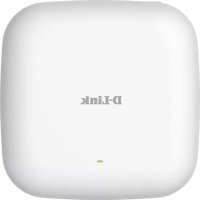
DAP2662 - Access Point D-LINK - Free user manual and instructions
Find the device manual for free DAP2662 D-LINK in PDF.



| Product Type | 802.11ac PoE Wireless Access Point |
| Model | DAP2662 |
| Brand | D-Link |
| Wi-Fi Standard | 802.11ac, dual-band (2.4 GHz and 5 GHz) |
| Maximum Speed | Up to 1200 Mbps (AC1200) |
| Power Supply | PoE (Power over Ethernet) per IEEE 802.3af/at; optional PoE injector (DPE-101GI) |
| Network Interface | 1 Ethernet port 10/100/1000 Mbps |
| Mounting | Ceiling or wall (mounting kit included) |
| Management | Web interface (http://192.168.0.50); free Central WiFiManager software |
| Connectivity | Wired (Ethernet) and wireless |
| Wireless Security | WEP, WPA/WPA2-PSK, WPA2-Enterprise, MAC filtering |
| LEDs | Dual-color LED (red/green) for power and status |
| System Requirements | Web browser: Internet Explorer 7.0, Safari 5.0, Firefox 3.5, Chrome 20 or later |
| Box Contents | Access point, mounting brackets, Ethernet cable, CD-ROM |
| Maintenance and Cleaning | Clean with a soft, dry cloth. Do not use chemical products. |
| Repairability | Spare parts not available separately; contact D-Link technical support |
| General Information | Professional access point for small/medium business |
Frequently Asked Questions - DAP2662 D-LINK
User questions about DAP2662 D-LINK
0 question about this device. Answer the ones you know or ask your own.
Ask a new question about this device
Download the instructions for your Access Point in PDF format for free! Find your manual DAP2662 - D-LINK and take your electronic device back in hand. On this page are published all the documents necessary for the use of your device. DAP2662 by D-LINK.
USER MANUAL DAP2662 D-LINK
Quick Installation Guide
Wireless AC1200 Concurrent Dual Band PoE Access Point
This document will guide you through the basic installation process for your new D-Link Wireless AC Access Point.
DAP-2660
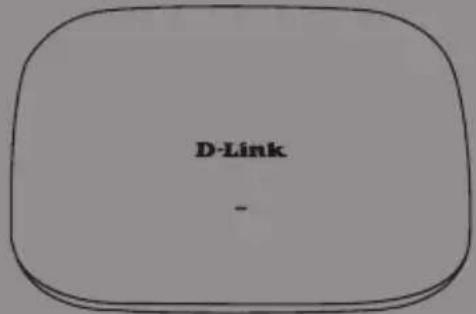
Quick Installation Guide
This installation guide provides basic instructions for installing the DAP-2660 Wireless Access Point on your network. For additional information about how to use the Access Point, please see the User's Manual which is available on the CD included in this package or from the D-Link support website.
System Requirements
Minimum System Requirements:
- CD-ROM Drive
- an Ethernet port, or an installed Ethernet adapter
- Internet Explorer 7.0, Safari 5.0, Firefox 3.5, Chrome 20 or later versions of these browsers
1. Package Contents
DAP-2660 802.11ac Power over Ethernet (PoE) Access Point
- Mounting Brackets
- Ethernet Cable
CD-ROM
If any of the above items are missing, please contact your reseller.
NOTE no PSU supplied. To power the units use an D-Link PoE switch or the D-Link DPE-101GI PoE injector.
2. Hardware Overview
LED
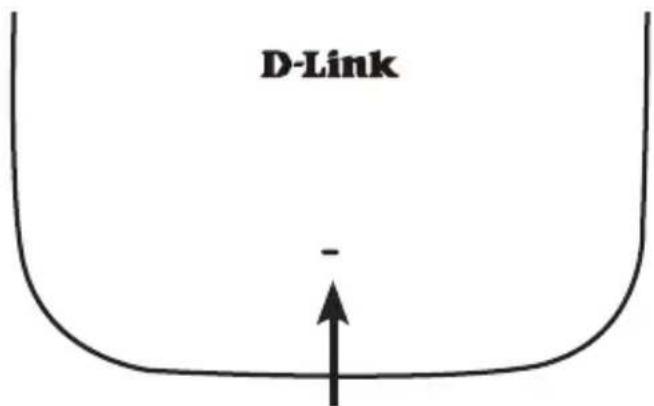
Power/Status LED - Dual color (Red/green)
- Flash Red during booting up or malfunction
- Static Green while it's ready/working
Solid Red while boot up fail - Flash Green while traffic is passing through.
Interfaces
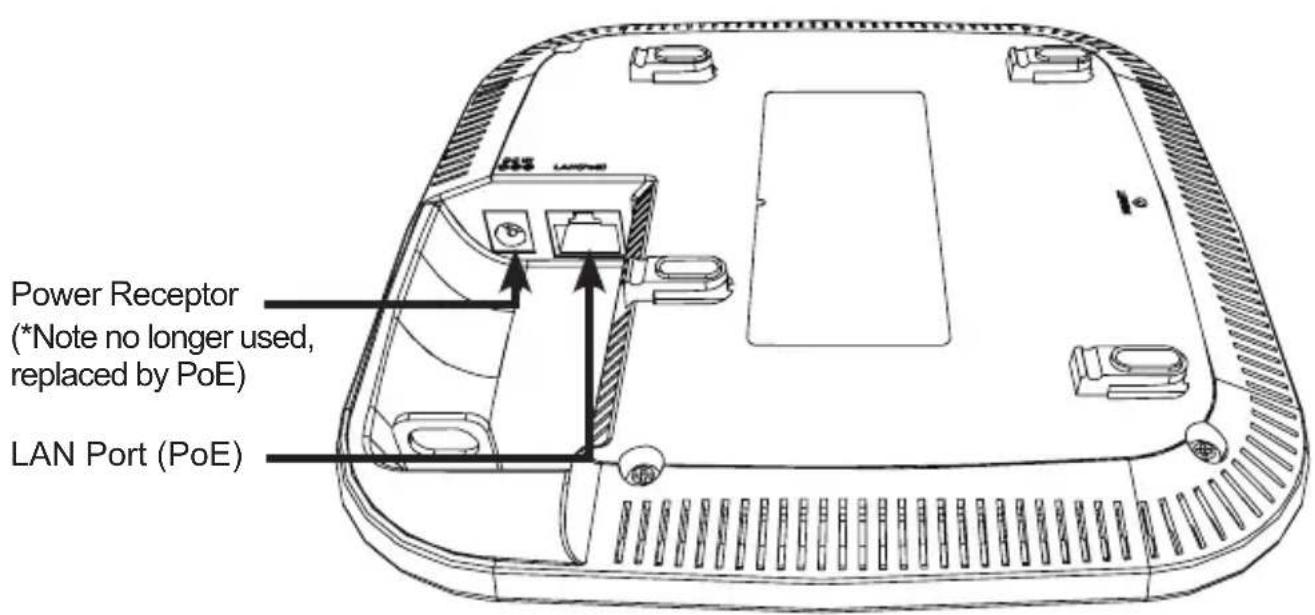
- PoE kit (injector and adapter) is NOT include in the package and it can be purchased with the model name "DPE-101GI".
3. Installation
Power on the access point
To power on the DAP-2660, you can use ONE of the following methods:
- Plug one end of your Ethernet cable into the LAN port of the DAP-2660, and the other end into a port on a PoE switch.
- Purchase separately a DPE-101GI PoE injector if you need to connect the Access Point without a PoE Switch.
Configure the access point
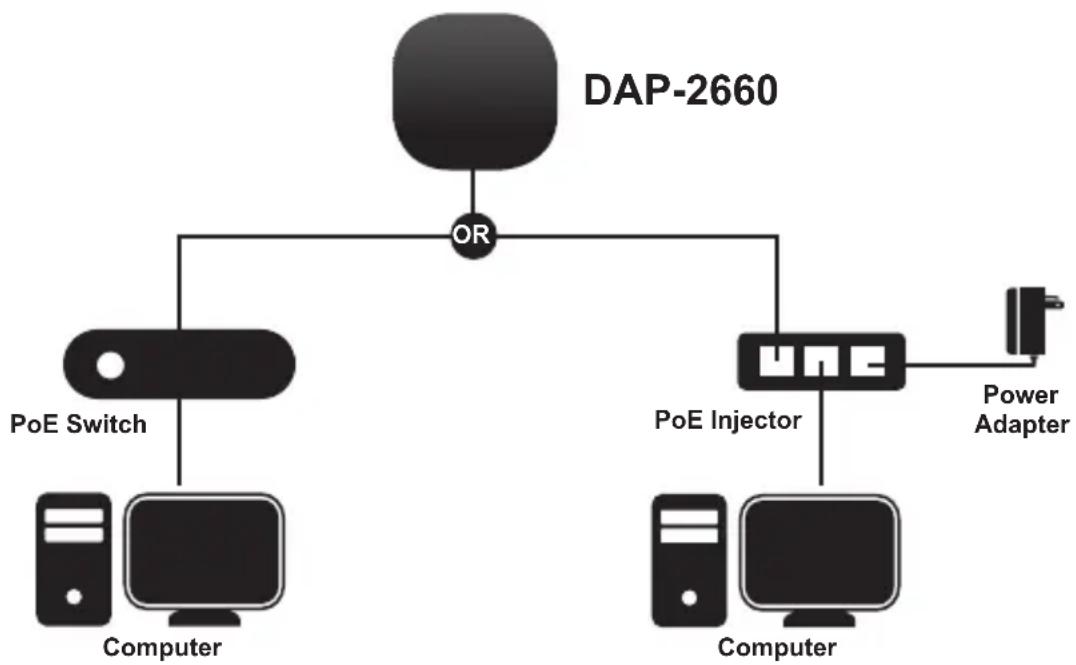
To set up and manage the DAP-2660, use one of the following methods:
- Connect the access point and your computer via DPE-101GI. Manage the access point from the computer.
Ensure your computer is configured with a static IP address in 192.168.0.0/24 subnet.
Launch a web browser, type the default IP address of the access point (http://192.168.0.50) and then press Enter.
Log in to the Administration Web pages. The default login information is:
Username: admin
Password: (Leave the password field blank)
- Connect the access point and your computer to the same switch. Manage the access point from the computer.
Enter 192.168.0.50 in the address field of your browser, which is the default IP address of the access point.
Log in to the Administration Web pages. The default login information is:
Username: admin
Password: (Leave the password field blank)
Solid wall or ceiling
Installation
- Place the mounting bracket on a wall or ceiling.
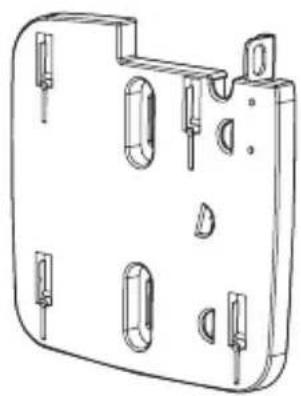
- Mark the points where you will insert the screws. Take out the mounting ring.
- Drill holes in the marked points and insert the plastic wall anchors.
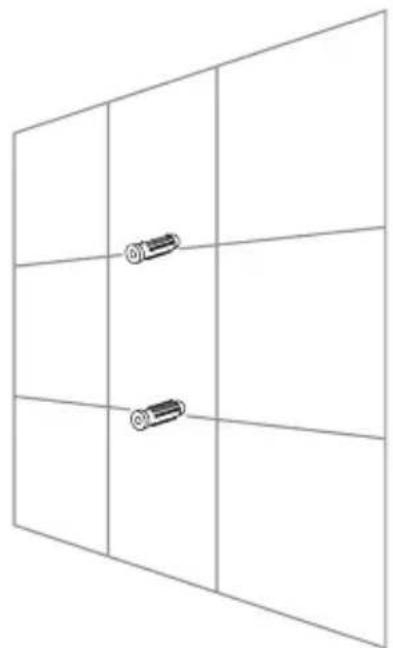
- Use the supplied screws to attach the mounting ring to the wall.
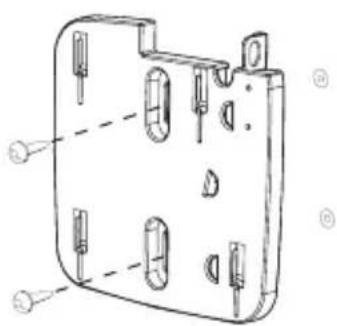
- Plug the Ethernet cable into the LAN port on the access point.
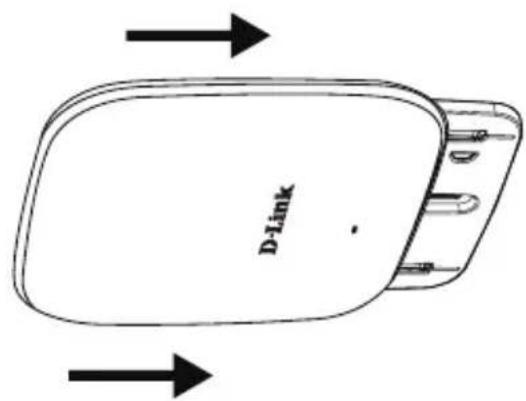
- To attach the access point to the mounting bracket.
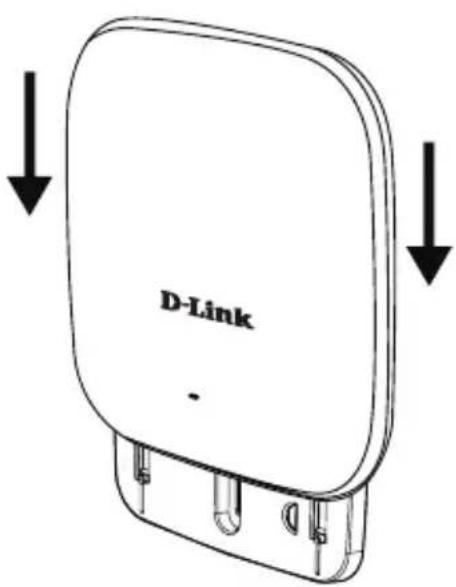
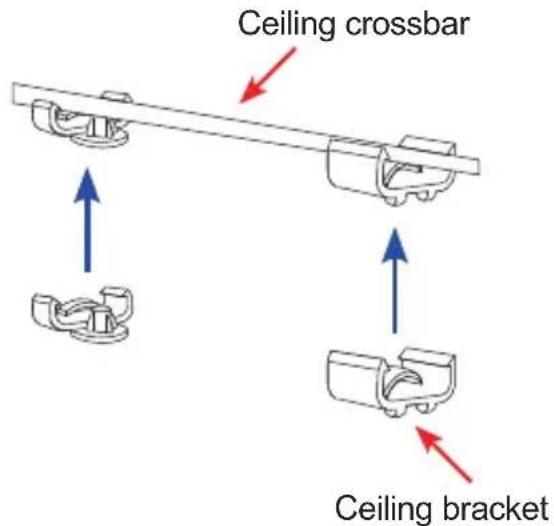
Mounting with a ceiling bracket
Installation
- Clip two ceiling brackets onto the ceiling panels. Make sure both brackets are in line with each other.
- Use the provided screws to attach the mounting ring to the ceiling bracket.
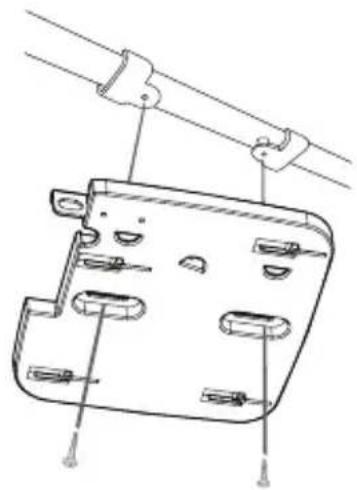
-
Plug the Ethernet cable into the LAN port on the access point.
-
Place the DAP-2660's male bracket in the mounting bracket's female bracket. Click DAP-2660 and the mounting bracket to lock in position.
TECHNICAL SUPPORT
dlink.com/support
Username (Benutzername): admin
Username (Benutzername): admin

Brand : D-LINK
Model : DAP2662
Category : Access Point