
Liquid Jade Primo S58 - Mobile Phone ACER - Free user manual and instructions
Find the device manual for free Liquid Jade Primo S58 ACER in PDF.




| Product type | Smartphone |
| Brand | Acer |
| Model | Liquid Jade Primo S58 |
| Dimensions (approx.) | 150 x 70 x 8 mm |
| Weight (approx.) | 150 g |
| Screen | Touchscreen 5.5 inches |
| Connectors | USB Type-C, 3.5 mm headphone jack |
| Card slots | 2 nano SIM (or 1 SIM + 1 microSD) |
| Sensors | Proximity, ambient light |
| Front camera | 8 MP (estimated) for selfies and video calls |
| Rear camera | 21 MP (estimated) with LED flash |
| Battery | Rechargeable, typical capacity 3000 mAh |
| Power supply | Power adapter (full charge 8 h for first use) |
| Main functions | Calls, SMS, Internet, camera, music, navigation |
| Maintenance and cleaning | Clean with a soft, dry cloth; avoid liquids |
| Safety | Do not expose to moisture, do not open, use original charger |
| Spare parts and repairability | Non-removable battery; repair by authorized professional |
| General information | Manufactured in 2015, manual available in multiple languages |
Frequently Asked Questions - Liquid Jade Primo S58 ACER
User questions about Liquid Jade Primo S58 ACER
0 question about this device. Answer the ones you know or ask your own.
Ask a new question about this device
Download the instructions for your Mobile Phone in PDF format for free! Find your manual Liquid Jade Primo S58 - ACER and take your electronic device back in hand. On this page are published all the documents necessary for the use of your device. Liquid Jade Primo S58 by ACER.
USER MANUAL Liquid Jade Primo S58 ACER
© 2015 All Rights Reserved
Acer Liquid Jade Primo Quick Guide
Model: S58
This revision: 12/2015
Product information
For detailed product information, please go to www.acer.com.
For service and support information, or to download the User Guide, drivers and applications, please follow the instructions below:
- Go to www.acer.com and click Support > DRIVERS AND MANUALS.
- Select appropriate items from Group > Series > Products.
- Select the operating system from the drop-down menu.
Acer Liquid Jade Primo Smartphone
Model number:
Serial number:
Date of purchase:
Place of purchase:
2
4sll6u3
Your phone
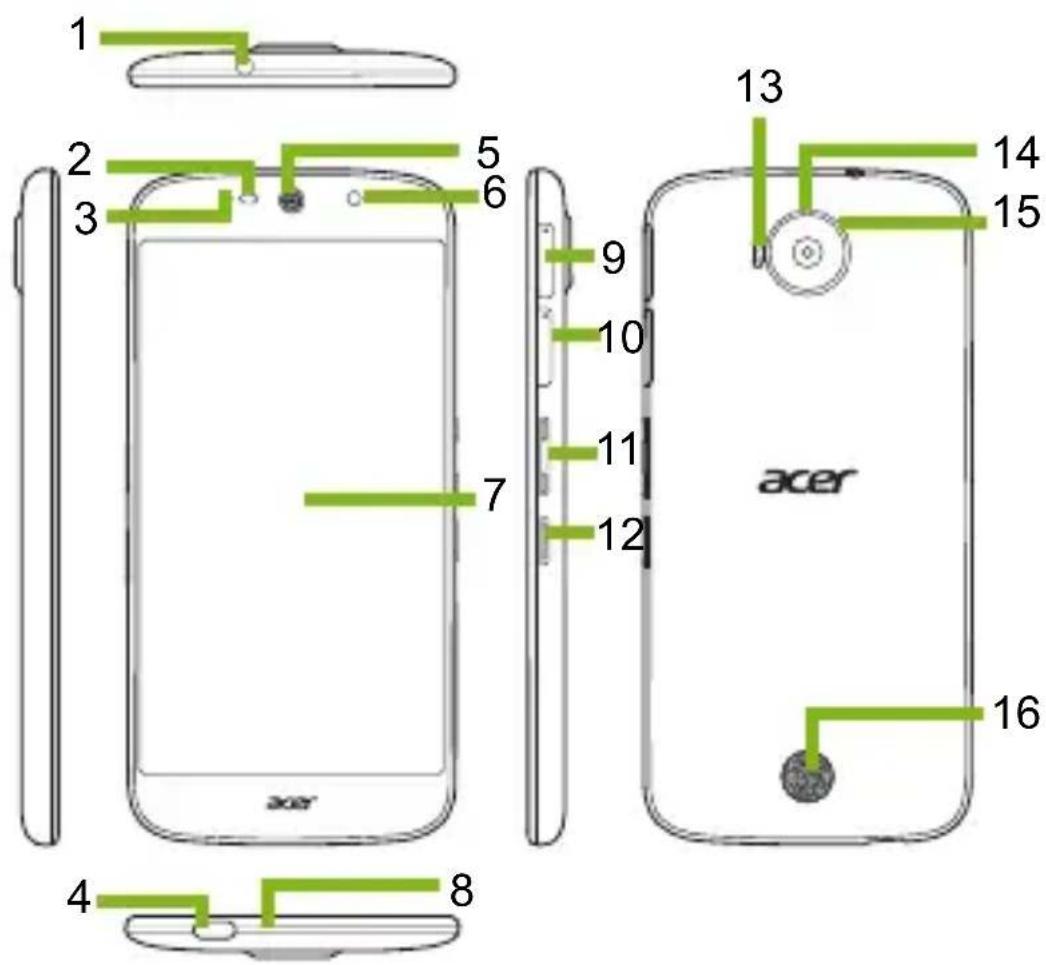
- 3.5 mm headphone jack
Connects to stereo headphones.
- Proximity and light sensors
Detects when the phone is held to your ear, or the ambient light to adjust screen brightness.
- Status LED
Indicates a new message or the phone's power status.
- USB Type-C port
For connecting to a PC, the Acer dock, or a charger.
- Phone speaker
Emits audio from your smartphone; suitable for holding to your ear.
- Front-facing camera
For video calls or taking selfies.
7. Touchscreen
For viewing content from your phone or entering data.
8. Microphone
For picking up audio while making phone calls.
9. SIM or micro SD card slot
Accepts a second SIM or micro SD card.
10. SIM slot
Accepts a SIM card.
11. Volume up/down buttons
Increase or decrease the audio volume.
12. Power button
Turns the phone on or off.
13. Flash
LED flash for camera.
14. Camera
A camera for taking high-resolution images.
15. Handsfree / noise cancelling microphone
Detects ambient noise to enhance call quality; may be used for making handsfree calls.
16. Handsfree speaker
Emits audio from your smartphone; suitable for making handsfree calls.
4
4sll6u3
Setting up for the first time
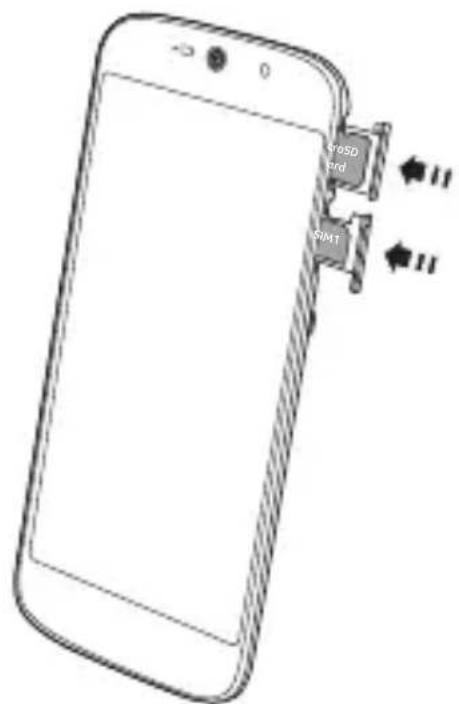
Inserting the SIM cards and microSD card
- Turn off the phone by pressing and holding the power button.
- Using the supplied tool, remove the SIM card / micro SD card trays by pressing the tip of the tool into the release hole on the tray.
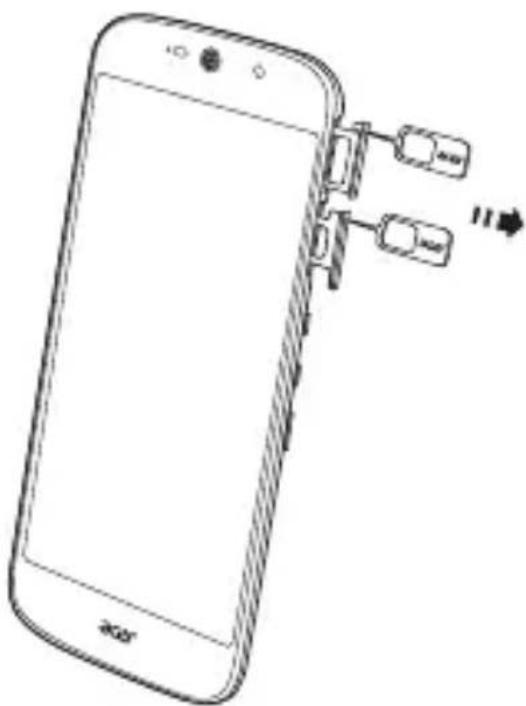
- Insert the SIM and microSD cards as shown.
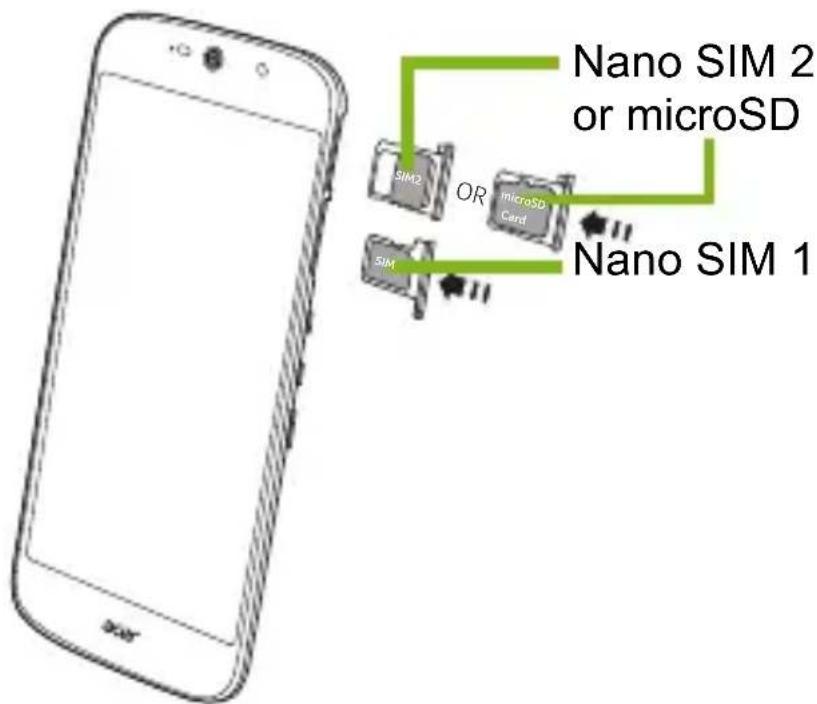

- Replace the trays and press firmly in place, taking care to ensure that the cards remain properly seated in the trays.
Charging your phone
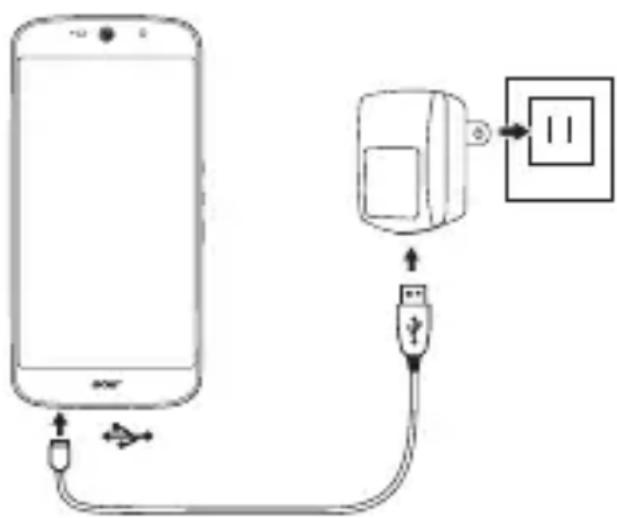
For initial use, you need to charge your smartphone for eight hours. After that you can recharge the battery as needed.
Connect the AC adapter cord to the micro USB connector on your smartphone. Plug the AC adapter into any AC outlet and charge the device.
It is normal for the phone to heat up when charging or during long periods of use.
All phones are factory tested before release.
Resetting and restarting the phone
Open Settings from the Apps list, then tap System > About. Tap Reset your phone and then tap Yes twice to reset your phone.
If your phone is no longer responding, press and hold the power button for 15 seconds to shut the phone down. Press and hold the power button for more than 15 seconds to reboot it.
Note: Do not perform this operation if the phone is charging. Unplug the charger first.
Liquid Jade Primo Japan Certification page
Liquid Jade Primo
Model: JPS58

Battery Name (Type): BAT-H11 (Rechargeable
Li-Polymer Battery)
Rating: 3.85VDC 2790mAh 10.74Wh

R 201-160301
T AD 16-0070 201/01

These Version: 12/2015
Product information
Brief user guide
Acer Liquid Jade Primo
Model: S58
This revision: 12/2015
Product information
- 3.5 mm headset jack
Connects to a stereo headset.
- Light sensor
When the phone is in a dark place or the surrounding light is dim, the screen brightness will be adjusted automatically.
- Status indicator
Indicates the new notification or charging status of the phone.
- USB Type-C
Connect to a PC, Acer dock, or charger.
- Dynamic speaker
Outputs sound when the phone is held to the ear.
- Front camera
- Flash
- Flash
- 9
- /
- 1 13.2-inch LED display 14. Flash
- Flash / Flash
- Flash
4

Flash
microSD


- PRODUCT INFORMATION
- YOUR PHONE
- TOUCHSCREEN
- MICROPHONE
- SIM OR MICRO SD CARD SLOT
- SIM SLOT
- VOLUME UP/DOWN BUTTONS
- POWER BUTTON
- FLASH
- CAMERA
- HANDSFREE / NOISE CANCELLING MICROPHONE
- HANDSFREE SPEAKER
- SETTING UP FOR THE FIRST TIME
- INSERTING THE SIM CARDS AND MICROSD CARD
- CHARGING YOUR PHONE
- RESETTING AND RESTARTING THE PHONE
- MICROSD
Brand : ACER
Model : Liquid Jade Primo S58
Category : Mobile Phone