BeTouch E130 - Mobile Phone ACER - Free user manual and instructions
Find the device manual for free BeTouch E130 ACER in PDF.


| Product Type | Smartphone with QWERTY keyboard |
| Brand | Acer |
| Model | BeTouch E130 |
| Dimensions (H x W x D) | 115 x 62 x 12 mm |
| Weight | 130 g (with battery) |
| Display | 2.8-inch resistive touchscreen, 320x240 pixels |
| Operating System | Android 2.1 (Eclair) |
| Processor | 600 MHz |
| RAM | 256 MB |
| Storage | 512 MB internal, microSD up to 32 GB |
| Camera | 3.2 MP rear, no flash |
| Battery | Li-Ion 1500 mAh, removable |
| Connectivity | Wi-Fi 802.11 b/g, Bluetooth 2.1, GPS, microUSB 2.0, 3.5 mm jack |
| Networks | GSM 850/900/1800/1900, HSDPA 900/2100 |
| Keyboard | Full QWERTY physical keyboard |
| Sensors | Accelerometer, proximity |
| Power Supply | AC adapter 5V 1A via microUSB |
| Maintenance & Cleaning | Wipe with a dry cloth; avoid liquids and abrasive cleaners |
| Safety | Use only approved chargers; avoid extreme temperatures and moisture |
| Spare Parts & Repairability | Battery removable; screen and keyboard replacements require professional service |
| General Information | Acer smartphone released in 2010, aimed at messaging users |
Frequently Asked Questions - BeTouch E130 ACER
User questions about BeTouch E130 ACER
0 question about this device. Answer the ones you know or ask your own.
Ask a new question about this device
Download the instructions for your Mobile Phone in PDF format for free! Find your manual BeTouch E130 - ACER and take your electronic device back in hand. On this page are published all the documents necessary for the use of your device. BeTouch E130 by ACER.
USER MANUAL BeTouch E130 ACER
© 2010 All Rights Reserved
Acer beTouch E130 Smartphone User Guide
Original issue: 06/2010
Acer beTouch E130 Smartphone
Model number: ____
Serial number: ____
Date of purchase: ____
Place of purchase: ____
IMPORTANT-READ CAREFULLY: THIS END USER LICENSE AGREEMENT ("AGREEMENT") IS A LEGAL AGREEMENT BETWEEN YOU (EITHER AN INDIVIDUAL OR A SINGLE ENTITY), AND ACER INC. INCLUDING ITS SUBSIDIARIES ("ACER") FOR THE SOFTWARE (WHETHER PROVIDED BY ACER OR BY ACER'S LICENSORS OR SUPPLIERS) THAT ACCOMPANIES THIS AGREEMENT, INCLUDING ANY ASSOCIATED MEDIA, PRINTED MATERIALS AND RELATED USER ELECTRONIC DOCUMENTATION WHICH MAY BE BRANDED "ACER" ("SOFTWARE"). AGREEMENTS RELATING TO ANY OTHER PRODUCT OR TOPIC ARE NEITHER INTENDED NOR SHOULD THEY BE IMPLIED. BY INSTALLING THE ACCOMPANYING SOFTWARE OR ANY PORTION THEREOF, YOU AGREE TO BE BOUND BY THE TERMS AND CONDITIONS OF THIS AGREEMENT. IF YOU DO NOT AGREE TO ALL OF THE TERMS AND CONDITIONS OF THIS AGREEMENT, DO NOT CONTINUE THE INSTALLATION PROCESS AND IMMEDIATELY DELETE ALL INSTALLED FILES, IF ANY, OF THE ACCOMPANYING SOFTWARE FROM YOUR PHONE.
IF YOU DO NOT HAVE A VALIDLY-LICENSED COPY OF THE APPLICABLE SOFTWARE, YOU ARE NOT AUTHORIZED TO INSTALL, COPY OR OTHERWISE USE THE SOFTWARE, AND HAVE NO RIGHTS UNDER THIS AGREEMENT.
The Software is protected by U.S. and international copyright laws and conventions as well as other intellectual property laws and treaties. The Software is licensed, not sold.
GRANT OF LICENSE
Acer grants to you the following non-exclusive and non-transferable rights with respect to the Software. Under this Agreement, you may:
- Install and use the Software only on a single designated phone. A separate license is required for each phone on which the Software will be used;
- Make one copy of the Software solely for backup or archival purposes;
- Make one hardcopy of any electronic documents included in the Software, provided that you receive the documents electronically.
RESTRICTIONS
You may NOT:
- Use or copy the Software except as provided in this Agreement;
- Rent or lease the Software to any third party;
- Modify, adapt, or translate the Software in whole or in part;
- Reverse engineer, decompile, or disassemble the Software or create derivative works based upon the Software;
- Merge the Software with any other program or modify the Software, except for your personal use; and
- Sublicense or otherwise make the Software available to third parties, except that you may, after prior written notification to Acer, transfer the Software as a whole to a third party so long as you do not retain any copies of the Software and such third party accepts the terms of this Agreement.
- Transfer your rights under this Agreement to any third parties.
- Export the Software in contravention of applicable export laws and regulations, or (i) sell, export, re-export, transfer, divert, disclose technical data, or dispose of, any Software to any prohibited person, entity, or destination including, without limitation, Cuba, Iran, North Korea, Sudan and Syria; or (ii) use any Software for any use prohibited by the laws or regulations of the United States.
SUPPORT SERVICES
Acer is not obligated to provide technical or other support for the Software.
ACER LIVE UPDATE
Certain of the software contains elements that enable the use of the Acer Live Update service, which allows for updates for such software to be automatically downloaded and installed on your phone. By installing the software, you hereby agree and consent that Acer (or its licensors) may automatically check the version of such software that you are using on your phone and may provide upgrades to such software that may be automatically downloaded on to your phone.
OWNERSHIP AND COPYRIGHT
Title, ownership rights and intellectual property rights in and to the Software and all copies thereof shall remain with Acer or Acer's licensors or suppliers (as applicable). You do not have or shall not gain any proprietary interest in the Software (including any modifications or copies made by or for you) or any related intellectual property rights. Title and related rights in the content accessed through the Software is the property of the applicable content owner and may be protected by applicable law. This license gives you no rights to such contents. You hereby agree
- Not to remove any copyright or other proprietary notices from the Software;
- To reproduce all such notices on any authorized copies you make; and
- To use best efforts to prevent any unauthorized copying of the Software.
TRADEMARKS
This Agreement does not grant to you any rights in connection with any trademarks or service marks of Acer or of Acer's licensors or suppliers.
DISCLAIMER OF WARRANTIES
TO THE MAXIMUM EXTENT PERMITTED BY APPLICABLE LAW, ACER, ITS SUPPLIERS, AND ITS LICENSORS, PROVIDE THE SOFTWARE "AS IS" AND WITH ALL FAULTS, AND HEREBY DISCLAIM ALL OTHER WARRANTIES AND CONDITIONS, EITHER EXPRESS, IMPLIED OR STATUTORY, INCLUDING, BUT NOT LIMITED TO, ANY IMPLIED WARRANTIES, DUTIES OR CONDITIONS OF MERCHANTABILITY, OF FITNESS FOR A PARTICULAR PURPOSE, OF ACCURACY OR COMPLETENESS OF RESPONSES, OF RESULTS, OF WORKMANLIKE EFFORT, OF LACK OF VIRUSES, AND OF LACK OF NEGLIGENCE, ALL WITH REGARD TO THE SOFTWARE AND THE PROVISION OF OR FAILURE TO PROVIDE SUPPORT SERVICES. ALSO, THERE IS NO
WARRANTY OR CONDITION OF TITLE, QUIET ENJOYMENT, QUIET POSSESSION, CORRESPONDENCE TO DESCRIPTION OR NON-INFRINGEMENT WITH REGARD TO THE SOFTWARE.
EXCLUSION OF INCIDENTAL, CONSEQUENTIAL AND CERTAIN OTHER DAMAGES
TO THE MAXIMUM EXTENT PERMITTED BY APPLICABLE LAW, IN NO EVENT SHALL ACER, ACER'S SUPPLIERS, OR ACER'S LICENSORS, BE LIABLE FOR ANY SPECIAL, INCIDENTAL, INDIRECT, PUNITIVE, OR CONSEQUENTIAL DAMAGES WHATSOEVER (INCLUDING, BUT NOT LIMITED TO, DAMAGES FOR LOSS OF PROFITS OR CONFIDENTIAL OR OTHER INFORMATION, FOR BUSINESS INTERRUPTION, FOR PERSONAL INJURY, FOR LOSS OF PRIVACY, FOR FAILURE TO MEET ANY DUTY INCLUDING OF GOOD FAITH OR OF REASONABLE CARE, FOR NEGLIGENCE, AND FOR ANY OTHER PECUNIARY OR OTHER LOSS WHATSOEVER) ARISING OUT OF OR IN ANY WAY RELATED TO THE USE OF OR INABILITY TO USE THE SOFTWARE, THE PROVISION OF OR FAILURE TO PROVIDE SUPPORT SERVICES, OR OTHERWISE UNDER OR IN CONNECTION WITH ANY PROVISION OF THIS AGREEMENT, EVEN IN THE EVENT OF THE FAULT, TORT (INCLUDING NEGLIGENCE), STRICT LIABILITY, BREACH OF CONTRACT OR BREACH OF WARRANTY OF ACER OR ITS SUPPLIERS OR LICENSORS, AND EVEN IF ACER AND ITS SUPPLIERS AND LICENSORS HAVE BEEN ADVISED OF THE POSSIBILITY OF SUCH DAMAGES.
LIMITATION OF LIABILITY AND REMEDIES
NOTWITHSTANDING ANY DAMAGES THAT YOU MIGHT INCUR FOR ANY REASON WHATSOEVER (INCLUDING, WITHOUT LIMITATION, ALL DAMAGES REFERENCED ABOVE AND ALL DIRECT OR GENERAL DAMAGES), THE ENTIRE LIABILITY OF ACER, ITS SUPPLIERS, AND ITS LICENSORS, UNDER ANY PROVISION OF THIS AGREEMENT, AND YOUR EXCLUSIVE REMEDY FOR ALL OF THE FOREGOING, SHALL BE LIMITED TO THE AGGREGATE AMOUNT PAID BY YOU FOR THE SOFTWARE. THE FOREGOING LIMITATIONS, EXCLUSIONS AND DISCLAIMERS (INCLUDING DISCLAIMER OF WARRANTIES AND EXCLUSION OF INCIDENTAL, CONSEQUENTIAL AND CERTAIN OTHER DAMAGES ABOVE) SHALL APPLY TO THE MAXIMUM EXTENT PERMITTED BY APPLICABLE LAW, EVEN IF ANY REMEDY FAILS ITS ESSENTIAL PURPOSE; PROVIDED, HOWEVER, THAT BECAUSE SOME JURISDICTIONS DO NOT ALLOW THE EXCLUSION OR LIMITATION OR LIABILITY FOR CONSEQUENTIAL OR INCIDENTAL DAMAGES, THE ABOVE LIMITATION MAY NOT APPLY TO YOU.
TERMINATION
Without prejudice to any other rights, Acer may immediately terminate this Agreement without notice if you fail to comply with any terms and conditions of this Agreement.
In such event, you must:
- Cease all use of the Software;
- Destroy or return to Acer the original and all copies of the Software; and
- Delete the Software from all phones on which it was resident.
All disclaimers of warranties and limitation of liability set forth in this Agreement shall survive termination of this Agreement.
GENERAL
This Agreement represents the complete agreement between you and Acer relating to this license for the Software and supersedes all prior agreements, communications, proposals and representations between the parties and prevails over any conflicting or additional terms of any quote, order, acknowledgement or similar communication. This Agreement may only be modified by a written document signed by both parties. If any provision of this Agreement is held by a court of competent jurisdiction to be contrary to law that provision will be enforced to the maximum extent permissible and the remaining provisions of this Agreement will remain in full force and effect.
ADDITIONAL PROVISIONS APPLICABLE TO THIRD PARTY SOFTWARE AND SERVICES
Software provided hereunder by Acer's licensors or suppliers ("Third Party Software") is made available to you for your personal, non-commercial use only. You may not use the Third Party Software in any manner that could damage, disable, overburden, or impair the services provided by Acer's licensors or suppliers hereunder ("Third Party Services").
Furthermore, you may not use the Third Party Software in any manner that could interfere with any other party's use and enjoyment of the Third Party Services, or the services and products of Acer's licensors' or suppliers' third party licensors. Your use of the Third Party Software and Third Party Services is also subject to additional terms and conditions and policies which can be accessed through our global website.
Privacy policy
During registration you will be asked to submit some information to Acer. Please refer to Acer's privacy policy at www.acer.com or your local Acer website.
End User Licence Agreement
Getting to know your smartphone
Features and functions 7
Product registration 7
Setting Up
Unpacking your smartphone 8
Getting to know your smartphone 8
Installing or removing the battery 10
Installing a SIM and microSD Card 11
Removing the microSD Card 11
Using your Smartphone
Turning on for the first time 12
Using the touchscreen 12
The QWERTY keyboard 13
The Home screen 13
Managing contacts
Managing your contacts 17
Making Calls
Before making a call 18
Making a call 18
The voice call screen....19
Onscreen call options 19
Messaging
Creating a new message 21
Replying to a message 22
MMS messages 22
Going online
Browsing the Internet 24
Setting up Email 25
Online applications .....25
Using the Camera
Camera icons and indicators 27
Taking a photo 28
Shooting a video 28
Viewing photos and videos .....28
Advanced Settings
Putting your smartphone in Airplane mode .....29
Activating or deactivating connections 29
Acer Settings 29
Adjusting connection settings 30
Phone settings 31
urFooz 32
Connecting to a PC....33
Managing your calendar 33
GPS tracker 34
FM radio 34
Multimedia playback 35
Resetting your smartphone 38
Accessories and Tips
Using the headset ....39
Using a Bluetooth headset 39
Using your smartphone as a modem 39
Setting up the modem on your PC 39
Inserting a microSD Card 40
Appendix
FAQ and troubleshooting 41
Other sources of help 41
Aux ADB 42
Warnings and precautions ....42
Emergency calls 45
Disposal and recycling information....45
Taking care of your smartphone 45
Specifications 47
Regulatory information 49
Features and functions
Your new smartphone offers leading, easy-to-access multimedia and entertainment features. You can:
- Access your email while on the move.
- Connect to the Internet at high speed, via HSDPA (3.6 Mbps) or Wi-Fi.
- Keep in touch with your friends via your Contacts and social networking applications.
Product registration
When using your product for the first time, it is recommended that you immediately register it. This will give you access to some useful benefits, such as:
- Faster service from our trained representatives.
- Membership in the Acer community: receive promotions and participate in customer surveys.
• The latest news from Acer.
Hurry and register, as other advantages await you!
How to register
To register your Acer product, please visit http://mobile.acer.com. Click Product Registration and follow the simple instructions.
You can also register directly from your smartphone by tapping the Acer Registration icon.
After we receive your product registration, you will be sent a confirmation email with important data that you should keep in a safe place.
Unpacking your smartphone
Your new smartphone comes packed in a protective box. Carefully unpack the box and remove the contents. If any of the following items is missing or damaged, contact your dealer immediately:
- Battery
- Quick Guide
- USB cable
- AC adapter
- Headset
- Acer beTouch E130 Smartphone
Getting to know your smartphone
Views

text_image
1 2 3 4 5 6 7 8 9 10 11 12 13 14 15 16 17 aoerNo. Item Description
| 1 3.5 mm headphone jack Connect to stereo headphones. |
| 2 Phone speaker Emits audio from your smartphone; suitable for holding to your ear. |
| 3 Touchscreen 2.6-inch, 320 x 240 pixel resistive touchscreen to display data, phone content and enter information. |
| 4 Home button Return to the Home screen; press and hold to view recently-used applications, tap an icon to open the associated program. |
| No. | Item | Description | |
| 5 | Call button Activate phone/dial/view recently dialed numbers/answer a call. | ||
| 6 | Menu button | Open the option menu; press and hold to display the keyboard. | |
| 7 | Keyboard | QWERTY | keyboard. |
| 8 | Microphone Internal microphone. | ||
| 9 | Search button Open the Google search function. | ||
| 10 | End button / Power button Press to end a call. / Press to turn the screen on/off or enter sleep mode; press and hold to turn the smartphone off. | ||
| 11 | Back button Go back one menu step; close the keyboard. | ||
| 12 | Trackball Roll to move around the screen; Press to activate the selected item. | ||
| 13 | LED indicator Indicates battery level and event status. | ||
| 14 | Camera A 3-megapixel camera for taking high-resolution images. | ||
| 15 | Handsfree speaker Emits audio from your smartphone; suitable for handsfree use. | ||
| 16 | Volume up / down button Increase or decrease the phone volume. | ||
| 17 | Micro USB connector Connect to a USB cable/charger. | ||
LED indicators
| No. Item | Description | |
| Red | Steady | Battery is charging. |
| Slow flashing | Battery level is low. | |
| Flashes twice rapidly | Battery level is critically low. | |
| Flashes rapidly | Battery level is too low to start the phone. | |
| Flashes every 10 seconds | New event (missed call, new message, voicemail, etc.) | |
Installing or removing the battery
Your smartphone uses a replaceable battery to provide power. It is packed separately from your smartphone and needs to be inserted and charged before you can use the smartphone.
Installing the battery
Insert your fingernail into the cutout between the battery cover and the phone. Unclip the cover and lift off the battery cover.

text_image
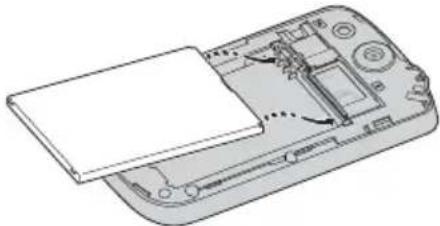
1-2 1-1Place the battery into the battery compartment, lining up the battery connectors with those at the bottom of the compartment.
natural_image
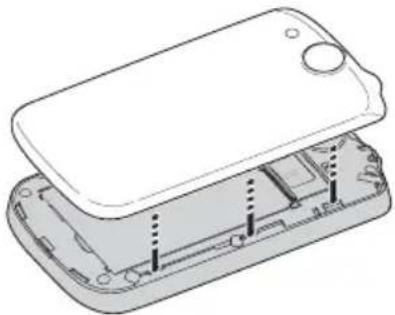
Diagram of a device showing internal components and a blank space (no text or symbols)Insert the tabs on the bottom of the battery cover into the slots in the phone. Carefully press the top of the cover until the clips on the side of the cover click in place.
natural_image
Diagram of a smartphone internal structure showing casing, display panel, and battery (no text or labels)
CAUTION: RISK OF EXPLOSION IF BATTERY IS REPLACED BY AN INCORRECT TYPE. DISPOSE OF USED BATTERIES ACCORDING TO THE INSTRUCTIONS.
Charging the battery
For initial use, you need to charge your smartphone for eight hours. After that you can recharge the battery as needed.
Connect the AC adapter cord to the micro USB connector on your smartphone.
Removing the battery
Open the battery compartment as shown in "Installing the battery". Lift the battery out of the compartment using the clip on the top of the battery.
Replace the battery cover as described above.
Installing a SIM and microSD Card
To take full advantage of your smartphone's telephony capabilities, you must install a SIM card. The SIM card holder is located at the bottom of the battery bay.
Additionally, you may wish to increase your smartphone's storage by inserting a microSD Card into the slot provided. This is next to the SIM card slot.
-
Turn off the phone by pressing and holding the power button.
-
Open the cover and remove the battery.
-
Insert the SIM and microSD Card as shown.
-
Replace the battery and battery cover.
Note: Ensure that the microSD Card is inserted all the way into the card slot.
Removing the microSD Card
To remove the microSD Card, press the tab down (1), and slide the microSD Card out (2).
Caution: Turn off your smartphone and remove the battery before installing or removing the SIM or microSD card. You may damage the card or your smartphone if the battery is still installed.
SIM card lock
Your smartphone may come with a SIM card lock, i.e., you will only be able to use the SIM card provided by your network operator.
To cancel the SIM lock, contact your network provider.
Turning on for the first time
To turn on your smartphone for the first time, press and hold the power button until the screen turns on. You will then be asked to configure some settings before you can use your smartphone.
Follow the onscreen instructions to complete setup.
Sign in to or create a Google account
If you have Internet access, your smartphone allows you to synchronize information with a google account.
During the start-up process, you may create or sign in to your account, which will be used to synchronise your contact list, email, calendar and other information. If you do not yet have Internet access then tap Try Again, but then tap Back and then Skip the connection step.
Entering your PIN
When you install a SIM card for the first time, you may need to enter a PIN using the onscreen number pad.

Important: Depending on your settings, you may be required to enter your PIN each time you switch on the phone function.
Activating a new SIM card
If you are using your SIM card for the first time, it may require activation. Contact your network operator for details on how to do this.
Using the touchscreen
Your smartphone uses a touchscreen for selecting items and entering information. Use your finger to tap the screen.
Tap: Touch the screen once to open items and select options.
Drag: Hold your finger on the screen and drag across the screen to select text and images.
Tap and hold: Tap and hold an item to see a list of actions available for that item. On the pop-up menu that appears, tap the action you want to perform.
Scroll: To scroll up or down the screen, simply drag your finger up or down the screen in the direction that you want to scroll.
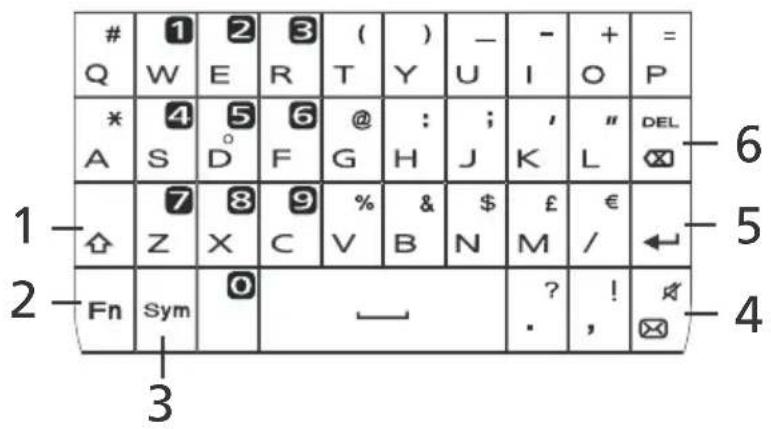
The QWERTY keyboard
text_image
1 2 3 ( ) - - + =
Q W E R T Y U I O P * 4 5 6 @ : ; ' " DEL A S D F G H J K L 7 8 9 % & $ £ / ♠ Z X C V B N M / ← Fn Sym 0 — ? ! ⚫ 3No. Item Description
| 1 Caps | Enables typing in upper case. | |
| Press once (abc mode) Type the next character in upper case. | ||
| Press twice (abc mode) | Switch to ABC mode. | |
| Press once (ABC mode) | Switch to abc mode. | |
2 Fn Enables typing the numbers / symbols indicated in the upper right-hand corner of each key.
| Press once (abc mode) | Type a number or symbol for the next character. |
| Press twice (abc mode) | Switch to numbers and symbols mode. |
| Press once (123 mode) | Switch to the previous character mode. |
3 Sym Opens the symbols table.
| 4 | M | a | i | l |
| Short press Enter messaging. This is customizable in Settings > Mail Key Setting | ||||
| Long press Enable and disable silent mode. |
5 Enter key Moves the cursor to the next line.
| 6 Delete key | Deletes the character to the left of the cursor. |
The Home screen
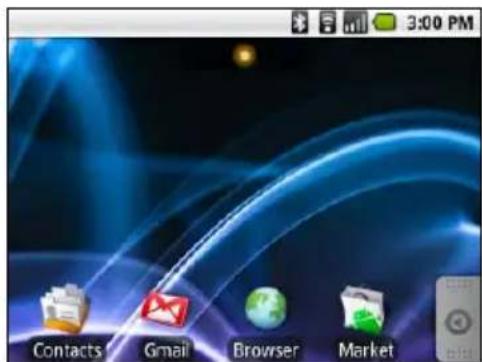
After rebooting, your smartphone will display the Home screen. This screen gives you quick, icon-based access to many of the frequently used features of your smartphone.
The first time you start your smartphone, you will see some icons on the screen.
At the bottom of the screen is the Applications tab which lists all the applications you have installed. Tap the tab to open the Applications tab. Tap an icon to open the application.
text_image
3:00 PM Contacts Gmail Browser MarketMultitasking
You can have multiple applications open at the same time. To open a new application, press the Home button to return to the Home screen, then start the new application.
To view your active applications, press and hold the Home button. Then tap an icon to go to the application.

Tip: To prolong battery life, it is better to close an application when you've finished using it. Do this by either pressing the Back key or the Menu button and selecting Exit (if available).
The extended Home screen
The Home screen extends to either side of the screen, giving you more room to add icons, widgets or features. To view the extended Home screen slide your finger to the left or right of the Home screen.

text_image
3:00 PM YESSO
text_image
You are not logged in Big is the following, then you can't know what your AppWizard is done. Abouting Google Taj Android Messaging
text_image
Contacts Email Browser Market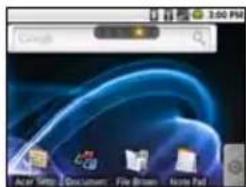
text_image
3.00 PM Google Acme Setup Document: File Browser Acme Pad
natural_image
Abstract blue glowing swirl pattern on black background (no text or symbols)Notification area
The Notification area is at the top of the screen.

11:05
This area contains a variety of icons to inform you of your phone's status. The left side of the Notification area displays event icons that indicate a new event (such as a new message). The icons on the right side indicate signal strength, connection, battery status and the time.
Drag the Notification area down the screen, or tap the area, to view more information about new events.
Icon Description
| Indicates that storage is running low. Remove programs or files to increase the available storage. | |
| SD Card removed. | |
| WLAN signal strength. | |
| Vibrate mode enabled. | |
| SIM card is invalid or not installed. | |
| Battery status. | |
| Icon Description | |
 | Missed call. |
 | New/unread SMS. |
 | New/unread MMS. |
 | New/unread email. |
 | HSDPA connected: Downloading data. |
 | 3G connected: You may make a call. |
 | Connected to a 2G network: You may make a call. |
 | Airplane mode: Wireless connectivity disconnected. Please disable airplane mode before trying to make a call. |
 | Incoming call or active call. |
Personalizing the Home screen
You may personalize your Home screen by adding or removing icons, shortcuts or widgets, or changing the wallpaper.
Adding or removing icons
You can set icons for installed applications on the Home screen. Tap and hold an icon in the Applications tab to copy it to the Home screen. To remove an icon from the Home screen, tap and drag the icon from the Home screen to the trash tab that appears at the bottom of the screen.
Adding or removing shortcuts or widgets
To add shortcuts or widgets, tap and hold anywhere on the Home screen to open the Add to Home screen menu.
Tap Shortcuts to open a list of quick links to applications and settings you can add to the Home screen.

text_image
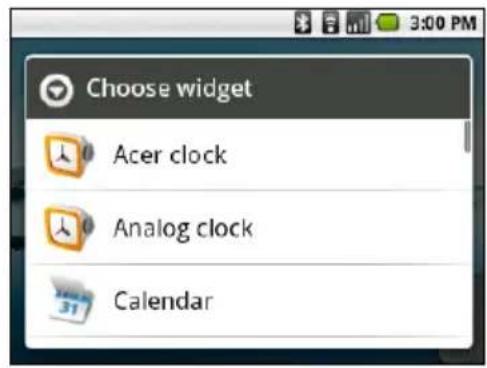
Add to Home screen Shortcuts Widgets FoldersTap Widgets to open a list of small applications that you can add to your Home screen. Widgets are handy applications that you can add to your Home screen to display various information.
You can also add folders to your Home screen. There are some pre-defined folders available or you can add a New folder. This will be placed on your Home screen and named Folder. To change the name of the folder, tap to open it. Tap and hold the name bar at the top of the folder window to open a dialog box that will allow you to rename the folder.
text_image
Choose widget Acer clock Analog clock Calendar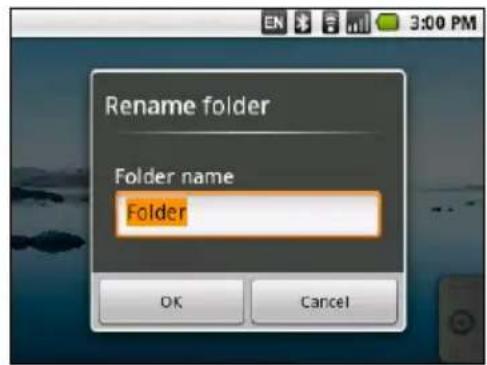
text_image
Rename folder Folder name Folder OK CancelManaging your contacts
Your smartphone features an address book that allows you to save contacts to either the internal memory or onto your SIM card.
Tap Contacts from the Home screen or the Contacts tab from the Dialer to view your contacts.
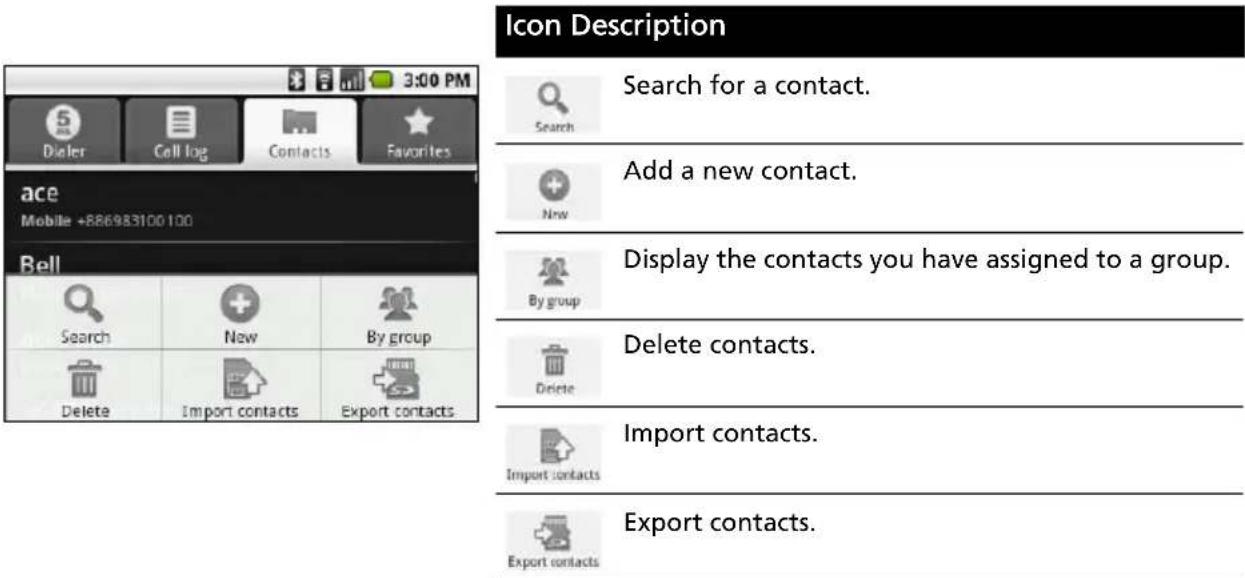
If you don't have any contacts stored on your phone, you can import your Google account contacts, add a new contact or import any SIM contacts. Press the Menu button to open the menu.
text_image
Icon Description Search for a contact. Add a new contact. Display the contacts you have assigned to a group. Delete contacts. Import contacts. Export contacts.Adding a contact
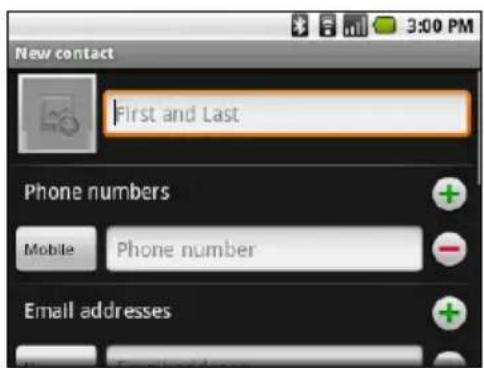
Tap New to add a new contact. You will be asked if you want to create a SIM contact or a Phone contact.
To create a contact, you will be asked to enter the contact's:
• Given and Family name.
- Phone numbers.
- Email addresses.
- I M a d d r e s s e s.
- Postal addresses.
You may also:
- Enter information such as or ganizations the contact belongs to.
- Any personal notes about the contact.
- Set a ringtone.
- Send any calls from this contact directly to your voicemail.
text_image
New contact First and Last Phone numbers Mobile Phone number Email addressesThis chapter shows you how to make phone calls, and the various options available to you during your call.
Before making a call
Check that the phone function is on before you make a call. You can confirm the phone status from the icon on the right-hand side of the Notification area.
Icon Description

Connected: You may make a call.

Airplane mode: Wireless connectivity disconnected. Please disable airplane mode before trying to make a call.
Making a call

Note: The phone function needs to be enabled before the call can be connected.
- From the Home screen tap Dialer or open Dialer from the menu.
- Enter the number you wish to dial.
- Press the Call button to make the call.
- To end the call, press the End button.
Dialing a number from Call Log
Your call history can be viewed by tapping the Call Log tab. It displays recent received, dialed, and missed calls.

text_image
5 Dieter Cell log Contacts Favorites 3:00 PMTap a number to view the call details. To redial any number in the call history, select the number and tap 📋. You may also tap and hold the number to open a menu with other options: Call
Missed calls will be displayed by the call indicator on the top of your phone and in the Notification area with the icon 📂.
You can also view missed calls from the Notification area.
- Open the notification list by tapping and dragging the Notification area downwards to display the details of the missed calls.
- Select the call from the list and tap 📋 to return the missed call.
You can save phone numbers to your Contacts from the Call Log. Please refer to "Adding a contact" on page 17 for further details.
Making a call to one of your contacts
- Tap the Contacts tab in the dialer or Contacts from the Home screen to view your contacts.
- Tap a contact. A dialog will open, asking if you want to Call the contact or send the contact an SMS.
Dialing an international number
When dialing international numbers, there is no need to enter the international direct dialing prefix ('00' etc.) before the country code. Simply tap and hold 0+ on the onscreen number pad until + appears onscreen.

Warning: International call rates can vary greatly depending on the country you are calling and your network provider. We suggest you check all call rates with your network provider, to avoid excessive phone bills. If you are using your smartphone abroad, roaming charges will apply. Consult your network provider for roaming rates specific to the country you are visiting before you leave.
The voice call screen
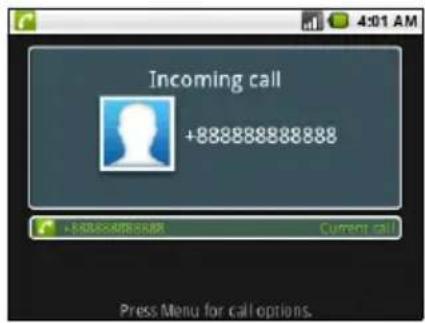
Once you have dialed your number the voice call screen appears, which displays the number/contact you are talking to, the call duration and the dialpad tab.
Onscreen call options
Answering a call
Press the Call button to answer a call.
Rejecting a call
Press the End button to reject a call.
Ending a call
To end a call, press the End button.
Using the speakerphone
The speakerphone function allows you to make calls without having to hold your smartphone. This handsfree function is especially useful for multitasking.
To activate the speakerphone, tap Speaker on the voice call screen. Tap Speaker again to disable the speakerphone.
Muting a call
To mute a call, tap Mute on the voice call screen to switch off the microphone. Tap Mute again to switch the microphone back on.
Saving a dialed number to contacts
You can save a number you have dialed to your contacts for future use.
- Select the number from the Call log tab, and tap Add to contacts.
- Tap Create new contact and select how to complete the action. Please refer to "Adding a contact" on page 17.
Conference calls
If you have one call on hold and another online, you can combine both calls to create a conference call.
After the first call is established, tap Add call to add a second call. Tap Merge calls to start the conference call.
text_image
Incoming call +888888888888 +88888888888 Current call Press Menu for call options.
text_image
Incoming call 888-888-8888 Held current call & answer End current call & answer
text_image
Incoming call 888-888-8888 Swap calls Merge calls Add call End call Hold Mute Speaker BluetoothsThis chapter shows you how to set up and use the SMS and MMS functions of your smartphone.
All SMS and MMS messages are accessed via Messaging. Messaging automatically arranges received and sent messages into threads.
To access Messaging tap Messaging on the Home screen.
Creating a new message
You can use your phone to compose SMS or MMS messages.
Tap New message to compose a new message.
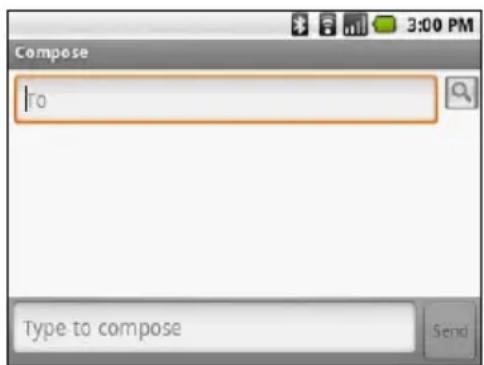
Enter the recipient's phone number or name in the To field. Suggested contacts will be displayed in a drop-down list below the text field. To select a suggested contact, tap the contact's name.
text_image
Compose To Type to compose SendOnce you have entered the recipient, enter your message in the text box labeled Type to compose.

Note: SMS messages may be up to 160 characters long. If your message is longer than 160 characters, it will be sent as multiple linked messages. Most phones will automatically join the linked messages to present the recipient with a single long message, however, some older phones do not have this ability.
Press the Menu button to see what options are available when creating a new message. The options change depending on the status of the message.
Icon Description
| Convert the SMS to an MMS, allowing you to add a subject to the message. | |
| Convert the SMS to an MMS, allowing you to attach a file to the message. | |
| Discard the message. | |
| View all the threads currently on your phone. |
Replying to a message
When a new text message arrives a message icon appears in the Notification area and the message icon on the top of the phone lights up.
Tap Messaging on the Home screen to view the message list or expand the Notification area to see a summary of the message. Tap the summary to open the message list.
To reply to an SMS or MMS message, open the message from the message list. Enter your text in the text box labeled Type to compose. Press the Menu button to see available options.
Icon Description
| Call | Open the Dialer to call the recipient. |
| Add sbj. | Convert the SMS to an MMS, allowing you to add a subject to the message. |
| Attach | Convert the SMS to an MMS, allowing you to attach a file to the message. |
| Send | Send the message. |
| Add smiley | Insert a smiley/emoticon into your message text. |
| More | Show other available options. |
MMS messages
MMS messages are similar to text messages but also allow you to attach multimedia files such as pictures, audio or video clips. Each MMS message can be up to 300 kB in size.

Note: You need to set up an MMS profile before you can send MMS messages. Normally, your smartphone will set up the profile for you based on information retrieved from your provider.

Tip: Ask your network provider for the necessary information if you need to manually set up the MMS profile.
Receiving MMS messages
When a new MMS message arrives, a message icon appears at the top of the screen and a notification message is displayed.
- Open Messaging to view a summary of the message.
- Tap Download to download the message content.

Note: Downloads can take a long time, depending on your connection quality. If you reply or open another application, the download will be stopped.

Important: You may be charged to download message content, especially if you are roaming. Please contact your provider if you have any questions.
- Tap the message to view the content.
- To reply to the message, enter your text in the text box labeled Type to compose and tap Send. Simple text replies will be sent as SMS messages. If you wish to attach a file, press the Menu button and tap Attach. You will be presented with a menu of options.
- When you have finished composing the message, press the Menu button and tap Send.

text_image
Attach Pictures Capture picture VideosBrowsing the Internet
In order to browse the Internet with your smartphone, you must be connected to a data or wireless network.
Using the browser
Tap Browser on the Home screen to start browsing. To open a new website, tap the address box at the top of the page. Enter the address using the keyboard and tap Go.
To view your browsing history, bookmarks or frequently visited sites, open the browser then press and hold the back button.

text_image
(2/2)www.google.com: Google web Images local New more · Google q Sign in Google Settings Help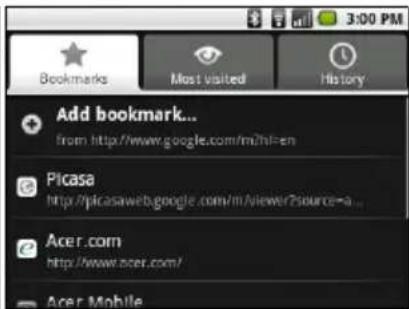
text_image
Bookmarks Most visited History Add bookmark... from http://www.google.com/m2/hl=en Plcasa http://plcasaweb.google.com/m/viewer?source=a... Acer.com http://www.acer.com/ Acer Mobile
text_image
Bookmarks Most visited History Today Google http://www.google.com/m2hi=en Google http://www.google.com.tw/You may open multiple pages. When a page is open, press the Menu button and tap New window from the menu that opens. Tap Windows to view all the windows that are open.
You can zoom in or out of pages using the zoom bar that appears when you tap the screen. Tap and hold an item on a page to open a contextual menu.
Voice Search

Note: Voice search is available only in some regions.
You can search the Internet using your voice. Open Voice Search from the applications tab, or press and hold the Search button. State your query when you see the "Speak now" prompt.

text_image
3:00 PM Speak now Google search Cancel
text_image
3:00 PM Working Google search Cancel Dialer Contacts Browser Maps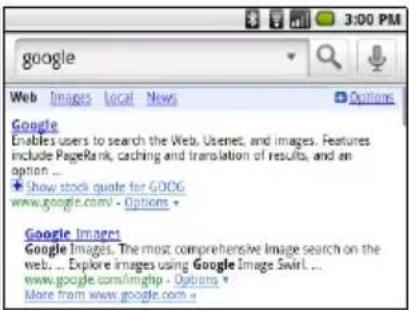
text_image
3:00 PM Google Web Images Local News Options Google Enables users to search the Web, Usernet, and images. Features include PageRank, caching and translation of results, and an option... Show stock quote for GOOD www.google.com/ - Options + Google Images Google Images. The most comprehensive image search on the web... Explore images using Google Image Swirl ... www.google.com/imgship - Options + More from www.google.com >Setting up Email
Your smartphone enables you to access your email. Most popular ISPs can be set up in two steps. Tap the Applications tab and then Email to start setting up your email access.
If necessary, enter your email address and tap Manual setup to enter the parameters manually. Tap Next to finish the setup process.
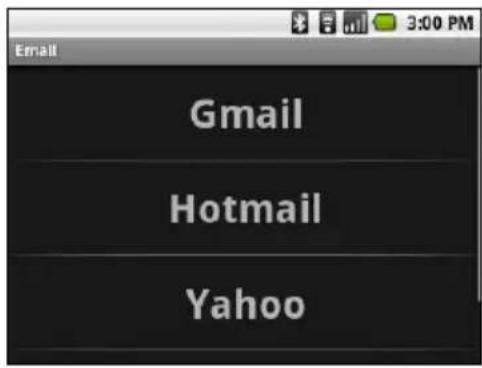
text_image
Email Gmail Hotmail YahooOnline applications
Your smartphone has a variety of applications installed on it from the factory.

Note: Applications installed may vary according to your region.
These applications may include:
- Facebook ok: View your Facebook profile and keep up-to-date with friends.
- Ma ps:Get easy-to-follow directions using Google Maps.
- Yo uTube: View the Most viewed and Most discussed video clips on YouTube.
Android market

Note: The Android Market may not be available in all countries and regions.

Note: You need to have a Google account set up and active on your phone before you can use the Android Market.
Tap Market from the applications tab to open the Android Market. Here you can obtain a variety of add-on programs and applications to enhance the functionality of your smartphone. The first time you access the Android Market, you will need to read and accept the Terms of Service.
You can browse the market by category or tap the search icon to search for a specific application.

text_image
3:00 PM market Apps Games Downloads Featured Google Buzz widget FREE Google Inc. Trapster FREE Trapster.com, Inc. EnocratesOnce you have selected an application, tap the Install button to download and install the application. You will be told which services on your phone that the application has access to. Tap OK to proceed with the installation.
You may keep track of the download progress from the Notification Area.

Important: Some applications may require payment before you can download them. You will need to have a Google Checkout account in order to pay for these applications.
Uninstalling downloaded applications
Once you've downloaded and installed an application, you may uninstall the application by tapping Settings from the Applications tab. Select Applications > Manage applications. Tap the application you wish to uninstall, tap Uninstall and confirm the uninstall.
Chapter 7: Using the Camera
Your smartphone features a 3-megapixel digital camera mounted on the rear. This section will take you through all the steps in taking photos and videos with your smartphone.

Note: You need to have a microSD Card inserted into the microSD Card slot before using the camera.
To activate the camera, open the Applications tab and tap Camera.
Camera icons and indicators
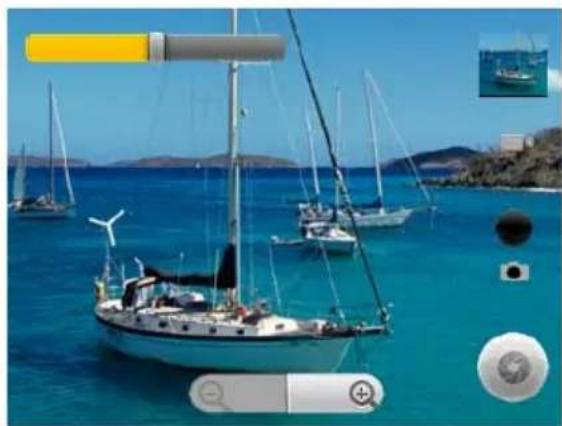
natural_image
Scenic coastal view of sailboats on turquoise water with wind turbines, distant hills and buildings in background (no visible text or symbols)In the camera window, use the zoom slider at the bottom of the screen to adjust the zoom. Tap to take a picture.
Icon Description

Indicates the last photo taken.
Slide to adjust brightness.

Slide to switch between camcorder and photo mode.

Tap to focus or take the photo. Changes to Record or Stop in video mode.

Tap to zoom in or out.
Camera settings menu
Tap the Menu button to open the Camera settings menu.
- Store location picture
- Jpeg quality
- Prompt after capture
- Grid
- Enable shutter sound
- Antibanding
- Resolution
- White balance / lighting
- Select effect
- Scene mode
- Flash mode
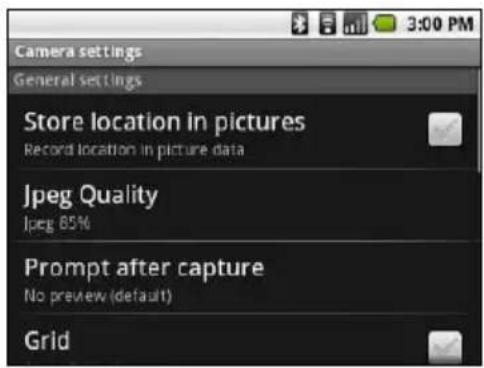
text_image
Camera settings General settings Store location in pictures Record location in picture data Jpeg Quality Jpeg 65% Prompt after capture No preview (default) GridTaking a photo
- Ensure you have adjusted the parameters described above.
- Frame your subject and steady your smartphone.
-
Zoom in or out as needed.
-
Tap to take a picture.
Shooting a video
Turn on camcorder mode by sliding the mode switch to camcorder mode.
1. Frame your subject and steady your smartphone and zoom in or out as needed.
2. Tap the Record button to begin recording. Tap again to stop recording.
Supported formats
Type Formats
Image JPEG
Video MPEG-4, H.263
Viewing photos and videos
After you have taken your photo or video, it is automatically saved.
Once you have taken a photo or video, you can view it in Gallery by tapping the thumbnail icon in the upper right corner. Alternatively, open the Applications tab and tap Gallery. From Gallery you can share the file directly using various services.

Note: Share options vary depending on the file type.
Putting your smartphone in Airplane mode
You can enter Airplane mode (also known as flight mode) to turn off telephone and Bluetooth functions and use your smartphone as a handheld device during a flight. Check with your airline to make sure this is permitted onboard.
Switch your smartphone off during takeoff and landing as it may interfere with aircraft electronic systems.
Turning Airplane mode on or off

Note: When Airplane mode is active, the area.

icon will be displayed in the Notification
- Press and hold the power button until you get the phone options menu.
- Tap Airplane mode to switch it ON or OFF.
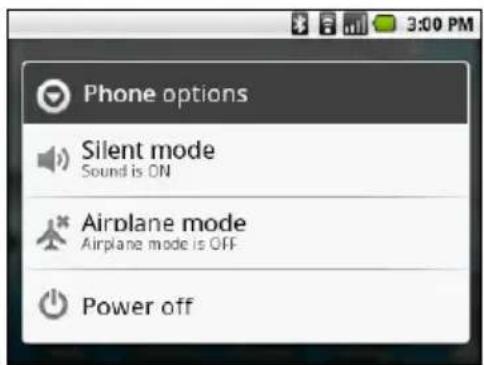
text_image
Phone options Silent mode Sound is ON Airplane mode Airplane mode is OFF Power offActivating or deactivating connections
Open the Applications tab and tap Settings > Wireless controls to manage your connection settings.
Each connection icon will be highlighted when turned on.
Acer Settings
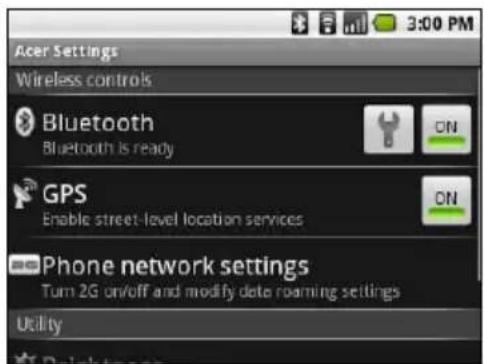
Acer Settings is a convenient all-in-one place for you to adjust commonly-used settings on your phone. Open the Applications tab and tap Acer Settings.
From this screen you can turn Bluetooth on or off or adjust their settings by tapping 📁.
You can also set your Phone network settings, set the screen Brightness or Screen Timeout.
text_image
Acer Settings Wireless controls Bluetooth Bluetooth is ready GPS Enable street-level location services Phone network settings Turn 2G on/off and modify date roaming settings Utility
Important: If your phone is in Airplane mode, the option to turn Bluetooth on will be disabled. Please refer to "Putting your smartphone in Airplane mode" on page 29 for instructions on turning Airplane mode on or off.
Phone network settings
Tap Mobile networks to adjust your network settings. You can turn data connection on or off when roaming, restrict the connection to 2G networks only, specify a network operator and define access point names. Please refer to "Selecting a network" on page 31.
Adjusting connection settings
This section will show you how to adjust detailed settings for your phone, data, Wi-Fi and Bluetooth connections.
| Item Description |
| Wi-Fi Turn the Wi-Fi function on or off. |
| Wi-Fi settings Set up and manage your wireless access points. |
| Bluetooth Turn the Bluetooth function on or off. |
| Bluetooth settings Manage your Bluetooth connections, set a device name and discoverability. |
| Mobile networks Set your options for connecting to mobile networks. |
| Airplane mode Disable all wireless connections so you can safely use this device onboard an aircraft. |
Sound & display
You can adjust your phone settings by tapping Settings > Sound & display.
| Item Description | |
| Silent mode Turn off all sounds except for alarms and media. | |
| Ringer volume Adjust the ringer volume. | |
| Media volume Set the playback volume for media. | |
| Phone ringtone Set your phone's ringtone. | |
| Phone vibrate Turn the vibrate function on. | |
| Notification ringtone Set a ringtone for notifications. | |
| Audible touch tones | Play tones when using dial pad. |
| Audible selection | Play a sound whenever a screen selection is made. |
| SD card notifications | Play a sound for SD card notifications. |
| Audible dial pad tones | Play tones when using dial pad. |
| Audible keypad sound | Play tones when using QWERTY keyboard. |
| Orientation | Switch screen orientation when the smartphone is rotated. |
| Animation | Animate when opening or closing windows. |
| Brightness | Adjust screen brightness. |
| Screen timeout | Set a delay before the screen will be turned off. |
| Notification LED | Turns notification LED indicators on or off. |
Selecting a network
Your phone wil automatically detect your carrier/network settings when you insert a new SIM card. However, you may prefer to manually select a network. This may be a good idea when roaming.

Tip: When you are traveling, manually selecting a network may help to reduce your roaming charges. Check with your home service provider for the network offering the most competitive rates at your destination.
- Open the Applications tab and tap Settings > Wireless controls > Mobile networks > Network operators.
- Your phone will search for available networks.
- Select your preferred network from the list generated. You phone will attempt to register on the selected network.
- Tap Select automatically to connect to the available network with the strongest signal. This may lead to your phone jumping between networks when you move around.

Note: Contact your service provider should you have any problems obtaining voice mail and the text message service center numbers.
Adjusting Bluetooth settings
You can use Bluetooth to exchange information between your smartphone and other mobile devices.
Bluetooth connections
For all Bluetooth settings, open the Applications tab and tap Settings > Wireless controls > Bluetooth settings. Here you can switch Bluetooth on or off, set a device name and discoverability. Tap Scan for devices to scan for available devices.
To connect to a device, tap the device in the list of available devices. You may be asked to enter a PIN on both devices to establish the connection.
Phone settings
Many phone settings are automatically configured by your smartphone when you insert a SIM card. The device will communicate with your provider and automatically obtain all necessary settings, such as network name, voice mail and text message center numbers.
You can also view and modify these settings manually through the Phone Settings screen.
Open the Applications tab and tap Settings > Call settings.
urFooz
urFooz is your portable profile that lives where you live.
- Fooz Creator lets you create a Fooz avatar, which is your virtual look-a-like.
- Fooz World lets you edit and manage your Fooz avatar(s), create new avatars and share them on Facebook, MySpace, blogs and more.
- Share it lets you post your Fooz card to Facebook, MySpace and other social networks. You can also email it to your friends.
You can email your Fooz card to friends, or post it to your social networks and blogs and always be connected.
Launching urFooz
To launch urFooz, tap UrFooz from the applications tab.
Creating your urFooz avatar
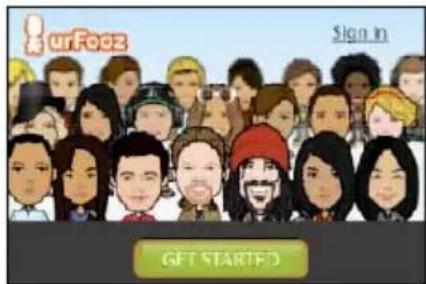
If you have not yet set up an account to urFooz, tap the Get Started button. If you have an existing urFooz account, select Sign in and login with your email and password.
To start creating your avatar, select your Gender, Ethnicity, Zodiac Sign, Relationship Status and Areas of Interest.
Next, start customizing your avatar. Tap Features to choose your face shape, eyes, nose, mouth and other facial features. Select Clothing to dress your svatar. Select Accessories to choose other items such as earrings, headbands, and whatever else to give your Fooz avatar your personal touch. Simply tap the image to apply the item to your avatar and preview how it looks on the left side of the screen.
text_image
urFooz Sign In GET STARTED
text_image
Footz Creator Swipe your finger to browse items and colors. Up and down for items Left and right for colors. START OVER SAVESelect SAVE and type in a name for your Fooz avatar. The next screen will ask you for the email address, password, and required user information. The email and password you enter will be used to sign into your urFooz account.
Managing your avatar
Now that you have created your Fooz avatar, go to Fooz World and personalize your Fooz card, or your portable profile.
Select Profile/Apps to fill in your profile and other information such as bookmarks of your social network profiles and favorite websites.
Select Switch Avatar to change your default avatar, modify existing avatars, or create a new avatar.

text_image
Fooz World Profile: App Search: Audio Share it If you have created multiple Fooz Andere you can switch Audio as your Fooz Card. Ray CANCEL SKE AS PRIVATESharing your Fooz card and avatar
urFooz lets you share your Fooz card with friends by posting it to your social networks, blogs, and websites; or emailing it to friends.
In Fooz World, select Share it. Select Post to post your Fooz card to Facebook or other social networks, or select Email to email your Fooz card to a friend.

text_image
Fooz World FreeView/Apple Security Answer SaaS Ray Post! Send your Fee Card anything Email Send your Fee Card is a Friend.!
Note: Fuhu, Spinlets, Spinlet, urFooz, Fooz Avatars, Fooz Creator, Fooz Card, and Fooz World are trademarks or registered trademarks of Fuhu, Inc. in the U.S. and/or other countries.
Connecting to a PC
If you wish to transfer information between the microSD Card in your phone and your computer, you can connect your phone to a PC using the supplied USB cable. Plug the USB sync cable into the micro USB connector on your smartphone. Plug the USB client connector into an available USB port on your computer.
Pull down the notification bar, and tap USB Connected. Click Mount.
You will now be able to see the microSD Card in your phone as a drive in your computer's file explorer.
!
Note: After mounting, you will not be able to access the files in the microSD card or applications such as Gallery or Music.
Synchronizing your calendar
You can sync your calendar on your phone with your Google calendar. Tap Calendar from the Applications tab to connect to your Google calendar and sync appointments.
!
Note: You need a Google account to sync your calendar and appointments.
Managing your calendar
The Calendar allows you to keep track of your events and tasks. You can access it by tapping Calendar on the home screen or in the Applications tab.
The Calendar offers a variety of viewing modes and settings to manage your events. Tap Menu and you will see the following options:
- Agenda
Day - Week
- Month
- New event
- Today
- More
Tap More > Settings to view additional options:
- Hide declined events
- Set alerts & notifications
- Select ringtone
• Vibrate - Set default reminder
Adding a new event
| June 2010 | ||||||
| Sun | Mon | Tue | Wed | Thu | Fri | Sat |
| 30 | 31 | 1 | 2 | 3 | 4 | 5 |
| 6 | 7 | 8 | 9 | 10 | 11 | 12 |
| 13 | 14 | 15 | 16 | 17 | 18 | 19 |
| 20 | 21 | 22 | 23 | 24 | 25 | 26 |
| 27 | 28 | 29 | 30 | 1 | 2 | 3 |
| 4 | 5 | 6 | 7 | 8 | 9 | 10 |
To add a new event, tap Menu and tap New event. Under Event details you have the option of filling out:
• Event name
• F r e Date and time
• To - Date and time
- Location
• Description
- Repetition
- Reminder intervals
GPS tracker
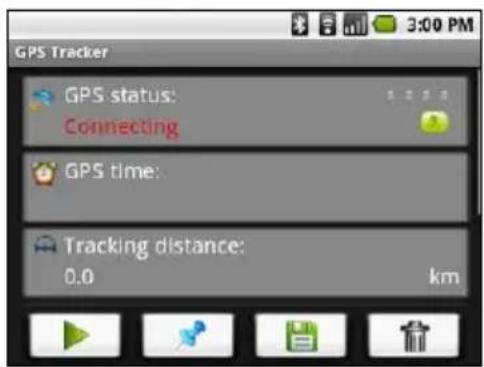
The GPS tracker will determine the precise location of the device at regular intervals.
The tracker provides information on GPS time, tracking distance, moving speed, trackers, and point of interest (POI).
You can track your location by tapping ▶ You can also pause, mark a POI (✗) and save your progress by tapping on the diskette.
Tapping Menu provides additional settings:
• M o -d (adjust data gathering intervals)
- Walk - 6-second intervals
• Bicycle – 4-second intervals
• C a-2-second intervals
• For - saved file format
- Save to path
- Hide
text_image
GPS Tracker GPS status: Connecting GPS time: Tracking distance: 0.0 kmFM radio
The FM radio allows you to listen to your favorite stations while on the move. Headphones must be inserted to the 3.5 mm jack as it functions as an antenna.
You can access the radio by tapping Radio from the Applications tab. Once the application is open, turn the radio on by tapping Menu and Turn on. You can now leave
the radio application and use other functions of the smartphone and listen to your station.
To turn the radio off, return to the radio application and tap Menu and Turn off.
Other functions are available through the Menu such as:
- M u t e
- Set frequency
- Scan
- Save
- More (Speaker on, RDS, Station list, Send station info)

text_image
3:00 PM Station 1 FM Radio << 087.50 >> 87.5 108Multimedia playback
Your smartphone comes supplied with a variety of programs that you can use to enjoy multimedia content.
nemoPlayer
Open nemoPlayer from the applications tab to play media you have stored on your phone.
nemoPlayer enables you to listen to music, view video clips and pictures in the following formats.
Type Formats
| Audio playback MP3, AMR, WMA |
| Ringtone MP3, MIDI, iMelody, WAVE, WMA |
| Video recording 3GP, MPEG-4, H.263 |
| Video playback 3GP, MPEG-4, H.263, H.264, WMV |

Note: Music recognition technology and related data are provided by Gracenote®. Gracenote®, Gracenote logo and logotype, and the "Powered by Gracenote" logo are either a registered trademark or a trademark of Gracenote, Inc. in the United States and/or other countries.
Spinlets
Spinlets gives you access to your favorite music, movie and television content. Get your favorite music, photos and videos from your mobile phone and share your favorite Spinlets on social networks, websites and more.

Note: Some contents may not be available in some countries.
Launching Spinlets
To launch the Spinlets application, tap Spinlets in the applications tab.
Browsing Spinlets gallery
You can sort or search your media content by albums or genres.
Browsing albums
Once Spinlets is opened, you will see a display of featured albums. Browse this display by sliding your finger horizontally (left or right), and select an album by tapping it.

text_image
3:00 PM Parachute "Losing Sleep" Spinlets Music Genres Sort SearchBrowsing genres
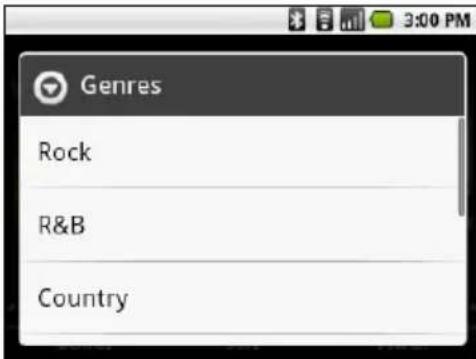
To browse the Gallery by genre, tap the Genres button on the bottom left corner of the screen. You will see a new screen with a list of different genres. Tap on the genre you wish to view.
text_image
Genres Rock R&B CountrySort
To sort through Spinlets by Name, Ratings, or Newest content, select the Sort button at the bottom of the screen.
Search
To search the Gallery for a specific name, select the Search button at the bottom right corner of the screen. Type the name of an artist in the search box and find potential matches.
Exploring Spinlets widgets
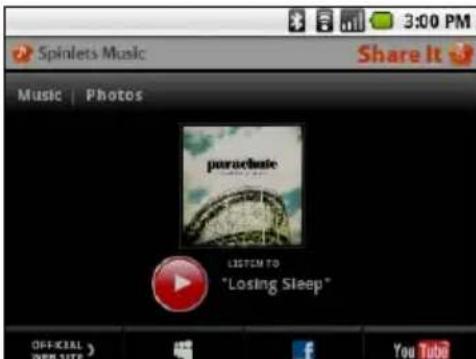
When you select an album, you will see a Spinlet.
To play the featured song, select the red Play button.
To play selected songs, select the Music tab and choose which songs you would like to play.
To view artist photos, select the Photos tab.
text_image
Spinlets Music Share It Music | Photos paraculate LISTEM TO "Losing Sleep" OFFICIAL WWW.SITE > f You TubeTo visit the artist's social networks and websites, select the icons located along the bottom of the screen.
Sharing your Spinlets
You can share your favorite Spinlets in two ways.
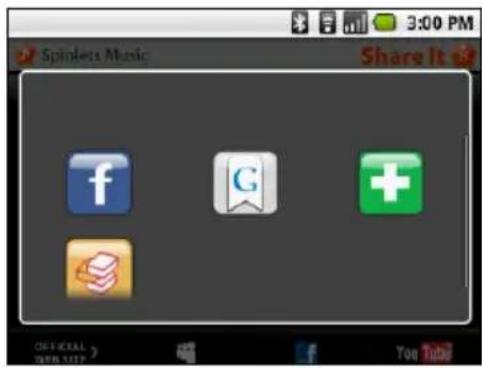
To post the Spinlet you are currently viewing to your social networks, blogs, or other websites, tap Share It at the top right corner of the Spinlet. Select Post it and tap the icon of the social network site or blog you want to post the widget to. Log in to your social network account or blog page and follow the steps.
text_image
Spinless Music Share It f G + OFFICIAL WORKSIP You TubeYou can also share Spinlets through email. Tap Share It at the top right corner, select Send it, and enter your name and your friend's email address.

Note: Fuhu, Spinlets, Spinlet, urFooz, Fooz Avatars, Fooz Creator, Fooz Card, and Fooz World are trademarks or registered trademarks of Fuhu, Inc. in the U.S. and/or other countries.
Adjusting the volume
Adjust the volume of your phone using the volume button on the side of the phone. Alternatively, you can set the Ringer volume and Media volume by opening the Applications tab and going to Settings > Sound & display.
Setting the date and time
To set the date and time, open the Applications tab and tap Settings > Date & time.

Tip: If you travel frequently or live in an area that uses daylight saving time, activate Automatic from this menu. This will enable your smartphone to set the date and time based on information it receives from the network.
Setting alarms
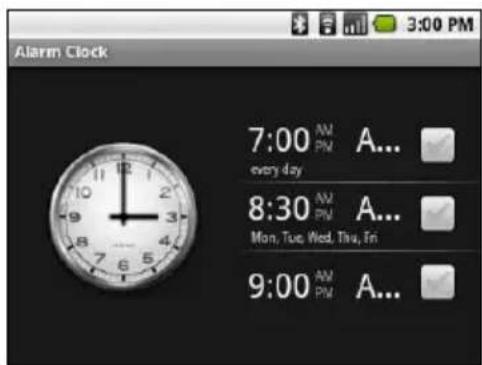
There are three predefined alarms on your phone by default. To edit alarm settings, tap Alarm clock in the Applications tab. You may:
- Turn the alarm on or off.
- Set the alarm time.
- Set a ringtone.
- Enable or disable vibrate.
- Set which days to repeat the alarm.
- Give it a label.
text_image
Alarm Clock 7:00 AM A... every day 8:30 AM A... Mon, Tue, Wed, Thu, Fri 9:00 AM A...Changing location and text options
Set your location and language input preferences by opening the Applications tab and going to Settings > Locale & text.
Managing applications

Warning! Make sure you trust the source of any program you install. If you are not sure of the source, do not install a program. Installing programs from unknown sources increases your risk of virus attacks and theft of personal and private data.
You can remove programs installed on your smartphone to free up extra storage memory. Open the Applications tab and go to Settings > Applications.
Here you can allow programs from Unknown sources to be installed and Manage applications.

Warning! You should only remove programs if you are familiar with the Android operating system.
Resetting your smartphone
You may have to perform a reset if your smartphone fails to respond when buttons are pressed or the screen is tapped.

Note: Before performing a reset, ensure that your smartphone is not locked. Press any key or tap the screen to see if the phone responds.
Clean boot
A clean boot will restore your smartphone to the factory settings.

Warning! You should only perform a clean boot when all other options have failed to restore your smartphone to an operational state.

Warning! This will erase all your personal information, any contacts stored on your phone and any programs you installed.
If your phone is responding to screen input
Open Settings from the Applications tab, then tap Privacy > Factory data reset; click Reset phone and then Erase everything to format your phone.
This chapter shows you how to use accessories with your smartphone, as well as provide useful tips for when you are using your smartphone.
Using the headset
Your smartphone comes packaged with a headset with built-in microphone for handsfree use when making calls.
To use the headset, plug it into the 3.5 mm headphone jack at the top of the phone.
When the headset is plugged in, all audio is routed to the headset, and the speakers are turned off.
- To answer an incoming call, press the button on the microphone.
- Adjust the volume using the volume up/down button on the smartphone.
- End the call by pressing the button again.
Using a Bluetooth headset
Your smartphone's Bluetooth functions make it fully compatible with all Bluetooth headsets. This allows you to use the unit handsfree when making calls, without the inconvenience of wires.
Using your smartphone as a modem
When connected to the PC, your smartphone can function as a modem via GPRS or 3G connection.
When you insert your SIM card, please ensure the data connection setting is enabled. Click Settings > Wireless controls > Mobile networks > Data enabled.
Your phone will automatically configure itself to use your provider's GPRS/3G/EDGE service.
!
Note: You may incur additional charges depending on your data plan.
Setting up the modem on your PC
Connect your smartphone to a PC via USB, and do the following steps:
- Install Acer PC Suite on your PC or notebook.
- After the installation is complete, click Start > All Programs > Acer > Acer PC Suite > Acer PC Suite to launch the application.
- Click Easylink to run Easy link.
- Click Select Device.
-
Click Refresh in the Select Device window to detect a standard modem port. Select the port and click Select.
-
Click Connect to start dialing up to data network.

Note: If the connection fails, restart and reconnect your smartphone to your PC, and then repeat the installation.

Note: Updates are available at the Acer website. Visit http://mobile.acer.com.
Creating a new access point
When you need to add another GPRS/3G/EDGE connection on your phone, obtain the access point name and settings (including username and password if required) from your wireless service provider.
-
Open the Applications tab and tap Settings > Wireless controls > Mobile networks > Access Point Names.
-
Press the Menu button and tap New APN.
-
Enter the APN settings. Tap an item to adjust it.
-
When you have finished press the Menu button and tap Save.

Important: Some providers and countries do not allow the use of a smartphone as a modem over HSDPA. Please check with your provider before attempting to do so.
Inserting a microSD Card
Your smartphone features a memory expansion slot that accepts a microSD Card to expand memory and storage capacity.
Please refer to "Installing a SIM and microSD Card" on page 11 for instructions on installing a microSD Card.
FAQ and troubleshooting
This section lists frequently asked questions that may arise during the use of your smartphone, and gives easy answers and solutions to these questions.
| Aspect Question Answer | ||
| Audio Why is there no sound coming from the device? | If the headset is plugged into the device, the speaker is automatically shut off.Disconnect the headset.Check that the device volume setting is not muted.Check that the volume control is not at its lowest setting. | |
| Multimedia files Why can’t I view my picture files? | You may be trying to view an image that is not supported. Refer to “Multimedia” on page 47 for more information. | |
| Why can’t I view my video files? | You may be trying to view a video that is not supported. Refer to “Multimedia” on page 47 for more information. | |
| Why can’t I play my music files? | You may be trying to play a file that is not supported. Refer to “Multimedia” on page 47 for more information. | |
| System information and performance | How do I check the OS version of my device? | Tap Menu > Settings > About phone to check the OS version (Kernel/build number) and other hardware and software information. |
| Power I couldn’t turn on the device. | The battery power may be depleted.Recharge the device. Refer to “Charging the battery” on page 10 for more information. | |
| Heat The phone heats up when charging or making long duration calls. | It is normal for the phone to heat up when charging. When charging is complete, it will return to its normal temperature.It is also normal for the phone to heat up during long periods of use, such as watching a video or a long phone conversation.All Acer phones are factory tested before release. | |
Other sources of help
For information on:
Up-to-date information regarding your smartphone www.acer.com/ http://mobile.acer.com
Service enquiries www.acer.com/support/
ADB
- Set up the network configuration for the USB Ethernet device:
• IP address: 192.168.239.5
- Subnet mask: 255:255:255:0
- Add ADBHOST to the PC environment variable.
• Variable name: ADBHOST
• Variable value: 192.168.239.4
-
Connect the smartphone via USB to the PC. Execute the following commands before running adb.
-
adb kill-server
- adb devices
Warnings and precautions
- Do not use this product near water.
- Do not place this product on an unstable cart, stand or table. If the product falls, it could be seriously damaged.
- Slots and openings are provided for ventilation to ensure reliable operation of the product and to protect it from overheating. These openings must not be blocked or covered. The openings should never be blocked by placing the product on a bed, sofa, rug or other similar surface. This product should never be placed near or over a radiator or heat register, or in a built-in installation unless proper ventilation is provided.
- Never push objects of any kind into this product through cabinet slots as they may touch dangerous voltage points or short-out parts that could result in a fire or electric shock. Never spill liquid of any kind onto or into the product.
- To avoid damage of internal components and to prevent battery leakage, do not place the product on a vibrating surface.
- Never use this product when engaging in sporting activities, exercising, or in any vibrating environment which may cause a short circuit or damage, and even a risk of explosion from the battery pack.
CAUTION when listening to music
To protect your hearing, follow these instructions.
- Increase the volume gradually until you can hear clearly and comfortably.
- Do not increase the volume level after your ears have adjusted.
- Do not listen to music at high volumes for extended periods.
- Do not increase the volume to block out noisy surroundings.
- Decrease the volume if you can't hear people speaking near you.
Battery information
This product uses a Lithium-ion battery. Do not use it in a humid, wet and/or corrosive environment. Do not put, store or leave your product in or near a heat source, in a high temperature location, in strong direct sunlight, in a microwave oven or in a pressurized container, and do not expose it to temperatures over 60 °C (140 °F). Failure to follow these guidelines may cause the battery to leak acid, become hot, explode or ignite and cause injury and/or damage. Do not pierce, open or disassemble the battery. If the battery leaks and you come into contact with the leaked fluids, rinse thoroughly with water and
seek medical attention immediately. For safety reasons, and to prolong the lifetime of the battery, charging will not occur at low (below 0 °C/32 °F) or high (over 40 °C/104 °F) temperatures.
The full performance of a new battery is achieved only after two or three complete charge and discharge cycles. The battery can be charged and discharged hundreds of times, but it will eventually wear out. When the talk and standby times are noticeably shorter than normal, buy a new battery. Use only Acer approved batteries, and recharge your battery only with Acer approved chargers designated for this device.
Unplug the charger from the electrical plug and the device when not in use. Do not leave a fully charged battery connected to the ac charger, since overcharging may shorten its lifetime. If left unused, a fully charged battery will lose its charge over time. If the battery is completely discharged, it may take a few minutes before the charging indicator appears on the display or before any calls can be made.
Use the battery only for its intended purpose. Never use any charger or battery that is damaged.
Do not short-circuit the battery. Accidental short-circuiting can occur when a metallic object such as a coin, clip, or pen causes direct connection of the positive (+) and negative (-) terminals of the battery. (These look like metal strips on the battery.) This might happen, for example, when you carry a spare battery in your pocket or purse. Short-circuiting the terminals may damage the battery or the connecting object.
Leaving the battery in hot or cold places, such as in a closed car in summer or winter conditions, will reduce the capacity and lifetime of the battery. Always try to keep the battery between 15 °C and 25 °C (59 °F and 77 °F). A device with a hot or cold battery may not work temporarily, even when the battery is fully charged. Battery performance is particularly limited in temperatures well below freezing.
Do not dispose of batteries in a fire as they may explode. Batteries may also explode if damaged. Dispose of batteries according to local regulations. Please recycle when possible. Do not dispose as household waste.
Replacing the battery pack
Your smartphone uses lithium batteries. Replace the battery with the same type as that which came bundled with your product. Use of another battery may present a risk of fire or explosion.

Warning! Batteries may explode if not handled properly. Do not disassemble or dispose of them in fire. Keep them away from children. Follow local regulations when disposing of used batteries.
Additional safety information
Your device and its enhancements may contain small parts. Keep them out of the reach of small children.
Operating environment

Warning! For safety reasons, turn off all wireless or radio transmitting devices when using your smartphone device under the following conditions. These devices may include, but are not limited to: Bluetooth and/or 3G.
Remember to follow any special regulations in force in any area, and always switch off your device when its use is prohibited or when it may cause interference or danger. Use the device only in its normal operating positions. Do not cover the antenna with metal and you should position the device at the above-stated distance from your body. To successfully transmit data files or messages, this device requires a good quality connection to the network. In some cases, transmission of data files or messages may be delayed until such a connection is available. Ensure that the above separation distance instructions are followed until the transmission is completed. Parts of the device are magnetic. Metallic materials may be attracted to the device, and persons with hearing aids should not hold the device to the ear with the hearing aid. Do not place credit cards or other magnetic storage media near the device, because information stored on them may be erased.
Medical devices
Operation of any radio transmitting equipment, including wireless phones, may interfere with the functionality of inadequately protected medical devices. Consult a physician or the manufacturer of the medical device to determine if they are adequately shielded from external RF energy or if you have any questions. Switch off your device in health care facilities when any regulations posted in these areas instruct you to do so. Hospitals or health care facilities may be using equipment that could be sensitive to external RF transmissions.
Pacemakers. Pacemaker manufacturers recommend that a minimum separation of 15.3 cm (6") be maintained between wireless devices and a pacemaker to avoid potential interference with the pacemaker. These recommendations are consistent with the independent research by and recommendations of Wireless Technology Research. Persons with pacemakers should do the following:
- Always keep the device more than 15.3 cm (6") from the pacemaker.
- Not carry the device near your pacemaker when the device is switched on. If you suspect interference, switch off your device, and move it.
Hearing aids. Some digital wireless devices may interfere with some hearing aids. If interference occurs, consult your service provider.
Vehicles
RF signals may affect improperly installed or inadequately shielded electronic systems in motor vehicles such as electronic fuel injection systems, electronic antiskid (antilock) braking systems, electronic speed control systems, and air bag systems. For more information, check with the manufacturer, or its representative, of your vehicle or any equipment that has been added. Only qualified personnel should service the device, or install the device in a vehicle. Faulty installation or service may be dangerous and may invalidate any warranty that may apply to the device. Check regularly that all wireless equipment in your vehicle is mounted and operating properly. Do not store or carry flammable liquids, gases, or explosive materials in the same compartment as the device, its parts, or enhancements. For vehicles equipped with an air bag, remember that air bags inflate with great force. Do not place objects, including installed or portable wireless equipment in the area over the air bag or in the air bag deployment area. If in-vehicle wireless equipment is improperly installed, and the air bag inflates, serious injury could result. Using your device while flying in aircraft is prohibited. Switch off your device before boarding an aircraft. The use of wireless teledevices in an aircraft may be dangerous to the operation of the aircraft, disrupt the wireless telephone network, and may be illegal.
Potentially explosive environments
Switch off your device when in any area with a potentially explosive atmosphere and obey all signs and instructions. Potentially explosive atmospheres include areas where you would normally be advised to turn off your vehicle engine. Sparks in such areas could cause an explosion or fire resulting in bodily injury or even death. Switch off the device at refueling points such as near gas pumps at service stations. Observe restrictions on the use of radio equipment in fuel depots, storage, and distribution areas; chemical plants; or where blasting operations are in progress. Areas with a potentially explosive atmospheres are often, but not always, clearly marked. They include below deck on boats, chemical transfer or storage facilities, vehicles using liquefied petroleum gas (such as propane or butane), and areas where the air contains chemicals or particles such as grain, dust or metal powders.
Follow any restrictions. Do not use the device where blasting is in progress.
Emergency calls
Important: Wireless phones, including this device, operate using radio signals, wireless networks, landline networks, and user-programmed functions. Because of this, connections in all conditions cannot be guaranteed. You should never rely solely on any wireless device for essential communications like medical emergencies.
If certain features are in use, you may first need to turn those features off before you can make an emergency call. Consult this guide or your service provider for more information.
When making an emergency call, give all the necessary information as accurately as possible. Your wireless device may be the only means of communication at the scene of an accident. Do not end the call until given permission to do so.
Disposal and recycling information
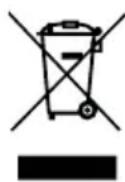
Do not throw this electronic device into the trash when discarding.
To minimize pollution and ensure utmost protection of the global environment, please recycle. For more information on the Waste from Electrical and Electronics Equipment (WEEE) regulations, visit www.acer-group.com/public/Sustainability/sustainability01.htm
Mercury advisory

For projectors or electronic products containing an LCD/CRT monitor or display: Lamp(s) inside this product contain mercury and must be recycled or disposed of according to local, state or federal laws. For more information, contact the Electronic Industries Alliance at www.eiae.org. For lamp-specific disposal
information, check www.lamprecycle.org.
Taking care of your smartphone
- DO take care not to scratch the screen of your smartphone. Keep the screen clean. When working with your smartphone, use your finger or fingernail. Never use an actual pen or pencil or other sharp object on the screen surface.
-
DO NOT expose your smartphone to rain or moisture. Do not let water enter the circuitry through the front panel buttons or expansion slots. In general, treat your smartphone as you would a mobile phone or other small electronic device.
-
DO be careful not to drop your smartphone or subject it to any strong impact. Do not place your smartphone in your back pocket.
-
DO NOT expose your smartphone to extreme temperatures. For example, do not leave your smartphone on the dashboard of a car on a hot day or when temperatures are below freezing point. Also, keep it away from heaters and other sources of heat.
-
DO NOT use or store your smartphone in any location that is dusty, damp or wet.
-
DO use a soft, damp cloth to clean your smartphone. If the surface of the screen becomes soiled, clean it with a soft cloth moistened with diluted window-cleaning solution.
-
DO NOT press down on the screen with force, otherwise you may crack the screen.
Specifications
Performance
• ST Ericsson PNX6715, 416 MHz
- System memory:
• 256 MB of SDRAM
• 512 MB of Flash ROM
- Google Android operating system
Display
- 2.6" TFT-LCD resistive touchscreen
- 320 x 240 resolution
- 65K colors support
Multimedia
• CD-quality stereo output
• Mono speaker 0.5 W (max)
- Omni-directional microphone
- Formats supported
Type Formats
| Audio playback MP3, AMR, WMA |
| Ringtone AMR, AAC/AAC+/EAAC+, MP3, MIDI, WAV |
| Video recording 3GP, MPEG-4, H.263 |
| Video playback MPEG-4, H.263, H.264 |
USB connector
- Micro USB connector
- USB Client
- DC power-in (5 V, 1 A)
Connectivity
- Bluetooth 2.0+EDR
- IEEE Wi-Fi 802.11 b/g WLAN
• GSM 850 / 900 / 1800 / 1900
• UMTS 900 / 2100 (EU models)
• UMTS 850 / 1900 (US models)
• HSDPA / GPRS / EDGE
Camera
• 3-megapixel EDOF
Expansion
- microSD memory card (up to 32 GB)
GPS
• Built-in GPS
- Supports AGPS
Battery
- High density, rechargeable 1500 mAh Lithium-Ion battery (replaceable)

Note: Length of battery operation will depend on power consumption which is based on system resource use. For example, constantly using the backlight or using power-demanding applications will shorten battery life between charges.
Dimensions
| Height 115 mm |
| Width 63 mm |
| Thickness 11.5 mm |
| Weight <109 g (with battery) |
Regulatory information
Compliant with Russian regulatory certification

ME61
RoHS compliance
This product is in compliance with Directive 2002/95/EC of the European Parliament and of the Council of 27 January 2003, on the restriction of the use of certain hazardous substances in electrical and electronic equipment (RoHS) and its amendments.
LCD pixel statement
The LCD unit is produced with high-precision manufacturing techniques. Nevertheless, some pixels may occasionally misfire or appear as black or red dots. This has no effect on the recorded image and does not constitute a malfunction.
Radio device regulatory notice

Note: Regulatory information below is for models with wireless LAN and/or Bluetooth only.
General
This product complies with the radio frequency and safety standards of any country or region in which it has been approved for wireless use. Depending on configuration, this product may or may not contain wireless radio devices (such as wireless LAN and/or Bluetooth modules). Information below is for products with such devices.
Preventing hearing loss

Caution: Permanent hearing loss may occur if earphones or headphones are used at high volume for prolonged periods of time.
This device has been tested to comply with the Sound Pressure Level requirement laid down in the applicable EN 50332-1 and/or EN 50332-2 standards.

Note: For France, mobile headphones or earphones for this device have been tested to comply with the Sound Pressure requirement laid done in the applicable NF EN 50332-1:2000 and/or NF EN 50332-2:2003 standards as required by French Article L. 5232-1.
Wireless operation channels for different domains
N. America 2.412-2.462 GHz Ch01 through Ch11
Japan 2.412-2.484 GHz Ch01 through Ch14
Europe ETSI 2.412-2.472 GHz Ch01 through Ch13
France: Restricted wireless frequency bands
Some areas of France have a restricted frequency band. The worst case maximum authorized power indoors is:
- 10 mW for the entire 2.4 GHz band (2400 MHz - 2483.5 MHz)
• 100 mW for frequencies between 2446.5 MHz and 2483.5 MHz

Note: Channels 10 through 13 inclusive operate in the band 2446.6 MHz to 2483.5 MHz.
There are few possibilities for outdoor use: On private property or on the private property of public persons, use is subject to a preliminary authorization procedure by the Ministry of Defense, with maximum authorized power of 100 mW in the 2446.5 - 2483.5 MHz band. Use outdoors on public property is not permitted.
In the departments listed below, for the entire 2.4 GHz band:
• Maximum authorized power indoors is 100 mW
• Maximum authorized power outdoors is 10 mW
Departments in which the use of the 2400 - 2483.5 MHz band is permitted with an EIRP of less than 100 mW indoors and less than 10 mW outdoors:
| 01 Ain Orientales | 25 Doubs | 59 Nord | 75 Paris |
| 02 Aisne | 26 Drome | 60 Oise | 82 Tarn et Garonne |
| 03 Allier | 32 Gers | 61 Orne | 84 Vaucluse |
| 05 Hautes Alpes | 36 Indre | 63 Puy Du Dome | 88 Vosges |
| 08 Ardennes | 37 Indre et Loire | 64 Pyrenees Atlantique | 89 Yonne |
| 09 Ariege | 41 Loir et Cher | 66 Pyrenees | 90 Territoire de Belfort |
| 11 Aude | 45 Loret | 67 Bas Rhin | 94 Val de Marne |
| 12 Aveyron | 50 Manche | 68 Haut Rhin | |
| 16 Charente | 55 Meuse | 70 Haute Saone | |
| 24 Dordogne | 58 Nievre | 71 Saone et Loire |
This requirement is likely to change over time, allowing you to use your wireless LAN card in more areas within France.
Please check with ART for the latest information (www.art-telecom.fr).

Note: Your WLAN Card transmits less than 100 mW, but more than 10 mW.
List of National Codes
This equipment may be operated in the following countries:
| Country | ISO 3166 (2 letter code) | Country | ISO 3166 (2 letter code) |
| Austria | AT | Malta | MT |
| Belgium | BE | Netherlands | NT |
| Cyprus | CY | Poland | PL |
| Czech Republic | CZ | Portugal | PT |
| Denmark | DK | Slovakia | SK |
| Estonia | EE | Slovenia | SL |
| Finland | FI | Spain | ES |
| France | FR | Sweden | SE |
| Germany | DE | United Kingdom | GB |
| Greece | GR | Iceland | IS |
| Hungary | HU | Liechtenstein | LI |
| Ireland | IE | Norway | NO |
| Italy | IT | Switzerland | CH |
| Latvia | LV | Bulgaria | BG |
| Lithuania | LT | Romania | RO |
| Luxembourg | LU | Turkey | TR |
FCC regulations
This mobile phone complies with part 15 of the FCC Rules. Operation is subject to the following two conditions: (1) This device may not cause harmful interference, and (2) this device must accept any interference received, including interference that may cause undesired operation.
This mobile phone has been tested and found to comply with the limits for a Class B digital device, pursuant to Part 15 of the FCC Rules. These limits are designed to provide reasonable protection against harmful interference in a residential installation. This equipment generates, uses and can radiated radio frequency energy and, if not installed and used in accordance with the instructions, may cause harmful interference to radio communications. However, there is no guarantee that interference will not occur in a particular installation If this equipment does cause harmful interference to radio or television reception, which can be determined by turning the equipment off and on, the user is encouraged to try to correct the interference by one or more of the following measures:
- Reorient or relocate the receiving antenna.
- Increase the separation between the equipment and receiver.
- Connect the equipment into an outlet on a circuit different from that to which the receiver is connected.
- Consult the dealer or an experienced radio/TV technician for help.
Changes or modifications not expressly approved by the party responsible for compliance could void the user's authority to operate the equipment.
RF exposure warning
The equipment complies with FCC RF exposure limits set forth for an uncontrolled environment.
The antenna(s) used for this transmitter must not be co-located or operating in conjunction with any other antenna or transmitter.
RF exposure information (SAR)
This mobile phone meets the government's requirements for exposure to radio waves.
This phone is designed and manufactured not to exceed the emission limits for exposure to radio frequency (RF) energy set by the Federal Communications Commission of the U.S. Government.
The exposure standard for wireless mobile phones employs a unit of measurement known as the Specific Absorption Rate, or SAR. The SAR limit set by the FCC is 1.6 W/kg.
Tests for SAR are conducted using standard operating positions accepted by the FCC with the phone transmitting at its highest certified power level in all tested frequency bands. Although the SAR is determined at the highest certified power level, the actual SAR level of the phone while operating can be well below the maximum value. This is because the phone is designed to operate at multiple power levels so as to use only the poser required to reach the network. In general, the closer you are to a wireless base station antenna, the lower the power output.
The highest SAR value for US model phones as reported to the FCC when tested for use at the ear is 0.818 W/kg and when worn on the body, as described in this user guide, is 0.827 W/kg.

Important: Body-worn measurements differ among phone models, depending upon available enhancements and FCC requirements.
While there may be differences between the SAR levels of various phones and at various positions, they all meet the government requirements.
The FCC has granted an Equipment Authorization for this model phone with all reported SAR levels evaluated as in compliance with the FCC RF exposure guidelines. SAR information on this model phone is on file with the FCC and can be found under the Display Grant section of www.fcc.gov/oet/ea/fccid after searching on FCC ID: HZLDME130 (for US models).
For body worn operation, this phone has been tested and meets the FCC RF exposure guidelines for use with accessories that contain no metal and that position the handset a minimum of 1.5 cm from the body. Use of other accessories may not ensure compliance with FCC RF exposure guidelines. If you do not use a body-worn accessory and are not holding the phone at the ear, position the handset a minimum of 1.5 cm from your body when the phone is switched on.
Using your phone with a hearing aid device (US models)
Your device is compliant with the FCC Hearing Aid Compatibility (HAC) requirements. When some wireless phones are used near some hearing devices (hearing aids and cochlear implants) users may detect a buzzing, humming, or whining noise. Some hearing devices are more immune than others to this interference noise, and phones also vary in the amount of interference they generate. The wireless telephone industry has developed ratings for some of their mobile phones, to assist hearing-device users in finding phones that may be compatible with their hearing devices. Not all phones have been rated. Phones that have been rated have a label on the box. Your device has been tested for hearing aid device compatibility and has an M3 and/or T3 rating.
These ratings are not guarantees. Results will vary, depending on the level of immunity of your hearing device and the degree of your hearing loss. If your hearing device happens to be vulnerable to interference, you may not be able to use a rated phone successfully. Trying out the phone with your hearing device is the best way to evaluate it for your personal needs.
M-Ratings: Phones rated M3 or M4 meet FCC requirements and are likely to generate less interference with hearing devices than phones that are not labeled. M4 is the better/higher of the two ratings.
T-Ratings: Phones rated T3 or T4 meet FCC requirements and are likely to be more usable with a hearing device's telecoil ("T Switch" or "Telephone Switch") than unrated phones. T4 is the better/higher of the two ratings.

Important: This device does not support VoIP. WLAN and Bluetooth do not have voice capability for held-to-the-ear phone service.

Note: Not all hearing devices contain telecoils.
The more immune your hearing aid device is, the less likely you are to experience interference noise from your wireless phone. Hearing aid devices should have ratings
similar to those of phones. Ask your hearing health-care professional for the rating of your hearing aid.
Hearing devices may also be measured for immunity to this type of interference. Your hearing device manufacturer or hearing health professional may help you find results for your hearing device. The more immune your hearing aid is, the less likely you are to experience interference noise from wireless devices.
For additional information about the FCC's actions with regard to hearing aid compatible wireless devices and other steps the FCC has taken to ensure that individuals with disabilities have access to telecommunications services, please go to www.fcc.gov/cgb/dro.
Turning on Hearing Aid Compatibility mode
To turn on HAC, open the Applications menu and tap Settings > Call settings > Hearing aids.
For Canadian users
Operation is subject to the following two conditions: (1) this device may not cause interference, and (2) this device must accept any interference, including interference that may cause undesired operation of the device.
This Class B digital apparatus complies with Canadian ICES-003.
This Category II radiocommunication device complies with Industry Canada Standard RSS-310.
This EUT is compliance with SAR for general population/uncontrolled exposure limits in IC RSS-102 and had been tested in accordance with the measurement methods and procedures specified in IEEE 1528. This equipment should be installed and operated with minimum distance 1.5cm between the radiator and your body.
This device and its antenna(s) must not be co-located or operating in conjunction with any other antenna or transmitter.

Note: The county code selection feature is disabled for products marketed in the US/Canada.
Certificate Information (SAR)
This device meets the EU requirements (1999/519/EC) on the limitation of exposure of the general public to electromagnetic fields by way of health protection.
The limits are part of extensive recommendations for the protection of the general public. These recommendations have been developed and checked by independent scientific organizations through regular and thorough evaluations of scientific studies. To guarantee the safety of all persons, regardless of age and health, the limits include a significant safety buffer.
Before radio devices can be put in circulation, their agreement with European laws or limits must be confirmed; only then may the CE symbol be applied.
The unit of measurement for the European Council's recommended limit for mobile telephones is the "Specific Absorption Rate" (SAR). This SAR limit is 2.0 W/kg, averaged over 10 g of body tissue. It meets the requirements of the International Commission on Non-Ionizing Radiation Protection (ICNIRP) and was included in the European Standard EN 50360 for mobile radio devices. The SAR regulation for mobile telephones is in line with European Standard EN 62209-1. The maximum SAR value is calculated at the highest output level in all frequency bands of the mobile telephone. During use, the actual SAR level is usually much lower than the maximum value, because the mobile telephone works in different output levels. It only transmits with as much output as is required to reach the network. In general the following applies: The closer you are to a base station, the lower the transmission output of your mobile telephone. The tested SAR of this device is as follows:
| CE NCC | |||
| Head (W/kg 10g) | Body (W/kg 10g) | Head (W/kg 10g) | Body (W/kg 10g) |
| 0.478 0.419 0.478 N/A | |||
NCC warning
警語
Lithium-ion battery warning

Declaration of Conformity
We, Acer Incorporated,
of 8F., No. 88, Sec. 1, Hsin Tai Wu Rd. Hsichih Taipei Hsien 221, Taiwan
Declare under sole responsibility that the product:
M o d e 1 : E 1 3 0
Description: Smart HandHeld
To which this declaration relates, is in conformity with the following standards and/or other normative documents:
●EN 301 511 V9.0.2
●EN 300 328 V1.7.1
●EN 301 908-1/-2 V3.2.1
●EN 300 440-1 V1.5.1/ EN300 440-2 V1.3.1
●EN 301 489-1 V1.8.1/-3 V1.4.1/-7 V1.3.1/-17 V2.1.1/-24 V.1.4.1
●EN 55022:2006/A1:2007 Class B; EN 55024:1998/A1:2001/A2:2003
●EN 55013:2001/A1:2003/A2:2006;
●EN 60950-1:2006+A11:2009
●EN 50332-1:2000/-2:2003
●EN 50360:2001/ EN 62209-1:2006/ EN62311:2008/ OET65C
We hereby declare that the above named product is in conformance to all the essential requirements of the R&TTE Directive (99/5/EC) issued by the Commission of the European Community.
The conformity assessment procedure referred to in Article 10 and detailed in Annex [IV] of directive 1999/5/EC has been followed related to Articles
● R&TTE Article 3.1 (a) Health and Safety
● R&TTE Article 3.1 (b) EMC
● R&TTE Article 3.2 Spectrum Usage
with the involvement of the following Notified Body:
CETECOM, Untertuerkheimer Str. 6 – 10 66117 Saarbruecken
Identification mark: 0682 (Notified Body) CE
The technical documentation relevant to the above equipment will be held at:
Acer Incorporated
8F., No. 88, Sec. 1, Hsin Tai Wu Rd. Hsichih Taipei Hsien 221, Taiwan
Authorized Person:
Name: Harriot S.L. Lee
B
battery
charging 10
information 48
Bluetooth
connections 31
headset 39
C
call history 18
calls
answering 19
ending 19
onscreen options 19
rejecting 19
camera
icons and indicators 27
information 47
shooting a video 28
supported formats 28
taking a photo 28
conference calls 20
connectivity 47
contacts
adding 17
making calls to a contact 19
saving a dialed number 20
D
display 47
E
email 25
F
FAQs 41
FM radio 34
G
Google 12
GPS tracker 34
H
help
sources 41
|
international numbers 19
L
LED indicators 9
M
managing your calendar ....33
MMS messages 22
P
performance 47
phone
connections 31
settings 31
Q
QWERTY keyboard 13
S
safety regulations ....42
speakerphone 19
spinlets 35
T
troubleshooting 41
turning on 12
U
urFooz 32
USB connector 47
V
voice calls
the voice call screen ....19
voice search 24
volume
adjusting 37