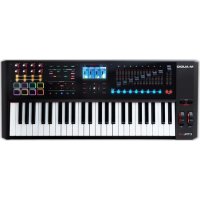
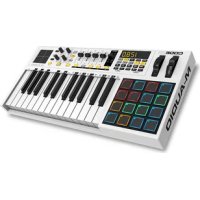
CTRL49 - Keyboard M-AUDIO - Free user manual and instructions
Find the device manual for free CTRL49 M-AUDIO in PDF.



User questions about CTRL49 M-AUDIO
0 question about this device. Answer the ones you know or ask your own.
Ask a new question about this device
Download the instructions for your Keyboard in PDF format for free! Find your manual CTRL49 - M-AUDIO and take your electronic device back in hand. On this page are published all the documents necessary for the use of your device. CTRL49 by M-AUDIO.
USER MANUAL CTRL49 M-AUDIO
Software Download Cards
Quickstart Guide
Safety & Warranty Manual
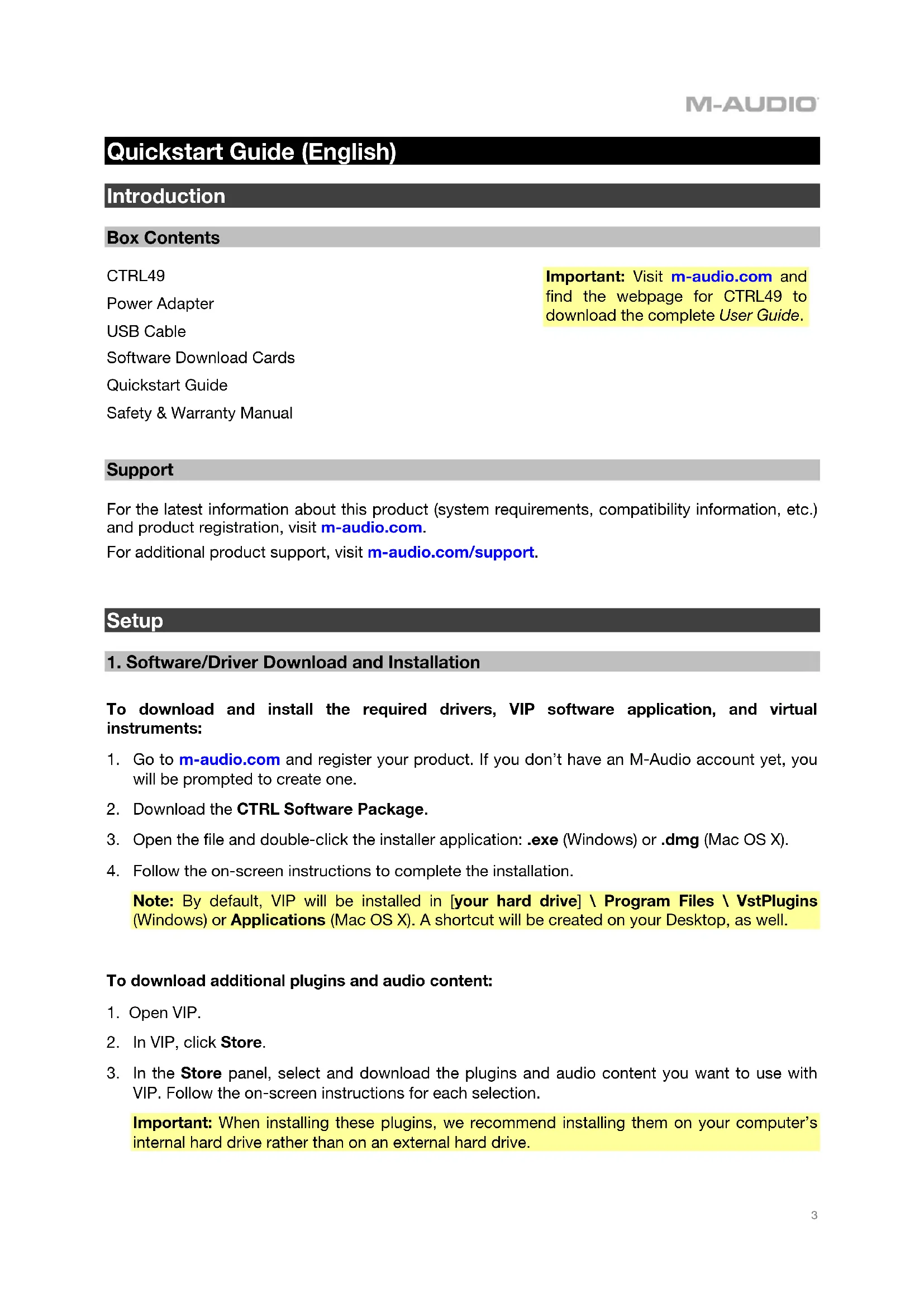
Important: Visit m-audio.com and find the webpage for CTRL49 to download the complete User Guide.
Support
For the latest information about this product (system requirements, compatibility information, etc.) and product registration, visit m-audio.com.
For additional product support, visit m-audio.com/support.
Setup
1. Software/Driver Download and Installation
To download and install the required drivers, VIP software application, and virtual instruments:
- Go to m-audio.com and register your product. If you don't have an M-Audio account yet, you will be prompted to create one.
- Download the CTRL Software Package.
- Open the file and double-click the installer application: .exe (Windows) or .dmg (Mac OS X).
- Follow the on-screen instructions to complete the installation.
Note: By default, VIP will be installed in [your hard drive] \ Program Files \ VstPlugins (Windows) or Applications (Mac OS X). A shortcut will be created on your Desktop, as well.
To download additional plugins and audio content:
- Open VIP.
- In VIP, click Store.
- In the Store panel, select and download the plugins and audio content you want to use with VIP. Follow the on-screen instructions for each selection.
Important: When installing these plugins, we recommend installing them on your computer's internal hard drive rather than on an external hard drive.
2. Controller Setup
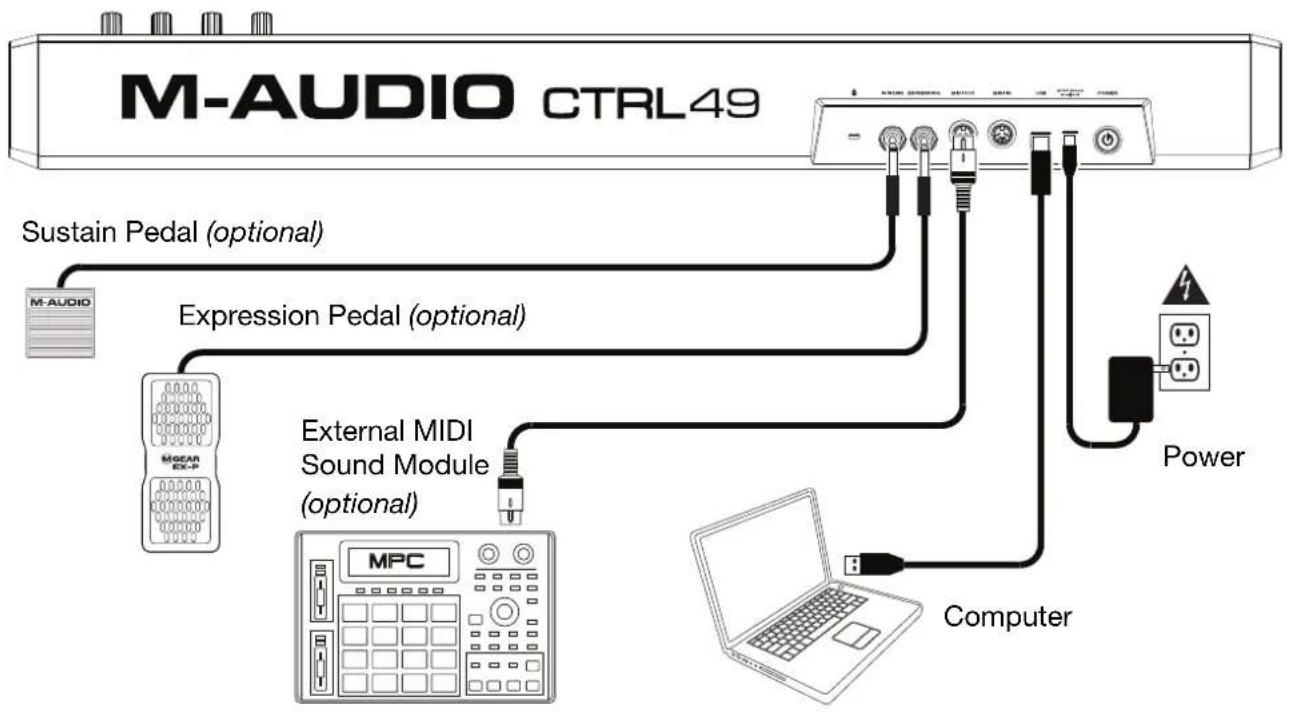
Here is just an example of how to use CTRL49 in your setup. Items not listed under Introduction > Box Contents are sold separately.
flowchart
graph TD
    A["M-AUDIO CTRL49"] -->|Sustain Pedal (optional)| B["M-AUDIO"]
    A -->|Expression Pedal (optional)| C["MECAN EX-P"]
    A -->|External MIDI Sound Module (optional)| D["MPC"]
    A -->|Computer| E["Laptop"]
    A -->|Power| F["Power"]
    A -->|External Mali Audio System| G["External Mali Audio System"]
3. Software-Controller Configuration
This section describes how to start using your CTRL49. We recommend using CTRL49 with the included VIP software which you can use to perform with, create, edit, and manage multiple plugin patches simultaneously. To learn more about how you can use CTRL49 in each kind of setup, please see the Basic Operation chapter.
Make sure you have installed the software (described earlier in 1. Software/Driver Download and Installation) and connected CTRL49 to your computer, external MIDI equipment, and/or other devices (described earlier in 2. Controller Setup).
With VIP in Your DAW
To set up CTRL49 with VIP in your DAW:
- Power on your CTRL49, and open your DAW in your computer.
- Open your DAW's Preferences (or Options, Device Setup, etc.) and select CTRL49 as your controller. Make sure MIDI Port 1 is enabled for standard MIDI and MIDI Port 4 is enabled for Mackie Control or HUI communication.
- In your DAW, create a new MIDI track (i.e., not an audio track).
- Open VIP in your DAW as you would open a standard VST plugin. By default, VIP is installed in [your hard drive] \ Program Files \ VstPlugins (Windows) or Applications (Mac OS X).
-
In VIP, click the Settings menu and select Plugin Manager.
-
At the bottom of the Plugin Manager window, click one of the Plugin Folder fields, and then select the folder where your instrument plugins are located on your computer. You can select up to two locations (one for each Plugin Folder field).
- Click Scan. VIP will scan the folder/folders for available plugins, which will appear in the list. When the process is complete, click OK to close the Settings window. VIP will return to its main window and begin importing the patches (presets) for all of your scanned plugins. This can take several minutes.
- On CTRL49, turn the Data Dial to browse your list of patches in the display (the plug-in name will appear under the patch name). Press the Data Dial to load one.
To learn more about how you can use CTRL49 in this kind of setup, please see Basic Operation > Setup Scenarios > With VIP in Your DAW.
With VIP in Standalone Mode (Without a DAW)
To set up CTRL49 with VIP in Standalone Mode:
- Power on your CTRL49.
- Open VIP. By default, VIP is installed in [your hard drive] \ Program Files \ VstPlugins (Windows) or Applications (Mac OS X).
- In VIP, click the Settings menu and select Plugin Manager.
- At the bottom of the Plugin Manager window, click one of the Plugin Folder fields, and then select the folder where your instrument plugins are located on your computer. You can select up to two locations (one for each Plugin Folder field).
- Click Scan. VIP will scan the folder/folders for available plugins, which will appear in the list. When the process is complete, click OK to close the Settings window. VIP will return to its main window and begin importing the patches (presets) for all of your scanned plugins. This can take several minutes.
- On CTRL49, turn the Data Dial to browse your list of patches in the display (the plug-in name will appear under the patch name). Press the Data Dial to load one.
To learn more about how you can use CTRL49 in this kind of setup, please see Basic Operation > Setup Scenarios > With VIP in Standalone Mode (Without a DAW).
With Your DAW Only
To set up CTRL49 with your DAW only:
- Power on your CTRL49, and open your DAW in your computer.
- Open your DAW's Preferences (or Options, Device Setup, etc.) and select CTRL49 as your controller. Make sure MIDI Port 1 is enabled for standard MIDI and MIDI Port 4 is enabled for Mackie Control or HUI communication.
- In your DAW, create a new MIDI track (i.e., not an audio track).
To learn more about how you can use CTRL49 in this kind of setup, please see Basic Operation > Setup Scenarios > With Your DAW Only.
With External MIDI Equipment (Without a Computer)
To set up CTRL49 with external MIDI equipment:
- Power on your CTRL49 and your external MIDI device.
- When no USB cable is connected to the USB Port, CTRL49 is automatically set to send all of its MIDI messages to your external MIDI device via the MIDI Out.
To learn more about how you can use CTRL49 in this kind of setup, please see Basic Operation > Setup Scenarios > With External MIDI Equipment (Without a Computer).
Features
Top Panel
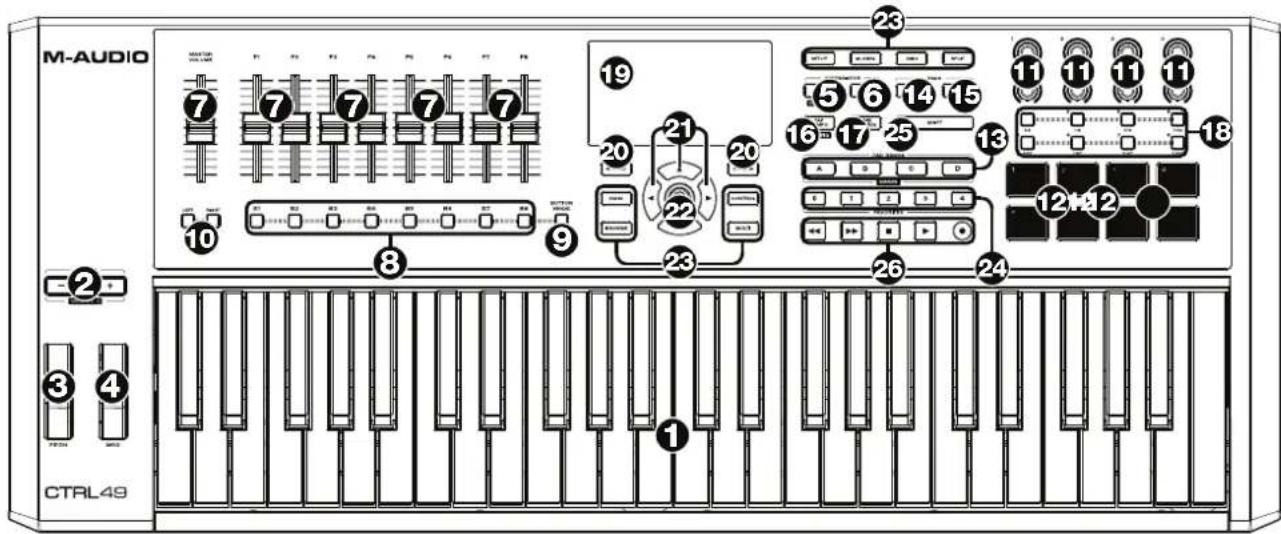
-
Keyboard: This 49-note keyboard is velocity-sensitive, has aftertouch, and in conjunction with the Octave Up/Down buttons can control a 10-octave range.
-
Octave / Transpose Down/Up: Use these buttons to shift the keyboard's range up or down. Press both buttons simultaneously to reset the octave shift to "zero." Press Shift and these buttons to move the keys down or up a semitone. Press Shift and both buttons simultaneously to reset the transposition shift to "zero."
-
Pitch-Bend Wheel: Moving this wheel sends MIDI Pitch Bend information on a selected MIDI channel and port.
-
Modulation Wheel: Moving this wheel sends continuous controller data—MIDI CC #01 (modulation), by default.
-
Arp / Config: Press this button to enable or disable the internal Arpeggiator whose rate is based on the current Tempo and Time Division settings. The Arpeggiator will function on notes being played on the keyboard only. You can also sync the Arpeggiator to an internal or external MIDI Clock source. Press Shift and this button to configure the Arpeggiator's settings.
-
Latch: Press this button to activate or deactivate the Arpeggiator's Latch feature. When the Arpeggiator is on and Latch is enabled, you can press a combination of keys on the keyboard and the Arpeggiator will continue to arpeggiate these notes even after you release the keys. Pressing a new combination of keys will start a new arpeggiation.
Tip: While holding down a combination of keys on the keyboard, add more notes to that arpeggiated chord by pressing additional keys.
-
Faders: Use these faders to send channel fader Mackie Control®/HUI® messages to your DAW.
-
Fader Buttons: Use these buttons to send Mackie Control®/HUI® messages to your DAW. Use the Fader Button Mode button to change the function of the buttons.
-
Fader Button Mode: Press this button to set the Fader Buttons to control Track Select, Record Arm, Solo, or Mute.
-
Bank Left/Right: Press one of these buttons to move to the previous or next bank of Mackie Control®/HUI® controls.
-
Encoders: Use these 360° knobs to send MIDI CC or Increment/Decrement messages to your software or external MIDI device.
- Pads: Use these pads to send MIDI Note messages to your software or external MIDI sound module. The pads are pressure- and velocity-sensitive, which makes them very responsive and intuitive to play when triggering drum hits or other samples.
- Pad Banks / Banks: Use these buttons to select Pad Bank A, B, C, or D. Between these 4 banks with 8 pads per bank, you can access up to 32 MIDI events. When VIP is open, press Shift and these buttons to switch between banks of VIP controls.
- Full Level: Press this button to activate or deactivate Full Level. When Full Level is active, the pads always play at their maximum velocity no matter how hard or soft you hit them.
- Roll / Config: Use this button to activate or deactivate Roll. While Roll is active, striking a pad and continuing to hold it causes its note to retrigger at a rate based on the current Tempo and Time Division settings. Press Shift and this button to configure the roll settings.
- Tap Tempo / Config: Tap this button at the desired rate to enter a new tempo. Press Shift and this button to configure the global tempo settings.
Important: This feature does not work when the CTRL49 is set to External sync.
- Time Div: Use this button and the Switches to select the current Time Division, which determines the rate of the Roll and Arpeggiator features. While Time Division is active, the switches will not send any of their normal MIDI CC, Program Change, or Program Bank messages.
- Switches: Use these switches to send MIDI CC, Program Change, or Program Bank messages to your software or external MIDI device. They can function as momentary or toggle (latching) switches. If Time Division is activated, these switches select the time division of the Arpeggiator and Roll features.
- Display: Use this full-color display to view CTRL49's menus, options, parameters, and settings.
- Page Left/Right: Use these buttons to move between the available pages in the display.
- Cursors: Use these buttons to navigate through the menus and options in the current page in the display.
- Data Dial: Use this dial to change parameter values, settings, etc. in the display. Pressing the dial also functions as an Enter button.
- Mode Buttons: Press one of these buttons to enter its corresponding mode. See Basic Operation > Modes for more information.
- Favorites: Use these buttons to save and recall your favorite presets. Press and hold a button for 3 seconds to save the active preset as a favorite. Tap a button to recall that favorite preset. When VIP is open, use these buttons to quickly load one of your first 5 Setlists. Tap the button to load that Setlist.
- Shift: Press and hold this button to enable secondary functions of certain other buttons on CTRL49.
- Transport Control Buttons: These five buttons are dedicated buttons for sending conventional transport control commands: Rewind (◀), Fast-Forward (▶), Stop (■), Play (▶), and Record (●). These can be set to send MIDI (Start/Stop), pre-assigned MIDI CC values, MMC (MIDI Machine Control), and MMC/MIDI SysEx. The PTEX setting is for use with Avid® Pro Tools® Express only. When set to DAW Fader, the transport buttons will match the message format that the Faders are currently set to (Mackie Control® or HUI®).
Rear Panel
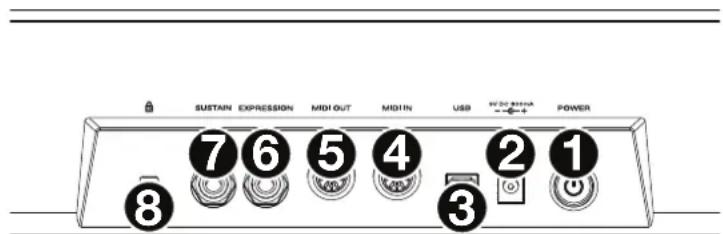
- Power Button: Press and hold this button to power the CTRL49 on or off.
- Power Input: Connect this power input to a power outlet using the included power adapter (9V DC, 800 mA, center-positive).
- USB Port: Use a standard USB cable to connect this USB port to your computer. If you connect it to a USB hub, make sure it is a powered hub. This connection is used to send and receive MIDI data to and from your computer.
When using CTRL49 with external MIDI equipment:
- If an external device is connected to the MIDI Out, your computer can send MIDI messages out along this path: Computer → CTRL49 → External Device.
-
If an external device is connected to the MIDI In, the external device sends MIDI messages in along this path: External Device CTRL49 Computer. MIDI messages can then be sent to an external device via the MIDI Out, but they must pass through the computer first.
-
MIDI In: Use a standard five-pin MIDI cable to connect this MIDI In to the MIDI Out of an external MIDI device (e.g., another MIDI controller). The MIDI messages sent to this MIDI In will be sent to your computer via the USB port. Please see the above USB Port description for information about how MIDI messages are routed while using CTRL49.
- MIDI Out: Use a standard five-pin MIDI cable to connect this MIDI Out to the MIDI In of an external MIDI device (e.g., a synthesizer, sequencer, drum machine, etc.). Please see the above USB Port description for information about how MIDI messages are routed while using CTRL49.
- Expression Pedal Input: Connect an optional 1/4" (6.35 mm) TRS expression pedal to this input.
- Sustain Pedal Input: Connect an optional 1/4" (6.35 mm) TS sustain pedal to this input.
- Kensington ^® Lock Slot: You may use this Kensington lock slot to secure the CTRL49 to a table or other surface.
Basic Operation
You can use CTRL49 in your setup in a few different ways, described here. We also recommend downloading the full User Guide to learn more and get the most use out of your CTRL49. Visit m-audio.com and find the webpage for CTRL49 to download the User Guide.
Setup Scenarios
With VIP in Your DAW
The included VIP software lets you get the most control and function out of your CTRL49. VIP is essentially a host for your plugins, a hub where you can create, edit, and manage your patches (presets) for your various plugins. When VIP is used as a plugin, as in this scenario, all audio from VIP will be sent into your DAW on its track. You can switch between CTRL49's Control Mode to control VIP or MIDI Mode to control your DAW. You can also use CTRL49's faders, fader buttons, and transport control buttons to control your DAW using Mackie Control®/HUI® (see the Modes section for more information).
Tip: You can use Control Edit Mode to assign some knobs to MIDI CC messages instead of VST parameters. This lets you control your plugin and your DAW while in Control Mode. See Modes > Control Edit Mode for more information.
Tip: As with other plugins, you can use multiple instances of VIP in your DAW, each on its own track.
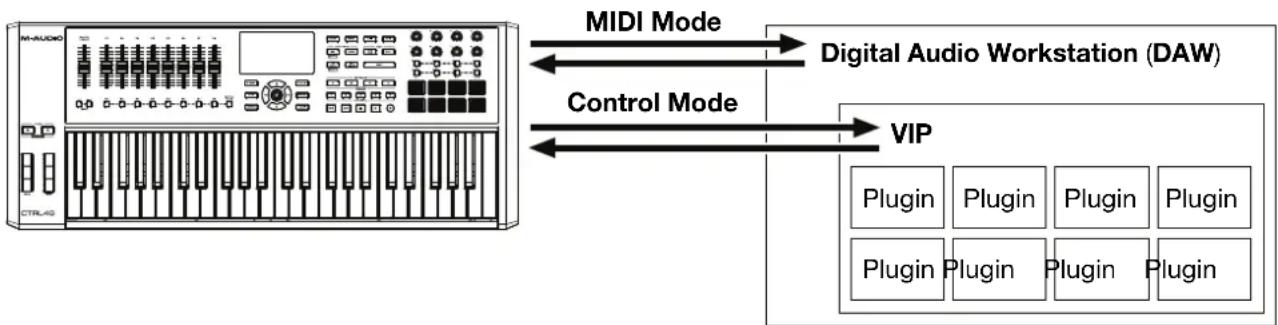
flowchart
graph LR
    A["M-AUDIO"] -->|MIDI Mode| B["Digital Audio Workstation (DAW)"]
    A -->|Control Mode| C["VIP"]
    C --> D["Plugin Plugin Plugin Plugin"]
    C --> E["Plugin Plugin Plugin Plugin"]
With VIP in Standalone Mode (Without a DAW)
You can use VIP in Standalone Mode without a DAW. This works the same way as when used as a plugin (described above) except the audio is routed to your computer's sound card instead of to your DAW. You can use CTRL49's Control Mode to control VIP (see the Modes section for more information).
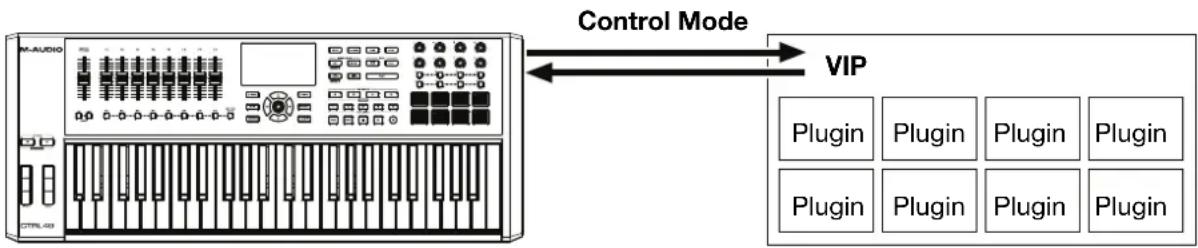
flowchart
graph LR
    A["M-AUDIO"] -->|Control Mode| B["VIP"]
    B --> C["Plugin"]
    B --> D["Plugin"]
    B --> E["Plugin"]
    B --> F["Plugin"]
    B --> G["Plugin"]
With Your DAW Only
You can use CTRL49 as a standard USB MIDI controller for your music creation software. We've created presets for several popular DAWs so you can use CTRL49 with your projects in the most logical and intuitive way possible. You can use CTRL49's MIDI Mode and the Mackie Control®/HUI® faders, fader buttons, and transport controls to control your DAW (see the Modes section for more information).
Tip: To set up Mackie Control®/HUI® communication with your DAW, first make sure CTRL49 MIDI Port 4 (Mackie/HUI) is enabled in your DAW's Preferences, Options, or Device Setup menu. Then, use MIDI Edit Mode to set the faders and fader buttons to a preset that corresponds to your DAW. You can also set the transport control buttons to match the message format that the Faders are currently set to (Mackie Control® or HUI®) in Global Mode (see the Modes section for more information).

flowchart
graph LR
    A["M-AUDIO"] -->|MIDI Mode| B["Digital Audio Workstation (DAW)"]
With External MIDI Equipment (Without a Computer)
You can connect an external MIDI device (synth, drum machine, etc.) to CTRL49's MIDI Out, letting you use CTRL49 to control it, whether or not you're connected to a computer.
Display and Navigation
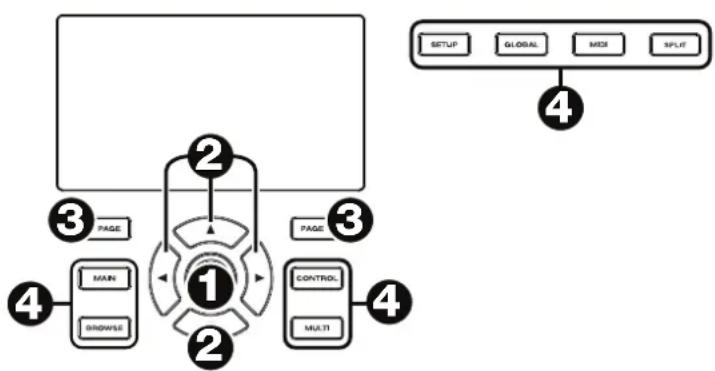
CTRL49's display shows information about its current mode and operations. You can navigate its different modes, pages, etc. by using the following controls:
- Data Dial: Use this dial to change a selected parameter values, settings, etc. in the display. Press the dial to enter or confirm a command or setting.
- Cursors: Use these buttons to navigate through the menus and options in the current page in the display.
- Page Left/Right: Use these buttons to move between the available pages in the display. When there is a page available to the left or right of the current one, the corresponding button will light up.
- Mode Buttons: Press one of these buttons to enter its corresponding mode.
The display contains the essential information you'll need during performance, recording, or production. When using VIP, though, the VIP software window on your computer may contain additional information, depending on the current mode. Keep this in mind while exploring the different modes in VIP (see the following Modes section for more information).
flowchart
graph TD
    A["SETUP"] --> B["GLOBAL"]
    B --> C["MUX"]
    C --> D["SPLIT"]
    E["PAGE"] --> F["MAIN"]
    F --> G["BROWSE"]
    H["1"] --> I["2"]
    I --> J["PAGE"]
    K["CONTROL"] --> L["MULTI"]
    L --> M["4"]
Modes
CTRL49 has eight different modes of operation. Enter each mode by pressing its corresponding Mode Button. Note that a mode's appearance may depend on whether or not you are using the VIP software.
Main Mode
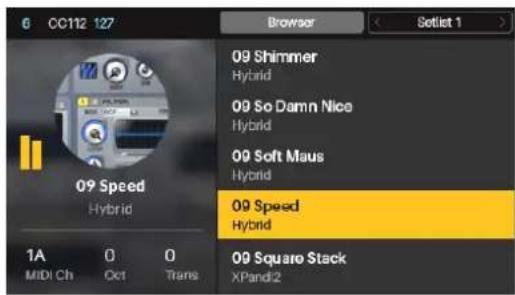
When using VIP, Main Mode shows a list of all available patches for all plugins in VIP.
- Press the Main button to enter Main Mode.
- Use the Cursors to move between different fields and tabs. You can change some global settings in this mode (MIDI channel (MIDI Ch), octave (Oct), and transposition (Trans)), as well.
- Use the Data Dial to move through the list of patches or to change a value or setting.
Setup Mode
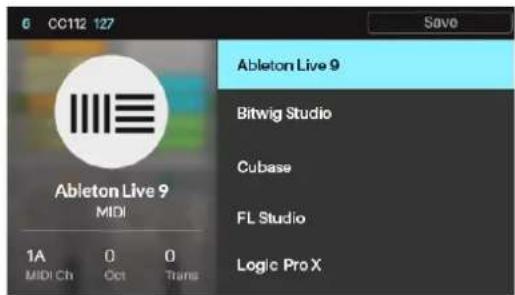
Setup Mode shows a list of available presets that let you use CTRL49 to control your DAW. We've pre-mapped each so you can use CTRL49 to control your DAW in the most logical and intuitive way possible.
- Press the Setup button to enter Setup Mode.
- Use the Cursors to move between different fields and tabs. You can change some global settings in this mode (MIDI channel (MIDI Ch), octave (Oct), and transposition (Trans)), as well.
-
Use the Data Dial to change a value or setting.
-
Press and hold one of the Favorite buttons to save the active preset as a favorite. Tap one of the Favorite buttons to load a saved preset.
Browser Mode
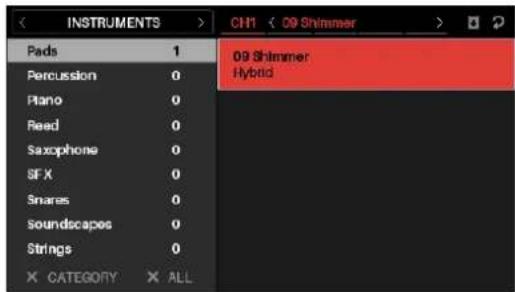
Browser Mode lets you browse and select patches of your plugins. You can access this mode only when using VIP.
- Press the Browse button to enter Browse Mode.
- Use the Cursors to move between different fields and tabs.
- Use the Data Dial to select a plugin or patch.
- Use the Page Left/Right buttons to view each plugin category (Plugin, Instruments, Style, etc.).
Global Mode
Global Mode lets you set parameters and make changes to CTRL49's general settings that are not specific to a preset.
- Press the Global button to enter Global Mode.
- Use the Page Left/Right buttons to view each page of settings.
- Use the Cursors to select the setting you want to edit.
- Use the Data Dial to change a value or setting.
Important: To retain your new settings for future sessions, save them. To do this, use the Page Right button to move to the right-most page, select Save Global Settings, and press the Data Dial. Without saving, the settings will return to their default settings once you power off your CTRL49.
| GLOBAL | |
| Common Channel | A1 |
| Note Display Type | Name |
| Screen Contrast | 10 |
| Transport Format | MIDI |
| Octave | 0 |
| Trans | 0 |
Control Mode
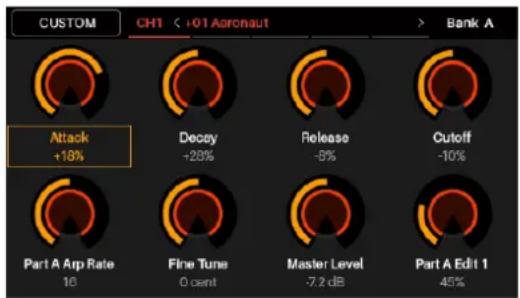
Control Mode shows you the current settings of CTRL49's controls in VIP. You can access this mode only when using VIP.
Orange/yellow controls are assigned to parameters in VIP. Green/aqua controls are assigned to MIDI CC messages, which are sent to your DAW.
- Press the Control button to enter Control Mode.
- Press the Control Button again to view each set of controls (encoders, switches, and pads).
- Use the Page Left/Right buttons to view each bank of that control type.
- Use the Cursors to select a control. Alternatively, turn or press a control to select it directly.
When in Control Mode, you can also press the Data Dial to enter Control Edit Mode.
gauge
| Metric | Value | | --- | --- | | Attack | +18% | | Decay | -28% | | Release | -5% | | Cutoff | -10% | | Part A Arp Rate | 16 | | Fine Tune | 0 secnt | | Master Level | -7.2 dB | | Part A Edit 1 | 45% |Note: You can use Control Edit Mode to assign some knobs to MIDI CC messages instead of VST parameters (VST Param). This lets you control your plugin and your DAW in the same Control Mode page.
Control Edit Mode
Control Edit Mode lets you edit the parameters of your controls (minimum values, maximum values, CC or note numbers, etc.) for the current patch in VIP. You can access this mode only when using VIP.
Orange/yellow controls are assigned to parameters in VIP. Green/aqua controls are assigned to MIDI CC messages, which are sent to your DAW.
Because VIP lets you control multiple patches, make sure you have selected the one you want before making adjust
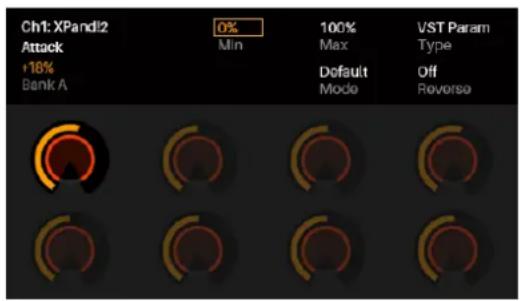
- From Control Mode, press the Data Dial to enter Control Edit Mode.
- Press the Control Button to view each set of control types (encoders, switches, and pads).
Note: Use the Page Left/Right buttons to view each bank of that control type. - To edit a specific control, turn or press the encoder, switch, or pad you would like to edit while viewing that control's group. For example, press Pad 3 while viewing the pads page to edit the parameters for Pad 3.
- Use the Cursor buttons to select the parameter you want to edit.
- Turn the Data Dial to change a value or setting.
- Press the Data Dial to save your changes and return to the normal Control Mode (described above).
Important: To edit parameters for the keybed, enter Global Mode instead.
MIDI Mode
MIDI Mode shows you the current settings of CTRL49's controls when used with your DAW.
- Press the MIDI button to enter MIDI Mode.
- Press the MIDI button again to view each set of controls (encoders, switches, and pads).
Note: When viewing the pads, use the Page Left/Right buttons to view each pad bank.
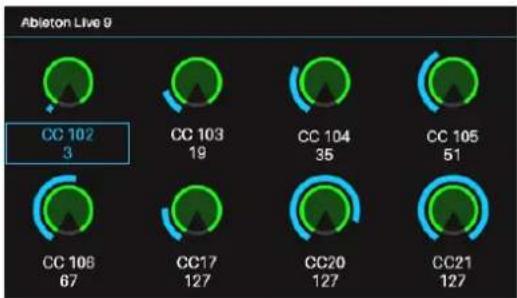
gauge
Ableton Live 9 | Category | Value | |---|---| | CC 102 | 3 | | CC 103 | 19 | | CC 104 | 35 | | CC 105 | 51 | | CC 108 | 67 | | CC17 | 127 | | CC20 | 127 | | CC21 | 127 |- Use the Cursors to select a control. Alternatively, turn or press a control to select it directly.
When in MIDI Mode, you can also press the Data Dial to enter MIDI Edit Mode.
MIDI Edit Mode
MIDI Edit Mode lets you edit the parameters of your controls (minimum values, maximum values, CC or note numbers, etc.) when used with your DAW.
- From MIDI Mode, press the Data Dial to enter MIDI Edit Mode.
- Press the MIDI button to view each set of controls (encoders, switches, pads, footswitch, expression pedal, modulation wheel, pitch-bend wheel, and faders).
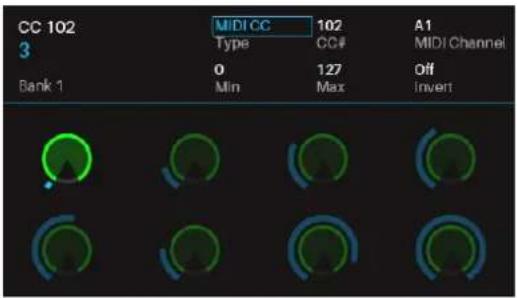
Note: When viewing the pads, use the Page Left/Right buttons to view each pad bank.
- To edit a specific control, turn or press the encoder, switch, or pad you would like to edit while viewing that control's group. For example, press Pad 3 while viewing the pads page to edit the parameters for Pad 3.
- Use the Cursor buttons to select the parameter you want to edit.
- Turn the Data Dial to change a value or setting.
- Press the Data Dial when viewing an encoder, switch, or pad page to save your changes and return to the normal MIDI Mode (described above).
To save changes to a preset:
i. Press the Setup button to enter Setup mode.
ii. Press the Up Cursor button so that *Save is highlighted.
iii. Press the Data Dial.
iv. Use the Left and Right Cursor buttons and Data Dial to rename the preset if desired.
v. Press the Data Dial when finished to save.
Important: To edit parameters for the keybed, enter Global Mode instead.
Multi Mode
Multi Mode lets you use your CTRL49 to control a multi in VIP. A Multi is collection of 2–8 patches (from 1 or more plugins). Each patch is assigned to a slot, and each slot has an assigned color. When using a multi, you can simultaneously control volume, panning, solos, and mutes for each slot in a mixer-style interface. You can do this only when using VIP.
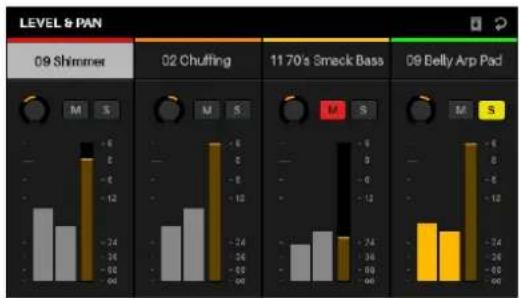
bar
| Category | Value | |---|---| | 09 Shimmer | -6 | | 02 Chuffing | -6 | | 11 70's Smack Bass | -6 | | 09 Belly Arp Pad | -6 |- Press the Multi button to enter Multi Mode.
- Use the Page Left/Right buttons to move between each view of 4 slots.
- Use the Cursors to select a slot.
- To add a patch to a slot (or to change a patch in a slot):
i. Press the Browse button to enter Browser Mode.
ii. Turn the Data Dial to scroll through the list of Virtual Instrument Plugins.
iii. Press the Data Dial to select the Plugin you would like to use.
iv. Press the Multi button to return to Multi Mode and repeat Steps i-iii to add more patches.
Tip: You can use the following controls when in Multi Mode:
- Press a switch to solo a slot.
- Press a pad to mute a slot.
- Turn an encoder to adjust the volume of a slot.
- Press Shift and turn an encoder to adjust the panning of a slot.
- Press the Data Dial to enter Split Mode.
Split Mode
Split Mode lets you edit the various settings of each slot when using CTRL49 (keyboard range, transposition, MIDI channel, and mute or solo status). You can access this mode only when using VIP.
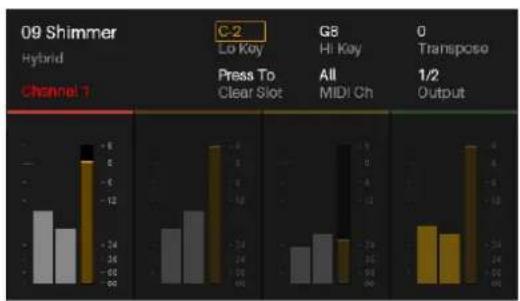
bar
| Channel | C-2 (Lo Koy Press To Clear Slot) | G8 (Hi Koy All MIDI Ch) | 0 (Transposo 1/2 Output) | | :--- | :---: | :---: | :---: | | 09 Shimmer Hybrid | -6 | -34 | -24 | | Channel 1 | -12 | -24 | -12 |- Press the Split button to enter Split Mode. Alternatively, press the Data Dial while in Multi Mode.
- Use the Cursor buttons to select the parameter you want to edit.
- Use the Data Dial to change a value or setting.
- Press the Split button again to switch between the instruments slots (1-8).
- To add a patch to a slot (or to change a patch in a slot):
i. Press the Browse button to enter Browser Mode.
ii. Turn the Data Dial to scroll through the list of Virtual Instrument Plugins.
iii. Press the Data Dial to select the Plugin you would like to use.
iv. Press the Multi button to return to Multi Mode and repeat Steps i-iii to add more patches.
Tip: You can use the following Multi Mode controls while in Split Mode:
- Press a switch to solo a slot.
- Press a pad to mute a slot.
- Turn an encoder to adjust the volume of a slot.
- Press Shift and turn an encoder to adjust the panning of a slot.
- Use the Page Left/Right buttons to move between each view of 4 slots (the original slot's parameters will remain in the display, though).
gauge
| Category | Value | | ---------------- | ------ | | Attack | +18% | | Decay | -28% | | Release | -5% | | Cutoff | -10% | | Part A Arp Rate | 16 | | Fine Tune | 0 cent | | Master Level | -7.2 dB | | Part A Edit 1 | 45% |bar
| Channel | 09 Shimmer Hybrid | C-2 Lo Key Press To Clear Slot | G8 Hi Key All MIDI Ch | 0 Transpose 1/2 Output | | :--- | :--- | :--- | :--- | :--- | | Channel 1 | -14 | -13 | -24 | -15 | | Channel 1 | -16 | -14 | -26 | -17 | | Channel 1 | -6 | -6 | -28 | -18 | | Channel 1 | -8 | -8 | -30 | -19 | | Channel 1 | -12 | -12 | -32 | -20 | | Channel 1 | -16 | -16 | -34 | -21 | | Channel 1 | -20 | -20 | -36 | -22 | | Channel 1 | -24 | -24 | -38 | -23 | | Channel 1 | -28 | -28 | -40 | -24 | | Channel 1 | -32 | -32 | -42 | -25 | | Channel 1 | -36 | -36 | -44 | -26 | | Channel 1 | -40 | -40 | -46 | -27 | | Channel 1 | -44 | -44 | -48 | -28 | | Channel 1 | -48 | -48 | -50 | -29 | | Channel 1 | -52 | -52 | -52 | -30 | | Channel 1 | -56 | -56 | -54 | -31 | | Channel 1 | -60 | -60 | -56 | -32 | The chart displays a vertical bar chart comparing performance metrics across different semiconductor devices. The Y-axis represents the measured values for each device and channel. The legend indicates that the bars represent different device types or channels. The chart is divided into four quadrants based on the label 'C-2 Lo Key Press To Clear Slot'. The data is presented in a grid layout with color-coded bars indicating different categories or conditions. The labels above the bars correspond to specific device names such as 'Lo Key' and 'Hi Key'.gauge
| Category | Value | | ---------------- | ------ | | Attack | +18% | | Decay | -28% | | Release | -5% | | Cutoff | -10% | | Part A Arp Rate | 10 | | Fine Tune | 0 count| | Master Level | -7.2 dB| | Part A Edit 1 | 45% |bar
| Channel | 09 Shimmer (C-2 Lo Kay Press To Clear Slot) | 09 Shimmer (G8 Hi Kay All MIDI Ch) | 09 Shimmer (0 Transpose 1/2 Output) | | :--- | :--- | :--- | :--- | | Hybrid Channel 1 | -12 | -14 | -13 | | C-2 Lo Kay | -6 | -12 | -11 | | G8 Hi Kay | -5 | -13 | -12 | | G8 Hi Kay All MIDI Ch | -4 | -14 | -13 | | G8 Hi Kay 1/2 Output | -3 | -15 | -14 | The chart displays a vertical bar chart with values ranging from -12 to 0. The labels above the bars correspond to the device names and their corresponding channels.gauge
| Metric | Value | | --- | --- | | Custom | 0 | | CH1 | +01 Aeronaut | | Bank A | > | | Attack | +18% | | Decay | -23% | | Release | -5% | | Cutoff | -10% | | Part A Arp Rate | 16 | | Fine Tune | 0 cent | | Master Level | -7.2 dB | | Part A Edit 1 | 45% |gauge
| Metric | Value | | --- | --- | | Attack | +18% | | Decoy | +28% | | Release | -6% | | Cutoff | -10% | | Part A Arp Rate | 16 | | Fine Tune | 0 cent | | Master Level | -7.2 dB | | Part A Edit 1 | 45% |Technical Specifications
| Keyboard | 49 velocity- and pressure-sensitive keys10-octave range with Octave Down/Up buttonsPitch-bend wheelModulation wheel |
| Faders | 9 ^® /HUI ^® faders Mackie Control |
| Encoders | 8 360° assignable encoders1 360° encoder with push function for display navigation |
| Pads | 8 velocity- and pressure-sensitive pads, multicolor-backlit |
| Switches | 33 function switches, single color-backlit11 Mackie Control ^® /HUI ^® switches, multicolor-backlit8 assignable switches, amber-backlit4 directional cursor buttons, red-backlit |
| Display | 3.75" x 2.125" (95.3 mm x 54 mm) full-color LCD |
| Connections | 1 USB port1 1/4" (6.35mm) TS sustain pedal/footswitch input1 1/4" (6.35mm) TRS volume/expression pedal input1 5-pin MIDI input1 5-pin MIDI output1 power adapter input1 Kensington lock slot |
| Power | via 9V DC, 800 mA, center-positive (included) |
| Dimensions(width x depth x height) | 32.04" x 12.36" x 4.08"81.4 cm x 31.4 cm x 10.4 cm |
| Weight | 13.22 lbs.6.0 kg |
Specifications are subject to change without notice.
Trademarks & Licenses
M-Audio is a trademark of inMusic Brands, Inc., registered in the U.S. and other countries.
Portions of the CTRL49 software are Copyright ©2014 The FreeType Project (freetype.org). All rights reserved.
Mac and OS X are trademarks of Apple Inc., registered in the U.S. and other countries.
Windows is a registered trademark of Microsoft Corporation in the United States and other countries.
Mackie Control and HUI are trademarks or registered trademarks of LOUD Technologies Inc.
Kensington and the K & Lock logo are registered trademarks of ACCO Brands.
Avid and Pro Tools are trademarks or registered trademarks of Avid Technology, Inc. in the U.S. and other countries. Pro Tools Express ©2012 Avid Technology, Inc. All rights reserved.
VST is a trademark of Steinberg Media Technologies GmbH.
All other product or company names are trademarks or registered trademarks of their respective owners.
m-audio.com

- Support
- Setup
- Software/Driver Download and Installation
- To download additional plugins and audio content:
- Controller Setup
- Software-Controller Configuration
- With VIP in Your DAW
- To set up CTRL49 with VIP in your DAW:
- With VIP in Standalone Mode (Without a DAW)
- To set up CTRL49 with VIP in Standalone Mode:
- With Your DAW Only
- To set up CTRL49 with your DAW only:
- With External MIDI Equipment (Without a Computer)
- To set up CTRL49 with external MIDI equipment:
- Features
- Top Panel
- Rear Panel
- Basic Operation
- Setup Scenarios
- Display and Navigation
- Modes
- Main Mode
- Setup Mode
- Browser Mode
- Global Mode
- Control Mode
- Control Edit Mode
- MIDI Mode
- MIDI Edit Mode
- Multi Mode
- Split Mode
- Trademarks & Licenses
Brand : M-AUDIO
Model : CTRL49
Category : Keyboard