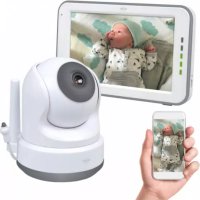
BC3000 - Baby monitors ELRO - Free user manual and instructions
Find the device manual for free BC3000 ELRO in PDF.




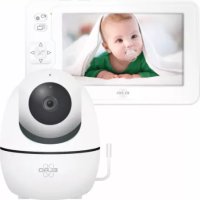
| Product type | Baby monitor (video babyphone) |
| Brand | ELRO |
| Model | BC3000 |
| Monitor screen | 5" (12.7 cm) LCD TFT touchscreen, resolution 800x480 |
| Camera | Color CMOS 1/4" sensor, resolution 1280x1024, lens 3.95 mm F2.2, viewing angle 55° (diagonal) |
| Night vision | IR LED 940nm, range 5 meters |
| Monitor power supply | Adapter 5V DC 1A, rechargeable lithium battery 3.7V / 2550mAh |
| Camera power supply | Adapter 5V DC 1A (mains connection) |
| Operating frequency | 2.4 GHz FHSS + Wi-Fi 2.4 GHz |
| Wireless range | Up to 300 m in open field (camera to monitor) |
| Main features | Two-way audio, lullabies, night light, temperature display, digital zoom, remote pan/tilt, VOX mode, split screen up to 4 cameras, iOS and Android app |
| Maximum number of cameras | 4 (expandable) |
| Camera control | Pan (left/right), tilt (up/down), zoom 1.5x and 2x |
| Operating temperature | -10°C to 40°C (monitor and camera) |
| Operating humidity | 0% to 85% (monitor) |
| Available languages | English, German, French, Spanish, Italian, Dutch |
| Security | FHSS (frequency hopping), mandatory secure password, no personal data stored |
| Maintenance | Clean with a soft, dry cloth. Do not use abrasive products. |
| Box contents | 1 camera, 1 monitor, 1 charging station, 2 adapters, 1 wall mount, screws and wall plugs, user manual |
| Smartphone compatibility | iOS and Android via ELRO Babycam app |
| Warranty | See www.elro.eu for conditions |
Frequently Asked Questions - BC3000 ELRO
User questions about BC3000 ELRO
0 question about this device. Answer the ones you know or ask your own.
Ask a new question about this device
Download the instructions for your Baby monitors in PDF format for free! Find your manual BC3000 - ELRO and take your electronic device back in hand. On this page are published all the documents necessary for the use of your device. BC3000 by ELRO.
USER MANUAL BC3000 ELRO
natural_image
Front view of a white tablet device with a blank screen and control buttons (no visible text or symbols)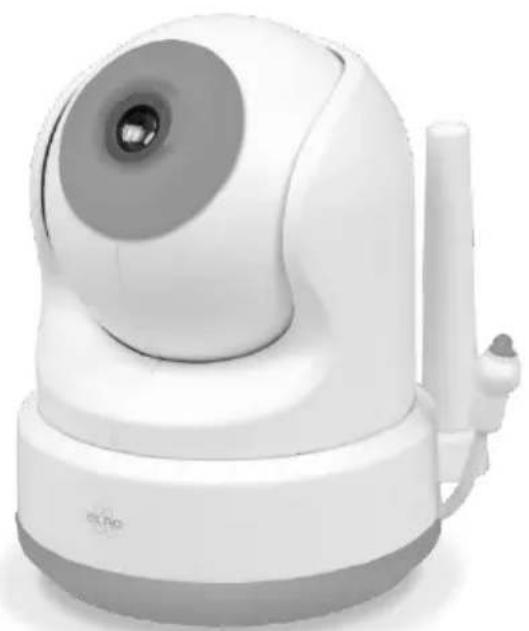
natural_image
White remote control camera with a small antenna and a circular lens (no visible text or symbols)BABY MONITOR ROYALE
XL TOUCH SCREEN
BC3000
Home is not a place, it's a feeling
Table of contents
English....- 3 -
Deutsch - 25 -
English - Instruction manual
Properties.... - 5 -
Box content - 5 -
Camera overview - 6 -
Monitor overview ...... - 6 -
Monitor symbols.... - 7 -
Getting started.... - 7 -
Pairing the camera to the monitor.... - 8 -
Control buttons.... - 8 -
Menu page ...... - 9 -
Split screen and switching live views automatically - 9 -
Split and quad screen - 9 -
Switching live views automatically ...... - 9 -
VOX mode....- 9 -
Operation ...... - 10 -
ELRO Babycam app....- 10 -
Android smartphone ...... - 10 -
Alternative method Android ...... - 13 -
iOS smartphone ...... - 14 -
Alternative method iOS ...... - 16 -
Connecting with second smartphone....- 17 -
Receiving notifications....- 17 -
Explanation of the app....- 17 -
Reset password....- 18 -
Firmware update....- 19 -
Mounting of the bracket....- 20 -
Frequently asked questions (FAQ) and troubleshooting....- 20 -
Technical specifications....- 21 -
Safety and conformity - 22 -
Service and contact....- 23 -
Go to www.elro.eu to download the latest version of this instruction manual!
Properties
• 2,4 GHz FHSS + Wi-Fi dual mode technology.
- Expandable up to 4 cameras, single (1), split (2) or quad (4) monitor screen.
• Language selection: English, German, French, Spanish, Italian, Dutch.
- Camera with night vision.
• Responsive to sound.
• Lullabies, night light and temperature display.
• 2-way audio: talk back to the camera via monitor or via smartphone.
- 5 "/12.7 cm touch screen monitor.
• Panorama (left-right) + tilt (up-down) + digital zoom at a distance.
- iOS and Android app.
- Alarm when camera is out of reach.
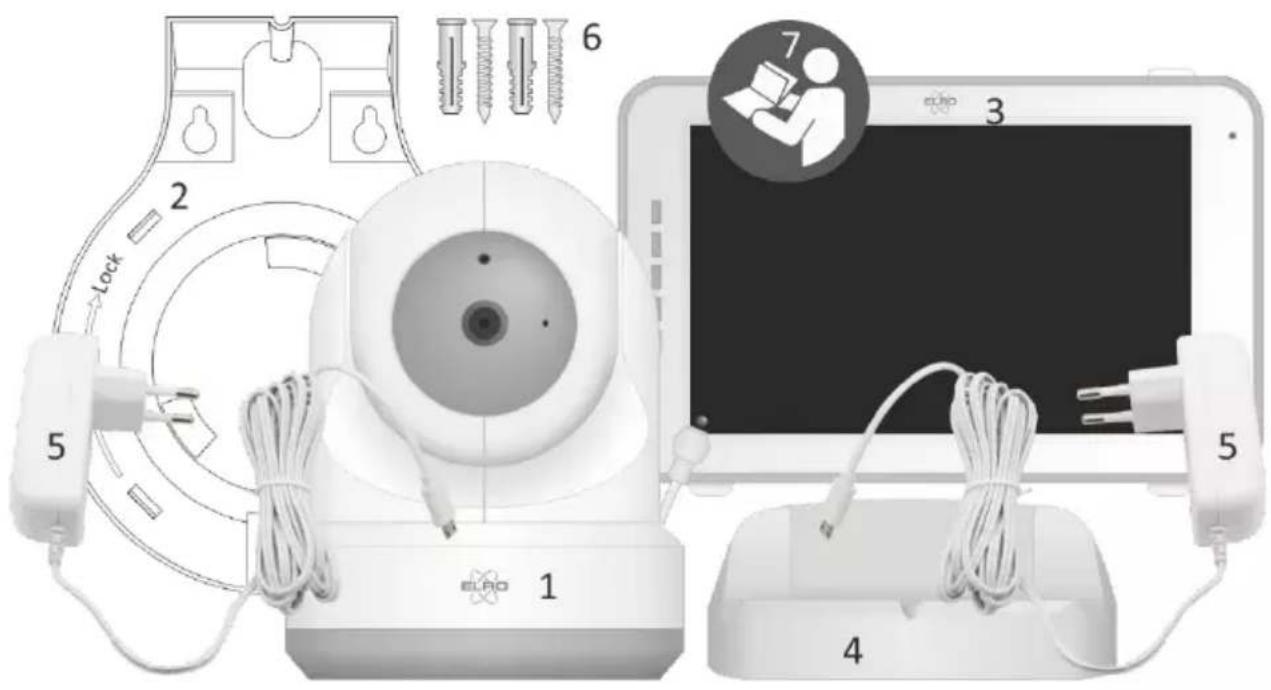
Box content
1 Wireless camera.
2 Mounting bracket.
3 Wireless monitor.
4 Charging station for monitor.
5 Adapter (2 x).
6 Screws and plugs.
7 Instruction manual.
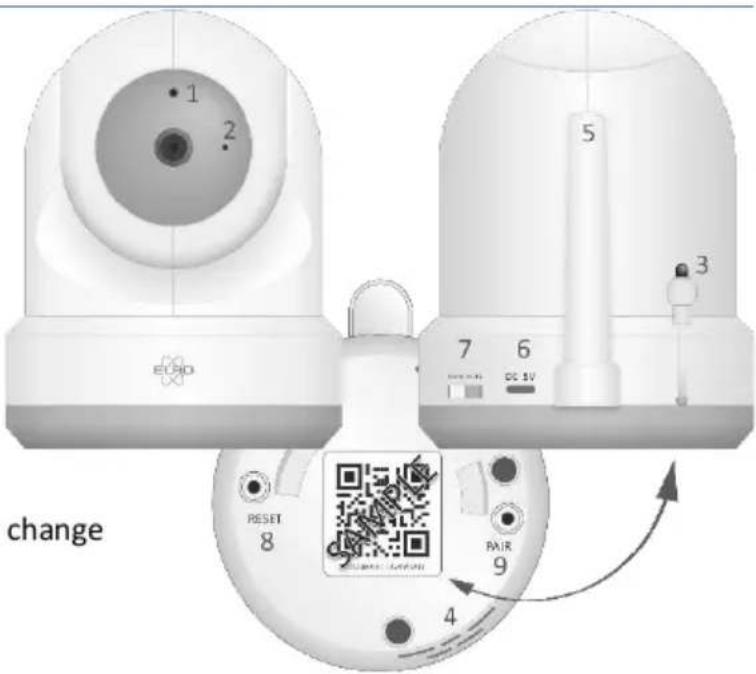
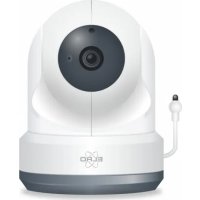
Camera overview
1 IR sensor & LEDs for display in poor to no lighting conditions.
2 Microphone.
3 Temperature sensor, the measured ambient temperature is displayed on the monitor.
4 Speaker.
5 Antenna.
6 Connection for the power adapter.
7 On/off switch.
9 Pair button to add an extra camera.
8 Reset button to reset the camera or to change camera mode.
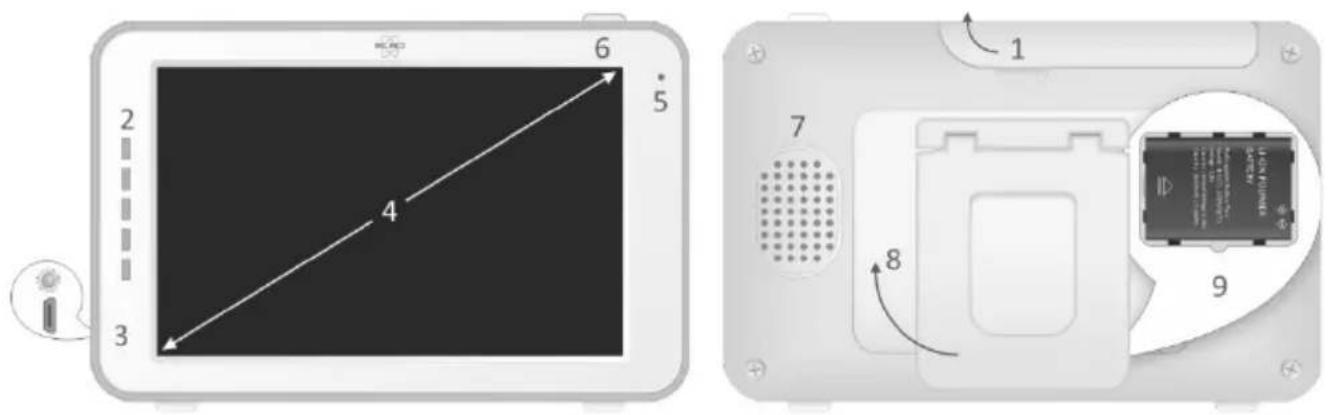
Monitor overview
1 Antenna: sends and receives signals to or from the camera.
2 Sound bar: indicates the sound level which is detected by the camera.
3 Connection for the power adapter.
4 5"/12,7 cm TFT LCD screen.
5 Microphone.
6 On/off button: press this button for approximately 4 seconds to turn the monitor on/off.
7 Speaker.
8 Table stand.
9 Lithium battery, remove the plastic strip before use.
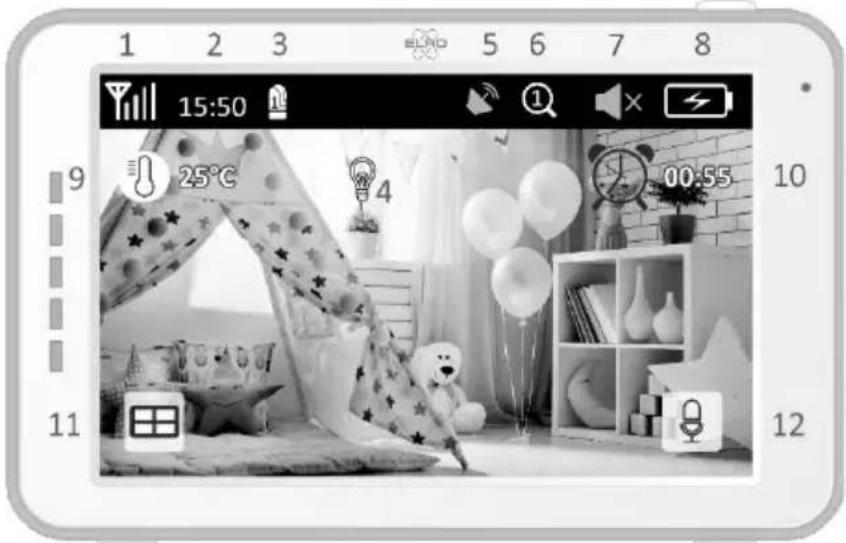
Monitor symbols
• Signal indicator: indicates the strength of the signal that is received from the camera.
- Digital clock: shows the time that is set on the monitor.
- Camera display indication.
- Night light on/off.
- If you are using the app on your smartphone, this symbol will turn white.
- Zoom mode, indicates the zoom factor, to 1.5 times and 2 times.
- Monitor speaker. If the symbol is white, the speaker is off. If it is grey the speaker is on.
- Battery status:
-
Flashing: the battery is almost dead.
• 1 bar: the battery has a quarter charge.
• 2 bars of white: the battery has half a charge.
• 3 bars of white: the battery is 3 quarters charged.
• 4 bars of white: the battery is fully charged (the adapter is not connected).
• 4 bars of white and lightning bolt: the battery is fully charged (adapter is connected).
• Lightning bolt icon: the adapter is connected. -
Temperature display of the room in which the camera is placed.
- Timer with alert signal for feeding times.
- Quad screen: press this button to switch to quad screen. When two cameras are linked the screen is split in 2 (split screen). If more than two cameras are paired, there are four different displays shown. Up to a maximum of 4 cameras can be paired.
- Microphone: hold this button to talk through the camera.
Getting started
1 The monitor must be fully charged by the adapter or the charging station before use. The camera has to be powered by the adapter at all times.
2 Place the camera in a desired position. You can place the camera on a table/cabinet or mount it to the wall using the mounting bracket.
3 Press the on/off button for approximately 4-5 seconds to turn on the monitor.
4 Slide the on/off switch to the ON position to turn on the camera.
natural_image
Black-and-white photo of a cozy bedroom with a bed, star-shaped bedding, and balloons (no visible text or symbols)Pairing the camera to the monitor
The monitor and camera are already paired by default. It is only necessary to pair an additional camera. If this is the case, follow these steps:

1 Turn on the monitor.
2 Turn on the camera.
3 Touch the screen and press the button in the lower left corner of the monitor.
4 Press the icon and select channel 2, 3 or 4 in order to pair the camera.
5 Press the [PAIR] button (underneath the camera) within the 30 second countdown period.
6 When the monitor is successfully paired with the camera, it will automatically switch to the live view of this camera.
Control buttons
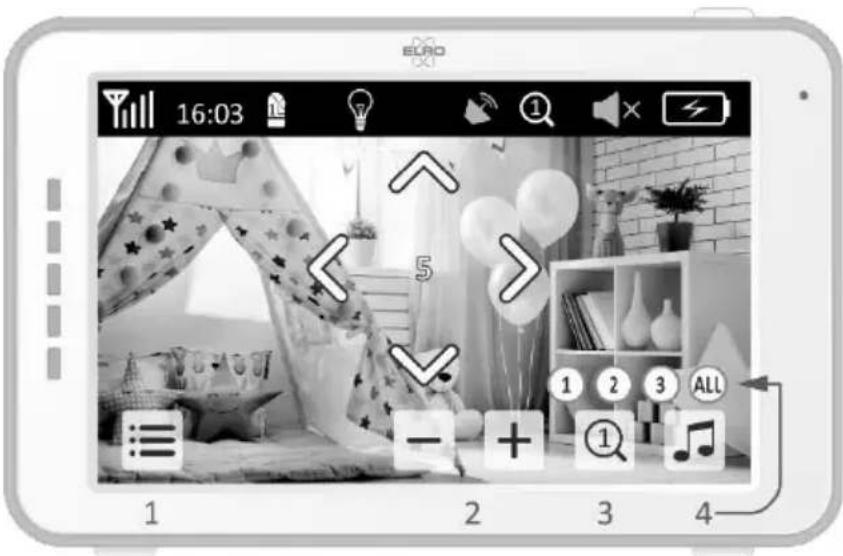
By tapping anywhere on the screen, the control buttons will appear.
1 Menu page: the monitor and camera settings can be adjusted here.
2 Volume settings.
3 Zoom mode, indicates the zoom factor, zoom 1.5 times or 2 times.
4 Press the music note symbol to activate 1 of the 3 lullabies. Select one song to activate that the music or select 'All' to let them all play in a loop.
5 Navigation control to pan the camera remotely (left/right) or to tilt it (top/bottom).
Menu page
1 Connect/pair: 3 additional cameras can be paired.
2 VOX, set the threshold value of the sound levels to be detected. With the 'low' setting, sound will be detected earlier.
3 The current time, date and timer can be set here.
4 Language setting for the monitor, there are six options: English, German, French, Italian, Dutch and Spanish.
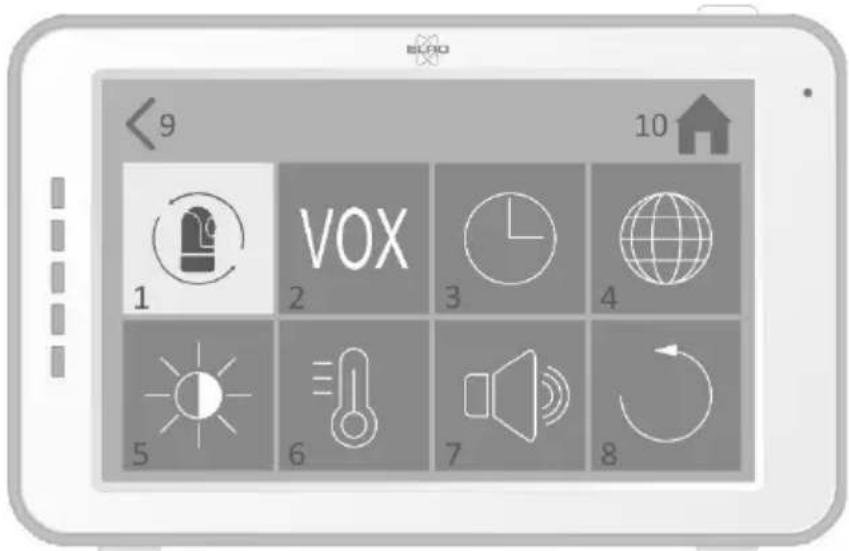
5 You can adjust the brightness of each individual camera.
6 Change temperature display in Celsius or Fahrenheit and set the range of the temperature alarm.
7 Volume control of the alarm and each individual camera.
8 Factory settings, reset the monitor to factory settings.
9 Back to the previous page.
10 Back to current actual image display (Live View).
Split screen and switching live views automatically
If 2 or more cameras are added to the monitor it is possible to view the live views in split screen or even in quad screen. It is also possible to let the monitor switch between the live views of the different cameras every 5 seconds.
Split and quad screen
1 Add an additional camera as described in 'Pairing the camera to the monitor'.
2 Press bottom left in the home screen to view your cameras in split or quad screen.
In this screen it is possible to view all live views from the cameras. It is also possible to switch between the sound the cameras record. To do this, press in the top right of the screen. If you press one of the live views, the monitor will only show the live view of that camera.
Switching live views automatically
It is possible to change to live views of the cameras automatically by clicking on the icon with the check mark bottom left in the split or quad screen overview. The live view shown on the monitor will then change every 5 seconds.
VOX mode
VOX is the abbreviation for 'Voice Activated Transmission'. When this function is enabled, the monitor will only play sound when there is actual sound in the baby's room.
Operation
VOX mode comes into effect when the monitor is on standby. When sound is detected, the image of the corresponding camera will be displayed. Of course, the sound will also be audible, provided the volume on the monitor is turned up.
When using more than one camera, the image will not automatically switch if sound is detected by the other camera. This only happens when the monitor is in standby mode.
It is possible to enable VOX mode per camera. In addition, you can also adjust the detection threshold. If it is set to 'low', the monitor will switch on when there is little sound.
ELRO Babycam app
Go to the Google Play Store or Apple App Store to download the ELRO Babycam app and install it on your smartphone. We advise you to turn off the monitor when installing the ELRO Babycam app. To connect the camera to the ELRO Babycam app, you need to connect the adapter and set the switch to the ON position first. You should then connect your phone to the Wi-Fi signal that is transmitted by the camera. You can only connect the camera with a 2,4 GHz Wi-Fi signal (5GHz Wi-Fi is not possible). We recommend using a properly secured network for the installation to ensure the security of the system. If you have an Android smartphone, follow the steps under “Android smartphone. If you have an iOS smartphone, follow the steps under “iOS smartphone”.
Android smartphone
1 Press the reset button until the night light underneath the camera flashes 3 times.
2 Wait for 10 seconds. Then, briefly press the reset button 1 time, the night light will quickly flash.
3 After 10 seconds, briefly press on the reset button 1 time, the night light will start to flash slowly.
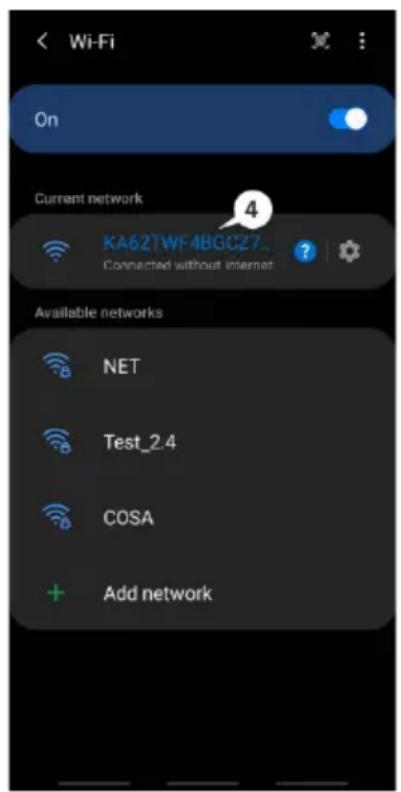
4 Now go to the Wi-Fi settings of your smartphone and connect to the Wi-Fi signal of the camera ending on - - - - - 111A with your smartphone (Comment: This network does not have access to the internet). If you are asked to switch to a different network, choose to cancel.
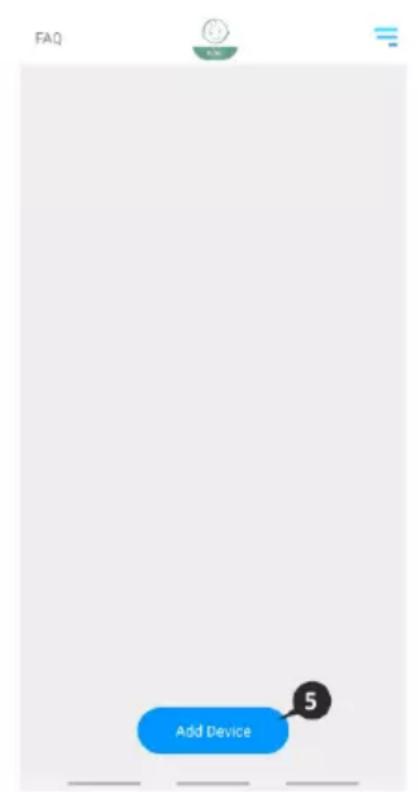
5 Open the ELRO Babycam app and add the camera by selecting "Add Device".
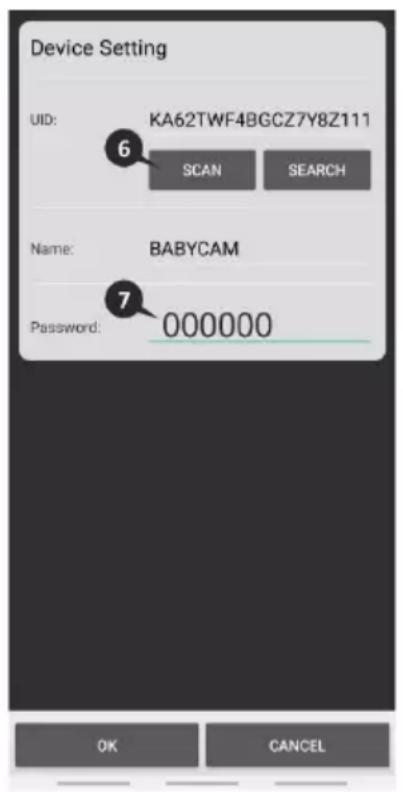
6 Then scan the QR code, which you will find on the bottom of the camera.
7 Fill in a name for the camera and 000000 at "Password", then press "OK".
8 The camera will now be online and the live view can be watched. (Please note! The camera is not yet connected to the internet and the rest of the installation steps still have to be completed)
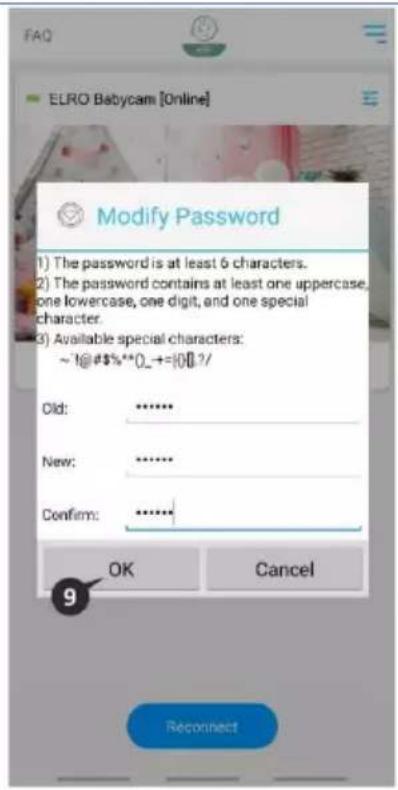
9 You will be asked to change the unsafe password '000000', select "OK". Fill the old and new password and select "OK". The new password should contain at least 6 characters, one uppercase letter, one lowercase letter, one digit and one special character (choose from: \~`@#\$%^*()_-+=|{}[].?/). For your own security, we recommend creating a strong and long password. Many characters and a high variation of characters will provide for a secure password.
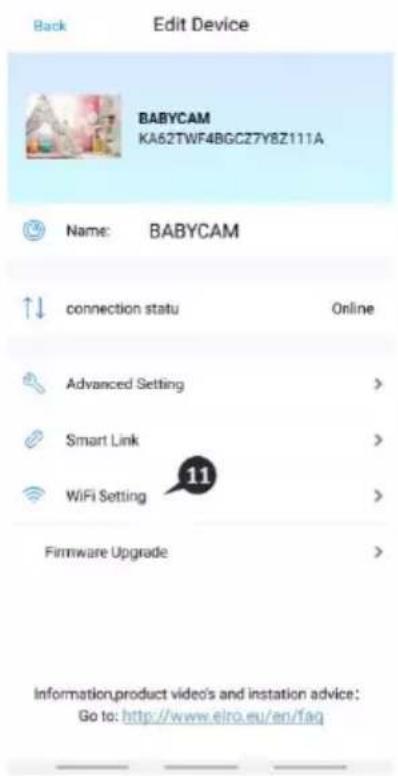
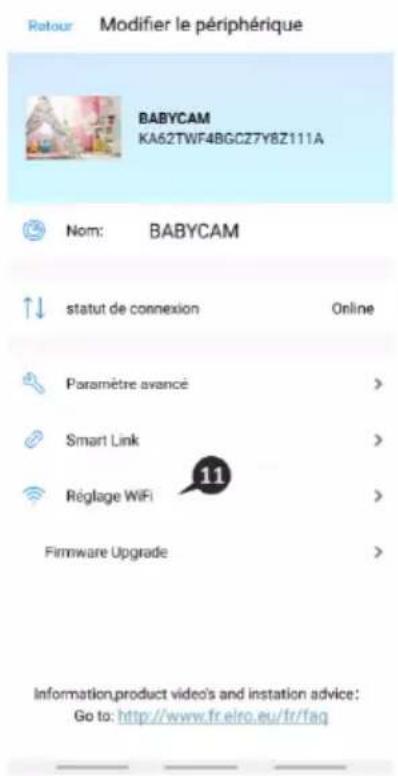
10 Go to camera settings.
11 Select "Wi-Fi setting" to change the Wi-Fi Setting of the camera to your own network.
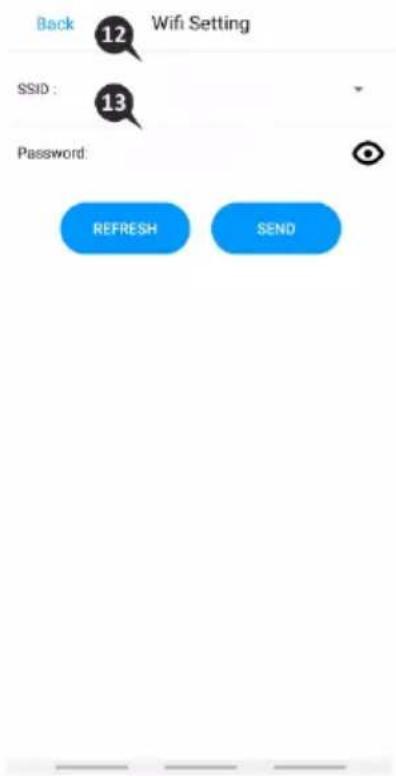
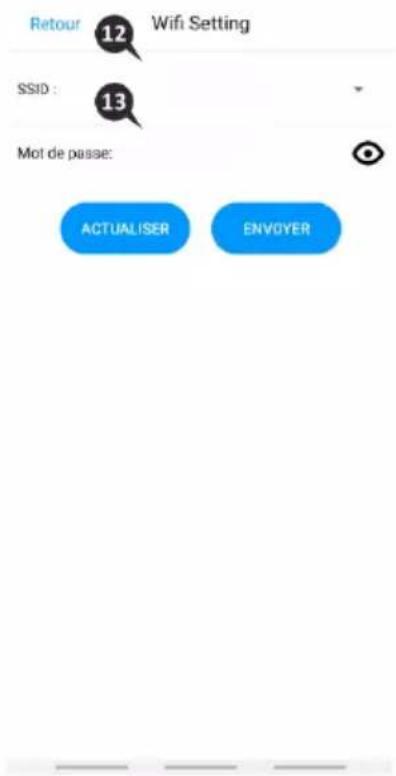
12 At SSID, select your own network (Home network). (Please note! Always use a well secured network, to ensure proper security of the baby monitor)
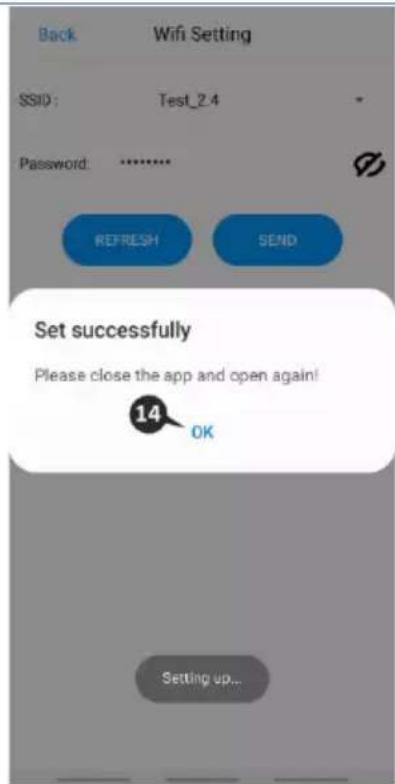
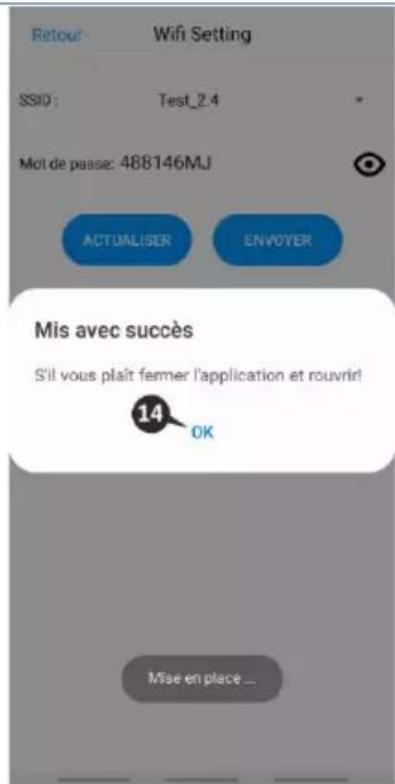
13 Enter the password of your own network here and select "SEND". By selecting the eye symbol on the right side, you can see what you are typing. After pressing "Send", you should close the app immediately. Do not open it until all the lights of the camera are turned off.
14 You will then be asked to close the app. Open the app again after the light has turned off and you have seen 3 short light flashes.
15 By pressing the arrows on the screen, you can adjust the camera to the desired position (Pan/Tilt adjustment).
Comment
If the installation has failed for some reason, start over at the beginning of this chapter. Disconnect the camera from the power by turning the camera off and then removing the adapter from the power outlet. You could also try the alternative connection method explained below.
![ELRO Babycam [Online] 8 Reconnect](/content/2026/03/545381/images/93988bde69786eb3430bf3a148d22bba815068d286cc740c5e181e31288e3cc4.jpg)
![ELRO Babycam [Online] Modify Password Current password is unsecure, please change the password. OK Reconnect](/content/2026/03/545381/images/b97f1cde5943bd829f04c173da55c3131eaf971f84193c39bb2fc4d134700b41.jpg)
![ELRO Babycam [Online] 10 Reconnect](/content/2026/03/545381/images/4e6ed924b28e55f913a1b122926f7a348f9556e6dca617fe83b33205dc6c2ae4.jpg)
Alternative method Android
1 Press the reset button until the night light underneath the camera flashes 3 times.
2 Wait for 10 seconds. Then, briefly press the reset button 1 time, the night light will quickly flash.
3 Open the ELRO Babycam app and add the camera by selecting "Add Device".
4 Then scan the QR code, which you will find on the bottom of the camera.
5 Fill in "000000" at Password and press "OK".
6 Go to camera settings.
7 Press smartlink and make sure that your smartphone is connected to your 2.4GHz wifi signal. (Please note! Always use a well secured network, to ensure proper security of the baby monitor)
8 Fill in the password of your wifi and press "Send"
9 The light of the camera will turn on, wait until the light turns off before you do anything.
10 The camera will now be online and the live view can be watched. You will be asked to change the unsafe password '000000', select "OK".
11 Fill in the old and new password and select "OK". The new password should contain at least 6 characters, one uppercase letter, one lowercase letter, one digit and one special character (choose from: \~`@#\$%^*()_-+=|{}[].?/). For your own security, we recommend creating a strong and long password. Many characters and a high variation of characters will provide for a secure password.
12 The camera is successfully added to the app!
iOS smartphone
1 Press the reset button until the night light underneath the camera flashes 3 times.
2 Wait for 10 seconds. Then, briefly press the reset button 1 time, the night light will flash quickly. After 10 seconds briefly press on the reset button one more time, the night light will start to flash slowly.
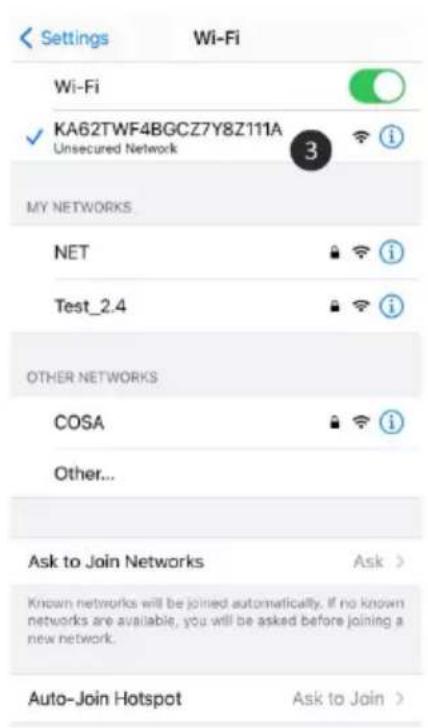
3 Now go to the Wi-Fi settings of your smartphone and connect to the Wi-Fi signal from the camera, ending on - - - - - 111A with your smartphone (Comment: This network does not have access to the internet. If you are asked to switch to a different network, choose to cancel).
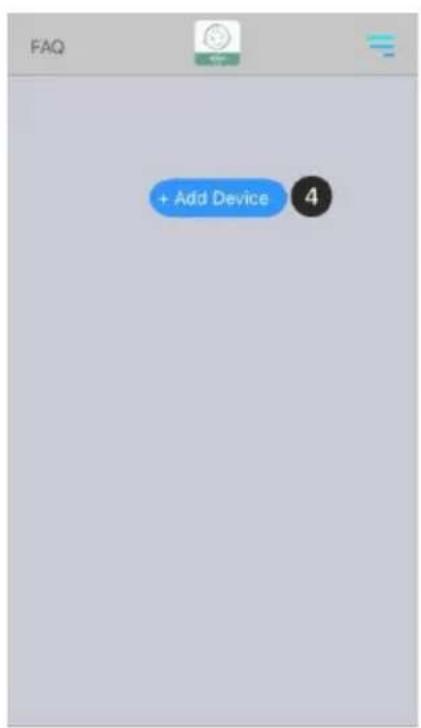
4 Open the ELRO Babycam app and press "+ Add Device".
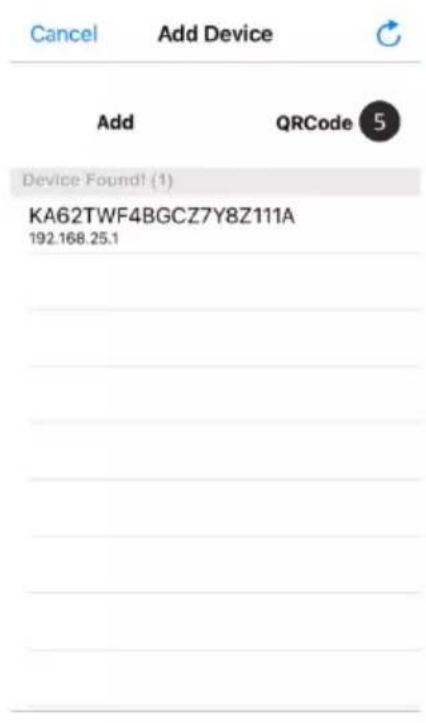
5 Select "QR Code" and scan the CQ code, which you will find underneath the camera.
6 Fill in a name for your camera, enter 000000 at password and select "Save".
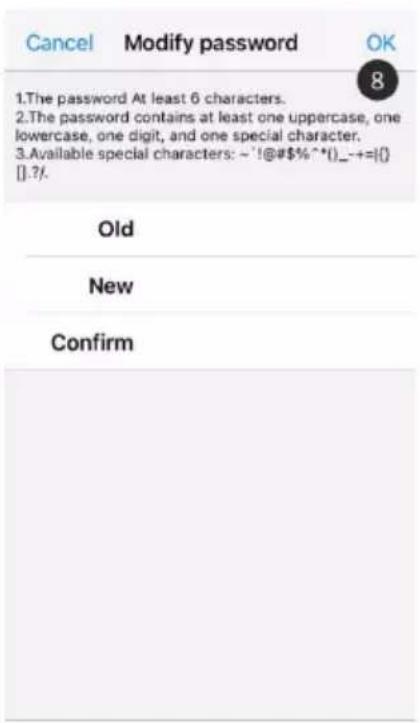
7 You will be asked to change the unsafe password 000000, press "OK".
8 Fill in the old password, create a new password and press "OK". The new password should contain at least 6 characters, one uppercase letter, one lowercase letter, one digit and one special character (choose from: \~`@#\$%^*()_-+=|{}[].?/). For your own security, we recommend creating a strong and long password. Many characters and a high variation of characters will provide for a secure password.
9 The camera will now be online and the live view can be watched (Please note! The camera is not yet connected to the internet and the rest of the installation steps still have to be completed).
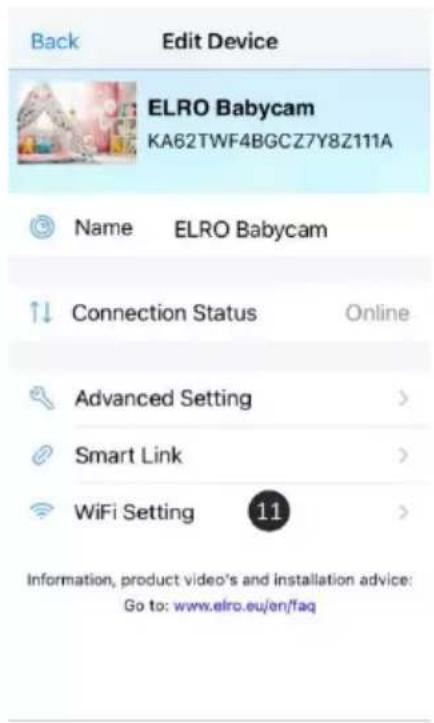
10 Go to the camera settings
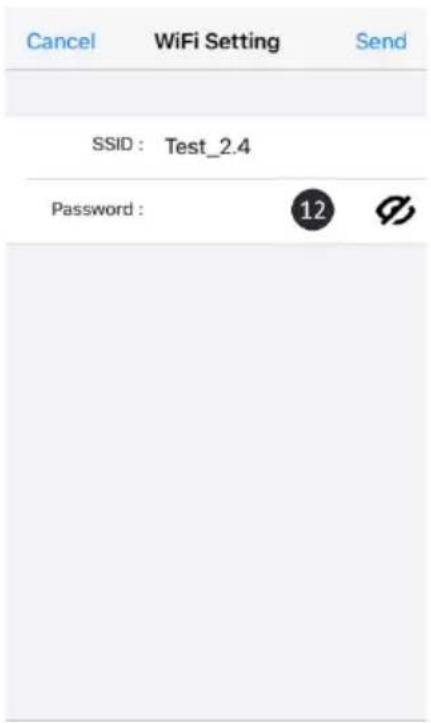
11 Press "WiFi Setting"
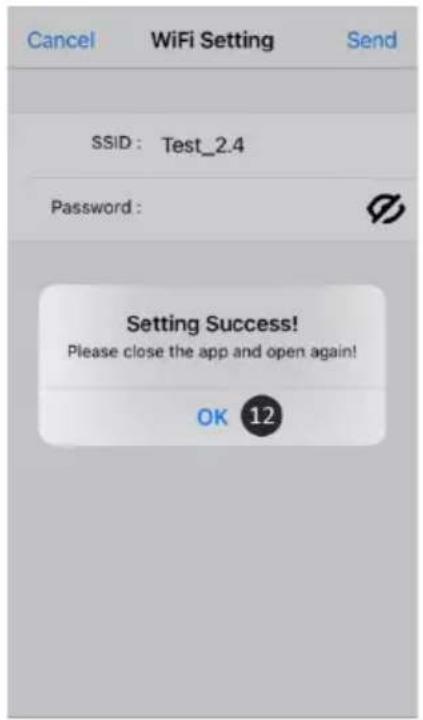
12 You should type in the SSID of your WiFi. Next, you can enter the password for your network (Please note! Always use a well secured network, to ensure proper security of the baby monitor). By selecting the 'eye' symbol on the right-hand side you will be able to see what you are typing. Then, select "Send". After selecting "Send", you will be asked to close the app. The camera will stop transmitting the Wi-Fi signal. The night light at the bottom of the camera will stop flashing slowly, then light continuously and flash 3 times.
13 You can now reopen the app again.
14 By pressing the arrows on the screen, you can adjust the camera to the desired position (Pan/Tilt adjustment).
Comment
If the installation has failed for some reason, start over at the beginning of this chapter. Disconnect the camera from the power by turning the camera off and then removing the adapter from the power outlet.

![ELRO Babycam [Online] Current password is unsecure.Please change the password. OK 7 + Add Device ↑↓ Reconnect](/content/2026/03/545381/images/584fc1a9c6f91675dcb8117799343268bad4d202f8364b49f166df2f8ccdaecc.jpg)
![FAQ ELRO Babycam [Online] 854x480 10 9 + Add Device ↑ Reconnect](/content/2026/03/545381/images/0dc73d24c1d6ef920d68bd7087017eaa0a059ef21017e6351c300825476990c7.jpg)
Alternative method iOS
- Press the reset button until the night light on the bottom of the camera flashes 3 times.
- Wait 10 seconds and then briefly press the reset button once, the night light will flash quickly.
- Open the ELRO Babycam app and add the camera by pressing "+ Camera".
- Then scan the QR code, which you will find on the bottom of the camera.
- Enter 000000 under "Password" and press "OK".
- Go to the camera settings.
-
Press smartlink and make sure that the phone is connected to the 2.4GHz network (Note! Always use a well-secured network to guarantee the safety of the baby monitor).
-
Enter the password and press 'Send'
- The light will now be on constantly, wait until the light is off before continuing.
- The camera will be online and can be accessed. You will be asked to change the insecure password 000000. Press "OK".
- Enter the old and new password and press "OK". The new password must contain at least 6 characters, an uppercase letter, a lowercase letter, a number and a special character (choose from: \~``@#\$%%^*()_-++=|{}[].? /). For your own security, we recommend creating a strong and long password. Lots of characters and a high variety of characters will ensure a secure password.
- The camera has been successfully added to the app!
Connecting a second smartphone
When the camera is connected to the WiFi network, it is easy to add the camera on other phones by following these steps:
1 Download the app on the phone on which te camera will be added.
2 Open the app en press "Add Device".
3 Scan the QR code.
4 Fill in a name and the password which you made earlier.
5 De camera is added successfully.
Receiving notifications
In order to receive notifications on the phone, the VOX mode must be enabled on the monitor for the camera in question. The notifications must also be turned on in the settings of your phone and all permissions must be accpeted.
Explanation of the app
A brief explanation of the app can be found here.
1 Album: Here you can look back at the screenshots you have taken previously.
2 Screenshot: Take a screenshot of the live view of the camera.
3 Sound: Turn on or off the sound on your phone.
4 Switch the talk-back function on or off.
5 Restore the wifi connection of the camera.
6 Redirect to our FAQ page, to find an answer to your question.
7 Device list: Overview of all connected devices. It is also possible to add a second camera to the app here.
8 Camera settings.
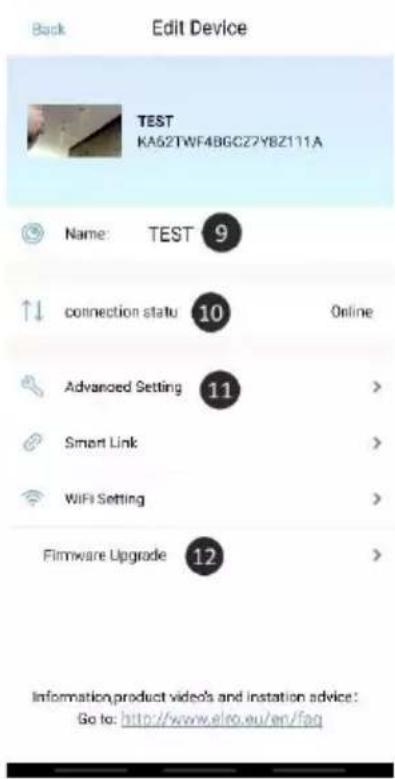
9 Change the name of the camera.
10 Current status of the device.
11 Advanced settings of the camera.
12 In this menu you can install the latest firmware for the camera.
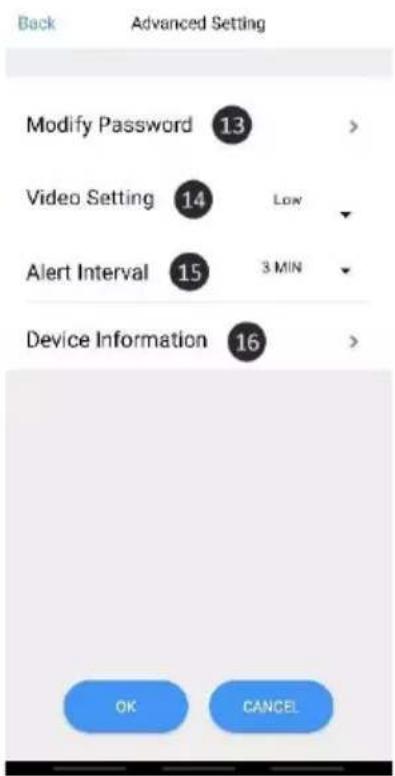
Advanced settings
13 Modify Password: Change the password for the camera that was previously created.
14 Video Setting: Change the quality of the live view streamed by the camera. High quality will in many cases result in a slower connection.
15 Notification interval: here you can set the interval between notifications. It is also possible to always receive a notification or to turn notifications off completely.
16 Device information: You will find information about the device here.
![FAQ 6 TEST[Online] 854x 1 2 3 4 5 Reconnect](/content/2026/03/545381/images/7a99abe63fb35a5279861647242aab2dcbf4b5332ea107ac114789bf2c5db9f3.jpg)
Reset password
If you forgot your password, please follow the steps below:
1 Press and hold the reset button at the bottom of the camera for 1-2 seconds (warning: if you press the reset button for more than 3 seconds and the led starts flashing, you have to start again at chapter "ELRO Babycam app"). The password will be reset to the default password 000000.
2 Close the ELRO Babycam app and open it again.
- For iOS:
- Click in the Device List on the settings button (i). Replace the black dots by the default password 000000 and click on "Back".
Open the camera. You will receive a message that the current password is unsafe and has to be changed. Press ok.
Fill in the default password 000000 and your new password. Your new password should contain at least 6 characters, one uppercase letter, one lowercase letter, one digit and one special character (choose from: \~`@#\$%^*()_-+=|{}[].?/).
- For Android:
- Fill in the default password 000000 when a notification pops up and click on confirm.
Open the camera. You will be asked to fill the default password 000000 and your new password. Your new password should contain at least 6 characters, one uppercase letter, one lowercase letter, one digit and one special character (choose from: \~`@#\$%^*() -+=|{}[].?/).
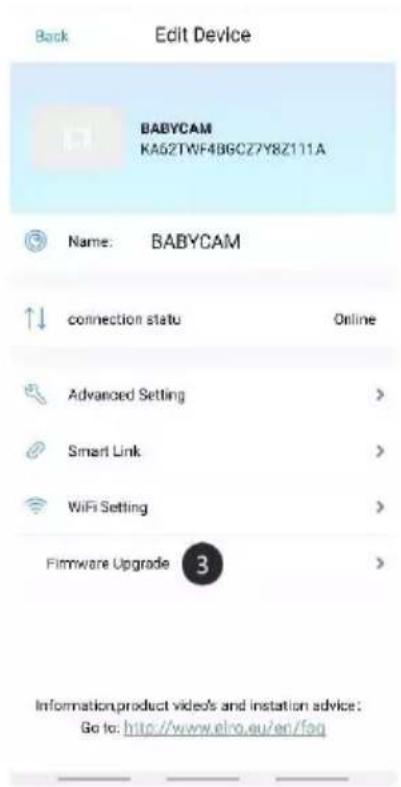
Firmware update
The camera's firmware is updated regularly to improve the security and functionality of the camera. It is therefore important that you check every now and then whether a new firmware version is available. You can check this by following the steps below.
1 Open the ELRO Babycam app
2 Go to the settings of the camera
3 Press 'Firmware Upgrade'
4 The app will now check if a new version is available. If there is, the new version will be installed. If not, a message will appear informing you that the camera has the latest firmware.
![FAQ TEST[Online] 854x 2 Reconnect](/content/2026/03/545381/images/9697f4f73bab6a7c2ead5de84e9a42cea497e312a10ab9bb0ac6c2ef48f396de.jpg)
Mounting of the bracket
Mounting the camera wall bracket is very easy thanks to the screws and plugs provided in the set.
1 Mark where the 2 holes are to be drilled.
2 Drill holes in the wall with the same diameter and length as the plugs.
3 Push the 2 plugs into the drilled holes.
4 Screw on the mounting plate.
Frequently asked questions (FAQ) and troubleshooting
Are you having problems with the installation of this device? Please visit www.elro.eu/faq to get a quick answer to your question. Here you will find the latest version of the instruction manual, answers to frequently asked questions (FAQ) and detailed installation videos.
• My camera is out of range.
○ Make sure the antenna of the monitor is fully extended when using the system. This will result in an optimal range of the baby monitor.
- I'm unable to connect the camera with my smartphone.
For the installation of the app you need to have a pure 2.4GHz wifi signal. This means that you cannot use a combined wifi signal that transmits both 2.4GHz and 5GHz. Before the installation, the 5GHz signal must be temporarily switched off. After the installation, the 5GHz signal can simply be switched back on again.
Another possibility is to create a separate 2.4GHz 'guest network'.
- Do not open the app again until the camera light is off.
- I can't see the wifi that the camera sends out on my phone.
If the wifi name does not appear in the wifi list, you can use the alternative connection method explained earlier.
- I can't watch the camera's live view when using 4G.
Use a separate 2.4GHz wifi signal. This is usually a 'calmer' connection.
• Is my baby monitor secure?
☐ Yes, the baby monitor uses FHSS. This means that the frequency jumps every few seconds, making it difficult for a third party to pick up the signal.
It is only possible to install the baby monitor in the app if you are in the vicinity of the camera. This prevents any approach by external parties. Moreover, the app forces you to create a secure password which is difficult to crack by outsiders.
Furthermore, no personal data is stored, which makes the use of the system extra secure.
Technical specifications
| System | |
| Frequency | 2.4 GHz (Wi-Fi) 2.4 GHz (FHSS) |
| Transmitter power | 17dBm (FHSS), 15+/-1dBm (Wi-Fi) |
| RX sensitivity | -88dBm (FHSS), -89dBm (Wi-Fi) |
| Spread | FHSS, Wi-Fi |
| Modulation | GFSK, 502.11g/n | GFSK, 802.11g/n |
| Data speed | 4Mbps (FHSS), Wi-Fi (802.11b/g/n), Wi-Fi (802.11b/g/n) |
| Wireless range | 300 m open range (camera to monitor). |
| Camera | |
| Image sensor type | 1/4" Colour CMOS Image Sensor |
| Effective pixel | 1280 (H) x 1024 (V) |
| Image resolution | High max. 1.7 Mbps (10fps@1280 * 720)Low max. 0.7 Mbps (10fps@854 * 480) |
| Lens | 3.95 mm F2.2 |
| Viewing angle (diagonal) | 55° (FOV) |
| IR LED / night vision range | 5m 940nm |
| Adapter | 5V DC 1A |
| Operating temperature | -10 ~ 40°C -10 ~ 40 °C |
| Monitor | |
| LCD size | 5 "/12.7 cm touch panel |
| LCD resolution | 800 x 480 |
| Adapter | 5V DC 1A |
| Operating temperature | -10 ~ 40 °C/14 °F ~ 104 °F |
| Humidity | 0% ~ 85% |
| Rechargeable lithium battery | 3,7V / 2550mAh |
Safety and conformity
Warnings
- Choking hazard; keep connection cords and small parts out of the reach of children.
- Do not place camera and connectors within a distance of 1.5 meters from the cradle/box.
- Never use extension cables together with AC adapters, only use the AC adapters supplied.
- Adult persons required for assembly/installation.
- This product is not intended to replace good supervision of children. You must regularly monitor your child's activities, as this product will not help alert parents of a child's quiet activities.
- Read and follow all instructions/warnings in this manual before using this product.
• This product is for indoor use only.
- Do not use the camera or monitor near water, bathtubs, damp basement/rooms, etc.
- This product is not intended for use as a medical monitor and its use may not be used to replace adult supervision.
- The camera detects normal sound levels within a range of 2 to 3 meters from a child. If the child moves out of this range, the camera may not be able to detect sounds from him or her.
- It is essential that you check the operation when first installed and then regularly afterwards.
- Check the reception regularly. Test the monitor before use and after changing the location of the camera.
- The casing of the camera and monitor may not be opened.
- To avoid overheating, you need to keep away the product and the AC adapters from direct sunlight and heat sources such as radiators, furnace, cooking appliances (e.g. stoves and ovens) and other heat-producing apparatus (e.g. amplifiers, televisions and stereos).
- Ensure good ventilation of the product during use. Avoid contact with pillows and furniture that can block the ventilation.
- Only use the AC adapters supplied with the product, as other adapters can damage the product.
- Connect the adapters only to the standard household current (100\~240 volts AC)
- Place the AC adapters and avoid bottlenecks to prevent damage.
- Do not touch the exposed end of the net cord of the net adapter when this is connected to the power outlet.
- Images and sounds are transmitted by the product via the public ether and can be picked up by other devices.
- Although the transmission distance is 100 m or more (open space), it may vary depending on obstacles between camera and monitor.
- Note: If you use the system to monitor a young child, do not place the camera where the child can get to the camera.
- If the monitor is only used with the battery and this is almost empty, it can affect the image and/or sound. Connect the AC adapter and the battery will automatically charge.
- The transmission range of the wireless signal can become weaker if there are heavy obstacles such as a concrete, brick or metal wall between the camera and the monitor, or if there are several Wi-Fi routers and devices in your area.
- To avoid interference with the RF signal, keep your mobile phone at a distance of at least 1 meter from the camera and the monitor.
- Explosion hazard if the battery is replaced by the wrong type.
- Dispose of used batteries as instructed.
Simplified EU Declaration of Conformity
Hereby, ELRO Europe declares that the radio equipment type BC3000 Baby Monitor Royale is in compliance with Directive 2014/53/EU. The full text of the EU declaration of conformity is available at the following internet address: www.elro.eu/doc.
Symbols

The WEEE symbol means that this product and its batteries must be disposed of separately from household waste. When this product reaches the end of its lifetime, take it to a designated waste collection point nearby to ensure safe disposal or recycling. Protect the environment and public health, deal with natural resources responsibly!

By affixing the CE mark on a product, the manufacturer declares that the product meets all legal requirements for CE marking and can be sold throughout the EEA.

Please visit www.elro.eu for the warranty conditions of this product.
Service and contact
In order to ensure that we can provide our customers with the best possible service as quickly as possible, we ask you to take the following into account:
For questions about the installation, use or operation of this product:
- Go to www.elro.eu/faq to get a quick answer to your question. Here you will find answers to frequently asked questions, detailed installation videos and the latest version of the manual for this product.
- Can't find a solution via the website? Please leave a question via the product page or mail to info@elro.eu. We will help you as soon as possible.
For all other questions:
- Mail to info@elro.eu. We will answer your questions as soon as possible.
This product is produced by:
ELRO Europe
Postbus 9607 - Box E800
1006 GC Amsterdam
The Netherlands
www.elro.eu
Overzicht camera
Caméra d'aperçu
It is possible to change to live views of the cameras automatically by clicking on the icon with the check mark bottom left in the split or quad screen overview. The live view shown on the monitor will then change every 5 seconds.
Mode VOX
![FAQ ELRO Babycam [Online] 10 Reconnector](/content/2026/03/545381/images/c24a7121fe3b542aa589068c814a4e5e99af2ec38eaa66cb5ae1247ec65838f0.jpg)
For the installation of the app you need to have a pure 2.4GHz wifi signal. This means that you cannot use a combined wifi signal that transmits both 2.4GHz and 5GHz. Before the installation, the 5GHz signal must be temporarily switched off. After the installation, the 5GHz signal can simply be switched back on again.
Another possibility is to create a separate 2.4GHz 'guest network'.
- Do not open the app again until the camera light is off.
- BABY MONITOR ROYALE
- XL TOUCH SCREEN
- Table of contents
- English - Instruction manual
- Properties
- Box content
- Camera overview
- Monitor overview
- Monitor symbols
- Getting started
- Pairing the camera to the monitor
- Control buttons
- Menu page
- Split screen and switching live views automatically
- Split and quad screen
- Switching live views automatically
- VOX mode
- Operation
- ELRO Babycam app
- Android smartphone
- Comment
- Alternative method Android
- iOS smartphone
- Alternative method iOS
- Connecting a second smartphone
- Receiving notifications
- Explanation of the app
- Advanced settings
- Reset password
- - For Android:
- Firmware update
- Mounting of the bracket
- Frequently asked questions (FAQ) and troubleshooting
- Safety and conformity
- Warnings
- Simplified EU Declaration of Conformity
- Symbols
- Service and contact
- For questions about the installation, use or operation of this product:
- For all other questions:
- ELRO Europe
- Overzicht camera
- Caméra d'aperçu
- Mode VOX
Brand : ELRO
Model : BC3000
Category : Baby monitors