
DR10C - Microphone TASCAM - Free user manual and instructions
Find the device manual for free DR10C TASCAM in PDF.



| Product type | Mono linear PCM recorder (lavalier mic) |
| Dimensions (W x H x D) | 52 x 55.6 x 24.4 mm |
| Weight | 63 g (with battery) / 51 g (without battery) |
| Power supply | 1 AAA battery (alkaline, NiMH or lithium) or USB bus power |
| Recording media | microSD card (64 MB – 2 GB) / microSDHC (4 – 32 GB) |
| Recording/playback formats | WAV 48 kHz / 24-bit mono (BWF) |
| Battery life (continuous recording) | Approx. 10 h (alkaline), 8 h (NiMH), 15.5 h (lithium) |
| Microphone input | 3.5 mm TRS mini-jack (DR-10CS) or 4-pin mini-XLR (DR-10CH) |
| Headphone output | 3.5 mm stereo mini-jack |
| Main features | Limiter, low-cut filter (120 Hz), dual recording (-6 dB), automatic track increment (15 min), infrared settings transmission |
| Settings | Microphone gain (LO/MID/HI), bias, clock, file name (word or date), card formatting |
| Connectivity | USB 2.0 micro-B (power or data transfer) |
| Display | OLED display 96 × 16 |
| Care and cleaning | Wipe with a dry, soft cloth. Do not use chemical agents, alcohol or thinner. |
| Safety | Do not expose to dripping or splashing; operating temperature 0 to 40 °C; avoid condensation; do not use near water or heat. |
| Spare parts and repairability | Top panels sold separately: AK-DR10CH (Shure) and AK-DR10CR (Sony/Ramsa). Repairs by qualified technician. |
| General information | Brand: Tascam; Model: DR-10C; Category: Recorder / Microphone; Legal warranty included. |
Frequently Asked Questions - DR10C TASCAM
User questions about DR10C TASCAM
0 question about this device. Answer the ones you know or ask your own.
Ask a new question about this device
Download the instructions for your Microphone in PDF format for free! Find your manual DR10C - TASCAM and take your electronic device back in hand. On this page are published all the documents necessary for the use of your device. DR10C by TASCAM.
USER MANUAL DR10C TASCAM
Compact Linear PCM Recorder
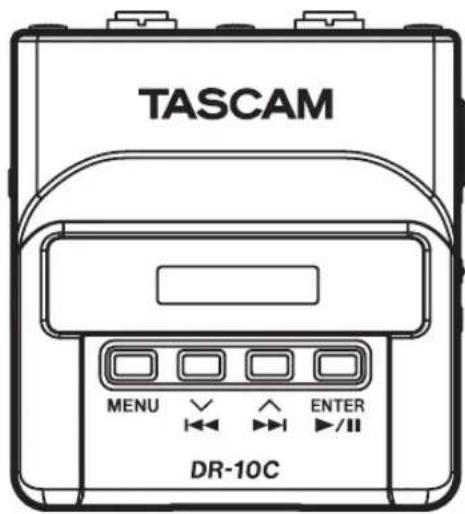
D01241500C
OWNER'S MANUAL
ENGLISH
MODE D'EMPLOI
FRANCAIS
MANUAL DEL USUARIO
ESPANOL
- TASCAM is a trademark of TEAC CORPORATION, registered in the U.S. and other countries.
- microSDHC Logo is a trademark of SD-3C, LLC.

- Microsoft, Windows and Windows Vista are either registered trademarks or trademarks of Microsoft Corporation in the United States and/or other countries.
- Apple, Macintosh, iMac, Mac OS and Mac OS X are trademarks of Apple Inc.
- Sony are trademarks of Sony Corporation
- Panasonic is a registered trademark of Panasonic Corporation.
- Other company names, product names and logos in this document are the trademarks or registered trademarks of their respective owners.
テイアツク株式会社
http://tascam.jp/
1834 Gage Road, Montebello, California 90640 USA
TEAC MEXICO, S.A. de C.V.
http://teacmexico.net/
Phone: +52-55-5010-6000
Meridien House, Ground Floor,69-71, Clarendon Road, Wat
ford, Hertfordshire, WD17 1DS, UK
TEAC EUROPE GmbH
http://tascam.eu/
Phone: +49-611-71580
Room 817, Block A, Hailrun Complex, 6021 Shennan Blvd.,
Futian District, Shenzhen 518040, China
Owner's Manual
IMPORTANT SAFETY PRECAUTIONS
DECLARATION OF CONFORMITY
We, TEAC EUROPE GmbH, Bahnstrasse 12, 65205 Wiesbaden-Erbenheim, Germany declare in own responsibility, the TEAC product described in this manual is in compliance with the corresponding technical standards.

IMPORTANT SAFETY INSTRUCTIONS
1 Read these instructions.
2 Keep these instructions.
3 Heed all warnings.
4 Follow all instructions.
5 Do not use this apparatus near water.
6 Clean only with dry cloth.
7. Do not block any ventilation openings. Install in accordance with the manufacturer's instructions.
8 Do not install near any heat sources such as radiators, heat registers, stoves, or other apparatus (including amplifiers) that produce heat.
9 Do not defeat the safety purpose of the polarized or grounding-type plug. A polarized plug has two blades with one wider than the other. A grounding type plug has two blades and a third grounding prong. The wide blade or the third prong are provided for your safety. If the provided plug does not fit into your outlet, consult an electrician for replacement of the obsolete outlet.
10 Protect the power cord from being walked on or pinched particularly at plugs, convenience receptacles, and the point where they exit from the apparatus.
11 Only use attachments/accessories specified by the manufacturer.
12 Use only with the cart, stand, tripod, bracket, or table specified by the manufacturer, or sold with the apparatus. When a cart is used, use caution when moving the cart/apparatus combination to avoid injury from tip-over.

13 Unplug this apparatus during lightning storms or when unused for long periods of time.
14 Refer all servicing to qualified service personnel. Servicing is required when the apparatus has been damaged in any way, such as power-supply cord or plug is damaged, liquid has been spilled or objects have fallen into the apparatus, the apparatus has been exposed to rain or moisture, does not operate normally, or has been dropped.
The apparatus draws nominal non-operating power from the AC outlet with its POWER or STANDBY/ON switch not in the ON position.
- The mains plug is used as the disconnect device, the disconnect device shall remain readily operable.
- Caution should be taken when using earphones or headphones with the product because excessive sound pressure (volume) from earphones or headphones can cause hearing loss.
If you are experiencing problems with this product, contact TEAC for a service referral. Do not use the product until it has been repaired.
CAUTION
- Do not expose this apparatus to drips or splashes.
- Do not place any objects filled with liquids, such as vases, on the apparatus.
- Do not install this apparatus in a confined space such as a book case or similar unit.
The apparatus should be located close enough to the AC outlet so that you can easily grasp the power cord plug at any time.
If the product uses batteries (including a battery pack or installed batteries), they should not be exposed to sunshine, fire or excessive heat. - CAUTION for products that use replaceable lithium batteries: there is danger of explosion if a battery is replaced with an incorrect type of battery. Replace only with the same or equivalent type.
CAUTIONS ABOUT BATTERIES
This product uses batteries. Misuse of batteries could cause a leak, rupture or other trouble. Always abide by the following precautions when using batteries.
- Never recharge non-rechargeable batteries. The batteries could rupture or leak, causing fire or injury.
- When installing batteries, pay attention to the polarity indications (plus/minus ( / ) orientation), and install them correctly in the battery compartment as indicated. Putting them in backward could make the batteries rupture or leak, causing fire, injury or stains around them.
- When you store or dispose batteries, isolate their terminals with insulation tape or something like that to prevent them from contacting other batteries or metallic objects.
- When throwing used batteries away, follow the disposal instructions indicated on the batteries and the local disposal laws.
- Do not use batteries other than those specified. Do not mix and use new and old batteries or different types of batteries together. The batteries could rupture or leak, causing fire, injury or stains around them.
- Do not carry or store batteries together with small metal objects. The batteries could short, causing leak, rupture or other trouble.
- Do not heat or disassemble batteries. Do not put them in fire or water. Batteries could rupture or leak, causing fire, injury or stains around them.
- If the battery fluid leaks, wipe away any fluid on the battery case before inserting new batteries. If the battery fluid gets in an eye, it could cause loss of eyesight. If fluid does enter an eye, wash it out thoroughly with clean water without rubbing the eye and then consult a doctor immediately. If the fluid gets on a person's body or clothing, it could cause skin injuries or burns. If this should happen, wash it off with clean water and then consult a doctor immediately.
The unit power should be off when you install and replace batteries. - Remove the batteries if you do not plan to use the unit for a long time. Batteries could rupture or leak, causing fire, injury or stains around them. If the battery fluid leaks, wipe away any fluid on the battery compartment before inserting new batteries.
- Do not disassemble a battery. The acid inside the battery could harm skin or clothing.
r European Customers
Disposal of electrical and electronic equipment
(a) All electrical and electronic equipment should be disposed of separately from the municipal waste stream via designated collection facilities appointed by the government or the local authorities.
(b) By disposing of the electrical and electronic equipment correctly, you will help save valuable resources and prevent any potential negative effects on human health and the environment.
(c) Improper disposal of waste equipment can have serious effects on the environment and human health as a result of the presence of hazardous substances in electrical and electronic equipment.
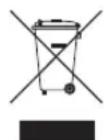
(d) The crossed out wheeled dust bin symbol indicates that electrical and electronic equipment must be collected and disposed of separately from household waste.
(e) The return and collection systems are available to the end users. For more detailed information about disposal of old electrical and electronic equipment, please contact your city office, waste disposal service or the shop where you purchased the equipment.
Disposal of batteries and/or accumulators
(a) Waste batteries and/or accumulators should be disposed of separately from the municipal waste stream via designated collection facilities appointed by the government or the local authorities.
(b) By disposing of waste batteries and/or accumulators correctly, you will help save valuable resources and prevent any potential negative effects on human health and the environment.
(c) Improper disposal of waste batteries and/or accumulators can have serious effects on the environment and human health as a result of the presence of hazardous substances in batteries and/or accumulators.
(d) The crossed out wheeled dust bin symbol indicates that batteries and/or accumulators must be collected and disposed of separately from household waste. If the battery or accumulator contains more than the specified values of lead (Pb), mercury (Hg), and/or cadmium (Cd) defined in the Battery Directive (2006/66/EC), then the chemical symbol for lead (Pb), mercury (Hg) and/or cadmium (Cd) will be indicated the crossed out wheeled dust bin symbol.
(e) The return and collection systems are available to the end users. For more detailed information about disposal of waste batteries and/or accumulators, please contact your city office, waste disposal service or the shop where you purchased them.
Contents
Introduction. 7
Features 7
Included items 7
Conventions used in this manual. 8
Precautions for placement and use 8
Cleaning the unit 8
Beware of condensation 8
Using the TEAC Global Site. 8
Names and functions of parts 9
Front 9
Rear 9
Sides 10
Top 11
Preparation 11
Changing the top panel (sold separately) 11
Power sources. 11
Using a AAA battery. 11
Power supply status indicator. 11
Model setting (internal setting) 11
Connecting to other equipment 12
Turning the unit on and off 12
Turning the unit on 12
Shutting down 12
Turning off automatically 12
Installing a microSD card. 13
Handling microSD cards 13
Precautions when handling microSD cards. 13
Recording durations when using microSD cards. 13
Connecting with a computer 13
Starting and stopping recording 14
Playback and searching backward/forward 15
Checking the remaining recording capacity of the microSD card 15
Using infrared transmission 15
Operation 16
Display during infrared transmission. 16
Changing the top panel 16
Making menu settings. 17
Menu structure. 18
Messages 21
Making settings using a text file 22
Settings file 22
Settings file format explanation 22
Specifications. 23
Ratings. 23
Input/output ratings. 23
Audio performance 23
Requirements for connected computers 24
General 24
Dimensional drawings. 25
Introduction
Thank you very much for purchasing this TASCAM product.
Before using this unit, read this Owner's Manual carefully so that you will be able to use it correctly and enjoy working with it for many years. After you have finished reading this manual, please keep it in a safe place for future reference.
You can also download this Owner's Manual from the TEAC Global Site (http://teac-global.com/).
Features
- Linear PCM recorder that can be connected between a lavalier (pin) mic and a transmitter.
- Usable as a wireless mic backup.
- Using IR (infrared beam) transmissions, the built-in clock time and menu item settings can be copied.
Uses microSD and micro SDHC cards as recording media - When using multiple wireless mics to record, can be used as a recording device to capture signals when not enough channels are available.
- Can record in 48kHz/24-bit mono linear PCM (WAV or BWF) format.
- Time track incrementing function allows a recording to be split by creating a new file at regular intervals (about 15 minutes) without interrupting recording.
- Limiter function automatically reduces parts where the input level is too high to suitable levels.
- Low cut filter is useful for reducing low-frequency noise.
-
Dual recording function allows two files to be recorded simultaneously at different levels.
-
Sliding switch for recording operation protects against misoperation.
- File name format can be set to use a user-defined word or the date.
- The built-in clock time and function items can be set using the system file (text file).
- Playback functions allow recorded files to be checked immediately.
- Secondary lithium battery used to save time information.
A 3.5mm(1 / 8^) headache jack is built-in.
The 96x16 OLED display has a wide viewing angle and is easy to read. - Micro-B USB 2.0 port.
The mic input signal is passed directly through to the transmitter. - Wireless mics made by several companies can be supported by changing the connectors (sold separately).
- A belt clip is provided for portability.
Included items
This product includes the following items.
Keep the packing materials for transportation in the future.
Please contact TASCAM Customer Support (see back cover) if any of these items are missing or have been damaged during transportation.
Main unit.
USB cable.
1/8" (3.5mm) mini TRS cable. × 1 only included with DR-10CS
- Mini XLR4 cable. × 1 (only included with DR-10CH)
Silicon band (for attachment)
Belt clip.
Soft case. × 1
Owner's Manual (this document) including warranty.
Conventions used in this manual
The following conventions are used in this manual.
- When we refer to buttons, connectors and other parts of this unit and other equipment, we use a bold font like this: MENU button.
- When we show messages, for example, that appear on the unit's display, the typeface looks like this: ON
The area of the display that is shown in inverse (light on dark) is referred to as the cursor or as being highlighted. - "microSD/microSDHC memory card" is sometimes abbreviated as "microSD card".
Additional information is provided as necessary as tips, notes and cautions.
TIP
These are tips about how to use the unit.
NOTE
These provide additional explanations and describe special cases.
CAUTION
Failure to follow these instructions could result in injury, damage to equipment or lost recording data, for example.
Precautions for placement and use
The operating temperature range of this unit is 0-40°C.
- Do not install this unit in the following types of locations. Doing so could degrade the sound quality and/or cause malfunctions.
Places with significant vibrations
Near windows or other places exposed to direct sunlight
Near heaters or other extremely hot places. Extremely cold places
Places with bad ventilation or high humidity Very dusty locations
Places exposed directly to rain or other water
- Do not place this unit on top of a power amplifier or other device that generates heat.
Cleaning the unit
Use a dry soft cloth to wipe the unit clean. Do not wipe with chemical cleaning cloths, thinner, alcohol or other chemical agents. Doing so could damage the surface or cause discoloration.
Beware of condensation
If the unit is moved from a cold to a warm place, or used after a sudden temperature change, there is a danger of condensation; vapor in the air could condense on the internal mechanism, making correct operation impossible. To prevent this, or if this occurs, let the unit sit for one or two hours at the new room temperature before using it.
Using the TEAC Global Site
You can download this Owner's Manual necessary for this unit from the TEAC Global Site (http://teac-global.com/).
- Open the TEAC Global Site (http://teac-global.com/).
- In the TASCAM Downloads section, click the desired language to open the Downloads website page for that language.
NOTE
If the desired language does not appear, click Other Languages.
- Click the product name in the "Search by Model Name" section to open the Downloads page for that product.
- Select and download the Owner's Manual that are needed.
Names and functions of parts
Front
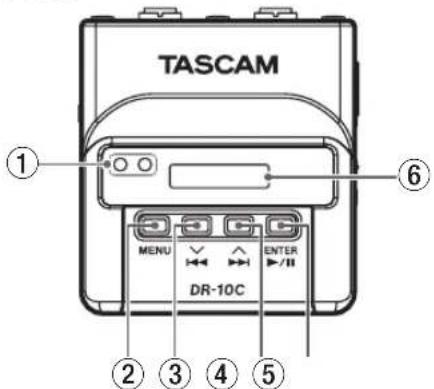
① Infrared port transmitter and receiver
Using infrared beam transmissions between multiple DR-10C units, the built-in clock time and function settings can be transmitted and received. (See "Using infrared transmission" on page 15.)
② MENU button
When the Home Screen is open, press the MENU button to open the Menu Screen. When the Menu Screen is open, press the MENU button again to return to the Home Screen.
When a setting item is shown, press the MENU button to return to the Menu Screen.
When the Home Screen is open, while pressing and holding the MENU button, press the
[√] button to enter infrared transmission mode. When in infrared transmission mode, press the MENU button to return to the Home Screen.
③ [√] button
During playback or when stopped in the middle of a file, press the [√] button to return to the beginning of the file.
Press when located at the beginning of a file to skip to the beginning of the previous file. Press and hold this button during playback to search backward.
When the Menu Screen is open, press the [v] button to select a menu item.
When a setting item is shown, press the [ ] button to move the cursor left.
When inputting a file name, use this to select characters.
When the Home Screen is open, while pressing and holding the MENU button, press the [√] button to enter infrared transmission mode.
④ 1[ 一 ]button
During playback or when stopped in the middle of a file, press the▶[A] button to skip to the beginning of the next file. Press and hold this button during playback to search forward.
When the Menu Screen is open, press the [A] button to select a menu item.
When a setting item is shown, press the▶[^] button to move the cursor right.
When inputting a file name, use this to select characters.
⑤▶/II[ENTER]button
When the Home Screen is open, press the [ENTER] button to start file playback.
When the Menu Screen is open or a setting item is shown, press the [ENTER] button to confirm the selected item. Use this also to respond to a confirmation message.
⑥ Display
Shows a variety of information.
Rear
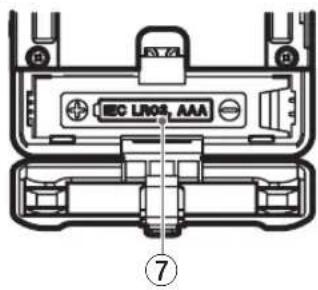
⑦ Battery compartment and cover
Install one AAA battery in this compartment to power the unit.
Sides
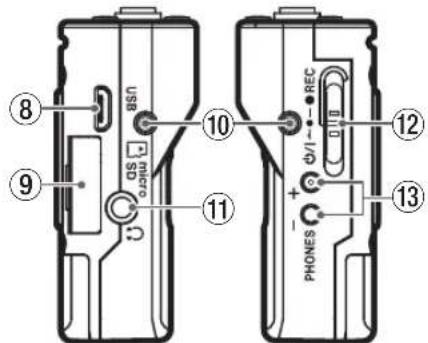
8 USB port
Use the included USB cable to connect this Micro-B USB port with a computer. When connected, the POWER/STORAGE screen appears to allow selection of bus power supply or data transmission by USB.
CAUTION
The unit should be connected directly to the computer, not through a USB hub.
9 microSD card slot
Use this slot to insert and remove microSD cards.
Open the microSD card slot cover on the left side. (See "Installing a microSD card" on page 13.)
0 Belt clip attachment points
Attach the included belt clip to these holes on the left and right.
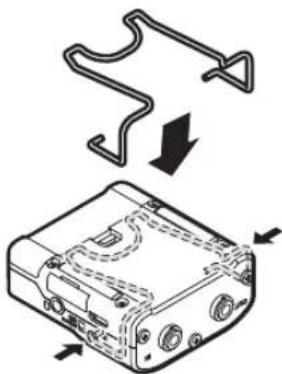
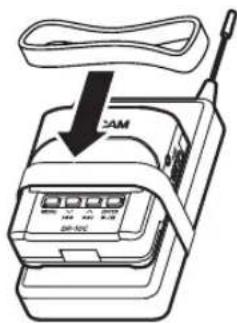
You can also use the included silicon band to attach this unit to the transmitter.
q Headphones jack
Connect stereo headphones to this stereo mini jack.
W/REC switch
Slide this switch toward /1 and hold it for about one second to turn the unit on/off.
Slide and hold this switch toward REC for about one second to start recording.
When recording, slide and hold this switch toward REC for about one second to stop recording.
NOTE
The one-second delay is intended to prevent accidental operation.
e PHONES [+]/[- ] buttons
Use the + and - buttons to adjust the volume output from the headphones jack.
During adjustment, a volume indicator will appear on the display.
![TASCAM DR10C - e PHONES [+]/[- ] buttons - 1](/content/2026/03/541370/images/2ed50b353886135162287a5372daa5346a5a7acf61a23a251c1ca75460ccbfa9.jpg)
In addition, when in infrared communication mode, press the PHONES ([+] button to switch to transmission mode.
CAUTION
Before connecting headphones, lower the PHONES volume to the minimum level. Failure to do so might cause sudden loud noises, which could harm your hearing or result in other trouble.
Do not apply excessive force to the jack when connecting and using headphones. Be careful,
because the application of unintended force, particularly when using a mini jack, could damage the equipment.
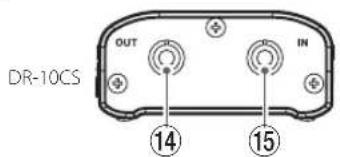
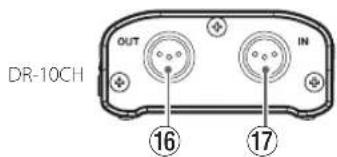
Top
1/8" (3.5mm) mini TRS (with screw lock) OUT jack (for Sennheiser)
Attach one connector of the included junction cable to this OUT jack, and attach the other connector to the mic input jack on the transmitter being used.
After connecting it, lock the connector of the junction cable using the jack screw lock. (Tip: MIC (BIAS), Ring: IN-OUT through, Sleeve: GND)
1/8" (3.5mm) mini TRS (with screw lock) IN jack (for Sennheiser)
Connect the 3.5mm plug of the mic being used to this unit's IN jack.
After connecting it, lock the connector of the mic cable using the jack screw lock.
(Tip: MIC (BIAS), Ring: IN-OUT through, Sleeve: GND)
16 Mini XLR 4-pin male OUT jack (for SHURE)
Attach one connector of the included junction cable to this OUT jack, and attach the other connector to the mic input jack on the transmitter being used.
(1: GND, 2: BIAS, 3: MIC, 4: IN-OUT through)
17 Mini XLR 4-pin male IN jack (for SHURE)
Connect the mini XLR4 plug of the mic being used to this IN jack.
(1: GND, 2: BIAS, 3: MIC, 4: IN-OUT through)
NOTE
Do not apply excessive force to these jacks when connecting and using plugs from other equipment.
Preparation
Changing the top panel (sold separately)
You can change the top panel of this unit to suit the mic you are using. Remove the top panel and replace it with a suitable top panel (sold separately). (See "Changing the top panel" on page 16.)
Power sources
This unit can operate on one AAA battery or USB bus power using the included USB cable.
This unit can use an alkaline, Ni-MH or lithium AAA battery.
Using a AAA battery
Open the battery compartment cover on the back of the unit. Install 1 AAA battery in the compartment
with the and marks as shown. Then, close the battery compartment cover.
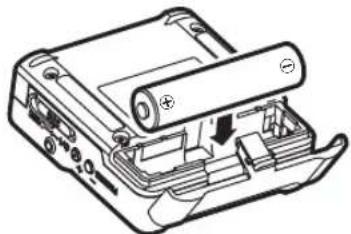
When using a AAA battery, set the type of battery in order to accurately show the amount of power remaining and allow the unit to accurately determine whether power is available for proper operation. (See "Making menu settings" on page 17.)
CAUTION
- AAA manganese dry cell batteries cannot be used with this unit.
This unit cannot recharge AAA Ni-MH batteries. Use a commercially-available charger.
Power supply status indicator
When operating on battery power, a battery icon appears at the top right of the display.
The battery icon shows the amount of power remaining in bars 1
The battery is almost dead and the power will soon turn off if the icon with no bars blinks. When operating on USB bus power, the icon appears.
Model setting (internal setting)
This unit uses an internal setting that enables compatibility with the model type.
Set the internal setting according to the model of the unit being used.
Use the MODEL SELECTItem on the Menu Screen to set this according to the model. (See "Making menu settings" on page 17.)
DR-10CS:SEHN
DR-10CH:SHURE
Connecting to other equipment
Connect the included junction cables to the IN/OUT jacks on the top of the unit.
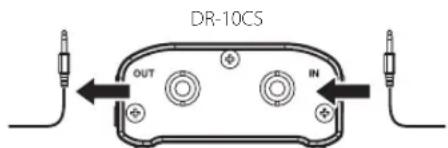
To transmitter mic input jack
From mic cable jack
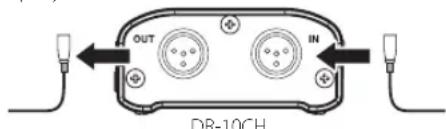
Junction cables included with the unit
DR-10CH: Mini XLR4 cable
Connecting and using this unit between a mic and a transmitter
Connect the plug of the cable from the mic being used to the IN jack on this unit.
- Attach one connector of the included junction cable to this OUT jack, and attach the other connector to the mic input jack on the transmitter being used.
Set the MIC BIRS item on the Menu Screen to OFF. (See "Making menu settings" on page 17.)
- Connecting and using this unit with only a mic
Connect the plug of the cable from the mic being used to the IN jack on this unit.
Set the MIC BIRS item on the Menu Screen to ON. (See "Making menu settings" on page 17.)
NOTE
- When using a DR-10CS, after connecting the mic cable jack and included junction cable, lock the connector with the screw lock.
Use a mic made by the manufacturer of the supported transmitter. If you use a mic made by a different manufacturer, proper recording might not be possible.
Turning the unit on and off
CAUTION
Do not wear connected headphones when turning the unit on and off. A loud noise could damage to the speakers or harm your ears.
Turning the unit on
When the unit is off, slide the / -REC switch toward / and hold it for about one second until the TASCAM DR-1 startup screen appears and the unit starts.
The Home Screen shown below appears after the unit starts up.

NOTE
If the unit is not used for a few minutes, the display will appear as below in screensaver mode.
Shutting down
When the unit is on, slide the /1 -REC switch toward /1 and hold it for about one second until the display becomes unlit and the unit turns off.
CAUTION
Always use the / REC switch to turn the unit off.
When the unit is on, do not remove the battery or disconnect the USB cable if using USB bus power. Doing so will cause all recordings, settings and other data to be lost. Lost data and settings cannot be restored.
Turning off automatically
When operating on battery power and the AUTO PMR SAAUEItem on the Menu Screen is set to ON, if the unit is stopped and no operation has occurred for about 10 minutes, the unit will turn itself off automatically.
NOTE
When the unit is turned on for the first time (or when the built-in clock is reset after being left unused without a battery), the Menu Screen DATE/TIME item appears after the start-up screen to allow the date and time to be set. For details about how to set it, see the DATE/TIME item in "Menu structure" on page 18.
Installing a microSD card
Open the microSD card slot cover on the left side.
- Inserting the microSD card
Insert the microSD Card into the slot in the direction of the arrow as shown in the following illustration until it clicks into place.
- Removing the microSD card
Press the microSD card in gently and then release it to allow it to come out.
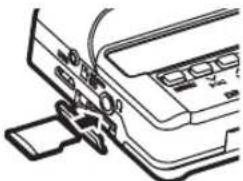
CAUTION
In order to use a microSD card in this unit, you must format it first. (See "Making menu settings" on page 17.)
After formatting a microSD card, the display will show the following when the unit is turned on.
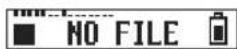
If no microSD card has been inserted, the display will show the following when the unit is turned on.
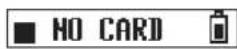
See the following section for information about handling microSD cards.
Handling microSD cards
Precautions when handling microSD cards
This unit uses microSD/microSDHC cards for recording and playback.
It supports microSD cards that are 64 MB - 2 GB and microSDHC cards that are 4 GB - 32 GB.
A list of microSD cards that have been confirmed for use with this unit can be found on the TEAC Global Site (http://teac-global.com/). microSD/microSDHC cards are delicate media. In order to avoid damaging a card or the card slot, please take the following precautions when handling them.
- Do not leave them in extremely hot or cold places.
Do not leave them in extremely humid places, and do not let them become wet. - Do not put things on top of them or twist them.
Do not hit them. - Do not remove or insert a card during data transmission or other access.
Recording durations when using microSD cards
The table below shows maximum recording times on microSD/microSDHC cards of different capacities.
| microSD/ microSDHC card capacity (hours:minutes) | 24-bit/48kHz mono WAV recording setting | |
| DUAL REC MODE off | DUAL REC MODE on | |
| 1GB 2:04 1:02 | ||
| 2GB 4:08 2:04 | ||
| 4 GB 8:16 4:08 | ||
| 8GB 16:32 8:16 | ||
The recording times shown above are estimates. They might differ depending on the microSD/ microSDHC card in use.
The recording times shown above are not continuous recording times, but rather they are the total possible recording times for the microSD/microSDHC card.
Connecting with a computer
Connect the unit to a computer using the included USB cable as shown in the illustration.
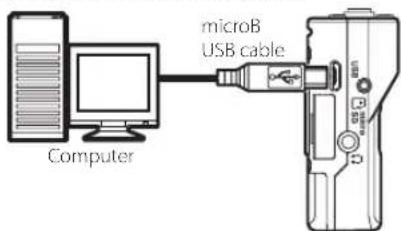
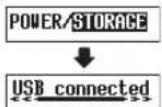
Whether the power is on or off, when connected, the POWER*STORAGE screen appears to allow selection of bus power supply or USB connection with the computer.
Use the [V] and [A] buttons to select (highlight) the POWER or STORAGE item at the bottom of the display, and press the /[ENTER] button.
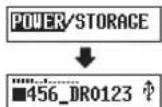
- If POWER is selected, power will be supplied from the USB port and the Home Screen will open.
- IF STORAGE is selected, USB connected will appear on the display after the unit connects to the computer without any problems.
The unit will be shown on the computer as a USB device named "DR-10".
Double-click the "DR-10" drive to open it and show a list of the recording files, so you can retrieve the desired files.
Starting and stopping recording
You can use a single operation to start recording with this unit even when it is off.
One touch recording
When the unit is off, slide and hold the / REC switch toward REC for about one second until the TASCAM DR-10 startup message appears and recording starts.
Ordinary recording
To start recording when the unit is on, slide the /1 - REC switch toward REC for about one second.
Stopping recording
Slide the switch toward REC during recording for about one second to stop recording.
The following information appears on the display when stopped, when recording starts and during recording.

Recording
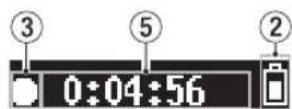
① Level meter
② Remaining battery charge
③ Recorder operation status
4 File name
⑤ Elapsed recording time
NOTE
The one-second delay is intended to prevent accidental operation.
- Without pausing recording, a new file can be created automatically during recording when the file size reaches 2 GB. (Track incrementing)
- Set the mic input sensitivity with the MIC GRIN item on the Menu Screen so that that activity of the level meters reaches the arrow (at -12 dB) in the illustration. (See "Menu structure" on page 18.)
Playback and searching backward/forward
The Home Screen shown below appears after the unit starts up.
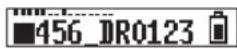
Starting and stopping playback
When the Home Screen is open and playback is stopped, press the /II [ENTER] button to start playback. Press this button again to stop playback.
searching backward and forward
During playback, press and hold the [V] or [A] button to start searching backward or forward. Continue pressing and holding the [V] or [A] button to accelerate the search speed.
Release the [V] or [A] button to resume playback.
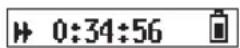
The display appears as below when playback starts and during playback.
When playback starts
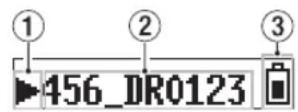
During playback
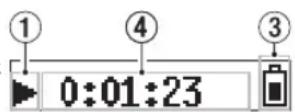
① Recorder operation status
② Playback file name
③ Remaining battery charge
④ Elapsed playback time
NOTE
During playback, press and hold the MENU button to show the remaining time of the playing file.

When searching, "<<" or ">>" will be shown. If the search speed is increased, this will change to "<<" or ">>".
Checking the remaining recording capacity of the microSD card
When stopped or recording, press and hold the MENU button to show the remaining recording capacity of the microSD.
Using infrared transmission
When using more than one DR-10C at the same time, you can use infrared transmission to copy the settings of the first DR-10C to the other ones.
NOTE
The file name set with the Menu Screen FILE NAME item is not copied.
When using more than one of these units, the FILE NAMESetting can be set in advance to identify which units were used to record files. For this reason, the file name set with FILE NAME is not copied.
Example:FILE NAMESet differently to identify each unit
| DR-10C File name | |
| 1st unit DR0001 000_DR0001.wav | |
| 2nd unit DR0002 000_DR0002.wav | |
| 3rd unit DR0003 000_DR0003.wav | |
| ↓↓↓ | |
| 10th unit DR0010 000_DR0010.wav | |
Operation
- When the Home Screen is open, while pressing and holding the MENU button, press the [▼] button to put the DR-10C into infrared communication mode.
By default the setting is for infrared reception (IR RX).
- When units are in infrared transmission/ reception mode, place their infrared transmitters/receivers near each other.
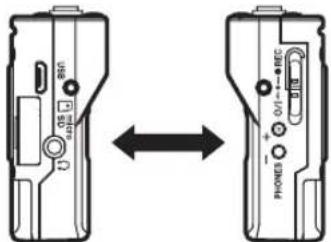
- To set one DR-10C as the master from which settings are copied, press its PHONES [+] button to put it into infrared transmission (IR TX) mode.
After sending the transmission data for about 10 seconds, this setting will reset to infrared reception (IR RX) mode.
- To transmit again, repeat the same operations.
- After copying the settings completes, COMPLETE will appear on the display of the DR-10C that was in infrared reception (IR RX) mode and then the Home Screen will reappear.
- When in infrared reception mode, press the MENU button to end infrared reception mode and return to the Home Screen.
Display during infrared transmission
During reception
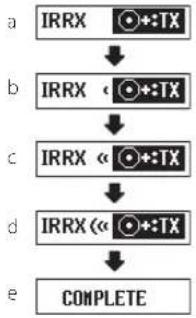
When data is being received, the screen changes repeatedly as shown in a-d until reception completes.
When data reception completes, COMPLETE appears on the display for several seconds as shown in e. Then, the Home Screen reappears.
When transmitting
When data is being transmitted, the screen changes repeatedly as shown in a-d until sending completes.

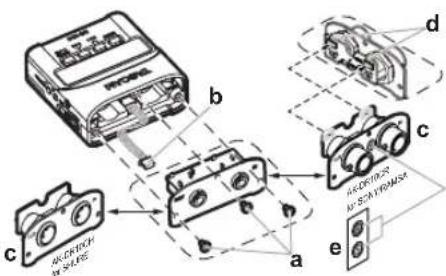
Changing the top panel
After purchasing another top panel (sold separately), you can change the installed top panel as shown below.
The following two types of top panels are available.
For Shure
Top panel product (sold separately) name: AK-DR10CH (mini XLR 4-pin male)
(1: GND, 2:BIAS, 3:MIC, 4:IN-OUT through)
For SONY/RAMSA
Top panel product (sold separately) name: AK-DR10CR (Hirose 4-pin female)
For SONY (1:BIAS,2:IN-OUT through,3:MIC, 4:GND)
For RAMSA (1:MIC, 2:IN-OUT through, 3:BIAS, 4:GND)

a Remove the top panel
Use a flat-bladed screwdriver to remove the 3 attachment screws. After removing the screws, pull the top panel out slowly.
b Disconnect the connector
The top panel and the rest of the unit are connected by a connector. Hold the top panel with one hand and the rest of the unit with the other hand and use a finger to disconnect the protruding end of the connector.
c Attach the top panel
Confirm that the orientation of the connector is correct and insert it fully into the connector receptacle on the replacement top panel. (If something seems wrong when inserting the connector, check its orientation.)
d Set the switch according to the manufacturer
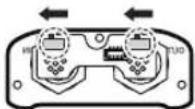
If replacing the top panel with the AK-DR10CR, set the switch on the circuit board on the back of the top panel as follows according to the manufacturer of the mic being used.
for SONY for RAMSA
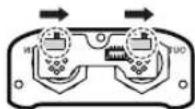
Next, use the screws removed in step a to secure the replacement top panel.
Be careful not to tighten the screws too much.
Confirm that the screws are not loose or protruding after connection.
e Apply the switch setting label (AK-DR10CR only)
After completing top panel replacement, attach the included label to the front of the top panel to show for which manufacturer the switch is set. (SONY: S, RAMSA: R)
f Model setting
Set the MODEL SELECTItem on the Menu Screen as follows.
AK-DR10CH:
SHURE
AK-DR10CR:
RAMSA for RAMSA
SONY for SONY
NOTE
Be careful not to lose the screws when they are removed.
If you should accidentally lose a screw, a spare screw that can be used is included in the shipping box.
Making menu settings
Follow these procedures to change various unit settings.
- When the Home Screen is open, press the MENU button to open the Menu Screen.
- Use the 14 [V] and 15 [A] buttons to select the menu item to set and press the 16 [ENTER] button to show the setting item.
- Use the [√] and [A] buttons to change the setting.
- Press the /II [ENTER] button to confirm the setting and return to the Menu Screen.
- Repeat steps 2 to 4 as necessary to set each item.
- When finished, press the MENU button to return to the Home Screen.
Menu structure
Press the MENU button to open the Menu Screen. This list provides an overview of the various menu items.
| Menu item Summary | Setting items (default value underlined) | Explanation | |
| MIC GAIN Mic gain | switch LO/MID/HI | Use to change the mic input sensitivity. | |
| MIC BIAS Mic bias | switch OFF/ON | — | Set this to ON when recording with a lavalier mic connected to this unit without a transmitter connected. When set to ON, this unit will provide a mic bias of about 2 V. |
| LOW CUT Low cut | filter OFF/ON Turns the mic input low-cut filter on or off. The cutoff frequency is 120 Hz. | ||
| LIMITER Input limiter | OFF/ON | — | This function prevents distortion when signals that are too loud are input suddenly. Turns this function on or off. Distortion of sounds may occur when signals that are very loud are input even if the LIMITER function is activated. In such a case, use the Menu Screen MIC GRINItem to lower the mic input sensitivity, or increase the distance from the sound source. |
| AUTO LEVEL | Automatic level adjustment | OFF/ON | When the input sound level is too low or too high, the recording volume will be increased or decreased automatically to an appropriate level. |
| DUAL REC MODE Dual recording | Dual recording | OFF/ON | This recorder can simultaneously record a second recording at a different input level along with the regular recording. For example, you can make an ordinary recording with the input level set as high as possible and simultaneously record at a slightly lower input level (-6 dB) for security. Two recorded files (one with higher input level and one with lower input level) are saved individually. Dual recording file names Dual recording will create two files simultaneously. The name of the second file created by dual recording has "_D" added to the file name of the ordinary recording. Ordinary recording file name Dual recording file name 002 TASCAM.WAV 002 TASCAM_D.WAV ① ② ③ ① ② ③ ① 002 (basic recording file number) ② TASCAM (according to the WORD setting of theFILE NAMEItem on the Menu Screen) ③ D (dual recording file with lower input level (-6 dB) setting) |
| TIME TRK INC | Timed track incrementation | OFF/ON | Without pausing recording, a new file can be created automatically during recording after about 15 minutes have elapsed. |
| AUTO PWR SAVE | Automatic power off setting | OFF/ON | Turns this function on or off. When operating on battery power and this function is on, if the unit is stopped when no operation has occurred for about 10 minutes, the unit will turn itself off automatically. |
| Menu item Summary | Setting items (default value underlined) | Explanation | |
| MODEL SELECT Model setting | SENN/SHURE/RAMSA/SONY | Set according to the model being used.This changes internal settings that are necessary to support each model.Check the TEAC Global Site (http://teac-global.com/) for details.SENN:DR-10CS (for Sennheiser)SHURE:DR-10CH or DR-10C with AK-DR10CH (for Shure) attachedRAMSA:DR-10C with AK-DR10CR (for SONY/RAMSA) attached and switch set for RAMSASONY:DR-10C with AK-DR10CR (for SONY/RAMSA) attached and switch set for SONYNOTEExecuting the SYSTEM INIT function will not initialize this setting. When shipped new from the factory,this setting is "SENN" for the DR-10CS (model for SENNHEIDER) and "SHURE" for the DR-10CH (model for SHURE). | |
| FILE NAME TYP | File name type setting | WORD/DATE | You can select the format of names given to files recorded by this unit.WORD: The 6 characters set using the Menu Screen FILE NAMEItem is used for file names.Example:000_DR0000.wavDATE: The date is used as the file name (in yymmdd format).Example:000_110101.wav |
| FILE NAME Set the | file name [DR0000] | Press the▶/■[ENTER] button to move the cursor from left to right one character at a time.When the cursor is at the character on the far right, press the▶/■[ENTER] button to confirm the file name and return to the Menu Screen.Use the▶[√] and▶[^] buttons to change the character at the cursor position.In addition to the alphabet and numbers, the following characters can be used:!# $%&(')+,-:=@|^`{!TIPWhen using more than one of these units, you can set the file name in advance to identify which units were used to record files. This can be convenient when editing files. (See "Using infrared transmission" on page 15.)ExampleUnits:1st (DR0001),2nd (DR0002),3rd (DR0003)...10th (DR0010)File names:000_DR0001.wav,000_DR0002.wav,000_DR0003.wav...000_DR0010.wav | |
| FORMAT SD | Format microSD card | Sure? YES/NO | Use this to format the microSD card in the unit. YES: Start formatting the card. After formatting completes, the Menu Screen reappears. NO: Return to the Menu Screen. |
| BATTERY TYPE Battery setting ALK/NiMH/LITH | Use this to set the type of battery used. This setting is used to show the amount of remaining battery charge and determine if the unit has enough power for normal operation. ALK: Alkaline AAA battery LITH: Lithium AAA battery NIMH: Ni-MH AAA battery | ||
| DATE/TIME | Internal clock setting Year/month/ date/hour/ minute | YY-MM-DD HH:MM | "YY-MM-DD HH:MIM" ① ② ③ ④ ⑤ ①:YY (year), ②:MM (month), ③:DD (date), ④:HH (hour), ⑤:MM (minute) Press the▶/■ [ENTER] button to move the cursor from left to right: ①→②→③→④→⑤. When the cursor is at ⑤ on the far right, press the▶/■ [ENTER] button to confirm the date and time and return to the Menu Screen. Use the▶[√] and▶[^] buttons to change the number at the cursor position. |
| SYSTEM INIT Initialize settings Sure? YES/NO — | Use this to restore the various unit settings (excluding MODEL SELECT) to their default settings. YES: Initialize the settings. After initializing completes, the Menu Screen reappears. NO: Return to the menu screen. | ||
| VERSION INFO | Shows the firmware version | Vx.xx xxxx | This is the firmware version used by the unit. When the version is being shown, press the▶/■ [ENTER] button to return to the Menu Screen. |
Messages
The following is a list of the pop-up messages.
| Message Meaning and | response |
| Battery Empty The battery is almost out of power. Replace the battery. | |
| Card Error The microSD card could not be recognized properly. Change the microSD card. | |
| Card Full | The microSD card has no remaining capacity. Erase unnecessary files or move them to a computer to make open space. |
| File Full | The total number of recording files exceeds the limit of 1000. Erase unnecessary files or move them to a computer to make open space. |
| Format Error | The microSD card is not formatted properly or the formatting is broken. Use the DR-10C to format the microSD card. |
| Invalid Card The card might be abnormal. Change the microSD card. | |
| No Music File There is no file that can be played back on the microSD card. | |
| Non-Supported The audio file is not a supported format or is broken. | |
| Write Timeout | Writing to the microSD card timed out. Change to a card with faster writing, or backup files on the card to a computer and format the card. |
| Player Error | If any of these errors occurs, turn the unit off once and restart it. If the unit cannot be turned off, remove the battery or disconnect the USB cable if it is being operated on USB bus power. If these error messages continue to appear frequently, please contact a TEAC Service Center (listed on page 2 of this manual). |
| Write Failed | |
Making settings using a text file
When this unit is turned on, it automatically reads a settings file (text format) stored on the microSD card and applies its menu item settings.
NOTE
After applying the settings, the settings file is deleted.
Settings file
- File name: DR-10_SysPara.txt
- File storage location: The settings file is placed in the root directory of the microSD card.
Settings file format explanation
The order that settings are notated does not matter.
There is no need to notate all the settings. You can notate only the settings that you want to set.
NOTE
If there is an error in notation, that setting will not be applied to the unit.
g definition
These are tags that identify setting statements. All setting elements must be written between
This indicates the Menu Screen MIC GAIN setting. Notate it as "low", "mid" or "hi".
Example:
This indicates the Menu Screen MIC BIAS setting. Notate it as "off" or "on". Example:
This indicates the Menu Screen LQU CUT setting. Notate it as "off" or "on". Example:
22 TASCAM DR-10C
This indicates the Menu Screen LIMITER setting. Notate it as "off" or "on". Example:
This indicates the Menu Screen AUTO LEVEL setting. Notate it as "off" or "on". Example:
< dual_rec>
This indicates the Menu Screen DUAL REC MODE setting. Notate it as "off" or "on".
Example:
This indicates the Menu Screen TIME TRK INC setting. Notate it as "off" or "on".
Example:
This indicates the Menu Screen AUTO PWR SAVEBetting. Notate it as "off" or "on".
Example:
This indicates the Menu Screen MODEL SELECT setting. Notate it as "CSEN", "CSHU", "CRAM" or "CSON".
CSEN: DR-10CS (for Sennheimer)
CSHU: DR-10CH or DR-10C with AK-DR10CH (for Shure) attached
CRAM: DR-10C with AK-DR10CR (for SONY/RAMSA) attached and switch set for RAMSA
CSON: DR-10C with AK-DR10CR (for SONY/RAMSA) attached and switch set for SONY
Example:
This indicates the Menu ScreenFILE NAME TYP setting. Notate it as "word" or "date".
Example:
This indicates the Menu Screen FILE NAMEsetting. Use 6 characters to set the file name.
Example: <file_name>DR0000</file_name>
<battery_type>
This indicates the Menu Screen BATTERY TYPE setting. Notate it as "alkali", "ni-mh" or "lithium".
Example: <battery_type>alkali</battery_type>
<date>
This indicates the Menu Screen DATE/TIME date setting, which is used for the built-in clock. Notate it with 10 half-width (ordinary) characters including hyphens in a "YYYY-MM-DD" format.
Example: <date>2014-08-27</date>
<time>
This indicates the Menu Screen DATE/TIME time setting, which is used for the built-in clock. Notate it with 8 half-width (ordinary) characters including colon in a "HH:MM:SS" format using 24-hour time.
Example: <time>23:59:59</time>
Simple notations
Example with all menu items
<dr10_syspara>
<mic_gain>low</mic_gain>
<mic.bias>off</mic.bias>
<lowcuts>on</lowcuts>
<limiter>off</limiter>
<auto_level>off</auto_level>
<dual_rec>off</dual_rec>
<time_track_inc>off</time_track_inc>
<auto_PWR_save>on</auto_PWR_save>
<model_select>CSEN</model_select>
<file_name_type/date</file_name_type>
<file_name>DR0000</file_name>
<battery_type>alkali</battery_type>
<date>2014-08-27</date>
<time>23:59:59</time>
</dr10_syspara>
Example with only the time setting
<dr10_syspara> <time>23:59:59</time> </dr10_syspara>
Specifications
Ratings
Recording media
microSD card (64 MB-2 GB)
microSDHC card (4 GB-32 GB)
Recording/playback formats
48kHz/24-bit MONO WAV (BWF format)
Input/output ratings
▶halog input
Mic jack
Connector
DR-10CS (for Sennheimer): 1/8" (3.5mm) mini TRS jack (with screw lock)
DR-10CH (for SHURE): Mini XLR 4pin Male
Maximum input level: -12dBu (According to MODEL SELECT)
Minimum input level: -53dBu (According to MODEL SELECT)
Mic input gain: +10 dB to +35 dB (According to MODEL SELECT)
Input impedance: 33k or more
Analog output
Headphones jack
Connector: 1/8^n (3.5mm) stereo phone (dual mono audio output)
Audio performance
PHONES (input monitoring output, 10kΩ load)
Frequency response: 20Hz - 22kHz + 1 / - 2dB
Distortion: 0.05% (1kHz sine wave, at maximum input level)
S/N ratio: 88 dB or higher (PHONES volume max, MIC GAIN LO selected)
Requirements for connected computers
Check the TEAC Global Site (http://teac-global.com/) for the latest information about supported operating systems.
Supported operating systems
Windows
Windows 7, Windows 8 (including 8.1)
Mac
OS XMavericks (10.9)
OSXMountain Lion (10.8)
General
Power
1 AAA battery (alkaline, NiMH or lithium)
USB bus power from a computer
Dwer consumption
0.45 W (maximum)
Current consumption (USB bus power)
0.25A(maximum)
Battery operation time (continuous operation)
Using an alkaline battery (EVOLTA)
| Format | Operation time | Note | |
| Recording | 48kHz/24-bit WAV | About 10.0 hours | Mic and transmitter connected; headphones not connected Mic bias: off Limiter: off Dual recording: off |
| Recording | 48kHz/24-bit WAV | About 9.5 hours | Only mic connected Headphones not connected Mic bias: on Limiter: off Dual recording: off |
Recording: JEITA recording time
Using NiMH battery (eneloop)
| Format | Operation time | Note | |
| Recording | 48kHz/24-bit WAV | About 8.0 hours | Mic and transmitter connected; headphones not connected Mic bias: off Limiter: off Dual recording: off |
| Recording | 48kHz/24-bit WAV | About 7.5 hours | Only mic connected Headphones not connected Mic bias: on Limiter: off Dual recording: off |
Recording: JEITA recording time
Using lithium battery (Energizer ULTIMATE LITHIUM)
| Format | Operation time | Note | |
| Recording | 48kHz/24-bit WAV | About 15.5 hours | Mic and transmitter connected; headphones not connected Mic bias: off Limiter: off Dual recording: off |
| Recording | 48kHz/24-bit WAV | About 14.5 hours | Only mic connected Headphones not connected Mic bias: on Limiter: off Dual recording: off |
Recording: JEITA recording time
Date and time data retention
Secondary lithium battery × 1 (built-in)
■mensions
52 x 55.6 x 24.4 mm (width x height x depth, excluding protrusions)
Weight
63 g (including batteries)/51 g (not including batteries)
operating temperature range
0^ - 40^ (32°F-104°F)
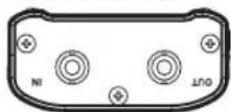
Dimensional drawings
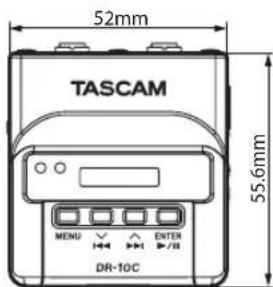
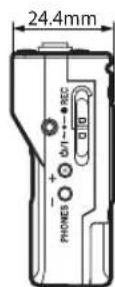
- Illustrations in this manual might differ in part from the actual product.
- Specifications and external appearance might be changed without notification to improve the product.
Mode d'emploi
PRECAUTIONS DE SECURITE IMPORTANTES
Pour le Canada
THIS CLASS B DIGITAL APPARATUS COMPLIES WITH CANADIAN ICES-003, CET APPAREIL NUMÉRIQUE DE LA CLASSE B EST CONFORME À LA NORME NMB-003 DU CANADA.
DECLARATION DE CONFORMITE
Responsible: TEAC AMERICA, INC.
Dircution:1134Gage RoadMontebello,California,U.S.A.
Tejieipang:1-327-725-0309
Wiesbaden-Erdenheim, Germany declared no to its esta
(1: masa, 2: BIAS, 3: micro, 4: IN-OUT through)
17 Macho XLR mini de 4untas IN (para SHURE)
(1: masa, 2: BIAS, 3: MIC, 4: IN-OUT through)
NOTA
Para RAMSA (1: MIC, 2: IN-OUT through, 3: BIAS, 4: masa)
WAV MONO (formato BWF) a 48 kHz/24 bits
Entradas y開放s
Tradaanalogica
Toma Mic
DR-10CH (fur Shure): Mini-XLR, 4-polig, mannlich
DR-10CH (fur Shure): Mini-XLR, 4-polig, mannlich
Lithium-Batterie (Energizer Ultimate Lithium)
This equipment has been tested and found to comply with the limits for a Class B digital device, pursuant to Part 15 of the FCC Rules. These limits are designed to provide reasonable protection against harmful interference in a residential installation. This equipment generates, uses, and can radiate radio frequency energy and, if not installed and used in accordance with the instruction manual, may cause harmful interference to radio communications. However, there is no guarantee that interference will not occur in a particular installation. If this equipment does cause harmful interference to radio or television reception, which can be determined by turning the equipment off and on, the user is encouraged to try to correct the interference by one or more of the following measures.
a) Reorient or relocate the receiving antenna.
b) Increase the separation between the equipment and receiver.
c) Connect the equipment into an outlet on a circuit different from that to which the receiver is connected.
d) Consult the dealer or an experienced radio/TV technician for help.
CAUTELA
Changes or modifications to this equipment not expressly approved by TEAC CORPORATION for compliance could void the user's authority to operate this equipment.
For Canada
THIS CLASS B DIGITAL APPARATUS COMPLIES WITH CANADIAN ICES-003. CET APPAREIL NUMERIQUE DE LA CLASSE BEST CONFORME A LA NORME NMB-003 DU CANADA.
DR-10CS:SEHN
DR-10CH:SHURE
Per RAM5A (1:MIC,2:IN-OUT through,3: BIAS,4:GND)

CSEN: DR-10CS (per Sennheimer)
CSHU: DR-10CH o DR-10C con AK-DR10CH (per Shure) collegato
48 kHz/24 bit MONO WAV (formato BWF)
DR-10CH (per SHURE): Mini XLR 4 pin maschio
This product is subject to the legal warranty regulations of the country of purchase. In case of a defect or a problem, please contact the dealer where you bought the product.
This warranty gives you specific legal rights, and you may also have other rights that vary by country, state or province.
If you have a warranty claim or request, please contact the dealer where you bought the product.
If you require repair services for your TASCAM equipment, please contact the dealer where the product was purchased from or the TASCAM Distributor in your country.
A list of TASCAM Distributors can be found on our website at: http://teac-global.com/
WARRANTY / 保証書
Model/型名
DR-10C
Serial No./機番

- テイアツク株式会社
- Owner's Manual
- IMPORTANT SAFETY PRECAUTIONS
- DECLARATION OF CONFORMITY
- IMPORTANT SAFETY INSTRUCTIONS
- CAUTION
- CAUTIONS ABOUT BATTERIES
- r European Customers
- Disposal of electrical and electronic equipment
- Disposal of batteries and/or accumulators
- Contents
- Introduction
- Features
- Included items
- Conventions used in this manual
- TIP
- NOTE
- Precautions for placement and use
- Cleaning the unit
- Beware of condensation
- Using the TEAC Global Site
- Names and functions of parts
- Front
- ① Infrared port transmitter and receiver
- ② MENU button
- ③ [√] button
- ④ 1[ 一 ]button
- ⑤▶/II[ENTER]button
- ⑥ Display
- Rear
- ⑦ Battery compartment and cover
- Sides
- USB port
- microSD card slot
- Belt clip attachment points
- q Headphones jack
- W/REC switch
- e PHONES [+]/[- ] buttons
- 1/8" (3.5mm) mini TRS (with screw lock) OUT jack (for Sennheiser)
- 1/8" (3.5mm) mini TRS (with screw lock) IN jack (for Sennheiser)
- Mini XLR 4-pin male OUT jack (for SHURE)
- Mini XLR 4-pin male IN jack (for SHURE)
- Preparation
- Changing the top panel (sold separately)
- Power sources
- Using a AAA battery
- Power supply status indicator
- Model setting (internal setting)
- Connecting to other equipment
- Connecting and using this unit between a mic and a transmitter
- - Connecting and using this unit with only a mic
- Turning the unit on and off
- Turning the unit on
- Shutting down
- Turning off automatically
- Installing a microSD card
- Handling microSD cards
- Precautions when handling microSD cards
- Recording durations when using microSD cards
- Connecting with a computer
- Starting and stopping recording
- One touch recording
- Ordinary recording
- Stopping recording
- Playback and searching backward/forward
- Starting and stopping playback
- searching backward and forward
- Checking the remaining recording capacity of the microSD card
- Using infrared transmission
- Operation
- Display during infrared transmission
- During reception
- When transmitting
- Changing the top panel
- a Remove the top panel
- b Disconnect the connector
- c Attach the top panel
- d Set the switch according to the manufacturer
- for SONY for RAMSA
- e Apply the switch setting label (AK-DR10CR only)
- f Model setting
- Making menu settings
- Menu structure
- Messages
- Making settings using a text file
- After applying the settings, the settings file is deleted.
- Settings file
- Settings file format explanation
- If there is an error in notation, that setting will not be applied to the unit.
- g definition
- TASCAM DR-10C
- Simple notations
- Specifications
- Ratings
- Recording media
- Recording/playback formats
- Input/output ratings
- ▶halog input
- Analog output
- Audio performance
- PHONES (input monitoring output, 10kΩ load)
- Requirements for connected computers
- Supported operating systems
- Windows
- Mac
- General
- Power
- Dwer consumption
- Current consumption (USB bus power)
- Battery operation time (continuous operation)
- Date and time data retention
- ■mensions
- Weight
- operating temperature range
- Mode d'emploi
- PRECAUTIONS DE SECURITE IMPORTANTES
- Pour le Canada
- DECLARATION DE CONFORMITE
- Macho XLR mini de 4untas IN (para SHURE)
- NOTA
- Entradas y開放s
- CAUTELA
- For Canada
- WARRANTY / 保証書
- DR-10C
Brand : TASCAM
Model : DR10C
Category : Microphone