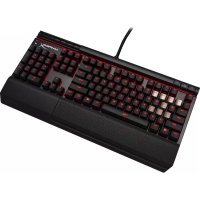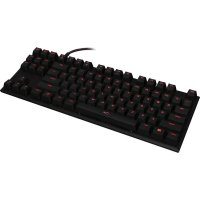
HyperX Alloy FPS - Keyboard KINGSTON - Free user manual and instructions
Find the device manual for free HyperX Alloy FPS KINGSTON in PDF.



User questions about HyperX Alloy FPS KINGSTON
0 question about this device. Answer the ones you know or ask your own.
Ask a new question about this device
Download the instructions for your Keyboard in PDF format for free! Find your manual HyperX Alloy FPS - KINGSTON and take your electronic device back in hand. On this page are published all the documents necessary for the use of your device. HyperX Alloy FPS by KINGSTON.
USER MANUAL HyperX Alloy FPS KINGSTON
HyperX Alloy FPS Keyboard
Find the language and latest documentation for your HyperX Alloy FPS Keyboard here.
HyperX Alloy FPS Keyboard Installation Guide
For instructions in English
...HCTpyKunHa Pycckom
C. Turkce talimatlar icin
Japanese
Korean
Thai
Vietnamese
Simplified Chinese. 中文说明
Traditional Chinese .... 中文說明
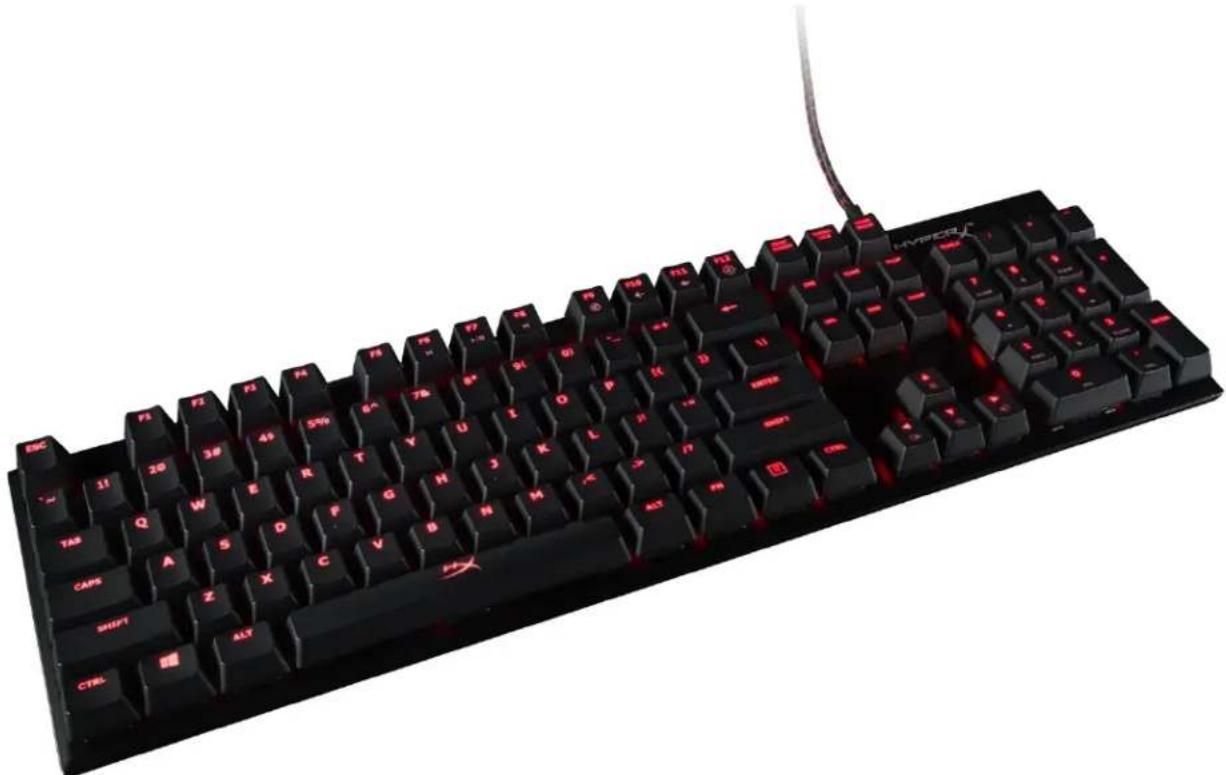
HyperX Alloy FPS Mechanical Gaming Keyboard
| Part Numbers | ||
| Cherry® MX Blue | Cherry® MX Brown | Cherry® MX Red |
| HX-KB1BL1-NA/A3 | HX-KB1BR1-RU/A5 | HX-KB1RD1-RU/A5 |
| HX-KB1BL1-LA/A4 | HX-KB1BR1-DE/A2 | HX-KB1RD1-DE/A2 |
| HX-KB1BL1-RU/A5 | HX-KB1BR1-LA/A4 | HX-KB1RD1-LA/A4 |
| HX-KB1BL1-NA/A1 | HX-KB1BR1-NA/A1 | HX-KB1RD1-NA/A1 |
| HX-KB1BL1-DE/A2 | HX-KB1BR1-NA/A2 | HX-KB1RD1-NA/A2 |
| HX-KB1BL1-NO/A2 | HX-KB1BR1-NA/A3 | HX-KB1RD1-NA/A3 |
| HX-KB1BL1-UK/A2 | HX-KB1BR1-NA/A4 | HX-KB1RD1-NA/A4 |
| HX-KB1BL1-NA/A4 | HX-KB1BR1-NO/A2 | HX-KB1RD1-NO/A2 |
| HX-KB1BL1-NA/A2 | HX-KB1BR1-UK/A2 | HX-KB1RD1-UK/A2 |
| HX-KB1BL1-FR/A2 | HX-KB1BR1-FR/A2 | HX-KB1RD1-FR/A2 |
What's included:
HyperX Alloy FPS Mechanical Gaming Keyboard
- Detachable USB cable
-8x Gaming keycaps
-Keycaps puller
Travel pouch
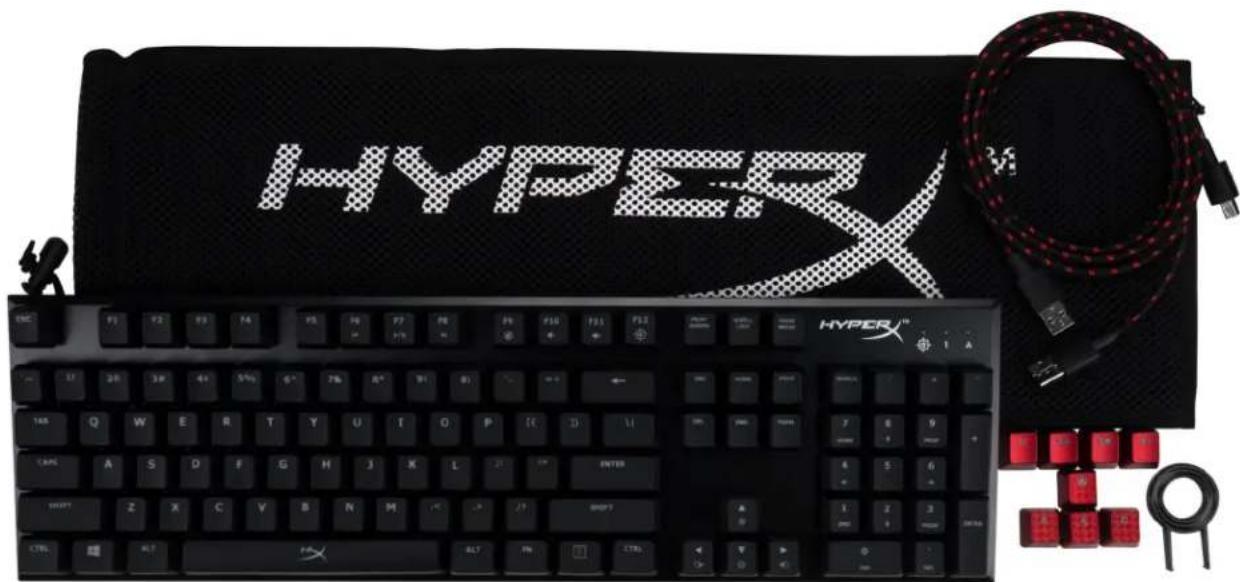
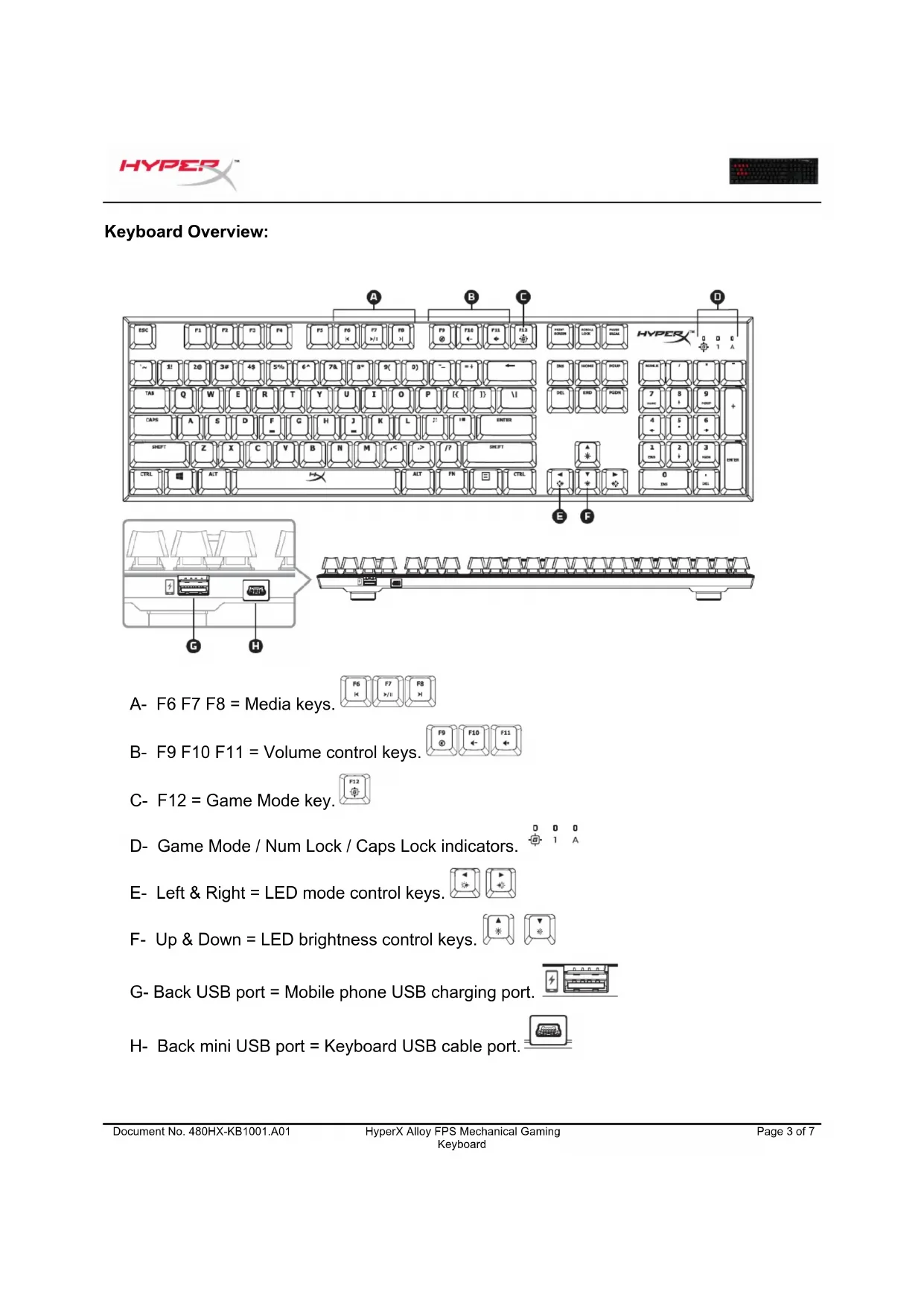
Keyboard Overview:
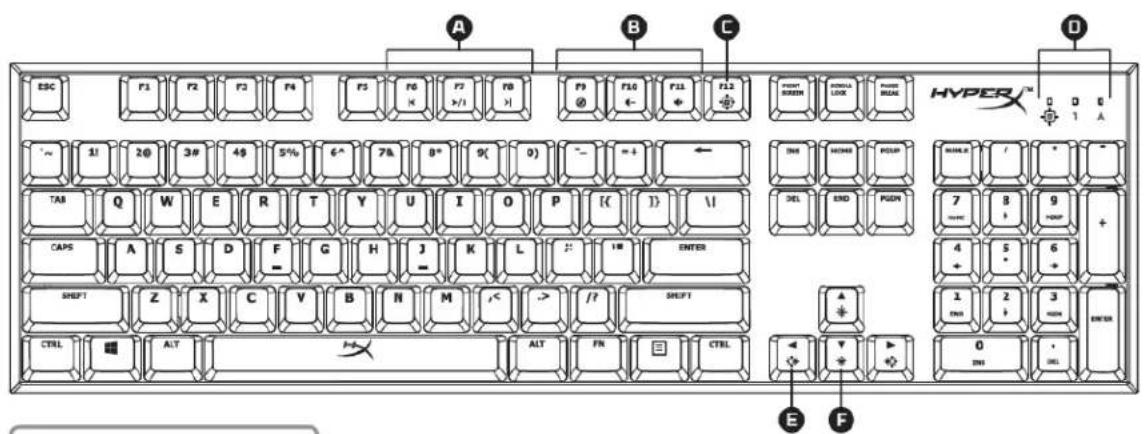

A-F6F7F8 F6 F7 F8 F1
B- F9 F10 F11 = Volume control keys.
C-F12 = Game Mode key.
D- Game Mode / Num Lock / Caps Lock indicators.
E- Left & Right = LED mode control keys.
F- Up & Down = LED brightness control keys.
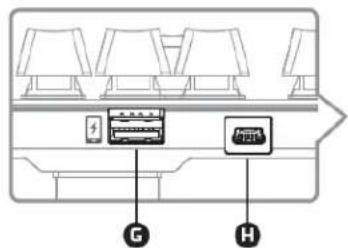
G-Back USB port = Mobile phone USB charging port.
H-Back mini USB port Keyboard USB cable port.
Keyboard Installation:
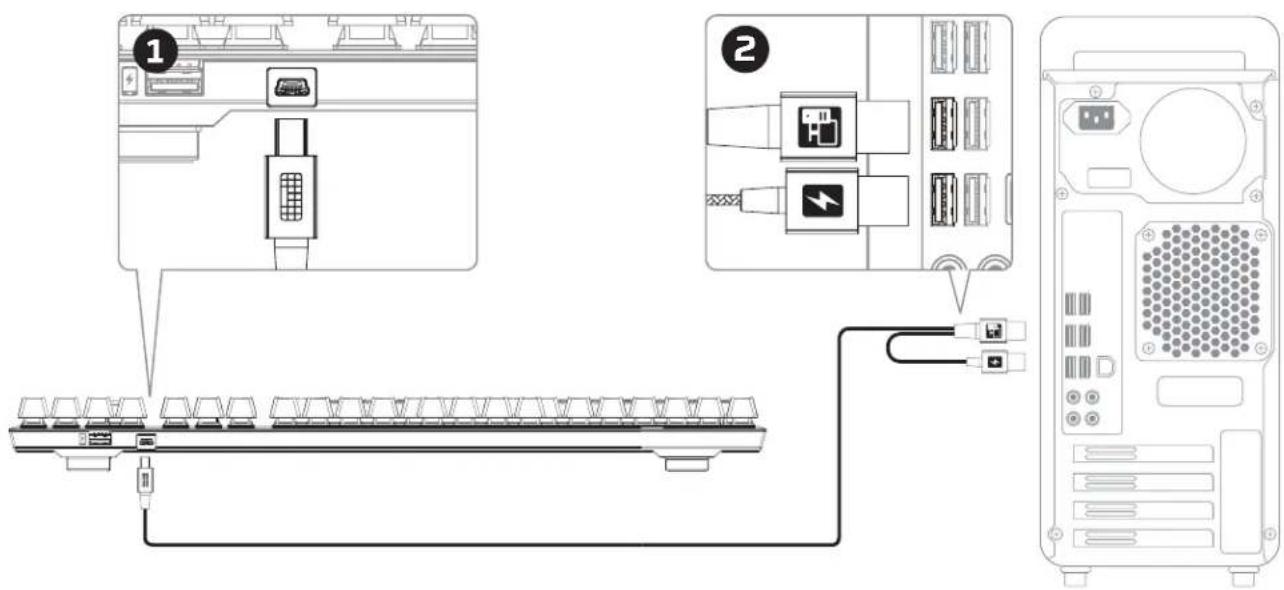
1- Connect the Mini USB connector to the keyboard.
2- Connect both USB connectors to the computer.
Function Keys:

Press "FN" and a function key at the same time to activate its secondary feature.
| Function Keys | Secondary Feature |
| +FN | Play/pause,skip backwards or skip forward your music or video. |
| +FN | Mute decrease or increase your computer audio. |
| +FN | Enable Game Mode disable the Windows key and avoid accidental interruption during gaming. When Game Mode is enabled the indicator will illuminate. |
| +FN | Increase or decrease the LED backlight brightness. There are 5 levels of brightness: OFF, 25%, 50%, 75% and 100%. |
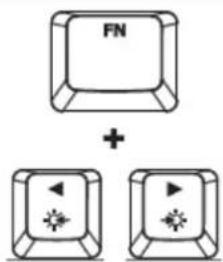
Switch between the LED backlight modes with the following keys
LED backlight modes:
There are six LED backlight modes: Solid Breathing Trigger Explosion Wave Custom.

Solid: Constant lightning (default setting).

Breathing: Slow blinking that mimics breathing.

Trigger: Individuals keys will light up when pressed and slowly fade after one second.

Explosion: A lighting effect will radiate from individual keys when pressed.

Wave: Keys will light up from left to right in a wave pattern.

Custom: You can choose which keys you want to light up. Follow these steps to customize:
1- Switch the backlight mode to custom.
2-Hold+Right until the backlight turns off.
3- Press the key or keys you want to have backlight ON.
4- When finished, press +Right again to save your custom backlight profile.
6KRO and NKRO rollover modes:
Key rollover is a feature allowing every key you press to be correctly registered.
6KRO is enabled by default. This allows up to 6 keys and 4 modifier keys (Windows, Alt, Ctrl, Shift) to be registered at the same time.
Switching to NKRO mode enables every key on your keyboard to be registered correctly at the same time.
| Function Keys | Secondary Feature |
| FN + DEL | Enables NKRO rollover mode. The Game Mode indicator will blink twice to confirm. |
| FN + INS | Enables 6KRO rollover mode. The Game Mode indicator will blink twice to confirm. |
Keyboard factory reset:
If you are experiencing any issue with the keyboard you can perform a factory reset. You will lose your custom LED profile by doing this.
| Function Keys | Secondary Feature |
| PN + ESC | Press both keys for 3 seconds until the keyboard backlight blinks. |