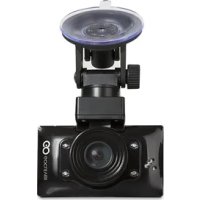
Titanium - Voice recorder GOCLEVER - Free user manual and instructions
Find the device manual for free Titanium GOCLEVER in PDF.

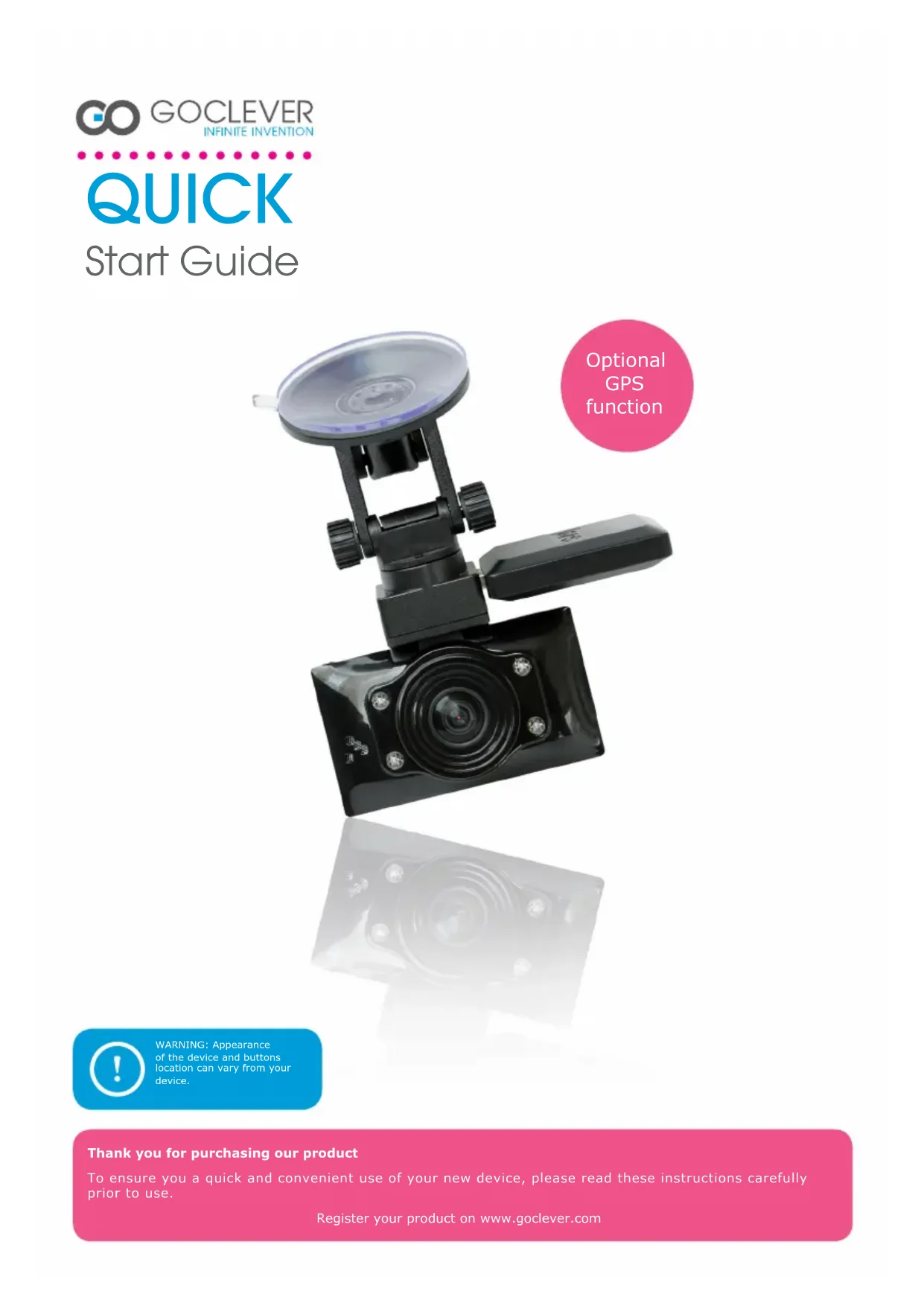


| Product Type | Voice Recorder |
| Brand | GOCLEVER |
| Model | Titanium |
| Power Supply | Rechargeable battery (charges via mains, USB, cigarette lighter) |
| Memory Slots | Two slots for micro SD cards (A and B) |
| Microphone | Built-in |
| GPS Function | Optional |
| HDMI Port | Yes |
| USB Port | Yes |
| Motion Detection | Yes (20 cm range) |
| G-Sensor | Yes (settings: off/high/medium/low) |
| Modes | Video, Photo, Playback |
| Menu Languages | Multiple (French, English, German, etc.) |
| Required Operating System | Windows 2000/XP/Vista/7, Mac OS 10.3.6 or higher |
| Manufacturer Warranty | 24 months |
| Care and Cleaning | Clean with a soft, dry cloth; avoid solvents |
| Safety | Do not expose to moisture; use the battery according to recycling guidelines |
Frequently Asked Questions - Titanium GOCLEVER
User questions about Titanium GOCLEVER
0 question about this device. Answer the ones you know or ask your own.
Ask a new question about this device
Download the instructions for your Voice recorder in PDF format for free! Find your manual Titanium - GOCLEVER and take your electronic device back in hand. On this page are published all the documents necessary for the use of your device. Titanium by GOCLEVER.
USER MANUAL Titanium GOCLEVER
WARNING: Appearance of the device and buttons location can vary from your device.
Thank you for purchasing our product
To ensure you a quick and convenient use of your new device, please read these instructions carefully prior to use.
Register your product on www.goclever.com
CONTENTS:
2 English | GB
5 Polish | PL
8 Croatian | HR
11 Czech | CZ
14 Estonian | EST
17 French | FR
20 German | DE
23 Greek | GR
26 Hungarian | HU
29 Italian | IT
32 Lithuanian | LT
35 Portuguese | PT
38 Romanian | RO
41 Russian | RU
44 Serbian | SRB
47 Slovak | SK
50 Spanish | ES
53 Ukrainian | UA
55 Service center list
DEVICE: GOCLEVER TITANIUM
Optional GPS function
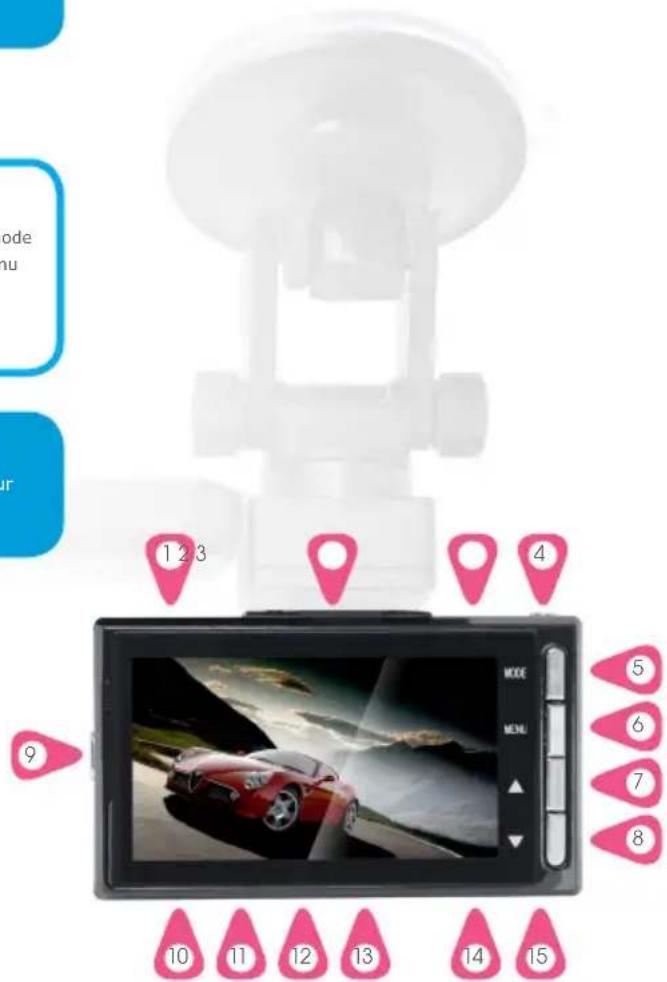
DEVICE OVERVIEW:
- HDMI port
- Magnet/Thimble port
- USB port
- OK/REC button
- MODE button
- MENU button
- UP button
- DOWN button
- Power button
- TF slot "A"
- TF slot "A" led indicator
- TF slot "B"
- TF slot "B" led indicator"
- Reset button
- Microphone
Power button
MENU button
MODE button
REC button
UP key
DOWN key

ON/OFF

Main menu

Switch operation mode

/corresponding menu

Start/pause

Up/zoom in

Down/zoom out

WARNING: Appearance of the device and buttons location can vary from your device.
OPERATION:
TURNING ON/OFF
Press the power button once to turn on the device. Blue light indicator will turn on. Press the power button again to turn off the device. Blue light indicator will turn off.
Note: low battery icon will be displayed before shutting down the device.
CHARGING THE BATTERY
There are three ways of charging the battery:
- Using the AC adapter
- Using a USB port
- Using car cigarette lighter power supply
PLACING A MICRO SD CARD
Place the micro SD card into the memory card slot. Press it until you hear a click sound. You can insert 2 memory cards at once (TF slot A and TF slot B). When the first card is full, the device will automatically switch to the second card.
G - SENSOR FUNCTION
Select "off/high/medium/low". The video will be locked when the device will detect an impact.
BASIC OPERATION
Press MODE button to switch between video, photo and play-back mode.
Press MENU button twice to enter system setting menu:
Select format to delete all data on your SD card
Select language to choose the system language
Select reset to restore system settings to default values
Select frequency: 50/60 Hz
Select date setup to set a date and time
MOTION DETECT
Turn on the motion detect function in the menu. The device will automatically start the recording when it detects any movement in range (20 cm).
Select mode using a mode button to select the video or photo mode. Press OK to start recording in video mode. Press OK again to stop the recording. Press OK to take a photo in photo mode. Press MENU button in video or photo mode to enter the corresponding settings menu.
VIDEO AND PHOTO PLAYBACK
Select mode using a mode button to select the file management mode. The LCD will display your last recorded video or photo. Press up and down button to select a desired file for playback. Press OK button to start/stop the video playback. Adjust volume by pressing the up or down button.
PC CONNECTION:
Connect the USB cable to your PC. The device will display the start screen and the blue indicator will turn on. Select the mass storage option on your computer to browse and manage files on the device. Unplug the USB cable to turn off the device. Note: If the device will crash for some reason, press the reset.

SYSTEM REQUIREMENTS:
Windows 2000/XP/Vista/Seven, Mac OS 10.3.6 or above.
CERTIFICATE OF CONFORMITY

GOCLEVER Ltd. hereby declares under our sole responsibility that the product GOCLEVER TITANIUM is in conformity with the essential requirements of the following Directives is declared:
| EMC DIRECTIVE | 2004 / 108 / EC |
| LVD DIRECTIVE | 2006 / 95 / EC |
| R&TTE DIRECTIVE | 1999 / 5 / EC |
The full document with detailed information is available on our website:
www.goclever.com. The .pdf file with the CE declaration is placed among the bookmarks of our product catalogue.

This product has been certified as RoHS Compliant.
MARK OF CONFORMITY - UKRAINE
National mark of conformity confirms that the specified product complies with the requirements of the technical regulations in Ukraine.
END OF LIFE DISPOSAL

Recycling facilities are now available for all customers at which you can deposit your old GOCLEVER devices or any other electrical products. This is a requirement under European legislation (the Waste Electrical and Electronic Equipment – or WEEE – Directive 2002/96/EU). Customers are able to take any old electrical equipment to waste recycling public centers or point of sales. Please remember that this devices/cables etc. will be further handled during the recycling process. To remind you to recycle, all electrical products are marked with a symbol.
DISPOSAL OF WASTE BATTERIES (APPLICABLE IN THE EUROPEAN UNION AND OTHER EUROPEAN COUNTRIES WITH SEPARATE COLLECTION SYSTEMS)

The symbol may appear on the battery or on the packaging to indicate that the battery provided with this product shall not be treated as household waste. On certain batteries this symbol might be used in combination with a chemical symbol. The chemical symbols for mercury (Hg) or lead (Pb) are added if the battery contains more than 0.0005% mercury or 0.004% lead. By ensuring these batteries are disposed of correctly, you will help prevent potentially negative consequences for the environment and human health which could otherwise be caused by inappropriate waste handling of the battery. The recycling of the materials will help to conserve natural resources. In case of products that for safety, performance or data integrity reasons require a permanent connection with an incorporated battery, this battery should be replaced by qualified service staff only. To ensure that the battery will be treated properly, hand over the product at end-of-life to the applicable collection point for the recycling of electrical and electronic equipment. Hand the battery over to the applicable collection point for the recycling of waste batteries. For more detailed information about recycling of this product or battery, please contact your local government Office, your household waste disposal service or the shop where you purchased the product.
REGISTER A PRODUCT
on register.goclever.com
Register your GOCLEVER product to get more!
Thank you for choosing GOCLEVER! We want you to enjoy your purchase to the fullest, and that starts with a few easy registration steps. Registration will take you a few minutes. Go to www.goclever.com and get more. Do not miss the chance to find a few of the benefits:
- 12 months of door-to-door warranty (for selected countries and products),
- Handy tips and rapid technical support,
- Reminders about firmware updates that will keep your product up-to-the-minute,
- Exclusive previews of new products,
- Special offers and promotions – up to 30% of discount (for selected countries and products),
- Free map updates (for selected countries and products).
TECHNICAL SUPPORT
WEBSITE:
www.goclever.com/support
- USER GUIDES (have a look on online user's manual, download and share with).
- SOFTWARE AND UPDATE MANUALS (be up to date with the latest OS software or use the backup files to solve your software problems).
- FREQUENTLY ASKED QUESTIONS
- SERVICE CENTRE LOCATIONS (we recommend to use GOCLEVER Central Service and local partner services directly than make a complaint or technical inquiries to stores).
- WARRANTY INFORMATION (your GOCLEVER TAB includes 24 month guarantee. The optional for selected countries is 12 month "door2door" guarantee. See our website for details).
- SERVICE PROCEDURE - RMA APPLICATION (depends on country).
URZĄDZENIE: GOCLEVER TITANIUM
Optional GPS function
INFORMACJE OGÓLNE:
UTYLIZACJA I RECYKLING

STRONA: www.goclever.com/support
www.goclever.com/support
- VODIĆ ZA KORISNIKE
(pogledajte kratke upute za uporabu, preuzimajte datoteke
te ih podijelite).
- SOFTWARE I UPUTE ZA AŽURIRANJE
www.goclever.com/support
- PŘÍRUČKA UŽIVATELE
National mark of conformity confirms that the specified product complies with the requirements of the technical regulations in Ukraine.
KORREKTNE TOOTE UTILISEERIMINE

www.goclever.com/support
www.goclever.com/support
- INFORMATIONS SUR LA GARANTIE
www.goclever.com/support
- BENUTZERHANDBUCH
www.goclever.com/support
- ΕΓΧΕΙΡΙΔΙΟ ΧΡΗΣΗΣ
www.goclever.com/support
MARK OF CONFORMITY - UKRAINE National mark of conformity confirms that the specified product complies with the requirements of the technical regulations in Ukraine.
www.goclever.com/support
www.goclever.com/support
- VARTOTOJO VADOVAS
Menu principal
Comutar modo
/ atual menu

Inicio/pausa
Para cima/zoom +
Para baixo/zoom -

www.goclever.com/support
- MANUAL DO USUÁRIO
www.goclever.com/support
- MANUALUL UTILIZATORULUI
www.goclever.com/support
- KORISNIČKO UPUTSTVO
(proverite brzi prikaz priručnika, preuzimajte fajlove i podelite ih).
- ŠOFTVER I UPUTSTVA AŽURIRANJA
www.goclever.com/support
- PŘÍRUČKA UŽIVATELE
www.goclever.com/support
- MANUAL DE USUARIO
Technical Support UK
tel.: 0844 8566848
email: uk@goclever.com
Technical Support Ireland
email: ireland@goclever.com
Technical Support Spain
tel: 902104953
email:
rma@gocleverspain.com
Technical and warranty support Canary Islands
tel: 902 050 255
Partner Services
Partner Services
BELARUS
220053, Republic of Belarus, Minsk,
V.Slutskoi 67-2
email: belarus@goclever.com
tel.:+375(17)3354883
Lithuania, Estonia, Latvia
Servisa ICT
e-mail: suport@servisaict.com
Tel. Lithuania: +370 (37) 329000, +370 (37) 337458,
+370 (5) 2101160
Tel. Latvia: +371 (674) 08838
Tel. Estonia: +372 (66) 71796
www.servisaict.com
Serbia
ET Servis d.o.o. Beograd
Member of Logo d.o.o. group
Bulevar kralja Aleksandra 265, 11000 Beograd, Srbija
tel: +381 11 3820-535 , +381 11 3820-536 , +381 11 3820-537
www.etservis.rs
Bulgaria
Stémo
bul. Nikola Vaptsarov 55, EXPO 2000
tel. (+359 2) 8162300
fax: 8162303
e-mail: main@sf.stemo.bg
www.stemo.bg
CZECH REPUBLIC
Bouncer s.r.o
Slavonicka 324, 67531 Jemnice, Czech Republic
email: servis@goclever.cz
tel.: +420 546 606 021
ROMANIA
S.C. Cordon Electronics S.R.L.
Str. Spataru Preda nr 12, sector 5, Bucuresti
email: office@cordongroup.ro
tel.: +40 372324762, +40 213009905
UKRAINE
Service Center KROK-TTC
Geroev Dnepra 2A, 04212 Kiev
email: info@krok-ttc.com
tel.: +380 800504504
Slovenia
BIROTEHNA
Litljska cesta 259, 1261 Ljubljana-Dobrunje
tel: 01 5853 777
fax: 01 5400 130
e-mail: servis@birotehna.si
Croatia
PlayCom
Heinzelova 78b, 10000 Zagreb
tel 1: +385 (0)1 5613-222, +385 (0)1 5618-433, +385
(0)1 6184-115
e-mail: info@play.com.hr
www.playcom.hr
Bosnia and Herzegovina
System One d.o.o.
Vilsonovo setaliste 10, 71000 Sarajevo
tel: +389 (0) 2-2653-270
fax: +387 33 652 781
e-mail: servis@itd.mk
www.s1see.com
www.itd.mk
Hungary
E-care Solutions

- Thank you for purchasing our product
- CONTENTS:
- Optional GPS function
- DEVICE OVERVIEW:
- OPERATION:
- TURNING ON/OFF
- CHARGING THE BATTERY
- PLACING A MICRO SD CARD
- G - SENSOR FUNCTION
- BASIC OPERATION
- MOTION DETECT
- VIDEO AND PHOTO PLAYBACK
- PC CONNECTION:
- CERTIFICATE OF CONFORMITY
- END OF LIFE DISPOSAL
- DISPOSAL OF WASTE BATTERIES (APPLICABLE IN THE EUROPEAN UNION AND OTHER EUROPEAN COUNTRIES WITH SEPARATE COLLECTION SYSTEMS)
- REGISTER A PRODUCT
- on register.goclever.com
- TECHNICAL SUPPORT
- INFORMACJE OGÓLNE:
- UTYLIZACJA I RECYKLING
- KORREKTNE TOOTE UTILISEERIMINE
- Partner Services
Brand : GOCLEVER
Model : Titanium
Category : Voice recorder