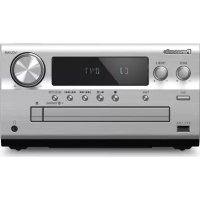
SCPMX802 - Hi-Fi System PANASONIC - Free user manual and instructions
Find the device manual for free SCPMX802 PANASONIC in PDF.


User questions about SCPMX802 PANASONIC
0 question about this device. Answer the ones you know or ask your own.
Ask a new question about this device
Download the instructions for your Hi-Fi System in PDF format for free! Find your manual SCPMX802 - PANASONIC and take your electronic device back in hand. On this page are published all the documents necessary for the use of your device. SCPMX802 by PANASONIC.
USER MANUAL SCPMX802 PANASONIC
natural_image
Product photo of a multi-unit electronic audio equipment including a remote, speaker, CD, and speaker (no visible text or labels)Unless otherwise indicated, illustrations in these operating instructions are of SC-PMX802.
For the United Kingdom and Ireland
Sales and Support Information
Customer Communications Centre
• For customers within the UK: 0344 844 3899
• For customers within Ireland: 01 289 8333
• Monday–Friday 9:00 am – 5:00 pm (Excluding public holidays).
- For further support on your product, please visit our website: www.panasonic.co.uk
Direct Sales at Panasonic UK
- Order accessory and consumable items for your product with ease and confidence by phoning our Customer Communications Centre Monday–Friday 9:00 am – 5:00 pm (Excluding public holidays).
- Or go on line through our Internet Accessory ordering application at www.pas-europe.com.
- Most major credit and debit cards accepted.
- All enquiries transactions and distribution facilities are provided directly by Panasonic UK.
- It couldn't be simpler!
- Also available through our Internet is direct shopping for a wide range of finished products. Take a browse on our website for further details.
Panasonic®
Operating Instructions
Mode d'emploi
CD Stereo System
Thank you for purchasing this product.
Please read these instructions carefully before using this product, and save this manual for future use.
Do the procedures with the remote control. You can also use the buttons on the main unit if they are the same.
Your system and the illustrations can look differently. These operating instructions are applicable to the following system.
| System SC-PMX802 SA-PMX802M | |
| Main unit SA-PMX802 SA-PMX802M | |
| Speakers SB-PMX70 - |
PMX802: indicates features applicable to SC-PMX802 only.
PMX802M: indicates features applicable to SA-PMX802M only.
| The symbols on this product (including the accessories) represent the following: | |
| ~ | AC |
| == | DC |
| ☐ | Class II equipment (The construction of the product is double-insulated.) |
| I | On |
| ♣ | Standby |
Maintenance
• To clean the main unit, wipe with a soft, dry cloth.
- PMX802 To clean the speakers, wipe with a fine-textured and dry cloth such as a microfibre cleaning cloth.
- Never use alcohol, paint thinner or benzine to clean this system.
- Before using chemically treated cloth, read the instructions that came with the cloth carefully.
Safety precautions
WARNING!
Unit
• To reduce the risk of fire, electric shock or product damage,
- Do not expose this unit to rain, moisture, dripping or splashing.
- Do not place objects filled with liquids, such as vases, on this unit.
- Use the recommended accessories.
- Do not remove covers.
- Do not repair this unit by yourself. Refer servicing to qualified service personnel.
Avoid the use in the following conditions
• High or low extreme temperatures during use, storage or transportation.
- Replacement of a battery with an incorrect type.
- Disposal of a battery into fire or a hot oven, or mechanically crushing or cutting of a battery, that can result in an explosion.
- Extremely high temperature and/or extremely low air pressure that can result in an explosion or the leakage of flammable liquid or gas.
CAUTION!
Unit
- To reduce the risk of fire, electric shock or product damage, - Do not install or place this unit in a bookcase, built-in cabinet or in another confined space. Ensure this unit is well ventilated.
- Do not obstruct this unit's ventilation openings with
newspapers, tablecloths, curtains, and similar items. - Do not place sources of naked flames, such as lighted candles, on this unit.
• This unit is intended for use in moderate climates.
• The mains plug is the disconnecting device.
Install this unit so that the mains plug can be unplugged from the socket outlet immediately. - This unit may receive radio interference caused by mobile telephones during use. If such interference occurs, please increase separation between this unit and the mobile telephone.
- This unit utilizes a laser. Use of controls or adjustments or performance of procedures other than those specified herein may result in hazardous radiation exposure.
Battery
- Do not break open or short-circuit the battery.
- Do not charge the alkaline or manganese battery.
- Do not use the battery if the cov
- Do not heat or expose to flame.
- Do not leave the battery(ies) in a car exposed to direct sunlight for a long period of time with doors and windows closed.
- Remove the battery if you do not use the remote control for a long period of time. Keep in a cool, dark area.
- Danger of explosion if battery is incorrectly replaced. Replace only with the type recommended by the manufacturer.
- When disposing of the batteries, please contact your local authorities or dealer and ask for the correct method of disposal.
Table of contents
Maintenance....2
Safety precautions....2
Caution for AC Mains Lead....3
Supplied accessories ....3
Placement of speakers....3
Making the connections....4
Overview of controls ....5
Preparing the remote control....5
Network settings....6
About Bluetooth ^® 7
Bluetooth® operations....8
Media information....8
Inserting media 9
Media playback controls....9
FM radio....10
DAB/DAB+ 11
Using the AUX IN input ....12
Using the PC input....12
Sound effects ......12
Clock and timers....13
Firmware updates ....13
Others ....14
Troubleshooting....15
Specifications ......17
Caution for AC Mains Lead
(For the AC mains plug of three pins)
For your safety, please read the following text carefully. This appliance is supplied with a moulded three pin mains plug for your safety and convenience.
A 5-ampere fuse is fitted in this plug.
Should the fuse need to be replaced please ensure that the replacement fuse has a rating of 5-ampere and that it is approved by ASTA or BSI to BS1362.
Check for the ASTA mark 📋 or the BSI mark 🌼 on the body of the fuse.
If the plug contains a removable fuse cover you must ensure that it is refitted when the fuse is replaced. If you lose the fuse cover the plug must not be used until a replacement cover is obtained.
A replacement fuse cover can be purchased from your local dealer.
Before use
Remove the connector cover.
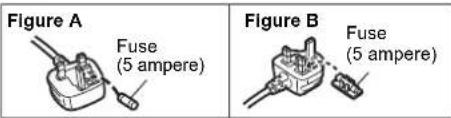
How to replace the fuse
The location of the fuse differ according to the type of AC mains plug (figures A and B). Confirm the AC mains plug fitted and follow the instructions below.
Illustrations may differ from actual AC mains plug.
- Open the fuse cover with a screwdriver.
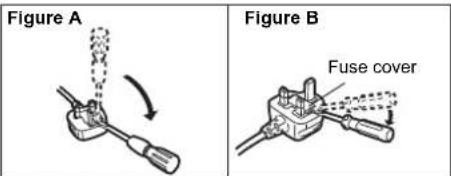
- Replace the fuse and close or attach the fuse cover.
Supplied accessories
Check and identify the supplied accessories.
☐ (For Continental Europe)
1 x AC mains lead
(K2CQ2YY00164)
☐ (For the United Kingdom and Ireland)
1 x AC mains lead
(K2CT2YY00089)
□ 1 x Remote control (N2QAYB001265)
□ 1 x Remote control battery
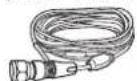
□ 1 x DAB antenna (N1CYYYY00022)
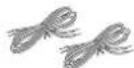
□ PMX802 2 x Speaker cables (REE1713)
- Product numbers provided in these operating instructions are correct as of May 2021. These may be subject to change.
Placement of speakers
PMX802M : Speakers are sold separately.
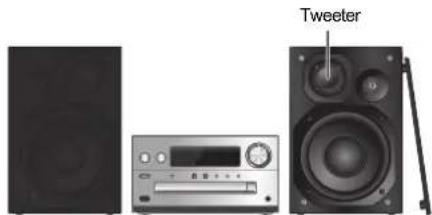
Place the speakers so that the tweeter is on the inner side. To prevent damage to the speakers, do not touch the speaker cones if you remove the nets.
PMX802 Use only the supplied speakers.
The combination of the main unit and speakers give the best sound. You can cause damage to the system and decrease the sound quality if you use other speakers.
Note:
- Keep your speakers more than 10 mm from the main unit for ventilation.
- Put the speakers on a flat safe surface.
• These speakers do not have magnetic shielding. Do not put them near TVs, PCs or other equipment easily influenced by magnetism.
- When you play at high levels for a long period, it can cause damage to the system and decrease the life of the system.
- Decrease the volume in these conditions to prevent damage:
- When you play distorted sound. - When you adjust the sound quality.
CAUTION!
- Use the speakers only with the recommended system. If not, you can cause damage to the amplifier and speakers and can cause a fire. Consult an approved service personnel if damage occurs or if there is a sudden apparent change in performance.
- Do the procedures included in these instructions when you attach the speakers.
Making the connections
Connect the AC mains lead only after all the other connections have been made.
PMX802M
Compatible speaker system (sold separately)
Use this unit with a 2 channel speaker system.
(Impedance: 3 Ω - 16 Ω)
- Using other speakers can damage the unit, and sound quality will be negatively affected. Refer to the operating instructions for the speaker system for details.

1 Connect the antenna.
Place the antenna where reception is best.
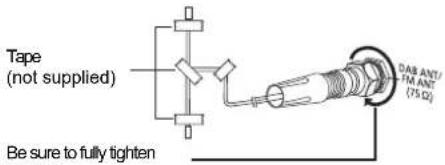
Tape (not supplied)
Be sure to fully tighten the nut.
2 Connect the speakers.
(PMX802M: Speakers are sold separately.)
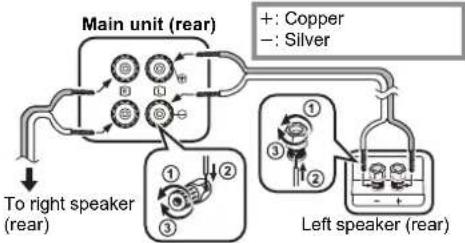
flowchart
graph TD
    A["Main unit (rear)"] --> B["To right speaker (rear)"]
    A --> C["Left speaker (rear)"]
    D["+"] --> E["Copper"]
    F["-"] --> G["Silver"]
    H["1"] --> I["2"]
    J["3"] --> K["4"]
    L["1"] --> M["2"]
    N["3"] --> O["4"]
    P["1"] --> Q["2"]
    R["3"] --> S["4"]
    T["1"] --> U["2"]
    V["3"] --> W["4"]
    X["1"] --> Y["2"]
    Z["3"] --> AA["4"]
    AB["1"] --> AC["2"]
    AD["3"] --> AE["4"]
    AF["1"] --> AG["2"]
    AH["3"] --> AI["4"]
    AJ["1"] --> AK["2"]
    AL["3"] --> AM["4"]
    AN["1"] --> AO["2"]
    AP["3"] --> AQ["4"]
    AR["1"] --> AS["2"]
    AT["3"] --> AU["4"]
    AV["1"] --> AW["2"]
    AX["3"] --> AY["4"]
Be careful not to cross (short-circuit) or reverse the polarity of the speaker wires as doing so may damage the speakers.
3 Connect the AC mains lead.
Do not use an AC mains lead with other equipment.
Conserving power
The system consumes a small amount of power ( 17), even when it is in standby mode. Disconnect the power supply if you do not use the system. Some settings will be lost after you disconnect the system. You have to set them again.
Connecting other equipment
You can connect a DVD player, Portable audio player etc.
Note:
- Disconnect the AC mains lead before connection.
- Switch off all equipment and read the appropriate operating instructions.
- Components and cables are sold separately.
• If you want to connect equipment other than those
described, refer to the audio dealer.
• Sound distortion can occur when you use an adaptor.
Connecting to AUDIO IN terminal
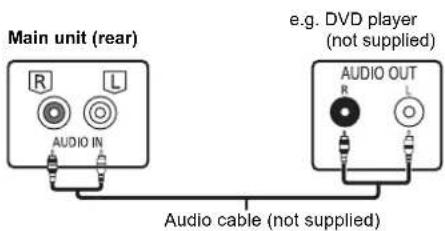
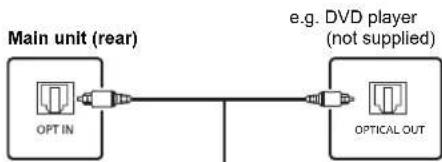
Connecting to OPT IN (Optical Audio In) terminal
flowchart
graph LR
    A["Main unit (rear)"] --> B["OPT IN"]
    B --> C["Optical OUT"]
    D["e.g. DVD player (not supplied)"] --> C
Optical digital audio cable (not supplied)
- The digital audio input terminal of this unit can only detect the following linear PCM (LPCM) signals. For details, refer to the operating instructions of the connected device.
- Sampling frequency: 32, 44.1, 48, 88.2, 96 kHz
- Number of quantisation bits: 16/24 bits
Connecting to AUX IN terminal
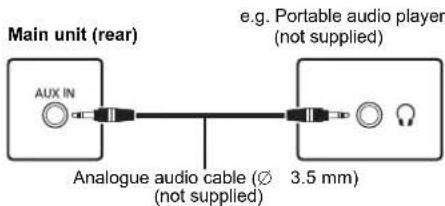
- When connecting to AUX IN terminal, you can adjust the input level etc. For details, refer to "Using the AUX IN input" (→ 12).
Overview of controls
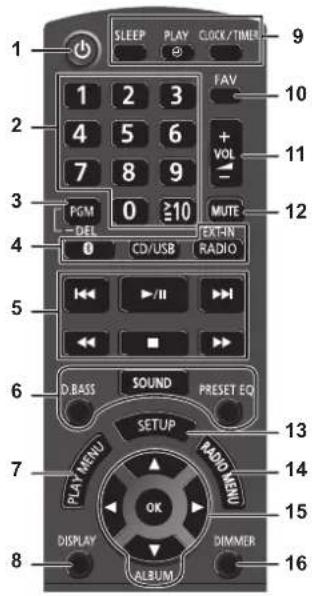
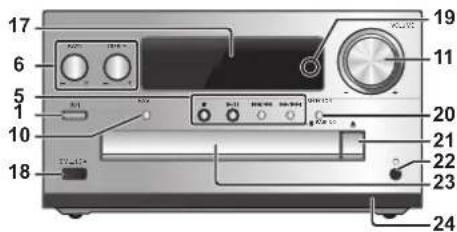
1 Standby/on switch [☐], [☐/☐]
Press to switch the unit from on to standby mode or vice versa. In standby mode, the unit is still consuming a small amount of power.
2 Numeric buttons [1 to 9, 0, ≧10]
• To select a 2-digit number
Example: 16: [≥10] → [1] → [6]
• To select a 3-digit number
Example: 124: [≥10] → [≥10] → [1] → [2] → [4]
3 Set the programme function/Delete a programmed track
4 Select audio source
[ "BLUETOOTH"
[RADIO, EXT-IN]:
5 Basic playback control
6 Select the sound effects
7 Set the play menu item
8 View content information
9 Clock and timer operation
10 Select the favourite radio station or playlist (DAB/DAB+, FM, Internet Radio, Podcasts, etc.)
11 Adjust the volume of the system
12 Mute the sound of the system
Press the button again to cancel.
"MUTE" is also cancelled when you adjust the volume or when you switch off the system.
13 Enter setup menu
14 Set the radio menu item
15 Select the option
16 Dim the display panel and the network LED Press the button again to cancel.
$$ \begin{array}{c} \text {"DAB+" \longrightarrow "FM" \longrightarrow "AUDIO IN" \longrightarrow "AUX"} \ \uparrow \text {"NETWORK"} \leftarrow \text {"PC"} \leftarrow \text {"OPT"} \leftarrow \end{array} $$
17 Display panel 18 Port for USB devices 19 Network LED 20 Select audio source/Bluetooth®-pairing button *CD"→*BLUETOOTH"→*DAB+"→*FM"→*AUDIO IN †"NETWORK"←"PC"←"USB"←"OPT"←"AUX" • Press and hold to enter pairing mode (⇔ 8) or disconnect a Bluetooth® device (⇔ 8).
21 Open or close the disc tray
22 Headphones jack ( )
- Plug type: 3.5 mm stereo (not supplied)
- Avoid listening for prolonged periods of time to prevent hearing damage.
- Excessive sound pressure from earphones and headphones can cause hearing loss.
- Listening at full volume for long periods may damage the user's ears.
23 Disc tray
- Do not put any object in front of the disc tray.
24 Remote control sensor
Preparing the remote control
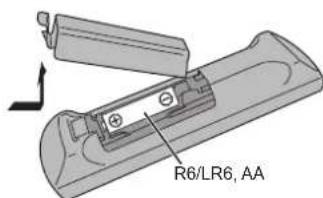
- Use alkaline or manganese battery.
- Install the battery so that the poles (+ and -) align with those in the remote control.
- Point the remote control at the remote control sensor, away from obstacles, at a maximum range of 7 m directly in front of the main unit, within an angle of approximately 30^ to the left and right.
Network settings
You can stream online music services or music files from your smartphone/tablet to this system. To use these features, this system must join the same internet-connected network as the compatible device.
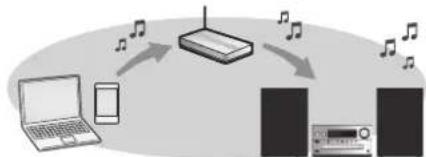
flowchart
graph TD
    A["Laptop"] --> B["Router"]
    C["Phone"] --> B
    D["CD"] --> B
    B --> E["Music Note"]
    B --> F["Music Note"]
This system can be connected to a router using a LAN cable or built-in Wi-PI. For a stable connection to the network, a wired LAN connection is recommended.
Note:
- If you try to change the network settings immediately after turning on this system, it may take some time until the network setup screen is displayed.
- If "NEW FIRMWARE FOUND/PRESS [OK]" is displayed after the network connection is set up, the firmware for this system is available.
- Refer to "Firmware updates" (⇒ 13) for details on update.
- For the update information, refer to the following website. https://panasonic.jp/support/global/cs/audio/
Preparation
If you install the "Google Home" app on your smartphone/tablet, you can set up a connection using the application.
- When using the Chromecast-enabled apps to play music on this system, set up a connection using the "Google Home" app.
- Make sure that the Wi-Fi function is activated on your smartphones/tablet.
1 Install the "Google Home" app on your smartphone/tablet.
To download the "Google Home" app, visit: https://www.google.com/cast/setup/
2 Connect your smartphone/tablet to the same network as this system before setting.
- Make sure that the network is connected to the internet.
Wired LAN connection
e.g.
Broadband router, etc.
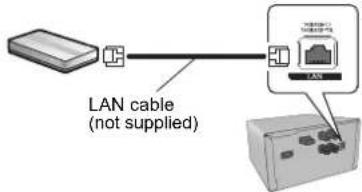
1 Disconnect the AC mains lead.
2 Connect this unit to a broadband router, etc. using a LAN cable.
3 Connect the AC mains lead to this unit and turn this system on.
- When the connection is established, the network LED (blue) is lighted on the main unit.
4 Press [RADIO, EXT-IN] repeatedly to select "NETWORK".
5 Start the "Google Home" app and follow the on-screen instructions to set up a connection. (⇔ 7)
Note:
- While the AC mains lead is disconnected, the LAN cable must be connected or disconnected.
- Use category 7 or above straight LAN cables (STP) when connecting to peripheral devices.
- Inserting any cable other than a LAN cable in the LAN port can damage this unit.
- When a LAN cable is connected, the Wi-Fi function may be disabled.
Wireless LAN connection
Preparation
① Disconnect the AC mains lead.
② Disconnect the LAN cable.
③ Place this unit as close to the wireless router as possible.
④ Connect the AC mains lead to this unit. (→ 4)
Note:
- The setting will be cancelled after the set time limit. In that case, try the setting again.
- When the connection is established, the network LED (blue) is lighted.
Network setting for the first time
1 Press [☐] to turn this unit on.
• "NET SETUP" is displayed.
2 Press [◀, ▶] to select "YES" and then press [OK].
"SETTING" is blinked.
3 Start the "Google Home" app and follow the on-screen instructions. ( 7)
Note:
- This unit will be displayed as "Panasonic PMX802-****" if the device name is not set. ("****" stands for characters unique to each set.)
MX802M | Displayed as "Panasonic PMX802M-****". - You can check your network information (SSID, MAC address and IP address) from the "Google Home" app
- Some items on the "Google Home" app are irrelevant to this unit.
- When this unit is switched to standby mode and turned on before the network setting is complete, "NET SETUP" is displayed. Set "NO" to turn off the display.
Setting the network from the setup menu
1 Press [RADIO, EXT-IN] repeatedly to select "NETWORK".
2 Press [SETUP].
3 Press [▲, ▼] repeatedly to select "NET SETUP" and then press [OK].
- "SETTING" is blinked.
4 Start the "Google Home" app and follow the on-screen instructions. (As follows)
■ Using the "Google Home" app
(When using the Chromecast-enabled apps with this unit)
You can set up a connection using the "Google Home" app.
Start the "Google Home" app and follow the on-screen instructions to set up a connection.
- When the connection is established, "SUCCESS" is displayed.
- "FAIL" may be displayed if the connection was not complete. Try this method again from the setup menu. If "FAIL" is still displayed, try other methods.
Note:
- This unit will be displayed as "Panasonic PMX802-****" if the device name is not set. ("****" stands for characters unique to each set.)
(PMX802M Displayed as "Panasonic PMX802M-****".)
- You can check your network information (SSID, MAC
address and IP address) from the "Google Home" app.
- Some items on the "Google Home" app are irrelevant to this unit.
Streaming music over the network
This unit is compatible with Chromecast-enabled apps. For detailed information of Chromecast-enabled apps, visit: g.co/cast/apps
You can also stream music files from the device on your network to this unit by using the free app "Panasonic Music Control". Download and install the app from the website below.
https://panasonic.jp/support/global/cs/audio/app/
Preparation
- Complete the network settings. (→ 6) (Make sure that the network is connected to the Internet.)
• Install the supported application on your device.
- Connect the device to the network currently used at home.
1 Start the Chromecast-enabled app or "Panasonic Music Control" app on your device (smartphone, tablet, etc.), and select this unit as the output speaker.
2 Play back the music.
Not all music streaming services are available in all countries/regions. Registration/subscription may be required, or fees may be charged to use music streaming services. Services are subject to change or be discontinued. For details, visit an individual music streaming service's website.
Important notice:
Before you dispose of or transfer this unit to a third party, be sure to log out of your music streaming services accounts to prevent unauthorised use of your accounts.
About Bluetooth®
Panasonic bears no responsibility for data and/or information that is compromised during a wireless transmission.
Frequency band used
• This system uses the 2.4 GHz frequency band.
Certification of this device
- This system conforms to frequency restrictions and has received certification based on frequency laws. Thus, a wireless permit is not necessary.
• The actions below are punishable by law in some countries:
- Taking apart or modifying this system.
- Removing specification indications.
Restrictions of use
- Wireless transmission and/or usage with all Bluetooth ^® equipped devices is not guaranteed.
- All devices must conform to standards set by Bluetooth SIG, Inc.
- Depending on the specifications and settings of a device, it can fail to connect or some operations can be different.
- This system supports Bluetooth ^ security features. But depending on the operating environment and/or settings, this security is possibly not sufficient. Transmit data wirelessly to this system with caution.
- This system cannot transmit data to a Bluetooth ^ device.
Range of use
- Use this device at a maximum range of 10 m. The range can decrease depending on the environment, obstacles or interference.
Interference from other devices
- This system may not function properly and troubles such as noise and sound jumps may arise due to radio wave interference if this system is located too close to other Bluetooth® devices or the devices that use the 2.4 GHz band.
- This system may not function properly if radio waves from a nearby broadcasting station, etc. is too strong.
Intended usage
• This system is for normal, general use only.
- Do not use this system near an equipment or in an environment that is sensitive to radio frequency interference (example: airports, hospitals, laboratories, etc).
Bluetooth® operations
By using the Bluetooth ^® connection, you can listen to the sound from the Bluetooth ^® audio device from this system wirelessly.
- Refer to the operating instructions of the Bluetooth ^® device for details.
Connecting via Bluetooth® menu
Preparation
- Turn on the Bluetooth ^® feature of the device and place the device near this unit.
Pairing with Bluetooth ^® devices
1 Press [ ] to select "BLUETOOTH".
If "PAIRING" is indicated on the display, go to step 3.
2 Press [PLAY MENU] to select "PAIRING" and then press [OK].
Alternatively, press and hold
[SELECTOR - RAIRING] on the unit.
3 Select "Panasonic PMX802-****" from the Bluetooth® device's Bluetooth® menu.
- PMX802M Displayed as "Panasonic PMX802M-****".
- The MAC address (e.g., alpha-numerical string that is unique to each set) may be displayed before this unit is displayed.
- The name of the connected device is indicated on the display for a few seconds.
4 Start playback on the Bluetooth ^10 device.
Connecting a paired Bluetooth device
1 Press [ No select "BLUETOOTH".
"READY" is indicated on the display.
2 Select "Panasonic PMX802-****" from the
Bluetooth ^® device's Bluetooth ^® menu. PMX802M Displayed as "Panasonic PMX802M-****". The name of the connected device is indicated on the display for a few seconds.
3 Start playback on the Bluetooth ^ device.
Note:
- If prompted for the passkey, input "0000".
- You can register up to 8 devices with this unit. If a 9th device is paired, the device that has not been used for the longest will be replaced.
- This unit can only be connected to one device at a time.
- When "BLUETOOTH" is selected as the source, this unit will automatically try and connect to the last connected Bluetooth® device. ("LINKING" is indicated on the display during this process.) If the connection attempt fails, try to establish a connection again.
Bluetooth® transmission mode
You can change the transmission mode to prioritise transmission quality or sound quality.
Preparation
- Press [ ] to select "BLUETOOTH"
- If a Bluetooth ^ device is already connected, disconnect it.
1 Press [PLAY MENU] repeatedly to select "LINK MODE".
2 Press [◀, ▶] to select the mode and then press [OK].
MODE 1: Emphasis on connectivity
MODE 2: Emphasis on sound quality
Note:
- Select "MODE 1" if the sound is interrupted.
• The factory default is "MODE 2".
Disconnecting a Bluetooth® device
1 While a Bluetooth ^ device is connected: Press [PLAY MENU] repeatedly to select "DISCONNECT?".
2 Press [◀, ▶] to select "OK? YES" and then press [OK].
Note:
- You can also disconnect the Bluetooth® device by pressing and holding [SELECTOR - PAIRING] on the unit.
- The Bluetooth ^® device will be disconnected if a different audio source (e.g., "CD") is selected.
Media information
- Please be aware that Panasonic accepts no responsibility for the loss of data and/or information.
Compatible USB devices
- This unit does not guarantee connection with all USB devices.
• FAT16 and FAT32 file systems are supported.
• This unit supports USB 2.0 High Speed. - USB devices with storage capacity of more than 32 GB cannot work in some conditions.
- Connect a USB device with a thickness of 8 mm or less.
- USB devices may not be recognised by this unit when connected using the following:
- a USB hub
- a USB extension cable
- It is not possible to use USB card reader/writers.
• Supported file formats and extensions:
MP3 (".mp3"), AIFF (".aiff"), FLAC (".flac"),
WAV (".wav"), AAC (".m4a"), DSD (".dff", ".dsf") - Depending on how you create the files, they may not play in the order you numbered them or may not play at all.
- Not all files on the USB device may be read if there are some files not supported.
Note:
- Files are defined as tracks and folders are defined as albums.
• This system can access up to: - 800 albums (including root folder)
- 8000 tracks
- 999 tracks in one album
Compatible CD
- This system can play back discs that conform to the CD-DA format.
- This system can play back CD-R/RW with CD-DA or MP3 format content.
- The unit may not be able to play some discs due to the condition of the recording.
- Before playback, finalise the disc on the device it was recorded on.
- If the disc includes both MP3 and normal audio data (CD-DA), the unit plays the type recorded in the inner part of the disc.
- This unit cannot play files recorded using packet write.
- Disc must conform to ISO9660 level 1 or 2 (except for extended formats).
Note:
- Some CD-R/RW cannot be played because of the condition of the recording.
- MP3 files are defined as tracks and folders are defined as albums.
• This system can access up to: - CD-DA: 99 tracks
- MP3: 999 tracks, 255 albums (including root folder)
- Recordings will not necessarily be played in the order you recorded them.
Inserting media
CD
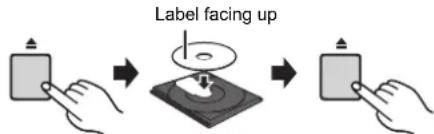
Press CD/USB repeatedly to select "CD".
Note:
- Remove the CD only after it stops rotating.
USB device

Press CD/USB repeatedly to select "USB".
Note:
- Insert the USB device directly. Do not use any USB extension cable.
- Please disconnect the USB device if you finish using.
- Before removing the USB device, select a source other than "USB".
Media playback controls
The following marks indicate the availability of the feature.
CD: CD audio in CD-DA format or a CD that contains MP3 files
USB: USB devices containing MP3/AIFF/FLAC/WAV/AAC/DSD files
Bluetooth: Connected Bluetooth® device
| AirPlay |: When connected to an AirPlay compatible device
Network: When connected to a network contents playback compatible device
Preparation
- Turn the unit on.
- Insert the media or connect the Bluetooth ^ /AirPlay/network contents playback compatible device.
- Press CD/USB or [ ] to select the audio source. - AirPlay | Network: When this system is selected as the output speakers, the audio source will change to the network source.
Basic controls
CD USB Bluetooth AirPlay Network
| Play | Press [▶/■]. |
| Stop Press [■]. | •USB: The position is memorised and “RESUME” is displayed.•USB: Press [■] twice to stop the playback fully. |
| Pause | Press [▶/■].Press again to continue playback. |
| Skip | Press [◀◀] or [▶▶] to skip track.(main unit: [◀◀/◀◀] or [▶▶/▶▶]]) |
| CD | USB : Press [▲] or [▼] to skip the MP3/AIFF/FLAC/WAV/AAC/DSD album. | |
| Search(Except Bluetooth|AirPlay Network) | During play or pausePress and hold [◀◀] or [▶▶].(main unit: [◀◀/◀◀] or [▶▶/▶▶]]) |
Note:
- There will be no sound in search operation when playing DSD files at USB selector.
- To use this unit's remote control with a Bluetooth ^® device, the Bluetooth ^® device must support AVRCP (Audio Video Remote Control Profile).
Depending on the status of the device, some controls may not work.
• Network: Some controls may not work depending on the app in use, etc. - CD USB: Tracks can be selected by pressing the numeric buttons.
Viewing available information
CD USB Bluetooth AirPlay
You can display the track, artist, album name, file type, bit rate, and other information. (The information varies depending on the audio source.)
Press [DISPLAY] repeatedly. e.g. USB (MP3)
"A□□□": Album number "T□□□": Track number
("□" stands for a number.)
“■”: Album “♪”: Track
Note:
• Maximum characters that can be shown: approximately 32
• This system supports ver. 1 and 2 ID3 tags.
- Text data that the system does not support can show differently.
Play menu CD USB
| 1 | |CD||USB:Press [PLAY MENU] to select "PLAYMODE" or "REPEAT". |
| 2 | Press [◀,▶] to select the setting and then press [OK]. |
| CDUSB: PLAYMODE | |
| OFFPLAYMODE | Cancels the play mode setting. |
| 1-TRACK Only plays the selected track.“1”, “is displayed.(Skip to the desired track.) | |
| 1-ALBUM Only plays the selected MP3/AIFF/FLAC/WAV/AAC/DSD album.Press [▲] or [▼] to select the MP3/AIFF/FLAC/WAV/AAC/DSD album.“1”, “is displayed. | |
| RANDOM Plays the contents randomly.“RND” is displayed. | |
| 1-ALBUM RANDOM | Plays the tracks in the selected MP3/AIFF/FLAC/WAV/AAC/DSD album randomly.Press [▲] or [▼] to select the MP3/AIFF/FLAC/WAV/AAC/DSD album.“1”, “■”RND” is displayed. |
| CDUSB: REPEAT | |
| ON REPEAT Turns on repeat mode.“ ” is displayed. | |
| OFF REPEAT Turns off repeat mode. | |
Note:
- During random playback, you cannot skip to tracks which
have been played or press the numeric buttons. - Playmode function does not work with "Programme playback".
Programme playback CD USB
| This function allows you to programme up to 24 tracks. |
| CD (CD-DA) |
1 Press [PGM, -DEL] in the stop mode.
"PROGRAM" is shown for a few seconds.
2 Press the numeric buttons to select the desired track.
Do this step again to programme other tracks.
3 Press [▶/■] to start playback.
CD (MP3), USB
1 Press [PGM, -DEL] in the stop mode.
"PROGRAM" is shown for a few seconds.
2 Press [▲, ▼] to select the desired album.
3 Press [▶▶] and then press the numeric buttons to select the desired track.
4 Press [OK].
Do steps 2 through 4 again to programme other tracks.
5 Press [▶/■] to start playback.
| Check programme contents | Press [◀◀] or [▶▶] in the stop mode. |
| Clear the last track | Press and hold [PGM, -DEL] in the stop mode. |
| Cancel programme mode | Press [PGM, -DEL] in the stop mode.• “PGM OFF” is shown for a few seconds. |
| Clear all programmed tracks | Press [■] in the stop mode. “CLEAR ALL” is shown. Within 5 seconds, press [■] again. |
Note:
- The programme memory is cleared when you open the disc tray or remove the USB device.
- The mode may be cancelled when you open the disc tray or remove the USB device.
FM radio
30 FM stations can be preset.
Preparation
Press [RADIO, EXT-IN] repeatedly to select "FM".
Automatic presetting
1 Press [RADIO MENU] to select "A.PRESET".
2 Press [◀, ▶] to select "LOWEST" or "CURRENT" frequency.
LOWEST:
To begin auto preset with the lowest frequency ("FM 87.50MHz").
CURRENT:
To begin auto preset with the current frequency.*1
3 Press [OK] to start presetting.
- The tuner starts to preset all the stations it can receive into the channels in ascending order.
To cancel, press [■].
*1: To change the frequency, refer to "Manual tuning and presetting".
Manual tuning and presetting
1 Press [◀◀] or [▶▶] to tune in to the station.
- Alternatively, press [◀◀/◀◀] or [▶▶/▶▶] on the main unit when "MANUAL" is selected as the tune mode ^2 .
To tune automatically, press and hold the button until the frequency starts changing quickly.
2 Press [PGM, -DEL].
3 Press the numeric buttons to select a preset number.
Do steps 1 through 3 again to preset more stations The new station replaces any station that occupies the same preset number.
Selecting a preset station
Press the numeric buttons, [◀◀] or [▶▶] to select the preset station.
- Alternatively, press [|◀◀/◀◀] or [▶▶/▶▶] on the main unit when “PRESET” is selected as the tune mode*2.
*2: To change the tune mode
1 Press [RADIO MENU] repeatedly to select "TUNE MODE".
2 Press [◀, ▶] to select "MANUAL" or "PRESET", and then press [OK].
To display Radio Data System text data
This system can show the text data transmitted by the Radio Data System available in some areas.
Press [DISPLAY] repeatedly.
"PS": Programme service
"PTY": Programme type
"FREQ": Frequency
Note:
- Radio Data System is available only when stereo works in reception.
- Radio Data System may not be available if reception is poor.
DAB/DAB+
Preparation
Press [RADIO, EXT-IN] repeatedly to select "DAB+". If you select "DAB+" for the first time, the system will start the "DAB AUTO SCAN" procedure.
Note:
- If no station is detected, "SCAN FAILED" is shown. Adjust the antenna and try again.
DAB/DAB+ auto scan
1 Press [RADIO MENU] to select "AUTO SCAN" and then press [OK].
"START?" is shown.
2 Press [OK].
"DAB AUTO SCAN" is shown.
DAB/DAB+ manual tuning
To find the best antenna position, use manual tuning to search selected DAB/DAB+ frequency block.
1 Press [RADIO MENU] repeatedly to select "MANUAL SCAN".
2 Press [◀, ▶] to select a frequency block to scan and then press [OK].
"TUNING" is shown.
If "SCAN FAILED" is still displayed, repeat steps 1 to 2 until a station is stored. If the situation does not improve, use an outdoor DAB antenna or consult your dealer.
Memory presetting
You can preset up to 20 DAB/DAB+ stations.
1 Press [◀◀] or [▶▶] to select a station.
- Alternatively, press [◀◀/◀◀] or [▶▶/▶▶] on the main unit when "STATION" is selected as the tune mode*1.
2 Press [PGM, -DEL].
3 Press the numeric buttons to select a preset number.
Do steps 1 through 3 again to preset more stations.
Note:
- A station previously stored is overwritten when another station is stored in the same preset number.
- You cannot preset a station when the station is not broadcasting or when you have selected a secondary service.
- Previous station memory is cleared during auto scan.
Selecting a preset station
Press the numeric buttons, [◀◀] or [▶▶] to select the preset station.
- Alternatively, press [|◀◀/◀◀] or [▶▶/▶▶] on the main unit when "PRESET" is selected as the tune mode ^41 .
*1: To change the tune mode
1 Press [RADIO MENU] repeatedly to select "TUNE MODE".
2 Press [◀, ▶] to select "STATION" or "PRESET", and then press [OK].
Viewing available information
You can view information about the DAB/DAB+ broadcast, programme type, ensemble label and frequency.
Press [DISPLAY] to view available information.
DAB/DAB+ settings
1 Press [RADIO MENU] repeatedly to select an option.
2 Press [◀, ▶] to select the desired setting and then press [OK].
DAB SECONDARY
PRIMARY To listen to primary service.
SECONDARY To listen to secondary services.

AUTO CLOCK ADJ
ON ADJUST Start auto clock adjustment.
OFF ADJUST Cancel auto clock adjustment.
DAB/DAB+ signal quality
When adjusting the antenna, you can check the reception quality.
1 Press [RADIO MENU] repeatedly to select "SIGNAL QUALITY".
2 Press [◀, ▶] to select frequency.
The current frequency block is displayed and then the reception quality is indicated.
Reception quality
0 (poor) to 8 (excellent)
Using the AUX IN input
You can change the input level etc. when you listen to the audio from a portable audio player etc. connected to AUX IN terminal.
Preparation
Connect the external equipment to AUX IN terminal.
To adjust the input level
You can adjust the input level.
1 Press [SOUND] repeatedly to select "INPUT LEVEL".
2 Press [◀, ▶] to select "LOW" or "HIGH" and then press [OK].
Note:
• The factory default is "HIGH".
- Select "LOW" if the sound is distorted during "HIGH" input level.
- Read the operating instructions of the external music device for details.
- Components and cables are sold separately.
AUX-IN auto play
The system will automatically switch to AUX source when it detects the signal from an external music device. This function also works in standby mode.
1 Press [RADIO, EXT-IN] repeatedly to select "AUX".
2 Press [SETUP] repeatedly to select "AUX-IN AUTO PLAY".
3 Press [◀, ▶] to select "ON" and then press [OK].
Note:
• The factory default is "OFF".
• This function does not work when the volume of the external music device is low, increase its volume.
- When the function is switched off and every time you switch to AUX source, "AUX-IN AUTO PLAY IS OFF" will be shown once.
- Stop or pause the external music device before you change to other music source or to standby mode so as to prevent the automatic switch to AUX source.
- When you use this function in standby mode, it may require some seconds to be output the sound.
- If this function is set to "ON", the standby power consumption will increase. (Approx. 0.15 W)
Using the PC input
You can play back music on the PC with this system's speakers by connecting a PC to the PC IN terminal on the main unit.
Before connecting to a PC
Follow the steps below.
• Refer to the following for the recommended OS versions for your PC:
- Windows 8, Windows 8.1, Windows 10
- OS X 10.7, 10.8, 10.9, 10.10, 10.11
① Download and install the dedicated driver to the PC. (Only for Windows OS)
Download and install the driver from the website below.
https://panasonic.jp/support/global/cs/audio/ (This site is in English only.)
② Download and install the dedicated app "Panasonic Audio Player 2" (free of charge) on your PC. (For Windows OS and OS X) Download and install the app from the website below.
https://panasonic.jp/support/global/cs/audio/ (This site is in English only.)
(as of May 2021)
Listening to audio from a PC
1 Disconnect the AC mains lead.
2 Connect the main unit and a PC.
Main unit (rear) USB-DAC port
PC
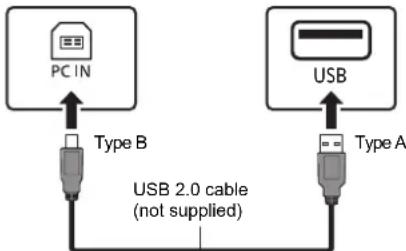
flowchart
graph TD
    A["PC IN"] -->|Type B| B["USB"]
    C["Type A"] -->|Type A| D["USB 2.0 cable (not supplied)"]
3 Connect the AC mains lead to the main unit and turn this system on.
4 Press [RADIO, EXT-IN] repeatedly to select "PC".
5 Operate the PC for playback.
Note:
- When you play back high-resolution audio, it is recommended that you use a compatible USB 2.0 High Speed Cable.
Sound effects
Changing the sound quality
1 Press [SOUND] repeatedly to select a sound effect.
2 Press [◀, ▶] to select the desired setting.
| BASS | -4 to +4 |
| TREBLE | |
| SURROUND “ON | SURROUND” or “OFF SURROUND” |
| CD (CD-DA) | “ON” or “OFF”. |
| CD HIGH RES RE-MASTER |
By main unit only
Turn [BASS] or [TREBLE] to adjust the level.
Preset EQ
Press [PRESET EQ] repeatedly to select a setting.
HEAVY Adds|punch to rock
SOFT For background music
CLEAR Clarifies higher frequencies
VOCAL Adds gloss to vocal
FLAT Cancels the sound effect
Note:
- If you set Preset EQ and then adjust BASS and TREBLE, Preset EQ will be cancelled.
D.BASS
This function lets you enjoy a powerful bass effect.
Press [D.BASS] to select "ON D.BASS" or "OFF D.BASS".
Clock and timers
Setting the clock
This is a 24-hour clock.
Using clock information from a network device
You can stream the clock information from the device to this unit by using the app "Panasonic Music Control".
Preparation
- Complete the network settings. (⇒ 6)
- Install the app "Panasonic Music Control" on your device.
- Connect your device to the same network as this system.
1 Turn this system on.
- Check that the network LED (blue) is lighted on the main unit. - If it is not indicated, check the network settings. ( 6)
2 Start the app "Panasonic Music Control".
• Always use the latest version of the app.
- The clock information will be sent to this system.
Adjusting the clock manually
1 Press [CLOCK/TIMER] to select "CLOCK".
2 Press [▲, ▼] to set the time and then press [OK].
To check the time
Press [CLOCK/TIMER].
Note:
- Reset the clock regularly to maintain accuracy.
Sleep timer
The sleep timer switches off the system after the set time.
Press [SLEEP] repeatedly to select the setting (in minutes).

To show the remaining time Press [SLEEP].
Note:
- The remaining time is indicated on the unit's display at every minute except when other operations are performed. "SLEEP 1" is always shown when only 1 minute remains.
• The sleep timer can be used together with the play timer. - The sleep timer always comes first. Be sure not to set an overlap of timers.
Play timer
You can set the timer to come on at a certain time to wake you up.
Preparation Set the clock
1 Press [CLOCK/TIMER] repeatedly to select "TIMER ADJ".
2 Press [▲, ▼] to set the starting time ("ON TIME") and then press [OK].
3 Press [▲, ▼] to set the finishing time ("OFF TIME") and then press [OK].
4 Press [▲, ▼] to select the music source* and then press [OK].
Turning the timer on
1 Prepare the selected music source and set the desired volume.
2 Press [∅, PLAY].
"②" is shown. To cancel, press [④, PLAY] again. The system must be switched off for the timer to operate.
To check the settings
Press [CLOCK/TIMER] repeatedly to select "TIMER ADJ".
(During standby, press [CLOCK/TIMER] twice.)
Note:
- The timer starts at a low volume and increases gradually to the preset level.
• The timer comes on at the set time every day if the timer is on. - If you switch off the system and switch on again while a timer is in operation, the timer will not stop at the end time.
* "CD", "USB", "DAB+", and "FM" can be set as the music source. You can also set a favourite (FAV) that has been registered with [FAV].
Firmware updates
Occasionally, Panasonic may release updated firmware for this system that may add or improve the way a feature operates. These updates are available free of charge.

Downloading takes approx. 20 minutes. Do not disconnect the AC mains lead or turn this system to standby while updating
- The progress is displayed as "UPDATING" or "UPD □□%" while updating. (" □ " stands for a number.)
Note:
- Due to measure to solve security issues, etc., there are times when operations (timers, etc.) on this system are forcibly stopped and the firmware is updated. If you do not want the firmware forcibly updated, disconnect the LAN cable or disconnect from the wireless network.
- During the update process, no other operations can be performed.
- If there are no updates, "NO NEED" is displayed.
- Updating the firmware may reset the settings of this unit.
- Downloading takes a maximum of approx. 20 minutes. It may take longer or may not work properly depending on the connection environment.
Preparation
- Connect this system to the home network. ( 6) - Make sure that the network is connected to the Internet.
1 Press [SETUP].
2 Press [▲, ▼] repeatedly to select "FW UPDATE" and then press [OK].
3 Press [◀, ▶] to select "YES" and then press [OK].
- The progress is displayed as "UPD □□%" while updating. ("□" stands for a number.)
- When the update has finished successfully, "SUCCESS" is displayed.
4 Press [☐] to turn this system off and on.
Checking the firmware version
1 Press [SETUP].
2 Press [▲, ▼] repeatedly to select "FW VER." and then press [OK].
3 Press [◀, ▶] to select "FIRMWARE" and then press [OK].
The version of the installed firmware is displayed.
4 Press [OK] to exit.
Others
Using the favourite function
Registering your favourite station or playlist to [FAV]
You can register your favourite station, music or playlist (DAB/DAB+, FM, Internet Radio, Podcasts, etc.) and call up the station easily by pressing [FAV].
1 Switch the input source (DAB/DAB+, FM, Internet Radio, Podcasts, etc.).
2 Press and hold [FAV] while the favourite station or playlist is played back.
- "MEM FAV*" is displayed. ("*" is blinked.)
3 Press the number button (1 - 9) to register.
- "FAV* MEMORISED" is displayed when the registration is completed. ("*" stands for the registered number.)
- A station previously stored is overwritten when another station is selected for the same number.
Calling up the favourite station
1 Press [FAV].
2 Press the registered number (1 - 9).
- You can also call up the station by pressing [FAV] repeatedly. (Switches to the registered station.)
- The input source automatically switches to the registered station.
- "EMPTY" is displayed if no item is registered to the favourite list.
Note:
- At the discretion of the service providers, when a song in a playlist is registered in favourites (FAV) and then called up, a different song in the playlist may be played.
- At the discretion of the service providers, when a song you played is registered in favourites (FAV) and then called up, the song may not be played correctly.
- At the discretion of the service providers, stations and music registered in favourites (FAV) may be change or deleted without notice.
- After a DAB station is registered in favourites (FAV), the registration is cancelled if "AUTO SCAN" is performed. Register the station again.
Auto off function
As a factory default, this unit will turn to standby mode automatically if there is no sound and it is not being used for approximately 20 minutes.
To cancel this function
1 Press [SETUP] repeatedly to select "AUTO OFF".
2 Press [◀, ▶] to select "OFF" and then press [OK].
Note:
- To turn the function on, select "ON" in step 2.
- When connected to a Bluetooth ^① device, the function does not work.
Network standby
This system can turn on automatically from standby mode when this system is selected as the network/Bluetooth® device's output speakers.
The factory default is "ON"
To turn off the network standby, select "OFF" in step 2.
1 Press [SETUP] repeatedly to select "STANDBY MODE" and then press [OK].
2 Press [◀, ▶] to select "ON" or "OFF" and then press [OK].
- When "STANDBY MODE" is "ON"
– The power consumption in standby mode will increase.
- When "STANDBY MODE" is "OFF
- The time it takes for the system to start after it is turned on will be longer than when "STANDBY MODE" is "ON".
- When the system is turned on by this feature, the beginning part of the music may not be played back.
- Depending on the app, the conditions for activating this function may differ.
- The system may not turn on even when selected as the output speakers. In that case, start playback.
Wi-Fi signal strength
To check the Wi-Fi signal strength where this system is located.
Preparation
Connect this system to the wireless network. (→ 6)
1 Press [RADIO, EXT-IN] repeatedly to select "NETWORK".
2 Press [SETUP] repeatedly to select "SIGNAL LEVEL" and then press [OK].
"LEVEL □ " is indicated on the display. ("□" stands for a number.)
[■] to exit this display mode.
- It is recommended to have a signal strength of "3". Change the position or angle of your wireless router or this system if the indication is "2" or "1" and see if the connection improves.
- If "LEVEL 0" is displayed, this system cannot establish a link with the wireless router.
Wireless network name (SSID)
Display the name for the connected wireless network (SSID).
1 Press [RADIO, EXT-IN] repeatedly to select "NETWORK".
2 Press [SETUP] repeatedly to select "NET INFO" and then press [OK].
3 Press [◀, ▶] repeatedly to select "SSID" and then press [OK].
Press [■] to exit.
- If "NO CONNECT" is displayed this system is not connected to a wireless network.
- Characters that cannot be displayed are replaced with “*”.
IP/MAC Address
You can confirm the IP address allocated to this system and the wired or Wi-Fi MAC address of this system. (The MAC address connected is displayed.)
1 Press [RADIO, EXT-IN] repeatedly to select "NETWORK".
2 Press [SETUP] repeatedly to select "NET INFO" and then press [OK].
3 Press [◀, ▶] repeatedly to select "IP ADDR." or "MAC ADDR." and then press [OK].
The IP address or the MAC address is partially displayed.
4 Press [◀, ▶] on the remote control to show the rest of the IP address or the MAC address.
- Press [■] to exit.
- The “ – ” displayed on the top or bottom left of the display indicate the first and last units respectively.
Troubleshooting
Before requesting service, make the following checks. If you are in doubt about some of the check points, or if the solutions indicated do not solve the problem, consult your dealer for instructions.
Do you have the latest firmware installed? Panasonic is constantly improving the system's firmware to ensure that our customers are enjoying the latest technology. ( 13)
For further dedicated help, support and advice about your product please visit:
https://panasonic.jp/support/global/cs/audio/ (This site is in English only.)
The unit does not work.
- One of the unit's safety devices may have been activated. 1 Press [⏻/l] on the unit to switch the unit to standby.
- If the unit does not turn off, disconnect the AC mains lead from the AC outlet, reconnect it to the outlet after about 30 seconds. Then wait for about 10 seconds.
2 Press [☐/I] on the unit to switch it on. If the unit still cannot be operated, consult the dealer.
Main unit displays
“—;—”
- You connected the AC mains lead for the first time or there was a power failure recently. Set the clock.
"ADJUST CLOCK" - Clock is not set. Adjust the clock accordingly.
"ADJUST TIMER" - Play timer is not set. Adjust the play timer accordingly.
"AUTO OFF"
- The unit has been left unused for about 20 minutes and will shut down in a minute. Press any button to cancel it.
"EMPTY"
- No station or playlist is registered to [FAV]. Add an item to the list.
"ERROR"
- An incorrect operation was done. Read the instructions and try again. (It is not malfunction.)
“F□□” / “F□□□” (“□” stands for a number.)
There is a problem with this unit. Disconnect the AC mains lead from the AC outlet, reconnect it to the outlet after about 30 seconds. Wait for about 10 seconds, then turn on the unit. If the problem still persists, disconnect the AC mains lead and consult your dealer.
"FAIL"
"DL ERROR"
- Updating or setting has failed. After turning off the unit, disconnect the AC mains lead from the AC outlet, reconnect it to the outlet after about 30 seconds. Wait for about 10 seconds, then turn on the unit and redo the update.
- The firmware download has failed. Press any button to exit. Please try again later.
- The server cannot be found. Press any button to exit. Make sure that the wireless network is connected to the Internet.
"FAILED"
- Registration to favourites has failed. Do the operation during playback.
"LINKING"
- This system is trying to connect to the last connected Bluetooth® device when "BLUETOOTH" is selected.
- This system is communicating with the wireless router to complete the network settings. Depending on the wireless router this process may take a few minutes. Try moving this system closer to the wireless router.
"NETWORK INITIALIZING"
"BLUETOOTH INITIALIZING"
- The system is carrying out an internal process. Continue the operation after the display disappears.
"NEW FIRMWARE FOUND"
- The firmware (free of charge) for this unit is available. ( 13)
"NO DEVICE"
- The USB device is not connected. Examine the connection.
"NO DISC"
- You have not put in a disc or put in a disc that the system cannot play.
"NO PLAY"
- Examine the content. You can only play supported format. (⇒ 8)
- The files in the USB device can be corrupted. Format the USB device and try again.
- The unit may have a problem. Turn the unit off and then on again.
"NO PRESET"
- The selected preset channel has not been preset. Preset some channels.
"NO SIGNAL"
- This station cannot be received. Check your antenna.
"NOT SUPPORTED"
- You have connected an unsupported USB device.
"NOT VALID"
- The function you have tried to use is not available with the current settings. Check the steps and settings.
"OPT UNLOCKED"
- "OPT" is selected, but no device is connected.
- The sampling frequency components, etc. of the audio signals are not input correctly.
"PC UNLOCKED"
- "PC" is selected, but a PC is not connected.
"PGM FULL"
• The number of programmed tracks is more than 24.
"PLAYEROR"
- You played an unsupported file. The system will skip that track and play the next one.
- Normally, the track is skipped and playback proceeds to the next track, but in some cases, playback may stop depending on the audio source. Check the file format of the track.
(It is not malfunction.)
"READING"
- The unit is checking the CD information. After this display has disappeared, start operating.
- When starting playback of DSD files, it may take time to read the file. Wait until reading completes.
"REMOTE □" ("□" stands for a number.)
- The remote control and this unit are using different codes. Change the code on the remote control. - When "REMOTE 1" is displayed, press and hold [OK] and [1] for at least 4 seconds.
- When "REMOTE 2" is displayed, press and hold [OK] and [2] for at least 4 seconds.
"SCAN FAILED"
• Stations are not receivable. Check your antenna and try DAB/DAB+ manual tuning.
"USB OVER CURRENT"
- The USB device is drawing too much power. Remove the USB device. Switch the system off and on again. (It is not malfunction.)
"VBR"
- The system cannot show the remaining play time for variable bit rate (VBR) tracks.
"WAIT"
- This is displayed, for example, when this unit is turning off.
- This is flashing when the system is trying to enter a network setting mode.
Initialisation
Reset the memory when the following situations occur: - There is no response when buttons are pressed.
- You want to clear and reset the memory contents.
1 Disconnect the AC mains lead.
Wait 30 seconds before you continue with step 2.
2 While you press and hold [∅/I] on the main unit, connect the AC mains lead again.
Keep holding down [⏻/l] until “----” appears on the display.
- Wait until the display disappears. (About 1 minute)
3 Release [⏻/l].
All the settings are set back to the factory default. It is necessary to set the memory items again.
- To reset the network settings, perform the operation for network reset. (⇒ 6)
Remote control code
When other Panasonic equipment responds to the remote control of this system, change the remote control code for this system.
To set the code to "REMOTE 2"
1 Press [SELECTOR, - PAIRING] on the main unit to select "CD".
2 Press and hold [■] on the main unit and [2] on the remote control until "REMOTE 2" is shown.
3 Press and hold [OK] and [2] for a minimum of 4 seconds.
• The factory default is "REMOTE 1".
- To change the mode back to "REMOTE 1", repeat the steps above but replace the button pressed on the remote control from [2] to [1].
Specifications
| General | |
| Power supply | AC 220 V to 240 V, 50 Hz |
| Power consumption | 4 |
| Dimensions | |
| (W x H x D) | 211 mm x 114 mm x 267 mm |
| Mass | Approx. 2.9 kg |
| Operating temperature range | 0 °C to +40 °C |
| Operating humidity range | |
| 35 % to 80 % RH (no condensation) | |
| Power consumption in standby mode(When “STANDBY MODE” is “OFF” and no clock display) | 0.4 W (approx.) |
| (When “STANDBY MODE” is “ON” and no clock display)*1 | 2.0 W (approx.) |
Amplifier section
| PMX802 |
| RMS output powerFront Ch (both ch driven)60 W per channel (3 Ω), 1 kHz, 10 % THDTotal RMS power 120 W |
| PMX802M |
| RMS output powerFront Ch (both ch driven)60 W per channel (3 Ω), 1 kHz, 10 % THDTotal RMS power 120 W35 W per channel (6 Ω), 1 kHz, 10 % THDTotal RMS power 70 W |
| Speaker Load Impedance 3 Ω to 16 Ω |
PMX802 Speaker section
| Speaker unit(s) | |
| Woofer 14 cm cone type x 1 | |
| Tweeter 1.9 cm dome type x 1 | |
| Super tweeter 1.5 cm piezoelectric type x 1 | |
| Impedance | 3 |
| Dimensions (W x H x D) | 161 mm x 238 mm x 262 mm |
| Mass | Approx. 2.6 kg |
| FM section | |
| Preset memory | 30 stations |
| Frequency range | |
| 87.50 MHz to 108.00 MHz (50 kHz step) | |
| Antenna terminals3 | 75 Ω (unbalanced) |
| DAB section | |
| DAB memories | 20 channels |
| Frequency band | |
| Band III | 5A to 13F(174.928 MHz to 239.200 MHz) |
| Sensitivity *BER 4x10⁻⁴ | |
| Min requirement | -98 dBm |
| DAB external antenna terminal | F-Connector (75 Ω) |
| Disc section | |
| Disc played (8 cm or 12 cm) | |
| CD, CD-R/RW (CD-DA, MP3*2) | |
| Pick up | |
| Wavelength | 790 nm (CD) |
| NORSK (NORWAY) | |
| Bølgelengde | 790 nm (CD) |
| Laserstyrke | Ingen farlig stråling sendes ut |
| Terminals section | |
| Headphones Jack | Stereo, ∅3.5 mm |
| USB (USB-A) | FRONT USB Type A Connector |
| Maximum number of folders (albums) | 800 |
| Maximum number of files (songs) | 8000 |
| File system | FAT16, FAT32 |
| USB port power | DC OUT 5 V 1.5 A MAX |
| PC (USB-B) | REAR USB Type B Connector |
| Ethernet interface | LAN (100BASE-TX/10BASE-T) |
| AUX IN | Stereo, ∅3.5 mm Jack |
| AUDIO IN | Line input (Pin Jack) |
| Digital input | |
| Format support | Optical digital input (Optical terminal)LPCM |
| Bluetooth®section | |
| Bluetooth®System Specification | Bluetooth®Ver.4.2 |
| Wireless Equipment Classification | Class 2 (2.5 mW) |
| Supported Profiles | A2DP, AVRCP |
| Supported Codec | AAC, SBC |
| Frequency band 2.4 GHz band FH-SS | |
| Operating Distance | approx. 10 m Line of sight*3 |
Wi-Fi section
| Standard | IEEE802.11a/b/g/n/ac |
| Frequency band | 2.4 GHz band / 5 GHz band |
| Security | WPA2TM, Mixed mode WPA2TM/WPATM |
Note:
- Specifications are subject to change without notice. Mass and dimensions are approximate.
• Total harmonic distortion is measured by the digital spectrum analyzer.
*1: Wired LAN or Wireless LAN
*2: MPEG-1 Layer 3, MPEG-2 Layer 3
*3: Prospective communication distance. Measurement environment: Temperature 25 °C/Height 1.0 m. Measure in "MODE 1".
Disposal of Old Equipment and Batteries Only for European Union and countries with recycling systems

These symbols on the products, packaging, and/or accompanying documents mean that used electrical and electronic products and batteries must not be mixed with general household waste.
For proper treatment, recovery and recycling of old products and used batteries, please take them to applicable collection points in accordance with your national legislation.
By disposing of them correctly, you will help to save valuable resources and prevent any potential negative effects on human health and the environment.
For more information about collection and recycling, please contact your local municipality. Penalties may be applicable for incorrect disposal of this waste, in accordance with national legislation.

Note for the battery symbol (bottom symbol):
This symbol might be used in combination with a chemical symbol. In this case it complies with the requirement set by the for the chemical involved.
Declaration of Conformity (DoC)
Hereby, "Panasonic Corporation" declares that this product is in compliance with the essential requirements and other relevant provisions of Directive 2014/53/EU.
Customers can download a copy of the original DoC to our RE products from our DoC server:
http://www.ptc.panasonic.eu
Contact to Authorised Representative:
Panasonic Marketing Europe GmbH, Panasonic Testing Centre, Winsbergring 15, 22525 Hamburg, Germany
| Type of wireless | Frequency band | Maximum power (dBm e.i.r.p.) |
| WLAN | 2412 - 2472 MHz | 18 dBm |
| 5180 - 5320 MHz | 18 dBm | |
| 5500 - 5700 MHz | 18 dBm | |
| 5745 - 5825 MHz | 14 dBm | |
| Bluetooth® | 2402 - 2480 MHz | 4 dBm |
5.15 - 5.35 GHz band is restricted to indoor operations only in the following countries.
| AT | BE | BG | CZ | DK | EE | FR | DE | IS | IE | IT |
| EL | ES | CY | LV | LI | LT | LU | HU | MT | NL | NO |
| PL | PT | RO | SI | SK | TR | FI | SE | CH | UK | HR |

Works with
Apple AirPlay
Use of the Works with Apple badge means that an accessory has been designed to work specifically with the technology identified in the badge and has been certified by the developer to meet Apple performance standards.
Apple and AirPlay are trademarks of Apple Inc., registered in the U.S. and other countries.
This product is compatible with AirPlay 2. iOS 11.4 or later is required.
The Bluetooth ^® word mark and logos are registered trademarks owned by Bluetooth SIG, Inc. and any use of such marks by Panasonic Corporation is under license.
Other trademarks and trade names are those of their respective owners.

CERTIFIED
The Wi-Fi CERTIFIED™ Logo is a certification mark of Wi-Fi Alliance ^® .
"WI-FI ^TM " is a registered trademark of WI-FI Alliance ^® . "WPA ^TM ", and "WPA2 ^TM " are trademarks of WI-FI Alliance ^® .
Mac and OS X are trademarks of Apple Inc., registered in the U.S. and other countries.
macOS is a trademark of Apple Inc.
Windows is a trademark or a registered trademark of Microsoft Corporation in the United States and other countries.
The product with the Hi-Res Audio logo is conformed to Hi-Res Audio standard defined by Japan Audio Society. The logo is used under license from Japan Audio Society.
Google, Google Play, Google Home and Chromecast built-in are trademarks of Google LLC.
The Google Assistant is not available in certain languages and countries.
FLAC Decoder
Copyright (C) 2000,2001,2002,2003,2004,2005,2006,2007, 2008.2009 Josh Coalson
Redistribution and use in source and binary forms, with or without modification, are permitted provided that the following conditions are met:
- Redistributions of source code must retain the above copyright notice, this list of conditions and the following disclaimer. - Redistributions in binary form must reproduce the above copyright notice, this list of conditions and the following disclaimer in the documentation and/or other materials provided with the distribution - Neither the name of the Xiph.org Foundation nor the names of its contributors may be used to endorse or promote products derived from this software without specific prior written permission.
THIS SOFTWARE IS PROVIDED BY THE COPYRIGHT HOLDERS AND CONTRIBUTORS 'AS IS' AND ANY EXPRESS OR IMPLIED WARRANTIES, INCLUDING, BUT NOT LIMITED TO, THE IMPLIED WARRANTIES OF MERCHANTABILITY AND FITNESS FOR A PARTICULAR PURPOSE ARE DISCLAIMED. IN NO EVENT SHALL THE FOUNDATION OR CONTRIBUTORS BE LIABLE FOR ANY DIRECT, INDIRECT, INCIDENTAL, SPECIAL, EXEMPLARY, OR CONSEQUENTIAL DAMAGES (INCLUDING, BUT NOT LIMITED TO, PROCUREMENT OF SUBSTITUTE GOODS OR SERVICES; LOSS OF USE, DATA, OR PROFITS; OR BUSINESS INTERRUPTION) HOWEVER CAUSED AND ON ANY THEORY OF LIABILITY, WHETHER IN CONTRACT, STRICT LIABILITY, OR TORT (INCLUDING NEGLIGENCE OR OTHERWISE) ARISING IN ANY WAY OUT OF THE USE OF THIS SOFTWARE, EVEN IF ADVISED OF THE POSSIBILITY OF SUCH DAMAGE.
https://www.google.com/cast/setup/
“■”: Album “♪”: Piste
Remarque :
"PS": Service du programme
"PTY": Type de programme
"FREQ" : Fréquence
Remarque
"SLEEP 30" → "SLEEP 60" → "SLEEP 90" ↑ "OFF" (Annuler) ← "SLEEP 120"
Works with Apple AirPlay
The product with the HI-Res Audio logo is conformed to HI-Res Audio standard defined by Japan Audio Society. The logo is used under license from Japan Audio Society.
Copyright (C) 2000,2001,2002,2003,2004,2005,2006,2007, 2008,2009 Josh Coalson Redistribution and use in source and binary forms, with or without modification, are permitted provided that the following conditions are met:
- Redistributions of source code must retain the above copyright notice, this list of conditions and the following disclaimer.
- Redistributions in binary form must reproduce the above copyright notice, this list of conditions and the following disclaimer in the documentation and/or other materials provided with the distribution.
- Neither the name of the Xiph.org Foundation nor the names of its contributors may be used to endorse or promote products derived from this software without specific prior written permission.
THIS SOFTWARE IS PROVIDED BY THE COPYRIGHT HOLDERS AND CONTRIBUTORS "AS IS" AND ANY EXPRESS OR IMPLIED WARRANTIES, INCLUDING, BUT NOT LIMITED TO, THE IMPLIED WARRANTIES OF MERCHANTABILITY AND FITNESS FOR A PARTICULAR PURPOSE ARE DISCLAIMED. IN NO EVENT SHALL THE FOUNDATION OR CONTRIBUTORS BE LIABLE FOR ANY DIRECT, INDIRECT, INCIDENTAL, SPECIAL, EXEMPLARY, OR CONSEQUENTIAL DAMAGES (INCLUDING, BUT NOT LIMITED TO, PROCUREMENT OF SUBSTITUTE GOODS OR SERVICES; LOSS OF USE, DATA, OR PROFITS; OR BUSINESS INTERRUPTION) HOWEVER CAUSED AND ON ANY THEORY OF LIABILITY, WHETHER IN CONTRACT, STRICT LIABILITY, OR TORT (INCLUDING NEGLIGENCE OR OTHERWISE) ARISING IN ANY WAY OUT OF THE USE OF THIS SOFTWARE, EVEN IF ADVISED OF THE POSSIBILITY OF SUCH DAMAGE.
Ελληνικά
Safety information for customers in Norway NORSK
ADVARSEL! FORSIKTIG!
Produkt
Authorized Representative in Europe:
Panasonic Corporation
Kadoma, Osaka, Japan
Panasonic Marketing Europe GmbH
Panasonic Testing Centre
Winsbergring 15, 22525 Hamburg, Germany
EU

Panasonic Corporation
Web Site: http://www.panasonic.com
En Fr