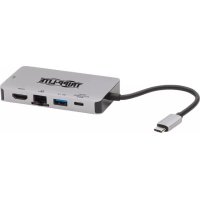
U442DOCK6GY - Docking Station Tripp Lite - Free user manual and instructions
Find the device manual for free U442DOCK6GY Tripp Lite in PDF.



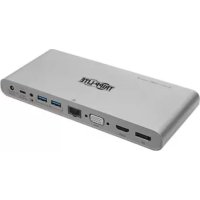
| Product Type | Portable USB-C 3.1 Gen 1 Docking Station |
| Brand | Tripp Lite |
| Model | U442-DOCK6-GY |
| Color | Gray |
| Input Connector | USB-C (Male) |
| Output Connectors | 2x USB-A 3.0, 1x USB-C (PD/Data), 1x RJ45 Ethernet, 1x HDMI, 1x VGA |
| Maximum HDMI Resolution | 4096 x 2160 at 30 Hz (4:4:4) |
| Maximum VGA Resolution | 1920 x 1200 at 60 Hz |
| Ethernet Speed | 10/100/1000 Mbps |
| USB Transfer Speed | Up to 5 Gbps |
| USB-C Charging Power (PD) | Up to 100W (20V, 5A) |
| USB-A Charging Power (BC 1.2) | Up to 1.5A |
| USB-A Ports Dedicated Power (under PD) | 5V, 1.6A (8W) |
| Operating Temperature | 0 to 45°C |
| Storage Temperature | -10 to 70°C |
| Operating Humidity | 10 to 85% RH (non-condensing) |
| Storage Humidity | 5 to 90% RH (non-condensing) |
| Warranty | 3 Years (Limited) |
| Compatibility | Computer with USB-C or Thunderbolt 3 port supporting DisplayPort Alt Mode |
| Special Features | HDMI+VGA Mirror Mode, Wake-on-LAN, PD 3.0 Fast Role Swap, IEEE 802.3az, Automatic Resume from Sleep |
| Maintenance | Clean with a dry, non-abrasive cloth |
| Safety | Use with compatible cables and chargers; avoid contact with liquids |
| Spare Parts | Not provided; optional cables available (VGA, HDMI, USB, Ethernet) |
| Repairability | Product not user-serviceable; contact Tripp Lite support |
Frequently Asked Questions - U442DOCK6GY Tripp Lite
User questions about U442DOCK6GY Tripp Lite
0 question about this device. Answer the ones you know or ask your own.
Ask a new question about this device
Download the instructions for your Docking Station in PDF format for free! Find your manual U442DOCK6GY - Tripp Lite and take your electronic device back in hand. On this page are published all the documents necessary for the use of your device. U442DOCK6GY by Tripp Lite.
USER MANUAL U442DOCK6GY Tripp Lite
USB-C™ 3.1 Gen 1 Portable Docking Station, Gray
Model: U442-DOCK6-GY
USB Type-C and USB-C are trademarks of USB Implementers Forum
Español 13 • Français 25 • Русский 37
WARRANTY REGISTRATION
Register your product today and be automatically entered to win an ISOBAR surge protector in our monthly drawing!
www.tripplite.com/warranty


1111 W. 35th Street, Chicago, IL 60609 USA www.tripplite.com/support
Copyright © 2019 Tripp Lite. All rights reserved.
Product Features
- Supports DisplayPort Alternate Mode for connecting an HDMI monitor via USB-C or Thunderbolt™ 3 port
- Supports connection of DVI monitor via HDMI to DVI adapter (see Optional Accessories for more information)
- Mirror Mode allows HDMI and VGA ports to work simultaneously with a max resolution of 1080p for both ports*
- HDMI port supports 4096 x 2160 30 Hz 4:4:4 video resolutions
- VGA port supports video resolutions up to 1920 x 1200, including 1080p @ 60Hz
- Ethernet port supports true 10/100/1000 Mbps network speeds
- USB-A and Type-C data ports support data transfer rates up to 5 Gbps
- All USB-A 3.0 ports support data and charging
- Dedicated BC 1.2-compliant USB port provides up to 1.5A of fast charging power to mobile devices (when connected to power)
Product Features
- USB-C device port supports data and Power Delivery (PD) charging with power input up to 20V 5A (100W)
- 5V 1.6A (8W) of power dedicated to the USB-A ports when connected to a PD 3.0-compliant charger**
- Supports PD 3.0 Fast Role Swap to maintain data and power connection upon removal of charging power
- Automatically resumes operation from hibernation and suspend mode
- IEEE 802.3az (Energy Efficient Ethernet) compliant
• Supports full-duplex and half-duplex operations
• Supports Wake-On LAN - Compact design fits easily into your laptop bag
- Plug-and-play—no software or drivers required
*If connecting two monitors simultaneously, the VGA port becomes the main extended monitor and the HDMI monitor mirrors the VGA monitor
** When no power supply is connected, the output of the USB-A ports are dependent on the connected source
System Requirements
- Computer with USB-C or Thunderbolt 3 port that supports DisplayPort Alternate Mode
• VGA, DVI*** or HDMI monitor - Ethernet Network with speeds up to 10/100/1000 Mbps
***Requires an adapter (see Optional Accessories for more information)
Package Includes
- U442-DOCK6-GY
- Owner's Manual
Optional Accessories
• N201-Series Cat6 Gigabit Snagless Patch Cables
• P502-Series VGA Coaxial Monitor Cables
• P566-Series HDMI to DVI Adapter Cables
• P568-Series High-Speed HDMI Cables
• U322-Series USB 3.0 A/B Device Cables
• U326-Series USB 3.0 Micro-B Device Cables
• U420-006-5A USB 3.1 Gen 1 USB-C Cable (M/M), 3 ft. (0.9 m)
Product Overview
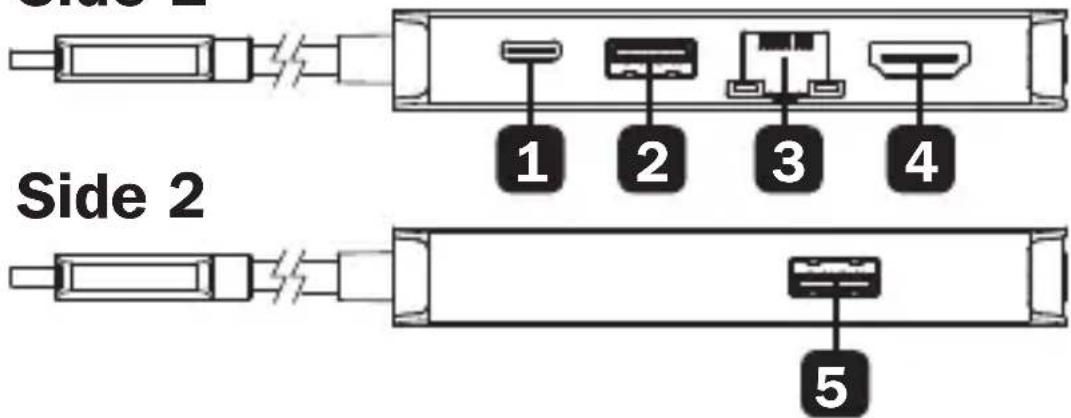
Side 1
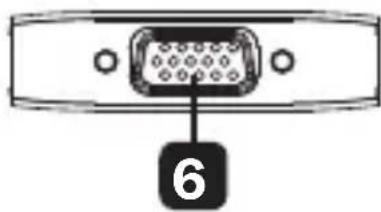
Rear
1 USB-C Charging and Data Port
(Female) – Connects your device to a USB-C PD charger for charging or data transfer.
2 USB-A 3.0 BC 1.2 Port (Female) –
Provides up to 1.5A of fast charging power to mobile devices.
3 RJ45 Port (Female) – Connects to a
10/100/1000 Mbps network.
4 HDMI Port (Female) – Connects an HDMI
monitor.
Product Overview
5 USB-A 3.0 Port (Female) – Connects to USB peripherals/devices for charging or data transfer.
6 VGA Port (Female) – Connects a VGA monitor.
Installation
Notes:
- If connecting two monitors, the maximum resolution will automatically be renegotiated to the lowest video format, in this case 1080p.
- When connected to power via USB-C charging port, 8W is dedicated to the docking station and other devices. The remainder is used to charge the connected device.
• See Optional Accessories section for suggested cables. -
When the unit is connected to the USB-C port on your computer and to a network via Cat5e/6 cabling, a network connection will be automatically established. If no connection is made, you can manually establish one by going to your computer's network settings page. For example, on a Mac you would navigate to the Network section found in System Preferences, click the “Assist Me” button to get to the Network Setup Assistant, then follow the prompts to establish a connection.
-
Connect the dock's USB Type-C connector to the USB-C or Thunderbolt 3 port on your laptop, tablet or other device.
-
Using a VGA cable, connect the dock's VGA port to the VGA port on a monitor.
Installation
- Using an HDMI cable (such as Tripp Lite P568-Series High-Speed HDMI cables), connect the dock's HDMI port to the HDMI port on a monitor.
- Connect up to two USB devices to the dock's USB-A hub ports for data or charging.
- Connect a USB Type-C device to the dock's Type-C port for data or charging.
- Using Cat5e/6 UTP cable, connect the adapter's RJ45 port to a network.
Specifications
| Connectors-Input | |
| USB USB-C (Male) | |
| Connectors-Output | |
| USB-A (x2) USB 3.0 A | (Female) |
| USB PD Charging and Data | USB-C (Female) |
| 10/100/1000 Ethernet | RJ45 (Female) |
| HDMI HDMI (Female) | |
| VGA VGA (Female) | |
| Environmental | |
| Operating Temperature | 32°F to 113°F(0°C to 45°C) |
| Operating Humidity 10 | % to 85% RH,Non-Condensing |
| Storage Temperature | 14°F to 158°F(-10°C to 70°C) |
| Storage Humidity 5% | to 90% RH,Non-Condensing |
| Power Requirements | |
| USB-C Charging Port Supports up to 20V 5A(100W) Input | |
Warranty and Product Registration
3-Year Limited Warranty
Tripp Lite warrants its products to be free from defects in materials and workmanship for a period of three (3) years from the date of initial purchase. Tripp Lite's obligation under this warranty is limited to repairing or replacing (at its sole option) any such defective products. To obtain service under this warranty, you must obtain a Returned Material Authorization (RMA) number from Tripp Lite or an authorized Tripp Lite service center. Products must be returned to Tripp Lite or an authorized Tripp Lite service center with transportation charges prepaid and must be accompanied by a brief description of the problem encountered and proof of date and place of purchase. This warranty does not apply to equipment, which has been damaged by accident, negligence or misapplication or has been altered or modified in any way.
EXCEPT AS PROVIDED HEREIN, Tripp Lite MAKES NO WARRANTIES, EXPRESS OR IMPLIED, INCLUDING WARRANTIES OF MERCHANTABILITY AND FITNESS FOR A PARTICULAR
PURPOSE. Some states do not permit limitation or exclusion of implied warranties; therefore, the aforesaid limitation(s) or exclusion(s) may not apply to the purchaser.
EXCEPT AS PROVIDED ABOVE, IN NO EVENT WILL Tripp Lite BE LIABLE FOR DIRECT, INDIRECT, SPECIAL, INCIDENTAL OR CONSEQUENTIAL DAMAGES ARISING OUT OF THE USE OF THIS PRODUCT, EVEN IF ADVISED OF THE POSSIBILITY OF SUCH DAMAGE. Specifically, Tripp Lite is not liable for any costs, such as lost profits or revenue, loss of equipment, loss of use of equipment, loss of software, loss of data, costs of substitutes, claims by third parties, or otherwise.
Warranty and Product Registration
Product Registration
Visit www.triplite.com/warranty today to register your new Tripp Lite product. You'll be automatically entered into a drawing for a chance to win a FREE Tripp Lite product!*
* No purchase necessary. Void where prohibited. Some restrictions apply. See website for details.
FCC Notice, Class B
This device complies with part 15 of the FCC Rules. Operation is subject to the following two conditions: (1) This device may not cause harmful interference, and (2) this device must accept any interference received, including interference that may cause undesired operation.
Note: This equipment has been tested and found to comply with the limits for a Class B digital device, pursuant to part 15 of the FCC Rules. These limits are designed to provide reasonable protection against harmful interference in a residential installation. This equipment generates, uses and can radiate radio frequency energy and, if not installed and used in accordance with the instructions, may cause harmful interference to radio communications. However, there is no guarantee that interference will not occur in a particular installation. If this equipment does cause harmful interference to radio or television reception, which can be determined by turning the equipment off and on, the user is encouraged to try to correct the interference by one or more of the following measures:
- Reorient or relocate the receiving antenna.
- Increase the separation between the equipment and receiver.
- Connect the equipment into an outlet on a circuit different from that to which the receiver is connected.
Warranty and Product Registration
- Consult the dealer or an experienced radio/TV technician for help.
Any changes or modifications to this equipment not expressly approved by Tripp Lite could void the user's authority to operate this equipment.
WEEE Compliance Information for Tripp Lite Customers and Recyclers (European Union)

Under the Waste Electrical and Electronic Equipment (WEEE) Directive and implementing regulations, when customers buy new electrical and electronic equipment from Tripp Lite they are entitled to:
- Send old equipment for recycling on a one-for-one, like-for-like basis (this varies depending on the country)
- Send the new equipment back for recycling when this ultimately becomes waste
Use of this equipment in life support applications where failure of this equipment can reasonably be expected to cause the failure of the life support equipment or to significantly affect its safety or effectiveness is not recommended.
Tripp Lite has a policy of continuous improvement.
Specifications are subject to change without notice. Photos and illustrations may differ slightly from actual products.


1111 W. 35th Street, Chicago, IL 60609 USA www.tripplite.com/support
19-05-136 93-3955_RevA
natural_image
Diagram of a computer port with an attached 6-pin connector (no text or symbols beyond the number)1111 W. 35th Street, Chicago, IL 60609 USA www.tripplite.com/support
natural_image
Diagram of a computer port with a 6-pin connector (no text or symbols on the diagram itself)1111 W. 35th Street, Chicago, IL 60609 USA www.tripplite.com/support
19-05-136 93-3955_RevA
1111 W. 35th Street, Chicago, IL 60609 USA
www.tripplite.com/support
1111 W. 35th Street, Chicago, IL 60609 USA www.tripplite.com/support

- USB-C™ 3.1 Gen 1 Portable Docking Station, Gray
- WARRANTY REGISTRATION
- Product Features
- System Requirements
- Package Includes
- Optional Accessories
- Product Overview
- Installation
- Notes:
- Specifications
- Warranty and Product Registration
- 3-Year Limited Warranty
- Product Registration
- FCC Notice, Class B
- WEEE Compliance Information for Tripp Lite Customers and Recyclers (European Union)
- W. 35th Street, Chicago, IL 60609 USA www.tripplite.com/support
Brand : Tripp Lite
Model : U442DOCK6GY
Category : Docking Station