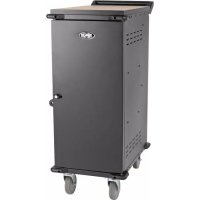
CSC32USB - Phone charger Tripp Lite - Free user manual and instructions
Find the device manual for free CSC32USB Tripp Lite in PDF.


| Product Type | Charging and Sync Cart for Tablets |
| Brand | Tripp Lite |
| Model | CSC32USB |
| Number of USB Ports | 32 USB 2.0 Type A (female) ports |
| Additional Ports | 1 x USB 2.0 B (female), 2 x USB 2.0 mini (female) |
| Output Current per Port | 5.0 V, 2.4 A max |
| Input Power | 110-240 V, 2.5 A, 50/60 Hz |
| Charging Capacity | Up to 32 devices simultaneously |
| Transmission Speed | Up to 480 Mbps (USB 2.0) |
| Dimensions (H x W x D) | 917 x 884 x 513 mm |
| Weight | 59 kg |
| Total Weight Capacity | 90 kg (200 lb) stationary or in motion |
| Operating Temperature | 0°C to 40°C |
| Operating Humidity | 5% to 95% RH non-condensing |
| Housing Material | Metal |
| Special Features | Lockable doors, adjustable shelves, swivel/locking casters, reversible handle, wall-mountable |
| Warranty | 2-year limited |
| Sync Function | Yes, via USB connection to a computer |
| Device Compatibility | iPads, iPhones, iPods, Android tablets and smartphones |
| Maintenance | Clean with a damp, lint-free cloth; avoid solvents and aerosols |
Frequently Asked Questions - CSC32USB Tripp Lite
User questions about CSC32USB Tripp Lite
0 question about this device. Answer the ones you know or ask your own.
Ask a new question about this device
Download the instructions for your Phone charger in PDF format for free! Find your manual CSC32USB - Tripp Lite and take your electronic device back in hand. On this page are published all the documents necessary for the use of your device. CSC32USB by Tripp Lite.
USER MANUAL CSC32USB Tripp Lite
Tablet Charge and Sync Cart
32-Port Models: CSC32USB (CSC32USBW)
Table of Contents
- Important Safety Instructions 2
- Overview 2
- Feature Identification 3
- Setup 4
4.1 Installing the Handle Bracket 4 and Power Cord Manager
4.2 Adjusting Storage Shelf Dividers 4
4.3 Powering the USB Charger/Hub Unit 4
4.4 Door Locks 4
- 32-Port USB Charger/Hub 5
5.1 USB Charger/Hub Features 5
5.2 Connecting Devices to the USB Charger/Hub 5
5.3 Connecting a Computer to the USB Charger/Hub
- Wall Installation 6
6.1 Removing Casters and Handle 6
6.2 Wall-Mounting the Charging Station 6
- Specifications 7
- Storage, Service and Cleaning 7
- Warranty and Product Registration 8
Espanol 9
Français 17
PROTECT YOUR INVESTMENT!
Register your product for quicker service and ultimate peace of mind.
You could also win an ISOBAR6ULTRA surge protector—a $100 value!
www.triplite.com/warranty


Manufacturing Excellence.
1. Important Safety Instructions
SAVE THESE INSTRUCTIONS
This manual contains instructions and warnings that must be followed during the installation and operation of the product described in this manual. Failure to comply may invalidate the warranty and cause property damage or personal injury.
USB Charger/Hub Unit:
- To remove the USB Charger/Hub from the supply mains, the power cord serves as a disconnect device.
-
If any of the following situations arise, schedule an appointment with a service technician to have your equipment inspected:
-
The equipment has been exposed to moisture
The equipment has been dropped and damaged -
The equipment shows obvious signs of breakage
The equipment is not functioning properly or is not functioning according to the instructions described in this Owner's Manual -
Use of this equipment in life support applications where failure of this equipment can reasonably be expected to cause the failure of the life support equipment or to significantly affect its safety or effectiveness is not recommended.
Charging Station Cabinet:
- Keep the charging station in a controlled indoor environment away from moisture, temperature extremes, flammable liquids and gasses, conductive contaminants, dust and direct sunlight.
- Leave adequate space around the charging station for proper ventilation. Do not block, cover or insert objects into the charging station's external ventilation openings.
- The charging station is extremely heavy. Use caution when handling the charging station. Do not attempt to unpack or mount it unassisted. Use a mechanical device such as a forklift or pallet jack to move the charging station in the shipping container.
- Do not place containers of liquid or stack items on the cabinet.
- Inspect the shipping container and the charging station for shipping damage. Do not use the charging station if it is damaged.
- Use caution when cutting packing materials. The charging station could be scratched, causing damage not covered by the warranty.
- Save all packing materials for later use. Repacking and shipping the charging station cabinet or equipment without the original packing materials may cause product damage that will void the warranty.
For Mobile Applications:
The charging station comes with four pre-installed locking/swivel casters.
- Always use the included handle when moving the charging station (see section 4.1 Installing the Handle Bracket and Power Cord Manager for more information).
- When moving the charging station cabinet, always push it from behind; never pull it toward you.
- A rolling charging station can cause personal injury and property damage if not properly supervised. If rolling the charging station down a ramp is required, use extreme caution. Do not attempt to use ramps that have a slope grade greater than 12% .
For Wall-Mount Installations:
- Casters ship pre-installed with the charging station. Remove the casters and handle before attempting to mount the charging station to a wall (see section 6.1 Removing Casters and Handle for more information).
- Before mounting, first make sure that the wall surface can safely support the combined load of the charging station, equipment stored and all attached hardware and components.
- Always use suitable mounting means when installing to cinder block, concrete, drywall or wood studs.
2. Overview
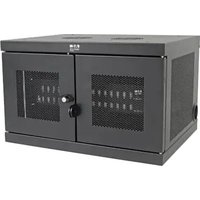
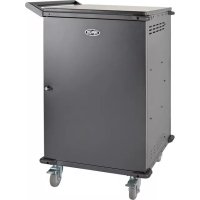
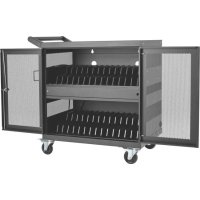
Your charging station is an all-in-one solution for storing and charging for up to 32 devices. With four pre-installed locking/swivel casters and an attachable, reversible handle accessory, your charging station is ideal for mobile applications. Your charging station can also be conveniently mounted to walls, as well as configured for stationary desktop or floor placement. To prevent theft and device tampering, your charging station enclosure comes equipped with locking steel doors.
3. Feature Identification
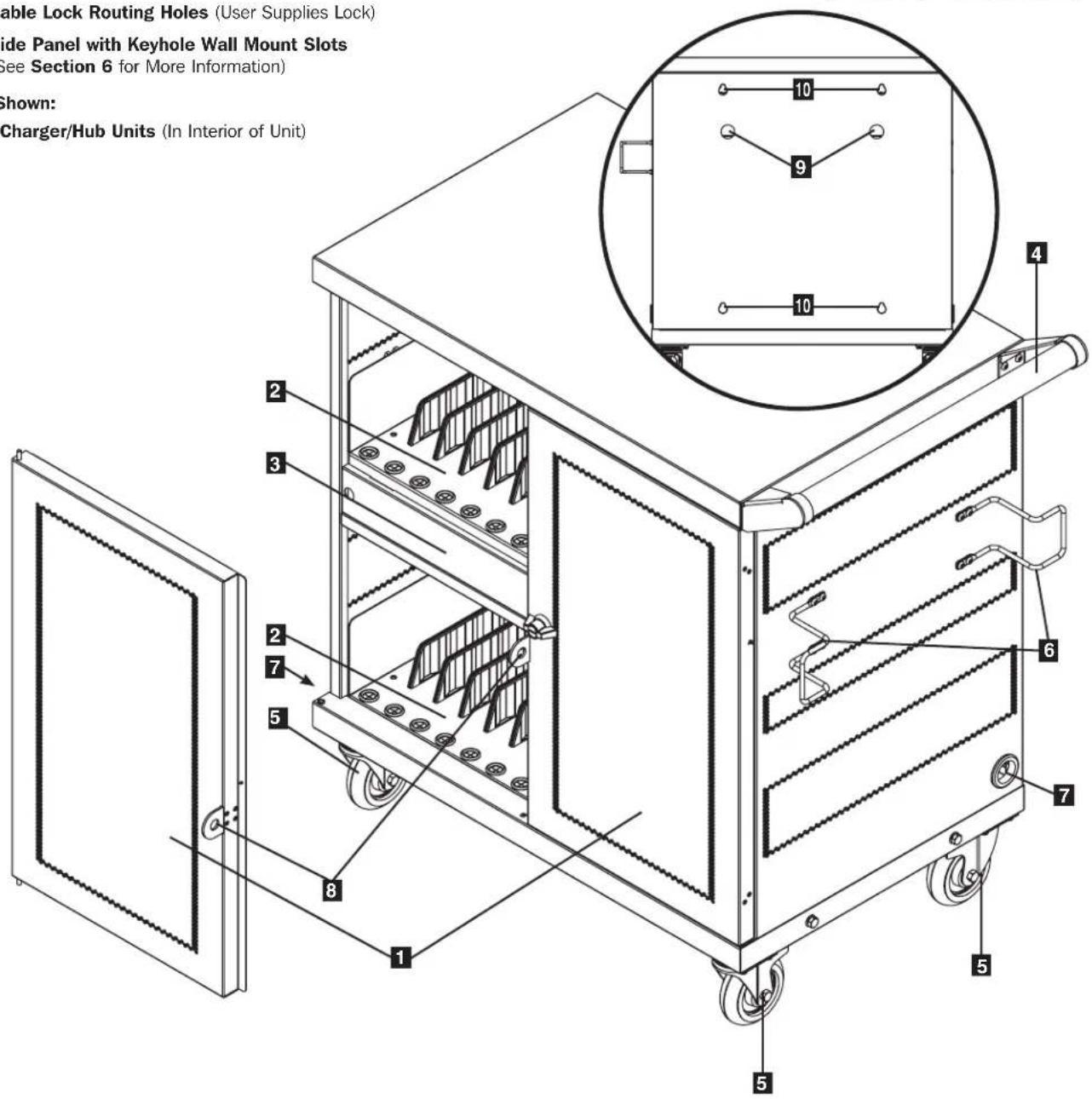
CSC32USB(W)
1 Locking Split Doors
2 Adjustable Storage Shelves (hold up to 16 Devices per Shelf)
3 Blanking Panels (Removable)
4 Reversible Handle
5 Swivel/Locking Casters
6 Power Cord Manager
7 Power Cord Access Holes (1 Located on Each Side)
8 Padlock Hasp (User Supplies Lock)
9 Cable Lock Routing Holes (User Supplies Lock)
10 Side Panel with Keyhole Wall Mount Slots (See Section 6 for More Information)
Not Shown:
USB Charger/Hub Units (In Interior of Unit)
Included Accessory Hardware
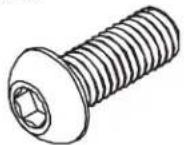
12 x Hex Screws
Hex Key
4. Setup

Caution! Read All Instructions andWarnings Before Installation!

Warning: Charging stations can be extremely heavy. Do not attempt to unpack or mount the charging station without assistance. Follow the unpacking instructions document that shipped with this product before proceeding with setup. Use extreme caution when handling the charging station and be sure to follow all handling and installation instructions. Do not attempt to install equipment without first stabilizing the charging station.
4.1 Installing the Handle Bracket and Power Cord Manager
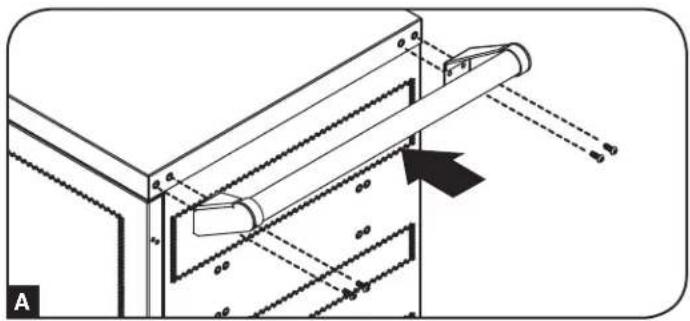
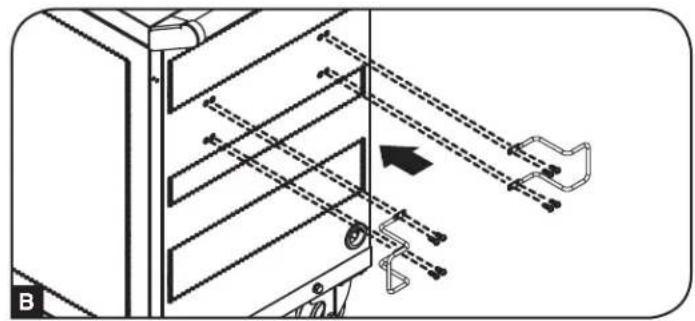
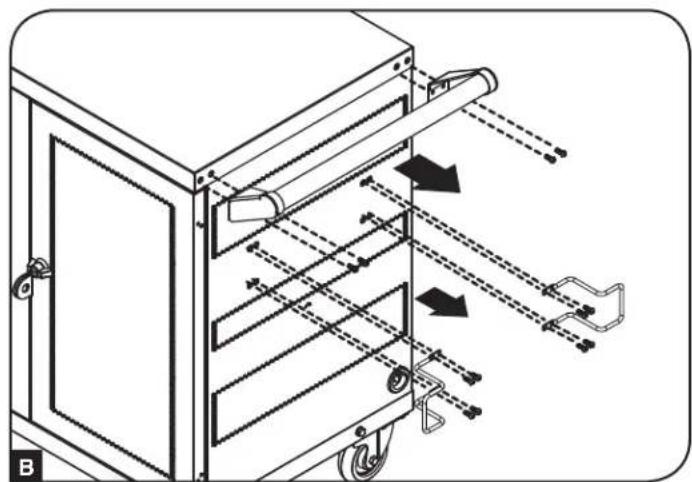
To install the handle bracket, use the included hex key tool to attach four (4) hex screws to the charging station cabinet A. To install the cord manager, use the same hex key tool to secure the eight hex screws that attach the cord manager brackets (four per bracket) to the charging station cabinet B.
4.2 Adjusting Storage Shelf Dividers
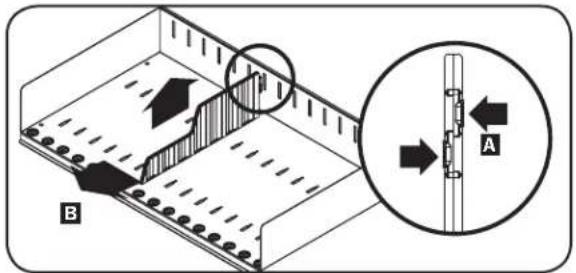
Your charging station comes with two storage shelves with adjustable dividers that can each accommodate up to 16 personal electronic devices per shelf.
Remove any personal electronic devices stored on the shelf tray. Then remove the blanking panel. To remove the shelf tray from the cabinet, push the shelf tray forward to disengage from the mounting hook, then pull the tray up and out. Once the shelf is removed, remove or rearrange the dividers by pushing in the two tabs securing the divider to the rear end A, then push the divider forward to disengage from the shelf tray B. Repeat as necessary for additional shelf dividers.
4.3 Powering the USB Charger/Hub Unit
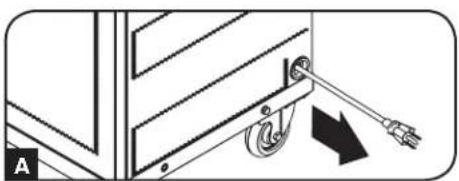
With the bottom blanking panel removed, find the USB Charger/Hub unit's input plug and cable located in the charging station's bottom compartment, then push the input plug through one of the cable access hole grommets located on either side of the charging station cabinet A (using the cable access hole on the same side as the power cord manager is recommended). Plug the power cord into the nearest 3-prong, grounded wall outlet and reattach the blanking panel to the unit.
4.4 Door Locks
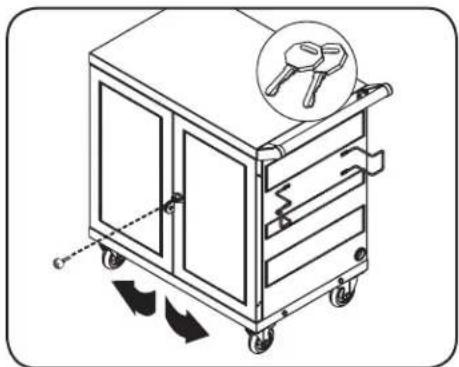
The split doors contain a lock that is accessible with the included keys.
5. 32-Port USB Charger/Hub
5.1 USB Charger/Hub Features
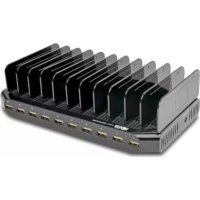
Professional-grade USB charger/hub charges and syncs up to 32 USB devices, including iPads, iPods and iPhones as well as Android™ tablets and smartphones.
- Provides each USB port with an optimum charge level for a particular device (up to 2.4 amps).
- Allowsyncing to be performed with any device designed for USB data communications, per compatible file management software.
- Syncs Apple® devices via iTunes® software or Apple Configurator.
- Mini-USB Firmware Upgrade Port enables future software upgrades to support newer devices.
- 1U, rack-mountable housing can be configured for professional, educational or personal installations.
- IEC C14 inlet makes power connections easy, using the dedicated region power supply cords (included).
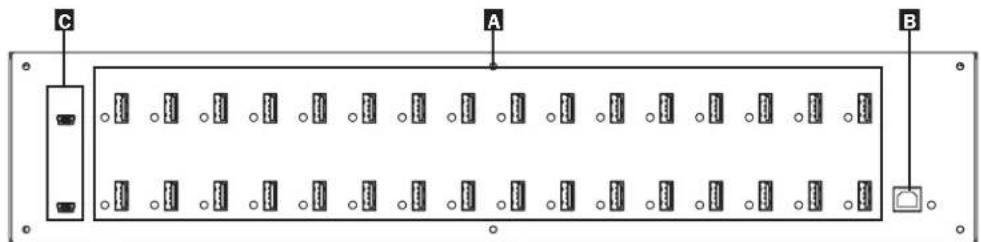
A 2.4A USB Device Ports with LED Indicator Lights (32 total)
Computer Sync Port
6 Firmware Upgrade Ports
5.2 Connecting Devices to the USB Charger/Hub
Each storage shelf features 16 strain relief bushings that prevent the USB cable's device connectors from slipping through the bushing A. Using a user-supplied or device manufacturer's shielded USB cable, connect the USB cable to the device to be charged. Then pass the cable end through the strain relief bushing on the storage shelf and connect the USB connector into a USB charging port B Repeat for all devices.
Tripp Lite offers individual and 10-pack cables for Apple devices using USB to 30-Pin or USB to Lightning cables, as well as individual and 10-pack cables for USB 3.0 or 2.0 devices using USB A (male) to 5-Pin Micro B (male) cables.
| Cable Type | Individual Cable Model Number | 10-Pack Cable Model Number |
| Apple USB to 30-Pin Connector, 10 in. M110-10N-BK M110-10N-BK-10 | ||
| Apple USB to 30-Pin Connector, 3 ft. M110-003-WH — | ||
| Apple USB to 8-Pin Lightning Connector, 10 in. M100-10N-BK | M100-10N-BK-10 | |
| Apple USB to 8-Pin Lightning Connector, 3 ft. M100-003-BK | M100-003-WH | — |
| Apple USB to 8-Pin Lightning Connector, 6 ft. M100-006-BK | M100-006-WH | — |
| Apple USB to 8-Pin Lightning Connector, 10 ft. M100-010-BK | M100-010-WH | — |
| USB 3.0 SuperSpeed A (Male) to 5-Pin Micro-B (Male), 1 ft. U3 | 26-001-BK U326-001-BK-10 | |
| USB 3.0 SuperSpeed A (Male) to 5-Pin Micro-B (Male), 3 ft. U3 | 26-003 U326-003-BK | — |
| USB 3.0 SuperSpeed A (Male) to 5-Pin Micro-B (Male), 10 ft. U3 | 326-010 — | |
| USB 2.0 Reversible A (Male) to 5-Pin Micro-B (Male), 1 ft. URO5 | 50-001* URO5 | 50-001-10* |
| USB 2.0 Reversible A (Male) to 5-Pin Micro-B (Male), 3 ft. URO5 | 50-003* UR050-003-WH* | — |
| USB 2.0 Reversible A (Male) to 5-Pin Micro-B (Male), 6 ft. URO5 | 50-006* UR050-006-SLIM* | — |
| USB 2.0 Reversible A (Male) to 5-Pin Micro-B (Male), 10 ft. | UR050-010* | — |
- Features a reversible USB A (male) connector for simplified installations.
Visit www.triplite.com for more information on our selection of premium USB cables.
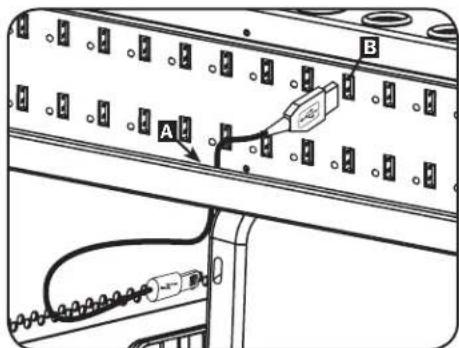
5.3 Connecting a Computer to the USB Charger/Hub
In addition to device charging, the USB Charger/Hub is equipped with a hub function that syncs devices and their respective software applications via a connected computer. To enable the hub function, use the included USB cable to connect the USB B connector into unit's Computer Sync Port and the USB A connector into a computer's USB port.
Note: When a computer connection is established and multiple devices are connected to the USB Charger/Hub, the charge rate will reduce duringSyncing and resume to the normal charge rate upon completion.
Note: The Firmware Upgrade Port requires a mini-USB connection (cable not included).
6. Wall Installation
To use your charging station in a wall-mounting installation, first remove the casters and handle.
6.1 Removing Casters and Handle
Warning: Do not attempt to remove casters from the USB charger/hub with any laptops, tablets or other personal electronic devices inside.
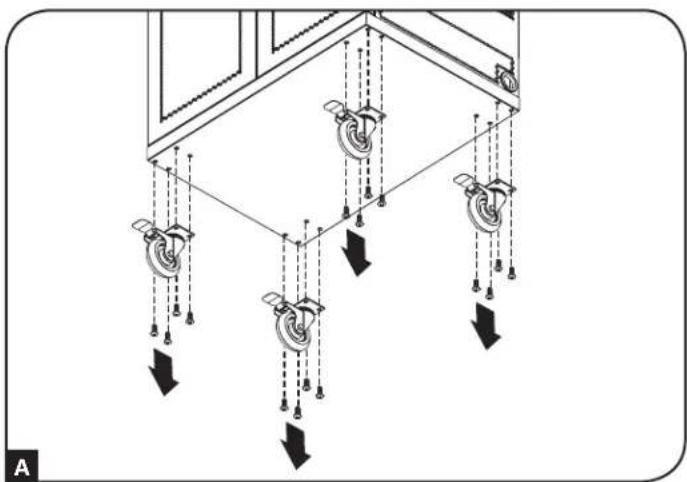
To remove the casters and handle for stationary or wall-mount applications, unscrew the sixteen M6 screws securing the four casters (four per caster) to the enclosure A. If the handle and cord manager are attached to the unit per section 4.1, remove using the included hex key tool to unscrew the handle's four (4) hex screws and the cord manager's eight (8) hex screws from the charging station cabinet B.
Note: Save the casters, handle and all hardware for future use.
6.2 Wall-Mounting the Charging Station
For wall mounting, you will need:
Level
- Appropriate tools for wall mounting
- Appropriate hardware for wall mounting (not included)
Warning: Do not attempt to mount the charging station to the wall with any personal electronic devices inside.
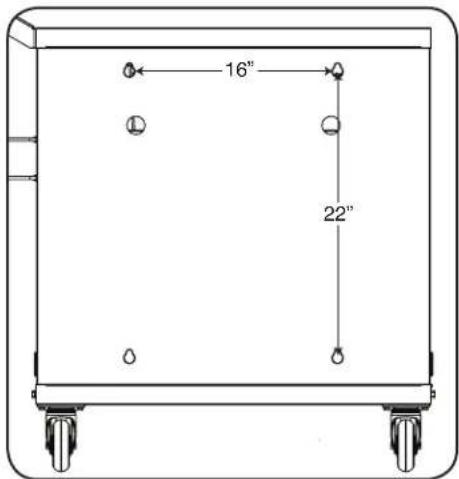
There are 4 keyhole cutouts on the charging station cabinet's side panel. Each keyhole can accommodate an M5 or 3/16'' bolt. Each of the keyhole sets are centered 16'' apart horizontally and 22'' vertically (see the corresponding model diagram for exact keyhole locations).
Using a level, measure to position your mounting areas precisely. Use appropriate fasteners (not included) to secure the charging station to the wall. Once the charging station is safely hanging on the fasteners and secured to the wall, open the unit from the rear door and tighten all mounting hardware.
Note: The charging station must be installed by a qualified technician. Before mounting, use a level and tape measure to position your mounting area precisely. Use appropriate fasteners (not included) to secure the charging station to the wall. Use suitable mounting means when installing to cinder block, concrete, drywall or wood studs. Warning: The supporting surface must be able to safely support the combined load of the charging station, equipment stored and all attached hardware and components. Go to the Specifications section for more information on your model's weight and dimensions.
7. Specifications
| Model CSC32USB(W) | |
| Dimensions (H x W x D) 36.1 x 34.8 x 20.2 in. / | 917 x 884 x 513 mm |
| Unit Weight 130.7 lb. / 59 kg | |
| Load Capacity* 200 lb. (90 kg) Stationary or Rolling | |
| Charger/Hub Ports 32 x USB 2.0 A (Female) | 1 x USB 2.0 B (Female) 2 x USB 2.0 Mini (Female) |
| Transmission Speed Up to 480 Mbps | |
| Power Requirement Input: 100-240V, 2.5A, 50/60 Hz Output: 5.0V, 2.4A Max (per USB port) | |
| Operating Temperature 32° to 104°F / 0° to 40°C | |
| Operating Humidity 5 to 95% RH, Non-Condensing | |
| Number of Charger/Hub Units 2 | |
| Charger/Hub Dimensions per Unit (H x W x D) 1.7 | 5 x 17.5 x 9.5 in. / 45 x 445 x 240 mm |
| Enclosure Material Metal |
*Full wall-mount load capacity requires a mounting surface capable of bearing the full load of the charging station and all connected components. Specifications may be subject to change without further notice.
8. Storage, Service and Cleaning
Storage
The enclosure should be stored in a controlled indoor environment away from moisture, temperature extremes, flammable liquids and gasses, conductive contaminants, dust and direct sunlight. Store the enclosure in its original shipping container if possible.
Service
The enclosure is covered by the limited warranty described in this manual. For more information, visit www.triplite.com/support.
Cleaning
Before cleaning, always power off the charging station by unplugging it from its AC source. dampen a clean, lint-free cloth with water and wipe down the unit, as necessary. Allow the surface area to dry before plugging in the unit.
Note: Avoid using abrasive cloths, solvents or aerosol sprays to clean the charging station; doing so can damage the unit.
9. Warranty and Product Registration
2-Year Limited Warranty
Sell wth i t r t t t t t t t t t t t t t t t t t t t t t t t t t t t t t t t t t t t t t t t t t t t t t t t t t t d
THIS WARRANTY DOES NOT APPLY TO NORMAL WEAR OR TO DAMAGE RESULTING FROM ACCIDENT, MISUSE, ABUSE OR NEGLECT. SELLER MAKES NO EXPRESS WARRANTY OTHER THAN THE WARRANTY EXPRESSLY SET FORTH HEREIN. EXCEPT TO THE EXTENT PROHIBITED BY APPLICABLE LAW, ALL IMPLIED WARRANTYES, INCLUDING ALL WARRANTYES OF MERCHANTABILITY OR FITNESS, ARE LIMITED IN DURATION TO THE WARRANTY PERIOD SET FORTH ABOVE; AND THIS WARRANTY EXPRESSLY EXCUSES ALL INCIDENTAL AND CONSEQUENTIAL DAMAGES. (Some states do not allow limitations on how long an implied warranty lasts, and some states do not allow the exclusion or limitation of incidental or consequential damages, so the above limitations or exclusions may not apply to you. This warranty gives you specific legal rights, and you may have other rights which vary from jurisdiction to jurisdiction).
WARNING: The individual user should take care to determine prior to use whether this device is suitable, adequate or safe for the use intended. Since individual applications are subject to great variation, the manufacturer makes no representation or warranty as to the suitability or fitness of these devices for any specific application.
Product Registration
Visit www.triplite.com/warranty today to register your new Tripp Lite product. You'll be automatically entered into a drawing for a chance to win a FREE Tripp Lite product!*
- No purchase necessary. Void where prohibited. Some restrictions apply. See website for details.
Regulatory Compliance Identification Numbers
For the purpose of regulatory compliance certifications and identification, your Tripp Lite product has been assigned a unique series number. The series number can be found on the product nameplate label, along with all required approval markings and information. When requesting compliance information for this product, always refer to the series number. The series number should not be confused with the marketing name or model number of the product.
FCC Notice, Class B
This device complies with part 15 of the FCC Rules. Operation is subject to the following two conditions: (1) This device may not cause harmful interference, and (2) this device must accept any interference received, including interference that may cause undesired operation.
Note: This equipment has been tested and found to comply with the limits for a Class B digital device, pursuant to part 15 of the FCC Rules. These limits are designed to provide reasonable protection against harmful interference in a residential installation. This equipment generates, uses and can radiate radio frequency energy and, if not installed and used in accordance with the instructions, may cause harmful interference to radio communications. However, there is no guarantee that interference will not occur in a particular installation. If this equipment does cause harmful interference to radio or television reception, which can be determined by turning the equipment off and on, the user is encouraged to try to correct the interference by one or more of the following measures:
Reorient or relocate the receiving antenna.
- Increase the separation between the equipment and receiver.
- Connect the equipment into an outlet on a circuit different from that to which the receiver is connected.
- Consult the dealer or an experienced radio/TV technician for help.
Any changes or modifications to this equipment not expressly approved by Tripp Lite could void the user's authority to operate this equipment.
WEEE Compliance Information for Tripp Lite Customers and Recyclers (European Union)

Under the Waste Electrical and Electronic Equipment (WEEE) Directive and implementing regulations, when customers buy new electrical and electronic equipment from Tripp Lite they are entitled to:
- Send old equipment for recycling on a one-for-one, like-for-like basis (this varies depending on the country)
- Send the new equipment back for recycling when this ultimately becomes waste
Tripp Lite has a policy of continuous improvement. Specifications are subject to change without notice.


Manufacturing Excellence.
1111 W. 35th Street, Chicago, IL 60609 USA www.triplite.com/support
1111 W. 35th Street, Chicago, IL 60609 USA www.triplite.com/support
- Installation murale 22
Manufacturing Excellence.
6. Installation murale

Manufacturing Excellence
1111 W. 35th Street, Chicago, IL 60609 USA • www.triplite.com/support