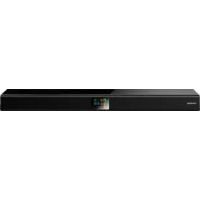
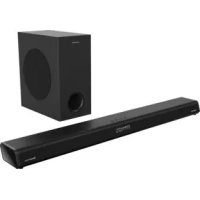
DSB 980 - Soundbar GRUNDIG - Free user manual and instructions
Find the device manual for free DSB 980 GRUNDIG in PDF.



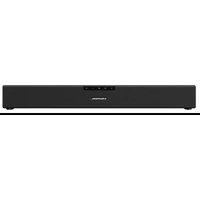
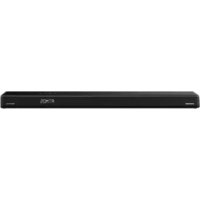
| Product Type | Soundbar |
| Brand | Grundig |
| Model | DSB 980 |
| Dimensions (W x H x D) | 800 x 66 x 117 mm |
| Net weight | 2,0 kg |
| Power supply | 220-240 V~, 50/60 Hz |
| Power consumption (max) | 30 W |
| Standby power consumption | < 0,5 W |
| Network standby power consumption | < 2,0 W |
| Total output power (amplifier) | 120 W (max) |
| Speaker impedance | 8 Ω x 2 |
| Display | 2.4 inches, 320 x 240 pixels, color TFT |
| Network connectivity | Wi-Fi IEEE 802.11 a/b/g/n, Bluetooth 4.2 (A2DP, AVRCP) |
| Audio inputs | HDMI ARC, AUX (RCA and 3.5 mm), USB (5 V, 0.5 A) |
| Supported audio formats (USB and streaming) | MP3, AAC/AAC+ (up to 48 kHz, 16 bits) |
| Digital radio | DAB/DAB+ (Band III), FM (87.5-108 MHz) |
| Internet radio | Yes, via Wi-Fi connection |
| Streaming services | Spotify Connect, podcasts |
| Wall mounting | Yes, brackets included (screw fixing) |
| Included accessories | Remote control, HDMI cable, DAB/FM antenna, 3.5 mm audio cable, wall brackets, AAA batteries (x2) |
| Cleaning | Dry cloth only |
| Operating temperature | Temperate climate |
| Protection class | Class II (double insulation) |
Frequently Asked Questions - DSB 980 GRUNDIG
User questions about DSB 980 GRUNDIG
0 question about this device. Answer the ones you know or ask your own.
Ask a new question about this device
Download the instructions for your Soundbar in PDF format for free! Find your manual DSB 980 - GRUNDIG and take your electronic device back in hand. On this page are published all the documents necessary for the use of your device. DSB 980 by GRUNDIG.
USER MANUAL DSB 980 GRUNDIG
natural_image
Black musical note symbol on white background (no text or numbers)DSB 980
GSB 920
natural_image
Simple line drawing of a rectangular object with an arrow pointing downward, no text or symbols present.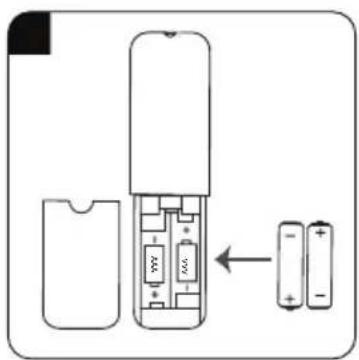
natural_image
Simple line drawing of a device with an arrow indicating direction (no text or symbols)

natural_image
Diagram of a cable connector inserted into a device panel, showing wiring and component placement (no text or symbols)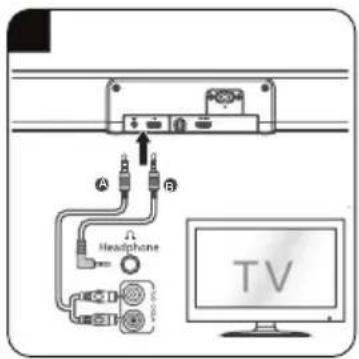



 |  |  | |
| DE | MONTAGE ANSCHLÜSSE | BETRIEB | |
| EN | MOUNTING CONNECTIONS | OPERATION | |
| FR | MONTAGE CONNEXIONS | FONCTIONNEMENT | |
| ES | MONTAJE CONEXIONES FUNCIONAMIENTO | ||
| PL | MONTAŻ PODŁĄCZENIE STEROWANIE | ||
 |  |  | |
| DE | Wi-Fi BLUETOOTH USB | ||
| EN | Wi-Fi BLUETOOTH USB | ||
| FR | Wi-Fi BLUETOOTH USB | ||
| ES | Wi-Fi BLUETOOTH USB | ||
| PL | Wi-Fi BLUETOOTH USB |

VORSICHT
flowchart
graph LR
    A["Network settings\nKeep network connected?"] --> B{?}
    B -->|YES*| C["NO"]
    B -->|Network wizard\nScanning...| D["End"]
Schlüssel (Passwort)
Setup wizard completed
Press PLAY to exit
WI-FI-NETZWERK - ERSTE INSTALLATION
Internet Radio, Podcasts
natural_image
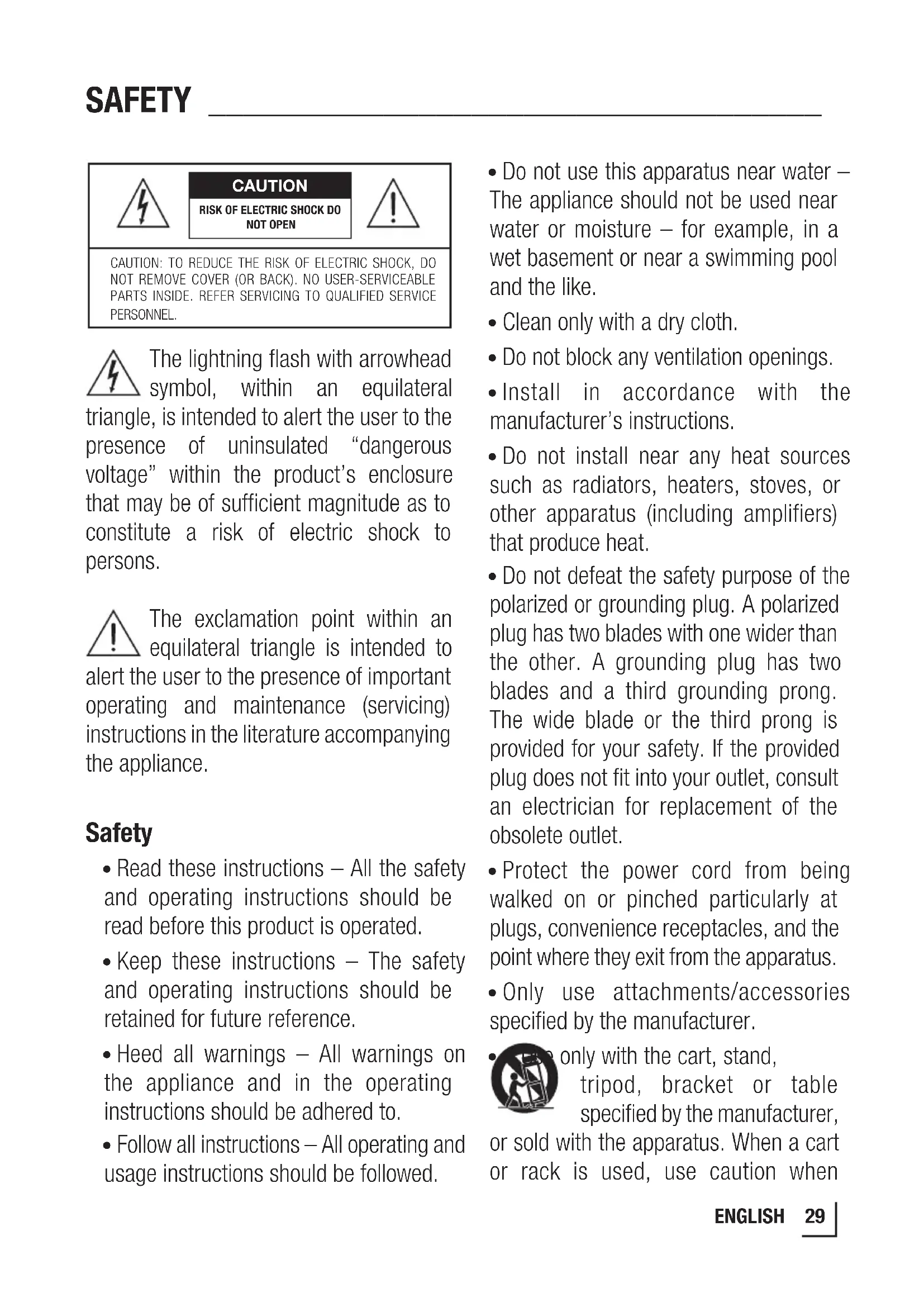
Two icons: a battery and a plug, both in yellow and gray blocks (no text or symbols)The lightning flash with arrowhead symbol, within an equilateral triangle, is intended to alert the user to the presence of uninsulated “dangerous voltage” within the product’s enclosure that may be of sufficient magnitude as to constitute a risk of electric shock to persons.
The exclamation point within an equilateral triangle is intended to alert the user to the presence of important operating and maintenance (servicing) instructions in the literature accompanying the appliance.
Safety
- Read these instructions – All the safety and operating instructions should be read before this product is operated.
- Keep these instructions – The safety and operating instructions should be retained for future reference.
- Heed all warnings – All warnings on the appliance and in the operating instructions should be adhered to.
-
Follow all instructions – All operating and usage instructions should be followed.
-
Do not use this apparatus near water – The appliance should not be used near water or moisture – for example, in a wet basement or near a swimming pool and the like.
- Clean only with a dry cloth.
- Do not block any ventilation openings.
- Install in accordance with the manufacturer's instructions.
- Do not install near any heat sources such as radiators, heaters, stoves, or other apparatus (including amplifiers) that produce heat.
- Do not defeat the safety purpose of the polarized or grounding plug. A polarized plug has two blades with one wider than the other. A grounding plug has two blades and a third grounding prong. The wide blade or the third prong is provided for your safety. If the provided plug does not fit into your outlet, consult an electrician for replacement of the obsolete outlet.
- Protect the power cord from being walked on or pinched particularly at plugs, convenience receptacles, and the point where they exit from the apparatus.
- Only use attachments/accessories specified by the manufacturer.
• Only with the cart, stand, tripod, bracket or table specified by the manufacturer, or sold with the apparatus. When a cart or rack is used, use caution when
moving the cart/apparatus combination to avoid injury from tip-over.
- Unplug the apparatus during lightning storms or when unused for long periods of time.
- Refer all servicing to qualified personnel. Servicing is required when the apparatus has been damaged in any way, such as power supply cord or plug is damaged, liquid has been spilled or objects have fallen into the apparatus, the unit has been exposed to rain or moisture, does not operate normally, or has been dropped.
This equipment is a Class II or double insulated electrical appliance. It has been designed in such a way that it does not require a safety connection to electrical earth.
- The apparatus shall not be exposed to dripping or splashing. No objects filled with liquids, such as vases, shall be placed on the apparatus.
- Minimum distance around the apparatus for sufficient ventilation is 5cm.
- The ventilation should not be impeded by covering the ventilation openings with items, such as newspapers, table-cloths, curtains, etc...
- No naked flame sources, such as lighted candles, should be placed on the apparatus.
- Batteries should be recycled or disposed of as per state and local guidelines.
- The use of apparatus in moderate climates.
Caution
- Use of controls or adjustments or performance of procedures other than those described herein, may result in hazardous radiation exposure or other unsafe operation.
- To reduce the risk of fire or electric shock, do not expose this apparatus to rain or moisture. The apparatus must not be exposed to dripping or splashing and objects filled with liquids, such as vases, must not be placed on apparatus.
- The mains plug/appliance coupler is used as the disconnect device, the disconnect device must remain readily operable.
- Danger of explosion if battery is incorrectly replaced. Replace only with the same or equivalent type.
Warning
- The battery (batteries or battery pack) shall not be exposed to excessive heat such as sunshine, fire or the like.
- Before operating this system, check the voltage of this system to see if it is identical to the voltage of your local power supply.
- Do not place this unit close to strong magnetic fields.
- Do not place this unit on the amplifier or receiver.
- Do not place this unit close to damp areas as the moisture will affect the life of the laser head.
- If any solid object or liquid falls into the system, unplug the system and have it checked by qualified personnel before operating it any further.
- Do not attempt to clean the unit with chemical solvents as this may damage the finish. Use a clean, dry or slightly damp cloth.
- When removing the power plug from the wall outlet, always pull directly on the plug, never yank on the cord.
- Changes or modifications to this unit not expressly approved by the party responsible for compliance will void the user's authority to operate the equipment.
- The rating label is pasted on the bottom or back of the equipment.
- 5150-5350 MHz for this device are restricted to indoor use only within all European Union countries.
Battery usage CAUTION

To prevent battery leakage which may result in bodily injury, property damage, or damage to the apparatus:
- Install all batteries correctly, + and - as marked on the apparatus.
- Do not mix old and new batteries.
- Do not mix alkaline, standard (Carbon-Zinc) or rechargeable (Ni-Cd, Ni-MH, etc.) batteries.
- Remove batteries when the unit is not used for a long time.

Bluetooth®
The Bluetooth word mark and logos are registered trademarks owned by Bluetooth SIG,. Inc.
HDMI HOT REMOUS MULTIMEDIA STORAGE
The Adopted Trademarks HDMI, HDMI High-Definition Multimedia Interface, and the HDMI Logo are trademarks or registered trademarks of HDMI Licensing Administrator, Inc. in the United States and other countries.

Spotify
The Spotify Software is subject to third party licenses found here: www.spotify.com/connect/third-party-licenses
Dear Customer,
Congratulations on the purchase of your new GRUNDIG Multimedia Soundbar DSB 980/GSB 920.
Please read the following user notes carefully to ensure full enjoyment of your quality GRUNDIG product for many years to come.
A responsible approach!

GRUNDIG focuses on contractually agreed social working conditions with fair wages for both internal employees and suppliers. We also attach great importance to the efficient use of raw materials with continuous waste reduction of several tonnes of plastic every year. Furthermore, all our accessories are available for at least 5 years.
For a future worth living.
Grundig.
Controls and parts
See the figure on page 3.
A Main-Unit
1. Remote Control Sensor
2. Display Window
3. (ON/OFF) Button
4. (Source) Button
5. VOL+/- Buttons
6. AUX Socket
7. USB Socket
8. ANT. Socket
9. HDMI ARC Socket
10. AC\~Socket
B Remote Control
- ☐ Switch the unit between ON and STANDBY mode.
- MODE Select the play function.
- DIMMER Adjust display brightness (off / low/mid/high)
- MENU Show menu in each source
- INFO View extra information of playing content or mode
- PRE Preset radio stations in Internet Radio / DAB/ FM mode
- MEM View memory stations
- REP Select repeat/shuffle play modes.
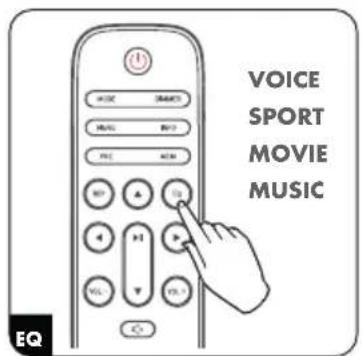
- EQ Select Equalizer (EQ) Effect [VOICE/ SPORT/ MOVIE/ MUSIC]
- Navigate left/right/up/down through menus.

(▲) Show station list in DAB mode. In FM mode, short press for 0.05MHz frequency change, long press will scan to previous/next available station.
(◀)Previous track/Next track.
(▶) Start playback, pause.
Confirm a selection.
- 📋 × Mute or resume the sound. VOL +/- Increase/decrease the volume level.
- 1 2 3 Numric Button: Select preset 4 5 5+ radio station or stored programme
AT A GLANCE
C AC Power Cord x1
D HDMI Cable x1
E FM/DAB Aerial x1
F Audio Cable x1
G Wall Bracket x2
Screws/Gum Cover x2
H AAA Batteries x2
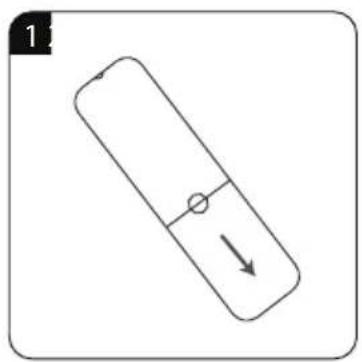
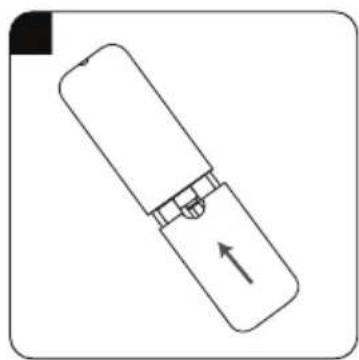
Prepare the Remote Control
The provided Remote Control allows the unit to be operated from a distance.
- Even if the Remote Control is operated within the effective range 19.7 feet (6m), remote control operation may be impossible if there are any obstacles between the unit and the remote control.
- If the Remote Control is operated near other products which generate infrared rays, or if other remote control devices using infra-red rays are used near the unit, it may operate incorrectly. Conversely, the other products may operate incorrectly.
Precautions Concerning Batteries
- Be sure to insert the batteries with correct positive “💡” and negative “💡” polarities.
- Use batteries of the same type. Never use different types of batteries together.
-
Either rechargeable or non-rechargeable batteries can be used. Refer to the precautions on their labels.
-
Be aware of your fingernails when removing the battery cover and the battery.
- Do not drop the remote control.
- Do not allow anything to impact the remote control.
- Do not spill water or any liquid on the remote control.
- Do not place the remote control on a wet object.
- Do not place the remote control under direct sunlight or near sources of excessive heat.
- Remove the battery from the remote control when not in use for a long period of time, as corrosion or battery leakage may occur and result in physical injury, and/or property damage, and/or fire.
- Do not use any batteries other than those specified.
- Do not mix new batteries with old ones.
- Never recharge a battery unless it is confirmed to be a rechargeable type.
PLACEMENT AND MOUNTING
Normal Placement (option A)
- Place Soundbar on leveled surface in front of TV.
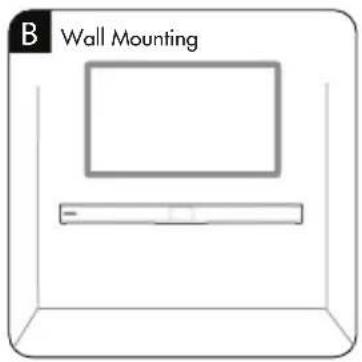
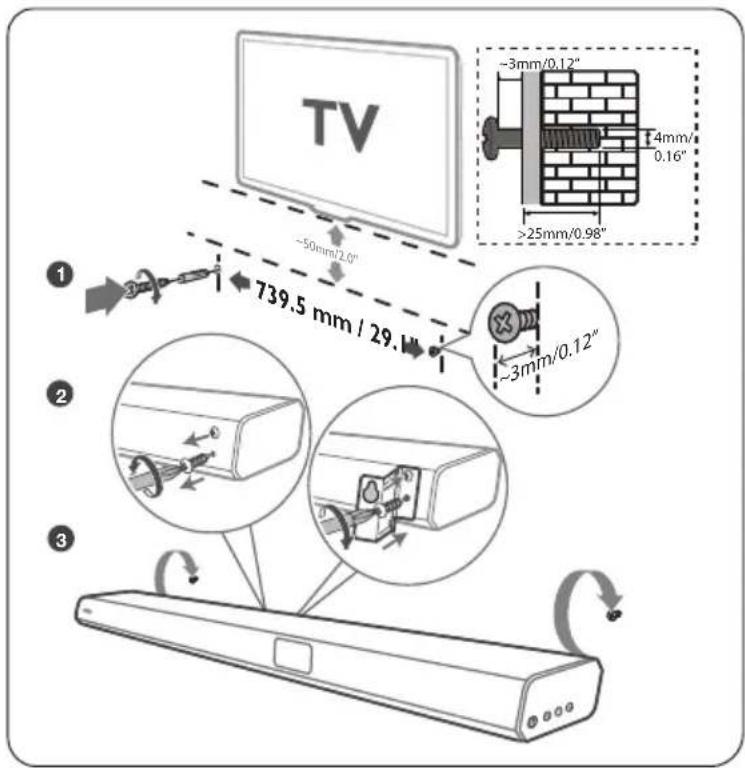
Wall Mounting (option-B)
Note:
- Installation must be carried out by qualified personnel only. Incorrect assembly can result in severe personal injury and property damage (if you intend to install this product yourself, you must check for installations such as electrical wiring and plumbing that may be buried inside the wall). It is the installer's responsibility to
verify that the wall will safely support the total load of the unit and wall brackets.
- Additional tools (not included) are required for the installation.
- Do not overtighten screws.
- Keep this instruction manual for future reference.
- Use an electronic stud finder to check the wall type before drilling and mounting.
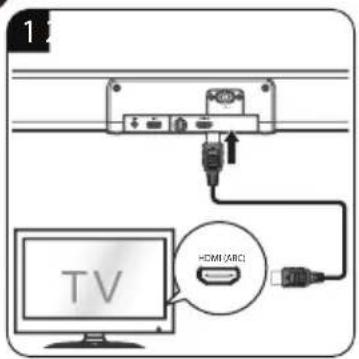
HDMI ARC Connection
ARC (Audio Return Channel)
The ARC (Audio Return Channel) function allows you to send audio from your ARC- compliant TV to your sound bar through a single HDMI connection. To enjoy the ARC function, please ensure your TV is both HDMI-CEC and ARC compliant and set up accordingly. When correctly set up, you can use your TV remote control to adjust the volume output (VOL +/- and MUTE) of the sound bar.
- Connect the HDMI cable (included) from unit's HDMI (ARC) socket to the HDMI (ARC) socket on your ARC compliant TV. Then press the remote control to select HDMI ARC.
Tips:
- Your TV must support the HDMI-CEC and ARC function. HDMI-CEC and ARC must be set to On.
- The setting method of HDMI-CEC and ARC may differ depending on the TV. For details about ARC function, please refer to the owner's manual.
- Only HDMI 1.4 or higher version cable can support the ARC function.
- Your TV digital sound output S/PDIF mode setting must be PCM.
Connect the (DAB/FM) Aerial
- Connect one end of the (DAB/FM) aerial (included) to the ANT. socket at the rear of the unit. Then position the aerial to obtain optimum reception.
IMPORTANT:
- You may need to adjust the position of the aerial when tuning the radio to receive the strongest signal.
- Never leave the aerial where it can be pulled by young children.
Use the AUX Socket
- Use a RCA to 3.5mm audio cable (not included) to connect the TV's audio output sockets to the AUX socket on the unit.
- Use a 3.5mm to 3.5mm audio cable (included) to connect the TV's or external audio device headphone socket to the AUX socket on the unit.
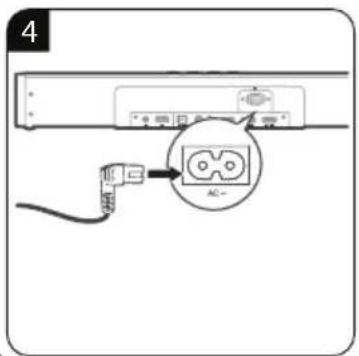
Connect Power
Risk of product damage!
- Ensure that the power supply voltage corresponds to the voltage printed on the back or the underside of the unit.
- Before connecting the AC power cord, ensure you have completed all other connections.
- Connect the mains cable to the AC\~ socket of the main unit and then into a mains socket.
Network Requirements
- A broadband internet connection in combination with a wireless access point (Wi-Fi), router or similar network device is required for GRUNDIG GSB 920 / DSB 980 Internet radio function.
- Ensure the wireless network device supports Wi-Fi (802.11 b/g/n) wireless connection.
- Ensure the wireless access point name (SSID) must be visible and you know the WEP, WPA or WPA2 security code (password) to activate the connection.
- Check with your PC, tablet or smartphone to make sure that you connect your device to the correct wireless network.
Notes:
- The strength of the RF signal will depends on the distance between the device and your Wi-Fi router.
- Normally in home Wi-Fi environments, the best results for the Internet radio will typically be achieved when the distance between your device and wireless access point is between 10-20 meter.
- However, the actual range will depend on the building type, other nearby wireless network(s), and possible interference sources.
WI-FI NETWORK-FIRST INSTALLATION
Setup wizard (installation assistant)
-
Place your Soundbar on a convenient place within the range of Wi-Fi router to allow for a good connection.
-
Connect the main unit to the mains socket. When you connect the device to the mains for the first time or after a factory reset, the display will show the “GRUNDIG” logo briefly.
- And then, the »Setup Wizard« installation assistant appears which guides you through the installation step by step. Follow the steps on the screen to complete the installation:
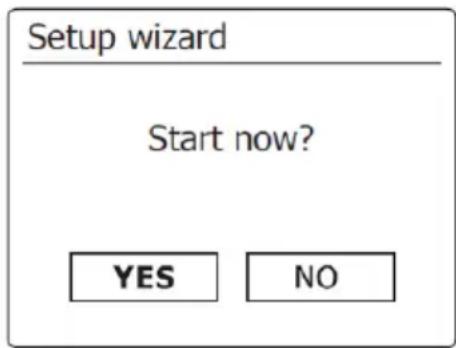
- Use the navigation controls [,▲,▼] and [
▶] to start and complete the setup wizard.
- YES is highlighted by default on the screen. Just short press the [▶]button if your Wi-Fi network is available for connection.
- Once “YES” is confirmed, the Setup wizard starts; (see “Continue for the Setup wizard” in the following page)
- Selecting »NO« will skip the Setup wizard. Select this option if Wi-Fi network is not available for connection. Furthermore, A pop-up menu will ask “Run wizard again at next start up”. Choose the desired option (YES or NO) and the device
will return to the Main Menu. - You can recall this Setup Wizard from the
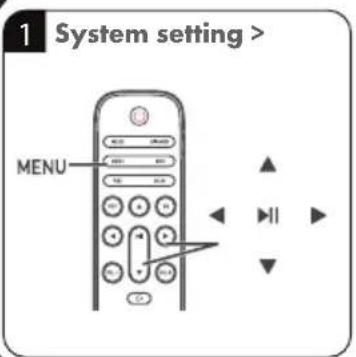
any time you want by pressing the »MENU« on remote control to edit or create a new WI-FI connection. - (e.g. Current mode menu > System Settings > option "Setup wizard")
Network settings
Note:
- By default, the Soundbar will shut down its Wi-Fi connection when it is in standby. This minimizes power consumption but it does mean that you will need to switch the radio on manually in order to use any other remote control software (like UNDOK app). if you want to remotely control the Soundbar even when it has been switched into standby.
- You can also choose to keep the network connected by using the “Keep network connected” option in the network settings menu.
- In the standby mode, the Wi-Fi signal indicator is displayed with or without a cross through it according to the chosen network settings.
- You will then need to set “Keep network connected” option.
flowchart
graph LR
    A["Network settings\nKeep network connected?"] --> B{?}
    B -->|YES*| C["NO"]
    B -->|Network wizard\nScanning...| D["End"]
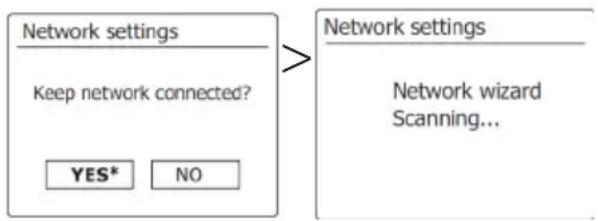
- Choose < YES > to activate this function (if you will use the UNDOK app for remote control) or choose < NO > to deactivate this function.
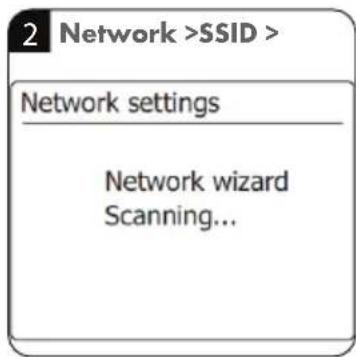
- The Soundbar will then start scanning for available Wi-Fi networks.
- Display: < Network wizard Scanning / > will appear. After completed
- Display:
- After network wizard scan is completed, the name of your wireless network (SSID) will appear on the screen together with all other available networks (SSID List).
- Highlight the name of your wireless network in the SSID list by scrolling up or down and go to the next steps to make required inputs.
Note:
- If your Wi-Fi network is not found in SSID list;
-then device may be too far from your Wi-Fi router. Or;
-you may need to switch on your wireless router (please see the instructions supplied with it). Or;
-it may be because the router is configured not to broadcast the SSID. You should then select the < Manual config > option in order to enter the network details manually.
-If your network name is being broadcast, and it was not found, then try selecting the
WPS (Optional)
Note:
- WPS (Wi-Fi Protected Setup) encrypted networks are identified by “[WPS]” shown in front of the SSID, and have two methods of connection. Select one and follow the prompts. When using the Network wizard an additional option < Skip WPS > is available.
< Push Button >
- If you select this option, the Soundbar prompts you to press the connect button on the router and then press the [▶]button.
< PIN >
- If you select the option < PIN >, the Soundbar generates an 8-digit code number which you should enter into the wireless router using a web browser (refer to your router's user documentation). You should then press the▶] button.
< Skip WPS>
- Select < Skip WPS > to skip WPS setup and go directly to the < Key > menu to enter the network password when your Wi-Fi router is a standard encrypted network that does not support WPS.
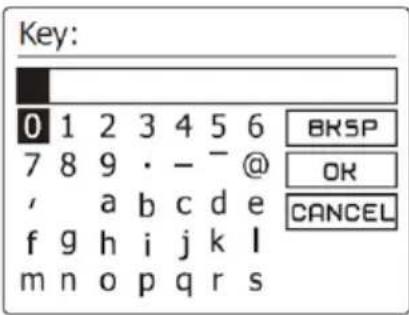
Key (Password)
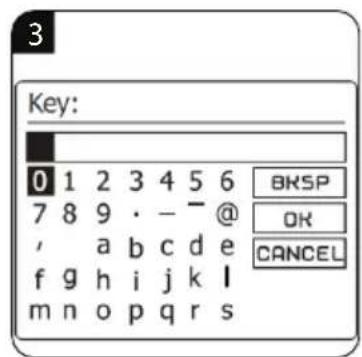
- After your Wi-Fi network is found by the device, the »Password entry« screen will appear.
- if your network is using one of the encryption systems: WEP, WPA/WPA2. You will need to enter the correct encryption key (password) into the
WI-FI NETWORK-FIRST INSTALLATION
Soundbar to allow it to communicate with your Wi-Fi network.
< Password entry > screen
Note:
- Short press the »INFO« button on remote control, and then short press the [▲]▼buttons to can quickly access (directly move cursor) the desired character,
-Select » to erase a character just entered.
-Select » ☑ when the complete password has been entered.
-Select » CANCE to cancel and re-run the Network Wizard.
-Press the [▶] button to confirm after each character selection.
• After the password is entered correctly, highlight section.
the » «BOX, and then short press the [ ] button to confirm and exit the network wizard menu.
- < Connecting / >, < Connected > and then the < Setup wizard completed> screens are displayed consecutively.
Setup wizard

Setup wizard completed
Press PLAY to exit
- Short press the▶[1] button to exit the setup wizard. Once you have connected your Soundbar to your Wi-Fi network (and therefore also to the Internet) it will display the Main Menu.

Main menu
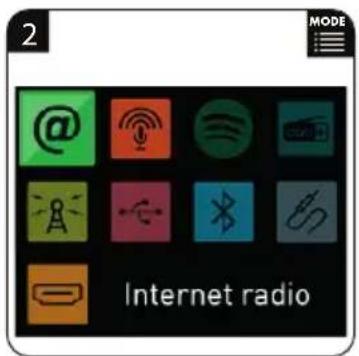
Internet radio
Podcast
Spotify
DAB
FM
USB
Bluetooth
AUX in
HDMI ARC
Sleep
System settings
- Note: If you want to switch the Soundbar to Standby mode, press the » 🔊 « button on Soundbar or on the remote control. Soundbar will display the time as obtained from the Internet.
-If the time display is not correct for any reason, it can easily be adjusted later, see "system setting"
01/01/2019
15:37
- The Wi-Fi network setup is done and the Soundbar's Internet Radio function is now ready to use.
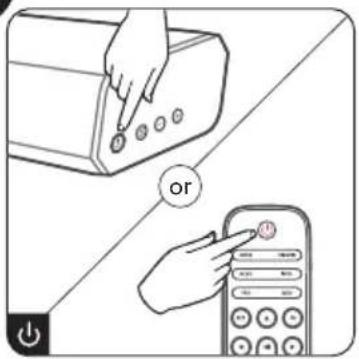
Standby/ON
- Press the button on the unit or on the remote control to switch the unit ON.
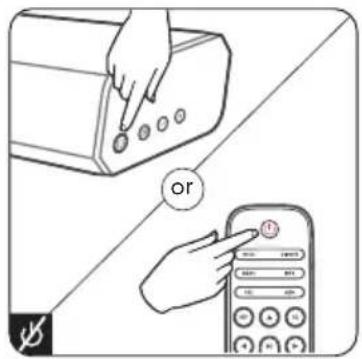
- Press the button again to switch the unit back to STANDBY mode.
- Disconnect the mains plug from the mains socket if you want to switch the unit OFF completely.
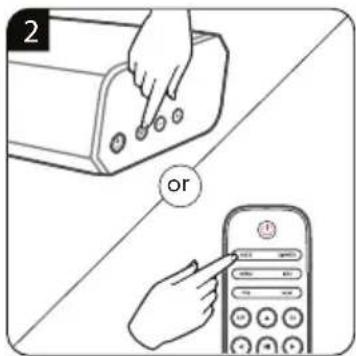
Select Modes
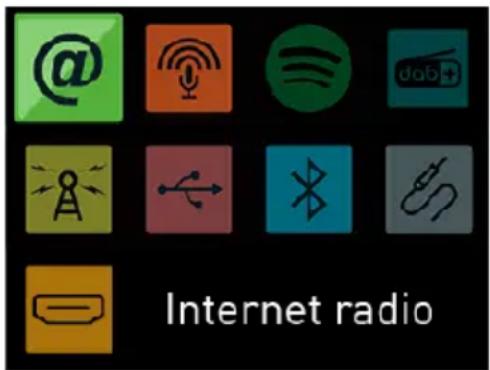
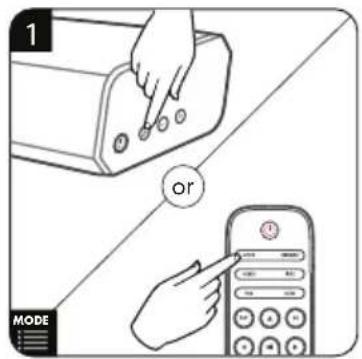
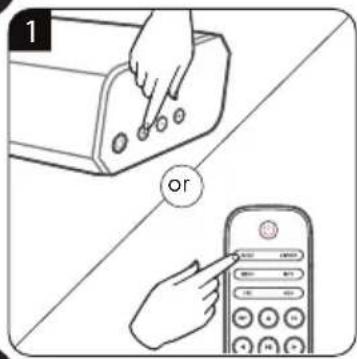
- Press the [MODE] button on remote control to open the Mode menu.
- Select the desired mode icon (e.g. from internet radio to FM radio mode) by short pressing the [▲,▼,◀] button on remote control and then short press the [▶] button confirm.
or
- Press the (SOURCE) button on the unit to open the Mode menu.
- Press the (SOURCE) button continuously will move the cursor circularly, once target Mode is selected, release 3(SOURCE) button and unit will enter into selected Mode after 3 seconds.
Adjust the Volume
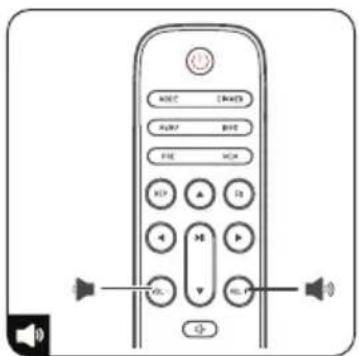
- Press the + / - (VOL) buttons on the unit or on the remote control to adjust the volume.
- If you wish to turn the sound off, press the (MUTE) button on the remote control.
- Press the ⬆× (MUTE) button again or press the + / - (VOL) buttons to resume normal listening.
Internet Radio, Podcasts
natural_image
Two colored square icons: orange with a microphone and signal symbol, green with an '@' symbol (no text or numbers)- Device can play thousands of radio stations and podcasts from around the world though a broadband Internet connection. When you select Internet radio or Podcasts mode, the device get a list of stations or podcasts.
- The list menu is provided from the portal, so it is only accessible when the device is connected to the Internet. The contents and submenus may change from time to time. Choose required category and search the station or podcast to listen. On the screen press [▲] on the remote control to view the station list.
Spotify

- Use your phone, tablet or computer as a remote control for Spotify. Go to spotify.com/connect to learn how.
- The Spotify Software is subject to third party licenses found here: http://www.spotify.com/connect/third-party-licenses.
DAB+ Radio

- DAB mode receives DAB/DAB+ digital radio and displays information about the station, stream and track playing.
Scanning for stations
- The first time you select DAB radio mode, or if the station list is empty, the radio automatically performs a full scan to see what stations are available. You may also need to start a scan manually to update the list of stations.
- To start a scan manually, choose Full scan. To scan only stations with good signal strength, select Local scan. Once the scan is complete, the radio shows a list of available stations.
- To remove stations that are listed but not unavailable, choose Prune invalid. Turn the navigate reel to view a list of stations and press to select.
- Once selected, the station plays and the screen show information about station, track or show as broadcast.
- On the screen press [▲, ▼] on the remote control to view the station list.
Settings
- Dynamic range compression (DRC) If you are listening to music with a high dynamic range in a noisy environment, you may wish to compress the audio dynamic range. This makes quiet sounds louder, and loud sounds quieter. You can change DRC as off, low or high.
- Station order You can choose the order of the DAB station list to be either Alphanumeric, Ensemble or Valid. Ensemble lists groups of stations that are broadcast together on the same ensemble. Valid lists valid stations first, alphanumerically, then off-air stations.
FM Radio
- FM radio mode receives analogue radio from the FM and displays RDS (Radio Data System) information about the station and where broadcast.
- The first time you select FM radio mode, or if the station list is empty, the device will run auto scan and save the stations to the preset list.
- To find a station, press [▶] The frequency display starts to run up as the device scans the FM band. Alternatively, you can scan up or down by turning the navigate knob.
Settings
• ATS: Run the auto scan function once
- Scan settings By default, FM scans stop at any available station. This may result in a poor signal-to-noise ratio (hiss) from weak stations. To change the scan settings to stop only at stations with good signal strength, select Yes after choosing Strong station only.
- Audio settings All stereo stations are reproduced in stereo. For weak stations, this may result in a poor signal-to-noise ratio (hiss). To play weak stations in mono, select FM weak reception: Listen in mono only and then YES.
USB
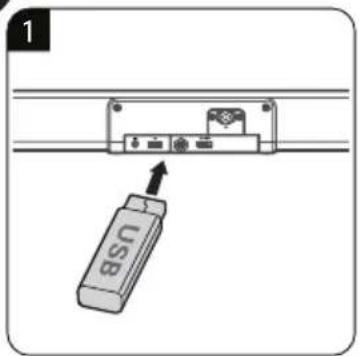
- In USB mode, plug in the a USB drive to play.
- If the plugged USB drive contains the music tracks in different folders. Press the [▲,▼] buttons to skip to the previous/next album.
Bluetooth
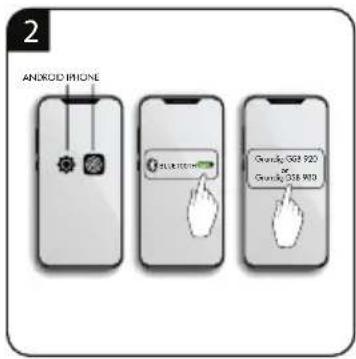
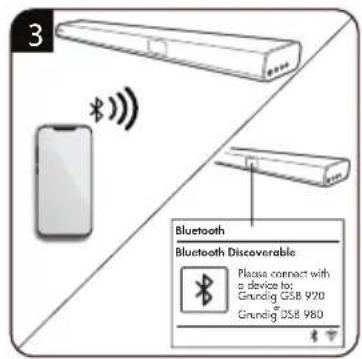
- In Bluetooth mode, you can turn on the Bluetooth of your Bluetooth device. Press and hold [▶]to turns Bluetooth discoverable. From your Bluetooth device, search the Soundbar Grundig GSB 920/ Grundig DSB 980 to pairing. When it is waiting for pairing, there is a blinking Bluetooth icon at the bottom. If the pairing is successful, the Bluetooth icon becomes steady. Control the music playback from your Bluetooth device. The soundbar may not be available to connect some TV models by Bluetooth.
HDMI, AUX
- In HDMI ARC mode plays audio from an external source. Turn the volume low on both the soundbar and the audio device (if adjustable). Enter HDMI ARC mode, then adjust the volume as required.
- In AUX mode plays audio from an external source. Turn the volume low on both the soundbar and the audio device (if adjustable). Enter AUX mode, then adjust the volume as required.
Sleep
- To set the sleep timer, select sleep under [Main menu] > [Sleep] > [▲]▼ Choose from Sleep OFF, 15, 30, 45 or 60 minutes and confirm. Once you select a sleep period, the system returns to the now playing screen.
Deactivating the sleep timer
- To switch off the sleep timer early, press the ⏻ button to switch off the device.
Quick view of control buttons for menu system settings
- Press [MENU] to open the menu. Press again to close the menu and return to playing screen.
- On the menu, press [▲, ▼, ◀, ▶] button on the remote control to move along the entries.
- Press▶[1] to confirm; press [◀] on the remote control to step back.
- You can recall this Setup Wizard from the < System Settings > any time you want by pressing the[MENU] button on remote control to edit or create a new WI-FI connection.
- (e.g. Current mode menu > System Settings > option "Setup wizard")
System Settings
Equaliser >
Streaming audio quality >
Network >
Time/Date >
Inactive Standby
Language >
Factory Reset
Software Update >
Setup Wizard
Info
Privacy Policy
Backlight >
Equaliser
- Several preset EQ modes are available: VOICE / SPORT / MOVIE / MUSIC. Press» EQ « to select.
Streaming audio quality
- Low quality
- Normal quality
-
High quality
-
Select the required level of audio quality for the available stremming services. The actual bit rate for each level depends on the service being used.
- The currently set quality level is indicated with an asterisk.
Network
Networkwizard:
- Enter to search AP SSID, then input the WEP / WPA key or choose Push Button/Pin/Skip WPS to connect to the wireless network.
PBC Wlan setup:
- Push Button Configuration, it is to connect the AP that supports WPS (Wi-Fi Protected Setup).
View settings:
- View the information of current connected network: Active connection, MAC address, Wlan region, DHCP, SSID, IP address, Subnet mask, Gateway address, Primary DNS and Secondary DNS.
Manual settings:
- Enable or disable DHCP (Dynamic Host Configuration Protocol). Input the SSID, WEP / WPA key and/or other configuration.
Network profile:
- The device remembers the last four wireless networks it has connected to, and automatically tries to connect to whichever one of them it can find. From here you can see the list of registered networks. You can delete unwanted networks. Clear network settings: Select “YES” to clear all the current network settings. Select “NO” to cancel.
Keep network connected:
- If you choose to keep network connected, the WiFi will not disconnect even you are in standby mode or non-network mode.
Note:
- The soundbar will shut down its Wi-Fi connection when it is in standby. This minimizes power consumption but it does mean that you will need to switch the radio on manually in order to use any other remote control software (like UNDOK app). if you want to remotely control the Soundbar even when it has been switched into standby.
- You can also choose to keep the network connected by using the “Keep network connected” option in the network settings menu.
- In the standby mode, the Wi-Fi signal indicator is displayed with or without a cross through it according to the chosen network settings.
- You will then need to set "Keep network connected" option.
Time/Date
- Set the time manually or auto update, time format, time zone and daylight. Details can be referred to Setting date and time under Section First-time setup.
Inactive Standby
- This unit can switch to standby automatically after a set period of time. To set the inactive standby timer, select [inactive standby]. Choose from OFF, 2, 4, 5 or 6 hours and confirm. The currently set hour is indicated with an asterisk.
Note:
- After the setting is completed, the store mode will remain activated until it is disabled by the user.
Language
- Change it as your preference. Available languages: English, Danish, Dutch, Finnish, French, German, Italian, Norwegian, Polish, Portuguese, Spanish, Swedish, Turkish.
Factory Reset
- Resetting all user settings to default values, so that time and date, network configuration and presets are lost. However, current software version of the radio is maintained.
Software Update
- Auto-check setting: This option automatically checks for new updates from time to time. Automatic updating is enabled by default. Check now: Search for available updates immediately. You will be asked if you want to go ahead with download and installation of an update. After a software upgrade, all user settings are maintained.
Note:
- Before starting a software upgrade, ensure that the radio is plugged into a stable main power connection. Disconnecting power during an upgrade may permanently damage the unit.
Setup Wizard
- With this function, you can start the setup wizard at any time. Any parameters or stations entered already are not deleted. For more information, please read the Section First-time setup.
Info
• View the firmware version and the radio ID.
Privacy Policy
• View the information of Privacy Policy.
Backlight
- You may change the power - on backlight level to High, Medium or Low. And adjust the timeout duration which the radio turns to standby backlight level when it has not been controlled. Press » DIMMER « to change the brightness of the backlight.
To keep the warranty valid, never try to repair the system yourself. If you encounter problems when using this unit, check the following points before requesting service.
| Fault Possible cause/action | |
| General InformationNo Function | If the device has been disrupted by a thunderstorm, a static charge or another external factor, follow this procedure to resolve the problem: Disconnect the power cord and then plug it in again. |
| No Sound -The volume may be set too | low or in mute mode.-In Bluetooth mode: Set the volume of the external device to the maximum and then control the volume using the kitchen radio. |
| RadioPoor radio reception | -Weak radio signal. Adjust the wire antenna to optimize the radio reception.-Interference from electrical devices such as television, neon lamps, computer etc.-If necessary, select another location to improve the radio signal.-The station may not be available currently, try it again later or select another station.-The link of the station is changed or the station no longer transmits – ask the provider for information (when necessary). |
| No station is found | |
| BluetoothNo connection | -Take care to ensure that all settings have been made correctly on all devices. The Bluetooth® function may be deactivated on the external device. Activate this, if necessary.-Check whether the device to be connected is switched on and is in search mode. |
| Wi-FiConnection cannot be established.Model Number DSB 980/GSB 920 | -Check the availability of WLAN network on the router.-Place the Wi-Fi router closer to the Kitchen Radio.-Make sure the password is correct.-Check the WLAN function or reboot the modem and Wi-Fi router. |
| Power Supply 220-240V~ 50/60 Hz | |
| Power Consumption 30 W | |
| Power Consumption (ECO mode) <0.5 W | |
| Networked standby power consumption <2.0 W | |
| Amplifier (Total max. output power) 120 W | |
| Speaker Impedance 8Ω x 2 | |
| Display 2.4", 320 x 240, TFT colour display | |
| Network supported WiFi IEEE 802.11a/b/g/n wireless;Bluetooth (BT 4.2, Supports A2DP, AVRCP profiles) | |
| Frequency band WiFi: 2.412-2.472 GHz, | 5.18-5.32 GHz, 5.50-5.70 GHz,5.745-5.825 GHz; Bluetooth: 2.402-2.48 GHz |
| Radio frequency power transmitted WiFi | 2.4G: 17.6dBm; WiFi 5G: 16.38dBm;WiFi 5.8G: 8.07dBm; Bluetooth: 7.59dBm |
| Encrypted key WEP, WPA, WPA2 (PSK), WPS | |
| Streaming Supported Formats | MP3, AAC/AAC+ (up to 48kHz, 16bits) |
| USB | 5.0 V == 0.5 ASupported formats: MP3System compatibility: FAT 16, FAT 32 |
| DAB/DAB+ | Band III, 174.928 – 239.200 MHz |
| FM | 87.5 – 108.0 MHz |
| Dimensions (WxHxD) | 800 x 66 x 117 mm |
| Net weight | 2.0 kg |
| Audio input sensitivity | 250mV |
| Frequency Response | 40Hz-20KHz |
| Remote Control | |
| Distance/Angle | 6m/30° |
| Battery Type | AAA (1.5V x 2) |
Compliance with the WEEE Directive and Disposing of the Waste Product:
This product complies with EU WEEE Directive (2012/19/EU). This product bears a classification symbol for waste electrical and electronic equipment (WEEE).

This symbol indicates that this product shall not be disposed with other household wastes at the end of its service life. Used device must be returned to official collection point for recycling of electrical and electronic devices. To find these collection systems please contact to your local authorities or retailer where the product was purchased. Each household performs important role in recovering and recycling of old appliance. Appropriate disposal of used appliance helps prevent potential negative consequences for the environment and human health.
Compliance with RoHS Directive
The product you have purchased complies with EU RoHS Directive (2011/65/EU). It does not contain harmful and prohibited materials specified in the Directive.
Package information

Packaging materials of the product are manufactured from recyclable materials in accordance with our National Environment Regulations. Do not dispose of the packaging materials together with the domestic or other wastes. Take them to the packaging material collection points designated by the local authorities.
Technical Information
This device is noise-suppressed according to the applicable EU directives. This product fulfils the European directives 2014/53/EU, 2009/125/EC and 2011/65/EU.
You can find the CE declaration of conformity for the device in the form of a pdf file on the Grundig Homepage www.grundig.com/downloads/doc.

PRECAUCIÓN
RIESGO DE DESCARGA ELÉCTRICA; NO ABRIR

PRECAUCIÓN: PARA REDUCIR EL RIESGO DE DESCARGAS ELÉCTRICAS, NO RETIRE LA CUBIERTA (O LA PARTE POSTERIOR) NO HAY PIEZAS QUE SEAN REPARABLES POR EL USUARIO EN EL INTERIOR. COMUNÍQUESE CON EL SERVICIO TÉCNICO AUTORIZADO.

Setup wizard completed
Press PLAY to exit
natural_image
Two colored square icons: orange with a microphone and white signal symbol, and green with an @ sign (no text or numbers)natural_image
Two icons: a battery and a plug, both in yellow and gray blocks (no text or symbols)Setup wizard completed
Press PLAY to exit
RÉSEAU WI-FI - PREMIÈRE INSTALLATION
Radio Internet, Podcasts
natural_image
Two colored square icons: orange with a microphone and white signal symbol, and green with an @ sign (no text or numbers)natural_image
Two icons: a battery and a plug, both in yellow and gray blocks (no text or symbols)Information technique
Setup wizard completed
Press PLAY to exit
- VORSICHT
- Schlüssel (Passwort)
- WI-FI-NETZWERK - ERSTE INSTALLATION
- Internet Radio, Podcasts
- Safety
- Caution
- Warning
- Battery usage CAUTION
- Bluetooth®
- HDMI HOT REMOUS MULTIMEDIA STORAGE
- Spotify
- Controls and parts
- B Remote Control
- AT A GLANCE
- Prepare the Remote Control
- Precautions Concerning Batteries
- PLACEMENT AND MOUNTING
- Normal Placement (option A)
- Wall Mounting (option-B)
- Note:
- HDMI ARC Connection
- ARC (Audio Return Channel)
- Tips:
- Connect the (DAB/FM) Aerial
- IMPORTANT:
- Use the AUX Socket
- Connect Power
- Risk of product damage!
- Network Requirements
- Notes:
- WI-FI NETWORK-FIRST INSTALLATION
- Setup wizard (installation assistant)
- Network settings
- WPS (Optional)
- < Push Button >
- < PIN >
- < Skip WPS>
- Key (Password)
- Internet radio
- Standby/ON
- Select Modes
- or
- Adjust the Volume
- DAB+ Radio
- Scanning for stations
- Settings
- FM Radio
- USB
- Bluetooth
- HDMI, AUX
- Sleep
- Deactivating the sleep timer
- Quick view of control buttons for menu system settings
- Equaliser
- Streaming audio quality
- Network
- Networkwizard:
- PBC Wlan setup:
- View settings:
- Manual settings:
- Network profile:
- Keep network connected:
- Time/Date
- Inactive Standby
- Language
- Factory Reset
- Software Update
- Setup Wizard
- Info
- Privacy Policy
- Backlight
- Compliance with the WEEE Directive and Disposing of the Waste Product:
- Compliance with RoHS Directive
- Package information
- Technical Information
- PRECAUCIÓN
- RÉSEAU WI-FI - PREMIÈRE INSTALLATION
- Radio Internet, Podcasts
- Information technique
Brand : GRUNDIG
Model : DSB 980
Category : Soundbar