TFTV791 - TV COBY - Free user manual and instructions
Find the device manual for free TFTV791 COBY in PDF.



| Product Type | Portable LCD TV |
| Brand | Coby |
| Model | TFTV791 |
| Screen Size | 7 inches (diagonal) |
| Screen Resolution | 480 x 234 pixels |
| TV Tuner Type | ATSC, QAM, NTSC |
| AC Power | AC Adapter 100-240V, 50/60 Hz, output 9V 2A |
| Car/Boat Power | DC Adapter 9V (included) |
| Rechargeable Battery | Lithium-ion 7.4V 2000mAh, battery life ~2.5 hours |
| Speakers | Built-in stereo, 8Ω, 3W total |
| Video Inputs | Composite 3.5 mm (via included RCA adapter) |
| Audio Inputs | Stereo 3.5 mm |
| Headphone Output | 3.5 mm jack |
| Antenna | Built-in telescopic + external magnetic included |
| Antenna Connectivity | Coaxial 75Ω |
| Remote Control | Infrared, CR2025 battery included |
| Care and Cleaning | Unplug before cleaning, use a damp cloth, no liquid cleaners |
| Safety | Do not open the casing, avoid moisture, follow grounding instructions |
| Spare Parts and Repairability | Use only identical parts, call a qualified technician |
| General Information | Operating temperature: 10°C to 40°C (50°F to 104°F) |
Frequently Asked Questions - TFTV791 COBY
User questions about TFTV791 COBY
0 question about this device. Answer the ones you know or ask your own.
Ask a new question about this device
Download the instructions for your TV in PDF format for free! Find your manual TFTV791 - COBY and take your electronic device back in hand. On this page are published all the documents necessary for the use of your device. TFTV791 by COBY.
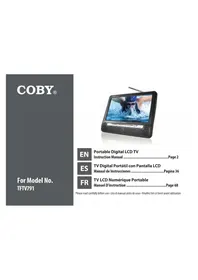
USER MANUAL TFTV791 COBY
For Model No. TFTV791
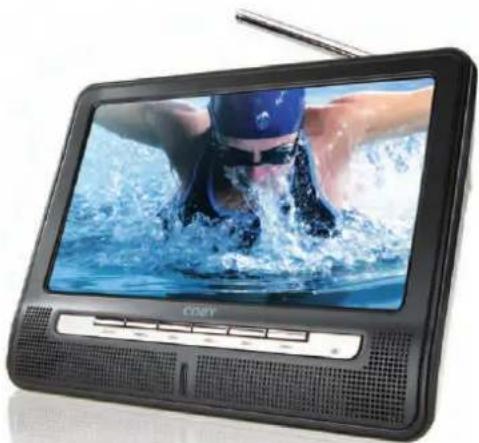
natural_image
Black CRT television displaying a swimmer in action, no visible text or symbols on screen or body.EN
Portable Digital LCD TV
Instruction Manual Page 2
ES
Using the View Stand 7
Remote Control....8
Using the Remote Control 9
CONNECTIONS AT A GLANCE 10
Power....10
Using the AC Adapter....10
DC Car/Boat Adapter....11
Using the Rechargeable Battery 11
Connecting the Antenna....12
Using the Built-In Antenna 13
Using the External Antenna 14
Audio/Video Connections (optional)....15
Using Headphones or Earphones 15
Audio/Video (AV) Input 16
GETTING STARTED....17
Using the TV for the First Time 17
Step 1: Set the unit to TV mode....17
Step 2: Perform a channel scan. 17
Basic TV Controls....18
Changing Channels 19
Adjusting the Volume 19
SYSTEM MENU....20
System Menu Controls 20
Picture Setup 21
Audio Setup 22
Time Setup 22
General Setup 23
Channel Setup 23
SAFETY NOTICES......25
TROUBLESHOOTING & SUPPORT....31
SPECIFICATIONS....34
Thank You

Congratulations on your purchase of a Coby portable LCD television. This manual is designed to help you easily set up and begin using your new TV right away. Please read this manual carefully and retain it for future reference.
Package Contents
Coby portable LCD TV (main unit) ✦
AV connection cable ★
External antenna ★
AC power adapter ★
DC power adapter (for the car/boat) ★
Remote control ★
Features
to be added from Kat
If any of the above items are missing, please contact the dealer from whom you purchased this product.

This package may contain plastic bags or other materials that pose a hazard to children. Be sure to safely dispose of all packing materials after opening.
Unit at a Glance

Front View
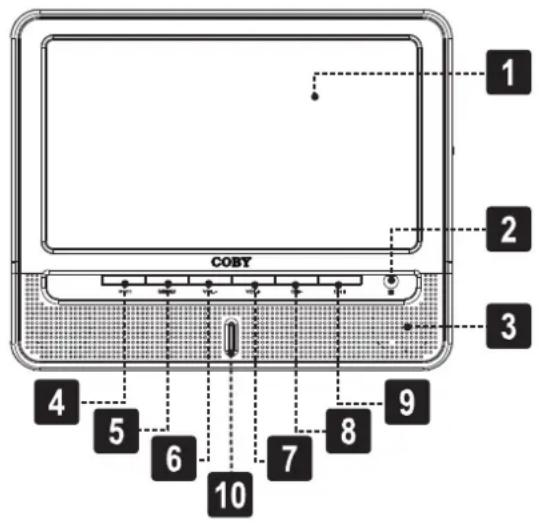
text_image
COBY 1 2 3 4 5 6 7 8 9 10TV screen1.
Remote control sensor2.
Stereo speakers3.
Mode button4.
Menu button5.
Volume - button6.
Volume + button7.
CH - button8.
CH + button9.
Power indicator light10.
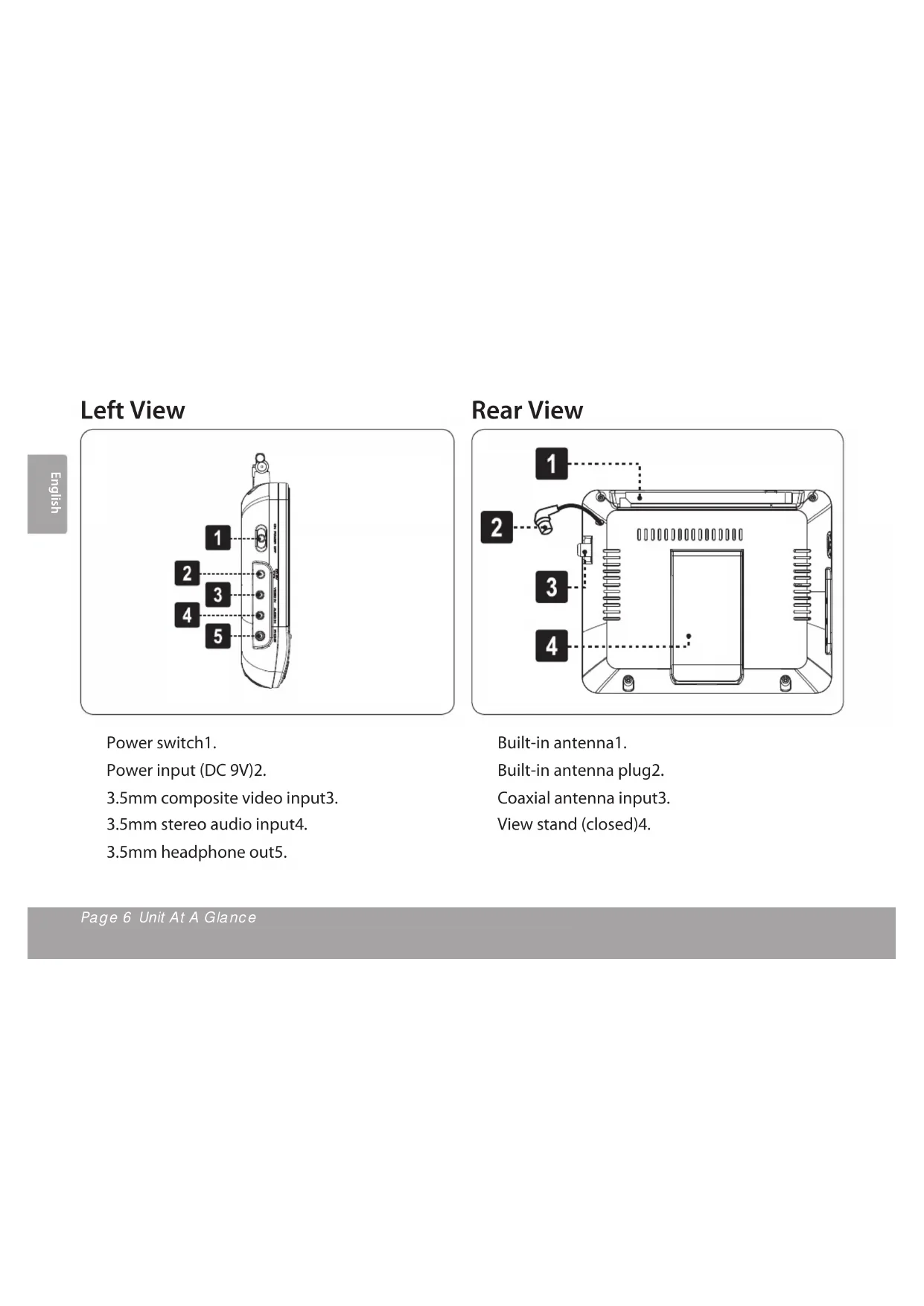
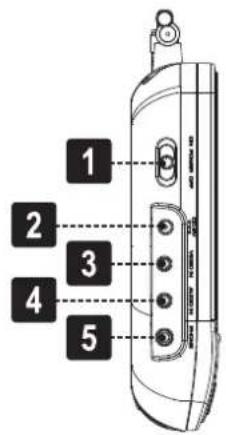
Left View
text_image
1 2 3 4 5Power switch1.
Power input (DC 9V)2.
3.5mm composite video input3.
3.5mm stereo audio input4.
3.5mm headphone out5.
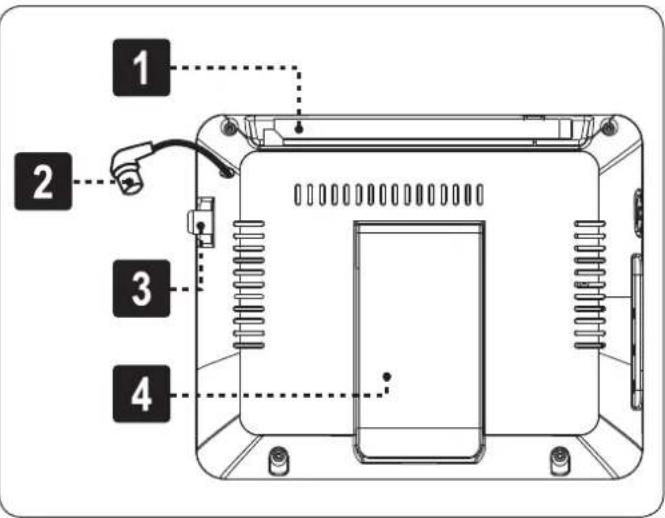
Rear View
text_image
1 2 3 4Built-in antenna1.
Built-in antenna plug2.
Coaxial antenna input3.
View stand (closed)4.
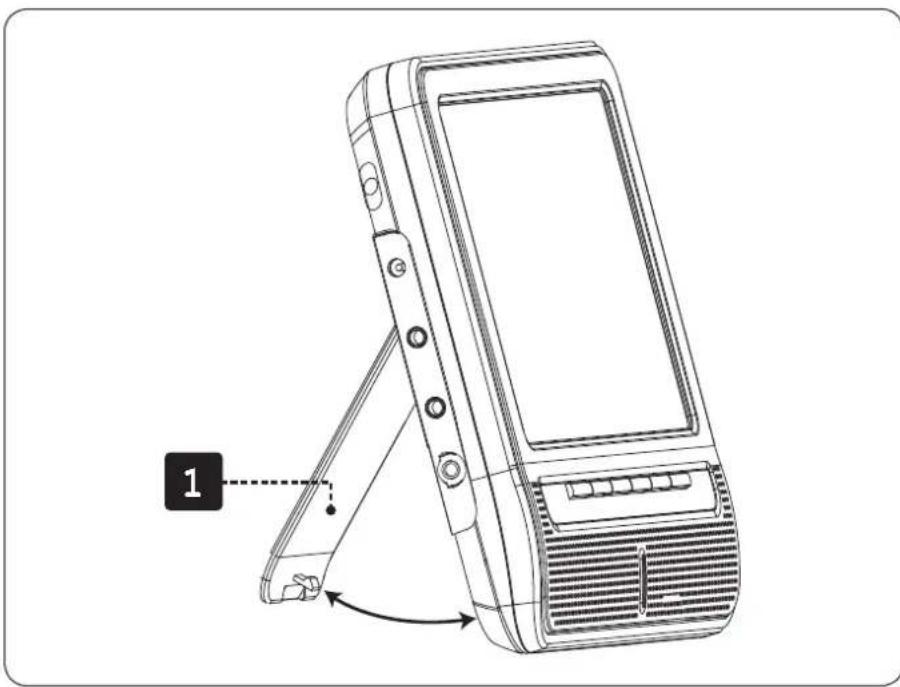
Using the View Stand
natural_image
Line drawing of a mobile phone with a stand and rear panel, showing the front panel and side panel (no text or symbols)View stand (open)1.
The view stand is located on the rear of the unit. Simply flip the stand out and place the unit on a level surface to enjoy hands-free viewing.
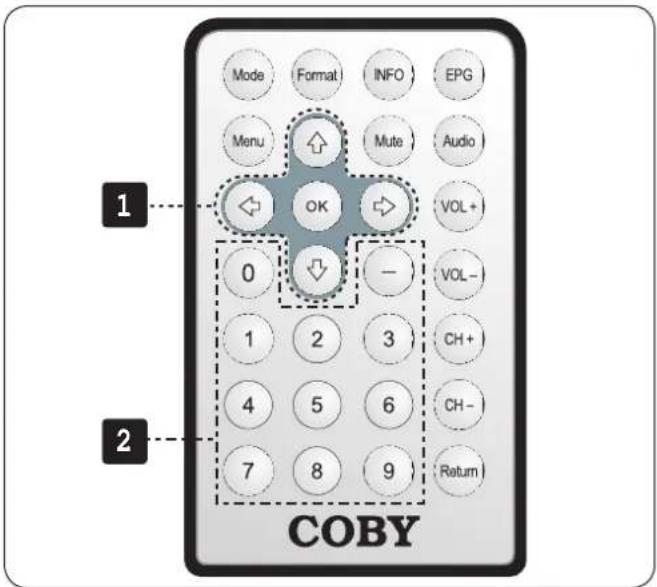
Remote Control
text_image
Mode Format INFO EPG Menu Mute Audio 1 OK VOL+ 0 - VOL- 1 2 3 CH+ 4 5 6 CH- 7 8 9 Return COBY| Key Description | |
| 1 | Nav Pad Navigation keypad. Browse and select menu items (Up/Down, Left/Right, OK). |
| 2 | Num Pad Numeric keypad. Enter numeric data (e.g., channel numbers). |
| Key Description | |
| Mode | Change between TV and AV IN mode. |
| Format | Change between Normal (widescreen) and 4:3 aspect ratio formats. |
| INFO | Toggle information display on screen. |
| EPG | Toggle the Electronic Program Guide (EPG) display. |
| Menu | Access the system menu. |
| Mute | Disable audio output. |
| Audio | Change the audio equalizer mode. |
| VOL+ VOL- | Adjust the volume level (up or down). |
| CH+ CH- | Change the channel (up or down). |
| Return | Return to a previously viewed channel. |
Using the Remote Control
Before using the remote for the first time, you must remove the plastic tab from the battery compartment. Simply pull the tab to remove it.
The remote control requires one "CR2025" battery. The battery will last for about one year under typical usage. Replace the batteries if the remote is no longer working.
To replace the battery in the remote:
Press in the direction of the arrow1.
Slide the compartment out2.
Place the battery in the compartment with the 3. positive side (+) facing up
Push the compartment in to close4.
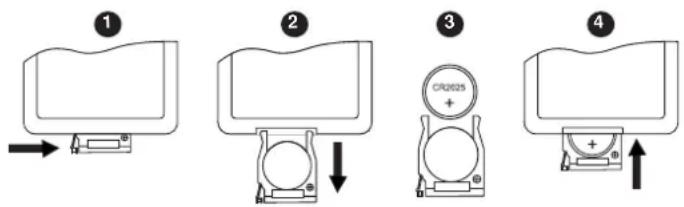
text_image
Diagram showing four steps of a device or component assembly with labeled parts and directional arrows indicating movement.
The battery used in this device may present a fire or chemical hazard if mistreated. Do not recharge, disassemble, incinerate, or heat the batteries.
Keep batteries out of the reach of children.
Remove the battery if the remote control will not be in use for an extended period of time.
To use the remote:
Point the remote at the remote sensor of the TV from a distance of no more than 15' and at an angle no greater than 60 degrees.

Remote control performance may be adversely affected by bright lights or the placement of objects between the remote and the sensor.
Do not use the remote control for other equipment at the same time.
Connections at a Glance

Power
The TV can be powered by AC or DC power sources (use the included AC or DC adapters, respectively), or by the rechargeable battery pack for portable use.
If the TV will not be in use for a long period of time, turn the TV off, unplug it, and remove any batteries, as applicable.

Complete all system connections (optional) before connecting the power.

When disconnecting the AC power cord (mains lead), grasp the plug itself and not the cord.
To prolong the operating life of the unit, avoid power-cycling the TV rapidly. When turning the TV off, wait 30 seconds before turning the TV on again.
Using the AC Adapter
This unit should be used with AC 100-240V 50/60Hz wall outlets, only.
Connect one end of the supplied AC adapter to the Power Input jack of the TV. Connect the other end of the adapter to an AC 100-240V wall outlet.
The AC adapter operates on AC 100-240V ✦ \~50/60Hz (DC Out: 9V; current: 0.5A max).
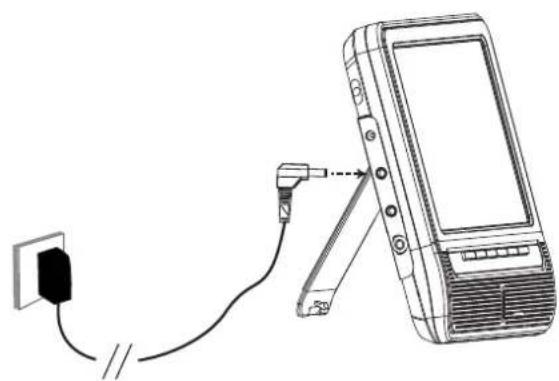
natural_image
Diagram showing a cable being inserted into a device via a cable to a power outlet (no text or symbols present)DC Car/Boat Adapter
This unit may be powered using the supplied DC adapter when an AC outlet is not available.
Connect one end of the supplied DC adapter into the Power In jack of the TV. Connect the other end of the adapter into a car/boat DC power socket.
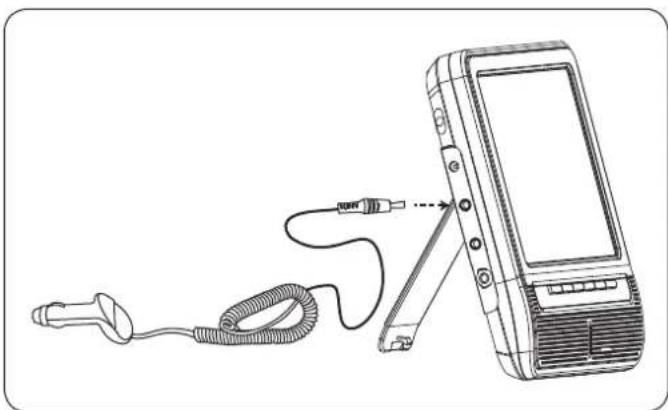
natural_image
Line drawing of a handheld electronic device with cable and connector, no text or symbols present
When using the player in a moving vehicle, route the cords so that they will not interfere with the driver.

Some states restrict the use of monitors and televisions in vehicles. Where use is permitted, install the unit so that the display will not be viewable by the driver.
Using the Rechargeable Battery
This unit may be powered by a rechargeable battery when an AC outlet is not available.
This unit comes preinstalled with a 7.4V lithium-ion rechargeable battery pack.
To charge the battery pack:
Connect one end of the supplied AC adapter into 1. the Power In jack of the TV.
Connect the other end of the adapter into an AC 2.100-240V wall outlet.

A new or exhausted battery pack should be charged fully (minimum 4 hours) before its initial use to ensure optimum lifetime performance.
The battery can be recharged approximately 300 times without a noticeable decrease in performance.
If the integrated battery pack does not work to your expectations, please contact Coby Technical Support or a qualified service technician.

Use only the battery supplied with this unit.
Do not disassemble, puncture, impact, heat, or incinerate the battery.
Do not leave the unit in a car with its windows closed or any place subject to direct sunlight.
Keep the unit dry.
Dispose of this unit properly.
Connecting the Antenna
To view broadcast television channels, a signal must be received by the unit from either the telescopic antenna or an external antenna.

Broadcast reception quality will vary depending on geographic location and antenna orientation. Please visit http://www.AntennaWeb.org for more information.
Using the Built-In Antenna
The built-in telescopic antenna is designed for outdoor broadcast reception.
| Connect the Built-in antenna plug to the Coaxial antenna input 1. jack. |  |
| Extend the antenna and adjust its orientation for best reception.2. | 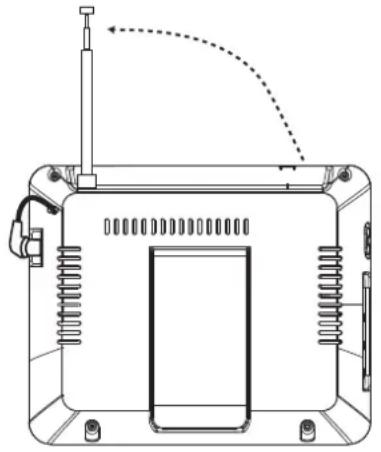 |
Using the External Antenna
An external antenna is included for indoor use, or for areas where reception is weak.
| Disconnect the built-in antenna plug if it is connected to 1. the Coaxial antenna input jack. | 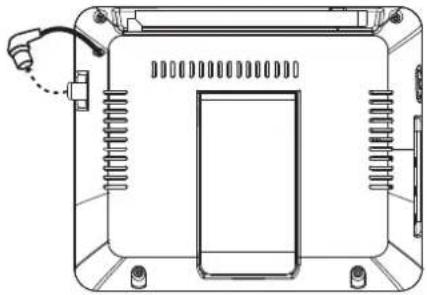 |
| Connect the external antenna to the Coaxial antenna 2. input jack.The base of the external antenna is magnetic; it can be conveniently mounted on any metal surface. | 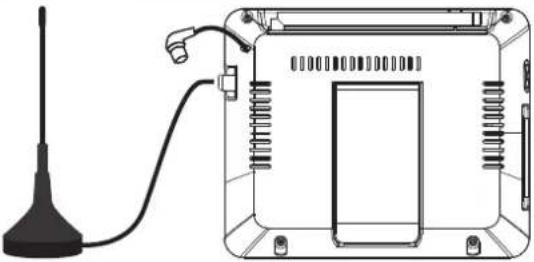 |

If you are in a location with very weak TV reception, it is possible to connect your own antenna to the Coaxial antenna input jack as needed. For indoor installations, it is also possible to connect a coaxial cable or satellite TV line to the Coaxial antenna input jack.
Audio/Video Connections (optional)
There are various connection options depending on your equipment; please refer to the documentation supplied by the manufacturer of your Audio/Video equipment for more connection information as necessary.
Using Headphones or Earphones
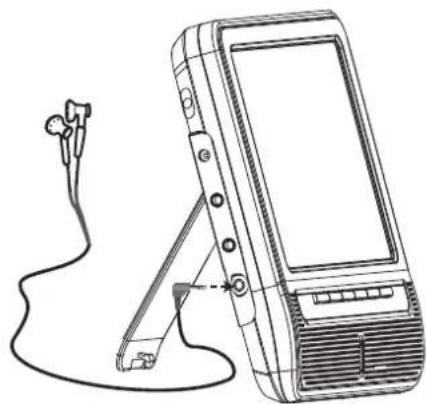
Your TV can output audio to a pair of headphones or earphones for private listening during playback.
Lower the volume of the TV.1.
Connect a pair of headphones or earphones 2. terminating in a 3.5mm plug to the Headphone Out jack of the TV.
Increase the volume gradually until a comfort-3. able level has been reached.
natural_image
Line drawing of a portable electronic device with earphones and a stand, no text or symbols present
Audio output to the integrated stereo speakers will stop automatically when headphones are connected.
Hearing experts advise against the constant use of personal stereos played at high volume. Constant high volume use can lead to hearing loss. If you experience ringing in the ears or hearing loss, discontinue use immediately and seek medical advice.
Audio/Video (AV) Input
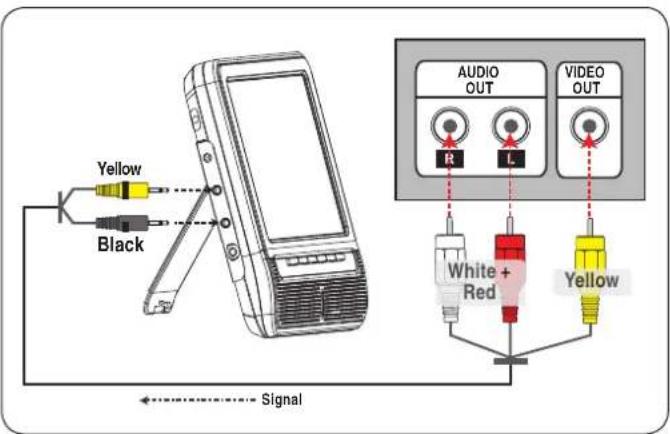
This unit can be used as a monitor to display video and audio from external AV devices equipped with RCA AV output jacks (e.g., DVD players, VCRs, game consoles, etc.)
Using an AV patch cable:
Connect the TV's 3.5mm Video input jack to the 1. RCA composite Video Out jack (yellow) of your AV device.
Connect the TV's 3.5mm Audio input jack to the 2. RCA Stereo Out jacks (red and white) of your AV device.
Turn on the TV and the AV device.3.
Set the unit to AV IN mode:4.
Press aMode. The Input Source menu will appear. Use the navigation keypad to choose "AV IN".b.
text_image
Yellow Black Signal AUDIO OUT R L VIDEO OUT White + Red Yellow
An AV patch cable (included) is required for Audio/Video input connections.
Refer to the documentation supplied by your external AV device manufacturer for additional help.

Always disconnect the power before connecting external AV devices.
Getting Started

Using the TV for the First Time
After charging the battery and making all necessary connections, set the Power switch to the ON position to turn the TV on.
All instructions given refer to the remote control.
Step 1: Set the unit to TV mode.
Press Mode. The Input Source menu will appear.
Use the navigation keypad (2 or ) to choose "TV".
Press Bok.
Step 2: Perform a channel scan.
Perform a scan to find channels that are within range of reception.
Press 1Menu. The System menu will appear.
Press 2. once to display the Channel options.
Press 3. twice to choose the Auto Scan option.
Press 4. once, then press to start the channel scan.

You may need to perform a channel scan again if you change the location of the TV.
Basic TV Controls
| Remote Key Function | |
| INFO | Toggle information display on screen. |
| EPG | Toggle the Electronic Program Guide (EPG) display. |
| Menu | Access the system menu. |
| Mute | Disable (mute) audio output. |
| VOL+ | Turn the volume up. |
| VOL- | Turn the volume down. |
| CH+ | Change the channel up. |
| CH- | Change the channel down. |
| Return | Return to a previously viewed channel. |
Changing Channels
To browse channels, press cor . CH-
To tune to a specific channel, use the numeric keypad.

Digital TV broadcasts may contain multiple sub-channels (5-1, 5-2, 5-3, etc). The primary broadcast is usually carried on the first sub-channel (e.g., 5-1).
If available, analog TV broadcasts can be found on sub-channel "0" (e.g., 5-0).
Press

to enter the dash.
Examples
To tune to channel 5-1, press: ✦
$$ 5 + \text { + } 1 _ {-} $$
To tune to channel 13-2, press: ★
$$ 1 + 3 + \quad + 2. $$
Adjusting the Volume
* Press VOL+ or VOL- to adjust the volume level up or down, respectively.
Press 📂 to disable the audio output completely; press again to restore the audio.
System Menu

The system menu allows you to adjust your TV's options and access advanced functions. Please read this section carefully before using the system menu as adjusting options incorrectly may adversely affect the operation of the TV.
System Menu Controls
Press to access the System menu, then use the following controls.

text_image
Picture Mode Contrast Brightness Sharpness Tint Color Personal 50 50 50 0 50 ADJUST MENU EXIT| Remote Key Unit Key Function | ||
 | [CH+] Browse up through the menu options. | |
 | [CH-] Browse down through the menu options. | |
 | [VOL+] | Increase the value of the selected option (if adjustable; left and right arrows before and after an option indicates that it is adjustable),Browse right through the menu options |
 | [VOL -] | Decrease the value of the selected option (if adjustable; left and right arrows before and after an option indicates that it is adjustable),Browse left through the menu options. |
 | [VOL +] | Select a menu option (if selectable; a right arrow after an option indicates that it is selectable). |
 | [MENU] | Cancel/return to the previous screen. To exit the system menu, press this key until the menu disappears. |
Picture Setup
| Menu Option Description | |
| Picture Mode Change the picture options to a preset adjustment. | |
| Contrast Adjust the contrast of the display image. | |
| Brightness Adjust the brightness of the display. | |
| Sharpness Adjust the sharpness of the display image. | |
| Tint Adjust the tint of the display image. | |
| Color Adjust the color of the display image. |
Audio Setup
| Menu Option Description | |
| Balance Adjust the stereo balance (left, right). | |
| Audio Language Set the default audio language for TV broadcasts that support secondary audio (e.g., SAP). |
Time Setup
| Menu Option Description | |
| OSD Duration Adjust the Sleep Timer | period of time that on-screen information will be displayed for without interruption. |
| Set the sleep timer. When the sleep timer is active, the TV will turn off automatically when the timer counts down to zero. | |
| Time Zone Set the local Daylight Saving Time Turn | time zone. This option will affect the clock time. |
| turn the daylight saving time adjustment on or off. This option will affect the clock time. | |
| Clock Displays the local | date and time. This value is set automatically by the TV. |
General Setup
| Menu Option Description | |
| Menu Language Change | the language in which the System menu is displayed. |
| Color Mode Change the | color options to a preset adjustment. |
| Zoom Mode Toggle the | aspect ratio of the display. |
| Restore Default Return | all system options to their factory-default setting. |
Channel Setup
| Menu Option Description | |
| Antenna | Set the antenna mode.Air: Use this setting if you are using the built-in antenna, or if you have connected the external antenna or other aerial antenna to receive over-the-air TV broadcasts.CATV: Use this setting if you have connected a coaxial cable or satellite line to receive TV programming. |
| Auto Scan | Scan for available channels. Available channels that are detected will be shown; all other channels will be hidden.You should perform this scan whenever you change antennas or if you change the location of the TV. |
| Show/Hide Manually set which channels are shown or hidden. | |
| Favorite Set a channel as Favorite. | |
| Channel No Select an available channel. | |
| Channel Label Displays the identification label of the selected channel. | |
Safety Notices


CAUTION
WARNING: SHOCK HAZARD. DO NOT OPEN. AVIS: RISQUE DE CHOC ELECTRIQUE. NE PAS OUVRIR

CAUTION: TO REDUCE THE RISK OF FIRE AND ELECTRIC SHOCK, DO NOT REMOVE THE COVER (OR BACK) OF THE UNIT. REFER SERVICING ONLY TO QUALIFIED SERVICE PERSONNEL.

The lightning flash with arrowhead symbol within an equilateral triangle is intended to alert the user to the presence of uninsulated “dangerous voltage” within the product’s enclosure that may be of sufficient magnitude to constitute a risk of electric shock.

The exclamation point within an equilateral triangle is intended to alert the user to the presence of important operation and servicing instructions in the literature accompanying the appliance.

For recycling or disposal information about this product, please contact your local authorities or the Electronics Industries Alliance: www.eiae.org.
For Customer Use:
Enter below the serial number that is located on the rear of the unit. Retain this information for future reference.
Model No.
Serial No.
WARNING: To prevent fire or shock hazard, do not expose this device to rain or moisture. Dangerous high voltage is present inside the enclosure. Do not open the cabinet.
CAUTION: To prevent electric shock, match wide blade of plug to wide slot of outlet and fully insert.
CAUTION: Any changes or modifications not expressly approved in this manual could void your authority to operate this equipment.
NOTICE: The LCD panel used in this player contains millions of thin film transistors that have been manufactured using a high-technology process to deliver a crisp, clear, and detailed picture. Occasionally, a few of these transistors may become stuck or non-active; please note that this is a normal result of the manufacturing process and does not affect the performance of the player.
Protect your hearing: Hearing experts advise against the constant use of personal stereos played at high volume. Constant exposure to high volumes can lead to hearing loss. If you should experience ringing in the ears or hearing loss, discontinue use and seek medical advice.
FCC Statement:
This device complies with Part 15 of the FCC Rules. Operation is subject to the following two conditions:
(1) This device may not cause harmful interference, and
(2) This device must accept any interference received, including interference that may cause undesired operation.
Note: This equipment has been tested and found to comply with the limits for Class B digital devices, pursuant to Part 15 of the FCC rules. These limits are designed to provide reasonable protection against harmful interference in a residential installation. This equipment generates, uses and can radiate radio frequency energy and, if not installed and used in accordance with the instructions, may cause harmful interference to radio communications. However, there is no guarantee that interference will not occur in a particular installation. If this equipment does cause harmful interference to radio or television reception, which can be determined by turning the equipment off and on, the user is encouraged to try to correct the interference by one or more of the following measures:
Reorient or relocate the receiving antenna.
Increase the separation between the equipment and receiver.
- Connect the equipment into an outlet on a circuit different from that to which the receiver is connected.
Consult the dealer or an experienced radio/TV technician for help•
Use of shielded cable is required to comply with Class B limits in Subpart B of Part 15 of the FCC rules.
Do not make any changes or modifications to the equipment unless otherwise specified in the manual. If such changes or modifications should be made, you could be required to stop operation of the equipment.
Important Safety Instructions
Read Instructions: All the safety and operating instructions should be read before the product is operated.1.
Retain Instructions: The safety and operating instructions should be retained for future reference.2.
Heed Warnings: All warnings on the product and in the operating instructions should be adhered to.3.
Follow Instructions: All operating and usage instructions should be followed.4.
Cleaning: Unplug this product from the wall outlet before cleaning. Do not use liquid cleaners or aerosol cleaners. 5. Use a damp cloth for cleaning.
Attachments: Use only attachments recommended by the manufacturer. Use of other attachments may be hazardous.6.
Water and Moisture: Do not use this product near water (e.g., near a bath tub, washbowl, kitchen sink, laundry tub, 7. in wet basements, or near a swimming pool and the like).
Accessories: Do not place this product on an unstable cart, stand, tripod, bracket, or table. Use 8. only with carts, stands, tripods, brackets, or tables recommended by the manufacturer or sold with the product. Any mounting of the product should follow the manufacturer's instructions and should use a mounting accessory recommended by the manufacturer.
A product and cart combination should be moved with care. Quick stops, excessive force, and 9. uneven surfaces may cause the product and cart combination to overturn.

Ventilation: Slots and openings in the cabinet are provided for ventilation to ensure reliable operation of 10. the product and to protect it from overheating. These openings should never be blocked by placing the product on a bed, sofa, rug, or other similar surface. This product should not be placed in a built-in installation such as a bookcase or rack unless proper ventilation is provided or the manufacturer instructions have been adhered to.
Power Sources: This product should be operated only from the type of power source indicated on the rating label. 11. If you are not sure of the type of power supply to your home, consult your product dealer or local power company. For products intended to operate from battery power or other sources, refer to the operating instructions.
Grounding or Polarization: This product may be equipped with a polarized alternating-current line plug that has one 12. blade wider than the other. This plug will only fit into the power outlet in one direction. This is a safety feature. If you are unable to insert the plug fully into the outlet, try reversing the direction of the plug. If the plug should still fail to fit, contact an electrician to replace the obsolete outlet. Do not defeat the safety purpose of the polarized plug.
Power-Cord Protection: Power supply cords should be routed so that they are not likely to be walked on or pinched 13. by items placed upon or against them, paying particular attention to cords at plugs, convenience receptacles, and at the point which they exit from the product.
- Protective Attachment Plug: The product may be equipped with an attachment plug with overload protection. This is a safety feature. See the operating instructions for replacement
or directions to reset the protective device. If replacement of the plug is required, be sure the service technician has used a replacement plug that has the same overload protection as the original plug as specified by the manufacturer.
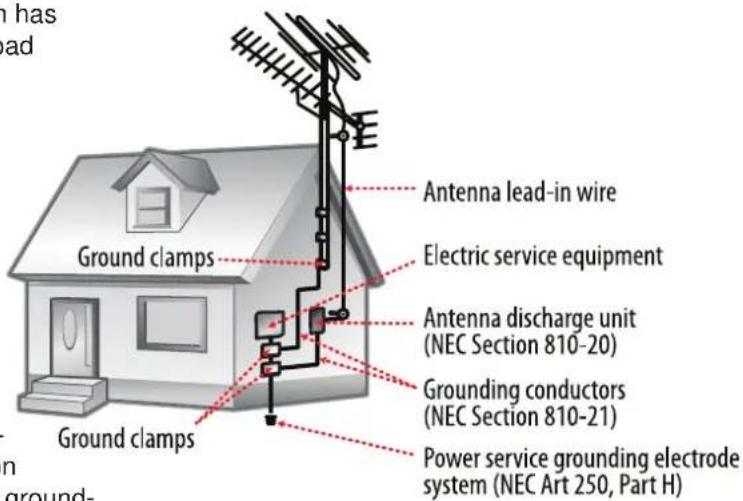
Outdoor Antenna Grounding: If an outside 15. antenna is connected to the product, be sure the antenna system is grounded so as to provide some protection against voltage surges and built-up static charges. Article 810 of the National Electrical Code, ANS/NFPA 70 provides information with regard to proper grounding of the mast and supporting structure, grounding of the lead-in wire to an antenna-discharge unit, size of grounding conductors, location of antenna-discharge unit, connection to grounding electrodes, and requirements for the ing electrode (see figure).
text_image
n has rad Ground clamps Antenna lead-in wire Electric service equipment Antenna discharge unit (NEC Section 810-20) Grounding conductors (NEC Section 810-21) Power service grounding electrode system (NEC Art 250, Part H)Overloading: Do not overload wall outlets, extension cords, or integral convenience receptacles as this can result 16. in a risk of fire or electric shock.
Object and Liquid Entry: Never push objects of any kind into this product through openings as they may touch 17. dangerous voltage points or shout-out parts that could result in a fire or electric shock. Never spill liquid of any kind on the product.
Servicing: Do not attempt to service this product yourself as opening or removing covers may expose you to dan-18. gerous voltage or other hazards. Refer all servicing to qualified service personnel.
- Damage Requiring Service: Unplug this product from the wall outlet and refer servicing to qualified service personnel under the following conditions: a) when the power-supply or plug is damaged; b) if liquid has been spilled or if objects have fallen into the product; c) if the product has been exposed to rain or water; d) if the product does not operate normally by following the operating instructions. Adjust only those controls that are covered by the operating instructions as improper adjustment of other controls may result in damage and will often require extensive work by a qualified technician to restore the product to its normal operation; e) if the product has been dropped or damaged in any way; f) when the product exhibits a distinct change in performance—this indicates a need for service.
Replacement Parts: When replacement parts are required, be sure that your service technician has used replace-20. ment parts specified by the manufacturer or have the same characteristics as the original part. Unauthorized substitutions may result in fire, electric shock, or other hazards.
Safety Check: Upon completion of any service or repairs to this product, ask the service technician to perform 21. safety checks to ensure that the product is in proper operating condition.
Wall or Ceiling Mounting: The product should be mounted to a wall or ceiling only as recommended by the manu-22. facturer.
Heat: The product should be situated away from heat sources such as radiators, heat registers, stoves, or other 23. products (including amplifiers) that produce heat.
Legal and Trademark Notices
Coby is a registered trademark of Coby Electronics Corporation. All other trademarks and logos are property of their respective owners unless indicated otherwise.
Troubleshooting & Support

If you have a problem with this device, please check our website at www.cobyusa.com for Frequently Asked Questions (FAQ) and product updates. If these resources do not resolve the problem, please contact Technical Support.
Address
Coby Electronics Technical Support
150 Knowlton Way
Savannah, Georgia 31407
techsupport@cobyusa.com
Web
www.cobyusa.com
Phone
800-727-3592: Monday to Friday, 8:30AM–9:00PM EST
Saturday, 9:00 AM–5:30PM EST
718-416-3197: Monday to Friday, 8:00AM-5:30PM EST
There is no power to the device.
Ensure that the Power Switch on the main unit is physically set to the ON position.
◆ Ensure that the AC adapter cord is securely connected to the player and the proper wall outlet.
There is no picture.
Ensure that the TV set has been powered on and is set to the correct mode (TV or AV INPUT).
The current channel may not be in reception range. Try repositioning or changing the antenna, or tune to a different channel.
Ensure that all connections are secure and correct, and that the cables are not damaged.
The picture is noisy or distorted.
If an antenna is in use, try repositioning it for better reception. ★
Ensure that all connections are secure and correct, and that the cables are not damaged.
The picture color is distorted.
Poor reception will adversely affect the display image. Try repositioning the antenna, or tune to a different channel.
Ensure that all connections are secure and correct, and that the cables are not damaged.
The picture is not full-screen or is stretched wide.
Press ⭐ to change the aspect ratio setting.
There is no sound or distorted sound.
Ensure that the MUTE function is not engaged. ★
Ensure that the volume level is not too low or too high. ✦
Poor reception will adversely affect the sound. Try repositioning the antenna, or tune to a different channel.
The remote control doesn't work.
Ensure that the Power Switch has been physically set to the ON position.
Ensure that there are no obstacles between the remote and the player. ✦
Ensure that the remote is pointed at the remote sensor of the TV.
Ensure that the plastic tab that protects the battery during shipping has been removed.
Ensure that the battery in the remote retains a charge and has been installed correctly.
The player has malfunctioned.
- Unplug the unit. Wait 30 minutes, then plug in and power on the player—the restore function should reset the player.
Specifications

| Display Type | 7" TFT LCD @ 480 x 234 | |
| TV Tuner | System ATSC, QAM, NTSC | |
| Channel Range VHF-L | ch.2 to B (57~129MHz)VHF-H ch. C to KK(135~363MHz)UHF ch. LL to 69 (369~803MHz) | |
| AV Output | 3.5mm HeadphoneHigh-Output Stereo Speakers (8Ω, 3W total) | |
| AV Input | 3.5mm Composite Video3.5mm Stereo AudioCoaxial Antenna (75Ω) | |
| Operating Conditions | 50°F–10°F (10°C–40°C) | |
| Power | AC Adapter Input: AC 1 | 00-240V, 50/60Hz |
| DC Adapter Output: 9V | 2A | |
| Battery Rechargeable 7 | 4V Lithium-ion (2000mAh)Play time: ~2.5 hours | |
Design, specifications, and manual are subject to change without notice. Please visit www.cobyusa.com for the latest specifications and documentation.
to be added from Kat ★
natural_image
Line drawing of a mobile phone with a stand and rear panel, showing the front panel and side panel (no text or symbols)natural_image
Line drawing of a handheld electronic device connected to a power outlet (no text or symbols)natural_image
Line drawing of a handheld electronic device with cable and connector, no text or symbols present
natural_image
Line drawing of a portable electronic device with attached cable and earplifier (no text or symbols)
Legal and Trademark Notices
Coby is a registered trademark of Coby Electronics Corporation. All other trademarks and logos are property of their respective owners unless indicated otherwise.
Email techsupport@cobyusa.com
Web www.cobyusa.com
COMMENT DÉMARRER....17
to be added from Kat
natural_image
Line drawing of a mobile phone with a stand and rear panel, showing the front panel and side panel (no text or symbols)natural_image
Diagram showing a device connected to a power outlet via cable, with no visible text or symbolsnatural_image
Line drawing of a handheld electronic device with attached cable and connector (no text or symbols)
natural_image
Line drawing of a portable electronic device with a cable and ear connector (no text or symbols)
For recycling or disposal information about this product, please contact your local authorities or the Electronics Industries Alliance: www.eiae.org.
Information client :
Addresse Coby Electronics Technical Support 150 Knowlton Way Savannah, Georgia 31407
Courriel techsupport@cobyusa.com
Internet www.cobyusa.com
Téléphone 800-727-3592: Lun-Ven, 8:30-21:00 EST Sam, 9:00-17:30 EST 718-416-3197: Lun-Ven, 8:00-17:30 EST
Coby Electronics Corp.
1991 Marcus Ave, Suite 301
Lake Success, NY 11042
www.cobyusa.com
www.ecoby.com
Coby is a registered trademark of Coby Electronics Corporation. Printed in China.