LEDVD1996 - TV COBY - Free user manual and instructions
Find the device manual for free LEDVD1996 COBY in PDF.


| Product Type | LED TV with built-in DVD player |
| Brand | Coby |
| Model | LEDVD1996 |
| Screen Size | 19.6 inches (measured diagonally) |
| Display Type | LED-backlit LCD |
| Resolution | 1366 x 768 pixels (HD Ready) |
| Aspect Ratio | 16:9 |
| Built-in DVD Player | Yes, plays DVD/VCD/CD |
| Dimensions (with stand) | 19.1 x 13.4 x 7.2 inches (485 x 340 x 183 mm) |
| Weight (with stand) | 7.5 lbs (3.4 kg) |
| Power Supply | AC 100-240V, 50/60Hz |
| Power Consumption (typical) | 45 W |
| Standby Power | < 1 W |
| Inputs | HDMI, VGA, Composite AV, USB, RF (antenna) |
| Outputs | Headphone jack, Audio out (L/R) |
| Tuner | ATSC/NTSC (analog & digital) |
| Remote Control | Yes, included |
| Cleaning | Wipe with a soft dry cloth; do not use liquids or abrasive cleaners |
| Safety | Keep away from moisture and heat sources; ensure proper ventilation |
| Spare Parts & Repairability | Contact Coby support or authorized service centers for replacement parts |
Frequently Asked Questions - LEDVD1996 COBY
User questions about LEDVD1996 COBY
0 question about this device. Answer the ones you know or ask your own.
Ask a new question about this device
Download the instructions for your TV in PDF format for free! Find your manual LEDVD1996 - COBY and take your electronic device back in hand. On this page are published all the documents necessary for the use of your device. LEDVD1996 by COBY.
USER MANUAL LEDVD1996 COBY
natural_image
Gray triangular warning symbol with a white lightning bolt and downward arrow (no text)CAUTION
WARNING: SHOCK HAZARD. DO NOT OPEN.
AVIS: RISQUE DE CHOC ELECTRIQUE. NE PAS OUVRIR

natural_image
Gray triangular warning symbol with exclamation mark (no text or numbers)CAUTION: TO REDUCE THE RISK OF FIRE AND ELECTRIC SHOCK, DO NOT REMOVE THE COVER (OR BACK) OF THE UNIT. REFER SERVICING ONLY TO QUALIFIED SERVICE PERSONNEL.

The lightning flash with arrowhead symbol within an equilateral triangle is intended to alert the user to the presence of uninsulated “dangerous voltage” within the product’s enclosure that may be of sufficient magnitude to constitute a risk of electric shock.

The exclamation point within an equilateral triangle is intended to alert the user to the presence of important operation and servicing instructions in the literature accompanying the appliance.

For recycling or disposal information about this product, please contact your local authorities or the Electronics Industries Alliance: www.eiae.org.
For Customer Use:
Enter below the serial number that is located on the rear of the unit. Retain this information for future reference.
TFDVD2395/2495/2295S2/1995S2/1595S3
Model No. LEDVD1596S1/1996S1
Serial No.
Precautions
WARNING: To prevent fire or shock hazard, do not expose this device to rain or moisture. Dangerous high voltage is present inside the enclosure. Do not open the cabinet.
Note: If the product suddenly has no response or powers off, an electrostatic discharge may be the cause. In this circumstance, please follow the procedures below for recovery:
- Unplug the unit. Wait 30 seconds.
• After 30 seconds, plug the unit in and turn it on again.
FCC Statement:
This device complies with Part 15 of the FCC Rules. Operation is subject to the following two conditions:
• This device may not cause harmful interference, and
- This device must accept any interference received, including interference that may cause undesired operation.
Note:
This equipment has been tested and found to comply with the limits for Class B digital devices, pursuant to Part 15 of the FCC rules. These limits are designed to provide reasonable protection against harmful interference in a residential installation. This equipment generates, uses and can radiate radio frequency energy and, if not installed and used in accordance with the instructions, may cause harmful interference to radio communications. However, there is no guarantee that interference will not occur in a particular installation. If this equipment does cause harmful interference to radio or television reception, which can be determined by turning the equipment off and on, the user is encouraged to try to correct the interference by one or more of the following measures:
- Reorient or relocate the receiving antenna.
- Increase the separation between the equipment and receiver.
- Connect the equipment into an outlet on a circuit different from that to which the receiver is connected.
- Consult the dealer or an experienced radio/TV technician for help
Use of shielded cable is required to comply with Class B limits in Subpart B of Part 15 of the FCC rules. Do not make any changes or modifications to the equipment unless otherwise specified in the manual. If such changes or modifications should be made, you could be required to stop operation of the equipment.
Warnings and precautions
To prevent any injuries, the following safety precautions should be observed in the installation, use, servicing and maintenance of this equipment. Before operating this equipment, please read this manual completely, and keep it nearby for future reference.
Important Safety Instructions
- Read Instructions: All the safety and operating instructions should be read before the product is operated.
- Retain Instructions: The safety and operating instructions should be retained for future reference.
- Heed Warnings: All warnings on the product and in the operating instructions should be adhered to.
- Follow Instructions: All operating and usage instructions should be followed.
- Do not place the equipment on uneven or unstable carts, stands, tables, shelves etc. The equipment may fall, causing serious injury to children or adults and serious damage to the equipment itself. Always place the equipment on the floor or on a surface that is sturdy, level, stable and strong enough to support the weight of the equipment.
- Use only a cart or stand recommended by the manufacturer. This equipment and recommended cart or stand should be handled with care. Quick stops, excessive force, and uneven surfaces may cause the equipment and cart/stand to overturn.
- Do not disable the 3-wire grounding type plug. The grounding pin on the 3-prong plug is an important feature. Removing the grounding pin will increase the risk of damaging the equipment.
- If you can not fit the plug into the electrical outlet, contact an electrician to install a grounding outlet.
- Always operate this equipment from the type of power source indicated on the rear of the serial/model plate.
- Never overload wall outlets and extensions.
- Use and handle the power cord with care. Do not place any heavy objects on the AC power cord.
- Do not pull the AC power cord. Do not handle the AC power cord with a wet hand.
- Do not touch the power cord and antenna cable during lightning.
- Remove the plug from the wall outlet, if the equipment will not be used for a long period of time.
- Do not place, use or handle this equipment near water.
- Never expose the equipment to liquid, rain, or moisture. Seek service if any of the above is spilled into the equipment.
- Do not expose the equipment to extreme temperature or to direct sunlight, as the equipment may heat up and suffer damage.
- Do not install the equipment near any heat sources such as radiators, heat registers, stoves, or any other apparatus that might produce heat.
- Do not attempt to service the equipment yourself.
- Opening and removing the covers may expose you to dangerous voltage or other hazards and may void your warranty. Refer service to qualified personnel.
- Do not place or drop any other objects on top.
- Do not insert anything into the ventilation holes of your equipment. Inserting any metal or flammable objects may result to fire or electric shock.
- Protect the power cord from being walked on or pinched particularly at plugs, convenience receptacles, and the point where they exit
- Refer all servicing to qualified service personnel. Servicing is required when the apparatus has been damaged in any way, such as power-supply cord or plug is damaged, liquid has been spilled or objects have fallen into the apparatus, the apparatus has been exposed to rain or moisture, does not operate normally, or has been dropped.
- Always remove the power cord from the outlet before cleaning the equipment.
- Never use liquid or aerosol cleaners on the equipment. Clean only with a soft dry cloth.
- Only use attachments/accessories specified by the manufacturer.
- Where the mains plug or an appliance coupler is used as the disconnected device, the disconnect device shall remain readily operable.
Antenna Safety Instructions
If an outdoor antenna is connected, follow the precautions below:
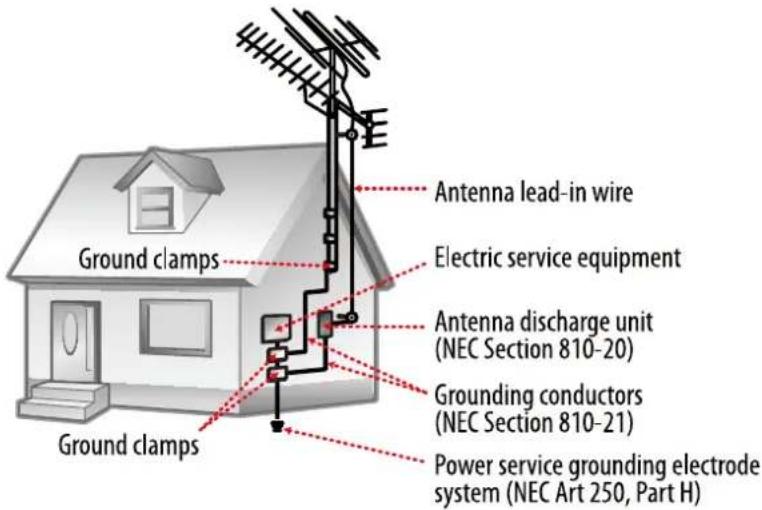
- An outdoor antenna should not be located in any area where it could come in contact with overhead power lines, or any other electric light or power circuits.
- When installing an outdoor antenna system, extreme caution should be taken to prevent contact with power lines. Direct contact with power lines may be fatal and should be avoided at all costs.
Section 810 of National Electrical Code (NEC) provides information with respect to proper grounding of the mast and supporting structure, grounding of the lead-in wire to an antenna discharge unit, size of grounding conductors, location of antenna discharge unit, connection to grounding electrodes, and requirements for the grounding electrode.
text_image
Ground clamps Antenna lead-in wire Electric service equipment Antenna discharge unit (NEC Section 810-20) Grounding conductors (NEC Section 810-21) Power service grounding electrode system (NEC Art 250, Part H)Listening with Earphones
- Listen at moderate Volumes to avoid hearing damage.
- If you hear no sound during playback, do not turn the Volume up as the music may suddenly begin at a high Volume. Excessive sound pressure from earphones and headphones can cause hearing loss.
• To avoid damaging your ears, adjust the Volume to the lowest level before playback, and turn up to the desired level when playback has started.
Legal and Trademark Notices
Coby is a registered trademark of Coby Electronics Corporation. All other trademarks and logos are property of their respective owners unless indicated otherwise.
Manufactured under license from Dolby Laboratories. "Dolby" and the double-D symbol are trademarks of Dolby Laboratories. Confidential unpublished works. © 1992 -1997 Dolby Laboratories, Inc. All rights reserved.
This TV incorporates High-Definition Multimedia Interface (HDMITM) technology. HDMI, the HDMI logo and High-Definition Multimedia Interface are trademarks or registered trademarks of HDMI Licensing LLC.
Note: This product contains electrical or electronic materials. The presence of these materials may, if not disposed of properly, have potential adverse effects on the environment and human health. Presence of this label on the product means it should not be disposed of as unsorted waste and must be collected separately. As a consumer, you are responsible for ensuring that this product is disposed of properly.
Table of Contents
Table Of Contents
Precautions
Important Safety Instructions
Main Feature----1
Package Contents-2
Unit View----3
Remote Control 4
Cable Connections 7
TV Function----11
AV Function----15
PC Function----16
DVD Operation 17
USB/Card Access 18
DVD Playback Function----19
DVD Setup----21
Troubleshooting 23
Specifications 24
This product incorporates the LCD/LED display and the TV receiver in one system.
Multiple Mode
TV
AV
S-VIDEO
COMPONENT
DVD
VGA
HDMI
High Quality Property
High Resolution
Adopt an MPEG2 decoding format to achieve horizontal resolution more than 500 lines.
Superior sound
Built-in Dolby Digital decoder to output high quality sound effects.
Screen
Support the picture size of a normal screen (4:3) and a wide screen (16:9)
Panel Information
The panel used in this television contains millions of thin film transistors that have been manufactured using a high-technology process to deliver a crisp, clear, and detailed picture. Occasionally, a few of these transistors may become stuck or non-active; please note that this does not affect the performance of the television.
NOTE: It is normal for a TFT screen to experience some light or dark spots appearing on the LCD screen.
Advanced Playing Features
Compatibility
DVD, CD, MP3, CD-R, CD-RW, JPEG discs compatible.
All Playback Functions
Fast forward and reverse, repeat playback, program playback.
Power Supply:
Connect one end of the supplied power cord to the power jack on the unit rear panel and the other end to the AC100-240V wall outlet. If the unit will not be used for a long time, disconnect the plug from the outlet.
Power Management:
- Before plugging the power cord into the AC outlet, make sure that all necessary connections have been properly made.
- If the unit will not be used for a long period of time, disconnect the power and remove the batteries from the remote.
Energy Star Information -
As an ENERGY STAR partner, Coby Eletronics is committed to saving you money and to protecting the environment with energy-efficient products. ENERGY STAR is a set of power-saving guidelines issued by the U.S. Environmental Protection Agency (EPA).
This TV meets the latest ENERGY STAR requirements when used with its factory-default settings. Changing features, settings, and functions of this TV may increase power consumption beyond ENERGY STAR guidelines. These features, settings, and functions are explained in the user manual.
Package Contents
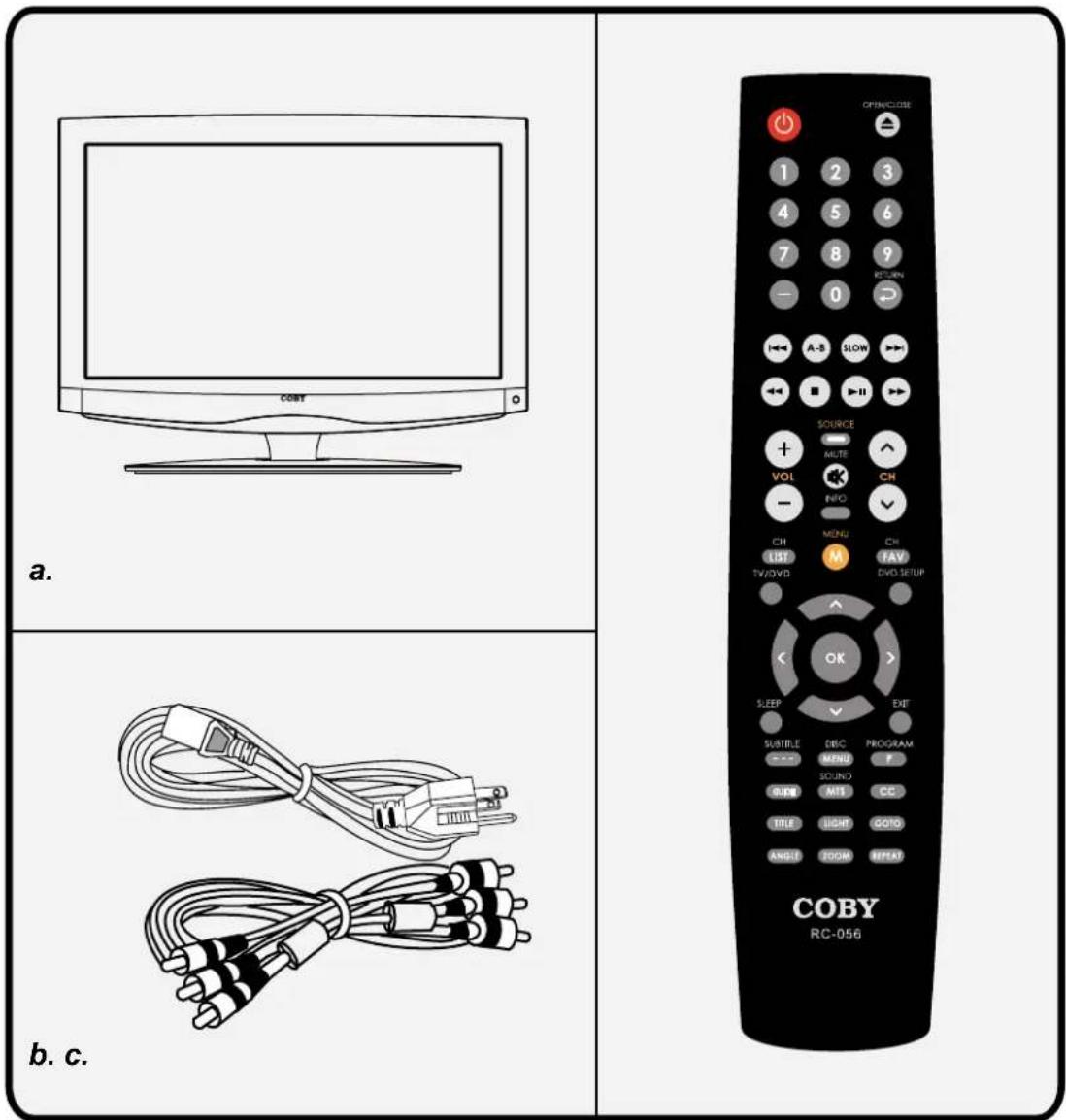
Please make sure the following items are included with your LCD/LED TV/monitor. If any item is missing, contact your dealer.
text_image
a. b. c. OPENCLOSE 1 2 3 4 5 6 7 8 9 — 0 A-S SLOW ← ■ → ▶ SOURCE VOL INFO CH — MENU CH CH M FAV LBT DVD Setup TV/DVD SLEEP EXIT OK SUSTILE DISC PROGRAM MPSU F SOUND CC TURN MIS CC TITLE LIGHT GOTO ANGUI ROOM BFFAT COBY RC-056a, Main Unit
b, Power Cord & RCA Cable
c, Remote Control Unit
text_image
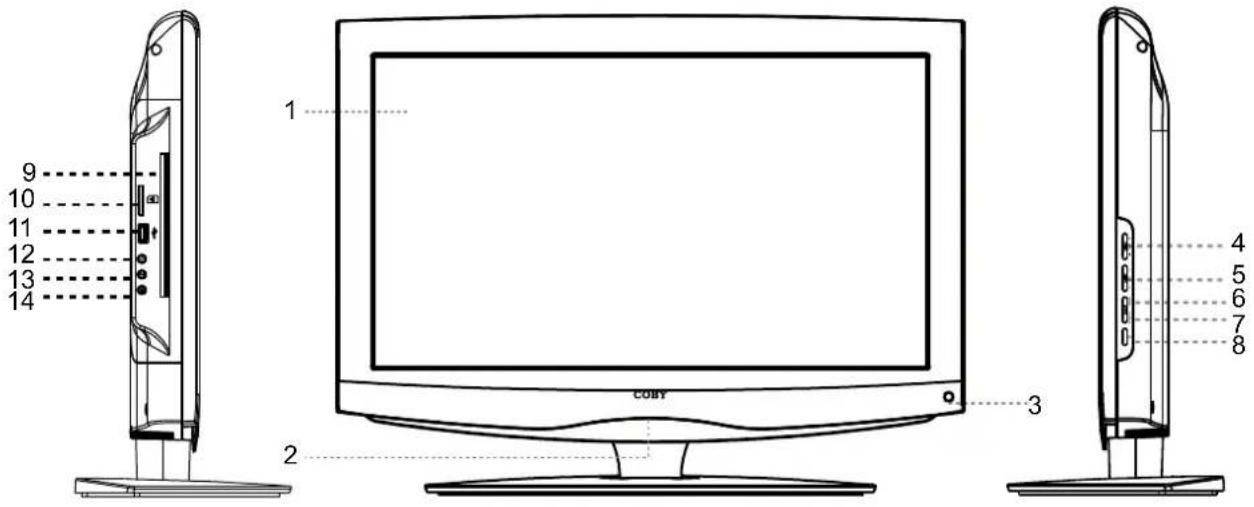
9 10 11 12 13 14 1 CDY 2 3 4 5 6 7 8- TFT SCREEN
Present high resolution pictures
- POWER INDICATOR
The indicator lights bright blue when the TV is on, it will dim when the TV is turned off (standby mode).
- REMOTE SENSOR
Sense the remote control signal.
- VOL+/-
Adjust sound output level.
- CH+/-
Press to skip channels.
- MENU
Display the system setup menu.
- SOURCE
Press this button to switch modes.
- POWER
Press to turn on/off the player.
-
Disc Slot
-
Card Slot
-
USB Port
-
STOP - Stop disc playback.
-
PLAY/PAUSE - Start/hold disc playback.
-
OPEN/CLOSE - Open/close the disc room.
-
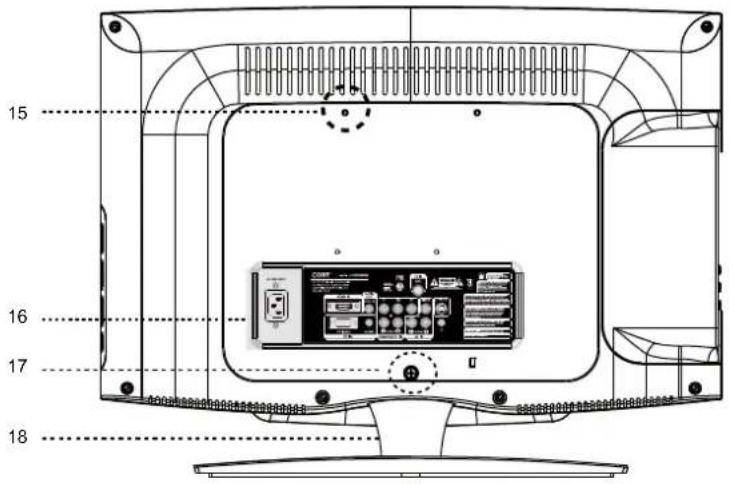
Wall Mounting Thread X 4
-
Connector Panel
-
Unit Stand
-
Screw - This screw is connecting the TV case to the unit stand-base.
text_image
15 16 17 18NOTE: See "Cable Connections" section for detailed description on connectors.
Wall Mounting - Attach the TV case to the wall
- Separate the TV case and the stand-base by removing fixing screw(s) before installation.
- Use the proper mountings to fix the unit on the wall. Take care when mounting, it may cause damage or serious injury should it fall from its mountings. See the Specification page for wall mount informaiton. A variety of mounts are available in your local retailer, see instructions when installing the unit.
Remote Control Drawing
- POWER
Turn the unit on or off (standby).
- Numeric Keypad
Input numeric data. Access the TV channel directly.
- Sub-channel Selector <->
This button is usually used with the numeric keypad to tune to a channel substation (e.g., 4-1, 4-2).
e.g. To tune to channel 13-2, press these keys in sequence: <1>, <3>, <-->, <2>.
- Skip Backward
Repeatedly press this button to skip backward through DVD playback.
- A-B
Repeat specified playback A to B in the DVD mode.
- Fast Reverse
Search fast backward through DVD playback.
- Stop
Stop disc playback.
- VOL+/-
Adjust the volume level up and down.
- INFO
Display system current working information.
- CH/LIST
Display the TV program list, use the up/down direction button to select the desired program in the list, press OK to access.
- TV/DVD
Switch between the TV mode and the DVD mode.
- Direction & OK
This set of buttons is usually used when working with system setup menu, use arrow buttons to select an option in the menu, press OK to confirm settings.
- SLEEP
Cycle through the sleep timer options.
- SUBTITLE
Display available DVD subtitles.
- DISC MENU
Access the DVD root menu.
- GUIDE
Display TV electronic program guide.
- MTS
Set the audio mode.
- TITLE
Access the DVD title menu.
- LIGHT
Turn the front panel light on/off.
- ANGEL
Some discs are recorded with Multi-angle, press this button to chose the desired viewing angle.
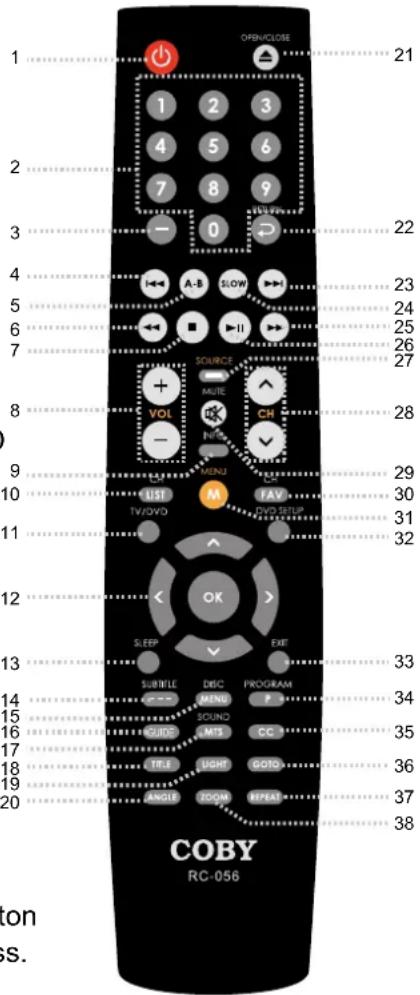
text_image
1 OPEN/CLOSE 21 1 2 3 4 5 6 7 8 9 NET PR - 0 22 4 A-B SLOW 23 5 6 7 SOURCE VOL MUTE CH 24 - MENU LIST M FAV 25 TV/DVD DVD SETUP 26 11 28 9 10 29 11 30 31 32 12 OK > 33 SLEEP EXIT 34 SUBTITLE DISC PROGRAM 35 MENI P SOUND CC GUIDE MTS TITLE LIGHT GOTO 36 ANGLE ZOOM REPEAT 37 COBY RC-056 15 16 17 18 19 20 38Remote Control
21. OPEN/CLOSE
In the DVD mode, press this button to take in/out disc automatically.
22. RETURN
Reveal the previously viewed channel.
23. Skip Forward
Repeatedly press this button to skip forward through DVD playback.
24. SLOW
Press this button to have current playback advanced in a slow motion, repeatedly press this button to change the speed. You can press Play/Pause to pause current playback, and then repeatedly press this button to have playback moved step by step forward. To resume a normal playback, press Play/Pause.
25. Fast Forward
Search fast forward through DVD playback.
26. Play/Pause
Press this button to start/hold DVD playback.
27. SOURCE
Display the working mode menu, use the up/down direction button to select a desired working mode, press OK to enter.
28. CH+/-
Tune to a higher or lower channel.
29. MUTE
Disable/enable audio output.
30. CH FAV
Display the TV favorite channels list.
31. MENU
Access the TV's main menu to adjust system options.
32. DVD SETUP
Display the DVD system menu.
33. EXIT
Exit the TV system menu.
34. PROGRAM
Display the DVD program menu.
35. CC
Repeatedly press this button to select a desired TV closed caption mode.
36. GOTO
Go to a desired section on a disc via information input.
37. REPEAT
Repeat DVD title/chaptor or CD tracks.
38. ZOOM
Repeatedly press this button to zoom in/out DVD images.
Remote Control
Preparation
- Remove the battery compartment cover located on the rear of the remote control. Insert 2 x "AAA" batteries, making sure to match their polarities (+/-) to the markings on the inside of the compartment. Replace the cover.
- Batteries in the remote will last for approximately 6 months under the normal use. Replace the batteries if the remote control does not work. Do not mix old with new batteries, or different types of batteries.
- Remove the batteries from the remote if it will not be used for a long period of time.
Warnings:
The battery used in this device may present a fire or chemical burn if mistreated. Do not recharge, disassemble, incinerate, or heat the battery ( 212°F).
Keep batteries away from children.
Using the Remote Control
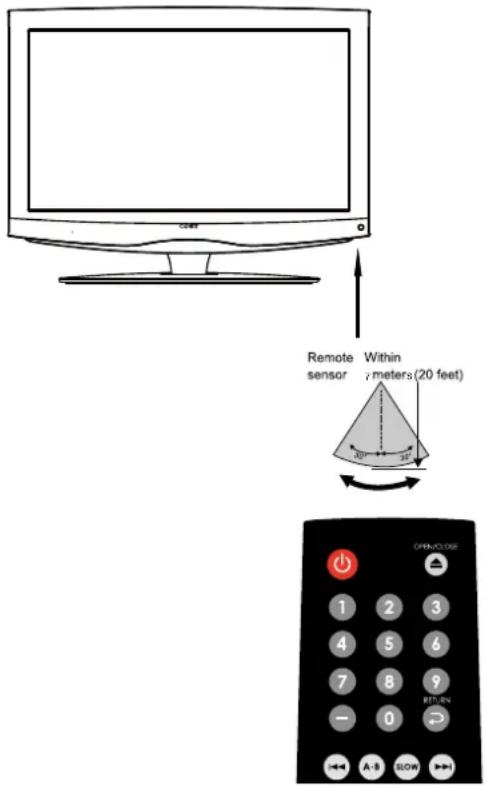
To use the remote, point it at the remote sensor of the player. Operate the remote within 20 feet of the sensor and at an angle of ± 30 degrees.
text_image
Remote sensor Within sensors (20 feet) OPEN/CLOSE 1 2 3 4 5 6 7 8 9 - 0 A-B SLOWThe operating distance may vary depending on the brightness around.
Notes:
- Do not point bright lights directly at the remote control sensor.
- Do not place objects between the remote control unit and the remote control sensor.
- Do not use this remote control unit while simultaneously operating the remote control unit of any other equipment.
Cable Connections
Antenna/Power Connection
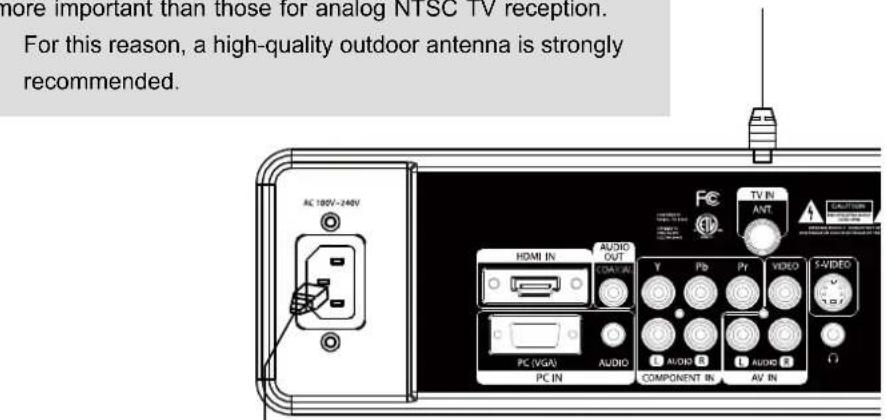
- Connect TV RF sources to the Coaxial TV Antenna In jack. TV RF signals include: receiving antenna/ CATV net. You can use 75 Ohm coaxial cable to connect outdoor antenna.
- Insert one end of the supplied power cord to the player's power jack and the other end to a 110-240V AC wall outlet.
Note: Antenna requirements for good digital TV reception are more important than those for analog NTSC TV reception. For this reason, a high-quality outdoor antenna is strongly recommended.
text_image
more important than those for analog NTSC TV reception. For this reason, a high-quality outdoor antenna is strongly recommended.Wall Outlet
AC100\~240V, 50/60Hz
IMPORTANT NOTICE
- Be sure to have all necessary connections properly done before connect the power supply.
- If you have difficulty inserting the plug, turn it over and re-insert it.
- If the product will not be used for a long period of time, disconnect the power. Note that the [POWER] button on the TV/remote control will place the TV into the standby mode, it does not disconnect the device from the main voltage. To completely disconnect the main voltage, please disconnect the power plug from the wall socket.
VGA Input - PC Connection
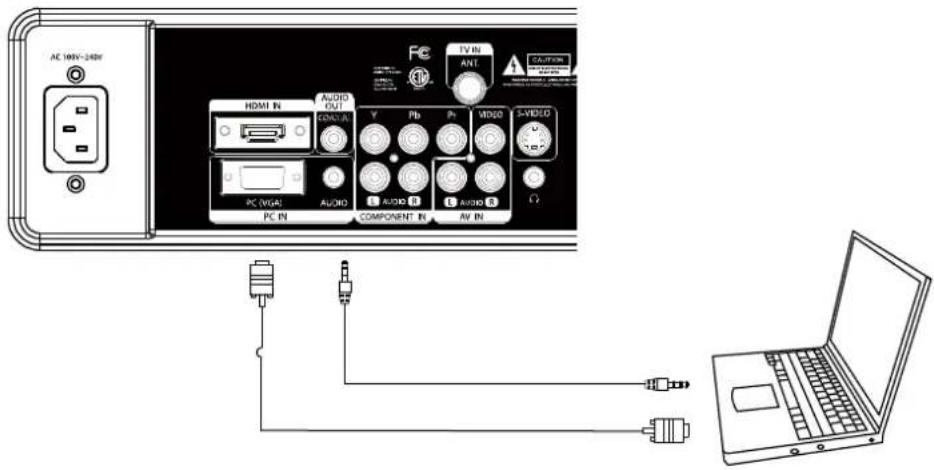
The VGA port of the TV is capable of accepting high-definition signals from computers with a VGA output jack. When used as a computer monitor, turn off both units, connect the VGA jack and the PC Audio In jack with a 15-Pin D-Sub cable and a 3.5mm stereo audio cable. The mentioned cables are not included with this product. After all necessary connections have been properly made, turn on both units and use the SOURCE button to select VGA.
text_image
AC 100V-240V HDMI IN AUDIO OUT COM/AL Y Pb Pr WRDO 5+VIDEO PC (VGA) AUDIO COMPONENT IN AV IN PC INCable Connections
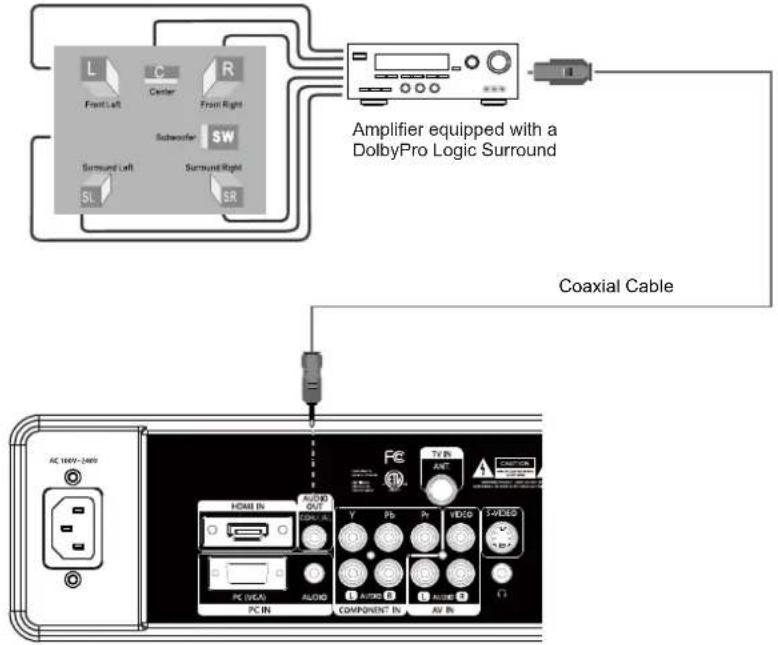
Coaxial Output - Digital Audio Output Connector
If you are using the built-in TV tuner, you may want to play the TV audio through your stereo system for better sound quality. Select TV from the Input source menu to use this connection to watch TV with digital audio sound. (If this connection is inactive, sound will be output from the built-in speakers of the TV.)
A coaxial digital audio cable is required for this connection. After all necessary connections have been properly made, turn on both units, select the VGA mode with the SOURCE button. The coaxial cable is not included with this product. Notice : Coaxial digital audio output only operates under the HDMI and Digital TV mode.
text_image
L Front Left Center From Right Schweaver SW Surround Left Surround Right SL SR Amplifier equipped with a DolbyPro Logic Surround Coaxial Cable AC 164V-2460 HOME IN AUDIO OUT COMPOS Y Pb Pr VIDEO T+VIDEO PC (VCAS) AUDIO COMPONENT IN AUDIO AV INExternal Audio and Video Signal Input - HDMI, RCA, S-VIDEO,COMPONENT.
The player's AV function would enable users to view programs from external signal sources.
Four input modes are available for you to chose from, we have them ranked as below in regard to image definition: HDMI/COMPONENT/S-VIDEO/RCA
NOTE:
We supply one set of AV cable and one piece of power cord with this product.
The white/red plug of the AV cable is for the audio L/R connection and the yellow plug for the video connection. The white/red plug of the AV cable can also be used separately to input the audio signal in the S-video/Component connection.
The rest of cable needed for other necessary connections are not included with this product, please check with electronic store.
IMPORTANT NOTICE - When work with external device,
- Be sure to have all necessary connections properly done before connect the power supply.
- Set the unit into the relative input/output mode to enable the signal pass.
• Refer to the manual of external sources as well.
Cable Connections
HDMI Input
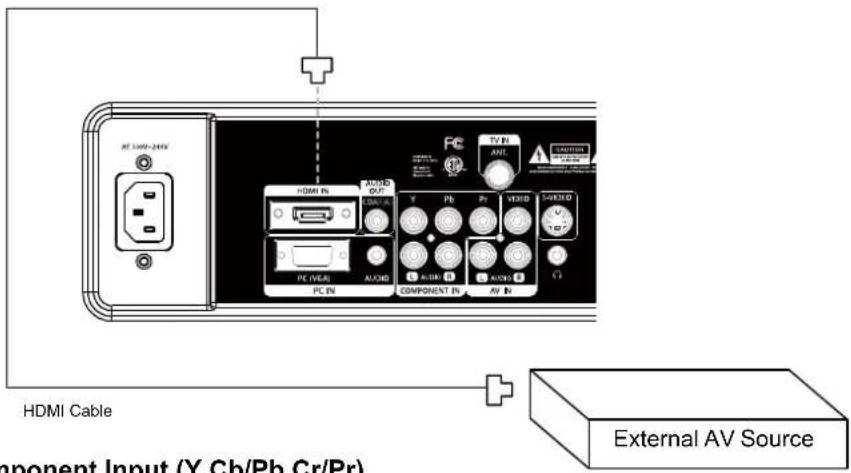
HDMI (High Definition Multimedia Interface) is a new type of connection that transmits digital audio and video signals simultaneously over a single cable. A HDMI cable is required for the HDMI connection. This cable has a male HDMI Type-A connector on each end, carrying both digital video and audio.
These HDMI input connectors are capable of receiving video at resolutions up to 1080p (1080-progressive). After all necessary connections have been properly made, turn on both units, select the HDMI mode with the SOURCE button.
text_image
AT 100V-24kV HDMI Cable Component Input (Y Cb/Pb Cr/Pr) External AV SourceComponent Input (Y Cb/Pb Cr/Pr)
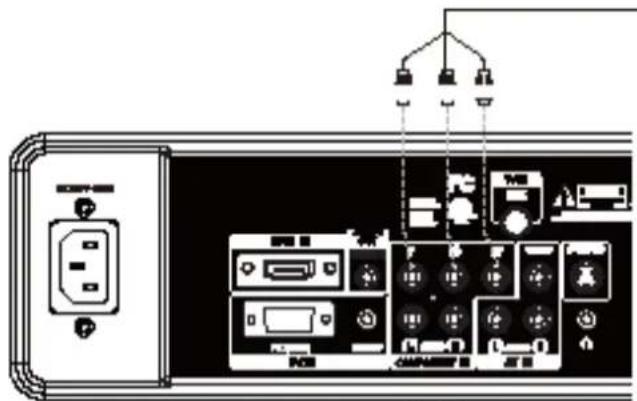
The component port is capable of accepting high-definition signals from standard video sources. (e.g., cable/satellite boxes, DVD players, VCRs, etc.) A component cable is required to make this connection. The component video cable has three RCA plugs (red/blue/green) on each end and carries the video signal.
- Connect the Y, Cb/Pb, Cr/Pr port by the component cable. Component cable is not included with this product.
- Use the red and white plug of supplied AV cable to connect the R,L port for audio transmission.
- After all necessary connections have been properly made, turn on both units, select the Component mode in the source menu with the SOURCE button.
Note: The component video jacks on your A/V device are sometimes labeled YPbPr, or YCbCr. For an explanation of component video, see your A/V device's user guide.
text_image
Diagram of a device rear panel with labeled components including power source, buttons, and control panels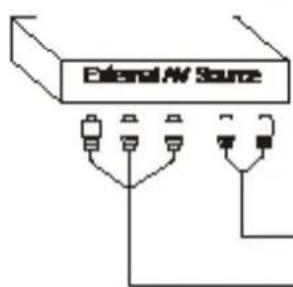
text_image
External AW SourceCable Connections
S-Video Input
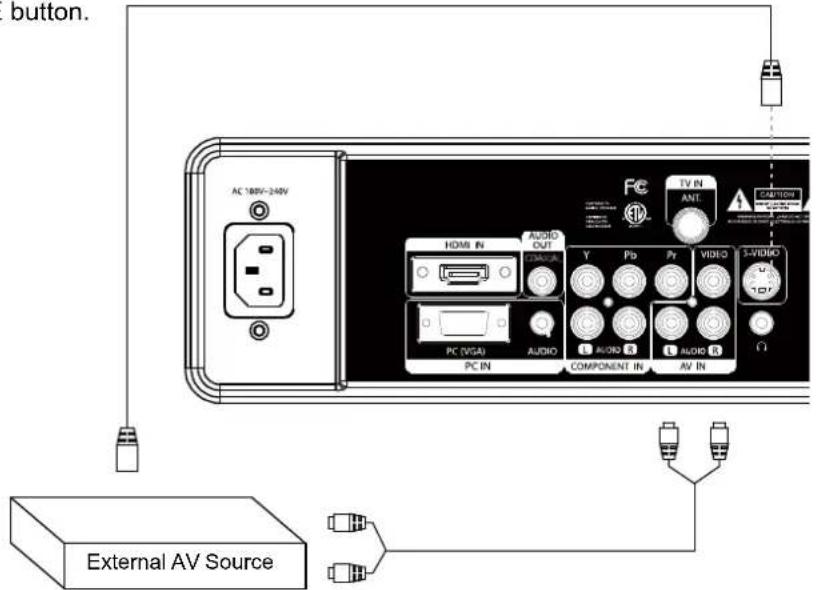
The S-Video port is capable of accepting signals from standard video sources. (e.g., cable/satellite boxes, DVD players, VCRs, etc.)
- Connect the S-Video port by the S-Video cable to input the video signal. S-Video cable is not included with this product
- Connect the L, R port by the white/red plug of the supplied AV cable to input the audio signal.
- After all necessary connections have been properly made, turn on both units, select the S-Video mode with the SOURCE button.
text_image
button. AC 180V-240V HDMI IN AUDIO OUT COMMER Y Pb Pr VIDEO 5+VIDEO PC (VGA) AUDIO AVIO R AVIO R COMPONENT IN AV IN PC IN External AV SourceRCA Input
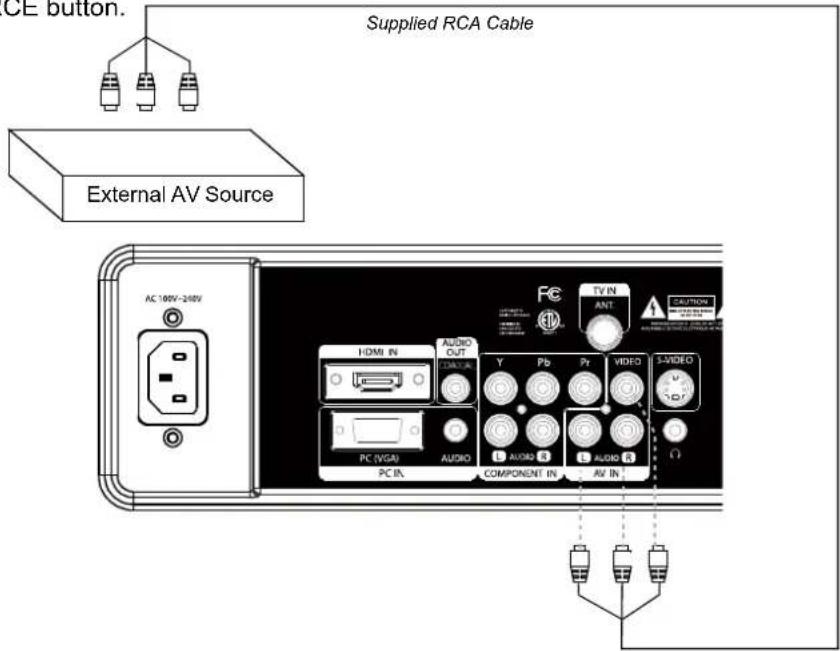
The CVBS port is capable of accepting signals from standard video sources(e.g., cable/satellite boxes, DVD players, VCRs, etc.) A composite A/V is required to make this connection. A composite A/V cable has a (yellow/white/red) on each end. The yellow plug is used for the video signal, and the white and red plugs are used for audio.
- Connect the VIDEO port with the yellow plug of the supplied AV cable.
- Connect the L, R port with the white/red plug of the supplied AV cable.
- After all necessary connections have been properly made, turn on both units, select the AV mode with the SOURCE button.
text_image
CE button. Supplied RCA Cable External AV Source AC 100V-240V HDMI IN AUDIO OUT PC (VGA) AUDIO PC IN TV IN ANT Y Pb Pr VIDEO 3-VIDED AUDIO AUDIO COMPONENT IN AV INPreparations
- Connect cables.(Refer to the "Cable Connections" section for details).
- Press the POWER button to turn on the player.
- Select the TV signal mode, using the SOURCE button.
- Press the CH+/- buttons to skip channels. Or you can press the number buttons to input channels directly. For an initial use, you need to scan channels under the Chanesl Menu.
In the Channels menu, select "Auto Channels Search", press OK to enter -- > Set the TV source as Antenna/Cable (ATV/DTV) -- > Select "Start", press OK to scan. To quit, press MENU.
System Setup Menu
Various features can be preset through the setup menu, please read this section carefully.
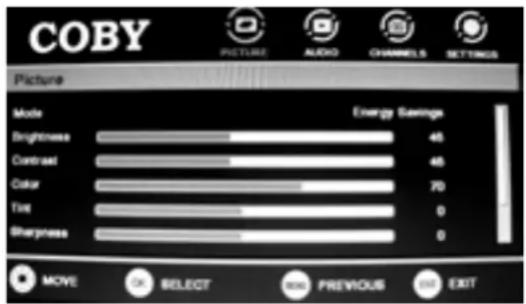
- Press MENU to display the system menu window.
- Press the left/right direction button to select the desired menu, press the down direction button or the OK button to enter.
text_image
COBY PICTURE AUDIO CHANNELS SETTINGS Picture Mode Energy Savings Brightness 45 Contrast 45 Color 70 Tire 0 Sharpness 0 MOVE OK SELECT SMO PREVIOUS END EXITNote: Menu option availability is dependent on the TV's current input source mode. Options that are grayed out are not selectable from the current mode.
While working with the menu,
Always use direction buttons to select an option, press OK to confirm. Press MENU to back up/exit the setup menu, or press EXIT to quit.
Picture Menu
| ITEM DESCRIPTION |
| Mode - Setup the picture mode as Custom/Sports/Theater/Energy Savings/Standard/Vivid. |
| Brightness/Contrast/Color/Tint/Sharpness - Press the left/right direction button to adjust settings. When you select a picture Mode other than "Custom", these items are automatically given parameters to correspond with the chosen preset mode, so any change to these parameters would return the Mode setting to "Custom" |
| Advanced Video - Press the right button to enter this option.Aspect Ratio - Set the screen aspect ratio as Normal/Zoom/Wide/Cinema.Color Temperature - Set color preference as Cool/Normal/Warm.Noise Reduction - Set the noise reduction function as Off/Low/Middle/Right.Adaptive Contrast - Set the adaptive contrast function on/off.Over Scan - Set the over scan function on/off. |
| Reset Picture Settings - Select this item and press OK or the right direction button to set all items under this menu to the factory default. |
Audio Menu
| ITEM | DESCRIPTION |
| Mode Set the audio | mode as Custom/Standard/Theater/Music/News. |
| Treble/Bass/BalanceWhen you select an audio Mode other than "Custom",these items are automatically given parameters tocorrespond with the chosen preset mode, so anychange to these parameters would return the Modesetting to “Custom” | Press the left/right direction button to adjust settings. |
| Digital Audio/SPDIF | Set Digital Audio/SPDIF as RAW/PCM. |
| MTS/SAP Set the ATV | audio mode as Mono/Stereo/SAP. |
| Audio Language Set | DTV audio languages. |
| Reset Audio Settingsbutton to set all item | Select this item and press OK or the right directionms under this menu to the factorydefault. |
Channel Menu
| ITEM | DESCRIPTION |
| Auto Channels Search previously stored channels.Select this item, press OK to enter - -> Set the TV source as Antenna/Cable - -> Select "Start", press OK to search.To quit, press MENU. | Scan and save all available channels automatically, overwriting stored channels.Select this item, press OK to enter - -> Set the TV source as Antenna/Cable - -> Select "Start", press OK to search.To quit, press MENU. |
| Add/Skip Channels Select this option, press OK to enter - -> Use direction buttons to select a channel you want to skip, press OK to confirm. To reveal the h dden channel, press OK again. | This option would enable users to avoid unwanted programs. Option, press OK to enter - -> Use direction buttons to select a channel, press OK to mark it as a favorite channel. To disable the setting, press OK again. |
| Favorite Select this option, press OK to enter - -> Use direction buttons to select a channel, press OK to mark it as a favorite channel. To disable the setting, press OK again. | Make a favorite channels collection. Option, press OK to enter - -> Use direction buttons to select a channel, press OK to mark it as a favorite channel. To disable the setting, press OK again. |
| Channel Labels Select this option, press OK to enter - -> Locate a channel you want to put a label - -> When edit labels, use the left/right direction button to move left/right, use the up/down direction button to change characters - -> Press OK to display "Yes/No" box, select "Yes", press OK. | This option provides users with the ability to name their own programs. Option, press OK to enter - -> Locate a channel you want to put a label - -> When edit labels, use the left/right direction button to move left/right, use the up/down direction button to change characters - -> Press OK to display "Yes/No" box, select "Yes", press OK. |
| Channel Strength | Display the DTVsignal intensity. |
| Audio Only | Set audio output on/off. |
Settings Menu
| ITEM | DESCRIPTION |
| Parental You Controls option | are required to enter the 4-digit password to access this The initial password is 0000. Button Lock - This option would enable users to lock buttons on the unit panel. Block Unrated TV -The option would enable users to lock unrated TV program. USA Parental Locks - Setup the US parental control. Select this option, press OK to enter, there are TV Rating and Movie Rating, Use direction buttons to select the rating level, press OK to confirm, press MENU to back up menu. TV(TV Rating) - Y, Y7, G, PG, 14, MA. MPAA(Movie Rating) - PG-13, R, NC-17, X, N/A, G, PG) Canadian Parental Locks - Setup the Canada parental control. Select this option, press OK to enter. There are English Rating and French Rating. Use direction buttons to select the rating level, press OK to confirm, press MENU to back up menu. English Rating - E, C, C8+, G, PG, 14+, 18+. French Rating - E, G, 8ans+, 13ans+, 16ans+, 18ans+. Change Password - To change the password, input the new password - -> Verify again. Please remember the password since the player's reset function would not revert the password. RRT5 Settings - Set the rating region table. |
| Closed Caption | Select this option , press the right direction button to access the Closed Caption menu. There are four options listed under the Closed Caption menu. Mode - Set the closed caption mode as CC Off/CC On/CC On Mute. Analog Caption - Set the analog caption type as CC1~3/ Text1~4/Off. Digital Caption - Set the digital caption type as CS1~6/Off. Digital CC Settings - Press the right direction button to enter CC Settings menu, set "Style" as "Custom" to edit CC type to your own preference. Press MENU to back up. |
Settings Menu
| ITEM | DESCRIPTION |
| Time This option would enable users to adjust Date/Time information as well as set the sleep timer. | |
| Date/Time - Enter this option, set "Mode" as "Auto" / "Custom". | |
| When Mode is set as "Auto", system would adjust date/time information automatically after you select a desired Time Zone. | |
| When Mode is set as "Custom", you may customize year/month/day/Hour information by your own standards, using direction buttons to write in data. | |
| Sleep Timer - Unit will shut down automatically on Sleep Time. | |
| The available option is 5/10/15/30/45/60/90/120/180/240 min/Off. The count down would start immediately after setting. | |
| You can access this function by repeatedly pressing the SLEEP button on the remote also. To check the timer left, press the SLEEP button on the remote once. To cancel the sleep timer, set the timer to Off. | |
| Menu Settings | Transparency - Set OSD (On-Screen-Display) transparency.Language - Set OSD languages. |
| Computer Setting PC | This option is available for the VGA mode and to be used to adjust PC parameters. |
| Reset to Default | the unit to the factory default. |
The player's AV input function would enable user to view programs from external signal sources. When input AV signals, read the user's manual of the external device as well.
- Connect the external AV signal source. Refer to the "Cable Connection" section for details
- Use the SOURCE button to select the relevant AV mode (AV, S-Video, Component, HDMI).
System Setup Menu
Various features can be preset through the setup menu, please read this section carefully.
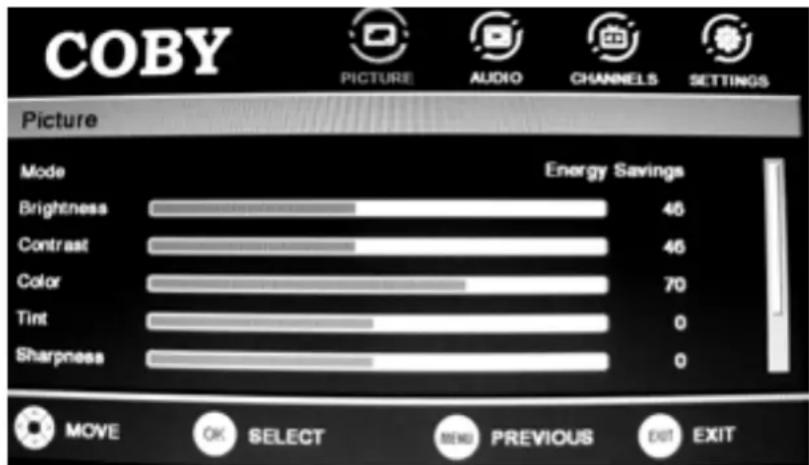
- Press MENU to display the system menu window.
- Press the left/right direction button to select the desired menu, press the down direction button or the OK button to enter.
While working with the menu,
Always use direction buttons to select an option, press OK to confirm. Press MENU to back up/exit the setup menu, or press EXIT to quit.
text_image
COBY PICTURE AUDIO CHANNELS SETTINGS Picture Mode Energy Savings Brightness 46 Contrast 46 Color 70 Tint 0 Sharpness 0 MOVE OK SELECT MENU PREVIOUS EXIT EXITNOTE: Please see the TV section for menu descriptions.
Note: Menu option availability is dependent on the TV's current input source mode. Options that are grayed out are not selectable from the current mode.
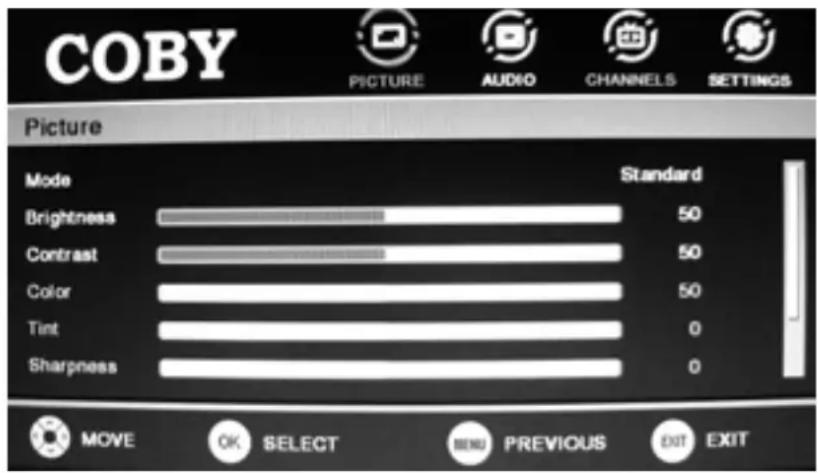
You can use the unit's TFT LCD as your computer's monitor.
- Shut down the unit and the computer, connect the VGA jack and PC Audio In jack. See the "Cable Connection" section.
- Turn on units and use the SOURCE button to select VGA
System Setup Menu
Various features can be preset through the setup menu, please read this section carefully.
- Press MENU to display the system menu window.
- Press the left/right direction button to select the desired menu, press the down direction button or the OK button to enter.
While working with the menu,
Always use direction buttons to select an option, press OK to confirm. Press MENU to back up/exit the setup menu, or press EXIT to quit.
text_image
COBY PICTURE AUDIO CHANNELS SETTINGS Picture Mode Standard Brightness 50 Contrast 50 Color 50 Tint 0 Sharpness 0 MOVE OK SELECT MENU PREVIOUS EXIT EXITAdjust the PC Screen
Upon switching to the PC mode, the monitor will be automatically regulated for a proper functioning. If the result is not up to your expectation, please adjust the monitor manually via the "Computer Settings" menu which is listed under the "Settings" menu.
Preparation
After all necessary connections have been made, press POWER to turn on the player and then press the MODE button to select DVD. The following discs can be read by the player : DVD /CD / MP3 /JPEG.
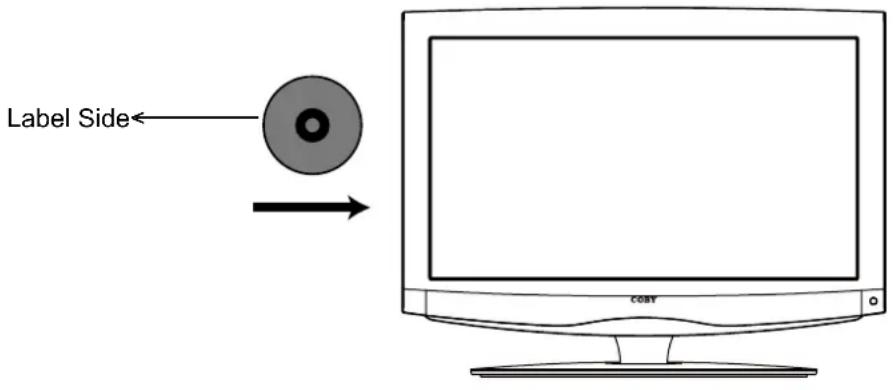
Disc Loading
- Put the disc slightly into the disc tray.
- The disc will be taken automatically into the tray.
text_image
Label Side← cosyWarning: Do not play poor quality discs that may damage the player's lens.
DVD Playback
MENU
Normally a DVD disc consists of several titles and chapters. Once disc data is recognized by the player, a root menu will be displayed on the screen. Press the direction buttons to select the desired title/chapter from the menu and press OK to play. During playback, press DISC MENU to return to the root menu. Some discs start playback automatically.
SUBTITLE
Press the SUBTITLE button to select subtitle languages for multi-subtitle discs.
ANGLE
Press the ANGLE button to select the available viewing angle. Some discs are recorded from various camera positions, which lets you enjoy the same scene from different perspectives. In this case, you'll usually find a marking on the DVD sleeve.
VOLUME
During playback, press the VOL+ button to increase the volume and press the VOL- button to decrease the volume.
CD Playback
The player will play all tracks on a CD disc by default.
MP3 Playback
- Load a disc into the disc tray.
- It will start playback automatically. Or press direction buttons to select a file from the menu and press OK or PLAY/PAUSE button to start playback. Press left/right button to enter /exit file folders.
- Press the STOP button to stop playback.
JPEG Playback
JPEG is a common picture format that requires small amounts of storage per image and has low loss in resolution. Hundreds of pictures can be stored on a disc in this format. In order to view JPEG photo albums, you can ask your film development company to make a "PICTURE CD" when they develop your film.
Normal Playback
Load a JPEG disc in.
Press the direction buttons to select the target file and press OK to access.
Picture Rotation
There are four kinds of rotational modes: Inversion, Enantiomorphism, rotate left and rotate right.
Press direction buttons to select:
"UP" ---- Inversion/Normal
"DOWN" ---- Enantiomorphism/Normal
"LEFT" ---- Rotate left
"RIGHT" ---- Rotate right
Zoom
Press ZOOM button to zoom in/out picture.
Press direction buttons to move the zoomed picture.
During playback, press the STOP button to return to the previous menu.
NOTE: Depending on how the disc was made, a JPEG disc may allow playback, but not rotation or zooming of the images.
USB/Card Access
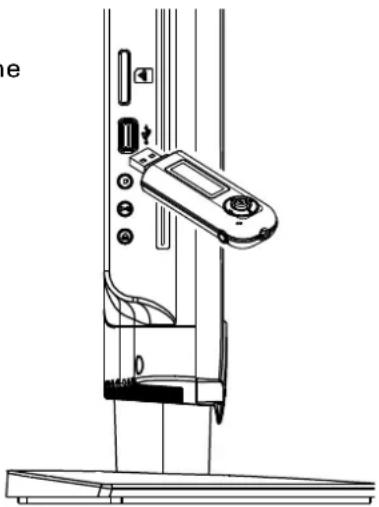
Set the unit into the DVD mode, plug the USB or Card into the corresponding slot, the player starts reading data. When the USB/Card is detected, the screen displays a working menu, press the direction buttons to select the file, press OK to start playback. To disconnect the device, just unplug it from the port when it is not in working.
natural_image
Technical line drawing of a vertical mechanical device with adjustment knobs and a digital display (no text or symbols)Start Playing
Press PLAY/PAUSE to start playback
Pause Playing
Press PLAY/PAUSE once to hold playback, press it again to resume.
Stop Playing
Press STOP once to stop playback at a time point. (Pre-stop mode) It will resume from where it was stopped, when you press PLAY button. Press STOP twice to stop playback completely.
Repeat Function
Use the REPEAT button to perform the repeat function.
-
Repeatedly press the REPEAT button to cycle through the repeat modes as below,
DVD Mode REP: CHAPTER --> REP:TITLE --> REP:ALL --> REP:OFF
CD Mode REP: 1 --> REP:ALL --> REP:OFF -
Use the A-B button on the remote to repeat a section A-B. Press A-B once to set the starting point A, press it twice to set the ending point B, the player would start playing section A-B. To cancel, press A-B.
NOTE: Some discs do not support the repeat function.
Search Function
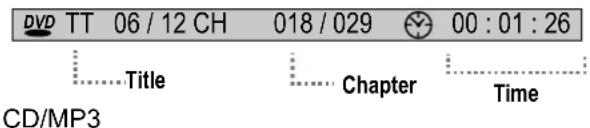
Go to a desired section in a disc.
Press the GOTO button, below picture appears on the screen.
DVD
Search by title /chapter/time
text_image
DVD TT 06 / 12 CH 018 / 029 00 : 01 : 26 Title Chapter Time CD/MP3Search by track / time

text_image
TRK 06 / 12 00 : 01 : 26 Track Time-
Press direction buttons to move between title/chapter/time entry, press numeric buttons to input data. Press OK to start search.
-
Press GOTO once again to exit.
NOTE: Some DVD discs do not support the search function.
Fast Playback
Press▶/◀◀ on the remote to go fast forward/backward through a disc. Repeatedly press the button to change the search speed as below.

Slow Playback
Slow Motion
Press the SLOW button on the remote to have current playback advanced in a slow motion, repeatedly press this button to change speed as below.

Step by Step
Press Play/Pause to pause current playback, and then repeatedly press SLOW to have playback moved step by step forward. To resume normal playback, press Play/Pause.
Zoom Function
Repeatedly press the ZOOM button to achieve the following zoom effect.
ZOOM 2 - ZOOM3 - ZOOM 4 - ZOOM1/2 - ZOOM1/3 - ZOOM1/4 - ZOOM:OFF
NOTE: There is no zoom function for MP3 or CD discs.
Programming Chapters/Tracks
You can store up to 16 programs.
- Press the PROGRAM (P) button to display the program menu.
e.g. DVD Mode
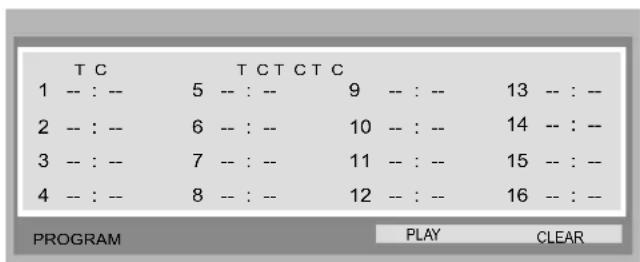
- Press direction buttons to move between input fields and press number buttons to input data.
- Press direction buttons to select "Play" and press OK to start playback.
- To clear, select "CLEAR" from the menu and press OK.
- To quit, press the Program button.
Various features can be preset through the DVD setup menu. Press the DVD SETUP button to show the DVD menu.
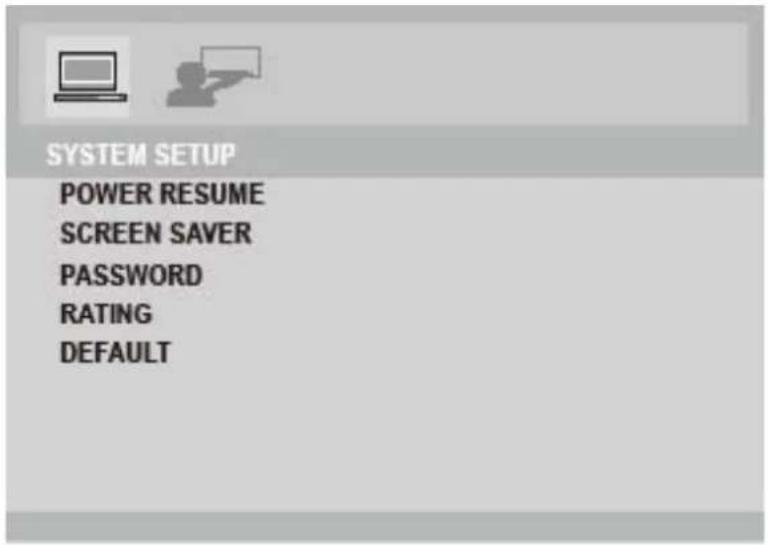
text_image
SYSTEM SETUP POWER RESUME SCREEN SAVER PASSWORD RATING DEFAULTWhile working with the setup menu:
- Press the direction buttons to select the desired item.
- Press the right direction button or the OK button to confirm settings.
- To exit, press DVD SETUP again.
System Setup
- Power Resume - Set the power resume function On.Off. The default setting is Off.
- Screen Saver - Set the Screen Saver ON/OFF. The default setting is On. The screen saver is useful to prevent your display from becoming damaged. If the Screen Saver is set ON, the screen saver picture appears when you leave the player in the stop mode for about a few minutes. Press any button on the unit/remote to exit the screen saver.
- Password - Move the cursor to the PASSWORD prompt and press OK. Input the password 8888, if it is the first use. After confirmation, you will be required to input a new 4-digit code, and verify again.
- Rating - There are eight levels of Parental Control. Level one opens discs to people of all ages, level eight is suitable only for adults. To change the parental control setting, a 4-digit code is required to be input first. (The default code is 8888). When the input code is confirmed, the level setting menu will appear, select the appropriate level by the UP/DOWN button and press OK to confirm.
- Default - This function allows you to set the unit back to the factory default.
Language Setup
| Item | Instruction | Default |
| OSD Language Setup the OSD language. English | ||
| Audio Lang Setup the audio language. English | ||
| Subtitle Lang Setup the subtitle language. When OFF is English selected, the subtitle will not be displayed. | ||
| Menu Lang Setup the menu language. English | ||
If you have a problem with this device, please read the troubleshooting guide section and check our website at www.cobyusa.com for Frequently Asked Questions (FAQs) and firmware updates. If these resources do not resolve the problem, please contact Technical Support.
COBY Electronics Technical Support
150 Knowlton Way, Savannah, GA 31407
Email : techsupport@cobyusa.com. Web : www.cobyusa.com
Phone & Hours: For US Residents
40" and above : 877-302-2629
Monday-Friday (9:00AM-9:00PM EST)
39" and below : 800-727-3592
Monday-Friday (8:30AM-5:00PM EST)
Saturday (9:00AM-5:00PM EST)
All TVS for Canadian Residents: 855-542-8917
Monday-Friday (8:00AM-8:00AM EST)
| Symptom Check and Action | |
| No Power | Make sure the unit has been powered on manually.Check if the power cord has been properly connected to the power outlet.Check if the main power has been switched on. |
| No Picture | Try another TV channelCheck if the system connection is proper and secure.Check if the connection cables are damaged. |
| No Sound | Increase the volume.Check if the MUTE function of the unit has been activated.Check if the sound system has been properly set.Check if the AV audio signal input cable has been connected properly. |
| Color Distorted | Reset the color system of the unit.Check if the system has been properly connected.Check if the AV video signal input cable is connected properly. |
| Picture and Sound are interfered | Check if the system has been properly connected.If using antenna, adjust the antenna. |
| Remote Control does not work | Make sure the POWER button on the unit has been turned on manually.Remove the obstacles between the remote control and the player.Point the remote control towards the remote sensor on the player.Check if the batteries of the remote control have been loaded with correct polarities.Replace the batteries of the remote control. |
| Malfunction | Should the player develop a malfunction, unplug the player for 30 minutes. After that, power on the player and the restore function should reset the player. |
Specifications and manual are subject to change without prior notice.
TFDVD 2495
| TFT Panel Characteristic | Active Area | 23.6" |
| Resolution | 1920x1080 | |
| Display Color | 16.7M | |
| Pixel Pitch | 0.2715(H) x 0.2715(V) | |
| TV Characteristic | TV System | ATSC/NTSC |
| Antenna Impedance | 75Ω | |
| Standard | Standby Power Consumption | <1W |
| Power Consumption | AC100-240V 50/60Hz | |
| On Working 55W(Max) | ||
| Speaker 2x(4Ω,5W) | ||
| Operating Temperature Range | 0°C-40°C | |
| Wall Mounting | M 4 |
TFDVD1995(S2)/LEDVD1996S1
| TFT Panel Characteristic | Active Area | 18.5" |
| Resolution | 1366X768 | |
| Display Color | 6 bit -16.7 M | |
| Pixel Pitch | 0.3(H) x 0.3(V) | |
| TV Characteristic | TV System | ATSC/NTSC |
| Antenna Impedance | 75Ω | |
| Standard | Standby Power Consumption | <1W |
| Power Consumption | 100-240V 50/60Hz | |
| On Working : LCD PANEL 45W(MAX)LED PANEL 35W(MAX)Speaker 2x(4Ω,5W) | ||
| Operating Temperature Range | 0°C-40°C | |
| Wall Mounting | M 4 |
TFDVD2295(S2)
| TFT Panel Characteristic | Active Area | 21.6" |
| Resolution | 1366X768 | |
| Display Color | 8 bit - 16.7M | |
| Pixel Pitch | 0.345(H) x 0.345(V) | |
| TV Characteristic | TV System | ATSC/NTSC |
| Antenna Impedance | 75Ω | |
| Standard | Standby Power Consumption | <1W |
| Power Consumption | 100-240V 50/60Hz | |
| On Working 50W(Max) | ||
| Speaker 2x(4Ω,5W) | ||
| Operating Temperature Range | 0°C-40°C | |
| Wall Mounting | M 4 |
TFDVD1595(S3) / LEDVD1596S1
| TFT Panel Characteristic | Active Area | 15.6" |
| Resolution | 1366X768 | |
| Display Color | 6-bit, 262.144 colors | |
| Pixel Pitch | 0.252(H) x 0.252(V) | |
| TV Characteristic | TV System | ATSC/NTSC |
| Antenna Impedance | 75Ω | |
| Standard | Power Consumption | 100-240V 50/60Hz |
| On Working 30W(Max) | ||
| Speaker 2x(4Ω,3W) | ||
| Operating Temperature Range | 0°C-40°C | |
| Wall Mounting | M4 75X75 MM |
TFDVD 2395
| TFT Panel Characteristic | Active Area | 23" |
| Resolution | 1920x1080 | |
| Display Color | 16.7M | |
| Pixel Pitch | 0.2655(H) x 0.2655(V) | |
| TV Characteristic | TV System | ATSC/NTSC |
| Antenna Impedance | 75Ω | |
| Standard | Standby Power Consumption | <1W |
| Power Consumption | AC100-240V 50/60Hz | |
| On Working 55W(Max) | ||
| Speaker 2x(4Ω,5W) | ||
| Operating Temperature Range | 0°C-40°C | |
| Wall Mounting | M 4 |
natural_image
Line drawing of a flat-screen CRT monitor with 'COBY' label on the front panel (no additional text or symbols)Instruction Manual
TFDVD2395/2495/2295(S2)/1995(S2)/1595(S3)
LEDVD1596S1/1996S1
Please read this manual carefully before connection and use