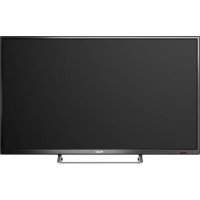
32D3005 - TV HAIER - Free user manual and instructions
Find the device manual for free 32D3005 HAIER in PDF.



User questions about 32D3005 HAIER
0 question about this device. Answer the ones you know or ask your own.
Ask a new question about this device
Download the instructions for your TV in PDF format for free! Find your manual 32D3005 - HAIER and take your electronic device back in hand. On this page are published all the documents necessary for the use of your device. 32D3005 by HAIER.
USER MANUAL 32D3005 HAIER
natural_image
Front view of a blank whiteboard with 'Haier' branding at the bottom (no other text or symbols)Energy Star

This product qualifies for ENERGY STAR in the factory default setting and this is the setting in which power savings will be achieved. Changing the factory default picture setting or enabling other features will increase power consumption that could exceed the limits necessary to qualify for ENERGY STAR rating.
| SYMBOL SYMBOL | DEFINITION |
 | DANGEROUS VOLTAGE: The lightning flash with arrowhead symbol, within an equilateral triangle, is intended to alert the user to the presence of uninsulated “dangerous voltage” within the product’s enclosure that may be of sufficient magnitude to constitute a risk of electrical shock to persons. |
 | INSTRUCTIONS: The exclamation point within an equilateral triangle is intended to alert the user to the presence of important operating and maintenance (servicing) instruction in the literature accompanying the appliance. |
Apparatus shall not be exposed to dripping or splashing and no objects filled with liquids, such as vases, shall be placed on the apparatus.
Batteries installed warning
Caution - Danger of explosion if battery is incorrectly replaced. Replace only with the same or equivalent type.
The batteries (battery pack or batteries installed) shall not be exposed to excessive heat such as sunshine, fire or the like.
FOR YOUR SAFETY
Before operating the TV, please read this manual thoroughly. This manual should be retained for future reference.
FCC Class B Radio Frequency Interference Statement
WARNING: (FOR FCC CERTIFIED MODELS)
NOTE: This equipment has been tested and found to comply with the limits for a Class B digital device, pursuant to Part 15 of the FCC Rules. These limits are designed to provide reasonable protection against harmful interference in a residential installation. This equipment generates, uses and can radiate radio frequency energy, and if not installed and used in accordance with the instructions, may cause harmful interference to radio communications. However, there is no guarantee that interference will not occur in a particular installation. If this equipment does cause harmful interference to radio or television reception, which can be determined by turning the equipment off and on, the user is encouraged to try to correct the interference by one or more of the following measures:
- Reorient or relocate the receiving antenna.
- Increase the separation between the equipment and receiver.
- Connect the equipment into an outlet on a circuit different from that to which the receiver is connected.
- Consult the dealer or an experienced radio/TV technician for help.
NOTICE
- The changes or modifications not expressly approved by the party responsible for compliance could void the user's authority to operate the equipment.
- Shielded interface cables and AC power cord, if any, must be used in order to comply with the emission limits.
- The manufacturer is not responsible for any radio or TV interference caused by unauthorized modification to this equipment. It is the responsibilities of the user to correct such interference.
WARNING:
To prevent fire or shock hazard, do not expose the TV to rain or moisture. Dangerously high voltages are present inside the TV. Do not open the cabinet. Refer servicing to qualified personnel only.
PRECAUTIONS AND REMINDERS
Place unit on even surfaces. Unplug 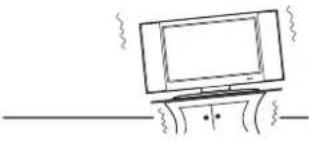 | immediately if other foreign materials are put inside TV box or if the TV fell down.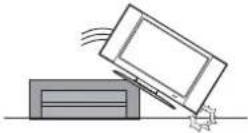 | Do not cover or block any vents and openings. Inadequate ventilation may shorten the life of the display unit and cause overheating.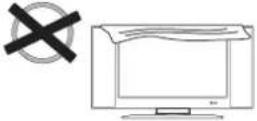 |
Unplug immediately if malfunction like no video/audio occurs, or smoke and bad odor come from TV.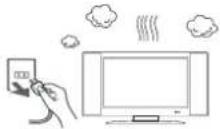 | Prohibit/Avoid opening TV cabinet.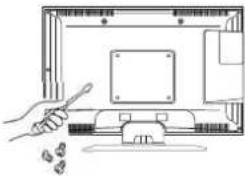 | Avoid direct sunlight, dusty, humid and smoky areas.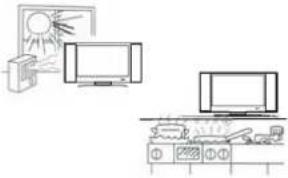 |
Don't throw any object inside the TV box like metals or other flammable materials.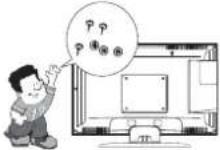 | Remember to unplug the AC cord from the AC outlet before cleaning. Do not use liquid cleaners or aerosol cleaners to clean the display.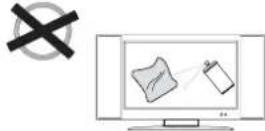 | Call service personnel to clean the internal part of the TV once a year.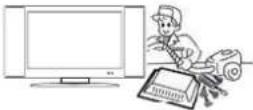 |
Don't place the TV in confined spaces or in a box when using it.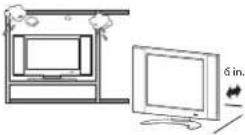 | Make sure to unplug the unit when not in use for a long period of time (days).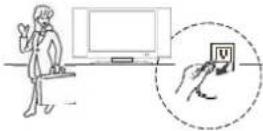 | Do not place the display near water, such as bathtub, washbasin, kitchen sink, laundry tub, swimming pool or in a damp basement.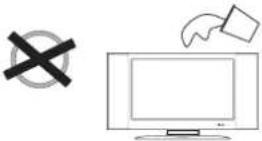 |
Notice for Remote Control
| Avoid Dropping Avoid Liquids Avoid Aerosol Cleaners | ||
 |  |  |
Read before operating equipment.
- To reduce the risk of electric shock or component damage, switch off the power before connecting other components to your TV.
- Read these instructions.
- Keep these instructions.
- Heed all warnings.
- Follow all instructions.
- Do not use this apparatus near water.
- Clean only with a dry cloth.
- Do not block any ventilation openings. Install in accordance with the manufacturer's instructions.
- Do not install near any heat sources such as radiators, heat registers, stoves, or other apparatus (including amplifiers) that produce heat.
- Do not defeat the safety purpose of the polarized or grounding-type plug. A polarized plug has two blades and a third grounding prong. The wide blade or the third prong are provided for your safety. If the provided plug does not fit into your outlet, consult an electrician for replacement of the obsolete outlet.
- Protect the power cord from being walked on or pinched, particularly at plugs, convenience receptacles, and the point where they exit from the apparatus.
- Only use attachments/accessories specified by the manufacturer.
- Use only with the cart, stand, tripod, bracket, or table specified by the manufacturer, or sold with the apparatus. When a cart is used, use caution when moving the cart/apparatus combination to avoid injury from tip-over.
- Unplug this apparatus during lightning storms or when unused for long periods of time.
- Refer all servicing to qualified service personnel. Servicing is required when the apparatus has been damaged in any way, such as when the power-supply cord or plug is damaged, liquid has been spilled or objects have fallen into the apparatus, the apparatus has been exposed to rain or moisture, does not operate normally or has been dropped.
- Unplug the power cord before cleaning your TV.
- When moving your TV from an area of low temperature to an area of high temperature, condensation may form in the housing. Wait before turning on your TV to avoid causing fire, electric shock, or component damage.
- A distance of at least three feet should be maintained between your TV and any heat source, such as a radiator, heater, oven, amplifier etc. Do not install your TV close to smoke. Operating your TV close to smoke or moisture may cause fire or electric shock.
- Slots and openings in the back and bottom of the cabinet are provided for ventilation. To ensure reliable operation of your TV and to protect it from overheating, be sure these openings are not blocked or covered. Do not place your TV in a bookcase or cabinet unless proper ventilation is provided.
- Never push any object into the slots and openings on your TV cabinet. Do not place any objects on the top of your TV. Doing so could short circuit parts causing a fire or electric shock. Never spill liquids on your TV.
- Your TV should be operated only from the type of power source indicated on the label. If you are not sure of the type of power supplied to your home, consult your dealer or local power company.
- Do not apply pressure or throw objects at your TV. This may compromise the integrity of the display. The manufacturer's warranty does not cover user abuse or improper installations.
- The power cord must be replaced when using different voltage than the voltage specified. For more information, contact your dealer.
- When connected to a power outlet, power is always flowing into your TV. To totally disconnect power, unplug the power cord.
- Do not overload power strips and extension cords. Overloading can result in fire or electric shock.
- The wall socket should be installed near your TV and easily accessible.
- Only power of the marked voltage can be used for your TV. Any other voltage than the specified voltage may cause fire or electric shock.
- Do not touch the power cord during lightning. To avoid electric shock, avoid handling the power cord during electrical storms.
- Unplug your TV during a lightning storm or when it will not be used for long period of time. This will protect your TV from damage due to power surges.
- Do not attempt to repair or service your TV yourself. Opening or removing the back cover may expose you to high voltages, electric shock, and other hazards. If repair is required, contact your dealer and refer all servicing to qualified service personnel.

- WARNING: Keep your TV away from moisture. Do not expose your TV to rain or moisture. If water penetrates into your TV, unplug the power cord and contact your dealer. Continuous use in this case may result in fire or electric shock.
- Do not use your TV if any abnormality occurs. If any smoke or odor becomes apparent, unplug the power cord and contact your dealer immediately. Do not try to repair your TV yourself.
- Avoid using dropped or damaged appliances. If your TV is dropped and the housing is damaged, the internal components may function abnormally. Unplug the power cord immediately and contact your dealer for repair. Continued use of your TV may cause fire or electric shock.
- Do not install your TV in an area with heavy dust or high humidity. Operating your TV in environments with heavy dust or high humidity may cause fire or electric shock.
- Follow instructions for moving your TV. Ensure that the power cord and any other cables are unplugged before moving your TV.
- When unplugging your TV, hold the AC/DC power adapter, not the cord. Pulling on the power cord may damage the wires inside the cord and cause fire or electric shock. When your TV will not be used for an extended period of time, unplug the power cord.
- To reduce risk of electric shock, do not touch the connector with wet hands.
- Insert batteries in accordance with instructions. Incorrect polarities may cause the batteries to leak which can damage the remote control or injure the operator. Do not expose batteries to excessive heat such as sunshine, fire or the like.
- If any of the following occurs, contact the dealer:
- The power cord fails or frays.
- Liquid sprays or any object drops into your TV.
- Your TV is exposed to rain or other moisture.
- Your TV is dropped or damaged in any way.
- The performance of your TV changes substantially.
- This apparatus shall not be exposed to dripping or splashing and no objects filled with liquids, such as vases, shall be placed on the apparatus.
- The mains plug or appliance coupler is used as the disconnect device, the disconnect device shall remain readily operable.
- CAUTION - These servicing instructions are for use by qualified service personnel only. To reduce the risk of electric shock, do not perform any servicing other than that contained in the operating instructions unless you are qualified to do so.
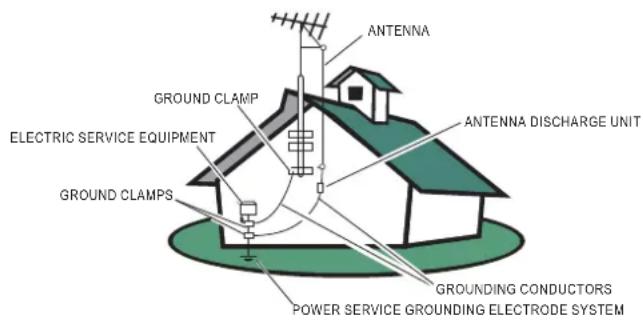
- Outdoor Antenna Grounding – If an outside antenna is connected to the receiver, be sure the antenna system is grounded so as to provide some protection against voltage surges and built up static charges. Section 810 of the National Electric Code, ANSI/NFPA No. 70-1984, provides information with respect to proper grounding of the mats and supporting structure grounding of the lead-in wire to an antenna discharge unit, size of grounding connectors, location of antenna discharge unit, connection to grounding electrodes and requirements for the grounding electrode. See Figure below.
EXAMPLE OF ANTENNA GROUNDING AS PER NATIONAL ELECTRICAL CODE
text_image
ANTENNA GROUND CLAMP ELECTRIC SERVICE EQUIPMENT GROUND CLAMPS ANTENNA DISCHARGE UNIT GROUNDING CONDUCTORS POWER SERVICE GROUNDING ELECTRODE SYSTEMNote to the CATV system installer: This reminder is provided to call the CATV system installer's attention to Article 820-40 of the NEC that provides guidelines for proper grounding and, in particular, specifies that the cable ground shall be connected to the 6 English grounding system of the building, as close to the point of cable entry as practical. Please, make sure to connect the power plug to the wall outlet socket after connecting the TV to the adapter!
SAVE THESE INSTRUCTIONS
Thank you for purchasing this Haier product. This easy-to-use manual will guide you in getting the best use of your product. Remember to record the model and serial number. They are on the label on back of the unit.
Model number
Serial number
Date of purchase
Staple your receipt to your manual. You will need it to obtain warranty service
TABLE OF CONTENTS
FOR YOUR SAFETY 1
PRECAUTIONS AND REMINDERS.... 2
IMPORTANT SAFETY INSTRUCTIONS 3
PREPARATION 7
ATTACHING THE STAND 7
PREPARING YOUR LCD TV FOR WALL MOUNTING....7
TURNING ON THE TV....7
PERIPHERAL CONNECTION AND CONTROLS 8
PERIPHERAL CONNECTION....8
SIDE CONTROL 8
MAKING CONNECTIONS....9
CONNECTING TO AN ANTENNA/CABLE WALL JACK 9
CONNECTING EXTERNAL AUDIO/VIDEO DEVICE 9
CONNECTING PC 9
CONNECTING HEADPHONES....9
CONNECTING DIGITAL AUDIO DEVICE....9
OPERATING INSTRUCTIONS 10
USING THE REMOTE CONTROL....10
INITIAL SETUP 11
INPUT SOURCE 11
NAVIGATING THE ON-SCREEN MENU....11
PICTURE....12
AUDIO 12
CHANNEL 13
SETUP....13
LOCK....14
MEDIA 16
TIPS....17
LEGAL NOTICES 17
PRODUCT SPECIFICATION 18
TROUBLESHOOTING 19
WARRANTY 20
IMPORTANT: Do not apply pressure to the screen display area which may compromise the integrity of the display. The manufacturer's warranty does not cover user abuse or improper installations.
ATTACHING THE STAND
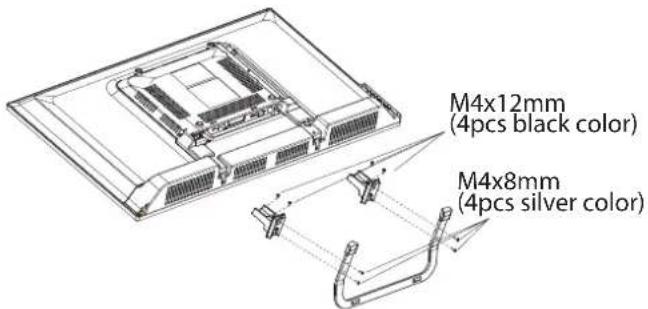
IMPORTANT: The stand of the TV must be assembled prior to usage.
- Place TV unit face down on a soft and flat surface (blanket, foam, cloth, etc.) to prevent any damage to the TV.
- Fix the stand to the bracket with the four M4x8mm silver screws.
- Fix the bracket with stand to the bottom of the TV with the four M4x12mm black screws.
text_image
M4x12mm (4pcs black color) M4x8mm (4pcs silver color)PREPARING YOUR LCD TV FOR WALL MOUNTING
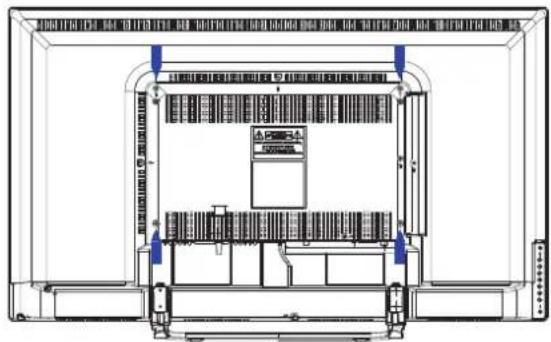
We suggest that you keep your TV at least 2.36 inches (60 mm) from the wall to prevent cable interference. Before mounting your TV on the wall, you need to remove the stand.
For your safety, please use only with a UL listed wall mount bracket with minimum weight of the TV without stand. (Please see page 18 for the weight of the TV.) To attach a wall mount bracket to your TV:
- Remove the screws holding your TV to the stand.
- Remove the stand from your TV.
- Secure the wall mount bracket to the back of your TV using four screws (see page 18 for the size of the screws). Follow the instructions of the user manual that came with the wall mount bracket to install.
natural_image
Technical line drawing of a mechanical assembly or enclosure with no visible text, numbers, or symbols.
NOTE
The wall mount bracket and the screws are not included.
TURNING ON THE TV
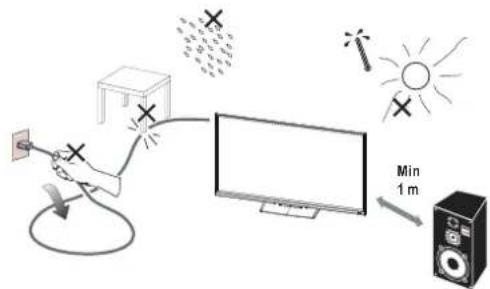
- Install the stand and place the TV on a solid surface.
text_image
Diagram illustrating a surveillance or lighting setup with labeled components including a hand holding a power outlet, a screen, sun, and a speaker.NOTE
- Ensure that the TV is placed in a position to allow free flow of air. Do not cover the ventilation openings on the back cover.
- To prevent any unsafe situations, no naked flarsources, such as lighted candles, should be placed on or in the vicinity.
-
Avoid heat, direct sunlight and exposure to rain or water. The equipment shall not be exposed to dripping or splashing.
-
Connect the antenna cable or cable TV cable to the ANT IN aerial socket on the back of the TV set. See "CONNECTING TO AN ANTENNA/CABLE WALL JACK" on page 9.
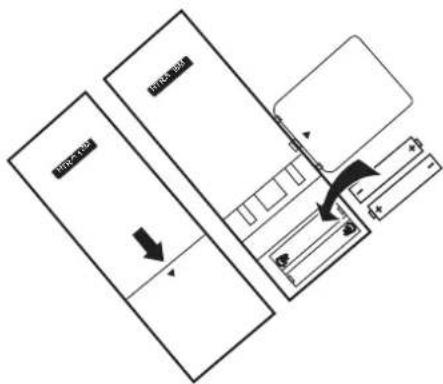
- Remote control:
Remove the cover of the battery compartment. Insert the 2 supplied batteries (Type AAA 1.5V).
flowchart
graph TD
    A["Start"] --> B{Condition}
    B -->|Yes| C["Process Step"]
    B -->|No| D["End"]
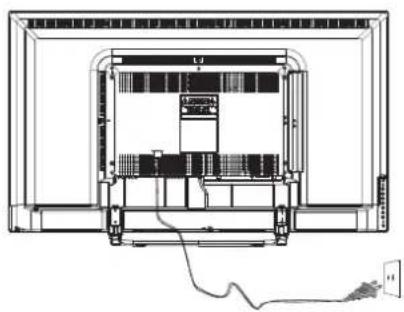
- Power:
Plug the cord into a working power outlet.
natural_image
Technical line drawing of a computer monitor with internal components and cable (no text or symbols)- Turn the TV on:
Press on the remote control or POWER button on the side control panel of the TV.
text_image
HEADPHONE COAMAL COMPOSITE COMPONENT R VIDEO P3 P4 PC AUDIO VCA RFLORTNOC EDISNOITCENNOC LAREHPIREP
text_image
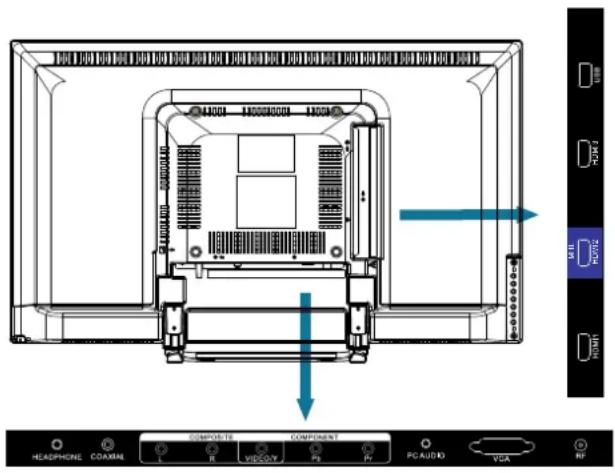
INPUT MENU VOL+ VOL- CH+ CH - POWER| # Item | Description | |
| 1 | HEADPHONE | Connect headphones to this jack. When headphones are inserted, the TV speakers will be muted. |
| 2 | COAXIAL | Connect a coaxial audio cable from a sound bar, stereo system, receiver, etc. |
| 3 | L R | Connect the audio cables for a component or composite device. |
| 4 | VIDEO | Connect the video cable for a composite device. |
| 5 | YPbPr | Connect the video cables for a component device. |
| 6 | PC AUDIO | Connect the audio cable from a computer. |
| 7 | VGA | Connect the video cable from a computer. |
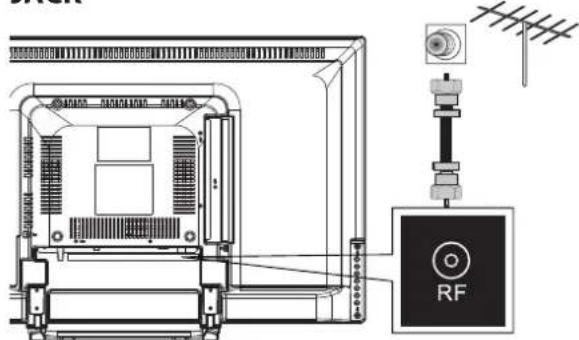
| 8 | RF | Connect an antenna or cable TV cable to this jack. |
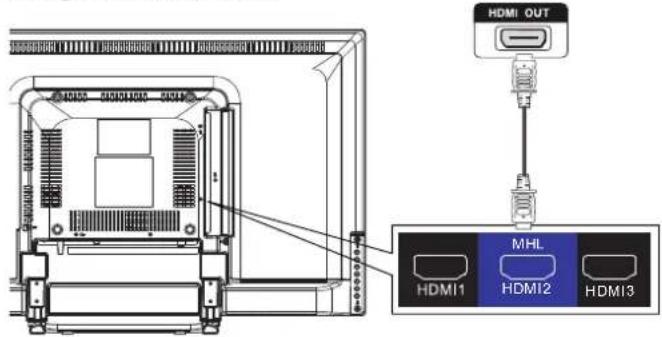
| 9 | HDMI1 | Connect HDMI devices to these jacks. An HDMI cable carries both video and sound. You do not need to make an audio connection for an HDMI device. Note: The HDMI2 port is MHL enabled. |
| 9 | HDMI2(MHL) | |
| 10 | HDMI3 | |
| 11 | USB | Insert a USB storage device to the USB port to view JPEG photos, and listen to MP3 music. (See page 16 for more information.) |
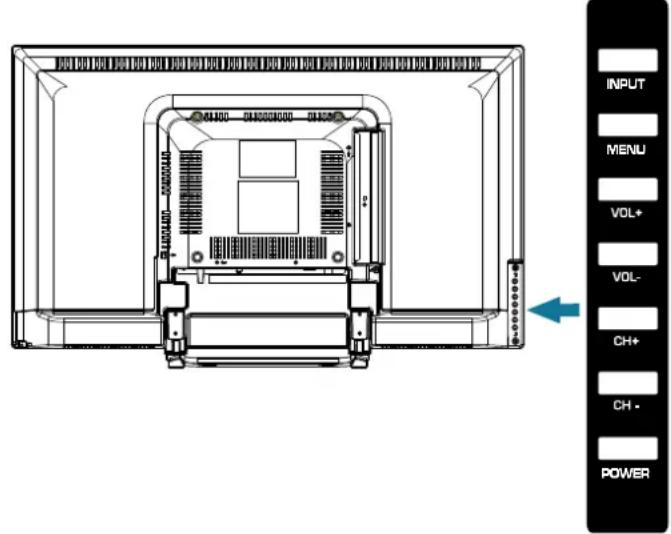
| # Item | Description | |
| 1 | INPUT | Press to select the input source. Press the VOL+ button to change to the selected input source. |
| 2 | MENU | Press to open or close the on-screen menu. |
| 3 | VOL+ | Press to increase the volume level. |
| 4 | VOL- | Press to decrease the volume level. |
| 5 | CH+ | Press to go to the next channel in the channel list. |
| 6 | CH- | Press to go to the previous channel in the channel list. |
| 7 | POWER | Press to turn the TV on or off (standby mode). When the TV is off, power still flows through it. To completely disconnect power, unplug the power cord. |
CONNECTING TO AN ANTENNA/CABLE WALL JACK
text_image
Technical diagram of an electronic device with labeled components including RF, antenna, and control panelCONNECTING EXTERNAL AUDIO/VIDEO DEVICE
Using HDMI cable (best)
text_image
HDMI OUT HDMI1 MHL HDMI2 HDMI3NOTE
- An HDMI cable carries both video and audio. You do not need to use any audio cables.
- You can connect MHL devices, such as the Roku Streaming Stick and compatible mobile phones and tablets to the HDMI2(MHL) port. A USB to HDMI cable is required to connect a mobile phone or tablet to the TV. Please check the documentation of your device.
Using component cables (better)
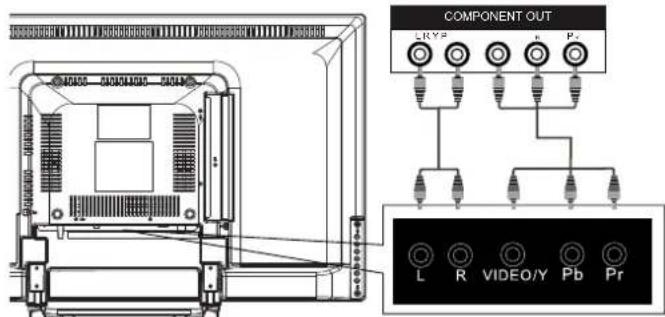
text_image
COMPONENT OUT L R VIDEO/Y Pb PrUsing composite cable (good)
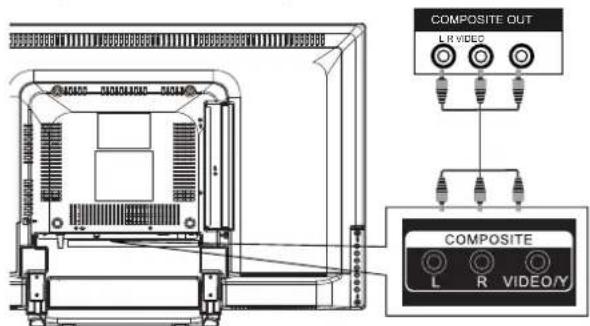
text_image
COMPOSITE OUT L R VIDEO COMPOSITE L R VIDEO/YNOTE
• Cables are often color-coded to match color-coded jacks.
CONNECTING PC
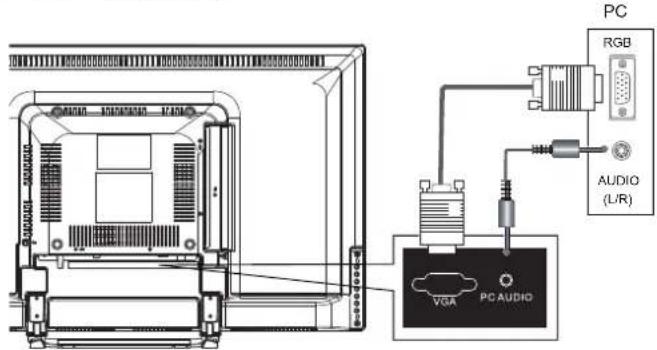
text_image
PC RGB AUDIO (L/R) VGA PC AUDIOCONNECTING HEADPHONES
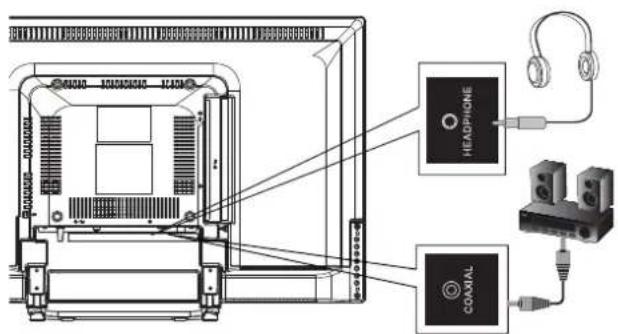
text_image
Technical diagram showing audio equipment connections with headphones, headphones, and a coastal device labeled in English.NOTE
Turn off the TV and external devices before making connections.
To play from the external device:
- Turn on the TV and the connected device.
-
Press INPUT to open the input source list, then press ▲/▼ to highlight the input to which the device was connected and press OK to switch.
-
Select TV to watch TV from the RF input.
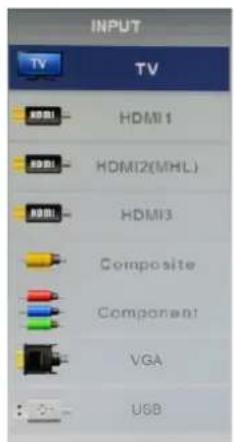
- Select HDMI1, HDMI2(MHL), or HDMI3 to play from a device connected to the HDMI1, HDMI2(MHL), or HDMI3 input.
- Select Composite to play from the device connected to the COMPOSITE input.
- Select Component to play from the device connected to the COMPONENT input.
- Select VGA to play from the PC connected to the PC AUDIO inputs.
USING THE REMOTE CONTROL
text_image
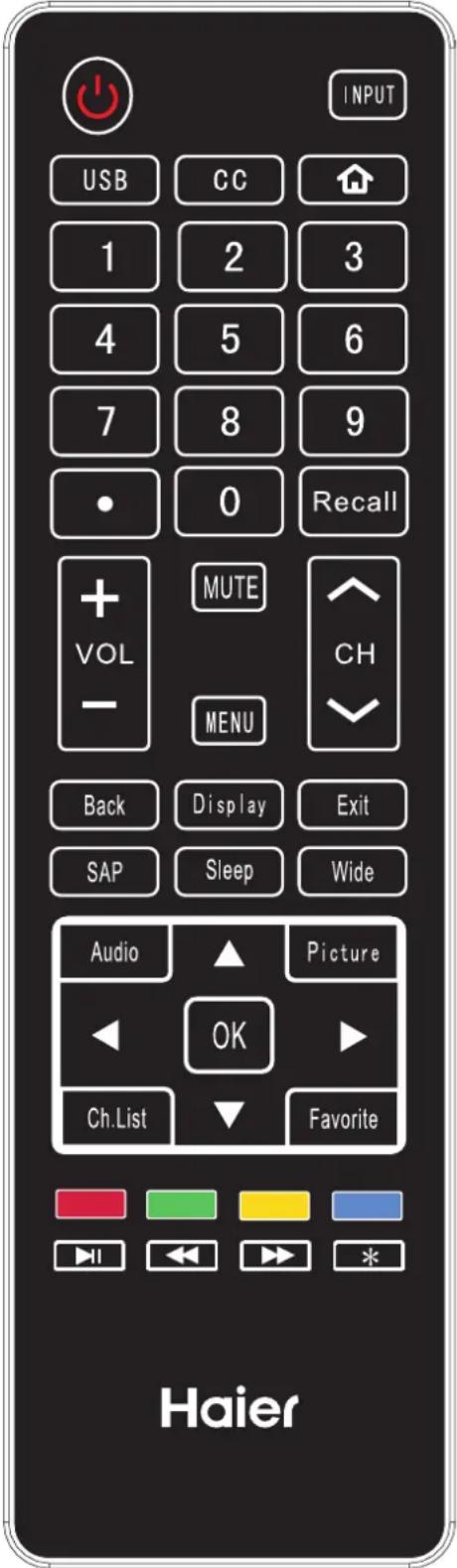
INPUT USB CC 1 2 3 4 5 6 7 8 9 0 Recall + MUTE VOL CH - MENU Back Display Exit SAP Sleep Wide Audio Picture OK Ch.List Favorite Haier| Item Descriptions | |
| Power | Press to turn the TV on or off. When your TV is off, power still flows through it. To completely disconnect power, unplug the power cord. |
| INPUT Press to open the input source list. | |
| USB | Press to switch to USB input (USB multimedia mode). |
| CC | Press this key to select the CC ,ON or OFF mode and CC on Mute. |
| HOME | Switch to the HDMI2(MHL) input, If the Roku Streaming Stick is connected, press this button to return to the Roku home screen. |
| 0~9 /• number | Press to enter a TV channel number (Press "." to choose the sub-channel). |
| RECALL Press to switch to last viewed channel. | |
| VOL+/VOL- | Press VOL+ or VOL- to adjust volume level. |
| MUTE | Press to switch the sound on or off. |
| MENU | Press to open or close the on-screen menu. |
| CH+/CH - | Press CH+ or CH- to change TV channels. |
| BACK | Return to the previous menu. If the Roku Streaming Stick is connected, press this button to go back to the previous screen. |
| DISPLAY | Press to display the information window. |
| EXIT | Press to exit the menu or on screen display (OSD). |
| SAP Press to switch sounds: SAP, Stereo, Mono for ATV, or switch audio language for DTV. | |
| SLEEP | Press to set the sleep timer. |
| WIDE | Press to adjust the picture aspect ratio. |
| AUDIO | Press to switch the audio mode. |
| PICTURE | Press to switch the picture mode. |
| OK | Enter the selected option or perform the selected operation. |
| CH.LIST Press to display the Channel List. | |
| FAVORITE Press to display the Favorite List. | |
| ▲/▼/◄/► | Use the arrow buttons to move around in menus. |
| PLAY | Press to start playing the MEDIA, or to pause playing.(Used for models with MEDIA function only). |
| REV | Press to fast reverse MP3 playback in Music mode. |
| FWD | Press to fast forward MP3 playback in Music mode. |
| * | Enter electronic program guide. If the Roku Streaming Stick is connected, press this button to view more options. |
INITIAL SETUP
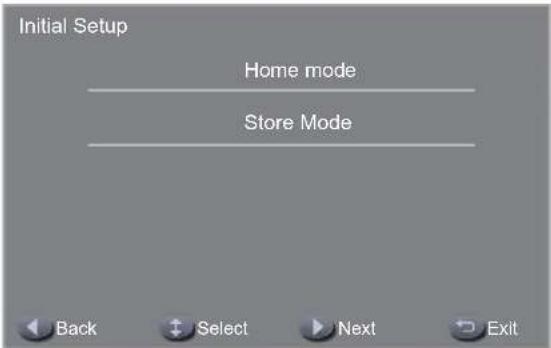
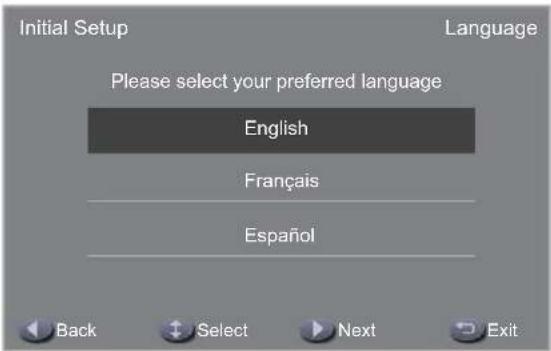
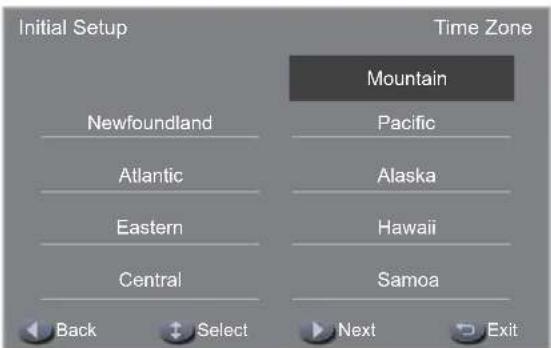
The first time you turn on your TV, the setup wizard will guide you through setting up basic settings including the menu language, time zone, and TV signal source.
- Press ☐ turn on the TV. The setup wizard screen opens. Press OK to start the wizard.
- Press ▲/▼ to select Home Mode or Store Mode, then press ▶ to continue.
Note: Home mode is energy saving mode, store mode is vivid mode.
text_image
Initial Setup Home mode Store Mode Back Select Next Exit- Press to select your language, then press to continue.
text_image
Initial Setup Language Please select your preferred language English Français Español Back Select Next Exit- Press to select your time zone, then press to continue.
text_image
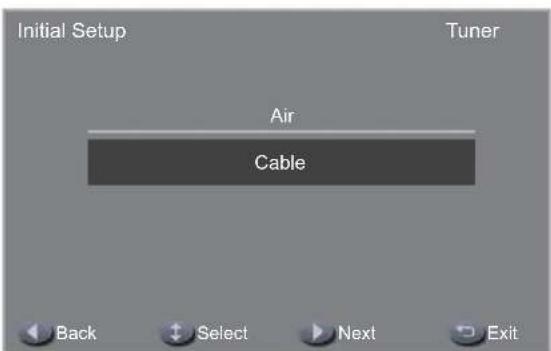
Initial Setup Time Zone Mountain Newfoundland Pacific Atlantic Alaska Eastern Hawaii Central Samoa Back Select Next Exit- Press to select your tuner type, then press to start channel scan.
text_image
Initial Setup Tuner Air Cable Back Select Next Exit- Air – Set the signal type to antenna. When set to Air, the TV can receive analog and digital (ATSC) broadcasting signals.
- Cable – Set the signal type to cable. When set to Cable, the TV can receive analog and QAM broadcasting signals.
- The auto channel scan usually takes a few minutes to complete but can take up to 20 minutes. You can cancel the channel scan by pressing EXIT.
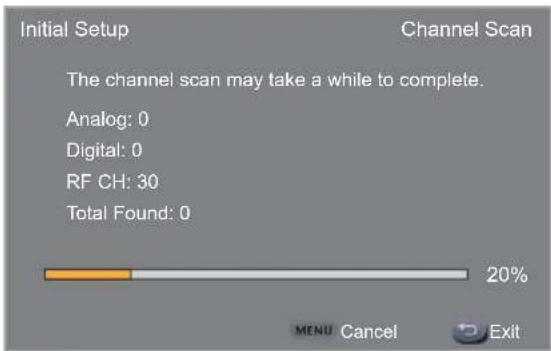
text_image
Initial Setup Channel Scan The channel scan may take a while to complete. Analog: 0 Digital: 0 RF CH: 30 Total Found: 0 20% MENU Cancel ExitNOTE
- During initial setup, press to return to the previous screen and press EXIT to exit the initial setup.
INPUT SOURCE
Press INPUT to open the input source list, then press ▲/▼ to highlight an input and press OK to switch.
text_image
INPUT TV TV HDMI1 HDMI2(MHL) HDMI3 Composite Component VGA USBNAVIGATING THE ON-SCREEN MENU
- Press MENU to open the on-screen menu.
- Press to select the main menu (Picture/Audio/Channel/Setup/Lock), then press OK or to enter the sub-menu.
- Press to highlight a sub-menu item, then press to adjust the setting or select the desired option.
- Press EXIT to close the on-screen menu.
NOTE
- Press MENU to return to the previous menu. If the main menu is displayed, pressing MENU will close the on-screen menu.
PICTURE
text_image
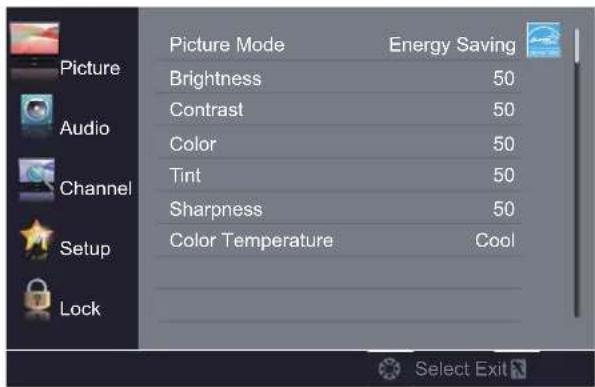
Picture Mode Energy Saving Brightness 50 Contrast 50 Color 50 Tint 50 Sharpness 50 Color Temperature Cool Lock Select ExitPicture Mode – Select the picture mode. You can select:
- Standard – A standard picture. The contrast, brightness, and sharpness are moderately increased.
- Vivid – A bright and vivid picture. The contrast, brightness, and sharpness are significantly
- Mild – A soft picture. The brightness, contrast and sharpness level are lowered.
- User – Customized picture. Picture settings such as brightness, contrast, and color are manually adjusted.
- Energy Saving – The backlight brightness is decreased to save energy.
NOTE
- Manually adjusting picture settings will automatically change the Picture Mode to User.
Brightness – Adjust the brightness of the dark areas of the picture. Press to darken the picture. Press to brighten the picture.
Contrast – Adjust the brightness of the light areas of the picture. Press ◀ to decrease the contrast. Press ▶ to increase the contrast.
Color – Adjust the color intensity of the picture.
Tint – Adjust the color balance of the picture. Press ◀ to increase the red tones. Press ▶ to increase the green tones.
Sharpness – Adjust the color details of picture. Press ◀ to soften the picture. Press ▶ to sharpen the picture.
Color Temperature – Select the color temperature. You can select:
• Normal – Give the white color a neutral tint.
- Warm – Give the white color a reddish tint.
- Cool – Give the white color a bluish tint.
PC Settings – Adjust the computer image in VGA input (VGA input only). You can adjust:
• H-Pos – Adjust picture's horizontal position.
• V-Pos – Adjust picture's vertical position.
- Clock – Adjust the sample frequency.
- Phase – Adjust the focus of stable images.
• Auto – Automatically adjust the image settings.
AUDIO
text_image
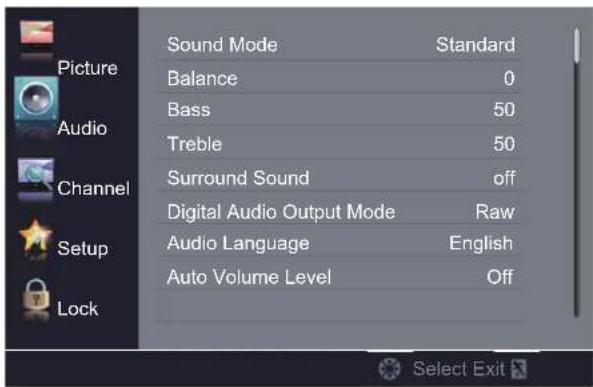
Picture Audio Channel Setup Lock Sound Mode Standard Balance 0 Bass 50 Treble 50 Surround Sound off Digital Audio Output Mode Raw Audio Language English Auto Volume Level OffSound Mode – Select the sound mode. You can select:
- Standard – Balanced treble and bass. This setting is good for watching standard TV broadcasts.
- Music – Increase the treble and bass and preserve the original sound. This setting is good for listening to a musical program.
- Theater – Moderately decrease and enhance treble and bass for a rich sound experience.
- News – Balance treble and bass. This setting is good for watching a news program.
- User – Let you manually adjust sound settings.
NOTE
- Manually adjusting audio settings will automatically change the Sound Mode to User.
Balance – Adjust the balance between the left and right audio channels.
Bass – Adjust the low frequency sound. Press to decrease bass. Press to increase the bass.
Treble – Adjust the high frequency sound. Press ▶to decrease treble. Press ▶to increase the treble.
Surround Sound – Activate or deactivate the surround sound function.
Digital Audio Output Mode – Select digital audio output type. You can select:
- Off – Set digital audio output off.
- Raw – Pass through the original digital audio sound.
• PCM – Output audio in 2-channel stereo.
Audio Language – Select an alternate audio language, if available. You can select English/Spanish/French. (Digital channels only)
Auto Volume Level – Adjust the volume to keep the volume level consistent when switching channels or when switching from a TV show to a commercial. You can select On/Off.
CHANNEL
text_image
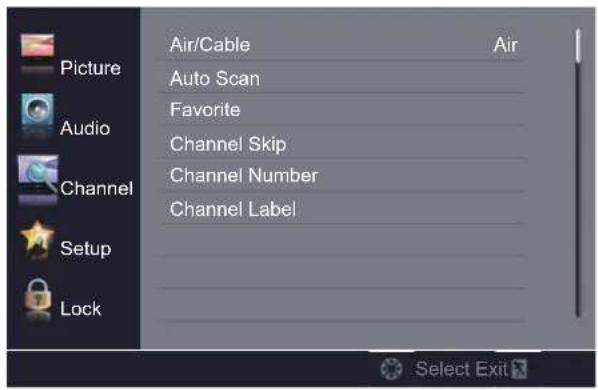
Air/Cable Air Picture Auto Scan Audio Favorite Channel Skip Channel Number Channel Label Channel Setup Lock Select ExitAir/Cable – Select the signal type.
- Air – Set the signal type to antenna. When set to Air, the TV can receive analog and digital (ATSC) broadcasting signals.
- Cable – Set the signal type to cable. When set to Cable, the TV can receive analog and QAM broadcasting signals.
Auto Scan – Press OK to start the auto channel scan.
Favorite – Manually add and skip channels in your favorite channel list.
Channel Skip – Manually add and skip channels in your channel list.
Channel Number – Select the channel that you want to assign a customized label.
Channel Label – Label a channel to make it easier to identify.
text_image
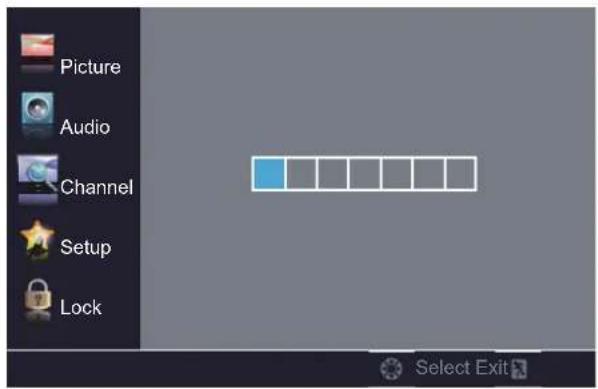
Picture Audio Channel Setup Lock Select Exit- Press OK to label the selected channel.
- Press ◀/▶ to select the entry field.
- Press to select the desired character for a field.
- Press OK after all the desired characters are entered.
SETUP
text_image
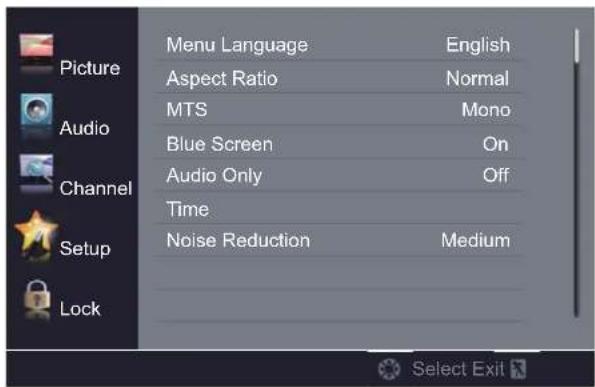
Picture Audio Channel Setup Lock Menu Language English Aspect Ratio Normal MTS Mono Blue Screen On Audio Only Off Time Noise Reduction MediumMenu Language – Select on-screen display menu language. You can select English/Français/Espanol.
Aspect Ratio – Select the display mode. You can select:
- Full 100% – Expand the image to fill the screen. The image may appear distorted. (VGA input only)
- Point to Point – Display the VGA signal's original aspect ratio. Black bars might be added for display. (VGA input only)
- Normal – Display the original 4:3 aspect ratio with vertical black bars on the left and right of the image.
- Wide -Use this option to view content recorded in a 16:9 (wide-screen) aspect ratio.
- Zoom- Expand the image to fill the screen. The top and bottom of the image may be cropped.
- Cinema – Stretch the image at the edges, but keeps a clear image in the center.
MTS – Select the preferred sound track. You can select:
- Mono – Select this option if there is noise or static from a weak broadcast signal.
- Stereo – Select this option for programs broadcast in stereo sound.
- SAP – Select this option to enable audio in an alternative language, if available.
Blue Screen – When this option is set to On, the screen will be blue instead of black when there is no input signal.
Audio Only – Turn off the TV picture, and listen to the audio.
NOTE
• Audio only works only when the input source is TV and the TV is receiving a broadcast signal.
• To exit audio only mode, press any button.
Time – Adjust the time settings.
Time Zone – Select your time zone.
Sleep Timer – Set the amount of time before the TV automatically turns off.
Daylight Saving Time – Select On (if your viewing area observes Daylight Saving Time) or Off (if your viewing area does not observe Daylight Saving Time).
Clock – Set the date and time.
Noise Reduction – Select the noise reduction mode to reduce picture noise (snow). You can select Off/Low/Medium/High.
Closed Caption – Adjust the closed captioning settings.
CC Mode – Select closed captioning mode. You can select:
- CC Off – Turn off closed captioning.
- CC On – Turn on closed captioning.
- CC on Mute – Turn on closed captioning when the sound is muted.
Analog CC – Select analog closed captioning mode.
Digital CC – Select digital closed captioning mode.
Option – Customize digital closed captioning settings.
Mode – Select Custom to customize below settings or select Default to use default settings.
Font Style – Select font style. You can select Default/Font 0\~Font 7.
Font Size – Select font size. You can select Default/Normal/Large/Small.
Font Edge Style – Select font edge style. You can select Default/None/Raised/Depressed/Uniform/Left Shadow/Right Shadow.
Font Edge Color – Select font edge color. You can select Default/Black/White/Red/Green/Blue/Yellow/Magenta/Cyan.
FG Color – Select font color. You can select Default/White/Black/Red/Green/Blue/Yellow/Magenta/Cyan.
BG Color – Select background color. You can select Default/Black/White/Red/Green/Blue/Yellow Magenta/Cyan.
FG Opacity – Select font opacity. You can select Default/Solid/Flashing/Translucent/Transparent.
BG Opacity – Select background opacity. You can select Default/Solid/Flashing/Translucent/Transparent.
Over Scan – Extend part of the display past the visible area of the screen. The resulting picture will "zoom in" on the image center.
Restore Default – Reset all settings to the factory defaults.
E-manual-The electronic user manual.
LOCK
text_image
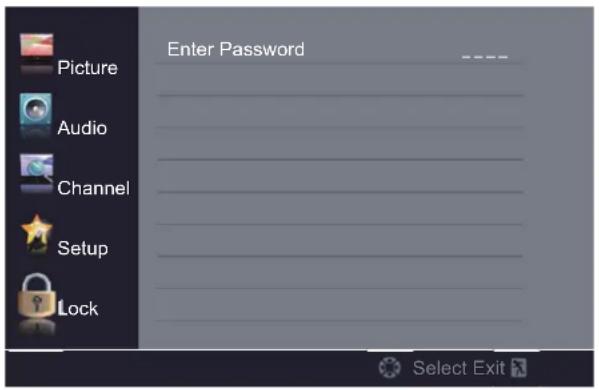
Enter Password Picture Audio Channel Setup Lock Select Exit- Press OK or to enter password.
- Use the number buttons on the remote control to enter your 4-digit password. The default password is "0000".
- After the correct password is entered, the Lock submenu screen opens.
text_image
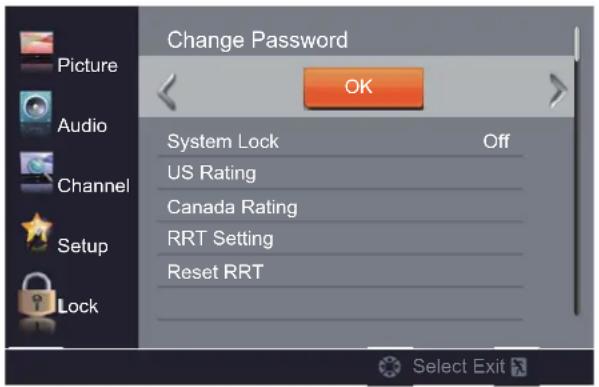
Change Password Picture OK Audio System Lock Off Channel US Rating Canada Rating Setup RRT Setting Reset RRT Lock Select ExitChange Password – Press OK to set a new 4-digit password.
Enter Old Password – Enter your old 4-digit password.
Enter New Password – Enter your new 4-digit password.
Confirm Password – Enter your new 4-digit password again to confirm.
System Lock – Turn the US and Canada rating limits on or off.
US Rating – Set the U.S. rating limits.
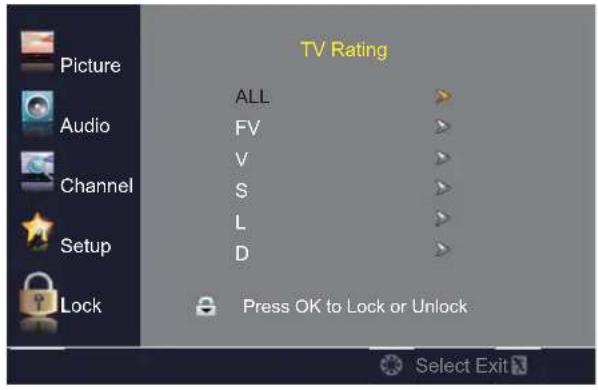
TV – U.S. TV ratings. The TV ratings compose of two aspects: age-based and content-based.
text_image
TV Rating ALL FV V S L D Press OK to Lock or Unlock Picture Audio Channel Setup Lock Select Exit
text_image
Picture Audio Channel Setup Lock TV-Y TV-Y7 TV-G TV-PG TV-14 TV-MA Press OK to Lock or Unlock Select ExitTV rating levels
U.S TV ratings (content-based)
ALL All ratings
FV Fantasy violence
V Violence
S Sexual situations
L Strong language
D Suggestive dialog
U.S TV ratings (age-based)
TV-Y All children.
TV-Y7 Suitable for children 7 and older.
TV-G General audiences.
TV-PG Parental guidance suggested.
TV-14
Parental guidance strongly suggested.
TV-MA Mature audiences only.
MPAA – This system defines the rating control which comes from MPAA rules.
MPAA rating levels
U.S movie (MPAA) ratings
G General audiences.
PG Parental guidance suggested.
PG-13 Suitable for children 13 and older.
R Parental guidance suggested for children under 17.
NC-17 Not suitable for children under 17.
X Adults only.
Canada Rating – Set the Canada rating limits.
Canada English – The ratings are for programs using the English rating system.
Canada English rating levels
Canadian English ratings
C Suitable for all children.
C8+ Suitable for children 8 and older.
G General audiences.
PG Parental guidance suggested.
14+ Suitable for children 14 and older.
18+ Adults only.
Canada French – The ratings are for programs using the French rating system.
Canada French rating levels
Canadian French ratings
G General audiences.
8 ans+ Suitable for children 8 and older.
13 ans+ Suitable for children 13 and older.
16 ans+ Suitable for children 16 and older.
18 ans+ Adults only.
NOTE
- When a rating is locked, that rating and all other higher ratings are locked. When a rating is unlocked, that rating and all lower ratings are unlocked.
RRT Setting – Adjust RRT settings.
Reset RRT – Reset RRT settings to the factory default.
MEDIA
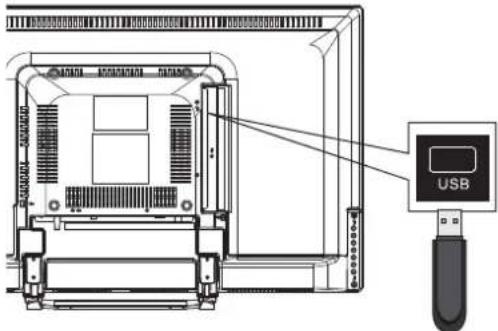
The USB Media Player allows you to connect a USB device to your TV and play music or photos.
- Connect your USB device to the USB port on the rear of the TV.
text_image
Technical diagram of an electronic device with labeled components and a USB indicator connected to it.- Press INPUT and select USB, or press USB on the remote control to switch to USB input.
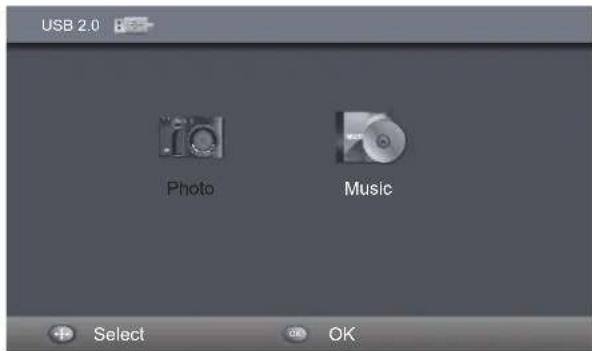
text_image
USB 2.0 Photo Music Select OK- Press to highlight Photo or Music, then press OK.
Press to highlight C, then press OK to view the files or folders.
-
Press to select the that you want to play, then press OK.
-
To navigate the playback, press to highlight an option on the operation banner, then press OK to execute.
Photo
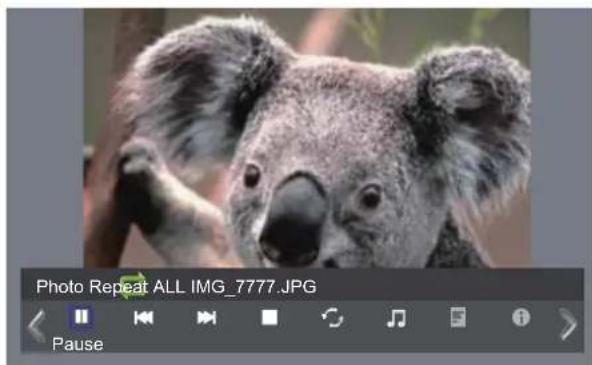
text_image
Photo Repeat ALL IMG_7777.JPG Pause- Press to highlight an option, then press OK to execute.
- Select//or press on the remote control to pause or resume slide show playback.
- Select◀to display the previous photo.
- Select▶to display the next photo.
- Select or press on the remote control to stop slide show playback.
- Select to change repeat mode. You can select Repeat One/Repeat ALL/None.
- Select to play the music in the current folder. To stop the music playback, highlight and press OK again.
- Select ☑ to display the play list. Press EXIT to close the list.
- Select to show file information such as file name, resolution, size, date and time. Press OK to close the information screen.
- Select to rotate the photo 90^ clockwise.
- Select to rotate the photo 90^ counterclockwise.
- Select to zoom in on the photo.
- Select to zoom out on the photo.
- Select to view a zoomed photo. Press◀/▶/▲/▼ on the remote control to move and view the photo in detail. Press EXIT to exit.
Music
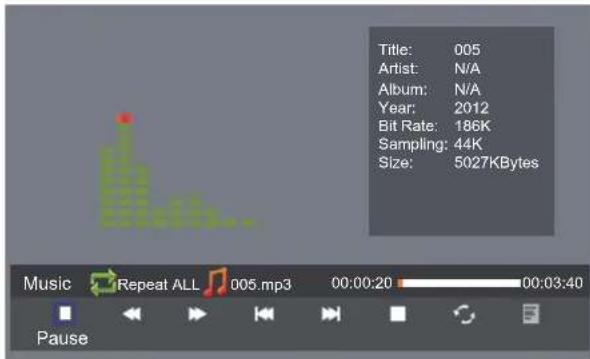
text_image
Title: 005 Artist: N/A Album: N/A Year: 2012 Bit Rate: 186K Sampling: 44K Size: 5027KBytes Music Repeat ALL 005.mp3 00:00:20 00:03:40 Pause-
Press ◀/▶ to highlight an option, then press OK to execute.
-
Select/▶ or press ▶ the remote control to pause or resume music playback.
- Select ◀◀ or press ◀◀ on the remote control to fast reverse music playback.
- Select ▶▶ or press ▶▶ on the remote control to fast forward music playback.
- Select◀ to play the previous music file.
- Select▶▶to play the next music file.
- Select or press on the remote control to stop music playback.
- Select to change repeat mode. You can select Repeat One/Repeat ALL/None.
- Select F to display the song list. Press EXIT to close the song list.
NOTE
- In photo and music mode, press EXIT to close the operation banner, and press OK to open it again.
- In music mode, before pressing◀/▶ to adjust the volume level, press EXIT to close the operation banner first.
TIPS
Care of the screen
Do not rub or strike the screen with anything hard as this may scratch, mar, or damage the screen permanently.
Unplug the power cord before cleaning the screen. Dust the TV by wiping the screen and the cabinet with a soft, clean cloth. If the screen requires additional cleaning, use a clean, damp cloth. Do not use liquid cleaners or aerosol cleaners.
Mobile telephone warning
To avoid disturbances in picture and sound, malfunctioning of your TV or even damage to the TV, keep your mobile telephone away from the TV.
End of life directives
We are paying a lot of attention to produce environmentally friendly products. Your new television contains materials, which can be recycled and reused.
At the end of its life, specialized companies can dismantle the discarded receiver to collect the reusable materials and to minimize the amount of materials to be disposed of.
Please ensure you dispose of your old receiver according to local regulations. Haier is committed to safely recycling electronic products and product materials. Please check for a local recycling location in the United States at: 1800RECYCLING.COM.
LEGAL NOTICES
Modifications
The FCC requires the user to be notified that any changes or modifications made to this device that are not expressly approved by our company may void the user's authority to operate the equipment.
Cables
Connections to this device must be made with shielded cables with metallic RF/EMI connector hoods to maintain compliance with FCC Rules and Regulations.
Canada ICES-003 statement
This Class B digital apparatus complies with Canadian ICES-003. Standard Television Receiving Apparatus — Appareil de réception télévision ordinaire, Canada BETS-7/NTMR-7.
Canadian notice
This Class B digital apparatus meets all requirements of the Canadian Interference-Causing Equipment Regulations.
Avis Canadian
HDMI, the HDMI logo, and High-Definition Multimedia Interface are trademarks or registered trademarks of HDMI Licensing LCC in the United States and other countries.
NOTE
• This model complies with the specifications listed below.
- Designs and specifications are subject to change without notice.
- This model may not be compatible with features and/or specifications that may be added in the future.
| Model 32D3005 | |
| DISPLAY | |
| elbaweiV | 32" |
| Television System NTSC, ATSC | |
| Channel Coverage NTSC: CH2-CH69 (Antenna)/CH1-CH135 (Cable)ATSC: CH2-CH69 (Antenna)/CH1-CH135 (Cable) | |
| CONNECTIONS | |
| srotcennoC raeR | HEADPHONECOAXIALLRVIDEOYPbPrPC AUDIOVGARF |
| srotcennoC ediS | HDMI1/HDMI2(MHL)/HDMI3USB |
| WEIGHT & DIMENSION | |
| Dimensions with Stand (W x H x D) 28.72" x 18.16" x 7.05" | |
| Dimensions without Stand (W x H x D) 28.72" x 17.01" x 2.97" | |
| Weight with Stand | 10.3 lbs |
| Weight without Stand | 9.5 lbs |
| WALL MOUNTING | |
| Wall Mount Pattern (H x V) | 200 x 200 mm |
| epyt wercS | M6 |
| POWER | |
| Power Consumption | 60W |
| ybdn&t | 0.5W |
| Mains Power | 100-240V~50/60Hz |
| Audio Power | 8W+8W |
| Ambient Temperature | 41°F ~ 95°F |
| PACKAGE CONTENTS | |
| Package Contents | TV unit x 1TV stand x 1Remote control x 1Screws x 8User manual x 1Registration card x 1Battery x 2 |
Please make these simple checks before calling service. These tips may save you time and money since charges for receiver installation and adjustments of customer controls are not covered under your warranty.
| Symptoms | Items to Check and Actions to Follow |
| "Ghost" or double image | This may be caused by obstruction to the antenna due to high rise buildings or hills. Using a highly directional antenna may improve the picture. |
| No power | Check if the TV's AC power cord is plugged into the outlet.Unplug the TV, wait for 60 seconds. Then reinsert plug into the outlet and turn on the TV again. |
| No picture | Check antenna connections at the rear of the TV to see if it is properly connected to the TV.Possible broadcast station trouble. Try another channel.Adjust the contrast and brightness settings.Check the Closed Captions control. Some TEXT modes could block the screen. |
| Good picture but no sound | Increase the volume level by pressing the VOL+ button on the remote control or on the TV side control panel.Press the MUTE button on the remote control to ensure mute is off. |
| Good sound but poor color | Adjust the contrast, color and brightness settings. |
| Poor picture | Poor picture quality may occur when an activated S-VHS camera or camcorder is connected to your TV and other peripherals at the same time. Switch off one of the peripherals. |
| Snowy picture and noise | Check the antenna connection. |
| Horizontal dotted line | This may be caused by electrical interference (e.g. hair dryer, nearby neon lights, etc.) Turn off the equipment. |
| Television not responding to remote control | Check whether the batteries are working. Replace if necessary.Clean the remote control sensor lens on the TV.You can still use the buttons on the side of your TV. |
| Pixels (dots) that are always dark or always lit | Your TV is precision-manufactured using an extremely high level of technology. However, sometimes pixels may not display correctly. These types of occurrences are inherent to this type of product and do not constitute a defective product. |
This Haier brand product, when shipped in its original container, will be free from defective workmanship and materials, and agrees that it will, at its option, either repair the defect or replace the defective product with a new or re-manufactured equivalent, for parts or labor for the periods set forth below:
This warranty does not apply to the appearance of the product or the exterior of the product, which has been damaged or defaced, altered or modified in design or construction. It does not apply to the additional excluded items set forth below:
The warranty commences on the date the item was purchased and the original purchase receipt must be presented to the authorized service center before warranty repairs are rendered.
The limited warranty described herein is in addition to whatever implied warranties may be granted to purchasers by law. ALL IMPLIED WARRANTIES INCLUDING THE WARRANTIES OF MERCHANTABILITY AND FITNESS FOR USE ARE LIMITED TO THE PERIOD(s) FROM THE DATE OF PURCHASE SET FORTH BELOW. Some states do not allow limitations on how long an implied warranty lasts, so the above limitation may not apply to you.
Neither the sales personnel of the seller nor any other person is authorized to make any warranties other than those described herein, or to extend the duration of any warranties beyond the time period described herein on behalf of Haier.
The warranties described herein shall be the sole and exclusive warranties granted by Haier and shall be the sole and exclusive remedy available to the purchaser. Correction of defects in the manner and for the period of time described herein, shall constitute complete fulfillment of all abilities and Responsibility of Haier to the purchaser with respect to the product, and shall constitute full satisfaction of all claims, whether based on contract, negligence, strict duality or otherwise. In no event shall Haier be liable, or in any way responsible for any damages or defects in the product which were caused by repairs or attempted repairs performed by anyone other than an authorized service center or dealer; nor shall Haier be liable, or in any way responsible for incidental or consequential economic or property damage. Some states do not allow the exclusion of incidental or consequential damages, so that above exclusion may not apply to you.
THIS WARRANTY GIVES YOU SPECIFIC LEGAL RIGHTS. YOU MAY ALSO HAVE OTHER RIGHTS WHICH VARY FROM STATE TO STATE.
Warranty period for 32D3005 one year parts and labor.
Additional items excluded from warranty coverage: non-rechargeable batteries. What to do to obtain service or to obtain product literature, accessories, supplies or customer assistance: Simply call 1-877-337-3639. Be sure to have proof of purchase.
Haier
natural_image
Front view of a whiteboard with the word 'Haier' at the bottom (no other text or symbols visible)Energy Star

FIXATION DU SOCLE....8
PRÉPARATION DE VOTRE TÉLÉVISEUR LCD POUR LE MONTAGE MURAL....8
ALLUMER LE TÉLÉVISEUR....8
CONNEXION PÉRIPHÉRIQUE ET COMMANDES 9
CONNEXION PÉRIPHÉRIQUE 9
COMMANDE LATÉRALE....9
EFFECTUER LES CONNEXIONS....10
CONNEXION À UNE PRISE MURALE D'ANTENNE / DE CÂBLE 10
CONNEXION DU PÉRIPHÉRIQUE AUDIO / VIDÉO EXTERNE.... 10
CONNEXION D'UN PC 10
PICTURE (IMAGE)....13
AUDIO 13
CHAÎNE....14
CONFIGURATION 14
VERROUILLAGE 15
MÉDIA....17
CONSEILS 18
AVIS JURIDIQUES....18
SPÉCIFICATIONS DU PRODUIT 19
DÉPANNAGE 20
GARANTIE 21
text_image
M4x12mm (4pcs black color) M4x8mm (4pcs silver color)PRÉPARATION DE VOTRE TÉLÉVISEUR LCD POUR LE MONTAGE MURAL
text_image
Technical diagram of a device interior with labeled components and directional arrows indicating flow or movement.
REMARQUE
text_image
Diagram showing a device with labeled components and directional arrows indicating movement or operation.natural_image
Technical line drawing of an electronic device with internal components and wiring (no text or symbols)text_image
D'ANTERINE, DE CABLE RFCONNEXION DU PÉRIPHÉRIQUE AUDIO / VIDÉO EXTERNE
text_image
Technical diagram of an electronic device showing labeled components including headphones, headphones connected to a carboxial and cable.
REMARQUE
text_image
puteSlaitinI Please select your preferred language English Français Español Back Select Next Exittext_image
Mountain Newfoundland Pacific Atlantic Alaska Eastern Hawaii Central Samoa Back SelectNext Exittext_image
puteSlaitinI nao The channel scan may take a while to complete. Analog: 0 Digital: 0 RF CH: 30 Total Found: 0 20% MENU Cancel ExitREMARQUE
text_image
Picture Mode Energy Saving Brightness 50 Contrast 50 Color 50 Tint 50 Sharpness 50 Color Temperature Cool Audio Channel Setup Lock Select Exittext_image
Picture Audio Channel Setup Lock Sound Mode Standard Balance 0 Bass 50 Treble 50 Surround Sound off Digital Audio Output Mode Raw Audio Language English Auto Volume Level Off Select Exittext_image
Air/Cable Air Picture Auto Scan Audio Favorite Channel Skip Channel Channel Number Channel Label Channel Setup Lock Select Exittext_image
Picture Audio Channel Setup Lock SelectExittext_image
Picture Audio Channel Setup Lock Menu Language English Aspect Ratio Normal MTS Mono Blue Screen On Audio Only Off Time Noise Reduction Medium Select Exittext_image
Enter Password Picture Audio Channel Setup Lock Select Exittext_image
Change Password Picture OK Audio System Lock Off Channel US Rating Canada Rating Setup RRT Setting Reset RRT Lock Select Exittext_image
TV Rating ALL FV V S L D Press OK to Lock or Unlock Select Exit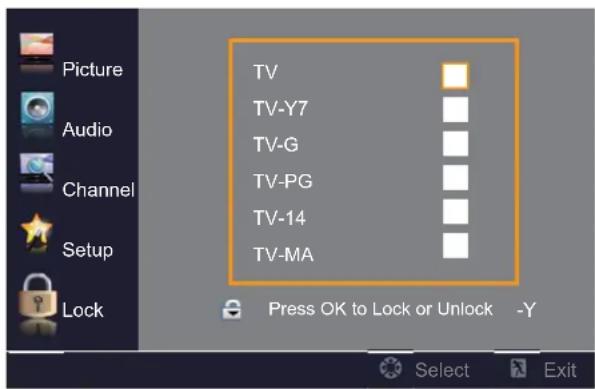
text_image
Picture Audio Channel Setup Lock TV TV-Y7 TV-G TV-PG TV-14 TV-MA Press OK to Lock or Unlock -Y Select ExitNiveaux de classification TV
D Dialogue suggestif
text_image
Technical diagram of an electronic device with labeled components and a USB controller connected to a display screen.text_image
USB 2.0 Photo Music Select OKtext_image
Title: 005 Artist: N/A Album: N/A Year: 2012 Bit Rate: 186K Sampling: 44K Size: 5027KBytes Music ALL Repeat 005.mp3 00:00:20 00:00:16 Pausenatural_image
Front view of a blank whiteboard with 'Haier' label at the bottom (no other text or symbols)Energy Star
natural_image
Simple line drawing of a computer monitor on a desk with sound waves, no text or symbols presentnatural_image
Line drawing of a hand holding a screwdriver next to a computer monitor (no text or symbols)natural_image
Line drawing of two computers on a desk with a computer monitor and a sun icon above (no text or symbols)CHANNEL (CANAL)....13
CONFIGURACIÓN....13
BLOQUEAR 14
MEDIA 16
Música 16
SUGERENCIAS 17
AVISOS LEGALES....17
text_image
M4x12mm (4pcs black color) M4x8mm (4pcs silver color)natural_image
Technical line drawing of a device rear panel with internal components and mounting brackets (no text or symbols)
NOTA
natural_image
Technical line drawing of an electronic device interior with no visible text or symbols- Encienda el TV:
text_image
COMPONENT OUT L R Y S P A L R VIDEO/Y Pb Prtext_image
Technical diagram of an electronic device with labeled components including headphones, audio jack, and connectorsNOTA
text_image
Please select your preferred language English Français Español Back Select Next Exittext_image
puteSlaitinI Mountain Newfoundland Pacific Atlantic Alaska Eastern Hawaii Central Samoa Back Select Next Exittext_image
puteSlaitinl enuT Air Cable Back Select Next Exittext_image
puteSlaitinI The channel scan may take a while to complete. Analog: 0 Digital: 0 RF CH: 30 Total Found: 0 20% MENU Cancel ExitNOTA
text_image
Picture Mode Brightness Contrast Color Tint Sharpness Color Temperature Energy Saving 50 50 50 50 50 Cool Lock Select Exittext_image
Picture Audio Channel Setup Lock Sound Mode Standard Balance 0 Bass 50 Treble 50 Surround Sound off Digital Audio Output Mode Raw Audio Language English Auto Volume Level Off Select Exittext_image
Air/Cable Air Picture Auto Scan Audio Favorite Channel Skip Channel Number Channel Label Channel Setup Lock Select Exittext_image
Picture Audio Channel Setup Lock Select Exittext_image
Picture Audio Channel Setup Lock Menu Language English Aspect Ratio Normal MTS Mono Blue Screen On Audio Only Off Time Noise Reduction Medium Select ExitDefault/Black/White/Red/Green/Blue/Yellow/Magenta/Cyan
Default/Black/White/Red/Green/Blue/Yellow/Magenta/Cyan
text_image
Enter Password Picture Audio Channel Setup Lock Select Exittext_image
Change Password Picture OK Audio System Lock Off Channel US Rating Canada Rating Setup RRT Setting Reset RRT Lock Select Exittext_image
TV Rating ALL FV V S L D Press OK to Lock or Unlock Select Exit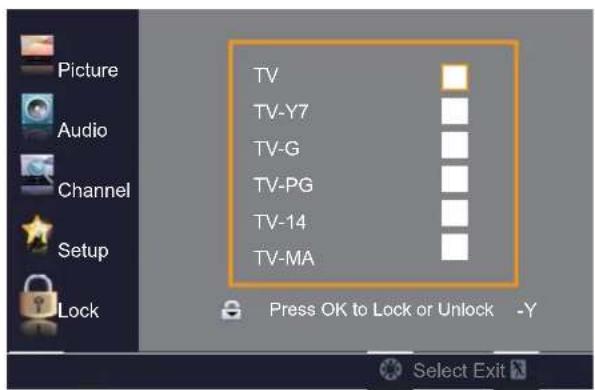
text_image
Picture Audio Channel Setup Lock TV TV-Y7 TV-G TV-PG TV-14 TV-MA Press OK to Lock or Unlock -Y Select ExitClasificación de TV
text_image
Technical diagram of an electronic device with labeled ports and a USB port connected to a display screentext_image
USB 2.0 Photo Music Select OKtext_image
Title: 005 Artist: N/A Album: N/A Year: 2012 Bit Rate: 186K Sampling: 44K Size: 5027KBytes Music Repeat 005.mp3 00:00:20 00:03:49 Pause©2013 Haier America Trading, LLC.