ManualGo.com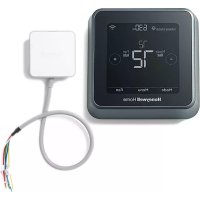
SMHOM8610KIT - Thermostat HONEYWELL - Free user manual and instructions
Find the device manual for free SMHOM8610KIT HONEYWELL in PDF.



Download the instructions for your Thermostat in PDF format for free! Find your manual SMHOM8610KIT - HONEYWELL and take your electronic device back in hand. On this page are published all the documents necessary for the use of your device. SMHOM8610KIT by HONEYWELL.
USER MANUAL SMHOM8610KIT HONEYWELL
1. Location-Based scheduling – The thermostat uses your smartphone’s
location to know when you’re away, and saves you energy. Through geofence technology, it senses your return and helps make you comfortable upon arriv- al. You can always manually change your preset Home and Away temperature either on the thermostat or on the Resideo app.
2. Smart scheduling – Use a combination of geofencing and time schedul-
ing to fit your busy, active lifestyle.
3. Time-Based scheduling – Program your thermostat for one week; each
day (each day is a different schedule); MonFri, Sat, Sun; or MonFri, SatSun. All days with four adjustable periods per day.
4. No scheduling – Control your comfort manually by adjusting temperature
set points only. Smart Alerts. Push notifications remind you of filter changes and warn you of extreme indoor temperatures. Smart Response. Learns your heating and cooling system to deliver the opti- mal temperature at the right time. Auto Change From Heat to Cool. Automatically determine if your home needs heating or cooling to provide maximum comfort. Get the most from T5 Smart Thermostat
Tools you will need: You may need: Wire stripper Needle-nose pliers Drill and drill bit (7/32 in (5.6 mm)) Smartphone To install your thermostat and photograph existing wiring. Resideo app To configure your system and connect to your smartphone. Small flat head scr ewdriver Phillips scr ewdriver Pencil
- Compatible with most heating, cooling, and heat pump systems
- Required: 24 VAC power (“C” wire)
- Does not work with electric baseboard heat (120-240V)
- Does not work with millivolt systems
- Does not support input (S terminals) for indoor and outdoor sensors
- Does not support relay (U terminals) for ventilation
If this product is replacing a control that contains mercury in a sealed tube, do not place the old control in the trash. Contact your local waste management authority for instructions regarding recycling and proper disposal.
CAUTION: EQUIPMENT DAMAGE HAZARD
Compressor protection is bypassed during testing. To prevent equipment damage, avoid cycling the compressor quickly.
CAUTION: ELECTRICAL HAZARD
Can cause electrical shock or equipment damage. Disconnect power before beginning installation. REQUIRED: 24 VAC POWER (“C” WIRE)
CAUTION: ELECTRONIC WASTE NOTICE
The product should not be disposed of with other household waste. Check for the nearest authorized collection centers or authorized recyclers. The correct disposal of end-of-life equipment will help prevent potential negative consequences for the environment and human health.6 7 Removing your old thermostat 2 Check that your system is off Change the temperature on your old thermostat. If you don’t hear the system turn on within 5 minutes, the power is off. Note: If you have a digital thermostat that has a blank display, skip this step. 1 Turn power OFF To protect yourself and your equipment, Turn off the power at the breaker box or switch that controls your heating/ cooling system. 3 Remove your old thermostat from the wall plate On most thermostats, you can take off the thermostat by grasping and gently pulling. Some thermostats may have screws, buttons, or clasps. Do not remove any wires from your thermostat at this time!
Breaker box Switch6 7 5 Take a picture of how your wiring looks right now Be sure to include the letters next to the terminals where the wires are inserted. This will be a helpful reference when wiring your thermostat. Tip: If the color of your wires has faded or if 2 terminals have the same wire color, use the wire labels provided in the package to label each wire. 4 Make sure there are no 120/240V wires Do you have thick black wires with wire nuts? Is your thermostat 120V or higher? If you answered yes to either of these questions, you have a line voltage system and the thermostat will not work. If you are unsure visit: honeywellhome.com 6 Remove any jumpers A jumper connects one terminal to another terminal. It may look like a small staple or even a colored wire and must be removed before continuing. Use a screwdriver to release wires from terminals. The thermostat does not need jumpers.
R RC Example of a jumper Wire nut Thick black wire Terminals 1/4” to 3/8”8 9 7 Record if you have wires in the following terminals Do not include jumpers as a part of your count. The thermostat does not need jumpers. Terminal Wire Color
8 Write down the color of the wires Check mark the wires that are connected to terminals. Next to the check mark, write down the color of the wire. Do not include jumpers as a part of your count. Check all that apply (Not all will apply): Terminal Wire Color
Required S and U terminals are not supported with this thermostat. If there are wires in terminals that are not listed, you will need additional wir- ing support. Visit honeywellhome.com to find out if the thermostat will work for you.8 9 9 Disconnect the wires and remove the old wall plate Use a screwdriver to release wires from terminals. Tip: To prevent wires from falling back into the wall, wrap the wires around a pencil.10 Installing your T5 Smart Thermostat T5 Smart Thermostat Screws UWP Mounting System Anchors Wall10 11 11 Insert the wall anchors It is recommended that you use the wall anchors included in the box to mount your thermostat. You can use the UWP to mark where you want to place the wall anchors. a) Level the wall plate. b) Mark the location of the wall anchors using a pencil. c) Drill the holes. d) Insert wall anchors. e) Make sure anchors are flush with wall. Tip: Use a 7/32 (5.6 mm) drill bit. 10 Bundle and insert wires through the UWP Pull open the UWP and insert the bundle of wires through the back of the UWP. Make sure at least 1/4-inch (6.4 mm) of each wire is exposed for easy insertion into the wire terminals.12 12 Set R-switch position and insert R-wire or wires Set the R-switch up or down based on your wiring notes in Step 7. Insert wires into the inner holes of the terminals on the UWP. The tabs will stay down once the wire is inserted. If you have 1 R-wire (R, Rh, or Rc) If you have 2 R-wires (R or Rh, and Rc)
to the down position.
2. Insert your R-wire
(R, Rh or Rc) into R-terminal.
wire into RTerminal.12 13 13 Connect remaining wires from Step 8 Tip: Do not mount the UWP to the wall prior to connecting the wires. Depress the tabs to put the wires into the inner holes of their corresponding terminals on the UWP (one wire per ter- minal) until it is firmly in place. Gently tug on the wires to verify they are secure. Tip: If you need to release the wires again, push down the terminal tabs on the sides of the UWP. 14 Mount the UWP and close the door Mount the UWP using the provided screws. Install all three screws for a secure fit on your wall. Close the door after you’re finished. This wiring is just an example, actual wiring may vary. Use 3x supplied screws #8 11/2” (38.1 mm) 1/4” to 3/8”14 15 16 Turn your power ON Turn on the power at the breaker box or switch that controls the heating/ cooling system. OFF
15 Attach your thermostat Align the thermostat onto the UWP and firmly snap it into place. 17 Return to the thermostat Return to the thermostat. Confirm the screen shows START SETUP. If it does, continue to “Setup with Resideo App” on page 15. If your thermostat does not show START SETUP, please contact Resideo support. Breaker box Switch14 15 1 Start Setup with the app Touch START SETUP on thermostat. Setup with Resideo App
Yes Back 2 Select to setup with the app Touch Yes on the USE APP screen. 3 Your thermostat is now ready to be configured using the Resideo app a.) Download the “Resideo” app from the App store or Google play. b.) Open the Resideo app. Your thermostat should appear under Thermostat Found. Tap SET UP NOW as shown below to continue. If your thermostat doesn’t appear, create an account (if necessary), or sign in to your Resideo account. Then select the T5 Smart Thermostat to install. c.) The Resideo app will walk you through the rest of setup. A B
How to use your Resideo App SCHEDULEFANMODE 72˚ FOLLOWING SCHEDULE 72˚ MY HOME Thermostat Access the menu Set desired temperature Schedule your home comfort Select System mode Auto/Heat/ Cool/Off/EM Heat Select Fan mode Auto/On/Circulate. Interested in more Resideo products? Visit honeywellhome.com to learn about all available products connected by the Resideo App. App is regularly enhanced and may change.16 17 Mode Menu Fan Mode Fan Heat Auto How to use your T5 Smart Thermostat The screen will wake up by touching the center area of displayed temperature. Mode Select system mode Auto/Heat/Cool/Off/ EM Heat (emergency heat). Menu Contains features: schedule, screen lock, ventilation, WiFi, clean screen, and other thermostat settings. Fan Select Fan mode Auto/On/Circulate. Desired temperature Displays desired indoor temperature. Indoor Temperature Displays current indoor temperature. Adjust temperature Touch + or - to set your desired indoor temperature.18 19 If your Wi-Fi network is not working, you can alternatively setup your thermostat manually and connect your phone later. 1 Start manual setup Touch START SETUP to begin. Manual Setup Edit
Yes 3 Navigate and edit setup options Use or to navigate through all the setup options. To see a list of all setup options, go to pages 20-21. To edit an option value, touch Edit or touch text area. The value is now blinking. Use or to select the correct value. Touch Done or touch text area once the correct value is selected. 2 Select manual setup On the USE APP screen, touch No.18 19 4 Finish Setup Touch until you see Finish Setup. Touch Select or touch text area. Manual Setup (cont.) Select
Yes Back 5 Setup Wi-Fi At the end of setup process you will be prompted to SETUP WIFI. If your Wi-Fi is still not working, you have to manually set the time and date. Select No on the SETUP WIFI screen. 6 Set time and date Set daylight saving time if you are in an area that follows daylight saving time. Set date, clock format and time on the next screens. 7 Your thermostat is now setup Refer to page 17 for more information about basic operation.20 21 Equipment Setup Options Option # Option Name Option Value (factory default in bold) 120 Schedule Type No Schedule MO-SU = Every day the same MO-FR SA SU = 5-1-1 schedule MO-FR SA-SU = 5-2 schedule Each Day = Every day different Note: You can change default MO-FR, SA-SU schedule here. To edit periods during days, temperature setpoints, or to turn Schedule On/ Off, touch MENU from the Home screen and go to SCHEDULE. 200 System Type Conventional Forced Air, Heat Pump, Boiler, Cool Only Note: This option selects the basic system type your thermostat will control. 205 Equipment Type Conventional Forced Air Heat: Standard Gas, High Efficiency Gas, Oil, Electric, Fan Coil Heat Pump: Air to Air, Geothermal Boiler: Hot Water, Steam Note: This option selects the equipment type your thermostat will control. Note: This feature is NOT displayed if feature 200 is set to Cool Only. 218 Reversing Valve O/B on Cool, 0/B on Heat Note: This option is only displayed if the Heat Pump configured. Select whether reversing valve O/B should energize in cool or in heat.20 21 Option # Option Name Option Value (factory default in bold) 220 Cool Stages/ Compressor Stages (#200=Conv./ #200=HP) 0, 1, 2 Note: Select how many Cool or Compressor stages of your equipment the thermostat will control. Maximum of 2 Cool/Compressor Stages. 221 Heat Stages/ Aux/E Stages (#200=Conv./ #200=HP) Heat Stages: 0, 1, 2 Aux/E stages: 0, 1 Note: Select how many Heat or Aux/E stages of your equipment the thermostat will control. Maximum of 2 Heat Stages for conventional systems. Maximum of 1 Aux/E stage for systems with more than 1 heating equipment type. Equipment Setup Options22 Frequently Asked Questions Will the T5 Smart thermostat still work if Wi-Fi connection is lost? Yes, the temperature can be adjusted directly at the thermostat. However, some features, including geofencing, are managed only through the Resideo app and will not function while the connection is down. The thermostat will automatically reconnect to WiFi once the network is restored. The T5 Smart thermostat is not finding the in home Wi-Fi network. thermostat operates in the 2.4 GHz range. That may be why the thermostat does not see the network but the smartphone, which operates in both the 2.4 and 5.0 GHz range, sees the network. Most routers will broadcast two networks, one SSID on the 5.0 GHz radio and one SSID on the
A change was made on the Resideo app but it has not shown up on the T5 Smart thermostat. There may be a short delay after making temperature and setting changes in the Resideo app. Can there be multiple users for geofencing? Yes, there can be multiple users. Geofencing will trigger based on the last person to leave and the first person to return. To properly use geofencing with multiple users:
- Each user needs to create their own account.
- Each user should use their login ID and password across his or her devices, including smartphones and tablets.
- No two users should share the same account. How are multiple users set up with thermostat? Access can be given to any or all thermostat locations through the Resideo app. Start by touching the three-line menu icon in the upper left-hand corner of the home screen. Select Manage Users and touch Add User located at the bottom of the screen. Type in the email address of the person to be invited. If they have a account set up, the location will be automatically added to their account. If they don’t have an account, they will receive an email invitation prompting them to download the Resideo app and create their own account. Note: All individuals with access to a thermostat share the same user privileges. Users added will be able to change the thermostat’s settings, as well as add or delete other users. Is there a way to extend the signal strength? The range or distance of the WiFi signal is determined by the router. Check the router’s manual for additional information.22 23 Regulatory information There is an alert that says WiFi Signal Lost. What does that mean? The WiFi signal to the thermostat has been lost. Wait for the thermostat to reconnect or select a new network within the Resideo app configuration menu. If the thermostat is unable to reconnect, you will need to troubleshoot the router to determine the cause. Why is the thermostat showing up as offline (strike-through WiFi icon) on top of right corner of thermostat display? If the thermostat displays a strike-through WiFi icon on its screen or shows up as offline on the Resideo app, it has lost connection to the network. Make sure the router is powered and broadcasting. The home’s WiFi network may need to be reset by power cycling the router. Consult the router’s instruction manual for directions on power cycling. When the network has been restored, the thermostat will automatically reconnect. An activation email hasn’t been received. An email will be sent from connectedHome@alarmnet.com. An activation email is needed to complete the account setup. If an activation email is not received after five minutes, check the Spam folder of the email account. If you do not find it in the Spam folder, click on the Resend button and the activation email will be resent. If you still do not receive your activation email, please contact the Technical Support team at 18006333991 for help. Frequently Asked Questions FCC REGULATIONS 47 CFR § 15.19 (a)(3) This device complies with part 15 of the FCC Rules. Operation is subject to the following two conditions: 1 This device may not cause harmful interference, and 2 This device must accept any interference received, including interference that may cause undesired operation. 47 CFR § 15.21 (USA only) Changes or modifications not expressly approved by the party responsible for compliance could void the user’s authority to operate the equipment. 47 CFR § 15.105 (b) See https://customer.resideo.com/enUS/support/ residential/codes-and-standards/FCC15105/ Pages/default.aspx for additional FCC information for this product. IC REGULATIONS RSSGEN This device contains licence-exempt transmitter(s)/ receiver(s) that comply with Innovation, Science and Economic Development Canada’s licence-exempt RSS(s). Operation is subject to the following two conditions: 1 This device may not cause interference. 2 This device must accept any interference, including interference that may cause undesired operation of the device.Wi-Fi® is a registered trademark of Wi-Fi Alliance® www.resideo.com © 2022 Resideo Technologies, Inc. All rights reserved.The Honeywell Home trademark is used under license from Honeywell International, Inc. This product is manufactured by Resideo Technologies, Inc. and its affiliates.Tous droits réservés. La marque de commerce Honeywell Home est utilisée avec l’autorisation d’Honeywell International, Inc.Ce produit est fabriqué par Resideo Technologies, Inc. et ses sociétés affiliées.Todos los derechos reservados. La marca comercial Honeywell Home se utiliza bajo licencia de Honeywell International, Inc. Este producto es fabricado por Resideo Technologies, Inc. y sus afiliados.Resideo Technologies, Inc. 1985 Douglas Drive North, Golden Valley, MN 55422honeywellhome.com33-00363EFS—05 M.S. Rev. 12-22 | Printed in United States 33-00363EFS-05 Apple® HomeKit™ Setup Code The T5 Smart Thermostat supports Apple HomeKit. Open HomeKit app, follow the instructions and enter the code displayed on Thermostat when prompted. 2-Year Limited Warranty For Warranty information go to honeywellhome.com Use of the Works with Apple badge means that an accessory has been designed to work specifically with the technology identified in the badge and has been certified by the developer to meet Apple performance standards. Apple is not responsible for the operation of this device or its compliance with safety and regulatory standards. AirPlay, iPad, iPad Air, iPad Pro, iPhone and iPod touch are trademarks of Apple Inc., registered in the U.S. and other countries. HomePod is a trademark of Apple Inc.Thermostat intelligent T5 Thermostat Programmable Guide d’installation rapide Pour plus d’informations, visitez honeywellhome.com Mode Menu Fan Mode Fan Heat Auto Wake Away Home SleepFollowing Schedule RCHT8610WF2006, RCHT8610WF2014, RCHT8610WF3005, RCHT8612WF2005, RCHT8612WF2015, RCHT8612WF3006, RTH8800WF2022, Lire avant l’installation2 3 Inclus dans cette boîte : Vis et ancres Système de montage UWP™ (UWP) Thermostat intelligent T5 Guide d’installation rapide2 3 Tirez le maximum de votre thermostat intelligent T5 Plusieurs options de programmation pour votre style de vie :