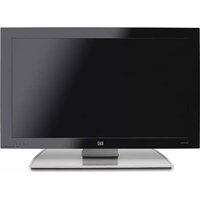
USER MANUAL PL5060N HP
HP Plasma HDTV User's Guide
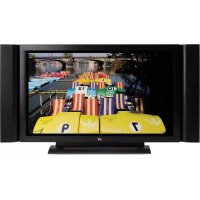
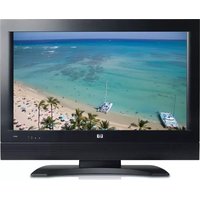
HP PL5060N 50-Inch (127-Centimeter) Plasma High-Definition Television
HP PL4260N 42-Inch (106-Centimeter) Plasma High-Definition Television

The only warranties for HP products and services are set forth in the express warranty statements accompanying such products and services. Nothing herein should be construed as constituting an additional warranty. HP shall not be liable for technical or editorial errors or omissions contained herein.
HP assumes no responsibility for the use or reliability of its software on equipment that is not furnished by HP.
This document contains proprietary information that is protected by copyright. No part of this document may be photocopied, reproduced, or translated to another language without the prior written consent of HP.
Hewlett-Packard Company
P.O. Box 4010
Cupertino, CA 95015-4010
USA
Copyright © 2006 Hewlett-Packard Development Company, L.P.
May be licensed in the United States by one or both of U.S. Patents Nos. 4,930,158 and 4,930,160 until August 28, 2008.
Manufactured under license from Dolby Laboratories. Dolby, Pro Logic, and the double-D symbol are trademarks of Dolby Laboratories.
WOW, SRS and the Symbol are trademarks of SRS Labs, Inc. SRS WOW technology is incorporated under license from SRS Labs, Inc.
HDMI, the HDMI logo and High-Definition Multimedia Interface are trademarks or registered trademarks of HDMI Licensing LLC.
ENERGY STAR is a registered trademark owned by the U.S. government.
HP supports lawful use of technology and does not endorse or encourage the use of our products for purposes other than those permitted by copyright law.
The information in this document is subject to change without notice.

Text set off in this manner indicates information you need.

Text set off in this manner indicates important information you need.

CAUTION: Text set off in this manner indicates that failure to follow directions could result in damage to equipment or loss of information.

WARNING: This symbol is intended to alert the user to the presence of important operating and maintenance (servicing) instructions in the literature accompanying the appliance.

DANGEROUS VOLTAGE: Text set off in this manner indicates the presence of uninsulated voltages within the product enclosure that may be of sufficient magnitude to constitute a risk of electrical shock to persons.
Important Safeguards
WARNING: TO REDUCE THE RISK OF FIRE OR ELECTRICAL SHOCK, DO NOT EXPOSE THIS APPLIANCE TO RAIN OR MOISTURE.
CAUTION: RISK OF ELECTRICAL SHOCK DO NOT OPEN
CAUTION: TO REDUCE THE RISK OF ELECTRICAL SHOCK, DO NOT REMOVE COVER (OR BACK).
NO USER-SERVICEABLE PARTS INSIDE.
REFER SERVICING TO QUALIFIED SERVICE PERSONNEL.

THIS SYMBOL IS INTENDED TO ALERT THE USER TO THE PRESENCE OF UNINSULATED "DANGEROUS VOLTAGES" WITHIN THE PRODUCT'S ENCLOSURE THAT MAY BE OF SUFFICIENT MAGNITUDE TO CONSTITUTE A RISK OF ELECTRICAL SHOCK TO PERSONS. REFER SERVICING TO QUALIFIED SERVICE PERSONNEL.

THIS SYMBOL IS INTENDED TO ALERT THE USER TO THE PRESENCE OF IMPORTANT OPERATING AND MAINTENANCE (SERVICING) INSTRUCTIONS IN THE LITERATURE ACCOMPANYING THE APPLIANCE.
CAUTION: DO NOT PLACE THIS PRODUCT ON AN UNSTABLE CART, STAND, TRIPOD, BRACKET, OR TABLE. THE PRODUCT MAY FALL CAUSING SERIOUS PERSONAL INJURY AND SERIOUS DAMAGE TO THE PRODUCT. USE ONLY WITH A CART, STAND, TRIPOD, BRACKET, OR TABLE RECOMMENDED BY THE MANUFACTURER OR SOLD WITH THE PRODUCT. FOLLOW THE MANUFACTURER'S INSTRUCTIONS WHEN INSTALLING THE PRODUCT AND USE MOUNTING ACCESSORIES RECOMMENDED BY THE MANUFACTURER. A PRODUCT AND CART COMBINATION SHOULD BE MOVED WITH CARE. QUICK STOPS, EXCESSIVE FORCE, AND UNEVEN SURFACES MAY CAUSE THE PRODUCT AND CART COMBINATION TO OVERTURN.

This equipment has been tested and found to comply with the limits for a Class B digital device, pursuant to Part 15 of the FCC Rules. These limits are designed to provide reasonable protection against harmful interference in a residential installation. This equipment generates, uses, and can radiate radio frequency energy and, if not installed and used in accordance with the instructions, may cause harmful interference to radio communications. However, there is no guarantee that interference will not occur in a particular installation. If this equipment does cause harmful interference to radio or television reception, which can be determined by turning the equipment off and on, the user is encouraged to try to correct the interference by one or more of the following measures:
■ Reorient or relocate the receiving antenna. ■ Increase the separation between the equipment and receiver. ■ Connect the equipment into an outlet on a circuit different from that to which the receiver is connected. ■ Consult the dealer or an experienced radio/TV technician for help.
Closed caption notice
This television receiver provides display of television closed captioning in accordance with § 15.119 of the FCC Rules.
FCC Radiation Exposure Statement
This equipment complies with FCC radiation exposure limits set forth for an uncontrolled environment. This equipment should be installed and operated with a minimum distance of 20 cm between the radiator and your body.
Modifications
The FCC requires the user to be notified that any changes or modifications made to this device that are not expressly approved by Hewlett-Packard Company may void the authority to operate the equipment.
Cables
Connections to this device must be made with shielded cables with metallic RFI/EMI connector hoods in order to maintain compliance with FCC Rules and Regulations.
RESPONSIBLE PARTY
Hewlett-Packard Company
Attn: Product Regulations Manager
10955 Tantau Avenue
Building 45NL
Cupertino, CA 95014 USA
Important Safety Instructions
Electricity is used to perform many useful functions, but it can also cause personal injuries and property damage if improperly handled. This product has been engineered and manufactured with the highest priority on safety. However, improper use can result in electric shock and/or fire. In order to prevent potential danger, please observe the following instructions when installing, operating, and cleaning the product. To ensure your safety and prolong the service life of your television, please read the following precautions carefully before using the product.

1 Read these instructions.
2 Keep these instructions.
3 Heed all warnings.
4 Follow all instructions.
5 Do not use this apparatus near water.
6 Clean only with dry cloth.
7 Do not block any ventilation openings. Install in accordance with the manufacturer's instructions.
8 Do not install near any heat sources such as radiators, heat registers, stoves, or other apparatus (including amplifiers) that produce heat.
9 Do not defeat the safety purpose of the polarized or grounding-type plug. A polarized plug has two blades with one wider than the other. A grounding-type plug has two blades and a third grounding prong. The wide blade or the third prong are provided for your safety. If the provided plug does not fit into your outlet, consult an electrician for replacement of the obsolete outlet.
10 Protect the power cord from being walked on or pinched particularly at plugs, convenience receptacles, and the point where they exit from the apparatus.
11 Only use attachments/accessories specified by the manufacturer.
12 Use only with the cart, stand, tripod, bracket, or table specified by the manufacturer, or sold with the apparatus. When a cart is used, use caution when moving the cart/apparatus combination to avoid injury from tip-over.

13 Unplug this apparatus during lightning storms or when unused for long periods of time.
14 Refer all servicing to qualified service personnel. Servicing is required when the apparatus has been damaged in any way, the power-supply cord or plug is damaged, liquid has been spilled or objects have fallen into the apparatus, the apparatus has been exposed to rain or moisture, does not operate normally, or has been dropped.
15 Power Sources — This product should be operated only from the type of power source indicated on the marking label. If you are not sure of the type of power supply to your home, consult your product dealer or local power company. For products intended to operate from battery power, or other sources, refer to the operating instructions.
16 Overloading — Do not overload wall outlets, extension cords, or integral convenience receptacles as this can result in a risk of fire or electric shock.
17 Replacement Parts — When replacement parts are required, be sure the service technician has used replacement parts specified by the manufacturer or have the same characteristics as the original part. Unauthorized substitutions may result in fire, electric shock, or other hazards.
18 Safety Check — Upon completion of any service or repairs to this product, ask the service technician to perform safety checks to determine that the product is in proper operating condition.
19 The apparatus shall not be exposed to dripping or splashing and no objects filled with liquids, such as vases, shall be placed on the apparatus.
20 WARNING: Plug the power cord into a power outlet where access to the power cord connector is readily accessible in case power disconnection is required.
21 Servicing: The user should not attempt to service the appliance beyond that described in the operating instructions. All other servicing should be referred to qualified service personnel.
■ Water and Moisture — Do not use this product near water; for example, near a bathtub, washbowl, kitchen sink, or laundry tub; in a wet basement; or near a swimming pool; and the like. ■ Stand — Do not place the product on an unstable cart, stand, tripod, or table. Placing the product on an unstable base can cause the product to fall, resulting in serious personal injuries as well as damage to the product. Use only a cart, stand, tripod, bracket, or table recommended by the manufacturer or sold with the product. ■ Selecting the location — Select a place with no direct sunlight and good ventilation. ■ Ventilation — The vents and other openings in the cabinet are designed for ventilation. Do not cover or block these vents and openings since insufficient ventilation can cause overheating and/or shorten the life of the product. Do not place the product on a bed, sofa, rug, or other similar surface, since they can block ventilation openings. This product is not designed for built-in installation; do not place the product in an enclosed place such as a bookcase or rack, unless proper ventilation is provided or the manufacturer's instructions are followed. ■ The display panel used in this product is made of glass. Therefore, it can break when the product is dropped or applied with impact. Be careful not to be injured by broken glass pieces in case the panel breaks. ■ Heat — The product should be situated away from heat sources such as fireplaces, chimneys, radiators, heat registers, stoves, or other products (including amplifiers) that produce heat. ■ Cautions regarding use in high and low temperature environments: When the unit is used in low-temperature space (e.g., room, office), the picture may leave trails or appear slightly delayed. This is not a malfunction, and the unit will recover when the temperature returns to normal. Do not leave the unit in a hot or cold location. Also, do not leave the unit in a location exposed to direct sunlight or near a heater, as this may cause the cabinet to deform and the display panel to malfunction. Storage temperature: -4°F to +140°F (-20°C to +60°C). Operating temperature: 32°F to 104°F (0°C to 40°C). ■ Precautions when transporting the TV — When transporting the TV, never carry it by holding onto the speaker. Be sure to always carry the TV by two people holding it with two hands — one hand on each side of the Display. ■ Lightning — For added protection for this television equipment during a lightning storm, or when it is left unattended and unused for long periods of time, unplug it from the wall outlet and disconnect the antenna. This will prevent damage to the equipment due to lightning and power-line surges. ■ Power Lines — An outside antenna system should not be located in the vicinity of overhead power lines or other electric light or power circuits, or where it can fall into such power lines or circuits. When installing an outside antenna system, extreme care should be taken to keep from touching such power lines or circuits as contact with them might be fatal.
■ Outdoor Antenna Grounding — If an outside antenna is connected to the television equipment, be sure the antenna system is grounded so as to provide some protection against voltage surges and built-up static charges. Article 810 of the National Electrical Code, ANSI/NFPA 70, provides information with regard to proper grounding of the mast and supporting structure, grounding of the lead-in wire to an antenna discharge unit, size of grounding conductors, location of antenna-discharge unit, connection to grounding electrodes, and requirements for the grounding electrode.
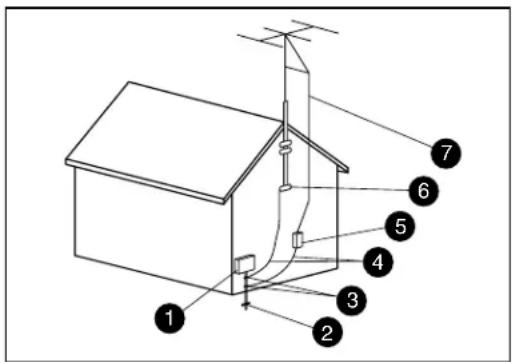
Antenna Grounding
Antenna Grounding
| Reference | Grounding Component |
| 1 | Electric Service Equipment |
| 2 | Power Service Grounding Electrode System (NEC Art 250, Part H) |
| 3 | Ground Clamps |
| 4 | Grounding Conductors (NEC Section 810-21) |
| 5 | Antenna Discharge Unit (NEC Section 810-20) |
| 6 | Ground Clamp |
| 7 | Antenna Lead in Wire |
■ To prevent fire, never place any type of candle or flames on the top or near the TV set. ■ To prevent fire or shock hazard, do not expose this product to dripping or splashing. No objects filled with liquids, such as vases, should be placed on the product. ■ To prevent fire or shock hazard, do not place the AC power cord under the TV set or other heavy items. ■ Turn off the main power and unplug the AC cord from the wall outlet before handling. ■ Use a soft cloth and gently wipe the surface of the TV panel. Using a hard cloth may scratch the panel surface. ■ Use a soft damp cloth to gently wipe the panel when it is really dirty. (It may scratch the panel surface when wiped strongly.) ■ If the panel is dusty, use an anti-static brush, which is commercially available, to clean it. ■ To protect the panel, do not use a dirty cloth, liquid cleaners, or chemical cloth to clean it; such materials may damage the panel surface.
The TV must be serviced by an authorized service technician. The TV is not user-serviceable.
Changes can damage your TV and void your warranty. Changes or modifications not expressly approved by the manufacturer could void the user's authority to operate the equipment.
For information about how to recycle this product through HP, see:
http://www.hp.com/recycle
Other recycling options may also be available in your area. If located within the U.S. and Canada, you may also call (1) (888) 485-1849.
ENERGY STAR Compliance
Products marked with the ENERGY STAR logo on the packaging box qualify with the U.S. Environmental Protection Agency's ENERGY STAR guidelines for energy efficiency.

Products with the ENERGY STAR label are designed to use less energy, help you save money on utility bills, and help protect the environment.
ENERGY STAR is a registered trademark owned by the U.S. government.
Cleaning precautions
Unplug the TV before cleaning the screen.
Using solvents, such as alcohol, or abrasive material, such as a premoistened or chemically treated towel, may affect the TV or bezel paint.
Do not expose the product to volatile gas or fluid such as a pesticide.
Do not put the TV in contact with vinyl or rubber products for a long period of time. Extended contact may result in the removal of or degradation of the surface.

Do not allow a picture to display for an extended period, as this can cause a permanent afterimage to remain on the plasma TV.
Examples of still pictures include logos, video games, computer images, teletext, and images displayed in 4:3 mode.

Image retention protection: If still image data displays for more than a few minutes, the image retention prevention function activates automatically to protect the screen. If the image disappears, change the image or change the input source to see an image.
Lifting precautions
The TV is heavy; be sure to use ergonomically correct lifting procedures when moving the TV.
Due to the size and weight of the TV, it is recommended that a minimum of two people move it.
For transport, use the handles on the back of the TV, or grasp the display in the area under and above the screen.
If speakers are attached to the display, do not lift the display by the speakers; instead, use the handles on the back of the TV, or grasp the display in the area under and above the screen.
Never place the display with the glass screen facing downward, unless it is protected with pads.
Table of Contents
Important Safeguards .... iii
Modifications iv
Cables ......iv
Important Safety Instructions......iv
Important Information ...... viii
Getting to Know Your TV...... 1
Identifying Items in the Box 2
Locating TV Buttons and Connectors.... 3
Cleaning 6
Cleaning precautions 6
Cleaning the TV....6
Setting Up....7
Selecting a Good Location....7
Lifting the TV 8
Attaching or removing the stand 8
Setting Up the TV....9
Attaching and connecting the display speakers....9
Connecting the TV signal sources.... 10
Connecting the cable TV or the air broadcast antenna.... 11
Connecting cable or satellite with a set-top box.... 11
Connecting a DVD player, VCR, DVR, game console, or camcorder.... 12
Connecting a VCR for recording.... 15
Connecting a PC 15
Connecting an external sound system.... 16
Connecting power to the TV.... 16
Turning On the TV......17
Turning the TV On and Off (Standby) 17
Using the First-Time Setup Wizard..19
Initial Setup....19
Using the Remote Control ......21
Operating the TV....21
Using universal remote controls....21
Installing or replacing remote control batteries....21
Identifying the remote control buttons....22
Adjusting the Volume 24
Muting the sound 24
Changing the Picture Mode....24
Changing Channels 24
Selecting the last channel....24
Displaying program information....24
Selecting the Input Source....25
Changing the View with the Aspect Button .....25
Turning On Captions....25
Setting SAP/MTS stereo mode....26
Changing Audio Mode....26
Setting the Sleep Timer 26
Adjusting TV Settings....26
Opening and exiting the OSD 26
Changing the TV Settings......27
Using the OSD Menus.... 27
Using the Picture Menu.... 28
Adjusting the picture image 29
Using the Audio Menu 30
Adjusting the audio.... 30
Using the Time Menu 31
Using the Channel Menu.... 31
Using the Closed Caption Menu.... 33
Using the Parental Control Menu 34
Using the Password.... 35
Setting Parental Controls.... 35
How to temporarily release a blocked program.... 39
Reactivating parental controls after a temporary release.... 39
Using the System Menu 40
Starting the Setup Wizard 40
Returning to Default Settings.... 40
Using White Wash 40
Selecting the Standby Mode (Power Control) ... 40
Finding Answers to Questions ..... 41
Understanding TV Terms ....41
What are analog TV, digital TV, and high-definition (HDTV)?......41
What is the difference between progressive and interlaced signal formats for digital TVs? ...41
What is variable aspect ratio?......41
What is HDMI?......42
Identifying Cable Usage 42
Specifications...... 45
PC Compatibility Chart....48
Troubleshooting 49
Getting to Know Your TV
Thank you for purchasing an HP Plasma High-definition Television. HP's array of high-definition televisions delivers a world-class picture in a design that is sleek and stylish.
Features:
Exceptional image accuracy with deep blacks and bright, clear pictures that bring the finest details to life, thanks to an advanced video engine that offers dynamic contrast adjustment and photorealistic sharpness enhancement. This HP TV features a 2D comb-filter color enrichment system that reproduces accurate flesh tones and vivid colors. Fantastic sound emanates from two detachable speakers. Each speaker delivers powerful sound through two mid-range speakers and a tweeter. HP's high-fidelity speaker system is complemented by SRS WOW audio processing technology, which enhances vocal clarity and bass performance for an immersive sound experience. A comprehensive array of digital and analog inputs, including an integrated HDTV Tuner, HDMI, and component video ports. Analog and digital audio output connectors enable seamless connectivity to external audio speakers or an audio receiver.
A classic black-finish panel that blends with any décor. The tabletop stand is sleek and stylish and is detachable. Photorealistic Sharpness Enhancement yields crystal-clear and sharp pictures. Dynamic contrast adaptation, which enables picture quality adjustment on a scene-by-scene basis. Motion Adaptive Noise Reduction, which greatly reduces visual noise without reducing detail. Advanced scaling and film-processing technology, which enables enjoyment of DVDs and standard-definition TV on a big screen. Integrated digital HDTV/analog tuner — for HD shows from cable or off-the-air sources. HDMI port that provides digital video and audio through a single cable. Burn-in protection technology that provides long-lasting panel life. Ultra-long-life panel provides up to 60,000 hours of operation.
All specifications represent the typical specifications provided by HP's component manufacturers; actual performance may vary either higher or lower.
The panel life is determined as the time at which luminance is 50% compared to that of initial value at the typical lamp current on condition of continuous operation at 25 +/- °C. 60,000 hours equates to more than twenty-three years at seven hours a day viewing.
Identifying Items in the Box
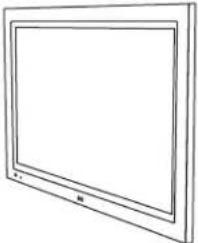 | Television (panel with stand detached) |
 | TV stand and mounting hardware |
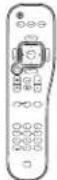 | Remote control unit |
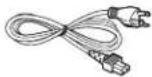 | AC cord |
 | Documentation |
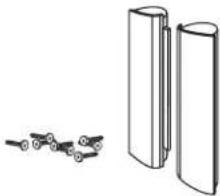 | Display speakers with mounting hardware |
The TV contains controls, indicators, and connectors.
The TV indicators are located on the front of the TV, and the controls are located on the left side.
TV Front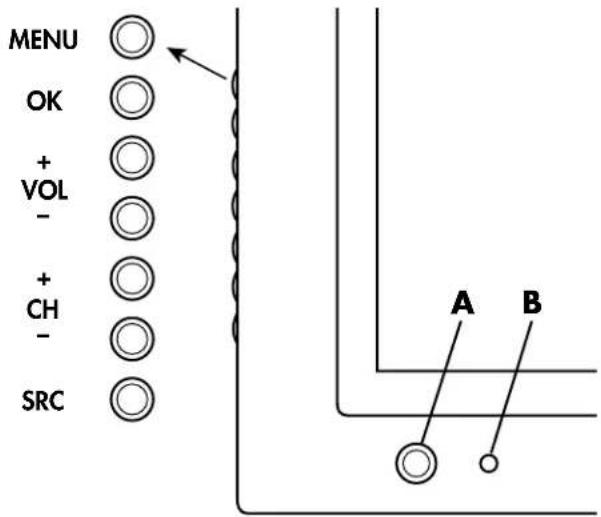
| TV (front) Description |
| MENU | Menu displays the onscreen display (OSD) or functions as the Exit button to close the OSD. |
| OK | OK starts the Auto Sync function for a connected PC signal. In an OSD menu, selects highlighted item in the OSD. |
| +VOL-VOL | Volume lowers or raises the sound level. In an OSD menu, press these buttons to move right or left in the menu or to adjust an item. |
| +CH-CH | Channel selects the next lower or higher channel. In an OSD menu, press these buttons to move up or down in the menu. |
| SRC | Source selects the input source. Press Source to open the list of input sources. Press Channel to select the input source, and press OK. Press Source to close the list. In an OSD menu, this button functions as the Back button, or to move up one item or menu level. |
| A: Power button and light | Power turns on the TV or places it in standby mode. The button light shows whether the TV is on or in off/standby. The light is blue when TV is on, and is red when TV is in off/standby mode. |
| B: Remote control sensor | Remote control sensor is the location where to point the remote control unit. |
Rear TV connectors
The connectors are located on the rear of the TV.
TV connectors shown below are on the left side, center, and right side of the back of the TV.
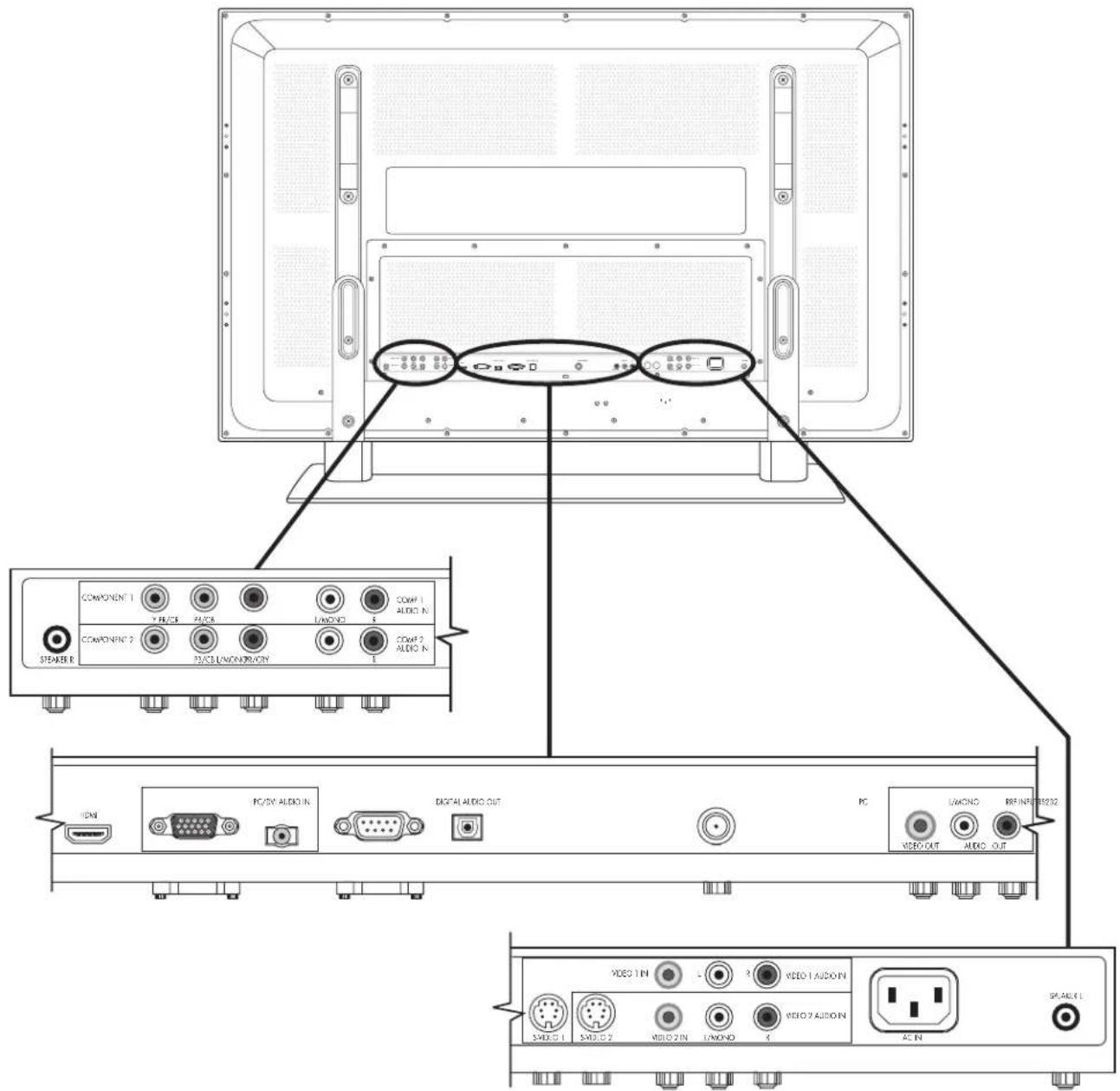
| TV (rear) Description | |
| ■Speaker R | Connect wire from the right speaker. |
| ■Component 1Comp 1Audio In■Component 2Comp 2Audio In | Connect component video cables and left-right audio cables from optional equipment.Supports standard inputs 480i, 480p, 720p, and 1080i.The TV automatically determines what has been connected.Some set-top boxes must be set for a specific resolution out. |
| ■HDMI ■Connect an HDMI (High-Definition Multimedia Interface) cable from optional digital, high-definition equipment.Or■Connect a DVI cable and DVI-to-HDMI converter cable from optional DVI equipment; requires an audio cable connected from the DVI equipment to PC/DVI Audio In. |
| ■PC | Connect a VGA cable from your PC to use the TV as a monitor. |
| ■PC/DVIAudio In | ■Connect an audio cable from the optional PC audio out.Or■Connect audio cable from the optional DVI equipment (connected using a DVI cable and DVI-to-HDMI converter cable at the HDMI connector). |
| ■RS232 | Used for service purposes only. |
| ■Digital Audio Out | Connect an optical cable to an external digital audio system. |
| TV (rear) Description (Continued) |
| ■RF Input | Connect a coaxial cable from an air antenna or cable signal source. |
| ■Video OutAudio Out | Connect composite video and left-right audio cables to optional equipment for monitoring or recording video. |
| ■S-video 1Video 1Audio In■S-video 2Video 2Audio In | Connect an S-video cable and left-right audio cables from optional equipment.Use Video 1 Audio In for S-video 1, and Video 2 Audio In for S-video 2.(Audio connectors are shared with Video In.) |
| ■Video1 InVideo 1Audio In■Video 2 InVideo 2Audio In | Connect a composite video cable and left-right audio cables from optional equipment.Use Video 1 Audio In for Video 1 In, and Video 2 Audio In for Video 2 In.(Audio connectors are shared with S-video.) |
!
Do not connect video cables to both the S-video and the Video In connectors in a set.
| ■AC In | Connect the included power cord.NOTE: Use only the provided power cord. |
| ■Speaker L | Connect wire from the left speaker. |
Cleaning
Cleaning precautions
Unplug the TV before cleaning the screen.
A special antiglare coating is applied to the screen of your TV. Using solvents, such as alcohol, or abrasive material, such as a premoistened or chemically treated towel, may affect the screen coating or bezel paint.
Do not expose the product to volatile gas or fluid such as a pesticide.
Do not put the TV in contact with vinyl or rubber products for a long period of time. Extended contact may result in the removal of the coating or degradation of the surface.

Do not allow a picture to display for an extended period, as this can cause a permanent afterimage to remain on the plasma TV.
Examples of still pictures include logos, video games, computer images, teletext, and images displayed in 4:3 mode.
Cleaning the TV
Clean the screen by spraying a soft lint-free cloth with water to lightly moisten it. Gently wipe the screen, and avoid pressing on the screen.
To clean the outer cabinet, use the same method.
Do not use liquid or aerosol cleaners.
Setting Up
HP recommends professional installation from an authorized installer to ensure maximum enjoyment of your HP Plasma HDTV. Be sure to read all the safety information and precautions before starting installation. See these topics:
■ "Important Safeguards" on page iii ■ "Important Safety Instructions" on page iv
■ "Important Information" on page viii
Selecting a Good Location
Select the location for your HP Plasma HDTV. Consider the following conditions when positioning the TV:
■ Power cord length: Choose a location with easy access to an AC power outlet. ■ Cable lengths and distances to attached units: Check that cables can reach the TV. ■ Do not install the TV on an unstable cart or stand; the unit may fall over and cause injury. ■ Do not install the TV where it has a protruding edge, such as on a small table where the display overhangs the table surface. ■ Do not hang the TV from the ceiling; the unit may fall and cause injury. ■ Avoid direct sunlight that may damage the display or interfere with the operation of the remote control. ■ Avoid areas of high humidity or damp conditions that may cause fire or electrical shock. ■ Do not install TV near appliances, such as a microwave, or near a heat source, such as a fireplace or radiator. ■ Do not place the TV on a sloped or unstable surface. ■ Provide adequate ventilation clearance around the TV. If using the pedestal, leave a space of 3.96 inches (10 cm) or more at the top, left, and right; 2.36 inches (6 cm) or more at the bottom; and 2.76 inches (7 cm) or more at the rear. If using some other method for setup, leave a space
of 3.96 inches (10 cm) or more at the top, left, right, and bottom; and 0.75 inches (1.9 cm) or more at the rear.

A 4 in. (10 cm) minimum above TV
B 4 in. (10 cm) minimum at sides
C 2.8 in. (7 cm) minimum behind TV
Note: Speakers not shown.
Lifting the TV
The TV is heavy; be sure to use ergonomically correct lifting procedures when moving the TV.
Due to the size and weight of the TV, it is recommended that a minimum of two people move it.
To transport the TV, use the handles on the back of the TV, or grasp the display in the area under and above the screen.
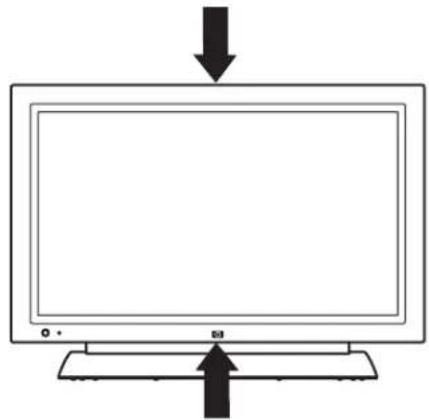
If speakers are attached to the TV, do not lift the TV by the speakers; instead, use the handles on the back of the TV, or grasp the display in the area under and above the screen.
Move the product gently. Never place the TV with the glass screen facing downward, unless it is protected with pads.
Attaching or removing the stand
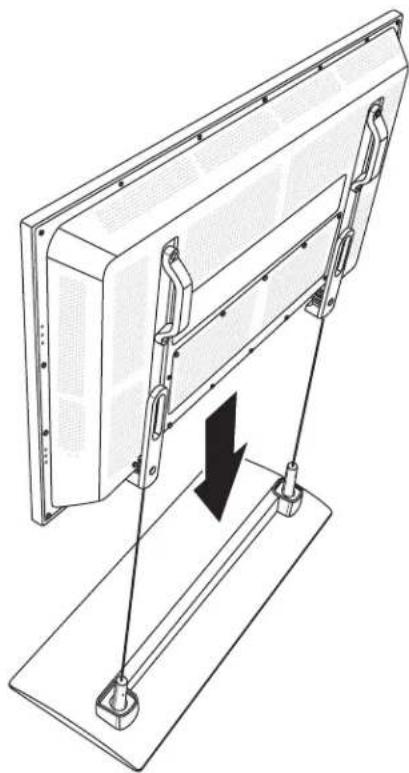
Your TV comes with a stand that must be attached to the display. Reverse these steps to remove the stand.

CAUTION: Use two people to assemble the TV.
Before attaching the stand, unplug the AC cord from the AC input.
1 Position the stand upright, with the back toward you. 2 Gently lift the TV panel and lower it onto the stand.
3 Insert the screws into the two holes on the back of the TV and tighten the screws.
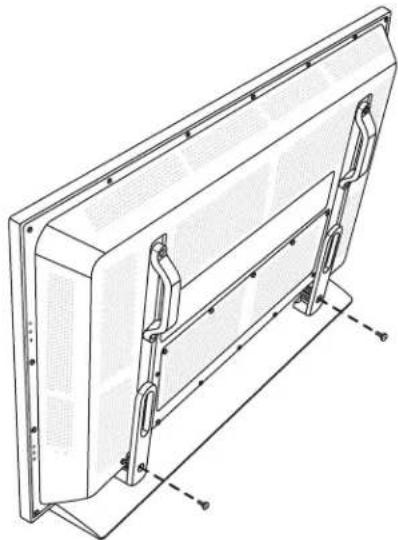
4 Attach speakers if you are using them. See "Attaching and connecting the display speakers" on page 9.
Setting Up the TV
Set up the TV by attaching and connecting the display speakers, connecting cables, and connecting the power cord.
Attaching and connecting the display speakers
The speakers come detached from the TV. Each speaker attaches to the side of the display and connects individually to the TV. The right speaker is on the right side of the display when it is viewed from the front.
The TV has a digital audio output or analog audio output that you can connect to a separate external amplifier.
To use a separate external amplifier or a stereo system, refer to "Connecting an external sound system" on page 16.

CAUTION: Unplug the power for the TV and all connected components before attaching or connecting speakers.
1. Position the TV upright on its stand.
2. Place a speaker onto the TV, and insert the four screws to secure it.
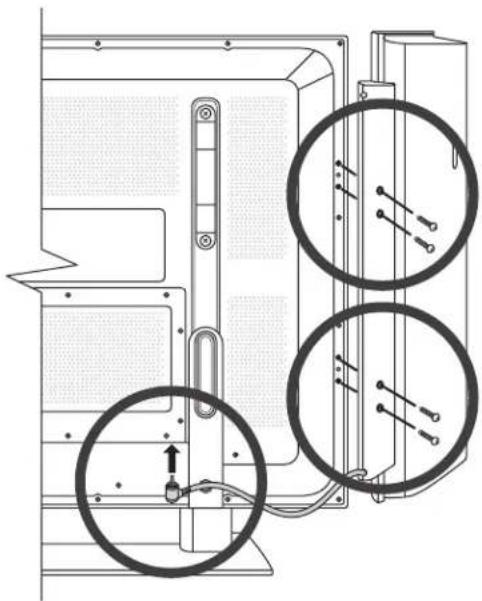
3. Plug the speaker into the TV.
4. Repeat these steps for the other speaker.
Connecting the TV signal sources

WARNING: Before connecting the TV to any other electronic device, unplug the TV and the electronic device's AC cords from the AC input.
The following is an explanation of the types of connections that are used for a coaxial cable. If your outdoor antenna uses a 75-ohm coaxial cable with an F-type connector, screw it onto the RF Input connector at the rear of the TV set.
■ A 75-ohm system is generally a round cable with an F-type connector that can easily be attached to a connector without tools (sold separately). ■ A 300-ohm system is a flat, twin-lead cable that can be attached to a 75-ohm connector through a 300/75-ohm adapter (sold separately).

An F-type connector should be finger-tightened only. When connecting the RF cable to the TV set, do not use tools to tighten the F-type connector, as it may cause damage to your TV set.
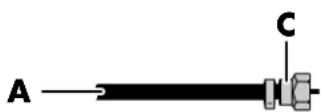

A. 75-ohm coaxial cable, round B. 300-ohm twin-lead cable, flat C. F-type connector
Connect the input sources to the TV according to the type of connection:
■ Antenna or basic cable (TV cable or satellite) without using a set-top box: see "Connecting the cable TV or the air broadcast antenna" on page 11. - Cable or satellite with a separate set-top box: see "Connecting cable or satellite with a set-top box" on page 11.

■ To connect an external sound system, see "Connecting an external sound system" on page 16. ■ To connect a device that records TV, use the Video Out and Audio Out connectors; see "Connecting a VCR for recording" on page 15.
About the Emergency Alert System (EAS)
In the case of a national emergency, natural disaster, or other emergency situation, an EAS message broadcasts. When this unit receives an EAS message, if the level of emergency is comparatively low, an alert text message displays on screen. If the level of emergency is high, the receiver is forced-tuned to a details channel. ■Alert text messages display, and forced tuning occurs, even during paid programming. Even when forced tuning is active, the user can still change the channel. ■If the unit is forced-tuned to a channel that has been blocked by Parental Control, the Parental Control setting is given priority, and the EAS message is not broadcast. ■EAS messages may be broadcast not only through digital cable, but also through analog cable or over-the-air analog transmission.
Connecting the cable TV or the air broadcast antenna
Use standard 75-ohm coaxial cable to connect a ground antenna or cable TV input source to the TV. Use shielded coaxial cable to reduce radio frequency (RF) interference.
Optional equipment, cable TV service, and all cables are sold separately.

CAUTION: Unplug power for the TV and all connected components before connecting the antenna or cable.
1 Connect the input source coaxial cable to the RF Input connector on the back of the TV.
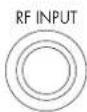
2 Connect power to the TV; see "Connecting power to the TV" on page 16. 3 Turn on the TV; see "Turning the TV On and Off (Standby)" on page 17.
Connecting cable or satellite with a set-top box
Connecting your TV directly to the audio and video output of your set-top box assures a more vivid picture and enhances your viewing enjoyment.
Optional equipment and all cables are sold separately.
You can connect a digital TV set-top box (air or cable) and other audiovisual equipment by using:
■Component video and audio cables connected to Component 1 or Component 2 connectors and audio connectors on the TV. ■S-video and audio cables connected to S-video 1 or S-video 2 connectors and audio connectors on the TV.
■Video (composite video) and audio cables connected to Video 1 In or Video 2 In and audio connectors on the TV. ■HDMI cable connected to the HDMI connector on the TV. ■DVI video cable with a DVI-to-HDMI converter cable and audio cables connected to the HDMI connector and PC/DVI Audio In connector on the TV.

CAUTION: Unplug power for the TV and all connected components before connecting the set-top box.
1 Connect the set-top box input source cable(s) to the back of the TV using one of the connector sets:
■Component video and audio cables connected to Component 1 and Comp 1 Audio In connectors, or Component 2 and Comp 2 Audio In connectors on the TV.
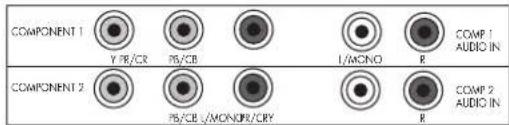
■S-video and audio cables connected to S-video 1 and Video 1 Audio In connectors, or S-video 2 and Video 2 Audio In connectors on the TV.
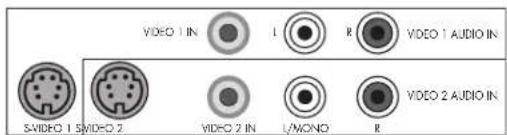
!
The S-video and Video In connectors share the audio connectors in the set. Do not connect video cables to both the S-video and the Video In connectors in a set.
■Video (composite video) and audio cables connected to Video 1 In and Video 1 Audio In connectors, or Video 2 In and Video 2 Audio In connectors on the TV.
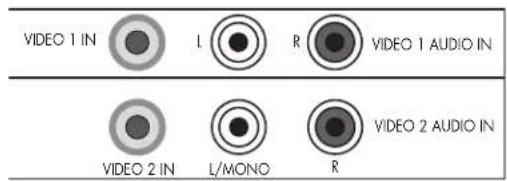
The S-video and Video In connectors share the audio connectors in the set. Do not connect video cables to both the S-video and the Video In connectors in a set.
■HDMI cable connected to the HDMI connector on the TV.
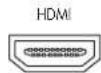
■DVI video cable with a DVI-to-HDMI converter cable and an audio cable connected to the HDMI connector and the PC/DVI Audio In connector on the TV.
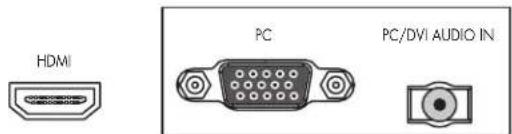
2 Connect the cables to the set-top box. 3 Turn on the set-top box. 4 Connect power to the TV; see "Connecting power to the TV" on page 16. 5 Turn on the TV; see "Turning the TV On and Off (Standby)" on page 17.
Connecting a DVD player, VCR, DVR, game console, or camcorder
You can connect optional equipment (sold separately), such as a DVD player, VCR, DVR, and so on, to the TV by using the AV input connectors.
Optional equipment, including an external sound system, and all cables are sold separately.
You can connect a DVD by using:
■Component video and audio cables connected to Component 1 or Component 2 connectors and audio connectors on the TV. ■S-video and audio cables connected to S-video 1 or S-video 2 connectors and audio connectors on the TV. ■Video (composite video) and audio cables connected to Video 1 In or Video 2 In and audio connectors on the TV. ■HDMI cable connected to the HDMI connector on the TV. ■DVI video cable with a DVI-to-HDMI converter cable and audio cables connected to the HDMI connector and PC/DVI Audio In connector on the TV.
You can connect a VCR by using either S-video or Video (composite video) connections for playback, and by using Video Out (composite video) connectors for recording (input to the VCR). See "Connecting a VCR for recording" on page 15 to use the Video Out connectors.
You can connect a game console, camcorder, and some other AV equipment by using either S-video or Video (composite video) connections.
You can connect HDMI equipment by using the HDMI connector.
You can connect DVI equipment by using a DVI cable with a DVI-to-HDMI converter cable and audio cables, and the HDMI connector and the PC/DVI Audio connector.
Choosing the AV connection to use
When connecting optional equipment as signal sources, the connectors on the equipment may limit the type of connection you can use.
When your optional equipment has more than one type of output connector, choose the connection that provides the best quality play-back image.
For best results, choose the best quality connection type that is supported by your optional equipment.
The following table lists the available optional AV equipment connections on the TV.
| AV connection to use, listed from best to good video playback |
| Connection description TV connector Cable plug | | |
| HDMI transmits an all-digital signal and is the recommended choice for playback from a digital DVD or DVR. | 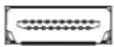 | 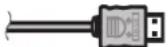 |
| DVI transmits an all-digital video signal for playback from a digital DVD or DVR. (For a DVI device, you must use a DVI cable with an DVI-to-HDMI converter cable to connect video to the TV HDMI connector, and an audio cable to connect audio to the TV PC/DVI Audio In connector.) |  | 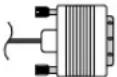 |
| Component video (Y, Pb, Pr) transmits video as separate red, green, and blue signals. Use this connection for high-definition video signals in 480i, 480p, 720p, or 1080i format from a DVD or other equipment. |    | 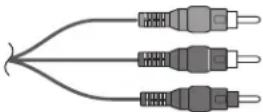 |
| S-video transmits video in separate color and black-and-white image signals and delivers a sharper image than a composite video connection. |  | 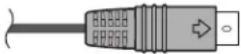 |
| Video In (composite video) transmits video as a single signal. |  |  |
The procedures that follow, presented in the order listed in the table, describe connecting optional equipment including the audio connections when applicable.

CAUTION: Unplug power for the TV and all connected components before connecting optional equipment. Ensure that the optional equipment is powered off.
Connecting an HDMI device
This is the recommended connection for video and audio. The HDMI cable is sold separately.
1 Connect the HDMI cable to HDMI on the back of the TV. (There are no separate audio inputs for HDMI.)
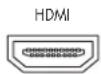
2 Connect the cable to the HDMI device. 3 Turn on the device, and start play. 4 Connect power to the TV; see "Connecting power to the TV" on page 16. 5 Turn on the TV; see "Turning the TV On and Off (Standby)" on page 17.
Connecting a DVI device
The DVI cable, DVI-to-HDMI converter cable, and the audio cable are sold separately.
1 Connect the DVI cable and the DVI-to-HDMI converter cable to the DVI-I device and then to the TV HDMI connector.
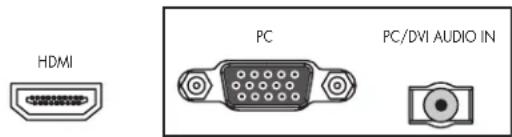
2 Connect the audio cable to the DVI device and to the TV PC/DVI Audio In connector. 3 Turn on the device, and start play.
4 Connect power to the TV; see "Connecting power to the TV" on page 16. 5 Turn on the TV; see "Turning the TV On and Off (Standby)" on page 17.
Connecting a component device
1 Connect the component cable to the Component In (Y, Pb, Pr) connectors. There are two sets of component connectors you can use: Component 1 video used with Comp 1 Audio In connectors, or Component 2 video used with Comp 2 Audio In connectors.
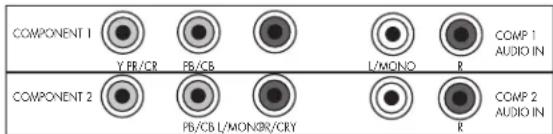
2 Connect the component audio cable to the L/R Audio In connectors on the TV. 3 Connect the cables to the device. 4 Turn on the device, and start play. 5 Connect power to the TV; see "Connecting power to the TV" on page 16. 6 Turn on the TV; see "Turning the TV On and Off (Standby)" on page 17.
Connecting an S-video or Video device
A VCR, game console, camcorder, or some other audiovisual equipment can be connected using S-video or Video (composite video) In connectors.

Both S-video and Video In connectors share L/R Audio In connectors. (S-video 1 and Video 1 In share Video 1 Audio In connectors; S-video 2 and Video 2 In share Video 2 Audio In connectors.)
Do not connect video cables to both the S-video and the Video In connectors in a set.
1 Connect the video equipment to the TV connectors:
■For a VCR, DVR, or other device that has an S-video connector, use an S-video cable with the S-video connector set.
Or
For a VCR, DVR, or other device that has a composite connector, use a composite cable with the Video In connector set.
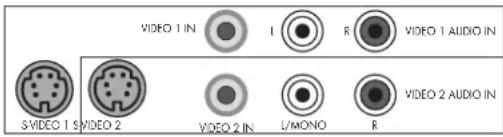
2 Connect the audio cable connectors to the left and right audio connectors for the connector set. 3 Connect the cables to the device. 4 Turn on the device, and start play. 5 Connect power to the TV; see "Connecting power to the TV" on page 16. 6 Turn on the TV; see "Turning the TV On and Off (Standby)" on page 17.
Connecting a VCR for recording
Every source signal is converted to 480i prior to output at the Video Out connector.
1 Connect the VCR output for playback using the TV connectors; see the previous procedures. 2 Connect the VCR for recording by connecting the input to the VCR to the Video Out and Audio Out connectors on the TV.
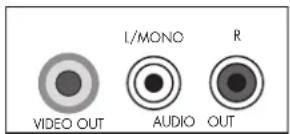
3 Connect power to the TV; see "Connecting power to the TV" on page 16. 4 Turn on the TV; see "Turning the TV On and Off (Standby)" on page 17.
Connecting a PC
Use these instructions when connecting a PC or other source equipment to the TV PC (VGA) connector to view the PC desktop as a selectable input source. VGA cable sold separately.

Refer to "PC Compatibility Chart" on page 48 for a list of PC signals compatible with the TV.

CAUTION: Unplug power for the TV and all connected components before connecting a PC. Ensure that the PC is powered off.
1 Connect the PC or source equipment video cable to the TV by using the PC connector (a VGA connector).
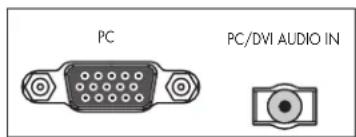
2 Connect the source equipment audio cable to the TV PC/DVI Audio In connector. 3 Connect the VGA and audio cables to the PC or source equipment. 4 Connect power to the TV; see "Connecting power to the TV" on page 16.
5 Turn on the TV; see "Turning the TV On and Off (Standby)" on page 17.
6 Connect the power, and turn on the PC or source equipment.
7 Adjust the picture, including Auto Sync, by using the onscreen display Picture/Screen menu; see "Adjusting the PC Screen image" on page 29.
You can also press the OK button on the TV to start Auto Sync for the PC image.
Connecting an external sound system
You can connect an external sound system to the TV using a digital audio or an analog audio signal:
Use an optical audio cable and the Digital Audio Output connector on the back of the TV to provide a digital audio signal to an external sound system, such as a digital receiver or a surround sound system. To hear analog sound from an analog source on your digital audio system, you must connect the Audio Out left and right connectors on the TV to your sound system.
Use an audio cable and the Audio Out connectors on the back of the TV to provide an analog audio signal to an external sound system, such as an analog amplifier or stereo system.

CAUTION: Unplug power for the TV and all connected components before connecting an external sound system. Ensure that the external sound system is powered off.
1 Connect the external sound system to the TV:
For digital connection, connect an optical audio cable to the Digital Audio Output connector on the back of the TV and to the external sound system, such as a digital receiver or a surround sound system.
Or
For analog connection, connect an audio cable to the Audio Out connectors on the back of the TV and to the external sound system, such as an analog amplifier or stereo system.
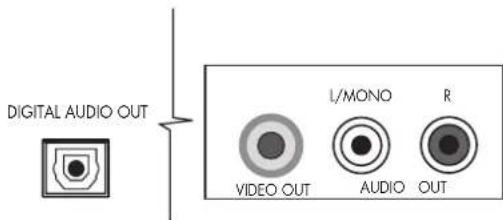
2 Connect power to the TV; see "Connecting power to the TV" on page 16.
3 Turn on the TV; see "Turning the TV On and Off (Standby)" on page 17.
4 Connect power and turn on the external sound system.
5 Define the digital audio format in the onscreen display Audio/Digital Audio menu; refer to "Choosing the Digital Audio mode" on page 30.
Connecting power to the TV
1 Connect the power cord to the connector on the back of the TV.
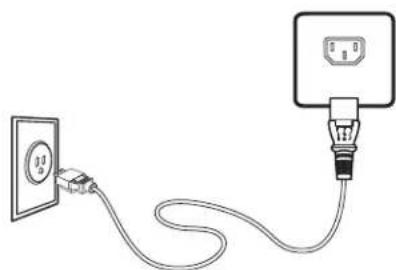
2 Connect the power cord to the AC power outlet.
Turning On the TV
Turning the TV On and Off (Standby)
The TV has a Power button (A) on the front of the display. You can also use the remote control Power button to turn on the TV.
Pressing the Power button either turns the TV on or places it into standby, which is a reduced power state.
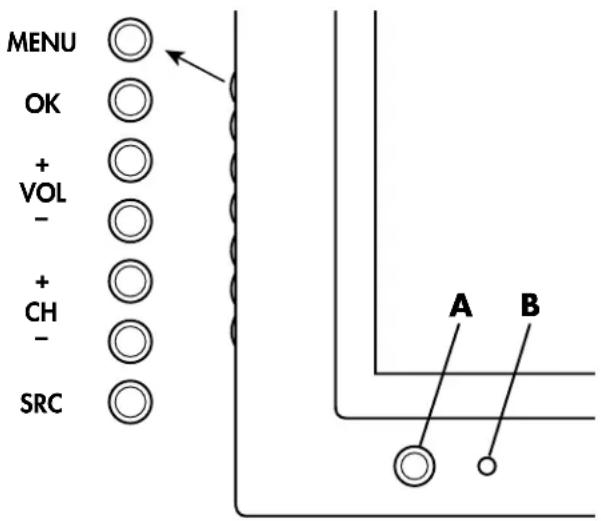
B Remote control sensor
The Power button includes an indicator light, which shows the power status of the TV.
| Power indicator Power status |
| Lights red Standby (off) | |
| Lights blue Ready (on) | |
| Off AC power | disconnected |
| Flashing red or flashing blue | Start up diagnostics or error |

The initial setup starts when the TV powers on for the first time. If the TV has been turned on before, the Setup Wizard does not start. See "Starting the Setup Wizard" on page 40 to start the Setup Wizard from the System menu.
After the initial setup, the power-up time from standby depends on the Standby Mode setting:
■Low power, which consumes less power while in standby, uses approximately 20 seconds of power-up time. ■Fast power, which consumes more power while in standby, uses approximately 5 seconds of power-up time.
You can set the Standby Mode by using the System menu.
If the TV is not used for an extended period of time, press the Power button to place the TV into standby, and then unplug the power cord.
1 Press the Power button (A) on the front of the TV. The TV turns on or enters standby mode.
2 Press the SRC button to open the list of input sources. Press CH+ to select the input source you want to view, then press OK. Press SRC again to close the list.
1 Point the remote control at the remote control sensor on the display, and press the Power button on the remote control.

The TV turns on or enters standby mode.
2 Press the Source button on the remote control to open a list of input sources. Use the arrow buttons to select the input source you want to view, then press OK. Press Source again to close the list.

Image retention protection: If a still image is displayed for more than a few minutes, the image retention prevention function activates automatically to protect the screen. If the image disappears, change the image or switch the input source to see an image.
Using the First-Time Setup Wizard
Initial Setup
When you turn on the TV for the first time, a first-time setup wizard guides you through the following steps:
■ Setting the onscreen display language. ■ Setting the date, time, and time zone. ■ Selecting a standby power mode. ■ Selecting a signal source. ■ Searching for TV signal sources (antenna or cable) and memorizing the available TV channels.
You can start the first-time setup wizard by using the System menu in the onscreen display (OSD); see "Starting the Setup Wizard" on page 40.
Preparing
Perform the following steps before you press TV Power on the remote control unit.
1 Insert the batteries into the remote control unit. 2 Connect the antenna cable to the TV. 3 Plug the AC cord into the AC outlet. 4 Turn on the TV.
Language setting
1 Select from among three languages: English, French, and Spanish. 2 Press the up arrow and down arrow buttons on the remote control to select the desired language listed on the screen, and then press OK.
Date, time, and time zone setting
1 Press the up and down arrow buttons on the remote control to highlight the date field. 2 Press the number pad buttons on the remote control to enter a year, month, and day. 3 Press the down arrow button to highlight the time zone. 4 Press the left and right arrow buttons to change the time zone. 5 Press the down button to highlight the time field, and use the number pad to enter the time. 6 Use the left and down arrow buttons to change between AM and PM.
Standby mode setting
Select the standby mode setting.
■Low power: Power-up time from standby is approximately 20 seconds. However, the TV is consuming less power while in standby. ■Fast power: Power-up time from standby is approximately 5 seconds. However, the TV consumes more power while in standby.
Signal source setting
1 Press the up arrow and down arrow buttons on the remote control to select Antenna or Cable. 2 Press the OK button to start searching for channels.
This channel search operation automatically searches for a signal from all available channels.
Using the Remote Control
Operating the TV
The remote control operates the TV. To use the remote control, point the remote control at the remote control sensor on the display.
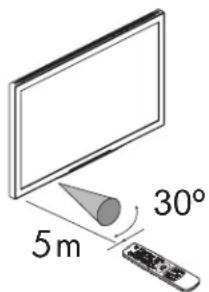

Use the remote control within a distance of 16.4 feet (5 meters) from the front of the TV remote control sensor window and at the maximum horizontal and vertical angles of 30 degrees.
Using universal remote controls
When you want to program a universal remote control to operate your HP TV, if HP is not listed in the supported brand codes, use a Philips TV code. The HP remote control transmits Philips-licensed remote control codes.
After programming your universal remote control with a Philips TV code, it can operate your HP TV functions for: volume, mute, power, and input source.
Installing or replacing remote control batteries
Insert two AAA non-rechargeable batteries into the remote control, ensuring that you place them with the proper polarity.
1 Press and open the cover on the back of the remote control. 2 Insert the batteries into the remote control, and make sure that you match polarities. 3 Close the cover.
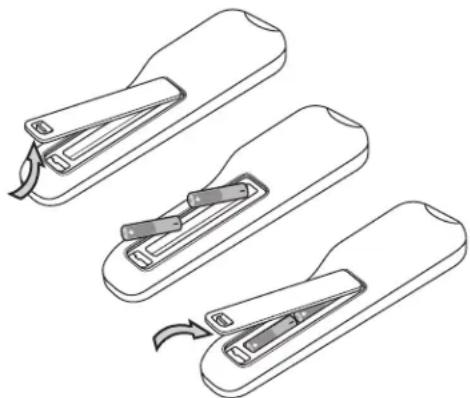
Do not mix different types of batteries together (for example, alkaline and carbon-zinc) or old batteries with fresh ones.
Be sure to follow the correct polarity when installing the batteries as indicated in the battery compartment. Reversed batteries may cause damage to the device.
When not using the remote for a long period of time, remove the batteries to prevent damage or injury from possible battery leakage.
Do not try to recharge batteries that are not intended to be recharged; they can overheat and rupture. Follow the battery manufacturer's directions for the batteries you are using.
Always remove batteries as soon as they become weak. Weak batteries can leak and severely damage the unit. The battery life depends on how much the remote control is used. Replace batteries when remote control operation becomes erratic.
Do not take apart the batteries, heat them, or throw them into a fire.
Identifying the remote control buttons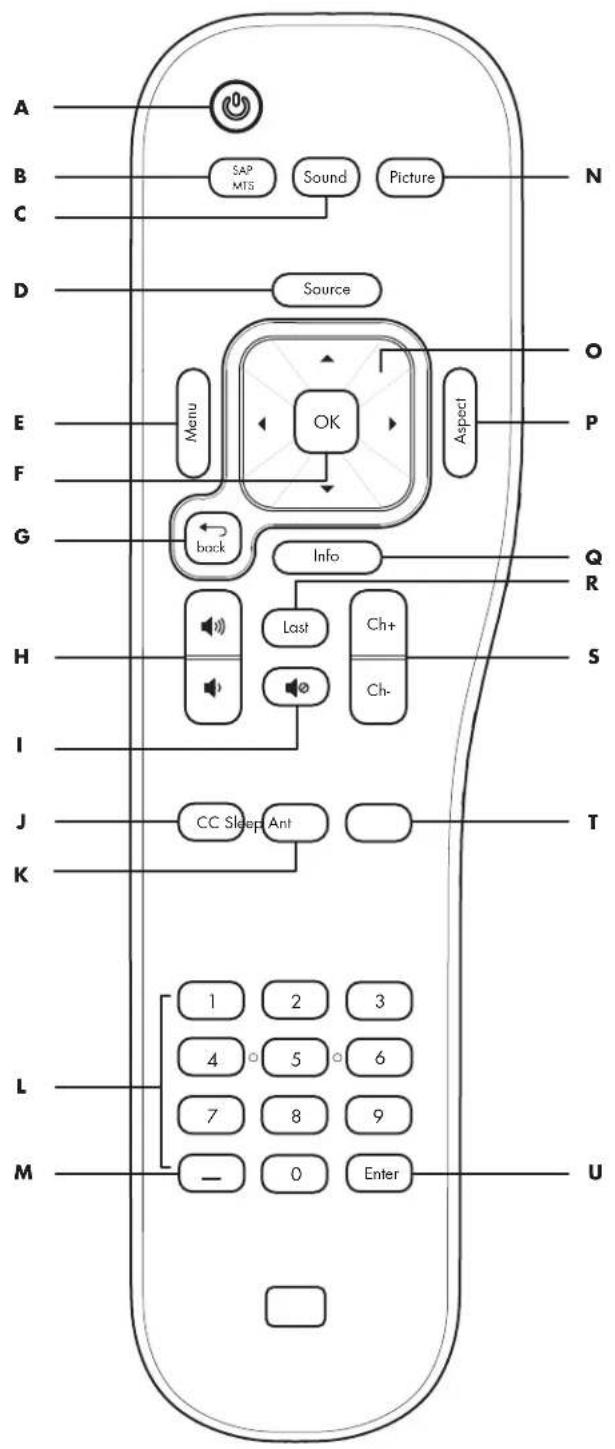
| Name Description Icon | |
| A P o w | e r Press Power to turn the TV on or off. | |
| B S A P | / M T S Press SAP/MTS to open a list of available secondary audio program options. Press a direction arrow button to choose the option, then press OK. Press SAP/MTS to close the list. | SAPMTS |
| C S o u | n d Press Sound to select an audio mode: Voice, Music, Standard, User. | Sound |
| D S o u | r c e Press Source to open a list of the input sources. Press an arrow button to select the input source to view, and press OK. Press Source to close the list. | Source |
| E M e n | u Press Menu to open the onscreen display (OSD).Press Menu again to exit the menu and return to your TV display. | Menu |
| F OK | Press OK to choose the current menu option. | OK |
| G B a c k | Press Back to go back one level when a menu is displayed. | back |
| H Vol | Press a Volume button to raise (or lower) the sound. |  — — |
| I M u t | Press Mute to turn sound off or on. |  |
| J CC | Press CC to select closed caption mode options. |  |
| K S l e e p | Press Sleep to set the timer in this order: 15, 30, 60, 90, or 120 minutes. |  |
| L N u m | Press the number buttons (0–9) to directly select channels, and then press Enter.Use these number buttons to edit or enter a display name for an analog channel using the Channel menu; see "Displaying channel information" on page 32. |  |
| M - (D a s h) | Press – (dash) to enter a dash for a subchannel number of a digital channel. For example, channel 14-2. |  |
| N P i c t | Press Picture to select a video mode: Standard, Vivid, Movie, User. |  — — |
| Name Description Icon | |
| O Up/down/left/right arrows | Press an arrow to move the cursor in the menu screens. |  |
| P A s p | Press Aspect to open a list of options for the dimensions of the TV picture image. Press an arrow button to select the option, and press OK. Press Aspect to close the list.The options depend on the current input source. |  |
| Q l n f o | Press Info to view a channel banner containing information on your current program. |  |
| R L a s | Press Last to recall the previous channel you were viewing. |  |
| S C h + Ch- | Press Ch+ (or Ch-) to select the next higher (or lower) channel. |  |
| T A nt | Press Ant to view a channel banner containing information on your current program.Press Ant again to view TV if currently viewing DVD or other source. |  |
| U E n t e | Press Enter after entering a channel number. |  |
Adjusting the Volume
Press the volume buttons on the remote control to increase or decrease the sound. The indicator bar on the TV shows the increase or decrease.
Muting the sound
1 Press the Mute button to temporarily turn off the sound. 2 Press the Mute button again to restore the sound to the previous level.
Changing the Picture Mode
Pressing the Picture button displays the currently selected video mode. Keep pressing the Picture button or the right arrow to change the video mode until you reach the desired picture.
■Vivid: Enhances contrast and sharpness for viewing in a well-lit room. ■Standard: Good for normal viewing conditions with low room lighting. ■Movie: Good for watching movies in a darkened room. Provides a soft, film-like picture. ■User: Displays the custom settings you configured in the OSD. For more information on defining the picture settings, see "Using the Picture Menu" on page 28.
Changing Channels
Press the Ch+ or Ch- buttons on the remote control to change the channel up or down. The TV allows you to select up to 125 channels (1 to 125). To select a channel, enter a one-digit, two-digit, or three-digit number, or use the channel up or down buttons.
To select a channel number (for example, channel 25), complete the following procedure within 4 seconds:
1 Press the 2 button on the remote control. 2 Press the 5 button. 3 Press Enter.
To select a subchannel number (for example, 14-2):
1 Press the 1 button. 2 Press the 4 button. 3 Press the - (dash) button. 4 Press the 2 button. 5 Press Enter.
Selecting the last channel
Press the Last button on your remote control to view the previous channel you were viewing.
Pressing the Info button displays a banner with information about the current program you are viewing.

Sometimes the name of the program is not included in the broadcast. In that case, the program name is not displayed.
1 Press the Source button to open a list of input sources. 2 Press the up arrow or down arrow to select the input source to view. 3 You can also press the right arrow button to change the label of an input source. 4 Press OK. 5 Press the Source button again to close the list of input sources.
The list of input sources identifies a connector set on the back of the TV. All the labels except Antenna or Cable can be changed.
■Antenna or Cable: This label, which cannot be changed, selects the RF Input connector. The label shows the scan source selection (Antenna or Cable) of the last channel scan performed by either the First Time Wizard or the Channel menu. ■Composite 1 ■S-video 1 ■Composite 2 ■S-video 2 ■Component 1 ■Component 2 PC ■HDMI
Press Aspect to open a list of options for the dimensions of the TV picture image. Press an arrow button to select the option, and press OK. Press Aspect to close the list. The options depend on the current input source.
■16:9 Mode: Shows high-definition TV in its normal format. ■ 4:3 Mode: Shows the standard 4:3 ratio picture image in the center of the TV with dark bars on the left and right. ■Zoom1: Proportionally stretches the TV picture, but clips the top and bottom of the image to fit the screen. Eliminates black bars. ■Zoom2: Zooms further into the middle of the screen and clips off more from the top and bottom. ■Panorama: Similar to 16:9 mode, but shows more of the sides.
Turning On Captions
Pressing the CC button displays caption options:
■CC on: Displays captions. ■CC off: Turns off captions. ■CC mute: Displays captions when the Mute button is pressed.
To assign your preferences for captions, see "Using the Closed Caption Menu" on page 33.
Setting SAP/MTS stereo mode
Press the SAP/MTS button to open a list of the available Secondary Audio Programs (SAP)/Multi-channel Television Sound (MTS) features. Press an arrow button to select the option to use, and then press OK. Press SAP/MTS to close the list.
SAP receives mono sound, stereo sound, and Secondary Audio Programs. The MTS feature allows a TV station to broadcast other information, such as another language or weather information.
You can enjoy hi-fi stereo sound or SAP broadcasts where available:
■ Stereo broadcasts: Hear programs such as live sporting events, shows, and concerts in dynamic stereo sound. ■ SAP broadcasts: Select to hear either Main or SAP sound.
■ Main sound: The normal program soundtrack (either in mono or stereo). ■ SAP sound: Listen to second language, supplementary commentary, and other information (SAP is mono sound).
If stereo sound is difficult to hear, obtain a clearer sound by manually switching to fixed mono-sound mode.

MTS operates only while in TV mode.
Changing Audio Mode
Pressing the Sound button displays the audio mode currently selected. Keep pressing the Sound button or right arrow to change the audio mode until you reach a desired sound.
For more information on adjusting the User option, see "Adjusting the audio" on page 30.
Setting the Sleep Timer
Pressing the Sleep button starts a timer for the TV to automatically turn off. Setting the Sleep Timer to 30 means your TV automatically turns off in 30 minutes.
| Minutes Description |
| 15 Sets the | timer to 15 minutes. |
| 30 Sets the | timer to 30 minutes. |
| 60 Sets the | timer to 60 minutes |
| 90 Sets the | timer to 90 minutes. |
| 120 Sets the | timer to 120 minutes. |
| 0 Turns off | the sleep timer. |
Adjusting TV Settings
Use the onscreen display to adjust your picture, audio, and other settings. For more information, see "Using the OSD Menus" on page 27.
Opening and exiting the OSD
Pressing Menu displays the OSD menu. Pressing the Menu button again leaves the current menu and returns you to the TV display. Pressing Back within a submenu takes you back one menu level.
Changing the TV Settings
Change the TV settings by using the onscreen display (OSD) menus.
Operate the OSD menus using the buttons on the remote control or the TV to highlight, adjust, and enter items as described here.
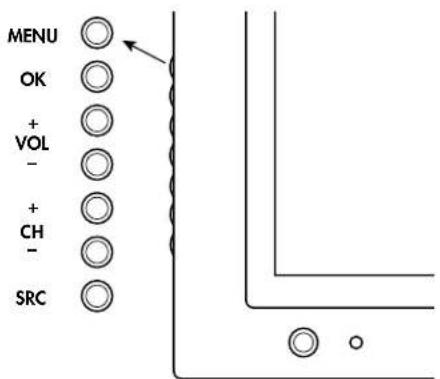
| TV (front) Description |
| MENU Menu | (Exit) displays (or closes) the OSD. |
| OK OK selects the highlighted item in the OSD. |
| +VOL -VOL | Volume moves right or left in the menu or adjusts an item. |
| +CH -CH | Channel moves up or down in the menu. |
| SRC Source | selects the input source. Press SRC button to open the list of input sources. Press CH to select the input source to view, and press OK. Press SRC to close the list. Choose the input source before opening the OSD. In an OSD menu, this button functions as the Back button, or to move up one item or menu level. |
![graph TD A["Source"] --> B["OK"] C["Menu"] --> B D["Aspect"] --> B E["back"] --> B F["Info"] --> B G["Last"] --> H["Ch+"] I["Ch-"] --> J["Ch-"]](/content/2026/03/519419/images/c6b2cc4f3499da9de2749d902cfca61a0771978c454d07652f047aa68cc47585.jpg)
| Remote control Description | |
| MENU Menu | (Exit) displays (or closes) the OSD. |
| OK OK selects the highlighted item in the OSD. | |
| Volume Volume adjusts the sound level or an item. | |
| Ch+ Ch- | Channel moves the channel up or down. |
| Source Source selects the input source. Press Source to open a list of the input sources. Press an arrow button to select the input source to view, and press OK. Press Source to close the list. Choose the input source before opening the OSD. |
| Back Back moves up one item or menu level. |
To operate the OSD menus:
1 Press the Source button to select the input signal source for the TV. The OSD menus and options you see depend on the current input source. 2 Open the OSD by pressing the Menu button. The available menus appear as a list. 3 Press the direction buttons to highlight the menu you want, and then press the OK button. 4 Press the direction buttons to move within the menu and highlight an option, and then press the OK button to move into the option. 5 Continue using the direction buttons to highlight and adjust an item, and the OK button to enter the change. You can press the Back button to move out of an option, or to move up one menu level. 6 When you are finished, press the Menu button to close the menu.
The OSD menus are:
■Picture ■Audio ■Time ■Channel ■CC (Closed Caption) ■Parental Control (Parental Ctrl) ■System
In the following topics, a table lists each menu and the available options.
The Picture menu controls the look of the image on the screen for the selected input source. For example, when you adjust Brightness, the screen image changes as you adjust the scale.
Because the Picture menu maintains settings for each input, select (view) the input source, and then make Picture menu changes.
The following tables show the Picture menu when an AV source is the input source (choose menu item Settings), and when a PC source is the input source (choose menu item Screen).
| Picture menu/Settings Options | |
| Mode Vivid/Standard/ | Movie/User |
| Brightness [scale] | |
| Contrast [scale] | |
| Saturation [scale] | |
| Hue [scale] | |
| Sharpness [scale] | |
| Blue Screen On/Off | |
| Color Temperature Warm/Standard/Cold |
| Picture menu/Screen Options | |
| H Size | [scale] |
| H Position | [scale] |
| V Size | [scale] |
| V Position [scale] | |
| Phase Adjust | [scale] |
| Clock adjust | [scale] |
| Auto Sync | [button] |
| Default | [button] |
Adjusting the picture image
Adjusting the AV picture image
These options adjust the AV picture image you are watching, so select the correct AV input source before adjusting values.
■Mode sets the picture adjustments to a preset value (Vivid, Standard, Movie) or to User for individual adjustment of Brightness, Contrast, and so on. ■Brightness sets the image brightness. ■Contrast sets the image contrast. ■Saturation sets the image color intensity. ■Hue sets tones; decrease to make tones more red, or increase to make tones more blue. ■Sharpness sets the image sharpness. ■Blue Screen turns on or off display of a blue screen as the image when there is no video signal. ■Color Temperature selects different color temperature settings: Warm, Standard, and Cold.
Adjusting the PC Screen Image
These options adjust the image from the PC connector; the menu is not available if a PC is not connected.
■ H Size adjusts the horizontal size of the image. ■ H Position adjusts the horizontal position of the image. ■ V Size adjusts the vertical size of the image. ■ V Position adjusts the vertical position of the image. ■ Phase Adjust adjusts the phase of the clock used for synchronizing the image. ■ Clock adjust adjusts the clock used for synchronizing the image. ■ Auto Sync button starts automatic synchronization to the image. ■ Default button resets all Screen options to default values.
The Audio menu sets the sound levels (Settings), the mode for the digital audio output signal, and the mode and values for the SRS WOW settings for the display speakers.
| Audio menu/Settings Options |
| Volume [scale] | |
| Balance [scale] | |
| Sound Mode: Voice/Music/ | Standard/User |
| 120 Hz [scale] | |
| 200 Hz [scale] | |
| 500 Hz [scale] | |
| 1200 Hz [scale] | |
| 3000 Hz [scale] | |
| 7500 Hz [scale] | |
| 12 KHz [scale] | |
| Audio menu/Digital Audio Options | |
| Digital Audio Output Mode Digital Dolby/PCM |
| Audio menu/SRS WOW Options |
| Mode Off/On | |
| Focus | [scale] |
| TruBass | [scale] |
Adjusting the audio
In the Audio/Settings menu, select Volume or Balance to make adjustments. Use Sound Mode to select preset equalizer values of Voice, Music, or Standard, or to select User for individual adjustment of the equalizer values.
In the Audio/Settings menu, select Volume or Balance to make adjustments. Use Sound Mode to select preset equalizer values of Voice, Music, or Standard, or to select User for individual adjustment of the equalizer values.
Choosing the Digital Audio mode
You must be watching a digital TV channel to access the Audio/Digital Audio menu.
In the Audio/Digital Audio menu, select the mode for the signal provided on the digital audio output connector: Digital Dolby or PCM. Choose the PCM option when your external digital audio system does not support surround sound. When the source is analog, such as from an Analog TV channel, there is no Digital Audio output.
Selecting surround sound
You can enjoy emulated surround sound from the display speakers. To do so, in the Audio/SRS WOW menu, choose the On option for Mode.
In the Audio/SRS WOW menu you can make the following selections:
■ Focus provides clarity improvement and elevation to the audio.
TruBass provides bass enhancement to the audio.
The Time menu sets the date and time, sleep timer, and other time options.
| Time menu Options | |
| Time Zone AST/EST | /CST/MST/PST/AKST/HST/NST |
| Date/Time | ■Mode: Manual/Auto■Date/Time |
| Auto Turn-On | ■Mode: Off/Once/Daily■Time |
| Auto Turn-Off | ■Mode: Off/Once/Daily■Time |
| Sleep Timer | ■Mode: Off/On■Time |
| Daylight Savings On | /Off |
You choose the initial Date and Time for the TV during the Setup Wizard, or in this menu by choosing Manual mode.
Time Zone selects the time zone such as Central Standard Time (CST) or Pacific Standard Time (PST).
Auto Turn-On and Auto Turn-Off are individual, independent settings to automatically turn on or turn off the TV.
Sleep Timer sets the minutes and seconds before the TV turns off. You can also set the sleep timer using the remote control Sleep button.
If you skipped the Setup Wizard or if the initial setup does not find all the channels, use this menu to automatically or manually scan and find the channels. The scan continues until the channel is found or confirmed as no signal.

Auto Scan or Manual Scan scans for all channels. For example, a manual scan for channel 14 would find all available channels, such as channel 14 and sub channels 14-2 and 14-7.
Use this menu to edit the program channel list to lock or unlock an entire channel (for parental control) or to skip a channel when using the Channel adjust buttons.
Use this menu to view program number and name information, and to edit the display name of analog channels.
| Channel menu Options |
| Auto Scan | ■Scan: Antenna/Cable■OK (button)■Cancel (button) |
| Manual Scan | ■Channel No (number)■Frequency■OK (button) |
| Edit Program | ■Music■CH. No. (Channel number)■Name■Lock■Skip |
| Information Shows program number and name; the display name of analog channels may be edited |
Searching for channels automatically
In the Auto Search menu, start an automatic search for channels by choosing the scan source of Antenna or Cable, selecting the Search button on the screen, and then pressing OK.
The scan continues until each channel is found or confirmed as no signal. You can stop the search by choosing the Cancel button on the screen and pressing OK.
Searching for channels manually
In the Manual Search menu, start a manual search for a channel: enter a channel number, press the down arrow to select the OK button on the screen, and press OK.
The scan continues until the channel is found or confirmed as no signal. You can stop the search by choosing the Cancel button on the screen and pressing OK.
Editing the channel listing
Use Edit Program to lock or skip a channel. In the Edit Program menu, you see a table of all the channels with columns labeled: Music, Ch. No., Name, Lock and Skip. Move the cursor into a column (Lock, or Skip) and press OK to change the item for that channel. In the Lock column, press OK to require the parental control password to unlock and view the channel. In the Skip column, press OK to skip the channel when using the Channel adjust buttons.
In the Information menu, the TV shows the program number and name. Use this menu to edit the display name of analog channels; digital channel names are included in the program information and cannot be changed.
To change the display name for an analog channel:
1 In the Channel menu, select Information and press OK. The current TV channel information displays. 2 To change the name for the current channel, press the down arrow to highlight the name.
To select a different channel, press the number buttons on the remote control to select the channel, press OK to display the channel information, and then press the down arrow to highlight the name.
3 Use the number buttons on the remote control to enter a name for the channel. Each button provides different characters; refer to the table that follows for a complete list of characters. To edit the name, press the number button repeatedly to scroll through the characters, stopping on the character you want. Press the right arrow button to move to the next character position. Press OK to enter the name.
| Numberbutton Characters (in sequence) |
| 2 a, b, c, @, 2 | |
| 3 d, e, f, #, 3 | |
| 4 g, h, i, $, 4 | |
| 5 j, k, l, %, 5 | |
| 6 m, n, o, ^, 6 | |
| 7 p, q, r, s, 7 | |
| 8 t, u, v, 8 | |
| 9 w, x, y, z, 9 | |
| 0 *, #, (, ), 0 | |
Use the CC (Closed Caption) menu to turn on or off caption display and to select options. You can also use the remote control button CC to turn caption display on or off.
| ClosedCaption menu Options | |
| CC Mode Off/On/ | On When Mute |
| Analog Caption Services:■CC1/CC2/CC3/CC4■T1/T2/T3/T4 |
| Digital Caption Service 1/2/3/4/5/6 |
| Style | ■Style■Size■Font■Text Color■Text Opacity■BG (background) Color■BG (background) Opacity■Preview |
Your TV is equipped with an internal closed caption decoder. It allows you to view conversations, narration and sound effects as subtitles on your TV. Closed Captions are available on some TV programs, and on some VHS home video tapes, at the election of the program provider.
Digital Closed Caption service is a caption service available only on digital TV programs (also at the election of the service provider). It is a more flexible system than the original closed caption system, because it allows a variety of caption sizes and font styles. When the Digital Closed Caption service is in use, it is indicated by a three-letter abbreviation that also indicates the language of the Digital Closed Captions: ENG (English) or SPA (Spanish) or FRA (French), or other language codes.
Not all programs and VHS videotapes offer closed captioning. Look for the symbol to ensure that captions appear.

When you have the signal source equipment connected using an HDMI or a component video connection, closed caption information may not always be available because the source equipment may not pass the information to the TV across these connectors.
In the closed caption system, there can be more than one caption service provided. Each is identified by its own number. CC1 through CC4 services display subtitles of TV programs superimposed over the program picture.
In the closed caption system, the T1 through T4 services display text that is unrelated to the program being viewed, such as weather or news. These services are also superimposed over the program currently being viewed.
Depending on the number of caption services in the signal being received, you will see information such as 1/2 or 1/4 displayed. 1/2 means "the first of two services." Example: If a program has three services (Digital CC(ENG), CC1 and Text1), the closed caption display toggles in sequence. The CC button keeps a record of the last service selected in its memory. If the last closed caption mode you selected is not available for the next program, or on another channel, the closed caption service that is available is automatically selected, and this service appears in parentheses. Closed caption services that appear in parentheses are not retained in the CC button memory as your last selected service. Only services that you have selected with the CC button are retained.

When the program contains no closed caption, "--" displays in the closed caption information.
If the language code, such as ENG, is not found on Digital TV programs, "--" is shown.
All types of closed caption service (CC1, T1, and so on) are potentially available, but a broadcast may contain none or only some of these services, at the election of the program provider.
The defaults for CC may be specified by the broadcasting station.
Using the Style option
The Style option selects the elements for displaying closed caption text:
Style selects a preset or user caption style. Size selects a caption size: Small, Large, Normal. Font Style selects a font style. Text Color selects a character color. Text Opacity selects a text opacity. Background (BG) Color selects a background color. Background (BG) Opacity selects a background opacity. Preview displays a text preview of the selected styles.
The Parental Control (Ctrl) menu enables and defines parental controls for TV and movies. Use it to select a password (secret number), and set the values for parental controls by TV rating, TV content, and movie ratings.
| Parental Ctrl menu Options | |
| Password | ■Input Password■Confirm Password■Password On/Off |
| MPAA (movie ratings by Motion Picture Association of America) | ■NR■G■PG■PG-13■R■NC-17■X |
| TV Guidelines Table of | age-based guidelines and content values |
| Canadian English | ■C■C8+■G■PG■14+■18+■Block All (check box) |
| Canadian French | ■G■8ans +■13ans +■16ans +■18ans +■Block All (check box) |
Using the Password
The Parental Control menu allows you to use a password to protect certain settings from being accidentally changed.

IMPORTANT: These conditions must be met to enable parental controls:
■Password is set.
■Rating settings have been made.
Enter the password when prompted.
Setting a password (secret number)
In the Parental Ctrl/Password menu, select Input Password, and then enter the new 4-digit password number by using the 0–9 buttons on the remote control. Enter the same digits for Confirm Password, and then press OK.

As a precautionary measure, write down your password and keep it in a familiar place.

IMPORTANT: If you lose or forget your password, enter the Master Password: 0532
Setting Parental Controls
The parental controls use a V-Chip, which is an electronic filtering device built into your TV. This tool gives parents a great degree of control over broadcasts accessed by their children. It allows parents to select programs judged suitable for child viewing while blocking ones judged not suitable. It does so automatically once you select a password and set the values for parental controls.
The U.S. has two rating systems for viewing content: TV Parental Guidelines and movie ratings.
■The TV Parental Guidelines help parents screen out inappropriate television shows from their children.
■Movie ratings are used for original movies rated by the Motion Picture Association of America (MPAA) as watched on cable TV and not edited for television. Options can also be set to block MPAA-rated movies.
Voluntary movie rating system (MPAA)
In the Parental Ctrl menu, highlight MPAA and press OK. Adjust the item.
The setting automatically enters Block for any ratings below your selection.
| MPAA rating Description | |
| Age NR | Not rated. | |
| G General | audiences. All ages admitted. |
| PG Parental | guidance suggested. Some material may not be suitable for children. |
| PG-13 | Parents strongly cautioned. Some material may be inappropriate for children under 13. |
| R | Restricted. Under 17 requires accompanying parent or adult guardian (age varies in some jurisdictions). |
| NC-17 No | one 17 and under admitted. |
| XX is an older rating that is unified with NC-17 but may be encoded in the data of older movies. |
Example:
If you select PG-13, this automatically blocks the higher ratings R, NC-17, and X.

Voluntary movie rating system uses only an age-based rating.
TV Parental Guidelines (TV Guidelines)
In the Parental Ctrl menu, highlight TV Guidelines and press OK. Adjust the item.
The setting automatically enters Block for any ratings below your selection.
You can set an individual content-based rating item.
| TV Guidelines Rating | Content |
| FV (Fantasy violence) | V (Violence) | S (Sexual situation) | L (Adult language) | D (Sexually suggestive dialogue) |
| Suggested Age | TV-Y (All children) | | | | | |
| TV-Y7 (Directed to older children) | Rating can be set | | | | |
| TV-G (General audience) | | | | | |
| TV-PG (Parental guidance suggested) | | Rating can be set | Rating can be set | Rating can be set | Rating can be set |
| TV-14 (Parents strongly cautioned) | | Rating can be set | Rating can be set | Rating can be set | Rating can be set |
| TV-MA (Mature audience only) | | Rating can be set | Rating can be set | Rating can be set | |
Canadian Rating Systems
The TV rating systems in Canada are based on the Canadian Radio-Television and Telecommunications Commission (CRTC) policy on violence in television programming.
While violence is the most important content element to be rated, the structure developed takes into consideration other program content like language, nudity, sexuality, and mature themes.
When setting controls on the Canadian system you can choose either the Canadian English ratings or the Canadian French ratings.
Canadian English ratings
| Rating Canadian English rating description |
| Age | E | Exempt: Includes news, sports, documentaries, and other information programming. |
| C | Children: Intended for younger children under the age of 8 years. Pays careful attention to themes that could threaten their sense of security and well-being. |
| C8+ | Children over 8 years old: Contains no portrayal of violence as the preferred, acceptable, or only way to resolve conflict; does not encourage children to imitate dangerous acts that they may see on the screen. |
| G | General: Considered acceptable for all age groups. Appropriate viewing for the entire family; contains very little violence — physical, verbal, or emotional. |
| PG | Parental guidance: Intended for a general audience, but may not be suitable for younger children (under the age of 8) because it could contain controversial themes or issues. |
| 14+ Over 14 years: Could contain themes where violence is one of the dominant elements of the storyline, but it must be integral to the development of plot or character. Language usage could be profane and nudity present within the context of the theme. |
| 18+ | Adults: Intended for viewers 18 years and older and might contain depictions of violence, which while related to the development of plot, character, or themes, are intended for adult viewing. Could contain graphic language and portrayals of sex and nudity. |
Canadian French ratings
| Rating Canadian French ratings description |
| Age E | Exempt programming. |
| G | General: All ages and children; contains minimal direct violence, but may be integrated into the plot in a humorous or unrealistic manner. |
| 8ans + | General but inadvisable for young children: May be viewed by a wide public audience, but could contain scenes disturbing to children under 8 who cannot distinguish between imaginary and real situations. Recommended for viewing with parent. |
| 13ans + | Over 13 years: Could contain frequent violent scenes and therefore recommended for viewing with parent. |
| 16ans + Over | 16 years: Could contain frequent violent scenes and intense violence. |
| 18ans + Over | 18 years: Only for adult viewing. Could contain frequent violent scenes and extreme violence. |
How to temporarily release a blocked program
When the Parental Controls rating censors a program, a message displays.
To release a blocked program:
1 Press OK, and then the password setting menu displays. 2 Enter your 4-digit password to temporarily release the program lock.
Reactivating parental controls after a temporary release
You can reactivate the Parental Controls for a temporarily released program by using either of these actions:
■ Select the rating setting (MPAA, TV Guidelines, Can. English Ratings, or Can. French Ratings) from the Parental Ctrl menu. ■Switch off the TV power.
Use the System menu to select the language for the OSD menus, find the software version, start the Setup Wizard, return OSD settings to default values, select the Standby Mode, and start White Wash to reduce the appearance of afterimage.
| System menu Options |
| OSD | ■Language: English/French/Spanish■OSD timeout: Short/Middle/Long |
| Software Version Shows | TV software version number |
| Setup Wizard Start the | setup wizard: Yes/No |
| Default Settings Press OK | to recover all settings to default values. |
| White Wash | ■Yes/No |
| Standby Mode | ■Low power■Fast power |
Starting the Setup Wizard
In the Setup Wizard menu, choose Yes, and press OK. Then, turn off the TV, and turn it on again to start the Setup Wizard.
Returning to Default Settings
In the Default Settings menu, return all settings, including the channel list, to default value by selecting Default Settings, and then pressing OK.
Using White Wash
In the White Wash menu, select Yes and press OK to display an all-white screen for 3 minutes. This can reduce the appearance of an afterimage resulting from a fixed screen image.

Extensive use of White Wash may reduce the lifetime of the panel.
Selecting the Standby Mode (Power Control)
The Standby Mode menu setting can save energy. The setting determines the power used by the TV when it is turned off and enters standby.
■Low power: Consumes less power while in standby, uses approximately 20 seconds of power-up time.
■Fast power: Consumes more power while in standby, uses approximately 5 seconds of power-up time.
Finding Answers to Questions
Understanding TV Terms
What are analog TV, digital TV, and high-definition (HDTV)?
Devices such as monitors, tuners, and integrated monitor/tuner combinations are designed to handle any of the 18 formats officially sanctioned by the industry-led standard setting, Advanced Television Systems Committee (ATSC), for the digital transmission of video signals. There are three subgroups of digital televisions depending on their capabilities: high-definition (HDTV), enhanced-definition (EDTV), and standard-definition (SDTV).
In contrast, U.S. analog television has been available for over 50 years in the single National Television Standards Committee (NTSC) format. This is the signal that has been broadcast over the air and through cable systems. NTSC television offers slightly more than 480 interlaced lines of resolution.
There are 18 standard digital TV signal formats. Each one provides a different picture quality. Digital TV formats are named using a number followed by either progressive (p) or interlaced (i). The letter refers to the way the TV uses the signals to create the picture:
■Progressive (p) scanning presents all the horizontal lines of the picture in one frame. This provides a sharper picture to the eye and looks much better than an interlaced image of the same resolution.
■Interlaced (i) means that the picture appears in two segments: every other horizontal line of the picture is displayed in one frame, and the other half of the horizontal lines are drawn in the next frame of the picture. This works because it happens so fast that the eye is deceived into believing that only one picture is being shown.
The number refers to the number of lines of resolution, and generally the higher the number, the better the picture. For example, with digital TV (DTV) there are two progressive formats for broadcasters to choose from: 480p and 720p. A 480p image is much sharper than a regular TV broadcast, although it is only considered a DTV signal and not a true high-definition signal. 720p has 720 horizontal scan lines and is considered to be true HDTV. 720p can rival a 1080i picture, which is 1080 horizontal scan lines displayed as an interlaced image. This is because of the sharper and more accurate (progressive) 720p picture, even though a 1080i picture has many more scan lines and a much higher resolution.
What is variable aspect ratio?
The aspect ratio describes the relationship of screen width to screen height. Standard TV signals are based on the aspect ratio of 4:3 (four units wide by three units high). HDTV signals are based on the aspect ratio of 16:9, making the image 33 percent wider than a normal TV and allowing viewing TV and movies as if you were watching them in a theater.
In addition, many DVDs look better on the widescreen display because most movies made in the last 50 years were filmed in an aspect ratio of either 1.85:1 (very close to 16:9, which is equal to 1.78:1) or 2.35:1 (even wider than 16:9).
Variable aspect ratio support enables scaling of 4:3 and anamorphic video to fill the screen.
What is HDMI?
High-Definition Multimedia Interface (HDMI) is the first industry-supported, uncompressed, all-digital audio/video interface. HDMI components can transmit both digital audio and video over a single cable with improved quality over traditional analog connections due to an all-digital transmission. Transferring digital sources to display such as DVDs and HDTV programming can now be done without analog conversions that can degrade the original signal.
Identifying Cable Usage
The following section lists all of the cable types available for the TV. It shows a side view of each with its respective connector.
| Cable type/connection Description | |
RCA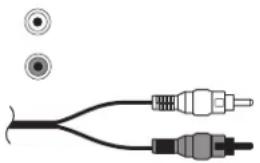 | Red and white audio connectors connect to the red and white (L and R) audio inputs. |
Digital audio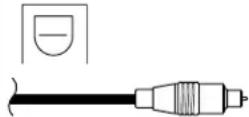 | High-resolution optical audio cable used for optional external audio systems, such as 5.1 channel surround sound. |
HDMI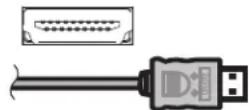 | HDMI is capable of transmitting both uncompressed digital audio and digital video signals because it has video, audio, and control signals. |
Coaxial antenna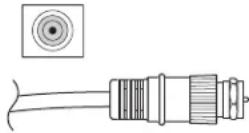 | RF or coaxial used mainly for antennas. Often used with cable TV, a cable or a satellite decoder. May be used with set-top boxes if no other choice is available. |
| Cable type/connection Description | (Continued) |
S-video [IMAGE] [IMAGE] | Used with equipment such as DVD players, VCRs, cable or satellite tuner/decoders, camcorders, and digital cable boxes. |
Power cord Connects the TV to the power outlet.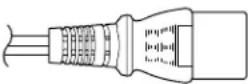 | |
Composite Used with equipment such as a VCR or DVD.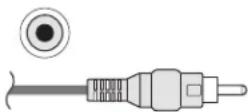 | |
Component[IMAGE]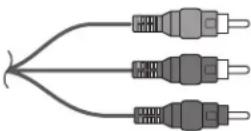 | Three- or five-headed cable: One red for Pr signal, one green for Y signal, and one blue for Pb signal. Some component cables also come with red and white audio cables attached. Used for HDTV receivers, DVD players, and other devices equipped with a YPbPr component output connector. |
RS-232 Serial interface used for service purposes only.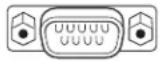 | |
VGA Interface used with PCs and monitors.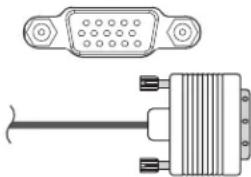 | |
Specifications
HP PL5060N 50-Inch (127-Centimeter) Plasma High-Definition Television
HP PL4260N 42-Inch (106-Centimeter) Plasma High-Definition Television
| Display |
| TV panel HP PL5060N: 50 in. 16:9 color plasma displayHP PL4260N: 42 in. 16:9 color plasma display |
| Display area (height x width x diagonal) | HP PL5060N: 24.5 in. (62.2 cm) x 43.5 in. (110.6 cm) x 50 in. (126.9 cm)HP PL4260N: 20.4 in. (51.8 cm) x 36.2 in. (92.0 cm) x 41.5 in. (105.5 cm) |
| Dimensions with stand and speakers (h x w x d) | HP PL5060N: 32.8 in. (83.2 cm) x 61.1 in. (155.2 cm) x 12.3 in. (31.3 cm)HP PL4260N: 28.9 in. (73.3 cm) x 53.5 in. (135.8 cm) x 12.3 in. (31.3 cm) |
| Dimensions without stand and with speakers (h x w x d) | HP PL5060N: 29.8 in. (75.8 cm) x 61.1 in. (155.2 cm) x 4.3 in. (10.8 cm)HP PL4260N: 25.9 in. (65.8 cm) x 53.5 in. (135.8 cm) x 3.7 in. (9.3 cm) |
| Dimensions without stand or speakers (h x w x d) | HP PL5060N: 29.8 in. (75.8 cm) x 49.0 in. (124.4 cm) x 4.3 in. (10.8 cm)HP PL4260N: 25.9 in. (65.8 cm) x 41.4 in. (105.2 cm) x 3.7 in. (9.3 cm) |
| Picture resolution HP PL5060N: 1366 x 768HP PL4260N: 1024 x 768 |
| Brightness HP PL5060N: Up to 1000 cd/m 2 HP PL4260N: Up to 1200 cd/m 2 |
| Panel life Up to 60,000 hours | |
| Viewing angles H: 160 | ° V: 160° |
| Audio out 8 watts per channel | |
| OSD language English/French/Spanish |
| Display (Continued) |
| Power requirement AC 100–240 | V, 50/60 Hz ∨ |
| Power consumption HP PL5060N: | 450 WHP PL4260N: 340 W |
| Ventilation clearance requirements | 4 in. (10 cm) above4 in. (10 cm) sides2.8 in. (7 cm) rear |
| TV function |
| TV standard (CCIR) American TV Standard ATSC/NTSC system |
| Receiving channel VHF: 2–13 | UHF: 14–69CATV: 1–125Digital Terrestrial Broadcast (8VSB): 2–69Digital cable (64/256 QAM): 1–135 |
| Audio multiplex BTSC system | |
| Rear connectors |
| Component 1 Component Input | |
| Component 2 Component Input | |
| Comp 1 Audio In Audio Input (use with | Component 1) |
| Comp 2 Audio In Audio Input (use with | Component 2) |
| HDMI HDMI Input (Type A) with HDCP | |
| PC VGA monitor in | |
| PC/DVI Audio In Audio In for PC and DVI-1 In with HDCP |
| Digital Audio Output Optical digital audio output (PCM/Digital Dolby) |
| RF Input | 75-ohm Unbalance, F-Type for VHF/UHF/CATV in |
| Video Out | Composite Out |
| Rear connectors (Continued) |
| Audio Out Audio Out (use with Video Out) |
| S-Video 1 S-video Input | |
| S-Video 2 S-video Input | |
| Video 1 In Composite Input | |
| Video 2 In Composite Input | |
| Video 1 Audio In Audio Input (use with Video 1 In or S-Video 1) |
| Video 2 Audio In Audio Input (use with Video 2 In or S-Video 2) |
| Weight |
| TV only HP PL5060N: 95.9 lb. (43.5 kg) | HP PL4260N: 67.2 lb. (30.5 kg) |
| TV with speakers (no stand) HP PL5060N: 108 lb. (49 kg) | HP PL4260N: 84.9 lb. (38.5 kg) |
| TV with speakers and stand HP PL5060N: 113.5 lb. (51.5 kg) | HP PL4260N: 90.4 lb. (41 kg) |
| Accessories |
| In the box Documentation, remote control unit, AC cord, and speakers |
| Recommended solution additions HP Digital Entertainment CenterHP Media Center PCHP Media Center Extender |
| Certification and compliance UL, C-UL, FCC, BETS-7, ENERGY STAR qualified TV |
| Warranty 1 year, parts and labor | |
All specifications represent the typical specifications provided by HP's component manufacturers; actual performance may vary either higher or lower.
The panel life is determined as the time at which luminance is 50% compared to that of initial value at the typical lamp current on condition of continuous operation at 25 +/- °C. 60,000 hours equates to more than twenty-three years at seven hours a day viewing.
PC Compatibility Chart
| Preset | Pixel format | Horiz. freq. (kHz) | Horiz. polarity | Vert. freq. (Hz) | Vert. polarity | Pixel clk. (MHz) Source |
| 1 640 x 480 31.5 - 59.9 | + 25.2 VGA | | | | | |
| 2 640 x 480 37.5 - 75.0 | + 31.5 VESA | | | | | |
| 3 720 x 400 31.5 - 70.1 | + 28.3 VGA | | | | | |
| 4 800 x 600 37.9 + 60.3 | + 40.0 VESA | | | | | |
| 5 800 x 600 46.9 + 75.0 | + 49.5 VESA | | | | | |
| 6 1024 x 768 | 48.4 - 60.0 - 65.0 VESA | | | | | |
| 7 1024 x 768 | 56.5 - 70.1 - 75.0 VESA | | | | | |
| 8 1024 x 768 | 60.0 - 75.0 - 78.8 VESA | | | | | |
| 9 1280 x 768 | 47.4 + 60.0 - 68.3 VESA | | | | | |
| 10 | 1280 x 1024 | 64.0 + 60.0 + 108.0 | VESA | | | |
| 11 | 1360 x 768 | 47.7 + 60.0 + 85.5 VESA | | | | |
Troubleshooting
Refer to this section if you have viewing, picture, sound, remote, or startup problems with your TV.
Startup questions
| Symptom Remedy | |
| I do not hear sound at power-on, even though there is an image. | ■Are the two speaker wires connected at the speaker and on the TV, and: ■Is the volume too low? Press the Volume button. ■Is mute turned on? Press the Mute button, or the Volume button. |
| I do not see an image at power-on. | ■Are the connections to the input signal source component correct? Double-check that the cables are properly inserted in the color-coded connectors. ■Is the input source powered on? Turn on the set-top box, DVD player, or other component you are trying to view. ■Is the correct input signal source selected? Press the Source button on the remote control and confirm the source is selected. ■Press the Menu button on the remote control or side of TV: ■If the OSD appears, check the cables to the input source and press the source button on the remote control or side of TV to choose the input source. ■If the OSD does not display, see the next symptom, “There is no power.” ■Did the HP logo display when you turned on the TV? (TV must be in Standby Mode Low power to see the logo; refer to “Selecting the Standby Mode (Power Control)” on page 40.) ■If yes, check the cables to the input source and press the source button on the remote control or side of TV to choose the input source. ■If no, see the next symptom: “There is no power.” |
| There is no power. | ■Press the Power button on the remote control unit. ■If the indicator on the TV is off, press the Power button on the TV. ■Is the AC cord disconnected? Make sure both ends of the power cord are plugged in. ■Is there power coming from the outlet? Plug in a functional lamp or other electrical device into the same outlet as the TV to make sure there is power coming from the outlet. ■If using a power strip, make sure it is turned on. |
| Symptom (Continued) Remedy | |
| The unit cannot be operated. | ■ External influences such as lightning and static electricity may cause improper operation. In this case, operate the unit after first turning on the power of the TV or unplugging the AC cord and replugging it in after 1 or 2 minutes. |
| The color is strange, faded, or misaligned. | ■Adjust the picture tone.■ Is the room too bright? The picture may look dark in a room that is too bright.■Check the input signal setting.■ If watching a component device, make sure the red, blue, and green cables are fully inserted into the proper connectors on both ends. |
| The power suddenly turned off. | ■Is the sleep timer set?■Check the power control settings.■The unit's internal temperature has increased. Remove any objects blocking the vent, or clean the vent. |
Viewing questions
| Symptom Remedy | |
| I get a poor picture with video signal input. | Check the following: Improper control setting. Local interference. Cable interconnections. Adjust picture control as needed. Try another location for the TV. Be sure that all connections are secure. |
| There is no picture or a blue screen, and I have an external device controlling the TV. | ■ Press the Source button on the remote control and confirm the source is selected.■ Verify that the external device or PC power is turned on.■Check to see whether the source component is connected.■Check the power management function. Is it in standby mode?■ Connect the source to the TV. Operate the external device or PC (move the mouse, or press a key). |
| The picture, with a component input source connected, is too red, blue, or green, or has black that is too black or washed out. | ■ Check to make sure each cable is plugged into the correct color-coded connector on the TV connectors and input source connectors.■Make sure the cables are plugged in all the way.■See “Adjusting the AV picture image” on page 29. |
Picture quality questions
| Symptom Remedy | |
| Part of my picture is cut off, or the picture is not centered. | Check the position adjustment settings, and adjust the screen settings accordingly. |
| My picture image is too large or too small. | Press the Aspect button on the remote control to select a different picture image size. |
| My picture is unstable. | Verify that the external device or PC resolution setting is correct. Adjust to the appropriate resolution. |
| An afterimage appears on the screen. | A fixed picture, such as a logo, video game, or computer image, can cause a permanent afterimage to appear on the plasma TV screen. This product is not designed to display fixed images for extended periods of time. Minor occurrences of afterimage may be reduced by running the White Wash option in the OSD System Menu; see “Using White Wash” on page 40. |
Remote control questions
| Symptom Remedy | |
| The remote control does not work. Check the following, and try the proposed solution:■Batteries are inserted with polarity aligned.■ Make sure the remote control batteries are fresh. If they are worn out, replace the batteries with new batteries.■Make sure the remote control is within correct operating range.■ Make sure the remote sensor window is not under too much light, direct sunlight, or strong artificial light.■Make sure there are no obstacles; check that there is nothing between the remote control and the sensor window on the display.■ Make sure the remote control is aimed at your TV and is not farther than 16.4 feet (5 meters) away. |
| The remote control does not control other home entertainment equipment. | This is not a universal remote control. It only works with your HP television. |
| My universal remote control does not find an HP TV code. | When you want to program a universal remote control to operate your HP TV, if HP is not listed in the supported brand codes, use a Philips TV code. The HP remote control transmits Philips-licensed remote control codes.After programming your universal remote control with a Philips TV code, it can operate your HP TV functions for: volume, mute, power, and input source. |
Copyright © 2006 Hewlett-Packard Development Company, L.P.
Attn: Product Regulations Manager
10955 Tantau Avenue
Building 45NL
http://www.hp.com/recycle
Copyright © 2006 Hewlett-Packard Development Company, L.P.
http://www.hp.com/recycle
A 75-ohm coaxial cable (round)
B 300-ohm twin-lead cable (flat)
C F-type connector