DNX6020EX - GPS Navigation System KENWOOD - Free user manual and instructions
Find the device manual for free DNX6020EX KENWOOD in PDF.


| Product Type | GPS navigation system for automobile |
| Brand | Kenwood |
| Model | DNX6020EX |
| Main Functions | GPS navigation with voice guidance, address and point of interest search, route creation and tracking, FM TMC traffic information, ecoRoute function (fuel consumption estimation, fuel report, Eco Challenge), voice recognition (except DNX5160), 2D/3D display |
| Power supply | Vehicle battery (ignition ON or ACC), usable with engine running to save battery |
| Display | Color touch screen with detailed maps, 3D buildings (on some models), automatic day/night mode |
| Mapping | Preloaded maps (NAVTEQ data), updates possible via SD/microSD card, customizable points of interest |
| Connectivity | Bluetooth for hands-free phone (depending on model, DNX5160 without Bluetooth), FM TMC receiver for traffic, SD/microSD card slot |
| Languages | Multilingual, configurable keyboard and voice |
| Safety | Safety Mode disabling distracting functions while moving, warnings against use while driving, precautions against short circuits |
| Maintenance and cleaning | Protect from extreme temperatures, vibrations, metal objects and water; no specific cleaning instructions |
| Spare parts and repairability | Parts not detailed in the manual; professional repair recommended |
| Dimensions | Not specified in the manual |
| Weight | Not specified in the manual |
Frequently Asked Questions - DNX6020EX KENWOOD
User questions about DNX6020EX KENWOOD
0 question about this device. Answer the ones you know or ask your own.
Ask a new question about this device
Download the instructions for your GPS Navigation System in PDF format for free! Find your manual DNX6020EX - KENWOOD and take your electronic device back in hand. On this page are published all the documents necessary for the use of your device. DNX6020EX by KENWOOD.
USER MANUAL DNX6020EX KENWOOD
DNX9960
DNX7160
DNX7020EX
DNX6960
DNX6160
DNX6020EX
DNX5160
GPS NAVIGATION INSTRUCTION MANUAL
MANUEL D'INSTRUCTIONS DE NAVIGATION DU GPS
Safety Precautions and Important Information
4
Getting Started 10
Using the Navigation System 10
Help When You Need It 10
Find It and Go! 11
Finding a Restaurant 11
Following Your Route 12
Adding a Via Point 12
Taking a Detour 12
Stopping the Route 12
Where To? 13
Searching Near Another Location 13
Go! Page Options 13
Finding an Address 13
Finding a Place by Spelling the Name 14
Using the On-Screen Keyboard 14
Finding Places in a Different Area 14
Narrowing Your Search 14
Favorites 15
Saving Places You Find 15
Saving Your Current Location 15
Setting a Home Location 16
Finding Saved Places 16
Editing Saved Places 16
Deleting a Favorite 16
The Main Pages 17
Viewing the Map Page 17
Trip Computer 17
Turn List Page 18
Next Turn Page 18
Lane Assist Page 18
GPS Info Page 18
Creating and Editing Routes 19
Creating a New Custom Route 19
Editing Custom Routes 19
Saving and Modifying the Active Route 19
Navigating a Saved Route 19
Deleting All Saved Routes 19
Stopping Your Route 19
Adding a Detour to a Route 19
Using ecoRoute 20
Setting up ecoRoute 20
Viewing the Fuel Report 20
Calibrating the Fuel Economy 20
Adjusting the Fuel Price 20
Taking the ecoChallenge 21
Adjusting Your Vehicle Profile 21
Viewing the Mileage Report 21
Resetting ecoRoute Data 21
Calculate Routines that Use Less Fuel 21
Using Speech Recognition (DNX9960) 22
Voice Commands 22
Search Methods 22
Speaking Text on the Screen 22
Speaking Shortcut Commands 22
Find Nearest Shortcut Command 22
Speaking the Name of a Popular Place 23
Speaking an Address 23
Traffic Information 24
Understanding FM TMC Traffic 24
Traffic in Your Area 24
Traffic on Your Route 24
Viewing the Traffic Map 24
Viewing Traffic Delays 24
Customizing the Settings 25
Customizing the Navigation System 25
Changing the System Settings 25
Changing the Map Settings 25
Changing the Navigation Settings 25
Adjusting the Display Settings 25
Updating the Time Settings 25
Setting the Languages 25
Adding Security 25
Appendix 26
Updating the Software 26
Updating the Map Data 26
Custom POIs (Points of Interest) 27
Finding Custom POIs 27
Deleting Custom POIs 27
Icons Used in This Manual

Important precautions are described to prevent injuries, etc.

Special instructions, supplementary explanations, limitations, and reference pages are described.
Manual Conventions
When you are instructed to "touch" something, use your finger to touch an item on the screen.
The small arrows (>) used in the text indicate that you should touch a series of items. For example, if you see "touch Where To? > Favorites" you should touch Where To?, and then touch Favorites.
Safety Precautions and Important Information
Read this information carefully before starting to operate the Kenwood Car Navigation System and follow the instructions in this manual. Neither Kenwood nor Garmin shall be liable for problems or accidents resulting from failure to observe the instructions in this manual.
WARNING
To prevent injury or fire, take the following precautions:
- To prevent a short circuit, never put or leave any metallic objects (such as coins or metal tools) inside the unit.
- Do not watch or fix your eyes on the unit's display when you are driving for any extended period.
- Mounting and wiring this product requires skills and experience. The mounting and wiring should be done by professionals.
Failure to avoid the following potentially hazardous situations could result in an accident or collision resulting in death or serious injury.
When navigating, carefully compare information displayed on the navigation system to all available navigation sources, including information from street signs, visual sightings, and maps. For safety, always resolve any discrepancies or questions before continuing navigation.
Always operate the vehicle in a safe manner. Do not become distracted by the navigation system while driving, and always be fully aware of all driving conditions. Minimize the amount of time spent viewing the screen of the navigation system while driving, and use voice prompts when possible.
Do not enter destinations, change settings, or access any functions requiring prolonged use of the navigation system controls while driving. Stop your vehicle in a safe and legal manner before attempting such operations.
Keep the system volume at a low enough level to be able to hear outside noises while driving. If you can no longer hear outside noises, you may be unable to react adequately to the traffic situation. This may cause accidents.
The navigation system will not display the correct current position of the vehicle the first time it is used after purchase, or if the vehicle battery is disconnected. GPS satellite signals will soon be received, however, and the correct position will be displayed.
Be careful of the ambient temperature. Using the navigation system at extreme temperatures can lead to malfunction or damage. Also note that the unit can be damaged by strong vibration, by metal objects, or by water getting inside the unit.
CAUTIONS
Failure to avoid the following potentially hazardous situations may result in injury or property damage.
The navigation system is designed to provide you with route suggestions. It does not reflect road closures or road conditions, weather conditions, or other factors that may affect safety or timing while driving.
Use the navigation system only as a navigational aid. Do not attempt to use the navigation system for any purpose requiring precise measurement of direction, distance, location, or topography.
The Global Positioning System (GPS) is operated by the United States government, which is solely responsible for its accuracy and maintenance. The government system is subject to changes that could affect the accuracy and performance of all GPS equipment, including the navigation system. Although the navigation system is a precision navigation device, any navigation device can be misused or misinterpreted and, therefore, become unsafe.
IMPORTANT INFORMATION
Vehicle Battery Preservation
This navigation system can be used when the ignition key is turned to ON or ACC. To preserve the battery, however, it should be used with the engine running whenever possible. Using the navigation system for a long time with the engine switched off can cause the battery to run down.
Map Data Information
One of the goals of Garmin is to provide customers with the most complete and accurate cartography that is available to us at a reasonable cost. We use a combination of governmental and private data sources, which we identify in product literature and copyright messages displayed to the consumer. Virtually all data sources contain some inaccurate or incomplete data. In some countries, complete and accurate map information is either not available or is prohibitively expensive.
Software License Agreement
BY USING THE DNX9960/DNX7160/DNX7020EX/ DNX6960/DNX6160/DNX6020EX/DNX5160, YOU AGREE TO BE BOUND BY THE TERMS AND CONDITIONS OF THE FOLLOWING SOFTWARE LICENSE AGREEMENT. PLEASE READ THIS AGREEMENT CAREFULLY.
Garmin grants you a limited license to use the software embedded in this device (the "Software") in binary executable form in the normal operation of the product. Title, ownership rights, and intellectual property rights in and to the Software remain in Garmin.
You acknowledge that the Software is the property of Garmin and is protected under the United States of America copyright laws and international copyright treaties. You further acknowledge that the structure, organization, and code of the Software are valuable trade secrets of Garmin and that the Software in source code form remains a valuable trade secret of Garmin. You agree not to decompile, disassemble, modify, reverse assemble, reverse engineer, or reduce to human readable form the Software or any part thereof or create any derivative works based on the Software. You agree not to export or re-export the Software to any country in violation of the export control laws of the United States of America.
NAVTEQ® End-user License Agreement
The software embedded in your Garmin product (the "Software") is owned by Garmin Ltd. or its subsidiaries ("Garmin"). The third-party map data embedded in or accompanying your Garmin product (the "Data") is owned by NAVTEQ North America LLC and is licensed to Garmin. Both the Software and Data are protected under copyright laws and international copyright treaties. The Software and Data are licensed, not sold. The Software and Data are provided under the following license and are subject to the following terms and conditions which are agreed to by End User ("you" or "your"), on the one hand, and Garmin and its licensors (including their licensors and suppliers) and affiliated companies on the other hand.
IMPORTANT: CAREFULLY READ THIS LICENSE BEFORE USING THIS PRODUCT. INSTALLING, COPYING, OR OTHERWISE USING THIS PRODUCT INDICATES YOUR ACKNOWLEDGMENT THAT YOU HAVE READ THIS LICENSE AND AGREE TO ITS TERMS. IF YOU DO NOT AGREE, RETURN THE COMPLETE PRODUCT WITHIN 10 DAYS OF THE DATE YOU ACQUIRED IT (IF PURCHASED NEW)
FOR A FULL REFUND TO ONE OF THE FOLLOWING: (1) THE DEALER FROM WHICH YOU PURCHASED THIS PRODUCT; (2) Garmin INTERNATIONAL, INC. CUSTOMER SERVICE, 1200 EAST 151st STREET, OLATHE, KS 66062, USA; (3) Garmin (EUROPE) LTD., LIBERTY HOUSE, HOUNSDOWN BUSINESS PARK, SOUTHAMPTON, SO40 9LR, UNITED KINGDOM; OR (4) Garmin CORPORATION CUSTOMER SERVICE, No. 68, JANGSHU 2nd ROAD, SIJIH, TAPEI COUNTY, TAIWAN.
License Terms and Conditions
Garmin ("we" or "us") provides you with storage media containing the computer Software (the "Software") and the embedded or accompanying digital map Data, including any "online" or electronic documentation and printed materials (together called the "Product" for purposes of this License Agreement), and grants you a limited, non-exclusive license to use the Product in accordance with the terms of this Agreement. You agree to use this Data together with the Garmin product for solely personal, or if applicable, for use in your business' internal operations, and not for service bureau, time-sharing, resale or other similar purposes. Accordingly, but subject to the restrictions set forth in the following paragraphs, you may copy this Data only as necessary for your use to (i) view it, and (ii) save it, provided that you do not remove any copyright notices that appear and do not modify the Software or Data in any way. You agree not to otherwise reproduce, copy, modify, decompile, disassemble, reverse engineer or create derivative works of any portion of the Product, and may not transfer or distribute it in any form, for any purpose, except to the extent permitted by mandatory laws.
Restrictions. Except where you have been specifically licensed to do so by Garmin, and without limiting the preceding paragraph, you may not use this Data with any products, systems, or applications installed or otherwise connected to or in communication with vehicles, and which are capable of dispatch, fleet management or similar applications where the Data is used by a central control center in dispatching a fleet of vehicles. In addition, you are prohibited from renting or leasing the Data or the Garmin products containing the Data to any other person or third party. Only those rental car companies that are specifically authorized by Garmin in writing to rent Garmin products containing the Data to their rental customers are permitted to rent out such products.
No Warranty. This Product (including the Data) is provided to you "as is," and you agree to use it at your own risk. Garmin and its licensors (and their licensors and suppliers) make no guarantees, representations or warranties of any kind, express or implied, arising by law or otherwise, including but not limited to, content, quality, accuracy, completeness, effectiveness, reliability, merchantability, fitness for a particular purpose, usefulness, use or results to be obtained from the Product, or that the Data or server will be uninterrupted or error-free.
Disclaimer of Warranty. Garmin AND ITS LICENSORS (INCLUDING THEIR LICENSORS AND SUPPLIERS) DISCLAIM ANY WARRANTY, EXPRESS OR IMPLIED, OF QUALITY, PERFORMANCE, MERCHANTABILITY, FITNESS FOR A PARTICULAR PURPOSE OR NONINFRINGEMENT. NO ORAL OR WRITTEN ADVICE OR INFORMATION PROVIDED BY Garmin OR ITS SUPPLIERS AND LICENSORS SHALL CREATE A WARRANTY, AND YOU ARE NOT ENTITLED TO RELY ON ANY SUCH ADVICE OR INFORMATION. THIS DISCLAIMER OF WARRANTY IS AN ESSENTIAL CONDITION OF THIS AGREEMENT. Some States, Territories and Countries do not allow certain warranty exclusions, so to that extent the above exclusion may not apply to you.
Disclaimer of Liability. Garmin AND ITS LICENSORS (INCLUDING THEIR LICENSORS AND SUPPLIERS) SHALL NOT BE LIABLE TO YOU: IN RESPECT OF ANY CLAIM, DEMAND OR ACTION, IRRESPECTIVE OF THE NATURE OF THE CAUSE OF THE CLAIM, DEMAND OR ACTION ALLEGING ANY LOSS, INJURY OR DAMAGES, DIRECT OR INDIRECT, WHICH MAY RESULT FROM THE USE OR POSSESSION OF THE INFORMATION; OR FOR ANY LOSS OF PROFIT, REVENUE, CONTRACTS OR SAVINGS, OR ANY OTHER DIRECT, INDIRECT, INCIDENTAL, SPECIAL OR CONSEQUENTIAL DAMAGES ARISING OUT OF YOUR USE OF OR INABILITY TO USE THIS INFORMATION, ANY DEFECT IN THE DATA OR INFORMATION, OR THE BREACH OF THESE TERMS OR CONDITIONS, WHETHER IN AN ACTION IN CONTRACT OR TORT OR BASED ON A WARRANTY, EVEN IF Garmin OR ITS LICENSORS HAVE BEEN ADVISED OF THE POSSIBILITY OF SUCH DAMAGES. Garmin'S AND ITS LICENSORS' TOTAL AGGREGATE LIABILITY WITH RESPECT TO ITS OBLIGATIONS UNDER THIS AGREEMENT OR OTHERWISE WITH RESPECT TO THE Garmin PRODUCT OR THE DATA SHALL NOT EXCEED $1.00. Some States, Territories and Countries do not allow certain liability exclusions or damages limitations, so to that extent the above may not apply to you.
Disclaimer of Endorsement. Reference to any products, services, processes, hypertext links
to third parties or other Data by trade name, trademark, manufacturer, supplier or otherwise does not necessarily constitute or imply its endorsement, sponsorship or recommendation by Garmin or its licensors. Product and service information are the sole responsibility of each individual vendor. The NAVTEQ name and logo, the NAVTEQ and NAVTEQ ON BOARD trademarks and logos, and other trademarks and trade names owned by NAVTEQ North America LLC may not be used in any commercial manner without the prior written consent of NAVTEQ.
Export Control. You agree not to export from anywhere any part of the Data provided to you or any direct product thereof except in compliance with, and with all licenses and approvals required under, applicable export laws, rules and regulations.
Indemnity. You agree to indemnify, defend and hold Garmin and its licensors (including their respective licensors, suppliers, assignees, subsidiaries, affiliated companies, and the respective officers, directors, employees, shareholders, agents and representatives of each of them) free and harmless from and against any liability, loss, injury (including injuries resulting in death), demand, action, cost, expense, or claim of any kind or character, including but not limited to attorney's fees, arising out of or in connection with any use or possession by you of the Product (including the Data).
Entire Agreement. These terms and conditions constitute the entire agreement between Garmin (and its licensors, including their licensors and suppliers) and you pertaining to the subject matter hereof, and supersedes in their entirety any and all written or oral agreements previously existing between us with respect to such subject matter.
Governing Law.
(a) For European Union NAVTEQ Data The above terms and conditions shall be governed by the laws of the Netherlands, without giving effect to (i) its conflict of laws provisions, or (ii) the United Nations Convention for Contracts for the International Sale of Goods, which is explicitly excluded. You agree to submit to the jurisdiction of the Netherlands for any and all disputes, claims and actions arising from or in connection with the Data provided to you hereunder.
(b) For North American NAVTEQ Data and other non-European Union NAVTEQ Data The above terms and conditions shall be governed by the laws of Illinois, without giving effect to (i) its conflict of laws provisions, or (ii) the United Nations Convention for Contracts for the International Sale of Goods, which is explicitly excluded. You agree
to submit to the jurisdiction of Illinois for any and all disputes, claims and actions arising from or in connection with the Data provided to you hereunder.
Government End Users. If End User is an agency, department, or other entity of the United States Government, or funded in whole or in part by the U.S. Government, then use, duplication, reproduction, release, modification, disclosure or transfer of the Product and accompanying documentation is subject to restrictions as set forth in DFARS 252.227-7014(a)(1) (JUN 1995) (DOD commercial computer software definition), DFARS 27.7202-1 (DOD policy on commercial computer software), FAR 52.227-19 (JUN 1987) (commercial computer software clause for civilian agencies), DFARS 252.227-7015 (NOV 1995) (DOD technical data - commercial items clause); FAR 52.227-14 Alternates I, II, and III (JUN 1987) (civilian agency technical data and noncommercial computer software clause); and/or FAR 12.211 and FAR 12.212 (commercial item acquisitions), as applicable. In case of conflict between any of the FAR and DFARS provisions listed herein and this License, the construction that provides greater limitations on the Government's rights shall control. The contractor/manufacturer is Garmin International, Inc., 1200 East 151st Street, Olathe, KS 66062, USA and NAVTEQ North America LLC, 222 Merchandise Mart Plaza, Suite 900, Chicago, Illinois 60654.
DMTI Spatial, Inc. End User License Agreement
The software embedded in your Garmin product is owned by Garmin Ltd. or its subsidiaries ("Garmin"). The third-party postal code data (the "Licensed Product") embedded in or accompanying your Garmin product is owned by DMTI Spatial, Inc. and is licensed to Garmin. Both the software and Licensed Product are protected under copyright laws and international copyright treaties.
THIS is a legal Agreement between you, the end user, and DMTI Spatial, Inc. BY LOADING THE PRODUCT(S) WITH THIS AGREEMENT YOU ARE AGREEING TO BE BOUND BY THE TERMS OF THIS AGREEMENT. IF YOU DO NOT AGREE TO THE TERMS OF THIS AGREEMENT, PROMPTLY (within 7 days of purchase) RETURN THE PRODUCTS AND ANY ACCOMPANYING ITEMS (including written materials) TO Garmin INTERNATIONAL, INC. CUSTOMER SERVICE, 1200 EAST 151ST STREET, OLATHE, KANSAS 66062, FOR A REFUND.
DMTI Spatial hereby grants to you a non-exclusive, non-transferable license to use the data contained on the media in this package (the "Licensed Product") solely for personal non-commercial use or internal use in your business, on a single computer, Pocket PC, or Palm device in conjunction with Garmin software, and with compatible Garmin products that you personally own. Your use of the data is subject to the following terms and conditions:
You acknowledge that the Licensed Product(s) belong to DMTI Spatial and its third party supplier, and that the Licensed Product(s) are copyrighted. Unauthorized copying of the Licensed Product(s), is expressly forbidden and you may be held legally responsible for copyright infringement which is caused or encouraged by your failure to abide by the terms of this agreement. You may make one archival copy of the Licensed Product(s), solely for your own use, subject to the following restrictions: (1) The archival copy must be treated in the same way as the original copy; (2) No copy may be used while any other copy is in use. If you make an archival copy of the Licensed Product(s), you must include on it the copyright notice that is on the original media.
You may not reproduce, sell, rent, lease, loan, distribute or sublicense the Licensed Product(s) or otherwise transfer the Licensed Product(s) to any third party, use the Licensed Product for commercial purposes except for internal use in your business, decompile, disassemble, reverse-engineer the Licensed Product(s), or use the
Licensed Product to create any derived product for any of these prohibited purposes. You may not place the Licensed Product(s) on the Internet without a prior written agreement with DMTI Spatial.
In no event shall DMTI Spatial or its third party supplier(s) be liable to you or your organization for any indirect damages including any lost profits, lost savings, interruption of business, loss of business opportunities or other incidental or consequential damages, arising out of your possession, use of, or inability to use the Licensed Product(s), even if DMTI Spatial, its third party supplier(s), or any authorized dealer, has been advised of the possibility of the damages, or for any claim by any other party. In no event shall DMTI Spatial have any liability for damage in excess of the license fee paid for the Licensed Product(s).
You shall indemnify and hold DMTI Spatial, its third party supplier(s) and their officers, employees and agents, harmless from and against any claim, demand or action, irrespective of the nature of the claim, demand or action, alleging loss, costs, damages, expenses, or injury (including injury from death) resulting from your authorized or unauthorized, use, possession, modification, or alteration of the Licensed Product(s).
THE LICENSED PRODUCT(S) AND THE ASSOCIATED WRITTEN MATERIALS IN CONNECTION THEREWITH ARE PROVIDED "AS IS" WITHOUT WARRANTY OF ANY KIND, EITHER EXPRESSED OR IMPLIED, ARISING BY LAW OR OTHERWISE, INCLUDING BUT NOT LIMITED TO WARRANTYES OF EFFECTIVENESS, COMPLETENESS, ACCURACY, MERCHANTABILITY OR FITNESS FOR A PARTICULAR PURPOSE. THE ENTIRE RISK AS TO THE QUALITY AND PERFORMANCE OF THE LICENSED PRODUCT(S) IS WITH YOU, THE END USER. NO ORAL OR WRITTEN ADVICE GIVEN BY DMTI SPATIAL OR ITS DEALERS, DISTRIBUTORS, AGENTS OR EMPLOYEES CREATES A WARRANTY OR IN NAY WAY INCREASES DMTI SPATIAL'S LIABILITY AND YOU MAY NOT RELY ON ANY SUCH INFORMATION OR ADVICE.
No statement or recommendation made or assistance given by DMTI Spatial or by its representatives or employees shall constitute a waiver by DMTI Spatial or any of the provisions herein. Nor does or will DMTI Spatial warrant any services it may provide in connection with the use of the Licensed product(s), to include any assistance, training, or other consultation with you. This license is effective until terminated. This license will terminate automatically without notice from DMTI Spatial if you fail to comply with any provision of this License Agreement. Upon termination, you
shall destroy or return the Licensed Product(s) including any written materials and all copies of the Licensed Product(s) and any written materials in connection therewith have been destroyed or returned to DMTI Spatial.
This Agreement shall be governed by the laws of the Province of Ontario.
©2007 DMTI Spatial Inc. (except for data licensed from third parties).
DMTI Spatial is an authorized user and distributor of selected Statistics Canada Computer files under Licensing Agreement 6230.
Copyright, HER MAJESTY THE QUEEN IN RIGHT OF CANADA, as represented by the Minister of Industry, Statistics Canada 1996.
Digital Topographic Data produced under license from Her Majesty the Queen in Right of Canada, with permission of Natural Resources Canada.
Traffic Service End-user Subscriber Agreement
The Traffic Service Provider holds the rights to the traffic incident data and RDS/TMC network through which it is delivered. You may not modify, copy, scan, or use any other method to reproduce, duplicate, republish, transmit, or distribute in any way any portion of traffic incident data. You agree to indemnify, defend, and hold harmless the Traffic Service Provider (and its affiliates) and Garmin Ltd. (and its subsidiaries) against any and all claims, damages, costs, or other expenses that arise directly or indirectly out of (a) your unauthorized use of the traffic incident data or the RDS/TMC network, (b) your violation of this End User Subscriber Agreement and/or (c) any unauthorized or unlawful activities by you in connection herewith.
The Traffic Service Data is informational only. You assume all risk of use. The Traffic Service Provider, Garmin Ltd. (and its subsidiaries), and their suppliers make no representations about content, traffic and road conditions, route usability, or speed. Garmin and its Traffic Service Provider(s) make no warranty of fitness or compatibility of the traffic data with the Garmin product and no warranty that the traffic data will operate properly as integrated and interfaced with the Garmin product. In addition, Garmin and its Traffic Service Provider(s) make no warranty with regard to the reliability, accuracy, exhaustiveness and completeness of the traffic data, which may contain inaccuracies and/or errors from time to time. To the maximum extent permitted by applicable law, any and all warranties of any kind whatsoever with regard to the traffic data are hereby expressly waived and excluded, including, but not limited to, those of merchantability, fitness for a particular purpose, accuracy or completeness of the traffic data, and/or a lack of viruses.
Garmin and its Traffic Service Provider(s) claim all liability for any loss, injury, or damage resulting from use of or inability to use the Garmin product and traffic data as a result of weather difficulties, the destruction of transmitters and/or other broadcasting infrastructures, a natural disaster, and/or a lack of reliability, completeness or accuracy of the traffic data. In no event shall Garmin or its Traffic Service Provider(s) be liable to you or any other party for any compensatory, indirect, incidental, special, or consequential damages (including, without limitation, indirect, direct, special, punitive, or exemplary damages for loss of business, loss of profits, business interruption, or loss of business information) arising out of the
use of or inability to use the Garmin product or the traffic data, even if Garmin has been advised of the possibility of such damages.
If you purchase or your Garmin product is preloaded with "lifetime" or "one-time" traffic, you will receive traffic data for one (1) compatible Garmin product until your product's useful life expires or Garmin no longer receives traffic data from its Traffic Service Provider. Your traffic subscription may not be transferred to another person or another Garmin product. Garmin may terminate this Agreement for any reason, including, but not limited to, if Garmin finds that you have violated any of the terms of this Agreement or the contract between Garmin and its Traffic Service Provider terminates.
Getting Started
The first time you use your Kenwood Navigation System, you need to set up your system. The Help menu provides additional information.
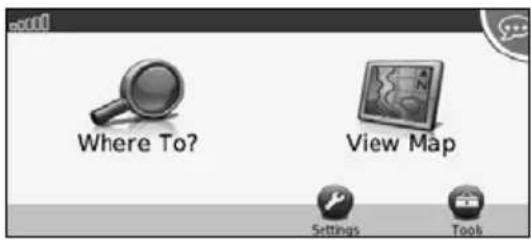
Using the Navigation System
Touch Nav to use the navigation system. To set up the navigation system, touch Nav Setup. For complete audio system information, see the other Kenwood manuals.
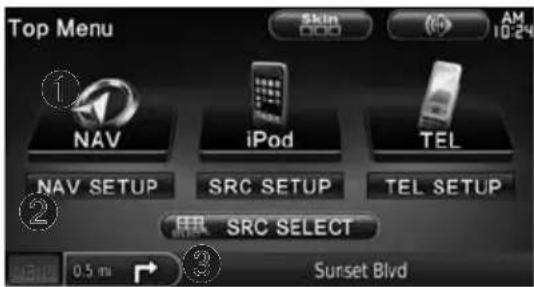
DNX 5/6 Series
Touch to access the navigation system.
Touch to set up the navigation system.
3 When navigating, this displays Kenwood audio. When using audio, this displays navigation information.

- The screen shots shown in this manual may not exactly match the screens on your navigation system. The images used in this manual are intended for reference only.

- The Hands-free phone feature is only available if your mobile phone has Bluetooth wireless technology and has been paired to the navigation system. See the other Kenwood manuals and your phone manual for setup and pairing instructions.
- DNX5160 does not have Bluetooth functionality.
Help When You Need It
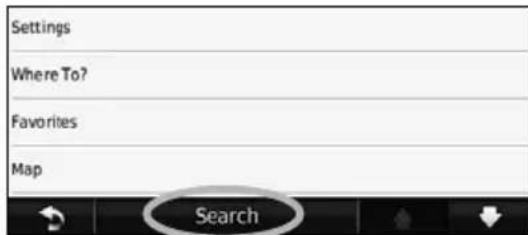
Touch Tools > Help to get more information about using your navigation system. Touch a category to view information about a topic.
1 Touch Tools >Help.
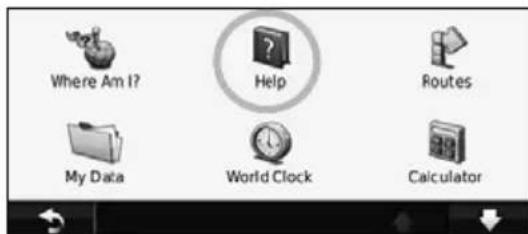
2 To search the Help topics for a keyword, touch Search.
Find It and Go!
The Where To? page provides several different categories for you to use when searching for addresses, cities, and other locations. The detailed map loaded in your navigation system contains millions of points of interest, such as restaurants, hotels, and auto services.
Finding a Restaurant
1 Touch Where To?.
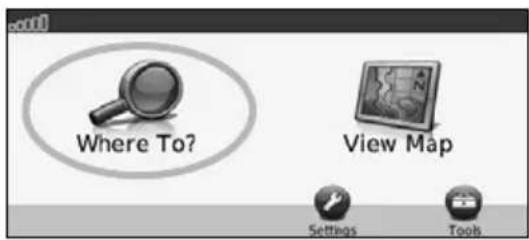
2 Select a category.
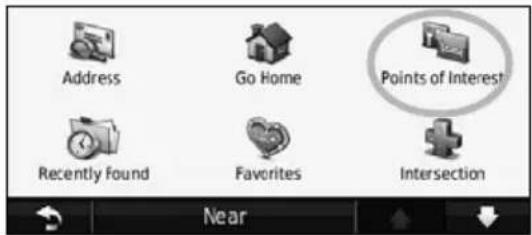
3 Select a subcategory.
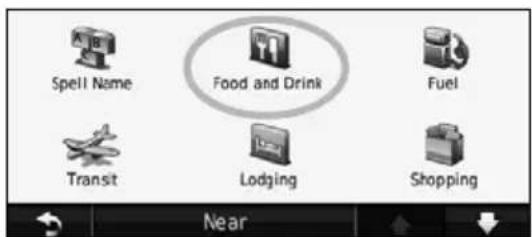
4 Select a destination.

5 Select a place.
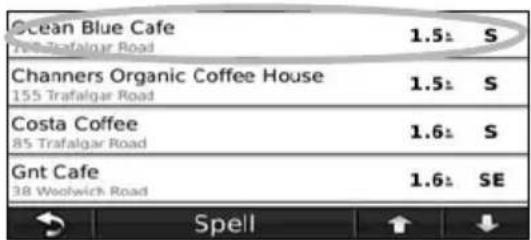
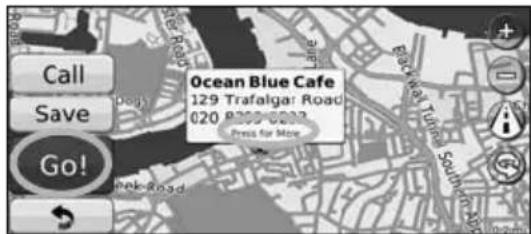
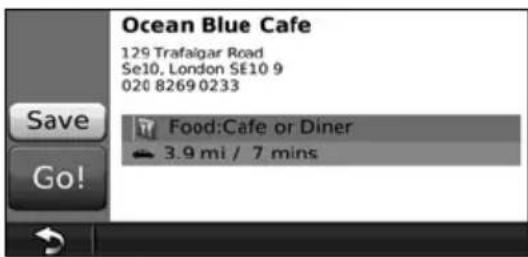
6 Touch Go!, or touch Press for More to see the Review page.
Following Your Route
Your route is marked with a magenta line. As you travel, your navigation system guides you to your destination with voice prompts, arrows on the map, and directions at the top of the map. The upper-left corner indicates the distance to your next maneuver. If you depart from the original route, your navigation system recalculates the route and provides new directions.
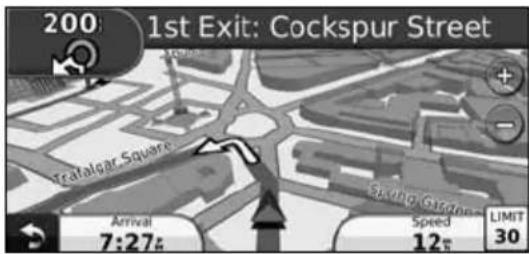
Your route is marked with a highlighted line.
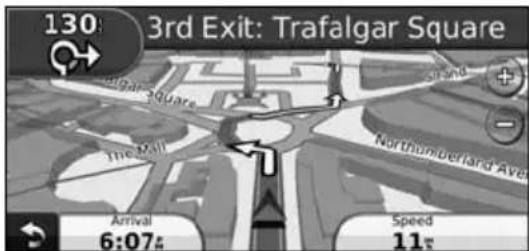
Follow the arrows.
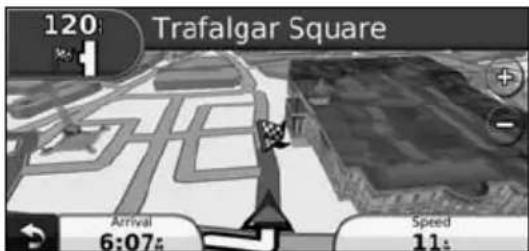
A checkered flag marks your destination.

- 3D buildings may appear in some areas on the map (DNX9960 only).
Adding a Via Point
You can add a stop (Via Point) to your route. The navigation system gives you directions to the stop and to your final destination.

With a route active, touch ack icon) > Where To?.

Search for the extra stop.

Touch Go!.

Touch Add As a Via Point to add this stop before your destination.
If you want to add more than one stop to the route, edit the current route. See page 19.
TakingaDetour
If a road on your route is closed, you can take a detour.

With a route active, touch

Touch Detour.
The navigation system attempts to get you back on your original route as quickly as possible. If the route you are currently taking is the only reasonable option, the navigation system might not calculate a detour.
Stopping the Route

With a route active, touch

Touch Stop.
The Where To? page provides several different categories you can use to search for locations.
Searching Near Another Location
Your navigation system automatically searches for places near your current location.
1 Touch Where To? > Near.
2 Select an option:
Where I Am Now—search near your current location.
- A Different City—search near the city you enter.
My Current Route-search along your route.
My Destination-search near your current destination.
3 Touch OK.
Go! Page Options
Touch an item in the search results list to view the Go! page.
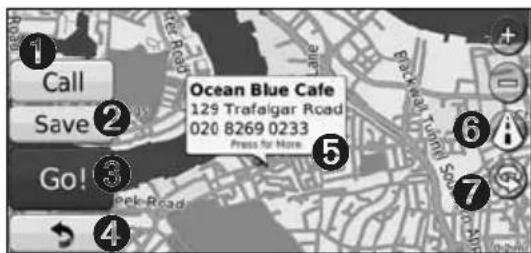
Touch to call this location, if a mobile phone with Bluetooth wireless technology is connected.
Touch to save this location to your Favorites.
Touch to create a turn-by-turn route to this location.
4 Touch to return to the previous page.

- DNX5160 does not have Bluetooth functionality.
Touch Press for more to view more information about the location.
Touch to switch between a 3D (three-dimensional) map and a 2D (two-dimensional) map.
Touch to rotate the viewing angle in 3D view.
Finding an Address
The steps to find an address can vary depending on the maps that are loaded on your navigation system. Not all map data provides postal-code searching.
1 Touch Where To? > Address.
2 Touch Change State/Country, if necessary.
3 Touch Search All.
OR
TouchSpell City. Enter the city using the keyboard, and touch Done. Select the city.
4 Enter the number of the address, and touch Done.
5 Enter the street name, and touch Done.
6 Select the correct street in the list, if necessary.
7 Touch the address, if necessary.
Finding a Place by Spelling the Name
If you know the name of the location you are looking for, you can spell it using the on-screen keyboard. You can also enter letters contained in the name to narrow the search.
1 Touch Where To? > Points of Interest > Spell Name.
2 Using the on-screen keyboard, enter letters in the name.
3 Touch Done.
UsingtheOn-ScreenKeyboard
When an on-screen keyboard appears, touch a letter or a number to enter it.
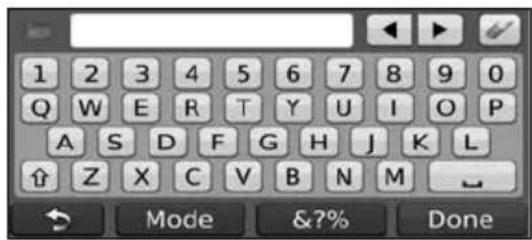
- Touch to add a space.
- Touch and move the cursor.
- Touch to delete the character, or touch and hold to delete the entire entry.
- Touch to select words you have recently typed and selected.
- Touch Mode to change the keyboard language mode.
- Touch &7% to enter special characters.
Finding Places in a Different Area
You can search for locations in a different area, such as a different city or near your destination.
1 From the subcategories list, touch Near.
2 Select one of the search options.
Narrowing Your Search
To narrow your search, you can search near a different city.
1 Touch Where To? > Near.
2 Touch A Different City.
3 Enter part of the name, and touch Done.
Favorites
You can save all of your favorite places in Favorites. You can also save your home location in Favorites.
SavingPlacesYouFind
1 After you have found a place you want to save, touch Save on the Go! page.
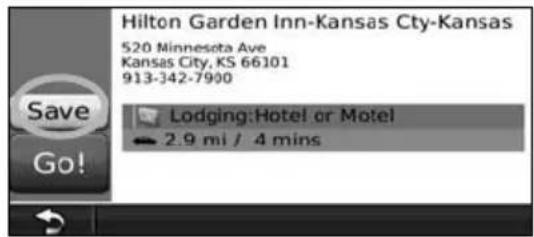
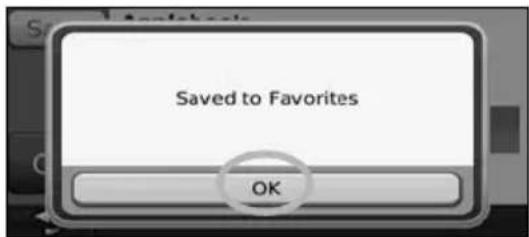
2 Touch OK. The place is saved in Favorites.
Saving Your Current Location
1 Touch View Map.
2 Touch
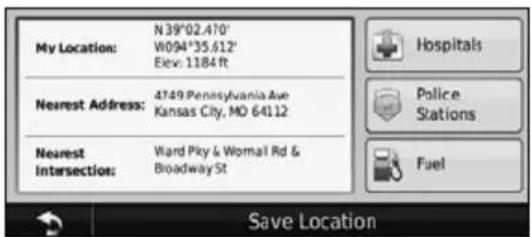
3 Touch Save Location to save your current location.
SettingaHomeLocation
You can set a Home Location for the place you return to most often.
1 Touch Where To? > Go Home.
2 Select an option.
- Enter My Address—enter an address for the location using the on-screen keyboard.
- Use My current location—sets your current location as your Home Location.
- Choose from Recently Found—select a location from your recently found locations.
After you set your Home Location, touch Where To? > Go Home.
FindingSavedPlaces
1 Touch Where To?.
2 Touch Favorites.
3 Touch a category. Your saved locations are listed.
Editing Saved Places
1 Touch Where To? > Favorites.
2 Touch the location you want to edit.
3 Touch Press for More.
4 Touch Edit.
5 Touch the item you want to edit.
- Change Name—enter a new name for the location using the on-screen keyboard.
. Change Map Symbol—touch a new symbol. - Change Phone Number—enter a phone number, and touch Done.
- Change Categories—create or change the category in which this location is saved.
Deleting a Favorite
1 Touch Tools > My Data.
2 Touch Delete Favorite(s).
3 Select the Favorite to delete.
4 Touch Delete.
The Main Pages
This section provides details about the Map Page, the Trip Computer, the Turn List, Lane assist, and the GPS Info Page.
ViewingtheMapPage
Touch View Map to open the map. Touch an area of the map to see additional information, as shown below. The vehicle icon shows your current location.
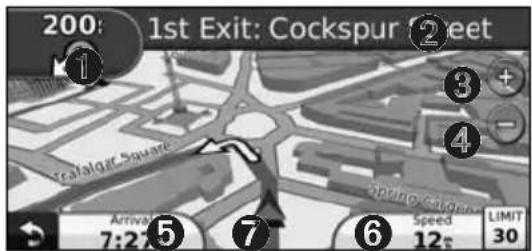
1 Distance to the next turn. Touch to view and hear next turn details. Lane assistance also displays in this area.
2 While navigating a route, touch the text bar to open the Turn List. See page 18.
Touch to zoom in.
Touch to zoom out.
Touch to change the data field.
Touch the Speed data field to open the Trip Computer.
Touch to view the Where Am I? page.

- A speed limit icon 30 may appear as you travel on major roadways. This icon displays the current speed limit of the roadway.
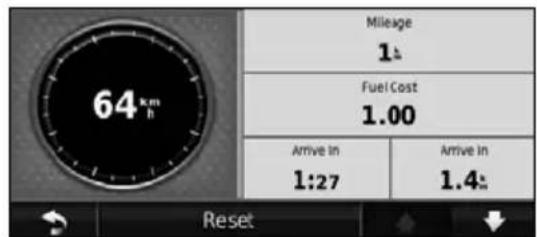
Trip Computer
The Trip Computer displays your current speed and provides helpful statistics about your trip. To view the Trip Computer, touch the Speed field on the Map page.
Resetting Trip Information
If you want accurate trip information, reset the trip information before beginning a trip. Touch Reset to reset the information on the Trip Computer page.
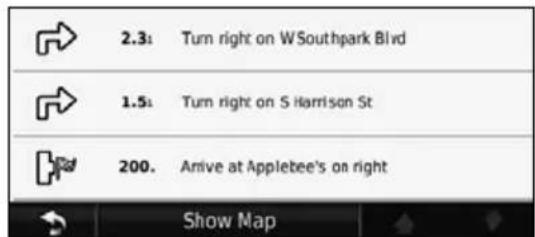
TurnListPage
When you are navigating a route, the Turn List page displays turn-by-turn instructions for your entire route and the distance between turns. Touch the text bar on the top of the Map page to view the Turn List page. Touch a turn on the list to view the Next Turn page for that turn. Touch Show Map to view the entire route on the map.
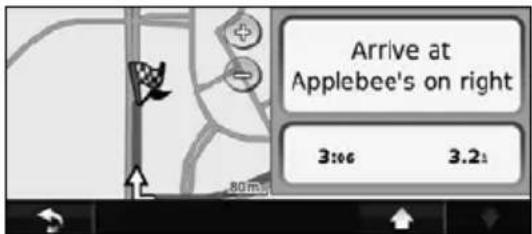
Next Turn Page
When you are navigating a route, the Next Turn page shows the turn on the map and the distance and time left before you reach the turn. To view an upcoming turn on the map, touch the upper-left corner of the Map page, or touch any turn on the Turn List page.
Lane Assist Page
When available, the Lane Assist page may display a view of the upcoming junction and in which lane you should be driving. To view the Lane Assist page, touch the upper-left corner of the Map page. You can also access the Lane Assist page from the Next Turn page.
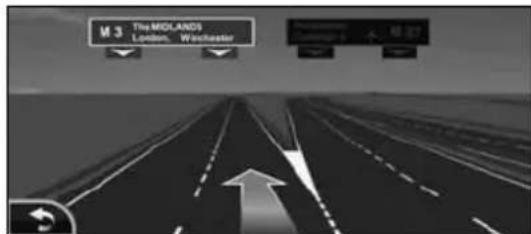

The Lane Assist page is available on the DNX9960, DNX7160, and DNX7020EX.
GPS Info Page
From the Nav Menu page, touch in the upper left corner to view the GPS Info page.
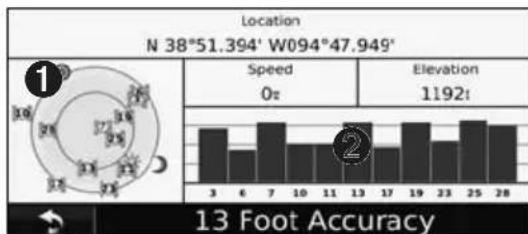
Sky view
Satellite signal-strength bars
The sky view shows the satellites you are receiving. The satellite signal-strength bars indicate the strength of each satellite you are receiving. A solid bar indicates that the GPS satellite is ready for use.
This section describes how to create and customize your routes.
Creating a New Custom Route
1 Touch Where To? (or Tools) > Routes > New.
2 Touch Add New Start Point.
3 Find a location for your starting point, and touch Select.
4 Touch Add New End Point.
5 Find a location for your ending point, and touch Select.
6 Touch + to add another location to your route. Touch - to remove a location.
7 Touch Next to calculate your route and view it on the map. Touch Save to save your changes.
EditingCustomRoutes
Touch Where To? (or Tools) > Routes.
1 Select the route you want to edit.
2 Touch Edit.
3 Touch the item to edit.
- Change Name—enter a new name, and touch Done.
- Add or Remove Points—add or remove points from the route.
- Manually Reorder Points—change the order of points along your route.
- Optimally Reorder Points—automatically order the points.
Recalculate—recalculates the route. - Delete—remove this route.
Your changes are saved automatically when you exit any of the route edit pages.
Saving and Modifying the Active Route
1 Touch Where To? (or Tools) > Routes.
2 Touch Active Route.
3 Touch Add or Remove Points.
4 Add, remove, or reorder the points.
5 Touch Next.
6 Touch Save.
NavigatingaSavedRoute
From the Main page, touch Where To? (or Tools) > Routines. Touch the route you want to navigate, and touch Go!.
Deleting All Saved Routes
Touch Tools > My Data > Delete Selected Route(s) > Select All > Delete.
StoppingYourRoute
With a route active, touch Stop.
Adding a Detour to a Route
If a road on your route is closed or congested with traffic, you can take a detour.
1 With a route active on the Main Map, touch
2 Touch Detour.
The navigation system attempts to get you back on your original route as quickly as possible. If the route you are currently taking is the only reasonable option, the navigation system might not calculate a detour.
UsingecoRoute
The ecoRoute feature calculates your vehicle fuel economy, carbon footprint, the fuel price of navigating to a destination, and offers tools for improving fuel efficiency.
Setting up ecoRoute
Touch Tools >ecoRoute.
The data provided by the ecoRoute feature is only an estimate. The data is not actually read from your vehicle. To receive more-accurate fuel reports for your specific vehicle and driving habits, calibrate the fuel economy.
The first time you access the ecoRoute features, you will be asked to enter fuel and mileage information about your vehicle.
ViewingtheFuelReport
If you have entered your vehicle profile and the current fuel price, your Kenwood unit calculates the average fuel economy for your vehicle, your carbon footprint, and the cost of the fuel consumed.
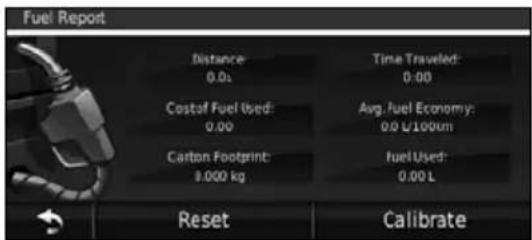
The fuel consumption data is based on estimates for speed and acceleration for an average vehicle.
Touch Tools >ecoRoute > Fuel Report.

To ensure that fuel data is always recorded, keep your Kenwood unit turned on while driving.
CalibratingtheFuelEconomy
Calibrate the fuel economy to receive more accurate fuel reports for your specific vehicle and driving habits. Calibrate when you fill up your fuel tank.
1 Calculate your miles per gallon or liters per 100 kilometers (enter information based on prompt).
2 Touch Tools >ecoRoute > Fuel Report > Calibrate.
3 Touch - and + to enter the result from step 1.
4 Touch OK.
Adjusting the Fuel Price
Enter fuel price information to calculate the fuel cost of routes and to calculate the fuel reports.
1 Touch Tools >ecoRoute > Fuel Price.
2 Enter the current fuel price.
3 Touch Done.
Taking the ecoChallenge
Touch Tools >ecoRoute >ecoChallenge > Start.
The ecoChallenge tool helps you maximize your fuel economy by scoring your driving habits. The higher your overall score for a Driving Challenge, the more fuel you could save.
Your overall score is the average of three scores:
Acceleration score gain points for gradual acceleration; lose points for rapid acceleration.
- Deceleration score—gain points for gradual braking; lose points for hard braking.
- Speed score—gain points for driving at the best speed for conserving fuel, which is 72–97 km/h (45–60 mph) for most vehicles.
Adjusting Your Vehicle Profile
Touch Tools >ecoRoute > Vehicle Profile.
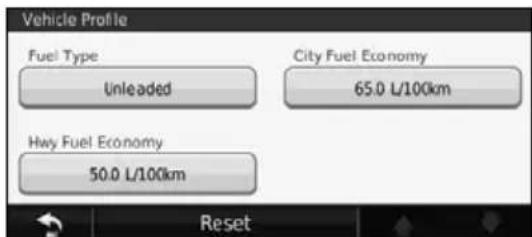
- Fuel Type—select a fuel type.
- City Fuel Economy—enter the average city fuel efficiency for your vehicle.
Hwy Fuel Economyenter the average highway fuel efficiency for your vehicle.

- For best results, calibrate your fuel economy instead of adjusting the city and highway fuel efficiency here.
Viewing the Mileage Report
Mileage reports provide the distance, the time, the average fuel economy, and the fuel cost of navigating to a destination.
A mileage report is created for every route that you drive. If you stop a route on your navigation system, a mileage report is created for the distance you traveled.
1 Touch Tools >ecoRoute > Mileage Report.
2 Select a report.
Resetting ecoRoute Data
1 Touch Tools >ecoRoute.
2 Select the category you want to reset.
3 Touch Reset.
Calculate Routes that Use Less Fuel
1 Touch Settings > Navigation > Route Preference.
2 Select Less Fuel.
The Less Fuel route is calculated based on speed limit and acceleration data.
Using Speech Recognition (DNX9960)
Use the speech recognition feature to speak to your navigation system to find destinations, select options, and perform other functions.
Voice Commands
1 Press the Talk button on the unit.
2 Wait for the green speak icon to appear in the upper right corner of the screen.
3 Speak a command.

- The speech recognition feature does not work for all languages in all areas.
Search Methods
Speech recognition uses four search methods:
- Speak any text on the screen
- Speak shortcut commands
- Speak the name of a popular place
- Speak an address
Speaking Text on the Screen
1 Speak any word on the screen. For example, from the Tools menu, you can speak Routes or Page Down.
2 Listen for the voice prompt before speaking your next command.
Speaking Shortcut Commands
1 Speak any shortcut command from the Shortcut Commands list. You can use shortcut commands from any screen.
2 Listen for the voice prompt before speaking your next command.
Shortcut Commands
Cancel Route Go Home
Detour Help
Find Address Stop Listening
Find City Tools Menu
Find Favorite Trip Computer
Find Place by View Map Category
Find Place by Name Where Am I?
Find Recently Found Where To?
You can also say Find Nearest to search a location category. Location categories are points of interest categories contained in the navigation system. The Find Nearest command only works from the Nav Menu page, the Where To? page, and the Map page.
Find Nearest Shortcut Command
1 Press the Talk button on the unit.
2 Speak Find Nearest followed by a point of interest category, such as Italian Restaurant.
Speaking the Name of a Popular Place
1 Speak Find Place by Name from any screen.
"Find Place by Name"
2 Listen for the voice prompt, and speak the name of the place. The navigation system repeats the name of the place as it is searching.
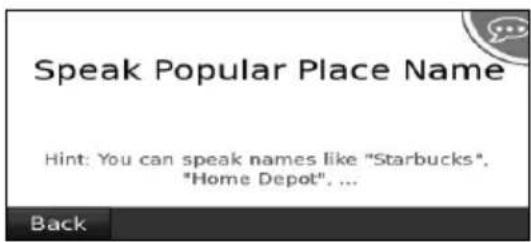
"Starbucks"
3 A list of places appears. Speak the line number of the place you want.
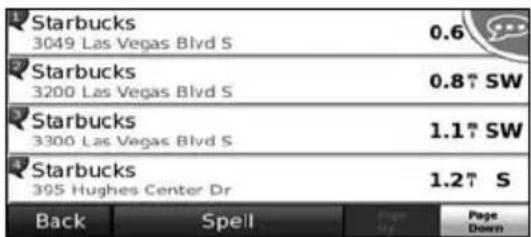
"Line 1"
4 Speak Yes to navigate to the place, or speak No to go back to the list of found places.
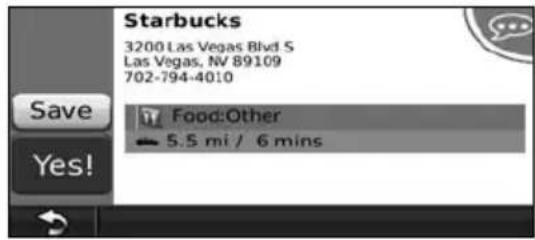
"Yes"
Speaking an Address
1 Speak Find Address from any screen.
2 Respond to the prompts to speak or spell the city name, the house number, and the street.
3 Listen for the voice prompt, and speak the name of the place. The navigation system repeats the name of the place as it is searching. A list of places appears.
4 Speak the line number of the place you want.
5 Speak Yes to navigate to the place, or speak No to go back to the list of found places.
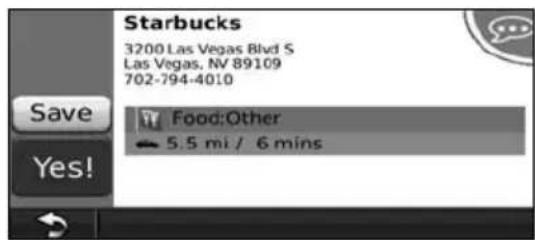
"Yes"
Traffic Information
Using the built-in or optional FM traffic receiver, the navigation system can receive and use traffic information. When a traffic message is received, you can see the event on the map and change your route to avoid the traffic incident.
Understanding FM TMC Traffic
FM TMC traffic receivers receive traffic information that is broadcast over the FM Radio Data System. The FM TMC subscription activates automatically after your navigation system acquires satellite signals while receiving traffic signals from the service provider. You can add other FM TMC subscriptions at any time. Check the Garmin Web site at www.garmin.com/fmtraffic for other available services.
Traffic in Your Area
When you are receiving traffic information, a traffic icon appears in the upper-left corner of the Map page. The traffic icon changes color to indicate the severity of traffic conditions on your route or on the road you are currently traveling.
| Color Description Meaning | ||
| Green Low severity Traffic | is flowing normally. | |
| Yellow Medium severity | Traffic is slightly congested. | |
| Red High severity Traffic | heavily congested or stopped. | |
| Gray No data Traffic data | has not updated. | |
Traffic on Your Route
When calculating your route, the navigation system examines the current traffic and automatically optimizes the route for the shortest time. If a severe traffic delay occurs on your route while you are navigating, the navigation system automatically recalculates the route. You might still be routed through traffic if no better alternative routes exist.
If a non-severe traffic delay occurs on your route, the traffic icon shows how much time the delay has added to your route. This time is already included in your estimated arrival time.
To manually avoid traffic on your route:
1 On the Map page, touch the traffic icon.
2 Touch Traffic On Route.
3 Touch the arrows to view other traffic delays on your route, if necessary.
4 Touch Avoid to avoid the traffic delay.
Viewing the Traffic Map
The traffic map shows color-coded traffic flow and delays on nearby roads.
1 On the Map page, touch the traffic icon.
2 Touch Show Traffic Map to view the traffic incidents on a map.

- To return to the normal map from the traffic map, touch the traffic icon, and touch Show Normal Map.
Viewing Traffic Delays
1 On the Map page, touch the traffic icon.
2 Touch Traffic Search to view a list of traffic delays.
3 Touch an item in the list to view the delay on a map and details about the delay. If there is more than one delay, touch the arrows to view the additional delays.
This section describes how to customize the settings of your GPS navigation system.
Customizing the Navigation System
1 Touch Settings.
2 Touch the setting you want to change.
3 Touch the button below the setting name to change it.
Changing the System Settings
Touch Settings > System.
- GPS Simulator—enable the simulator to turn off the GPS mode and simulate navigation.
- Units—change the units of measure.
- Keyboard Layout—select keyboard layout.
- About—display the software version number, the unit number, and the unit ID number.
- Restore—restore the original system settings.
ChangingtheMapSettings
Touch Settings > Map.
Map Detail--adjust the amount of detail shown on the map. More detail may cause the map to redraw slower.
Map View—select a map perspective.
- Vehicle—touch Change to change the icon used to display your position on the map. Touch the icon you want to use, and touch OK.
- Trip Log—show or hide the log of your travels. To clear your trip log, touch Tools > My Data > Clear Trip Log.
- Map Data Layout—changes the layout of the main map.
Map Info-view the maps loaded on your navigation system and their version. Touch a map to enable (check mark) or disable (no check mark) that map.
- Restore—restore the original map settings.
Changing the Navigation Settings
Touch Settings > Navigation.
- Route Preference—select a preference for calculating your route.
- Avoidances—select the road types you want to avoid or you would prefer to use on your routes.
- Restore—restore the original navigation settings.
Voice Prompts—turn voice prompts on or off.
Adjusting the Display Settings
Touch Settings > Display.
Color Mode—select Day for a light background, Night for a dark background, or Auto to automatically switch between the two.
- Restore—restore the original display settings.
Updating the Time Settings
Touch Settings > Time.
- Time Format—select a 12-hour, 24-hour, or UTC time format.
- Current Time—select Automatic to update the time automatically. When Automatic is not selected, you can adjust the time in 15-minute increments.
- Restore—restore the original time settings.
Setting the Languages
Touch Settings > Language.
Voice Language—select a voice.
- Keyboard—select the keyboard for your language. You can also change the keyboard language mode from any keyboard by touching the Mode button.
- Recognition Prompt—turn speech recognition prompts on or off.
- Restore—restore the original languages.
Adding Security
Touch Settings > Security.
- Safe Mode—turn safe mode on or off. When your vehicle is moving, safe mode disables all functions that require significant operator attention and could become a distraction while driving.
- Restore—restore the original security settings.
Appendix
This appendix provides additional information about your navigation system, such as how to update the software and map data.
Updating the Software
To update the navigation system software, you must have a Secure Digital (SD^TM) card, an SD card reader, and an Internet connection.

The unit may restart when you insert an SD card.
1 Go to www.garmin.com/Kenwood. Select Software Updates > Download.
2 Read and accept the terms of the Software License Agreement.
3 Follow the instructions on the Web site to complete the installation of the update software.
Updating the Map Data
The navigation system will provide periodic notification at startup when the preloaded maps are considered out of date. You can purchase an SD card of updated map data from Garmin or ask your Kenwood dealer or Kenwood service center for details.
1 Go to www.garmin.com/Kenwood. Select Order Map Updates, and follow the Web site checkout procedure.
2 After you receive your new map data SD card, insert the card into your unit to use the maps. The navigation system will automatically recognize and use the maps on the SD card.

The unit may restart when you insert an SD card.
- DNX 6/5 Series use a microSD card.
Custom POIs (Points of Interest)
You can manually load custom points of interest (POI) databases, available from various companies on the Internet. Some custom POI databases contain alert information for points such as safety cameras and school zones. The navigation system can notify you when you approach one of these points.
CAUTION
Garmin is not responsible for the consequences of using a custom POI database, or for the accuracy of the safety camera or other custom POI database.
After downloading your POI database, use the Garmin POI Loader to install the POIs onto an SD card. Use the SD card to load the POIs. The POI Loader is available at www.garmin.com/products /poilloader. Refer to the POI Loader Help file for more information; click Help to open the Help file.

- The unit may restart when you insert an SD card.
Each time you load custom POIs to the navigation system, any other custom POIs already saved in the system will be overwritten. - DNX 6 / 5 Series use a microSD card.
Finding Custom POIs
To view a list of the custom POIs loaded in your navigation system, touch Where To? > Extras > Custom POIs.
Deleting Custom POIs
To delete all custom POIs from your navigation system, touch Tools > My Data > Custom POIs > Delete All. Touch Yes to confirm.
For the latest free software updates (excluding map data) throughout the life of your Garmin products, visit the Garmin Web site at www.garmin.com/Kenwood.
GARMIN
© 2010 Garmin Ltd. or its subsidiaries
Garmin International, Inc.
1200 East 151st Street, Olathe, Kansas 66062, USA
Garmin (Europe) Ltd.
Liberty House, Hounsdown Business Park, Southampton, Hampshire, SO40 9LR, UK
Garmin Corporation
No. 68, Jangshu 2nd Road, Sijhih, Taipei County, Taiwan
www.garmin.com
Part Number 190-01141-90 Rev. A
Garmin® and the Garmin logo are trademarks of Garmin Ltd. or its subsidiaries, registered in the USA and other countries. ecoRoute™ is a trademark of Garmin Ltd. or its subsidiaries. These trademarks may not be used without the express permission of Garmin. NAVTEQ® is a trademark of NAVTEQ Inc. or its affiliates and is registered in one or more countries, including the U.S. microSD™ is a trademark of the SD Card Association. All other company names and trademarks mentioned or referenced in this documentation are the properties of their respective owners. All rights reserved.

KENWOOD
DNX9960
DNX7160
DNX7020EX
DNX6960
DNX6160
DNX6020EX
DNX5160
MANUEL D'INSTRUCTIONS DE NAVIGATION DU GPS
Kenwood Corporation
AVEZ ACHETE CE PRODUT; (2) Garmin INTERNATIONAL, INC. CUSTOMER SERVICE, 1200 EAST 151st Street, OLATHE, KS 66062, ETATS-UNIS; (3) Garmin (EUROPE) LTD., LIBERTY HOUSE, HOUNSDOWN BUSINESS PARK, SOUTHAMPTON, HAMPSHIRE, SO40 9LR, ROYAUME-UNI; OU (4) Garmin CORPORATION CUSTOMER SERVICE, NO. 68, JANGSHU 2nd ROAD, SUJHIH, TAPEI COUNTY, TAIWAN.
Garmin Corporation
No. 68, Jangshu 2nd Road, Sijhih, Taipei County, Taiwan
www.garmin.com
DNX9960
DNX7160
DNX7020EX
DNX6960
DNX6160
DNX6020EX
DNX5160
MANUAL DE
INSTRUCCIONES DE
NAVEGACION GPS
Kenwood Corporation
Precauciones de sécurité información importante 4
(2) Garmin INTERNATIONAL, INC. CUSTOMER SERVICE, 1200 EAST 151st STREET, OLATHE, KS 66062, EE. UU., (3) Garmin (EUROPE) LTD., LIBERTY HOUSE, HOUNSDOWN BUSINESS PARK, SOUTHAMPTON, SO40 9LR, REINO UNIDO O (4) Garmin CORPORATION CUSTOMER SERVICE, No. 68, JANGSHU 2nd ROAD, SUJHIH, TIAPEI COUNTY, TAIWAN.
Garmin International, Inc.
1200 East 151st Street, Olathe, Kansas 66062, EE. UU.
Garmin (Europe) Ltd.
Liberty House, Hounsdown Business Park, Southampton, Hampshire, SO40 9LR, Reino Unido
Garmin Corporation
No. 68, Jangshu 2nd Road, Sijhih, Taipei County, Taiwan
www.garmin.com