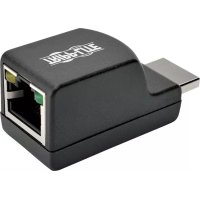
B1261P0MINI - Receiver Tripp Lite - Free user manual and instructions
Find the device manual for free B1261P0MINI Tripp Lite in PDF.



| Product Type | Passive HDMI Extender Receiver via Cat5 |
| Brand | Tripp Lite |
| Model | B126-1PO-MINI |
| Dimensions (approx.) | Compact (low profile) |
| Power | Powered by connected monitor (HDMI port); USB Micro-B port for optional external power |
| Maximum Supported Resolution | 1080p (60 Hz) |
| Maximum Distance (1080p) | 15 m (50 ft) |
| Maximum Distance (1080i) | 30.5 m (100 ft) |
| Required Cable Type | Solid core Cat5e/6 cable (0.511 mm diameter recommended) |
| Supported Audio | Surround sound up to 7.1 channels |
| HDCP Compatibility | Yes |
| 3D Compatibility | Yes |
| Connectors | 1 x HDMI (integrated with locking connector), 1 x RJ45 (input), 1 x USB Micro-B (power) |
| Indicator LEDs | Green LED (power), Orange LED (active link) |
| Plug and Play | Yes, no driver required |
| Mounting | Discrete, low profile |
| Package Contents | B126-1PO-MINI receiver, USB Micro-B cable |
| Warranty | 1 year (limited) |
Frequently Asked Questions - B1261P0MINI Tripp Lite
User questions about B1261P0MINI Tripp Lite
0 question about this device. Answer the ones you know or ask your own.
Ask a new question about this device
Download the instructions for your Receiver in PDF format for free! Find your manual B1261P0MINI - Tripp Lite and take your electronic device back in hand. On this page are published all the documents necessary for the use of your device. B1261P0MINI by Tripp Lite.
USER MANUAL B1261P0MINI Tripp Lite
HDMI over Cat5 Extenders and Extender/Splitters
Models:
B126-1A1
B126-1A1-WP
B126-002
B126-004
B126-1PO
B126-1PO-MINI
B126-1PO-WP-1
B126- 1AO
B126-1A0-WP-1
B126-110
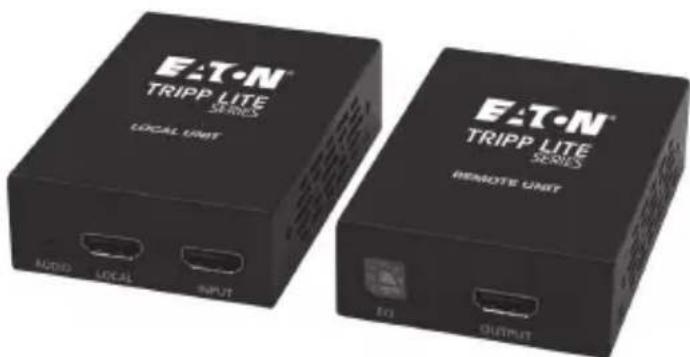
Purchased product may di er from image.
Espanol 29
Français 57
Deutsch 85
Italiano 113
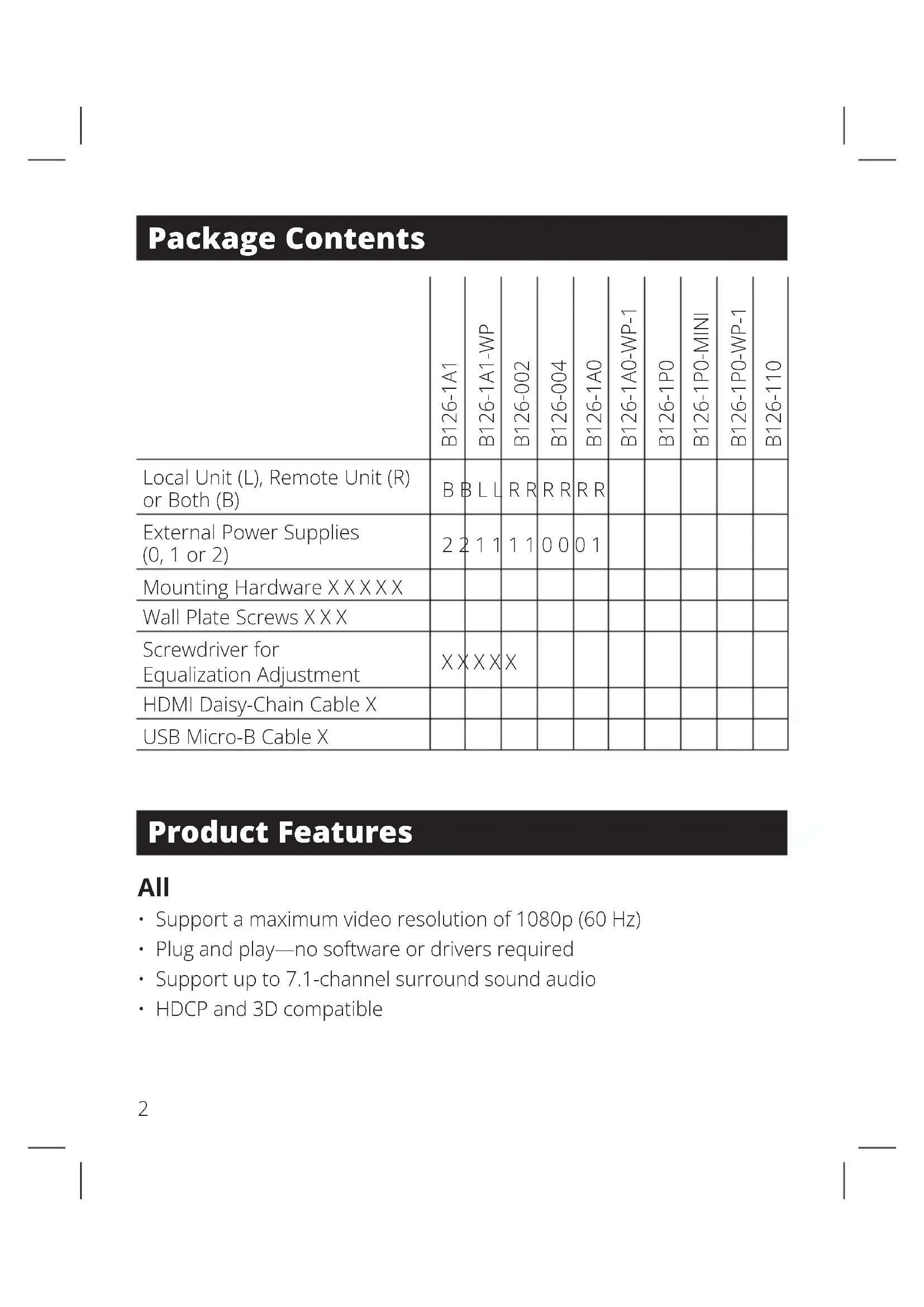
Package Contents
| B126-1A1 | B126-1A1-WP | B126-002 | B126-004 | B126-1A0 | B126-1A0-WP-1 | B126-1P0 | B126-1P0-MINI | B126-1P0-WP-1 | B126-110 | |
| Local Unit (L), Remote Unit (R) or Both (B) | B B L L | R R | R R | R R | ||||||
| External Power Supplies (0, 1 or 2) | 2 2 1 1 | 1 1 | 0 0 | 0 1 | ||||||
| Mounting Hardware XXXXX | ||||||||||
| Wall Plate Screws XXX | ||||||||||
| Screwdriver for Equalization Adjustment | XXXXX | |||||||||
| HDMI Daisy-Chain Cable X | ||||||||||
| USB Micro-B Cable X |
Product Features
All
- Support a maximum video resolution of 1080p (60 Hz)
- Plug and play—no software or drivers required
- Support up to 7.1-channel surround sound audio
HDCP and 3D compatible
Product Features
B126-1A1
- HDMI over Cat5 Active Extender Kit
- Extends a 1080i (60 Hz) signal up to 200 ft. from the source, or a 1080p (60 Hz) signal up to 150 ft. from the source
- Additional HDMI port on the local transmitter unit allows connection of local monitor
- Remote receiver unit features a built-in equalization control for video image adjustment
- Includes mounting hardware that allows both the local transmitter and remote receiver units to be wall-mounted, rack-mounted or pole-mounted
B126-1A1-WP
- HDMI over Cat5 Active Extender Wall Plate Kit
- Extends a 1080i (60 Hz) signal up to 200 ft. from the source, or a 1080p (60 Hz) signal up to 150 ft. from the source
- Remote receiver unit features a built-in equalization control for video image adjustment
- RJ45-style wall plates allow for the use of standard Cat5e/6 patch cables; 110 punchdown connection not required
B126-002
- 2-Port HDMI over Cat5 Extender/Splitter Local Transmitter Unit
- Splits an HDMI signal into two
- Works with remote/repeater and receiver units to extend an HDMI signal past the 16 ft. (5 m) distance limitation
- Includes mounting hardware that allows unit to be wall-mounted, rack-mounted or pole-mounted
Product Features
B126-004
- 4-Port HDMI over Cat5 Extender/Splitter Local Transmitter Unit
- Splits an HDMI signal into four
- Includes an additional HDMI port, which can be used to connect a local monitor or to daisy-chain additional B126-004 units (up to three units can be daisy-chained together)
- Includes HDMI cable with latching connectors for a more secure connection
- Works with remote/repeater and receiver units to extend an HDMI signal past the 16 ft. (5 m) distance limitation
- Includes mounting hardware that allows unit to be wall-mounted, rack-mounted or pole-mounted
- Up to three B126-004 units can be mounted in a B132-004-RB 1U rack-mount bracket
B126-1A0
- HDMI over Cat5 Active Extender Remote Receiver Unit
- Works with B126-002 and B126-004 extender/splitters to extend a 1080i (60 Hz) signal up to 200 ft. from the source, or a 1080p (60 Hz) signal up to 150 ft. from the source
Built-in equalization control for video image adjustment - Includes mounting hardware that allows the unit to be wall-mounted, rack-mounted or pole-mounted
B126-1A0-WP-1
. HDMI Lover Cat5 Active Extender Wall Plate
- Works with B126-002 and B126-004 extender/splitters to extend a 1080i (60 Hz) signal up to 200 ft. from the source, or a 1080p (60 Hz) signal up to 150 ft. from the source
- Built-in equalization control for video image adjustment
Product Features
- RJ45-style wall plate allows for the use of standard Cat5e/6 patch cables; 110 punchdown connection not required
B126-1P0
- HDMI over Cat5 Passive Extender Remote Receiver Unit
- Works with B126-002 and B126-004 extender/splitters to extend a 1080i (60 Hz) signal up to 100 ft. from the source, or a 1080p (60 Hz) signal up to 50 ft. from the source
- Built-in HDMI cable has latching connector for a more secure connection
- No external power required
B126-1PO-MINI
- HDMI over Cat5 Passive Extender Remote Receiver Unit (Compact)
- Works with B126-002 and B126-004 extender/splitters to extend a 1080i (60 Hz) signal up to 100 ft. from the source, or a 1080p (60 Hz) signal up to 50 ft. from the source
- Low profile and compact design allows for discreet placement
- No external power required; USB Micro-B port provides power if needed
- Includes USB Micro-B cable
B126-1PO-WP-1
- HDMI over Cat5 Passive Extender Wall Plate
- Works with B126-002 and B126-004 extender/splitters to extend a 1080i (60 Hz) signal up to 100 ft. from the source, or a 1080p (60 Hz) signal up to 50 ft. from the source
- RJ45-style wall plate allows for the use of standard Cat5e/6 patch cables; 110 punchdown connection not required
- No external power required
Product Features
B126-110
HDMI over Cat5 Active Extender Remote/Repeater Unit
- Extends and expands an HDMI over Cat5 installation, allowing multiple monitors to be located at different points in a chain of up to 700 ft.
- Extends a 1080i (60 Hz) signal up to 175 ft., or a 1080p (60 Hz) signal up to 125 ft. from the local transmitter unit to the first remote/repeater unit in the installation
- Extends a 1080i (60 Hz) signal up to an additional 175 ft. or a 1080p (60 Hz) signal up to an additional 125 ft. from each remote/repeater unit to the next unit in the chain (in a full four-level daisychain installation, a 1080i (60 Hz) signal can be extended up to 700 ft. or a 1080p (60 Hz) signal up to 500 ft. from the source to the last remote unit in the chain).
- Connect up to four remote units (three remote/repeaters and one receiver) with a monitor located at each point in the chain
Built-in equalization control for video image adjustment
- Includes mounting hardware that allows the unit to be wall-mounted, rack-mounted or pole-mounted
Optional Accessories:
- B132-004-RB 1U Rack-Mount Bracket
N202-Series Cat6 24 AWG Solid Wire Patch Cables
P568-Series High-Speed HDMI Cables
Mounting Instructions (select models only)
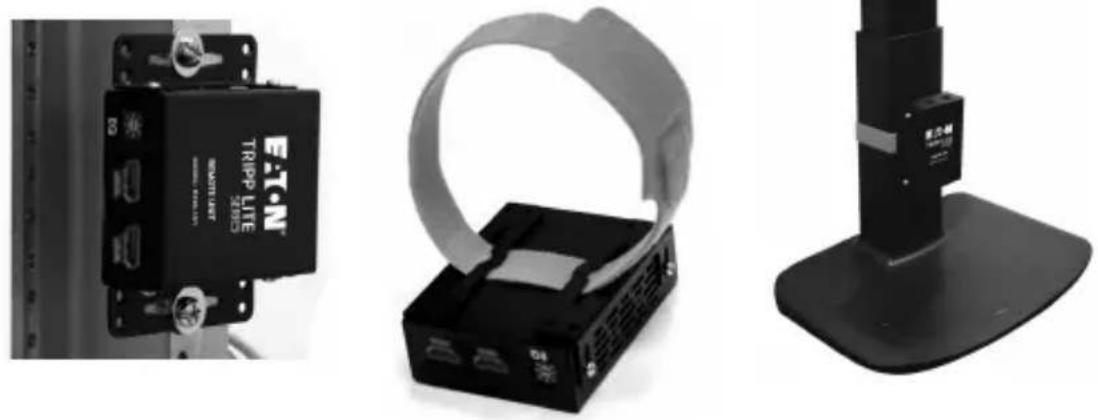
The B126-002, B126-004, B126-1A1, B126-1A0 and B126-110 include mounting hardware that allows for a variety of mounting methods. The following images illustrate how the included mounting brackets can be attached for different installations.
Note: The B126-004 can also be mounted to a B132-004-RB 1U Rack-Mount Bracket. Up to three B126-004 local units can be connected to a B132-004-RB.
Wall Mount
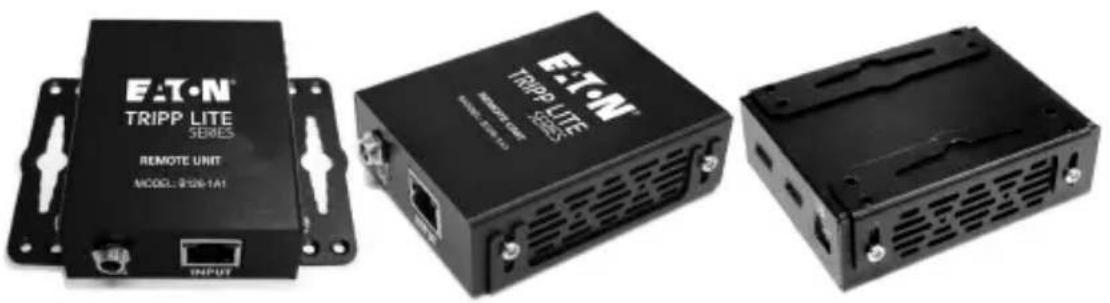
19" Rack Mount Pole Mount
Standard Extender Kit Installation
Notes:
1) Test to ensure the entire installation works properly before pulling cables through ceilings/walls.
2) To achieve maximum distance and performance, use 24 AWG solid wire Cat5e/6 cable. Using stranded wire Cat5e/6 cable, or cable with a gauge (AWG) size higher than 24 AWG, will result in shorter extension distance. Higher gauge cabling, such as 26 AWG, has a more limited transmission capability than lower gauge cabling. All N202-Series Cat6 cables are made with 24 AWG solid wire cabling.
3) The B126-1A1 and B126-1A1-WP are set to transmit a stereo audio signal by default. Press the Audio button on the local unit to switch to 7.1-channel surround-sound audio.
4) The installation diagram shows a B126-1A1 unit. The B126-1A1-WP installation is the same, except there is no local monitor port.
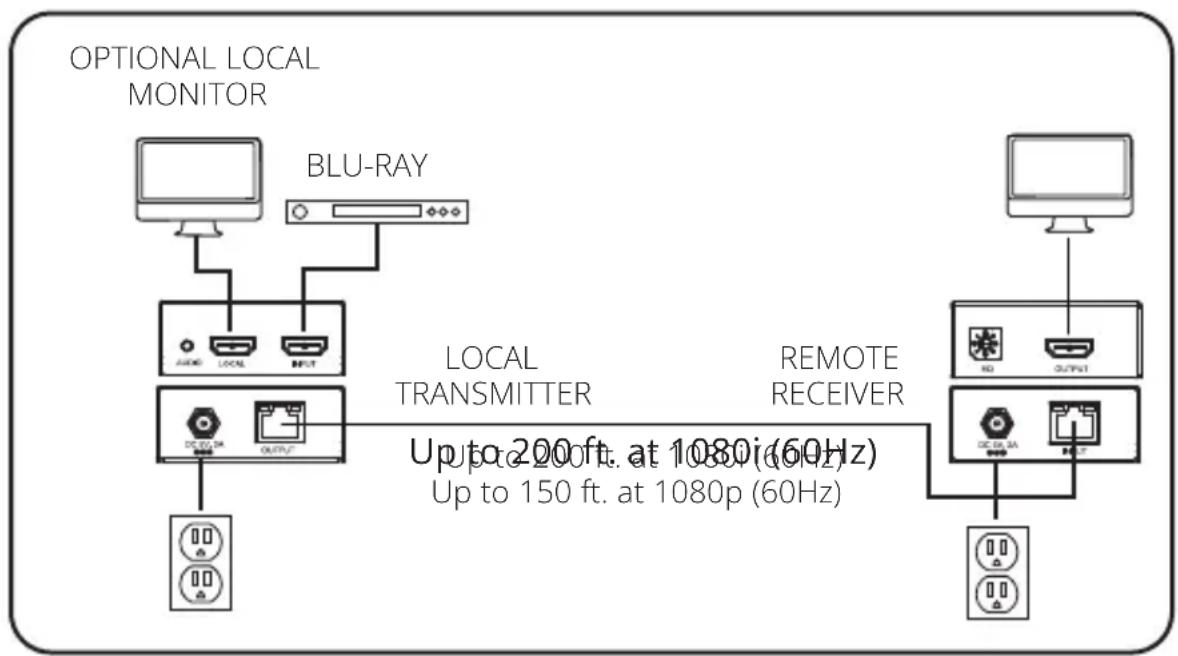
Standard Extender Kit Installation
Make sure the HDMI source is powered OFF.
Connect the HDMI source to the INPUT port on the B126-1A1 or B126-1A1-WP local unit using a P568-Series HDMI Cable.
Optional for B126-1A1: Connect a local monitor to the LOCAL port on the B126-1A1 local unit using a P568-Series HDMI Cable.
Connect the external power supply to the local unit and plug it into a Surge Protector, Power Distribution Unit (PDU) or Uninterruptible Power Supply (UPS). The green LED illuminates to indicate the unit is receiving power from the external power supply.
Using Cat5e/6 cable, connect the RJ45 port on the local unit to the RJ45 port on the remote unit.
Connect the external power supply to the remote unit and plug it into a Surge Protector, PDU or UPS. The green LED illuminates to indicate the unit is receiving power from the external power supply. The orange LED illuminates to indicate the unit is connected to a powered ON local unit.
Connect the remote unit's HDMI port to a monitor using a P568-Series HDMI Cable.
Turn on the power to the HDMI source. The orange LED on the local unit illuminates to indicate a signal is being received from the source.
If necessary, use the Equalization control on the remote unit to adjust the video image.
Note: An improper Equalization setting can cause the monitor not to display a picture at all. Try each Equalization setting until an acceptable picture is displayed.
Extender Kit with Remote/Repeater Installation
Notes:
1) Test to ensure the entire installation works properly before pulling cables through ceilings/walls.
2) To achieve maximum distance and performance, use 24 AWG solid wire Cat5e/6 cable. Using stranded wire Cat5e/6 cable, or cable with a gauge (AWG) size higher than 24 AWG, will result in shorter extension distance. Higher gauge cabling, such as 26 AWG, has a more limited transmission capability than lower gauge cabling. All N202-Series Cat6 cables are made with 24 AWG solid wire cabling.
3) The B126-1A1 and B126-1A1-WP are set to transmit a stereo audio signal by default. Press the Audio button on the local unit to switch to 7.1-channel surround-sound audio.
4) The installation diagram shows a B126-1A1 unit. The B126-1A1-WP installation is the same, except there is no local monitor port.
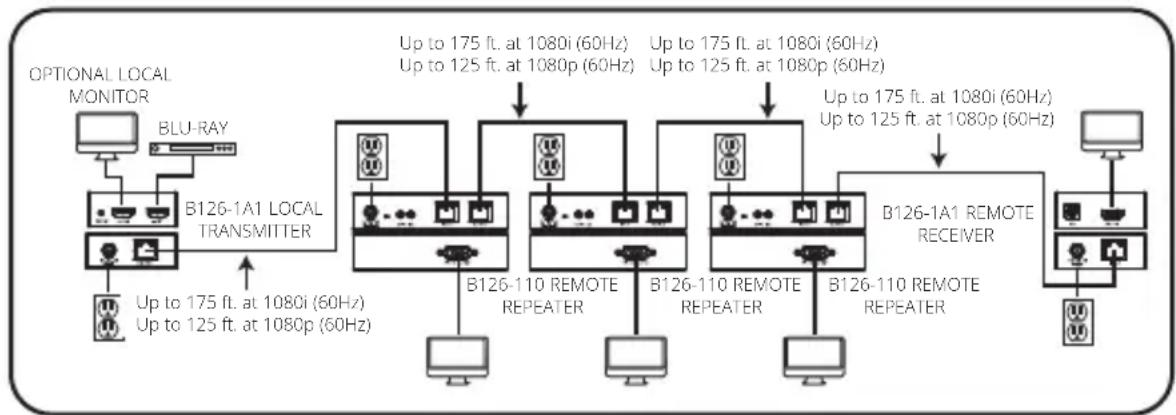
Make sure the HDMI source is powered OFF.
Connect the HDMI source to the INPUT port on the B126-1A1 or B126-1A1-WP using a P568-Series HDMI Cable.
Optional for B126-1A1: Connect a local monitor to the LOCAL HDMI port using a P568-Series HDMI Cable.
Extender Kit with Remote/Repeater Installation
Connect the external power supply to the local unit and plug it into a Surge Protector, PDU or UPS. The green LED illuminates to indicate the unit is receiving power from the external power supply.
Using Cat5e/6 cable, connect the RJ45 port on the local unit to the RJ45 INPUT port on the B126-110 remote/repeater unit.
Connect a monitor to the HDMI OUTPUT port on the remote/repeater unit using a P568-Series HDMI Cable.
Connect the external power supply to the remote/repeater unit and plug it into a Surge Protector, PDU or UPS. The green power LED and the green RJ45 LEDs illuminate to indicate the unit is receiving power.
Up to four units can be daisy-chained (three remote/repeaters and one receiver). To connect additional remote/repeater units, proceed to step 8. To finish your installation with the B126-1A1 or B126-1A1-WP remote receiver unit, proceed to step 12.
Using Cat5e/6 cable, connect the RJ45 OUTPUT port on the first remote/repeater unit to the RJ45 INPUT port on a second remote/repeater unit.
9 Connect a monitor to the HDMI OUTPUT port on the remote/repeater unit you just added using a P568-Series HDMI Cable.
10 Connect the external power supply to the remote/repeater unit and plug it into a Surge Protector, PDU or UPS. The green power LED and the green RJ45 LEDs illuminate to indicate the unit is receiving power.
To add a third remote/repeater unit, repeat steps 8 through 10. To finish your installation with the B126-1A1 or B126-1A1-WP remote receiver unit, proceed to step 12.
Extender Kit with Remote/Repeater Installation
Using Cat5e/6 cable, connect the RJ45 OUTPUT port on the last remote/repeater unit to the RJ45 INPUT port of the B126-1A1 or B126-1A1-WP remote receiver unit.
13 Connect a monitor to the HDMI OUTPUT port on the remote receiver unit using a P568-Series HDMI Cable.
14 Connect the external power supply to the remote receiver unit and plug it into a Surge Protector, PDU or UPS. The green LED illuminates to indicate the unit is receiving power from the external power supply. The orange LED illuminates to indicate the unit is connected to a powered ON remote/repeater unit.
15 Turn on the power to the HDMI source. The orange LED on the local unit illuminates to indicate a signal is being received from the source.
If necessary, use the Equalization control on the remote/repeater unit(s) and remote receiver unit to adjust the video image.
Note: An improper Equalization setting can cause the monitor not to display a picture at all. Try each Equalization setting until an acceptable picture is displayed.
Standard Extender/Splitter Installation
Notes:
1) Test to ensure the entire installation works properly before pulling cables through ceilings/walls.
2) To achieve maximum distance and performance, use 24 AWG solid wire Cat5e/6 cable. Using stranded wire Cat5e/6 cable, or cable with a gauge (AWG) size higher than 24 AWG, will result in shorter extension distance. Higher gauge cabling, such as 26 AWG, has a more limited transmission capability than lower gauge cabling. All N202-Series cables are made with 24 AWG solid wire cabling.
3) The B126-002 and B126-004 are set to transmit a stereo audio signal by default. Press the Audio button on the B126-002 or B126-004 to switch to 7.1-channel surround-sound audio.
4) The installation diagram shows the B126-004 local transmitter unit. The B126-002 installation is the same except there are only two remote ports and no local monitor port.
5) External power is not usually required for the B126-1P0-MINI, but it includes a USB Micro-B port and cable to provide external power when needed. If you are not getting an image on the monitor when using the B126-1P0-MINI, connect the included USB cable between the USB Micro-B port and a power source (such as a USB charger).
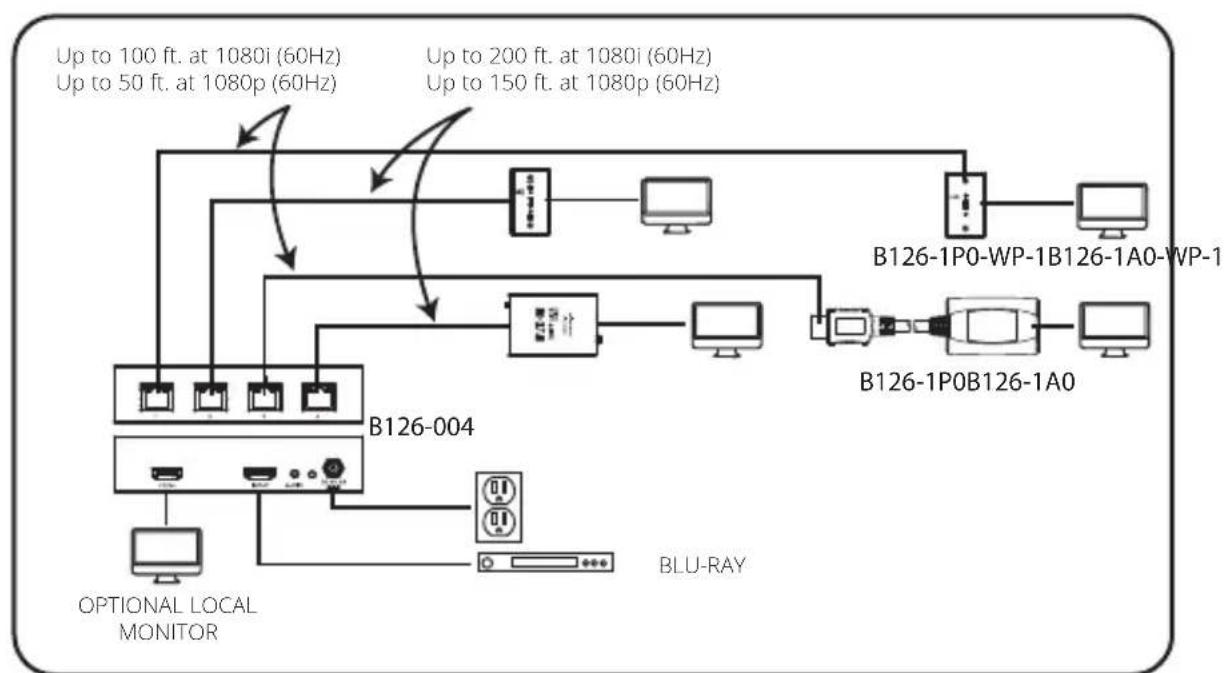
Standard Extender/Splitter Installation
Make sure the HDMI source is powered OFF.
Connect the HDMI source to the INPUT port on the B126-002 or B126-004 using a P568-Series HDMI Cable.
Optional for B126-004: Connect an HDMI monitor to the LOCAL port on the B126-004 using a P568-Series HDMI Cable.
Connect the external power supply to the B126-002 or B126-004 local unit and plug it into a Surge Protector, PDU or UPS. The green RJ45 LEDs and the red Power LED on the B126-004, and the green RJ45 LEDs on the B126-002 will illuminate to indicate power is being received from the external power supply.
Using Cat5e/6 cable, connect one of the RJ45 output ports on the local unit to the RJ45 input port on a B126-1P0, B126-1P0-MINI, B126-1A0, B126-1P0-WP-1 or B126-1A0-WP-1 remote unit.
Repeat step 5 for each additional remote unit being connected.
B126-1A0 and B126-1A0-WP-1 only: Connect the external power supply to the B126-1A0 or B126-1A0-WP-1, and plug it into a Surge Protector, PDU or UPS. The green and orange LEDs illuminate with the green LED indicating the unit is receiving power from the external power supply, and the orange LED indicating the unit is connected to a powered ON local unit via Cat5e/6 cable.
Repeat step 7 for each additional B126-1A0 or B126-1A0-WP-1 in the installation.
9 Connect the B126-1P0 or B126-1P0-MINI HDMI connector to a monitor. Or, connect the B126-1P0-WP-1, B126-1A0 or B126-1A0-WP-1 to a monitor using a P568-Series HDMI Cable. Both the green and orange RJ45 LEDs on the B126-1P0 and B126-1P0-MINI, and the green LED on the B126-1P0-WP-1, illuminate to indicate the unit is receiving power from the connected monitor.
Standard Extender/Splitter Installation
Repeat step 9 for each additional monitor being connected.
Turn on the power to the HDMI source. The orange RJ45 LEDs illuminate on the B126-002 and B126-004 to indicate the unit is receiving a signal from the source. The screen should now be displayed on the connected monitors.
If necessary, use the Equalization control on the B126-1A0 or B126-1A0-WP-1 to adjust the video image.
Note: An improper Equalization setting can cause the monitor not to display a picture at all. Try each Equalization setting until an acceptable picture is displayed.
Extender/Splitter with Remote/Repeater Installation
Notes:
1) Test to ensure the entire installation works properly before pulling cables through ceilings/walls.
2) To achieve maximum distance and performance, use 24 AWG solid wire Cat5e/6 cable. Using stranded wire Cat5e/6 cable, or cable with a gauge (AWG) size higher than 24 AWG, will result in shorter extension distance. Higher gauge cabling, such as 26 AWG, has a more limited transmission capability than lower gauge cabling. All N202-Series Cat6 cables are made with 24 AWG solid wire cabling.
3) The B126-002 and B126-004 are set to transmit a stereo audio signal by default. Press the Audio button on the local unit to switch to 7.1-channel surround-sound audio.
4) The installation diagram shows the B126-004. The B126-002 installation will be the same, except there are only two remote ports and there is no local monitor port.
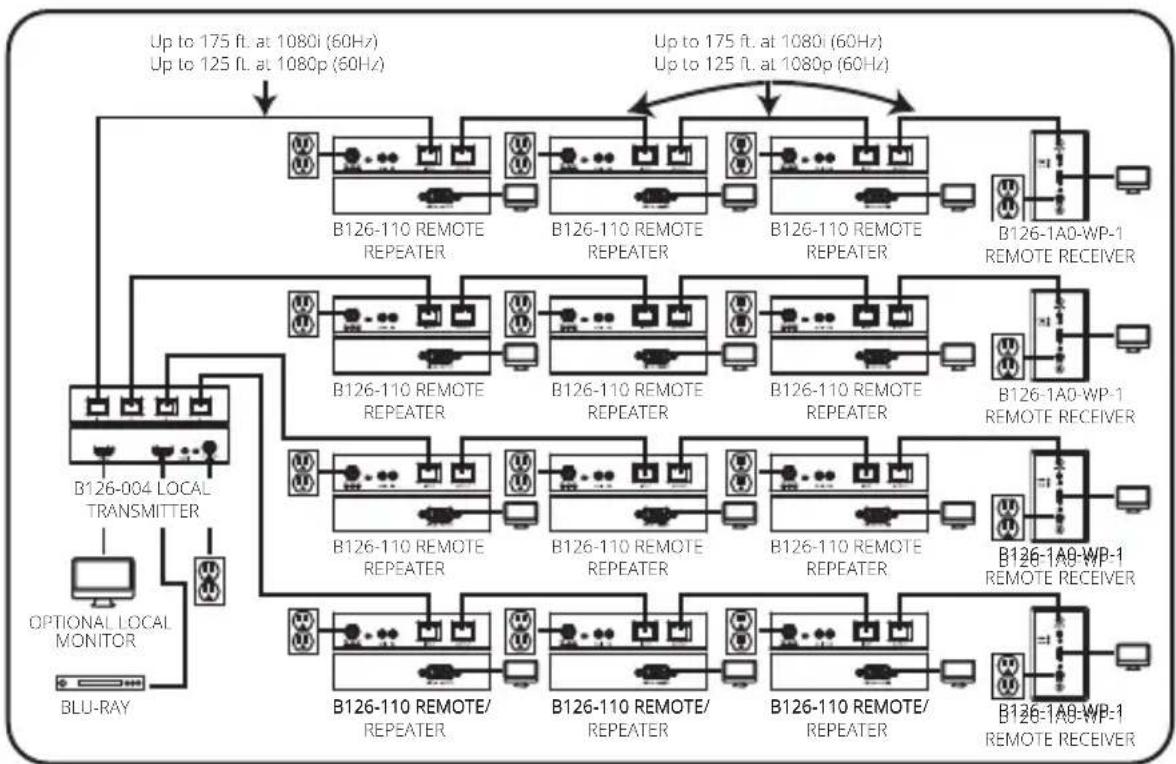
Extender/Splitter with Remote/Repeater Installation
Make sure the HDMI source is powered OFF.
Connect the HDMI source to the INPUT port on the B126-002 or B126-004 using a P568-Series HDMI Cable.
Optional for B126-004: Connect a local monitor to the LOCAL HDMI port using a P568-Series HDMI Cable.
Connect the external power supply to the local unit and plug it into a Surge Protector, PDU or UPS. The green RJ45 LEDs illuminate to indicate power is being received from the external power supply. An additional Red LED on the B126-004 also illuminates to indicate power is being received.
Using Cat5e/6 cable, connect one of the RJ45 output ports on the local unit to the RJ45 input port on the B126-110 remote/repeater unit.
Connect a monitor to the HDMI OUTPUT port on the remote/repeater unit using a P568-Series HDMI Cable.
Connect the external power supply to the remote/repeater unit and plug it into a Surge Protector, PDU or UPS. The green power LED and the Green RJ45 LEDs illuminate to indicate the unit is receiving power.
Up to four units can be daisy-chained (three remote/repeaters and one receiver). To connect additional remote/repeater units, proceed to step 8. To finish your installation with a B126-1A0 or B126-1A0-WP-1 remote receiver unit, proceed to step 12.
Using Cat5e/6 cable, connect the RJ45 OUTPUT port on the first remote/repeater unit to the RJ45 INPUT port on a second remote/ repeater unit.
Extender/Splitter with Remote/Repeater Installation
9 Connect a monitor to the HDMI OUTPUT port on the remote/repeater unit that you just added using a P568-Series HDMI Cable.
10 Connect the external power supply to the remote/repeater unit and plug it into a Surge Protector, PDU or UPS. The green power LED and the green RJ45 LEDs illuminate to indicate the unit is receiving power.
To add a third remote/repeater unit, repeat steps 8 through 10. To finish your installation with a B126-1A0 or B126-1A0-WP-1 remote receiver unit, proceed to step 12.
2 Using Cat5e/6 cable, connect the RJ45 OUTPUT port on the last remote/repeater unit to the RJ45 INPUT port on a B126-1A0 or B126-1A0-WP-1 remote receiver unit.
13 Connect a monitor to the HDMI OUTPUT port on the remote receiver unit using a P568-Series HDMI Cable.
14 Connect the external power supply to the remote receiver unit and plug it into a Surge Protector, PDU or UPS. The green LED illuminates to indicate the unit is receiving power from the external power supply. The orange LED illuminates to indicate the unit is connected to a powered ON remote/repeater unit.
15 Repeat steps 5 through 14 for each additional RJ45 output port on the local transmitter unit.
16 Turn on the power to the HDMI source. The orange RJ45 LEDs on the local unit illuminate to indicate a signal is being received from the source.
If necessary, use the Equalization control on the remote/repeater unit(s) and remote receiver unit to adjust the video image.
Note: An improper Equalization setting can cause the monitor not to display a picture at all. Try each Equalization setting until an acceptable picture is displayed.
Extender/Splitter Daisy-Chain Installation (B126-004 only)
Notes:
1) Test to ensure the entire installation works properly before pulling cables through ceilings/walls.
2) To achieve maximum distance and performance, use 24 AWG solid wire Cat5e/6 cable. Using stranded wire Cat5e/6 cable, or cable with a gauge (AWG) size higher than 24 AWG, will result in shorter extension distance. Higher gauge cabling, such as 26 AWG, has a more limited transmission capability than lower gauge cabling. All N202-Series cables are made with 24 AWG solid wire cabling.
3) The B126-004 is set to transmit a stereo audio signal by default. Press the Audio button on the B126-004 to switch to 7.1-channel surround-sound audio.
4) Using the B126-1A0 and B126-1A0-WP-1, a 1080i (60 Hz) signal can be extended up to 200 ft. from the source, or a 1080p (60 Hz) signal up to 150 ft. from the source. Using a B126-1P0, B126-1P0-MINI or B126-1P0-WP-1, a 1080i (60Hz) signal can be extended up to 100 ft. from the source, or a 1080p (60Hz) signal up to 50 ft.
Extender/Splitter Daisy-Chain Installation (B126-004 only)
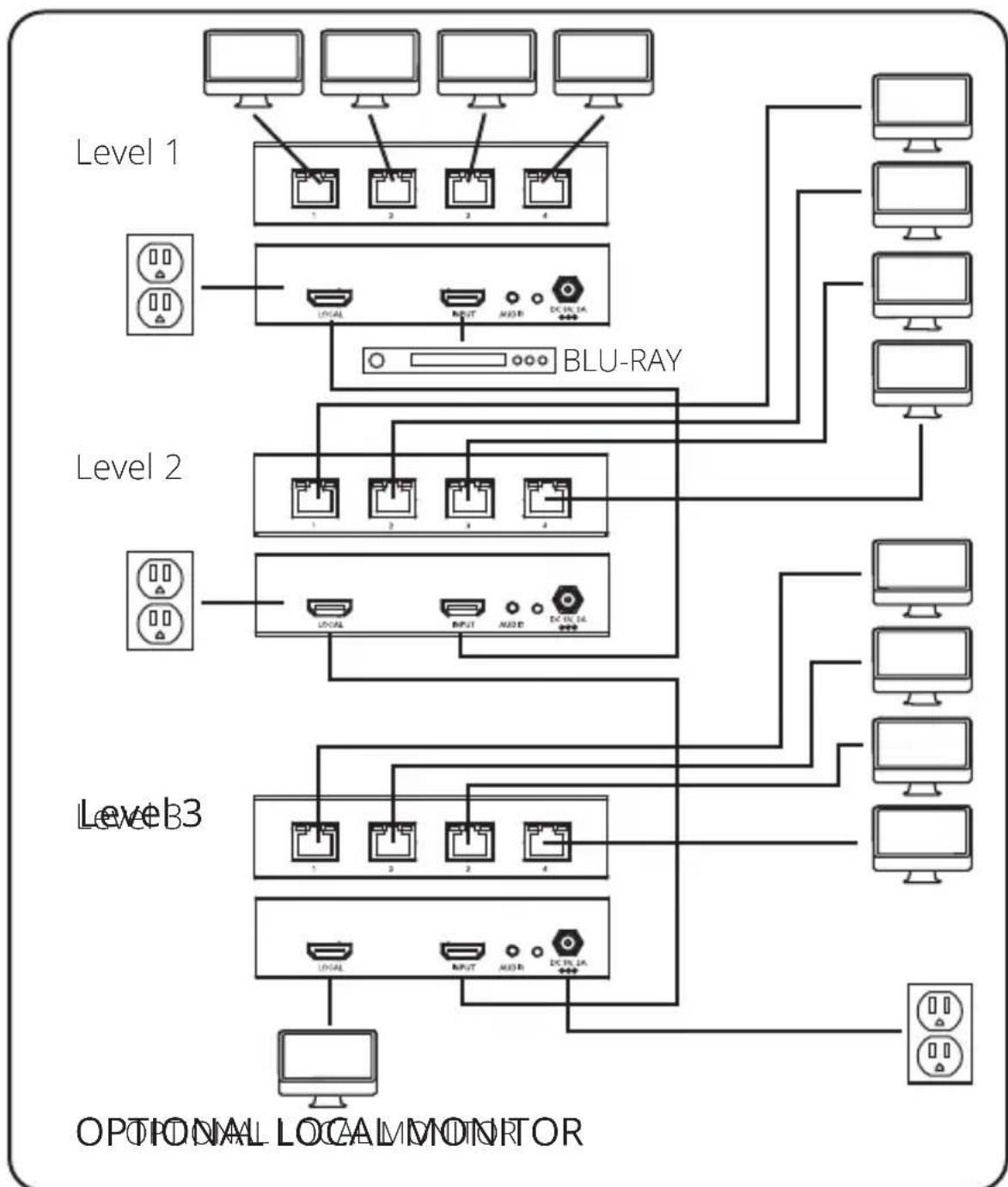
Extender/Splitter Daisy-Chain Installation (B126-004 only)
Make sure the HDMI source is powered OFF.
Connect the HDMI source to the INPUT port on the B126-004 using a P568-Series HDMI Cable.
3 Connect the LOCAL port on the B126-004 to the INPUT port on a second B126-004 using the included 1 ft. HDMI daisy-chain cable.
Repeat step 3 if connecting a third B126-004.
Optional: Connect a local monitor to the LOCAL HDMI port of the last B126-004 using a P568-series HDMI cable.
Connect the external power supply to the first B126-004 in the daisy-chain and plug it into a Surge Protector, PDU or UPS. The green RJ45 LEDs and the red Power LED on the B126-004 will illuminate to indicate power is being received from the external power supply.
Repeat step 6 for each additional B126-004 in the daisy chain.
Using Cat5e/6 cable, connect one of the RJ45 output ports on the local unit to the RJ45 input port on a B126-1P0, B126-1P0-MINI, B126-1A0, B126-1P0-WP-1 or B126-1A0-WP-1 remote unit.
Repeat step 8 for each additional remote unit being connected.
10 B126-1A0 and B126-1A0-WP-1 only: Connect the external power supply to the B126-1A0 or B126-1A0-WP-1, and plug it into a Surge Protector, PDU or UPS. The green and orange LEDs illuminate, with the green LED indicating the unit is receiving power from the external power supply and the orange LED indicating the unit is connected to a powered ON local unit via Cat5e/6 cable.
Repeat step 10 for each additional B126-1A0 or B126-1A0-WP-1 in the installation.
Extender/Splitter Daisy-Chain Installation (B126-004 only)
Connect the B126-1P0 or B126-1P0-MINI HDMI connector to a monitor. Or, connect the B126-1P0-WP-1, B126-1A0 or B126-1A0-WP-1 to a monitor using a P568-Series HDMI Cable. Both the green and orange RJ45 LEDs on the B126-1P0 and B126-1P0-MINI, and the green LED on the B126-1P0-WP-1, illuminate to indicate the unit is receiving power from the connected monitor.
Repeat step 12 for each additional monitor you are connecting.
Turn on the power to the HDMI source. The orange RJ45 LEDs illuminate on the B126-004 to indicate the unit is receiving a signal from the source. The screen should now be displayed on the connected monitors.
If necessary, use the Equalization control on the B126-1A0 or B126-1A0-WP-1 to adjust the video image.
Note: An improper Equalization setting can cause the monitor not to display a picture at all. Try each Equalization setting until an acceptable picture is displayed.
Extender/Splitter Daisy-Chain with Remote/Repeater Installation (B126-004 only)
Notes:
1) Test to ensure the entire installation works properly before pulling cables through ceilings/walls.
2) To achieve maximum distance and performance, use 24 AWG solid wire Cat5e/6 cable. Using stranded wire Cat5e/6 cable, or cable with a gauge (AWG) size higher than 24 AWG, will result in shorter extension distance. Higher gauge cabling, such as 26 AWG, has a more limited transmission capability than lower gauge cabling. All N202-Series Cat6 cables are made with 24 AWG solid wire cabling.
3) The B126-004 is set to transmit a stereo audio signal by default. Press the Audio button on the local unit to switch to 7.1-channel surround-sound audio.
Extender/Splitter Daisy-Chain with Remote/Repeater Installation (B126-004 only)
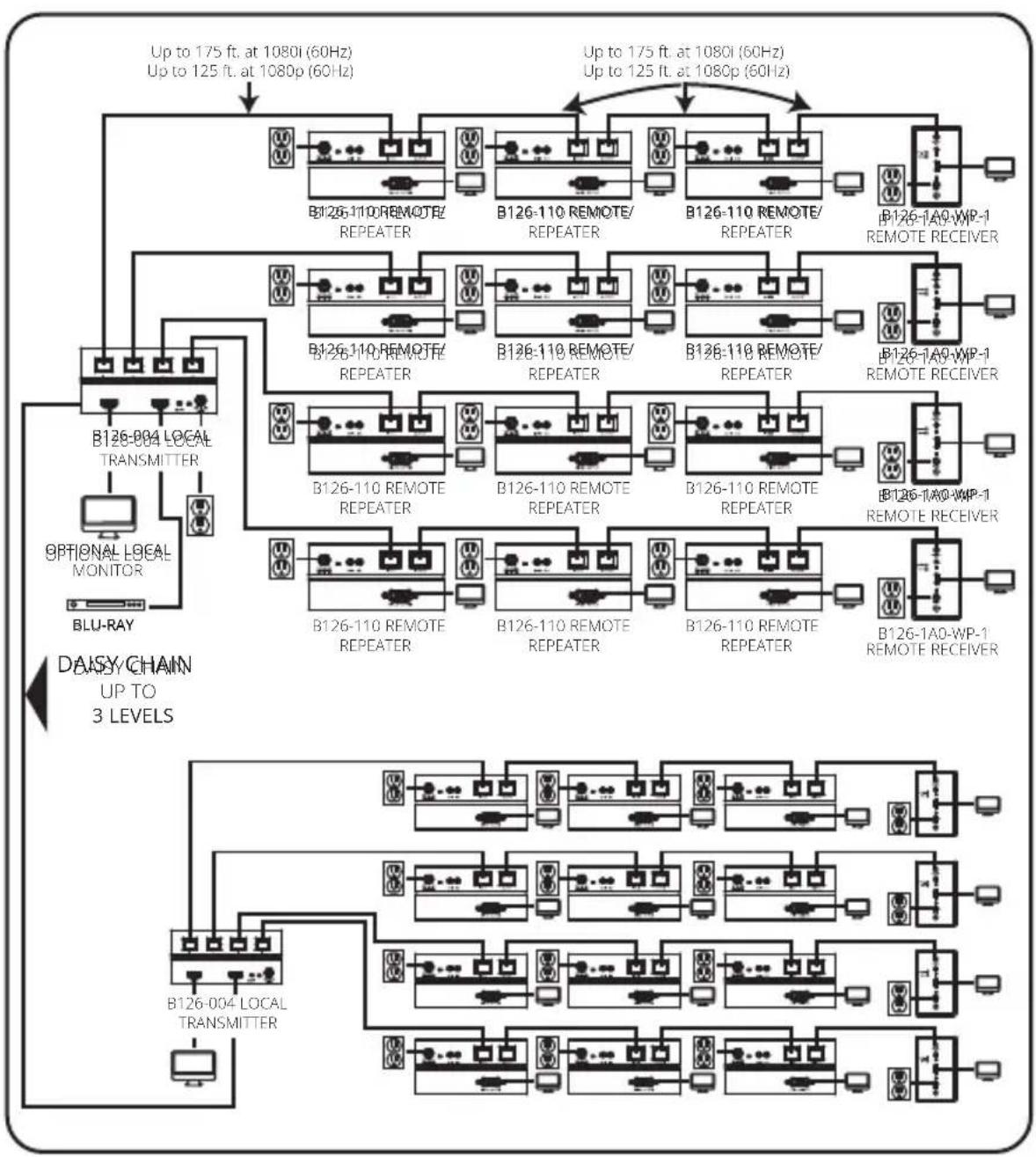
Extender/Splitter Daisy-Chain with Remote/Repeater Installation (B126-004 only)
Make sure the HDMI source is powered OFF.
Connect the HDMI source to the INPUT port on the B126-004 using a P568-Series HDMI Cable.
3 Connect the LOCAL port on the B126-004 to the INPUT port on a second B126-004 using the included 1 ft. HDMI daisy-chain cable.
Repeat step 3 if connecting a third B126-004.
Optional: Connect a local monitor to the LOCAL HDMI port of the last B126-004 using a P568-series HDMI cable.
Connect the external power supply to the first B126-004 in the daisy-chain and plug it into a Surge Protector, PDU or UPS. The green RJ45 LEDs and the red Power LED on the B126-004 will illuminate to indicate power is being received from the external power supply.
Repeat step 6 for each additional B126-004 in the daisy chain.
Using Cat5e/6 cable, connect one of the RJ45 output ports on the local unit to the RJ45 input port on the B126-110 remote/repeater unit.
9 Connect a monitor to the HDMI OUTPUT port on the remote/repeater unit using a P568-Series HDMI Cable.
10 Connect the external power supply to the remote/repeater unit and plug it into a Surge Protector, PDU or UPS. The green power LED and the green RJ45 LEDs illuminate to indicate the unit is receiving power.
Up to four units can be daisy-chained (three remote/repeaters and one receiver). To connect additional remote/repeater units, proceed to step 11. To finish your installation with a B126-1A0 or B126-1A0-WP-1 remote receiver unit, proceed to step 15.
Extender/Splitter Daisy-Chain with Remote/Repeater Installation (B126-004 only)
Using Cat5e/6 cable, connect the RJ45 OUTPUT port on the first remote/repeater unit to the RJ45 INPUT port on a second remote/ repeater unit.
12 Connect a monitor to the HDMI OUTPUT port on the remote/repeater unit that you just added using a P568-Series HDMI Cable.
13 Connect the external power supply to the remote/repeater unit and plug it into a Surge Protector, PDU or UPS. The green power LED and the green RJ45 LEDs illuminate to indicate the unit is receiving power.
To add a third remote/repeater unit, repeat steps 11 through 13. To finish your installation with a B126-1A0 or B126-1A0-WP-1 remote receiver unit, proceed to step 15.
Using Cat5e/6 cable, connect the RJ45 OUTPUT port on the last remote/repeater unit to the RJ45 INPUT port on a B126-1A0 or B126-1A0-WP-1 remote receiver unit.
16 Connect a monitor to the HDMI OUTPUT port on the remote receiver unit using a P568-Series HDMI Cable.
17 Connect the external power supply to the remote receiver unit and plug it into a Surge Protector, PDU or UPS. The green LED illuminates to indicate the unit is receiving power from the external power supply. The orange LED illuminates to indicate the unit is connected to a powered ON remote/repeater unit.
Repeat steps 8 through 17 for each additional RJ45 output port on the local transmitter units.
Turn on the power to the HDMI source. The orange RJ45 LEDs on the local units illuminate to indicate a signal is being received from the source.
Extender/Splitter Daisy-Chain with Remote/Repeater Installation (B126-004 only)
20 If necessary, use the Equalization control on the remote/repeater unit(s) and remote receiver unit to adjust the video image.
Note: An improper Equalization setting can cause the monitor not to display a picture at all. Try each Equalization setting until an acceptable picture is displayed.
Warranty
1-Year Limited Warranty
We warrant our products to be free from defects in materials and workmanship for a period of one (1) year from the date of initial purchase. Our obligation under this warranty is limited to repairing or replacing (at its sole option) any such defective products. Visit Tripplite.Eaton.com/ support/product-returns before sending any equipment back for repair. This warranty does not apply to equipment which has been damaged by accident, negligence or misapplication or has been altered or modified in any way.
EXCEPT AS PROVIDED HEREIN, WE MAKE NO WARRANTYES, EXPRESS OR IMPLIED, INCLUDING WARRANTYES OF MERCHANTABILITY AND FITNESS FOR A PARTICULAR PURPOSE. Some states do not permit limitation or exclusion of implied warranties; therefore, the aforesaid limitation(s) or exclusion(s) may not apply to the purchaser.
EXCEPT AS PROVIDED ABOVE, IN NO EVENT WILL WE BE LIABLE FOR DIRECT, INDIRECT, SPECIAL, INCIDENTAL OR CONSEQUENTIAL DAMAGES ARISING OUT OF THE USE OF THIS PRODUCT, EVEN IF ADVISED OF THE POSSIBILITY OF SUCH DAMAGE. Specifically, we are not liable for any costs, such as lost profits or revenue, loss of equipment, loss of use of equipment, loss of software, loss of data, costs of substitutes, claims by third parties, or otherwise.
WEEE Compliance Information for Customers and Recyclers (European Union)
Under the Waste Electrical and Electronic Equipment (WEEE) Directive and implementing regulations, when customers buy new electrical and electronic equipment from Eaton, they are entitled to:
- Send old equipment for recycling on a one-for-one, like-for-like basis (this varies depending on the country)
- Send the new equipment back for recycling when this ultimately becomes waste
WARNING
Use of this equipment in life support applications where failure of this equipment can reasonably be expected to cause the failure of the life support equipment or to significantly affect its safety or effectiveness is not recommended.
Eaton has a policy of continuous improvement. Specifications are subject to change without notice.

Powering Business Worldwide
Eaton
1000 Eaton Boulevard
Cleveland, OH 44122
United States
Eaton.com

933731
© 2023 Eaton
All Rights Reserved
Publication No. 23-08-359 /
93-3731_RevB
September 2023
Eaton is a registered trademark.
All trademarks are property of their respective owners.
Powering Business Worldwide
Eaton
1000 Eaton Boulevard
Cleveland, OH 44122
Estados Unidos
Eaton.com
© 2023 Eaton
Publication No. 23-08-359 /
93-3731_RevB
Septiembre de 2023
933731
Eaton es unamarca registrada.

Powering Business Worldwide
Eaton
1000 Eaton Boulevard
Cleveland, OH 44122
États-Unis
Eaton.com
© 2023 Eaton

Powering Business Worldwide
Eaton
1000 Eaton Boulevard
Cleveland, OH 44122
USA
Eaton.com

933731
© 2023 Eaton

Powering Business Worldwide
Eaton
1000 Eaton Boulevard
Cleveland, OH 44122
Stati Uniti
Eaton.com
© 2023 Eaton


- HDMI OVER CAT5 EXTENDERS AND EXTENDER/SPLITTERS
- PACKAGE CONTENTS
- PRODUCT FEATURES
- ALL
- B126-1A1
- B126-1A1-WP
- B126-002
- B126-004
- B126-1A0
- B126-1A0-WP-1
- B126-1P0
- B126-1PO-MINI
- B126-1PO-WP-1
- B126-110
- OPTIONAL ACCESSORIES
- MOUNTING INSTRUCTIONS (SELECT MODELS ONLY)
- WALL MOUNT
- 19" RACK MOUNT POLE MOUNT
- STANDARD EXTENDER KIT INSTALLATION
- NOTES
- EXTENDER KIT WITH REMOTE/REPEATER INSTALLATION
- STANDARD EXTENDER/SPLITTER INSTALLATION
- EXTENDER/SPLITTER WITH REMOTE/REPEATER INSTALLATION
- EXTENDER/SPLITTER DAISY-CHAIN INSTALLATION (B126-004 ONLY)
- EXTENDER/SPLITTER DAISY-CHAIN WITH REMOTE/REPEATER INSTALLATION (B126-004 ONLY)
- WARRANTY
- 1-YEAR LIMITED WARRANTY
- WEEE COMPLIANCE INFORMATION FOR CUSTOMERS AND RECYCLERS (EUROPEAN UNION)
- WARNING
Brand : Tripp Lite
Model : B1261P0MINI
Category : Receiver