MSSWIC2P - Image converter SONY - Free user manual and instructions
Find the device manual for free MSSWIC2P SONY in PDF.



| Product Type | Image and video conversion software |
| Brand | Sony |
| Model | MSSWIC2P |
| Category | Image converter |
| Compatible operating system | Microsoft Windows 2000 Professional, Windows XP (Home, Professional, Media Center 2004/2005) |
| Minimum RAM | 128 MB |
| Hard disk space required | 40 MB |
| Required drive | CD-ROM drive |
| Memory Stick slot | Required (Memory Stick PRO recommended) |
| Video input formats | AVI, MPEG1/2/4, QuickTime, WMV, Giga Pocket files (Ver.5.0+), VAIO Zone, VAIO Media |
| Image input formats | BMP, JPEG, GIF, PGP, PNG, TIFF, VAIO Media |
| Video output formats | Memory Stick video format (MP4) |
| Image output formats | JPEG (DCF) |
| Provided software | Image Converter 2 Plus |
| License | Private and non-commercial use (MPEG-4 Visual and AVC licenses) |
| Mac compatibility | Not compatible |
| Special feature | Automatic conversion during Giga Pocket/VAIO Zone recording (on select VAIO) |
| Maximum transfer duration | 120 minutes (longer videos split) |
| File name restrictions | 63 characters max for name, 254 max for full path |
| Maintenance and cleaning | Handle CD-ROM with care, clean with a soft cloth |
| Safety | Follow installation instructions; no electrical risk |
| Spare parts | Not applicable (software on CD-ROM) |
Frequently Asked Questions - MSSWIC2P SONY
User questions about MSSWIC2P SONY
0 question about this device. Answer the ones you know or ask your own.
Ask a new question about this device
Download the instructions for your Image converter in PDF format for free! Find your manual MSSWIC2P - SONY and take your electronic device back in hand. On this page are published all the documents necessary for the use of your device. MSSWIC2P by SONY.
USER MANUAL MSSWIC2P SONY
Image Converter 2 Plus
Operating Instructions
Mode d'emploi
Bedienungsanleitung
Installing on a computer
Place the CD-ROM in the disc drive of your computer (with the recommended OS environment).
The installation starts automatically. Follow the instructions on the screen.
Note
If your computer already has MSSW-IC2 ("Image Converter 2 ver2.1"), uninstall "Image Converter 2 ver2.1" before installing this application.
■If the installation does not start automatically
If the "Image Converter 2 Plus" cannot be installed automatically after loading the CD-ROM, follow these steps.
1 Double-click [My Computer].

2 Double-click the CD-ROM icon.
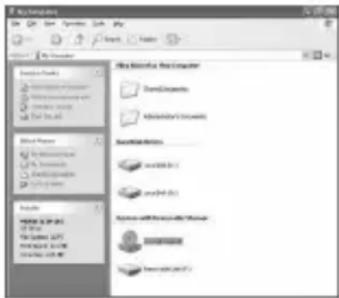
3 Double-click [setup.exe].
After step 3, follow the instructions on the screen.
Note
The screens shown above are of Windows XP Professional. The screens may vary, depending on the OS.
System Requirements
| OS*1 | Microsoft® Windows® 2000 Professional Microsoft® Windows® XP Home Edition Microsoft® Windows® XP Professional Microsoft® Windows® XP Media Center Edition 2004/2005 |
| CPU Intel | ® Pentium® III 733 MHz or faster/Intel® Celeron® M 1GHz or faster in MPEG-4 AVC conversion |
| RAM 128MB | or more (depending on the OS being used, more space may be required on the RAM) |
| HDD 40MB | or more available hard disk space |
| Display | High Color or more (1,024 × 768 pixels or more recommended) |
| Others Memory Stick Reader/Writer (Memory Stick PRO compatible slot recommended) CD-ROM Drive DirectX 9.0b or later*2, Windows Media Player 9.0 or later | |
*1 "Image Converter 2 Plus" does not support Mac OS.
*2 After updating DirectX, some applications on your computer may not function correctly. Refer to the software manufacturer before updating.
Compatible file format
| Input Movie: AVI*1, MPEG1/2/4, QuickTime*2, WMV*3, files recorded with “Giga Pocket” (Ver.5.0 or higher), “VAIO Zone”*4, “VAIO Media”*5Still Image: BMP, JPEG, GIF, PGP, PNG, TIFF, “VAIO Media”* 5 |
| Output Movie: Memory Stick Video Format (mp4 compatible)Still Image: JPEG (DCF) |
*1 You may not be able to convert AVI format files other than the files supported by video for Windows.
*2 To convert QuickTime format files, install the most-recently updated QuickTime Player into your computer. (If you can play QuickTime format files with the QuickTime Player, you can convert movie files.)
*3 To convert WMV (Windows Media Video) format files, install the most-recently updated Windows Media Player into your computer. (If you can play back WMV files with the Windows Media Player, you can convert the files.)
*4 For Sony VAIO series Computer only. This product does not support digital broadcast.
*5 Movie: Movie contents (videos) that "VAIO Media" server can display. Still Image: Picture contents that "VAIO Media" can display from the server.
Restrictions
■When using Norton AntiVirus
- If the Script Blocking feature of the Norton AntiVirus software utility is enabled, you cannot select Transfer by Image Converter 2 Plus from the menu displayed when you right-click a picture file in Internet Explorer.
- If you are running Norton AntiVirus and start Image Converter 2 Plus without inserting a "Memory Stick", CPU usage may become high.
If this occurs, disable the feature in Norton AntiVirus that scans removable medias for boot viruses when inserting removable media. The CPU usage may become low.
* For details on settings, refer to the help of the anti-virus software you are using.
■Restrictions on the length of the file name and path of the folder
- File and folder names should be 63 characters or less.
- The complete path of the file or folder should be 254 characters or less.
■About transferring data size
Regardless of the "Memory Stick" capacity, the maximum transferred data length is 120 minutes. Movie data over 120 minutes will be divided into files.
■When referring to contents on a server through a network
The firewall should be disabled. Be advised this may allow unauthorized access to your computer.
■When using a Sony VAIO series Computer with "Giga Pocket"/"VAIO Zone"
- When using the “Automatically convert during Giga Pocket recording and add to the list” or “Automatically convert during VAIO Zone recording and add to the list” function of “Image Converter 2 Plus,” do not use any other automatic record/convert functions.
- When using the “Automatically convert during Giga Pocket recording and add to the list” or “Automatically convert during VAIO Zone recording and add to the list” function of “Image Converter 2 Plus,” recording of TV programs using “VAIO Zone” or “Giga Pocket” may fail if computer processing is large. Be sure to check if it functions properly in the environment you use before recording. If recording fails, record TV programs using “VAIO Zone” or “Giga Pocket” only. Then, add the recorded video to the transfer list of “Image Converter 2 Plus” to convert, or transfer it after recording.
* For details on operations, refer to the Help of "Image Converter 2 Plus."
- About converting and transferring video The following videos recorded with "Giga Pocket" / "VAIO Zone," cannot be converted (including the convert while recording feature) or transferred. - digital broadcasting recorded videos - videos recorded in encrypted format
- When using the dual program record function of "VAIO Zone," the "Automatically convert during VAIO Zone recording and add to the list" function cannot be used.
- With the following VAIO RZ series, the convert while recording feature cannot be used: PCV-RZ102, PCV-RZ103, PCV-RZ104, PCV-RZ201, PCV-RZ211, PCV-RZ221, PCV-RZ301, PCV-RZ302, PCV-RZ304, PCV-RZ311, PCV-RZ312, PCV-RZ314, PCV-RZ321, PCV-RZ322, PCV-RZ324
* For functions and operations of "Giga Pocket" / "VAIO Zone," refer to the instruction manual of your Sony VAIO series Computer and Help for "Giga Pocket" / "VAIO Zone."
■When using "SonicStage Mastering Studio"
If "SonicStage Mastering Studio Audio Filter" installed on your computer is version 1.1.00, "Image Converter 2 Plus" may not operate properly. In this situation, update "SonicStage Mastering Studio Audio Filter" to version 1.1.01 or later.
Attention
- Operation is not guaranteed for all computers even if they comply with the recommended environment.
- Distribution of copies and use of copies for purposes other than specified by Sony are prohibited.
- With dual CPU and custom-built computers, performance may be unstable.
• Copyright laws prohibit reproducing the software or the software manual in whole or in part, or renting the software without the permission of the copyright holder. - Use viewed or converted moving and still images for personal use only.
- In no event will Sony be liable for any financial damage or loss of profits, including claims made by third parties, arising out of the use of the software supplied with this player.
- This product is not compatible with Macintosh/Mac OS.
- "Image Converter 2 Plus" is not compatible with "Image Converter 1.5." Select "Image Converter 1.5" or "Image Converter 2 Plus," according to your video play-back hardware's specifications.
You can install both "Image Converter 1.5" and "Image Converter 2 Plus" on a computer and use them separately, but you cannot use them simultaneously.
THIS PRODUCT IS LICENSED UNDER THE MPEG-4 VISUAL PATENT PORTFOLIO LICENSE FOR THE PERSONAL AND NON-COMMERCIAL USE OF A CONSUMER FOR
(i) ENCODING VIDEO IN COMPLIANCE WITH THE MPEG-4 VISUAL STANDARD ("MPEG-4 VIDEO").
AND/OR
(ii) DECODING MPEG-4 VIDEO THAT WAS ENCODED BY A CONSUMER ENGAGED IN A PERSONAL AND NON-COMMERCIAL ACTIVITY AND/OR WAS OBTAINED FROM A VIDEO PROVIDER LICENSED BY MPEG LA TO PROVIDE MPEG-4 VIDEO.
NO LICENSE IS GRANTED OR SHALL BE IMPLIED FOR ANY OTHER USE. ADDITIONAL INFORMATION INCLUDING THAT RELATING TO PROMOTIONAL, INTERNAL AND COMMERCIAL USES AND LICENSING MAY BE OBTAINED FROM MPEG LA, L.L.C. SEE HTTP://WWW.MPEGLA.COM
THIS PRODUCT IS LICENSED UNDER THE AVC PATENT PORTFOLIO LICENSE FOR THE PERSONAL AND NON-COMMERCIAL USE OF A CONSUMER TO
(i) ENCODE VIDEO IN COMPLIANCE WITH THE AVC STANDARD ("AVC VIDEO") AND/OR
(ii) DECODE AVC VIDEO THAT WAS ENCODED BY A CONSUMER ENGAGED IN A PERSONAL AND NON-COMMERCIAL ACTIVITY AND/OR WAS OBTAINED FROM A VIDEO PROVIDER LICENSED TO PROVIDE AVC VIDEO.
NO LICENSE IS GRANTED OR SHALL BE IMPLIED FOR ANY OTHER USE. ADDITIONAL INFORMATION MAY BE OBTAINED FROM MPEG LA, L.L.C. SEE HTTP://WWW.MPEGLA.COM
Trademarks
- Sony, VAIO, "Memory Stick," "Memory Stick PRO" and their logos are trademarks of Sony Corporation.
- Microsoft, Windows and Windows Media are either registered trademarks or trademarks of Microsoft Corporation in the United States and/or other countries.
- Pentium is a trademark or registered trademark of Intel Corporation or its subsidiaries in the United States and other countries.
- QuickTime and the QuickTime logo are trademarks or registered trademarks of Apple Computer, Inc., used under license.
The QuickTime File Format is used in this product under license from Apple Computer, Inc. and is copyrighted by Apple Computer, Inc. 2004. All Rights Reserved. - Macintosh and MacOS are trademarks of Apple Computer, Inc., registered in the U.S. and other countries.
- All other trademarks are trademarks of their respective owners. "TM" and "®" marks are not specified in this manual.
Français
3 Double-cliquez sur [setup.exe].
3 H aga doble clic en [setup.exe].
2 按兩下 CD-ROM 的圖示。
Printed on 100% recycled paper using VOC (Volatile Organic Compound)-free vegetable oil based ink.
Printed in Japan
- Image Converter 2 Plus
- Installing on a computer
- Note
- ■If the installation does not start automatically
- Compatible file format
- Restrictions
- ■When using Norton AntiVirus
- ■Restrictions on the length of the file name and path of the folder
- ■About transferring data size
- ■When referring to contents on a server through a network
- ■When using a Sony VAIO series Computer with "Giga Pocket"/"VAIO Zone"
- ■When using "SonicStage Mastering Studio"
- Attention
- Trademarks
- Français
Brand : SONY
Model : MSSWIC2P
Category : Image converter