E83051 (MD 87360) - Mouse MEDION - Free user manual and instructions
Find the device manual for free E83051 (MD 87360) MEDION in PDF.

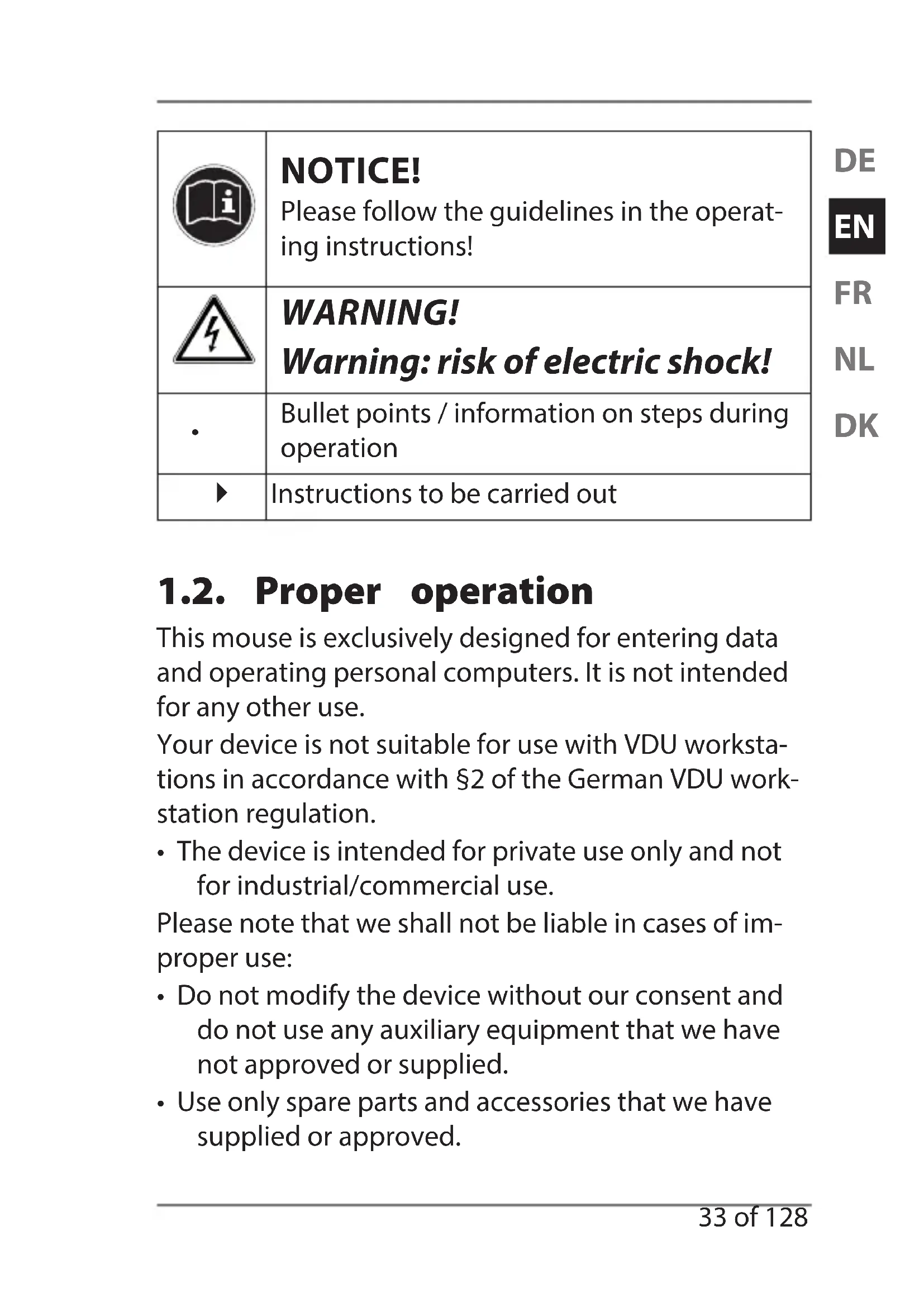


| Product Type | Bluetooth Wireless Mouse |
| Brand | Medion |
| Model | E83051 (MD 87360) |
| Dimensions (L x W x H) | 99.3 x 58 x 38 mm |
| Weight (with battery) | Approx. 100 g |
| Power Supply | 1 AA 1.5 V battery (included) |
| Connection Technology | Bluetooth 3.0 Class 2 |
| Optical Sensor Resolution | Switchable: 1000, 1200 or 1600 DPI |
| Buttons | Left, right, scroll wheel (with LED indicator), 2 thumb buttons, connection button, mode selector, on/off switch |
| Main Functions | Scrolling, forward/backward page, DPI switching, automatic power saving |
| Compatible Operating Systems | Microsoft Windows 8.1, Windows 8, Windows 7 |
| Package Contents | Bluetooth wireless mouse, 1 AA battery, instruction manual, warranty card |
| Intended Use | Private use on laptop or PC with Bluetooth |
| Maintenance and Cleaning | Clean with a slightly damp cloth; do not use solvents |
| Safety | Do not open the housing; keep out of reach of children; follow battery handling instructions |
| Spare Parts and Reparability | Repair only by an authorized Medion service partner; no spare parts supplied |
| General Information | Complies with R&TTE, EMC, ecodesign, RoHS directives; declaration of conformity at www.medion.com/conformity |
Frequently Asked Questions - E83051 (MD 87360) MEDION
User questions about E83051 (MD 87360) MEDION
0 question about this device. Answer the ones you know or ask your own.
Ask a new question about this device
Download the instructions for your Mouse in PDF format for free! Find your manual E83051 (MD 87360) - MEDION and take your electronic device back in hand. On this page are published all the documents necessary for the use of your device. E83051 (MD 87360) by MEDION.
USER MANUAL E83051 (MD 87360) MEDION
Bluetooth Standard Bluetooth 3.0 Class 2
1. Notes on how to use these instructions .... 31
1.1. Symbols and key words used in these instructions 32
1.2. Proper operation 33
2. Notes on conformity 34
EN
3. Safety instructions
3.1. Operating safety
3.2. Installation location 36
3.3. Cleaning 36
3.4. Safety instructions on battery operation 37
3.5. Repairs 39
4. Package contents
5. System requirements
6. Overview of the device 41
6.1. Top 41
6.2. Bottom 42
6.3.Left side 43
7. Start-up 44
7.1. Inserting the batteries into the wireless mouse 44
7.2. Switching on the mouse 44
8. Mouse
8.1.Left button 45
8.2. Right button 45
8.3.Scroll wheel 49
8.4. Thumb button 1 46
8.5. Thumb button 2 46
8.6. Switching the setting for the optical sensor 46
9. Connecting to a PC 47
10. Technical support 48
10.1. Do you need more help? 48
- Disposal 49
- Technical data 50
- Legal notice 51
1. Notes on how to use these instructions

Please read this section and the entire user manual carefully and follow all instructions given. The instructions will help you to operate the device reliably and help lengthen its service life. Store these instructions ready to hand near the device.
Keep the operating instructions so that you can pass them on with the device if you sell it.
1.1. Symbols and key words used in these instructions
| ! | DANGER! Warning of immediate mortal danger! WARNING! Warning of possible risk of fatal injury and/or serious irreversible injuries! CAUTION! Danger of possible minor or moderate injuries! |
| ! | ATTENTION! Please follow the instructions to avoid property damage! |
| i | NOTICE! Additional information on using the device! |
| NOTICE! Please follow the guidelines in the operat- ing instructions! | |
| WARNING! Warning: risk of electric shock! | |
| . | Bullet points / information on steps during operation |
| > | Instructions to be carried out |
1.2. Proper operation
This mouse is exclusively designed for entering data and operating personal computers. It is not intended for any other use.
Your device is not suitable for use with VDU workstations in accordance with §2 of the German VDU workstation regulation.
- The device is intended for private use only and not for industrial/commercial use.
Please note that we shall not be liable in cases of improper use: - Do not modify the device without our consent and do not use any auxiliary equipment that we have not approved or supplied.
-
Use only spare parts and accessories that we have supplied or approved.
-
Heed all the information in these operating instructions, especially the safety information. Any other use is deemed improper and can cause personal injury or property damage.
- Do not use the device in areas where there is a risk of explosion. These areas include e.g. tank systems, fuel storage depots, or areas in which solvents are being used. It is also not permitted to use this device in areas where the air is contaminated with fine particles (e.g. flour dust or sawdust).
-
Do not expose the device to any extreme conditions. The following should be avoided:
-
High humidity or moisture
-Extremely high or low temperatures
-Direct sunlight
-Naked flames
2. Notes on conformity
Medion AG hereby declares that the product conforms to the following European requirements:
R&TTE Directive 1999/5/EC
EMC Directive 2004/108/EC
- Ecodesign Directive 2009/125/EC
RoHS Directive 2011/65/EU.
Full declarations of conformity are available at www.medion.com/conformity.
3. Safety instructions
3.1. Operating safety
- This device is not intended for use by people (including children) with reduced physical, sensory or mental abilities or by those without experience and/or knowledge, unless they are supervised by a person responsible for their safety or they have been instructed in its use by that person. Children should be supervised to ensure they do not play with this device.

NOTICE!
We are not responsible for claims for data loss or associated damage.
- This product has been designed for use with a PC/AT computer (IBM-compatible).
- Please comply with the safety instructions of the computer to which you will be connecting the device.
3.2. Installation location
- Place and operate the device on a stable, even and vibration-free surface.
- Keep the device away from moisture, dripping water and splashes, and avoid exposure to dust, heat and direct sunlight.
3.2.1. Electromagnetic compatibility
- Keep the device at a distance of at least 50~cm from high-frequency or magnetic interference sources (televisions, mobile telephones, infrared devices, loudspeaker boxes, etc.) to avoid malfunctions and data loss.
3.3. Cleaning
- Make sure that the device is kept clean. Before cleaning the device, disconnect all cable connections to the PC. Clean the device and the other components using a soft, moist cloth. Do not use solvents, corrosive or gaseous cleaning agents.
3.4. Safety instructions on battery operation
Batteries may contain combustible materials. If not properly handled, batteries may leak, heat up intensely, ignite or even explode, which could result in damage to your device and your health.
Please follow the safety advice below closely:
- Keep batteries away from children. If batteries are mistakenly swallowed, consult your doctor immediately.
- Never charge the batteries.
- Never empty the batteries by means of high power output.
- Never short-circuit the batteries.
- Never expose the batteries to excessive heat, such as sunlight, fire or similar sources of heat!
- Do not dismantle or deform the batteries.
- You could injure your hands or fingers,
or battery fluid could come into contact with your eyes or skin. If this happens, rinse the affected areas with plenty of clean water and contact your doctor immediately.
- Avoid heavy impacts and vibrations.
- Always observe the correct polarity. Make sure that the plus (+) and minus (-) poles are correctly inserted to avoid short-circuits.
- Remove spent batteries from the device immediately.
- Remove the batteries from the device if you do not intend to use it for a long period of time.
- Replace old batteries in the device with new batteries of the same type.
-
Cover the contacts of the batteries with sticky tape if you want to store or dispose of them.
-
Before inserting the battery, check that the contacts in the device and on the battery are clean and, if necessary, clean them.
3.5. Repairs

CAUTION!
Never open the component housing! This could result in an electrical short circuit or even ignite a fire which will result in damage.
- Repairs to your device should only be carried out by an authorised service partner. Contact customer services if you have technical problems.
- Disconnect your computer immediately from the mains and contact your customer service:
-If the connections are singed or damaged.
-If liquid has penetrated the interior of the device.
-If the device is not working properly.
-If the device has been dropped or the housing is damaged.
4. Package contents
Please check your purchase to ensure all items are included and contact us within 14 days of purchase if the delivery is incomplete.
The following items are supplied with your product:
- Wireless Bluetooth mouse
- 1 battery (R6/AA, 1.5V)
- User manual and guarantee card

DANGER!
Keep packaging material such as plastic film away from children.
There is a risk of suffocation if used improperly.
5. System requirements
Operating system Microsoft® Windows® 8.1/ Windows® 8/Windows® 7 PC / notebook with an activa-ted Bluetooth function
6. Overview of the device
6.1. Top
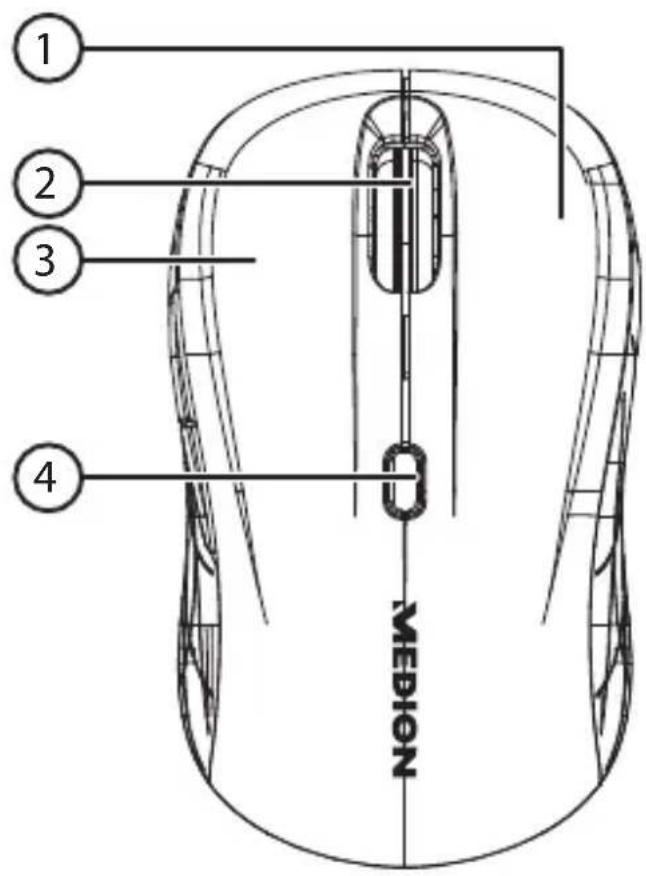
1) Right mouse button
2) Scroll wheel with LED indicator
3) Left mouse button
4) Mode switch
6.2. Bottom
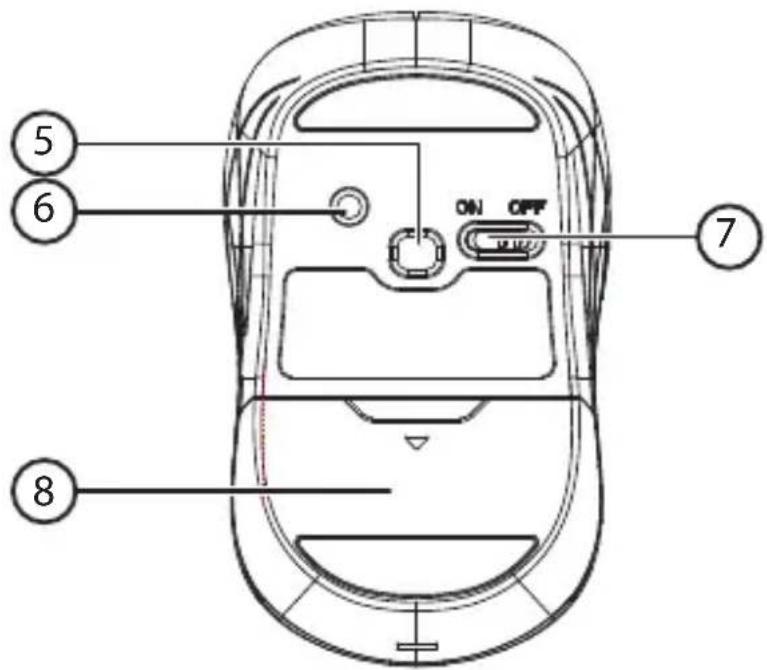
5) IR movement sensor
6) Reconnect button
7) On/Off switch
8) Battery compartment
6.3. Left side
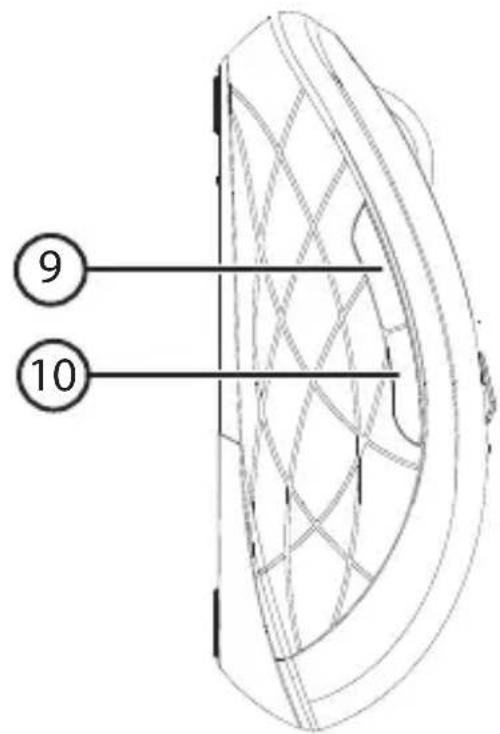
7.1. Inserting the batteries into the wireless mouse
Turn over the mouse and remove the battery compartment cover by carefully pushing it in the direction of the arrow to open it.
Insert the battery (R6/AA, 1.5V) into the battery compartment of the mouse. Make sure that the polarity of the battery matches the "+" and "-" markings.
Replace the battery compartment cover until it clicks into place and switch on the mouse.
The LED integrated into the scroll wheel lights up in red for 4 seconds.
7.2. Switching on the mouse
Set the On/Off switch to the ON position.
Set the switch to OFF if you do not intend to use the mouse for a long period of time.
7.2.1. Power-saving function
If you do not use the mouse for a long time (from approx. 10 minutes) because, for example, you have been typing for an extended period, the mouse will switch itself off and the cursor will not move on the screen. This feature is designed to minimise battery consumption.
In order to switch off the power-saving function again, click on one of the mouse buttons.
8. Mouse
In addition to the two standard buttons, the mouse also features a third button in the scroll wheel and two thumb buttons.
8.1.Left button
The left mouse button is used to make a selection (click once) and to confirm this selection (double click).
8.2. Right button
The right mouse button is used to call up commands (context menus) in certain places.
8.3.Scroll wheel
The scroll wheel in the middle has two functions:
- If you rotate the wheel, you can scroll through long documents e.g. websites or text files.
- You can also use the scroll wheel as a button. Simply click on it for this purpose.
The scroll wheel can be configured via the mouse settings.
Double click on the mouse symbol on the task bar in order to open the settings window.
8.4. Thumb button 1
You can scroll forward one page with thumb button 1.
8.5. Thumb button 2
You can scroll backwards one page with thumb button 2.
8.6. Switching the setting for the optical sensor
The setting for the optical sensor on the wireless mouse can be switched between 1000 dpi, 1200 dpi or 1600 dpi. The factory setting is 1600 dpi.
Press and hold down the right mouse button and the mode switch at the same time for around 3 seconds.

NOTICE!
If you switch to 1000 dpi, the LED indicator on the scroll wheel flashes 1 x in red.
If you switch to 1200 dpi, the LED indicator on the scroll wheel flashes 2 × in red. If you switch to 1600 dpi, the LED indicator on the scroll wheel flashes 3 × in red.
9. Connecting to a PC

NOTICE!
Observe the instructions in chapter "3. Safety instructions" on page 35.
- Switch on the mouse and your computer or notebook.
Activate the Bluetooth function on your computer.
Now position the mouse at your workstation so you can work comfortably with it.
Press the Windows button and enter "Control Panel" in the search field. - Open the "Control Panel" and select the option "Devices and Printers".
- Select the entry for your Bluetooth mouse and follow the instructions on the screen.

NOTICE!
If the connection between the PC and mouse is broken or does not work, please press the Reconnect button on the underside of the mouse. This will disconnect and then re-establish the connection.
10. Technical support
This product has been thoroughly and successfully tested in our test laboratory with a wide variety of devices. However, the drivers will need to be updated from time to time. This is because there may be compatibility problems with other components (programs, devices) which have not yet been tested. The following website contains driver updates and the latest information about your product:
Internet: http://www.medion.com
10.1. Do you need more help?
If the suggestions in the previous sections did not solve your problem please contact us. To make it easier for us to help you, please have the following information to hand:
- How is your computer configured?
- What peripheral devices do you use?
What messages appear on the screen? - What software were you using when the problem occurred?
- Which steps have you already taken to solve the problem?
- Please provide your customer number if you have one.
11. Disposal

Packaging
The product has been packaged to protect it from damage in transit. The packaging is made of materials that can be recycled in an environmentally friendly manner.
Device
Old devices should not be disposed of with the normal household rubbish.
In accordance with Directive 2012/19/EU, the device must be properly disposed of at the end of its service life.
This involves separating the materials in the device for the purpose of recycling and avoiding any impact on the environment.
Take old devices to a collection point for electrical scrap or a recycling centre.
Contact your local waste disposal company or your local authority for more information on this subject.

Batteries
Batteries must be properly disposed of. Retailers who stock batteries and local authority collection points have appropriate disposal containers for this purpose. You can contact your local waste disposal company or municipal authorities for further information.
12. Technical data
Bluetooth standard Bluetooth 3.0 Class 2
Operating temperature -5^ - 60^
Humidity 90%
Batteries 1x R6 AA 1.5V
Mouse
Dimensions (L x W x H) approx. 99.3 x 58 x 38 mm
Weight: Approx. 100 g (incl. batteries)
Subject to technical and optical changes as well as printing errors.
CE
13. Legal notice
Copyright © 2015
All rights reserved.
This operating manual is protected by copyright.
Mechanical, electronic and any other form of reproduction is prohibited without the written permission of the manufacturer.

Copyright is owned by the company:
Medion AG
Am Zehnhof 77
45307 Essen
Germany
The operating manual can be reordered via the service hotline and is available for download via the service portal at www.medion.com/gb/service/start/.
You can also scan the QR code above and download the operating manual onto your mobile device via the service portal.
Sommaire
DE
Bluetooth-standard Bluetooth 3.0 Class 2
Driftstemperatur -5^ - 60^
Luftfugtighed 90 %
www.medion.com/dk/service/start/.
- Notes on how to use these instructions .... 31
- Notes on conformity 34
- Safety instructions
- Package contents
- System requirements
- Overview of the device 41
- Start-up 44
- Mouse
- Connecting to a PC 47
- Technical support 48
- Notes on how to use these instructions
- Symbols and key words used in these instructions
- Proper operation
- Notes on conformity
- Operating safety
- NOTICE!
- Installation location
- Electromagnetic compatibility
- Cleaning
- Safety instructions on battery operation
- Repairs
- CAUTION!
- DANGER!
- Overview of the device
- Top
- Bottom
- Left side
- Inserting the batteries into the wireless mouse
- Switching on the mouse
- Power-saving function
- 8.1.Left button
- Right button
- 8.3.Scroll wheel
- Thumb button 1
- Thumb button 2
- Switching the setting for the optical sensor
- Connecting to a PC
- Technical support
- Do you need more help?
- Disposal
- Packaging
- Device
- Batteries
- Technical data
- Mouse
- Legal notice
- Sommaire
Brand : MEDION
Model : E83051 (MD 87360)
Category : Mouse